service AUDI E-TRON 2020 Workshop Manual
[x] Cancel search | Manufacturer: AUDI, Model Year: 2020, Model line: E-TRON, Model: AUDI E-TRON 2020Pages: 316, PDF Size: 85.96 MB
Page 122 of 316

High-voltage system
Indicator lights Meaning Solution
O Red There is an overvoltage inthe | Disconnect the charger from the power
© CQ Flashing red charging infrastructure of the | supply and reconnect it after 60 seconds.
O Bor power supply/household con- | If the malfunction continues, have the
O 6 of nection. The charging process | power supply/household connection
© has been interrupted. checked by a qualified electrician.
Off
O Red The control unit has atechni- | Disconnect the charger from the power
O 0 off cal malfunction. The charging | supply and reconnect it after 60 seconds.
O B orf process has been interrupted. | If the malfunction continues, have the
@ © Red control unit checked by an authorized
© Audi dealer or authorized Audi Service Fa-
© Off cility.
O Red The control unit has atechni- | Disconnect the charger from the power
O 0 off cal malfunction (self-test supply and reconnect it after 60 seconds.
O Bor failed). The charging process | If the malfunction continues, have the
© 6 Flashi d has been interrupted. control unit checked by an authorized
asning re Audi dealer or authorized Audi Service Fa-
© Off cility.
O Red The charging infrastructure of | Have the control unit checked by an au-
@ CX Red the power supply/household | thorized Audi dealer or authorized Audi
connection is insufficient: the | Service Facility, and have the power sup-
@ B&B Red
O 6 of ground conductor is interrupt- | ply/household connection checked by a
ed or not present. The ground | qualified electrician. Do not use the pow-
9 Off conductor monitor has inter- | er supply/household connector until the
rupted the charging process. | malfunction is corrected.
© Red The indicator light in the reset | Have the control unit replaced by an au-
@ CO Red button on the control unit is | thorized Audi dealer or authorized Audi
@ & Red faulty. The charging process _| Service Facility.
@ © Red has been interrupted.
e
9 Off
O Red The control unit has detected | Press and hold the © button for at least
@ X Red residual current. The charging | two seconds. If the malfunction contin-
rocess has been interrupted. | ues, have the control unit checked by an
@ & Red P P y
@ © Red authorized Audi dealer or authorized Audi
/ Service Facility, and have the power sup-
® Flashing red ply/household connection checked by a
qualified electrician.
O Red The charging infrastructure is | Disconnect the charger from the power
© © Flashing red wired incorrectly. The charging | supply. Have the power supply/household
© & Flashing red process has been interrupted. | connection checked by a qualified electri-
cian.
© 4 Flashing red
9 Off
120
Page 123 of 316

4KE012721BE
High-voltage system
Indicator lights Meaning Solution
© Red The control unit has atechni- | Disconnect the charger from the power
@ X Red cal malfunction. Possible supply and reconnect it after 60 seconds.
@ B Red cause of the malfunction: If the malfunction continues, have the
@ © Red software error or the load re-_ | control unit checked by an authorized
. lay has been switched incor- | Audi dealer or authorized Audi Service Fa-
9 Red rectly. The charging process cility, and have the power supply/house-
has been interrupted. hold connection checked by a qualified
electrician.
€) Flashing red The control unit has a serious | Have the control unit replaced by an au-
O 0 Off malfunction. The charging thorized Audi dealer or authorized Audi
O Bot process has been interrupted. | Service Facility.
@ & Red
9 Off
O Off The indicator light in the Have the control unit replaced by an au-
@ XQ Red On/Off button on the control | thorized Audi dealer or authorized Audi
@ EB Red unit is faulty. The charging Service Facility.
@ 8 Red process has been interrupted.
© Red
Technical Data
Output 9.6 kw
Current rating 40 A single phase
System voltage 120V-240V
Power frequency 50 Hz/60 Hz
Overvoltage category (IEC 60664) {II
Short-time current rating (EN <10 kA eff.
61439-1)
Power plug versions NEMA 6-30; NEMA 6-50; NEMA 14-30; NEMA 14-50; NEMA
5-15
Integrated residual-current device AC: 20 mA; DC: 56 mA
Vehicle charging connector Type l
Protection class I
IP Code 55 (USA: Enclosure 3)
Control unit mass 5.3 lbs - 7.7 lbs (2.4 - 3.5 kg)
Control unit dimensions (height x
width x depth)
12.2 in x 4.1 in x 2.8 in (310 mm x 105 mm x 72 mm)
G) Tips
— The Audi e-tron compact charging system is
designed for charging at sockets with a volt-
— The device runs a self test after power has age of 120 V/240 V. If your socket has a dif-
been restored to the control unit. If a self
test is successful, all indicator lights will il-
luminate green for two seconds.
ferent voltage, contact and authorized Audi
dealer or authorized Audi Service Facility.
121
>
Page 124 of 316
High-voltage system
— If your Audi e-tron compact charging sys-
tem has a fixed connection, meaning can be
connected directly to the power supply
without a power cable, contact a qualified
electrician or an authorized Audi dealer or
authorized Audi Service Facility.
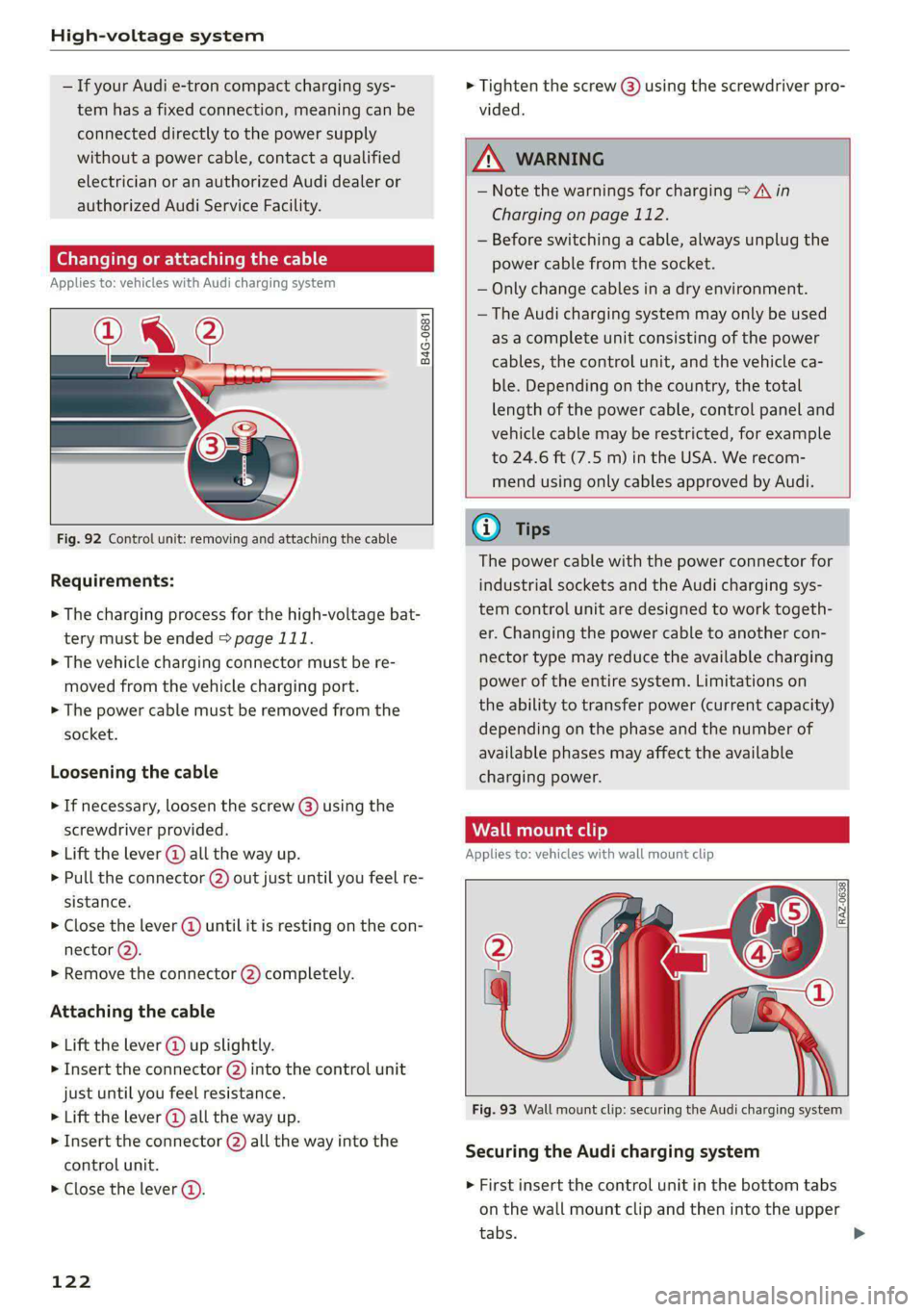
nging or attaching the cable
Applies to: vehicles with Audi charging system
B4G-0681
Fig. 92 Control unit: removing and attaching the cable
Requirements:
> The charging process for the high-voltage bat-
tery must be ended > page 111.
> The vehicle charging connector must be re-
moved from the vehicle charging port.
> The power cable must be removed from the
socket.
Loosening the cable
> If necessary, loosen the screw (8) using the
screwdriver provided.
> Lift the lever @ all the way up.
> Pull the connector (2) out just until you feel re-
sistance.
> Close the lever @ until it is resting on the con-
nector Q).
> Remove the connector (2) completely.
Attaching the cable
> Lift the lever @ up slightly.
> Insert the connector @) into the control unit
just until you feel resistance.
> Lift the lever @) all the way up.
> Insert the connector (2) all the way into the
control unit.
> Close the lever @).
122
> Tighten the screw @) using the screwdriver pro-
vided.
ZA WARNING
— Note the warnings for charging > A\ in
Charging on page 112.
— Before switching a cable, always unplug the
power cable from the socket.
— Only change cables in a dry environment.
— The Audi charging system may only be used
as a complete unit consisting of the power
cables, the control unit, and the vehicle ca-
ble. Depending on the country, the total
length of the power cable, control panel and
vehicle cable may be restricted, for example
to 24.6 ft (7.5 m) in the USA. We recom-
mend using only cables approved by Audi.
G) Tips
The power cable with the power connector for
industrial sockets and the Audi charging sys-
tem control unit are designed to work togeth-
er. Changing the power cable to another con-
nector type may reduce the available charging
power of the entire system. Limitations on
the ability to transfer power (current capacity)
depending on the phase and the number of
available phases may affect the available
charging power.
Wall mount clip
Applies to: vehicles with wall mount cli
[RAZ-0638]
Fig. 93 Wall mount clip: securing the Audi charging system
Securing the Audi charging system
> First insert the control unit in the bottom tabs
on the wall mount clip and then into the upper
tabs.
Page 127 of 316
4KE012721BE
Trailer towing
— Distribute the load in the trailer so that the
heavy objects are as close to the axle as possi-
ble.
— Secure objects so that they do not slide.
— Utilize the maximum permitted tongue weight
if possible.
Tires
Set the tire pressure on your vehicle for a “full
load”; see the tire pressure sticker > page 258. If
necessary, also adjust the tire pressure on the
trailer according to the manufacturer's specifica-
tions.
The trailer and the vehicle should be equipped
with winter tires when driving in winter tempera-
tures.
Outside mirrors
If you cannot see the traffic behind the trailer
with the standard exterior mirrors, then you
must attach additional exterior mirrors. Adjust
them so you have a sufficient visibility behind
you.
Exterior lighting
Follow the legal regulations for lighting on your
trailer that are applicable in the country where
you are operating the vehicle. Contact an author-
ized Audi dealer or authorized Audi Service Facili-
ty for more information.
Before you start driving, check all lighting equip-
ment on the trailer while it is hitched to the vehi-
cle.
The headlight range control automatically ad-
justs the light range of the headlights.
Safety chains
Make sure the safety chains are correctly applied
when pulling a trailer. The chains should hang
enough so that the trailer can drive around
curves. However, they must not touch the
ground.
Air suspension
Applies to: vehicles with air suspension
The Audi drive select* comfort mode > page 101
must be selected before you adjust the tongue
weight on the trailer and hitch the trailer >@,
=> page 102.
The air suspension trailer mode must be switched
on.
Applies to: MMI: Select on the home screen: VE-
HICLE > Settings & Service > Air suspension:
trailer.
Switch it off again when you are no longer towing
a trailer.
For vehicles with a factory-installed trailer hitch,
the air suspension trailer mode will automatically
switch on if you connect the trailer cable to the
socket.
When using carrier systems that are mounted di-
rectly on the trailer hitch ball head, you can also
switch trailer mode off manually.
If you must drive on roads that are in poor condi-
tion, you can raise the vehicle again after hitching
the trailer or after adjusting the tongue weight
=> page 102.
You can also increase ground clearance by select-
ing the Audi drive select* offroad or allroad
modes > page 101.
Vehicle levels below the values set in the comfort
level will no longer be available, even if you are
lowering the vehicle manually.
ZA WARNING
— Never turn off trailer mode while driving
when a trailer is hitched, because then the
restrictions for controlling the vehicle level
will be turned off.
— Driving with a trailer on unpaved roads when
the vehicle is raised may change the vehicle
handling. Adapt your speed.
— Note that the vehicle will lower automatical-
ly at certain speeds if you have lifted the ve-
hicle manually.
CG) Note
— Applies to: vehicles with air suspension: Se-
lect the Audi drive select* comfort mode.
Otherwise, the tongue load specified for
your vehicle will no longer be applicable.
125
>
Page 128 of 316
Trailer towing
— Attachments retrofitted on the vehicle may
cause damage, especially on the trailer
hitch ball head. In cases of damage, have
the function checked by an authorized Audi
dealer or authorized Audi Service Facility.
G) Tips
— Block the wheels with chocks when parking
on inclines if the trailer is loaded.
— Having the vehicle inspected between the
inspection intervals is recommended if you
tow a trailer frequently.
Driving with a trailer
Driving with a trailer requires extra caution.
Speed
Adhere to the legal speed limits. Follow the legal
regulations that are applicable in the country
where you are operating the vehicle.
As the speed increases, the driving stability of
the trailer decreases. Therefore you should not
exceed the maximum legal speed limit when
there are unfavorable road, weather, and/or wind
conditions. This especially applies when driving
downhill.
Hill
When you start driving uphill or downhill, trailers
may tilt or sway sooner than when driving ona
level surface. If small swaying movements have
already occurred, you can stabilize the trailer by
firmly braking immediately. Never attempt to
“straighten out” the trailer by accelerating.
Reduce the speed and use the recuperation brak-
ing effect > page 92 to relieve the brakes > A\.
Brakes
When using a trailer with overrun brakes, first
brake gently then quickly. This reduces the risk of
jerking while braking if the trailer wheels Lock up.
Z\ WARNING
Constant braking causes the brakes to over-
heat and can substantially reduce braking per-
126
formance, increase braking distance, or cause
complete failure of the brake system.
Page 130 of 316

Assist systems
Surrounding area
detection
Senso d camera coverage areas
RAZ-06T1
Fig. 95 Rearview camera coverage area
The assist systems analyze the data from various
sensors and cameras installed in the vehicle. Do
not use any assist systems if there is damage to
the vehicle in an area where sensors and cameras
are located or on the vehicle underbody, or if the
vehicle was involved in a collision. The functional-
ity of the sensors and cameras could be impaired,
or they could malfunction. Have an authorized
Audi dealer or authorized Audi Service Facility
check their function.
128
Radar sensors
Depending on the vehicle equipment, the area
surrounding the entire vehicle may be detected
> fig. 94 ©.
The wheel sensors on the rear corners of the vehi-
cle are positioned so that the adjacent lanes to
the left and right are detected on roads with a
normal lane width.
Ultrasonic sensors
Depending on vehicle equipment, various areas
may be displayed in the MMI using the ultrasonic
sensors > fig. 94.
The range of the displays depends on the location
of the ultrasonic sensors:
@ Approximately 4 ft (1.20 m)
® Approximately 3 ft (0.90 m)
@® Approximately 5.2 ft (1.60 m)
©® Approximately 3 ft (0.90 m)
© Approximately 3 ft (0.90 m)
The side area ©) is detected and evaluated when
passing. There may have been changes to the sur-
rounding area after switching the ignition off and
on again, after opening the doors, or if the vehi-
cle is left stationary for a period of time. In this
case, the area will appear black until the area has
been detected and evaluated.
Cameras
Use the camera image on the display to assist you
only if it shows a good, clear picture. Keep in
mind that the image in the display is enlarged
and distorted. Under certain circumstances, ob-
jects may appear different and unclear on the dis-
play.
The rearview camera can only detect the area
marked in red > fig. 95. Only this area is dis-
played on the upper display > A\.
ZA\ WARNING
Sensors and cameras have spots in which the
surrounding area cannot be detected. Objects,
animals, and people may only be detected
with limitations may not be detected at all.
Always monitor the traffic and the vehicle's >
Page 132 of 316

Assist systems
Rear area
Depending on the vehicle equipment, the follow-
ing sensors and cameras may be installed:
— Rearview camera in the luggage compartment
lid
— Radar sensors at the rear corners of the vehicle
— Rear and side ultrasonic sensors
Switching the systems
on and off
Z\ WARNING
Applies to: vehicles with laser scanner
— The surface of the laser scanner can become
hot during operation, which increases the
risk of burns.
— The laser scanner contains a class 1 laser in
accordance with IEC 60825-1:2014. When
used according to regulations, the laser is
not dangerous. Opening the laser module
and removing covers is not permitted. Doing
so could cause permanent injuries to the
eyes.
— Any repair work on the laser module must
be performed by an authorized Audi dealer
or authorized Audi Service Facility; other-
wise the vehicle's operating license may be
voided. Incorrect repairs may cause limited
functionality and eye damage.
[RAZ-1041
@ Tips
Applies to: vehicles with laser scanner
— The possible emissions are below the
threshold for class 1 lasers.
— Complies with 21 CFR 1040.10 and
1040.11 except for deviations pursuant to
Laser Notice No. 50, dated June 24, 2007.
@ Tips
— The locations of the sensors may differ
slightly depending on vehicle equipment.
— Some sensors are installed under vehicle
components and cannot be seen from the
outside.
— For an explanation on conformity with the
FCC regulations in the United States and the
Industry Canada regulations, see
=> page 295.
130
Fig. 98 Center console: driver assistance systems button
Description
You can switch some assist systems on and off in
the MMI. Depending on the equipment, it may be
in the standard display or the profile selection.
> Press the & button @,, or
> Applies to: MMI: Select on the home screen:
VEHICLE > Driver assistance.
Standard display
Applies to: vehicles with standard display
> To switch a system on or off, press CD for the
desired system.
> To show the brief description of a system, press
© for the desired system.
Profile selection
Applies to: vehicles with profile selection
> To select a profile, press the profile name on
the upper display or press the & button (@ re-
peatedly until the profile is active.
> To list systems included in a profile, select E]
on the upper display.
> To show the brief description of a system, se-
lect @ for the desired system.
> To switch individual systems on and off in the
individual profile, select ¥ and CD for the de-
sired systems.
The following profiles can be selected:
— Maximum - All available systems are switched
on in this profile.
— Individual - You can switch the systems on and
off individually in this profile.
Page 135 of 316

4KE012721BE
Driving information
— If traffic signs do not conform to the standard
format
— If traffic signs are damaged or bent
— If traffic signs are displayed on sign holders
with electronic signs
— If the traffic signs or the roadways have
changed, and the navigation data is no longer
up-to-date
ZA WARNING
— Observe the safety precautions and note the
limits of the assist systems, sensors, and
cameras > page 127.
— Under some circumstances, traffic sign rec-
ognition may not detect traffic signs correct-
ly or detect them at all. As a result, the sys-
tem may not display the correct speed limit
or any speed limit.
@ Tips
— Traffic sign recognition does not adapt your
vehicle's speed to match the speed Limit.
— The display in the instrument cluster is
based on the units of measurement used for
speed in the country where the vehicle is be-
ing operated. As a result, a display of 50 in
the instrument cluster can mean either mph
or km/h, depending on the country.
Applies to: vehicles with camera-based traffic sign recognition
Accessing traffic sign recognition
> Select in the instrument cluster: vehicle func-
tions tab > Traffic signs.
Setting a traffic sign based speed warning
> Applies to: MMI: Select on the home screen:
VEHICLE > Driver assistance. > (<3) > Speed
warning.
You can select a warning threshold. If it is ex-
ceeded, then the current detected speed limit
will be shown in the display with an exclamation
point for the duration that it is exceeded and it
will blink for a short time.
Messages
Applies to: vehicles with camera-based traffic sign recognition
Traffic sign recognition: currently unavaila-
ble. Camera view limited due to surroundings
The camera’s visual field is covered. Clean the
windshield.
Traffic sign recognition: currently limited.
See owner's manual
This message appears if navigation system data
is not available, for example on newly-construct-
ed roads. The speed limit display will be tempo-
rarily limited, which increases the risk of an incor-
rect display. If this message continues to appear,
drive immediately to an authorized Audi dealer or
authorized Audi Service Facility to have the mal-
function repaired.
No traffic sign information available
Depending on the area, there is no valid naviga-
tion data and no speed limits were detected. This
may also appear if there is a recommended
speed, but no speed limit (for example when
driving on and off the expressway).
Malfunction! See owner's manual
The system may not function correctly so it has
been switched off. See an authorized Audi dealer
or authorized Audi Service Facility for assistance.
Function currently unavailable. See owner's
manual
If this message appears on vehicles without cam-
era-based traffic sign recognition, then the traffic
light
information function is currently unavaila-
ble. See > page 135.
133
Page 136 of 316

Driving information
Traffic light information
Applies to: vehicles with traffic light information
Fig. 100 Instrument cluster: traffic light information dis-
play
The traffic light information gives you a speed
recommendation in order to reach the next traffic
light when it is green @, or it informs you of the
wait time at the next red light (2). Once traffic
light data is received, the traffic light information
will be displayed in the instrument cluster and in
the head-up display*. If the vehicle is in an area
with traffic light information but cannot receive a
traffic light signal, then a gray traffic light sym-
bol will be displayed @).
General information
The traffic light information is subject to system
limitations and may be unavailable or only parti-
ally available in the following situations:
— Ifthe permitted speed limit is exceeded
— If driving below a certain speed limit
— If the next traffic light is less than approxi-
mately 100 feet (30 m) away
— Ifthe estimated wait time at a red light is less
than four seconds
—If there is no traffic light data available
— If emergency response vehicles or public transit
systems are active
— If traffic lights are in construction zones or be-
ing serviced
— If there are warnings from the camera-based
traffic sign recognition*
— If the camera-based traffic sign recognition* is
malfunctioning or not available
— If the data connection has been interrupted
134
— If data transmission is deactivated in the priva-
cy settings
— If the subscription has expired
If this is the case, the menu item will be grayed-
out or it will not be possible to select it.
ZA\ WARNING
— When traffic light information is shown, al-
so always pay attention to the traffic situa-
tion, the distance to other vehicles, and the
area around the vehicle. The driver is always
responsible for assessing the traffic situa-
tion.
— Always adapt your speed to the current
weather, road and traffic conditions. The dis
played information must never cause you to
ignore legal traffic regulations and pose a
safety risk.
— Regardless of the traffic light information,
you should always monitor your speed using
the speedometer and make sure you are ad-
hering to the legal speed limit.
— The traffic light information does not adjust
your vehicle's speed to the speed recom-
mendation shown in the display.
— Observe the safety precautions and note the
limits of the assist systems, sensors, and
cameras > page 127.
(i) Tips
— Traffic light information was only available
in select cities at the time this manual was
printed.
— Traffic light information is not available na-
tionwide.
— The functions depend on the navigation da-
ta* being up-to-date and correct identifica-
tion by the traffic sign recognition*.
— Incorrect values from the camera-based
traffic sign recognition* or outdated naviga-
tion system* map data can result in missing
or incorrect display images.
— Certain traffic lights can automatically ad-
just to the current traffic situation. If this
occurs, the display of traffic light informa-
tion can change suddenly.
Page 139 of 316
4KE012721BE
Driving information
The Sl symbol will appear when pedestrian and
wild animal detection is not available.
Marking light*
To direct the driver's attention to a pedestrian,
the headlights can flash on the pedestrian when
there is a pedestrian warning.
This occurs at speeds above approximately
35 mph (60 km/h) if you are outside of illuminat-
ed areas and no detected vehicles are shown. The
marking light is not used for wild animals. The
high beam assistant* controls the marking
light*> page 46.
Adjusting the contrast
Applies to: vehicles with night vision assist
Requirement: the night vision assist must be
switched on and the 1 tab must be displayed.
> Applies to: MMI: Select on the home screen:
VEHICLE > Driver assistance > (<3) > Night vi-
sion assist.
> To set the desired contrast, move the slider.
Messages
Applies to: vehicles with night vision assist
Night vision assist: currently unavailable.
See owner's manual
The system is not functioning correctly at the
time, so it has been switched off. If the malfunc-
tion persists, drive immediately to an authorized
Audi dealer or authorized Audi Service Facility to
have the malfunction repaired.
Integrated Toll Module
Applies to: vehicles with Integrated Toll Module
Depending on the region, you can pay toll fees in
certain countries using the Integrated Toll Mod-
ule (ITM). It replaces a separate transponder for
detecting toll fees. The system electronics are in-
tegrated in the rearview mirror housing.
@) Tips
For an explanation on conformity with the
FCC regulations in the United States and the
Industry Canada regulations, see > page 295.
Applies to: vehicles with Integrated Toll Module
To use the ITM in toll zones, you must register
and activate it.
Registration
> Applies to: MMI: Select on the home screen:
VEHICLE > Settings & Service > Integrated Toll
Module.
> Note the Integrated Toll Module ID.
> To register the ITM, go to the displayed web ad-
dress and follow the instructions.
Activation
> To activate the ITM, press CD in the MMI.
Entering the number of passengers
Depending on the number of passengers and the
region, a lower toll fee may be charged. You must
either enter the number of passengers or deacti-
vate the ITM based on the laws applicable in the
area where you are driving.
> To enter the number of passengers, select the
appropriate button in the MMI.
> To deactivate the ITM, press © in the MMI.
@ Tips
— The driver is responsible for specifying the
correct number of passengers and activat-
ing or deactivating the ITM.
— Malfunctions can occur when detecting tolls
if both the ITM and transponder are activat-
ed. Deactivate the system not being used or
remove it as necessary.
—Ifa rearview mirror is replaced, you must
register the new ITM and remove the old
ITM from the account.
137