display AUDI Q2 2021 Owner´s Manual
[x] Cancel search | Manufacturer: AUDI, Model Year: 2021, Model line: Q2, Model: AUDI Q2 2021Pages: 364, PDF Size: 87.77 MB
Page 260 of 364

System settings
phone in the Audi phone box*. The following set
tings are available:
- off: Switches the reminder signal off.
-
sound:
A sound is played as the reminder
sig
nal.
- spoken: The reminder signal is spoken by the
system.
Reminder signal volume: You can adjust the
vol
ume of the reminder signal by turning the rotary
pushbutton.
Switch off pop-up: This function is switched off
at the factory. When this function is switched on
fcTf,
the messages about the charging status of
the mobile phone in the Audi phone box* on the
infotainment display will not appear. The re
minder not to forget the mobile phone when
leaving the vehicle will also be switched off.
Usage tips
Your MMI dispLays usage tips when this function
is switched on
5f.
They will appear less often as
time goes by.
Speech dialogue system
Applies to: vehicles with speech dialogue system
The following functions are available depending
on the equipment installed in your vehicLe:
Command display: The MMI displays possible
voice commands in the corresponding menu
when this function is switched on
Sf.
Short dialogue: When this function is switched
on
(vj,
the spoken cues are shortened.
Command during speech dialogue*: This option
is activated when the vehicle leaves the factory.
When this option is activated
(vf,
you can say a
new command while the system is giving a spo
ken cue, rather than waiting for the beep. When
this option is deactivated
O,
wait until you hear
the beep to say
a
command.
Volume: You can adjust the volume of the spoken
cues by turning the rotary pushbutton.
Individual speech training (only possibLe when
the vehicle is stationary): You can use the individ
ual speech training to adapt the speech dialogue
system to your voice or pronunciation so that the
speech dialogue system can then better recog
nise what you are saying. The individual speech
training prompts you to repeat 20 spoken phra
ses that consist of certain commands and blocks
of digits. If
you
would like to delete the stored
speech training setup, you can use the function
Reset individual speech training.
Display brightness
Display brightness: You can adjust the bright
ness of the infotainment display by turning the
rotary pushbutton.
Factory settings
You can reset the following functions to the fac
tory settings:
- Sound settings
- Radio
- Media settings
-Jukebox*
- Directory
-Telephone
- Bluetooth and Wi-Fi*
- Navigation settings*
- Navigation and online memory*
- Speech dialogue system*
- Message settings*
- Apps*
-Usage tips
-Audi connect*
- Audi smartphone interface*
You can select the desired options individually or
mark Select all entries. SeLect and confirm Re
store factory settings.
Please note that not only settings will be de
Leted
when you do this; saved data may also
be erased
256
Page 261 of 364

System settings
Connection manager
Introduction
The
connection manager
gives
you an overview
of your connected
devices
and their connection
status.
Settings
Connection manager
*
MyPhone
• Additional
phone:
-• Data
connection:
• MMI connect app:
• Audi smartphone:
Fig.
205 Connection manager
•
Select: IMENUI button > Settings
>
Left control
button > MMI settings > Connection manager.
•
Select and confirm a menu option.
If
a
mobile device has already been connected
and you then select and confirm the correspond
ing menu item, the device's name and connection
mode is displayed under this menu item
^Fig.
205.
You can connect
((vj)
or disconnect
O)
a connec
ted device individually.
Telephone
Applies
to: vehicles with telephone
- Connect new device: You can search for and
connect
a
mobile phone.
- List of devices already bonded: Select your mo
bile phone from the List of all devices which
have already been bonded. Or: Insert your own
mini SIM card in the SIM card reader*
^>page
176.
Second phone
Applies
to: vehicles with Audi phone box
- Connect new device: You can search for and
connect
a
mobile phone.
- List of devices already bonded: Select your mo
bile phone from the List of all devices which
have already been bonded.
Data connection
Applies
to: vehicles with Audi connect (infotainment)
Applies
to: option using the embedded SIM card
- The embedded SIM
card1)
will be used for the
data connection
^>page
191. You do not need
to adjust any other settings.
Applies
to: option using your own SIM card
- Connect new device: You can search for and
connect
a
mobile device (e.g. a smartphone).
- List of devices already bonded: Select your mo
bile phone from the List of all devices which
have already been bonded. Or: Insert your own
mini SIM card in the SIM card reader*.
© CAUTION
Please always observe the information
•=>©
in
Wi-Fi hotspot on page 202.
MMI connect app
Applies
to: vehicles with Audi connect (infotainment)
Important: The Audi MMI connect app must be
installed on your mobile device and have been
started.
- Connect new device: You can search for and
connect
a
mobile device (e.g. a smartphone).
- List of devices already bonded: Select your mo
bile device from the List of all devices which
have already been bonded.
Music
Applies
to: vehicles with Bluetooth audio player or Wi-Fi au
dio
player
Audio player*
Important: The Bluetooth function and the dis
coverability option of both the MMI system
opage
258 and the mobile phone must be
acti
vated.
CO
rN
IV
rN
t-H
o <
x)
SIM card installed in vehicle at factory.
257
Page 262 of 364

System settings
- To connect a new device: Press the rotary push
button.
Select Bluetooth audio player. Search
for and connect a mobile device.
- List of devices already bonded: Select a Blue
tooth device from the list of all devices which
have already been bonded.
Wi-Fi audio player*
Important: The Wi-Fi hotspot* on the MMI sys
tem
<=>page
201 and your mobiLe phone must be
activated.
- To connect a new device: Press the rotary push
button.
Search for and connect
a
Wi-Fi enabled
device.
- To disconnect a Wi-Fi audio player: Deactivate
Wi-Fi on your Wi-Fi enabled device. The device
will be removed from the list automatically.
© CAUTION
Please always observe the information
•=>©
in
Wi-Fi hotspot on page 202.
Directory
Applies to: vehicles with telephone
You
can display the contacts from (other) mobile
phones.
Important: No mobiLe phones are connected to
the MMI via the Bluetooth remote SIM Access
Profile or the Handsfree profile.
- Connect new device: You can search for and
connect
a
new mobile phone. Or: Slide your
own mini SIM card into the slot in the SIM card
reader* until you feel it engage
^>page
176,
Fig. 160.
- List of devices already bonded: Select your mo
bile phone from the list of all mobiLe phones
which have already been bonded.
Audi smartphone
Applies to: vehicles with Audi smartphone interface
-
Connect
your mobile phone to the Audi music
interface
^>page
241 via a USB adapter
•=>page
240, Fig. 196.
- SeLect your mobile phone from the List of mo
bile phones already connected.
Further options
Further options may be available in the connec
tion manager via the right control button de
pending on the function selected.
Delete Bluetooth device*
The selected mobile phone/mobile device will be
disconnected from the MMI system and removed
from the list of devices already connected.
Display Bluetooth profiles*
You can Connect or Disconnect the Handsfree,
Car phone*, Messages*, Directory/contacts and
Bluetooth audio player profiles individually.
Bluetooth settings*
- Bluetooth: Select and confirm a discoverability
setting
for
the Bluetooth connection. Select
visible to make the MMI visible to other
devi
ces.
Select invisible to make the MMI invisible
to other devices. Devices which have already
been bonded can connect via Bluetooth even
when discoverability is deactivated. Select off
to switch discoverability off. It is then not pos
sible to establish a Bluetooth connection.
- Bluetooth audio player: When this function is
switched on
(vf,
the Bluetooth audio player is
available as a source in the Media menu.
- Bluetooth name: The Bluetooth name of the
MMI system (e.g. "AUDI MMI 2017") is dis
played and can be changed.
Online settings*
- Data connection settings: Refer to
^>page
203,
Configuring the data connection.
- Data usage meter: The number of the data
packets sent/received via the MMI system is
displayed.
Select Reset data meter to reset the
usage statistics to zero.
- Connection status: The mobiLe network provid
er for data services and the network status are
displayed.
Wi-Fi settings*
Refer to
^>page
201, Wi-Fi hotspot.
258
Page 263 of 364

System settings
Store as default telephone
Applies to: vehicles with telephone
Important: A mobile phone must be connected
to the MMI system
^>page
173.
This mobile phone will be prioritised over other
Bluetooth devices and connected as soon as it is
within range. For this to occur, the Bluetooth
function of both the mobile phone and the MMI
must be switched on. The connected mobile
phone is shown at the top of the device list.
SIM PIN settings*
Applies to: option using your own SIM card
- Automatic PIN entry: When this function is
switched on
[vf,
the SIM PIN is stored in the
MMI after it has been entered for the first time.
You can save the PIN codes of four different
SIM cards on the MMI. If this function is
switched off
O,
the PIN currently stored in the
MMI will be deleted. If the automatic PIN entry
function is activated, the system does not ask
you to enter your SIM PIN explicitly.
- Deactivate PIN query: The system does not ask
for the SIM PIN when you switch it on. The au
tomatic PIN entry function is ignored in this
case.
- Change PIN: You can change the PIN code for
your SIM
card.
First enter the existing PIN code
for
your SIM
card.
The SIM PIN code can only
consist of numbers from 0 to 9. The new SIM
PIN code has to be entered twice, as a precau
tionary measure, and is stored on the SIM
card.
Network settings*
- Registration: To dial into your service provid
er's mobile network automatically or to select a
network manually from the list of available
networks.
- Network selection: You can use this function to
select the available networks for the current
position of the vehicLe. This function is only
available when the manual setting is activated
for registration.
Apple CarPlay sound settings/Android Auto
< sound settings
PI
Applies to: vehicles with Audi smartphone interface
fN
§
Refer to
^>page
260.
About Apple
CarPlay/About
Android Auto
Applies to: vehicles with Audi smartphone interface
Here you will find legal information about using
Apple CarPlay/Android Auto and information
about data transfer for specific devices.
Delete CarPlay device/Delete Android Auto
device
Applies to: vehicles with Audi smartphone interface
Important: Your mobile phone must no longer be
connected to the Audi music interface via a USB
adapter.
To remove your mobile phone from the list of
mobile phones already connected, select and
confirm Delete CarPlay device or Delete Android
Auto device.
© Note
Some SIM cards do not allow the SIM PIN
query to be deactivated
System update
•
Select:
|MENU|
button > Settings > left control
button > System maintenance.
- System update: Insert the storage medium
with the update data into the appropriate drive
tapage
235. Select and confirm the appropri
ate drive > Start update. The duration of this
process depends on the size of the update.
- Reset driver installation: The media driver
package selected is reset to the factory de
faults.
- Version information: Information on the soft
ware version of the MMI and the navigation da
tabase* is displayed. In addition, you can use
the Software information function to display
information on the MMI's software and licence
conditions.
259
Page 266 of 364
System settings
Volume of announcements: You can adjust the
volume of traffic announcements by turning the
rotary pushbutton.
Speech dialogue system
Applies
to: vehicles with speech dialogue system
Command display: Refer to
<=>page
256.
Short dialogue: Refer to
^>page
256.
Volume: Refer to
^>page
256.
Individual speech training: Refer to
^>page
256.
Parking
aid*
You can adjust the volume of the sounds by
turn
ing the rotary pushbutton.
- To adjust the front volume: Select and confirm
high,
medium or low.
- To adjust the rear volume: Select and confirm
high,
medium or low.
MMI touch*
You can adjust the volume of the MMI touch*
spoken cues by turning the rotary pushbutton.
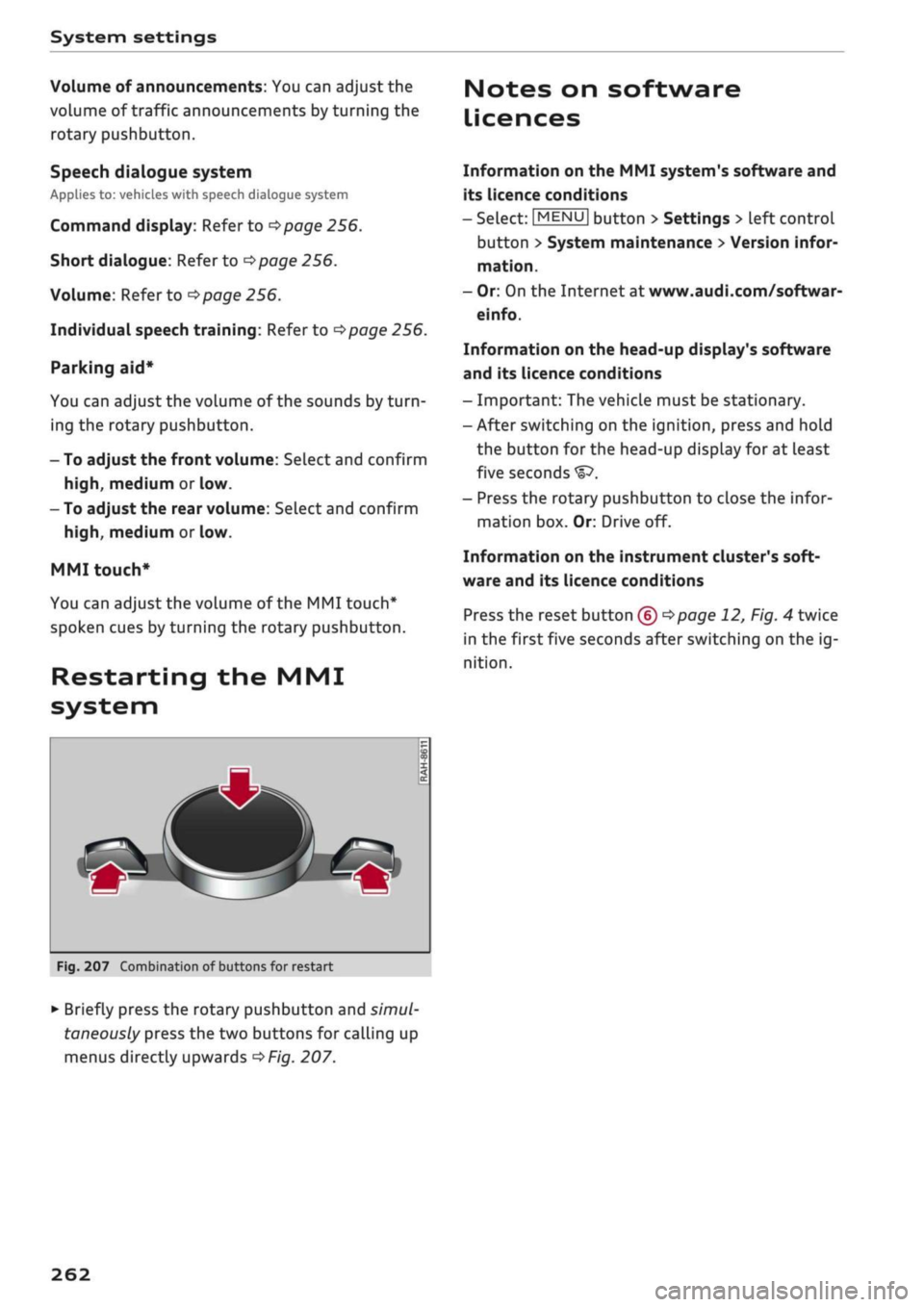
Restarting the MMI
system
_
Fig.
207 Combination of buttons for restart
•
Briefly press the rotary pushbutton and
simul
taneously press the two buttons for calling up
menus directly upwards
^>Fig.
207.
Notes on software
Licences
Information on the MMI system's software and
its licence conditions
- Select:
|MENU|
button > Settings > left control
button > System maintenance
>
Version infor
mation.
- Or: On the Internet at www.audi.com/softwar-
einfo.
Information on the head-up display's software
and its licence conditions
- Important: The vehicLe must be stationary.
- After switching on the ignition, press and hold
the button for the head-up display for at least
five seconds
- Press the rotary pushbutton to close the infor
mation box. Or: Drive off.
Information on the instrument cluster's soft
ware and its licence conditions
Press the reset button
(£) ^>page
12, Fig. 4 twice
in the first five seconds after switching on the ig
nition.
262
Page 296 of 364
Checking and topping up fluids
Selective catalytic
reduction (AdBLue/DEF)
General notes
Applies to: vehicles with selective catalytic reduction
On vehicles with selective catalytic reduction, a
urea solution (AdBLue/DEF) is injected into the
exhaust system upstream of
a
NOx catalytic
con
verter in order to reduce nitrogen oxide emis
sions.
The urea solution is known under the name
of AdBlue or DEF (Diesel Exhaust Fluid). The term
AdBlue is used below.
The AdBlue is held in a separate tank on the
vehi
cle.
AdBlue consumption is approximately 1.0 -
2.5% of diesel fuel consumption.
As soon as a message appears in the instrument
cluster display reminding you to refill AdBlue,
you must refill the AdBlue tank or have this done
by
a
qualified workshop
^>page
293.
Checking the remaining range
The remaining (estimated) range for the current
AdBLue
level can be displayed on the on-board
computer:
- Vehicles with analogue instrument cluster
•=>
page 20.
- Vehicles with virtual cockpit*
<$page
19.
-The instrument cluster display will
tell
you
how far you can drive before the tank runs
dry
•=>page
292. If the AdBlue tank runs
dry, the engine cannot be started again af
ter you switch off the ignition.
-The use of
AdBLue for
the operation of this
vehicle is required by Law.
Instrument cluster display
Applies to: vehicles with selective catalytic reduction
The
display informs you if the AdBlue level is too
low or if a system malfunction occurs.
Low AdBlue level
You will be informed if the amount of AdBlue in
the tank falls below a certain
Level.
Add at least
the minimum (smaller) amount of AdBlue
shown:
S
Refill x
I
- x
I
AdBlue. Range: x km
This message tells you the maximum distance
that
you can drive with the remaining amount of
AdBlue. Refill AdBLue.
3
Refill x
I
- x
I
AdBlue! No restart in x km! See
owner's manual
This message tells you the maximum distance
that you can drive with the remaining amount of
AdBlue. Refill AdBlue. Otherwise, after driving
the maximum distance and switching off the en
gine,
you will not be able to restart the car.
| Refill x
I
- x
I
AdBlue! No restart. See own
er's manual
This message appears when there is no more
AdBlue left in the tank. Refill AdBlue. Otherwise,
you will not be able to restart the car after you
switch off the engine.
When the AdBlue in the tank reaches the
mini
mum
level,
you must add AdBlue
^>page
293,
Preparations.
Filling the wrong fluid / system fault
If
you
fill the AdBlue tank with a fluid other than
AdBlue and the system detects that the wrong
fluid has been added or there is a system fault, a
driver message will appear.
|
AdBlue:
system fault. No restart in x km!
See owner's manual
This message tells you the maximum distance
that
you can drive. Drive to a qualified workshop
and have the fault rectified. Otherwise, after driv
ing the maximum distance and switching off the
engine, you will not be able to restart the car.
|
AdBlue:
system fault. No restart! See own
er's manual
This message appears if the system detects that
the tank has been filled with the wrong fluid or if
there is a system fault. Drive to the nearest quali
fied workshop without delay and have the fault
rectified.
Otherwise, you will not be able to re
start the car after you switch off the engine.
292
Page 297 of 364

Checking and topping up fluids
Preparations
Applies to: vehicles with selective catalytic reduction
CO
<
O
rN
iv
rN
i—i
00
Fig.
241 Vehicle as seen from the rear right: Unscrewing
the AdBlue cap
The AdBlue filler neck is located immediately be
side the diesel filler neck. Add at least the
amount of AdBlue displayed in the instrument
cluster. If
you
do not refill this amount of
fluid,
the system may not detect that the tank has
been refilled and it may not be possible to restart
the engine. You can refill with a maximum of 12
litres.
Important: A message in the instrument cluster
display informs you if
you
need to refill AdBlue.
•
Park the vehicle on a level surface.
•
Switch off the ignition.
• Open the tank flap
<^>page
290.
•
Unscrew the cap on the filler neck
anti-clock
wise
^>Fig.
241.
*•
Refill AdBlue from a filler nozzle
^>page
293,
canister
^>page
294 or bottle
^>page
294.
A WARNING
AdBlue can cause irritation to the
skin,
eyes,
and respiratory organs. Wash thoroughly with
clean water should you come into contact
with this
fluid.
Seek medical assistance if nee
ded.
© CAUTION
- Use only
AdBLue
that complies with the ISO
22241-1 standard. Do not mix AdBlue with
additives and do not dilute it with water.
- AdBlue must not be added to the diesel
tank, and diesel must not be added to the
AdBlue tank. Never start the engine if you
fill up with the wrong type of
fuel,
as this
could damage the tank system and the en
gine.
Obtain professional assistance.
-AdBlue attacks surfaces such as paintwork,
plastic veneer and carpets. Remove spilt
flu
id as soon as possible with a damp cloth and
plenty of water. If the AdBlue has already
solidified,
use warm water and a sponge.
Residues of AdBlue solidify after
a
while if
they are not removed and can damage the
affected surface.
- Do not keep refill bottles or canisters in the
vehicle, as AdBlue can leak and damage the
vehicle interior.
- Keep AdBlue away from clothing. Wash
thoroughly with clean water should you
come into contact with this
fluid.
\J
Note
Please follow the AdBlue manufacturer's in
structions for storage and use.
Refilling AdBlue from a filler nozzle
Applies to: vehicles with selective catalytic reduction
•
Open the tank flap
^>page
290.
*•
Unscrew the cap on the filler neck
anti-clock
wise
^>page
293, Fig. 241.
*•
Fill up with AdBlue until the first time the filler
nozzle cuts off the supply
•=>(]}.
•
Put the tank cap back on
opage
294, After re
filling.
CAUTION
- The handle of the filler nozzle must point
downwards when filling the tank. Otherwise
the filler nozzle will not cut off the supply
automatically
^0
in Preparations on
page 293.
- You should stop refilling the first time the
filler nozzle automatically cuts off the sup
ply. Otherwise the level of AdBlue in the
tank may be too high and AdBlue could
overflow
<=>©
in Preparations on page 293.
293
Page 298 of 364

Checking and topping up fluids
Refilling AdBlue from a canister
Applies to: vehicles with selective catalytic reduction
#
Fig.
242 Canister with screw-on hose
• Take the cap off the refill canister
o^/n
Prep
arations on page 293,
<=>(T)
in Preparations on
page 293.
•
Screw the end of the hose (î) clockwise onto
the opening on the canister®.
•
Remove the cap
@
from the other end of the
hose®.
•
Fit the end of the hose (2) onto the filler neck
on the vehicle and turn clockwise as far as the
stop to secure.
• Lift the canister and then tilt it. Keep it tilted
until empty or until no more fluid runs into the
tank.
•
Remove the canister and screw the tank cap
back on
^>page
294, After refilling.
CAUTIO
Use only refill canisters of the correct type ap
proved for your vehicle. AdBlue may Leak out
if
you
use another system.
© Note
- Your qualified workshop can tell you which
refill canisters are approved
for
your
vehi
cle.
- Approved refill canisters contain about 5 li
tres of AdBlue.
Refilling AdBlue from a bottle
Applies to: vehicles with selective catalytic reduction
•
Take the cap off the refill bottle
<=>^
in Prepa
rations on page 293,
•=>(?)
in Preparations on
page 293.
•
Screw the bottle clockwise onto the filler neck
as far as it will go.
•
To empty the bottle, lightly press the bottom
of the bottle. Keep pressing the bottom of the
bottle until the bottle is empty, or until no
more fluid runs into the tank.
•
Remove the bottle and screw the tank cap back
on
<=>page
294, After refilling.
(J) CAUTION
Use only refill bottles of the correct type ap
proved for your vehicle. AdBlue may leak out
if
you
use another system.
- Refill bottles are available from qualified
workshops.
- Approved refill bottles contain about 1.9 Li
tres of AdBlue.
After refilling
Applies to: vehicles with selective catalytic reduction
Closing the filler neck
•
Screw the AdBlue cap clockwise onto the filler
neck until the AdBlue cap clicks audibly
•=> /\
in
Preparations on page 293,
^>(T)in
Prepara
tions on page 293.
•
Press the left side of the flap to close it (you
should hear it click into place).
After refilling
The vehicle must be driven so that the system
can detect the AdBlue which has been added.
This process can take several minutes.
• If the AdBlue tank had run dry and a range of
0 km was shown on the display, switch on the
ignition for approx. 30 seconds before starting
the engine.
© Note
AdBlue can freeze in the tank at very Low
tem
peratures. In this case, the system will not
detect AdBlue when you refill and will contin
ue to indicate a Low
AdBLue
Level. The mes
sage will disappear as soon as the tank has
thawed.
294
Page 301 of 364
Checking and topping up fluids
A WARNING
- To avoid the risk of being scalded, never
open the bonnet if
you
see steam or coolant
escaping from the engine compartment.
Wait until no steam or coolant can be seen
before opening the bonnet.
- For safety reasons the bonnet must always
be completely closed when the vehicle is
moving.
After closing it always check that it
is properly secured. It should not be possi
ble to
lift
the front edges of the bonnet.
Should you notice that the bonnet is not
safely secured when the vehicle is moving,
stop the vehicle immediately and close the
bonnet properly, otherwise it could cause an
accident.
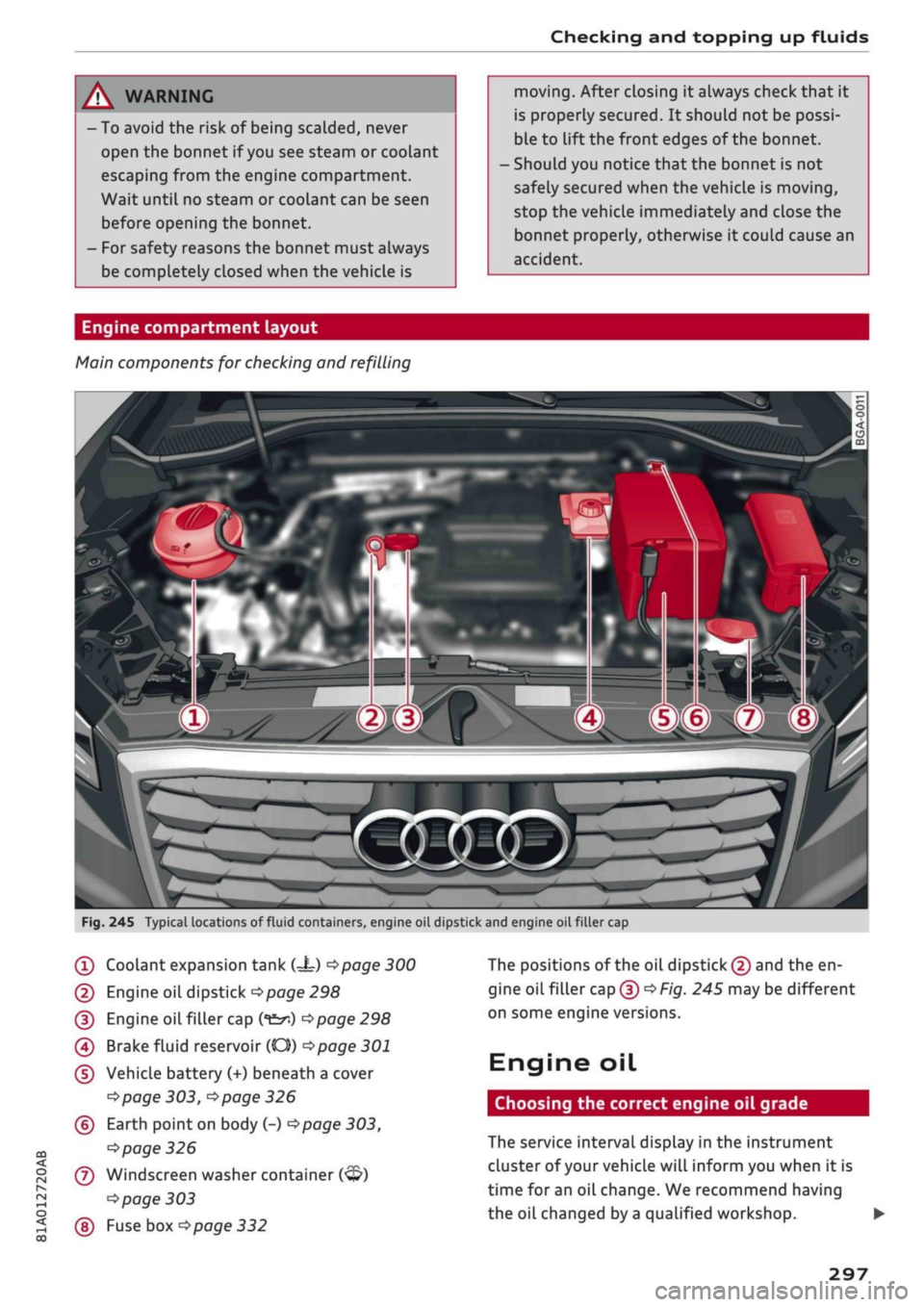
Engine compartment layout
Main components for checking and refilling
CO
< o rN
iv
rN
t-H
o <
?
Fig.
245 Typical locations of fluid containers, engine oil dipstick and engine
oilfiller
cap
(T)
Coolant expansion tank
C=t)
<^page
300
(2) Engine oil dipstick
Opage
298
(3) Engine
oilfiller
cap
(*&*)
Opage
298
(4) Brake fluid reservoir (CO))
^>page
301
(5) Vehicle battery (+) beneath a cover
^page
303,
^page
326
(?) Earth
point
on
body
(-)•=>page
303,
^>page
326
(7) Windscreen
washer
container
(<3?)
^>page
303
(§)
Fuse box
^page
332
The positions of the oil
dipstick
(2) and the en
gine
oilfiller
cap(D^F/'g.
245 may be different
on some engine versions.
Engine oil
Choosing the correct engine oil grade
The service interval display in the instrument
cluster of your vehicle will inform you when it is
time for an oil change. We recommend having
the oil changed by
a
qualified workshop. •
297
Page 308 of 364
Checking and topping up fluids
© CAUTIO
-The anti-freeze concentration must be
matched to the climate of the country in
which you are driving. If the concentration
is too
high,
damage to the car may result.
- Never put in radiator anti-freeze or other
additives.
- Never use washer fluid which contains paint
thinners or solvents as it can damage the
paintwork.
Service interval display
The
service interval display detects when the
next
service
is due
for
your vehicle.
There are two service interval dispLay levels:
- Inspection or oil change reminder: After a cer
tain mileage, a service reminder will appear in
the instrument cluster dispLay each time the ig
nition is switched on/off. The distance or time
remaining will be shown briefly.
- Inspection or oil change due: When your
vehi
cle is due for an inspection, oil change or
both,
the corresponding reminder Inspection
due!,
Oil change due! or Oil change and inspection
due!
will appear briefly after you switch the ig
nition on/off.
Checking the service intervals
On the infotainment system, you can look up the
distance and time remaining until the next oil
change or next service inspection. Select the
fol
lowing on the infotainment system:
|MENU|
but
ton > Car
>
left control button > Servicing &
checks
>
Service intervals.
Applies
to: vehicles with flexible oil change service
You cannot check the service interval on a new
vehicle until it has been driven for about 500 km.
Qualified workshops reset the service interval af
ter the oil is changed. The distance to the next oil
change is initially displayed based on the driving
profile prior to the oil change. Your own personal
driving profile is used subsequently to calculate
the remaining distance. Frequent cold starts or
short trips place extra demands on the engine oil
with the result that the oil has to be changed
more often.
Resetting the display
Your qualified workshop resets the service inter
val display after each service.
It is very important that you reset the oil change
dispLay if
you
change the oil yourself. The
next
oil
change will be due after
a
fixed service interval.
To reset the display, select the following on the
infotainment system:
|MENU|
button > Car
>
left
control button > Servicing & checks
>
Service in
tervals
>
Reset oil change interval.
(J) CAUTION
- Do not reset the oil change interval display
unless you have changed the oil.
- Keeping to the correct service intervals is
crucial for the operation, service life and re
sidual value of the vehicle (and especially
for the life of the engine). Services must al
ways be carried out promptly, even if the
mileage is Low.
304