change wheel AUDI Q2 2021 Owner´s Manual
[x] Cancel search | Manufacturer: AUDI, Model Year: 2021, Model line: Q2, Model: AUDI Q2 2021Pages: 364, PDF Size: 87.77 MB
Page 87 of 364
Driving
Check that the brakes work properly (especially
after driving through water).
WARNING
- You should exercise particular care when
driving on difficult road surfaces, and try to
anticipate hazards in advance. Excessive
speed or careless manoeuvres can result in
personal injury or damage to the vehicle.
- Always adjust your speed to suit the terrain
or road surface and weather or traffic condi
tions.
Drive extra slowly when visibility is
limited by uneven terrain.
- Please note that there can be an increased
tendency for the wheeLs to spin in ESC off-
road mode, causing the vehicLe to lose grip,
in particular on slippery or wet roads -
dan
ger of skidding!
-The car's stability is restricted in ESC off-
road mode.
CO
<
O
rN
iv
rN
•-i
00
•} For
the sake of the environment
Take care not to damage the environment and
respect natural surroundings.
Note
Only drive where access by motor vehicles is
permitted and keep to the marked tracks and
routes.
Driving tips
When driving on rough tracks always drive slowly
and be aware of possible hazards.
Please observe the following precautions if you
drive the vehicle on unsurfaced tracks or off-
road:
•
When driving off-road you are advised to avoid
tracks or terrain which are not suited to the de
sign of the car and your own driving skills and
experience. Do
not
take risks.
•
Drive slowly and be ready for possible hazards.
•
Be aware of the maximum ground clearance of
your vehicle. The figure in actual conditions
may be different, depending on the type of sur
face,
the surrounding terrain and the load be
ing carried. With certain types of suspension,
such as sports suspension, the ground clear
ance is reduced. It is the responsibility of the
driver to decide whether or not the vehicLe is
capable of safely negotiating a particular situa
tion.
•
Activate the ESC off-road mode if required
^>page
146.
Unsurfaced tracks
On unfamiliar roads and off-road terrain, drive
slowly and be prepared for unexpected obstacles,
such as pot-holes, rocks or tree stumps, etc.
To prevent ground contact and possible damage
to the underside, do not drive the bottom of your
vehicle directly over raised obstacles. Instead,
drive the wheels on one side of the car up and
across the top of the obstacle.
When driving over sand or soft mud, maintain a
moderate speed and avoid stopping if possible.
Driving through water on roads
Please observe the important safety warnings on
^>page
72.
Automatic gearbox
Introduction
Applies to: vehicles with automatic gearbox
The automatic gearbox is controlled electronical
ly. The gearbox changes up and down automati
cally.
When you drive at moderate speeds the gearbox
will select the most economical shift pro
gramme. It will then change up early and delay
the downshifts to give better fuel economy.
If you drive at higher speeds with heavy accelera
tion,
if you open the throttle quickly, or if you use
the kick-down or the car's maximum speed, the
gearbox will automatically select the more "spor
ty" shift programmes when the selector lever is
in position S.
If desired, you can also select the gears manually
(tiptronic mode)
^page
90, Manual gear se
lection (tiptronic mode). •
85
Page 92 of 364
Driving
tiptronic mode to use the engine braking effect
and reduce the load on the brakes.
Downhill speed control is deactivated as soon as
the road Levels out again or you press the acceler
ator pedal.
On vehicles with cruise control system*
<^>page
104, downhill speed control is activated
when you set
a
cruising speed.
A WARNING
The downhill speed control function cannot
defy the Laws of physics and may therefore
not be able to maintain a constant speed in
certain circumstances. Always be prepared to
use the brakes!
Manual gear selection (tiptronic mode)
Applies to: vehicles with automatic gearbox
The
tiptronic feature allows the driver to also
change gear manually.
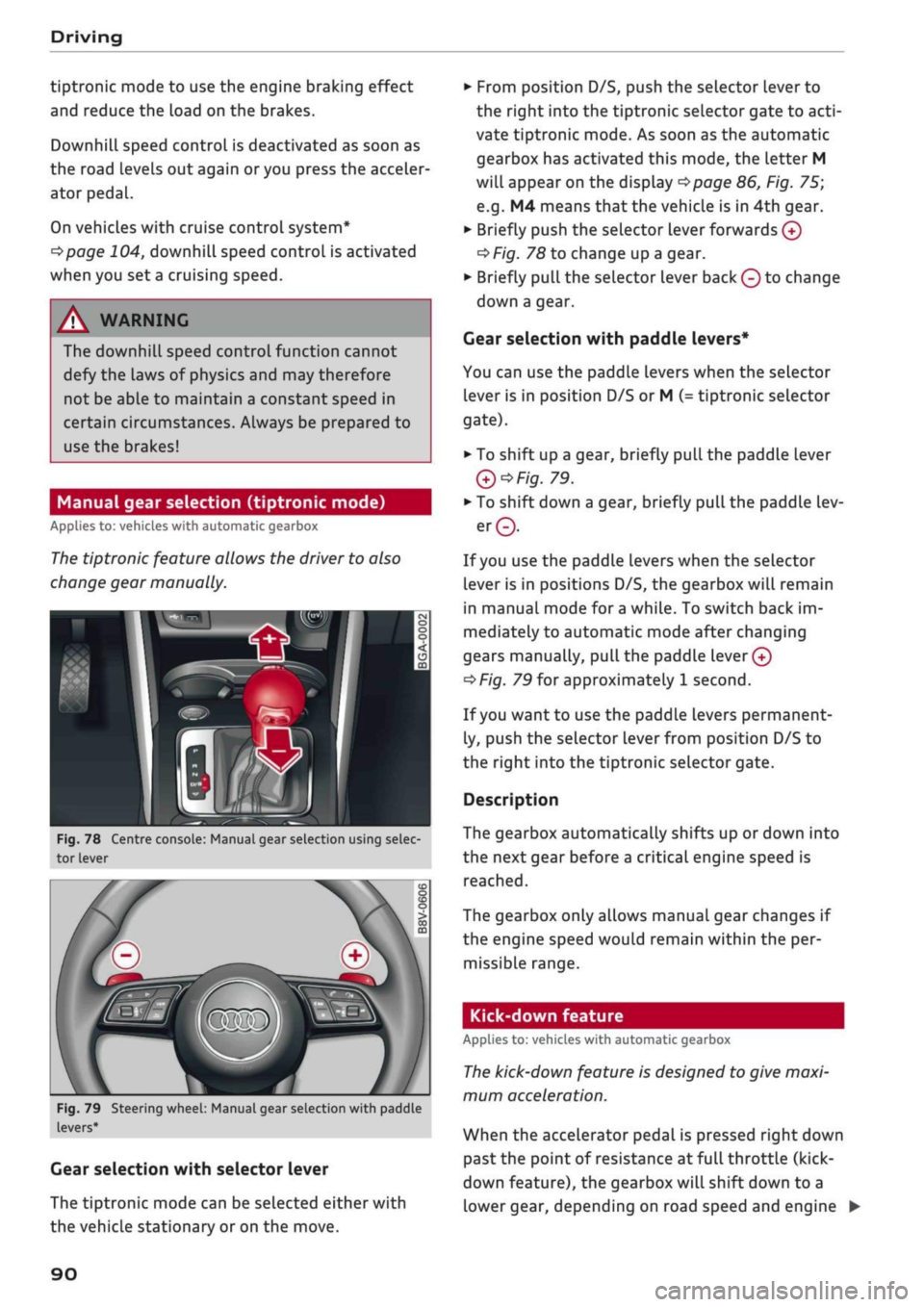
Fig.
78 Centre console: Manual gear selection using selec
tor lever
Fig.
79 Steering wheel: Manual gear selection with paddle
levers*
Gear selection with selector lever
The tiptronic mode can be selected either with
the vehicLe stationary or on the move.
•
From position D/S, push the selector lever to
the right into the tiptronic selector gate to
acti
vate tiptronic mode. As soon as the automatic
gearbox has activated this mode, the letter M
will appear on the display
opage
86, Fig. 75;
e.g.
M4 means
that
the vehicle is in 4th gear.
•
Briefly push the selector lever forwards
0
oF/'g.
78 to change up a gear.
•
Briefly pull the selector lever back
Q
to change
down a gear.
Gear selection with paddle levers*
You can use the paddle levers when the selector
lever is in position D/S or M
(-
tiptronic selector
gate).
• To shift up a gear, briefly pull the paddle lever
Q*Fig.
79.
•
To shift down a gear, briefly pull the paddle lev
er©.
If
you
use the paddle levers when the selector
lever is in positions D/S, the gearbox will remain
in manual mode for
a
while. To switch back im
mediately to automatic mode after changing
gears manually,
pull
the paddle
lever 0
^>Fig.
79 for approximately 1 second.
If
you
want to use the paddle levers permanent
ly, push the selector lever from position D/S to
the right into the tiptronic selector gate.
Description
The gearbox automatically shifts up or down into
the next gear before a critical engine speed is
reached.
The gearbox only allows manual gear changes if
the engine speed would remain within the per
missible range.
Kick-down feature
Applies to: vehicles with automatic gearbox
The
kick-down feature is designed to give maxi
mum acceleration.
When the accelerator pedal is pressed right down
past the point of resistance at full throttle (kick-
down feature), the gearbox
wilL
shift down to a
lower gear, depending on road speed and engine •
90
Page 100 of 364
Towing a trailer
Requirements for correct functioning of the
trailer stabilisation system
If these conditions are not met in
full,
the trailer
stabilisation system will only intervene to a
limi
ted extent or not at all
>=>
A-
- The electrical connection between the towing
vehicle and the trailer must be functioning cor
rectly.
- The load on the trailer must be properly se
cured.
- The tyre pressures on both the vehicLe and the
trailer must be adapted to the load that is be
ing carried.
- Where possible, operate the trailer with the
maximum permitted draw bar weight.
- The trailer overrun brake must be set correctly.
This is important to ensure that the trailer can
be braked correctly, to avoid the vehicle and
trailer "jack-knifing" and to prevent excess
braking of the trailer.
- At low outside temperatures, both the towing
vehicle and the trailer should be fitted with
winter tyres.
A WARNING
It is essential that you adjust your speed to
suit the weather, road and traffic conditions.
Do not let the trailer stabilisation system
tempt you into taking any risks when driving -
this can cause accidents.
- The ESC and trailer stabilisation system
can
not defy the Laws of physics. This should be
kept in mind, particularly on slippery and
wet roads and when towing a trailer with a
light Load.
- The trailer stabilisation system is function
al,
regardless of whether the trailer has a
mechanical overrun brake or not.
- The trailer stabilisation system is not always
able to detect swaying of trailers with a
light load and will therefore not intervene.
- A trailer can still "jack-knife" on slippery
roads with little grip, even if the towing ve
hicle is equipped with the trailer stabilisa
tion system.
-Trailers with a high centre of gravity may
even tip over before they start to sway
side
ways.
-If
you
are not towing a trailer,
but
the
trail
er socket is being used (e.g. for an illumina
ted bicycle rack), the trailer stabilisation
system may be activated in extreme driving
conditions.
- Please note the additional information and
warnings
^>page
98, Driving tips.
Driving tips
Driving with a trailer always requires extra care.
Weight distribution
Try to avoid towing a loaded trailer with an unla
den vehicle. If this cannot be avoided, drive extra
slowly to allow for the unbalanced weight distri
bution.
Speed
Normally, you must not exceed 80 km/h when
towing a trailer or caravan. However, if the
trail
er/caravan is equipped with a trailer stabilisation
system,
you can drive at max. 100 km/h. Please
observe any other regulations applicable in the
country in which you are travelling.
The stability of the car and trailer is reduced with
increasing speed. For this reason it is advisable
not to drive at the maximum permissible top
speed in unfavourable
road,
weather or wind
con
ditions. This applies especially on a downhill gra
dient.
You should always reduce speed immediately if
the trailer shows the slightest sign of swaying.
Never try to stop the swaying by accelerating fur
ther.
Always brake in good time. If the trailer has an
overrun brake, apply the brakes gently at first
and then firmly. This will prevent the jerking that
can be caused by the trailer wheels locking.
Change down in good time before going down a
steep hill so
that
you can use the engine braking
effect to slow down the vehicLe.
Swaying and pitching can be reduced by attach
ing an extra stabiliser to the trailer. It should •
98
Page 116 of 364
Driver assist systems
Setting the speed and activating the cruise
control
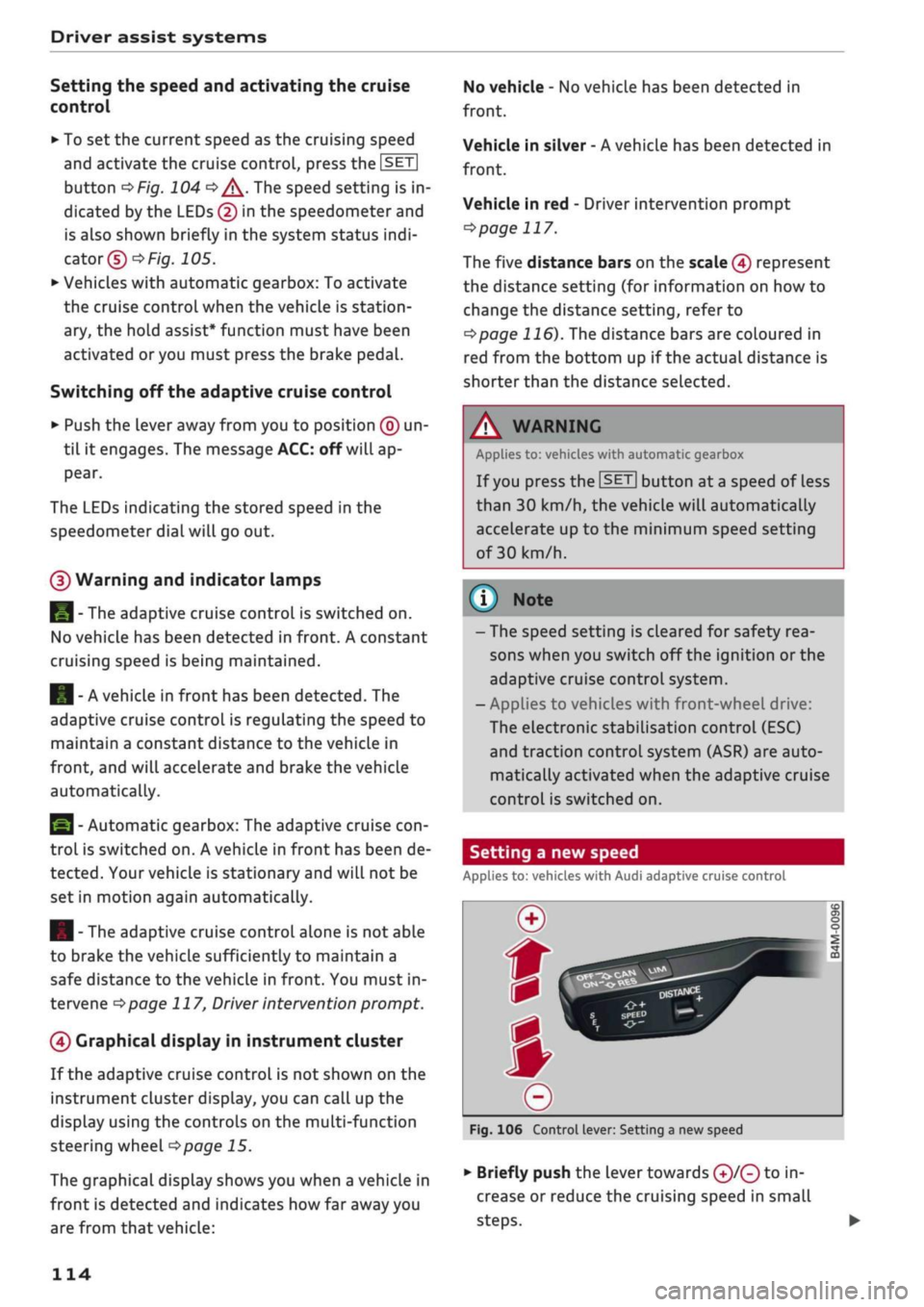
•
To set the current speed as the cruising speed
and activate the cruise control, press the
|SET|
button
<=>Fig.
104
"=>^.
The speed setting is in
dicated by the LEDs © in the speedometer and
is also shown briefly in the system status
indi
cator©
OF/g.
J
05.
•
Vehicles with automatic gearbox: To activate
the cruise control when the vehicle is station
ary, the hold assist* function must have been
activated
or
you must press the brake pedal.
Switching off the adaptive cruise control
•
Push the Lever away from you to position © un
til it engages. The message
ACC:
off will ap
pear.
The LEDs indicating the stored speed in the
speedometer dial will go out.
(3) Warning and indicator lamps
I
- The adaptive cruise control is switched on.
No vehicle has been detected in front. A constant
cruising speed is being maintained.
] - A vehicle in front has been detected. The
adaptive cruise control is regulating the speed to
maintain a constant distance to the vehicle in
front, and will accelerate and brake the vehicle
automatically.
I
- Automatic gearbox: The adaptive cruise
con
trol is switched on. A vehicle in front has been de
tected.
Your vehicLe is stationary and will not be
set in motion again automatically.
I
- The adaptive cruise control alone is not able
to brake the vehicle sufficiently to maintain a
safe distance to the vehicLe in front. You must in
tervene
ipage
117,
Driver intervention prompt.
©
Graphical display in instrument cluster
If the adaptive cruise control is not shown on the
instrument cluster display, you can call up the
display using the controls on the multi-function
steering wheel
^>page
15.
The graphical display shows you when a vehicLe in
front is detected and indicates how far away you
are from that vehicle:
No vehicle - No vehicLe has been detected in
front.
Vehicle in silver - A vehicle has been detected in
front.
Vehicle in red - Driver intervention prompt
<5page
117.
The five distance bars on the scale © represent
the distance setting (for information on how to
change the distance setting, refer to
^>page
116). The distance bars are coloured in
red from the bottom up if the actual distance is
shorter than the distance selected.
A
WARNING
Applies to: vehicles with automatic gearbox
If
you
press the
|SET|
button at
a
speed of less
than 30 km/h, the vehicLe will automatically
accelerate up to the minimum speed setting
of 30 km/h.
Note
- The speed setting is cleared for safety rea
sons when you switch off the ignition or the
adaptive cruise control system.
- Applies to vehicles with front-wheel drive:
The electronic stabilisation control (ESC)
and traction control system (ASR) are auto
matically activated when the adaptive cruise
control is switched on.
Setting a new speed
Applies to: vehicles with Audi adaptive cruise control
Fig.
106 Control lever: Setting a new speed
•
Briefly push the lever towards ©/© to in
crease or reduce the cruising speed in small
steps.
•
114
Page 125 of 364

Driver assist systems
H
Audi pre sense: currently restricted. Sensor
view restricted due to surroundings.
This message appears if the radar sensor vision is
impaired,
e.g. by leaves, snow, heavy road spray
or dirt. If necessary, clean the sensor
*$
page 112, Fig. 101.
[^
Audi pre sense: currently restricted
This message appears in certain situations, e.g.
when the ESC is partially or fully deactivated.
Q
Audi pre sense: currently restricted. See
owner's manual
Applies to: vehicles with Audi side assist
If
you
operate the turn signals while the active
lane assist and side assist are active, the steering
will be corrected just before you cross the lane
demarcation if the side assist detects vehicles ap
proaching quickly or travelling at about the same
speed as your own vehicle and judges the situa
tion to be critical. This intervention is intended to
keep the vehicle in the Lane.
Applies to: vehicles without Audi side assist
The system does not warn you if
you
operate the
turn signal before crossing a Lane marking. In
this case, it assumes that you intend to change
lanes.
Applies to: vehicles with traffic jam assist
The traffic jam assist can be activated at speeds
below approximately 65 km/h if the correspond
ing conditions have been met
^page
117.
•
123
This driver message appears if one or more sub
systems, such as the
ESC,
fails temporarily. If the
message is displayed several times, drive to a
qualified workshop and have the fault rectified.
[g]
Audi pre sense: emergency braking system
off
This message appears if the functions of the pre
sense system are deactivated via the infotain
ment system or if the system is not available.
Audi active Lane assist
Description
Applies to: vehicles with Audi active lane assist
The active lane assist (lane departure warning
feature) uses a camera in the windscreen to de
tect lane markings (subject to general system
limitations). If
you
approach one of the detected
lane markings, the system corrects the steering
to warn you that the vehicle might be about to
cross one of the markings. You can override this
steering input at any time. The steering wheel vi
brates slightly if
you
cross a lane marking. The vi
bration warning must be activated beforehand on
the infotainment system. The active lane assist is
functional when it detects a demarcation line on
at least one side of the lane in which you are driv
ing.
As the system is designed for driving on motor
ways and other major roads, it is only active
§
above a speed of about 65 km/h (may vary in dif-
£
ferent export markets).
r\i
.-H
00
A WARNING
- The system initiates a corrective steering in
put to warn the driver that the vehicle is
about to leave the lane. As the driver you
are always responsible for staying in your
own lane.
- The system can assist you to keep the
vehi
cle in the lane, however it is not capable of
driving on its own. Never take your hands
off the steering wheel.
- In certain situations, e.g. during heavy brak
ing,
the system may not correct the steer
ing.
- In certain circumstances, not all of the lane
markings may be detected by the camera. A
corrective steering input can only be
initi
ated if the system detects a lane marking on
the side in question.
- Variations in the road surface or objects on
the road may be misinterpreted as lane
markings. In this case, the steering may be
corrected unexpectedly or not at all.
- The camera's view might be obstructed, for
example by vehicles travelling in front,
rain,
snow, a lot of water on the
road,
adverse
light
or
dirt on the windscreen. If this hap
pens,
the active lane assist may not detect
Page 128 of 364
Driver assist systems
Setting the steering input time and
vibration warning
Applies to: vehicles with Audi active lane assist
You
can change the Audi active lane assist
set
tings on the infotainment system to
suit
your in
dividual preferences.
•
Select the following on the infotainment sys
tem:
|MENU|
button > Car
>
left control button
> Driver assist
>
Audi active lane assist.
Steering
input1'
early: If this setting is selected, a continuous
steering input assists the driver to keep the
vehi
cle in the middle of the lane.
late:
If this setting is selected, the steering is not
corrected until just before a wheel crosses a de
tected Lane marking.
Vibration warning
You can switch the additional steering wheel vi
bration warning on/off.
A WARNING
When the vibration warning is switched off,
no visual warnings are given in the instrument
cluster display if
you
cross a lane marking.
Your personal settings are stored automati
cally and assigned to the remote control key
which is being used
W.
Emergency assist
Applies to: vehicles with emergency assist
The emergency assist takes over controL of the
vehicle in certain situations and can help to pre
vent accidents. It is an extension of the active
lane assist and can use the functions of the adap
tive cruise control system
<=>^.
The emergency
assist is activated when it detects that the driver
has stopped steering the vehicle.
Functions of the emergency assist
The emergency assist monitors the steering ac
tivity of the driver. It detects if the driver is inac
tive and gives repeated visual and audible warn
ings as well as brake jolts prompting the driver to
take proactive control of the vehicle again. The
hazard warning lights are also switched on when
the first sharp brake jolt is given below
a
speed of
80
km/h15.
If the driver does not take over, the system inter
venes by steering the vehicle (within the limita
tions of the system) to keep it in lane, and by ap
plying the brakes until the vehicle has stopped*.
In addition, the warning lamp || and a message
are displayed.
Requirements for using the emergency assist
- The active lane assist must be switched on and
ready to warn
^>page
124.
-The adaptive cruise controL must be switched
on and activated
^>page
113.
If any of the requirements for the active lane as
sist
^>page
123 or adaptive cruise control
tapage
112 are not met, the functionality of the
system may be restricted or it may be deactiva
ted automatically.
Interrupting the emergency assist
You can interrupt the emergency assist if it reacts
when it shouldn't
•=> A:
- Move the steering wheel. Or:
- Press the brake/accelerator. Or:
- Switch off the active lane assist via the button
<>
page 117, Fig. 110.
WARNING
- As the driver you are always responsible for
controlling the vehicle. Do not let the emer
gency assist tempt you into taking any risks
when driving - this can cause accidents.
l)
This function is not available on all export versions.
126
Page 131 of 364

Driver assist systems
CO
rN
r>
rN
•-i
00
- In certain situations, the system may not
function properly, or the functionality of the
system may be restricted. For example:
- If other vehicles are approaching very
quickly, or if
you
are overtaking other
vehicles quickly. The warning lamp may
not light up
intime.
- In poor weather conditions, such as heavy
rain,
snow or road spray.
- If
you
are travelling in very wide lanes, in
tight bends or over crests. The system
may not detect vehicles in the adjacent
lane because they are outside the area
covered by the sensors.
© CAUTION
Impacts or damage to the bumper, wheel
arches or underbody can cause misalignment
of the sensors. This can impair the functional
ity of the system. Have the systems checked
by
a
qualified workshop.
The warning lamps on the exterior mirrors
may not be properly visible if tinted foil is af
fixed to the side windows on the driver's or
passenger's side.
Switching on/off
Applies to: vehicles with Audi side assist
The
system can be switched on and off
on
the in
fotainment system.
The warning Lamps in the exterior mirrors light
up briefly each time the ignition is switched on to
indicate that the system is activated.
•
Select the following on the infotainment sys
tem:
|MENU|
button > Car
>
left control button
> Driver assist
>
Audi side assist. SeLect off to
switch off the system.
Adjusting brightness of warning lamp
Applies to: vehicles with Audi side assist
The
brightness of the warning lamp can be ad
justed on the infotainment system.
•
Select the following on the infotainment sys
tem:
|MENU|
button > Car
>
left controL button
> Driver assist
>
Audi side assist.
The brightness of the warning lamp in both the
information and warning modes is regulated au
tomatically according to the ambient Light Level.
If
you
are in very dark
or
very Light surroundings
when you adjust the brightness of the warning
lamp,
the automatic brightness control may al
ready have reached the lowest or the brightest
setting.
In such a case it is possible
that
you
won't notice a difference while you are adjusting
the brightness or that you will only notice it once
the light surroundings have changed.
Please adjust the brightness of the warning lamp
for the information mode so that it does not dis
tract you while you are looking at the road in
front. When you change the brightness, the
warning lamp on the exterior mirror will light up
briefly with the intensity set for the information
mode.
The intensity of the lamp in the warning
mode is Linked to the intensity in the information
mode and is adjusted automatically.
© Note
- The side assist is not active while the set
tings are being adjusted.
- Your personal settings are stored automati
cally and assigned to the remote control key
which is being used.
129
Page 136 of 364
Parking aids
Parking aids
General notes
Applies to: vehicles with rear parking aid/parking system
plus/reversing camera/park assist
Various systems are available to help you when
parking or manoeuvring in tight spaces, depend
ing on the equipment fitted on your vehicLe.
The rear parking aid gives an acoustic warning if
there are any obstacles behind the car
cépage
135.
When you are parking, the parking system plus
warns you acoustically and optically about obsta
cles detected in front of and behind the vehicLe
^page
135.
The reversing camera uses the infotainment sys
tem display to show a picture of the area behind
the vehicle captured by the camera. This picture
helps you to park the vehicle parallel or perpen
dicular to the roadside. In addition, you are assis
ted by the functions of the parking system plus
^>page
137.
The park assist helps you to find suitable parking
spaces, to manoeuvre the vehicLe into spaces par
allel or perpendicular to the roadside and to drive
out of spaces parallel to the kerb
^>page
139. It
also includes the functions of the parking system
plus
^page
135 and additionally monitors the
area at the side of the vehicle
(f) ^page
135,
Fig. 124.
A
WARNING
- Always watch the road and the area sur
rounding the vehicLe. The electronic systems
cannot replace the full concentration of the
driver. The driver is always responsible for
safety during parking and all other manoeu
vres.
- Please note that certain surfaces, such as
clothing fabrics, cannot be detected or dis
played by the system - risk of accident!
- The sensors and cameras have bLind spots in
which neither people nor objects are regis
tered.
It is particularly important to ensure
that there are no small children or animals
near the vehicLe - risk of accident!
- Always keep a close watch on the area
around the vehicLe and make full use of the
rear-view mirrors.
- Impacts or damage to the radiator grille,
bumper, wheel arches or underbody can
cause misalignment of the sensors. This can
impair the effectiveness of the parking aids.
Have the systems checked by a qualified
workshop.
(T)
CAUTION
- The system may not always be able to de
tect objects such as the following:
- Chains, trailer draw bars, posts or fences
- Objects above the sensors, such as wall
protrusions, etc.
- Objects with certain surfaces or struc
tures,
such as wire fences or powder snow
- As your car moves closer to low obstacles,
they may disappear from the sensors' field
of vision. Please note
that
you will no longer
be warned about these obstacles.
- Remember to maintain sufficient clearance
from the kerb to avoid damaging the wheel
rims.
(T)
Note
- In certain situations, a warning may be giv
en by the system even if there is no obstacle
within range of the sensors. This can be
caused by the following, for instance:
- Certain road surfaces or long grass
- External ultrasound sources, e.g. from
street cleaning vehicles
- Heavy rain or snow or dense exhaust
fumes
-To familiarise yourself with the system, we
recommend
that
you practise parking in a
quiet location or a car park. The weather
and light conditions should be good.
- You can change the display and adjust the
volume and pitch of the beeps
^>page
143.
- Please refer to the notes on the use of a
towing bracket
^page
144.
- There is a slight delay in the picture dis
played on the infotainment display. •
134
Page 138 of 364
Parking aids
comes
closer than before, the tone will sound
again.
If the tone is muted and the obstacLe is
further away than before, no tone will sound.
Please watch the area surrounding the vehicle
when driving off.
©
Zone
(§)*
is detected and analysed as the
vehi
cLe is moving past. When you switch the
igni
tion off and on again or open the door, or af
ter the vehicle has been stationary for
a
while,
the ambient surroundings may have changed.
Zone
0*
is displayed in black on the infotain
ment display for this reason.
Switching on/off
Applies to: vehicles with parking system plus/park assist
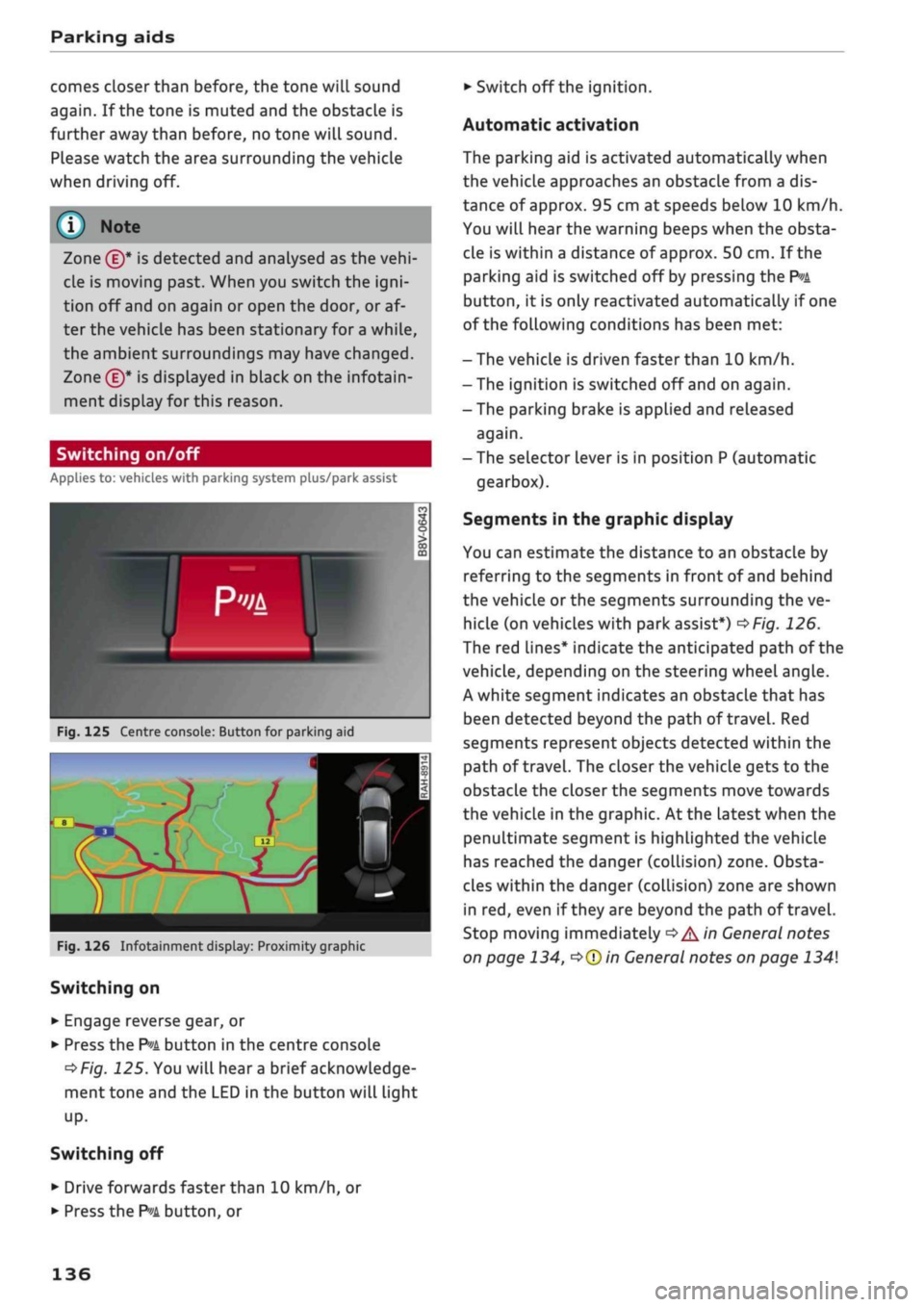
Fig.
125 Centre console: Button for parking aid
^H i m
1 •rif/^^^y^H <
12|
1 )
'.•;"
•BiHiSi
-
Fig.
126 Infotainment display: Proximity graphic
Switching on
•
Engage reverse gear, or
•
Press the
P»i
button in the centre console
^>Fig.
125. You will hear
a
brief acknowledge
ment tone and the LED in the button will light
up-
Switching
off
• Drive forwards faster than 10 km/h, or
*•
Press the
?">k
button, or
•
Switch off the ignition.
Automatic activation
The parking aid is activated automatically when
the vehicLe approaches an obstacLe from a dis
tance of approx. 95 cm at speeds below 10 km/h.
You will hear the warning beeps when the obsta
cle is within a distance of approx. 50 cm. If the
parking aid is switched off by pressing the
P*A
button,
it is only reactivated automatically if one
of the following conditions has been met:
- The vehicle is driven faster than 10 km/h.
- The ignition is switched off and on again.
-The parking brake is applied and released
again.
- The selector lever is in position P (automatic
gearbox).
Segments in the graphic display
You can estimate the distance to an obstacle by
referring to the segments in front of and behind
the vehicLe or the segments surrounding the ve
hicle (on
vehicLes
with park assist*)
^>Fig.
126.
The red lines* indicate the anticipated path of the
vehicle, depending on the steering wheel angle.
A white segment indicates an obstacle that has
been detected beyond the path of
travel.
Red
segments represent objects detected within the
path of
travel.
The closer the vehicle gets to the
obstacLe the closer the segments move towards
the vehicLe in the graphic. At the Latest when the
penultimate segment is highlighted the vehicle
has reached the danger (collision) zone. Obsta
cles within the danger (collision) zone are shown
in red, even if
they
are beyond the path of travel.
Stop moving immediately
•=>
A in General notes
on page 134,
•=>©
in General notes on page 134
136
Page 140 of 364
Parking aids
© CAUTIO
- Please observe the safety warnings
o©
in
General notes on page 134.
-The orange orientation lines on the infotain
ment display show the path of the rear end
of the vehicle if
you
were to reverse using
the current steering angle. Please note that
the front end of the vehicle swings out fur
ther than the rear. Please make sure you
keep a sufficient distance between the
vehi
cle and any obstacles to make sure that the
exterior mirror or edge of the vehicle do not
collide with the obstacles.
Switching on/off
Applies to: vehicles with reversing camera
Switching on
•
Engage reverse gear, or
•
Press the
P*A
button in the centre console
^>page
136, Fig. 125. You will hear
a
brief ac
knowledgement tone and the LED in the button
will Light up.
Switching off
•
Drive forwards faster than 10 km/h, or
•
Press the
P-A
button, or
•
Switch off the ignition.
-The graphic on the right of the display helps
identify the critical area of the vehicle.
- You can change the display and adjust the
volume of the beeps
^page
143.
Parking perpendicular to the roadside
Applies to: vehicles with reversing camera
This view can be used when parking your vehicle
in a garage or parking bay.
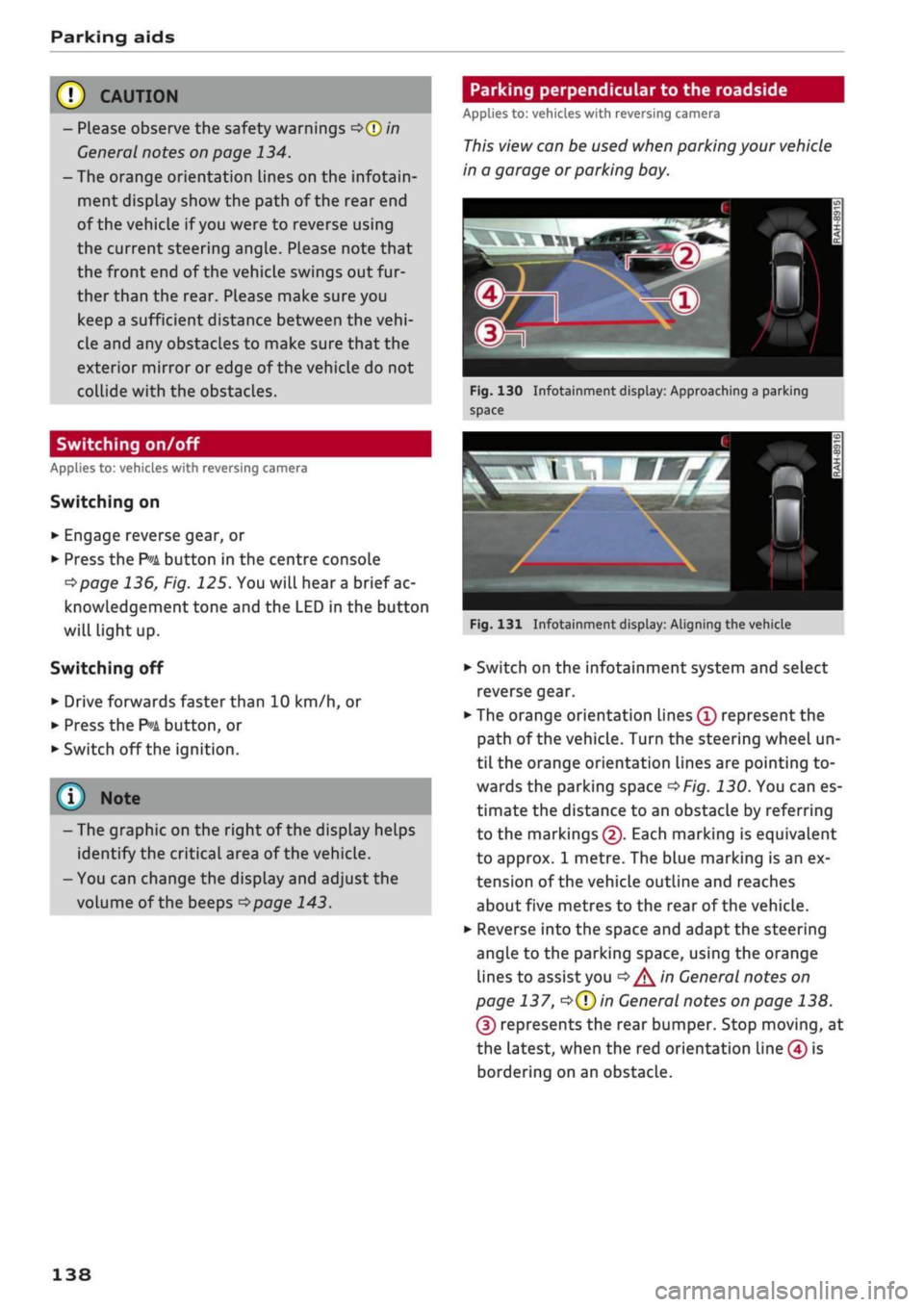
Fig.
130 Infotainment display: Approaching a parking
space
Fig.
131 Infotainment display: Aligning the vehicle
•
Switch on the infotainment system and select
reverse gear.
•
The orange orientation lines
(Ï)
represent the
path of the vehicle. Turn the steering wheel un
til the orange orientation lines are pointing to
wards the parking space
^>Fig.
130. You can es
timate the distance to an obstacLe by referring
to the markings
(2).
Each marking is equivalent
to approx. 1 metre. The blue marking is an ex
tension of the vehicle outline and reaches
about five metres to the rear of the vehicle.
•
Reverse into the space and adapt the steering
angle to the parking space, using the orange
lines to assist you
^>^in
General notes on
page 137,
*=>(T)in
General notes on page 138.
(3) represents the rear bumper. Stop moving, at
the latest, when the red orientation Line (4) is
bordering on an obstacle.
138