page 51 AUDI Q2 2021 Owner´s Manual
[x] Cancel search | Manufacturer: AUDI, Model Year: 2021, Model line: Q2, Model: AUDI Q2 2021Pages: 364, PDF Size: 87.77 MB
Page 254 of 364

Media
be ensured that these characters are always
displayed correctly.
The manufacturer will provide you with in
formation on the "USB Device Subclass" of
a
USB memory device.
- Some functions of MTP players such as
vid
eo playback and the rating of tracks are not
supported.
CD drive
Applies to: vehicles with CD drive
The CD
drive supports the following audio file specifications:
Supported
media
File system
Metadata
Format
File extension
Playlists
Specifications
Number
of files
Audio files
Audio CDs (up to 80 minutes) with
CD
text (artist, album, track)*, CD-ROMs with a
capacity of up to 700 MB
CD file systems: IS09660, Joliet, UDF
Album covers: GIF,
JPG,
PNG up to 800x800 px.; depending on availability, the al
bum cover will be displayed using the corresponding medium.
MPEG-1/-2
Layer 3
.mp3
Windows Media Au
dio
9
and 10
.wma
MPEG-2/-4
.m4a;
.m4b;
.aac
FLAC
.flac
.M3U;
.PLS;
.WPL;
.M3U8;
.ASX
Up to max. 320
kbit/sec
and 48 kHz sampling frequency 48 kHz sampling
frequency
max. 1000 files per medium
® Note
- We recommend a compression rate of at
least 160
kbit/sec
for MP3 files. In the case
of audio files with variable bit rate, the dis
pLay of the remaining playing time may
dif
fer from the actual figure.
-The display of country-specific characters
(e.g.
for ID3 tag information) depends on
the Language set on the system; it cannot
be ensured that these characters are always
displayed correctly.
Troubleshooting
Subject
Audi music interfaceVBluetooth
audio player*: The mobiLe device
is not supported.
Audi music interface*: When
starting playback via the AUX in
put, the volume is too high/low.
Advice
Please observe the notes in the chapter
^page
240, Multimedia
connections/^page
237, Bluetooth audio
player.
For information
on which mobile devices are supported, please see the Audi mo
bile device database at www.audi.com/bluetooth.
Set the volume of the mobile device to about 70% of maximum
^>page
246, Input level.
250
Page 255 of 364

Media
Subject
Audi music interface*: The porta
ble player is not recognised as a
source.
Audi music interface*: Problems
during audio playback via an
iPod/
iPhone.
Audi music interface*: Content
that has been changed on a mo
biLe device connected to the Audi
music interface* is not shown in
the media centre.
AUX input: Interference audible
when plugging in or unplugging
the AUX adapter cable.
Bluetooth audio player*/Wi-Fi
audio player*: Playback problems.
Wi-Fi audio player*: Playback
problems.
Jukebox*: The tracks in the impor
ted playlists are greyed out.
Jukebox*: Imported tracks cannot
be played or cannot be found.
Wi-Fi audio player*: More than
one device is connected to the Wi-
Fi hotspot. A media player (e.g. a
smartphone) is shown as the
source and cannot be changed.
Online media*: Failure of connec
tion between the MMI and the
Audi MMI connect app.
Wi-Fi audio playerVOnline me
dia and Internet radio*: Playback
problems.
Advice
On some mobile phones or mobile devices, playback is not possi
bLe if the battery charge is very low (less than 5% of its capacity).
After it has been plugged in, the mobile device will only be recog
nised as a source in the MMI again when it has sufficient battery
charge.
The Bluetooth audio player function is switched on. Switch the
function off
^>page 258
when you are not using a Bluetooth au
dio player.
Reset the Media settings to the factory settings
<=>page
256.
External audio player is selected as the source when the adapter
cable is being connected. Activate the mute function (see
tapage
261) or another audio source (e.g.
ipage
228, Calling up
the radio menu) before connecting/disconnecting your mobile de
vice.
To ensure problem-free playback, only one interface should be in
use at any one time.
Some mobile phones may experience audio playback problems if
the Internet connection in the vehicle was not established via the
SIM card reader* or embedded SIM card of the MMI controL
con
sole while the mobile data option is activated on the mobile
phone.
Deactivate the mobile data option on your mobiLe phone.
When importing playlists, you must copy all files yourself.
If
you
cannot find imported tracks via the media centre, this could
mean that they are not supported. Please only copy supported
files
^>page
249 to the jukebox.
Close the Audi MMI connect app on the connected devices (e.g.
smartphones) that you do not want to use as the Wi-Fi audio play
er*. Also close any UPnP server apps on the devices, or disable me
dia sharing on any integrated UPnP/DLNA servers. Connect the de
sired device as a Wi-Fi audio player*
^>page
238.
The MMI connection switch on the status screen of the Audi MMI
connect app must be switched on to establish a connection with
the
MMI.
Audio playback problems can occur if the Connection to personal
hotspot function
opage
202 is activated and your personal hot-
spot
^>page
195 is not in range. To avoid playback problems,
switch the function off when you are not using a personal hotspot.
<
o
rN
IV
rN
i-H
00
251
Page 256 of 364

Media
Subject
Audi music interface*: Content
that has been changed on a mo
bile
devicea)
connected to the
Audi music interface is not shown
in the media centre.
Bluetooth audio player*: Prob
lems with track display and play
back.
Wi-Fi hotspot*: Wi-Fi hotspot
connection to your Wi-Fi device
interrupted.
Audi music interface: No audio
playback possibLe via a connected
mobiLe device.
Advice
Reset the Media settings to the factory settings
^page
256.
Problems can occur if
a
third party music playback app is open
when you are playing audio via the Bluetooth audio player. Audi
recommends
that
you use the integrated media player on your
Bluetooth device (e.g. smartphone).
Make sure that the network optimisation function is switched off
in the Wi-Fi settings or network settings of your Wi-Fi device.
Please refer to the operating manual
of your
Wi-Fi device for fur
ther details.
Make sure that the USB mode
MTP
is selected in your mobile
devi
ce's settings.
a'
Applies to MTP devices only. Does not apply to Apple or USB mass storage devices.
252
Page 257 of 364

Audi smartphone interface
CO
rN
IV
rN
t-H
o <
Audi smartphone
interface
Setting
upx)
Applies to: vehicles with Audi smartphone interface
You
can connect your smartphone to the MMI
system via the Audi smartphone interface. Some
of the content
on
your smartphone is displayed
in an optimised
screen
format on the infotain
ment display and can be operated via the MMI
control console.
Important
The vehicle must be stationary, and the ignition
must be switched on.
iPhone 5 or later with Lightning connector and
operating system iOS 7.1.2 or higher or:
Smartphone with Android Auto app and operat
ing system Android 5.0 Lollipop or later.
• Connect your smartphone to the Audi music in
terface
opage
241 via a USB adapter
^> page
240, Fig. 196.
•
Select and confirm Activate Apple CarPlay or
Activate Android Auto now.
•
Follow the instructions given by the system.
• Please note any system queries on your smart
phone.
If
you
decline the use of Apple CarPlay or Android
Auto the first time you connect your smartphone,
you can start the Audi smartphone interface at a
later time via the connection manager.
•
SeLect:
|MENU|
button
>
Audi smartphone in
terface > Switch to connection manager.
•
Connect your smartphone to the Audi music in
terface via a USB adapter
^>page
240, Fig. 196.
*•
Select and confirm Audi smartphone in Con
nection manager
<3>page
257. You can select
your smartphone from the list of devices al
ready connected
^page
258.
•
Follow the instructions given by the system.
© CAUTION
Please always observe the information
=>®
in
Wi-Fi hotspot on page 202.
- The functions you can use depend on a num
ber of factors including:
-The brand of your smartphone
-The operating system version of your
smartphone
- The software version of the app in use
- The USB adapter/cable and the correct
connection
- Your mobile network/service provider
- The individual settings on your smart
phone
- One or several of the factors listed above
can result in your smartphone being incom
patible with the Audi smartphone interface.
We regret that it is not possible to guaran
tee compatibility for all types of smart
phone.
For further information and support,
please refer to the operating manual of your
smartphone or contact its manufacturer.
- If the smartphone you have connected has a
voice controL feature, you can control your
smartphone using the external speech
con
trol system
^>page
170.
-The menu language displayed on the MMI is
based on the setting on your smartphone.
- The time displayed on the MMI is based on
the setting on your smartphone.
- Some of the MMI functions are not available
while an Apple CarPlay or Android Auto
con
nection is active.
- You cannot use mobile devices via Bluetooth
when an Apple CarPlay connection is active.
- If
you
have inserted your own mini SIM card
in the SIM card reader* for making phone
calls,
the SIM card will be used exclusively
for
a
data connection when the Audi smart
phone interface and the car phone function*
^page
172 are active.
x)
Not available in all markets.
253
Page 258 of 364

Audi smartphone interface
- Tag this song for
iTunes*1)2)
is not available
while an Apple CarPlay connection is active
•=>
page 229.
How to use
Applies
to: vehicles with Audi smartphone interface
Calling up the menu
Apple CarPlay: To return to the main menu of
Apple CarPlay from any other menu, press and
hold the
[BACK]
button.
Android Auto: To open the menu bar of Android
Auto,
push the rotary pushbutton downwards.
Calling up a menu item
Use the MMI control console to select an item
from the menu and confirm it.
Troubleshooting
Applies
to: vehicles with Audi smartphone interface
Subject Advice
Audi smartphone
interface cannot be
called up.
Connecting the
smartphone to the
MMI fails.
Check the battery charge level on your smartphone.
Check the USB cable and try using another one.
Check whether Android Auto or Apple CarPlay is available in your country.
Android Auto: Check that the Android Auto app is installed on your smartphone.
Check
that
you are using the correct USB adapter and
that
the USB adapter is
correctly connected to your smartphone and to the Audi music interface
•=>
page 240.
Apple CarPlay: Check that Apple CarPlay is activated on your smartphone.
Android Auto: Check in the Android Auto app whether Android Auto alLows new
cars.
Smartphone is not
detected automati
cally.
Check that you are using the correct USB adapter and that the USB adapter is
correctly connected to your smartphone and to the Audi music interface
•=>
page 240.
Check that the requirements for connecting a smartphone have been met.
V
Still under development at the time of print.
25
This function is only available in the Mexican market.
254
Page 259 of 364

System settings
System settings
Setting the time and
date
The
time can be set manually or via
GPS*
• Select:
|MENU|
button > Settings
>
left control
button > MMI settings > Date & time.
•
Or: Select:
|MENU|
button > Car
>
left control
button
>
Vehicle settings > Date & time.
Set automatically
The time and date are automatically updated
when this function is switched on
0.
Time
Important: The Set automatically function must
be deactivated.
Press the rotary pushbutton. You can adjust the
time manually by turning and pressing the rotary
pushbutton.
Date
Important: The Set automatically function must
be deactivated.
Press the rotary pushbutton. You can adjust the
date manually by turning and pressing the rotary
pushbutton.
Time zone
When selecting the correct time zone, a list of
corresponding countries is displayed as an exam
ple.
Automatic time zone*
When this function is activated
(vf,
the time is au
tomatically adjusted to the relevant time zone.
Automatic summer time*
When this function is activated
0,
the time is au
tomatically adjusted from normal time to sum
mer time.
Time format
When this option is set to 24h, for example
13:00 will be displayed as the time. When
it
is
set to AM/PM, for example 1:00 PM will be dis
played.
Date format
When this option is set to DD.MM.YYYY, for ex
ample
31.08.2017
will be displayed as the date.
When
it
is set to MM/DD/YYYY, for example
08/31/2017
will be displayed. When
it
is set to
YYYY-MM-DD, for example
2017-08-31
will be
displayed.
MMI settings
•
Select:
|MENU|
button > Settings > left control
button > MMI settings.
Language
You can change the language of the display along
with the language of the navigation cues* and
the speech dialogue system*.
The number of languages available depends on
the market.
Measurement units
The following measurement units are available:
- Speed (km/h or
mph)
- Distance (km or miles)
- Temperature (°C or °F)
- Consumption
(ltr/100
km,
mpg
(US),
mpg
(UK)
or
km/ltr)
- Capacity (litres, gallons)
Reminder signal
Applies to: vehicles with Audi phone box
Important: Your mobile phone must be Qi com
patible1^,
or
it
must be connected to the Audi
music interface
(l) ^page
177, Fig. 161 using a
USB adapter cable.
You can use the reminder signal to keep yourself
informed of the charging status of the mobile
•
CO
<
O
rN
iv
rN
t-H
o < 00
1}
The Qi standard enables you to charge your mobile phone
wirelessly.
255
Page 261 of 364

System settings
Connection manager
Introduction
The
connection manager
gives
you an overview
of your connected
devices
and their connection
status.
Settings
Connection manager
*
MyPhone
• Additional
phone:
-• Data
connection:
• MMI connect app:
• Audi smartphone:
Fig.
205 Connection manager
•
Select: IMENUI button > Settings
>
Left control
button > MMI settings > Connection manager.
•
Select and confirm a menu option.
If
a
mobile device has already been connected
and you then select and confirm the correspond
ing menu item, the device's name and connection
mode is displayed under this menu item
^Fig.
205.
You can connect
((vj)
or disconnect
O)
a connec
ted device individually.
Telephone
Applies
to: vehicles with telephone
- Connect new device: You can search for and
connect
a
mobile phone.
- List of devices already bonded: Select your mo
bile phone from the List of all devices which
have already been bonded. Or: Insert your own
mini SIM card in the SIM card reader*
^>page
176.
Second phone
Applies
to: vehicles with Audi phone box
- Connect new device: You can search for and
connect
a
mobile phone.
- List of devices already bonded: Select your mo
bile phone from the List of all devices which
have already been bonded.
Data connection
Applies
to: vehicles with Audi connect (infotainment)
Applies
to: option using the embedded SIM card
- The embedded SIM
card1)
will be used for the
data connection
^>page
191. You do not need
to adjust any other settings.
Applies
to: option using your own SIM card
- Connect new device: You can search for and
connect
a
mobile device (e.g. a smartphone).
- List of devices already bonded: Select your mo
bile phone from the List of all devices which
have already been bonded. Or: Insert your own
mini SIM card in the SIM card reader*.
© CAUTION
Please always observe the information
•=>©
in
Wi-Fi hotspot on page 202.
MMI connect app
Applies
to: vehicles with Audi connect (infotainment)
Important: The Audi MMI connect app must be
installed on your mobile device and have been
started.
- Connect new device: You can search for and
connect
a
mobile device (e.g. a smartphone).
- List of devices already bonded: Select your mo
bile device from the List of all devices which
have already been bonded.
Music
Applies
to: vehicles with Bluetooth audio player or Wi-Fi au
dio
player
Audio player*
Important: The Bluetooth function and the dis
coverability option of both the MMI system
opage
258 and the mobile phone must be
acti
vated.
CO
rN
IV
rN
t-H
o <
x)
SIM card installed in vehicle at factory.
257
Page 262 of 364

System settings
- To connect a new device: Press the rotary push
button.
Select Bluetooth audio player. Search
for and connect a mobile device.
- List of devices already bonded: Select a Blue
tooth device from the list of all devices which
have already been bonded.
Wi-Fi audio player*
Important: The Wi-Fi hotspot* on the MMI sys
tem
<=>page
201 and your mobiLe phone must be
activated.
- To connect a new device: Press the rotary push
button.
Search for and connect
a
Wi-Fi enabled
device.
- To disconnect a Wi-Fi audio player: Deactivate
Wi-Fi on your Wi-Fi enabled device. The device
will be removed from the list automatically.
© CAUTION
Please always observe the information
•=>©
in
Wi-Fi hotspot on page 202.
Directory
Applies to: vehicles with telephone
You
can display the contacts from (other) mobile
phones.
Important: No mobiLe phones are connected to
the MMI via the Bluetooth remote SIM Access
Profile or the Handsfree profile.
- Connect new device: You can search for and
connect
a
new mobile phone. Or: Slide your
own mini SIM card into the slot in the SIM card
reader* until you feel it engage
^>page
176,
Fig. 160.
- List of devices already bonded: Select your mo
bile phone from the list of all mobiLe phones
which have already been bonded.
Audi smartphone
Applies to: vehicles with Audi smartphone interface
-
Connect
your mobile phone to the Audi music
interface
^>page
241 via a USB adapter
•=>page
240, Fig. 196.
- SeLect your mobile phone from the List of mo
bile phones already connected.
Further options
Further options may be available in the connec
tion manager via the right control button de
pending on the function selected.
Delete Bluetooth device*
The selected mobile phone/mobile device will be
disconnected from the MMI system and removed
from the list of devices already connected.
Display Bluetooth profiles*
You can Connect or Disconnect the Handsfree,
Car phone*, Messages*, Directory/contacts and
Bluetooth audio player profiles individually.
Bluetooth settings*
- Bluetooth: Select and confirm a discoverability
setting
for
the Bluetooth connection. Select
visible to make the MMI visible to other
devi
ces.
Select invisible to make the MMI invisible
to other devices. Devices which have already
been bonded can connect via Bluetooth even
when discoverability is deactivated. Select off
to switch discoverability off. It is then not pos
sible to establish a Bluetooth connection.
- Bluetooth audio player: When this function is
switched on
(vf,
the Bluetooth audio player is
available as a source in the Media menu.
- Bluetooth name: The Bluetooth name of the
MMI system (e.g. "AUDI MMI 2017") is dis
played and can be changed.
Online settings*
- Data connection settings: Refer to
^>page
203,
Configuring the data connection.
- Data usage meter: The number of the data
packets sent/received via the MMI system is
displayed.
Select Reset data meter to reset the
usage statistics to zero.
- Connection status: The mobiLe network provid
er for data services and the network status are
displayed.
Wi-Fi settings*
Refer to
^>page
201, Wi-Fi hotspot.
258
Page 263 of 364

System settings
Store as default telephone
Applies to: vehicles with telephone
Important: A mobile phone must be connected
to the MMI system
^>page
173.
This mobile phone will be prioritised over other
Bluetooth devices and connected as soon as it is
within range. For this to occur, the Bluetooth
function of both the mobile phone and the MMI
must be switched on. The connected mobile
phone is shown at the top of the device list.
SIM PIN settings*
Applies to: option using your own SIM card
- Automatic PIN entry: When this function is
switched on
[vf,
the SIM PIN is stored in the
MMI after it has been entered for the first time.
You can save the PIN codes of four different
SIM cards on the MMI. If this function is
switched off
O,
the PIN currently stored in the
MMI will be deleted. If the automatic PIN entry
function is activated, the system does not ask
you to enter your SIM PIN explicitly.
- Deactivate PIN query: The system does not ask
for the SIM PIN when you switch it on. The au
tomatic PIN entry function is ignored in this
case.
- Change PIN: You can change the PIN code for
your SIM
card.
First enter the existing PIN code
for
your SIM
card.
The SIM PIN code can only
consist of numbers from 0 to 9. The new SIM
PIN code has to be entered twice, as a precau
tionary measure, and is stored on the SIM
card.
Network settings*
- Registration: To dial into your service provid
er's mobile network automatically or to select a
network manually from the list of available
networks.
- Network selection: You can use this function to
select the available networks for the current
position of the vehicLe. This function is only
available when the manual setting is activated
for registration.
Apple CarPlay sound settings/Android Auto
< sound settings
PI
Applies to: vehicles with Audi smartphone interface
fN
§
Refer to
^>page
260.
About Apple
CarPlay/About
Android Auto
Applies to: vehicles with Audi smartphone interface
Here you will find legal information about using
Apple CarPlay/Android Auto and information
about data transfer for specific devices.
Delete CarPlay device/Delete Android Auto
device
Applies to: vehicles with Audi smartphone interface
Important: Your mobile phone must no longer be
connected to the Audi music interface via a USB
adapter.
To remove your mobile phone from the list of
mobile phones already connected, select and
confirm Delete CarPlay device or Delete Android
Auto device.
© Note
Some SIM cards do not allow the SIM PIN
query to be deactivated
System update
•
Select:
|MENU|
button > Settings > left control
button > System maintenance.
- System update: Insert the storage medium
with the update data into the appropriate drive
tapage
235. Select and confirm the appropri
ate drive > Start update. The duration of this
process depends on the size of the update.
- Reset driver installation: The media driver
package selected is reset to the factory de
faults.
- Version information: Information on the soft
ware version of the MMI and the navigation da
tabase* is displayed. In addition, you can use
the Software information function to display
information on the MMI's software and licence
conditions.
259
Page 264 of 364
System settings
On-board Handbook
Applies to: vehicles with On-board Handbook
The
On-board Handbook includes the Owner's
Manual
for
your vehicle.
Installing/updating the On-board Handbook
Important: The storage medium on which the
On-board Handbook is stored must have been in
serted into the relevant drive
^>page
235.
• Select:
|MENU|
button > Settings > Left controL
button > System maintenance > System up
date > SD card 1, SD card 2, CD/DVD* or USB*.
•
Follow the instructions given by the system.
Starting the Handbook
Important: The Handbook must have been instal
led previously.
•
Select:
IMENUI
button > Car
>
left control but
ton > Handbook.
The On-board Handbook will automatically load
in the language that is set underthe option Menu
language in the MMI
^>page
255.
Using the On-board Handbook
The following functions are available when you
are operating the On-board Handbook using the
rotary pushbutton:
- Select and confirm an entry: Turn the rotary
pushbutton to the entry you require and press
the rotary pushbutton.
- Show a picture in full size: Turn the rotary
pushbutton to the desired picture and press the
rotary pushbutton.
- Call up the options menu: You can use the
right controL button to return to the Home
page and open the Index.
/\
WARNING
You should only use the On-board Handbook
when the traffic conditions allow you to do so
safely and when you can maintain proper
con
trol of your vehicle - risk of injury.
(7) Note
-The On-board Handbook is
not
available in
all countries. Your Audi dealer will be able
to provide you with more detailed informa
tion.
-Switch off the ignition while you are instal
ling/updating the On-board Handbook.
- Please note that the On-board Handbook is
not a substitute for the printed Owner's
Manual.
Sound settings
You
can adjust the sound and volume of the MMI
individually.
The
settings depend on the equip
ment fitted in your vehicle.
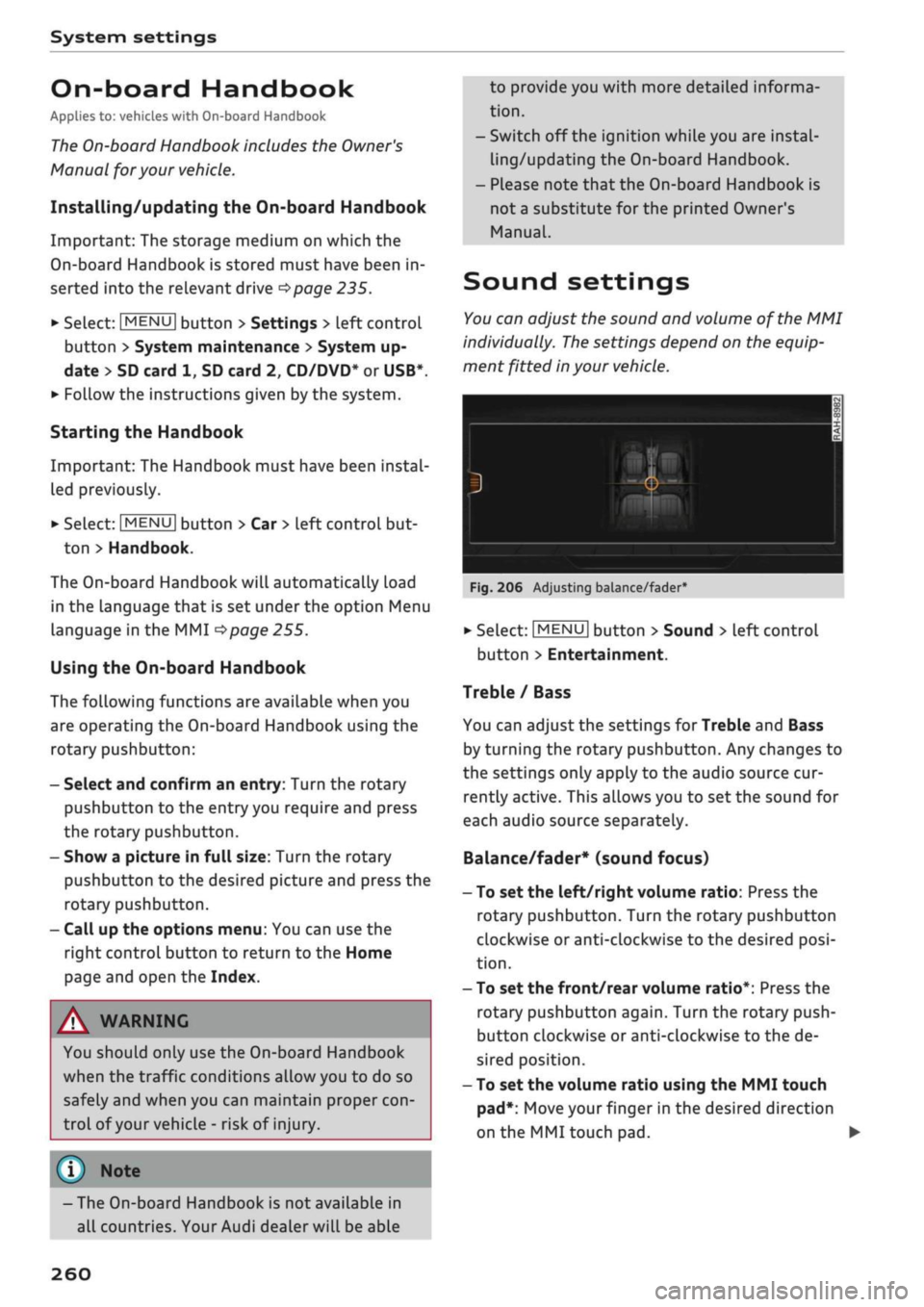
Fig.
206 Adjusting balance/fader
•
Select:
|MENU[
button > Sound > Left control
button > Entertainment.
Treble / Bass
You can adjust the settings for Treble and Bass
by turning the rotary pushbutton. Any changes to
the settings only apply to the audio source cur
rently active. This allows you to set the sound for
each audio source separately.
Balance/fader* (sound focus)
- To set the left/right volume ratio: Press the
rotary pushbutton. Turn the rotary pushbutton
clockwise or anti-clockwise to the desired
posi
tion.
- To set the front/rear volume ratio*: Press the
rotary pushbutton again. Turn the rotary push
button clockwise or anti-clockwise to the de
sired position.
- To set the volume ratio using the MMI touch
pad*:
Move your finger in the desired direction
on the MMI touch pad. •
260