radio AUDI Q2 2021 Owner´s Manual
[x] Cancel search | Manufacturer: AUDI, Model Year: 2021, Model line: Q2, Model: AUDI Q2 2021Pages: 364, PDF Size: 87.77 MB
Page 5 of 364
Table of Contents
CO
< o
rN
r^
rs
t-H
O
<
•H
00
Park assist 139
Settings for parking aid 143
Fault warnings 144
Towing bracket 144
Intelligent technology 145
Electronic stabilisation control (ESC) .... 145
Brakes 147
Electro-mechanical power steering 148
Four-wheel drive (quattro) 148
Power management 149
Information saved in the control units . . . 150
Infotainment 152
Multi
Media Interface 152
Notes on traffic safety 152
Introduction 152
MMI
ON/OFF button with joystick
function 152
Infotainment display 153
How to use the MMI 153
MMI touch 155
Rotary pushbutton with joystick function 157
Speller for letters/numbers 159
Search function 160
Menus and symbols 161
Speech dialogue system 164
How to use the speech dialogue system .. 163
Notes on the overviews of commands ... 164
Commands 165
External speech dialogue system 170
Telephone 172
Introduction 172
Setting up 173
Using the Audi phone box 177
Using the telephone 178
Favourites 181
Messages 182
Listening to voicemail messages 185
Directory 185
Other settings 187
Troubleshooting 189
Audi connect (infotainment) .... 191
Introduction 191
Option 1: Using the embedded SIM card . 191
Option 2: Using your own SIM card 191
Configuring using
myAudi
196
Calling up Audi connect (infotainment) .. 196
Audi connect infotainment services 197
Wi-Fi hotspot 201
Configuring the data connection 203
General notes on Audi connect
(infotainment) 204
Troubleshooting 205
Navigation 207
Introduction 207
Setup 207
Calling up the navigation menu 207
Entering a destination 208
Personal route assist
214
Home address 215
Favourites 216
Directory contacts 216
Alternative routes 216
Other settings 217
Map 219
Google Earth map display 222
Map update 223
myAudi special destinations 224
Calling up traffic information 225
Troubleshooting 227
Radio 228
Calling up the radio menu 228
Radio functions 228
Radio menu 230
Favourites 231
Other settings 231
Troubleshooting 233
Media 234
Introduction 234
Notes 234
Media drives 235
Bluetooth audio player 237
Wi-Fi audio players 238
Online media and Internet radio 239
Multimedia connections 240
Playing media 243
Other settings 246
Supported media and file formats 249
Troubleshooting 250
Page 6 of 364
Table of Contents
Audi smartphone interface 253
Setting up
253
How to use 254
Troubleshooting 254
System settings 255
Setting the time and date 255
MMI settings 255
Connection manager 257
System update 259
On-board Handbook 260
Sound settings 260
Volume settings 261
Restarting the MMI system 262
Notes on software licences 262
Safety 263
Safe driving 263
General notes 263
Correct sitting positions 265
Child seats 267
Fitting child seats 270
Pedal area 272
Stowing luggage safely 272
Seat belts 275
Why is it so important to use seat belts? . 275
Forces acting in a collision 276
How to wear seat belts properly 277
Belt tensioners 279
Airbag system 281
Description of airbag system 281
Front airbags 282
Side airbags 285
Head-protection airbags 286
Deactivating the front passenger's airbag 288
Service and care 289
Checking and topping up fluids . 289
Fuel 289
Filling the tank 290
Selective catalytic reduction (AdBlue/
DEF) 292
Emission control systems 295
Engine compartment 295
Engine oil 297
Cooling system 299
Brake fluid 301
Battery 302
Windscreen washer 303
Service interval display 304
Wheels 305
Tyres and rims 305
Tyre pressure loss indicator 309
Care of vehicle and cleaning 312
General notes 312
Washing the vehicle 312
Notes on cleaning and care 313
Taking the vehicle out of service 317
Self-help 318
Mobility 318
General notes
318
Equipment 318
Tyre repair kit 319
Changing a wheel 321
Spare wheel 324
Jump-starting 326
Tow-starting / towing away 328
Fuses and bulbs 332
Fuses 332
Bulbs 334
Changing headlight bulbs 336
Changing bulbs for rear lights 339
Technical data and accessories .. 340
Accessories and modifications
to the vehicle 340
Accessories, replacement parts and
repairs 340
Modifications 340
Radio transmitters and business
equipment 340
Technical data 342
Vehicle identification data 342
Explanation of technical data 342
Dimensions 343
Capacities 343
Weights 343
Engine data 344
4
Page 11 of 364
- How can I call up information online?
^>page
191, Audi connect (infotainment).
- How can I use the Wi-Fi hotspot?
•=>page
201.
Navigation
- What ways are there to enter
a
navigation des
tination?
^>page
208.
- How do I operate the map functions?
•=>
page 219.
- How can I display traffic information?
=>
page 225.
Entertainment
- How can I listen to the radio?
^>page
228.
- How can I play media?
^page
243.
- How can I play music from my mobile phone via
the
infotainment
system?
•=>page
237, Blue
tooth audio
player.
Tips and tricks
- How can I unlock my vehicle from inside to let
passengers in?
=t>page
40.
- How can I open all the windows from outside
using the remote control key?
•=>page
47,
Convenience
open/close function.
- How can I operate both sides of the air condi
tioner together?
^page
69.
- How can I deactivate the front passenger's air-
bag?
•=>
page 288.
- How do I secure a child seat?
^>page
270.
- What do I have to be aware of when driving
through an automatic car wash?
<$page
312.
- How can I drive (more) economically?
^>page
72.
- How can I see when the next service date is?
^page
304.
Page 18 of 364
Instruments and controls
The driver information system shows information
(D
in several display tabs
(T)
^>Fig.
7.
The equipment installed on your vehicle deter
mines which of the following tabs are available:
1st tab
2ndtaba)
3rd
tab
4th
tab
5th tab
On-board computer
^>page
19
Driver messages
Radio
•=>page
22
Media
^>page
22
Telephone*
^>page
23
Navigation*
<^>page
24
Map*
<>page
24
a)
This tab is only visible if one or more warning/indicator
lamps or driver messages are displayed.
g) [<_>J
button
- To switch between tabs: Press the button
[<±]
repeatedly until the desired tab is displayed
(e.g.
Radio).
01
VIEW|
button
To change the view: see
Opage
17, Changing
views.
(DEI
button
To return to the previous function level.
©
Control buttons
0
and
[3
To call up/close the selection menu or options
menu
^>page
16.
®
Left thumbwheel
- To select a function in a menu/list: Scroll the
left thumbwheel to the desired function (e.g.
setting a frequency).
- To confirm your selection: Press the left
thumbwheel
(J)
^Fig.
8.
- To zoom in/out of the map: When a map is
shown on the display, scroll the left
thumb
wheel to make the map scale larger or smaller.
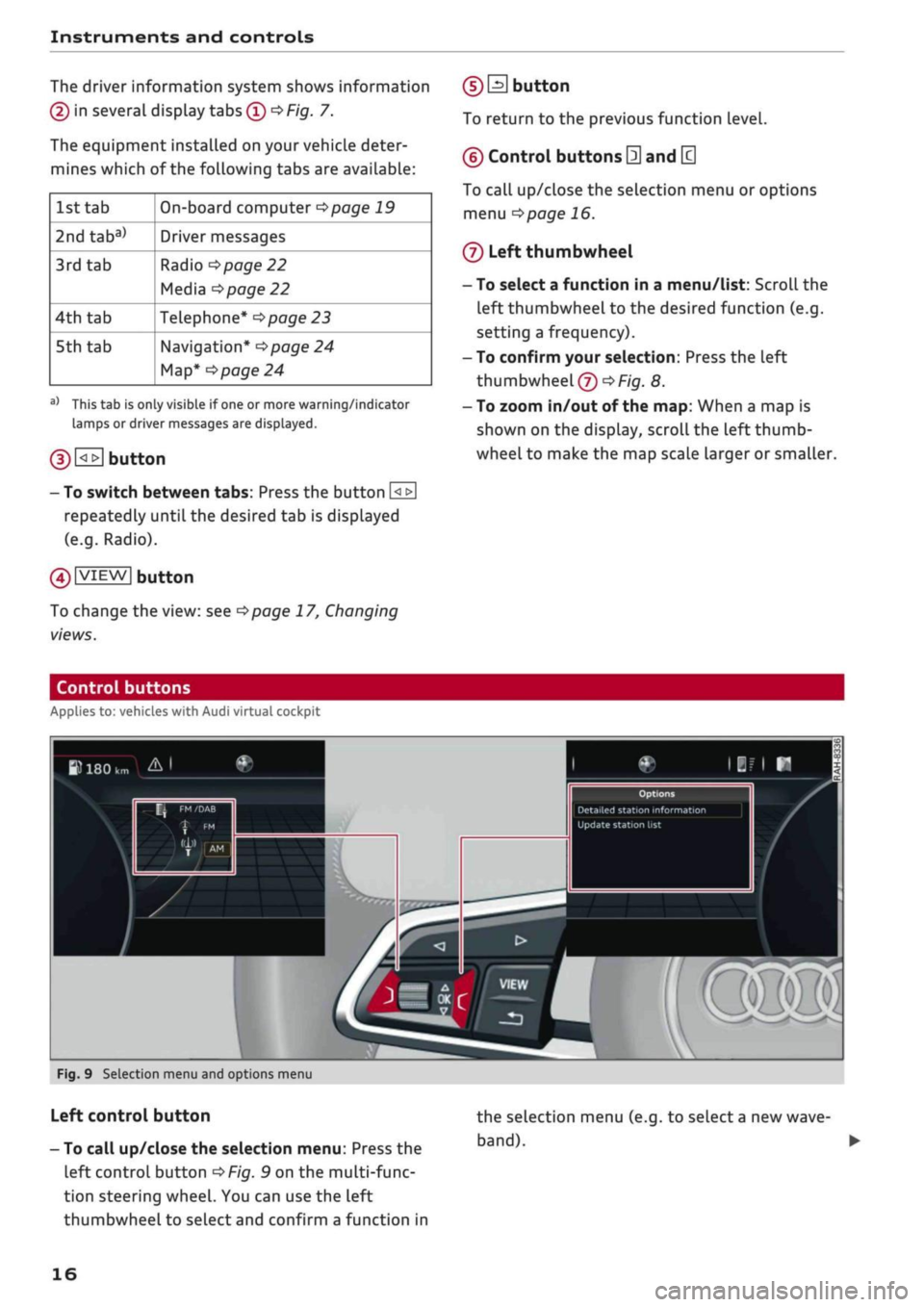
Control buttons
Applies to: vehicles with Audi virtual cockpit
W
180
km A I
Update station
list
mm
Fig.
9 Selection menu and options menu
Left control button
- To call up/close the selection menu: Press the
left control button
OF/g.
9 on the multi-func
tion steering wheel. You can use the left
thumbwheel to select and confirm a function in
the selection menu (e.g. to select
a
new
wave
band). •
16
Page 20 of 364
![AUDI Q2 2021 Owner´s Manual
Instruments and controls
- To fast forward/rewind an audio file: Press
and hold
the[^i]or[>>!]
button until the desired
playing position has been reached.
0 B
button
- To call up the user-as](/img/6/40262/w960_40262-19.png "AUDI Q2 2021 Owner´s Manual
Instruments and controls
- To fast forward/rewind an audio file: Press
and hold
the[^i]or[>>!]
button until the desired
playing position has been reached.
0 B
button
- To call up the user-as")
Instruments and controls
- To fast forward/rewind an audio file: Press
and hold
the[^i]or[>>!]
button until the desired
playing position has been reached.
0 B
button
- To call up the user-assigned function: Press
the
S
button on the multi-function steering
wheel.
- To check which function is assigned: Press and
hold
the E
button.
- To change the assigned function: Select:
IMENUJ
button > Car
>
left control button
>
Ve
hicle settings
>
Steering wheel button.
(D H
button
- To have the last navigation cue repeated:
Press the
H
button while route guidance is ac
tive.
- To adjust the volume of the navigation cues:
Scroll the right thumbwheel up/down during
route guidance while a navigation cue is being
spoken.
Multi-function steering
wheel
How to use the multi-function steering
wheel
Applies
to: vehicles with analogue instrument cluster
You
can use the multi-function steering wheel to
control the driver information system and
cer
tain MMI functions and to adjust the volume.
Fig.
13 Left side of multi-function steering wheel
Fig.
14 Right side of multi-function steering wheel
Important: The ignition must be switched on.
(T)
How to use the driver information system
The driver information system shows information
(D
alpage
15, Fig. 7 in several display tabs
(Î)
^>page
15, Fig. 7.
The equipment installed on your vehicle deter
mines which of the following tabs are available:
1st
tab
2nd
taba)
3rd
tab
4th tab
5th
tab
On-board computer
<^>page
20
Driver messages
Radio
opage
22
Media
•=>page
22
Telephone*
opoge
23
Navigation*
opage
24
a'
This tab is only visible if one or more warning/indicator
lamps
or driver messages are
displayed.
- To switch between tabs: Press the
L±>]
button
repeatedly until the desired tab is displayed.
- To call up/close a menu: Press the
EH
button.
- To select a function in a menu/list: Scroll the
left thumbwheel to the desired function.
- To confirm the selection: Press the left
thumb
wheel to confirm your selection.
- To return to the previous function level: Press
the
Unbutton.
- To scroll through lists: Scroll the left
thumb
wheel quickly.
©0]
button
- To answer a
call:
Press the
0
button when
there is an incoming
call.
- To end a
call:
Press the 0 button during a
call.
- To display the call list: Press the 0 button
while no calls are active and there are no in
coming calls.
18
Page 24 of 364
Instruments and controls
in certain situations. By following these econo
my tips, you can save
fuel.
To clear an economy
tip from the display immediately, press any of
the controls on the multi-function steering
wheel.
The date, the time and the time/date display
format can be changed via the infotainment
system
•=>
page 255.
Radio
Important: Radio mode must be activated
^>page
228, and the radio/media tab must be
displayed.
•
Press the
HH
button or the left control button
^>page
16, depending on the equipment in
your vehicle.
The following functions are available on the driv
er information system, depending on the vehicle
equipment:
- To set the waveband: Select and confirm the
waveband.
- To tune to a station from the memory list*:
Select Memory
>
desired radio station.
- To tune to a station from the station list*: Se
lect and confirm a radio station.
- To tune to a station from the favourites list:
Select Favourites > desired radio station.
- To call up a media source: Select and confirm
To media.
Other settings
Applies to: vehicles with Audi virtual cockpit
- SeLect: right control button > desired
entry.
The following settings are available depending
on which function is selected:
- Update station list*: see
<=>page
232.
- Detailed station information: See
opage
232.
Media
Important: A media drive must contain audio/
video files
^page
235, and the radio/media tab
must be displayed.
•
Press the
\M
button or the left control button
^page
16, depending on the equipment in
your vehicle.
The following functions are available on the driv
er information system, depending on the vehicle
equipment:
- To select a media source: Select and confirm a
media source, e.g. "SD
card".
- To play an audio/video file: Select and confirm
a track/file.
-To pause/resume playback: Press the right
thumbwheel (D^poge
17, Fig. 12. To continue
playback, press the right thumbwheel again.
- To restart playback of an audio file: Select the
track currently playing if it is not already selec
ted and press the left thumbwheel.
Applies to: vehicles with analogue instrument cluster
- To switch to the radio: Select and confirm a
waveband (e.g. FM).
Applies to: vehicles with Audi virtual cockpit
- To switch to radio: Select and confirm To radio.
- To call up detailed track information: SeLect
the right control button > Detailed track infor
mation.
For more information, please refer to
tapage
246.
® Note
- The MMI media drives do not support DRM-
protected files; these files are marked with
the
symbolS.
- Please note that when you are using the
driver information system to control play
back within a media source, only the playlist
selected on the MMI control console can be
played
^>page
244.
- Always note the information on the info
tainment display. It may be necessary to
use the MMI control console to operate cer
tain functions.
22
Page 33 of 364
Instruments and controls
© CAUTION
CO
<
O
rN
iv
rN
•-i
00
Do not drive on if the warning lamp || lights
up;
otherwise there is a risk of engine dam
age.
t^
Engine oil pressure
| Switch off engine! Oil pressure too low
Switch off the engine and do not drive on. Check
the engine oil level
^>page
298.
- If the engine oil level is too low, add more oil
tapage
297. Do not drive on until the warning
lamp has gone out.
-If the engine oil level is OK
but
the warning
lamp still lights up, switch off the engine and
do not drive on. Obtain professional assistance.
© Note
The oil pressure warning lamp is not an
indi
cator for the oil level. The oil level should
therefore be checked regularly.
C3
Alternator/vehicle battery
| Electrical system: fault. Battery is not being
charged
There is an alternator fault or a fault in the
vehi
cle's electrical system.
Drive to a qualified workshop without delay.
However, you should avoid using electrical equip
ment that is not absolutely necessary because
this will drain the battery. If the battery charge is
insufficient, obtain professional assistance.
S
Electrical system: fault. Please contact
workshop
Drive to a qualified workshop without delay.
Avoid using electrical equipment that is not abso
lutely necessary (such as the radio) because this
will drain the battery. If the battery charge is in
sufficient, obtain professional assistance.
y
Electrical system: low battery charge. Bat
tery will be charged while driving
Starting reliability may be impaired.
If this message disappears after a while, the ve
hicle battery will have been sufficiently charged
while driving.
If the message does not disappear again, drive to
a qualified workshop without delay and have the
fault rectified.
2f
Safety systems
The indicator lamp
terns.
monitors the safety sys-
If
the indicator lamp
Ej
lights up or flashes,
there is a malfunction in one of the safety sys
tems.
Drive to a qualified workshop without delay and
have the fault rectified.
A
WARNING
Have the safety systems examined without
delay; otherwise they may fail to trigger in an
accident - this could result in serious or possi
bly fatal injury.
A
Front seat belt
The warning lamp|| lights up and does not go
out until the driver's and front passenger's* seat
belts have been fastened. When the vehicle has
gathered speed you will also hear a warning
chime.
Note
For further information on the seat belts
•=>
page 275.
y/4
Rear seat belt
Applies to: vehicles with seat belt warning system (rear seats)
If a rear seat belt is buckled/unbuckled, the cor
responding indicator Lamp Lights up briefly.
||
- If the indicator lamp lights up briefly, the
corresponding rear seat is not occupied.
|/RI|-
If the indicator lamp lights up briefly,
the rear seat belt has been fastened.
| /
KJ
"
Ifthe
warning lamp flashes, the seat
belt has been unbuckled with the vehicle moving.
31
Page 40 of 364
Doors and windows
Set of keys
service work is required. This also applies to
vehicles with convenience key*.
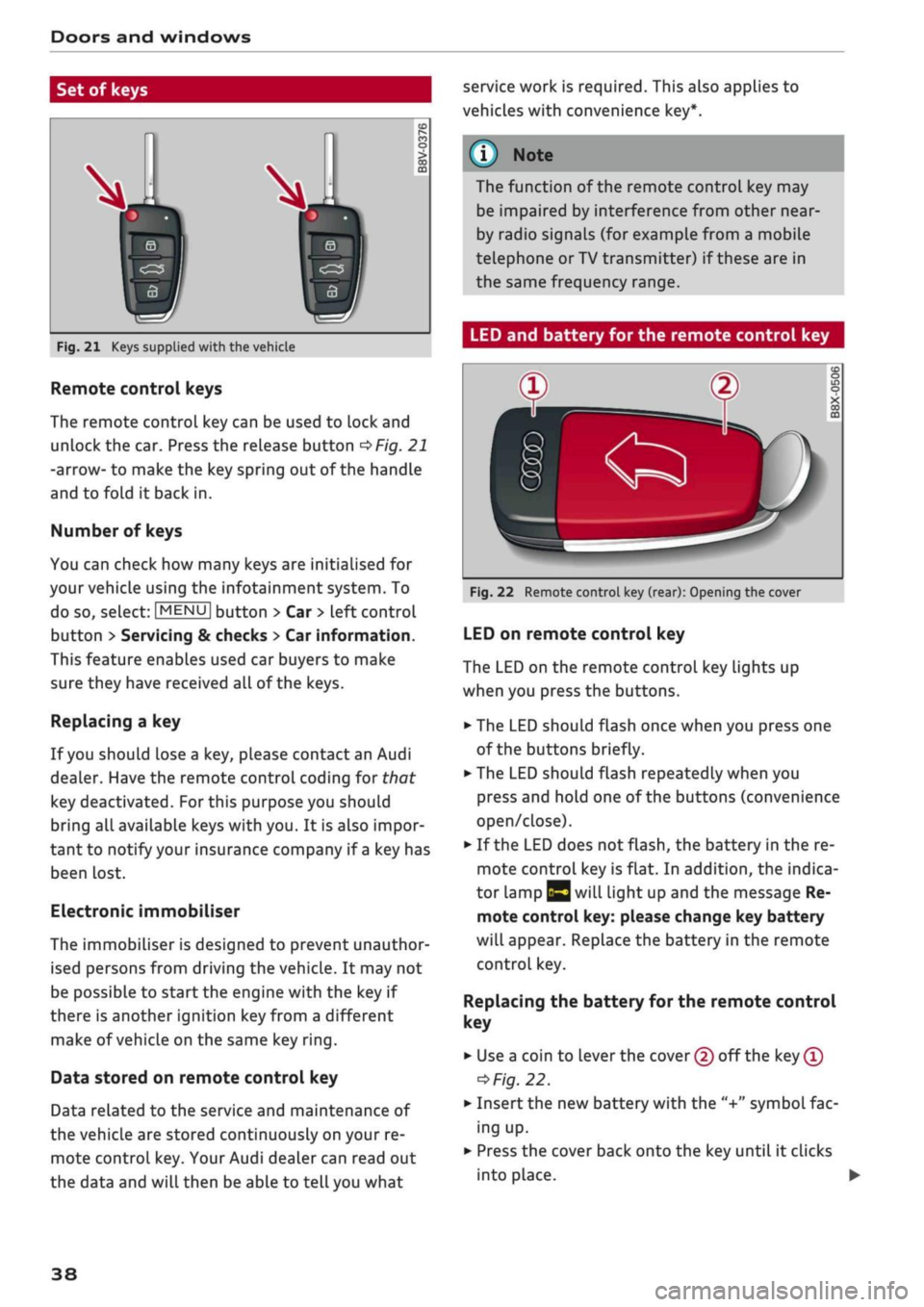
Fig.
21 Keys supplied with the vehicle
Remote control keys
The remote control key can be used to lock and
unlock the car. Press the release button
OFig.
21
-arrow- to make the key spring out of the handle
and to fold it back in.
Number of keys
You can check how many keys are initialised for
your vehicle using the infotainment system. To
do so, select:
|MENU|
button > Car
>
left control
button
>
Servicing & checks
>
Car information.
This feature enables used car buyers to make
sure they have received all of the keys.
Replacing a key
If
you
should lose a key, please contact an Audi
dealer. Have the remote control coding for that
key deactivated.
For
this purpose you should
bring all available keys with you. It is also impor
tant to notify your insurance company if
a
key has
been lost.
Electronic immobiliser
The immobiliser is designed to prevent unauthor
ised persons from driving the vehicle. It may not
be possible to start the engine with the key if
there is another ignition
key
from a different
make of vehicle on the same key
ring.
Data stored on remote control key
Data related to the service and maintenance of
the vehicle are stored continuously on your re
mote control key. Your Audi dealer can read out
the data and will then be able to tell you what
The function of the remote control key may
be impaired by interference from other
near
by radio signals (for example from a mobile
telephone or TV transmitter) if these are in
the same frequency range.
LED and battery for the remote control key
Fig.
22 Remote control key (rear): Opening the cover
LED on remote control key
The LED on the remote control key lights up
when you press the buttons.
•
The LED should flash once when you press one
of the buttons briefly.
•
The LED should flash repeatedly when you
press and hold one of the buttons (convenience
open/close).
•
If the LED does not flash, the battery in the re
mote control key is flat. In addition, the indica
tor lamp |y will light up and the message Re
mote control key: please change key battery
will appear. Replace the battery in the remote
control key.
Replacing
the battery for the remote control
key
• Use a coin to lever the cover (2) off the key
®
=>
Fig.
22.
•
Insert the new battery with the "+"
symbol
fac
ing up.
•
Press the cover back onto the key until it clicks
into place. •
38
Page 80 of 364

Driving
This message appears
and a
buzzer sounds
if
you
open
the
driver's door while
the
engine
is
run
ning.
Pressing start/stop button again will switch
off
engine.
This message appears
if
you press
the
ISTART
ENGINE
STOPI*
button while
the
vehicle
is moving
<^>page
77,
Emergency
Off
function.
Engine start system: fault. Please contact work
shop
A fault
has
occurred when starting
the
engine
au
tomatically (automatic start function). Drive
to a
qualified workshop soon
and
have
the
fault
recti
fied.
To
start
the
engine, turn
the
ignition
key to
position
@
^>page
74 or
press
the
ISTART
ENGINE
STOPl
button and hold the
key/button until
the
engine starts.
D
Key not
recognised. See owner's manual
This message appears
if
there
is no
convenience
key inside
the
vehicle
or if
the system cannot
de
tect
or
identify
the
key. This
can
happen,
for ex
ample,
if
the radio signal from
the key is
obstruc
ted
by a
metal briefcase
or
similar,
or if the key
battery
is
weak. Electronic equipment, such
as
mobile phones,
can
also interfere with
the
radio
signal from
the key.
The engine
can
still
be
started
or
stopped
if
this
happens (please refer
to
^page
79).
C]
Remote control key: hold back
of key
against marked area.
See
owner's manual
If
the
indicator lamp lights
up and the
message
appears,
a
malfunction
has
occurred
^>page
79.
3
Key not in
vehicle?
3
Remote control key:
key not
recognised.
Is
key still
in
vehicle?
If
the
indicator
lampGB
Lights
up and the
mes
sage appears,
the
convenience
key
was removed
from
the
vehicle while
the
engine
was
running.
If
the convenience
key is not in the
vehicle
you
will
not
be
able
to
switch
on the
ignition
or
restart
the engine after
it has
been switched
off. You
will
also
not be
able
to
lock
the
vehicle from
the
out
side.
Please press brake pedal
This message appears
on
vehicles with
an
auto
matic gearbox
if
you
try to
start
the
engine
with
out first pressing
the
brake pedal.
Please press clutch pedal
This message appears
if
you
try to
start
the en
gine without first pressing
the
clutch pedal.
The
engine will only start
if
you press
the
clutch
ped
al.
Please engage
N or P
This message will appear
if
you
try to
start
or
switch
off the
engine when
the
selector lever
is
not
in N or P. The
engine
can
then
not be
started
or switched
off.
Switch
off
ignition before leaving
car.
Battery
is
being discharged
This message appears
and the
buzzer sounds
if
you open
the
driver's door while
the
ignition
is
switched
on.
Switch
off
the ignition
to
prevent
the vehicle battery from being discharged.
Shift
to P,
vehicle can roll away. Doors can only
be locked
in P
For safety reasons, this message will appear
if
the selector Lever
of the
automatic gearbox
is not
in position P when
you
switch
off the
ignition.
Put
the selector lever
in
position
P;
otherwise
the ve
hicle
can
roll away
and
cannot
be
locked.
78
Page 81 of 364

Driving
CO
<
O
rN
IV
rN
t-H
o <
Starting the engine after
a malfunction
Applies
to: vehicles with convenience key
If the remote control key battery is exhausted or
if radio interference
or
a system malfunction oc
curs, extra steps may be necessary in order to
start the engine.
Fig.
71 Steering column/remote control key: Starting the
engine
after a malfunction
If the message
D
Key not recognised. See
own
er's manual or
|3
Remote control key: hold
back of key against marked area. See owner's
manual is displayed, you can still start the en
gine manually.
•
Manual gearbox: Press the clutch
pedal
• Automatic gearbox: Press the brake pedal.
•
Hold the remote control key against the symbol
fJ)
^>Fig.
71, as shown in the illustration.
• Press the ISTART ENGINE
STOPl
button
^ A in
Starting the engine on page 76. The engine
shouLd start.
•
Drive to a qualified workshop soon and have the
fault rectified.
Note
You can call up the driver message again by
pressing the ISTART ENGINE STOP| button.
Start/stop system
Description
Applies
to: vehicles with start/stop system
The start/stop system can help to save fuel and
reduce
CO2
emissions.
1)
May vary in different countries
In start/stop mode, the engine is switched off
automatically when the vehicle stops, e.g. at
traffic lights. The ignition remains on during this
stop phase. The engine is automatically started
on demand.
The start/stop system is automatically activated
each
time
you switch on the ignition.
Basic conditions for start/stop mode
- The driver's door must be closed.
- The driver's seat belt must be buckled.
- The bonnet must be closed.
- The vehicle must have been moving at over 3
km/h since the Last stop.
CAUTION
Always switch off the start/stop system
^>page
81 before driving through water.
©
The engine is switched
off1)
shortly before the
vehicle comes to a stop. However, the brake
servo and power steering remain fully opera
tional.
Stopping/starting the engine
Applies
to: vehicles with start/stop system
START
(M
STOP
S
Fig.
72 Instrument cluster: Engine switched off (stop
phase)
Applies
to: vehicles with manual gearbox
•
When the vehicle stops, put the gear Lever in
neutral and
take your
foot
off
the clutch pedal.
The engine will switch off. An indicator lamp
I
will light up in the instrument cluster •
79