ECO mode AUDI Q2 2021 Owner´s Manual
[x] Cancel search | Manufacturer: AUDI, Model Year: 2021, Model line: Q2, Model: AUDI Q2 2021Pages: 364, PDF Size: 87.77 MB
Page 135 of 364
Driver assist systems
•
Select the following on the infotainment sys
tem:
|MENU|
button > Car
>
left control button
> Audi drive select.
•
Select and confirm the desired setting.
You can change the mode while the vehicle is sta
tionary or moving. If traffic conditions permit,
take
your
foot off the accelerator briefly after you
change the mode so that the new mode is also
activated for the engine.
efficiency* - trims the vehicle to a fuel-saving
set-up and helps the driver adopt an economical
driving style.
comfort - alters the vehicle set-up for a more
comfortable ride and is suitable for long motor
way trips, for instance.
auto - gives an overall impression of
a
comforta
ble but dynamic ride and is a good choice of set
up for everyday use.
dynamic - gives the vehicLe a tighter set-up and is
ideal for performance driving.
individual* -
^>page
133.
A WARNING
Always keep an eye on the traffic when using
the drive select controls - Risk of accident!
CO
rN
r>
rN
•-i
00
Configuring individual mode
You
can configure your own personal vehicle set-up.
*-
Select: |MENU| button > Car
>
Audi drive select
> individual
>
right control button.
The individual* driving mode will automatically
be activated when you have finished configuring
the settings.
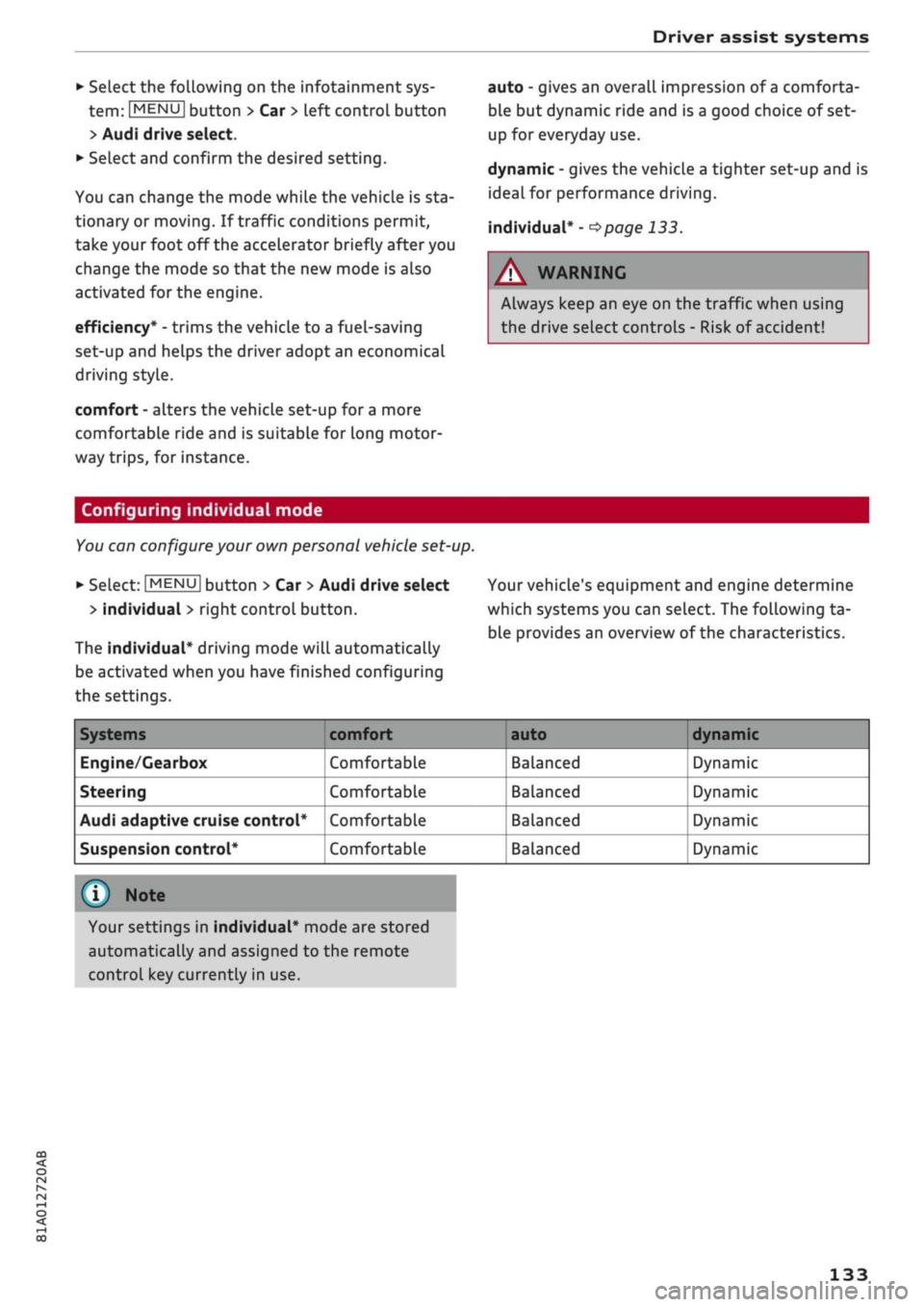
Your vehicle's equipment and engine determine
which systems you can select. The following ta
ble provides an overview of the characteristics.
Systems
Engine/Gearbox
Steering
Audi adaptive cruise control*
Suspension control*
comfort
Comfortable
Comfortable
Comfortable
Comfortable
auto dynamic
Balanced
Balanced
Balanced
Balanced
Dynamic
Dynamic
Dynamic
Dynamic
© Note
Your settings in individual* mode are stored
automatically and assigned to the remote
control key currently in use.
133
Page 148 of 364
Intelligent technology
Remember that the accident risk always in
creases
if
you
drive fast, especially
in
cor
ners
or
on a wet
or
slippery
road,
or if
you
follow too close behind the vehicle in front
of
you.
Please bear
in
mind that even
the
ESC
and
the
integrated systems cannot
compensate
for
the increased accident risk.
When accelerating
on
a uniformly slippery
surface
(for
instance
all
four wheels on
ice
or snow), press the accelerator gradually
and carefully. The driven wheels may other
wise start
to
spin
(in
spite
of
the integrated
control systems), which would impair the
car's stability and could lead
to
an accident.
© Note
The ABS and ASR systems can only work
properly
if
a 11
four tyres have a similar de
gree
of
wear. Any differences
in the
rolling
radius
of
the tyres can cause the system
to
reduce engine power when this
is not
de
sired.
The systems can make noises when they in
tervene.
Switching on/off
The ESC
is switched on automatically when
the
engine is started.
^OFF
1
y
CO
5
3
CO
Fig.
139 Centre console (top): ESC button
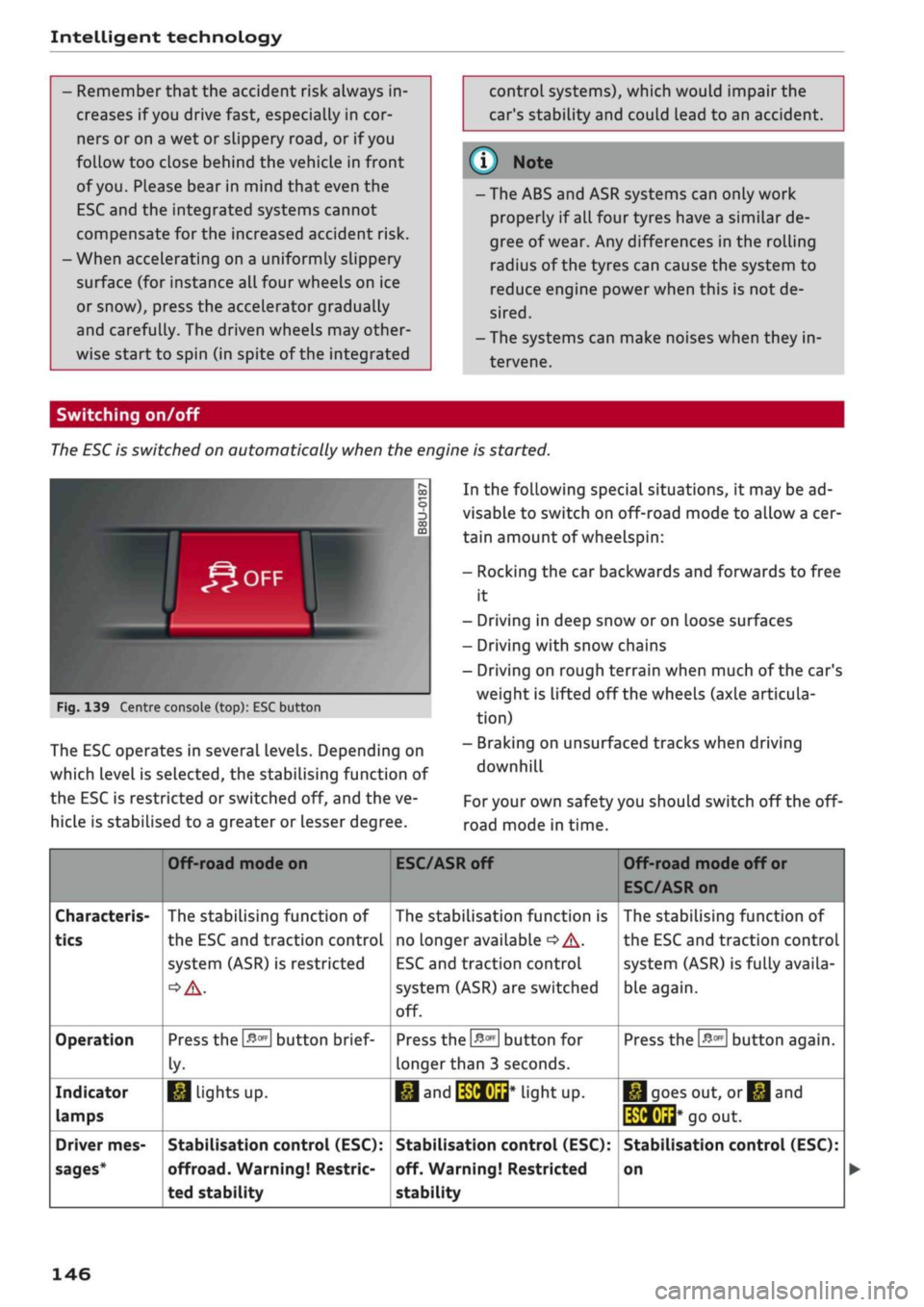
The ESC operates
in
several levels. Depending
on
which Level
is
selected,
the
stabilising function
of
the ESC
is
restricted
or
switched
off,
and the ve
hicLe
is
stabilised
to
a greater
or
Lesser degree.
In the following special situations,
it
may be ad
visable
to
switch on off-road mode
to
allow a cer
tain amount
of
wheelspin:
- Rocking
the car
backwards and forwards
to
free
it
- Driving
in
deep snow
or
on Loose surfaces
- Driving with snow chains
- Driving
on
rough terrain when much
of
the car's
weight
is
lifted
off
the wheels (axle articula
tion)
- Braking
on
unsurfaced tracks when driving
downhill
For
your own safety you should switch
off
the
off-
road mode
in
time.
Characteris
tics
Operation
Indicator
lamps
Driver mes
sages*
Off-road mode
on
The stabilising function
of
the ESC and traction controL
system (ASR)
is
restricted
Press the
&m
button brief
ly-
1*1
Lights
up.
Stabilisation control (ESC):
offroad.
Warning! Restric
ted stability
ESC/ASR
off
The stabilisation function
is
no Longer available
•=>
A-
ESC
and traction controL
system (ASR) are switched
off.
Press
the
&m
button
for
longer than
3
seconds.
•M and
IWHUrt*
liant UP.
Stabilisation control (ESC):
off. Warning! Restricted
stability
Off-road mode
off
or
ESC/ASR on
The stabilising function
of
the ESC and traction control
system (ASR) is fully availa
ble again.
Press the
#*
button again.
|*|goes
out,
or^and
të&Éid*
go
out.
Stabilisation control (ESC):
on
146
Page 151 of 364
Intelligent technology
the standard tyres. Nevertheless, we still recom
mend that winter tyres or all-season tyres should
be fitted on all four wheels when winter road
conditions are expected, mainly because this will
give a better braking response.
Snow chains
On roads where snow chains are mandatory, this
also applies to cars with four-wheel drive
Opcrge
309, Snow chains.
Replacing tyres
On vehicles with four-wheel drive, all four tyres
must have the same rolling circumference. Also
avoid using tyres with varying tread depths
tapage
305,
New wheels or tyres.
Off-roader?
Some models do not have enough ground clear
ance to be used on rough tracks and uneven ter
rain,
so it is best to avoid off-road driving.
A WARNING
- Even with four-wheel drive, you should al
ways adjust your speed to suit the condi
tions.
Do not let the extra safety provided
tempt you into taking any risks when driving
- this can cause accidents.
- The braking ability of your car is limited by
the grip of the tyres. In this respect, your
car is no different from a car without four-
wheel drive. So do not be tempted to drive
too fast on icy or slippery roads just because
the car still has good acceleration in these
conditions - risk of accident!
- On wet roads bear in mind that the front
wheels may start to "aquaplane" and lose
contact with the road if the car is driven too
fast. If this should happen, there will be no
sudden increase in engine speed to warn the
driver, as with a front-wheel drive car. So do
not drive too fast in the wet: adjust your
speed to suit the conditions (accident risk).
CO
rN
IV
rN
•-i
00
Power management
This system helps to ensure reliable
starting
The
power management controls the distribu
tion of electrical energy and thus helps to ensure
that there is always enough power available to
start the engine.
If
a
vehicle with a conventional electrical system
is left parked for
a
long time, the vehicle battery
will gradually lose its charge because certain
electrical equipment (such as the immobiliser)
continues to draw current even when the ignition
is off. In some cases there may not be enough
power available to start the engine.
Your vehicLe is equipped with an intelligent pow
er management system to control the distribu
tion of electrical energy. This significantly im
proves reliability when starting the engine, and
also prolongs the life of the vehicle battery.
The main functions incorporated in the power
management system are battery diagnosis, re
sidual current management and dynamic power
management.
Battery diagnosis
The battery diagnosis function constantly regis
ters the condition of the vehicle battery. Sensors
detect the battery voltage, battery current and
battery temperature. This enables the system to
calculate the current power level and charge
con
dition of the vehicle battery.
Residual current management
The residual current management reduces power
consumption while the vehicle is parked. It
con
trols the supply of power to the various electrical
components while the ignition is switched off.
The system takes the battery diagnosis data into
consideration.
Depending on the power Level of the vehicle bat
tery, the individual electrical components are
switched off one after the other to prevent the
vehicle battery from losing too much charge and
to ensure that the engine can be started reliably. •
149
Page 194 of 364
Audi connect (infotainment)
- Connecting an
rSAP-enabled15
mobile phone to
the MMI via Bluetooth
^>page
193
- Using a mobiLe device (e.g. a smartphone) as a
personal Wi-Fi
hotspot2^
for the MMI
cépage
195
©
©
1
CAUTION
- The connection via the eSIM card
^page
191 is disconnected when you use
your own SIM
card.
All data connections for
all Audi connect infotainment services will
use your SIM
card.
Depending on your net
work provider, you may be charged
for
this
service, especially if
you
are using the sys
tem abroad. We therefore strongly recom
mend
that
you use an unlimited data
plan.
For more information, contact your service
provider.
- Depending on the configuration of the Wi-Fi
device you are using (refer to the operating
manual of your Wi-Fi device for more de
tails),
the SIM card of the device may be
used in certain cases to provide the data
connection for Internet-supported apps and
services which use the MMI Wi-Fi hotspot.
Depending on your network provider, you
may be charged for this service, especially if
you are using the system abroad. We there
fore strongly recommend
that
you use an
unlimited data
plan.
For more information,
contact your service provider. Some exam
ple cases are described below:
- Data plan expired/used up
- Data plan not valid abroad
- SIM card in the card reader* is not
a
data
SIM card
- SIM card in the card reader* is defective/
not valid
- Network is switched automatically due to
a low signal strength/data rate of the Wi-
Fi hotspot, the eSIM* or the SIM card in
the card reader*
- Connection to Wi-Fi hotspot interrupted
y
Note
A data connection for Audi connect infotain
ment services is pre-configured at the factory.
However, if configuration is necessary, you
can change the data connection settings at
any time
^>page
203.
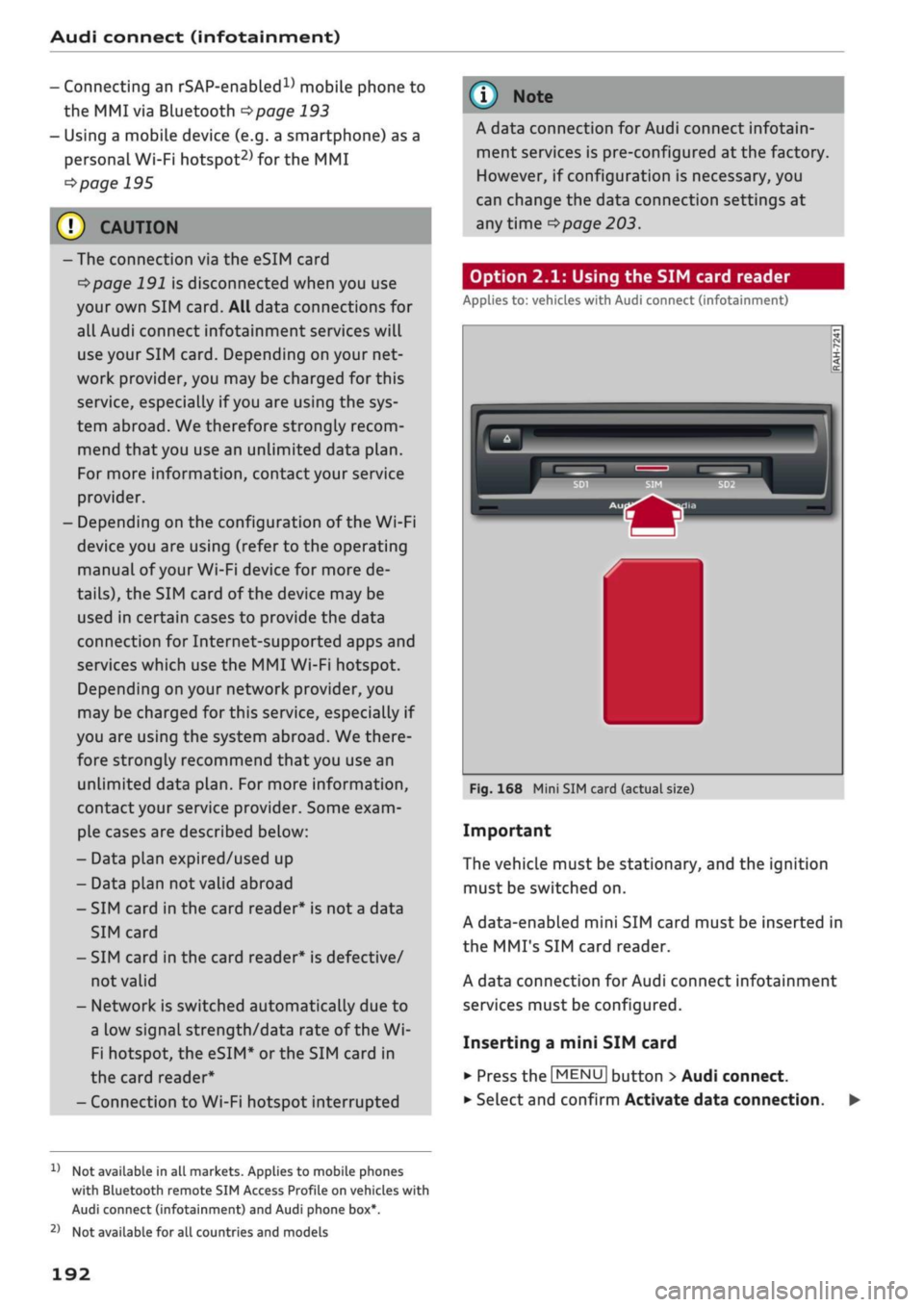
Option 2.1: Using the SIM card reader
Applies
to: vehicles with Audi connect (infotainment)
a
Fig.
168 Mini SIM card (actual size)
Important
The vehicLe must be stationary, and the ignition
must be switched on.
A data-enabled mini SIM card must be inserted in
the
MMI's
SIM card reader.
A data connection for Audi connect infotainment
services must be configured.
Inserting a mini SIM card
•
Press the |MENU| button
>
Audi connect.
•
Select and confirm Activate data connection. •
1'
Not available in all markets. Applies to mobile phones
with
Bluetooth remote SIM Access Profile on vehicles with
Audi
connect (infotainment) and Audi phone box*.
2)
Not available for all countries and models
192
Page 206 of 364
Audi connect (infotainment)
•
Select:
1MENU[
button
>
Telephone
>
right
con
trol button
>
Wi-Fi settings.
The following settings can be made:
Wi-Fi
The Wi-Fi hotspot is deactivated when the vehicle
leaves the factory. Switch the Wi-Fi hotspot on
before establishing an Internet connection be
tween your vehicle and your Wi-Fi device.
-
on:
The
MMI's
Wi-Fi hotspot is activated and
visible to other devices. You can connect your
Wi-Fi device to the MMI.
- off: The MMI's Wi-Fi hotspot is deactivated.
Wi-Fi devices will not be able to connect to the
Internet.
Network
key
The Wi-Fi connection between your vehicle and
the Wi-Fi device (laptop or mobile phone) is en
crypted.
Before a connection can be established,
you must enter the following values/settings
when setting up your Wi-Fi device (these values
can be edited as required):
-Access point
(SSID):
Name of the Wi-Fi net
work.
- Password: A random MMI password is set at
the factory. This password can be changed. The
encryption type WPA2 requires the password to
be at least 8 characters
long.
Please select
a
se
cure password.
- Discoverability: To switch the discoverability of
your Wi-Fi network on
([vj)
or off.
Network
search15
A list of the Wi-Fi networks available near you is
displayed.
Connection to personal hotspot15
The Wi-Fi hotspot of the MMI is activated. The
MMI can establish an Internet connection to a
personal Wi-Fi hotspot (e.g. smartphone). You
can search for your personal hotspot and connect
to the MMI using Network search. For more in
formation,
please refer to
^>page
195.
Not available in all markets.
This mode is not available if your own mini SIM
card is inserted in the SIM card reader.
A<
i
WARNING
- The Audi connect infotainment services
should only be used via a Wi-Fi hotspot
when the vehicle is stationary or from the
rear seats if the vehicLe is in motion - risk of
accident!
- Mobile devices, tablet and laptop computers
and devices of
a
similar weight can only be
operated safely when the vehicle is station
ary. Like any loose object, they can be cata
pulted through the vehicle in an accident
and cause serious injuries. Always make sure
that such devices are securely stowed while
you are driving.
- No Wi-Fi devices may be used from the front
seats in the areas around the airbags while
the vehicLe is being driven. Please also ob
serve the safety warnings in the chapter on
<3>page
282, Front airbags.
- Do not allow the features of the Wi-Fi hot-
spot to distract you from watching the traf
fic - taking your eyes off the road can cause
an accident.
© CAUTION
- Depending on the configuration of the Wi-Fi
device you are using (refer to the operating
manual of your Wi-Fi device for more de
tails),
the SIM card of the device may be
used in certain cases to provide the data
connection for Internet-supported apps and
services which use the MMI Wi-Fi hotspot.
Depending on your network provider, you
may be charged for this service, especially if
you are using the system abroad. We there
fore strongly recommend that you use an
unlimited data
plan.
For more information,
contact your service provider. Some exam
ple cases are described below:
- Data plan expired/used up
- Data plan not valid abroad •
202
Page 221 of 364
Navigation
CO
â
rN
rN
t-H
O
<
Other settings
Navigation settings
Applies
to:
vehicles with navigation system
•
Press
the |NAV/MAP|
button repeatedly until
the Enter destination menu
is
displayed
o
page
207,
Fig.
172.
•
Select: right control button
>
Navigation set
tings.
Depending
on the
function seLected,
you can use
the following settings:
Display alternative routes
When this function
is
switched
on
|vj,
up to
three
route suggestions
are
displayed
on the map
^>page
216,
Alternative routes.
Fuel warning
When
the
fuel gauge
is in the
reserve zone,
a
message will appear when this function
is on
[vf.
A list
of
nearby filling stations will
be
displayed
when you confirm this message. When
you
select
one
of
the filling stations,
the
route
to its
loca
tion will
be
calculated based
on the
current
posi
tion
of
your
car.
Trailer mode*
Trailer mode
is
switched
off
when
the
vehicle
leaves
the
factory.
When this function
is
switched
on
|vf,
the MMI
will take
the
speed limit
for
vehicles towing
a
trailer into account and
the
calculated arrival
time will
be
adjusted accordingly. Trailer mode
is
indicated
on the
map's legend menu
by the
sym
bol-*!.
Personal route assist*1)
The personal route assist function
is
switched
off
by default
in the
factory settings.
When this function
is
activated
EÎ,
your trips
are
recorded
and
destinations
are
suggested by
the
MMI system
^>page
214.
Arrival notification*
The arrival notification
is
switched
off
when
the
vehicle leaves
the
factory.
When this function
is
switched
on
@f,
the MMI
will inform
you
when
you are
approaching selec
ted special destinations (e.g. imported myAudi
special destinations). You
can
also have a sound
played using
the
Play notification tone function.
Delete myAudi special destinations*11
Destinations that you import from your myAudi
account
to
your
MMI are
automatically saved.
You
can
delete them individually
or all at
once.
Presentation mode
Use
the
Presentation mode
to
plan
and
"drive"
a
journey effectively without
the
need
to
move
the
vehicle. You
can
choose your start Location
man
ually (Select start location)
if, for
example,
you
would like
to
calculate a route starting from
a
different position than
the
current position
of the
vehicle. Start
the
Presentation mode
to
simulate
a route guidance.
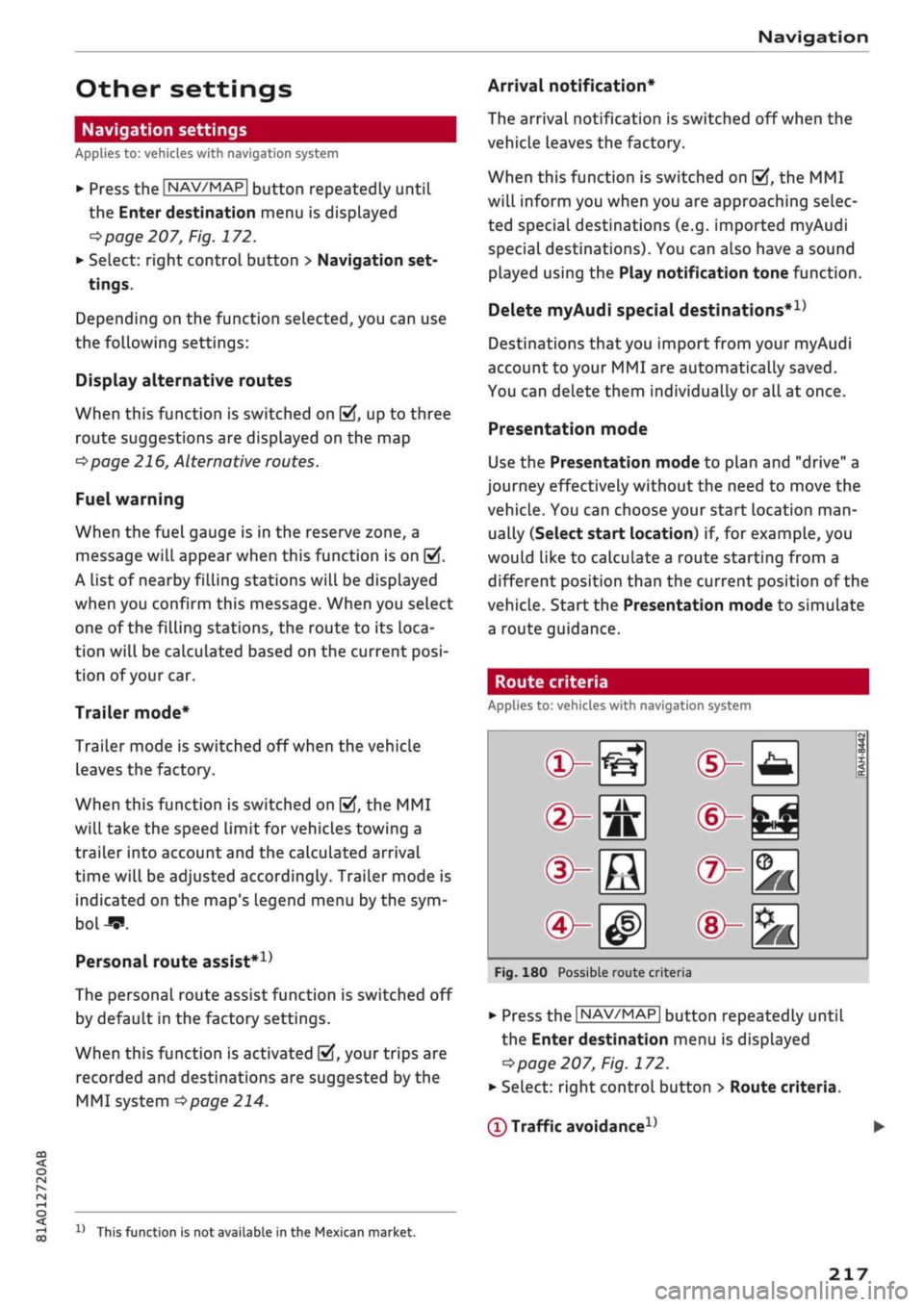
Route criteria
Applies
to:
vehicles with navigation system
®-«?
dHft
d^e
(S^#
Fig.
180
Possible route crite
1 1
1
®-feJ
®-fc
®-3K
ria
•
Press
the |NAV/MAP|
button repeatedly until
the Enter destination menu
is
displayed
=>page
207,
Fig.
172.
•
Select: right control button > Route criteria.
(T)
Traffic avoidance
D
x)
This function
is
not
available
in the
Mexican market.
217
Page 226 of 364

Navigation
Google Earth map
dispLay
Applies
to: vehicles with navigation system and Audi connect
(infotainment)
You
can have the map display satellite images
using the Google Earth map
display.
•• :•-:•
Fig.
183 Example: Google Earth map display
Ï7
--•
•
III
:•:•
in
in
Fig.
184 Example: Google Earth map display with Google
Street
View
Important: The requirements for Audi connect
(infotainment) must be met
^>page
191.
*•
Press the |NAV/MAP| button repeatedly until
the map is displayed.
*•
Select: right control button > Map settings >
Map display
>
Google Earth.
For this map dispLay the system uses data pack
ets received online in the form of satellite pic
tures and combines these pictures with the road
network from the Standard map display. The
MMI has 2 GB of flash memory for temporarily
storing the map/navigation data received online
(corresponds to map/navigation data for about
4000 km of route guidance). You can also use the
loaded satellite pictures for route guidance
with
out an active data connection as long as these
pictures are stored.
Google
Street View
With Google Street View, you can explore many
locations all over the world virtually from the
perspective of
a
pedestrian. Google Street View is
available as soon as the
symbol®
^>Fig.
183 is
shown in crosshairs mode.
To start Google Street View: Turn the rotary
pushbutton to select
a
scale below 30 m.
The following options are available:
-To explore a destination step-by-step: Press
the rotary pushbutton when the
symbol @
^>Fig.
184 is visible.
- To zoom in/out of the current display (up to
4x):
Turn the rotary pushbutton to the left/
right
(D'=>F/g.JS4.
- To navigate in the street view: Move your
fin
ger in the desired direction on the MMI touch
pad*
or move the rotary pushbutton in the de
sired direction.
Additional information
In the Map content menu
^>page
221, you can
activate the function to show additional informa
tion on the infotainment display. To show the ad
ditional information move the crosshairs onto an
item on the map and press the rotary pushbut
ton.
(i) Note
- You can delete the data stored by the Goo
gle Earth map dispLay by selecting Factory
settings
>
Navigation and online memory
•=>
page 256.
- Google Earth is an Audi connect infotain
ment service that is updated at regular in
tervals when it is called up. This can take a
few seconds.
-When the Google Earth 3D map display is
switched on, the map display automatically
switches to the 2D map while you are driv
ing through a tunnel.
- For safety reasons, the Google Street View
functions cannot be used while the vehicle
is moving.
- Please always note the information in the
chapter
^>page
204, General notes on Audi
connect (infotainment).
- Further information can be found on the In
ternet at www.audi.com.
222
Page 238 of 364
Media
Media
Introduction
The MMI system includes various media drives
and provides various options for connecting
devi
ces.
For example, you can play audio/video* files
from the jukebox* or connect mobile devices to
the Audi music interface* and operate it via the
MMI.
Notes
General information
Media and format limitations: The MMI system
(including the SD card reader and the connection
for
the USB mass storage device*) has been tes
ted for use with many of the products and media
currently available on the market. However,
there may be some devices/media and audio/vid
eo*
files that are not supported or cannot be
played,
or the functionality may be limited under
certain circumstances.
Digital rights management: Please note that
copyright Law applies to audio/video* files.
The MMI media drives do not support DRM-pro-
tected files; these files are marked with the sym
bol S.
Data storage: Never store important data on SD
cards,
the jukebox*, CDs/DVDs or mobile devices.
AUDI AC shall not accept any liability whatsoever
for
the loss of files and media.
Loading times: The more files, folders or play
lists are stored on a storage device, the longer it
will take to load the audio files/video* files. We
recommend using a storage device which
con
tains only audio/video* files. If
you
want to re
duce the time it takes to load the audio/video*
files,
you can create subfolders (e.g. for an artist
or album). The loading time will be extended ad
ditionally if
you
are importing data.
Metadata: Metadata stored on audio files (e.g.
artists, tracks, album covers) will be displayed
automatically when the files are played. If this
information is not stored on the relevant medi
um,
the MMI system will use the database of
metadata from Gracenote. Nevertheless, meta
data may not be displayed in some cases.
Restricted performance: If
you
experience re
stricted performance, reset the Media settings
to the factory defaults
^page
256.
If
you
experience restricted performance from
the Jukebox*, reset it to the factory settings
<=>
page 256.
For information on the characteristics of the sup
ported media and file formats, please refer to
opage
249 onwards.
CAUTION
Please always observe the information
<=>(J)in
Wi-Fi hotspot on page 202.
CD/DVD mode
CD/DVD and format limitations: In view of the
variety of CDs/DVDs and the difference in memo
ry capacities, the functionality may be restricted
in the case of some storage devices. Under cer
tain circumstances, audio CDs/video DVDs that
are copy-protected or CDs/DVDs that do not com
ply with the standard audio format, and multi-
session CDs cannot be played at all, or the func
tionality may be limited. We recommend always
finalising the burning process when creating
multisession
CDs. Multisession is not supported
for DVDs.
Handling CDs/DVDs, the CD drive or the DVD
drive:
To ensure perfect, high-quality playback
and avoid scanning errors or damage to the me
dia drive, always store CDs/DVDs in a suitable
case and do not expose them to direct sunlight.
Do not use:
- Damaged, dirty or scratched CDs/DVDs
- Single CDs/DVDs (diameter 8 cm)
- Non-circular CDs/DVDs (shape CDs)
- CDs/DVDs with stickers
- Protective rings
- Cleaning discs
Thermal cut-out: In the case of unusually hot or
cold outside temperatures, it is possible that CD/
DVD playback will temporarily not be possible. A •
234
Page 256 of 364

Media
Subject
Audi music interface*: Content
that has been changed on a mo
bile
devicea)
connected to the
Audi music interface is not shown
in the media centre.
Bluetooth audio player*: Prob
lems with track display and play
back.
Wi-Fi hotspot*: Wi-Fi hotspot
connection to your Wi-Fi device
interrupted.
Audi music interface: No audio
playback possibLe via a connected
mobiLe device.
Advice
Reset the Media settings to the factory settings
^page
256.
Problems can occur if
a
third party music playback app is open
when you are playing audio via the Bluetooth audio player. Audi
recommends
that
you use the integrated media player on your
Bluetooth device (e.g. smartphone).
Make sure that the network optimisation function is switched off
in the Wi-Fi settings or network settings of your Wi-Fi device.
Please refer to the operating manual
of your
Wi-Fi device for fur
ther details.
Make sure that the USB mode
MTP
is selected in your mobile
devi
ce's settings.
a'
Applies to MTP devices only. Does not apply to Apple or USB mass storage devices.
252
Page 261 of 364

System settings
Connection manager
Introduction
The
connection manager
gives
you an overview
of your connected
devices
and their connection
status.
Settings
Connection manager
*
MyPhone
• Additional
phone:
-• Data
connection:
• MMI connect app:
• Audi smartphone:
Fig.
205 Connection manager
•
Select: IMENUI button > Settings
>
Left control
button > MMI settings > Connection manager.
•
Select and confirm a menu option.
If
a
mobile device has already been connected
and you then select and confirm the correspond
ing menu item, the device's name and connection
mode is displayed under this menu item
^Fig.
205.
You can connect
((vj)
or disconnect
O)
a connec
ted device individually.
Telephone
Applies
to: vehicles with telephone
- Connect new device: You can search for and
connect
a
mobile phone.
- List of devices already bonded: Select your mo
bile phone from the List of all devices which
have already been bonded. Or: Insert your own
mini SIM card in the SIM card reader*
^>page
176.
Second phone
Applies
to: vehicles with Audi phone box
- Connect new device: You can search for and
connect
a
mobile phone.
- List of devices already bonded: Select your mo
bile phone from the List of all devices which
have already been bonded.
Data connection
Applies
to: vehicles with Audi connect (infotainment)
Applies
to: option using the embedded SIM card
- The embedded SIM
card1)
will be used for the
data connection
^>page
191. You do not need
to adjust any other settings.
Applies
to: option using your own SIM card
- Connect new device: You can search for and
connect
a
mobile device (e.g. a smartphone).
- List of devices already bonded: Select your mo
bile phone from the List of all devices which
have already been bonded. Or: Insert your own
mini SIM card in the SIM card reader*.
© CAUTION
Please always observe the information
•=>©
in
Wi-Fi hotspot on page 202.
MMI connect app
Applies
to: vehicles with Audi connect (infotainment)
Important: The Audi MMI connect app must be
installed on your mobile device and have been
started.
- Connect new device: You can search for and
connect
a
mobile device (e.g. a smartphone).
- List of devices already bonded: Select your mo
bile device from the List of all devices which
have already been bonded.
Music
Applies
to: vehicles with Bluetooth audio player or Wi-Fi au
dio
player
Audio player*
Important: The Bluetooth function and the dis
coverability option of both the MMI system
opage
258 and the mobile phone must be
acti
vated.
CO
rN
IV
rN
t-H
o <
x)
SIM card installed in vehicle at factory.
257