mode AUDI Q2 2021 Owner´s Manual
[x] Cancel search | Manufacturer: AUDI, Model Year: 2021, Model line: Q2, Model: AUDI Q2 2021Pages: 364, PDF Size: 87.77 MB
Page 146 of 364
Parking aids
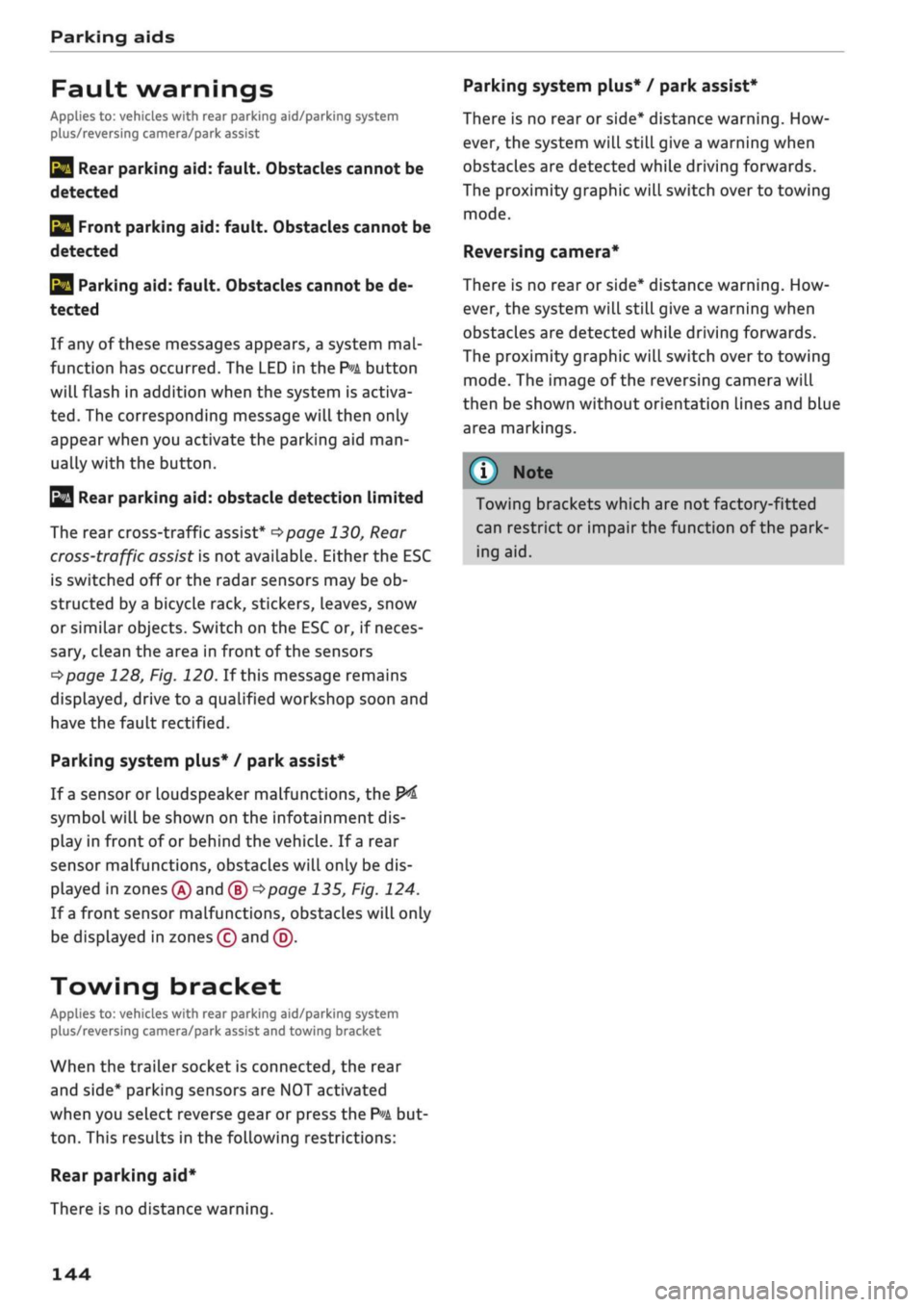
Fault warnings
Applies to: vehicles with rear parking aid/parking system
plus/reversing camera/park assist
[3
Rear parking aid: fault. Obstacles cannot be
detected
O
Front parking aid: fault. Obstacles cannot be
detected
O
Parking aid: fault. Obstacles cannot be de
tected
If any of these messages appears, a system
mal
function has occurred. The LED in the
P*A
button
will flash in addition when the system is activa
ted.
The corresponding message will then only
appear when you activate the parking aid
man
ually with the button.
[3
Rear parking aid: obstacle detection limited
The rear cross-traffic assist*
^>page
130, Rear
cross-traffic assist is not available. Either the ESC
is switched off or the radar sensors may be ob
structed by a bicycle rack, stickers, leaves, snow
or similar objects. Switch on the ESC or, if neces
sary, clean the area in front of the sensors
^>page
128, Fig. 120. If this message remains
displayed,
drive to a qualified workshop soon and
have the fault rectified.
Parking system plus* / park assist*
If a sensor or loudspeaker malfunctions, the
f&L
symbol will be shown on the infotainment dis
play in front of or behind the vehicle. If
a
rear
sensor malfunctions, obstacles will only be dis
played in zones
(A)
and
(B)
<^>page
135, Fig. 124.
If a front sensor malfunctions, obstacles will only
be displayed in zones (?) and (5).
Towing bracket
Applies to: vehicles with rear parking aid/parking system
plus/reversing camera/park assist and towing bracket
When the trailer socket is connected, the rear
and side* parking sensors are NOT activated
when you select reverse gear or press the
P*A
but
ton.
This results in the following restrictions:
Rear parking
aid*
There is no distance warning.
Parking system plus* / park assist*
There is no rear or side* distance warning. How
ever, the system will still give a warning when
obstacles are detected while driving forwards.
The proximity graphic will switch over to towing
mode.
Reversing camera*
There is no rear or side* distance warning. How
ever, the system will still give a warning when
obstacles are detected while driving forwards.
The proximity graphic will switch over to towing
mode.
The image of the reversing camera will
then be shown without orientation lines and blue
area markings.
(T) Note
Towing brackets which are not factory-fitted
can restrict or impair the function of the park
ing aid.
144
Page 148 of 364
Intelligent technology
Remember that the accident risk always in
creases
if
you
drive fast, especially
in
cor
ners
or
on a wet
or
slippery
road,
or if
you
follow too close behind the vehicle in front
of
you.
Please bear
in
mind that even
the
ESC
and
the
integrated systems cannot
compensate
for
the increased accident risk.
When accelerating
on
a uniformly slippery
surface
(for
instance
all
four wheels on
ice
or snow), press the accelerator gradually
and carefully. The driven wheels may other
wise start
to
spin
(in
spite
of
the integrated
control systems), which would impair the
car's stability and could lead
to
an accident.
© Note
The ABS and ASR systems can only work
properly
if
a 11
four tyres have a similar de
gree
of
wear. Any differences
in the
rolling
radius
of
the tyres can cause the system
to
reduce engine power when this
is not
de
sired.
The systems can make noises when they in
tervene.
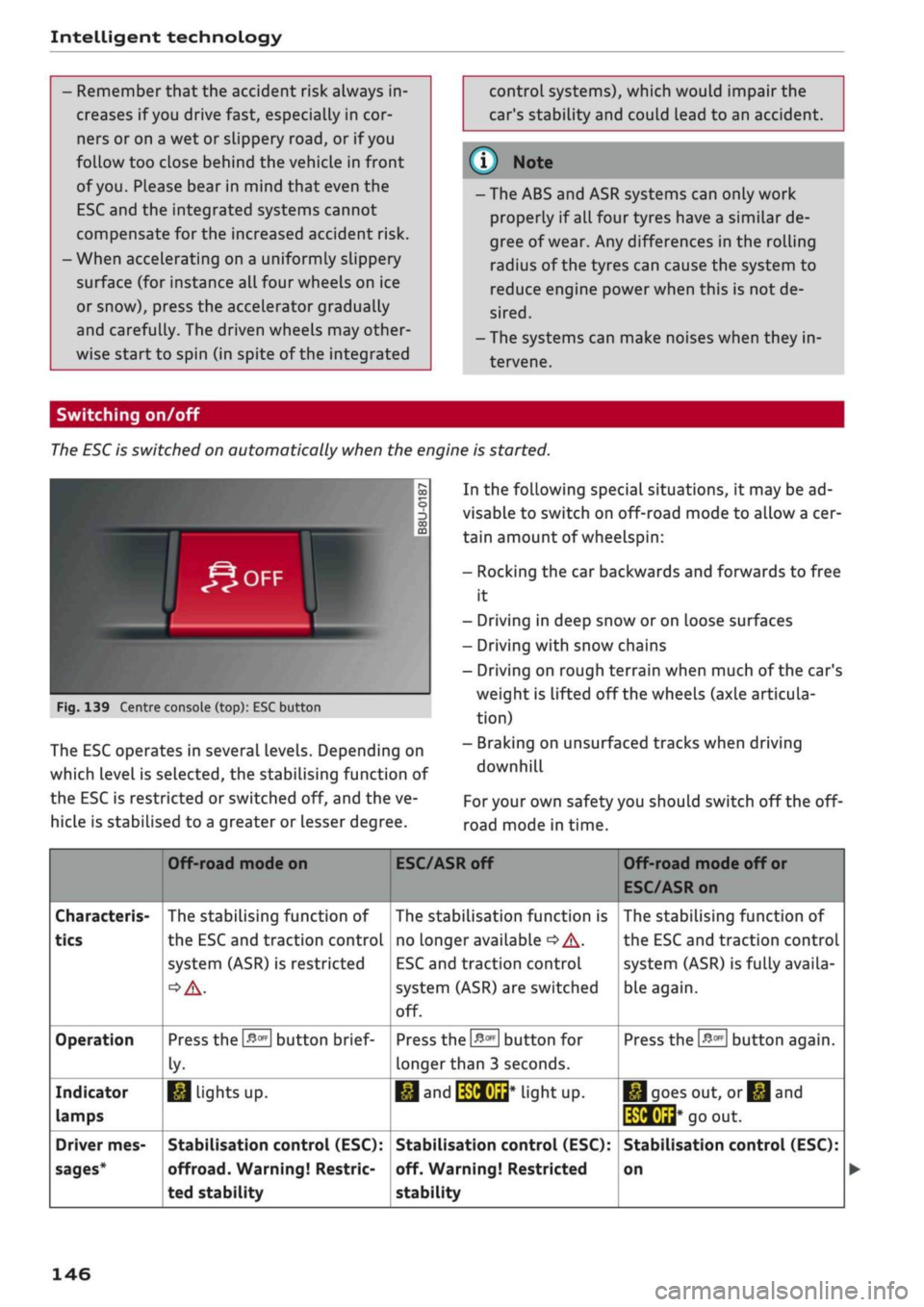
Switching on/off
The ESC
is switched on automatically when
the
engine is started.
^OFF
1
y
CO
5
3
CO
Fig.
139 Centre console (top): ESC button
The ESC operates
in
several levels. Depending
on
which Level
is
selected,
the
stabilising function
of
the ESC
is
restricted
or
switched
off,
and the ve
hicLe
is
stabilised
to
a greater
or
Lesser degree.
In the following special situations,
it
may be ad
visable
to
switch on off-road mode
to
allow a cer
tain amount
of
wheelspin:
- Rocking
the car
backwards and forwards
to
free
it
- Driving
in
deep snow
or
on Loose surfaces
- Driving with snow chains
- Driving
on
rough terrain when much
of
the car's
weight
is
lifted
off
the wheels (axle articula
tion)
- Braking
on
unsurfaced tracks when driving
downhill
For
your own safety you should switch
off
the
off-
road mode
in
time.
Characteris
tics
Operation
Indicator
lamps
Driver mes
sages*
Off-road mode
on
The stabilising function
of
the ESC and traction controL
system (ASR)
is
restricted
Press the
&m
button brief
ly-
1*1
Lights
up.
Stabilisation control (ESC):
offroad.
Warning! Restric
ted stability
ESC/ASR
off
The stabilisation function
is
no Longer available
•=>
A-
ESC
and traction controL
system (ASR) are switched
off.
Press
the
&m
button
for
longer than
3
seconds.
•M and
IWHUrt*
liant UP.
Stabilisation control (ESC):
off. Warning! Restricted
stability
Off-road mode
off
or
ESC/ASR on
The stabilising function
of
the ESC and traction control
system (ASR) is fully availa
ble again.
Press the
#*
button again.
|*|goes
out,
or^and
të&Éid*
go
out.
Stabilisation control (ESC):
on
146
Page 149 of 364
 only if your driving ability and the traf
fic conditions allow yo")
Intelligent technology
/r\
WARNING
You should switch on the off-road mode or
switch off the ESC/traction control system
(ASR) only if your driving ability and the traf
fic conditions allow you to do so safely -
dan
ger of skidding!
- The stabilising function is restricted when
off-road mode is switched on. The driven
wheels may start to
spin,
causing the
vehi
cle to lose grip, in particular on slippery or
wet roads.
- When the ESC/traction control system
(ASR) is switched off, the vehicle will not be
stabilised.
Brakes
New brake pads
New brake pads do not give full braking effect for
the first 400 km, they must first be "bedded in".
However, you can compensate for the slightly re
duced braking effect by applying more pressure
on the brake pedal. Avoid placing a heavy load on
the brakes during the running-in period.
Wear
The rate of wear on the brake pads depends a
great deal on how you drive and the conditions in
which the vehicLe is operated. Negative factors
are,
for instance, city traffic, frequent short trips
or hard driving with abrupt starts and stops.
Noises
Brake noise may develop in certain situations, de
pending on the speed, braking force and ambient
conditions (such as temperature and relative hu
midity).
Effect of moisture and salt
In certain conditions, such as in heavy
rain,
early
morning dew, or after washing the car or driving
through water, the full braking effect can be de
layed by moisture (or in winter by ice) on the
discs and brake pads. The brakes should be
< "dried" by pressing the pedal to restore full brak-
R
ing effect.
When you are driving at higher speeds with the
windscreen wipers on, the brake pads are very
briefly brought into contact with the brake discs.
This automatic process which goes unnoticed by
the driver is carried out at regular intervals and is
intended to improve braking response in wet
con
ditions.
The effectiveness of the brakes can also be
tem
porarily reduced if the car is driven for some dis
tance without using the brakes when there is a
lot of salt on the road in winter. The layer of salt
that accumulates on the discs and pads can be
removed with a few cautious brake applications.
Corrosion
There may be a tendency for dirt to build up on
the brake pads and corrosion to form on the discs
if the car is used infrequently, or if
you
only drive
low mileages without using the brakes very
much.
If the brakes are not used frequently, or if corro
sion has formed on the discs, it is advisable to
clean off the pads and discs by braking firmly a
few times from a moderately high speed
•=> A-
Faults in the brake system
If the brake pedal travel should ever increase
suddenly, this may mean that one of the two
brake circuits has failed. Drive immediately to the
nearest qualified workshop and have the fault
rectified.
On the way to the dealer, be prepared
to use more pressure on the brake pedal and al
low for longer stopping distances.
Low brake fluid level
Malfunctions can occur in the brake system if the
brake fluid level is too low. The brake fluid level
is monitored electronically.
Brake servo
The brake servo amplifies the pressure you apply
to the brake pedal. It only works when the engine
is running. •
147
Page 150 of 364
Intelligent technology
/K
WARNING
- When applying
the
brakes
to
clean
off
de
posits
on the
pads and discs, select
a
clear,
dry
road.
Be sure
not to
inconvenience
or
en
danger other road users;
do not
risk an
acci
dent.
- Never
let the car
coast with
the
engine
switched
off
(this can cause accidents).
(T)
CAUTION
- Never
let the
brakes "drag"
by
leaving your
foot on
the
pedal when you
do not
really
in
tend
to
brake. This overheats
the
brakes,
re
sulting
in
longer stopping distances
and
greater wear.
- Before driving down
a
long,
steep gradient,
it
is
advisable
to
reduce speed
and
select
a
lower gear.
In
this way you will make use
of
the engine braking effect and relieve
the
load
on the
brakes.
If
you
still have
to use
the brakes,
it is
better
to
brake firmly
at in
tervals than
to
apply
the
brakes continuous-
Ly
-
If
the brake servo
is out of
action,
you must
apply considerably more pressure
to the
brake pedal than you normally would.
-
If
you
wish
to
equip
the
car with accessories
such as a front spoiler
or
wheel covers,
it is
important that
the
flow
of air to the
front
wheels
is not
obstructed, otherwise
the
brakes can overheat.
Electro-mechanical
power steering
Electro-mechanical power steering assists
the
driver when steering.
The degree
of
power assistance
is
adapted elec
tronically,
depending
on the
speed.
Warning/indicator lamps
and
driver
messages
| Do not drive vehicle: steering defective
If the warning lamp lights
up
permanently
and
the message appears, there
may be
a power
steering failure.
Stop
the
vehicle
in a
safe place
as
soon
as
possi
ble.
Do
NOT drive on. Obtain professional assis
tance.
S
Steering malfunction: you can continue driv
ing
If the indicator Lamp Lights up,
the
steering
re
sponse
may be
heavier
or
lighter than usual.
In
addition,
it is
possible that
the
steering wheel
will
be off
centre when driving
in a
straight line.
Drive slowly
to
a qualified workshop and have
the
fault rectified.
Note
You
can
drive
on if
the warnina/indicator
g/
Lamp
||
or y
|
lights
up
only briefly
Four-wheel drive
(quattro)
Applies to: vehicles with four-wheel drive
On
quattro models
the
engine power is distrib
uted
to all
four wheels.
General notes
On four-wheel drive vehicles,
the
engine power
is
distributed
to all
four wheels. The distribution
of
power
is
controlled automatically according
to
your driving style and
the
road conditions. Also
refer
to
^>page
145,
Electronic stabilisation con
trol
(ESC).
The four-wheel drive
is
specially designed
to
complement
the
superior engine power
of
your
Audi.
This combination gives
the car
exceptional
handling
and
performance capabilities
-
both
on
normal roads and
in
more difficult conditions,
such
as
snow and
ice.
Even
so (or
perhaps espe
cially
for
this reason),
it is
important
to
observe
certain safety points
<=> A-
Winter tyres
Thanks
to its
four-wheel drive, your
car
will have
plenty
of
traction
in
winter conditions, even with
•
148
Page 151 of 364
Intelligent technology
the standard tyres. Nevertheless, we still recom
mend that winter tyres or all-season tyres should
be fitted on all four wheels when winter road
conditions are expected, mainly because this will
give a better braking response.
Snow chains
On roads where snow chains are mandatory, this
also applies to cars with four-wheel drive
Opcrge
309, Snow chains.
Replacing tyres
On vehicles with four-wheel drive, all four tyres
must have the same rolling circumference. Also
avoid using tyres with varying tread depths
tapage
305,
New wheels or tyres.
Off-roader?
Some models do not have enough ground clear
ance to be used on rough tracks and uneven ter
rain,
so it is best to avoid off-road driving.
A WARNING
- Even with four-wheel drive, you should al
ways adjust your speed to suit the condi
tions.
Do not let the extra safety provided
tempt you into taking any risks when driving
- this can cause accidents.
- The braking ability of your car is limited by
the grip of the tyres. In this respect, your
car is no different from a car without four-
wheel drive. So do not be tempted to drive
too fast on icy or slippery roads just because
the car still has good acceleration in these
conditions - risk of accident!
- On wet roads bear in mind that the front
wheels may start to "aquaplane" and lose
contact with the road if the car is driven too
fast. If this should happen, there will be no
sudden increase in engine speed to warn the
driver, as with a front-wheel drive car. So do
not drive too fast in the wet: adjust your
speed to suit the conditions (accident risk).
CO
rN
IV
rN
•-i
00
Power management
This system helps to ensure reliable
starting
The
power management controls the distribu
tion of electrical energy and thus helps to ensure
that there is always enough power available to
start the engine.
If
a
vehicle with a conventional electrical system
is left parked for
a
long time, the vehicle battery
will gradually lose its charge because certain
electrical equipment (such as the immobiliser)
continues to draw current even when the ignition
is off. In some cases there may not be enough
power available to start the engine.
Your vehicLe is equipped with an intelligent pow
er management system to control the distribu
tion of electrical energy. This significantly im
proves reliability when starting the engine, and
also prolongs the life of the vehicle battery.
The main functions incorporated in the power
management system are battery diagnosis, re
sidual current management and dynamic power
management.
Battery diagnosis
The battery diagnosis function constantly regis
ters the condition of the vehicle battery. Sensors
detect the battery voltage, battery current and
battery temperature. This enables the system to
calculate the current power level and charge
con
dition of the vehicle battery.
Residual current management
The residual current management reduces power
consumption while the vehicle is parked. It
con
trols the supply of power to the various electrical
components while the ignition is switched off.
The system takes the battery diagnosis data into
consideration.
Depending on the power Level of the vehicle bat
tery, the individual electrical components are
switched off one after the other to prevent the
vehicle battery from losing too much charge and
to ensure that the engine can be started reliably. •
149
Page 190 of 364
Telephone
the settings of your mobile phone apply. You can
use Check status to check whether this function
is activated or deactivated.
Telephone mode*
On vehicles with a car telephone kit, you can
choose between three different telephone modes
to optimise the mobile network response:
- Automatic: The car telephone automatically
switches between the GSM (2G), UMTS (3G)
and LTE networks. This depends on the mobile
network's availability and reception, and on the
position of the vehicle. In this mode, there
might be restrictions when using Google Earth
or Wi-Fi.
- Telephony optimised: The car telephone kit
registers with the GSM network (2G). In this
mode,
the reception is prioritised for making
and receiving calls. There may be restrictions
when using Google Earth or Wi-Fi.
- Data service optimised: The car telephone
reg
isters with the GSM (2G), UMTS (3G) or LTE net
work. This depends on the mobile network, its
reception,
and the position of the vehicle. In
this mode, the reception is prioritised for the
use of data services. There may be restrictions
when making and receiving calls.
Ring tone and volume
settings1'
You can use the Mute telephone function to
switch ring tone playback via the MMI loudspeak
ers on/off. Ring tones are played when you select
the function Ring tone. Select an entry from the
list and confirm it. For the settings Ring tone
volume/Message volume, see
^>page
261. You
can adjust the Microphone input level during an
active phone call using the rotary pushbutton.
Network settings*
Refer to
^>page
259.
Serial number
(IMEI)*
The serial number of the telephone module in
stalled in the MMI system is displayed.
Switch on telephone/Switch off telephone
Applies to: vehicles with car telephone kit
The car telephone will be turned "on" automati
cally when the ignition is switched on, as long as
it was nor switched off separately the last time it
was used.
- You can bond several mobile phones to the
MMI system; however only two connections
are active at a time.
-All bonded Bluetooth devices can be deleted
by resetting the Bluetooth function to the
factory settings
^page
256.
- If you select the telephone mode Automatic
or Telephony optimised, there may be net
work restrictions if you try to use Audi
con
nect infotainment services* and make tele
phone calls at the same time.
Further options
•
Select:
[MENU|
button > Telephone > right
con
trol button.
Connection manager
Refer to
^>page
257.
Bluetooth settings*
Refer to
opage
258.
Online settings*
Refer to
^page
258.
Wi-Fi settings*
Refer to
^>page
201, Wi-Fi hotspot.
Data connection settings*
Refer to
^>page
203, Configuring the data con
nection.
11
Depends on the connected mobile phone
188
Page 194 of 364
Audi connect (infotainment)
- Connecting an
rSAP-enabled15
mobile phone to
the MMI via Bluetooth
^>page
193
- Using a mobiLe device (e.g. a smartphone) as a
personal Wi-Fi
hotspot2^
for the MMI
cépage
195
©
©
1
CAUTION
- The connection via the eSIM card
^page
191 is disconnected when you use
your own SIM
card.
All data connections for
all Audi connect infotainment services will
use your SIM
card.
Depending on your net
work provider, you may be charged
for
this
service, especially if
you
are using the sys
tem abroad. We therefore strongly recom
mend
that
you use an unlimited data
plan.
For more information, contact your service
provider.
- Depending on the configuration of the Wi-Fi
device you are using (refer to the operating
manual of your Wi-Fi device for more de
tails),
the SIM card of the device may be
used in certain cases to provide the data
connection for Internet-supported apps and
services which use the MMI Wi-Fi hotspot.
Depending on your network provider, you
may be charged for this service, especially if
you are using the system abroad. We there
fore strongly recommend
that
you use an
unlimited data
plan.
For more information,
contact your service provider. Some exam
ple cases are described below:
- Data plan expired/used up
- Data plan not valid abroad
- SIM card in the card reader* is not
a
data
SIM card
- SIM card in the card reader* is defective/
not valid
- Network is switched automatically due to
a low signal strength/data rate of the Wi-
Fi hotspot, the eSIM* or the SIM card in
the card reader*
- Connection to Wi-Fi hotspot interrupted
y
Note
A data connection for Audi connect infotain
ment services is pre-configured at the factory.
However, if configuration is necessary, you
can change the data connection settings at
any time
^>page
203.
Option 2.1: Using the SIM card reader
Applies
to: vehicles with Audi connect (infotainment)
a
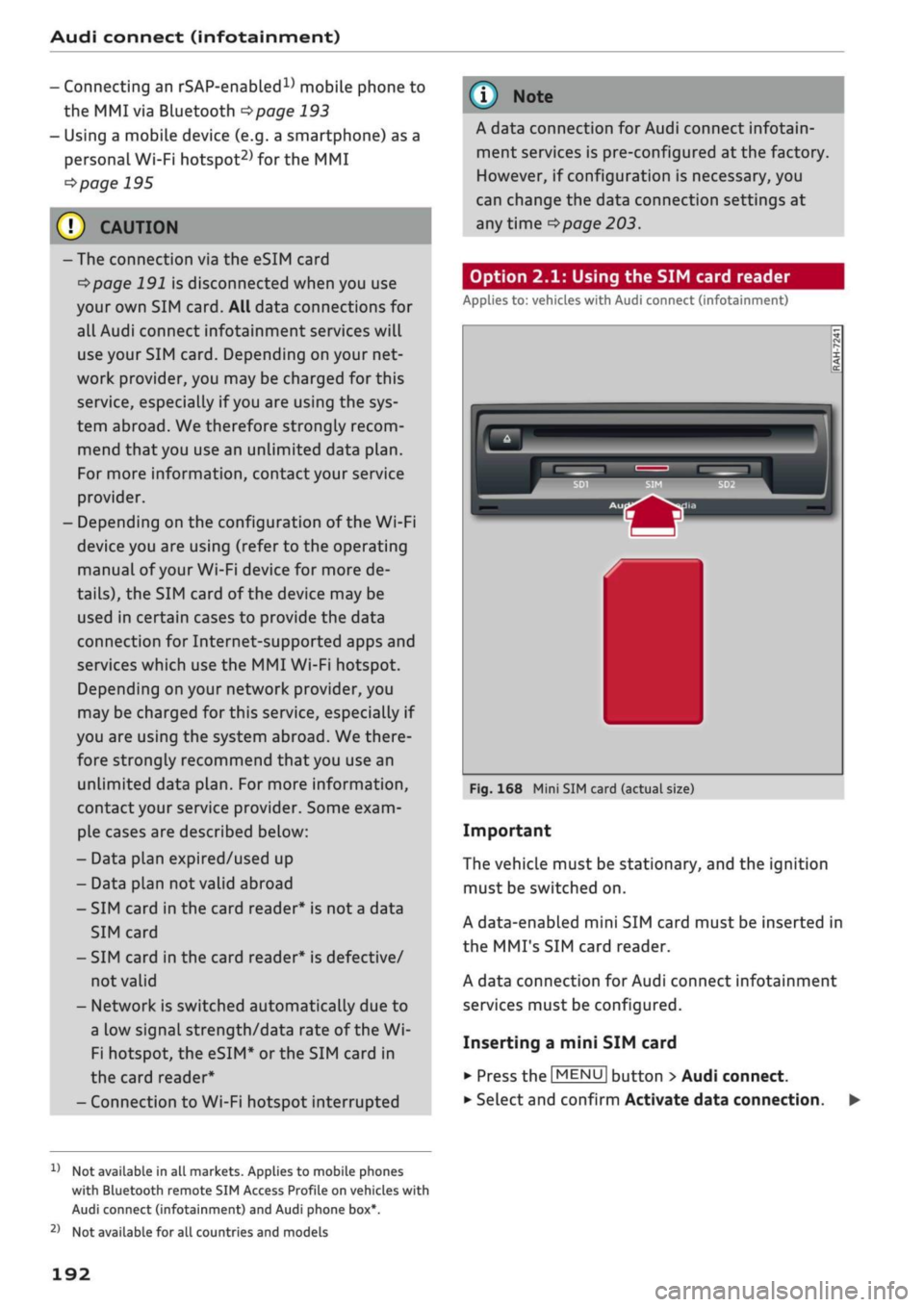
Fig.
168 Mini SIM card (actual size)
Important
The vehicLe must be stationary, and the ignition
must be switched on.
A data-enabled mini SIM card must be inserted in
the
MMI's
SIM card reader.
A data connection for Audi connect infotainment
services must be configured.
Inserting a mini SIM card
•
Press the |MENU| button
>
Audi connect.
•
Select and confirm Activate data connection. •
1'
Not available in all markets. Applies to mobile phones
with
Bluetooth remote SIM Access Profile on vehicles with
Audi
connect (infotainment) and Audi phone box*.
2)
Not available for all countries and models
192
Page 206 of 364
Audi connect (infotainment)
•
Select:
1MENU[
button
>
Telephone
>
right
con
trol button
>
Wi-Fi settings.
The following settings can be made:
Wi-Fi
The Wi-Fi hotspot is deactivated when the vehicle
leaves the factory. Switch the Wi-Fi hotspot on
before establishing an Internet connection be
tween your vehicle and your Wi-Fi device.
-
on:
The
MMI's
Wi-Fi hotspot is activated and
visible to other devices. You can connect your
Wi-Fi device to the MMI.
- off: The MMI's Wi-Fi hotspot is deactivated.
Wi-Fi devices will not be able to connect to the
Internet.
Network
key
The Wi-Fi connection between your vehicle and
the Wi-Fi device (laptop or mobile phone) is en
crypted.
Before a connection can be established,
you must enter the following values/settings
when setting up your Wi-Fi device (these values
can be edited as required):
-Access point
(SSID):
Name of the Wi-Fi net
work.
- Password: A random MMI password is set at
the factory. This password can be changed. The
encryption type WPA2 requires the password to
be at least 8 characters
long.
Please select
a
se
cure password.
- Discoverability: To switch the discoverability of
your Wi-Fi network on
([vj)
or off.
Network
search15
A list of the Wi-Fi networks available near you is
displayed.
Connection to personal hotspot15
The Wi-Fi hotspot of the MMI is activated. The
MMI can establish an Internet connection to a
personal Wi-Fi hotspot (e.g. smartphone). You
can search for your personal hotspot and connect
to the MMI using Network search. For more in
formation,
please refer to
^>page
195.
Not available in all markets.
This mode is not available if your own mini SIM
card is inserted in the SIM card reader.
A<
i
WARNING
- The Audi connect infotainment services
should only be used via a Wi-Fi hotspot
when the vehicle is stationary or from the
rear seats if the vehicLe is in motion - risk of
accident!
- Mobile devices, tablet and laptop computers
and devices of
a
similar weight can only be
operated safely when the vehicle is station
ary. Like any loose object, they can be cata
pulted through the vehicle in an accident
and cause serious injuries. Always make sure
that such devices are securely stowed while
you are driving.
- No Wi-Fi devices may be used from the front
seats in the areas around the airbags while
the vehicLe is being driven. Please also ob
serve the safety warnings in the chapter on
<3>page
282, Front airbags.
- Do not allow the features of the Wi-Fi hot-
spot to distract you from watching the traf
fic - taking your eyes off the road can cause
an accident.
© CAUTION
- Depending on the configuration of the Wi-Fi
device you are using (refer to the operating
manual of your Wi-Fi device for more de
tails),
the SIM card of the device may be
used in certain cases to provide the data
connection for Internet-supported apps and
services which use the MMI Wi-Fi hotspot.
Depending on your network provider, you
may be charged for this service, especially if
you are using the system abroad. We there
fore strongly recommend that you use an
unlimited data
plan.
For more information,
contact your service provider. Some exam
ple cases are described below:
- Data plan expired/used up
- Data plan not valid abroad •
202
Page 208 of 364
Audi connect (infotainment)
Audi connect (MMI)
With the Audi connect (MMI) function, you can
allow or deny the use of Audi connect infotain
ment services if the connection is
set
to no re
quest or with request.
Wi-Fi devices*
You can use the Wi-Fi devices function to allow
or deny a connection to the Internet.
Connection settings
Depending on the SIM card used, the connection
may be configured automatically. However, these
settings can be changed. For more information,
contact your service provider.
- APN: The system access point depends on your
mobile network service provider and is assigned
automatically.
- User name: The user name for your online pro
file is assigned by your mobile network service
provider.
- Password: The password for your online profile
is assigned by your mobile network service pro
vider.
- Use settings: The changed connection settings
are
stored.
Reset configuration
An online profile is created and configured auto
matically. The Connection settings you have
changed manually are reset to the default set
tings.
/Sy
WARNING
- Do not allow the features of the Wi-Fi hot-
spot to distract you from watching the traf
fic - taking your eyes off the road can cause
an accident.
- Mobile devices, tablet and laptop computers
and devices of a similar weight can only be
operated safely when the vehicle is station
ary. Like any loose object, they can be cata
pulted through the vehicle in an accident
and cause serious injuries. Always make sure
that such devices are securely stowed while
you are driving.
- No Wi-Fi devices may be used from the front
seats in the areas around the airbags while
the vehicle is being driven. Please also ob
serve the safety warnings in the chapter on
^>page
282, Front airbags.
© CAUTION
Please always observe the information
•=>©
in
Wi-Fi hotspot on page 202.
© Note
- According to the factory settings, the data
connection will be interrupted initially when
you travel abroad to protect you from unex
pected roaming charges. If you want to use
Audi connect infotainment services abroad,
you must first activate the Data roaming
option.
- For more information on roaming charges,
contact your service provider.
- Further information can be found on the In
ternet at www.audi.com.
General notes on Audi
connect (infotainment)
Audi connect infotainment services
Applies to: vehicles with Audi connect (infotainment)
-The mobile phone standard LTE* is not
available for use in all countries. For further
information, please consult an Audi dealer
or your mobile network service provider.
- Whether Audi connect infotainment serv
ices can be used depends on the availability
of services provided by third parties.
- Audi connect infotainment services are only
available within the mobiLe network area
covered
by
your network provider.
- The availability, scope, provider and price of
the services offered can vary, as can the way
in which the services are displayed on the
screen.
These variations depend on your
country, model, model year, device and mo
bile phone contract.
204
Page 213 of 364
Navigation
CO
â
rN
IN
rN
•-H
•H
00
- Select and confirm one of the recently set des
tinations from the List.
- Select and confirm Start route guidance.
Deleting recent destinations
- Select and confirm one of the recently set des
tinations from the list.
- Select: right control button > Delete destina
tion > Delete this recent destination or Delete
all recent destinations.
The destination selected or all the recent desti
nations will be deleted and no longer displayed in
the Enter destination menu.
Entering an address
Applies to: vehicles with navigation system
As an alternative to the search function, you can
also enter an address step by step.
•
Press the |NAV/MAP| button repeatedly until
the Enter destination menu is displayed
«*
page 207, Fig. 172.
•
Select: left control button > Enter address.
- To enter a destination via the country: Select
and confirm Country. Select
a
country from the
list and confirm it. Or: Search for
a
country via
the entry
field.
- To enter a destination via the town/post code:
Select and confirm Town/post code. Enter a
town or a post code. Or: Select and confirm a
town from the list.
- Select and confirm additional details for the
destination such as Street, House number or
Centre.
- To enter a destination via an intersection*: Se
lect and confirm Intersection. You must al
ready have entered a street. SeLect
a
street di
rectly from the list and confirm it. Or: Search
fora
street via the entry
field.
- Select and confirm Start route guidance.
Setting a destination from the map (via
rotary pushbutton)
Applies to: vehicles with navigation system (SD card) and ro
tary pushbutton with joystick function
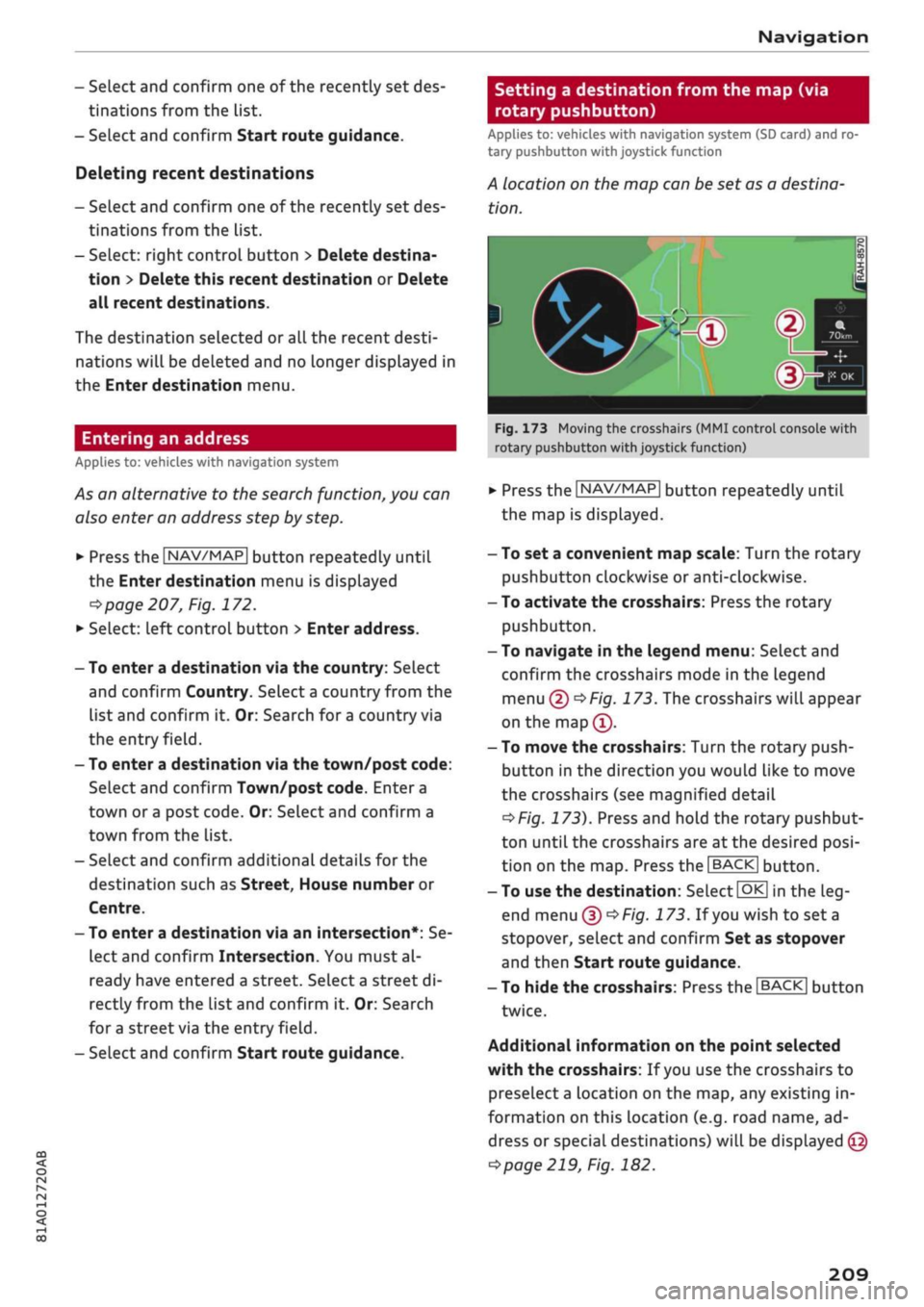
A location on the map can be set as a destina
tion.
Fig.
173 Moving the crosshairs (MMI control console with
rotary pushbutton with joystick function)
•
Press the |NAV/MAP| button repeatedly until
the map is displayed.
- To set a convenient map scale: Turn the rotary
pushbutton clockwise or anti-clockwise.
- To activate the crosshairs: Press the rotary
pushbutton.
- To navigate in the legend menu: Select and
confirm the crosshairs mode in the legend
menu
(D^F/g.
173. The crosshairs will appear
on the
map(î).
- To move the crosshairs: Turn the rotary push
button in the direction you would like to move
the crosshairs (see magnified detail
^>Fig.
173). Press and hold the rotary pushbut
ton until the crosshairs are at the desired
posi
tion on the map. Press the |BACK| button.
- To use the destination: Select
|QK[
in the
Leg
end menu
(f)^>
Fig.
173.
If you
wish to set a
stopover, select and confirm Set as stopover
and then Start route guidance.
- To hide the crosshairs: Press the
I BACK |
button
twice.
Additional information on the point selected
with the crosshairs: If
you
use the crosshairs to
preselect a location on the map, any existing in
formation on this location (e.g. road name, ad
dress or special destinations) will be displayed ©
<=>page
219, Fig. 182.
209