mode AUDI Q2 2021 Owner´s Manual
[x] Cancel search | Manufacturer: AUDI, Model Year: 2021, Model line: Q2, Model: AUDI Q2 2021Pages: 364, PDF Size: 87.77 MB
Page 221 of 364
Navigation
CO
â
rN
rN
t-H
O
<
Other settings
Navigation settings
Applies
to:
vehicles with navigation system
•
Press
the |NAV/MAP|
button repeatedly until
the Enter destination menu
is
displayed
o
page
207,
Fig.
172.
•
Select: right control button
>
Navigation set
tings.
Depending
on the
function seLected,
you can use
the following settings:
Display alternative routes
When this function
is
switched
on
|vj,
up to
three
route suggestions
are
displayed
on the map
^>page
216,
Alternative routes.
Fuel warning
When
the
fuel gauge
is in the
reserve zone,
a
message will appear when this function
is on
[vf.
A list
of
nearby filling stations will
be
displayed
when you confirm this message. When
you
select
one
of
the filling stations,
the
route
to its
loca
tion will
be
calculated based
on the
current
posi
tion
of
your
car.
Trailer mode*
Trailer mode
is
switched
off
when
the
vehicle
leaves
the
factory.
When this function
is
switched
on
|vf,
the MMI
will take
the
speed limit
for
vehicles towing
a
trailer into account and
the
calculated arrival
time will
be
adjusted accordingly. Trailer mode
is
indicated
on the
map's legend menu
by the
sym
bol-*!.
Personal route assist*1)
The personal route assist function
is
switched
off
by default
in the
factory settings.
When this function
is
activated
EÎ,
your trips
are
recorded
and
destinations
are
suggested by
the
MMI system
^>page
214.
Arrival notification*
The arrival notification
is
switched
off
when
the
vehicle leaves
the
factory.
When this function
is
switched
on
@f,
the MMI
will inform
you
when
you are
approaching selec
ted special destinations (e.g. imported myAudi
special destinations). You
can
also have a sound
played using
the
Play notification tone function.
Delete myAudi special destinations*11
Destinations that you import from your myAudi
account
to
your
MMI are
automatically saved.
You
can
delete them individually
or all at
once.
Presentation mode
Use
the
Presentation mode
to
plan
and
"drive"
a
journey effectively without
the
need
to
move
the
vehicle. You
can
choose your start Location
man
ually (Select start location)
if, for
example,
you
would like
to
calculate a route starting from
a
different position than
the
current position
of the
vehicle. Start
the
Presentation mode
to
simulate
a route guidance.
Route criteria
Applies
to:
vehicles with navigation system
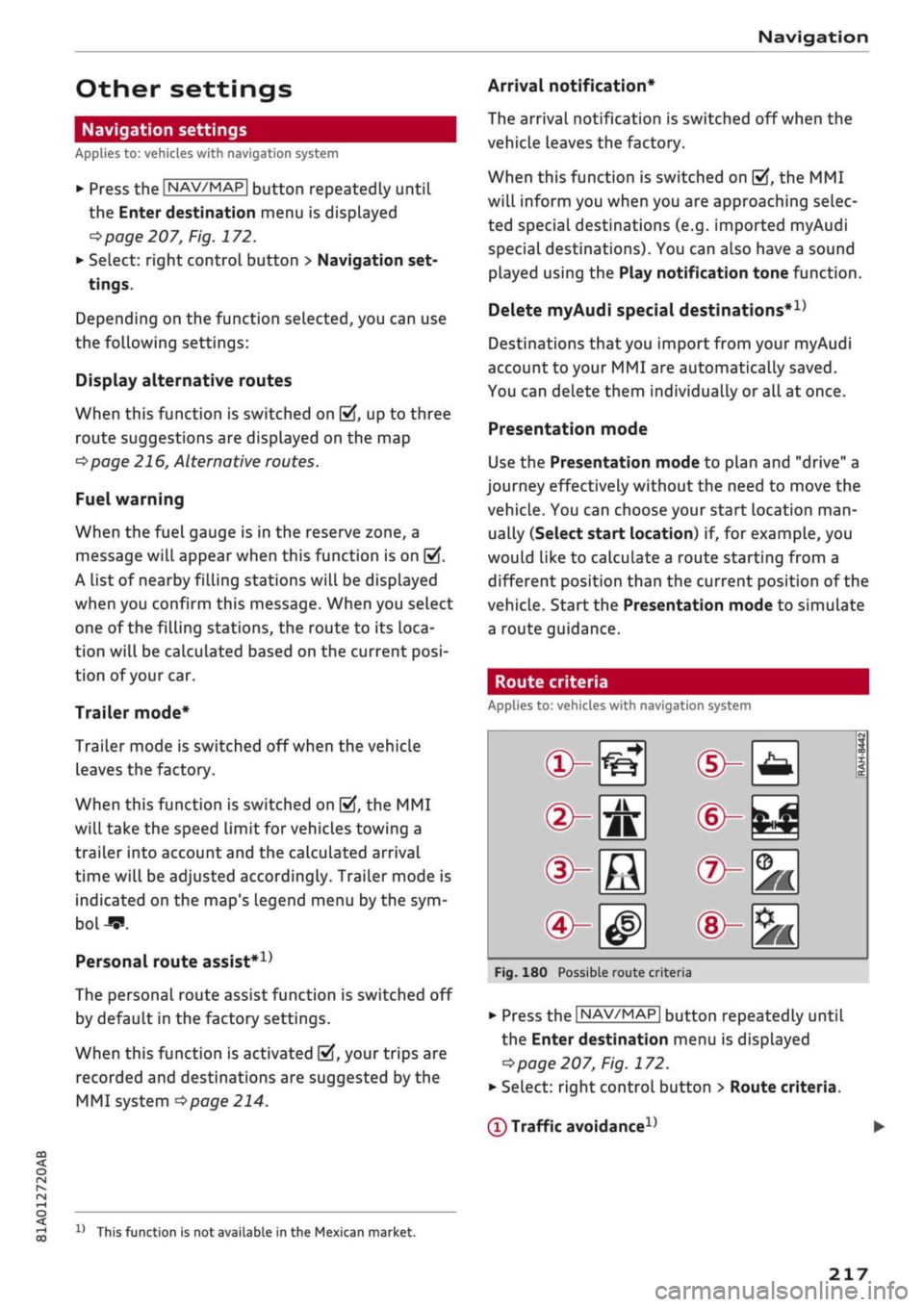
®-«?
dHft
d^e
(S^#
Fig.
180
Possible route crite
1 1
1
®-feJ
®-fc
®-3K
ria
•
Press
the |NAV/MAP|
button repeatedly until
the Enter destination menu
is
displayed
=>page
207,
Fig.
172.
•
Select: right control button > Route criteria.
(T)
Traffic avoidance
D
x)
This function
is
not
available
in the
Mexican market.
217
Page 223 of 364
Navigation
CO
< o rN
IV
rN
t-H
o <
00
Map
How to
use
the map
Applies
to: vehicles with navigation system
H
an^fc Hetnuc'ijlo
'
in
1,2 km
Blaubach
in
1,0
km
Autobahn-Flugh
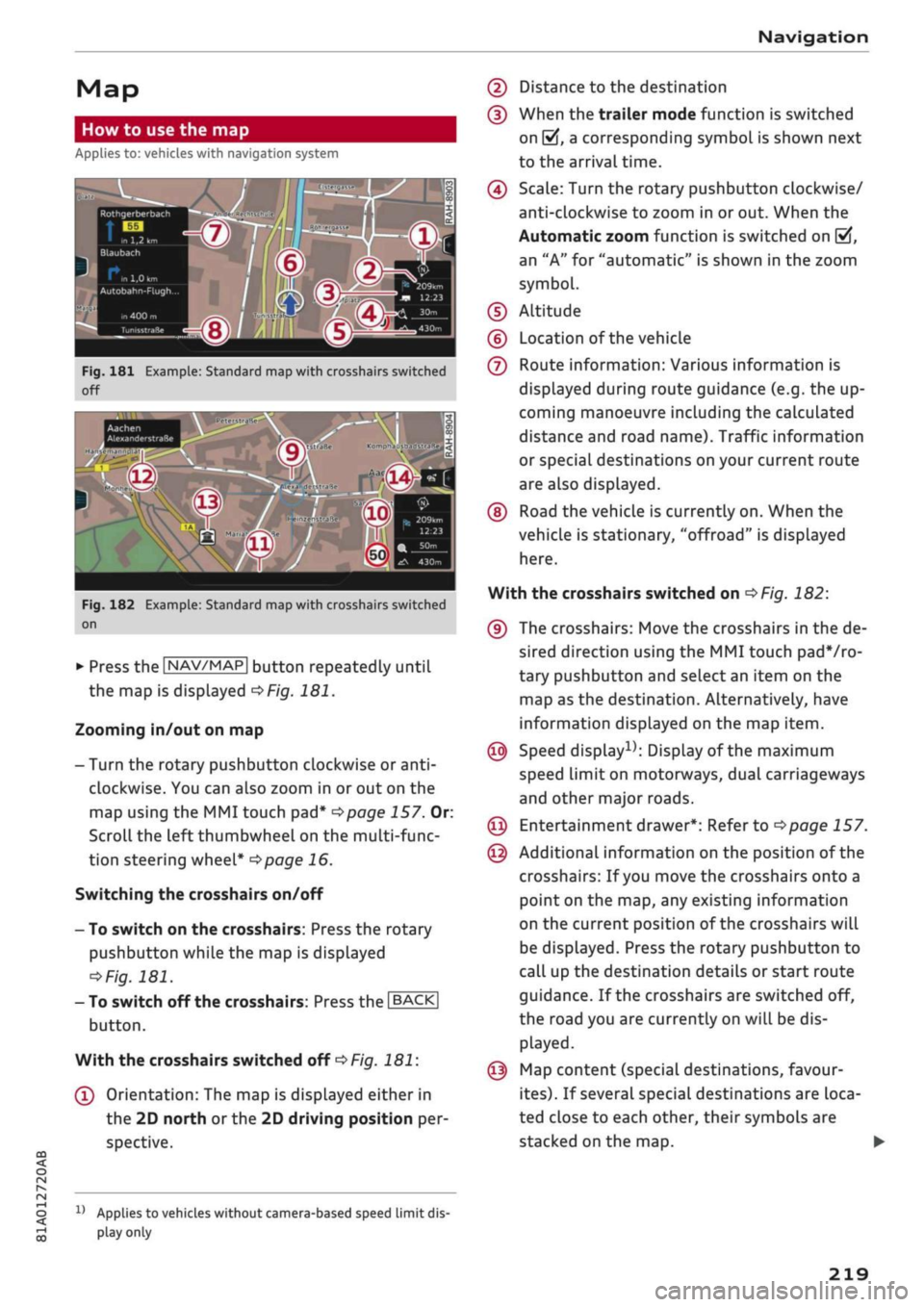
Fig.
181 Example: Standard map with crosshairs switched
off
Aachen
AlexanderstraBe Komphausbad da n se m an n pi
a
Fig.
182 Example: Standard map with crosshairs switched
on
•
Press the |NAV/MAP| button repeatedly until
the map is displayed
^Fig.
181.
Zooming in/out on map
- Turn the rotary pushbutton clockwise or
anti
clockwise. You can also zoom in or out on the
map using the MMI touch
pad*
^>page
157. Or:
Scroll the left thumbwheel on the multi-func
tion steering wheel*
^>page
16.
Switching the crosshairs on/off
- To switch on the crosshairs: Press the rotary
pushbutton while the map is displayed
^Fig.
181.
- To switch off the crosshairs: Press the |BACK|
button.
With the crosshairs switched off
•=>
Fig.
181:
(l)
Orientation: The map is displayed either in
the 2D north
or
the 2D driving position per
spective.
1J
Applies to vehicles without camera-based speed limit
dis
play
only
(2) Distance to the destination
(D When the trailer mode function is switched
on
[vj,
a corresponding symbol is shown next
to the arrival time.
(4) Scale: Turn the rotary pushbutton clockwise/
anti-clockwise to zoom in or out. When the
Automatic zoom function is switched on
(vf,
an "A" for "automatic" is shown in the zoom
symbol.
(D Altitude
(?) Location of the vehicle
(7) Route information: Various information is
displayed during route guidance (e.g. the up
coming manoeuvre including the calculated
distance and road name). Traffic information
or special destinations on your current route
are also displayed.
(D Road the vehicle is currently on. When the
vehicle is stationary, "offroad" is displayed
here.
With the crosshairs switched on
^>Fig.
182:
(9) The crosshairs: Move the crosshairs in the de
sired direction using the MMI touch padVro-
tary pushbutton and select an item on the
map as the destination. Alternatively, have
information displayed on the map item.
© Speed display1); Display of the maximum
speed limit on motorways, dual carriageways
and other major roads.
© Entertainment drawer*: Refer to
^page
157.
© Additional information on the position of the
crosshairs: If
you
move the crosshairs onto a
point on the map, any existing information
on the current position of the crosshairs will
be displayed. Press the rotary pushbutton to
call up the destination details or start route
guidance. If the crosshairs are switched off,
the road you are currently on will be dis
played.
© Map content (special destinations, favour
ites).
If several special destinations are loca
ted close to each other, their symbols are
stacked on the map.
219
Page 226 of 364

Navigation
Google Earth map
dispLay
Applies
to: vehicles with navigation system and Audi connect
(infotainment)
You
can have the map display satellite images
using the Google Earth map
display.
•• :•-:•
Fig.
183 Example: Google Earth map display
Ï7
--•
•
III
:•:•
in
in
Fig.
184 Example: Google Earth map display with Google
Street
View
Important: The requirements for Audi connect
(infotainment) must be met
^>page
191.
*•
Press the |NAV/MAP| button repeatedly until
the map is displayed.
*•
Select: right control button > Map settings >
Map display
>
Google Earth.
For this map dispLay the system uses data pack
ets received online in the form of satellite pic
tures and combines these pictures with the road
network from the Standard map display. The
MMI has 2 GB of flash memory for temporarily
storing the map/navigation data received online
(corresponds to map/navigation data for about
4000 km of route guidance). You can also use the
loaded satellite pictures for route guidance
with
out an active data connection as long as these
pictures are stored.
Google
Street View
With Google Street View, you can explore many
locations all over the world virtually from the
perspective of
a
pedestrian. Google Street View is
available as soon as the
symbol®
^>Fig.
183 is
shown in crosshairs mode.
To start Google Street View: Turn the rotary
pushbutton to select
a
scale below 30 m.
The following options are available:
-To explore a destination step-by-step: Press
the rotary pushbutton when the
symbol @
^>Fig.
184 is visible.
- To zoom in/out of the current display (up to
4x):
Turn the rotary pushbutton to the left/
right
(D'=>F/g.JS4.
- To navigate in the street view: Move your
fin
ger in the desired direction on the MMI touch
pad*
or move the rotary pushbutton in the de
sired direction.
Additional information
In the Map content menu
^>page
221, you can
activate the function to show additional informa
tion on the infotainment display. To show the ad
ditional information move the crosshairs onto an
item on the map and press the rotary pushbut
ton.
(i) Note
- You can delete the data stored by the Goo
gle Earth map dispLay by selecting Factory
settings
>
Navigation and online memory
•=>
page 256.
- Google Earth is an Audi connect infotain
ment service that is updated at regular in
tervals when it is called up. This can take a
few seconds.
-When the Google Earth 3D map display is
switched on, the map display automatically
switches to the 2D map while you are driv
ing through a tunnel.
- For safety reasons, the Google Street View
functions cannot be used while the vehicle
is moving.
- Please always note the information in the
chapter
^>page
204, General notes on Audi
connect (infotainment).
- Further information can be found on the In
ternet at www.audi.com.
222
Page 238 of 364
Media
Media
Introduction
The MMI system includes various media drives
and provides various options for connecting
devi
ces.
For example, you can play audio/video* files
from the jukebox* or connect mobile devices to
the Audi music interface* and operate it via the
MMI.
Notes
General information
Media and format limitations: The MMI system
(including the SD card reader and the connection
for
the USB mass storage device*) has been tes
ted for use with many of the products and media
currently available on the market. However,
there may be some devices/media and audio/vid
eo*
files that are not supported or cannot be
played,
or the functionality may be limited under
certain circumstances.
Digital rights management: Please note that
copyright Law applies to audio/video* files.
The MMI media drives do not support DRM-pro-
tected files; these files are marked with the sym
bol S.
Data storage: Never store important data on SD
cards,
the jukebox*, CDs/DVDs or mobile devices.
AUDI AC shall not accept any liability whatsoever
for
the loss of files and media.
Loading times: The more files, folders or play
lists are stored on a storage device, the longer it
will take to load the audio files/video* files. We
recommend using a storage device which
con
tains only audio/video* files. If
you
want to re
duce the time it takes to load the audio/video*
files,
you can create subfolders (e.g. for an artist
or album). The loading time will be extended ad
ditionally if
you
are importing data.
Metadata: Metadata stored on audio files (e.g.
artists, tracks, album covers) will be displayed
automatically when the files are played. If this
information is not stored on the relevant medi
um,
the MMI system will use the database of
metadata from Gracenote. Nevertheless, meta
data may not be displayed in some cases.
Restricted performance: If
you
experience re
stricted performance, reset the Media settings
to the factory defaults
^page
256.
If
you
experience restricted performance from
the Jukebox*, reset it to the factory settings
<=>
page 256.
For information on the characteristics of the sup
ported media and file formats, please refer to
opage
249 onwards.
CAUTION
Please always observe the information
<=>(J)in
Wi-Fi hotspot on page 202.
CD/DVD mode
CD/DVD and format limitations: In view of the
variety of CDs/DVDs and the difference in memo
ry capacities, the functionality may be restricted
in the case of some storage devices. Under cer
tain circumstances, audio CDs/video DVDs that
are copy-protected or CDs/DVDs that do not com
ply with the standard audio format, and multi-
session CDs cannot be played at all, or the func
tionality may be limited. We recommend always
finalising the burning process when creating
multisession
CDs. Multisession is not supported
for DVDs.
Handling CDs/DVDs, the CD drive or the DVD
drive:
To ensure perfect, high-quality playback
and avoid scanning errors or damage to the me
dia drive, always store CDs/DVDs in a suitable
case and do not expose them to direct sunlight.
Do not use:
- Damaged, dirty or scratched CDs/DVDs
- Single CDs/DVDs (diameter 8 cm)
- Non-circular CDs/DVDs (shape CDs)
- CDs/DVDs with stickers
- Protective rings
- Cleaning discs
Thermal cut-out: In the case of unusually hot or
cold outside temperatures, it is possible that CD/
DVD playback will temporarily not be possible. A •
234
Page 256 of 364

Media
Subject
Audi music interface*: Content
that has been changed on a mo
bile
devicea)
connected to the
Audi music interface is not shown
in the media centre.
Bluetooth audio player*: Prob
lems with track display and play
back.
Wi-Fi hotspot*: Wi-Fi hotspot
connection to your Wi-Fi device
interrupted.
Audi music interface: No audio
playback possibLe via a connected
mobiLe device.
Advice
Reset the Media settings to the factory settings
^page
256.
Problems can occur if
a
third party music playback app is open
when you are playing audio via the Bluetooth audio player. Audi
recommends
that
you use the integrated media player on your
Bluetooth device (e.g. smartphone).
Make sure that the network optimisation function is switched off
in the Wi-Fi settings or network settings of your Wi-Fi device.
Please refer to the operating manual
of your
Wi-Fi device for fur
ther details.
Make sure that the USB mode
MTP
is selected in your mobile
devi
ce's settings.
a'
Applies to MTP devices only. Does not apply to Apple or USB mass storage devices.
252
Page 261 of 364

System settings
Connection manager
Introduction
The
connection manager
gives
you an overview
of your connected
devices
and their connection
status.
Settings
Connection manager
*
MyPhone
• Additional
phone:
-• Data
connection:
• MMI connect app:
• Audi smartphone:
Fig.
205 Connection manager
•
Select: IMENUI button > Settings
>
Left control
button > MMI settings > Connection manager.
•
Select and confirm a menu option.
If
a
mobile device has already been connected
and you then select and confirm the correspond
ing menu item, the device's name and connection
mode is displayed under this menu item
^Fig.
205.
You can connect
((vj)
or disconnect
O)
a connec
ted device individually.
Telephone
Applies
to: vehicles with telephone
- Connect new device: You can search for and
connect
a
mobile phone.
- List of devices already bonded: Select your mo
bile phone from the List of all devices which
have already been bonded. Or: Insert your own
mini SIM card in the SIM card reader*
^>page
176.
Second phone
Applies
to: vehicles with Audi phone box
- Connect new device: You can search for and
connect
a
mobile phone.
- List of devices already bonded: Select your mo
bile phone from the List of all devices which
have already been bonded.
Data connection
Applies
to: vehicles with Audi connect (infotainment)
Applies
to: option using the embedded SIM card
- The embedded SIM
card1)
will be used for the
data connection
^>page
191. You do not need
to adjust any other settings.
Applies
to: option using your own SIM card
- Connect new device: You can search for and
connect
a
mobile device (e.g. a smartphone).
- List of devices already bonded: Select your mo
bile phone from the List of all devices which
have already been bonded. Or: Insert your own
mini SIM card in the SIM card reader*.
© CAUTION
Please always observe the information
•=>©
in
Wi-Fi hotspot on page 202.
MMI connect app
Applies
to: vehicles with Audi connect (infotainment)
Important: The Audi MMI connect app must be
installed on your mobile device and have been
started.
- Connect new device: You can search for and
connect
a
mobile device (e.g. a smartphone).
- List of devices already bonded: Select your mo
bile device from the List of all devices which
have already been bonded.
Music
Applies
to: vehicles with Bluetooth audio player or Wi-Fi au
dio
player
Audio player*
Important: The Bluetooth function and the dis
coverability option of both the MMI system
opage
258 and the mobile phone must be
acti
vated.
CO
rN
IV
rN
t-H
o <
x)
SIM card installed in vehicle at factory.
257
Page 273 of 364
Safe driving
CO
<
O
rN
iv
rN
t-H
o < 00
Child restraint systems are regulated by Europe
an standards ECE
R
44 or ECE-R
129x).
Both
standards apply in parallel. An orange label is
normally attached to child seats which have been
tested in accordance with these standards. Infor
mation on weight categories, ISOFIX size class
and the approval category of the child seat can
be found on this Label.
Weight categories for child seats
- Child seats: categories 0 and 0+: Rearward-
facing carry cots are most appropriate for these
categories (up to 13 kg). Our recommendation:
Audi carry cot with optional ISOFIX base.
- Child seats: category 1: In this category (9 to
18 kg), rearward or forward-facing child seats
with an integrated seat belt system are most
appropriate. Rearward-facing child seats
should be used for as long as safely possible.
Our recommendation: Audi child seat with ISO-
FIX base.
- Child seats: categories 2 and 3: Child seats
with backrests used in conjunction with seat
belts are most appropriate for these categories
(15 to 36 kg). Our recommendation: Audi child
seat "youngster plus".
Approval categories for child seats
Child seats can have the approval categories
uni
versal,
semi-universal, vehicle-specific (all ac
cording to the ECE-R 44 standard) or
i-Size
(ac
cording to the ECE-R 129 standard).
- Universal: Child seats approved for the univer
sal category are suitable for installation in any
vehicle. A model list is not required. Universal
category child seats for ISOFIX anchorages
must be secured additionally by
a
top tether
strap.
- Semi-universal: Safety appliances requiring ad
ditional tests are required for securing a child
seat with semi-universal approval. Child seats
with semi-universal approval have a model list
which must include your vehicle.
-Vehicle-specific: Vehicle-specific approval re
quires that the child seat undergo a separate
1)
The ECE-R 129 standard has not yet been implemented by
the national authorities in all countries.
dynamic test for each vehicle model. Child
seats with a vehicle-specific approval also have
a model List.
- i-Size: Child seats with
i-Size
approval must
comply with the installation and safety require
ments specified in the ECE-R 129 standard.
Your child seat manufacturer can inform you
which child seats with
i-Size
approval are ap
propriate for your vehicle.
A WARNING
- Rearward-facing child seats: Never install a
rearward-facing child seat on the front pas
senger's seat unless the front passenger's
airbag has been deactivated - this can result
in potentially fatal injuries to the
child.
If
you have no alternative but to let
a
child
travel on the front passenger's seat, the
front passenger's airbag must be deactiva
ted*
beforehand
^>page
288.
- Forward-facing child seats: The back of the
child seat should be flush with the backrest
of the vehicle seat. If the rear head restraint
obstructs you when installing the child seat,
adjust or remove it completely
^>page
59.
Install the head restraint again immediately
after removing the child seat. Adjust the
head restraint to the correct height for the
passenger. Travelling with the head re
straints removed or incorrectly adjusted in
creases the
risk
of severe injuries.
- Categories 2 and 3: The shoulder section of
the belt must be fitted across the centre of
the child's collar bone close to the torso. It
must never run against or across the neck.
The lap belt must be worn tightly across the
hips,
and not over the stomach or abdomen.
Pull the belt tight if necessary to take up
any slack.
- Wait for as long as possibLe before changing
up to the next child seat group.
© Note
We recommend child seats from the range of
Audi Genuine Accessories: www.audi.com.
269
Page 293 of 364
Checking and topping up fluids
CO
<
O
rN
iv
rN
t-H
o < 00
Checking and topping up
fluids
Fuel
Petrol grade
Applies to: vehicles with petrol engine
The
correct grade of petrol is listed inside the
fuel tank flap.
The vehicle is equipped with a catalytic converter
and must only be run on unleaded petrol. Petrol
must be sulphur-free and must comply with the
EN 228 standard. You can fuel your vehicle with
fuels containing a maximum of 10%
ethanol
(E10). The petrol grades have different octane
ratings (RON).
The following headings relate to the sticker on
the inside of your vehicle's tank flap:
Unleaded fuel only RON/ROZ
95
Super,
Premium or
min.
RON/ROZ 91 Normal
The use of premium petrol (95 RON) is recom
mended.
If
that
type of fuel is not available,
reg
ular petrol (RON 91) can be used with a slight
loss of power.
Unleaded fuel only, min. RON/ROZ
95
Super, Premium
Premium petrol (at least 95 RON) must be used.
If premium petrol is not available, the engine can
be run on regular petrol with 91 RON as an
emer
gency measure. In this case only use moderate
engine speeds and a light throttle. Fill up with
premium or Super Plus petrol as soon as possi
ble.
Unleaded fuel only RON/ROZ 98 Super Plus
or min. RON/ROZ 95 Super, Premium
The use of Super Plus petrol (98 RON) is recom
mended.
If
that
type of fuel is not available, pre
mium petrol (RON 95) can be used with a slight
loss of power.
If premium petrol is not available, the engine can
be run on regular petrol with 91 RON as an
emer
gency measure. In this case only use moderate
engine speeds and a light throttle. Fill up with
premium or Super Plus petrol as soon as possi
ble.
© CAUTION
- Do
NOT fuel
your vehicle with
high-ethanol
fuel blends (e.g. E50 or E85). This will dam
age the fuel system.
- just one tank of leaded fuel or fuel with
metallic additives will permanently impair
the efficiency of the catalytic converter.
- You should use only petrol additives which
have been approved by Audi. Additives with
so-called octane boosters or antiknock
addi
tives can contain metallic additives that
cause significant damage to the engine and
the catalytic converter. Do not use such ad
ditives.
- Metal-based fuels, which can be identified
from the marking on the fuel dispenser,
must not be used. LRP fuel (lead replace
ment petrol) also contains high concentra
tions of metallic additive. Risk of engine
damage!
- High engine speed and full throttle can
damage the engine when using petrol with
an octane rating lower than the correct
grade for the engine.
- You can use higher octane fuel than your en
gine requires.
- In countries where sulphur-free fuel is not
available, you may use low-sulphur fuel in
stead.
Diesel fuel
Applies to: vehicles with diesel engine
Please note the information on the inside of the
fuel tank flap.
The use of sulphur-free diesel complying with
the EN 590 standard is recommended.
Diesel can thicken at very low temperatures,
which can result in problems starting the engine
or prevent the engine from running smoothly.
For this reason, filling stations in some countries
offer winter-grade diesel fuel during the cold
289
Page 302 of 364
Checking and topping up fluids
If
you
have to top up the oil between oil changes,
use the grades of oil specified in the table in ac
cordance with VW standards.
You will need to know whether
- the vehicLe is being serviced based on the
flexi
ble or fixed oil change service (see last service
record).
- the vehicle has a petrol or diesel engine (see
sticker on inside of fuel tank flap).
Petrol engines
Diesel engines
Oil Change Service
Flexible
VW 504 00
VW 507 00
Fixed
VW 502 00
With diesel
particulate
fil
ter:
VW 507 00
Without diesel
particulate
fil
ter:
VW 505 00
Audi recommends
ÇÇastrol
(MMMM'
FriOFSSskimL
Audi recommends LongLife high-performance
engine oil from Audi Genuine Parts
© Note
If the oil grades specified in the table are not
available, you can use one of the
folLowing
grades as a substitute. To prevent damage to
the engine, this should not be done more
than once between oil changes and no more
than 0.5 litres should be used.
- Petrol engines: ACEA A3 or API SN (API SM)
standard
- Diesel engines: ACEA C3 or API CJ-4 stand
ard
© Note
The flexible oil change service is not available
for all models in all countries.
Checking and topping up the engine oil
level
The
oil dipstick differs depending on the type of
engine.
Fig.
246 Oil dipstick (examples): Checking engine oil level
Fig.
247 Engine compartment: Engine oil filler cap
(exam-
pLe)
Please refer to the safety notes
opage
295,
Working on components in the engine compart
ment.
Checking engine oil level
- Park the vehicle on a level surface.
- Switch off the warm engine. Wait for
a
few mi
nutes for the oil to drain back into the sump.
- Open the bonnet
opage
296.
-
PuLl
out the oil dipstick
^>page
297, Fig. 245,
wipe it with a clean cloth and insert it again,
pushing it in as far as it will go.
- Then pull the dipstick out again and check the
oil level
•=>
table on page 299.
- If the oil level is too Low, add more engine oil.
298
Page 309 of 364
Wheels
WheeLs
Tyres and rims
General notes
•
Inspect the tyres regularly for damage (cuts,
cracks or blisters, etc.). Remove any foreign
bodies embedded in the treads.
•
If
you
have to drive over
a
kerb or similar obsta
cle,
drive very slowly and as near as possible at
a right angle to the kerb.
• Damaged rims or tyres must be replaced imme
diately.
•
Keep grease, oil and fuel off the tyres.
•
Mark the wheels before taking them off so that
they rotate in the same direction when refitted.
•
When removed, the wheels should be stored
flat in a
cool,
dry and preferably dark place.
CO
<
O
rN
IV
rN
t-H
o <
(l)
CAUTION
- Please note that summer and winter tyres
are optimised for the prevailing road condi
tions at different times of
year.
We recom
mend that you use winter tyres during the
winter months. At low temperatures, sum
mer tyres lose their elasticity and grip, and
braking performance also suffers as a re
sult. Cracks can form in the tread block on
summer tyres if they are used at very cold
temperatures, and this can cause perma
nent damage to the tyres. An increase in
rolling noise and tyre imbalance may result
from this damage.
- Machined, polished or chrome-plated rims
must not be used in winter conditions. The
process used to manufacture these types of
wheel rim does not provide adequate sur
face protection against corrosion, and the
rims can be permanently damaged by road
salt or similar.
New wheels or tyres
It is best to have all servicing of wheels and tyres
performed by a qualified workshop, since they
have the necessary special tools and replacement
parts in addition to trained personnel.
•
New tyres do not yet give maximum grip. When
driving with new tyres, drive at moderate
speeds and be especially careful during the first
500 km.
•
All four wheels must be fitted with tyres of the
same type, size (rolling circumference) and
preferably the same tread pattern.
• Tyres should be replaced in pairs and not
indi
vidually (i.e. both front tyres or both rear tyres
together).
•
We recommend the use of Audi Genuine Tyres.
If
you
wish to use other tyres, please note that
the actual size can differ from the nominal size
marked on the tyre
•=> /\.
•
If
you
wish to purchase a different combination
of rims and tyres than the ones fitted on the ve
hicle during production, it is advisable to
con
sult
a
qualified workshop beforehand
<=> /\.
The sizes of the rims and tyres approved
for
your
vehicle are listed in the vehicle's documents (e.g.
EC
Certificate of Conformity or COC
document1)).
The vehicle documents vary depending on the
country in which the vehicle is registered.
If the spare wheel* is
not
the same type as the
tyres fitted on the car (for example if the car has
winter tyres or wide-section tyres) you should on
ly use the spare wheel* if
a
puncture occurs, and
then
only
for
a
short period of time. In this case,
please drive with extra care. Refit
a
normal road
wheel as soon as possible.
Applies to vehicles with four-wheel drive: All four
wheels must always be fitted with tyres of the
same type, make and tread pattern, as the drive-
line could otherwise be damaged by variations in
the wheel speeds. For the same reason, only use
a spare wheel* which has the same rolling cir
cumference as the normal road wheels.
Manufacturing date
The manufacturing date is indicated on the tyre
sidewall (possibly only on the inner side of the
wheel): •
15 COC
= Certificate of conformity
305