park AUDI Q2 2021 Owner´s Manual
[x] Cancel search | Manufacturer: AUDI, Model Year: 2021, Model line: Q2, Model: AUDI Q2 2021Pages: 364, PDF Size: 87.77 MB
Page 170 of 364
Speech dialogue system
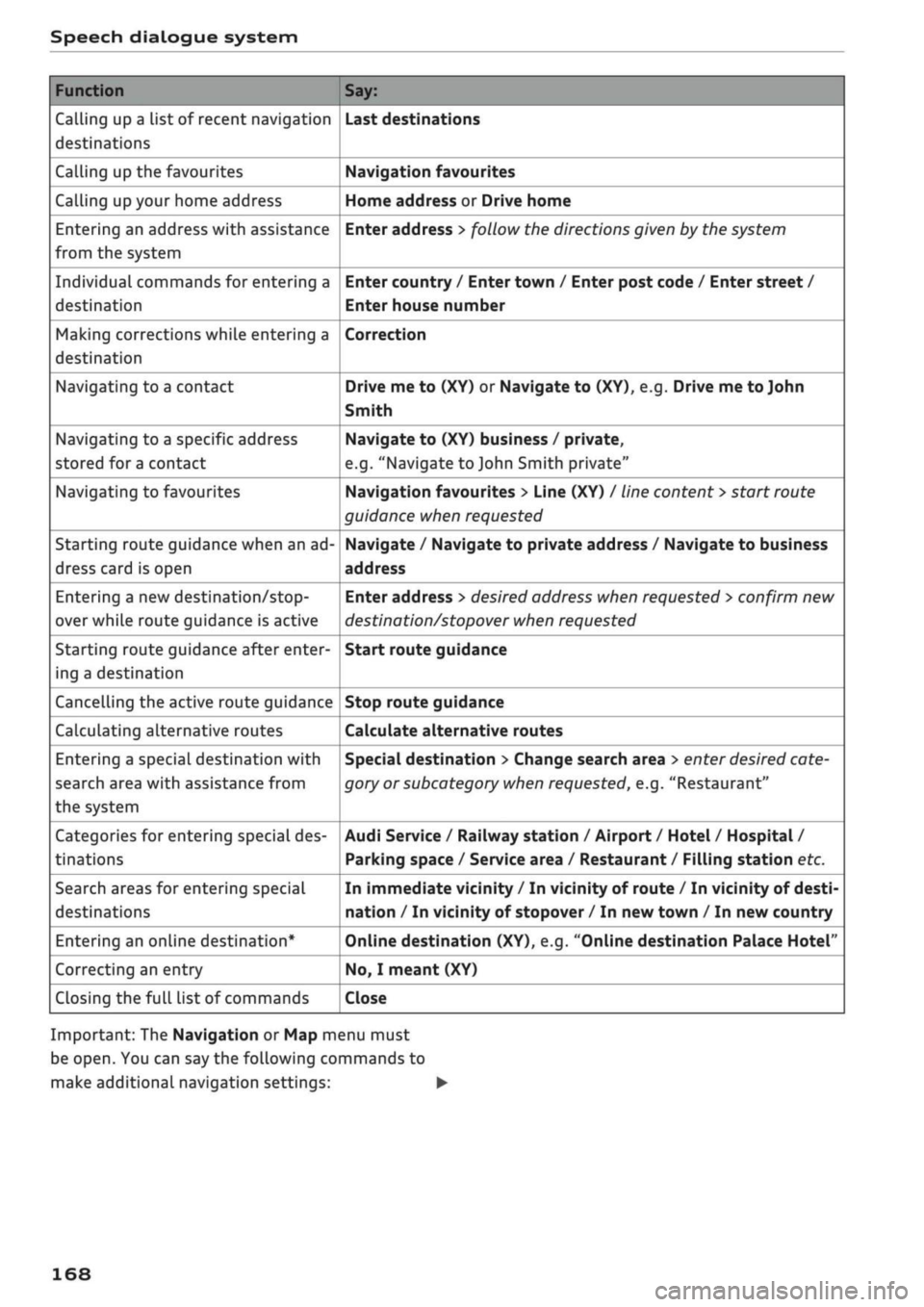
Function
Calling up a list of recent navigation
destinations
Calling up the favourites
Calling up your home address
Entering an address with assistance
from the system
Individual commands for entering a
destination
Making corrections while entering a
destination
Navigating to a contact
Navigating to a specific address
stored for a contact
Navigating to favourites
Starting route guidance when an ad
dress card is open
Entering a new
destination/stop
over while route guidance is active
Starting route guidance after enter
ing a destination
Cancelling the active route guidance
Calculating alternative routes
Entering a special destination with
search area with assistance from
the system
Categories for entering special des
tinations
Search areas for entering special
destinations
Entering an online destination*
Correcting an entry
Closing the full List of commands
Say:
Last destinations
Navigation favourites
Home address or Drive home
Enter address > follow the directions given by the system
Enter country / Enter town / Enter post code / Enter street /
Enter house number
Correction
Drive me to (XY) or Navigate to (XY), e.g. Drive me to John
Smith
Navigate to (XY) business / private,
e.g.
"Navigate to John Smith private"
Navigation favourites > Line (XY) / line content
>
start route
guidance when requested
Navigate / Navigate to private address / Navigate to business
address
Enter address
>
desired address when requested
>
confirm new
destination/stopover when requested
Start route guidance
Stop route guidance
Calculate alternative routes
Special destination > Change search area > enter desired cate
gory or subcategory when requested, e.g. "Restaurant"
Audi Service / Railway station / Airport / Hotel / Hospital /
Parking space / Service area / Restaurant / Filling station etc.
In immediate vicinity / In vicinity of route / In vicinity of desti
nation / In vicinity of stopover / In new town / In new country
Online destination (XY), e.g. "Online destination Palace Hotel"
No,
I meant (XY)
Close
Important: The Navigation or Map menu must
be open. You can say the following commands to
make additional navigation settings: •
168
Page 173 of 364
Speech dialogue system
CO
â
rN
IN
rN
•-i
•H
00
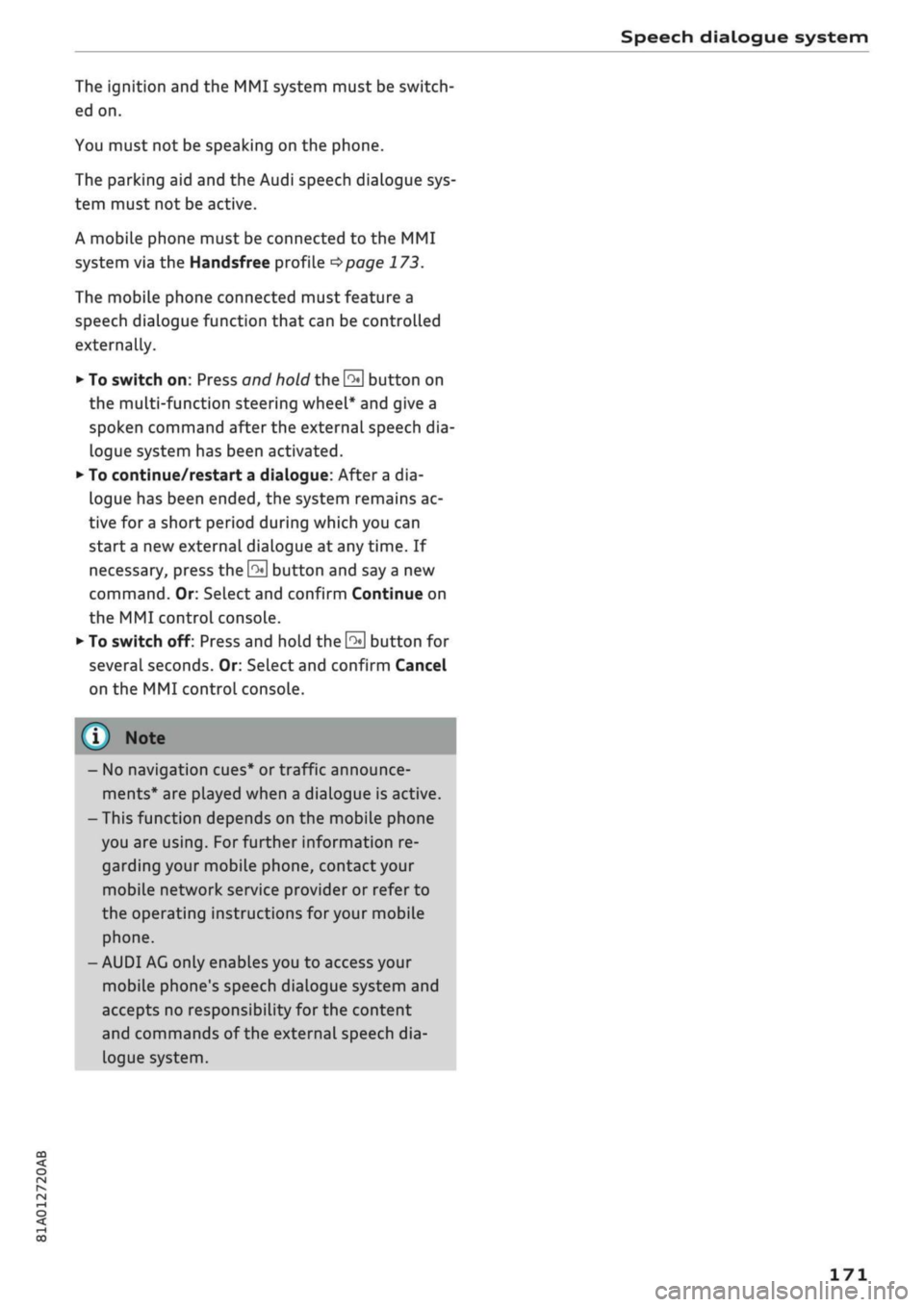
The ignition and the MMI system must be switch
ed on.
You must not be speaking on the phone.
The parking aid and the Audi speech dialogue sys
tem must not be active.
A mobile phone must be connected to the MMI
system via the Handsfree profile
Opage
173.
The mobile phone connected must feature a
speech dialogue function that can be controlled
externally.
•
To switch
on:
Press and hold the
S
button on
the multi-function steering wheel* and give a
spoken command after the external speech dia
logue system has been activated.
•
To continue/restart a dialogue: After
a
dia
logue has been ended, the system remains ac
tive for
a
short period during which you can
start a new external dialogue at any time. If
necessary, press
the S
button and say a new
command.
Or: SeLect and confirm Continue on
the MMI control console.
•
To switch off: Press and hold the
\2*\
button for
several seconds. Or: Select and confirm Cancel
on the MMI control console.
© Note
- No navigation cues* or traffic announce
ments* are played when a dialogue is active.
-Thisfunction
depends on the mobile phone
you are using. For further information re
garding your mobile phone, contact your
mobile network service provider or refer to
the operating instructions
for
your mobile
phone.
- AUDI AG only enables you to access your
mobile phone's speech dialogue system and
accepts no responsibility for the content
and commands of the external speech dia
logue system.
171
Page 200 of 364
Audi connect (infotainment)
•
Select:
|MENU|
button
>
Audi connect
>
Data
plans.
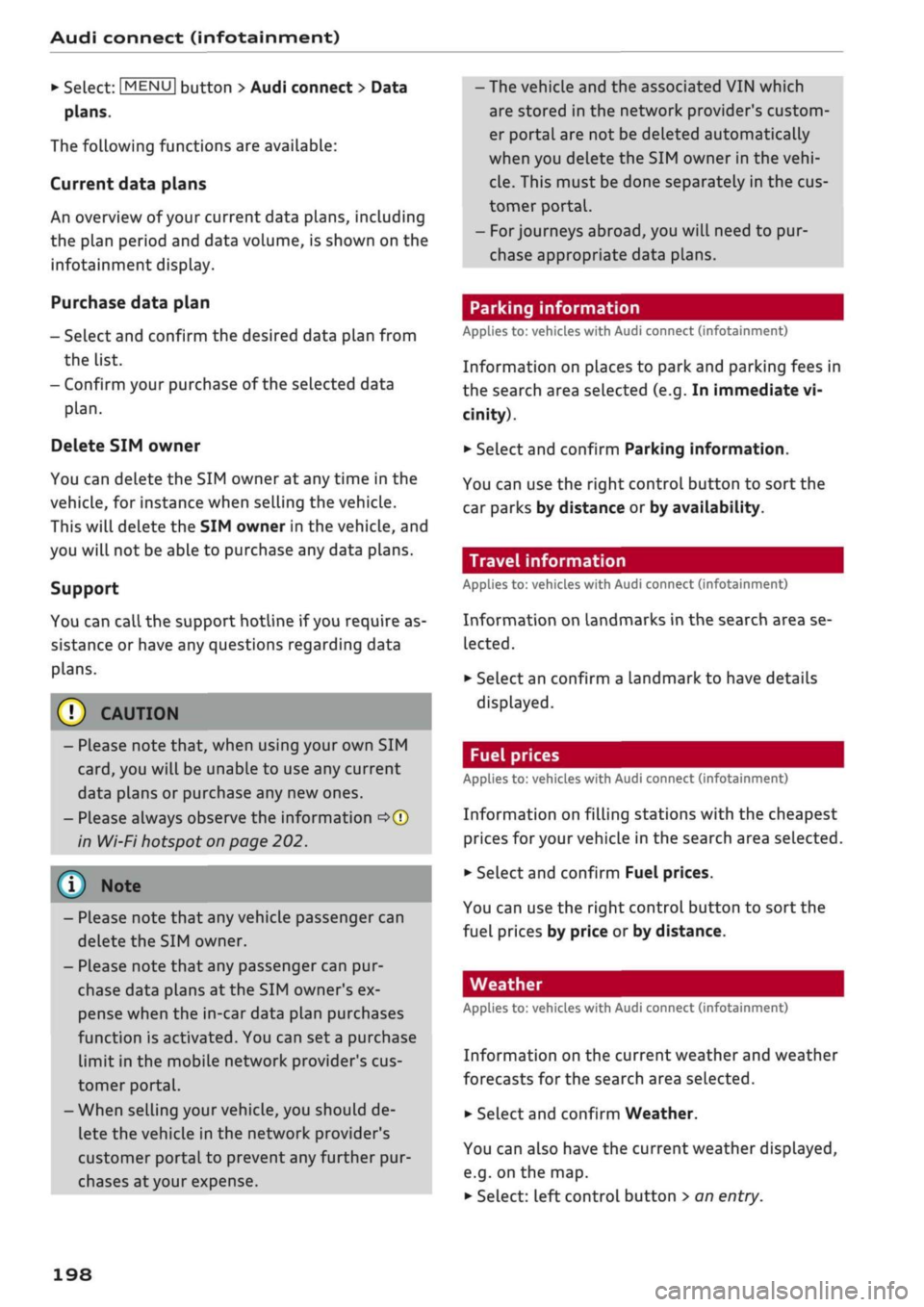
The following functions are available:
Current data plans
An overview of your current data plans, including
the plan period and data volume, is shown on the
infotainment display.
Purchase data plan
- Select and confirm the desired data plan from
the list.
- Confirm your purchase of the selected data
plan.
Delete SIM owner
You can delete the SIM owner at any time in the
vehicle, for instance when selling the vehicle.
This will delete the SIM owner in the vehicle, and
you will not be able to purchase any data plans.
Support
You can
call
the support hotline if
you
require as
sistance or have any questions regarding data
plans.
© CAUTION
- Please note that, when using your own SIM
card,
you will be unable to use any current
data plans or purchase any new ones.
- Please always observe the information
<=>©
in Wi-Fi hotspot on page 202.
© Note
- Please note that any vehicle passenger can
delete the SIM owner.
- Please note that any passenger can pur
chase data plans at the SIM owner's ex
pense when the in-car data plan purchases
function is activated. You can set
a
purchase
limit in the mobiLe network provider's cus
tomer portal.
- When selling your vehicle, you should de
lete the vehicle in the network provider's
customer portal to prevent any further pur
chases at your expense.
-The vehicle and the associated VIN which
are stored in the network provider's custom
er portal are not be deleted automatically
when you delete the SIM owner in the
vehi
cle.
This must be done separately in the cus
tomer
portal.
- For journeys abroad, you will need to pur
chase appropriate data plans.
Parking information
Applies
to: vehicles with Audi connect (infotainment)
Information on places to park and parking fees in
the search area seLected (e.g. In immediate vi
cinity).
•
Select and confirm Parking information.
You can use the right control button to sort the
car parks by distance or by availability.
Travel information
Applies
to: vehicles with Audi connect (infotainment)
Information on landmarks in the search area se
lected.
•
SeLect an confirm a Landmark to have details
displayed.
Fuel prices
Applies
to: vehicles with Audi connect (infotainment)
Information on filling stations with the cheapest
prices for your vehicle in the search area selected.
•
Select and confirm Fuel prices.
You can use the right control button to sort the
fuel prices by price or by distance.
Weather
Applies
to: vehicles with Audi connect (infotainment)
Information on the current weather and weather
forecasts for the search area selected.
•
Select and confirm Weather.
You can also have the current weather displayed,
e.g.
on the map.
•
Select: left control button > an
entry.
198
Page 205 of 364

Navigation
(D Business navigation destination
(4) Private navigation destination
- SeLect and confirm a postal address or
a
naviga
tion destination. If
you
select
a
navigation des
tination,
route guidance is started immediate-
iy.
- If
you
select a postal address, you can check the
address details again.
- You can then select and confirm Start route
guidance.
Further directory functions in the navigation sys
tem can be found on
<^>page
216.
- Addresses which you have imported from
your mobiLe phone into the MMI can also be
used as navigation destinations.
- If
a
directory contact is greyed out, no
navi
gation destination/postal address has yet
been added for the contact.
Point of interest search (special
destinations)
Applies
to: vehicles with navigation system
Navigation: enter destination
Search area
Find entry
Select category
Ç myAudi special destinations
H
Petrol station
P parking facilities
in vicinity of destination
Fig.
175 Example: Searching for a special destination
•
Press the |NAV/MAP| button repeatedly until
the Enter destination menu is displayed
•=>
page 207, Fig. 172.
*-
Select: left control button > Special destina
tions.
- To change the search area: Select and confirm
Search area and then a search area from the
list.
The following search categories are available:
In immediate vicinity: You can select special des
tinations from different categories. The special
destinations are displayed in a list, starting with
destinations in the immediate vicinity and going
up to destinations within a radius of 200 km.
In vicinity of route: Special destinations along
the route can only be selected when the route
guidance function is active. The special destina
tions are located directly on or in the immediate
vicinity of your route. You can also select special
destinations from different categories. For exam
ple,
you can look for
a
hotel or
a
car park at the
destination.
In vicinity of destination/In vicinity of stopover:
Special destinations near the
destination/stop
over can only be selected when the route
guid
ance function is active. You can also select special
destinations from different categories. For exam
ple,
you can look for
a
hotel or
a
car park at the
destination.
In new town: SeLect
a
country or search in a new
town.
Enter the name of the desired town. You
can select special destinations from different cat
egories. You can use this function to find special
destinations in any town irrespective of the desti
nation currently set or the vehicle position.
- To find the name of
a
special destination in
the selected search area: Enter the name of the
special destination.
- To search for a special destination in a specific
category: Choose Select category. SeLect and
confirm a category, for example Restaurant.
myAudi special
destinations*1525
In myAudi special destinations, you can find per
sonal special destinations which you have added
in your myAudi account and imported to the MMI
using an SD card or online*
^>page
224.
- To add further myAudi special destinations:
Select the right control button > Import •
CO
<
O
rN
IN
rN
t-H
o
<
^
Important: You must have created a myAudi account at
my.audi.com,
added a vehicle to the account and stored a
destination.
2)
This function is not available in the Mexican market.
211
Page 215 of 364

Navigation
(D Business navigation destination
(4) Private navigation destination
- SeLect and confirm a postal address or
a
naviga
tion destination. If
you
select
a
navigation des
tination,
route guidance is started immediate-
iy.
- If
you
select a postal address, you can check the
address details again.
- You can then select and confirm Start route
guidance.
Further directory functions in the navigation sys
tem can be found on
<^>page
216.
- Addresses which you have imported from
your mobiLe phone into the MMI can also be
used as navigation destinations.
- If
a
directory contact is greyed out, no
navi
gation destination/postal address has yet
been added for the contact.
Point of interest search (special
destinations)
Applies
to: vehicles with navigation system
Navigation: enter destination
Search area
Find entry
Select category
Ç myAudi special destinations
H
Petrol station
P parking facilities
in vicinity of destination
Fig.
175 Example: Searching for a special destination
•
Press the |NAV/MAP| button repeatedly until
the Enter destination menu is displayed
•=>
page 207, Fig. 172.
*-
Select: left control button > Special destina
tions.
- To change the search area: Select and confirm
Search area and then a search area from the
list.
The following search categories are available:
In immediate vicinity: You can select special des
tinations from different categories. The special
destinations are displayed in a list, starting with
destinations in the immediate vicinity and going
up to destinations within a radius of 200 km.
In vicinity of route: Special destinations along
the route can only be selected when the route
guidance function is active. The special destina
tions are located directly on or in the immediate
vicinity of your route. You can also select special
destinations from different categories. For exam
ple,
you can look for
a
hotel or
a
car park at the
destination.
In vicinity of destination/In vicinity of stopover:
Special destinations near the
destination/stop
over can only be selected when the route
guid
ance function is active. You can also select special
destinations from different categories. For exam
ple,
you can look for
a
hotel or
a
car park at the
destination.
In new town: SeLect
a
country or search in a new
town.
Enter the name of the desired town. You
can select special destinations from different cat
egories. You can use this function to find special
destinations in any town irrespective of the desti
nation currently set or the vehicle position.
- To find the name of
a
special destination in
the selected search area: Enter the name of the
special destination.
- To search for a special destination in a specific
category: Choose Select category. SeLect and
confirm a category, for example Restaurant.
myAudi special
destinations*1525
In myAudi special destinations, you can find per
sonal special destinations which you have added
in your myAudi account and imported to the MMI
using an SD card or online*
^>page
224.
- To add further myAudi special destinations:
Select the right control button > Import •
CO
<
O
rN
IV
rN
t-H
o
<
^
Important: You must have created a myAudi account at
my.audi.com,
added a vehicle to the account and stored a
destination.
2)
This function is not available in the Mexican market.
211
Page 218 of 364
Navigation
Route criteria: Refer to
^>page
217, Route crite
ria.
Show location on map: Important: You must
have seLected a destination from the results list.
The destination entered will be shown on the
map.
Parking
at
this location*: Important: You must
have seLected a destination from the results list.
All the parking facilities near the location selec
ted are shown on the infotainment display.
Delete: The selected entry will be deleted. You
can delete individual entries or all the entries
(e.g.
favourites or last destinations).
Audi connect at this location*: Important: You
must have selected a destination from the re
sults list. This allows you to search for e.g. travel
information in the vicinity of the seLected loca
tion.
Online traffic data*: The online traffic informa
tion
tapage
226 can be switched
on/off.
Add destination to contact: Refer to
^>page
216.
Store as favourite: Refer to
<^page
216.
Voice guidance: Refer to
^page
218.
Navigation settings: Refer to
<=>page
217.
(T)
Note
Information on online traffic data* can be
found on the Internet at www.audi.com.
Personal route assist
Applies
to: vehicles with navigation system and personal
route
assist
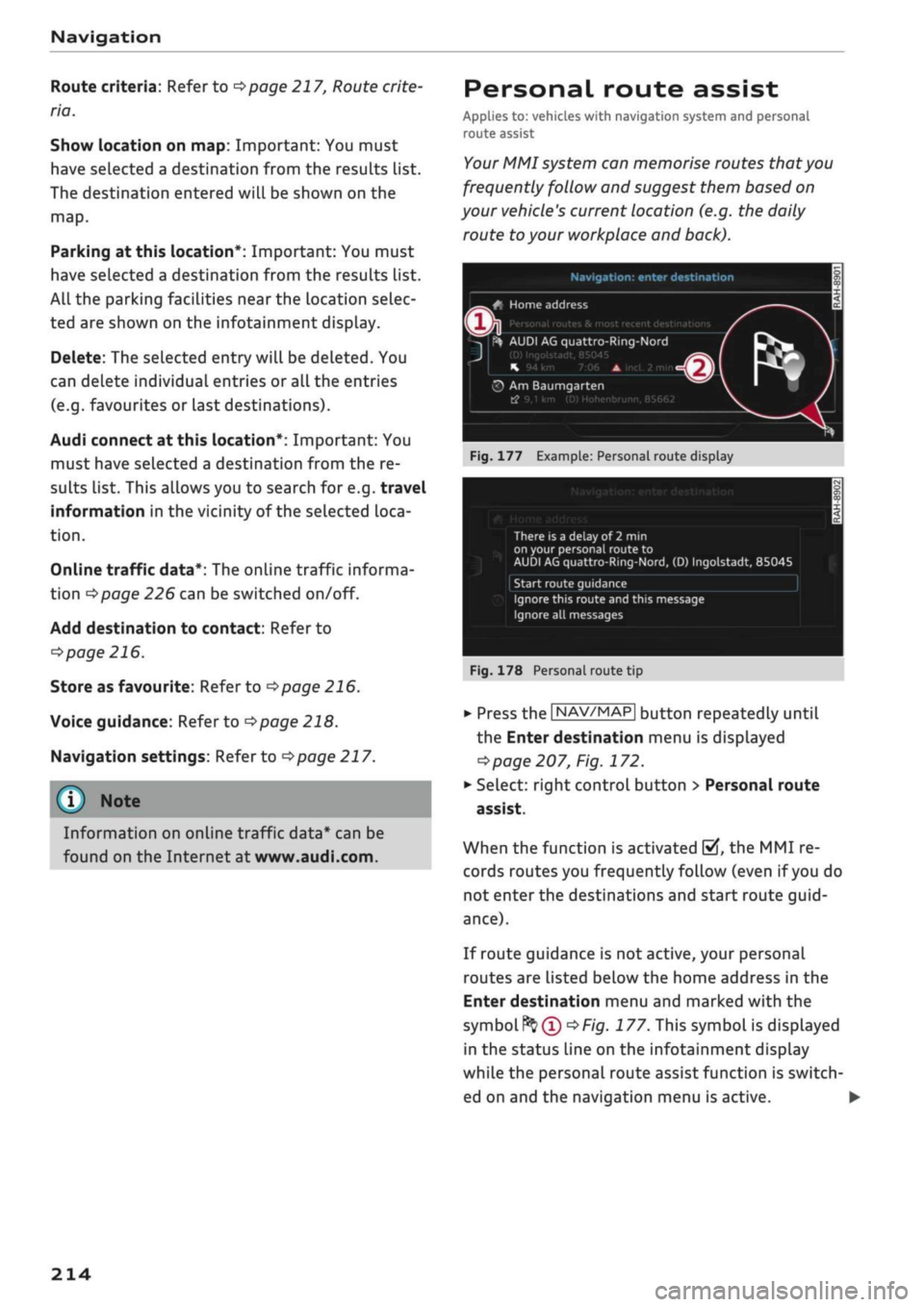
Your MMI system can memorise routes
that
you
frequently follow and suggest them based on
your vehicle's current location (e.g. the daily
route
to
your workplace and back).
yi
::
Fig.
177 Example: Personal route display
Fig.
178 Personal route tip
•
Press the |NAV/MAP| button repeatedly until
the Enter destination menu is displayed
^page
207, Fig. 172.
*•
Select: right control button > Personal route
assist.
When the function is activated
fcTÎ,
the MMI re
cords routes you frequently follow (even if
you
do
not enter the destinations and start route
guid
ance).
If route guidance is not active, your personal
routes are listed below the home address in the
Enter destination menu and marked with the
symbol^®
^>Fig.
177. This symbol is displayed
in the status line on the infotainment display
while the personal route assist function is switch
ed on and the navigation menu is active. •
214
Page 219 of 364
Navigation
CO
< o rN
IV
rN
•-H
•H
00
The distance to the destination and the estima
ted time of arrival are also displayed for your per
sonal routes. Even before route guidance is star
ted,
your MMI system monitors the traffic situa
tion for your personal routes and the infotain
ment display shows possible traffic disruptions
along the route you will probably take (2)
*>Fig.
177.
A message is displayed if there are any Larger
traffic disruptions (more than 7 minutes delay),
irrespective of which menu is selected
<=>Fig.
178.
Select and confirm one of the following options:
- Start route guidance: The MMI starts route
guidance for the personal route shown and
searches for
a
faster route (if one is available).
- Ignore this route and this message: The desti
nation shown and all of the corresponding per
sonal routes are no Longer taken into account
on the current trip. No more messages are dis
played for the destination shown. The destina
tion shown and
all
the corresponding personal
routes are ignored until the car is parked and
the ignition is subsequently switched on again.
- Ignore all messages: All of the personal routes
are ignored for the current trip. No more mes
sages are displayed. Messages for traffic dis
ruptions on the personal routes are not dis
played again until the car is parked and the ig
nition is subsequently switched on again.
The symbol disappears from the status line and
your trips are no longer recorded as soon as you
switch off the personal route assist function.
Trips which have already been recorded remain
stored.
Deleting a personal route:
- Select the desired personal route in the Enter
destination menu
®
^>Fig.
177.
- SeLect: right control button > Delete destina
tion.
Deleting all personal routes:
- Select:
|MENU]
button > Settings
>
left control
button > MMI settings > Factory settings.
- Select: Navigation and online memory
>
Re
store factory settings
^page
256.
- Personal routes are memorised depending
on your vehicle's location. Routes are priori
tised depending on how often you drive to a
destination.
- Up to three personal routes are displayed in
the Enter destination menu. The traffic sit
uation is always monitored for the three
routes most likely to be followed depending
on your vehicle's current location.
- Please note that, once a personal route has
been stored, it remains stored after the
function is deactivated (i.e. it has to be de
leted manually).
- This function is not available in the Mexican
market.
Home address
Applies to: vehicles with navigation system
•
Press the |NAV/MAP| button repeatedly until
the Enter destination menu is displayed
<> page
207, Fig. 172.
Storing a home address
- Select and confirm Home address (2)
<=>page
207, Fig. 172. After calling up the
home address for the first time, you will be
asked to set
a
home address.
- Select and confirm Create now.
- Enter
a
destination or select
a
destination from
the list. Or:
- Select and confirm a destination > right control
button > Store as home address.
A home address is stored in the MMI regardless
of any mobile phone which may be connected.
This home address is always available, even if no
mobiLe phone is connected to the MMI.
Editing home address
- Select the Home address (2)
Opage
207,
Fig. 172.
- Select: right controL button > Edit home ad
dress.
- Select and confirm a new destination as the
home address.
215
Page 224 of 364
Navigation
© Better route
If
a
better route is available
for the current route guidance, this will be
shown on the map together with the time
saved.
Further information can be found
from
^>page
226 onwards.
Further options on the map
Applies to: vehicles with navigation system
©
Whether the level of congestion is taken into
account when the route is being calculated
depends on your traffic avoidance settings
<=>
page 217.
Map functions
Applies to: vehicles with navigation system
•
Press the |NAV/MAP| button repeatedly until
the map is displayed
•=>page
219, Fig. 181.
•
Press the left control button.
The following map functions are available:
Switch to destination entry
The search function must be displayed in the En
ter destination menu
•=>page
207, Fig. 172.
Traffic announcements
Up-to-date traffic information is shown on the in
fotainment display. Further information can be
found from
^page
225 onwards.
Route list
The route list can only be displayed when the
route guidance function is active; it contains in
formation on the route, road names and the
length of the route sections. On motorways, po
tential parking areas and service stations will be
displayed.
You can select them as e.g. a stopover.
Special destinations along the route
Important: The route guidance function must be
active.
You can search for special destinations along
your current route. For more information, please
refer to
opage
211.
»•
Press the |NAV/MAP| button repeatedly until
the map is displayed
^>page
219, Fig. 181.
•
Press the right controL button.
Depending on the function chosen, the following
additional options may be available in the Map
menu:
Stop route guidance: Refer to
^>page
213
Adjust position: You can adjust the vehicle's po
sition on the map manually and thus change the
route.
Map settings: Refer to
^>page
221.
Route criteria: Refer to
•=>page
217.
Voice guidance: Refer to
^>page
218.
Navigation settings: Refer to
<=>page
217.
Always display alternative routes: Refer to
<=>page
216.
Parking in vicinity of route*: Parking facilities
near the vehicle are displayed.
Store current position*: You can store your
vehi
cle's current position as a favourite
opage
216
or as a contact in the directory
<^page
216.
Audi connect at this location*: Enables you to
search for e.g. Travel information in the location
entered (events, weather at destination etc.).
Online traffic data*: You can switch the onLine
traffic data on or off
(vf.
Country information: Refer to
^>page
213.
Exclude route*: When route guidance is activa
ted,
a section of the calculated route that you
have set (max 20 km) will be avoided if possible.
The navigation system will calculate an alterna
tive route. The route you entered will only be
blocked in the current route guidance; if re
quired,
you will need to re-enter the route you
wish to avoid. If
you
exclude a route section, this
section will be hatched in red and white on the
map.
•
220
Page 227 of 364

Navigation
Map
update
CO
< o rN
r^
rN
t-H
O
<
Introduction
Applies to: vehicles with navigation system
There are severaL different ways of updating the
map:
- Map updates via the online map update* func
tion
^
page 223.
- Map updates via the online map update* func
tion
•=>
page 223
1).
- Importing a map update to your MMI using an
SD card*
1).
Further information can be found
on the Internet at my.audi.com.
- Map update at your Audi dealer, who may
charge for this service.
Online map update
Applies to: vehicles with navigation system and Audi connect
(infotainment)
With the online map update function you can up
date the map material
of
your navigation system
directly in the vehicle.
New navigation database
-S>
Eastern Europe
An update is available for your destination
region (Eastern Europe).
"\
Updates can also be downloaded from
' my.audi.com and installed via an SD
card.
Switch to online update
Fig.
185 Example: Display of
a
new online map update
Eastern Europe
—>
Recommended regions
| Belarus
3,3 MB
O
O
j
T
m
Albania 18,2 MB
D
Packets required OB
Start download
Cancel
Fig.
186 Example: Selection of
a
country package
Important:
The requirements for Audi connect infotainment
services must be met
<=>page
191.
x)
This function is not available in the Mexican market.
You must have a myAudi account and have added
your vehicle to it.
The MMI uses the vehicle's position to establish
which regions you are most often in. The MMI
uses this information to suggest update pack
ages for these regions if any are available
<*Fig.
185.
•
Select and confirm
(T)
Switch to online update
oFig.
185 when the message informing you of
a new map update appears on the infotainment
display. Or:
•
Select:
IMENU|
button > Settings > left control
button > System maintenance > System up
date > Online update.
A list of the available update packages is shown
on the infotainment display
^>Fig.
186.
Selecting online map update
- Select an update package from the list
(5f).
If
update packages with a large volume of data
are available for certain countries (e.g. France),
you can choose to update individual regions
(e.g.
only southern France).
- Press the
I
BACK
|
button to confirm your selec
tion and return the list of available update
packages.
Starting download
- Select and confirm Start download.
- Confirm the safety query by selecting Start
download again.
The update packages will be downloaded, and
the download status will be shown on the info
tainment display.
Installing online map update
The installation of the downloaded maps only oc
curs after the vehicLe has been parked. The new
update packages are installed after the ignition is
switched off. When you restart the MMI, a mes
sage indicating
that
the updates have been in
stalled successfully will appear on the infotain
ment dispLay.
- Confirm the successful update with OK.
223
Page 265 of 364
System settings
CO
< o rN
iv
rN
•-i
00
Sound effects
SeLect and confirm a setting for Focus:
-
all:
All the loudspeakers in the vehicle are ac
tive (evenly distributed sound focus).
- front: Only the loudspeakers in the front of the
vehicle are active.
- rear*: Only the loudspeakers in the rear of the
vehicle are active.
Surround level
You can adjust the surround sound by turning the
rotary pushbutton.
Subwoofer*
You can adjust the subwoofer by turning the ro
tary pushbutton.
Speed-dependent volume control
You can adjust the automatic volume adaption to
the interior noise level by turning the rotary
pushbutton.
Volume settings
Adjusting the volume
Using the
ON/OFF
button, you can adjust the
vol
ume of
an
audio source or system message (e.g.
during a speech dialogue*) directly while it is be
ing played.
- Volume up/down: Turn the ON/OFF button
(T)
^>page
152, Fig. 141 clockwise or
anti-clock
wise.
- Mute/pause: Briefly press the ON/OFF button.
Or: Turn the ON/OFF button anti-clockwise un
til the
sy m bol @ •=>
page 161 appears. Any ac
tive audio/video source will then be paused.
- Unmute/resume: Briefly press the ON/OFF but
ton.
Or: Turn the ON/OFF button clockwise.
Â
WARNING
The audio system volume should be set at a
level which enables you to hear external
sig
nals (such as the sirens of police and emer
gency vehicles)
clearly-failure
to do so could
result in an accident.
When you switch on the MMI system, very
high/very low volume levels are automatically
reduced/increased to a preset level.
Setting the system volume
•
Select:
|MENU|
button > Sound > left control
button.
Telephone
Applies to: vehicles with telephone
Mute telephone: Message and ring tones are si
lenced.
Ring tone: Refer to
^>page
188, Ring tone and
volume settings.
Ring tone volume: You can adjust the volume of
the ring tone currently selected by turning the ro
tary pushbutton.
Message volume: You can adjust the volume of
the tone informing you of
a
new message by
turning the rotary pushbutton.
Microphone input level: You can adjust the tele
phone volume during a call by turning the rotary
pushbutton.
Navigation
Applies to: vehicles with navigation system
Voice guidance: Refer to
^>page
218.
Voice guidance during calls: Refer to
•=>
page 218.
Volume of spoken cues: You can adjust the
vol
ume of the spoken cues by turning the rotary
pushbutton. Or: You can adjust the volume of the
spoken cues while route guidance is active by
turning the ON/OFF button.
Entertainment fader: This option allows the
vol
ume of the current audio source to be temporari
ly reduced when the parking aid is active or while
a navigation cue is being played.
Announcements*
Traffic announcements: Refer to
^>page
229.
DAB announcements*: Refer to
^>page
229. •
261