tow AUDI Q2 2021 Owner´s Manual
[x] Cancel search | Manufacturer: AUDI, Model Year: 2021, Model line: Q2, Model: AUDI Q2 2021Pages: 364, PDF Size: 87.77 MB
Page 213 of 364
Navigation
CO
â
rN
IN
rN
•-H
•H
00
- Select and confirm one of the recently set des
tinations from the List.
- Select and confirm Start route guidance.
Deleting recent destinations
- Select and confirm one of the recently set des
tinations from the list.
- Select: right control button > Delete destina
tion > Delete this recent destination or Delete
all recent destinations.
The destination selected or all the recent desti
nations will be deleted and no longer displayed in
the Enter destination menu.
Entering an address
Applies to: vehicles with navigation system
As an alternative to the search function, you can
also enter an address step by step.
•
Press the |NAV/MAP| button repeatedly until
the Enter destination menu is displayed
«*
page 207, Fig. 172.
•
Select: left control button > Enter address.
- To enter a destination via the country: Select
and confirm Country. Select
a
country from the
list and confirm it. Or: Search for
a
country via
the entry
field.
- To enter a destination via the town/post code:
Select and confirm Town/post code. Enter a
town or a post code. Or: Select and confirm a
town from the list.
- Select and confirm additional details for the
destination such as Street, House number or
Centre.
- To enter a destination via an intersection*: Se
lect and confirm Intersection. You must al
ready have entered a street. SeLect
a
street di
rectly from the list and confirm it. Or: Search
fora
street via the entry
field.
- Select and confirm Start route guidance.
Setting a destination from the map (via
rotary pushbutton)
Applies to: vehicles with navigation system (SD card) and ro
tary pushbutton with joystick function
A location on the map can be set as a destina
tion.
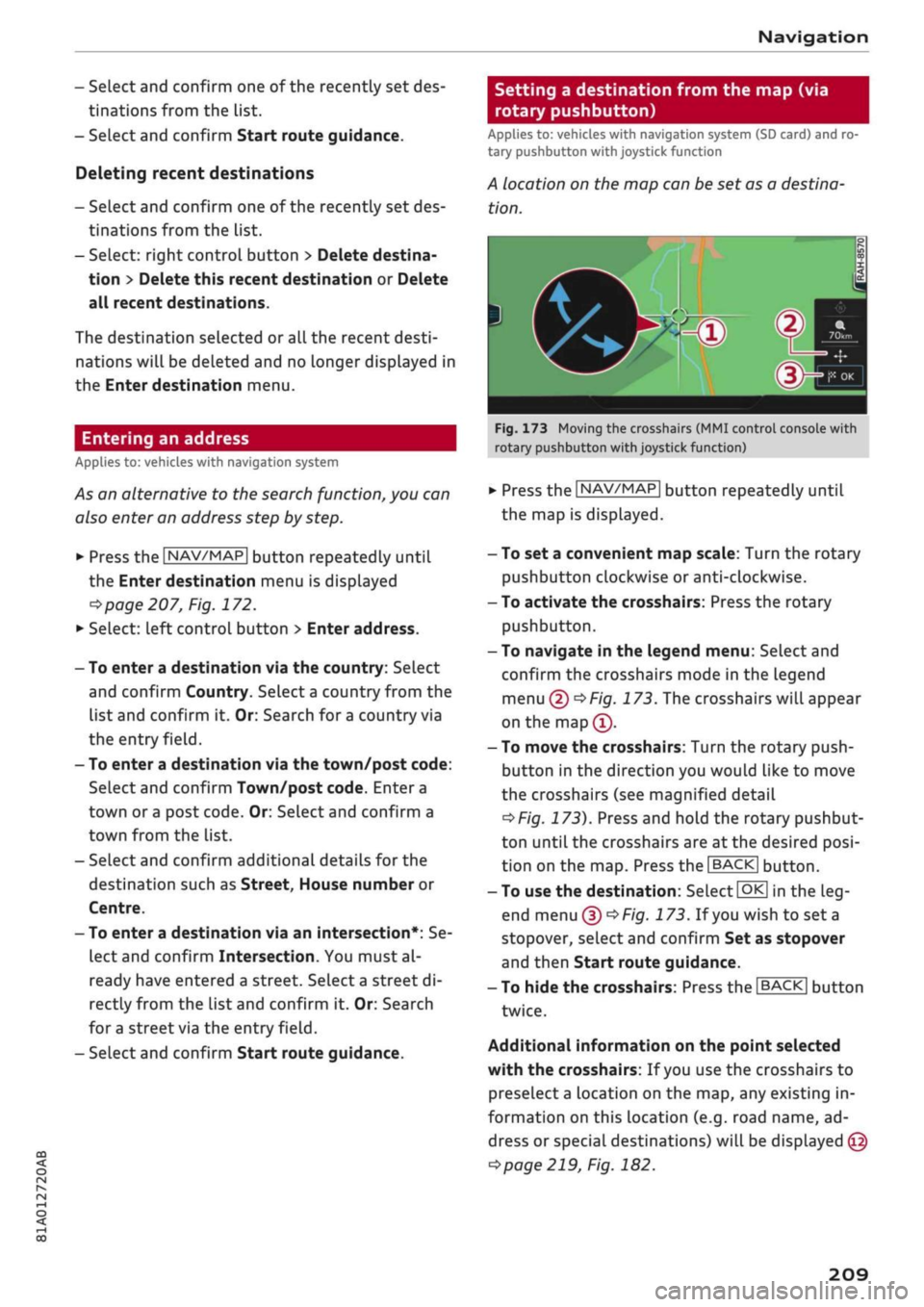
Fig.
173 Moving the crosshairs (MMI control console with
rotary pushbutton with joystick function)
•
Press the |NAV/MAP| button repeatedly until
the map is displayed.
- To set a convenient map scale: Turn the rotary
pushbutton clockwise or anti-clockwise.
- To activate the crosshairs: Press the rotary
pushbutton.
- To navigate in the legend menu: Select and
confirm the crosshairs mode in the legend
menu
(D^F/g.
173. The crosshairs will appear
on the
map(î).
- To move the crosshairs: Turn the rotary push
button in the direction you would like to move
the crosshairs (see magnified detail
^>Fig.
173). Press and hold the rotary pushbut
ton until the crosshairs are at the desired
posi
tion on the map. Press the |BACK| button.
- To use the destination: Select
|QK[
in the
Leg
end menu
(f)^>
Fig.
173.
If you
wish to set a
stopover, select and confirm Set as stopover
and then Start route guidance.
- To hide the crosshairs: Press the
I BACK |
button
twice.
Additional information on the point selected
with the crosshairs: If
you
use the crosshairs to
preselect a location on the map, any existing in
formation on this location (e.g. road name, ad
dress or special destinations) will be displayed ©
<=>page
219, Fig. 182.
209
Page 215 of 364

Navigation
(D Business navigation destination
(4) Private navigation destination
- SeLect and confirm a postal address or
a
naviga
tion destination. If
you
select
a
navigation des
tination,
route guidance is started immediate-
iy.
- If
you
select a postal address, you can check the
address details again.
- You can then select and confirm Start route
guidance.
Further directory functions in the navigation sys
tem can be found on
<^>page
216.
- Addresses which you have imported from
your mobiLe phone into the MMI can also be
used as navigation destinations.
- If
a
directory contact is greyed out, no
navi
gation destination/postal address has yet
been added for the contact.
Point of interest search (special
destinations)
Applies
to: vehicles with navigation system
Navigation: enter destination
Search area
Find entry
Select category
Ç myAudi special destinations
H
Petrol station
P parking facilities
in vicinity of destination
Fig.
175 Example: Searching for a special destination
•
Press the |NAV/MAP| button repeatedly until
the Enter destination menu is displayed
•=>
page 207, Fig. 172.
*-
Select: left control button > Special destina
tions.
- To change the search area: Select and confirm
Search area and then a search area from the
list.
The following search categories are available:
In immediate vicinity: You can select special des
tinations from different categories. The special
destinations are displayed in a list, starting with
destinations in the immediate vicinity and going
up to destinations within a radius of 200 km.
In vicinity of route: Special destinations along
the route can only be selected when the route
guidance function is active. The special destina
tions are located directly on or in the immediate
vicinity of your route. You can also select special
destinations from different categories. For exam
ple,
you can look for
a
hotel or
a
car park at the
destination.
In vicinity of destination/In vicinity of stopover:
Special destinations near the
destination/stop
over can only be selected when the route
guid
ance function is active. You can also select special
destinations from different categories. For exam
ple,
you can look for
a
hotel or
a
car park at the
destination.
In new town: SeLect
a
country or search in a new
town.
Enter the name of the desired town. You
can select special destinations from different cat
egories. You can use this function to find special
destinations in any town irrespective of the desti
nation currently set or the vehicle position.
- To find the name of
a
special destination in
the selected search area: Enter the name of the
special destination.
- To search for a special destination in a specific
category: Choose Select category. SeLect and
confirm a category, for example Restaurant.
myAudi special
destinations*1525
In myAudi special destinations, you can find per
sonal special destinations which you have added
in your myAudi account and imported to the MMI
using an SD card or online*
^>page
224.
- To add further myAudi special destinations:
Select the right control button > Import •
CO
<
O
rN
IV
rN
t-H
o
<
^
Important: You must have created a myAudi account at
my.audi.com,
added a vehicle to the account and stored a
destination.
2)
This function is not available in the Mexican market.
211
Page 216 of 364

Navigation
myAudi special destinations. Log in to myAudi
if necessary. Select and confirm the desired
medium from the source list (e.g. SD card 1).
© Note
- Further information on the myAudi special
destinations can be found online at
my.audi.com.
- The distances to special destinations are
shown as the crow flies from your current
location.
The actual driving distance be
tween your current position and the speciaL
destination is updated automatically. How
ever, the list of special destinations is not
sorted again.
- Sometimes there are destination entries in
the list that cannot be displayed completely
because they are too
long.
If
you
select one
of these entries with the rotary pushbutton,
detailed information on the selected entry
will be displayed automatically after
a
few
seconds.
Online point of interest search (online
search)
Applies to: vehicles with navigation system and Audi connect
(infotainment)
You
can look for special destinations online.
Important: The requirements for Audi connect
(infotainment) must be met
<^>page
191.
*•
Press the
INAV/MAP]
button repeatedly until
the Enter destination menu is displayed
opage
207, Fig. 172.
*-
SeLect: Left control button > Online search. The
search area that was last set will be displayed
in the entry
field.
- To change the search area: SeLect: right control
button > Select search area.
-To find an online destination in the selected
search area: Enter
a
new town/country if neces
sary. Enter a search term (e.g. hotel) and press
the rotary pushbutton. Select and confirm an
online destination from the list.
- To search for an online destination in a specif
ic category: Select and confirm Select catego
ry.
Select and confirm a category, for example
Restaurant.
Please see
^>page
211, Point of interest search
(special destinations) for information on which
search areas are available.
You can also use the speech dialogue system to
search for onLine destinations
•=>
table on
page 168.
- Please always note the information in the
chapter
^>page
204, General notes on Audi
connect (infotainment).
- Further information can be found on the In
ternet at www.audi.com.
Calling up destinations from myAudi
account
Applies to: vehicles with navigation system and Audi connect
(infotainment)
You
can import personal navigation destinations
from your myAudi account to the MMI.
Important:
The requirements for Audi connect (infotain
ment) must be met
^>page
191.
You must have created a myAudi account at
my.audi.com, added a vehicLe to the account and
stored one or more personal destinations.
•
Press the |NAV/MAP| button repeatedly until
the Enter destination menu is displayed
•=>page
207, Fig. 172.
*•
Select: left control button > myAudi contacts.
• If necessary, enter your myAudi login details or
your myAudi PIN
^>page
196. The contacts
stored in myAudi will be displayed.
- Select and confirm a contact.
- Select and confirm a private/business naviga
tion destination.
- If
desired,
select and confirm Start route guid
ance.
-You only have to enter your myAudi login
details once.
212
Page 217 of 364

Navigation
CO
<
o
rN
IV
rN
•-H
•H
00
- You will receive your myAudi
PIN
after set
ting
up
a myAudi account.
- Further information
can
be found
on the In
ternet
at
www.audi.com.
Entering
a
destination using coordinates
Applies
to:
vehicles with navigation system
•
Press
the |NAV/MAP|
button repeatedly until
the Enter destination menu
is
displayed
<>page
207,
Fig.
172.
*-
Select: left control button > Geographic coordi
nates.
- Select Latitude/Longitude.
- Press
the
rotary pushbutton
to
select
the
indi
vidual values.
- Turn
the
rotary pushbutton clockwise
or
anti
clockwise
to
change
the
selected value.
- Select and confirm Start route guidance.
Adding
a
stopover
Applies
to:
vehicles with navigation system
You
can enter
a new
destination while route
guidance
is
active.
Navigation: enter destination
(D) Hamburg, 20148
Stop route guidance
Delete stopover
Fig.
176
Example: Active route guidance with stopover
Important:
The
route guidance function must
al
ready
be
active.
•
Press
the |NAV/MAP|
button repeatedly until
the Enter destination menu
is
displayed
•=>
page
207,
Fig.
172.
Entering
a
destination
as a
stopover
- Enter
a
destination
in the
entry line
•=>
page
208.
- Select
a
destination from
the
results list
and
confirm
it.
- Select and confirm
Set
as stopover.
Deleting
a
stopover
- Push
the
rotary pushbutton upwards.
The
search function
and the
active route guidance
will
be
displayed.
- Select and confirm Delete stopover
@
o
Fig.
176.
- The stopover will
be
deleted.
Stopping route guidance
Applies
to:
vehicles with navigation system
Important:
The
route guidance function must
be
active.
•
Press
the |NAV/MAP|
button repeatedly until
the Enter destination menu
is
displayed
o page
207,
Fig.
172.
*•
Turn
the
rotary pushbutton
to the
left until
the
active route guidance
is
displayed
<=>page
213,
Fig.
176.
*•
Select and confirm Stop route guidance
(l)
•=>page
213,
Fig.
176. The
destination will
be
deleted.
Or:
Select
the
right control button
>
Stop route guidance.
Further options when entering
a
destination
Applies
to:
vehicles with navigation system
Depending
on the
function chosen,
the
following
options
may be
availabLe
to
you when
you are en
tering
a
destination:
•
Press
the
right control button.
Stop route guidance:
The
route guidance func
tion must
be
active.
The
route guidance will
be
stopped.
For
more information, please refer
to
=>
page
213.
Country information: With this option, you
can
view
the
speed Limits
for
towns
and
country
roads
in the
country you have selected. This infor
mation
is
displayed automatically when
you
cross
a border
in the
route information
(7)
•=>page
219,
Fig.
181 if
this
is
activated
<=>
page
221.
Country selection: Select
a
country
([vj)
which,
for example, you wish
to
include
in
your searches
^>page
208.
Alternatively, select
all
countries.
•
213
Page 221 of 364
Navigation
CO
â
rN
rN
t-H
O
<
Other settings
Navigation settings
Applies
to:
vehicles with navigation system
•
Press
the |NAV/MAP|
button repeatedly until
the Enter destination menu
is
displayed
o
page
207,
Fig.
172.
•
Select: right control button
>
Navigation set
tings.
Depending
on the
function seLected,
you can use
the following settings:
Display alternative routes
When this function
is
switched
on
|vj,
up to
three
route suggestions
are
displayed
on the map
^>page
216,
Alternative routes.
Fuel warning
When
the
fuel gauge
is in the
reserve zone,
a
message will appear when this function
is on
[vf.
A list
of
nearby filling stations will
be
displayed
when you confirm this message. When
you
select
one
of
the filling stations,
the
route
to its
loca
tion will
be
calculated based
on the
current
posi
tion
of
your
car.
Trailer mode*
Trailer mode
is
switched
off
when
the
vehicle
leaves
the
factory.
When this function
is
switched
on
|vf,
the MMI
will take
the
speed limit
for
vehicles towing
a
trailer into account and
the
calculated arrival
time will
be
adjusted accordingly. Trailer mode
is
indicated
on the
map's legend menu
by the
sym
bol-*!.
Personal route assist*1)
The personal route assist function
is
switched
off
by default
in the
factory settings.
When this function
is
activated
EÎ,
your trips
are
recorded
and
destinations
are
suggested by
the
MMI system
^>page
214.
Arrival notification*
The arrival notification
is
switched
off
when
the
vehicle leaves
the
factory.
When this function
is
switched
on
@f,
the MMI
will inform
you
when
you are
approaching selec
ted special destinations (e.g. imported myAudi
special destinations). You
can
also have a sound
played using
the
Play notification tone function.
Delete myAudi special destinations*11
Destinations that you import from your myAudi
account
to
your
MMI are
automatically saved.
You
can
delete them individually
or all at
once.
Presentation mode
Use
the
Presentation mode
to
plan
and
"drive"
a
journey effectively without
the
need
to
move
the
vehicle. You
can
choose your start Location
man
ually (Select start location)
if, for
example,
you
would like
to
calculate a route starting from
a
different position than
the
current position
of the
vehicle. Start
the
Presentation mode
to
simulate
a route guidance.
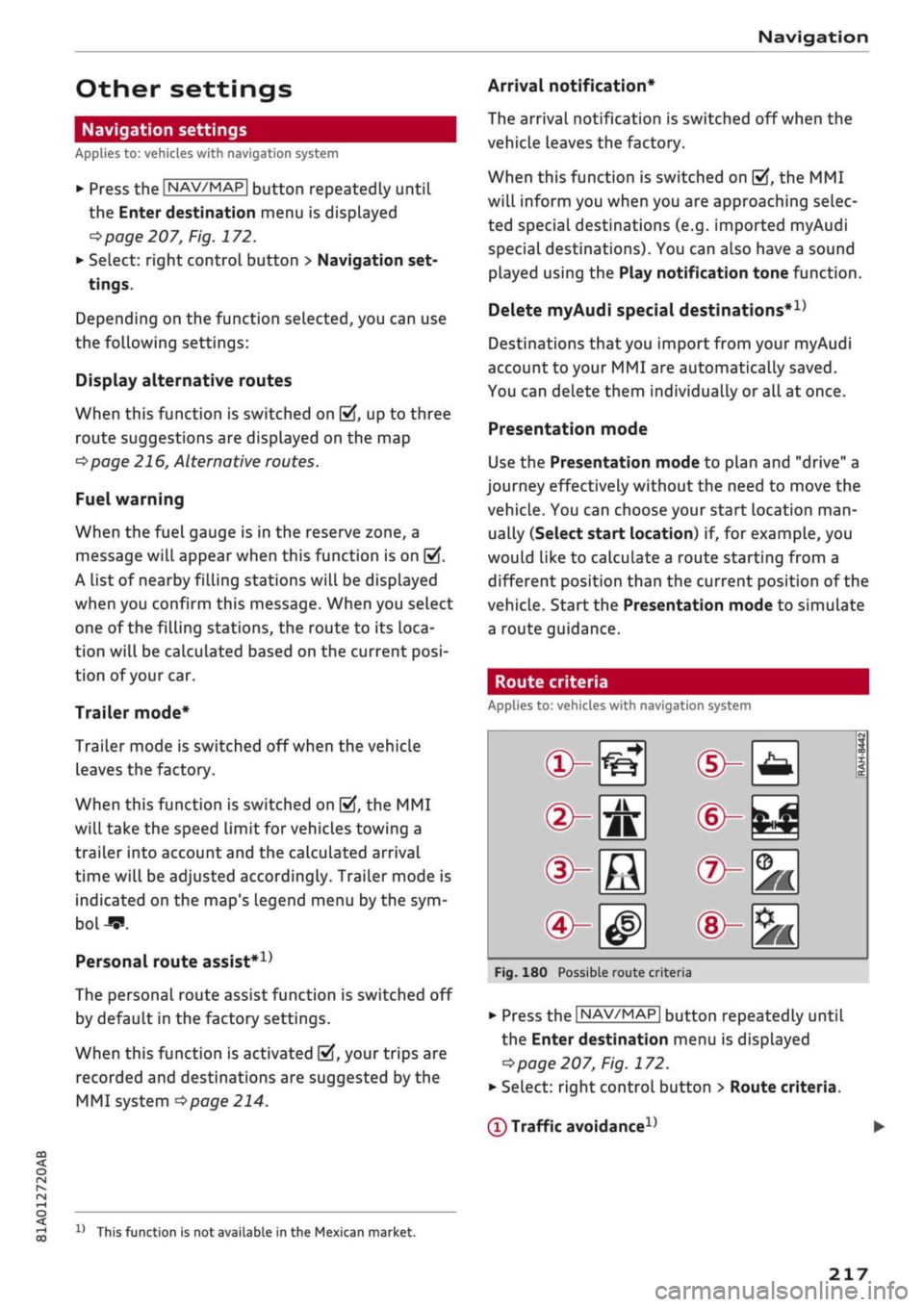
Route criteria
Applies
to:
vehicles with navigation system
®-«?
dHft
d^e
(S^#
Fig.
180
Possible route crite
1 1
1
®-feJ
®-fc
®-3K
ria
•
Press
the |NAV/MAP|
button repeatedly until
the Enter destination menu
is
displayed
=>page
207,
Fig.
172.
•
Select: right control button > Route criteria.
(T)
Traffic avoidance
D
x)
This function
is
not
available
in the
Mexican market.
217
Page 236 of 364
Radio
fixed:
Scroll texts transmitted by FM stations will
not appear in the infotainment display. The cur
rent scroll text on the dispLay will freeze.
FM/AM HD Radio1'
You can switch the reception of HD Radio on or
off.
Station sorting (FM)2'
A-Z: The stations are displayed in the station list
in alphabetical order. Radio stations with variable
station names are displayed after the stations
which have been sorted alphabetically. Radio sta
tions with a frequency as their station name are
displayed
at
the end of the list.
ID:
The stations in the station list are sorted ac
cording to the station's ID (e.g. all BBC radio sta
tions are sorted together). Radio stations with a
frequency as their station name are displayed at
the end of the list.
Station sorting
(DAB*)2'
A-Z: The stations are displayed in the station list
in alphabetical order.
Ensemble: Ensembles comprise various radio
stations of
a
specific area (e.g. a town or region);
they are listed together as an ensemble in the
station list. To open/close the list of radio sta
tions in an ensemble, select and confirm the en
semble. Available sub-programmes* (additional
services provided by DAB* radio stations) are
lis
ted beneath the radio station (indented).
Detailed station information
When this function is switched on
Ef
and the sta
tion or favourites list is open, the system
switches to the Detailed station information
view
<^page
230 after approximately five sec
onds.
Where available, information on the seLec
ted station (e.g. station name, artist, slide show,
station logo3') may be shown.
11
This function is only available in the Mexican market.
2^
This function is not available in the Mexican market.
3)
Station logos may not be available in all countries.
Preferred image* (DAB*, HD Radio
waveband1', FM)
You can specify your preferred image for the De
tailed station information option
^>page
230.
- station logo3': The station logo is displayed if
available.
- cover art: Album covers are displayed if availa
ble.
- slide show:2' Depending on availability,
addi
tional information as a supplement to the nor
mal programme may be shown (e.g. images
from the studio, current photographs of artists
or album covers).
Update station list* (AM, DAB*2')
The station list will be updated.
Gracenote online database*
Important: The MMI must be connected to the
Internet. The cover art option must be selected
^>page
232, Preferred image*
(DAB*,
HD Radio
waveband, FM).
When this function is switched on
[vj,
album cov
ers or genre artwork
will,
if available, be down
loaded from the Gracenote online database for
the track currently playing.
Region for station logos*3'
We recommend using the setting automatic.
When driving abroad, or if the station Logo is not
displayed correctly, select and confirm the appro
priate region.
Applies
to
journeys in Russia: SeLect and confirm
the city in Russia from the list which is the near
est distance to your vehicle's current Location.
(T)
Note
If the Traffic announcements or DAB an
nouncements* function is switched on
playback is interrupted for announcements
You can cancel an announcement while it is
232
Page 242 of 364
Media
Depending on the device you are using, the me
dia are started and operated using the mobile de
vice
or
the MMI.
©
i
Note
- Pay attention to any connection queries on
your Bluetooth device.
-You can bond several Bluetooth audio play
ers to the MMI system; however only one
connection can be active at
a
time.
- The system supports the Bluetooth proto
cols AVRCP (1.0/1.3/1.4) and A2DP.
- Please consider the volume control on your
Bluetooth device. Audi recommends setting
the volume of mobile devices to maximum
when they are being used as Bluetooth au
dio players.
- Which media functions (e.g. random play
back) are supported depends on the Blue
tooth device you are using.
- For more information on which devices are
supported,
please go online (e.g.
www.audi.com/bluetooth) or contact an
Audi dealer.
Wi-Fi audio players
Applies to: vehicles with Wi-Fi
The
MMI's Wi-Fi audio player media source al
lows you to connect and operate your Wi-Fi me
dia player (e.g. smartphone) to play music wire
lessly from your player's media centre.
The
me
dia player is connected via the vehicle's Wi-Fi
hotspot. A
UPnP
server app or an integrated
UPnP/DLNA
server on the media player is re
quired to
access
the media centre of your media
player.
Important: The Wi-Fi function of the media play
er must be switched on. The Audi MMI connect
app or
a
UPnP server app must be installed on
your media player. Or: You must be using a
UPnP/DLNA server integrated in the media play
er.
-
To
connect a media player: Select the |MEDIA|
button.
Press the left control button repeatedly
until the source overview
^>page
243 is dis
played.
Select and confirm Wi-Fi audio player
® tapage
243, Fig. 200.
- You may need to select and confirm Wi-Fi off >
Activate Wi-Fi to switch Wi-Fi on in the MMI.
Select Wi-Fi settings if necessary. Use the set
tings of the Wi-Fi hotspot for the media player
you are using.
- To start the Wi-Fi audio player: Start the Audi
MMI connect app or
a
UPnP server app, or ena
ble media sharing on your media player.
To use the media player: The media player is op
erated using the MMI.
- Press the left control button repeatedly until
the menu item Folders appears. Select and
con
firm Folders.
- To play music from a media player: Select and
confirm Media centre.
Internet radio: See
^>page
239.
(7) CAUTION
Please always observe the information
>=>©/n
Wi-Fi hotspot on page 202.
(T)
Note
- Inserting or removing the mini SIM card
from the SIM card reader* causes the Wi-Fi
connection to be reconfigured. This may •
A
WARNING
- Do not allow the features of the Wi-Fi hot-
spot to distract you from watching the traf
fic - taking your eyes off the road can cause
an accident.
- Mobile devices, tablet and Laptop computers
and devices of
a
similar weight can only be
operated safely when the vehicle is station
ary. Like any Loose object, they can be cata
pulted through the vehicle in an accident
and cause serious injuries. Always make sure
that such devices are securely stowed while
you are driving.
- No Wi-Fi devices may be used from the front
seats in the areas around the airbags while
the vehicle is being driven. Please also ob
serve the safety warnings on
^>page
282,
Front airbags.
238
Page 244 of 364
Media
The following options may be available depend
ing on the information displayed (e.g. the sta
tion/track currently playing):
- Sound settings: Refer to
^>page
260.
- Wi-Fi settings: Refer to
Opage
201, Wi-Fi hot-
spot.
- Connection manager: Refer to
<>page
257.
- Additional options may be available depending
on the active online media service or Internet
radio function.
A WARNING
- Mobile devices, tablet and laptop computers
and devices of
a
similar weight can only be
operated safely when the vehicle is station
ary. Like any Loose object, they can be cata
pulted through the vehicle in an accident
and cause serious injuries. Always make sure
that such devices are securely stowed while
you are driving.
- No Wi-Fi devices may be used from the front
seats in the areas around the airbags while
the vehicle is being driven. Please also ob
serve the safety warnings on
^>page
282,
Front airbags.
© CAUTION
- Please always observe the information
•=>©
in Wi-Fi hotspot on page 202.
- In order to use online media, you generally
have
to
set up an account with an online
media service, which may lead
to
additional
costs,
especially if
you
are using the service
abroad.
© Note
- Depending on the Internet connection and
network
load,
playback of the online media
services may be interrupted.
- Whether online media and Internet radio
can be used depends on the availability
of
services provided by third parties.
- AUDI AG only enables you
to
access online
media services via the MMI system and ac
cepts no responsibility for the content of
online media services.
- Please always note the information in the
chapter
^>page
204, General notes on Audi
connect (infotainment).
- Depending on the mobile device you are us
ing,
you may experience interruptions
in
media playback when using the Audi MMI
connect app. To avoid interruptions, keep
the Audi MMI connect app running in the
foreground and do not lock the screen on
your mobile device.
- Audi dealerships will be able
to
provide you
with further information on online media.
Multimedia connections
USB adapters for Audi music interface or
USB charging socket
Depending on the vehicle equipment, you may be
able
to
connect your mobile devices (e.g. smart-
phones, MP3 players)
to
the Audi music interface
or the
USB
charging socket using the special
USB
adapters.
<
Fig.
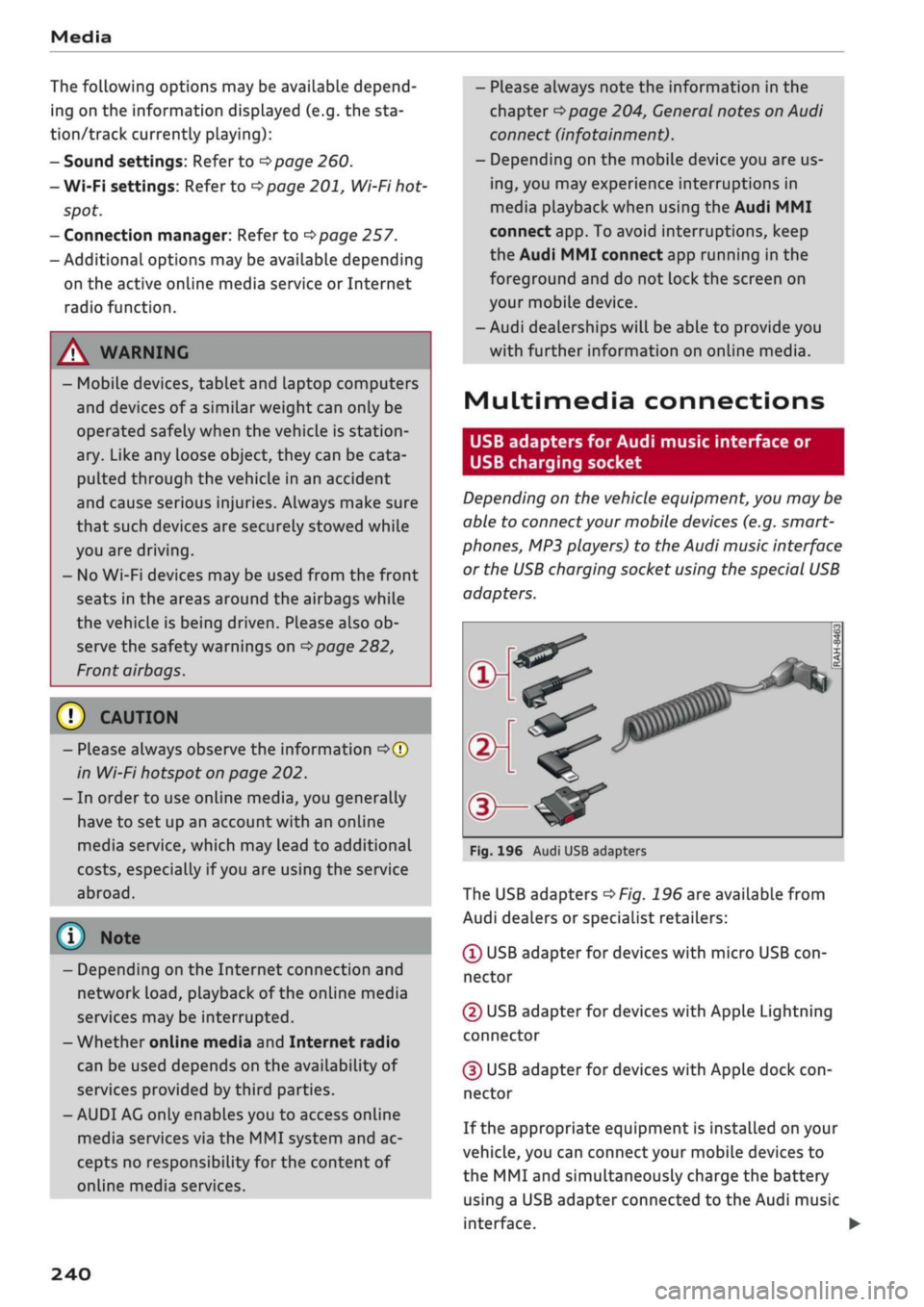
196 Audi USB adapters
The USB adapters
^>Fig.
196 are available from
Audi dealers or specialist retailers:
® USB adapter for devices with micro USB
con
nector
© USB adapter for devices with Apple Lightning
connector
© USB adapter for devices with Apple dock
con
nector
If the appropriate equipment is installed on your
vehicle, you can connect your mobiLe devices
to
the MMI and simultaneously charge the battery
using a USB adapter connected
to
the Audi music
interface.
•
240
Page 276 of 364
Safe driving
positioning, move the front passenger's seat as
far upwards as possibLe using the seat's height
adjustment. After installing the child seat on the
front passenger's seat, move the front passen
ger's backrest forward until it makes contact
with the child seat.
A WARNING
- Please refer to the important safety notes
•=>
A in Safety notes for using child seats on
page 268,
•=>
A in Child seat categories on
page 269 and the instructions provided by
the child seat manufacturer.
- Never install
a
rearward-facing child seat on
the front passenger's seat unless the front
passenger's airbag has been deactivated -
this can result in potentially fatal injuries to
the
child.
Pedal area
Pedals
The
pedals must always be free to move and
must never be obstructed by floor mats or any
objects in the footwell.
•
Make sure that none of the pedals is obstructed
and all of the pedals can be pressed all the way
down to the floor.
•
Make sure that all pedals are able to return
freely to their original positions.
Only use floor mats which Leave the pedal area
free and can be securely fastened in the footwell.
If one of the brake circuits should
fail,
increased
brake pedal travel will be required to bring the
vehicle safely to a stop.
A WARNING
Any obstructions that restrict pedal travel can
cause loss of vehicLe control and lead to
criti
cal traffic situations.
- Never place objects in the driver's footwell.
Such objects could move under the pedals
and interfere with their proper function. In
the event of sudden braking or
a
change of
direction,
you would not be able to use the
pedals. This could result in a loss of control
and possibly cause an accident.
Floor mats on the driver's side
Use
only floor mats which can be securely fas
tened in the footwell and do not obstruct the
pedals.
•
Make sure that floor mats are securely fastened
and cannot interfere with the pedals
o /\.
Use only floor mats that leave the pedal area un
obstructed and are firmly secured to prevent
them from slipping. You can obtain suitable floor
mats from your dealer or a specialist retailer.
A WARNING
Any obstructions that restrict pedal travel can
cause Loss of vehicle control and increase the
risk of serious personal injury.
- Always make sure that floor mats are prop
erly secured.
- Never lay or
instaLl
additional floor mats or
other floor coverings over the existing floor
mats;
this would restrict the pedal area and
possibly obstruct the pedals, which could
cause an accident.
Stowing Luggage
safely
Luggage compartment
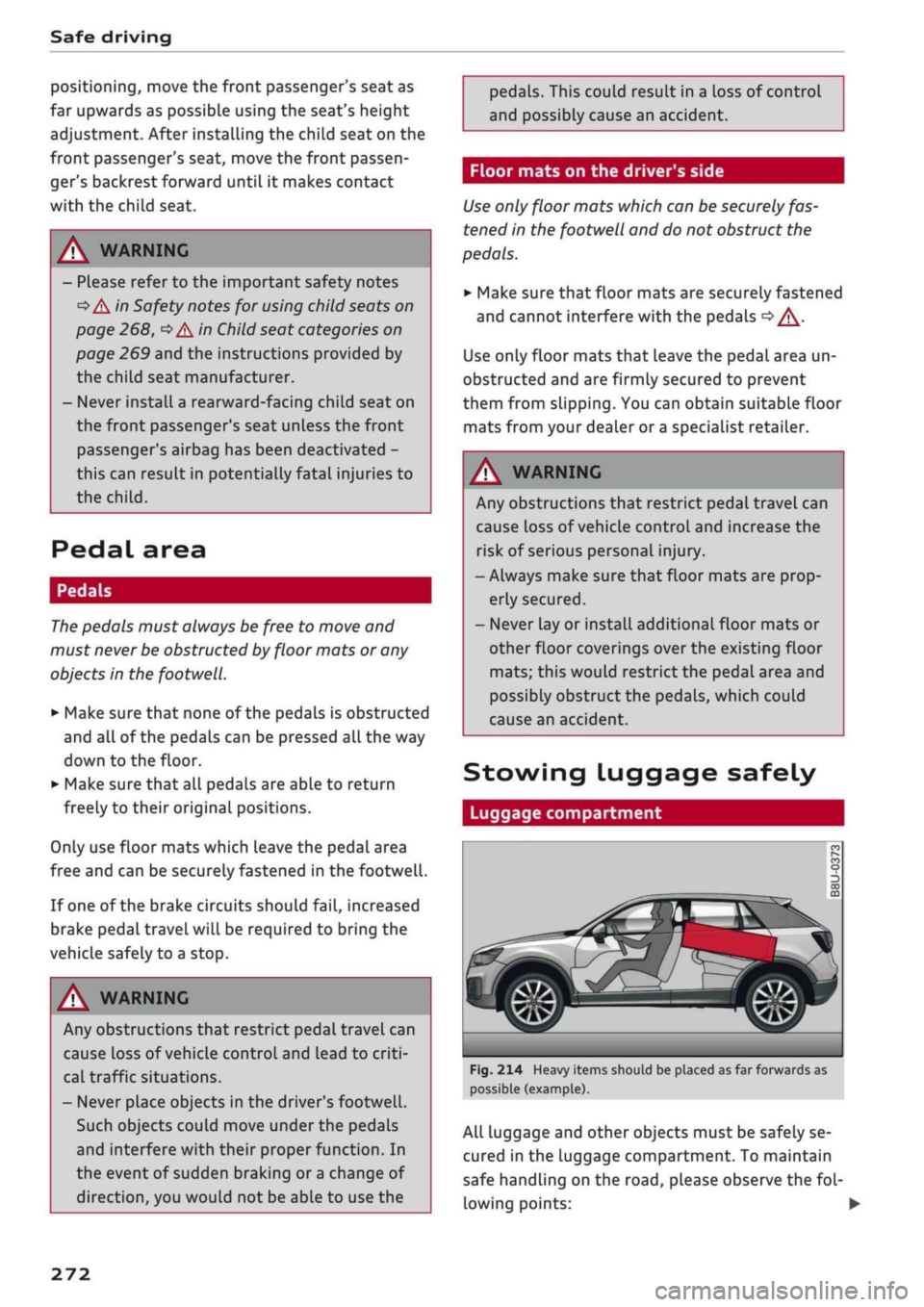
Fig.
214 Heavy items should be placed as far forwards as
possible (example).
All Luggage and other objects must be safely se
cured in the Luggage compartment. To maintain
safe handling on the
road,
please observe the
fol
lowing points: •
272
Page 277 of 364
Safe driving
•
Distribute the load evenly in the luggage com
partment.
•
Place heavy items as far forward as possible in
the luggage compartment and secure them
properly
<^>Fig.
214.
•
Secure the load with the stretch net* or with
non-elastic straps secured to the fastening
rings
^>page
62.
© CAUTION
A WARNING
- Loose items in the luggage compartment
are a safety hazard: they can move suddenly
and impair the handling of the vehicLe as a
result of the change in weight distribution.
- In an accident or a sudden manoeuvre, loose
objects in the passenger compartment can
be flung forward - risk of injury! Always
stow objects safely in the luggage compart
ment and secure them on the fastening
rings.
Use suitable securing straps, particu
larly when transporting heavy objects.
- Transporting heavy objects may affect the
vehicle's handling by shifting the centre of
gravity - this could cause an accident. Take
extra care when driving and adjust your
speed accordingly.
- Never exceed the maximum axle loads or
the maximum gross weight for the vehicLe
^>page
342. Exceeding the permitted axle
loads or gross weight Limit can affect the ve
hicle's handling characteristics, and increase
the risk of accidents, personal injuries or
damage to the vehicle.
- Never leave your vehicLe unattended when
the boot lid is open. Children could climb in
to the boot and close the boot lid from the
inside.
In this case the child would be un
able to get out of the vehicle without help.
This could have fatal consequences.
- Never allow children to play in or around the
vehicle. Always close and lock the boot lid
and all the doors when you leave the
vehi
cle.
- Never let passengers ride in the luggage
compartment. All occupants must be prop
erly restrained by the seat belts at all times
•=>
page
27'5.
Make sure that no hard objects chafe against
the wires of the heating element in the rear
window and damage them.
©
Note
- The tyre pressure must be adjusted accord
ing to the load the vehicle is carrying
<^>page
307.
- Air circulation in the vehicle helps reduce
fogging of the windows. Used air escapes
through ventilation slots in the rear of the
vehicle. Make sure that these ventilation
slots are not obstructed.
- Suitable belts for securing loads to the fas
tening rings* are commercially available.
Fastening rings
Unsecured loads are a hazard to all vehicle occu
pants.
There are fastening rings in the luggage com
partment which can be used to secure luggage
and other objects
^>page
62.
•
Use the fastening rings to secure items safely
in the luggage compartment
<=> A.
During a collision or an accident, even small and
light objects can possess so much energy that
they can cause very severe injuries. The amount
of this "kinetic energy" depends on the speed of
the vehicLe and the weight of the object. The
most significant factor, however, is the speed of
the vehicLe.
For example: an object weighing 4.5 kg is lying
unsecured in the vehicle. During a frontal
colli
sion at a speed of 50 km/h, this object generates
a force corresponding to 20 times its weight.
That means that the effective weight of the ob
ject increases to about 90 kg. You can imagine
the severity of the injuries which might be sus
tained if this "projectile" strikes an occupant as it
flies through the passenger compartment. •
00
273