ESP AUDI Q2 2021 Owner´s Manual
[x] Cancel search | Manufacturer: AUDI, Model Year: 2021, Model line: Q2, Model: AUDI Q2 2021Pages: 364, PDF Size: 87.77 MB
Page 244 of 364
Media
The following options may be available depend
ing on the information displayed (e.g. the sta
tion/track currently playing):
- Sound settings: Refer to
^>page
260.
- Wi-Fi settings: Refer to
Opage
201, Wi-Fi hot-
spot.
- Connection manager: Refer to
<>page
257.
- Additional options may be available depending
on the active online media service or Internet
radio function.
A WARNING
- Mobile devices, tablet and laptop computers
and devices of
a
similar weight can only be
operated safely when the vehicle is station
ary. Like any Loose object, they can be cata
pulted through the vehicle in an accident
and cause serious injuries. Always make sure
that such devices are securely stowed while
you are driving.
- No Wi-Fi devices may be used from the front
seats in the areas around the airbags while
the vehicle is being driven. Please also ob
serve the safety warnings on
^>page
282,
Front airbags.
© CAUTION
- Please always observe the information
•=>©
in Wi-Fi hotspot on page 202.
- In order to use online media, you generally
have
to
set up an account with an online
media service, which may lead
to
additional
costs,
especially if
you
are using the service
abroad.
© Note
- Depending on the Internet connection and
network
load,
playback of the online media
services may be interrupted.
- Whether online media and Internet radio
can be used depends on the availability
of
services provided by third parties.
- AUDI AG only enables you
to
access online
media services via the MMI system and ac
cepts no responsibility for the content of
online media services.
- Please always note the information in the
chapter
^>page
204, General notes on Audi
connect (infotainment).
- Depending on the mobile device you are us
ing,
you may experience interruptions
in
media playback when using the Audi MMI
connect app. To avoid interruptions, keep
the Audi MMI connect app running in the
foreground and do not lock the screen on
your mobile device.
- Audi dealerships will be able
to
provide you
with further information on online media.
Multimedia connections
USB adapters for Audi music interface or
USB charging socket
Depending on the vehicle equipment, you may be
able
to
connect your mobile devices (e.g. smart-
phones, MP3 players)
to
the Audi music interface
or the
USB
charging socket using the special
USB
adapters.
<
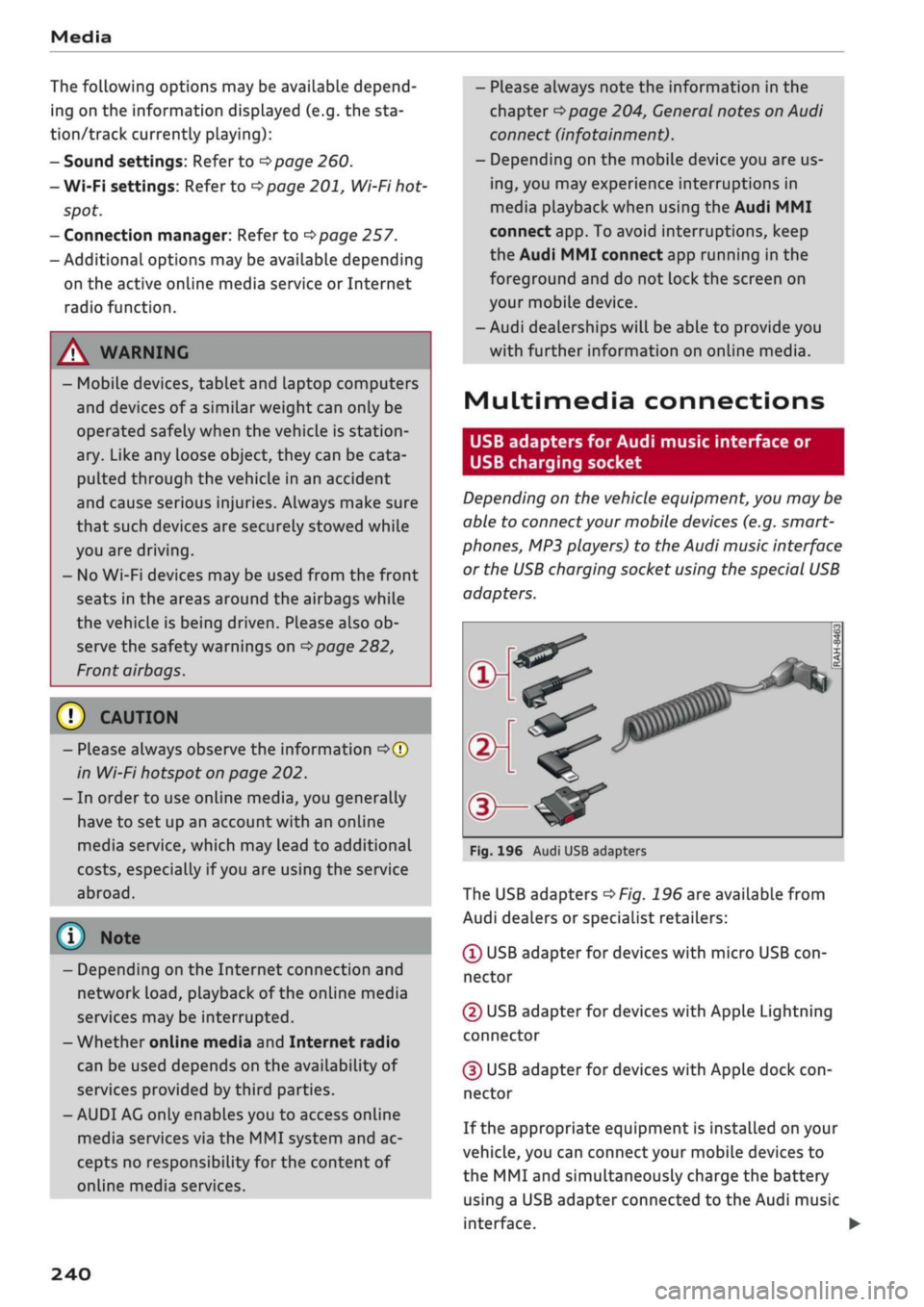
Fig.
196 Audi USB adapters
The USB adapters
^>Fig.
196 are available from
Audi dealers or specialist retailers:
® USB adapter for devices with micro USB
con
nector
© USB adapter for devices with Apple Lightning
connector
© USB adapter for devices with Apple dock
con
nector
If the appropriate equipment is installed on your
vehicle, you can connect your mobiLe devices
to
the MMI and simultaneously charge the battery
using a USB adapter connected
to
the Audi music
interface.
•
240
Page 245 of 364
Media
CO
< o rN
IV
rN
•-H
•H
00
Applies to: vehicles with Audi music interface
- Audi music interface: See
^>page
241.
Applies to: vehicles with AUX input/USB charging socket
- AUX input/USB charging socket: See
•=>
page 242.
© CAUTION
Please handle the USB adapters with care.
Make sure the cable does not become pinched
or trapped.
Audi music interface
Applies to: vehicles with Audi music interface
You
can connect your mobile devices via the Audi
music interface in order to charge the battery
and operate the devices via the MMI.
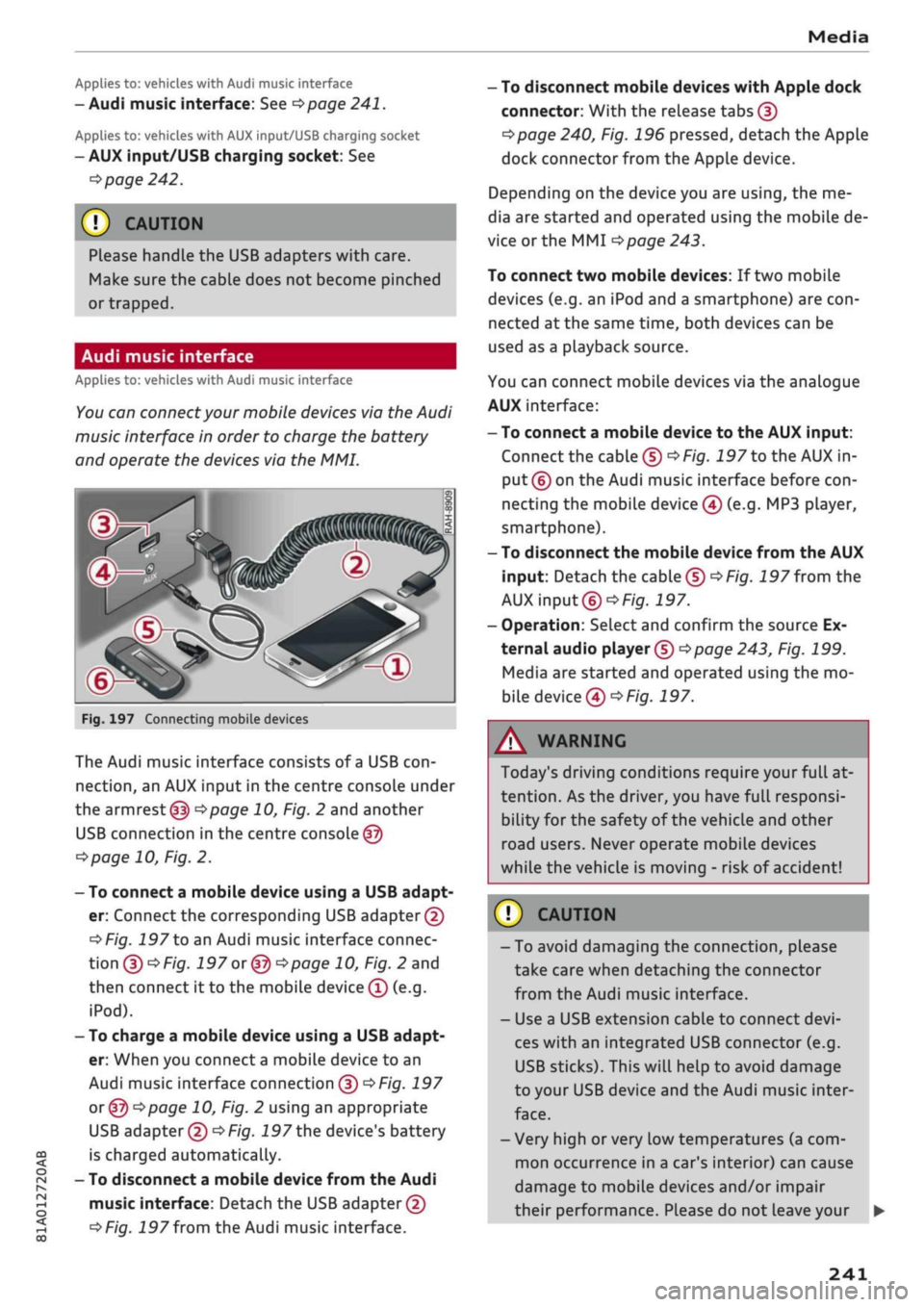
Fig.
197 Connecting mobile devices
The Audi music interface consists of
a
USB
con
nection,
an AUX input in the centre console under
the
armrest (f|) ^>page
10, Fig. 2 and another
USB connection in the centre console
©
<=>page
10, Fig. 2.
- To connect a mobile device using a USB adapt
er: Connect the corresponding USB adapter©
^>Fig.
197 to an Audi music interface connec
tion
©^F/'g.
197 or @ •=>page
10, Fig. 2 and
then connect it to the mobile device ® (e.g.
iPod).
- To charge a mobile device using a USB adapt
er: When you connect
a
mobile device to an
Audi music interface connection @
^>Fig.
197
or ©o
page 10, Fig. 2 using an appropriate
USB adapter ©
•=>
Fig.
197 the device's battery
is charged automatically.
- To disconnect a mobile device from the Audi
music interface: Detach the USB adapter©
^>Fig.
197
from
the Audi music interface.
-
To
disconnect mobile devices with Apple dock
connector: With the release tabs ©
^>page
240, Fig. 196 pressed, detach the Apple
dock connector from the Apple device.
Depending on the device you are using, the me
dia are started and operated using the mobile de
vice or the MMI
^page
243.
To connect two mobile devices: If two mobile
devices (e.g. an iPod and a smartphone) are
con
nected at the same time, both devices can be
used as a pLayback source.
You can connect mobile devices via the analogue
AUX interface:
-
To
connect a mobile device to the AUX input:
Connect the cable ©
^Fig.
197 to the AUX in
put © on the Audi music interface before
con
necting the mobile device
©
(e.g. MP3 player,
smartphone).
- To disconnect the mobile device from the AUX
input: Detach the cable©
^Fig.
197
from
the
AUX input©
^Fig.
197.
- Operation: Select and confirm the source Ex
ternal audio player ©
Opage
243, Fig. 199.
Media are started and operated using the mo
bile device©
^F/'g.
197.
A WARNING
Today's driving conditions require your full at
tention.
As the driver, you have full responsi
bility for the safety of the vehicle and other
road users. Never operate mobile devices
while the vehicle is moving - risk of accident!
©
!)
CAUTION
-To avoid damaging the connection, please
take care when detaching the connector
from the Audi music interface.
- Use a USB extension cable to connect
devi
ces with an integrated USB connector (e.g.
USB sticks). This will heLp to avoid damage
to your USB device and the Audi music inter
face.
- Very high or very Low temperatures (a com
mon occurrence in a car's interior) can cause
damage to mobile devices and/or impair
their performance. Please do not leave your •
241
Page 247 of 364
Media
CO
<
o
rN
IV
rN
i—i
o
<
•H
00
- To charge a mobile device using
a
USB adapt
er: Connect your mobile device®
^>Fig.
198
to
the charging socket® using
the
appropriate
USB adapter©.
- To disconnect
the
USB adapter from
the
charging socket: Detach
the
USB adapter©
^Fig.
198
from
the
USB charging socket.
- To disconnect mobile devices with Apple dock
connector: With
the
release tabs
©
^>page
240,
Fig.
196
pressed, detach
the
Apple
dock connector from
the
Apple device.
A WARNING
Today's driving conditions require your full
at
tention.
As
the
driver, you have full responsi
bility
for
the
safety
of
the vehicle
and
other
road users. Never use mobile devices while
the vehicle
is
moving
-
risk
of
accident!
!
)
CAUTION
-To avoid damaging
the
connection
on the
Audi music interface, please take care when
unplugging
the
connector from
the
AUX
in
put
or the
USB charging socket.
- Very high
or
very
low
temperatures
(a
com
mon occurrence
in a
car's interior)
can
cause
damage
to
mobile devices and/or impair
their performance. Please
do not
leave your
mobile devices
in the
vehicle when
the
tem
perature
is
very high
or
very
low.
© Note
- When you switch
off
the ignition,
the
USB
ports will continue
to be
supplied with pow
er as Long as
the
energy management sys
tem does
not
intervene.
- USB charging sockets marked
ICHARGEONLYI
cannot transfer data
and
are intended
for
charging only.
-
Do not
use
any
additional USB extension
ca
bles
or
adapters when connecting mobile
devices which must
be
connected
to the USB
charging
socket
©^F/g.
198
via
a USB
adapter
(^>page
240);
this could cause per
formance issues.
- The AUX adapter cable
is
available from
Audi dealers
or
specialist retailers.
- USB hubs
are not
supported.
- Please refer
to the
operating instructions
of
your mobile device
for
important informa
tion
on its
operation.
-
It
cannot
be
guaranteed that
all
mobile
de
vices will function without
any
problems.
- Using
a
mobile device with
the
engine
switched
off
will drain
the
vehicle's battery.
- Audi recommends setting
the
volume
of
a
mobile device connected
to the
AUX input
to
about
70 % of
maximum.
Playing media
Calling
up
media
You
can start
and
operate various types
of
media
via
the MMI
control console.
| Jukebox
I
Q
DVD
Audi
music interface
Xux
^external
audio player
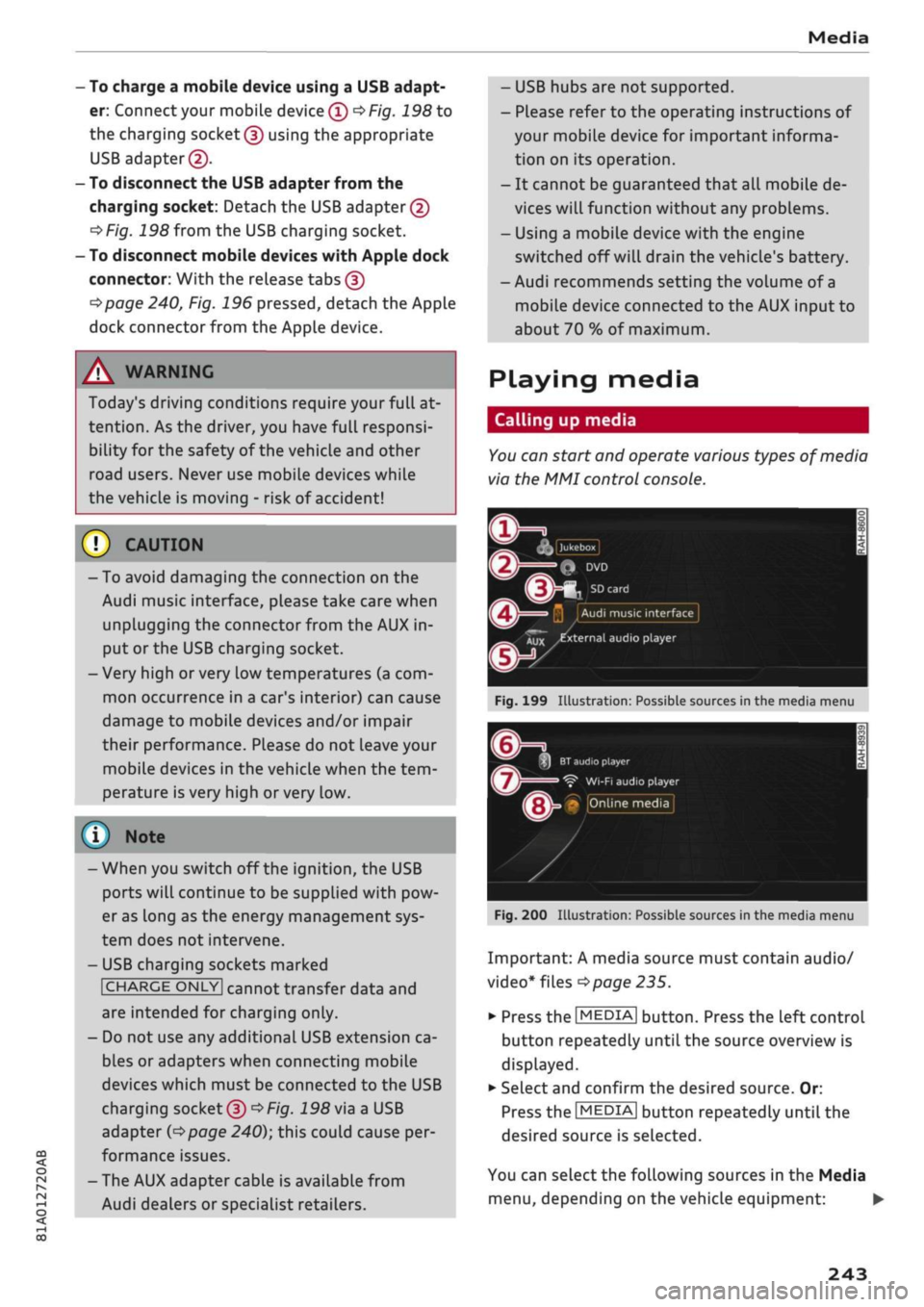
Fig.
199
Illustration:
Possible sources
in the
media menu
3H
BT
audio
playe
Ç"
WI-FI
audio player
• Online media
Fig.
200
Illustration:
Possible sources
in the
media menu
Important:
A
media source must contain audio/
video*
files
^>page
235.
*•
Press
the
I
MEDIA|
button. Press
the
left control
button repeatedly until
the
source overview
is
displayed.
•
Select and confirm
the
desired source.
Or:
Press
the|MEDIA|
button repeatedly until
the
desired source
is
selected.
You
can
select
the
following sources
in the
Media
menu,
depending
on the
vehicle equipment:
•
243
Page 254 of 364

Media
be ensured that these characters are always
displayed correctly.
The manufacturer will provide you with in
formation on the "USB Device Subclass" of
a
USB memory device.
- Some functions of MTP players such as
vid
eo playback and the rating of tracks are not
supported.
CD drive
Applies to: vehicles with CD drive
The CD
drive supports the following audio file specifications:
Supported
media
File system
Metadata
Format
File extension
Playlists
Specifications
Number
of files
Audio files
Audio CDs (up to 80 minutes) with
CD
text (artist, album, track)*, CD-ROMs with a
capacity of up to 700 MB
CD file systems: IS09660, Joliet, UDF
Album covers: GIF,
JPG,
PNG up to 800x800 px.; depending on availability, the al
bum cover will be displayed using the corresponding medium.
MPEG-1/-2
Layer 3
.mp3
Windows Media Au
dio
9
and 10
.wma
MPEG-2/-4
.m4a;
.m4b;
.aac
FLAC
.flac
.M3U;
.PLS;
.WPL;
.M3U8;
.ASX
Up to max. 320
kbit/sec
and 48 kHz sampling frequency 48 kHz sampling
frequency
max. 1000 files per medium
® Note
- We recommend a compression rate of at
least 160
kbit/sec
for MP3 files. In the case
of audio files with variable bit rate, the dis
pLay of the remaining playing time may
dif
fer from the actual figure.
-The display of country-specific characters
(e.g.
for ID3 tag information) depends on
the Language set on the system; it cannot
be ensured that these characters are always
displayed correctly.
Troubleshooting
Subject
Audi music interfaceVBluetooth
audio player*: The mobiLe device
is not supported.
Audi music interface*: When
starting playback via the AUX in
put, the volume is too high/low.
Advice
Please observe the notes in the chapter
^page
240, Multimedia
connections/^page
237, Bluetooth audio
player.
For information
on which mobile devices are supported, please see the Audi mo
bile device database at www.audi.com/bluetooth.
Set the volume of the mobile device to about 70% of maximum
^>page
246, Input level.
250
Page 259 of 364

System settings
System settings
Setting the time and
date
The
time can be set manually or via
GPS*
• Select:
|MENU|
button > Settings
>
left control
button > MMI settings > Date & time.
•
Or: Select:
|MENU|
button > Car
>
left control
button
>
Vehicle settings > Date & time.
Set automatically
The time and date are automatically updated
when this function is switched on
0.
Time
Important: The Set automatically function must
be deactivated.
Press the rotary pushbutton. You can adjust the
time manually by turning and pressing the rotary
pushbutton.
Date
Important: The Set automatically function must
be deactivated.
Press the rotary pushbutton. You can adjust the
date manually by turning and pressing the rotary
pushbutton.
Time zone
When selecting the correct time zone, a list of
corresponding countries is displayed as an exam
ple.
Automatic time zone*
When this function is activated
(vf,
the time is au
tomatically adjusted to the relevant time zone.
Automatic summer time*
When this function is activated
0,
the time is au
tomatically adjusted from normal time to sum
mer time.
Time format
When this option is set to 24h, for example
13:00 will be displayed as the time. When
it
is
set to AM/PM, for example 1:00 PM will be dis
played.
Date format
When this option is set to DD.MM.YYYY, for ex
ample
31.08.2017
will be displayed as the date.
When
it
is set to MM/DD/YYYY, for example
08/31/2017
will be displayed. When
it
is set to
YYYY-MM-DD, for example
2017-08-31
will be
displayed.
MMI settings
•
Select:
|MENU|
button > Settings > left control
button > MMI settings.
Language
You can change the language of the display along
with the language of the navigation cues* and
the speech dialogue system*.
The number of languages available depends on
the market.
Measurement units
The following measurement units are available:
- Speed (km/h or
mph)
- Distance (km or miles)
- Temperature (°C or °F)
- Consumption
(ltr/100
km,
mpg
(US),
mpg
(UK)
or
km/ltr)
- Capacity (litres, gallons)
Reminder signal
Applies to: vehicles with Audi phone box
Important: Your mobile phone must be Qi com
patible1^,
or
it
must be connected to the Audi
music interface
(l) ^page
177, Fig. 161 using a
USB adapter cable.
You can use the reminder signal to keep yourself
informed of the charging status of the mobile
•
CO
<
O
rN
iv
rN
t-H
o < 00
1}
The Qi standard enables you to charge your mobile phone
wirelessly.
255
Page 260 of 364

System settings
phone in the Audi phone box*. The following set
tings are available:
- off: Switches the reminder signal off.
-
sound:
A sound is played as the reminder
sig
nal.
- spoken: The reminder signal is spoken by the
system.
Reminder signal volume: You can adjust the
vol
ume of the reminder signal by turning the rotary
pushbutton.
Switch off pop-up: This function is switched off
at the factory. When this function is switched on
fcTf,
the messages about the charging status of
the mobile phone in the Audi phone box* on the
infotainment display will not appear. The re
minder not to forget the mobile phone when
leaving the vehicle will also be switched off.
Usage tips
Your MMI dispLays usage tips when this function
is switched on
5f.
They will appear less often as
time goes by.
Speech dialogue system
Applies to: vehicles with speech dialogue system
The following functions are available depending
on the equipment installed in your vehicLe:
Command display: The MMI displays possible
voice commands in the corresponding menu
when this function is switched on
Sf.
Short dialogue: When this function is switched
on
(vj,
the spoken cues are shortened.
Command during speech dialogue*: This option
is activated when the vehicle leaves the factory.
When this option is activated
(vf,
you can say a
new command while the system is giving a spo
ken cue, rather than waiting for the beep. When
this option is deactivated
O,
wait until you hear
the beep to say
a
command.
Volume: You can adjust the volume of the spoken
cues by turning the rotary pushbutton.
Individual speech training (only possibLe when
the vehicle is stationary): You can use the individ
ual speech training to adapt the speech dialogue
system to your voice or pronunciation so that the
speech dialogue system can then better recog
nise what you are saying. The individual speech
training prompts you to repeat 20 spoken phra
ses that consist of certain commands and blocks
of digits. If
you
would like to delete the stored
speech training setup, you can use the function
Reset individual speech training.
Display brightness
Display brightness: You can adjust the bright
ness of the infotainment display by turning the
rotary pushbutton.
Factory settings
You can reset the following functions to the fac
tory settings:
- Sound settings
- Radio
- Media settings
-Jukebox*
- Directory
-Telephone
- Bluetooth and Wi-Fi*
- Navigation settings*
- Navigation and online memory*
- Speech dialogue system*
- Message settings*
- Apps*
-Usage tips
-Audi connect*
- Audi smartphone interface*
You can select the desired options individually or
mark Select all entries. SeLect and confirm Re
store factory settings.
Please note that not only settings will be de
Leted
when you do this; saved data may also
be erased
256
Page 261 of 364

System settings
Connection manager
Introduction
The
connection manager
gives
you an overview
of your connected
devices
and their connection
status.
Settings
Connection manager
*
MyPhone
• Additional
phone:
-• Data
connection:
• MMI connect app:
• Audi smartphone:
Fig.
205 Connection manager
•
Select: IMENUI button > Settings
>
Left control
button > MMI settings > Connection manager.
•
Select and confirm a menu option.
If
a
mobile device has already been connected
and you then select and confirm the correspond
ing menu item, the device's name and connection
mode is displayed under this menu item
^Fig.
205.
You can connect
((vj)
or disconnect
O)
a connec
ted device individually.
Telephone
Applies
to: vehicles with telephone
- Connect new device: You can search for and
connect
a
mobile phone.
- List of devices already bonded: Select your mo
bile phone from the List of all devices which
have already been bonded. Or: Insert your own
mini SIM card in the SIM card reader*
^>page
176.
Second phone
Applies
to: vehicles with Audi phone box
- Connect new device: You can search for and
connect
a
mobile phone.
- List of devices already bonded: Select your mo
bile phone from the List of all devices which
have already been bonded.
Data connection
Applies
to: vehicles with Audi connect (infotainment)
Applies
to: option using the embedded SIM card
- The embedded SIM
card1)
will be used for the
data connection
^>page
191. You do not need
to adjust any other settings.
Applies
to: option using your own SIM card
- Connect new device: You can search for and
connect
a
mobile device (e.g. a smartphone).
- List of devices already bonded: Select your mo
bile phone from the List of all devices which
have already been bonded. Or: Insert your own
mini SIM card in the SIM card reader*.
© CAUTION
Please always observe the information
•=>©
in
Wi-Fi hotspot on page 202.
MMI connect app
Applies
to: vehicles with Audi connect (infotainment)
Important: The Audi MMI connect app must be
installed on your mobile device and have been
started.
- Connect new device: You can search for and
connect
a
mobile device (e.g. a smartphone).
- List of devices already bonded: Select your mo
bile device from the List of all devices which
have already been bonded.
Music
Applies
to: vehicles with Bluetooth audio player or Wi-Fi au
dio
player
Audio player*
Important: The Bluetooth function and the dis
coverability option of both the MMI system
opage
258 and the mobile phone must be
acti
vated.
CO
rN
IV
rN
t-H
o <
x)
SIM card installed in vehicle at factory.
257
Page 267 of 364
Safe driving
Safe driving
General notes
Safety is the first priority
The safety features in your vehicle are harmon
ised to provide you and your passengers with the
best possible protection in accident situations.
However, they can only be effective if you and
your passengers sit in the correct position and
adjust and use the safety equipment properly.
For these reasons, this chapter explains why
these safety features are so important, how they
can protect you, what you need to remember
when using them, and
how
you and your passen
gers can gain the most benefit from them. There
are also a number of important safety warnings
which you and your passengers should always ob
serve in order to minimise the risk of injury.
WARNING
- The information in this chapter is important
for the driver of the vehicle and all passen
gers.
The other chapters in this manual
(and,
where applicable, in the other litera
ture supplied with the vehicle) contain fur
ther important notes which you should read
and observe for your own safety and that of
your passengers.
- Ensure that the complete vehicle wallet is
always in the vehicle. This is especially im
portant when you lend or sell the vehicle to
others.
CO
<
O
rN
iv
rN
i—i
o < 00
Before every trip
The driver is responsible for the safety of the
passengers and the safe operation of the vehicle
at all times.
For
your own safety and the safety of your pas
sengers, always note the following points before
every trip:
•
Make sure that all lights and turn signals are
working properly.
•
Check the tyre pressures.
•
Make sure that all windows are clean and give
good visibility to the outside.
•
Secure all luggage and other items carefully
•=>
page 272.
• Make sure that no objects can interfere with
the pedals.
•
Adjust the front seat, head restraint and mir
rors correctly.
• Applies to: adjustable head restraints: Make
sure that the front passenger's head restraint is
adjusted to the correct position.
• Applies to: adjustable head restraints: Make
sure that the head restraints for the rear pas
sengers are in the fully raised position.
•
Make sure that children are protected with suit
able safety seats and properly worn seat belts
•=>
page 267.
•
Sit in the correct position in your seat. Make
sure
that
your passengers are sitting in the cor
rect positions
^>page
58.
•
Fasten your seat belt correctly. Make sure that
your passengers do the same
^page
275.
What factors can impair your safety?
Safety on the road is directly related to
how
you
drive, and can also be affected by the passengers
in the vehicle.
• The driver is responsible for the safety of the
vehicle and all its occupants. If your ability to
drive is impaired in any way, you endanger
yourself and other road users
,=>^.
Therefore:
• Do not let yourself be distracted by passengers
or by using a mobile phone, etc.
•
Never drive when your driving ability is im
paired (by medication, alcohol, drugs, etc.).
• Obey all traffic regulations and speed limits
and always maintain a safe distance to the
vehi
cle in front.
•
Always adjust your speed to suit the
road,
traf
fic and weather conditions.
•
Take frequent breaks on long trips. Do not drive
for more than two hours without a stop.
•
If possible, avoid driving when you are tired or
stressed.
•
263
Page 271 of 364
Safe driving
CO
< o rN
iv
rN
t-H
o < 00
The head restraints must be adjusted properly to
provide maximum protection.
•
Adjust the front head restraints so that the top
of the head restraint is level with the top of
your head. If this is not possibLe, try to adjust
the head restraint as near as possibLe to this
position.
•
Before carrying passengers on the rear seats,
pull
the head restraints on the occupied seats
all the way up
^>page
59.
For more information on how to adjust the head
restraints, see
^page
58.
A WARNING
- Travelling with the head restraints removed
or incorrectly adjusted increases the risk of
severe injuries.
- Incorrectly adjusted head restraints can also
increase the risk of injury during sudden or
unexpected braking or other manoeuvres.
Examples of incorrect seating positions
Occupants can suffer
severe
or fatal injuries if
they sit in an incorrect position while the vehicle
is moving.
Seat belts can only provide maximum protection
if the belt webbing is positioned correctly. Sitting
out of position greatly reduces the effectiveness
of the seat belts and increases the risk of injury
since the belt webbing is not worn in the position
for which it is designed. The driver is responsible
for the safety of all vehicle occupants, especially
for children.
•
Never allow anyone to sit out of position while
the vehicle is moving
•=>
A..
The following list shows just some examples of
incorrect sitting positions which can be danger
ous to all occupants. The List is not complete, but
will help to make you aware of possible dangers
which can be avoided.
Therefore, whenever the vehicle is moving:
- Never stand up in the vehicle.
- Never stand on the seats.
- Never kneel on the seats.
- Never travel with the backrest reclined too far.
- Never lean against the dash panel.
- Never lie down on the rear seat.
- Never sit on the front edge of
a
seat.
- Never sit sideways.
- Never lean out of the window.
- Never put your feet out of the window.
- Never put your feet on the dash panel.
- Never put your feet on the seat cushion.
- Never ride in the footwell.
- Never travel on a seat without wearing the seat
belt.
- Never climb into the luggage compartment.
WARNING
Sitting out of position increases the risk of se
vere injuries.
- Sitting out of position exposes the occu
pants to potentially fatal injuries if, for in
stance, the airbags inflate and strike an oc
cupant who is not seated in one of the prop
er positions.
- Before starting a trip, sit in the correct
posi
tion and stay in this position as Long as the
vehicle is moving. Before every trip, make
sure all passengers are sitting in the correct
positions and remain correctly seated at all
times
^page
58, Front seats.
Child seats
Safety notes for using child seats
To
reduce the risk of injury in the event of
an
ac
cident, children must always use child restraint
systems when travelling in the car.
Please note the information in this Owner's
Man
ual when installing and using child seats. Follow
the manufacturer's instructions and observe any
statutory requirements.
For safety reasons, we recommend that child
seats be installed on the rear seats. You should
only use a child seat on the front passenger seat
in exceptional circumstances. •
267
Page 274 of 364
Safe driving
Fitting child seats
Securing child seats with ISOFIX
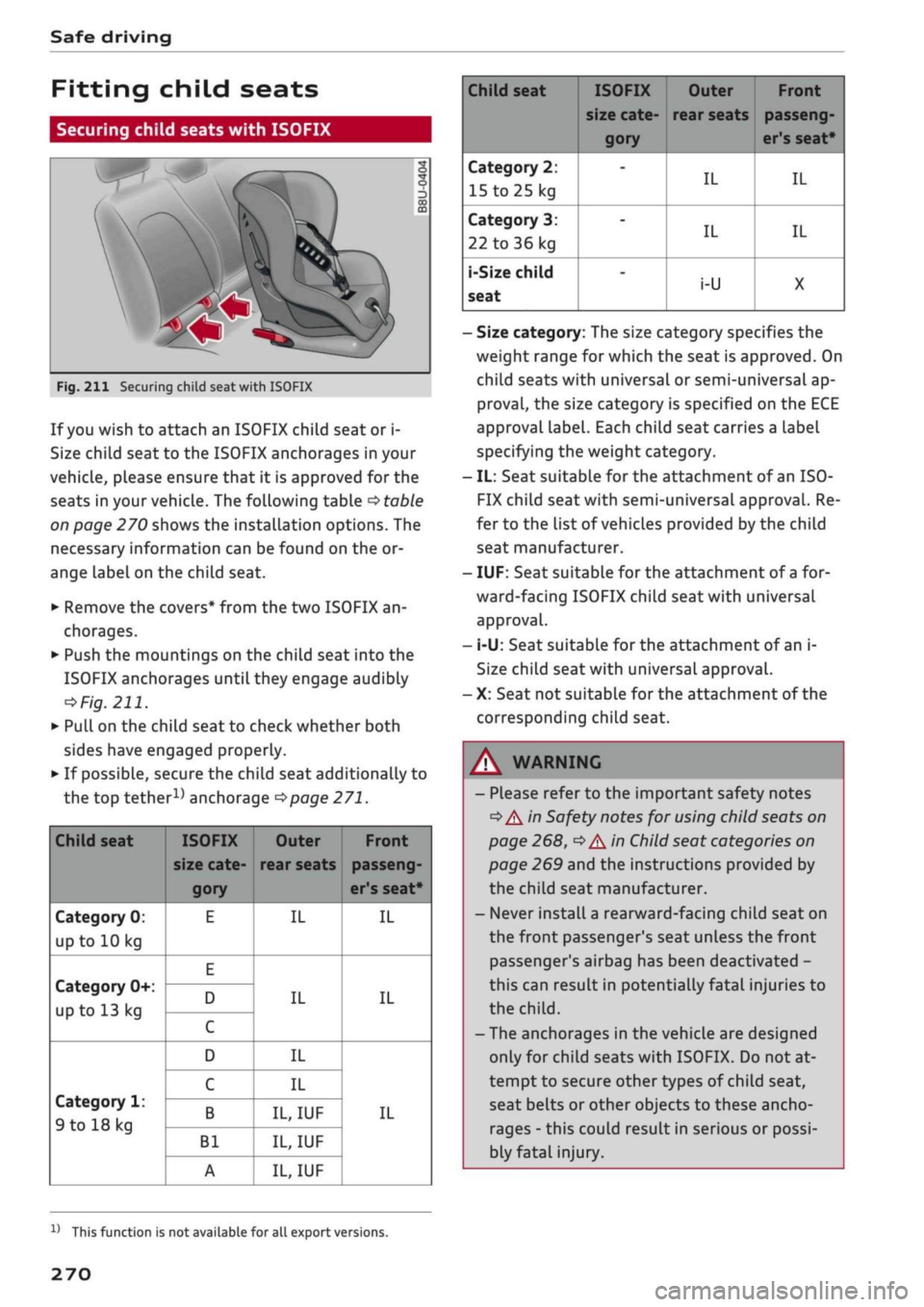
Fig.
211 Securing child seat with ISOFIX
If
you
wish to attach an ISOFIX child seat or i-
Size child seat to the ISOFIX anchorages in your
vehicle, please ensure that it is approved for the
seats in your vehicle. The following table
•=>
table
on page 270 shows the installation options. The
necessary information can be found on the or
ange label on the child seat.
• Remove the covers* from the two ISOFIX an
chorages.
•
Push the mountings on the child seat into the
ISOFIX anchorages until they engage audibly
=»
Fig.
211.
• PuLl
on the child seat to check whether both
sides have engaged properly.
•
If possibLe, secure the child seat additionally to
the top
tether1^
anchorage
^>page
271.
Child seat
Category 0:
up to 10 kg
Category 0+:
up to 13 kg
Category 1:
9 to 18 kg
ISOFIX
size cate
gory
E
E
D
C
D
C
B
Bl
A
Outer
rear seats
IL
IL
IL
IL
IL,
IUF
IL,
IUF
IL,
IUF
Front
passeng
er's seat*
IL
IL
IL
Child seat
Category 2:
15 to
25 kg
Category 3:
22 to 36 kg
i-Size
child
seat
ISOFIX
size cate
gory
-
-
-
Outer
rear seats
IL
IL
i-U
Front
passeng
er's seat*
IL
IL
X
- Size category: The size category specifies the
weight range for which the seat is approved. On
child seats with universal or semi-universal ap
proval,
the size category is specified on the ECE
approval Label. Each child seat carries a label
specifying the weight category.
- IL: Seat suitable for the attachment of an ISO-
FIX child seat with semi-universal approval. Re
fer to the list of vehicles provided by the child
seat manufacturer.
- IUF: Seat suitable for the attachment of
a
for
ward-facing ISOFIX child seat with universal
approval.
- i-U: Seat suitable for the attachment of an i-
Size child seat with universal approval.
- X: Seat not suitable for the attachment of the
corresponding child seat.
WARNING
- Please refer to the important safety notes
•=>
A in Safety notes for using child seats on
page 268,
•=>
A In Child seat categories on
page 269 and the instructions provided by
the child seat manufacturer.
- Never install
a
rearward-facing child seat on
the front passenger's seat unless the front
passenger's airbag has been deactivated -
this can result in potentially fatal injuries to
the
child.
- The anchorages in the vehicle are designed
only for child seats with ISOFIX. Do not at
tempt to secure other types of child seat,
seat belts or other objects to these ancho
rages - this could result in serious or possi
bly fatal injury.
l)
This function is not available for all export versions.
270