ESP AUDI Q2 2021 Owner´s Manual
[x] Cancel search | Manufacturer: AUDI, Model Year: 2021, Model line: Q2, Model: AUDI Q2 2021Pages: 364, PDF Size: 87.77 MB
Page 206 of 364
Audi connect (infotainment)
•
Select:
1MENU[
button
>
Telephone
>
right
con
trol button
>
Wi-Fi settings.
The following settings can be made:
Wi-Fi
The Wi-Fi hotspot is deactivated when the vehicle
leaves the factory. Switch the Wi-Fi hotspot on
before establishing an Internet connection be
tween your vehicle and your Wi-Fi device.
-
on:
The
MMI's
Wi-Fi hotspot is activated and
visible to other devices. You can connect your
Wi-Fi device to the MMI.
- off: The MMI's Wi-Fi hotspot is deactivated.
Wi-Fi devices will not be able to connect to the
Internet.
Network
key
The Wi-Fi connection between your vehicle and
the Wi-Fi device (laptop or mobile phone) is en
crypted.
Before a connection can be established,
you must enter the following values/settings
when setting up your Wi-Fi device (these values
can be edited as required):
-Access point
(SSID):
Name of the Wi-Fi net
work.
- Password: A random MMI password is set at
the factory. This password can be changed. The
encryption type WPA2 requires the password to
be at least 8 characters
long.
Please select
a
se
cure password.
- Discoverability: To switch the discoverability of
your Wi-Fi network on
([vj)
or off.
Network
search15
A list of the Wi-Fi networks available near you is
displayed.
Connection to personal hotspot15
The Wi-Fi hotspot of the MMI is activated. The
MMI can establish an Internet connection to a
personal Wi-Fi hotspot (e.g. smartphone). You
can search for your personal hotspot and connect
to the MMI using Network search. For more in
formation,
please refer to
^>page
195.
Not available in all markets.
This mode is not available if your own mini SIM
card is inserted in the SIM card reader.
A<
i
WARNING
- The Audi connect infotainment services
should only be used via a Wi-Fi hotspot
when the vehicle is stationary or from the
rear seats if the vehicLe is in motion - risk of
accident!
- Mobile devices, tablet and laptop computers
and devices of
a
similar weight can only be
operated safely when the vehicle is station
ary. Like any loose object, they can be cata
pulted through the vehicle in an accident
and cause serious injuries. Always make sure
that such devices are securely stowed while
you are driving.
- No Wi-Fi devices may be used from the front
seats in the areas around the airbags while
the vehicLe is being driven. Please also ob
serve the safety warnings in the chapter on
<3>page
282, Front airbags.
- Do not allow the features of the Wi-Fi hot-
spot to distract you from watching the traf
fic - taking your eyes off the road can cause
an accident.
© CAUTION
- Depending on the configuration of the Wi-Fi
device you are using (refer to the operating
manual of your Wi-Fi device for more de
tails),
the SIM card of the device may be
used in certain cases to provide the data
connection for Internet-supported apps and
services which use the MMI Wi-Fi hotspot.
Depending on your network provider, you
may be charged for this service, especially if
you are using the system abroad. We there
fore strongly recommend that you use an
unlimited data
plan.
For more information,
contact your service provider. Some exam
ple cases are described below:
- Data plan expired/used up
- Data plan not valid abroad •
202
Page 207 of 364
Audi connect (infotainment)
- SIM card in the card reader* is not a data
SIM card
- SIM card in the card reader* is defective/
not valid
- Network is switched automatically due to
a low signal strength/data rate of the Wi-
Fi hotspot, the eSIM*
or
the SIM card in
the card reader*
- Connection to Wi-Fi hotspot interrupted
-Applies when using the embedded SIM
card:
The data connection costs for Audi connect
infotainment services are included in the
price of Audi connect (infotainment). This
does not include services which use the Wi-
Fi hotspot, such as online media
<^>page
239. These services require
addi
tional paid data plans
^page
197. For more
information on prices and purchasing,
please visit my.audi.com.
- Applies when using your own SIM
card:
The
connection via the eSIM card
^page
191 is
disconnected when you use your own SIM
card.
All data connections for all Audi
con
nect infotainment services will use your SIM
card.
Depending on your network provider,
you may be charged for this service, espe
cially if
you
are using the system abroad.
We therefore strongly recommend
that
you
use an unlimited data
plan.
For more infor
mation,
contact your service provider.
- Please note that it is your responsibility to
take precautions regarding data protection,
anti-virus protection and protection against
loss of data on mobile devices used to
con
nect to the Internet via the Wi-Fi hotspot.
© Note
- In vehicles without Audi connect (infotain
ment)*, the Wi-Fi hotspot can only be used
for the Wi-Fi audio player*. A data connec
tion to the Internet cannot be established.
- Further information on Audi connect info
tainment services can be found on the Inter
net at www.audi.com.
Configuring the data
connection
Applies to: vehicles with Audi connect (infotainment)
A data connection for Audi connect infotainment
services is pre-configured at the factory. Howev
er, if
a
configuration is
necessary,
you can adjust
the settings as described below.
•
Select:
MENU|
button > right control button >
Connection manager.
•
Select: right control button > Online settings >
Data connection settings.
You can select when you would like the system to
establish an Internet connection in the Data
con
nection settings menu. The online connection is
ended automatically when a requested Audi
con
nect infotainment service no longer requires any
further data.
The following options are available:
Connection setup
- with request: A data connection will only be es
tablished on request.
- no request: A data connection will be establish
ed automatically
for
the use of Audi connect in
fotainment services.
- never: A data connection will not be establish
ed.
It is then not possible to call up Audi
con
nect infotainment services.
When a data connection has been established, a
symboL
indicating the active data connection ©
^page
161, Fig. 156 appears in the status line
of
the infotainment display.
You can cancel an active data connection manual
ly by setting the Connection setup option to nev
er.
Data roaming
The Data roaming function is deactivated when
the vehicle leaves the factory. Data roaming
must be activated
((vj)
before you can use a data
connection abroad. This setting is saved for the
current SIM card/the mobiLe phone currently
connected.
•
203
Page 209 of 364
Audi connect (infotainment)
- Further information on Audi connect (info
tainment) is also available on the Internet
at www.audi.com. For information on the
conditions of your mobile phone contract,
please contact your mobile network service
provider.
- Please also observe the notes in the chapter
^>page
172, Telephone.
Data protection
Applies to: vehicles with Audi connect (infotainment)
© Note
AUDI AC collects, processes, transmits and
uses the personal data you provide in ac
cordance with legal requirements to ensure
that the individual Audi connect infotain
ment services are provided and function
properly. You can use our myAudi platform,
for example, to activate further Audi
con
nect infotainment services and to transfer
data to and from your vehicle. You must
register once in order to be able to connect
your vehicle to the platform. AUDI AC
col
lects,
processes, transmits and uses the
personal data you must provide for the
reg
istration as is necessary to ensure that AUDI
AG can provide the services and
that
you can
use them. Your data are not passed on to
third parties. Using the myAudi platform
and your mobile phone, you can transmit
data to your vehicle for the functions of your
Audi connect infotainment services und al
low certain vehicle data to be transmitted
from your vehicle.
- If
you
activate certain information services
included in your Audi connect (infotain
ment) portfolio, you can use the corre
sponding functions directly in your vehicle
after entering your personal identification
data (for example for access to social net
works). In this case we pass on your identifi
cation data to the corresponding service
provider. You can then access your personal
content via a secure communication chan
nel.
This content is displayed and can be
used in the vehicLe. AUDI AG will not store
your personal content. The necessary
con
nection data are processed and used in ac
cordance with legal requirements to ensure
that the services are provided and function
properly.
- Further information can also be found on
the MMI in the options menu of the Audi
connect infotainment service selected and
on the Internet at www.audi.com.
CO
rN
IN
rN
•-H
00
Troubleshooting
Applies to: vehicles with Audi connect (infotainment)
Subject
Audi connect infotainment serv
ices:
Some Audi connect infotain
ment services are greyed out/not
available.
Wi-Fi hotspot: No Wi-Fi connec
tion is possible.
Wi-Fi hotspot: The data connec
tion is interrupted.
Advice
Before you first use some Audi connect infotainment services, it
is necessary to activate/configure them via your personal myAudi
account. Detailed information can be found on the Internet at
my.audi.com.
Delete all existing Wi-Fi connections on your mobile device and
restart it.
Check whether the Connection to personal hotspot function is
switched on
•=>page
201. Switch the function off when you are
not using a personal hotspot.
205
Page 215 of 364

Navigation
(D Business navigation destination
(4) Private navigation destination
- SeLect and confirm a postal address or
a
naviga
tion destination. If
you
select
a
navigation des
tination,
route guidance is started immediate-
iy.
- If
you
select a postal address, you can check the
address details again.
- You can then select and confirm Start route
guidance.
Further directory functions in the navigation sys
tem can be found on
<^>page
216.
- Addresses which you have imported from
your mobiLe phone into the MMI can also be
used as navigation destinations.
- If
a
directory contact is greyed out, no
navi
gation destination/postal address has yet
been added for the contact.
Point of interest search (special
destinations)
Applies
to: vehicles with navigation system
Navigation: enter destination
Search area
Find entry
Select category
Ç myAudi special destinations
H
Petrol station
P parking facilities
in vicinity of destination
Fig.
175 Example: Searching for a special destination
•
Press the |NAV/MAP| button repeatedly until
the Enter destination menu is displayed
•=>
page 207, Fig. 172.
*-
Select: left control button > Special destina
tions.
- To change the search area: Select and confirm
Search area and then a search area from the
list.
The following search categories are available:
In immediate vicinity: You can select special des
tinations from different categories. The special
destinations are displayed in a list, starting with
destinations in the immediate vicinity and going
up to destinations within a radius of 200 km.
In vicinity of route: Special destinations along
the route can only be selected when the route
guidance function is active. The special destina
tions are located directly on or in the immediate
vicinity of your route. You can also select special
destinations from different categories. For exam
ple,
you can look for
a
hotel or
a
car park at the
destination.
In vicinity of destination/In vicinity of stopover:
Special destinations near the
destination/stop
over can only be selected when the route
guid
ance function is active. You can also select special
destinations from different categories. For exam
ple,
you can look for
a
hotel or
a
car park at the
destination.
In new town: SeLect
a
country or search in a new
town.
Enter the name of the desired town. You
can select special destinations from different cat
egories. You can use this function to find special
destinations in any town irrespective of the desti
nation currently set or the vehicle position.
- To find the name of
a
special destination in
the selected search area: Enter the name of the
special destination.
- To search for a special destination in a specific
category: Choose Select category. SeLect and
confirm a category, for example Restaurant.
myAudi special
destinations*1525
In myAudi special destinations, you can find per
sonal special destinations which you have added
in your myAudi account and imported to the MMI
using an SD card or online*
^>page
224.
- To add further myAudi special destinations:
Select the right control button > Import •
CO
<
O
rN
IV
rN
t-H
o
<
^
Important: You must have created a myAudi account at
my.audi.com,
added a vehicle to the account and stored a
destination.
2)
This function is not available in the Mexican market.
211
Page 219 of 364
Navigation
CO
< o rN
IV
rN
•-H
•H
00
The distance to the destination and the estima
ted time of arrival are also displayed for your per
sonal routes. Even before route guidance is star
ted,
your MMI system monitors the traffic situa
tion for your personal routes and the infotain
ment display shows possible traffic disruptions
along the route you will probably take (2)
*>Fig.
177.
A message is displayed if there are any Larger
traffic disruptions (more than 7 minutes delay),
irrespective of which menu is selected
<=>Fig.
178.
Select and confirm one of the following options:
- Start route guidance: The MMI starts route
guidance for the personal route shown and
searches for
a
faster route (if one is available).
- Ignore this route and this message: The desti
nation shown and all of the corresponding per
sonal routes are no Longer taken into account
on the current trip. No more messages are dis
played for the destination shown. The destina
tion shown and
all
the corresponding personal
routes are ignored until the car is parked and
the ignition is subsequently switched on again.
- Ignore all messages: All of the personal routes
are ignored for the current trip. No more mes
sages are displayed. Messages for traffic dis
ruptions on the personal routes are not dis
played again until the car is parked and the ig
nition is subsequently switched on again.
The symbol disappears from the status line and
your trips are no longer recorded as soon as you
switch off the personal route assist function.
Trips which have already been recorded remain
stored.
Deleting a personal route:
- Select the desired personal route in the Enter
destination menu
®
^>Fig.
177.
- SeLect: right control button > Delete destina
tion.
Deleting all personal routes:
- Select:
|MENU]
button > Settings
>
left control
button > MMI settings > Factory settings.
- Select: Navigation and online memory
>
Re
store factory settings
^page
256.
- Personal routes are memorised depending
on your vehicle's location. Routes are priori
tised depending on how often you drive to a
destination.
- Up to three personal routes are displayed in
the Enter destination menu. The traffic sit
uation is always monitored for the three
routes most likely to be followed depending
on your vehicle's current location.
- Please note that, once a personal route has
been stored, it remains stored after the
function is deactivated (i.e. it has to be de
leted manually).
- This function is not available in the Mexican
market.
Home address
Applies to: vehicles with navigation system
•
Press the |NAV/MAP| button repeatedly until
the Enter destination menu is displayed
<> page
207, Fig. 172.
Storing a home address
- Select and confirm Home address (2)
<=>page
207, Fig. 172. After calling up the
home address for the first time, you will be
asked to set
a
home address.
- Select and confirm Create now.
- Enter
a
destination or select
a
destination from
the list. Or:
- Select and confirm a destination > right control
button > Store as home address.
A home address is stored in the MMI regardless
of any mobile phone which may be connected.
This home address is always available, even if no
mobiLe phone is connected to the MMI.
Editing home address
- Select the Home address (2)
Opage
207,
Fig. 172.
- Select: right controL button > Edit home ad
dress.
- Select and confirm a new destination as the
home address.
215
Page 223 of 364
Navigation
CO
< o rN
IV
rN
t-H
o <
00
Map
How to
use
the map
Applies
to: vehicles with navigation system
H
an^fc Hetnuc'ijlo
'
in
1,2 km
Blaubach
in
1,0
km
Autobahn-Flugh
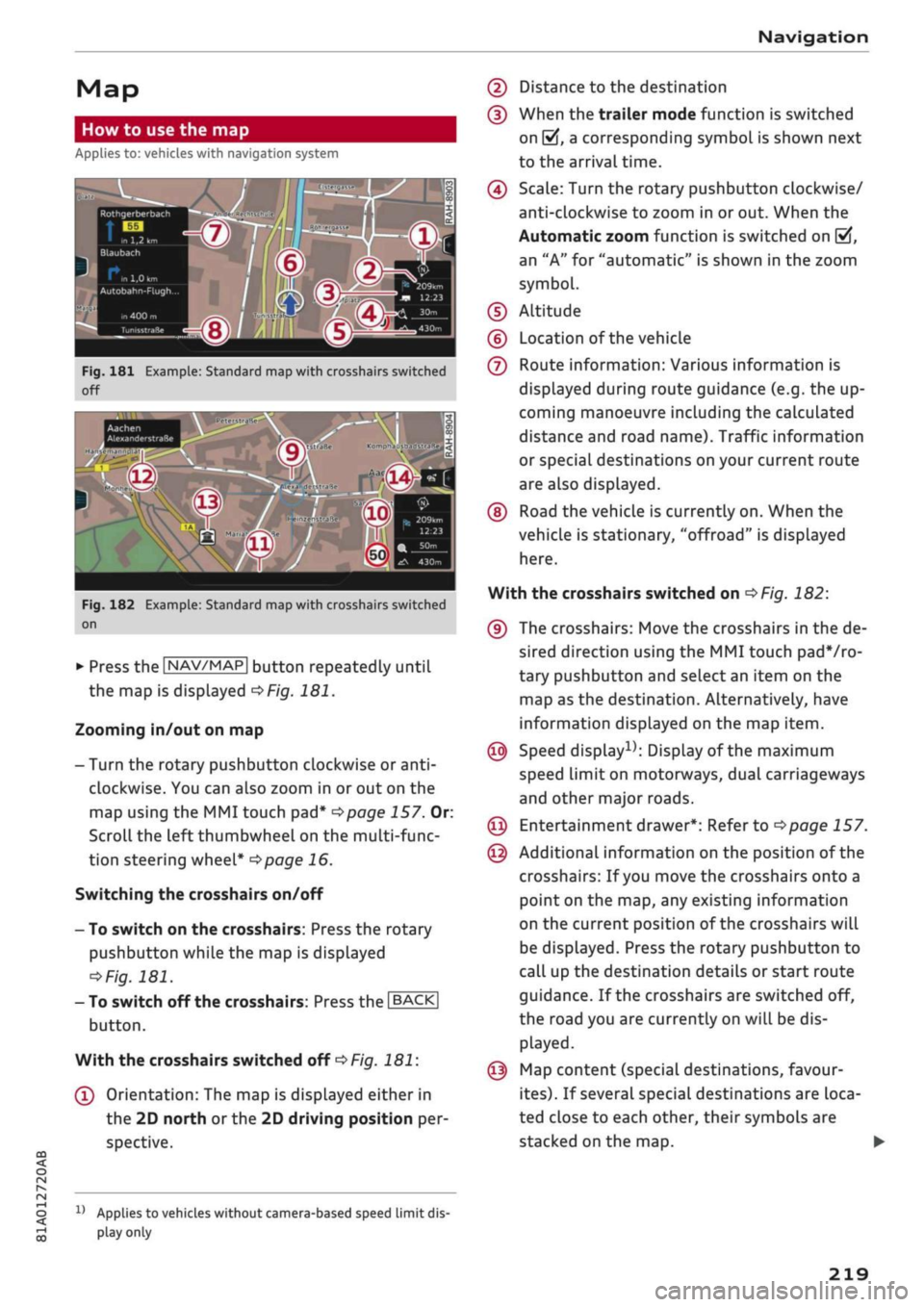
Fig.
181 Example: Standard map with crosshairs switched
off
Aachen
AlexanderstraBe Komphausbad da n se m an n pi
a
Fig.
182 Example: Standard map with crosshairs switched
on
•
Press the |NAV/MAP| button repeatedly until
the map is displayed
^Fig.
181.
Zooming in/out on map
- Turn the rotary pushbutton clockwise or
anti
clockwise. You can also zoom in or out on the
map using the MMI touch
pad*
^>page
157. Or:
Scroll the left thumbwheel on the multi-func
tion steering wheel*
^>page
16.
Switching the crosshairs on/off
- To switch on the crosshairs: Press the rotary
pushbutton while the map is displayed
^Fig.
181.
- To switch off the crosshairs: Press the |BACK|
button.
With the crosshairs switched off
•=>
Fig.
181:
(l)
Orientation: The map is displayed either in
the 2D north
or
the 2D driving position per
spective.
1J
Applies to vehicles without camera-based speed limit
dis
play
only
(2) Distance to the destination
(D When the trailer mode function is switched
on
[vj,
a corresponding symbol is shown next
to the arrival time.
(4) Scale: Turn the rotary pushbutton clockwise/
anti-clockwise to zoom in or out. When the
Automatic zoom function is switched on
(vf,
an "A" for "automatic" is shown in the zoom
symbol.
(D Altitude
(?) Location of the vehicle
(7) Route information: Various information is
displayed during route guidance (e.g. the up
coming manoeuvre including the calculated
distance and road name). Traffic information
or special destinations on your current route
are also displayed.
(D Road the vehicle is currently on. When the
vehicle is stationary, "offroad" is displayed
here.
With the crosshairs switched on
^>Fig.
182:
(9) The crosshairs: Move the crosshairs in the de
sired direction using the MMI touch padVro-
tary pushbutton and select an item on the
map as the destination. Alternatively, have
information displayed on the map item.
© Speed display1); Display of the maximum
speed limit on motorways, dual carriageways
and other major roads.
© Entertainment drawer*: Refer to
^page
157.
© Additional information on the position of the
crosshairs: If
you
move the crosshairs onto a
point on the map, any existing information
on the current position of the crosshairs will
be displayed. Press the rotary pushbutton to
call up the destination details or start route
guidance. If the crosshairs are switched off,
the road you are currently on will be dis
played.
© Map content (special destinations, favour
ites).
If several special destinations are loca
ted close to each other, their symbols are
stacked on the map.
219
Page 226 of 364

Navigation
Google Earth map
dispLay
Applies
to: vehicles with navigation system and Audi connect
(infotainment)
You
can have the map display satellite images
using the Google Earth map
display.
•• :•-:•
Fig.
183 Example: Google Earth map display
Ï7
--•
•
III
:•:•
in
in
Fig.
184 Example: Google Earth map display with Google
Street
View
Important: The requirements for Audi connect
(infotainment) must be met
^>page
191.
*•
Press the |NAV/MAP| button repeatedly until
the map is displayed.
*•
Select: right control button > Map settings >
Map display
>
Google Earth.
For this map dispLay the system uses data pack
ets received online in the form of satellite pic
tures and combines these pictures with the road
network from the Standard map display. The
MMI has 2 GB of flash memory for temporarily
storing the map/navigation data received online
(corresponds to map/navigation data for about
4000 km of route guidance). You can also use the
loaded satellite pictures for route guidance
with
out an active data connection as long as these
pictures are stored.
Google
Street View
With Google Street View, you can explore many
locations all over the world virtually from the
perspective of
a
pedestrian. Google Street View is
available as soon as the
symbol®
^>Fig.
183 is
shown in crosshairs mode.
To start Google Street View: Turn the rotary
pushbutton to select
a
scale below 30 m.
The following options are available:
-To explore a destination step-by-step: Press
the rotary pushbutton when the
symbol @
^>Fig.
184 is visible.
- To zoom in/out of the current display (up to
4x):
Turn the rotary pushbutton to the left/
right
(D'=>F/g.JS4.
- To navigate in the street view: Move your
fin
ger in the desired direction on the MMI touch
pad*
or move the rotary pushbutton in the de
sired direction.
Additional information
In the Map content menu
^>page
221, you can
activate the function to show additional informa
tion on the infotainment display. To show the ad
ditional information move the crosshairs onto an
item on the map and press the rotary pushbut
ton.
(i) Note
- You can delete the data stored by the Goo
gle Earth map dispLay by selecting Factory
settings
>
Navigation and online memory
•=>
page 256.
- Google Earth is an Audi connect infotain
ment service that is updated at regular in
tervals when it is called up. This can take a
few seconds.
-When the Google Earth 3D map display is
switched on, the map display automatically
switches to the 2D map while you are driv
ing through a tunnel.
- For safety reasons, the Google Street View
functions cannot be used while the vehicle
is moving.
- Please always note the information in the
chapter
^>page
204, General notes on Audi
connect (infotainment).
- Further information can be found on the In
ternet at www.audi.com.
222
Page 229 of 364
Navigation
CO
â
rN
r^
rN
•-H
•H
00
Activating myAudi
special
destinations in the
map view
The myAudi special destinations must now be ac
tivated in the map display so that they can be
used for the navigation system.
Traffic information (TMC/TMCpro*)
Applies to: vehicles with navigation system
- Select: |NAV/MAP| button > right control but
ton > Map settings
>
Map content. The impor
ted myAudi special destinations are Listed and
can be identified by the list names you assigned
to them.
- SeLect all myAudi special destinations that you
would like to be shown in the map dispLay.
- Press the
I
BACK|
button.
The selected myAudi special destinations are now
displayed in the map view and can be used for
route guidance.
Please always note the information in the
chapter
opage
204, General notes on Audi
connect (infotainment).
Calling
up
traffic
information
Dynamic traffic avoidance
Applies to: vehicles with navigation system
Using the traffic information received via TMC/
TMCproVonline
-
depending on availability - you
can have the MMI guide you past traffic obstruc
tions whenever possible. For this, the traffic
avoidance must be switched on
^>page
217.
(T) Note
The "Traffic information" function is not avail
able for the markets of the Gulf Cooperation
Council (GCC) member states or for the Mexi
can market.
Map:
Traffic messages
*?
A
better route
is
available Time saving: 30 min
Nùrnberg ^
Halle/Leipzig
NUrnberg •*
Halle/Leipzig
A. in
122 km
Nurnberg -•
Halle/Leipzig
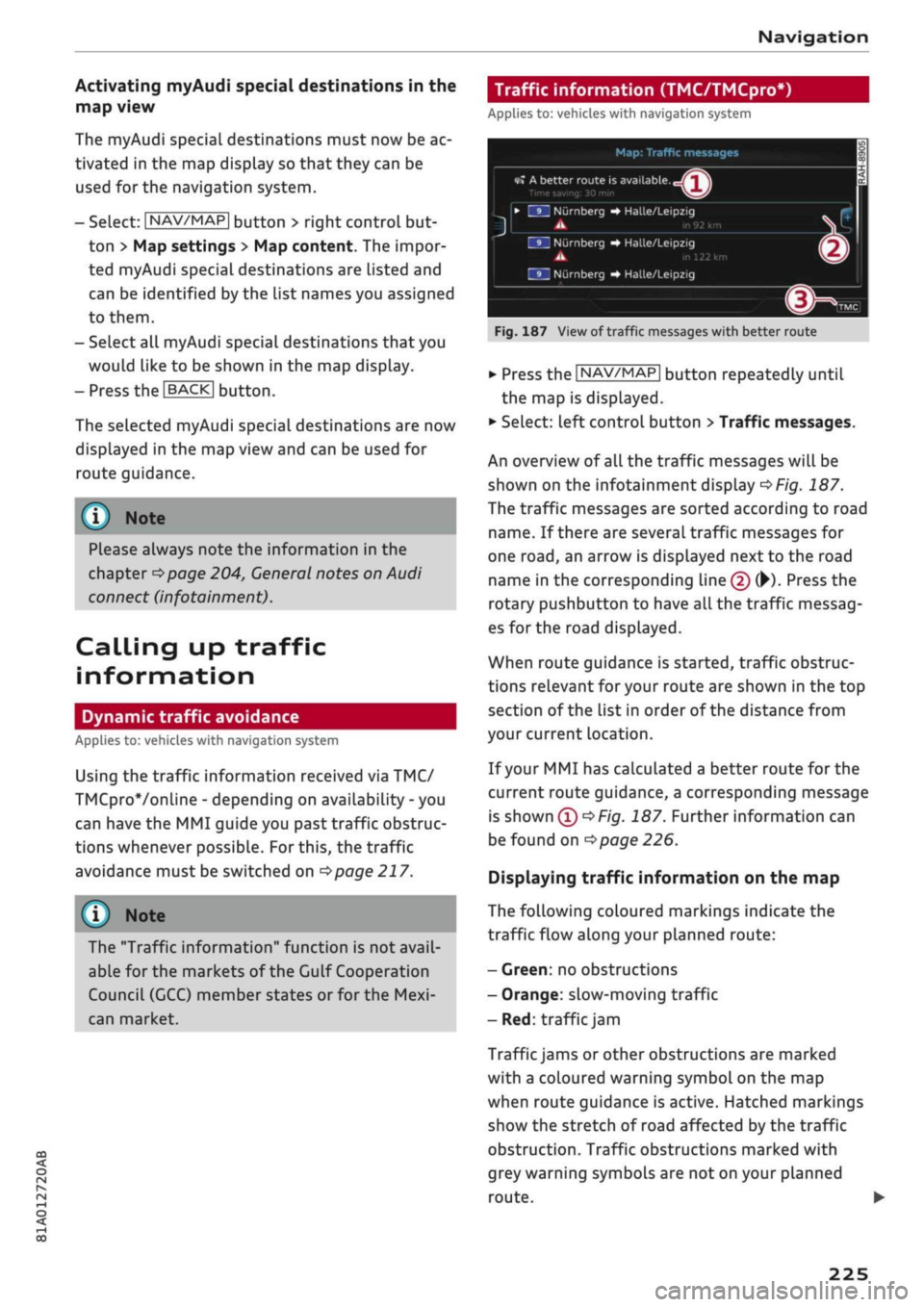
Fig.
187 View of traffic messages with better route
*•
Press the |NAV/MAP| button repeatedly until
the map is displayed.
•
Select: left control button
>
Traffic messages.
An overview
of all
the traffic messages will be
shown on the infotainment dispLay
^>Fig.
187.
The traffic messages are sorted according to road
name.
If
there are several traffic messages for
one
road,
an arrow is displayed next to the road
name in the corresponding line
(f)
(•)•
Press the
rotary pushbutton
to
have all the traffic messag
es for the road displayed.
When route guidance is started, traffic obstruc
tions relevant for your route are shown in the top
section of the list in order of the distance from
your current location.
If your MMI has calculated a better route for the
current route guidance, a corresponding message
is
shown
(T)<=>F/g.
187. Further information can
be found on
^>page
226.
Displaying traffic information on the map
The following coloured markings indicate the
traffic flow along your planned route:
-
Green:
no obstructions
- Orange: slow-moving traffic
- Red: traffic
jam
Traffic jams or other obstructions are marked
with a coloured warning symbol on the map
when route guidance is active. Hatched markings
show the stretch of road affected by the traffic
obstruction. Traffic obstructions marked with
grey warning symbols are not on your planned
route.
•
225
Page 233 of 364
Radio
Further options
• Select: |RADI0| button > right control button.
The following options may be available to you de
pending on the waveband:
- Sound settings: Refer to
^>page
260.
- Store as favourite: Refer to
^>page
231, Fa
vourites.
-Tag this song for
iTunes*:1)2)
Connect your Ap
ple device to the Audi music interface*. Select
and confirm Tag this song for iTunes. The track
that is currently playing will be copied to your
Apple device. Synchronise your Apple device
with iTunes. The next time you call up your
iTunes library, the tagged tracks
wiLl
be dis
played.
If no Apple device is connected, the
tagged tracks will be stored temporarily on the
MMI system (max.
50
tracks). As soon as you
connect your Apple device to the Audi music in
terface, the tags will be imported to the device.
- Programme
guide*:3'
The current and next ra
dio programmes are Listed in the digital pro
gramme guide* for all supported stations. Se
lect and confirm a radio programme to have
more details on the programme displayed.
- Manual station search:4' The frequency bar is
displayed.
Select and confirm the desired
fre
quency.
- Seek:5' The previous/next receivable frequency
will be set.
- Radio settings: Refer to
^>page
231.
Announcements
• Select: |RADI0| button > right control button >
Announcements.
Traffic
announcements*:6'
- off: Traffic announcements are not played.
- FM: Traffic announcements can be received via
FM and played
by
the system irrespective of the
selected waveband.
- FM/DAB*: You receive traffic announcements
from both wavebands. If DAB traffic announce
ments are not available from the station cur
rently set, they will be received from the FM
waveband.
DAB announcements*:6'
Depending on station availability, information
(e.g.
news, weather information) may be played
when the function
Fvf
is switched on.
Volume of announcements:6'
Refer to
•=>page
261.
Radio text
• Select: [RADIO] button > left control button > a
waveband (e.g. FM) > a station.
*•
Select: right control button > Radio text.
Additional information on the programme (e.g.
artist, composer, track) is shown.
To browse radio text entries: Turn the rotary
pushbutton clockwise or anti-clockwise.
Important: A radio text entry must be displayed,
and the station must be transmitting a telephone
number, navigation destination or a text mes
sage number as Radio Text Plus information.
If a location, telephone number or text message
number has been stored for a radio text entry,
the entry will be displayed with a coloured frame.
The following options are available:
CallVStart route guidanceVWrite text mes
sage*:
- Select a radio text entry with Radio Text Plus in
formation and press the rotary pushbutton.
CO
<
O
rN
IV
rN
t-H
o <
W
This function is only available in the Mexican market.
2'
Still under development at the time of print.
3)
Not in the FM, AM station lists
4)
Not in the DAB* waveband or in the mixed FM/DAB* sta
tion list.
5)
Not in the mixed station list FM/DAB*
6)
This function is not available in the Mexican market.
229
Page 241 of 364
Media
Important: Copying must be in progress in the
background.
- To display the copy procedure: SeLect: right
control button
>
Active copy procedure.
During the copying procedure, the audio files are
automatically sorted according to the categories
in the media centre based on the metadata stor
ed for the files
^page
244. The video files cop
ied can be found in the Videos category of the
media centre.
Playing from the jukebox
Important:
The
jukebox must contain audio/vid
eo files
opage
236, Filling the jukebox.
The jukebox is called up and operated via the
MMI
®
<>page
243, Fig. 199.
Displaying the jukebox memory capacity
SeLect: right control button
>
Jukebox memory
capacity. Information on the jukebox memory ca
pacity and the number of stored tracks will be
displayed.
Deleting tracks from the jukebox1'
Important:
The
jukebox must contain audio/vid
eo files.
- Delete entry: Select an entry from the
juke
box's media centre. SeLect: right control button
> Delete from jukebox
>
This entry or Entire
list.
- The status of the deletion process will be
shown on the MMI. During the deletion process
the playback of the jukebox is interrupted; it is
started again automatically once the deletion
process has been completed.
(7) CAUTION
Only copy audio/video files while the engine is
running;
otherwise the vehicle battery will be
discharged
© Note
For legal reasons it is not possible to copy
tracks from audio CDs onto the jukebox
1)
Not in the Playback view.
- Files that have already been copied are de
tected automatically and cannot be copied
to
the
jukebox again.
- It is not possible to play audio/video files*
in the CD/DVD* drive while they are being
copied.
- For legal reasons there is no export function
for
the jukebox.
- Files or tracks that do not include stored
metadata are listed as Unknown. Audi rec
ommends that you mark the audio files with
the corresponding metadata (e.g. ID3 tags).
- When handing over your vehicle e.g. to a
new buyer, reset the jukebox to the factory
settings
^>page
256.
Bluetooth audio player
Applies to: vehicles with Bluetooth
You
can use the Bluetooth audio player to play
music
from
your Bluetooth-enabled
device
(e.g.
smartphone) wirelessly via the MMI.
Important: To connect a Bluetooth device, the
vehicle must be stationary and the Bluetooth
function of your Bluetooth device and the Blue
tooth audio player
^>page
258 function of the
MMI system must be switched on.
- To connect a Bluetooth device: Press the
|MEDIA| button. Press the left control button
repeatedly until the source overview is dis
played.
Select and confirm Bluetooth audio
player
© ^>page
243, Fig. 200.
- You may need to select and confirm Not
con
nected > Connect Bluetooth audio player. The
system will start searching for Bluetooth
devi
ces.
Follow the instructions given by the MMI.
- Select and confirm the desired Bluetooth de
vice from the List. The MMI will generate a PIN
to establish the connection.
- Select and confirm Yes.
- Enter the PIN on your Bluetooth device to es
tablish a connection. Or: If the PIN is already
being displayed on your Bluetooth device,
please confirm it on the device. You have about
30 seconds to enter the PIN. •
237