mmi AUDI Q2 2021 Owner´s Manual
[x] Cancel search | Manufacturer: AUDI, Model Year: 2021, Model line: Q2, Model: AUDI Q2 2021Pages: 364, PDF Size: 87.77 MB
Page 226 of 364

Navigation
Google Earth map
dispLay
Applies
to: vehicles with navigation system and Audi connect
(infotainment)
You
can have the map display satellite images
using the Google Earth map
display.
•• :•-:•
Fig.
183 Example: Google Earth map display
Ï7
--•
•
III
:•:•
in
in
Fig.
184 Example: Google Earth map display with Google
Street
View
Important: The requirements for Audi connect
(infotainment) must be met
^>page
191.
*•
Press the |NAV/MAP| button repeatedly until
the map is displayed.
*•
Select: right control button > Map settings >
Map display
>
Google Earth.
For this map dispLay the system uses data pack
ets received online in the form of satellite pic
tures and combines these pictures with the road
network from the Standard map display. The
MMI has 2 GB of flash memory for temporarily
storing the map/navigation data received online
(corresponds to map/navigation data for about
4000 km of route guidance). You can also use the
loaded satellite pictures for route guidance
with
out an active data connection as long as these
pictures are stored.
Google
Street View
With Google Street View, you can explore many
locations all over the world virtually from the
perspective of
a
pedestrian. Google Street View is
available as soon as the
symbol®
^>Fig.
183 is
shown in crosshairs mode.
To start Google Street View: Turn the rotary
pushbutton to select
a
scale below 30 m.
The following options are available:
-To explore a destination step-by-step: Press
the rotary pushbutton when the
symbol @
^>Fig.
184 is visible.
- To zoom in/out of the current display (up to
4x):
Turn the rotary pushbutton to the left/
right
(D'=>F/g.JS4.
- To navigate in the street view: Move your
fin
ger in the desired direction on the MMI touch
pad*
or move the rotary pushbutton in the de
sired direction.
Additional information
In the Map content menu
^>page
221, you can
activate the function to show additional informa
tion on the infotainment display. To show the ad
ditional information move the crosshairs onto an
item on the map and press the rotary pushbut
ton.
(i) Note
- You can delete the data stored by the Goo
gle Earth map dispLay by selecting Factory
settings
>
Navigation and online memory
•=>
page 256.
- Google Earth is an Audi connect infotain
ment service that is updated at regular in
tervals when it is called up. This can take a
few seconds.
-When the Google Earth 3D map display is
switched on, the map display automatically
switches to the 2D map while you are driv
ing through a tunnel.
- For safety reasons, the Google Street View
functions cannot be used while the vehicle
is moving.
- Please always note the information in the
chapter
^>page
204, General notes on Audi
connect (infotainment).
- Further information can be found on the In
ternet at www.audi.com.
222
Page 227 of 364

Navigation
Map
update
CO
< o rN
r^
rN
t-H
O
<
Introduction
Applies to: vehicles with navigation system
There are severaL different ways of updating the
map:
- Map updates via the online map update* func
tion
^
page 223.
- Map updates via the online map update* func
tion
•=>
page 223
1).
- Importing a map update to your MMI using an
SD card*
1).
Further information can be found
on the Internet at my.audi.com.
- Map update at your Audi dealer, who may
charge for this service.
Online map update
Applies to: vehicles with navigation system and Audi connect
(infotainment)
With the online map update function you can up
date the map material
of
your navigation system
directly in the vehicle.
New navigation database
-S>
Eastern Europe
An update is available for your destination
region (Eastern Europe).
"\
Updates can also be downloaded from
' my.audi.com and installed via an SD
card.
Switch to online update
Fig.
185 Example: Display of
a
new online map update
Eastern Europe
—>
Recommended regions
| Belarus
3,3 MB
O
O
j
T
m
Albania 18,2 MB
D
Packets required OB
Start download
Cancel
Fig.
186 Example: Selection of
a
country package
Important:
The requirements for Audi connect infotainment
services must be met
<=>page
191.
x)
This function is not available in the Mexican market.
You must have a myAudi account and have added
your vehicle to it.
The MMI uses the vehicle's position to establish
which regions you are most often in. The MMI
uses this information to suggest update pack
ages for these regions if any are available
<*Fig.
185.
•
Select and confirm
(T)
Switch to online update
oFig.
185 when the message informing you of
a new map update appears on the infotainment
display. Or:
•
Select:
IMENU|
button > Settings > left control
button > System maintenance > System up
date > Online update.
A list of the available update packages is shown
on the infotainment display
^>Fig.
186.
Selecting online map update
- Select an update package from the list
(5f).
If
update packages with a large volume of data
are available for certain countries (e.g. France),
you can choose to update individual regions
(e.g.
only southern France).
- Press the
I
BACK
|
button to confirm your selec
tion and return the list of available update
packages.
Starting download
- Select and confirm Start download.
- Confirm the safety query by selecting Start
download again.
The update packages will be downloaded, and
the download status will be shown on the info
tainment display.
Installing online map update
The installation of the downloaded maps only oc
curs after the vehicLe has been parked. The new
update packages are installed after the ignition is
switched off. When you restart the MMI, a mes
sage indicating
that
the updates have been in
stalled successfully will appear on the infotain
ment dispLay.
- Confirm the successful update with OK.
223
Page 228 of 364

Navigation
The
new
maps
can now be
used
for
navigation.
© CAUTION
If
you
cancel
a
map
update download,
the da
ta already downloaded
is
permanently
de
leted.
The
appropriate update package can
be
downloaded again
by
selecting
the
]MENU|
button > Settings > left control button
>
Sys
tem maintenance > System update.
© Note
- Please always note
the
information
in the
chapter
^>page
191,
Audi connect (infotain
ment).
- Because
of
the high level
of
data usage
when downloading large country update
packages
or the
entire package,
we
recom
mend that
in
these cases you download
the
data
on
your computer from your myAudi
account, save them
on an
SD card
and
then
import them
to
your
MMI
system. Further
information
can
be found
on the
Internet
at
my.audi.com.
- Please always note
the
information
in the
chapter
^>page
204,
General notes
on
Audi
connect (infotainment).
myAudi special
destinations
Introduction
Applies
to:
vehicles with navigation system
You
can
import your myAudi special destinations
in
two
ways:
- Importing myAudi special destinations
via the
online update*
^page
224.
- Importing myAudi special destinations
to the
MMI using
an SD
card. Further information
can
be found
on the
Internet
at
my.audi.com.
myAudi special destinations (online
update)
Applies
to:
vehicles with navigation system
and
Audi connect
(infotainment)
You
can download your myAudi special destina
tions from your myAudi account while
in the
ve
hicle
and
use them
for
route guidance.
Important:
You must have a myAudi account and have stored
myAudi special destinations.
You must have already sent myAudi special desti
nations from myAudi
to
your vehicle.
This function
is not
available
in the
Mexican
market.
•
Select:
|NAV/MAP|
button > left control button
> Special destinations
>
myAudi special desti
nations.
•
If
you
have already imported myAudi special
destinations, select
the
right control button
>
Import myAudi special destinations.
•
Log in
with your myAudi user data/myAudi
PIN
if necessary.
The
update sources available will
be listed
on the
infotainment display.
•
Select and confirm Online update.
Selecting myAudi special destinations
to
import
- SeLect
all the
myAudi special destinations
de
sired from
the
list
((vft.
- Select and confirm Start download.
Starting download
The size
of
the myAudi special destinations selec
ted
is
shown
on the
infotainment dispLay.
- Confirm
the
download again
by
selecting Start
download.
The myAudi special destinations will
be
downloa
ded,
and the
download status will
be
shown
on
the infotainment display.
- To finish importing
the new
myAudi special
destinations, confirm
the
update
by
selecting
OK.
•
224
Page 229 of 364
Navigation
CO
â
rN
r^
rN
•-H
•H
00
Activating myAudi
special
destinations in the
map view
The myAudi special destinations must now be ac
tivated in the map display so that they can be
used for the navigation system.
Traffic information (TMC/TMCpro*)
Applies to: vehicles with navigation system
- Select: |NAV/MAP| button > right control but
ton > Map settings
>
Map content. The impor
ted myAudi special destinations are Listed and
can be identified by the list names you assigned
to them.
- SeLect all myAudi special destinations that you
would like to be shown in the map dispLay.
- Press the
I
BACK|
button.
The selected myAudi special destinations are now
displayed in the map view and can be used for
route guidance.
Please always note the information in the
chapter
opage
204, General notes on Audi
connect (infotainment).
Calling
up
traffic
information
Dynamic traffic avoidance
Applies to: vehicles with navigation system
Using the traffic information received via TMC/
TMCproVonline
-
depending on availability - you
can have the MMI guide you past traffic obstruc
tions whenever possible. For this, the traffic
avoidance must be switched on
^>page
217.
(T) Note
The "Traffic information" function is not avail
able for the markets of the Gulf Cooperation
Council (GCC) member states or for the Mexi
can market.
Map:
Traffic messages
*?
A
better route
is
available Time saving: 30 min
Nùrnberg ^
Halle/Leipzig
NUrnberg •*
Halle/Leipzig
A. in
122 km
Nurnberg -•
Halle/Leipzig
Fig.
187 View of traffic messages with better route
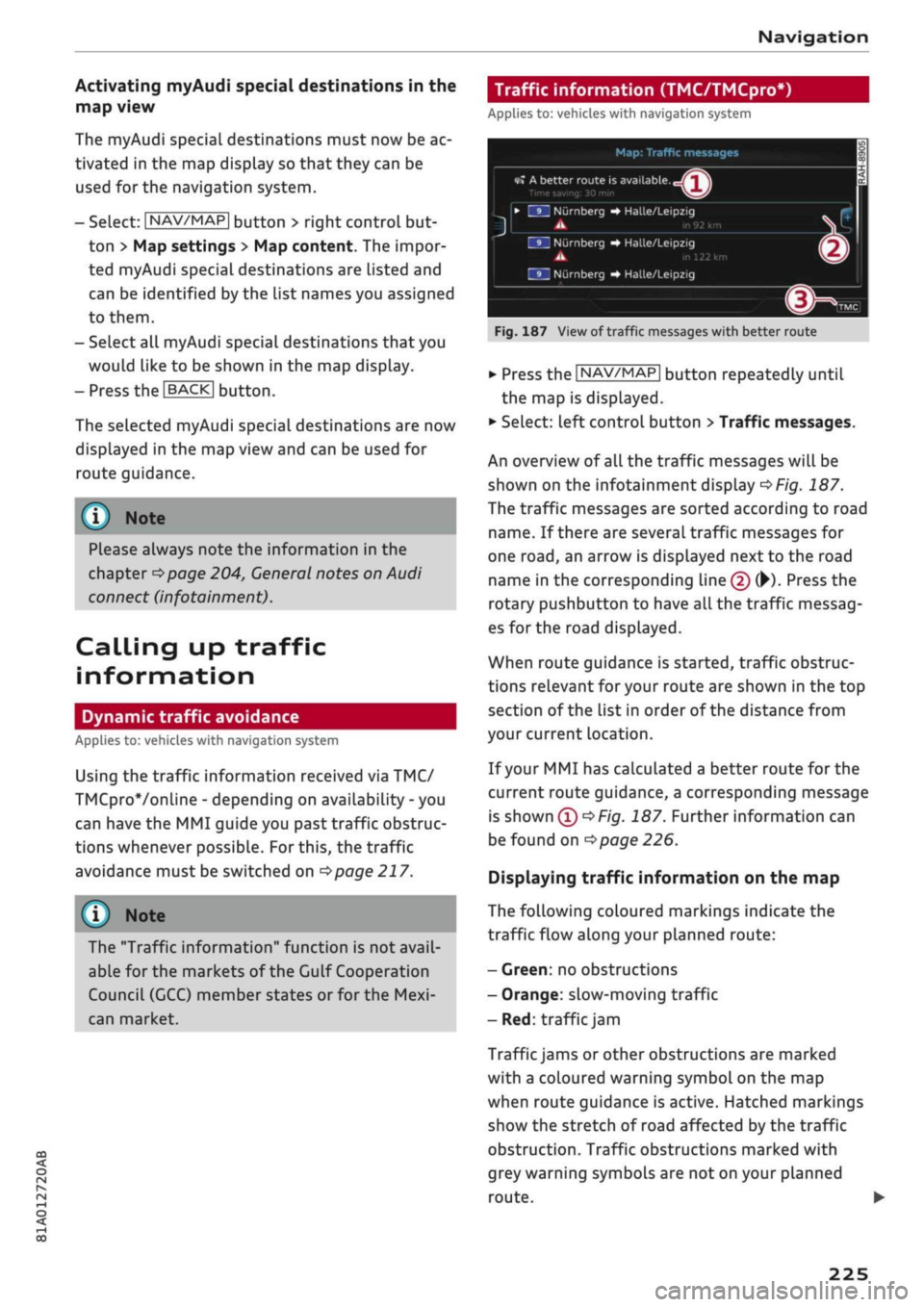
*•
Press the |NAV/MAP| button repeatedly until
the map is displayed.
•
Select: left control button
>
Traffic messages.
An overview
of all
the traffic messages will be
shown on the infotainment dispLay
^>Fig.
187.
The traffic messages are sorted according to road
name.
If
there are several traffic messages for
one
road,
an arrow is displayed next to the road
name in the corresponding line
(f)
(•)•
Press the
rotary pushbutton
to
have all the traffic messag
es for the road displayed.
When route guidance is started, traffic obstruc
tions relevant for your route are shown in the top
section of the list in order of the distance from
your current location.
If your MMI has calculated a better route for the
current route guidance, a corresponding message
is
shown
(T)<=>F/g.
187. Further information can
be found on
^>page
226.
Displaying traffic information on the map
The following coloured markings indicate the
traffic flow along your planned route:
-
Green:
no obstructions
- Orange: slow-moving traffic
- Red: traffic
jam
Traffic jams or other obstructions are marked
with a coloured warning symbol on the map
when route guidance is active. Hatched markings
show the stretch of road affected by the traffic
obstruction. Traffic obstructions marked with
grey warning symbols are not on your planned
route.
•
225
Page 230 of 364

Navigation
All traffic jams or other obstructions are marked
with a coloured warning symbol on the map
when route guidance is not active.
You can adjust the settings for the display of the
coloured markings, warning symbols etc. in the
Map content menu
^>page
221.
Reception of traffic information is also indicated
by the
[TMc1/|TMCpro|*/|ONLiNE>
symbol in the
status Line of the infotainment display
(f)
OFig.
187.
- Urgent traffic information, such as a car
travelling in the wrong direction on the mo
torway, is displayed automatically. To hide
the traffic information, press the |BACK|
button or the rotary pushbutton.
- The "Traffic information" function is not
available for the markets of the Gulf Coop
eration Council (GCC) member states or for
the Mexican market.
Better route
Applies to: vehicles with navigation system
By
receiving traffic information via
TMC,
your
MMI calculates a better route (if
one
is availa
ble) and any possible time saving for the current
route guidance.
You
can then choose which route
you would like to use.
•
Press the |NAV/MAP| button repeatedly until
the map is displayed.
Important: The route guidance function must be
active.
Dynamic traffic avoidance must be set to manual
•=>poge 217
and the map must be displayed.
If your MMI has calculated a better route
for
the
current route guidance, the message A better
route is
available,
and the time saving will be
displayed on the map. In the map view, the
symbol
^page
219, Fig. 182
draws
your atten
tion to a better route.
Using a better route
- Press the rotary pushbutton. Or: Select the left
control button
>
Traffic messages. The better
route will be displayed along with your calcula
ted arrival time.
- SeLect and confirm the better route.
- The better route will be used for the continuing
route guidance.
Online traffic information
Applies to: vehicles with navigation system and Audi connect
(infotainment)
The
MMI system can receive real-time informa
tion from the Internet regarding traffic conges
tion, accidents, roadworks and other incidents.
Important: The requirements for Audi connect
(infotainment) must be met
^>page
191.
•
Press the |NAV/MAP| button repeatedly until
the map is displayed.
•
Select: right control button
>
Online traffic da
ta on (ED.
- To switch on the traffic map display: To have
the traffic information displayed in the best
possible way, select the
I
NAV/MAP]
button >
right control button > Map settings
>
Map dis
play
>
Traffic.
You can also have the traffic information dis
played on the Google Earth map
^>page
222 or
the standard map
•=>page
219, Fig. 181.
If online traffic information cannot be received,
the traffic information will automatically be re
ceived via
|TMC|/|TMCpro|» ^>
page 225.
Prayer
compass*15
Applies to: vehicles with prayer compass
Important: The display must be set to the map
view
<=>page
219.
- SeLect: Left controL button > Mecca. The direc
tion of prayer in relation to the current vehicle
position will then be shown on the infotain
ment display.
11
This function is only available
for
the markets of the Gulf
Cooperation Council (GCC) member states.
226
Page 233 of 364
Radio
Further options
• Select: |RADI0| button > right control button.
The following options may be available to you de
pending on the waveband:
- Sound settings: Refer to
^>page
260.
- Store as favourite: Refer to
^>page
231, Fa
vourites.
-Tag this song for
iTunes*:1)2)
Connect your Ap
ple device to the Audi music interface*. Select
and confirm Tag this song for iTunes. The track
that is currently playing will be copied to your
Apple device. Synchronise your Apple device
with iTunes. The next time you call up your
iTunes library, the tagged tracks
wiLl
be dis
played.
If no Apple device is connected, the
tagged tracks will be stored temporarily on the
MMI system (max.
50
tracks). As soon as you
connect your Apple device to the Audi music in
terface, the tags will be imported to the device.
- Programme
guide*:3'
The current and next ra
dio programmes are Listed in the digital pro
gramme guide* for all supported stations. Se
lect and confirm a radio programme to have
more details on the programme displayed.
- Manual station search:4' The frequency bar is
displayed.
Select and confirm the desired
fre
quency.
- Seek:5' The previous/next receivable frequency
will be set.
- Radio settings: Refer to
^>page
231.
Announcements
• Select: |RADI0| button > right control button >
Announcements.
Traffic
announcements*:6'
- off: Traffic announcements are not played.
- FM: Traffic announcements can be received via
FM and played
by
the system irrespective of the
selected waveband.
- FM/DAB*: You receive traffic announcements
from both wavebands. If DAB traffic announce
ments are not available from the station cur
rently set, they will be received from the FM
waveband.
DAB announcements*:6'
Depending on station availability, information
(e.g.
news, weather information) may be played
when the function
Fvf
is switched on.
Volume of announcements:6'
Refer to
•=>page
261.
Radio text
• Select: [RADIO] button > left control button > a
waveband (e.g. FM) > a station.
*•
Select: right control button > Radio text.
Additional information on the programme (e.g.
artist, composer, track) is shown.
To browse radio text entries: Turn the rotary
pushbutton clockwise or anti-clockwise.
Important: A radio text entry must be displayed,
and the station must be transmitting a telephone
number, navigation destination or a text mes
sage number as Radio Text Plus information.
If a location, telephone number or text message
number has been stored for a radio text entry,
the entry will be displayed with a coloured frame.
The following options are available:
CallVStart route guidanceVWrite text mes
sage*:
- Select a radio text entry with Radio Text Plus in
formation and press the rotary pushbutton.
CO
<
O
rN
IV
rN
t-H
o <
W
This function is only available in the Mexican market.
2'
Still under development at the time of print.
3)
Not in the FM, AM station lists
4)
Not in the DAB* waveband or in the mixed FM/DAB* sta
tion list.
5)
Not in the mixed station list FM/DAB*
6)
This function is not available in the Mexican market.
229
Page 235 of 364
Radio
(T)
Favourites
The favourites List will be displayed. The menu
item Favourites appears if at least one radio sta
tion has been stored as a favourite. Refer to
*$page
231, Favourites.
©FM/DAB*
The mixed FM/DAB station List* appears when
DAB*
is available. Refer to
opage
228, Calling
up the radio menu.
Other wavebands
Depending on the vehicle's equipment, you may
be able to select other wavebands
©/@/(s)
^>Fig.
191 in the selection menu.
Favourites
You can store your favourite stations from any
waveband in the favourites
list.
Other settings
Radio settings
CO
<
O
rN
IV
rN
t-H
o <
•
Press the
I
RADIO
|
button.
Important: You must be in a station List.
- To store a favourite: Select a station from the
list > right control button > Store as favourite.
Or: Press and hold the rotary pushbutton for
several seconds.
Important: At least one favourite must be stored
in the favourites list.
- To display the favourites list: Select the
I
RADIO
|
button > Favourites.
Important: The favourites list must be displayed.
- To listen to a favourite: SeLect and confirm a
favourite from the
list.
- To move a favourite: SeLect a favourite from
the list > right control button > Move favourite.
Or: Press and hold the rotary pushbutton for
several seconds. Select and confirm the
posi
tion of the favourite selected.
- To delete a favourite: Select a favourite from
the list > right control button > Delete favour
ite > Delete this favourite or Delete all favour
ites.
*'
This function is not available in the Mexican market.
2)
This function is only available in the Mexican market.
•
Select: |RADI0| button > right control button >
Radio settings.
Depending on the waveband setting, you can se
lect the following options:
Alternative frequency* (FM, DAB*)1'
on:
The tuner attempts to switch to an alterna
tive frequency of the current station when the re
ception quality becomes weaker. When the re
ception is lost in the FM or DAB* waveband, the
system will automatically (in the background)
switch to an alternative station, if there is one
available.
off: Switching to an alternative frequency is
switched off. The current frequency will be main
tained,
and in some cases may no longer be re
ceived.
In the FM waveband, the alternative
fre
quency function is automatically switched on
again when the station is changed.
Switch regional stations* (FM,
DAB*)1'
Important: The Alternative frequency function
must be switched on.
Some stations divide up their programming by
region and provide different content to different
regions. When the function is on
(vf,
the system
switches to related regional stations if the cur
rent station has poor reception.
Lband
(DAB*)1'
There are two wavebands for the digital radio:
Band III and L band. Ensembles in the band III
usually have a larger range extending into several
regions. They can be received at all times. In
some regions DAB is broadcast in the
L
band.
When this option is on, stations from the L band
will
also be received.
Station names (FM)2'
scrolling:
Scroll texts transmitted by FM stations
will appear on the infotainment display. •
231
Page 236 of 364
Radio
fixed:
Scroll texts transmitted by FM stations will
not appear in the infotainment display. The cur
rent scroll text on the dispLay will freeze.
FM/AM HD Radio1'
You can switch the reception of HD Radio on or
off.
Station sorting (FM)2'
A-Z: The stations are displayed in the station list
in alphabetical order. Radio stations with variable
station names are displayed after the stations
which have been sorted alphabetically. Radio sta
tions with a frequency as their station name are
displayed
at
the end of the list.
ID:
The stations in the station list are sorted ac
cording to the station's ID (e.g. all BBC radio sta
tions are sorted together). Radio stations with a
frequency as their station name are displayed at
the end of the list.
Station sorting
(DAB*)2'
A-Z: The stations are displayed in the station list
in alphabetical order.
Ensemble: Ensembles comprise various radio
stations of
a
specific area (e.g. a town or region);
they are listed together as an ensemble in the
station list. To open/close the list of radio sta
tions in an ensemble, select and confirm the en
semble. Available sub-programmes* (additional
services provided by DAB* radio stations) are
lis
ted beneath the radio station (indented).
Detailed station information
When this function is switched on
Ef
and the sta
tion or favourites list is open, the system
switches to the Detailed station information
view
<^page
230 after approximately five sec
onds.
Where available, information on the seLec
ted station (e.g. station name, artist, slide show,
station logo3') may be shown.
11
This function is only available in the Mexican market.
2^
This function is not available in the Mexican market.
3)
Station logos may not be available in all countries.
Preferred image* (DAB*, HD Radio
waveband1', FM)
You can specify your preferred image for the De
tailed station information option
^>page
230.
- station logo3': The station logo is displayed if
available.
- cover art: Album covers are displayed if availa
ble.
- slide show:2' Depending on availability,
addi
tional information as a supplement to the nor
mal programme may be shown (e.g. images
from the studio, current photographs of artists
or album covers).
Update station list* (AM, DAB*2')
The station list will be updated.
Gracenote online database*
Important: The MMI must be connected to the
Internet. The cover art option must be selected
^>page
232, Preferred image*
(DAB*,
HD Radio
waveband, FM).
When this function is switched on
[vj,
album cov
ers or genre artwork
will,
if available, be down
loaded from the Gracenote online database for
the track currently playing.
Region for station logos*3'
We recommend using the setting automatic.
When driving abroad, or if the station Logo is not
displayed correctly, select and confirm the appro
priate region.
Applies
to
journeys in Russia: SeLect and confirm
the city in Russia from the list which is the near
est distance to your vehicle's current Location.
(T)
Note
If the Traffic announcements or DAB an
nouncements* function is switched on
playback is interrupted for announcements
You can cancel an announcement while it is
232
Page 238 of 364
Media
Media
Introduction
The MMI system includes various media drives
and provides various options for connecting
devi
ces.
For example, you can play audio/video* files
from the jukebox* or connect mobile devices to
the Audi music interface* and operate it via the
MMI.
Notes
General information
Media and format limitations: The MMI system
(including the SD card reader and the connection
for
the USB mass storage device*) has been tes
ted for use with many of the products and media
currently available on the market. However,
there may be some devices/media and audio/vid
eo*
files that are not supported or cannot be
played,
or the functionality may be limited under
certain circumstances.
Digital rights management: Please note that
copyright Law applies to audio/video* files.
The MMI media drives do not support DRM-pro-
tected files; these files are marked with the sym
bol S.
Data storage: Never store important data on SD
cards,
the jukebox*, CDs/DVDs or mobile devices.
AUDI AC shall not accept any liability whatsoever
for
the loss of files and media.
Loading times: The more files, folders or play
lists are stored on a storage device, the longer it
will take to load the audio files/video* files. We
recommend using a storage device which
con
tains only audio/video* files. If
you
want to re
duce the time it takes to load the audio/video*
files,
you can create subfolders (e.g. for an artist
or album). The loading time will be extended ad
ditionally if
you
are importing data.
Metadata: Metadata stored on audio files (e.g.
artists, tracks, album covers) will be displayed
automatically when the files are played. If this
information is not stored on the relevant medi
um,
the MMI system will use the database of
metadata from Gracenote. Nevertheless, meta
data may not be displayed in some cases.
Restricted performance: If
you
experience re
stricted performance, reset the Media settings
to the factory defaults
^page
256.
If
you
experience restricted performance from
the Jukebox*, reset it to the factory settings
<=>
page 256.
For information on the characteristics of the sup
ported media and file formats, please refer to
opage
249 onwards.
CAUTION
Please always observe the information
<=>(J)in
Wi-Fi hotspot on page 202.
CD/DVD mode
CD/DVD and format limitations: In view of the
variety of CDs/DVDs and the difference in memo
ry capacities, the functionality may be restricted
in the case of some storage devices. Under cer
tain circumstances, audio CDs/video DVDs that
are copy-protected or CDs/DVDs that do not com
ply with the standard audio format, and multi-
session CDs cannot be played at all, or the func
tionality may be limited. We recommend always
finalising the burning process when creating
multisession
CDs. Multisession is not supported
for DVDs.
Handling CDs/DVDs, the CD drive or the DVD
drive:
To ensure perfect, high-quality playback
and avoid scanning errors or damage to the me
dia drive, always store CDs/DVDs in a suitable
case and do not expose them to direct sunlight.
Do not use:
- Damaged, dirty or scratched CDs/DVDs
- Single CDs/DVDs (diameter 8 cm)
- Non-circular CDs/DVDs (shape CDs)
- CDs/DVDs with stickers
- Protective rings
- Cleaning discs
Thermal cut-out: In the case of unusually hot or
cold outside temperatures, it is possible that CD/
DVD playback will temporarily not be possible. A •
234
Page 239 of 364
Media
CO
< o rN
IV
rN
i—i
o <
•H
00
thermal cut-out is installed to protect the CD/
DVD and the reading laser.
Laser devices: Laser devices are divided into the
safety classes 1 to 4, as specified by DIN
IEC
76
(CO) 6/VDE 0837. The optical readers installed in
your vehicle are classified as safety class 1. La
sers used in devices that fall into this category
are very weak and well screened, so there is no
danger if used correctly.
Media drives
SD card readers
Fig.
192 Inserting an SD card
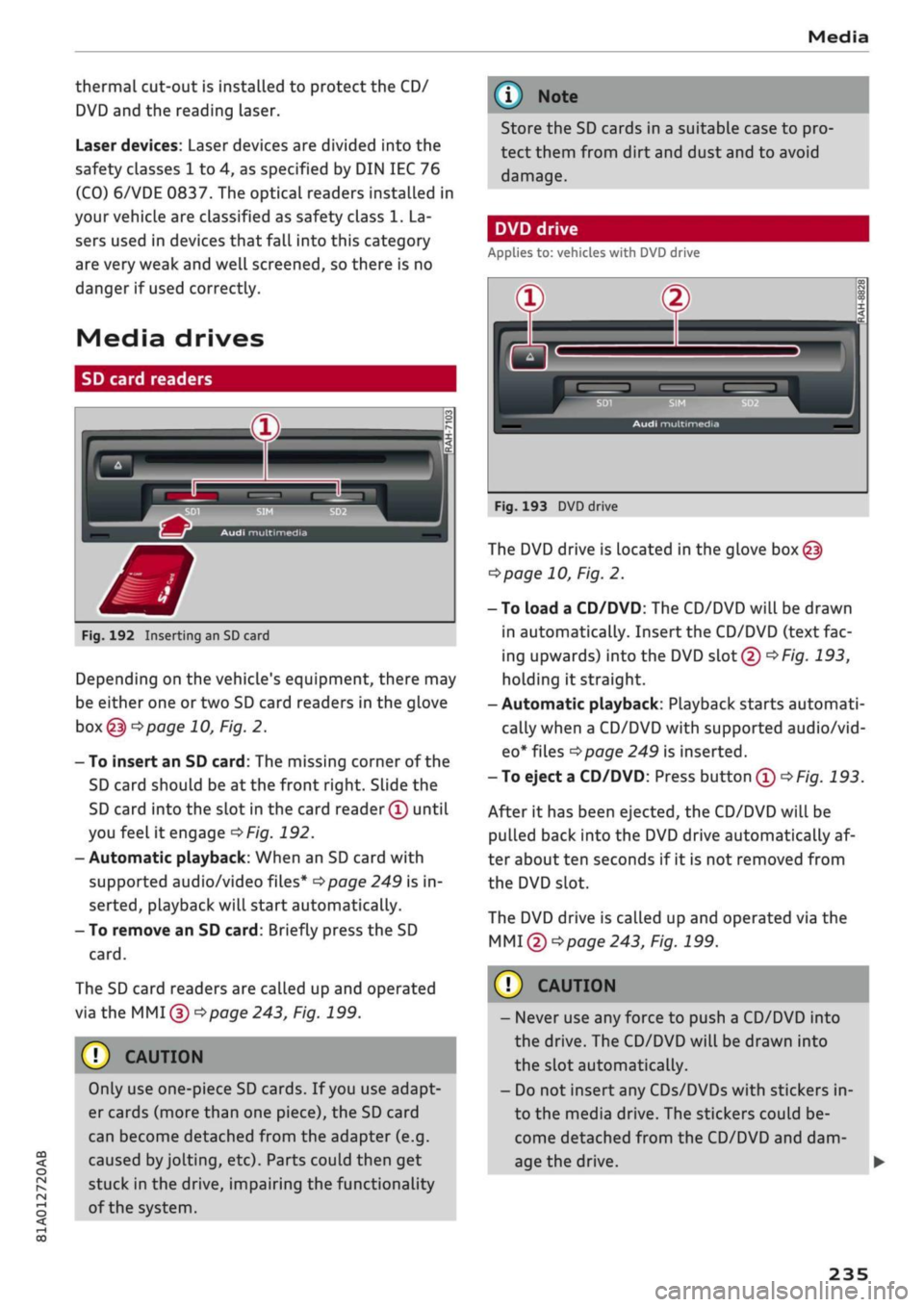
Depending on the vehicle's equipment, there may
be either one or two SD card readers in the glove
box@ tapage
10, Fig. 2.
- To insert an SD card: The missing corner of the
SD card should be at the front right. Slide the
SD card into the slot in the card reader® until
you
feel
it engage
^>Fig.
192.
- Automatic playback: When an SD card with
supported audio/video files*
^>page
249 is in
serted,
playback will start automatically.
- To remove an SD card: Briefly press the SD
card.
The SD card readers are called up and operated
via the MMI
© ^page
243, Fig. 199.
© CAUTION
Only use one-piece SD cards. If
you
use adapt
er cards (more than one piece), the SD card
can become detached from the adapter (e.g.
caused
by
jolting,
etc). Parts could then get
stuck in the drive, impairing the functionality
of the system.
Store the SD cards in a suitable case to pro
tect them from dirt and dust and to avoid
damage.
DVD drive
Applies to: vehicles with DVD drive
J
®
_
rt™
w-
Audi multimedia
00
(N
00
°p
I <
_J
___
Fig.
193 DVD drive
The DVD drive is located in the glove
box@
^>page
10, Fig. 2.
-To load a CD/DVD: The CD/DVD will be drawn
in automatically. Insert the CD/DVD (text fac
ing upwards)
into
the DVD slot©
OF/g.
193,
holding it straight.
-Automatic playback: Playback starts automati
cally when a CD/DVD with supported audio/vid
eo*
files
^>page
249 is inserted.
-To eject a CD/DVD: Press button®
^F/g.
193.
After it has been ejected, the CD/DVD will be
pulled back into the DVD drive automatically af
ter about ten seconds if it is not removed from
the DVD slot.
The DVD drive is called up and operated via the
MMI
©
^>page
243, Fig. 199.
CAUTION
- Never use any force to push a CD/DVD into
the drive. The CD/DVD will be drawn into
the slot automatically.
- Do not insert any CDs/DVDs with stickers in
to the media drive. The stickers could be
come detached from the CD/DVD and dam
age the drive.
235