mmi AUDI Q2 2021 Owner´s Manual
[x] Cancel search | Manufacturer: AUDI, Model Year: 2021, Model line: Q2, Model: AUDI Q2 2021Pages: 364, PDF Size: 87.77 MB
Page 202 of 364
Audi connect (infotainment)
- Audi connect (infotainment) enables you to
access the Twitter service. Audi cannot
guarantee that these services will be availa
ble indefinitely; this is the responsibility of
Twitter.
Travel guide
Applies to: vehicles with Audi connect (infotainment)
Using the Audi MMI connect app, you can store
special destinations
on
your mobile device (e.g.
smartphone) and
use
them for route guidance
on the MMI.
Important:
The Audi MMI connect app must have been in
stalled and started on your mobile device.
You must be logged in to your myAudi account in
the Audi MMI connect app and must have selec
ted your vehicle.
The Wi-Fi function must be activated on your mo
bile device and on the MMI.
A network connection must be set up on the MMI
opage
203.
*•
Select:
|MENU|
button
>
Audi connect
>
left
control button > Category Information
>
Trav
el.
After you call up the travel guide, you will be
shown travel tips for the area you are currently
in.
These include current ratings and the category
they belong to.
•
Press the left control button to change the cat
egory (e.g. bars nearby).
A WARNING
- MobiLe devices, tablet and laptop computers
and devices of
a
similar weight can only be
operated safely when the vehicle is station
ary. Like any loose object, they can be cata
pulted through the vehicle in an accident
and cause serious injuries. Always make sure
that such devices are securely stowed while
you are driving.
- No Wi-Fi devices may be used from the front
seats in the areas around the airbags while
the vehicle is being driven. Please also ob
serve the safety warnings in the chapter on
tapage
282, Front airbags.
® CAUTION
Please always observe the information
•=>©
in
Wi-Fi hotspot on page 202.
© Note
- Measurement units, language settings and
times are displayed on the infotainment dis
play according to the how they are set in the
system settings
^>page
255.
Audi connect (infotainment) in the
navigation system
Applies to: vehicles with navigation system and Audi connect
(infotainment)
•
Select:
|MENU|
button
>
Audi connect
>
left
control button > Navigation.
The following Audi connect infotainment services
are currently available:
- Navigation with Google Earth and Google
Street View
opage
222.
- Online point of interest search with speech
dialogue system (e.g. restaurants): For
plan
ning a route using the MMI control console
^page
212 and the speech dialogue system
^>page
164.
- Adding a destination to your MMI via your
myAudi account or Google Maps
^>page
222.
- Online traffic information: Up-to-the-minute
reception of information on accidents,
road
works and other incidents
^>page
226.
- myAudi special destinations: Personal special
destinations can be imported to your MMI di
rectly in the vehicle as an online update
•=>
page 224.
- Map update: Navigation map updates can be
imported directly into the vehicle via SD card or
as an online update*
ipage
223.
© Note
- The Audi connect infotainment map update
service using an SD card allows you to find
out which software version is installed in
your vehicle. You can then check whether a
200
Page 203 of 364
Audi connect (infotainment)
CO
< o rN
IN
rN
•-H
00
new version is available at my.audi.com.
You can also have the new navigation data
installed by an Audi deaLer (carries addition
al charges).
- Further information on the myAudi special
destinations and the map update can be
found online at my.audi.com.
Audi connect (infotainment) for telephones
Applies
to: vehicles with Audi connect (infotainment)
© CAUTION
•
Select: |MENU| button
>
Audi connect
>
left
control button
>
Communication.
The following Audi connect infotainment services
are currently available:
- Creating contacts on your
PC
via your myAudi
account and loading the contacts into the di
rectory of your MMI system
^>page
187.
- Dictating text messages or e-mails and having
them read out*
^>page
182, Messages.
Audi connect (infotainment) in the media
menu
Applies
to: vehicles with Wi-Fi audio player and Audi connect
(infotainment)
*•
Select: |MENU| button
>
Audi connect
>
left
control button > Entertainment.
- Wi-Fi audio player: To access the media centre
of your player (e.g. smartphone) connected via
Wi-Fi
<=>
page 238.
- Online media and Internet radio: With assis
tance from the Audi MMI connect app, this
function allows you to access and operate
vari
ous online media services using the MMI.
A WARNING
Mobile devices, tablet and Laptop computers
and devices of
a
similar weight can only be
operated safely when the vehicle is stationary.
Like any Loose object, they can be catapulted
through the vehicle in an accident and cause
serious injuries. Always make sure that such
devices are securely stowed while you are
driving.
Please always observe the information
=>®
in
Wi-Fi hotspot on page 202.
- Also refer to
opage
204, General notes on
Audi connect (infotainment).
- Please contact an Audi dealer for more in
formation on Wi-Fi audio players and for a
list of supported devices.
Further options
Applies
to: vehicles with Audi connect (infotainment)
•
Select: |MENU| button
>
Audi connect
>
right
control button.
The following options are available in the over
view of the Audi connect infotainment services:
Login*
Refer to
^>page
196, Logging into myAudi in the
vehicle.
Connection manager
Refer to
^>page
257.
Licence periods
The validity and the time remaining on your licen
ces is displayed. If the Licence expiry warning
function is switched on
(vj,
a message will be dis
played before the licence expires.
Refresh
The content of the Audi connect infotainment
service selected or the entire Audi connect (info
tainment) list is updated.
Wi-Fi hotspot
Applies
to: vehicles with Wi-Fi hotspot
You
can
use
your MMI system as a Wi-Fi hotspot
for connecting to the Internet on up to eight Wi-
Fi
devices.
Small, light Wi-Fi
devices
that are not
permanently attached to the vehicle must only
be operated from the rear seats while the vehicle
is moving.
Important: The ignition must be switched on.
201
Page 204 of 364
Navigation
Setting a destination from the map (via
MMI touch)
Applies
to: vehicles with navigation system (flash memory)
and
MMI touch pad
A location on the map can be set as a destina
tion.
- To set a convenient map scale: Turn the rotary
pushbutton clockwise or anti-clockwise.
- To activate the crosshairs: Press the rotary
pushbutton. The crosshairs will appear on the
map.
- To move the crosshairs: Use the MMI touch pad
to move the crosshairs to the destination
<^>page
156.
- To use the destination for route guidance:
Press the rotary pushbutton when the cross
hairs are displayed. If
you
wish to set
a
stop
over, select and confirm Set as stopover and
then Start route guidance.
-
To
hide the crosshairs: Press the
|BACK|
button.
Additional information on the point selected
with the crosshairs: If
you
use the crosshairs to
preselect a location on the map, any existing in
formation on this location (e.g. road name, ad
dress or special destinations) will be displayed ©
^>page
219, Fig. 182.
Using home address/favourite as the
destination
Applies
to: vehicles with navigation system
The
home address option is a quick and easy way
to have the system guide you home.
The
favour
ites make it easier to
access
destinations you re
quire regularly.
• Press the
|NAV/MAP|
button repeatedly until
the Enter destination menu is displayed
opage
207, Fig. 172.
Using the home address as the destination
Important: A home address must have been stor
ed
o
page 215.
Your home address is displayed in the Enter des
tination menu
(f) opage
207, Fig. 172.
- SeLect: Home address
>
Start route guidance.
Using a favourite as the destination
Important: At Least one favourite must have been
stored as a destination
<=>page
216.
- Enter at least the first three letters of the de
sired favourite in the entry field for the search
function.
The favourites found will be shown on
the infotainment display (4)
^>page
207,
Fig. 172.
- SeLect and confirm the desired item.
- Select and confirm Start route guidance.
- Further home address settings can be found
on
•=>page
215.
- Further favourites settings can be found on
^>page
216.
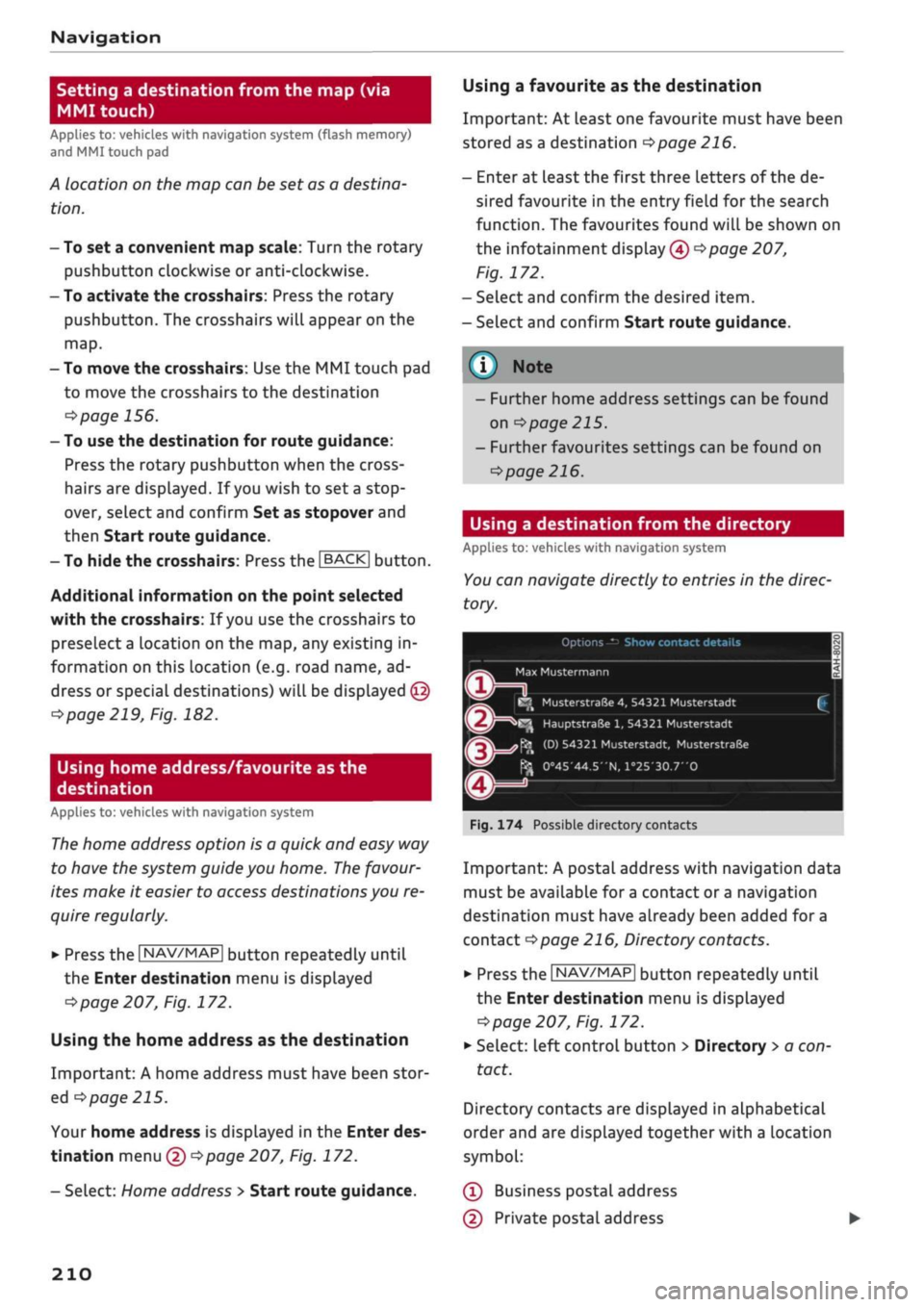
Using a destination from the directory
Applies
to: vehicles with navigation system
You
can navigate directly to entries in the direc
tory.
Options — Show contact details
H
^
i
i
C
Fiç
s
Max
Mustermann jy
.
E^
MusterstraGe
4,
54321 Musterstadt [
jr3^^
HauptstraSe
1,
54321
Musterstadt
h ^\
(D) 54321 Musterstadt,
MusterstraBe
^J
0°45'44.5"N,
l°25'30.7'O
•
•=
. 174 Possible directory contacts
Important: A postal address with navigation data
must be available for
a
contact or
a
navigation
destination must have already been added for a
contact
Opage
216, Directory contacts.
•
Press the
|NAV/MAP|
button repeatedly until
the Enter destination menu is displayed
^>page
207, Fig. 172.
*•
Select: left control button > Directory
>
a con
tact.
Directory contacts are displayed in alphabetical
order and are displayed together with a location
symbol:
(Î)
Business postal address
(D Private postal address
210
Page 205 of 364

Navigation
(D Business navigation destination
(4) Private navigation destination
- SeLect and confirm a postal address or
a
naviga
tion destination. If
you
select
a
navigation des
tination,
route guidance is started immediate-
iy.
- If
you
select a postal address, you can check the
address details again.
- You can then select and confirm Start route
guidance.
Further directory functions in the navigation sys
tem can be found on
<^>page
216.
- Addresses which you have imported from
your mobiLe phone into the MMI can also be
used as navigation destinations.
- If
a
directory contact is greyed out, no
navi
gation destination/postal address has yet
been added for the contact.
Point of interest search (special
destinations)
Applies
to: vehicles with navigation system
Navigation: enter destination
Search area
Find entry
Select category
Ç myAudi special destinations
H
Petrol station
P parking facilities
in vicinity of destination
Fig.
175 Example: Searching for a special destination
•
Press the |NAV/MAP| button repeatedly until
the Enter destination menu is displayed
•=>
page 207, Fig. 172.
*-
Select: left control button > Special destina
tions.
- To change the search area: Select and confirm
Search area and then a search area from the
list.
The following search categories are available:
In immediate vicinity: You can select special des
tinations from different categories. The special
destinations are displayed in a list, starting with
destinations in the immediate vicinity and going
up to destinations within a radius of 200 km.
In vicinity of route: Special destinations along
the route can only be selected when the route
guidance function is active. The special destina
tions are located directly on or in the immediate
vicinity of your route. You can also select special
destinations from different categories. For exam
ple,
you can look for
a
hotel or
a
car park at the
destination.
In vicinity of destination/In vicinity of stopover:
Special destinations near the
destination/stop
over can only be selected when the route
guid
ance function is active. You can also select special
destinations from different categories. For exam
ple,
you can look for
a
hotel or
a
car park at the
destination.
In new town: SeLect
a
country or search in a new
town.
Enter the name of the desired town. You
can select special destinations from different cat
egories. You can use this function to find special
destinations in any town irrespective of the desti
nation currently set or the vehicle position.
- To find the name of
a
special destination in
the selected search area: Enter the name of the
special destination.
- To search for a special destination in a specific
category: Choose Select category. SeLect and
confirm a category, for example Restaurant.
myAudi special
destinations*1525
In myAudi special destinations, you can find per
sonal special destinations which you have added
in your myAudi account and imported to the MMI
using an SD card or online*
^>page
224.
- To add further myAudi special destinations:
Select the right control button > Import •
CO
<
O
rN
IN
rN
t-H
o
<
^
Important: You must have created a myAudi account at
my.audi.com,
added a vehicle to the account and stored a
destination.
2)
This function is not available in the Mexican market.
211
Page 206 of 364
Audi connect (infotainment)
•
Select:
1MENU[
button
>
Telephone
>
right
con
trol button
>
Wi-Fi settings.
The following settings can be made:
Wi-Fi
The Wi-Fi hotspot is deactivated when the vehicle
leaves the factory. Switch the Wi-Fi hotspot on
before establishing an Internet connection be
tween your vehicle and your Wi-Fi device.
-
on:
The
MMI's
Wi-Fi hotspot is activated and
visible to other devices. You can connect your
Wi-Fi device to the MMI.
- off: The MMI's Wi-Fi hotspot is deactivated.
Wi-Fi devices will not be able to connect to the
Internet.
Network
key
The Wi-Fi connection between your vehicle and
the Wi-Fi device (laptop or mobile phone) is en
crypted.
Before a connection can be established,
you must enter the following values/settings
when setting up your Wi-Fi device (these values
can be edited as required):
-Access point
(SSID):
Name of the Wi-Fi net
work.
- Password: A random MMI password is set at
the factory. This password can be changed. The
encryption type WPA2 requires the password to
be at least 8 characters
long.
Please select
a
se
cure password.
- Discoverability: To switch the discoverability of
your Wi-Fi network on
([vj)
or off.
Network
search15
A list of the Wi-Fi networks available near you is
displayed.
Connection to personal hotspot15
The Wi-Fi hotspot of the MMI is activated. The
MMI can establish an Internet connection to a
personal Wi-Fi hotspot (e.g. smartphone). You
can search for your personal hotspot and connect
to the MMI using Network search. For more in
formation,
please refer to
^>page
195.
Not available in all markets.
This mode is not available if your own mini SIM
card is inserted in the SIM card reader.
A<
i
WARNING
- The Audi connect infotainment services
should only be used via a Wi-Fi hotspot
when the vehicle is stationary or from the
rear seats if the vehicLe is in motion - risk of
accident!
- Mobile devices, tablet and laptop computers
and devices of
a
similar weight can only be
operated safely when the vehicle is station
ary. Like any loose object, they can be cata
pulted through the vehicle in an accident
and cause serious injuries. Always make sure
that such devices are securely stowed while
you are driving.
- No Wi-Fi devices may be used from the front
seats in the areas around the airbags while
the vehicLe is being driven. Please also ob
serve the safety warnings in the chapter on
<3>page
282, Front airbags.
- Do not allow the features of the Wi-Fi hot-
spot to distract you from watching the traf
fic - taking your eyes off the road can cause
an accident.
© CAUTION
- Depending on the configuration of the Wi-Fi
device you are using (refer to the operating
manual of your Wi-Fi device for more de
tails),
the SIM card of the device may be
used in certain cases to provide the data
connection for Internet-supported apps and
services which use the MMI Wi-Fi hotspot.
Depending on your network provider, you
may be charged for this service, especially if
you are using the system abroad. We there
fore strongly recommend that you use an
unlimited data
plan.
For more information,
contact your service provider. Some exam
ple cases are described below:
- Data plan expired/used up
- Data plan not valid abroad •
202
Page 208 of 364
Audi connect (infotainment)
Audi connect (MMI)
With the Audi connect (MMI) function, you can
allow or deny the use of Audi connect infotain
ment services if the connection is
set
to no re
quest or with request.
Wi-Fi devices*
You can use the Wi-Fi devices function to allow
or deny a connection to the Internet.
Connection settings
Depending on the SIM card used, the connection
may be configured automatically. However, these
settings can be changed. For more information,
contact your service provider.
- APN: The system access point depends on your
mobile network service provider and is assigned
automatically.
- User name: The user name for your online pro
file is assigned by your mobile network service
provider.
- Password: The password for your online profile
is assigned by your mobile network service pro
vider.
- Use settings: The changed connection settings
are
stored.
Reset configuration
An online profile is created and configured auto
matically. The Connection settings you have
changed manually are reset to the default set
tings.
/Sy
WARNING
- Do not allow the features of the Wi-Fi hot-
spot to distract you from watching the traf
fic - taking your eyes off the road can cause
an accident.
- Mobile devices, tablet and laptop computers
and devices of a similar weight can only be
operated safely when the vehicle is station
ary. Like any loose object, they can be cata
pulted through the vehicle in an accident
and cause serious injuries. Always make sure
that such devices are securely stowed while
you are driving.
- No Wi-Fi devices may be used from the front
seats in the areas around the airbags while
the vehicle is being driven. Please also ob
serve the safety warnings in the chapter on
^>page
282, Front airbags.
© CAUTION
Please always observe the information
•=>©
in
Wi-Fi hotspot on page 202.
© Note
- According to the factory settings, the data
connection will be interrupted initially when
you travel abroad to protect you from unex
pected roaming charges. If you want to use
Audi connect infotainment services abroad,
you must first activate the Data roaming
option.
- For more information on roaming charges,
contact your service provider.
- Further information can be found on the In
ternet at www.audi.com.
General notes on Audi
connect (infotainment)
Audi connect infotainment services
Applies to: vehicles with Audi connect (infotainment)
-The mobile phone standard LTE* is not
available for use in all countries. For further
information, please consult an Audi dealer
or your mobile network service provider.
- Whether Audi connect infotainment serv
ices can be used depends on the availability
of services provided by third parties.
- Audi connect infotainment services are only
available within the mobiLe network area
covered
by
your network provider.
- The availability, scope, provider and price of
the services offered can vary, as can the way
in which the services are displayed on the
screen.
These variations depend on your
country, model, model year, device and mo
bile phone contract.
204
Page 209 of 364
Audi connect (infotainment)
- Further information on Audi connect (info
tainment) is also available on the Internet
at www.audi.com. For information on the
conditions of your mobile phone contract,
please contact your mobile network service
provider.
- Please also observe the notes in the chapter
^>page
172, Telephone.
Data protection
Applies to: vehicles with Audi connect (infotainment)
© Note
AUDI AC collects, processes, transmits and
uses the personal data you provide in ac
cordance with legal requirements to ensure
that the individual Audi connect infotain
ment services are provided and function
properly. You can use our myAudi platform,
for example, to activate further Audi
con
nect infotainment services and to transfer
data to and from your vehicle. You must
register once in order to be able to connect
your vehicle to the platform. AUDI AC
col
lects,
processes, transmits and uses the
personal data you must provide for the
reg
istration as is necessary to ensure that AUDI
AG can provide the services and
that
you can
use them. Your data are not passed on to
third parties. Using the myAudi platform
and your mobile phone, you can transmit
data to your vehicle for the functions of your
Audi connect infotainment services und al
low certain vehicle data to be transmitted
from your vehicle.
- If
you
activate certain information services
included in your Audi connect (infotain
ment) portfolio, you can use the corre
sponding functions directly in your vehicle
after entering your personal identification
data (for example for access to social net
works). In this case we pass on your identifi
cation data to the corresponding service
provider. You can then access your personal
content via a secure communication chan
nel.
This content is displayed and can be
used in the vehicLe. AUDI AG will not store
your personal content. The necessary
con
nection data are processed and used in ac
cordance with legal requirements to ensure
that the services are provided and function
properly.
- Further information can also be found on
the MMI in the options menu of the Audi
connect infotainment service selected and
on the Internet at www.audi.com.
CO
rN
IN
rN
•-H
00
Troubleshooting
Applies to: vehicles with Audi connect (infotainment)
Subject
Audi connect infotainment serv
ices:
Some Audi connect infotain
ment services are greyed out/not
available.
Wi-Fi hotspot: No Wi-Fi connec
tion is possible.
Wi-Fi hotspot: The data connec
tion is interrupted.
Advice
Before you first use some Audi connect infotainment services, it
is necessary to activate/configure them via your personal myAudi
account. Detailed information can be found on the Internet at
my.audi.com.
Delete all existing Wi-Fi connections on your mobile device and
restart it.
Check whether the Connection to personal hotspot function is
switched on
•=>page
201. Switch the function off when you are
not using a personal hotspot.
205
Page 211 of 364
Navigation
CO
â
rN
IN
rN
•-H
•H
00
Navigation
Introduction
Applies to: vehicles with navigation system
Depending on your vehicle's equipment, the
navi
gation data
for
your navigation system is located
either on the SD card provided or on the internal
flash drive of the MMI. The information given
here always applies to both navigation systems
unless otherwise stated, e.g. "Applies to vehicles
with navigation system (SD card)".
The navigation system is designed for use on
ly with the SD card provided. AUDI AG shall
not accept any liability for the consequences
of the use of other SD cards.
Setup
Applies to: vehicles with navigation system (SD card)
•
Slide the SD card with navigation data (provi
ded) into the slot in the SD card reader until
you feel it engage. The missing corner of the SD
card should be at the front right.
© CAUTION
Do not store the SD card with navigation data
outside of the SD card reader slot (e.g. in the
glove box) for long periods. External factors,
such as excessive heat, may cause data loss.
Audi recommends
that
you make a backup
copy of the SD card and store it in a location
protected from external factors (outside of
the vehicLe).
©
Note
- Please note that the navigation system is
immediately no longer available if the SD
card is removed from the SD card reader.
- Store the SD cards in a suitable case to pro
tect them from dirt and dust and to avoid
damage.
Calling up the navigation
menu
Applies to: vehicles with navigation system
The navigation system guides you directly
to
your
destination, avoiding traffic obstructions and us
ing alternative routes if desired.
Navigation: enter destination
Î5^
Where would you like to go?
f
e.g. "Prague Charles Bridge"
1 Home address
Last destinations
I
Petrol station
<£
2,3 km (D)
M jnchener
StraSe,
Ingolstadt
John Smith
Fig.
172 Illustration: Entering a destination
•
Select: |NAV/MAP| button.
After calling up the navigation system, the Enter
destination menu will be displayed. The follow
ing information can be shown on the infotain
ment display:
(T)
Entry field
for
the search function
(D Home address
(5) Destinations recently travelled to
(Î)
Stored favourites
208
210
208
210
If you have connected a mobile phone to the
MMI,
your directory contacts are then listed if
you have added navigation data to at least one
contact.
The menu item Favourites (4)
^Fig.
172 and your
directory contacts are shown in the Enter desti
nation menu when you have entered one or more
Letters in the entry
field.
Switching between destination entry and map:
- Press the |NAV/MAP| button repeatedly until
the map is displayed. Or: Press the left control
button > Switch to map.
A WARNING
- Today's driving conditions require the full
attention of drivers. Please always note the
information in the chapter
^>page
263,
Safe driving.
- Pay attention to traffic rules when driving.
207
Page 212 of 364

Navigation
- The route calculated by the navigation sys
tem is a recommendation of how best to
reach a destination. Pay attention to traffic
lights,
no stopping signs, lane change re
strictions, one-way streets, etc.
© CAUTION
-Should the navigation directions contradict
the current traffic regulations, you must al
ways follow the traffic regulations.
- The volume should only be set at a level
which enables you to hear distant police and
emergency vehicles clearly - failure to do so
could result in an accident.
© Note
- Snow or other obstructions on the GPS aer
ial or interference caused by trees or large
buildings could affect the reception of the
satellite signals and make positioning
diffi
cult. GPS reception and vehicle positioning
can also be adversely affected by deactiva
tion or a malfunction of several satellites.
- Road names can change; therefore the
names stored on the MMI may be different
from the actual names in exceptional cases.
Entering a destination
Searching for navigation destinations
Applies to: vehicles with navigation system
With the search function, you can use the MMI
touch
pad*
or the speller for letters/numbers to
enter navigation destination information in any
order (e.g. Forest Road 20 London).
You
can
search for special destinations, contacts, recent
destinations or favourites in the same way to
help you navigate to the desired address.
Press the |NAV/MAP| button repeatedly untiL the
Enter destination menu is displayed
opage
207,
Fig. 172.
• Push the rotary pushbutton upwards. The entry
field will be displayed
@ ^>page
207, Fig. 172.
- Enter one or more search terms in the entry
field.
- If appropriate, confirm an autocomplete
sug
gestion*
or a suggested word*. Refer to
^page
159, Speller for letters/numbers.
- Turn the rotary pushbutton clockwise to switch
to the results list.
- Select a destination from the results list and
confirm it.
- Select and confirm Start route guidance.
The route will be displayed as an overview on the
map.
Route guidance is already active.
Narrowing the search area
All countries are preselected for the search func
tion at the factory.
-In the input menu
(T)<=>page207,
Fig. 172, se
lect the right controL button > Country selec
tion.
- Select the country flvj) which you would Like to
search in. This will limit the number of results
and speed up the search. The entry selected in
the country selection menu will be stored.
© Note
- The terms suggested by the MMI depend on
the destinations to which you have recently
driven.
- Up to 50 entries are stored in the list of des
tinations to which you have recently driven.
- For more information on the search func
tion,
please refer to
^>page
160.
Loading last destination
Applies to: vehicles with navigation system
The
destinations you have most recently driven
to are stored automatically and can be loaded
directly as new destinations.
Important: You must have set
a
destination in
the past.
•
Press the |NAV/MAP| button repeatedly until
the Enter destination menu is displayed
opage
207, Fig. 172.
The destinations to which you have recently driv
en are listed directly in the Enter destination
menu under your home address and marked with
the
symbol®^
page
207, Fig. 172. •
208
Page 213 of 364
Navigation
CO
â
rN
IN
rN
•-H
•H
00
- Select and confirm one of the recently set des
tinations from the List.
- Select and confirm Start route guidance.
Deleting recent destinations
- Select and confirm one of the recently set des
tinations from the list.
- Select: right control button > Delete destina
tion > Delete this recent destination or Delete
all recent destinations.
The destination selected or all the recent desti
nations will be deleted and no longer displayed in
the Enter destination menu.
Entering an address
Applies to: vehicles with navigation system
As an alternative to the search function, you can
also enter an address step by step.
•
Press the |NAV/MAP| button repeatedly until
the Enter destination menu is displayed
«*
page 207, Fig. 172.
•
Select: left control button > Enter address.
- To enter a destination via the country: Select
and confirm Country. Select
a
country from the
list and confirm it. Or: Search for
a
country via
the entry
field.
- To enter a destination via the town/post code:
Select and confirm Town/post code. Enter a
town or a post code. Or: Select and confirm a
town from the list.
- Select and confirm additional details for the
destination such as Street, House number or
Centre.
- To enter a destination via an intersection*: Se
lect and confirm Intersection. You must al
ready have entered a street. SeLect
a
street di
rectly from the list and confirm it. Or: Search
fora
street via the entry
field.
- Select and confirm Start route guidance.
Setting a destination from the map (via
rotary pushbutton)
Applies to: vehicles with navigation system (SD card) and ro
tary pushbutton with joystick function
A location on the map can be set as a destina
tion.
Fig.
173 Moving the crosshairs (MMI control console with
rotary pushbutton with joystick function)
•
Press the |NAV/MAP| button repeatedly until
the map is displayed.
- To set a convenient map scale: Turn the rotary
pushbutton clockwise or anti-clockwise.
- To activate the crosshairs: Press the rotary
pushbutton.
- To navigate in the legend menu: Select and
confirm the crosshairs mode in the legend
menu
(D^F/g.
173. The crosshairs will appear
on the
map(î).
- To move the crosshairs: Turn the rotary push
button in the direction you would like to move
the crosshairs (see magnified detail
^>Fig.
173). Press and hold the rotary pushbut
ton until the crosshairs are at the desired
posi
tion on the map. Press the |BACK| button.
- To use the destination: Select
|QK[
in the
Leg
end menu
(f)^>
Fig.
173.
If you
wish to set a
stopover, select and confirm Set as stopover
and then Start route guidance.
- To hide the crosshairs: Press the
I BACK |
button
twice.
Additional information on the point selected
with the crosshairs: If
you
use the crosshairs to
preselect a location on the map, any existing in
formation on this location (e.g. road name, ad
dress or special destinations) will be displayed ©
<=>page
219, Fig. 182.
209