ECU AUDI Q3 2019 Owner's Guide
[x] Cancel search | Manufacturer: AUDI, Model Year: 2019, Model line: Q3, Model: AUDI Q3 2019Pages: 280, PDF Size: 72.73 MB
Page 104 of 280
Trailer towing
Tongue weight
The maximum permitted tongue weight of the
trailer drawbar on the trailer hitch ball head may
not be exceeded.
If the tongue weight is too low, this affects the
trailer's handling. For driving safety, we recom-
mend to always utilize the maximum permitted
tongue weight, but not exceed it. You can reach
it, for example, by distributing the cargo in the
trailer correctly.
You can determine the tongue weight using a
tongue weight scale, a bathroom scale, or a pub-
lic weigh station, for example.
The permitted tongue weight of your vehicle can
be found in the vehicle documentation or in
=> page 264.
Load distribution
Poor cargo load and distribution can negatively
impact vehicle handling. Load the trailer based
on the following criteria as much as possible:
— Store objects preferably in the vehicle luggage
compartment. The vehicle should always carry
the heaviest possible load and the trailer
should have the lightest possible load.
— Distribute the load in the trailer so that the
heavy objects are as close to the axle as possi-
ble.
— Secure objects from sliding out of place.
— Utilize the maximum permitted tongue weight
if possible.
Tires
Set the tire pressure on your vehicle for a “full
load”; see the tire pressure sticker > page 226. If
necessary, also adjust the tire pressure on the
trailer according to the manufacturer's recom-
mendation.
Winter tires should be mounted on the vehicle
and on the trailer during winter temperatures.
Outside mirrors
If you cannot see the traffic behind the trailer
with the standard exterior mirrors, then you
must attach additional exterior mirrors. Adjust
102
them so you have a sufficient visibility behind
you.
Exterior lighting
Follow the legal regulations for lighting on your
trailer that are applicable in the country where
you are operating the vehicle. Contact an author-
ized Audi dealer or authorized Audi Service Facili-
ty for more information.
Before starting to drive, check all lighting equip-
ment on the hitched trailer.
The headlight range control adjusts automatical-
ly to the light range of the headlights.
Safety chains
Make sure the safety chains are correctly applied
when pulling a trailer. The chains should hang
enough so that the trailer can drive around
curves. However, they must not touch the
ground.
@) Note
Attachments retrofitted on the vehicle may
cause damage, especially on the trailer hitch
ball head. In cases of damage, have the func-
tion checked by an authorized Audi dealer or
authorized Audi Service Facility.
G) Tips
— Use chocks when parking on inclines if the
trailer is loaded.
—We recommend also having the vehicle in-
spected between the inspection intervals if
you are towing a trailer frequently.
— Avoid driving with a trailer during the vehi-
cle break-in period.
Driving with a trailer
Driving with a trailer requires extra caution.
Speed
Adhere to the legal speed limits. Follow the legal
regulations that are applicable in the country
where you are operating the vehicle.
Page 106 of 280
Assist systems
Assist systems
General information
Safety precautions
ZA WARNING
— As the driver, you are always completely re-
sponsible for all driving tasks. The assist
systems cannot replace the driver's atten-
tion. Give your full attention to driving the
vehicle, and be ready to intervene in the
traffic situation at all times.
— Activate the assist systems only if the sur-
rounding conditions permit it. Always adapt
your driving style to the current visual,
weather, road, and traffic conditions.
— Loose objects can be thrown around the ve-
hicle interior during sudden driving or brak-
ing maneuvers, which increases the risk of
an accident. Store objects securely while
driving.
— For the assist systems to be able to react
correctly, the function of the sensors and
cameras must not be restricted. Note the in-
formation on sensors and cameras
=> page 105 or > page 106.
@ Tips
— Pay attention to applicable local regulations
relating to driving tasks, leaving space for
emergency vehicles, vehicle distance, speed,
parking location, wheel placement, etc. The
driver is always responsible for following
the laws that are applicable in the location
where the vehicle is being operated.
— You can cancel a steering or braking inter-
vention by the system, by braking or accel-
erating noticeably, steering, or deactivating
the respective assist system.
— Always check the assist systems settings be-
fore driving.
104
System limitations
ZA WARNING
— The use of an assist system cannot over-
come the natural laws of physics. A collision
cannot be prevented in certain circumstan-
ces.
— Warnings, messages, or indicator lights may
not be displayed or initiated on time or cor-
rectly, for example, if vehicles are approach-
ing very fast.
— Corrective interventions by the assist sys-
tems, such as steering or braking interven-
tions, may not be sufficient or they may not
occur. Always be ready to intervene.
G) Tips
— Due to the system limitations when detect-
ing the surrounding area, the systems may
warn or intervene unexpectedly or too late
in certain situations. The assist systems may
also interpret a driving maneuver incorrectly
and then warn the driver unexpectedly.
— The systems may not function as expected
in unusual driving situations, such as driving
offroad, on unpaved roads, on loose ground,
on inclines, or on grooves in the road.
— The systems may not function correctly in
unclear traffic situations, such as turning
lanes, exit ramps, construction zones, rises
or dips that obstruct visibility, intersections,
toll stations, or city traffic.
—In trailer mode, some assist systems may be
limited, may not react as usual, or may be
unavailable. Please refer to the instructions
for towing a trailer located in > page 101.
— If accessories have been mounted on the
steering wheel, the ability for the steering
systems to react may be limited.
Page 125 of 280
83A012721BA
Driver assistance
of sharp braking. You will also be warned by an
indicator in the instrument cluster display. When
this warning occurs, it may only be possible to
avoid a collision by swerving or braking strongly.
Automatic deceleration
If you do not react to the acute warning, Audi pre
sense front can brake the vehicle to a full stop
within the limits of the system. This reduces the
vehicle speed in the event of a collision.
Automatic braking force increase
If Audi pre sense determines that you are not
braking strongly enough when a collision is immi-
nent, it can increase the braking force based on
the situation.
Take-over
If the message oa Please take over! appears, the
vehicle has been braked to a stop by Audi pre
sense and you must resume control of the vehi-
cle.
Z\ WARNING
— Follow the safety precautions and note the
limits of the assist systems, sensors, and
cameras > page 104.
— Audi pre sense front cannot overcome natu-
ral physical laws. It is a system designed to
assist and it cannot prevent a collision in ev-
ery circumstance. The driver must always in-
tervene. The driver is always responsible for
braking at the correct time. Do not let the
increased safety provided tempt you into
taking risks. This could increase your risk of
a collision.
— Among other things, Audi pre sense front
does not react to pedestrians who are sta-
tionary, stopped, oncoming, and crossing at
an angle. It also does not react to cyclists,
groups of people, animals, crossing vehicles,
or oncoming vehicles and objects, such as
posts, guardrails, and railway vehicles.
— Audi pre sense front may be limited or un-
available when driving in curves.
D_ In certain countries
— Loose objects can be thrown around the ve-
hicle interior during sudden driving or brak-
ing maneuvers, which increases the risk of
an accident. Store objects securely while
driving.
—In trailer mode, the braking behavior of the
trailer can be different than usual during au-
tomatic braking.
G) Tips
— If you switch off the ESC, Audi pre sense al-
so switches off automatically > page 99.
— Certain Audi pre sense front functions are
unavailable or have limited availability for
approximately 20 seconds after starting the
vehicle (may be longer depending on the
driving situation).
Adjusting Audi pre sense
Applies to: vehicles with Audi pre sense
You can adjust the Audi pre sense functions to
your preferences. The settings depend on the ve-
hicle equipment.
> Applies to: MMI: Select on the home screen:
VEHICLE > Driver assistance > Audi pre sense.
Possible settings:
The system can be switched off and on.
Prewarning!) - The prewarning can be switched
off or the Audi pre sense warning time can be set
(Early/Medium/Late).
Set the warning time for the early warning to
Early at first. If you feel that the prewarnings ap-
pear too early, then set the warning time to Me-
dium. The Late warning time should only be set
in special circumstances.
@) Tips
— If Audi pre sense is switched off, it switches
on again automatically once the ignition is
switched on again.)
— Switch Audi pre sense off when you are not
using public streets, when loading the
123
>
Page 142 of 280
Telephone
Setup
Connecting a mobile device to the MMI
Applies to: vehicles with telephone
Requirement
The vehicle must be stationary and the ignition
must be switched on.
The Bluetooth settings must be open on your
mobile device during the connection setup.
The Bluetooth function and visibility of the MMI
= page 197 and mobile device must be switched
on.
The mobile device that will be connected must
not be connected to any other Bluetooth device.
The MMI must only be connected to one mobile
device.
Connecting a cell phone using Bluetooth
» Applies to: MMI: Select on the home screen:
PHONE
> Follow the system instructions. The available
Bluetooth devices will be displayed after sever-
al seconds.
>» Press on the desired mobile device in the list of
displayed Bluetooth devices.
> To update the list, press O.
> A PIN for a secure Bluetooth connection will be
generated.
> Confirm the PIN on your mobile device, or
> Enter the PIN for connecting on your cell
phone. The time allowed for entering the PIN is
limited to approximately 30 seconds.
> If necessary, enter your SIM card PIN in the
MMI.
Connecting a mobile device via USB
> Applies to: MMI: Select on the home screen:
PHONE
> Follow the system instructions.
After connecting successfully
After connecting successfully, information about
the connected profiles will appear. You can also
change the profiles later > page 197.
In addition, the mobile device contacts will be
automatically loaded into the MMI. This process
140
can take several minutes, depending on the num-
ber of contacts.
@) Note
Always follow the information found in
=> page 154.
G) Tips
— You can apply additional settings to con-
nected mobile devices under Connected de-
vices > page 196.
— You can also search for the MMI on your mo-
bile device using the Bluetooth device
search.
— You only have to pair your device one time.
Bluetooth devices that are already paired
automatically connect to the MMI when the
Bluetooth function is switched on, when
they are within range, and when the ignition
is switched on. The last connected mobile
device is given first priority.
— Authorizing the MMI connection on your
mobile device will make it possible to con-
nect automatically.
— Pay attention to any system prompts dis-
played on your mobile device or the MMI,
for example if the system should connect
automatically in the future. Depending on
the mobile device, you may also need to
download contacts and confirm access to
your messages separately.
— You will receive the PIN (SIM) and the PUK
(Personal Unlocking Key) along with the SIM
card from your cell phone service provider.
If you enter a PIN (SIM) incorrectly multiple
times in a row, the SIM card will be locked
and must be unlocked by entering the PUK.
— When leaving the vehicle, the Bluetooth
connection to the mobile device will auto-
matically disconnect. Depending on your
mobile device, phone calls in progress may
be automatically redirected from the MMI
to your mobile device so that you can con-
tinue the call on your phone.
— You can obtain more information from your
mobile device service provider or from your
mobile device user guide. For information
on using the telephone, visit www.audiusa. >
Page 144 of 280
Telephone
the MMI. You must have a Qi-capable!) mobile
device.
You can also charge your cell phone using a USB
adapter:
— Connect your cell phone to the Audi music in-
terface using a USB adapter (2).
Reminder signal
When the device reminder signal is switched on,
you will be notified that your mobile device is still
in the Audi phone box when you leave the vehicle.
Requirement
— A Qi-capable) mobile device must be in the Au-
di phone box, or
— Your mobile device must be connected to the
Audi music interface by a USB adapter, and the
Audi smartphone interface must be active, or
— Your iPhone® must be connected to the MMI
via Bluetooth® > page 140 and must be charg-
ing through the Audi music interface using a
USB adapter.
Applies to: MMI: Select on the home screen: SET-
TINGS > General > Mobile device reminder sig-
nal.
The following settings are available:
— Signal tone
— Spoken cue”: this setting is switched on at the
factory.
— Off
— Show pop-ups*: when this function is switched
on, the charge status of your mobile device is
displayed. You will also be reminded not to for-
get your mobile device when leaving the vehi-
cle.
— Wireless charging*: when this function is
switched on, you can charge your Qi-capable
mobile device wirelessly in the Audi phone box.
an accident. Store objects securely while
driving.
— The mobile device may become hot during
wireless charging. Pay attention to the tem-
perature of your mobile device and be care-
ful when removing it from the Audi phone
box.
— An alternating magnetic field is used for
wireless charging. Maintain a minimum dis-
tance of approximately 2.4 in (6 cm) to the
Audi phone box charging plate. The thresh-
olds for prolonged exposure at this distance
comply with ICNIRP1998. Therefore, inter-
actions such as irritation of sensory organs,
malfunctions of active implants (such as
pacemakers, infusion pumps, or neurosti-
mulators) or effects on passive implants
(such as prosthetic limbs) is highly unlikely.
If you have an implant, consult a medical
specialist if you have any questions. You can
also switch the function for wireless charg-
ing in the Audi phone box on and off. You
can continue to charge your mobile device
using a cable connection.
ZX WARNING
— Loose objects can be thrown around the ve-
hicle interior during sudden driving or brak-
ing maneuvers, which increases the risk of
) The Qi standard makes it possible to charge your mobile
device wirelessly.
142
@) Note
Applicable to U.S.A.
Operation of the Audi phone box is subject to
the following requirements of the Federal
Communications Commission:
— This is a CONSUMER device.
— BEFORE USE, you MUST REGISTER THIS DE-
VICE with your wireless provider and have
your provider’s consent. Most wireless pro-
viders consent to the use of signal boosters.
Some providers may not consent to the use
of this device on their network. If you are
unsure, contact your service provider.
— You MUST operate this device with approved
antennas and cables as specified by the
manufacturer. Antennas MUST be installed
at least 20 cm (8 inches) from any person.
— You MUST cease operating this device im-
mediately if requested by the FCC or a li-
censed wireless service provider.
Page 159 of 280
83A012721BA
Audi connect
— Allow MMI online services: when this function
is switched on, a data connection is automati-
cally established in order to use Audi connect
Infotainment services.
— Allow Wi-Fi devices: when this function is
switched on, you can allow or deny Internet
connections.
Access point
The connection is configured automatically based
on the SIM card being used. The following values
can be changed. You can obtain more information
from your cell phone service provider.
— Access Point Name (APN): The access point de-
pends on the cell phone service provider and is
assigned automatically.
— User name: your cell phone service provider as-
signs the user name for your online profile.
— Password: your cell phone service provider as-
signs the password for your online profile.
— Apply settings: saves the changed settings.
— Reset configuration: resets the connection set-
tings.
Data usage counter
Your current data usage is displayed.
— Reset counter: you can reset your usage statis-
tics to zero.
— Warning limit: you can set a warning limit for
your data usage (GB/MB).
Wi-Fi settings
Applies to: vehicles with Wi-Fi hotspot
Requirement: The ignition must be switched on.
> Applies to: MMI: Select on the home screen:
SETTINGS > Connection settings > Wi-Fi
Depending on the country and the vehicle equip-
ment, the following functions may be available:
Wi-Fi
When the function is switched on, the MMI's Wi-
Fi hotspot is active and Wi-Fi devices can be con-
nected to the hotspot.
Wi-Fi hotspot settings
The Wi-Fi connection between the MMI and your
Wi-Fi device is encrypted. You can change the fol-
lowing information if needed.
— Access point (SSID): Wi-Fi hotspot name.
— Password: a random password was set in the
MMI at the factory. The password can be
changed. The encryption method requires a
password to be at least eight characters long.
Choose a secure password.
— Visible to others: you can switch the visibility
of the Wi-Fi hotspot on or off.
Z\ WARNING
Always follow the information found in > A,
in General information on page 154.
ZA WARNING
Always follow the information found in > A\
in General information on page 154.
@) Note
Always follow the information found in >@ in
General information on page 154.
G) Tips
For more information on roaming charges,
contact your cell phone service provider.
))_ Not available in every market.
@) Note
Always follow the information found in >@ in
General information on page 154.
Applies to: vehicles with data plans
Requirement: You must have a registered myAudi
account at my.audi.com. Your vehicle must be
registered in your myAudi account.
You can purchase data plans at my.audi.com.
157
Page 184 of 280

Media
Media
General information
There may be different media drives and connec-
tions available depending on the vehicle equip-
ment. For example, you can play media files us-
ing the SD card reader or connect your mobile de-
vices to the Audi music interface and operate
them through the MMI.
Media and format restrictions: the MMI (includ-
ing the SD card reader and the USB storage de-
vice connection) was tested with a variety of
products and media on the market. However,
there may be cases where individual devices or
media and audio/video files may not be recog-
nized, may play only with restrictions, or may not
play at all.
Restricted functionality: reset the Media to the
factory default settings if functionality is restrict-
ed.
Digital Rights Management: please note that
the audio/video files are subject to copyright pro-
tection.
The media drives do not play files that are pro-
tected by DRM and are identified with the symbol
&.
Data security: never store important data on SD
cards, CDs/DVDs, or mobile devices. Audi AG is
not responsible for damaged or lost files and me-
dia.
Loading times: the more files/folders/playlists
there are on a storage medium, the longer it will
take to load. To reduce the amount of time it
takes the audio/video files to load, use a storage
medium that only contains audio/video files, and
create subfolders (for example, for each artist or
album).
Additional information: When playing, audio
files are automatically displayed with any addi-
tional information that is stored (such as the ar-
tist, track and album cover). If this information is
not available on the storage medium, the MMI
will check the Gracenote metadata database.
However, in some cases, the additional informa-
tion may not be displayed.
182
C@) Note
Read the information about Audi connect, and
be sure to note the connectivity costs section
=@ in General information on page 154.
SD card reader
The SD card reader is located in the glove com-
partment.
Inserting the SD card
>» The angled corner of the SD card must face to-
ward the right front side when being inserted.
> Slide the SD card into the card reader slot until
the SD card clicks into place.
The SD card reader is accessed and operated
through the MMI > page 185.
@) Note
— Only use one-piece SD cards. If adapter
cards (SD cards with more than one piece)
are used, the card could fall out of the
adapter when driving because of vibrations.
Individual pieces could then become stuck
in the drive and impair the functionality.
—To reduce the risk of damaging drives and
data carriers, always keep data carriers ina
sleeve and never expose them to direct sun-
light.
Bluetooth audio player
Applies to: vehicles with Bluetooth audio player
With the Bluetooth audio player, you can play
music wirelessly through the MMI from your
Bluetooth-capable mobile device (such as a cell
phone).
Requirement: The vehicle must be stationary and
the ignition must be switched on. The Bluetooth
settings will open on your mobile device during
the connection setup. The Bluetooth function and
visibility of the MMI > page 196 and mobile de-
vice must be switched on.
Page 185 of 280

83A012721BA
Media
Connecting a mobile device using the center
display
> Applies to: MMI: Select on the home screen:
MEDIA > Source > Connect external device >
New connection. The available Bluetooth devi-
ces will be displayed after several seconds.
> Press on the desired mobile device in the list of
displayed Bluetooth devices.
> To update the list, press O.
> A PIN for a secure Bluetooth connection will be
generated.
> Confirm the PIN on your mobile device, or enter
the PIN for the connection setup on your mo-
bile device. The time allowed for entering the
PIN is limited to approximately 30 seconds.
After connecting successfully, the mobile device
will be displayed in the Connected devices menu
as a Bluetooth audio player.
Playing media > page 185.
G) Tips
— Check for any connection requests on your
Bluetooth device.
— Multiple Bluetooth audio players can be
connected to the MMI, but only one ata
time can be active as a Bluetooth audio
player > page 196.
— The supported media functions (such as
shuffle, list view, categories, search, op-
tions) depend on the Bluetooth device being
used.
— Note the volume setting on your Bluetooth
device. AUDI AG recommends setting your
mobile device to the maximum volume
when using it as a Bluetooth audio player.
— For more information on supported devices,
visit www.audiusa.com/bluetooth or con-
tact an authorized Audi dealer or authorized
Audi Service Facility.
Online media
Applies to: vehicles with Audi connect Infotainment and on-
line media
You can play and operate various online media
services, such as music streaming services, using
the MMI.
Requirement: A supported online media service
must be available in the country where the vehi-
cle is being operated.
Connect online media
> Connect the MMI to the Internet > page 154.
> Switch on the Wi-Fi hotspot in the MMI
=> page 157.
> Applies to: MMI: Select on the home screen:
MEDIA > Source > Connect online media.
> Switch the Wi-Fi function on in your mobile de-
vice and connect it to the MMI Wi-Fi hotspot
=> page 155.
> Install and start the myAudi app on your mo-
bile device.
> Log in to your myAudi account in the myAudi
app and select your vehicle.
Your mobile device must be connected to the
MMI and must be highlighted. When you press
the highlighted device, it will be disconnected.
Starting online media
> Applies to: MMI: Select on the home screen:
MEDIA > Source. All online media services sup-
ported in your country will be displayed.
> Press on the desired online media service and
follow the system instructions.
ZA\ WARNING
— It is only safe to use tablets, laptops, mobile
devices and other similar devices when the
vehicle is stationary because, like all loose
objects, they could be thrown around the in-
side of the vehicle in a crash and cause seri-
ous injuries. Store these types of devices se-
curely while driving.
— Do not use any wireless devices on the front
seats within range of the airbags while driv-
ing. Also read and follow the warnings in
=>
page 61, Airbag system.
() Note
— Read the information about Audi connect,
and be sure to note the connectivity costs
section >@ in General information on
page 154.
183
Page 206 of 280
Checking and Filling
Z\ WARNING
California Proposition 65 Warning:
— Engine exhaust, some of its constituents,
and certain vehicle components contain or
emit chemicals known to the State of Cali-
fornia to cause cancer and birth defects and
reproductive harm. In addition, certain flu-
ids contained in vehicles and certain prod-
ucts of component wear contain or emit
chemicals known to the State of California
to cause cancer and birth defects or other
reproductive harm.
— Battery posts, terminals and related acces-
sories contain lead and lead compounds,
chemicals known to the State of California
to cause cancer and reproductive harms.
Wash hands after handling.
®) Note
When filling fluids, be sure not to mix the flu-
ids up. Otherwise severe malfunctions and en-
gine damage will occur.
iC) For the sake of the environment
You should regularly check the ground under
your vehicle in order to detect leaks quickly. If
there are visible spots from oil or other fluids,
bring your vehicle to an authorized Audi deal-
er or authorized Audi Service Facility to be
checked.
Opening/closing the hood
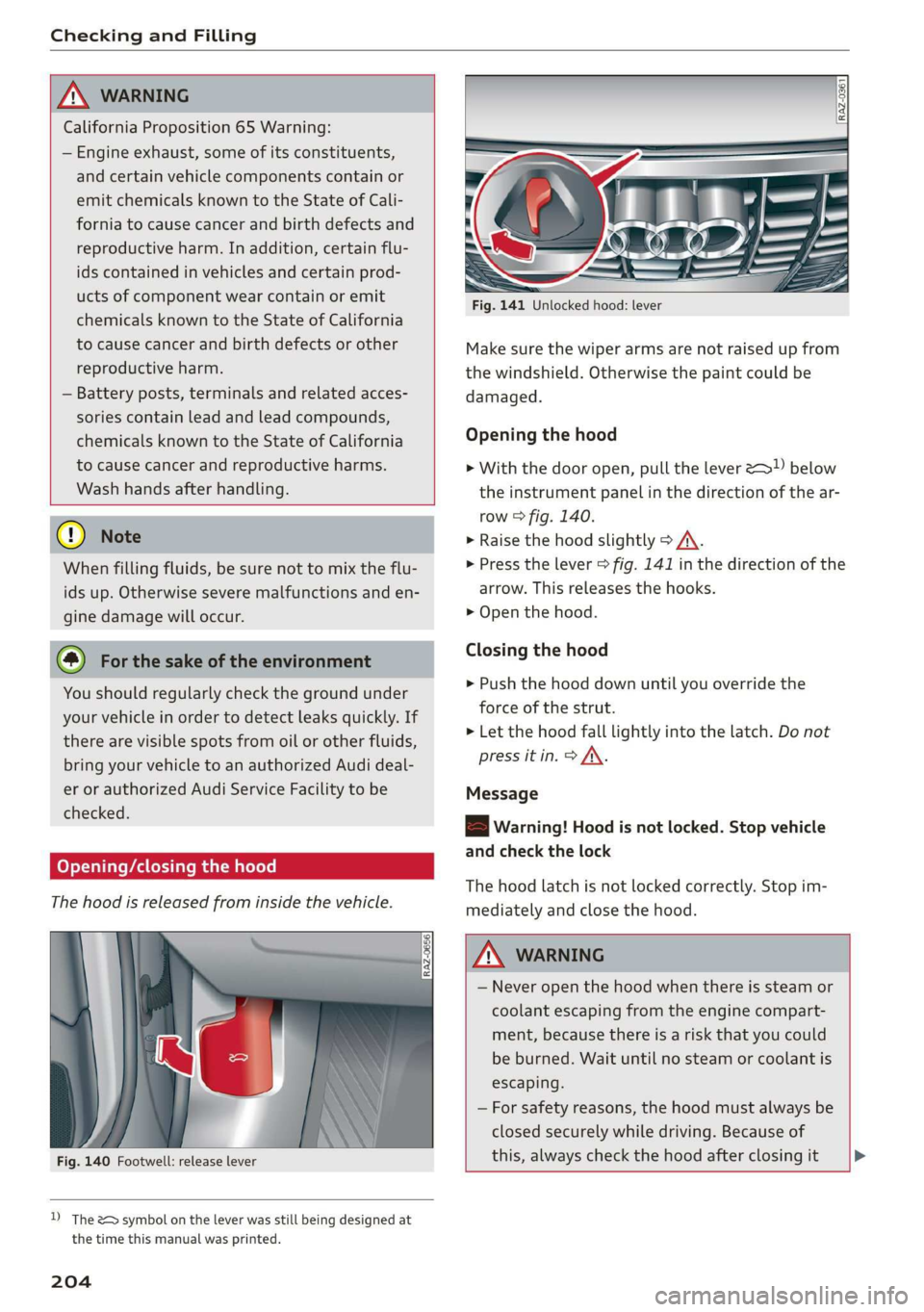
The hood is released from inside the vehicle.
Fig. 140 Footwell: release lever
D) The &> symbol on the lever was still being designed at
the time this manual was printed.
204
Fig. 141 Unlocked hood: lever
Make sure the wiper arms are not raised up from
the windshield. Otherwise the paint could be
damaged.
Opening the hood
> With the door open, pull the lever >) below
the instrument panel in the direction of the ar-
row > fig. 140.
» Raise the hood slightly > /A\.
> Press the lever > fig. 141 in the direction of the
arrow. This releases the hooks.
> Open the hood.
Closing the hood
> Push the hood down until you override the
force of the strut.
> Let the hood fall lightly into the latch. Do not
press it in. > AX.
Message
8B Warning! Hood is not locked. Stop vehicle
and check the lock
The hood latch is not locked correctly. Stop im-
mediately and close the hood.
ZA\ WARNING
— Never open the hood when there is steam or
coolant escaping from the engine compart-
ment, because there is a risk that you could
be burned. Wait until no steam or coolant is
escaping.
— For safety reasons, the hood must always be
closed securely while driving. Because of
this, always check the hood after closing it >
Page 210 of 280
Checking and Filling
Observe the safety precautions > A\ in General
information on page 203.
> Turn the engine off.
> Open the hood = page 204.
> Unscrew the cap %~ for the engine oil filler
opening > fig. 144.
> Carefully add 0.5 quart (0.5 liter) of the correct
oil > page 205.
> Check the oil level again after two minutes
=> page 206, Checking the engine oil level.
> Add more oil if necessary.
> Close the engine oil filler cap and push the dip-
stick
all the way in.
> Close the hood > page 204.
Z\ WARNING
—When adding oil, do not let oil drip onto hot
engine components. This increases the risk
of a fire.
— You must seal the cap on the oil filler open-
ing correctly so that oil does not leak out on-
to the hot engine and exhaust system when
the engine is running, because this is a fire
hazard.
— Always clean skin thoroughly if it comes into
contact with engine oil.
—
Engine oil is poisonous and must be kept out
of reach of children.
— Store the engine oil securely in the original
container.
() Note
— The New Vehicle Limited Warranty does not
cover damage or malfunctions if the recom-
mended intended use of the vehicle and
maintenance measures listed in the Audi
Owner's Manual and the Warranty & Main-
tenance Booklet were not followed.
— Only use high-grade engine oil that explicit-
ly meets the Audi oil quality standard for
your vehicle. Using another oil may cause
severe vehicle damage.
— Do not mix any additives with the engine oil.
Additives may cause engine damage that is
not covered by your New Vehicle Limited
Warranty.
208
@) For the sake of the environment
— Oil should never enter the sewer system or
come into contact with the ground.
— Follow the legal regulations in the country
where you are located when disposing of
empty oil containers.
Changing engine oil
We recommend having the oil changed at an au-
thorized Audi dealer or authorized Audi Service
Facility.
Follow the safety precautions > page 203, Gener-
al information.
The engine oil must be changed at the intervals
specified in the Warranty & Maintenance Book-
let. This is very important because the lubrication
function of the oil gradually declines during regu-
lar vehicle operation.
The engine oil should be changed more frequent-
ly under certain circumstances. Have the oil
changed more frequently if you often drive short
distances, your vehicle is predominantly in stop-
and-go traffic situations, is in very dusty environ-
ments, or is operated for long periods of time in
temperatures below zero.
Cleansing additives in the oil make fresh oil ap-
pear darker after the engine has run briefly. This
is normal and no reason to change the engine oil
more frequently than recommended.
Because correctly disposing of engine oil is diffi-
cult and special tools and technical knowledge
are needed for an oil change, having your engine
oil changed by an authorized Audi dealer or au-
thorized Audi Service Facility is recommended.
If you change the engine oil yourself, please note
the following important information:
ZA\ WARNING
If you change the engine oil on the vehicle
yourself, the following precautions must be
followed:
— Wear protective eyewear.
— Due to the risk of scalding, allow the engine
to cool down sufficiently.