warning AUDI Q3 2019 Owners Manual
[x] Cancel search | Manufacturer: AUDI, Model Year: 2019, Model line: Q3, Model: AUDI Q3 2019Pages: 280, PDF Size: 72.73 MB
Page 3 of 280
83A012721BA
Foreword
Thank you for choosing an Audi - we value your trust in us.
Your new Audi will allow you to experience the best in groundbreaking technology and premium quality
equipment that a vehicle has to offer. We recommend that you read your Owner's Manual thoroughly
so that you quickly become acquainted with your Audi and make use of all of its features.
In addition to explaining how the different features work, we provide many useful tips and information
concerning your safety, how to care for your vehicle, and how to maintain your vehicle's value. We also
give you useful tips and information on how to drive your vehicle more efficiently and in an environ-
mentally-friendly manner.
We hope you enjoy driving your Audi and we wish you safe and pleasant motoring.
AUDI AG
A WARNING
Operating, servicing and maintaining a passenger vehicle or
off-highway motor vehicle can expose you to chemicals includ-
ing engine exhaust, carbon monoxide, phthalates, and lead,
which are known to the State of California to cause cancer and
birth defects or other reproductive harm. To minimize expo-
sure, avoid breathing exhaust, do not idle the engine except as
necessary, service your vehicle in a well-ventilated area and
wear gloves or wash your hands frequently when servicing
your vehicle. For more information go to www.P65Warnings.
ca.gov/passenger-vehicle.
Page 5 of 280
83A012721BA
Table of contents
Driving information.............. 108
Speed warning system.........-..000- 108
Traffic light information.............. 108
Driver assistance................. 110
Cruise control systeM.......... 000 eee 110
Adaptive speed/cruise assist........... 111
Distance warning.................005 118
Lane departure warning............... 119
AUdi PrOSONsSe & seis + 2 mews 2» nee 2 oem 121
Side assist... 2... eee eee eee eee 124
Parking and maneuvering....... 127
IMtroduetion « x cicvers < e ersuens + x enavane oo saree 127
Parking system plus...............04. 127
Rearview camera and peripheral cameras. 129
Rear cross-traffic assist. ............-. 133
Assisted parking .............0.00005- 134
Parkassist': sexs « s neem sg aes + e wae 2 136
Adjusting the parking aids............. 138
Infotainment system............ 139
Telephone
Introduction
Setup..........
Disconnecting a mobile device......... 141
Using the Audi phone box............. 141
Using the telephone................0. 143
MESSAGES crus + ¢ ween ¢ 3 eeuen xy eee 4 2 ae 147
SOttiMGSicraice o saaneme « u eneneve © icameneies © eyeaeite 150
Mobile phone network settings......... 152
Instrument cluster.............2-.00. 152
Troubleshooting sais . eves 6 coarse es cae 152
AU CONMECE ces ¢ s xeee x 2 ews a i ee 154
Generalinformation................. 154
Audi connect Infotainment............ 155
Using a Wi-Fi hotspot................ 155
Audi connect Infotainment services..... 155
Settings............0 0.0000... 0000. 156
Troubleshooting sass ss eee ss ees ss ees 158
IIS VIG ABI. 5 cccccas os cones o enemies aoe 15S:
Opening navigation.................. 159
myAudi navigation.................0. 159
Entering adestination................ 160
Stopping route guidance.............. 164
Maize: = 2 sews ¢ 2 Som & eee Ee ees Fe eee 165
Personal route assistance............. 167
Alternative routes............02e000 167
Additional functions................. 168
Satellite mapiee e «sons e siemens ae aacens 2 4 ve 169
Map update............. 0. eee eee eee 170
Tratficintoritiationie: « : waa: xs seen 6 2 eu LZ)
Options and settings.............000e 172
Troubleshooting...............-.000- 174
R&GIO’: onic cs wea ss wens se eee & o Hews 175
Opening the radio................04. 175
Radio functions..................-4. 176
Options and settings...............0. 180
Troubleshooting.................0005 181
MG@Gias = acs ¢ = secs s © seme « s Seems so SeURS 182
General information ................. 182
SD card reader..........0.-..00 eee 182
Bluetooth audio player.............0. 182
Online Medias « ssi + exes ae omens oo veer 183
Multimedia connections.............. 184
Playing tedia. = s sees s 2 sees se wees ee 185
Options and settings...............0. 189
Supported media and file formats...... 190
Troubleshooting «ess 2s secu se vee ss ees 191
Audi smartphone interface...... 193
Setup... ee eee eee eee eee 193
Troubleshooting............ee eee eee 194
Additional settings.............. 195
SySteMm Settings: < saws ss sews se eee & 195
Connected devices............ 0 cee ee 196
Legal information................... 197
Maintenance and Care........... 199
Checking and Filling............. 199
FUGlaias s os08,8 & aay @ § aovon & § Sanne 8 OF eee 199
RePUCLING: is «a cms so ewes oe ese vB seen 200
Emissions control system............. 202
Engine compartment................. 203
EMGIMeiOils: acre « ¢ qaiea & © meee s 2 seNoN 8 Es 205
Cooling system. ............--00 00 eee 209
Brake fluid... . 0... eee eee eee 211
Electrical system.........--.0----05- 211
Battery. =o cecness « ommnaine « 0 omecwne 6 3 oats = oe 212
Windshield washer system............ 214
Service interval display............... 215
Page 7 of 280
83A012721BA
About this Owner's Manual
This Owner's Manual applies to all versions of
this model. It contains important information,
tips, suggestions, and warnings for using your ve-
hicle.
Keep this manual and any other applicable docu-
ments in your vehicle at all times. This is espe-
cially important if you loan your vehicle to others
or sell it.
This owner's manual describes the equipment
range specified for this model at the time of
printing. Individual equipment options described
may only be available at a later date or may only
be offered in certain countries.
Some sections in this manual do not apply to all
vehicles. When this is the case, the beginning of
the section indicates the validity, for example
“Applies to: vehicles with speed warning sys-
tem”. Optional or vehicle-specific equipment is
also identified with an asterisk “*”.
The illustrations in this manual are a guide.
Some of the details in your vehicle may differ
from the illustration.
All directions, such as “Left”, “right”, “front” and
“rear”, are based on the vehicle's direction of
travel.
* — Optional equipment or vehicle-specific equip-
ment
b> The section continues on the next page.
=> A\ Cross reference to a “WARNING” within a
section. If a page number is indicated, the
WARNING is located outside of the section.
Z\ WARNING
Text with this symbol contains information
about safety and how to reduce the risk of se-
rious personal injury or death.
C) Note
Text with this symbol contains information
about reducing the risk of damage to your ve-
hicle.
@ For the sake of the environment
Text with this symbol contains information on
protecting the environment.
@) Tips
Text with this symbol contains additional use-
ful information.
Page 8 of 280
Quick access
Quick access
Cockpit
3 g|
3
q
i
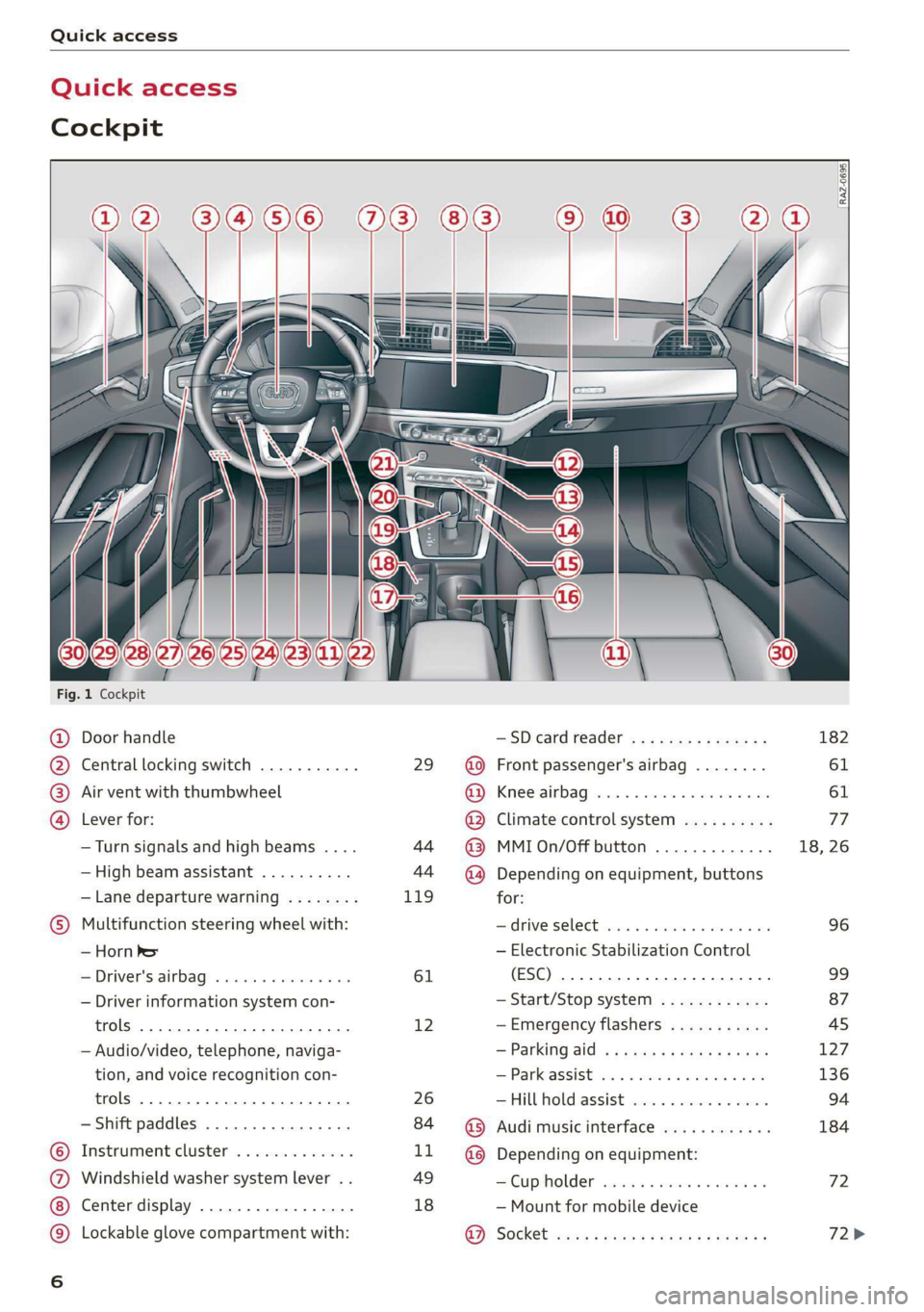
Fig. 1 Cockpit
@ Door handle —SDcardreader ............... 182
@ Central locking switch ........... 29 @ Front passenger's airbag ........ 61
® Air vent with thumbwheel @ Knee airbag ...............2... 61
@ Lever for: @ Climate control system .......... 77
—Turn signals and high beams .... 44 @ MMIOn/Off button ............. 18, 26
— High beam assistant .......... 44 ~@) Depending on equipment, buttons
— Lane departure warning ........ 119 for:
© Multifunction steering wheel with: Sdrive SELECE causss 6 6 soaaye os mess 6 wee 96
— Horn be — Electronic Stabilization Control
— Driver's airbag .............4. 61 (ESC) 2... ee eee eee eee 99
— Driver information system con- — Start/Stop system ............ 87
trols 2... ee eee eee eee 12 —Emergency flashers ........... 45
— Audio/video, telephone, naviga- = Parking atd) « « sews « 2 aaeny a © caune 127
tion, and voice recognition con- —Parkassist ..............000- 136
trols 2.0... eee eee 26 —Hill hold assist ............0.. 94
— Shift paddles ................ 84 @ Audi music interface ............ 184
© Instrument cluster ............. LL @ Depending on equipment:
@ Windshield washer system lever . . 49 —Cupholder ..............0005 72
Center display ................. 18 — Mount for mobile device
© Lockable glove compartment with: 9). Socket sassy 2 yasy ss cane a & wae ae 72>
oa
Page 9 of 280
83A012721BA
Quick access
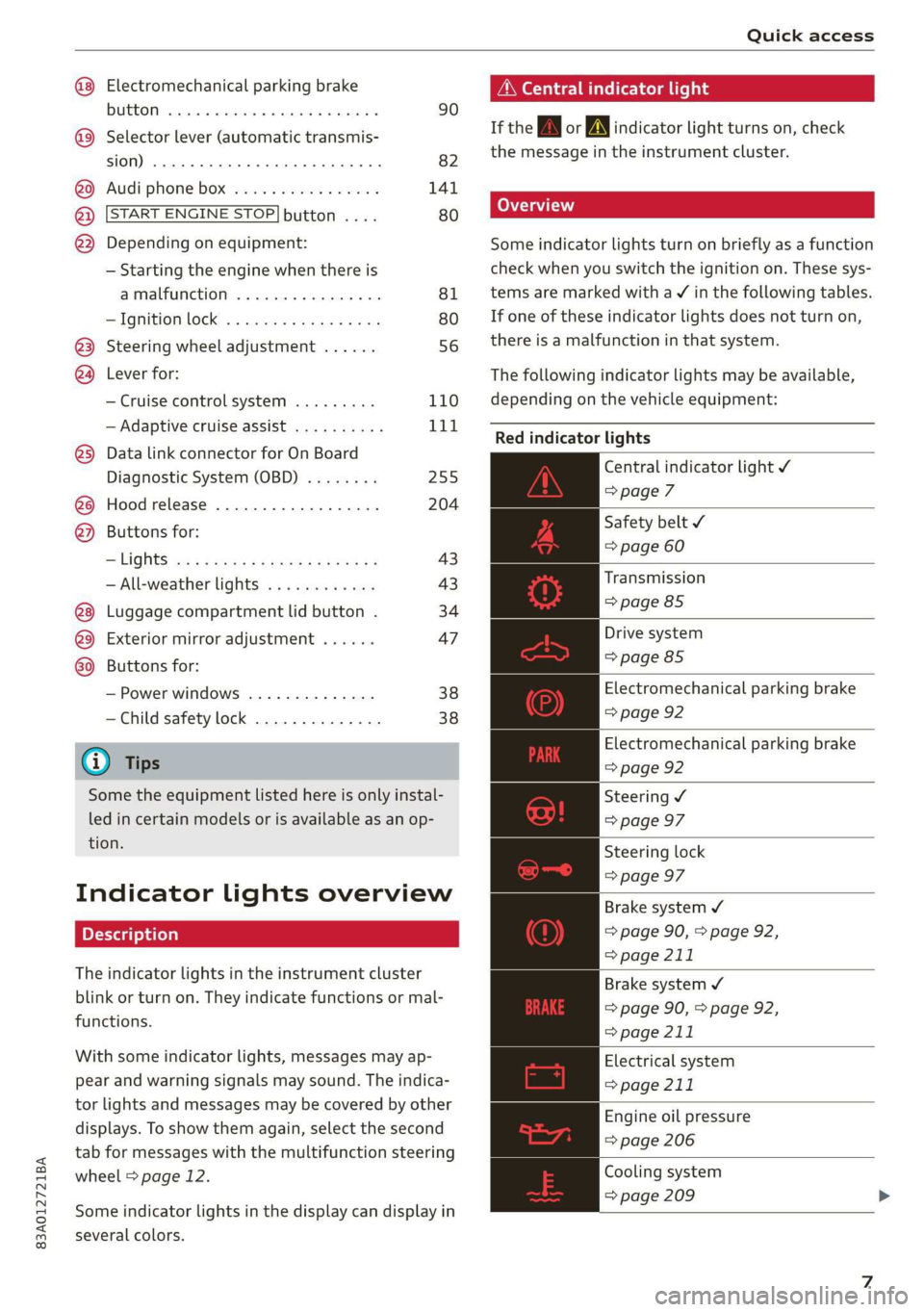
Electromechanical parking brake
button ......... cece eee eee 90
Selector lever (automatic transmis-
SION) 26... eee ee eee eee 82
Audi phone Dox esessie so seas & 6 cere 141
START ENGINE STOP] button .... 80
Depending on equipment: ®®®
— Starting the engine when there is
amalfunction ............0005 81
—Ignition lock ................. 80
@3) Steering wheel adjustment ...... 56
@4 Lever for:
— Cruise control system ......... 110
— Adaptive cruise assist .......... 111
@) Data link connector for On Board
Diagnostic System (OBD) ........ 255
@8 Hood release .............0.0.. 204
@) Buttons for:
—~ CIGKES! mu: ¢ ¢ sem x ¢ etme Fo cee 43
—All-weather lights ............ 43
Luggage compartment lid button . 34
@3 Exterior mirror adjustment ...... 47
G0 Buttons for:
— Power windows .............. 38
—Child safety lock .............. 38
@ Tips
Some the equipment listed here is only instal-
led in certain models or is available as an op-
tion.
Indicator lights overview
The indicator lights in the instrument cluster
blink or turn on. They indicate functions or mal-
functions.
With some indicator lights, messages may ap-
pear and warning signals may sound. The indica-
tor lights and messages may be covered by other
displays. To show them again, select the second
tab for messages with the multifunction steering
wheel > page 12.
Some indicator lights in the display can display in
several colors.
A\ Central indicator light
If the wa or A indicator light turns on, check
the message in the instrument cluster.
Some indicator lights turn on briefly as a function
check
when you switch the ignition on. These sys-
tems are marked with a V in the following tables.
If one of these indicator lights does not turn on,
there is a malfunction in that system.
The following indicator lights may be available,
depending on the vehicle equipment:
Red indicator lights
Central indicator light ¥
=>page 7
Safety belt
=> page 60
Transmission
=> page 85
Drive system
=> page 85
Electromechanical parking brake
=> page 92
Electromechanical parking brake
=> page 92
Steering ¥
=> page 97
Steering lock
=> page 97
Brake system ¥
=> page 90, > page 92,
=> page 211
Brake system 4
=> page 90, > page 92,
=> page 211
Electrical system
=> page 211
Engine oil pressure
=> page 206
Cooling system
=> page 209
Page 10 of 280
Quick access
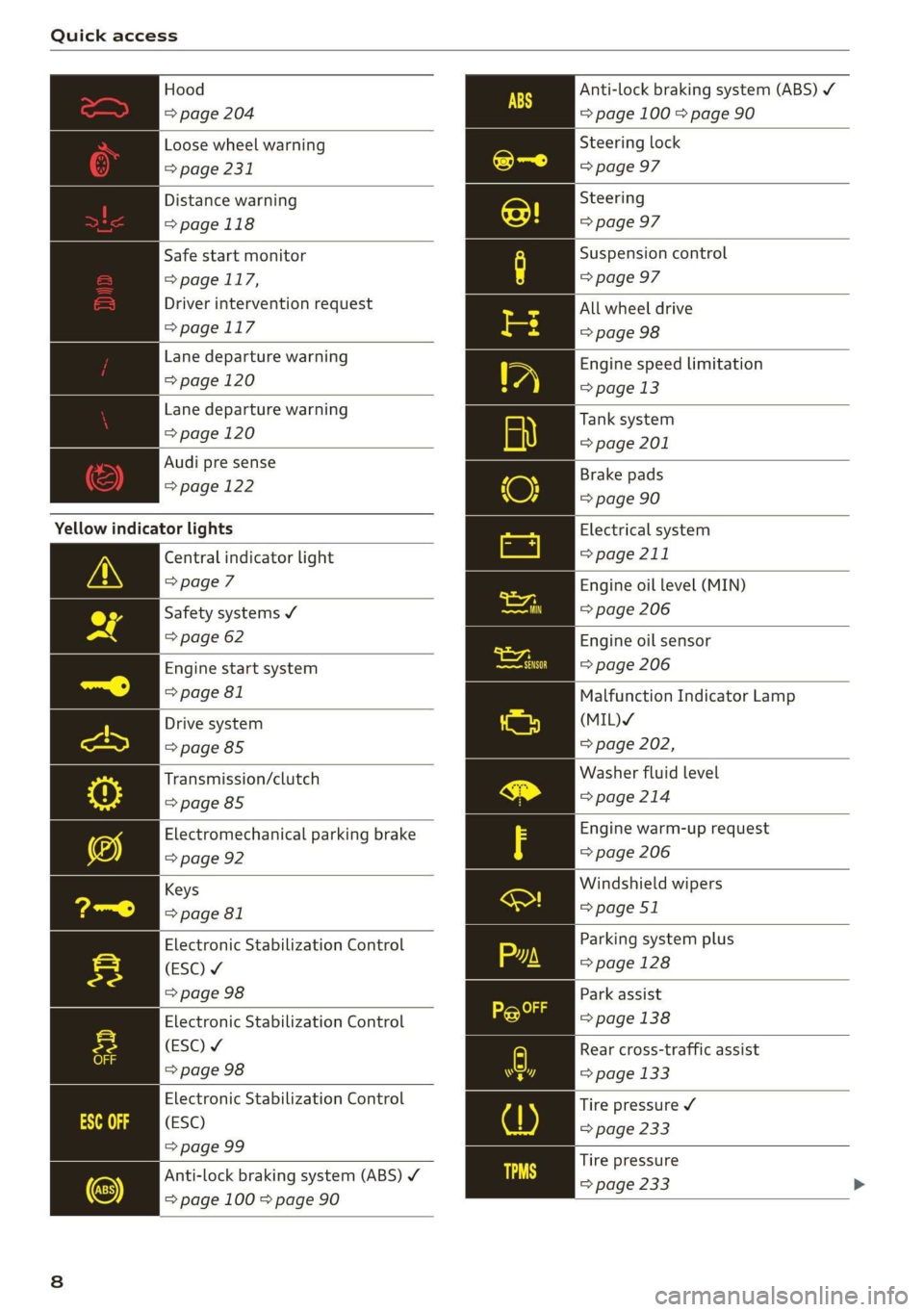
Hood
=> page 204
Loose wheel warning
=> page 231
Distance warning
=> page 118
Safe start monitor
= page 117,
Driver intervention request
=>page 117
Lane departure warning
=> page 120
Lane departure warning
=> page 120
Audi pre sense
=> page 122
Yellow indicator lights
Central indicator light
=> page 7
Safety systems ¥
=> page 62
Engine start system
=> page 81
Drive system
=> page 85
Transmission/clutch
=>page 85
Electromechanical parking brake
=> page 92
Keys
=> page 81
Electronic Stabilization Control
(ESC) ¥
=> page 98
Electronic Stabilization Control
(ESC) ¥
=> page 98
Electronic Stabilization Control
(ESC)
=> page 99
Anti-lock braking system (ABS) ¥
=> page 100 > page 90
Anti-lock braking system (ABS) /
= page 100 > page 90
Steering lock
=> page 97
Steering
=> page 97
Suspension control
=> page 97
All wheel drive
=> page 98
Engine speed limitation
=> page 13
Tank system
=> page 201
Brake pads
=> page 90
Electrical system
=> page 211
Engine oil level (MIN)
=> page 206
Engine oil sensor
=> page 206
Malfunction Indicator Lamp
(MIL)Y
=> page 202,
Washer fluid level
=>page 214
Engine warm-up request
=> page 206
Windshield wipers
=> page 51
Parking system plus
=> page 128
Park assist
=> page 138
Rear cross-traffic assist
=> page 133
Tire pressure ¥
=> page 233
Tire pressure
=> page 233
Page 11 of 280
83A012721BA
Quick access
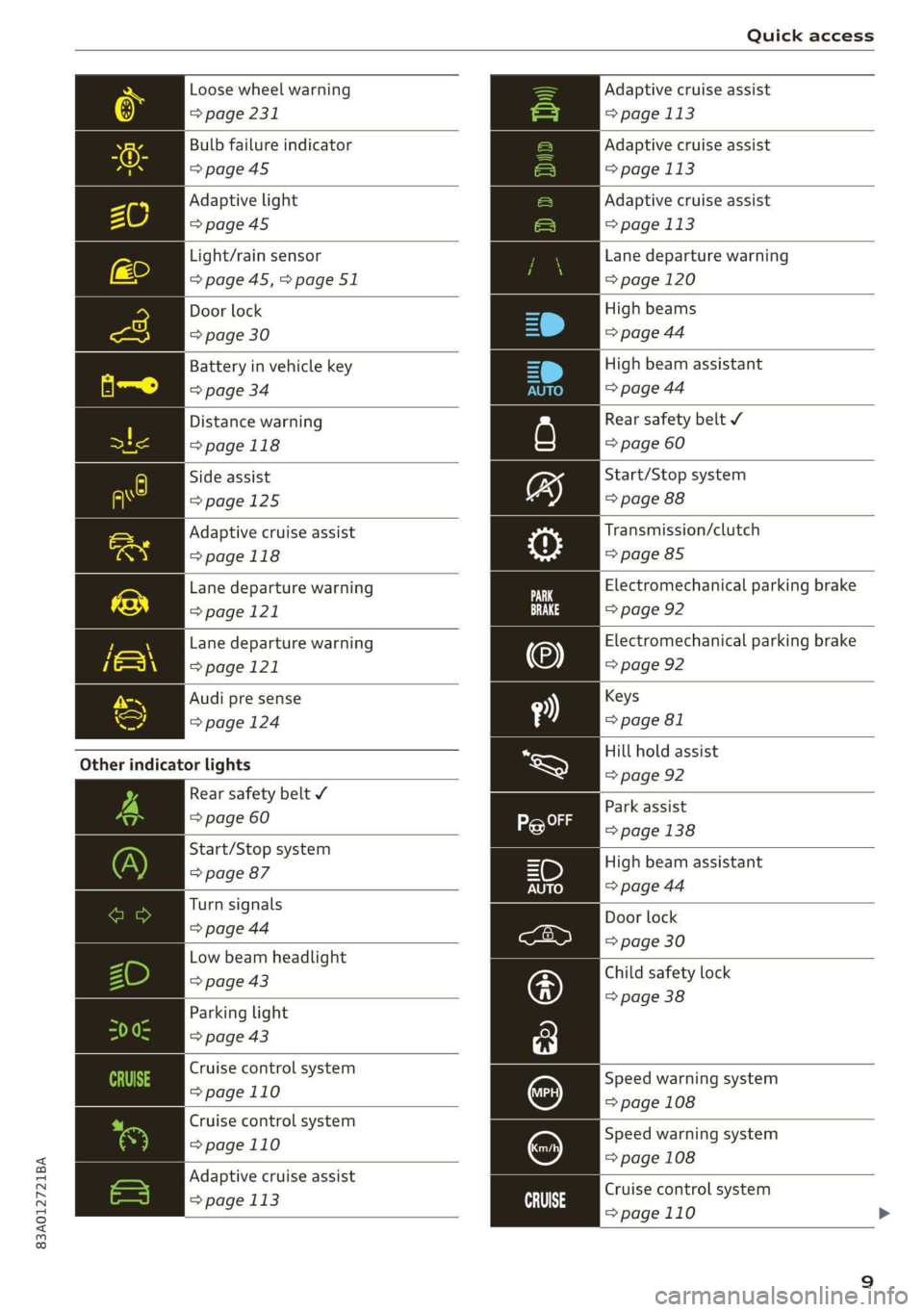
Loose wheel warning
> page 231
Bulb failure indicator
>page 45
Adaptive light
=>page45
Light/rain sensor
=> page 45,>page 51
Door lock
=> page 30
Battery in vehicle key
> page 34
Distance warning
>page 118
Side assist
>page 125
Adaptive cruise assist
=>page 118
Lane departure warning
=>page 121
Lane departure warning
>page 121
Audi pre sense
=> page 124
Other indicator lights
Rear safety belt ¥
=> page 60
Start/Stop system
=> page 87
Turn signals
=> page 44
Low beam headlight
=> page 43
Parking light
=> page 43
Cruise control system
=>page 110
Cruise control system
=>page
110
Adaptive cruise assist
=> page 113 ai
Adaptive cruise assist
= page 113
Adaptive cruise assist
= page 113
Adaptive cruise assist
= page 113
Lane departure warning
= page 120
High beams
=> page 44
High beam assistant
=> page 44
Rear safety belt ¥
=> page 60
Start/Stop system
=> page 88
Transmission/clutch
=> page 85
Electromechanical parking brake
=> page 92
Electromechanical parking brake
=> page 92
Keys
=> page 81
Hill hold assist
=> page 92
Park
assist
> page 138
High beam assistant
=> page 44
Door lock
=> page 30
Child safety lock
=> page 38
Speed warning system
= page 108
Speed warning system
= page 108
Cruise control system
=>page 110
Page 12 of 280
Quick access
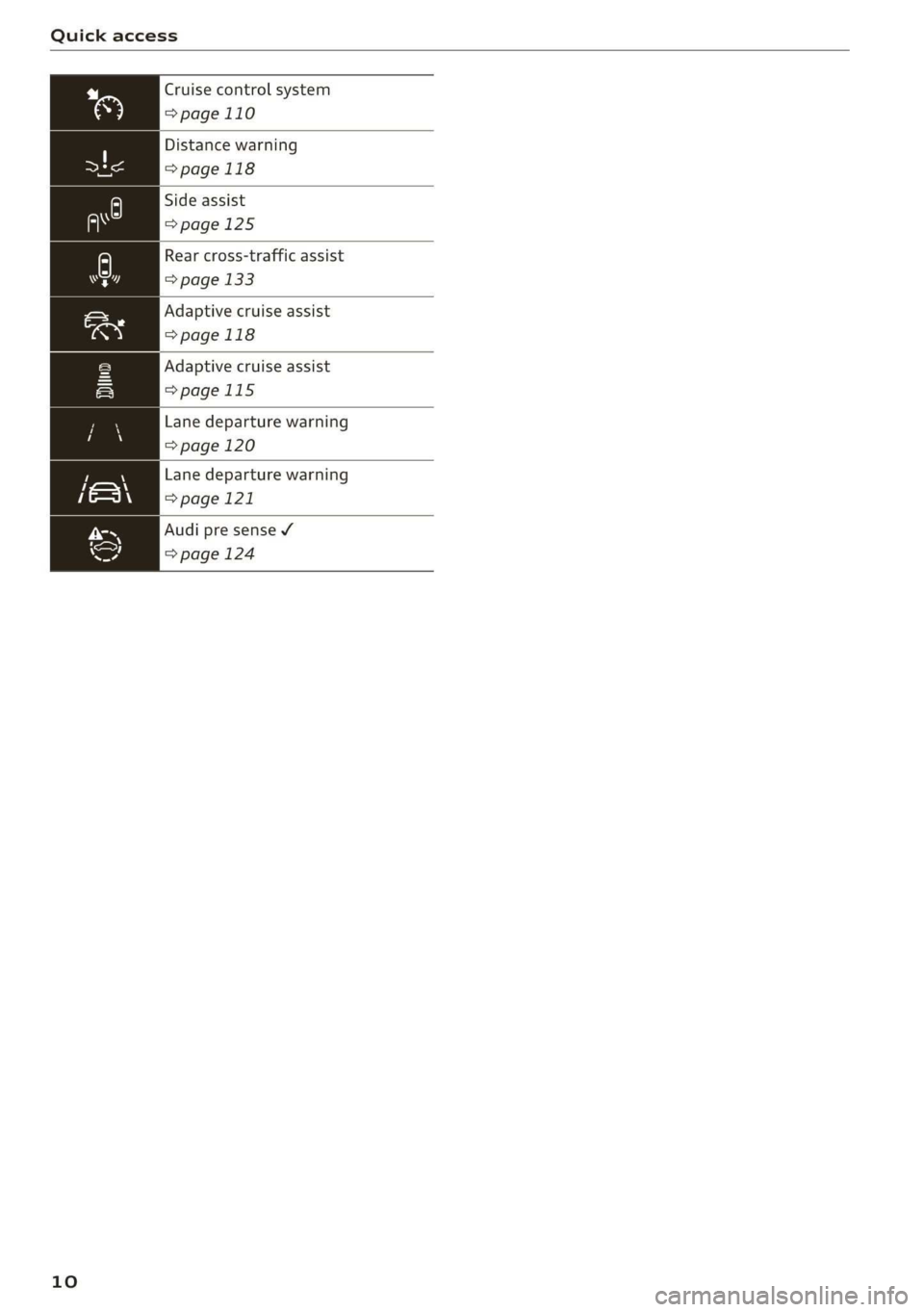
Cruise control system
=>page
110
Distance warning
>page 118
Side assist
>page 125
Rear cross-traffic assist
=> page 133
Adaptive cruise assist
>page 118
Adaptive cruise assist
=>page 115
Lane departure warning
=> page 120
Lane departure warning
>page 121
Audi pre sense ¥
=> page 124
10
Page 16 of 280
Instrument cluster
@) Note
The tachometer needle should only be in the
red zone briefly: Otherwise, this increases the
risk of engine damage. The location where the
red zone begins varies depending on the en-
gine.
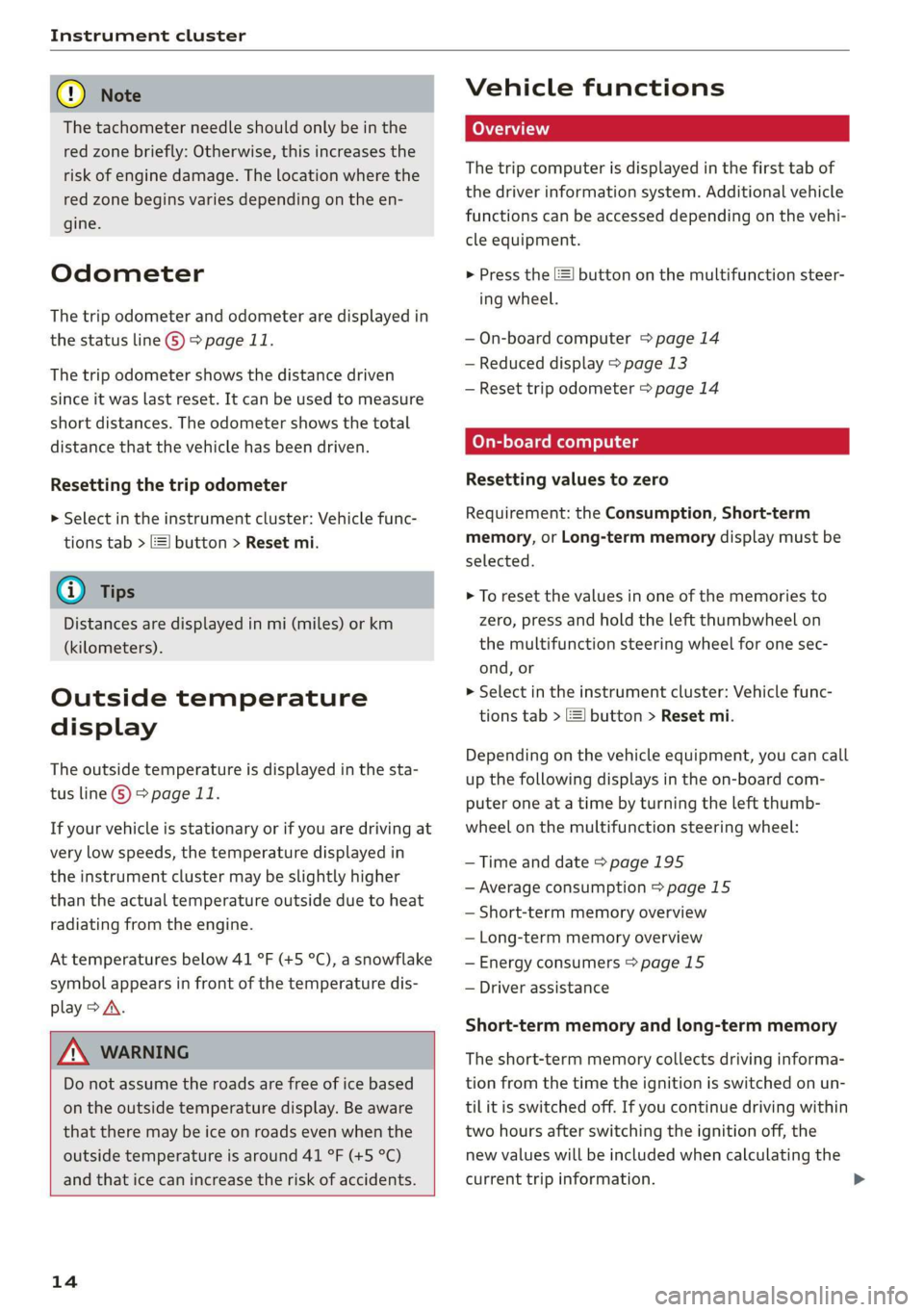
Odometer
The trip odometer and odometer are displayed in
the status line ©) > page 11.
The trip odometer shows the distance driven
since it was last reset. It can be used to measure
short distances. The odometer shows the total
distance that the vehicle has been driven.
Resetting the trip odometer
> Select in the instrument cluster: Vehicle func-
tions tab > [=] button > Reset mi.
@) Tips
Distances are displayed in mi (miles) or km
(kilometers).
Outside temperature
display
The outside temperature is displayed in the sta-
tus line @) > page 11.
If your vehicle is stationary or if you are driving at
very low speeds, the temperature displayed in
the instrument cluster may be slightly higher
than the actual temperature outside due to heat
radiating from the engine.
At temperatures below 41 °F (+5 °C), a snowflake
symbol appears in front of the temperature dis-
play > A.
ZA\ WARNING
Do not assume the roads are free of ice based
on the outside temperature display. Be aware
that there may be ice on roads even when the
outside temperature is around 41 °F (+5 °C)
and that ice can increase the risk of accidents.
14
Vehicle functions
The trip computer is displayed in the first tab of
the driver information system. Additional vehicle
functions can be accessed depending on the vehi-
cle equipment.
> Press the =] button on the multifunction steer-
ing wheel.
— On-board computer > page 14
— Reduced display > page 13
— Reset trip odometer > page 14
On-board computer
Resetting values to zero
Requirement: the Consumption, Short-term
memory, or Long-term memory display must be
selected.
> To reset the values in one of the memories to
zero, press and hold the left thumbwheel on
the multifunction steering wheel for one sec-
ond, or
> Select in the instrument cluster: Vehicle func-
tions tab > [=] button > Reset mi.
Depending on the vehicle equipment, you can call
up the following displays in the on-board com-
puter one at a time by turning the left thumb-
wheel on the multifunction steering wheel:
— Time and date > page 195
— Average consumption > page 15
— Short-term memory overview
— Long-term memory overview
— Energy consumers > page 15
— Driver assistance
Short-term memory and long-term memory
The short-term memory collects driving informa-
tion from the time the ignition is switched on un-
tilit is switched off. If you continue driving within
two hours after switching the ignition off, the
new values will be included when calculating the
current trip information.
Page 20 of 280
Touch display
> If the Date & time button is not displayed,
swipe upward or downward with one finger un-
til it appears.
> Press the Date & time button.
@ Tips
If a menu or symbol is in parentheses in the
path, for example, (General) or (423), then it is
an optional menu item that does not need to
be used in every system.
Settings
> Applies to MMI: Select on the home screen:
SETTINGS > Display & brightness > MMI.
Possible settings:
— Brightness
— Audio feedback during touch input
Multi Media Interface
sic laitet inmate)
Audi recommends performing certain Infotain-
ment system functions, such as entering a desti-
nation, only when the vehicle is stationary. Al-
ways remember: Take a break from using your In-
fotainment system if needed for the benefit of
your safety and the safety of others on the road.
ZA\ WARNING
Only use the Infotainment system when road,
traffic, weather, and visibility conditions per-
mit and always in a way that allows you to
maintain complete control over your vehicle.
@ Tips
Certain functions are not available while driv-
ing.
Switching on or off
Switching the MMI on or off
> To switch the MMI off, press and hold the vol-
ume knob > page 26, fig. 20 until all Infotain-
ment functions are switched off.
18
> To switch the MMI on, press the volume knob.
Restarting the MMI
> Press and hold the volume knob for at least 10
seconds.
Switching the center display on or off
> To switch the center display off, press [Jin the
notification center > page 20.
> To switch the center display on, touch the dis-
play or press LwJagain.
Introduction
You can display and operate Infotainment system
and vehicle functions using the touch display in
the Multi Media Interface, abbreviated MMI.
Configuration wizard
After starting for the first time, the configuration
wizard helps you to set up the vehicle, for exam-
ple to set the desired system language and con-
nect a telephone.
> Follow the instructions in the center display.
> Applies to: MMI: To access the configuration
wizard at a later time, select on the home
screen: HELP > Configuration wizard.
Tool tips
Tool
tips are displayed on the center display after
starting for the first time. They introduce various
MMI functions to you.
> Follow the instructions in the center display.
> Applies to: MMI: To access the tool tips at a lat-
er time, select on the home screen: SETTINGS
> Help > Show tool tips.
> Applies to: MMI: To receive additional tool tips,
select on the home screen: HELP > Tool tips >
Basic information or Expert information.