instrument cluster AUDI Q3 2020 Owner's Manual
[x] Cancel search | Manufacturer: AUDI, Model Year: 2020, Model line: Q3, Model: AUDI Q3 2020Pages: 278, PDF Size: 72.66 MB
Page 113 of 278
83A012721BB
Driver assistance
Driver assistance
Cruise control system
Applies to: vehicles with cruise control system
The cruise control system assists the driver in
maintaining a constant speed above approxi-
mately 15 mph (20 km/h). The system maintains
the desired speed by braking and accelerating.
ZA\ WARNING
— Always pay attention to the traffic around
your vehicle when the cruise control system
is in operation. As the driver, you are always
responsible for controlling your vehicle
speed and the distance between your vehicle
and
other vehicles.
— For safety reasons, cruise control should not
be used in the city, in stop-and-go traffic, on
winding roads, and when road conditions are
poor (such as ice, fog, gravel, heavy rain,
and conditions that could lead to hydroplan-
ing), because this increases the risk of an ac-
cident.
— Switch the cruise control off temporarily
when driving in turning lanes, highway exits,
or in construction zones.
—To reduce the risk of an accident, you should
only resume the stored speed if it is suitable
for the current traffic conditions.
() Note
Before driving downhill a long distance ona
steep hill, decrease your speed and select a
lower gear. This makes use of the engine brak-
ing effect and reduces the load placed on the
brakes.
@) Tips
The brake lights turn on when the brakes are
applied automatically.
Switching the system on
Applies to: vehicles with cruise control system
BFV-0220
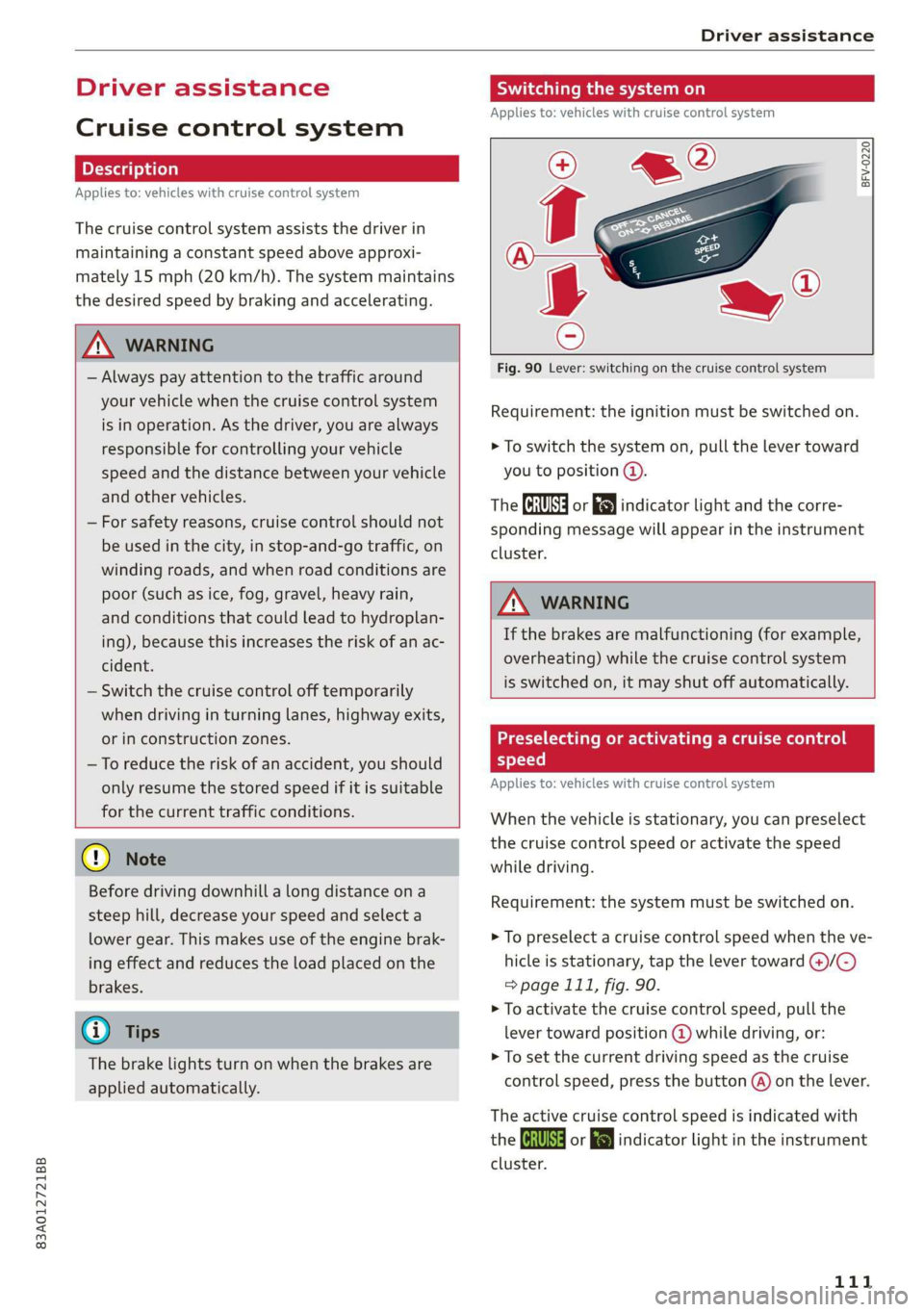
Fig. 90 Lever: switching on the cruise control system
Requirement: the ignition must be switched on.
> To switch the system on, pull the lever toward
you to position @.
The ICRUISE| or i$) indicator light and the corre-
sponding message will appear in the instrument
cluster.
ZA\ WARNING
If the brakes are malfunctioning (for example,
overheating) while the cruise control system
is switched on, it may shut off automatically.
Preselecting or activating a cruise control
speed
Applies to: vehicles with cruise control system
When the vehicle is stationary, you can preselect
the cruise control speed or activate the speed
while driving.
Requirement: the system must be switched on.
> To preselect a cruise control speed when the ve-
hicle is stationary, tap the lever toward @)/C)
=> page 111, fig. 90.
> To activate the cruise control speed, pull the
lever toward position @ while driving, or:
> To set the current driving speed as the cruise
control speed, press the button @) on the lever.
The active cruise control speed is indicated with
the Gs or El indicator light in the instrument
cluster.
111
Page 116 of 278
Driver assistance
PYRE aad (ai)
Applies to: vehicles with adaptive cruise assist
2 S
Sy e ee
RAZ-0397
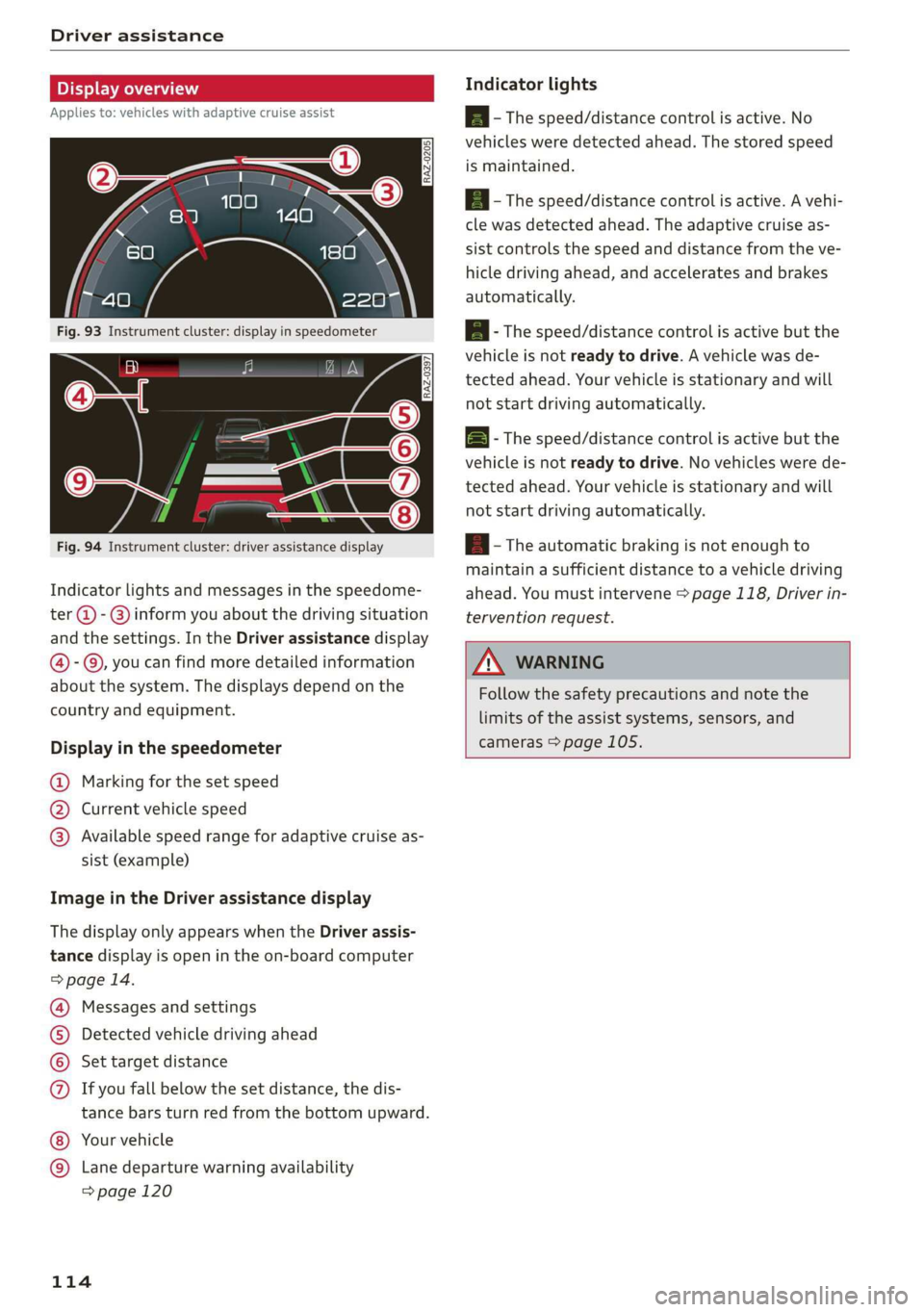
Fig. 94 Instrument cluster: driver assistance display
Indicator lights and messages in the speedome-
ter @ -@ inform you about the driving situation
and the settings. In the Driver assistance display
@-©, you can find more detailed information
about the system. The displays depend on the
country and equipment.
Display in the speedometer
@ Marking for the set speed
@ Current vehicle speed
@® Available speed range for adaptive cruise as-
sist (example)
Image in the Driver assistance display
The display only appears when the Driver assis-
tance display is open in the on-board computer
> page 14.
Messages and settings
Detected vehicle driving ahead
Set target distance
If you fall below the set distance, the dis-
tance bars turn red from the bottom upward.
Your vehicle
©®
CO®
Lane departure warning availability
=> page 120
114
Indicator lights
Ba - The speed/distance control is active. No
vehicles were detected ahead. The stored speed
is maintained.
Aa - The speed/distance control is active. A vehi-
cle was detected ahead. The adaptive cruise as-
sist controls the speed and distance from the ve-
hicle driving ahead, and accelerates and brakes
automatically.
AB - The speed/distance control is active but the
vehicle is not ready to drive. A vehicle was de-
tected ahead. Your vehicle is stationary and will
not start driving automatically.
BS - The speed/distance control is active but the
vehicle is not ready to drive. No vehicles were de-
tected ahead. Your vehicle is stationary and will
not start driving automatically.
B- The automatic braking is not enough to
maintain a sufficient distance to a vehicle driving
ahead. You must intervene > page 118, Driver in-
tervention request.
ZA WARNING
Follow the safety precautions and note the
limits of the assist systems, sensors, and
cameras > page 105.
Page 120 of 278

Driver assistance
Driving in stop-and-go traffic
Applies to: vehicles with adaptive cruise assist
> Press the brake pedal to slow your vehicle
down.
aI
3 Ka | |
cc
Fig. 99 -Applies to: vehicles with safe start monitor-Instru-
ment cluster: safe start monitor
Stopping with adaptive cruise assist
The adaptive cruise assist also assists you in stop-
and-go traffic. Within the limits of the system,
your vehicle may brake and remain at a stop if a
vehicle driving ahead stops.
Starting to drive with adaptive cruise assist
As long as the message ready to drive and A is
displayed, your vehicle will begin driving when
the vehicle ahead starts to move > /\.
If you are stopped for several seconds, your vehi-
cle will no longer drive autonomously for safety
reasons, and the message will turn off.
> To extend ready to drive for several seconds or
reactivate, pull the lever briefly towards you in
the direction of the arrow > page 117, fig. 98.
> To resume manual control of the vehicle, tap
the accelerator pedal.
Safe start monitor
Applies to: vehicles with safe start monitor
The vehicle can still start to drive even if certain
obstacles are detected when starting to drive
=> /\. For example, if an obstacle is detected by
the ultrasonic sensors for the parking system,
the A indicator light will warn you of the dan-
ger.
If you are in the Driver assistance display, the
display @ > fig. 99 and the message Warning!
will also appear. An audio signal will also sound.
Your vehicle will drive more slowly when starting.
This may also occur in some situations when
there is no apparent obstacle.
118
ZA\ WARNING
— Follow the safety precautions and note the
limits of the assist systems, sensors, and
cameras > page 105.
— If the message ready to drive appears, your
vehicle will start driving even if there is an
obstacle between your vehicle and the vehi-
cle ahead. To reduce the risk of an accident,
always make sure there are no obstacles be-
tween your vehicle and the vehicle driving
ahead.
@ Tips
For safety reasons, adaptive cruise assist is
only active if:
— The driver's safety belt is fastened
— All doors and the hood are closed
— Your vehicle is not stopped for a long period
of time
Tama c-a-e celta -te [Ct
Applies to: vehicles with adaptive cruise assist
Fig. 100 Instrument cluster: request for driver interven-
tion
The request for driver intervention instructs you
to resume manual control of the vehicle if the
adaptive cruise assist braking function is not able
to maintain a sufficient distance to the vehicle
ahead. The system will warn you of the hazard
with the A indicator light and the message Dis-
tance!.
The display @ only appears when the Driver as-
sistance display is open in the on-board comput-
er > page 14.
Page 121 of 278
83A012721BB
Driver assistance
ZA\ WARNING
Follow the safety precautions and note the
limits of the assist systems, sensors, and
cameras > page 105.
Adjusting the adaptive cruise assist
Applies to: vehicles with adaptive cruise assist
You can adjust the adaptive cruise assist to your
own preferences. The settings depend on the ve-
hicle equipment.
> Applies to: MMI: Select on the home screen:
VEHICLE > Driver assistance > Adaptive cruise
assist.
Possible settings:
Applies to: vehicles without Audi drive select
Driving program - Depending on the selected
driving program and distance, the vehicle han-
dling will be adjusted from Sport to Moderate.
Applies to: vehicles with Audi drive select
Vehicle handling will be adjusted based on the
set distance and the selected Audi drive select
mode > page 97.
Store last distance - The last distance that was
set will be stored after the ignition is switched
off. If the distance is not stored, distance
(time distance of approximately 1.8 seconds) is
automatically preset every time the ignition is
switched on.
Messages
Applies to: vehicles with adaptive cruise assist
If or sq is displayed when there is a malfunc-
tion, the adaptive cruise assist functions may be
unavailable or limited.
A message that indicates the cause and possible
solution may appear with some displays. The
weather conditions may be too poor or a sensor
may be covered. Clean the area in front of the
sensors > page 106, fig. 86 and try to turn on
the systems again later.
If the malfunction remains, drive to an author-
ized Audi dealer or authorized Audi Service Facili-
ty immediately to have the malfunction correct-
ed.
Please take over!
This message appears if the vehicle rolls back
when starting on a slight incline, even though the
systems are active. Press the brake pedal to pre-
vent the vehicle from rolling or starting to move.
The message will also appear, for example, if the
steering power from the system is not sufficient
and adaptive cruise assist is switched off.
Distance warning
Applies to: vehicles with distance warning
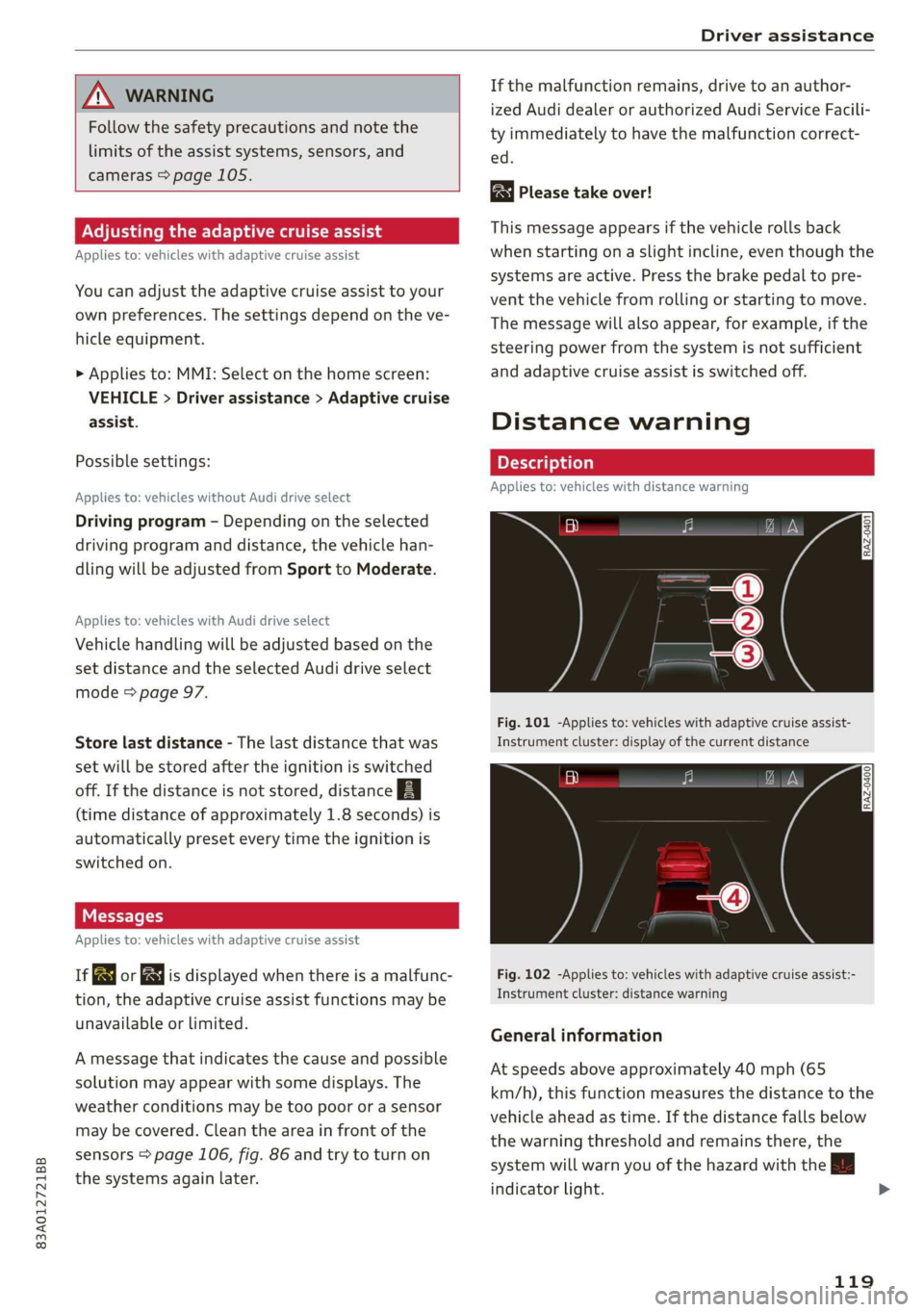
Fig. 101 -Applies to: vehicles with adaptive cruise assist-
Instrument cluster: display of the current distance
[RAZ-0400]
Fig. 102 -Applies to: vehicles with adaptive cruise assist:-
Instrument cluster: distance warning
General information
At speeds above approximately 40 mph (65
km/h), this function measures the distance to the
vehicle ahead as time. If the distance falls below
the warning threshold and remains there, the
system will warn you of the hazard with the |
indicator light.
119
>
Page 123 of 278
83A012721BB
Driver assistance
Applies to: vehicles with lane departure warning
B4M-0064
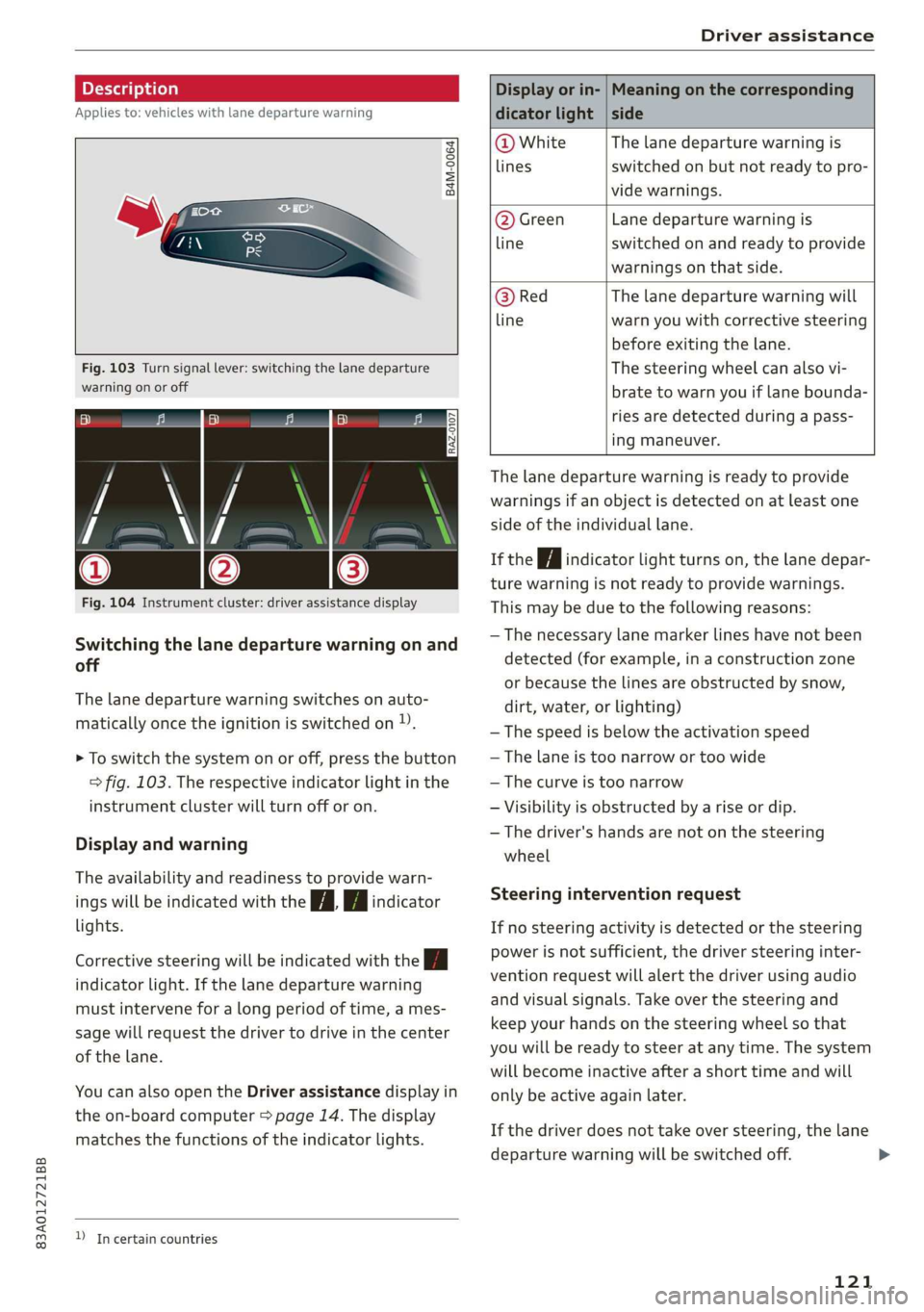
Fig. 103 Turn signal lever: switching the lane departure
warning on or off
RAZ-0107
Fig. 104 Instrument cluster: driver assistance display
Switching the lane departure warning on and
off
The lane departure warning switches on auto-
matically once the ignition is switched on )).
> To switch the system on or off, press the button
=> fig. 103. The respective indicator light in the
instrument cluster will turn off or on.
Display and warning
The availability and readiness to provide warn-
ings will be indicated with the i | fA indicator
lights.
Corrective steering will be indicated with the |
indicator light. If the lane departure warning
must intervene for a long period of time, a mes-
sage will request the driver to drive in the center
of the lane.
You can also open the Driver assistance display in
the on-board computer > page 14. The display
matches the functions of the indicator lights.
D_ In certain countries
Display or in- | Meaning on the corresponding
dicator light | side
@ White The lane departure warning is
lines switched on but not ready to pro-
vide warnings.
@ Green Lane departure warning is
line switched on and ready to provide
warnings on that side.
@ Red The lane departure warning will
line warn you with corrective steering
before exiting the lane.
The steering wheel can also vi-
brate to warn you if lane bounda-
ries are detected during a pass-
ing maneuver.
The lane departure warning is ready to provide
warnings if an object is detected on at least one
side of the individual lane.
If the Hi indicator light turns on, the lane depar-
ture warning is not ready to provide warnings.
This may be due to the following reasons:
— The necessary lane marker lines have not been
detected (for example, in a construction zone
or because the lines are obstructed by snow,
dirt, water, or lighting)
—The speed is below the activation speed
— The lane is too narrow or too wide
— The curve is too narrow
— Visibility is obstructed by a rise or dip.
— The driver's hands are not on the steering
wheel
Steering intervention request
If no steering activity is detected or the steering
power is not sufficient, the driver steering inter-
vention request will alert the driver using audio
and visual signals. Take over the steering and
keep your hands on the steering wheel so that
you will be ready to steer at any time. The system
will become inactive after a short time and will
only be active again later.
If the driver does not take over steering, the lane
departure warning will be switched off.
121
>
Page 125 of 278
83A012721BB
Driver assistance
— There are passengers with unfastened
safety belts
— It has only been several seconds since the
ignition was switched on The indicator
light turns on),
— When driving in reverse
— The front passenger's airbag is switched
off
— There is an airbag control module mal-
function
— System functions may not be available if
the ESC is limited or switched off, or if
there is a malfunction.
Audi pre sense basic
Applies to: vehicles with Audi pre sense basic
Audi pre sense basic is automatically active at
speeds of approximately 20 mph (30 km/h) and
higher. Audi pre sense basic can trigger the Audi
pre sense preemptive safety measures during
emergency braking and dangerous braking ma-
neuvers as well as in unstable driving situations,
such as oversteering or understeering.
ZA WARNING
Follow the safety precautions and note the
limits of the assist systems, sensors, and
cameras > page 105.
Audi pre sense front
Applies to: vehicles with Audi pre sense front
The Audi pre sense front system uses the data
from the radar sensors and calculates the proba-
bility of a rear-end collision. Within the limits of
the system, an impending collision with the front
of the vehicle can be detected in both urban and
rural speed ranges.
Audi pre sense front is active at speeds of approx-
imately 3 mph (5 km/h) and higher. The system
can respond to pedestrians crossing the street or
going in the same direction of travel 2) at speeds
up to 40 mph (65 km/h). It can also respond to
stationary vehicles at speeds up to 52 mph (85
D In preparation at the time of printing.
2) This is not available in some countries.
km/h) as well as to vehicles driving ahead or
stopped vehicles at speeds up to 155 mph (250
km/h).
Early warning/acute warning
The system can recognize various dangerous sit-
uations. The early warning occurs if:
— Avehicle driving ahead brakes suddenly
— Your vehicle is traveling at speeds between ap-
proximately 20 to 50 mph (30 to 85 km/h) and
it approaches a stationary vehicle.
— Your vehicle is traveling at speeds between ap-
proximately 20 to 155 mph (30 to 250 km/h)
and it approaches a vehicle that is clearly trav-
eling more slowly or a vehicle in your direction
of travel that is stopped.
— If a crossing pedestrian?) moves into the lane
and you are driving at speeds between approxi-
mately 18 to 40 mph (30 to 65 km/h).
— Ifa pedestrian is moving in your direction of
travel and in your lane 2) and you are driving at
speeds between approximately 18 to 40 mph
(30 to 65 km/h).
The message Audi pre sense © and a warning
tone will warn you about the danger.
If there is an impending collision with vehicles,
there may also be an acute warning in the form
of sharp braking. You will also be warned by an
indicator in the instrument cluster display. When
this warning occurs, it may only be possible to
avoid a collision by swerving or braking strongly.
Automatic deceleration
If you do not react to the acute warning, Audi pre
sense front can brake the vehicle to a full stop
within the limits of the system. This reduces the
vehicle speed in the event of a collision.
Automatic braking force increase
If Audi pre sense determines that you are not
braking strongly enough when a collision is immi-
nent, it can increase the braking force based on
the situation.
123
>
Page 145 of 278
83A012721BB
Telephone
— You can purchase a USB adapter from an au-
thorized Audi dealer or authorized Audi
Service Facility, or at specialty stores.
— Audi recommends using Audi Genuine Ac-
cessories. Audi has verified their reliability,
safety, and suitability.
Using the telephone
Accessing the telephone functions
Applies to: vehicles with telephone
w
fentins frencsy
=
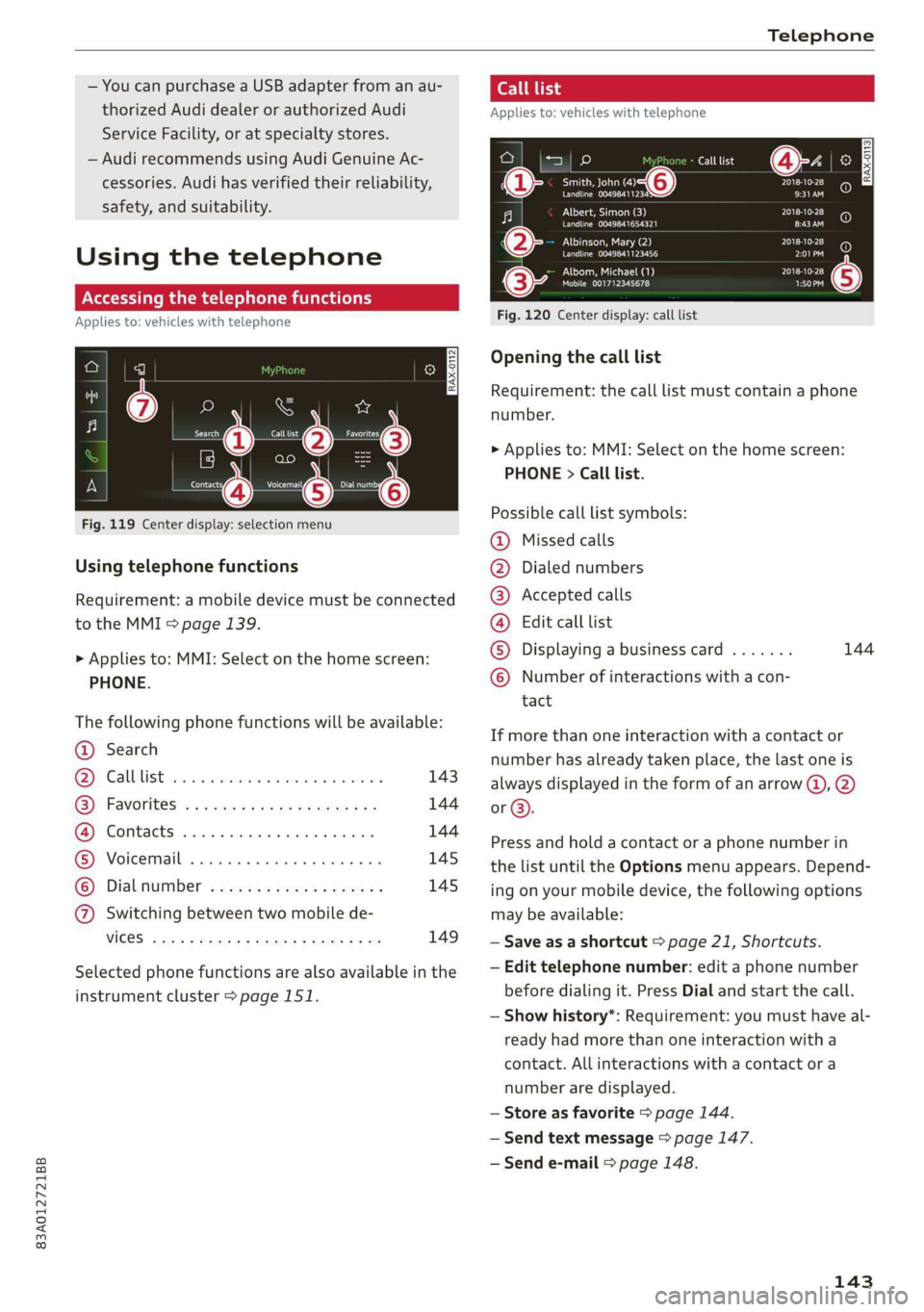
Fig. 119 Center a! selection menu
Using telephone functions
Requirement: a mobile device must be connected
to the MMI 5 page 139.
> Applies to: MMI: Select on the home screen:
PHONE.
The following phone functions will be available:
@ Search
® Calllist ......... eee 143
(Be FAVOTIteS) » » coms : = ees se seme ee: 144
@ Contacts ............ 0c eee 144
® Voicemail .................0005 145
@) Dial ngimber : soc s 2 eeee x v yom 5 2 145
@ Switching between two mobile de-
VICES gen 5 2 mame g & RoR: & z Rew a 2 ee 149
Selected phone functions are also available in the
instrument cluster > page 151.
Call list
Applies to: vehicles with telephone
(0)
=e) Call list
Smith, John (4) PIES ti
Perm AnPED 9:31AM
Albert, Simon (3) Pate}
Peewee era) EEE
ENT TES Ae) PLSD
Perm EL PE)
PUT ea 2018-10-28
Mobile 001712345678 rT
Fig. 120 Center display: call list
Opening the call list
Requirement: the call list must contain a phone
number.
> Applies to: MMI: Select on the home screen:
PHONE > Call list.
Possible call list symbols:
Missed calls
Dialed numbers
Accepted calls
Edit call list
Displaying a business card ....... 144
Number of interactions with a con-
tact
OOOCOLO
If more than one interaction with a contact or
number has already taken place, the last one is
always displayed in the form of an arrow @), @)
or.
Press and hold a contact or a phone number in
the list until the Options menu appears. Depend-
ing on your mobile device, the following options
may be available:
— Save as a shortcut > page 21, Shortcuts.
— Edit telephone number: edit a phone number
before dialing it. Press Dial and start the call.
— Show history*: Requirement: you must have al-
ready had more than one interaction with a
contact. All interactions with a contact ora
number are displayed.
— Store as favorite > page 144.
— Send text message > page 147.
— Send e-mail > page 148.
143
Page 153 of 278
![AUDI Q3 2020 Owners Manual 83A012721BB
Telephone
Switching the car phone or data module on > Press the [=] button.
Applies to: vehicles with car phone/data module
See > page 149.
Instrument cluster
Telephone
Applies t](/img/6/57625/w960_57625-152.png "AUDI Q3 2020 Owners Manual 83A012721BB
Telephone
Switching the car phone or data module on > Press the [=] button.
Applies to: vehicles with car phone/data module
See > page 149.
Instrument cluster
Telephone
Applies t")
83A012721BB
Telephone
Switching the car phone or data module on > Press the [=] button.
Applies to: vehicles with car phone/data module
See > page 149.
Instrument cluster
Telephone
Applies to: vehicles with multifunction steering wheel and
telephone
In the instrument cluster display, you can control
the MMI functions with the multifunction steer-
Possible options:
— Call list: Requirement: the call list must con-
tain a phone number.
— Favorites: Requirement: favorites must be stor-
ed in the MMI.
— Switch telephones: Requirement: two cell
phones must be connected to the MMI.
— Back to call: Requirement: there must be a call
in progress.
ing wheel. Operating > page 12 and > page 26,
Additional function buttons.
Requirement: the Telephone tab must be select-
ed in the instrument cluster.
Troubleshooting
Applies to: vehicles with telephone
(i) Tips
Depending on the selected function, it may be
necessary to use the MMI.
The information that follows lists some trouble-
shooting options. They depend on the equip-
ment.
Problem Solution
Pairing the mobile device to the
MMI failed.
Make sure the requirements for connecting a cell phone have been
met > page 139, or
make sure you did not accidentally decline the PIN for establishing
a connection on your cell phone. If necessary, repeat the pairing
process > page 139.
After pairing, not all contacts or
no contacts have been loaded in-
to the MMI.
Avoid using special characters in names.
Avoid using contact groups on your cell phone.
Check for prompts on your mobile device when connecting via
Bluetooth.
Certain telephone functions are
grayed out or not available.
The telephone functions depend on the mobile device service pro-
vider and the mobile device you are using.
Some telephone functions may
be switched off or not available,
even though the mobile device is
supported.
Check if the Bluetooth settings on your cell phone are limited or
individual Bluetooth settings are deactivated. This may be the
case with business cell phones.
Wireless cell phone charging is
not working or is interrupted.
Check if wireless charging with the Audi phone box is switched on.
Check if your mobile device is Qi-capable.
Check if your mobile device is positioned correctly in the Audi
phone box > page 141 and no other objects are between them.
The MESSAGES menu is not avail-
able.
Check if the Show messages option is on your mobile device and it
is enabled.
151
Page 159 of 278
83A012721BB
Navigation
Navigation
Opening navigation
Applies to: vehicles with navigation system
The navigation system directs you to your desti-
nation, around traffic incidents, and on alterna-
tive routes, if desired.
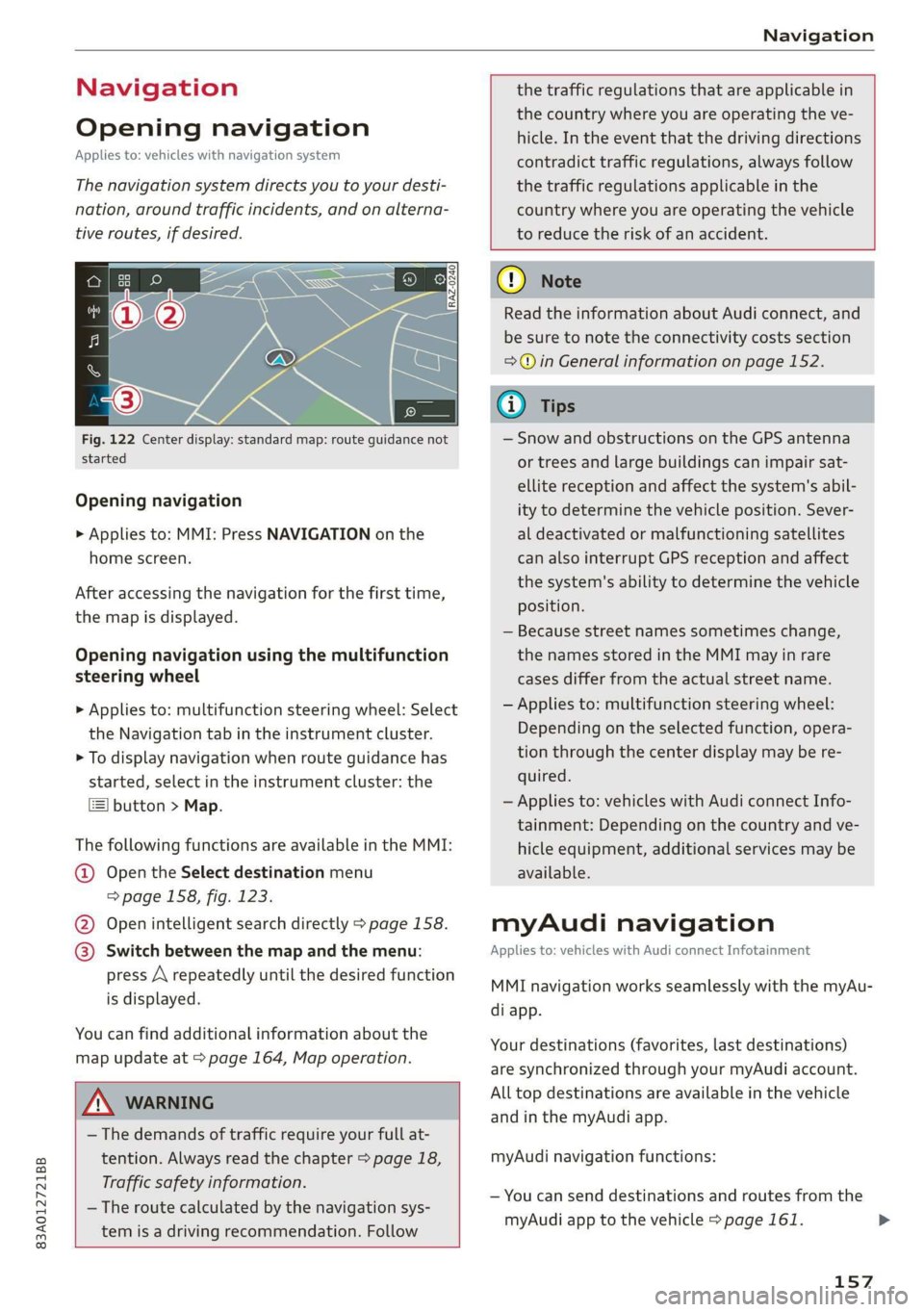
Fig. 122 Center display: standard map: route guidance not
started
Opening navigation
> Applies to: MMI: Press NAVIGATION on the
home screen.
After accessing the navigation for the first time,
the map is displayed.
Opening navigation using the multifunction
steering wheel
> Applies to: multifunction steering wheel: Select
the Navigation tab in the instrument cluster.
> To display navigation when route guidance has
started, select in the instrument cluster: the
button > Map.
The following functions are available in the MMI:
@ Open the Select destination menu
=> page 158, fig. 123.
@ Open intelligent search directly > page 158.
@ Switch between the map and the menu:
press A repeatedly until the desired function
is displayed.
You can find additional information about the
map update at > page 164, Map operation.
the traffic regulations that are applicable in
the country where you are operating the ve-
hicle. In the event that the driving directions
contradict traffic regulations, always follow
the traffic regulations applicable in the
country where you are operating the vehicle
to reduce the risk of an accident.
ZX WARNING
— The demands of traffic require your full at-
tention. Always read the chapter > page 18,
Traffic safety information.
— The route calculated by the navigation sys-
tem is a driving recommendation. Follow
@) Note
Read the information about Audi connect, and
be sure to note the connectivity costs section
=>@ in General information on page 152.
iG) Tips
— Snow and obstructions on the GPS antenna
or trees and large buildings can impair sat-
ellite reception and affect the system's abil-
ity to determine the vehicle position. Sever-
al deactivated or malfunctioning satellites
can also interrupt GPS reception and affect
the system's ability to determine the vehicle
position.
— Because street names sometimes change,
the names stored in the MMI may in rare
cases differ from the actual street name.
— Applies to: multifunction steering wheel:
Depending on the selected function, opera-
tion through the center display may be re-
quired.
— Applies to: vehicles with Audi connect Info-
tainment: Depending on the country and ve-
hicle equipment, additional services may be
available.
myAudi navigation
Applies to: vehicles with Audi connect Infotainment
MMI navigation works seamlessly with the myAu-
di app.
Your destinations (favorites, last destinations)
are synchronized through your myAudi account.
All top destinations are available in the vehicle
and
in the myAudi app.
myAudi navigation functions:
— You can send destinations and routes from the
myAudi app to the vehicle > page 161.
157
>
Page 161 of 278
83A012721BB
Navigation
> Applies to: MMI: Select on the home screen:
NAVIGATION > © >G.
> Enter one or more search terms into the input
field.
> The search engine provider shows suggestions
£ to narrow down the search.
> Press on suggestions until the desired destina-
tion appears in the results list. If necessary, use
one finger to swipe upward or downward until
the suggestions © or destinations 9 appear.
> Press on the desired destination 9. The Details
menu will be displayed.
> Press Start.
Route guidance will be activated and the map will
be displayed. > page 163, fig. 125
@) Note
Read the information about Audi connect, and
be sure to note the connectivity costs section
=@ in General information on page 152.
@) Tips
— The MMI input suggestions depend on the
last navigated destinations.
— The navigation system always searches for
the fastest route. You can find information
on alternative routes under > page 165.
uate REL Lee)
Applies to: vehicles with navigation system
As an alternative to the intelligent search, you
can also enter an address in stages.
Opening a menu
> Applies to: MMI: Select on the home screen:
NAVIGATION > (G8) > Enter address.
Enter a destination using an address
> Press on the respective input field and enter an
address.
> Press on Apply. The Details menu will be dis-
played.
> Press Start.
Route guidance will be activated and the map will
be displayed > page 163, fig. 125.
Destination entry for a street intersection
Requirement: you must have entered a street.
> Select: Intersection > enter a street > Start.
Loading previous destinations
Applies to: vehicles with navigation system
Your last destinations and routes can be loaded
directly as a navigation destination.
As soon as you start route guidance, the destina-
tion is automatically saved in the last destina-
tions. Your previous destinations are marked with
the © symbol.
If you have met the requirements for myAudi
navigation, your previous destinations will be
synchronized with your myAudi account
=> page 157.
Accessing previous destinations
> Applies to: MMI: Select on the home screen:
NAVIGATION > (68) > Last destinations > select
a desired destination > Start.
> Applies to: multifunction steering wheel: Select
in the instrument cluster: Navigation tab > [|
button > Last destinations > desired destina-
tion.
Changing and loading a previous destination
> Applies to: MMI: Select on the home screen:
NAVIGATION > (88) > Last destinations > Z >
¥ > change the address > Use address > Start.
Restore last tour
Requirement: a route with at least two stopovers
must have already been canceled.
Your last route is labeled with the ® symbol.
> Applies to: MMI: Select on the home screen:
NAVIGATION > (68) > Last destinations > Re-
store last tour. Route guidance will start imme-
diately.
Deleting previous destinations
> Applies to: MMI: Select on the home screen:
NAVIGATION > (Gs) > Last destinations > Z >
select one or more entries or Select all > Delete
> (Done).
159
>