display AUDI Q5 2014 Service Manual
[x] Cancel search | Manufacturer: AUDI, Model Year: 2014, Model line: Q5, Model: AUDI Q5 2014Pages: 316, PDF Size: 78.41 MB
Page 118 of 316
116 Audi side assist
Audi side assist
Lane change assistant
Description
App lies to vehicles: with Audi side assist
D
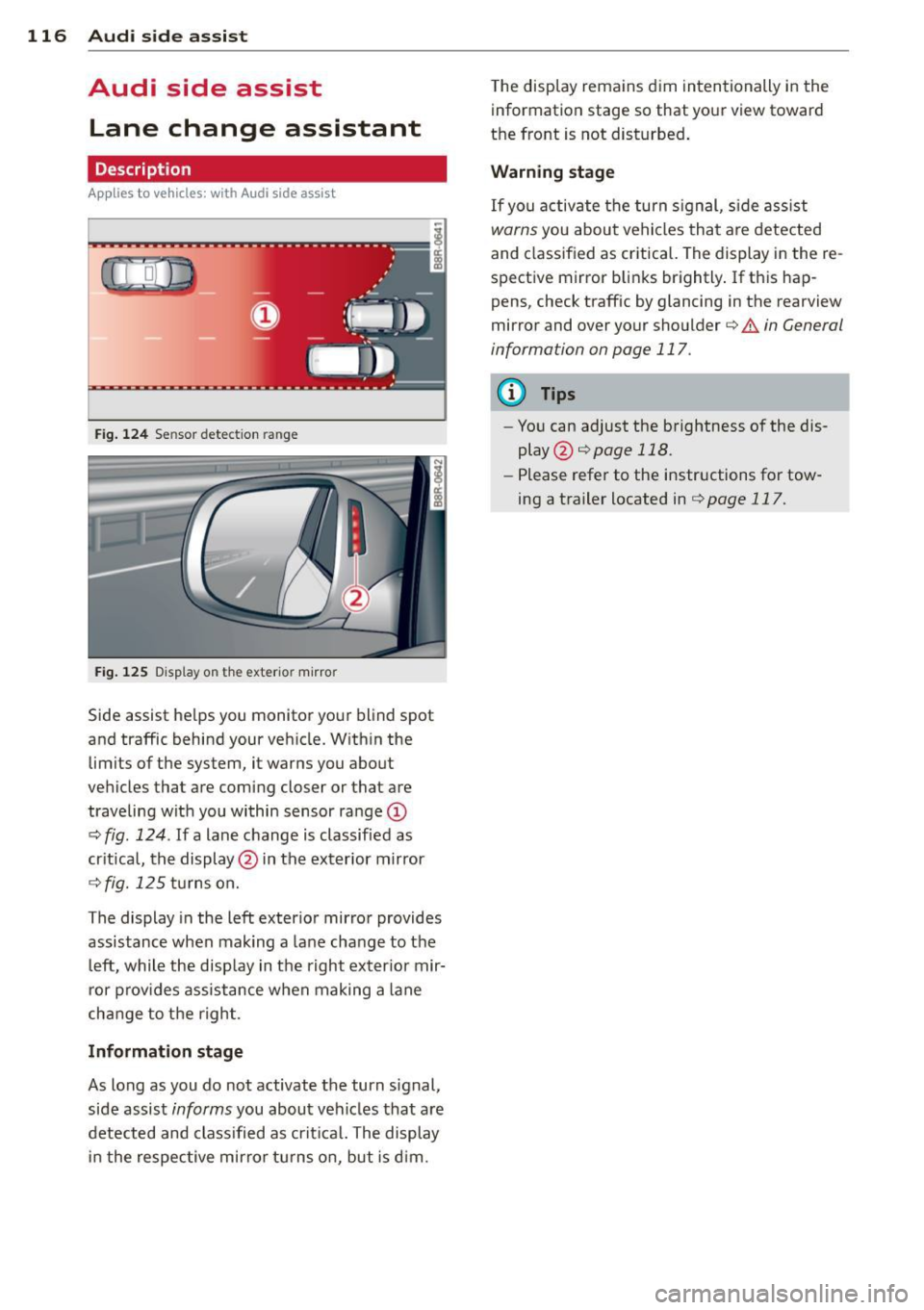
Fig. 124 Sensor detectio n ran ge
Fig. 125 Disp lay on the exterio r mirro r
Side assist he lps you monitor your blind spot
and traffic behind your veh icle. W ith in the
limits of the system, it warns you about
vehicles that are coming closer or that are
traveling with you within sensor range
(D
c:> fig . 124. If a lane change is classified as
critical, the display @in the exterior mirror
¢ fig.125turnson.
The display in the left exterior mirror provides
assistance when mak ing a lane change to the
le ft, while the display in the right exter ior mir·
ror provides assistance when making a lane
change to the right.
Information stage
As long as you do not activate the turn signal,
side assist
informs you about vehicles that are
detected and class ified as critical. The display
in the respective mirror turns on, but is d im. T
he display remains dim intentionally in the
information stage so that your view toward
the front is not disturbed .
Warning stage
If you activate the turn s ignal, s ide ass ist
warns you about vehicles that are detected
and class ified as critical. The display in the re
spective mirror blinks brightly . If this hap
pens, check traffic by glancing in the rearview
mirror and over your shoulder c:>
.&. in General
information on page 117.
(D Tips
- You can adjust the brightness of the dis
play @c:>
poge 118.
-Please refer to the instructions for tow·
ing a trailer located in ¢
page 117.
Page 119 of 316
General information
Applies to vehicles: with Audi side assist
®
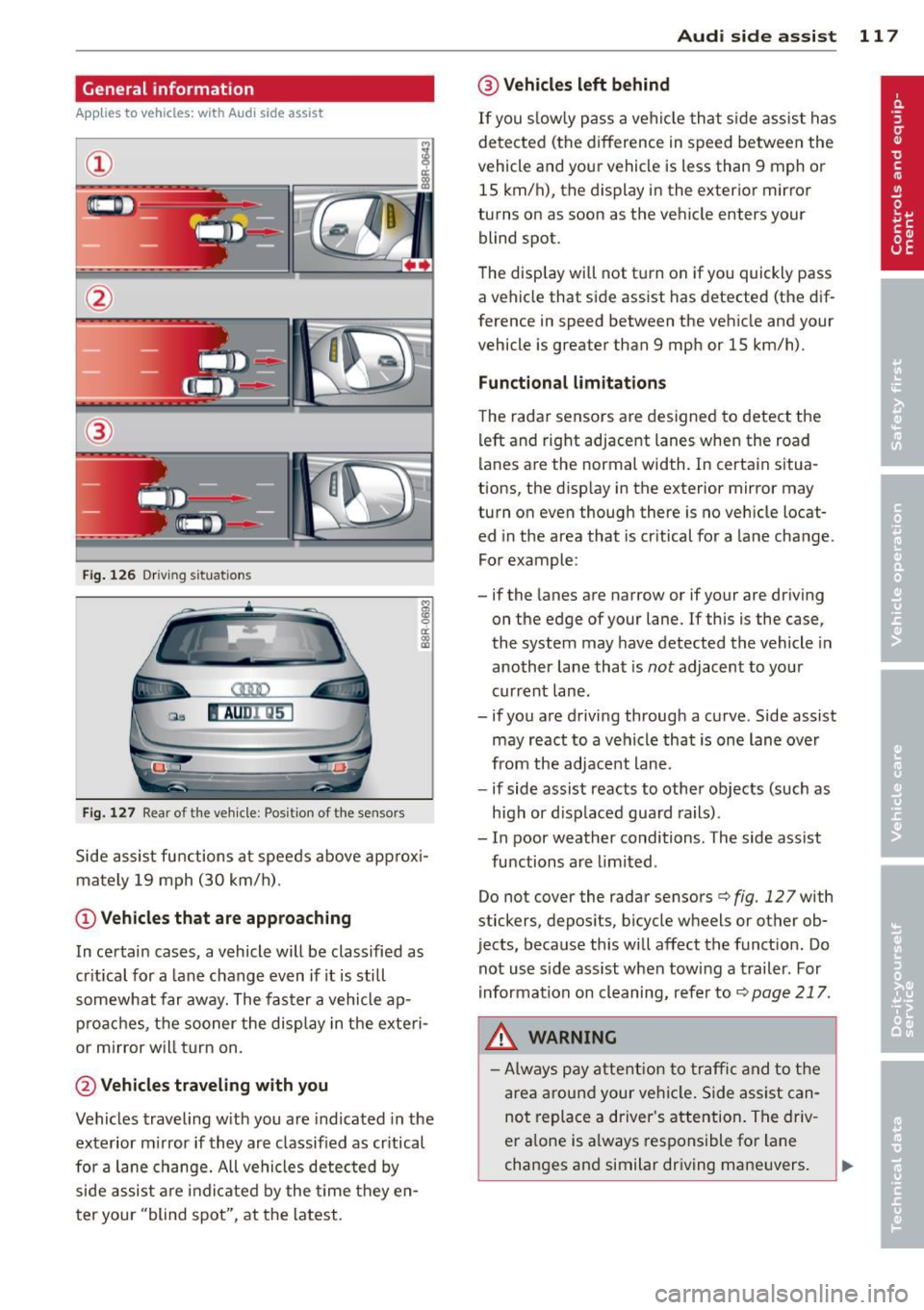
Fig . 126 Driving situations
Fi g. 1 27 Rear of t he ve hicle: Pos it ion of the sensors
M
m 0 ci: .. a,
Side assist functions at speeds above approx i
mately 19 mph (30 km/h).
@ Vehicl es th at ar e approaching
In certain cases, a vehicle will be classified as
cr itical for a lane change even if it is still
somewhat far away. The fas ter a vehicle ap
p roaches, the sooner the display in the exteri
or m irror will t urn on.
@ Vehicles traveling with you
Vehicles traveling w ith you are indicated in the
exterior m irror if they are classified as cr itical
for a lane change. All vehicles detec ted by
side assist are indicated by the time they en
ter your "blind spot", at the latest.
Audi side assist 11 7
@ Vehicle s left behind
If you s low ly pass a vehi cle that s ide assist has
detected (the difference in speed between the
vehicle and you r vehicle is less than 9 mph or
15 km/h), the display in the exterio r mir ror
turns on as soon as the vehicle enters your blind spot.
T he disp lay will not t urn on if you quickly pass
a vehicle that side assist has detected (the dif
ference in speed between the veh icle and your
vehicle is greater than 9 mph or 15 km/h).
Functi onal limitations
The radar sensors are designed to detect the
left and right adjacent lanes when the road
lanes are the normal width. In certain situa
tions, the d isp lay in the exterior mirror may
turn on even though there is no veh icle locat
ed in the area that is cr itical for a lane change.
For example:
- if the lanes are narrow or if your are dr iving
on the edge of your lane.
If this is the case,
the system may have detected the vehicle in
another lane that is
not adjacent to you r
current lane .
- if you a re driving through a curve. Side assist
may react to a vehicle that is one lan e ove r
from the adjacent lane.
- if side assist reacts to other objects (such as
high or d isp laced guard rails) .
- In poor weather conditions. The side assist
functions are l imited .
Do not
cover the radar sensors¢ fig. 127 with
stickers, depos its, bicycle wheels or other ob
jects, because this will affect the funct ion. Do
not use s ide ass ist when towing a trailer. For
i nformation on cleaning, refer to ¢
page 217.
_&. WARNING
-Always pay attention to traffic and to t he
area a round your ve hicl e. S ide assist can
not replace a driver's attention. T he driv
er a lone is always responsible fo r lane
changes and similar driving mane uvers.
Page 120 of 316
118 Audi sid e as sist
- Improper reliance on the side ass ist sys
tem can cause co llisions and serious
persona l injury:
- Never rely only o n side assist when
ch anging lanes.
- Always check rear view m irrors to make
sure that it is safe to change lanes.
- Side ass ist cannot detect a ll vehicles un
der all cond it ions -danger of ac cident!
- Please note that side assist indicates
there are approachi ng veh icles, o r
vehicles in your blind spot, on ly afte r
yo ur vehicle has rea ched a driving speed
of at least 19 mph (30 km/h).
- In certain s ituations, the system may not
f unc tion o r its fun ct io n may be lim ite d.
For example:
- if veh icles are approaching or being left
behind very quick ly . The display may
not turn on in time.
- in poor weather co ndit ions such as
heavy ra in, snow or heavy m ist .
- on very wide lanes, in tight curves or if
there is a rise in the road surface.
Vehicles in the adjacent lane may not be detected because they are outside
of the sensor range.
(D Note
The sensors ca n be displaced by impacts or
damage to the bumpe r, wheel housing and
unde rbody . This can affect the system.
Have your author ized Audi dealer or au
thori zed A udi Se rvice Facility check the ir
function.
@ Tips
- If the window g lass in the driver 's door
o r fro nt passenger's door has been tin t
ed, the disp lay in the exterior mirror may
be misinterp reted.
- Fo r De clarat ion of Compliance to Uni ted
Sta tes FCC and Industry Canada regu la
tions¢
page 296.
Activating and deactivating
Applies to vehicles: with A udi side assist
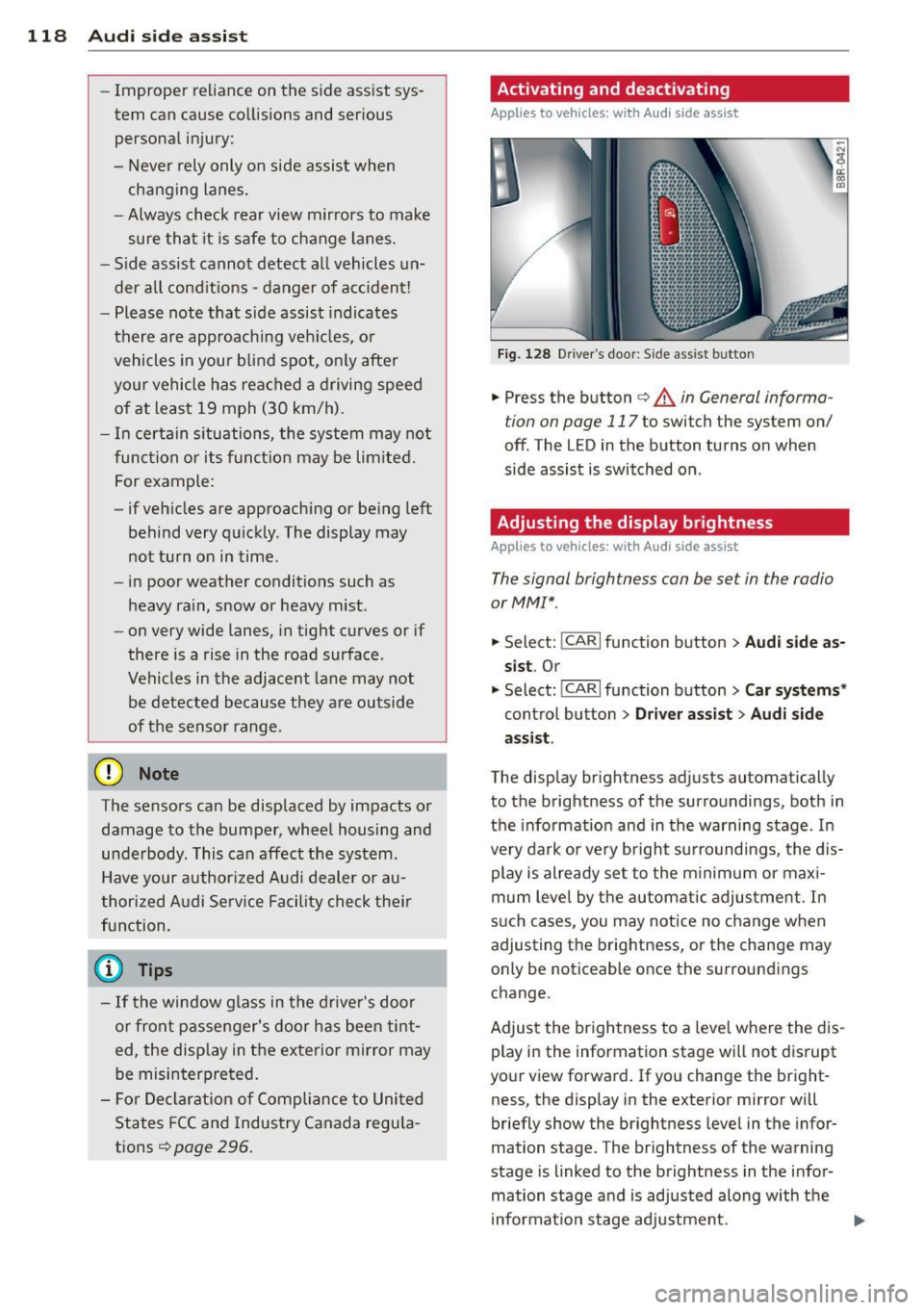
F ig. 128 D river 's doo r: Side ass ist butto n
.. Press the button c> A in General informa
tion on page 117
to switch the system on/
off. The LED in the button turns on when
side assist is switched on .
Adjusting the display brightness
Applies to vehicles: with Audi side assist
The signal brightness con be set in the radio
or MM!* .
-"' ~ a: co a,
.. Select: I CAR I function button > Audi side a s
s ist .
Or
.. Select: l~c -A ~R~ I function button > C ar systems *
control button > Driver a ss ist > Audi sid e
a ss ist .
The display br ightness adjusts automatical ly
to the brightness of the surroundings, both in
the info rmation and in the warning stage . In
very dark or very bright su rroundi ngs, the dis
play is already se t to the m inimum or maxi
mum leve l by the automatic adjus tme nt. In
s u ch cases, you may notice no change when
adjusting the brightness, or the change may only be noticeable once the surroundings
change.
Adjust the br ightness to a leve l whe re the dis
play in the information stage wi ll not d isrupt
your view forward. If you change the bright
ness, the display in the exterior mirror will
briefly show the br ightness level in the infor
mation stage. The brightness of the warning
stage is linked to the brightness in the infor
mation stage and is adjusted along with the
i nformation stage adjustment.
Page 123 of 316
Selecting the driving mode
Applies to vehicles: with Audi drive select
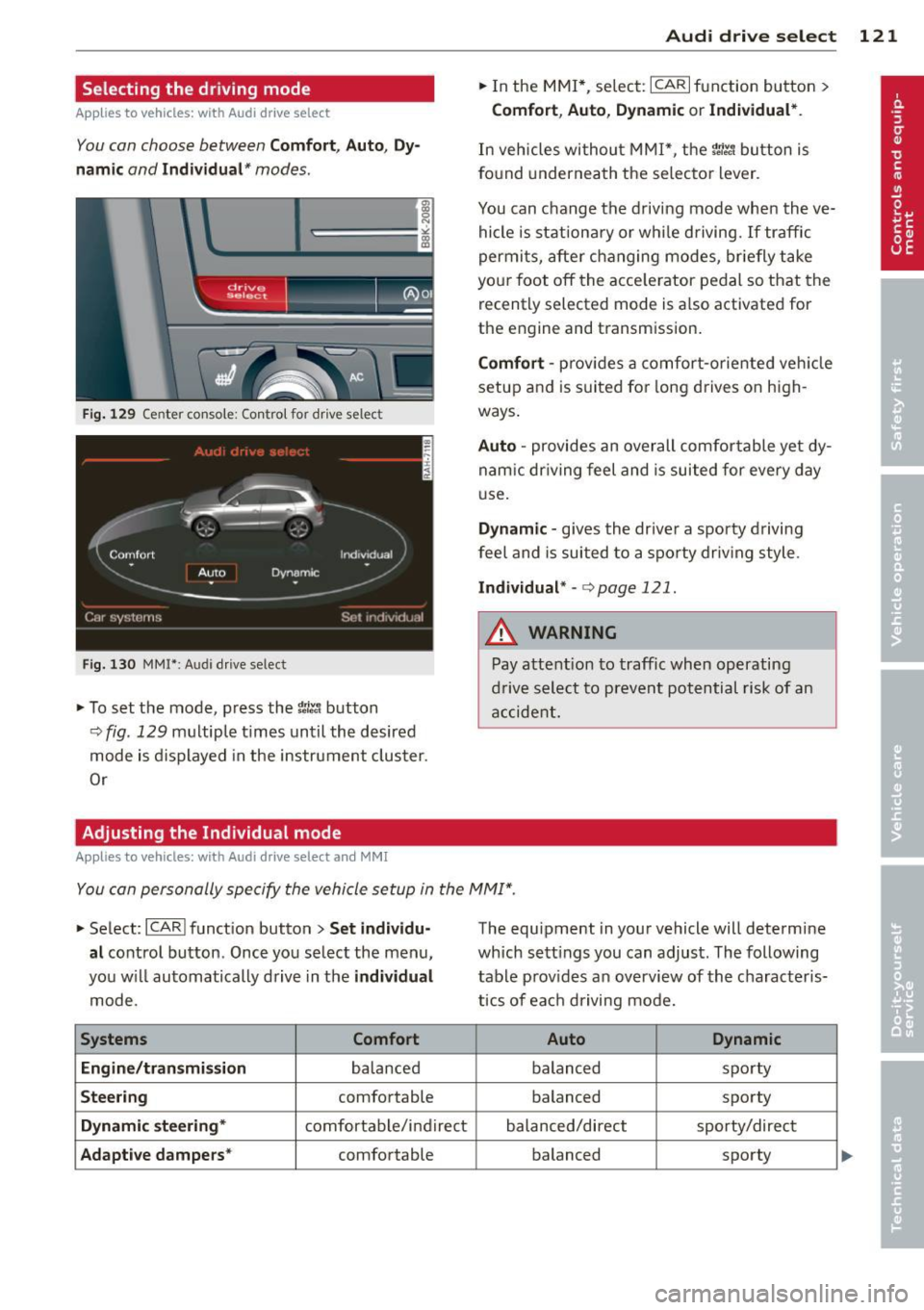
You con choose between Comfort, Auto, Dy
namic
and Individual* modes .
drive I I a,. selact ~
Fig. 129 Center co nsole: Con tro l for drive select
Fig . 130 MMI* : A udi drive select
,.. To set the mode, press the 1:i.l'.1 button
9fig. 129 multiple times until the desired
mode is displayed in the instrument cluster.
Or
Adjusting the Individual mode
Applies to vehicles: with Audi drive select and MMI
Audi drive select 121
,.. In the MMI*, select: ICARlfunction button>
Comfort , Auto , Dynamic or Individual *.
In vehicles without MMI*, the r.'i.l'.1 button is
found underneath the se lector lever .
You can change the driving mode when the ve
hicle is stationary or while driving. If traffic
permits, after changing modes, briefly take
you r foot off the acce le rator pedal so that the
recently selected mode is a lso activated for
the engine and transm ission.
Comfort -pro vid es a comfort-oriented vehicle
setup and is suited for long drives on high
ways .
Auto -provides an overall comfortable ye t dy
nam ic dr iving feel and is suited for every day
u se.
Dynamic -gives the driver a sporty driving
feel and is suited to a sporty driving style.
Individual* -c:> page 12 1 .
A WARNING
Pay attention to traffic when operating
drive select to prevent potential risk of an
accident.
-
You con personally specify the vehicle setup in the MMI".
,.. Select : ICARI function button> Set individu
al
control button . Once you select the menu,
you w ill automatically drive in the
individual
mode.
Systems Comfort
Engine/transmission
balanced
Steering comfortable
Dynamic steering* comfortable/ind ire ct
Adaptive dampers* comfortable The equipment
in your vehicle will determine
which sett ings you can adjust. The following
table prov ides an overview of the characteris
tics of each driving mode.
Auto Dynamic
balanced sporty
balanced sporty
balanced/direct sporty/direct balanced sporty
Page 126 of 316
124 Autom atic tr an smi ssion
power . Shifting may become noticeable when
accelerat ing . Hybrid drive*: electric driving is
not possible .
When the veh icle is stationary o r at speeds
below 1 mph (2 km/h), you must always apply
the foot brake before and while moving the lever to D/S out of N.
A WARNING
Read and follow a ll WARNINGS c:> & in
Driving the automatic transmission on
page 126 .
@ Note
-
Coasting downhi ll with the transmission in
N and the engine not r unning w ill result in
damage to the automatic transmission
and possibly the catalytic converter .
(D Tips
- On vehicles with Audi drive select*, you
can adjust the sporty sh ift characteristics
i n the
Dynamic driving mode.Swill ap
pear in the instrument cluster display in
stead of D .
- If you accidenta lly select N while driv ing,
take your foot off the acce lerator pedal
i mmediately and wait fo r the engine to
s low down to idle before se le cting D/S .
- Hybrid drive* : if the
las vl button
c:> page 100 is pressed w hile in sport
mode S, the transm issio n sw itches auto
matically to the normal mode D.
- If there is a power failure, the se lector
l ever will not move out of the P posi tio n.
The eme rgency release can be used if
this happens
q page 1 28.
Automatic Shift Lock {ASL)
The Automatic Shift Lock safeguards you
against accidentally shifting into a forward or
the reverse gear and causing the vehicle to
move unintentionally.
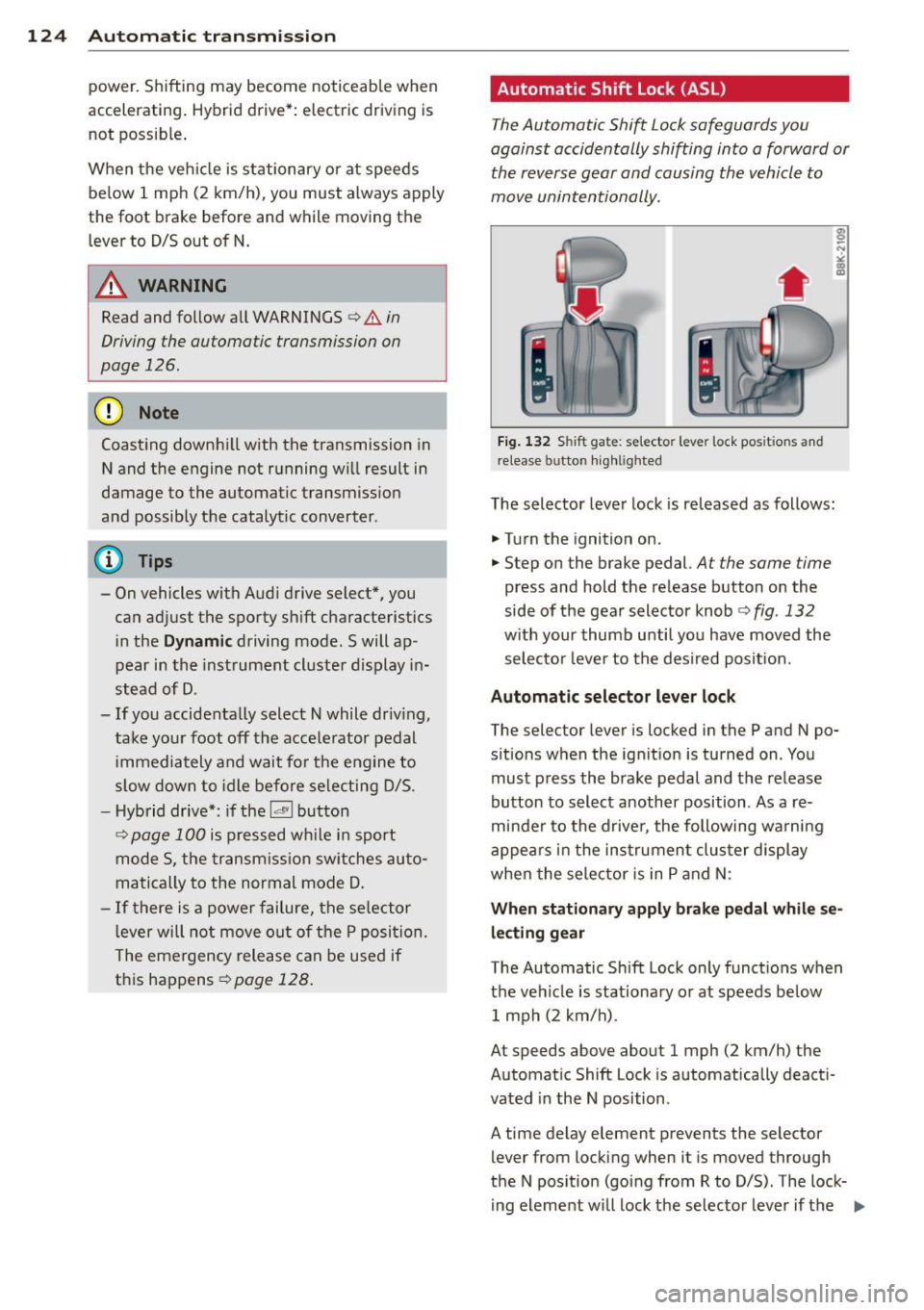
Fi g. 1 32 Shift gat e: selecto r lever lock pos it io n s and
r elease button highl ig h ted
The selector lever lock is released as follows :
.... Turn the ignition on.
.,.. Step on the brake pedal.
At the same time
press and hold the re lease button on the
side of the gear selector knob
c:> fig . 132
w ith your thumb until yo u have moved the
selecto r leve r to the desi red posit ion.
Automatic selector leve r lock
The selector lever is locked in the P and N po
s itions w hen the ign ition is turned on . You
must p ress the brake pedal and t he release
button to select another position . As a re
minde r to the drive r, the following wa rni ng
appea rs in t he instrumen t clus ter di splay
when the selector is in P and N:
When stationar y apply brak e pedal while se
lecting gear
The Automatic Shift Lock only funct ions when
t h e ve hicle is stationary or at speeds be low
1 mph (2 km/h) .
At speeds above about 1 mph (2 km/h) the
Automat ic Shift Lock is automatically deact i
vated in the N position .
A time delay element prevents the selector lever from locking when it is moved through
the N pos ition (going from R to D/S) . The lock
ing element w ill lock the selector lever if t he
Ill>
Page 129 of 316
conditions. Always be ready to apply the
brakes.
Manual shift program
Using the manual shift program you can
manually select gears.
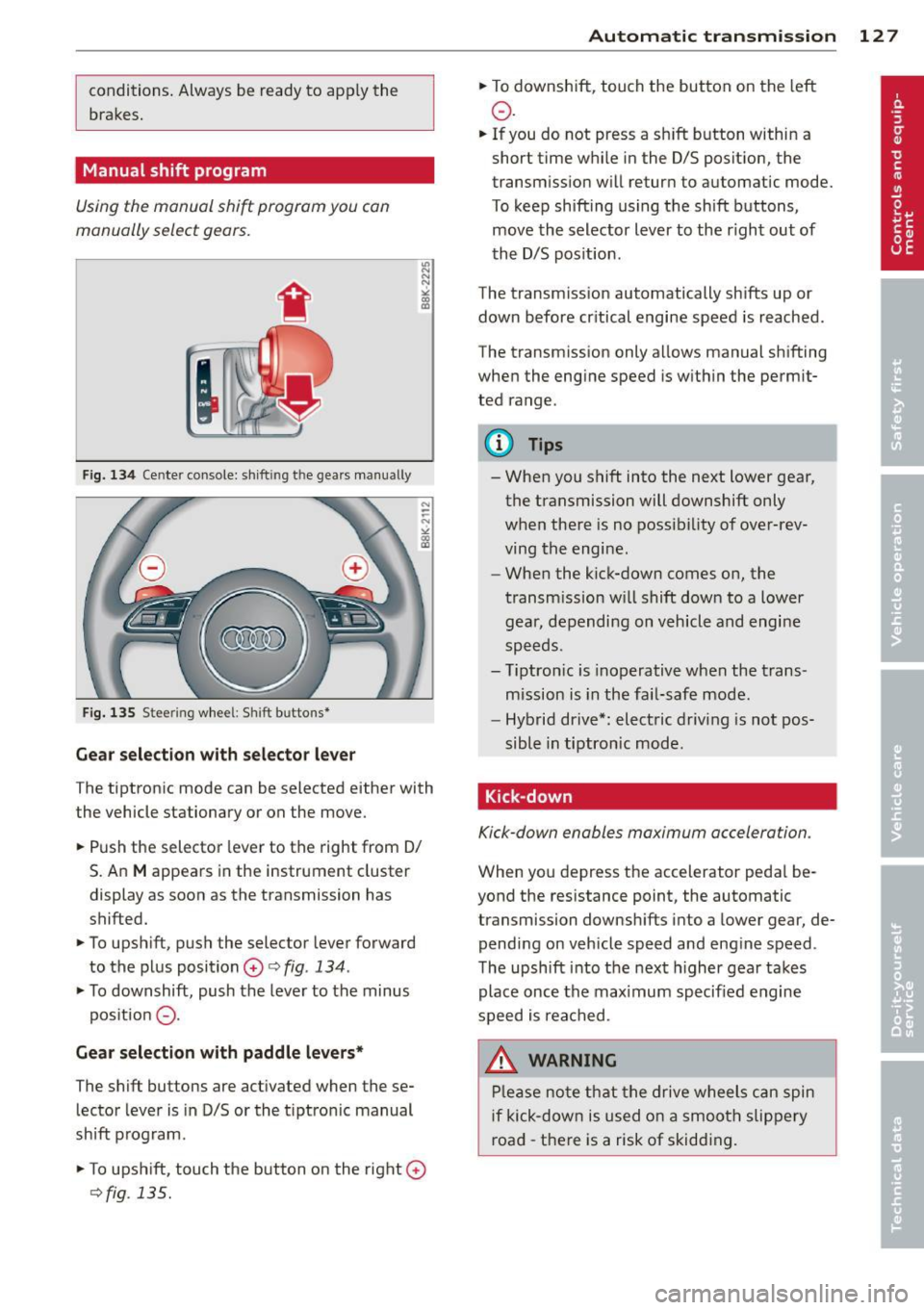
F ig. 134 Cente r console: sh ift in g t he gears manual ly
Fig. 135 S tee rin g wheel: S hift b utto ns*
Gear selection with selector lever
The tiptronic mode can be selected either with
the vehicle stationary or on the move.
.. Push the selector lever to the right from 0/
S. An
M appears in the instrument cluster
display as soon as the transmission has
shifted.
.. To upshift, push the selector lever forward
to the plus position
0 c:> fig. 134 .
.. To downshift, push the lever to the minus
pos ition
0 -
Gear selection with paddle levers*
The shift buttons are activated when these
lector lever is in D/S or the t iptron ic manual
shift program.
.. To upshift, touch the button on the right
0
c> fig . 135.
Autom atic transm ission 12 7
.. To downshift, touch the button on the left
0 .
.. If you do not press a sh ift button within a
short time while in the D/S position, the
transmission will return to automatic mode.
To keep shifting using the shift buttons,
move the selector lever to the r ight out of
the D/S position .
The transm iss ion automatically shifts up or
down before cr itical engine speed is reached.
The transmission only allows manual shifting
when the engine speed is within the permit
ted range .
@ Tips
-When you shift into the next lower gear,
the transmission will downshift only
when there is no possibility of over-rev
ving the engine.
- When the kick-down comes on, the
transmission will shift down to a lower
gear, depending on vehicle and engine
speeds.
- Tiptron ic is inoperative when the trans
mission is in the fail-safe mode.
- Hybrid drive*: electric driving is not pos
sible in tiptronic mode.
Kick-down
Kick-down enables maximum acceleration .
When you depress the accelerator pedal be
yond the resistance point, the automatic
transmission downsh ifts into a lower gear, de
pending on vehicle speed and engine speed .
The upshift into the next higher gear takes
place once the max imum specified engine
speed is reached .
_& WARNING
Please note that the drive wheels can spin
if kick-down is used on a smooth slippery
road -there is a risk of skidding .
Page 132 of 316
130 Parking system
Rearv iew camer a coverage area
The MM I display shows the area cove red by
the rearview camera
r=> fig. 140 (J) . Objects
that are not in the a rea covered @are not
shown on the MMI display .
We recommend that you p ractice park ing wi th
the rearview camera in a traffic-free location
or parking lot to become familiar with the sys
tem, the orientation lines, and their f unction.
When doing th is, there sho uld be good light
and weather conditions.
I n the MMI disp lay, objects or vehicles appear
closer or further away if:
- yo u are d riving in reverse gear from a level
s u rface on to an incline, or a downward
s lope,
- you are d riving in reverse gear toward pro
truding objects,
- the vehicle is carrying too much load in the
rear .
The accu racy of the orientat ion lines and b lue
surfaces dim inishes if:
- the rearview camera does not prov ide a reli
able image, for example, in poor visibility
condit io ns or if the lens is dirty,
- the image on t he screen is not visible due to
s u n glare and reflect ion .
Caring for the rear view came ra len s
The rearview camera is located above the rear
license plate bracket . For the parking system
to operate, the lens
r=> fig. 141 must be kept
clean:
- Dampen the lens with a househo ld alcoho l
based glass cleaner, and then wipe the lens
clean with a dry cloth
r=> 0 .
- Remove snow with a hand brush and ice
prefe rably with a de-icing spray
r=> 0 .
A WARNING
-The parking system cannot rep lace the
dr iver's at tention. The d river alone is re
sponsible fo r par kin g and similar dr iving
ma ne uvers .
-
-Sensors have blind spots in wh ich objects
cannot be detected. Pay spec ia l attention
to small childre n and an imals because
the sensors cannot always detect them .
- Always keep your eyes on the vehicle 's
sur roundings, us ing the rearv iew mir ror
as we ll.
- Do not allow yourself to be distracted
from traffic by the rea rv iew camera pic
tures .
- If the position and the installation angle
of the camera has changed, for example,
after a rear end coll ision, do not conti nue
to use the system for safety reasons .
H ave it chec ked by a qualified dea le rship.
Q) Note
- Low obstacles a lready s ignaled by a
wa rning can disappear from the system's
detection rang e as they are app roached
and w ill no t cont inue to be signaled. Ob
jec ts such as ba rr ier chains, tra iler draw
bars, thin painted vert ica l poles or fen
ces may not be detecte d by the system,
posing ris k of damage .
- N ever use warm or hot water to remove
snow or ice from the rearv iew camera
lens -this could ca use the lens to crac k!
- W hen cleaning the lens, never use prod
ucts that a re a brasive.
Page 133 of 316
Switching on and off
Applies to vehicles: with Audi parking system p lus with
rea rview camera
The reorview camer a switches on automati
cally together with the acoustic and visual
pork assist wh en you put the vehicl e in re
verse .
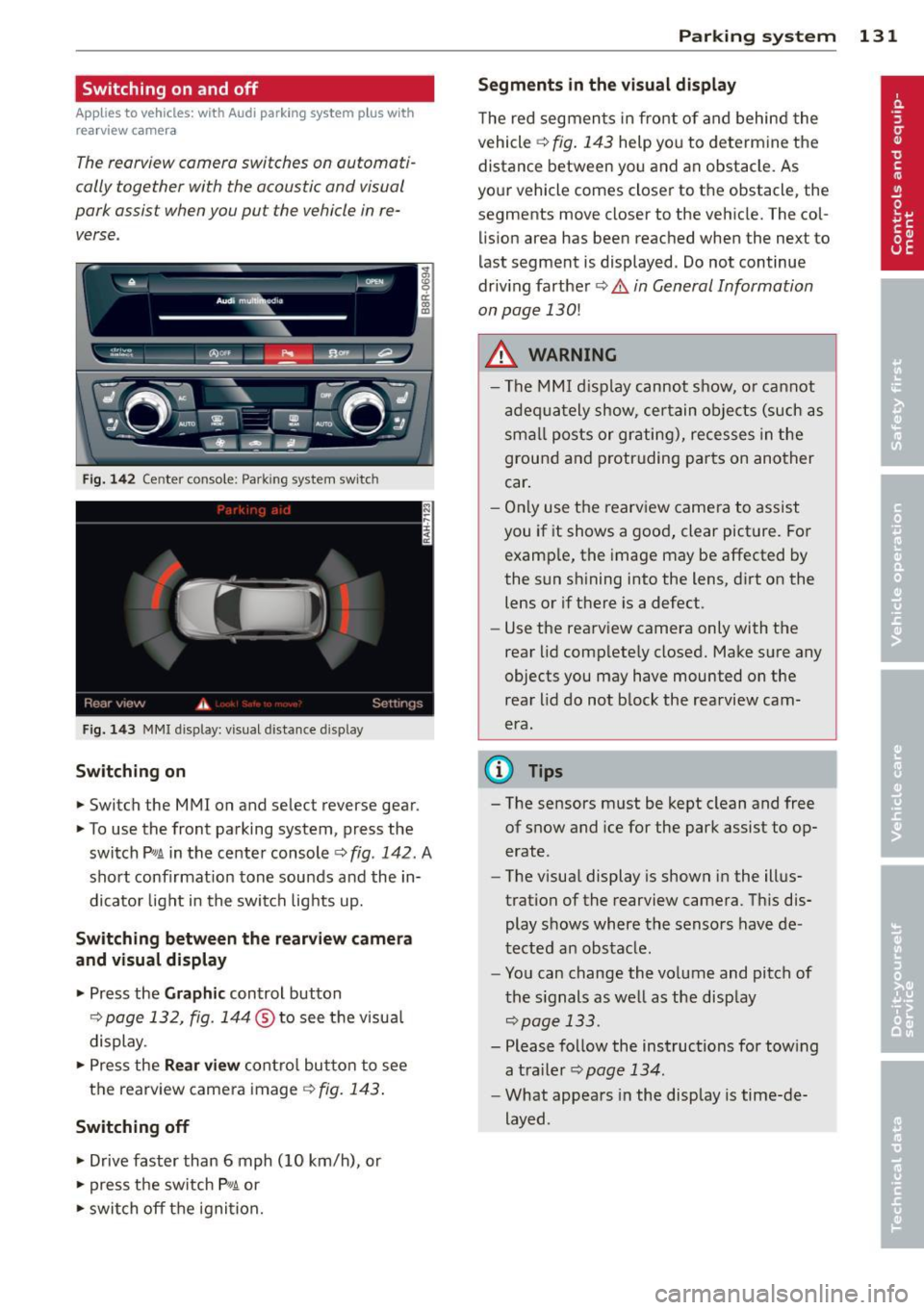
Fig. 14 2 Center co nsole ; Pa rk ing syste m switc h
Fig. 14 3 MMI disp lay: visu al dista nce display
Switching on
.,. Switch the MMI on and se lect reverse gear.
.,. To use the front parking system, press the
switch
Pw.A in the center console~ fig. 142. A
sho rt confirmat io n tone sou nds a nd the in
dicato r light in the switch lights up.
Switching between the rearview came ra
and visual display
.,. Pr ess the Graphic control button
¢ page 132, fig. 14 4 ® to see t he visua l
display.
.,. Press the
Rear view cont ro l but to n t o see
the rearview came ra image
¢ fig. 143 .
Switching off
.,. Drive faster than 6 mph (10 km/h), or
.,. press the sw itch
p ,,,A or
.,. switch off t he igni tion.
Par king system 131
Segments in the visual display
The re d segmen ts i n fro nt of and behind the
vehicle ~
fig. 143 help yo u to determ ine the
distance between yo u and an obstacle. As
you r vehicle comes close r to t he obstacle, the
segments move closer to the vehicle. The col lis ion area has bee n reached when the next to
l ast segment is displayed . Do not continue
dr iv ing farther ~.&.
in General Information
on page 130!
A WARNING
- Th e M MI di splay can not s how, o r ca nnot
ad equa tely show, cer tain o bje cts ( such as
smal l posts or gr ati ng), recesses in the
grou nd and protr uding par ts on ano ther
car .
- On ly use t he rearv iew came ra to assist
you if it shows a goo d, clear pict ure. Fo r
examp le, the image may be affected by
the sun s hining into the lens, d irt on the
lens or if there is a defect.
- Use the rearv iew camera only with the
rear lid c om plete ly closed. Make s ure any
o bjects you may have mounted on the
rea r lid do n ot b lock the rearview cam
era.
(D Tips
- T he sensors m ust be kept clean and free
of snow and ice for the park assist to op
erate .
- The visua l display is shown in the ill us
tration of the rearview came ra. Th is dis
play s hows where the senso rs have de
tected an obstacle .
- Yo u can change the vo lume and pitch of
t he s ignals as we ll as the disp lay
~page 133.
- Please fo llow the ins tructions for tow ing
a tra iler
¢ page 134.
-What appears in the display is time-de
layed .
Page 134 of 316
132 Parking system
Reverse Park ing
App lies to vehicles: with Audi parking system p lus w ith
rea rview camera
Parking mode 1 con be used when parking in
a garage or into a parking space.
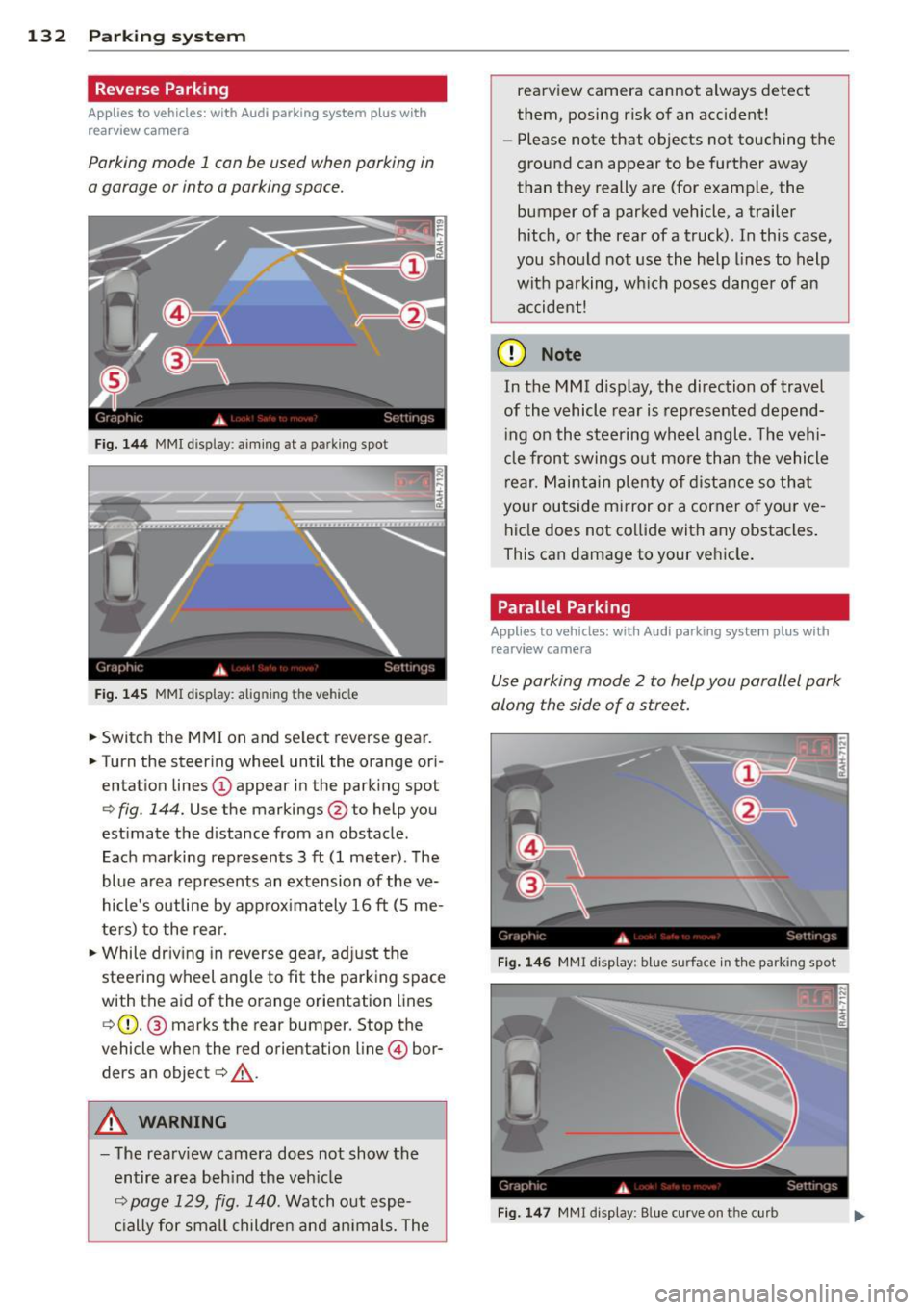
Fig. 1 44 MMI display: aiming at a parking spot
Fig. 14 5 MMI display: aligning the vehicle
... Switch the MMI on and se lect reverse gear .
... Turn the steer ing whee l until the orange ori
entation lines @appear in the park ing spot
¢ fig . 144. Use the markings @to help you
estimate the d istance from an obstacle.
Each marking represents 3
ft (1 meter). The
blue area represents an extension of the ve
hicle's outline by approx imately 16
ft (S me
ters) to the rear.
"' While driv ing in reverse gear, ad just the
steering wheel angle to fit the parking space
with the aid of the orange orientation lines
¢ (D. @ marks the rear bumper. Stop the
vehicle when the red orientation line © bor
ders an object¢ _&..
A WARNING
-The rearv iew camera does not show the
entire area beh ind the veh icle
¢ page 129, fig. 140. Watch out espe
c ially for small childre n an d an imals. The rearview camera cannot always detect
them, posing risk of an accident!
- Please note that objects not touching the
ground can appear to be further away
than they really are (for example, the
bumper of a parked vehicle, a trailer
hitch, or the rea r of a truck). In this case,
you shou ld not use the help lines to help
with pa rking, wh ich pos es dange r of an
accident!
(D Note
In the M MI d is play , the direction of travel
of the vehicle rear is represented depend
i ng on the stee ring wh eel angle . T he vehi
cle front swings o ut more than the vehicle
rear. M aint ain ple nty of dista nce so th at
your outside mirror or a corner o f you r ve
hicle does not co llide with any obstacles .
This can damage to your ve hicle .
Parallel Parking
Applies to vehicles: wit h Aud i parking syste m plus with
rearv i ew camera
Use parking mode 2 to help you parallel park
along the side of a stree t .
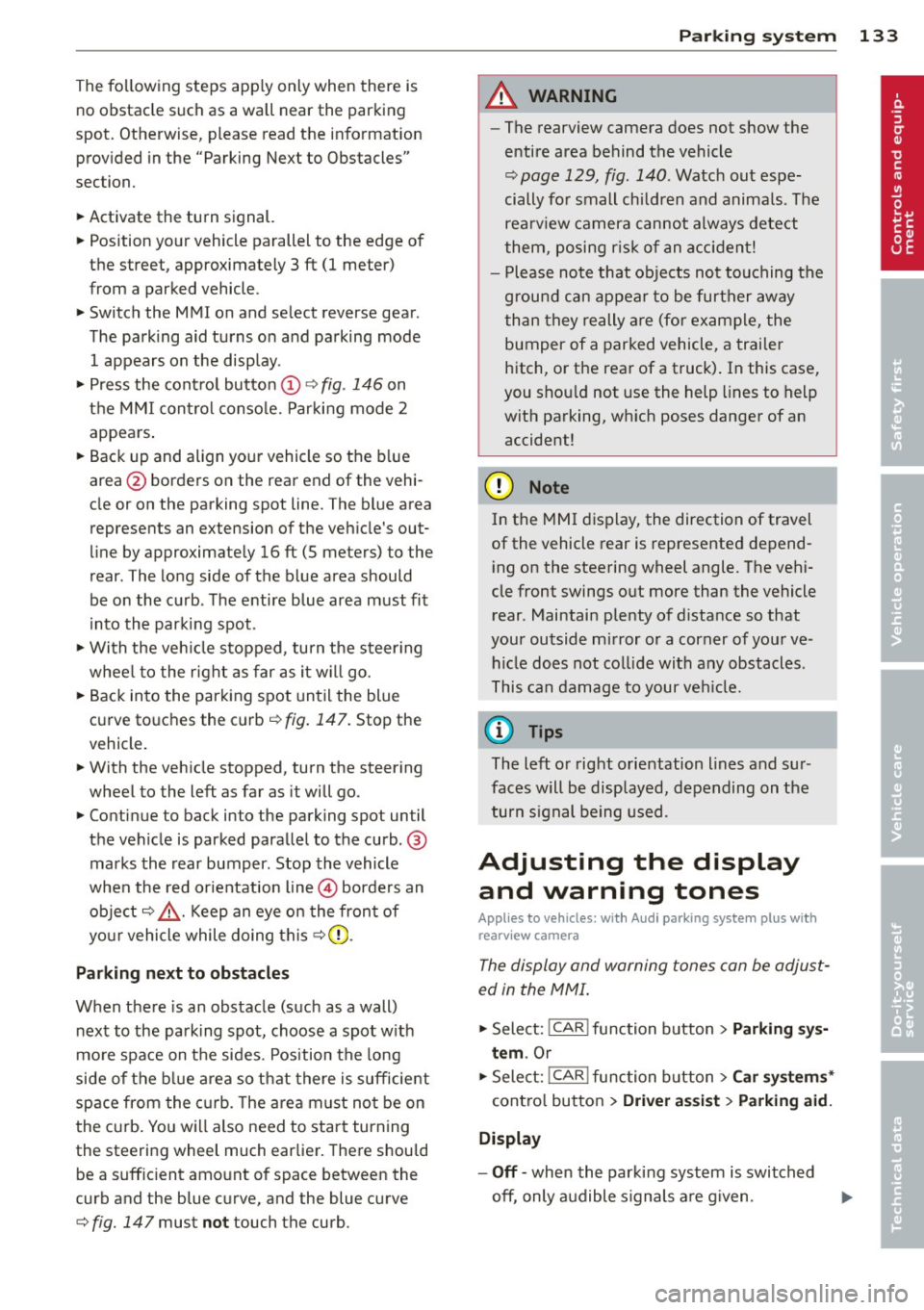
F ig . 14 6 MMI disp lay : b lue surface in th e parking spot
Fig . 14 7 MM! display: Blue curve on the curb
Page 135 of 316
The following steps apply only when there is
no obstacle such as a wall near the parking
spot. Otherwise, please read the information
prov ided in the "Parking Next to Obstacles"
section.
~ Activate the turn signal.
~ Position yo ur vehicle parallel to the edge of
the street, approxim ately 3 ft (1 meter)
from a parked vehicle .
~ Switch the MMI on and se lect reverse gear .
The parking aid tu rns o n and parking mode
1 appears on the display .
~ Press the control button @¢ fig. 146 on
the MMI contro l conso le. Parking mode
2
appea rs .
~ Backup and align yo ur vehicle so the b lue
area @ borders on the rear end of the vehi
cle or on the parking spot line. The bl ue area
represents an extension of the veh icle's out
line by approximate ly
16 ft (5 meters) to the
rear . The long side of the blue area should
be o n the curb . The entire blue area must fit
i nto the parking spot .
~ With the veh icle s topped, turn the s teer ing
whee l to the right as far as it w ill go.
~ Back into the parking spot until the blue
curve to uches the curb¢
fig. 147. Stop the
vehicle.
~ With the veh icle stopped, turn the steer ing
wheel to the left as far as it will go .
~ Continue to back into the parking spot un til
the vehicle is parked parallel to the curb .@
marks the rear bumper. Stop the vehicle
when the red orientation line@ borde rs an
object ¢.&, . Keep an eye on the fron t of
yo ur vehicle while do ing this
~ CD .
Pa rking n ext to obstacles
When there is an obstacle (such as a wall)
next to the pa rking spot, choose a spot w ith
mo re space on t he sides. Position the long
side of the b lue a rea so that there is sufficient
space from the curb. The a rea m ust no t be on
the c urb. You wi ll also need to start turn ing
the steering wheel much earlie r. T he re should
be a suffic ient amo unt of space between the
curb and the blue curve, and the blue c urve
¢
fig. 147 must not touch the curb.
Par king system 133
A WARNING
- The rearview camera does not show the
entire area behind the vehicle
~ page 129, fig. 140 . Watch out espe
cially fo r small children and anima ls . The
rea rv iew camera cannot always detect
them, posing r is k of an accident!
- P lease note that objects not touching the
g rou nd can appear to be further away
than they really a re (for example, the
bumper of a parked vehicle, a trai ler
hitch, or the rea r of a truck) . In this case,
you shou ld not use the help lines to help
with parking, wh ich poses danger of an
accident!
(D Note
In the MMI display, the direction of travel
of the vehicle rear is represented depend
i ng on the steering wheel angle . The vehi
cle front swings out more than the vehicle rear. Maintain ple nty of d istance so that
your outside mirror or a corner of your ve
hicle does not col lide with any obstacles.
T his can damage to your ve hicle.
(0 Tips
The left o r right orientation lines and su r
faces will be disp layed, depending on the
turn s ignal being used .
Adjusting the display
and warning tones
App lies to v ehicl es: wi th Audi parking sys te m plus wi th
rearv iew camera
The display and warning tones can be adjust
ed in the MMI .
~ Select: !CAR ! function button> Parking s ys
tem .
Or
~ Select: ~IC_ A_ R~I func tio n button> Car sy ste m s*
cont ro l button > Driver as sist > Parking aid.
Display
-Off -when the parki ng system is switched
off, only a udible s ignals a re g iven .