warning AUDI Q5 2018 Owners Manual
[x] Cancel search | Manufacturer: AUDI, Model Year: 2018, Model line: Q5, Model: AUDI Q5 2018Pages: 392, PDF Size: 60.56 MB
Page 162 of 392
Multifunction steering wheel
Multifunction steering
wheel
Introduction
Applies to: vehicles with multifunction steering wheel
In the driver information system display, you can
control numerous Infotainment functions using
the multifunction steering wheel plus*
¢ page 12 or the mult ifunct ion steer ing wheel*
¢pag e 15.
You can control additional Infotainment func
tions using the
MMI control panel¢ page 147 in
the Infota inment system display.
.&_ WARNING
Direct your full attention to driving. As the
dr iver, yo u have complete responsibility for
safety in traffic. Only use the functions in
-
such a way that you a lways maintain com
plete control over your vehicle in all traffic sit-
uations.
Radio
Applies to: vehicles with multifunction steering wheel and ra
dio
Applies to: vehicles with multifunction steering wheel
"' Press the I MODE I button on the multifunction
steering wheel repeatedly until the Rad io/Me
dia tab is displayed.
Applies to: vehicles with multifunction steering wheel plus
"'Press the l<1 t>I button on the multifunction
steering wheel repeatedly until the Radio/Me
dia tab is displayed.
"' Press the le ft contro l button ¢ page 13.
Dep ending on vehicle equipm ent, the following
functions may be available in the drive r informa
tion system.
- Selecting the frequency band: select and con
firm a frequency band .
-Selecting a station from the station list: select
and confirm a radio station.
- Selecting a station from the presets list : select
and confirm
Presets and then a radio station .
160
-Opening a media source: select and confirm
Switch to media.
Additional settings
-Select: r ight cont rol button> desired entry.
See¢ page 223 .
Q) Tips
Pay attention to the Infotainment system dis
play if necessary. Depending on the selected
funct ion, it may be necessary to use the MMI
control panel.
Media
Applies to: vehicles with multifunction steering wheel and media
Requirement: a media drive must contain audio/
video
files¢ page 226.
Applies to: vehicles with multifunction steering wheel
"'Press th e I MODE ! button on the mu ltifunction
steering whee l repeatedly unti l the Radio/Me
dia tab is d isp layed.
Applies to: vehicles with multifunction steering wheel plus
"' Press the l<1 C> I button on the multifunction
steer ing whee l repeatedly unt il the Radio/Me
dia tab is displa yed.
"' Press the left control button ¢ page 13.
Depending on veh icle equipment, the following
funct io ns may be available in the driver informa
tion system .
-Selecting a media source: select and confirm a
source such as the SD card.
-Switching to the radio : select and confirm
Switch to radio.
- Playing an audio/video file:
select and confirm
a file .
-Pausing/resuming playback : press the right
thumbwheel @¢page 14, fig . 11 . To resume
playback, press the right thumbwheel again.
-Opening additional track information: select:
r ight control button >
Show "Now Playing "
screen .
For additional information, see ¢page 238.
Page 166 of 392
Multifunctio n ste ering whe el
Requirement: a destination must be entered
r::!> page 204, route guidance must be started and
the navigation tab must be disp layed.
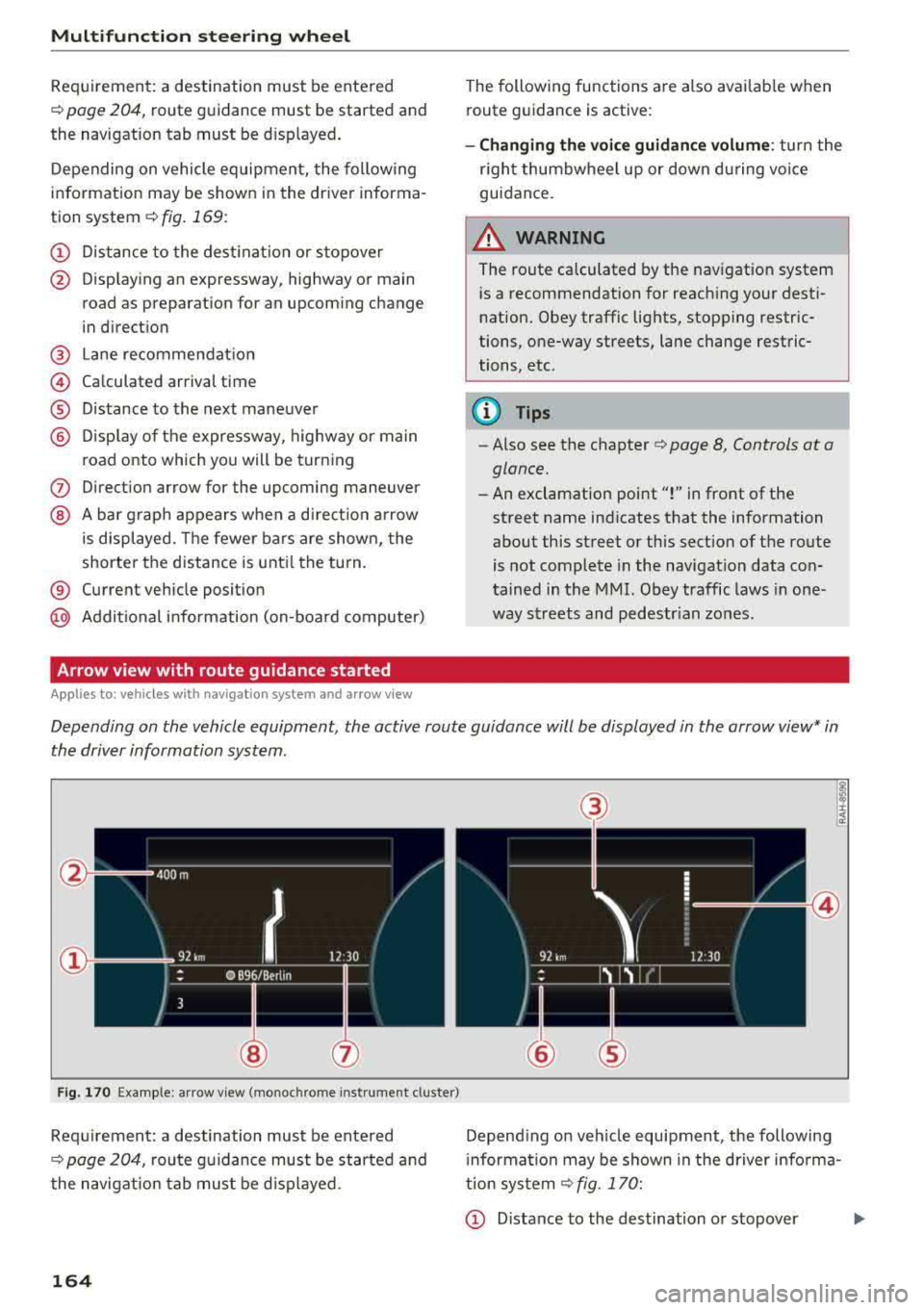
Depending on vehicle equipment, the following
information may be shown in the driver informa
tion system
r::!> fig . 169 :
CD Distance to the dest inat ion or stopover
@ Disp laying an expressway, highway or main
road as preparation for an upcoming change
in direction
@ L ane recommendation
@ Ca lculated arrival time
® D istance to the next maneuver
@ D isp lay of the expressway, highway or main
road onto which you will be turning
(J) Direct ion arrow for the upcoming maneuver
@ A bar graph appears when a di rect io n arrow
is displayed. The fewer bars are shown, the
shorter the d istance is unt il the turn .
® Current vehicle posit ion
@ Addit ional info rmation (on-board computer)
Arrow view with route guidance started
Applies to: ve hicles with navigat ion system and arrow view
The following functions are also avai lab le when
route guidance is act ive :
-Changing the voice guidance volume : turn the
r igh t thumbwheel up or down du ring voice
guidance.
A WARNING
The route calculated by the nav igation system
is a recommendation for reaching your desti
nation. Obey traffic lights, stopp ing restric
tions, one-way streets, lane change restric
tions, etc .
@ Tips
- Also see the chapter
r::!> page 8, Controls at a
glance.
- An exclamation point ''!'' in front of the
street name indicates that the information
about this street or this sect ion of the route
is not complete in the navigation data con
tained in the
MMI. Obey traffic laws in one
way streets and pedestr ian zones.
Depending on the vehicle equipment , the active route guidance will be displayed in the arrow view* in
the driver information system.
F ig . 170 Example : a rr ow v iew (monoc hrome inst rument cluster)
Requirement: a destination must be entered
r::!> page 204, route gu idance must be started and
the navigation tab mus t be d isp layed .
164
(3)
@
Depend ing on veh icle equipment, the following
i nformation may be shown in the driver info rma
tion system
r::!> fig . 170:
CD Distance to the destination or stopover ...,
Page 167 of 392
u co .... N r--N .... 0 <( 0 00
@ Distance to the next maneuver
® Direct ion arrow for the upcoming maneuver
@ A bar grap h appears when a d irect ion arrow
i s disp layed. The fewe r bars are show n, the
shorter t he distance is unti l the turn .
® Lane recommendat ion
@ Addit ional in fo rmat ion (on-board computer)
(J) Calculated arrival time
@ Display of the street currently be ing driven
on If a point is displayed before the street, it
i s ind icating the street you w ill be on w ith the
n ext maneuve r.
The follow ing funct ions are also available when
route guidance is act ive:
- Changing the voice guidance volume : turn the
rig ht thumbwhee l up or down during voice
guidance.
A WARNING
The route calculated by the navigation system
is a recommendation fo r reaching your desti
nation. Obey t raff ic lights, stopping rest ric
tions, one-way streets, lane change restr ic
tions, etc.
(D Tips
- Also see the chapter~ page 8, Controls at a
glance.
- An exclamation point" !" in front of the
street name indicates that the informat ion
abo ut this street or this section of the route
i s no t complete in the navigation da ta con
tained in the M MI. Obey traffic laws in one
way streets and pedestrian zones.
Multifunction ste ering wheel
165
Page 169 of 392
u co ..... N r--N ..... 0 <( 0 00
Voice recognition system Operating
Applies to: vehicles with voice recognitio n system
You con operate many Infotainment functions
conveniently by speaking.
Requirement: the ignition and the MM I must be
switched on ¢
page 148, there must not be any
phone call in progress and the park ing system
must not be active .
~ Switching on: press the~ button @
¢page 14, fig . 11 o r ¢ page 15, fig. 13 br iefly
on the mu ltifunction stee ring wheel and say
the des ired command after the
Beep .
~ Switching off : press and hold the [2;J b utton.
Or : press the [2] but to n.
~ Pausing : say the command Pause . To resume,
press the
[2;J b utton .
~ Correcting : say the com mand Correction . Or :
simp ly say a new comm and d uring an an
no uncement
¢ page 245.
Input assistance
The system gu ides you throug h the input with
v isua l and audio feedbac k.
- Visual input assistance : after switching on
vo ice recogn it ion, a display w ith a selection of
poss ible commands appea rs . This command
display can be sw itched on o r off. Se lec t:
IMEN UI butt on> Settings > left cont ro l button
> MMI settings > Speech dialog system .
- Audio input assistance :
to have the poss ible
comm ands read, tu rn th e voice rec ogn ition sys
tem o n and say
Help.
For the system to understand you:
Speak clearly and dis tinct ly a t a normal vo lume .
Speak lo uder when d riving faste r.
Emphasize the words in the commands even ly
a n d do no t leave long pauses .
C lose the doors, the windows and the sunroof* to
reduce background noise . Make s ure that passen
gers a re not speaking when you a re giving a voice
command .
Voice recognition system
D o not d irect the vents towa rd the hands -free mi
c ro p hone, wh ich is in the roof head liner nea r the
front interior lig hts.
O nly use the system from the dr ive r's sea t be
ca use the hands -free microphone is di rected to
ward that seat .
Additional settings
See¢ page 245, Speech dialog system .
_&. WARNING
- Dir e ct y ou r full a tte ntio n to dr iv in g. A s the
d river, you have com ple te re sponsibili ty fo r
safety in t raff ic . O nly use the functions in
such a way t hat you a lways maintai n com
p lete contro l over your vehicle in all traffic
situations.
- Do not use t he voice recognition system in
emergencies beca use your voice may change
in st ressfu l situations. It may take longe r to
d ia l the number o r th e system may not be
ab le to d ia l it at all. Dia l the emergency
number manually.
(D Tips
-The d ialog pauses w hen the re is a n incom
ing phone call a nd will con tinue if yo u ig
nore the ca ll. The dia log ends if yo u answer
t he ca ll.
- Yo u can select an item in the list using ei
t her the vo ice recogn it io n sys tem o r the
cont ro l knob .
Command overview
information
Applies to: vehicles with voice recognition system
T he following overv iews des cribe the comm ands
t h at can be used to ope rate the MMI using the
vo ice recognit ion system.
Alte rnative co m mand s ar e separate d using
a"/ ",
fo r ex ample say: Telephone / (or) Navigation /
(or) Radio.
Sequences of com mands used to perfo rm an a c
t io n a re iden tified w it h
a ">", fo r ex am ple s ay:
Enter address > ( then) Enter country/state . ..,
167
Page 176 of 392
Tele phone
Telephone
Introduction
Applies to: vehicles with telephone
To make phone coils in your vehicle using the
/11/111, connect your cell phone to the /11/111 via
Bluetooth.
Hand sfree
After you have connected your ce ll phone to the
MMI via B luetooth, you can use the handsfree
system and operate telephone functions through
your
MMI. You can make calls using the antenna
on your cell phone.
A WARNING
-Medical experts warn that cell phones can
interfere w ith the funct ion of pacemakers .
Always mainta in a m inimum d istance of
about 8 inches (20 cm) between the ce ll
phone antenna and the pacemaker.
-Do not carry the cell phone in a pocket di
rectly over the pacemaker when the phone
is switched on.
-Sw itch the cell phone off immediately if
you suspect it may be interfering w ith the
pacemaker.
-Do not use the vo ice recognit ion system*
<=) page 167 in emergencies because your
vo ice may change in stressful situations. It
may take longer to dial the number or the
system may not be able to dia l it at all. Dial
the emergency n umbe r manua lly.
-Switch your cell phone off in areas where
there is a ris k of an exp losion . These loca
tions are not always clearly mar ked. This
may include gas stations, fuel and chemical
storage facilities or transport vehicles, o r lo
cations where fue l vapors (such as propane
or gaso line vapor in vehicles or bui ldings),
chemicals or large quantities of dust parti
cles (such as flour, sawdust or metal) may
be present in the air . This also applies to all
other locations where you would normally
turn your vehicle engine off .
-The demands of traffic requ ire your full at
tent io n. Always read the chapter
Q page 147, Traffic safety information.
174
-
@ Note
Always fo llow the information found in Q @ in
Wi -Fi hotspot on page 194.
(D Tips
-Th e Bluetooth connect ion range is limited
to inside the vehicle. It can also be affected by local conditions and interference with
other devices .
-To learn which Bluetooth connections and
wh ich of the funct ions in your ce ll phone are
supported, check with your cell phone serv
ice provider or the database for mob ile devi
ces at www .aud iusa .com/bluetooth.
Setup
Connecting a cell phone using Bluetooth
Applies to: vehicles with telephone
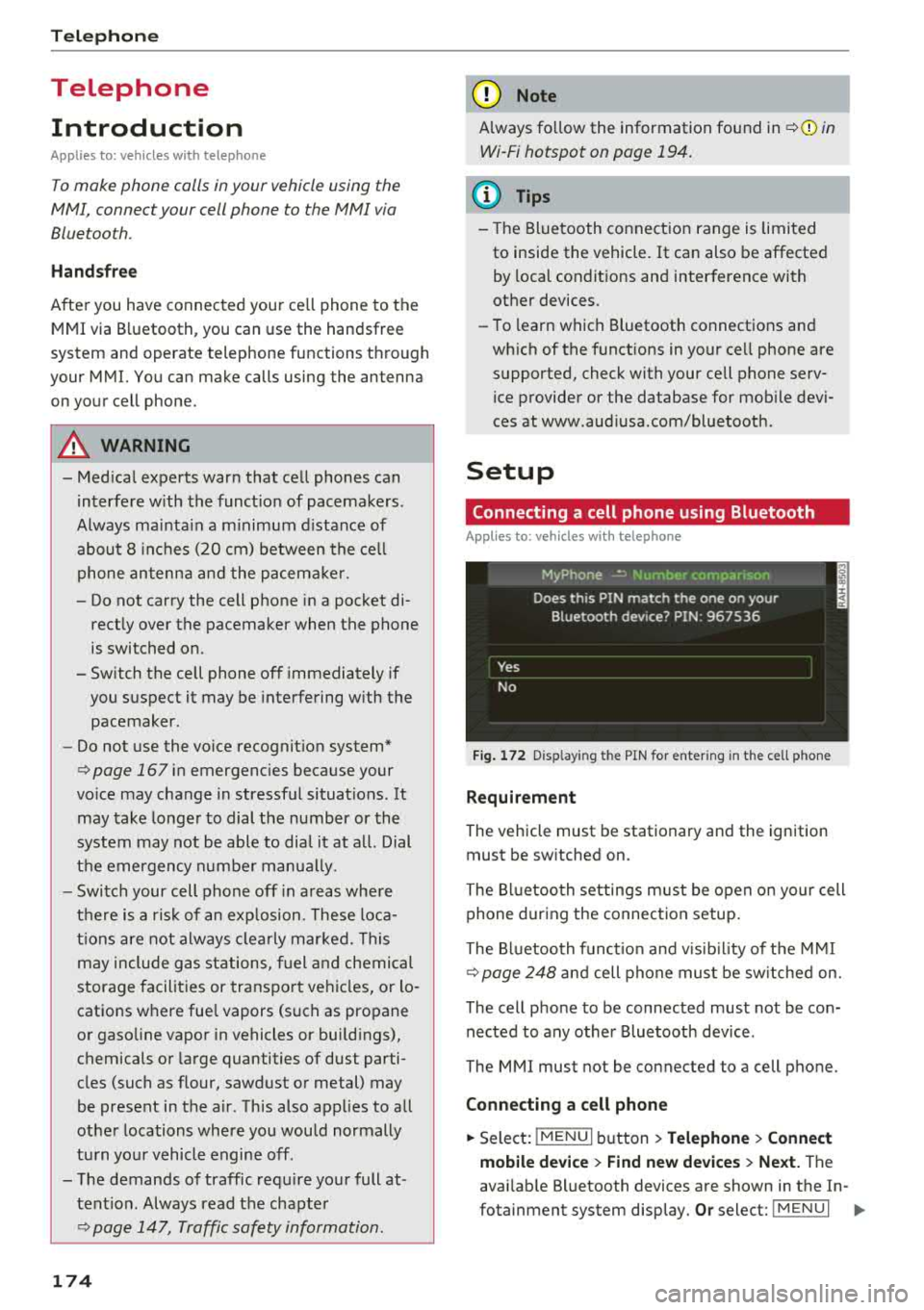
Fig . 172 D isp layin g the PIN for enter ing in t he cell phone
R equi rem ent
The vehicle must be stationary and the ignition
must be switched on.
The Bl uetooth settings m ust be open on your cell
phone during the connection setup.
The Bluetooth funct io n and v is ib il ity of the
MMI
Q page 248 and cell phone must be sw itched on.
The cell phone to be connected must not be con nected to any other Bluetooth device .
The
MMI mus t not be connected to a cell phone.
Conn ecting a c ell phon e
.. Select: IMENU I button> Telephone > Connect
mobile de vice > Find new de vic es > Next.
The
avai lab le Bluetooth devices are shown in the In-
fotainment system display.
Or select: ! MENUI 1111-
Page 181 of 392
u co ..... N r--N ..... 0 <( 0 00
-Muting the incoming call: select and confirm
Mut e.
- Additi onal ca ll:
se lect: F in d co ntac t > Call li st/
Di rect ory/ Fa vo rite s
> an entry from the list .
Mute: if you select and co nfirm th is function, the
other pe rson on the phone cannot hea r yo u. You
can hear the other person . To turn the micro
phone back on, se lect and confirm
Unmute.
Hold call /Re sum e held call :
you can p lace the ex
i sting call on hold and resume it again. To re
sume the call, select and confirm the ca ll you
wo uld like to resume.
Tran sfe r call to mobile d evice* : select and con
fi rm
Tr ansfe r call t o m obile d evic e to tra nsfer
the existing call from the MM I to you r ce ll phone.
Swi tch to hand s-fr ee mod e*: Requirement: you
must have a phone call in prog ress o n your cell
phone. Select and confi rm
S wit ch t o hand s-free
mode
to t ransfer the call from your ce ll phone
back to the MM I.
Swap call : alternate betwee n two phone ca lls
while one of the c alls is on hold. Select ing
End
ca ll
will end the active phone ca ll. A p hone call on
h o ld can be resumed using the right control but
ton >
Resume.
C onne ction manag er:
see ~ page 246.
Telephone settings : see~ page 184 .
(D Tips
-To be notified of an incoming call during a
phone call, the
call waiting function in your
cell phone must be switched on when us ing
the
Hand sfr ee profile .
- You can obta in more information from your
ce ll phone serv ice prov ider or from your cell
phone use r guide.
- When leaving the vehicle, the Bl uetooth
connection to the ce ll phone w ill automat i
ca lly disconnect. Depending on you r ce ll
phone, phone calls in prog ress may be auto
matically redirected from t he M MI to your
ce ll phone and you can continue t he call on
your phone .
- The display of an incoming phone call in the Infotainment system disp lay may still be
T ele ph on e
visible for a few seconds a fte r a ca ll is an
swered/ignored depending on the ce ll
phone in use.
Making an emergency call
Applies to: vehicles with telephone
.,. Select: ! MENUI button> Telephone > left con
trol button >
Enter n umber > Enter emergency
call number (for example, 911) >
OK.
A WARNING
-
- Because yo ur phone works w ith rad io sig
na ls, a connection canno t be gua ranteed un
de r all circumsta nces. Do not rely o n only
your p hone when i t comes to essential com
m unication (such as a medical emergency) .
- Always follow the inst ructions given by the
emergency pe rsonne l dur ing an emergency
call and on ly end the ca ll w hen they instruct
you to do so .
(D Tips
Emergen cy nu mbe rs a re not the s ame every
where. Find out w hich emergency n umber is
u sed in your current location.
Favorites
Applies to: vehicles with telephone
Up to 50 contacts, in addition to the voicemail
number, can be stored in any order in the favor
ites list.
.,. Select: ! MENUI button> T elephone > left con-
trol button .
Storing an e xis ting phone number as a
fa vorite :
-Select and confirm Call li st/ Director y.
- Select a contact or phone n umbe r from the list.
- Select: r ight cont rol b utton >
S to re as favorit e.
-Enter a name for the favor ite or select a sug-
gestion .
- Select and confirm
Sav e.
Renaming stored fa vorite s
-Select: Fav orite s > a favorite from the list.
179
Page 189 of 392
u co ..... N ,..._
N ..... 0 <( 0 00
Audi connect (Infotainment)
Introduction
Applies to vehicles with Audi connect (Infotainment)
With Audi connect Infotainment services, on line information is transmit ted directly to the vehicle
and then integrated .
A WARNING
To reduce the r isk of an accident, only use
Aud i connect Infotainment serv ices when
road a nd traffic cond it ions permit. A lways
read and fo llow the notes in
~ page 147,
Traffic safety information.
Setup
Requirements for Audi connect (Infotainment)
Applies to vehicles with Audi connect (Infotainment)
-
The data connection fo r Audi connect Infota in
ment services is made th ro ugh an embedded SIM
card (eS IM card) that is equipped in the ve hicle.
The follow ing requ irements must be met to use
the embedded SIM card :
-You have already registered at
www .aud iusa .com/myaudi and ass igned a vehi
cle .
-You have also already logged in to your myAudi
account under Audi connect pl an for the em
bedded SIM card and accepted the terms of use
given there. For add it io nal information, co ntact
an a utho rized Aud i dea le r o r auth orized Aud i
Service Facility .
Then your Audi connect Infota inment serv ices are
activated and can be used in your veh icle.
(D Tips
-After the free subscr iption has ended or the
data volume has been used up, data packets
ca n be pu rchased for the use of Audi co n
nect Infota inme nt serv ices. Yo u ca n find ad
dit iona l information about fees and p ur
chasing at www .a udiusa.com/myaudi.
Audi conn ect (Inf otainment )
-Read this chapter before operating
~ page 194, Audi connect (Infotainment)
general information .
Configuration through
myAudi
Audi connect (Infotainment) configuration
Applies to vehicles with Audi connect (Infotainment)
Some Audi connect Infotainment services must
be configured through your personal myAudi ac
count before using them for the first time.
-If you do not have a persona l myAudi account
yet, you can register on line at
www.audiusa.com/myaudi.
- Add your vehicle to your myAudi account.
-Act iva te/config ure the A udi connect (Infotain -
ment) services you would like for your ve hicle in
your myAudi account.
-For some Audi connect Infotainment services,
you may also have to enter your myAudi user
data or your myAudi PIN when accessing serv ices in the MMI to connect you r vehicle to
myAudi.
For detailed information on configuration, visit
www .audiusa .com/myaudi.
Logging into myAudi in the vehicle
Applies to vehicles with Audi connect (Infotainment)
To use some Audi connect Infotainment services
(such as Twitter*), you must first connect your
v e hicl e to myAudi to transfer your personal s et
tings from your myAudi account.
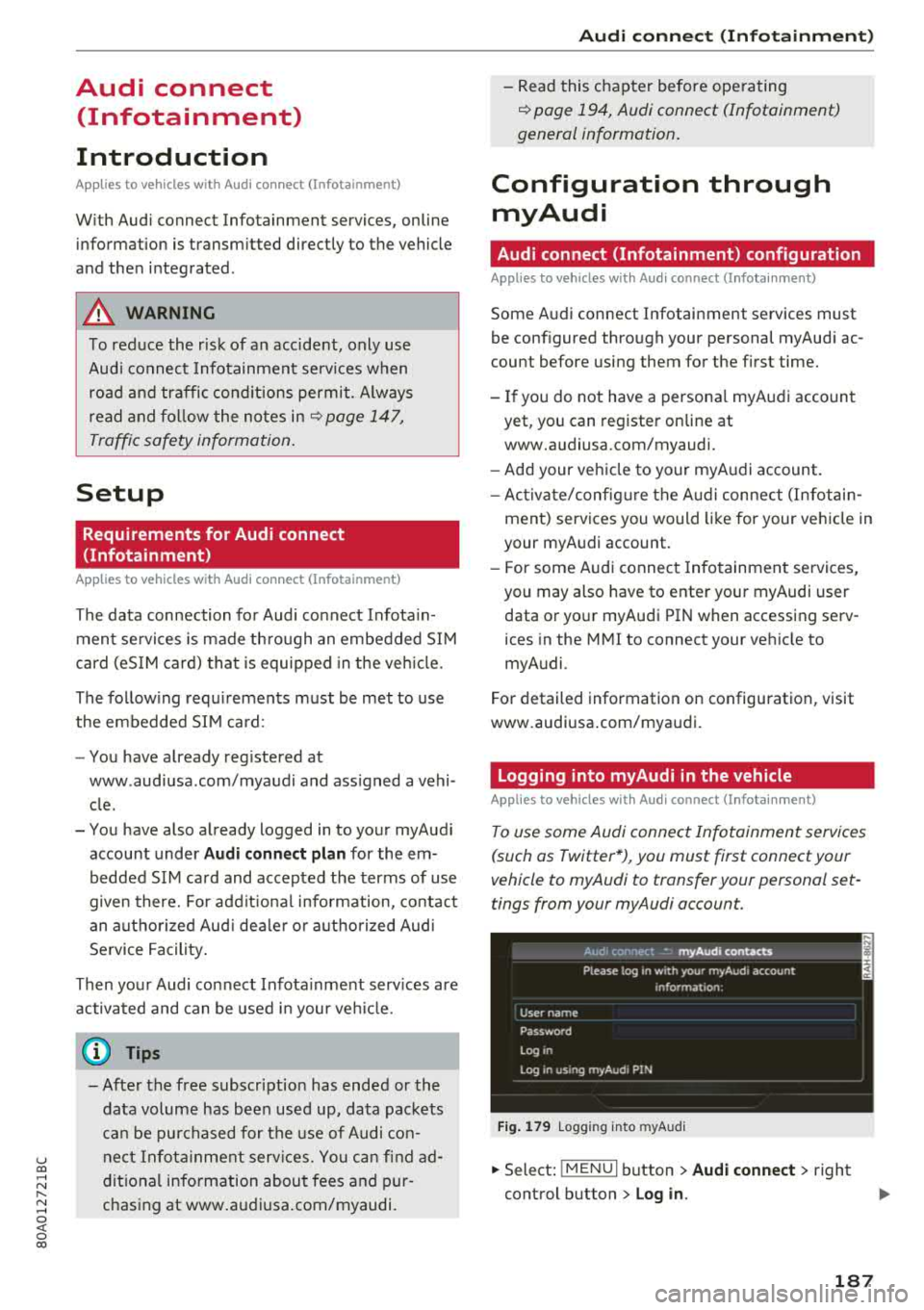
F ig . 17 9 Logg ing in to m yAud i
.,. Select: !MENU I button> Audi conne ct > right
control button > Log in.
18 7
Page 192 of 392
Audi conn ect (Infotainment)
- when the camera-based traffic sign recogni
tion* is malfunctioning ¢
page 97
- when the re are warnings from t he camera-
based traffic sign recognition*
Switching traffic light information on and
o ff
- Se lect: I MENU I button > Audi connect > Tra ffi c
li g ht info rmati on >
On (~ ) or Off (0 ).
A WARNING
-When traffic light information is shown, a l
so always pay attention to the traffic situa
t ion, the distance to other vehicles and the
area around the ve hicle. The driver is always
respons ible for assessing the traff ic situa
t ion .
- Always adapt your speed to the current
weather, road and traff ic conditions. The
displayed information must never cause you
to ignore lega l traffic regulations and pose a
safety risk.
- Regardless of the traffic light info rmat ion,
yo u should always monitor yo ur speed using
the speedometer and make su re yo u are ad
her ing to the legal speed lim it .
- T he traffic light information does not adjust
yo ur vehicle 's speed to the speed recom
mendat ion shown in the display.
(D Tips
- Traffic light information is not yet ava ilable
i n all cit ies and is not nationw ide .
- Un its of measurement and language set
ti ngs a re d isplayed based on how they were
set in the MMI sys tem set tings
¢ page 245 .
-Always read the chap ter¢ page 194, Audi
connect (Infotainment) general informa
tion .
Weather
Applies to: vehicles with weather information
Information on current weather cond itions as
well as weathe r fo recasts for the selected sea rch
area .
190
-
.. Select and confirm Weather .
You can also disp lay the current weat her condi
t ions on the map , fo r example.
.,. Select: left control button > on entry .
Flight information
Applies to: vehicles with flight information
Information on flights and current arrival/depar
ture times in the selected search area .
.,. Select and confirm Flight inform ation .
City events
Applies to: vehicles with City events
Information on events in various categories in
the desired search area.
.,. Select Cit y Event s > left co ntro l button > cate
gory.
Online news
Applies to: vehicles with on line news
You can check the c urrent headlines of your fa
vorite publications in the MMI.
Requirement: yo ur myAud i acco un t must be s ub
scribed to news feeds and your vehicle must be
connected to myAudi
¢ page 187 .
.,. Select: Online n ew s > desired newsfeed > a
headline.
The entire news a rticle w ill be dis
played .
© Tips
If yo u ha ve not s ubs cribe d to a ny pe rsonal
n ewsfeeds in your myA udi account, pre -con
figured newsfeeds will be disp layed .
Twitter
Applies to: vehicles with Twitter
You can access the most important fun ctions in
your Twitter account through your
MMI.
Requirement:
You must have co nnected your myAudi account
with Tw itter. You can f ind additional information
fo r th is on line at www .audiusa .com/myaud i.
.,.
Page 193 of 392
u co ..... N ,..._
N ..... 0 <( 0 00
You must have connected your vehicle with myAudi
r=>page 187.
.,. Select Twi tter > left co ntrol button > desired
function
(for example, T rend s).
The fo llow ing categories can be selected in the
Twitt er menu:
-M y tw eets: News Feed and the Tweets you have
posted are l isted.
-Home: the Tweets for everyone you follow are
displayed.
-T rend s: topics on Twitter that are currently
popular w ith in a country .
Different functions are availab le depending on
the Twitter category you have selected:
-New tweet : you can post a new tweet using
pre -made templates or using myAudi tem
plates that you have created yourse lf.
-R efre sh : the selected Twitter function is re
freshed.
-Fa vo rite : mark a Tweet as favorite to show you
liked it.
-Retwee t: you can quote a Tweet to share it with
others.
(D Tips
-Other se tt in gs such as accoun t, la ng uage,
Tweet security and location settings
cannot
be changed in the MMI. These c hanges must
be made on the Twitter website .
-You can only connect one Twitter account
with your myAudi acco unt .
-Audi con nect (Infotainment) makes i t possi
b le to access Twitter . Permanent avai lability
ca nnot be guaranteed, because t hat de
pends on Twitter.
Travel (travel guide)
Applies to: vehicles with Travel (travel guide)
You can use the Audi MMI connect opp to store
points of interest on your mobile device (such as a smartphone) and then use them for route
guidance in the
MMI.
Requirement:
Audi conn ect (Inf otainment )
The Audi MMI connect app must be insta lled and
open on your mobi le device .
Yo u m ust be logged into your myA udi account in
the
Audi MMI conne ct app and you must have se
l ected your vehicle.
T he Wi-Fi function on your mob ile dev ice and on
t h e M MI m ust be switched on.
T he MMI must be connected to the network.
.,. Press: !MENU ! button> Audi connect > left con-
trol button
> Information catego ry > Trav el.
After opening the trave l guide, trave l tips in your
area wi ll be displayed including current ratings as
well as the corresponding category.
.,. Press the left control button to change the cat
egory (such as bars nearby).
A WARNING
-
-It is only safe to use tablets, laptops, mo b ile dev ices and o ther sim ila r devices when
the vehicle is s tat ionary because, l ike all
loose objec ts, they co uld be thrown aroun d
the inside o f the ve hicle in a c rash and cause
serio us inj uries . Store these types of devices
secure ly while driving .
-Do not use any wireless devices on the front
seats within range of the airbags whi le driv
ing. A lso read the warnings in the chapter
r::> page 2 73, Front airbags.
@ Note
Always fo llow the information found in¢ (!) in
Wi -Fi hotspot on page 194.
(D Tips
U ni ts of measurement, language se tt ings and
time are shown in the Infotainment system
display based on how they were set in the
MMI system sett ings
r::> page 245.
Audi connect (Infotainment) in navigation
Applies to: vehicles with a navigation system and Audi con
nec t (Infotainment)
.,. Select: !MENU! button> Audi connect > left
control button >
N avigation.
191
Page 194 of 392
Audi conn ect (Infotainment)
The fo llowing A udi connect Infotainment services
are current ly availab le:
- Nav igat ion with
s atellit e map1> ¢page 215.
- Po int of Int eres t (POI) online search with
v o ic e re cogni tion
(such as restaurants) : plan
r oute g uidance using t he M MI con trol panel
¢ pag e 207 and the voice recognition system
¢ page 167 .
- Set up dest ina tions in your MMI using yo ur
myAudi account or the satellite map vie w l)
¢ page 215 .
-Onlin e traffic inform ation : receive up-to -the
minute traffic information about accidents,
road construction and other incidents
¢ page 219.
- Map updat e: import navigation map updates
directly to your v ehicl e using an SD card or as
an on line
update ¢ page 216.
(D Tips
-For the map update Audi connect Infotain
ment service via SD card, check the current
software vers ion in your vehicle and then
check www.aud iusa.com/myaudi to see if a
newer version is ava ilable. You can a lso have
the new navigation data installed by an Audi
dealer, wh ich can be done for an additional
ch arge.
- You can find add itiona l information abo ut
the
map updat e on line at
www.audiusa.com/myaud i.
Audi connect (Infotainment) in Media
menu
Applies to vehicles with Audi connect (Infotainment)
~ Select : IMENUI button> Audi conne ct > right
cont rol button >
Ente rt a inment .
- Online m edia and Internet radio :
offers access
to different online media servic es as we ll as In
ternet radio and operation through the MM I us
ing the
Audi MMI connect app ¢ page 230.
ll AU DI AG pr ovide s access to services fro m third party pro
v ider s. Pe rma ne nt ava ilabil ity c anno t be guara nteed, be
c a use that depen ds on th e th ird party provider.
192
Applies to: vehicles with Wi-Fi audio player
-Wi -F i audio pla yer: you can access the med ia
center through a Wi-Fi connected media player (such as a smartphone)
¢ page 229.
& WARNING
It is only safe to use tablets, laptops, mobile
devices and other simi lar devices when the ve
hicle is stationary beca use, like a ll loose ob
jects, they could be thrown around the inside
of the vehicle in a crash and cause serious in
juries . Store these types of devices securely
while driv ing .
@ Note
Always fo llow the information fo und in ¢ \@ in
Wi-Fi hotspot on page 194.
(D Tips
-Also see the chapter ¢ page 194, Audi con
nect (Infotainment) general information.
- For more information on t he Wi -Fi audio
player and supported devices, contact an
authori zed Aud i dealer or autho riz ed Aud i
Service Facility.
Additional options
Applies to vehicles with Audi connect (Infotainment)
~ Select: ! M ENUI button> Audi conn ect > right
cont rol button .
The following options are available in the Aud i
connect In fota inment services overview :
About Audi connect
Here you wi ll find lega l information for Audi con
nect (Infotainment) usage.
L o g in *
See ¢page 187, Logging into myAudi in the vehi
cle.
Connection manager
See ¢ page 246 .