warning AUDI Q5 2018 Owners Manual
[x] Cancel search | Manufacturer: AUDI, Model Year: 2018, Model line: Q5, Model: AUDI Q5 2018Pages: 392, PDF Size: 60.56 MB
Page 195 of 392
u co ..... N ,..._
N ..... 0 <( 0 00
Licen se subs cription
The validity and expirat io n date of yo ur licenses
are displayed. When the function is switched on
10, the message Warning befo re sub scription
e x pire s
will display to warn you that your license
is about to expire.
R efr es h
The content of the selected A udi connect Info
tainment service o r the entire A udi connect (Info
tainment) list is updated .
Data privacy
Requirement: the ign it ion must be switched on.
Location and personal data are transmitted when
using Aud i connect services . If you do not want
this information to be transm itted, act ivate data
privacy .
-Acti vate pri vacy: the data conn ection is limit ed
or deactivated. Some Audi connect services will
not be available. In veh icles w ith Audi connect
emergency call and
se rvice¢ page 201, loca
t ion and veh icle data will be transmitted via the
emergency call in cases of eme rgency . For on
line roadside assistance*, only the voice call is
made a nd no data is transmitted.
- Deacti vate data priv acy : if the data connect ion
is limited or deactivated, you ca n sw itch on the
data connection for the use of all Aud i connect
services . Se lect and confirm
A ctiv ate dat a con
nection .
(D Tips
Applies to: vehicles with emergency call function
In vehicles with Audi connect emergency ca ll
and service, a data connection is requi red. It
cannot be deact ivated. Location data is only
transmitted together with vehicle data when
emergency calls are made .
Audi connect (Inf otainment )
Wi-Fi hotspot
Applies to: veh icles w ith Wi-Fi hotspot
You can us e the fvlfv/I as a W i-Fi hotspot to con
nec t up to eigh t Wi-Fi devices to the Interne t.
While driving, res tricted use of unsecured , ligh t,
small wireless devices is only possible from the
rear of the vehicle .
Requirement: the ignition must be sw itched on .
.. Select: IMENU I button> Telephone > right con-
trol button >
Wi-Fi setting s.
The following sett ings can be selected:
Wi -Fi
The MMI Wi-Fi hotspot is deactivated at the fac
tory. Sw itch the W i- Fi hotspot to
Hots pot before
establ ish ing a con nection between your ve hicle
and yo ur Wi-Fi device.
-On: the MMI Wi-Fi hotspot is act ive and v is ible
to other dev ices. You can connect your W i- Fi
dev ice to the MMI and use the Inte rnet co nnec
t ion if necess ary.
- Off : the M MI Wi-Fi hotspot is deactivated. An
I nte rnet co nnect ion for W i-Fi devices is not
possible .
A WARNING
= -
- To reduce the risk o f an accident, use t he
Audi connect Infotainment services with a
W i-Fi hotspot only in the rear seat when the
veh icle is in mot ion, or only when the vehi
cle is stat ionary.
- It is only safe to use tablets, laptops, mo bile dev ices and other simi lar devices when
the vehicle is stationary because, like all loose objects, they could be thrown around
the inside of the vehicle in a c rash and cause
ser io us inj uries . Store these types of dev ices
secure ly while drivi ng.
- D o not use any wireless dev ices on the front
seats within ra nge of the airbags whi le dr iv
i n g. A lso read the warnings in t he chapte r
¢ page 2 73, Front airbags .
-As the d river, do not allow usage of the W i
F i ho tspot to d is tra ct yo u from dr iv ing, as
this cou ld increase the r isk o f an accident .
193
Page 196 of 392
Audi conn ect (Infotainment)
@ Note
- Under some conditions, certain mobile devi
ces and operat ing systems may a utomati
cally switch from your vehicle's Wi-Fi hot
spot to the device's mobile data connection.
In that event, standard text and data usage
rates would apply while t he dev ice's mob ile
data connection is in use . P lease refer to
documentat ion p rovided by yo ur mobi le de
v ice 's man ufac tur e and yo ur d ata ca rr ie r for
d eta ils, re lated terms and privacy state
ment.
- You are responsible fo r all p re caut io ns tak
en fo r data p rotection, an ti- v irus pro tec tion
and protection against loss of data on mo
bile devices that are used to access the In
ternet thro ugh the W i-F i hotspot.
(D Tips
- In vehicles without Audi connect ( Infotain
ment)*, the use of the Wi -Fi hotspot is only
possib le for the Wi-Fi audio p layer*. A data
connection to the Internet cannot be estab
li shed.
- For additional informat ion about the Aud i
connect Infotai nment services, visit
www .audiusa .com/myaud i.
Configuring the data
connection
Applies to vehicles with Audi connect (Infotainment)
The data connection for Audi connect Infotain
ment servic es is pr e-configured at the factory.
However, if o configuration should be n ecessary,
you con adjust the following settings .
"Se lect: I M ENUI button> right control b utton>
Connection manager.
" Se lect : right contro l button > Online settings >
Data connection settings .
Using the Data connection settings menu, you
can set when an Internet connection shou ld be
made. The Int ernet conn ection disconnects auto
mat ica lly once the requested Audi connect Info
tainment service no longer requires any d ata.
The fo llowing settings can be selected:
194
Audi connect (MMI)
With the Audi conne ct (MMI) func tion, you can
Allow or Den y the use of Audi connect Info tain
ment services if the connection is set to
No re
que st or With request.
Wi-Fi devices*
U sing the Wi -Fi d evice s function, yo u can Allow
or Deny a co n ne cti on t o the Inte rnet .
& WARNING
- As t he driver, do not a llow usage o f the Wi
F i hotspot to distract yo u from driving, as
this could increase the r is k of an accide nt.
- It is on ly safe to use tablets, laptops, mo
bi le devices and other simi lar devices when
the vehicle is stat ionary because, like a ll
loose objects, they co uld be thrown around
the inside of the ve hicle in a crash and cause
serious injuries . Store these types of devices
securely wh ile d riving .
- Do not use any wireless devices on the front
seats within range of the airbags while dr iv
ing . Also read the warnings in t he chapter
r:!) page 2 73, Front airbags .
@ Note
Always fo llow the information found in ¢ (!) in
Wi-Fi hotspot on page 194 .
Audi connect
(Infotainment) general
information
Audi connect Infotainment services
Applies to vehicles with Audi connect (Infotainment)
(D Tips
-Yo u ca n only use serv ices suppo rte d b y Aud i
connect (In fotainment) if yo u have the op
tional MMI Navigation plus eq uipment with
M MI touch* and A udi connect (Infotain
ment).
- Use of the L TE* mobile network standard is
not ava ilab le in every country. Contact an
authorized Audi dealer o r autho rized Aud i
Page 200 of 392
Audi connect vehicle control
-Pay attention to upper-and lower -case let
ters when entering the vehicle code.
-If you do not have the 10-digit vehicl e code,
contact an authorized Audi dealer or author
ized Audi Service Facility .
Additional options
Applies to vehicles with Audi co nnect vehicle control
License subscription
The validity and expirat ion date of you r subscrip
tions are displayed. When
Warning before sub
scription expires
is activated, a message wi ll be
disp layed warning you that your license is about
to expire.
Select :
!MENU ! button> Audi connect > Display
available functions >
right control button> Li
cense subscription.
Resetting the primary user
F or examp le, you ca n reset the key user when
selling your vehicle in order to deactivate these
services .
Requirement: the ignition must be switched o n.
Select :
!M ENU ! button> Audi connect > right
control button
> Audi connect user management
> Key user > Reset key user .
Warning levels
Requirement: the primary user must have set one
or more warning levels. Secondary users can only
see if a warning level is active or not .
Select:
! MENU ! button> Audi connect > right
control button
> Alerts.
Remote locking and
unlocking
Applies to veh icles with Audi connect vehicle control
You can lock and unlock your veh icle using this
service .
Requirement
-This requires the 4-dig it PIN that you specified
during the verification on www.audiusa.com/
myaud i.
-The vehicle must be stationary.
198
-The ignition must be switched off.
Vehicle status report
Applies to vehicles w ith Aud i connect ve hicle control
The Dr iver Informat ion System collects data un
der certain conditions and sends it to a server.
When data is sto red, you can access va lues such
as these using the service :
-Remaining range,
-Fuel tank level,
-Oil level,
-If the vehicle doors are open/closed or locked/
un locked,
-mi leage,
-Next oil change
-Next service,
-Warning messages,
-If the parking lights are on/off .
A WARNING
Do not ignore messages and warning or ind i
cator lights that turn on in the vehicle be
cause of the info rmation in the status report.
This could lead to break downs in on the road ,
accidents and serious injuries.
Parking location
Applies to vehicles w it h Aud i connect ve hicle co ntrol
The vehicle collects data unde r ce rta in cond it ions
and sends it to a server .
When data is stored, you can access values such
as these using the service :
-Vehicle location display
-Display of one's own location
-Route to your vehicle
If your mob ile dev ice also has a navigation func
tion, you can nav igate to your last known parking
l ocation.
Deactivating and activating parking position
-Select: ! MENU!> Audi connect> Car Finder
parking position .
If you do not set./, no location information will
be sent to the server.
Page 205 of 392
Navigation
Opening navigation
Applies to: vehicles with navigation system
The navigation system directs you to your desti
nation, around traffic incidents and on alterna
tive routes, if desired .
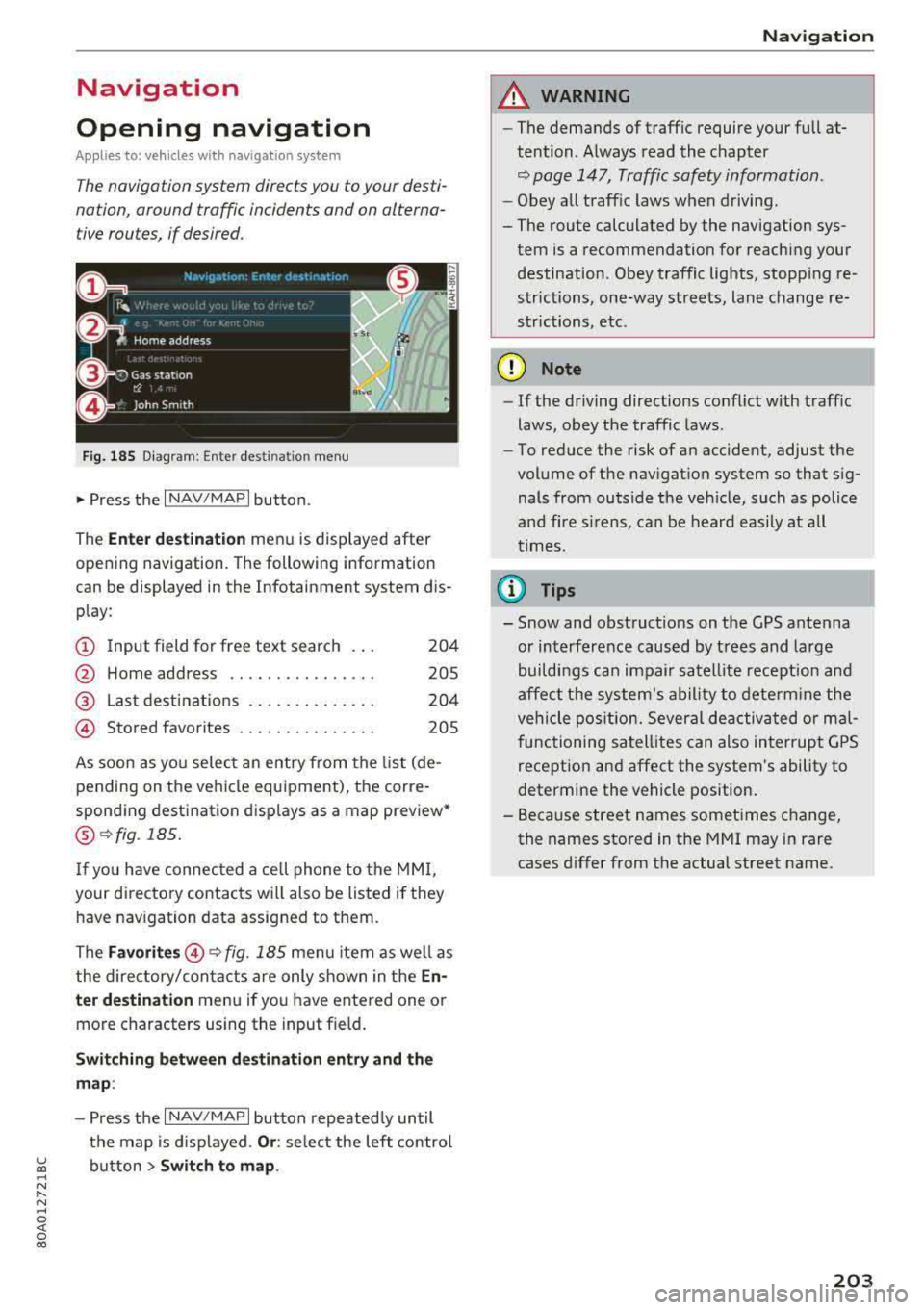
Fig. 185 Diagram: Ente r dest ination menu
.. Press the I NAV/MAPI button.
The
Ente r des tinatio n menu is displayed after
opening navigation. The following information
can be displayed in the Infotainment system dis
play:
(D I nput field for free text search 204
@ Home address . . . . . . . . . . . . . . . . 205
@ Last dest inatio ns . . . . . . . . . . . . . . 204
@ Stored favorites . . . . . . . . . . . . . . . 205
As soon as yo u select an entry from the list (de
pending on the ve hicle equipment), the corre
spond ing destination displays as a map preview*
@ r:::>fig .185.
If you have connec ted a cell phone to the MM I,
your di rectory contacts will also be listed if they
have navigation data assigned to them.
The
Fav orites @r::> fig. 185 menu item as we ll as
the directory/contacts are only shown in the
En
t e r d estination
menu if you have entered one or
more characters using the input field.
Swi tching betw een d estination entr y and th e
map :
-Press the I NAV/MAPI button repeated ly until
the map is d isplayed .
Or: select the left contro l
~ button > Swi tch to map . ..... N r-N .....
~ 0 co
Naviga tion
A WARNING
-The demands of traffic require your full at
tention. Always read the chapter
r:::> page 147, Traffic safety information.
- Obey all traff ic laws when driving.
- The route calculated by the navigation sys-
tem is a recommendation for reaching your
destination. Obey traffic lights, stopp ing re
strictions, one-way streets, lane change re
strictions, etc.
(D Note
- If the driving directions conflict with traffic
laws, obey the traffic laws .
- To reduce the risk of an accident, adjust the
volume of the nav igation system so that sig
nals from outs ide the veh icle, such as police
and f ire s irens, can be heard easily at all
times.
Ci) Tips
- Snow and obstruct ions on the GPS antenna
or interference caused by t rees and large
buildings can impair satell ite recept ion and
affect the system's ability to dete rm ine the
veh icle pos it ion. Several deactivated or mal
functioning satell ites can also interrupt G PS
recept ion and affect the system's ability to
determine the vehicle position.
- Because street names sometimes change, the names stored in the MMI may in rare
cases d iffer from the actual street name.
203
Page 213 of 392
u co ..... N ,..._
N ..... 0 <( 0 00
-Se lect and confirm a destination > right control
button
> Sto re as home addre ss.
Editing the home address
- Se lect the Home a ddre ss@ ~ page 203,
fig. 185.
- Se lect: rig ht contro l button > Edit hom e ad
dre ss.
-Select and confirm a new dest inat io n as the
home address.
The selected destination is stored as the new home address .
Favorites
Applies to: vehicles with navigation system
"'Press the I NAV/MAPI button repeated ly until
the
Ent er de stinati on menu is displayed
¢page 203, fig . 185.
- Storing a destin ation a s a f avo rite : searc h for
the des ired destination us ing the input fie ld.
Or : select a dest inat ion from the list. Se lect:
r ig ht control button
> St ore as favorite.
- Renaming a favorite :
select the left cont rol
bu tton
> Favorite s > a favorite from the list >
right cont rol button > R enam e fa vorite .
- Mov e favorite :
select a favorite from the list>
r ig ht cont rol but ton > Move favorite . Select
and confirm the location o f th e se lected favor
ite .
-Deleting a fa vorite : select a favorite from the
list>
right contro l button > Delete fa vo rite >
Delete this fa vo ri te or Delete all favorites.
Directory contacts
Applies to: vehicles with navigation system
Two addresses (private/business) can be as
signed as destinations for each contact in the di
rectory.
"' Press the I NAV/MAPI button repeated ly until
the
Enter destinati on menu is displayed
¢ page 203, fig. 185 .
Navigation
Storing a destination as a contact in the
dir ector y
Requirement: a ce ll phone must be connected to
the MMI
¢ page 174 .
-Select: a destination > right contro l button >
Add de stination to contact .
-Enter the first letters of t he des ired contact in
the free text search inp ut fie ld ¢
page 203,
fig. 185
and then select a contact from the list .
- Select and confirm
Add bu sine ss destination or
Add pri vate de stina tion.
Navigation settings
Applies to: vehicles with navigation system
"'Press the !NAV/MAP I button repeatedly unti l
the
Enter dest ination menu is displayed
¢page 203, fig.185 .
"' Select: r ight control button > Nav ig ation set-
ting s.
Depending on the selected function, the follow
ing settings can be selected:
Show alternati ve route s
Up to three suggested routes are shown on the
map when this function is switched
on ~
¢page 210 .
Low fuel warning
A message is d isplayed if the fue l gauge goes be
l ow the reserve marking w hen this function is
switched
on~-Confirming this message disp lays
a list of gas stations in the area. When a gas sta
tion is selected, route guidance from the current
vehicle position is calculated.
Trail er mode*
T railer mode is switched off at the factory .
When the funct io n is switched
on~, the max i
mum pe rm itted speed for ve hicles w ith t railers is
i nco rporated i nto t he ro ute guidance and the cal
c ul ated arriva l time is adjusted accord ingly. Trai l
er mode is displayed using
symbols- ':! in the side
menu on the map .
..,.
211
Page 220 of 392
Navigation
Traffic information display on the map /Map
pre view*
Color -co ded mark ings a long the route indicate
the t raff ic flow:
Green : traffic is flow ing free ly .
Yellow: stop-and-go traffic.
Red : congest io n.
Shaded mar kin gs in dicate the le ngth of the area
with congestion .
Colored warning symbols: an impendi ng tr affic
i n cident d irect ly ahead on your route .
All t raff ic incide nts will display in colo r whe n
ro ute guid ance is in active .
Grayed out warning symbols: traffic inc iden ts
t ha t are not on yo ur route .
Warning symbols with~ : avoided traffic inc i
dents .
The display of colored markings, warning sym
bols, etc . can be set in the
Map content menu
,=;,page 215.
(D Tips
Part icu larly cr it ica l traff ic information, s uc h
as warnings about wrong-way drivers , is auto
mat ically displayed. To hide the traffic infor
mat ion , press the
I BACK I button o r the con
t rol k nob .
Traffic information (TMC)
App lies to: ve hicles w ith navigat ion system
Rece iv ing t raff ic informa tion th rough TMC is
sw itche d on a t the fac to ry .
.,. Press t he I N AV/MAP I button repeated ly un til
t h e map is d is pl ayed .
.,. Select : left con trol button > Traffic messages .
An overv iew of a ll the traffic messages is dis
p layed in the I nfota inme nt system .
-Opening a detailed view of traffic information :
select and confirm the traffic info rmat ion from
the list .
218
(D Tips
-TMC traffic reports are not available in Can
ada . For more informat io n, please contact
S ir ius Cana da.
- Cr itica l t raff ic information, s uch as wa rn
ings about wrong-way drivers, is au tomati
cally d isp layed. To h ide the t raffic info rma
t io n, p ress th e
I BACK I button o r th e control
knob.
Better route
App lies to: vehicles wit h navigat ion syste m and better ro ute
By receiving traffic information through TMC,
your
MMI calculates a better route -if available -
and the possible tim e saved for the curr ent rout e
guidance . You can decide yourself which route
you would like to use.
.. Press the I NAV/M API bu tton re peatedly unti l
t he map is displayed .
Requirement: route g uidance must be active.
If your MMI has ca lculated a better ro ute than
t h e cur rent route g uidance, t he message
A better
route is available.
appears for severa l seconds
alo ng with the time that may be saved. A better
r ou te is ind icated in the map view by the symbol
tS ,=;, page 213, fig . 193 .
A message also appea rs in the traffic in fo rmat ion
ove rview (i)c;,page217, fig.197.
Apply better route
-Press the right con trol but ton .
- S elect a nd c onfir m th e bett er ro ute.
Or : sele ct
an d con firm
Details to d is pla y det ails about the
optimized ro ute . You can zoom in or out on t he
ma p usin g the M MI touch cont rol pa d. Requ ir e
ment : there must be more than one opt imized
route calcu lated. Press the contro l knob to
sw itch to the next rou te in the detailed view .
Closing the detailed view : press the I BACK I
button .
- After you have selected a better route, t he
route w ill be recalc ulated .
Page 231 of 392
u co ..... N r--N ..... 0 <( 0 00
The media is started and operated through the
mobile device or the
MMI, depending on the de
vice being used.
(D Tips
-Check for any connection requests on your
Bluetooth device.
-Multiple Bluetooth audio players can be
connected to the
MMI, but only one mobile
device can be active.
-Bluetooth protocols AVRCP (1.0/1.3/1.4)
and A2DP are supported.
-Note the volume setting on your Bluetooth
device. Audi recommends setting your mo
bile device to the maximum volume when
using it as a Bluetooth audio player.
-The supported media functions (such as
shuffle) depend on the Bluetooth device be
ing used.
-For more information on the supported de
vices, visit www.audiusa.com/bluetooth or
contact an authorized Audi dealer or author ized Audi Service Facility.
Wi-Fi audio player
Appl ies to: ve hicles with Wi-F i audio playe r
Using the Wi -Fi audio player media source on the
MMI, you can connect and operate your Wi-Fi-ca
pable media player (such as a smartphone) to
wirelessly play music from your media player
li
brary. The media player is connected through the
vehicle's Wi-Fi hotspot. A UPnP Server opp or an
integrated UPnPIDLNA server on your media
player is required to access your media player
li
brary.
Requirement: the Wi-Fi function on your media
player must be switched on. The
Audi MMI con
nect
app or a UPnP server app must be installed
on your media player .
Or: you must be using a
media player with an integrated UPnP/DLNA
server.
-Connecting a media player: press the I MEDIA !
button. Press the left control button until the
sources overview
c::;, page 234 is displayed. Se
lect and confirm
Wi-Fi audio player 0
c::;, page 234, fig . 211 .
Media
-If necessary, select and confirm Wi-Fi turned
off> Turn on Wi-Fi
to activate Wi-Fi in the
MMI. Select
Wi-Fi settings, if necessary. Select
the same settings on the wireless media player
that are used for the Wi-Fi hotspot.
-Starting the Wi-Fi audio player: start the Audi
MMI connect
app or a UPnP server app, or set
media permissions on your media player.
Operating the media player: the media player is
operated through the MMI.
-Press the left control button repeatedly until
the
Folders menu item appears. Select and con
firm
Folders.
-Playing music from the media player: select
and confirm
Media center .
Web radio:
see c::;, page 230 .
A WARNING
-
-As the driver, do not allow usage of the Wi
Fi hotspot to distract you from driving, as
this could increase the risk of an accident.
-It is only safe to use tablets, laptops, mo
bile devices and other similar devices when
the vehicle is stationary because, like all
loose objects, they could be thrown around
the inside of the vehicle in a crash and cause
serious injuries. Store these types of devices
securely while driving.
-Do not use any wireless devices on the front
seats within range of the airbags while driv
ing. Also read and follow the warnings in
c::;, page 2 73, Front airbags.
@ Note
Always follow the information found in ¢@ in
Wi-Fi hotspot on page 194.
(D Tips
-Always read the chapter c::;, page 194, Audi
connect (Infotainment) general informa
tion.
-Please note that a Wi-Fi connection does
not automatically make it possible to use
the Internet. For additional information,
see
c::;, page 187.
229
Page 232 of 392
Media
- To avoid interruptions during playback, de
activate the power saving function on the
media player or connect it to a charger.
- The loading times for the audio data depend
on the media player used and the number of
files that it contains.
- A maximum of 2,000 entries per directory
are displayed in the MMI.
- Songs downloaded for offline use using mu
sic streaming services are stored on your mobile device (such as a smartphone) and
may be DRM protected. The Wi-Fi audio
player will not play ORM protected files.
- Contact an authorized Audi dealer or au thorized Audi Service Facility for additional
information on the Wi-Fi audio player .
Online media and
Internet radio
Applies to: veh icles with Audi connect
You con playback and operate various online me
dia services and Internet radio using the MMI.
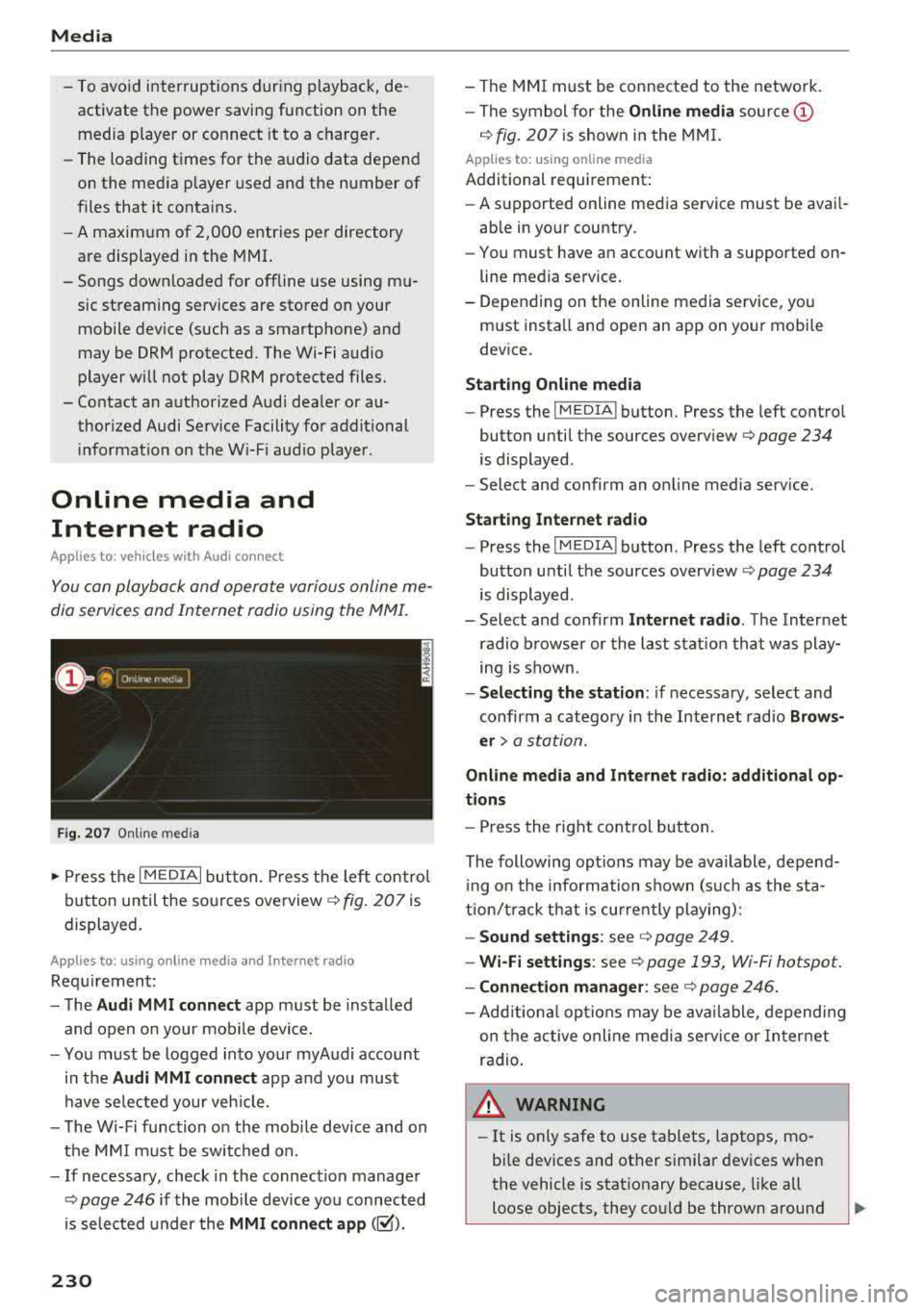
Fig. 207 Online med ia
.,. Press the I MEDIAi button. Press the left control
button until the sources overview
c> fig. 207 is
displayed.
Applies to: using online media and Internet radio
Requirement:
- The
Audi MMI connect app must be installed
and open on your mobile device.
- You must be logged into your myAudi account
in the
Audi MMI connect app and you must
have selected your veh icle.
- The Wi-Fi function on the mobile device and on
the MMI must be switched on.
- If necessary, check in the connection manager
<=> page 246 if the mobile device you connected
is selected under the
MMI connect app (~).
230
-The MMI must be connected to the network.
- The symbol for the
Online media source @
c> fig. 207 is shown in the MMI.
Applies to: using online media
Additional requirement:
- A supported online media service must be avail
able in your country.
- You must have an account with a supported on
line media service.
- Depending on the online media service, you
must install and open an app on your mobile
device.
Starting Online media
-Press the IM EDIA I button . Press the left control
button until the sources
overview <=> page 234
is displayed .
- Select and confirm an online media service.
Start ing Internet radio
-Press the IM EDIA I button . Press the left control
button until the sources
overv iew <=> page 234
is displayed .
- Select and confirm
Internet radio. The Internet
radio browser or the last station that was play
ing is shown .
-Selecting the station : if necessary, select and
confirm a category in the Internet radio
Brows
er>
a station.
Online media and Internet radio: additional op
tions
- Press the right control button.
The following options may be available , depend
i ng on the information shown (such as the sta
tion/t rack that is currently playing):
- Sound settings: see c> page 249 .
-Wi-Fi settings: see c> page 193, Wi -Fi hotspot.
- Connection manager: see <=> page 246.
-Add itional options may be available, depending
on the active online media service or Internet
radio .
,&. WARNING
- It is on ly safe to use tablets, laptops, mo
bile devices and other similar devices when
the vehicle is stationary because, like all
loose objects, they could be thrown around
-
Page 233 of 392
u co ..... N r-N .....
~ 0 co
the inside of the vehicle in a crash and cause
serious injuries. Store these types of devices
securely while driving.
- Do not use any wireless devices on the front
seats within range of the airbags while driv
ing. Also read and follow the warnings in
c::> page 2 73 , Front airbags .
CD Note
-Always follow the information found in c:>@
in Wi-Fi hotspot on page 194 .
-Please note that there generally are addi
tional costs when using an online media
service account, especially when it is used internationally .
(D Tips
-Depending on the Internet connection and
network traffic, a connection loss can occur
during playback of on line media services .
-Online media and Internet radio usage de
pends on the service availability of the third
party provider .
- Audi AG simply makes the access to online
media services possible through the MMI
and does not take any respons ibility for the
contents of the online media services .
- Always read the chapter
c::> page 194, Audi
connect (Infotainment) general informa tion .
- Depending on the mobile device used, there
may be interruptions during media playback
and when using the
Audi MMI connect app.
To avoid interruptions when using a mobile
device , do not lock the screen on your mo
bile device and keep the
Audi MMI connect
app in the foreground .
- Contact an authorized Audi dealer or au
thorized Audi Service Facility for additional
information about online media .
Media
Multimedia connections
USB adapter for Audi music interface o r
USB charging port
Depending on the vehicle equipment, you can
connect your mobile devices (such as a smart
phone or MP3 player) to the Audi music interface
or a USB charging port using a special USB
adapter.
@-
Fig. 208 A udi Genuin e Acce ssories: USB a dapter
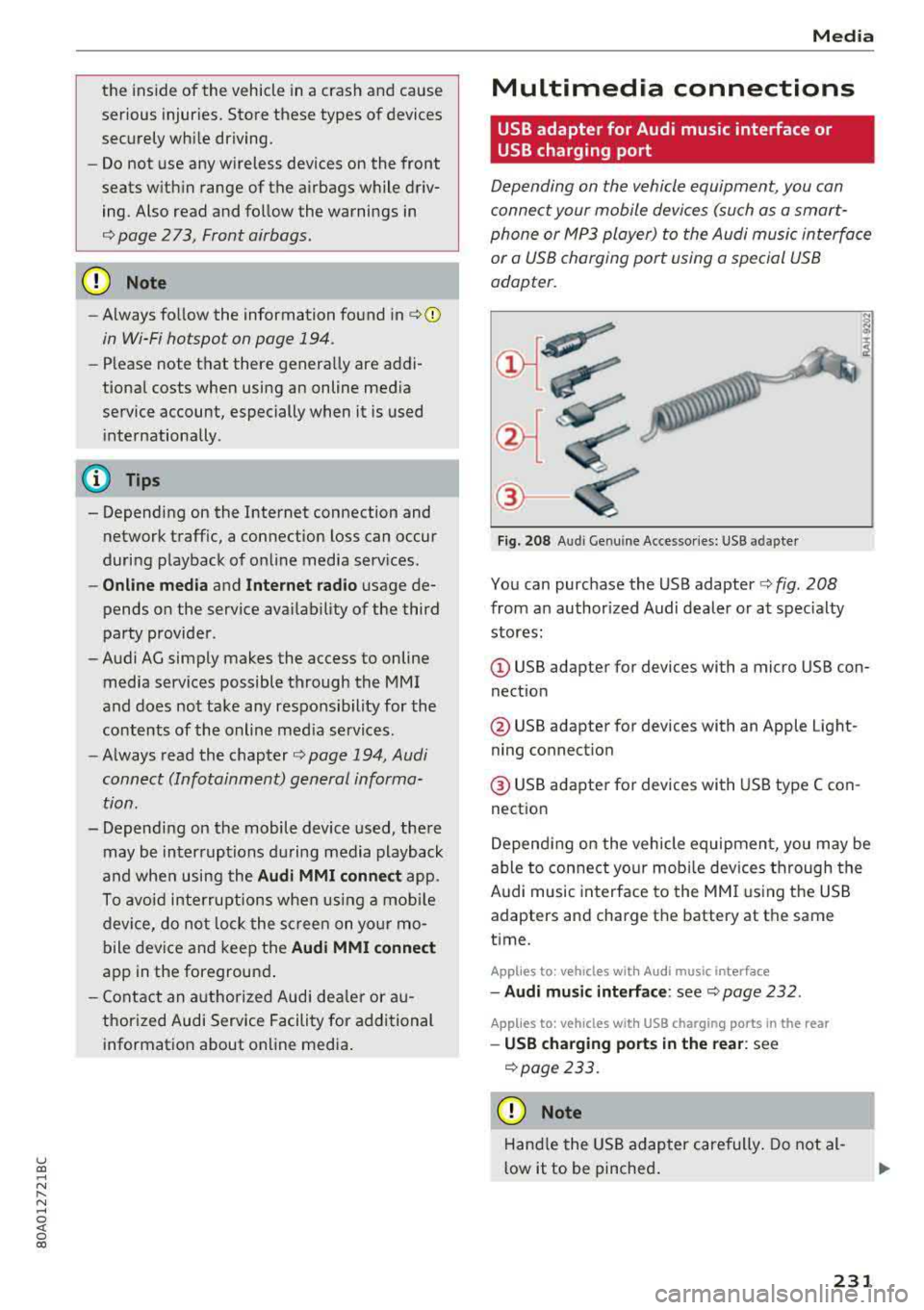
You can purchase the USB adapter c::> fig. 208
from an authorized Audi dealer or at specialty
stores:
I
(D USB adapter for devices with a micro USB con
nection
@ USB adapter for devices with an Apple Light
ning connection
@ USB adapter for devices with USB type C con
nection
Depending on the vehicle equipment, you may be
able to connect your mobile devices through the
Audi music interface to the MMI using the USB
adapters and charge the battery at th e same
time .
Applies to : vehicles wit h Aud i music interface
-Audi music interface : see c::> page 232.
Applies to: vehicles with USB charging ports in the rear
-USB charging ports in the rear : see
c::>page233.
CD Note
Hand le the USB adapter carefully . Do not al
low it to be pinched.
231
Page 234 of 392
Media
@ Tips
-The USB adapter on the Audi music inter
fac e will support iPod touc h/iPh one from
the 5th generation or later with the light
ning connector.
- Mobile devices with an Apple Dock connec
tor can only be charged with a USB adapter
for devices with an Apple Dock connector
and cannot transmit data.
Audi music interface
Connec t your mobile devices to the Audi music
interface in order to operate them through the
MMI and charge the battery .
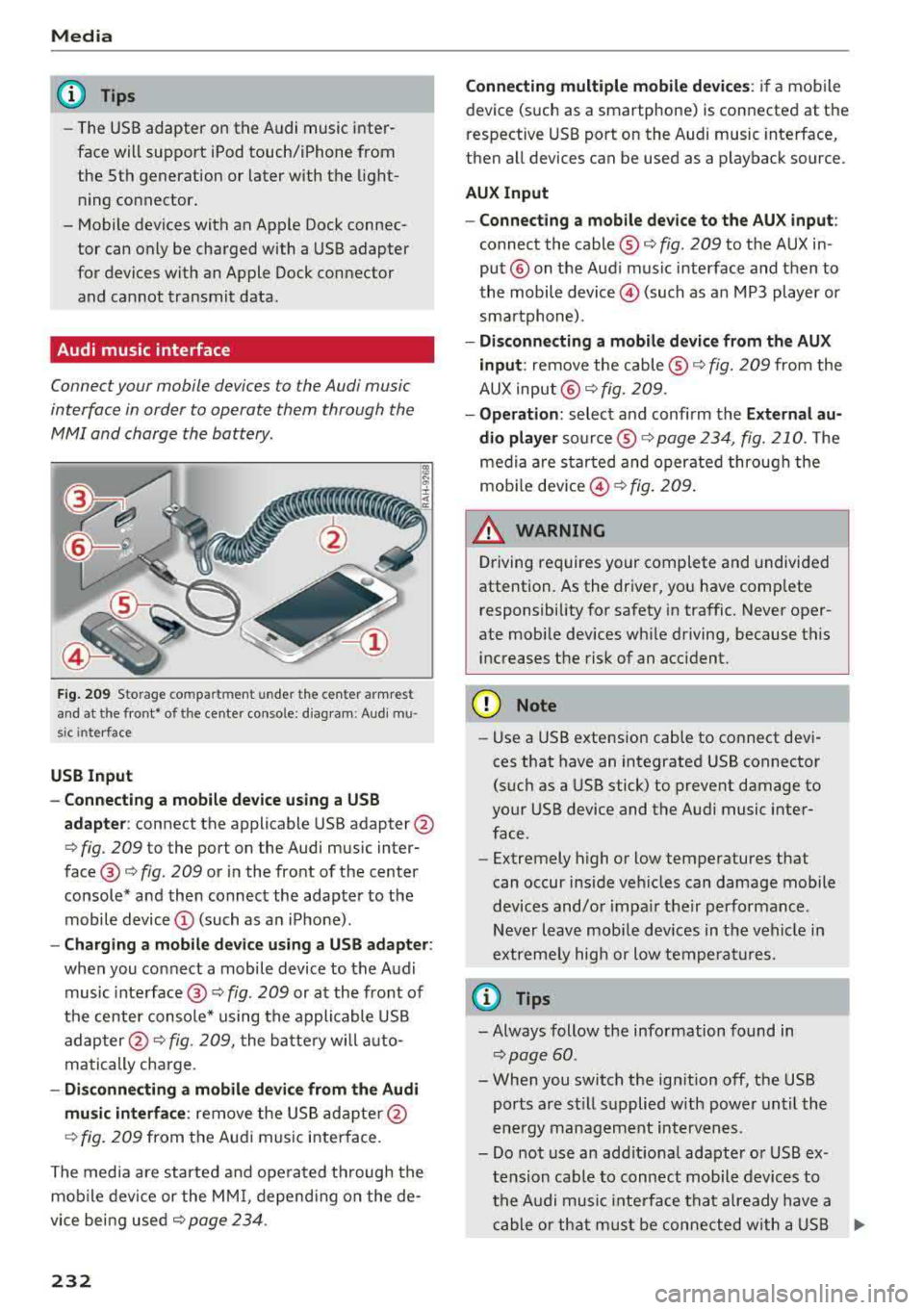
Fig. 2 09 Storage co m pa rtmen t unde r the c ente r armr est
and at the fro nt• o f the ce nter co nso le : diag ram : Audi mu
s ic inte rfa ce
USB Input
- Connecting a mobile device u sing a USS
adapte r:
connect the applicable USB adapter @
c:::> fig. 209 to the port on the Audi music inter
face @ c:::> fig. 209 or in the front of the center
console* a nd then connect the adapter to the
mobile device © (such as a n iP hone) .
-Charging a mobile device us ing a USS adapter :
when you connect a mobile device to the Audi
music inte rface @
c:::> fig. 209 or at the fro nt of
the cen ter console* using the appli cable USB
ad apter @
c:::> fig. 209, the batte ry wi ll a uto
matically charge .
-Di sconnecting a mobile devi ce from the Audi
mu sic interface :
remove the US B ad apte r@
c:::> fig . 2 09 from the Au di m usic i nterface .
T he media are started and ope rated through the
mobile device or the MM I, depend ing o n the de
vice bei ng used
c:::> page 234 .
232
Connecting multiple mobile devices : if a mobile
device (such as a smartphone) is connected at the
respective USB port on the Audi music interface,
then a ll devices can be used as a playback source.
AUX Input
- Connect ing a mobile device to the AU X input :
connect the cable ® c:::> fig. 209 to t he AUX in
put® on the Aud i music interface and then to
the mobile
device @) (such as a n MP3 playe r or
sma rtphone) .
-Di sconnecting a mobile device from the AUX
input :
remove the cable ® c:::> fig. 209 from the
AUX input @
c:::> fig. 209.
-Oper ation : select a nd confi rm the E xternal au
dio player
so urce ® c:::> page 234, fig. 210. The
medi a are sta rted and operate d through the
mob ile
dev ice @ c:::> fig. 209 .
_& WARNING
Driving requires your complete and undivided
attention. As the driver, yo u have comp lete
responsibility fo r safety in traffic. Never oper
ate mobi le dev ices wh ile driving, because this
i n creases the risk of an acc ident.
(D Note
- Use a USB extens ion cable to co nnect devi
ces that have an integrated USB connector
(such as a USB stick) to prevent damage to
your USB device and the A udi music inter
face .
- Extremely high o r low temperatures that
can occur inside ve hicles can damage mobile
devices and/o r impa ir the ir performance .
N ever l eave mobi le devices in t he vehicle i n
extremely high or low tempe ra tur es.
(D Tips
- Always follow the info rmation found in
c:::> page 60 .
- When you switch the ign ition off, the USB
ports a re st ill su pplied w ith power unt il the
e n ergy managem ent int erven es.
- Do not use a n addit iona l adapter o r USB ex
tension cab le to connect mobile devices to
th e A udi music i nte rfa ce tha t already have a
ca ble or th at must be c onnec ted w ith a U SB
Ill-