seats AUDI Q5 2018 User Guide
[x] Cancel search | Manufacturer: AUDI, Model Year: 2018, Model line: Q5, Model: AUDI Q5 2018Pages: 392, PDF Size: 60.56 MB
Page 66 of 392
Seats and stor age
Increasing the size of the luggage
compartment
The rear seat backrests can be folded forward ei
ther separa tely* or toge ther.
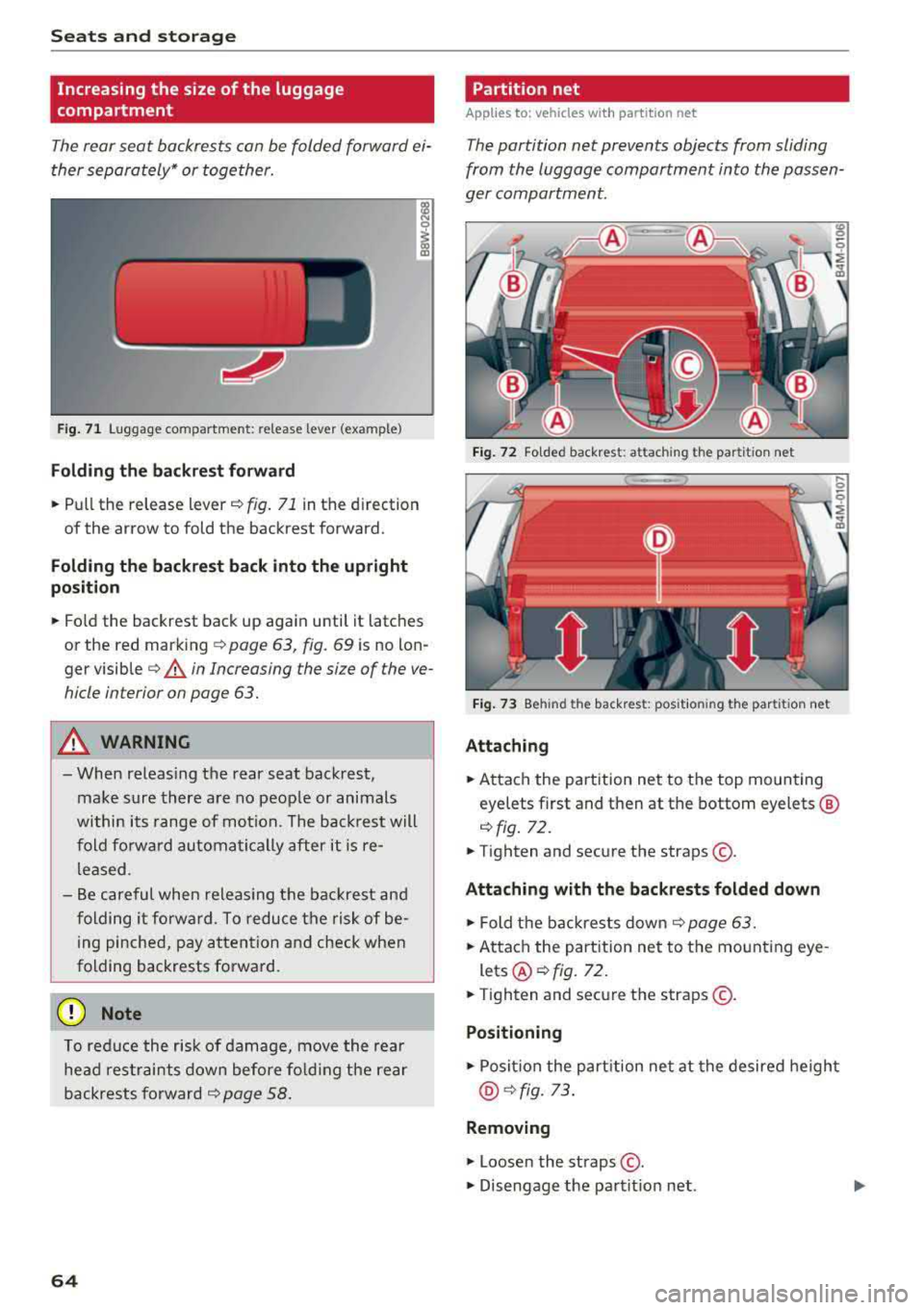
F ig . 71 Luggage compartment: release lever (example)
Folding the backre st forwa rd
.,. Pull the release lever .:!>fig. 71 in the d irection
of the arrow to fold the backrest forward.
F olding the backrest ba ck into the upr ight
po sit ion
.,. Fo ld the backrest back up aga in until it latches
or the red mark ing
c!> page 63, fig. 69 is no lon
ger
visible ¢ & in Increasing the size of the ve
hicle interior on page 63.
A WARNING
- When releas ing the rear seat backrest,
make sure there are no peop le or animals
within its range of motion. The back rest will
fold fo rw ard automatically after it
is re
leased.
- Be careful when releas ing the backrest and
folding it forward. To reduce the risk of be ing pinched, pay attention and check when
folding backrests forward.
(D Note
To reduce the risk of damage, move the rea r
he ad res traints down before f olding the rear
backrests forward
¢ page 58.
64
Partition net
App lies to : vehicles with partit ion net
The partition net prevents objects from sliding
from the luggage compartment into the passen
ger compartment.
F ig . 72 Fo lded backrest: attach ing the partit ion net
Fig . 73 Beh ind the backrest: pos it ion ing the partit ion net
Attaching
.,. Attach the part ition net to the top mounting
eyelets first and then at the bottom eyelets ®
c!> fig. 72.
.,. Tighten and secure the straps @.
Attaching with the backrests folded down
.,. Fold the backrests down ¢ page 63.
.,. Attach the part ition net to the mounting eye -
lets@¢ fig. 72 .
.,. Tighten and secure the straps @.
Positioning
.,. Posit ion the part ition net at the desired heigh t
@¢ fig. 73 .
Removing
.,. Loosen the straps @ .
.,. Disengage the partit ion net .
Page 67 of 392
u co ..... N r-N .....
~ 0 co
The height of the partition net can be adjusted.
This a llows you to transport long objects using
the cargo pass-through, wh ile keep ing the parti
tion net attached at the same time.
(D Tips
-The straps must face tow a rd the rear when
attaching the part ition net.
- You must disengage the part ition net before
fo lding the backrest back into the upright
position.
- The partition net can also be attached to the
adjustable
tie-downs* ~ page 65.
Tie-downs and luggage compartment net
A ppl ies to: ve hicles with tie -dow ns a nd l uggage compartment
n et
The cargo net prevents small objects from slid
tng .
liil
ell I
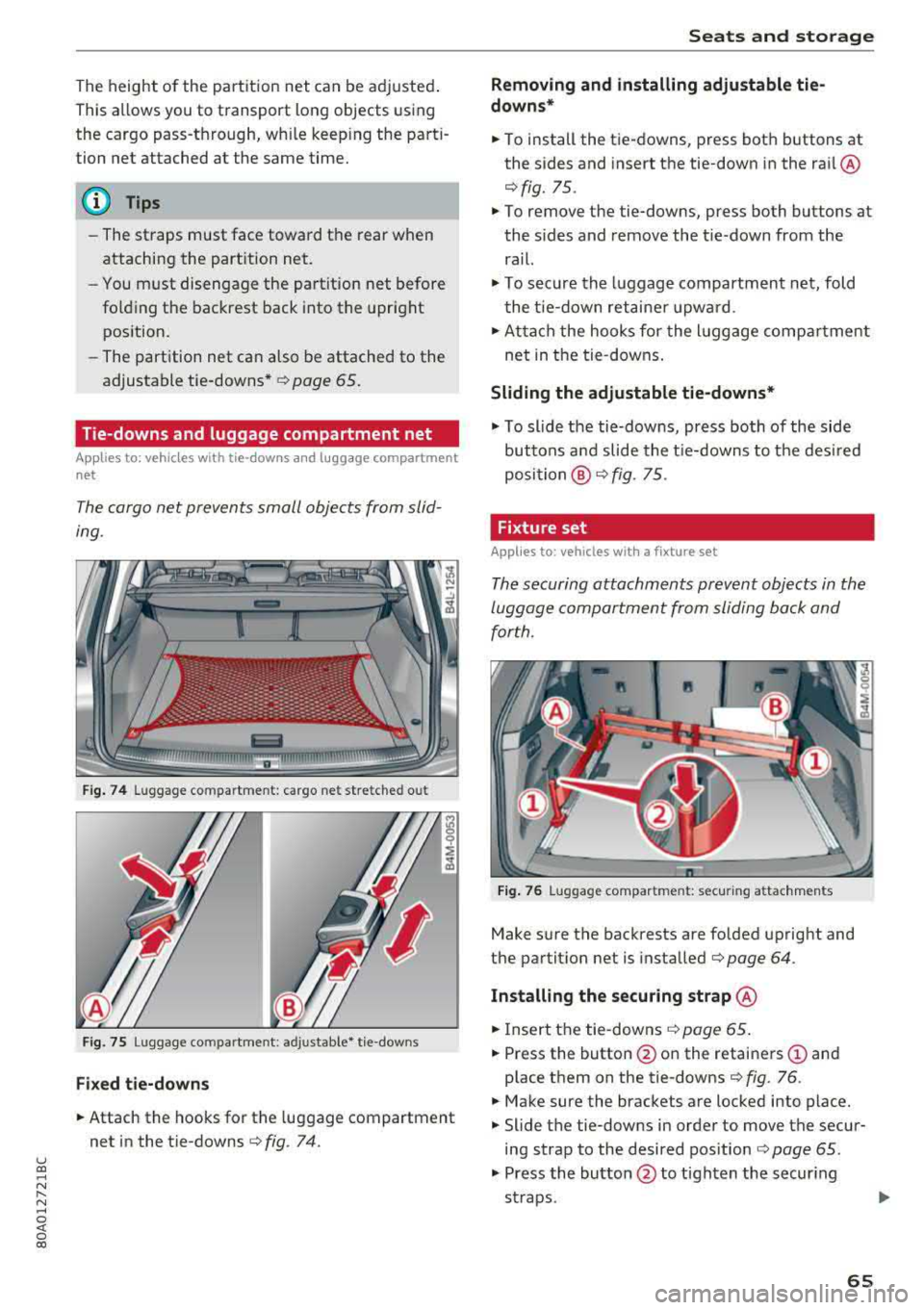
Fig. 74 Luggage compartment: cargo net stretched out
Fig. 75 Luggage compartment : adjusta ble* tie-downs
Fixed tie-downs
.. Attach the hooks for the luggage compartment
net in the tie-downs
c>fig . 74.
Seats and storage
Removing and installing adjustable tie
downs*
.. To install the tie-downs, press both buttons at
the sides and insert the tie-down in the rai l@
r=> fig. 75 .
.. To remove the tie-downs, press both buttons at
the sides and remove the tie-down from the
rail.
.. To secure the luggage compartment net, fold
the tie-down retaine r upward .
.. Attach the hooks for the lu ggage compa rtment
net in the tie-downs.
Sliding the adjustable tie-downs*
.. To slide the tie-downs, press both of the side
buttons a nd slide the tie-downs to the desired
position @r=>fig. 75.
Fixture set
A pp lies to: veh icles w ith a fixture se t
The securing attachments prevent objects in the
luggage compartment from sliding back and
for th.
Fig. 76 Luggage compartment: secur ing attachments
Make sure the backrests are folded upright and
the partit ion net is installed
c> page 64.
Installing the securing strap @
.. Insert the tie-downs c> page 65.
.. Press the button @on the retainers (D and
place them on the tie-downs
r::> fig. 76 .
.. Make sure the brackets are locked into place .
.. Slide the tie-downs in order to move the secur
ing strap to the desired pos ition
c> page 65.
.. Press the button @ to tighten the secur ing
straps .
1111>
65
Page 68 of 392
Seats and stor age
Install ing tel escoping rod @
.,. Inse rt the tie -downs ¢ page 65 .
.. Press the button @on the retainers (!) and
place them on the tie-downs
¢ fig. 76 .
.. Make sure the brackets are locked into place .
.. Slide the tie-downs in order to move the tele
scoping rod to the desired
posit ion¢ page 65 .
.,. Press the bracket (!) downward @and, using
you r other hand, slide the lower area to the de
sired position .
.,. Make sure the b rackets a re locked into p lace .
.&, WARNING
- The backrest must be securely latched so
objects cannot slide forward out of the l ug
gage compartment during sudden braking .
- Loose objects in the passenger compar t
ment can fly forward during abrupt mane u
vers or acc idents and can inju re occupants.
Folding cargo mat
Applies to: vehicles with cargo mat
The cargo mat protects the luggage compart
ment and bumper from dirt and scratches.
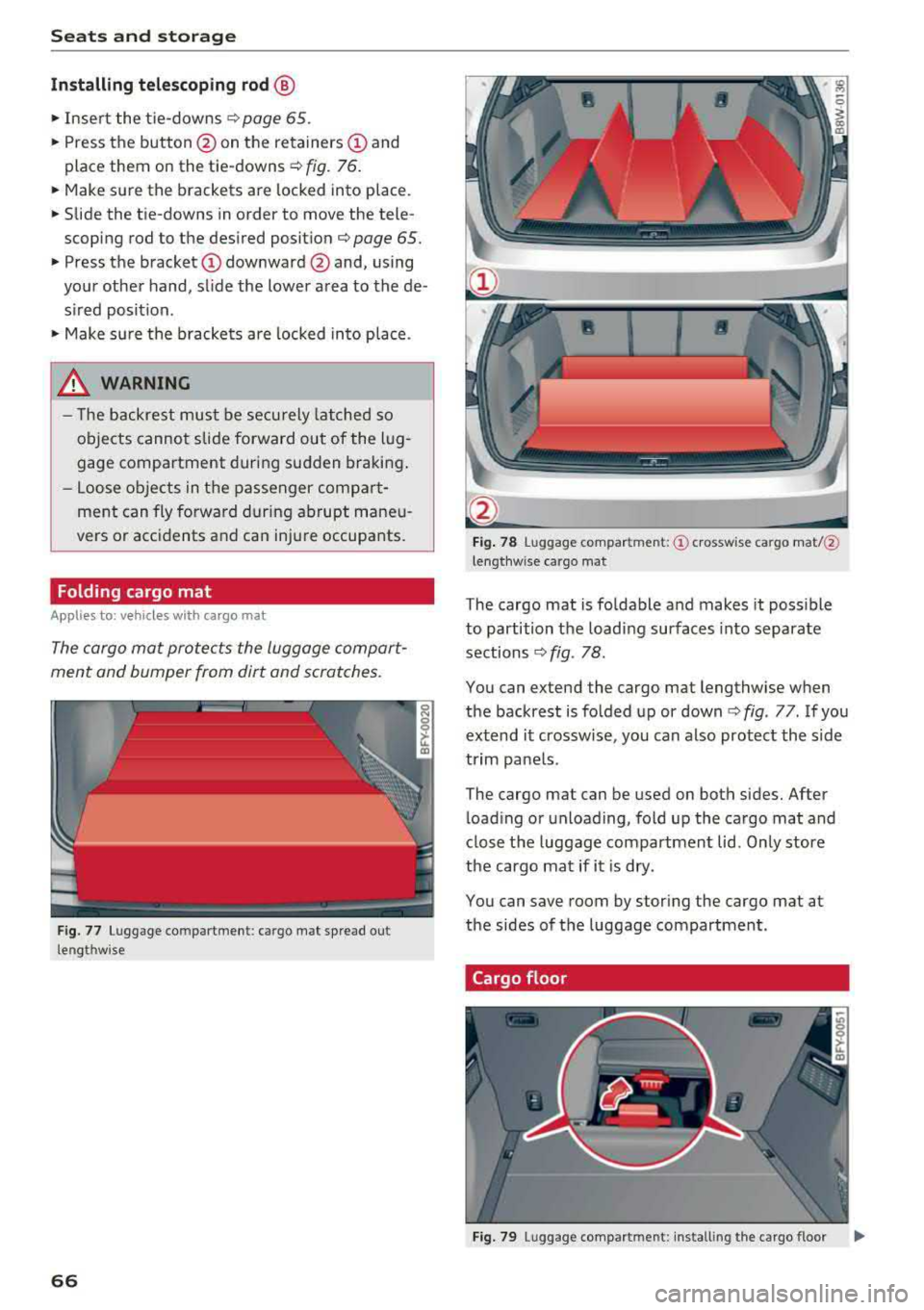
F ig. 77 Luggage compartment: cargo mat sp read out
lengthw ise
66
-
F ig . 78 Luggage compartment: © crosswise cargo mat/@
lengthw ise cargo mat
The cargo mat is fo ldable and makes it poss ible
to partition t he load ing surfaces into separate
sections
¢ fig . 78.
You can extend the cargo mat lengthw ise when
the backrest is fo lded up or
down ¢ fig. 77. If you
extend it crossw ise, you can also protect the s ide
trim panels.
The cargo mat can be used on both sides. After l oad ing or unloading, fold up the cargo mat and
close t he luggage compartment lid. Only store
the cargo mat if it is dry.
You can save room by stor ing the cargo mat at
the sides of the luggage compartment.
Cargo floor
Fig. 79 Luggage compartment: install ing the cargo floor
Page 74 of 392
Warm and cold
SYNC Syn chr oniz ation
Use t he rocker sw itc h® to select the f unct ion.
When synchronization is switched on, the set
tings for the driver's side are applied to the front
passenger's side and the rear (except for seat
heating/venti lation*). When the settings on the
front passenger's side or in the rear are changed,
the synchron izat ion is automatically switched off
and
3 -z one appears in the display .
SET REAR function
Use the rocker switch ® to select the function .
When the function is switched on, you can adjust
all settings for the rear us ing the climate control
system controls in the cockpit . The rear climate
control system controls cannot be operated at
the same time . T his function switches off auto
mat ica lly after a ce rtain per iod of t ime or after
leav ing the menu.
Vents
You can open or close the center and rear vents in
the cockpit and the vents in the rear center con
sole us ing the r idged thumbwhee ls . T he levers
adjust the d irection of the airflow from the vents.
Re sidu al he at
You can activate the residual heat function when
the ignition is switched off by pressing the knob
(!) . The res idual heat from the coolant is used to
heat the vehicle interior. The residual heat func
tion switches off automatically afte r about 15
m inutes.
A WARNING
- Yo u should not use the re circulation mode
for an extended period of time, because no
fres h air is drawn in and the windows can
fog when cooling mode is sw itched off. This
increases the risk of an accident.
- Individuals with reduced sensitivity to pain
or temperature cou ld deve lop burns when
using the seat heating* funct ion. To reduce
the risk of injury, these ind iv iduals should
not use seat heati ng*.
72
@ Note
To avoid damaging the seat heating* ele
ments, do not knee l on the seats or p lace
heavy pressure on one area of the seat.
Setup
The climate control system basic settings ore ac
cessed in the Infotainment system .
.. Select in the Infotainment system : IMENU! but
ton
> Veh icle > left control button > Air condi
t ioning
Auto recirculation
When sw itched on, a utomat ic rec ircu lat ion con
tro ls the recircu lation mode automatically . If the
windows fog up, press
the® MAX button .
Automatic au xiliary heater *
The auxiliary heater he lps to wa rm the vehicle in
te rior more qu ic kl y.
Steering wheel heating
Applies to: vehicles with steering wheel heating
The steering wheel rim con be heated .
.. Press the lg\~ page 14, fig . 11 button on the
mu ltifu nction stee ring wheel to switch the
steer ing whee l heating on and off . The mes
sage
S teering wheel h eating : on /Ste ering
wheel heating: off
appears in the instrument
cluster display.
The tempe ra ture is ma inta ined at a constant lev
el when steering wheel heating is switc hed on .
The steer ing whee l heating sett ings are stored
automat ica lly and assigned to the remote control
k ey tha t is in use .
Page 78 of 392
Driving
Power steering wheel position adjustment
App lies to: vehicles with power stee ring whee l adjustme nt
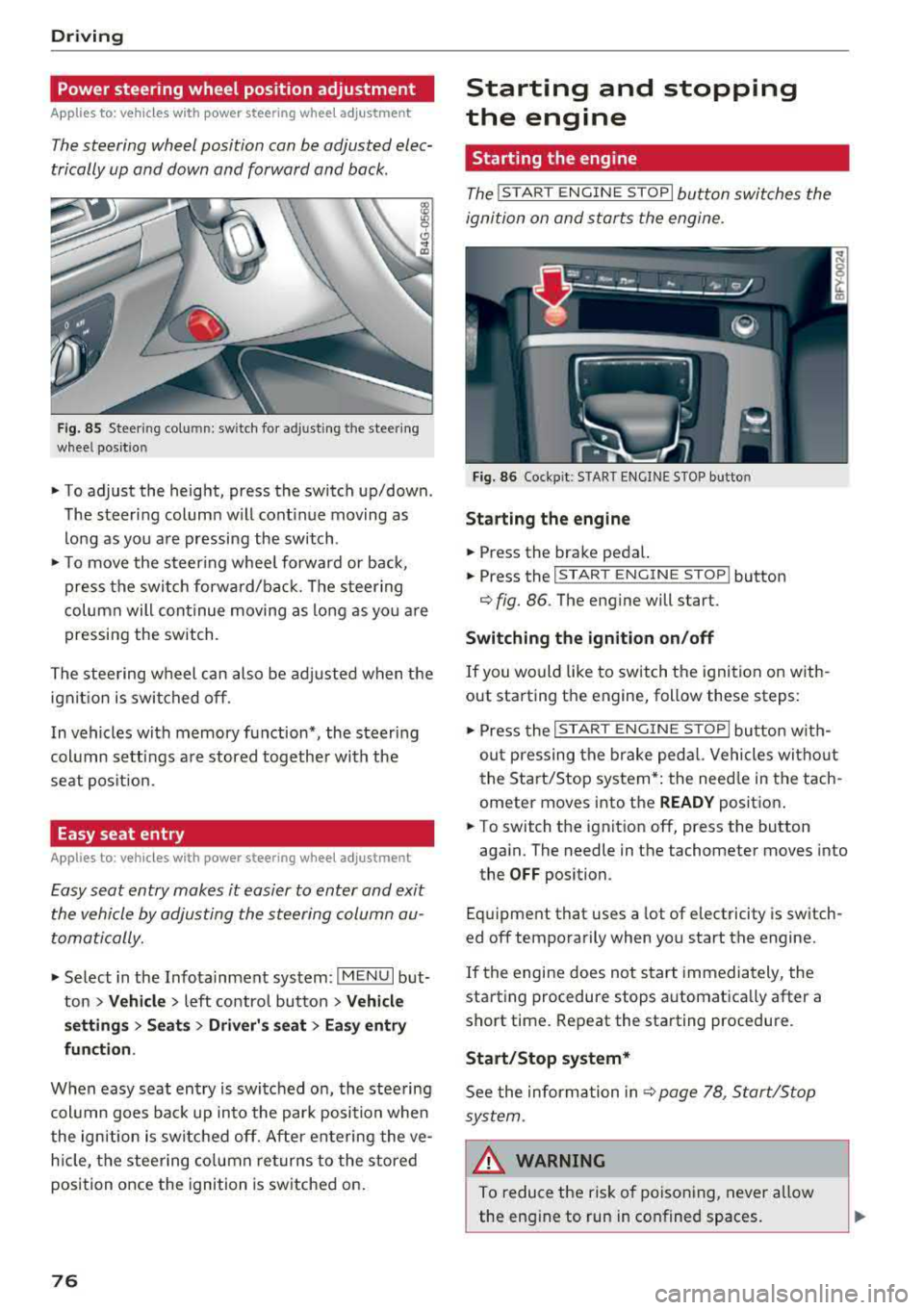
The steering wheel position can be adjusted elec
trically up and down and forward and back.
F ig. 85 Steer ing co lu m n: sw itch for ad just ing the steering
whee l pos it io n
.. To adjust the height, press the switch up/down .
The steer ing column w ill cont inue moving as
long as you are pressing the switch .
"To move the steering whee l forward or back,
press the swi tc h forward/bac k. T he steer ing
column will continue moving as long as you a re
pressing the switch .
The steering wheel can also be adjusted when the ign it io n is swit ched off .
In vehicles with memory function*, the steering
col umn sett ings a re stored together wi th the
seat pos it ion.
Easy seat entry
Applies to : vehicles with power stee ring wheel adjustme nt
Easy seat entry makes it easier to enter and exit
the vehicle by adjusting the steering column au
tomatically.
" Se lect in the Infota inment system: IMENU I but
ton
> Vehicle > left contro l button > Vehicl e
setting s > Seats > Driver 's seat > Ea sy entry
fun ction .
When easy seat entry is swi tched o n, the stee ring
col umn goes bac k up into the par k posi tion whe n
the ign ition is switched off. After ente ring the ve
h icle, the steering co lumn re turns to the stored
position once the ignition is switched on.
76
Starting and stopping
the engine
Starting the engine
The ! STAR T ENGINE ST OPI button switches the
ignition on and s tarts the engine.
Fig. 86 Coc kp it: S TART ENGINE STOP b utto n
Starting the engine
.. Press the brake pedal.
.. Press the I START ENGINE STOP ! button
¢fig. 86. The eng ine will start.
Switching the ignition on /off
If you would like to sw itch the ignition on w ith
out starting the engine, follow these steps:
" Press the I ST AR T ENGINE ST OP ! butto n w ith
out p ressing the brake ped al. Vehicles wi tho ut
the Start/Stop system* : the need le in the tach
ometer moves into the
READY posit ion .
.. To switch the ignition off, press the button
aga in. The needle in the tachometer moves into
the
OFF position.
Eq uipment that uses a lot of e lectricity is switch
ed off temporarily when you start the engine.
If the engine does not s tart immedia tely, the
starting procedure stops automatically after a
short time . Repeat the starting procedure .
Start/Stop system*
See the information in c::;, page 78, Start/Stop
sys tem .
& WARNING
To reduce the ris k of poisoning, never allow
the eng ine to run in confined spaces.
-
Page 193 of 392
u co ..... N ,..._
N ..... 0 <( 0 00
You must have connected your vehicle with myAudi
r=>page 187.
.,. Select Twi tter > left co ntrol button > desired
function
(for example, T rend s).
The fo llow ing categories can be selected in the
Twitt er menu:
-M y tw eets: News Feed and the Tweets you have
posted are l isted.
-Home: the Tweets for everyone you follow are
displayed.
-T rend s: topics on Twitter that are currently
popular w ith in a country .
Different functions are availab le depending on
the Twitter category you have selected:
-New tweet : you can post a new tweet using
pre -made templates or using myAudi tem
plates that you have created yourse lf.
-R efre sh : the selected Twitter function is re
freshed.
-Fa vo rite : mark a Tweet as favorite to show you
liked it.
-Retwee t: you can quote a Tweet to share it with
others.
(D Tips
-Other se tt in gs such as accoun t, la ng uage,
Tweet security and location settings
cannot
be changed in the MMI. These c hanges must
be made on the Twitter website .
-You can only connect one Twitter account
with your myAudi acco unt .
-Audi con nect (Infotainment) makes i t possi
b le to access Twitter . Permanent avai lability
ca nnot be guaranteed, because t hat de
pends on Twitter.
Travel (travel guide)
Applies to: vehicles with Travel (travel guide)
You can use the Audi MMI connect opp to store
points of interest on your mobile device (such as a smartphone) and then use them for route
guidance in the
MMI.
Requirement:
Audi conn ect (Inf otainment )
The Audi MMI connect app must be insta lled and
open on your mobi le device .
Yo u m ust be logged into your myA udi account in
the
Audi MMI conne ct app and you must have se
l ected your vehicle.
T he Wi-Fi function on your mob ile dev ice and on
t h e M MI m ust be switched on.
T he MMI must be connected to the network.
.,. Press: !MENU ! button> Audi connect > left con-
trol button
> Information catego ry > Trav el.
After opening the trave l guide, trave l tips in your
area wi ll be displayed including current ratings as
well as the corresponding category.
.,. Press the left control button to change the cat
egory (such as bars nearby).
A WARNING
-
-It is only safe to use tablets, laptops, mo b ile dev ices and o ther sim ila r devices when
the vehicle is s tat ionary because, l ike all
loose objec ts, they co uld be thrown aroun d
the inside o f the ve hicle in a c rash and cause
serio us inj uries . Store these types of devices
secure ly while driving .
-Do not use any wireless devices on the front
seats within range of the airbags whi le driv
ing. A lso read the warnings in the chapter
r::> page 2 73, Front airbags.
@ Note
Always fo llow the information found in¢ (!) in
Wi -Fi hotspot on page 194.
(D Tips
U ni ts of measurement, language se tt ings and
time are shown in the Infotainment system
display based on how they were set in the
MMI system sett ings
r::> page 245.
Audi connect (Infotainment) in navigation
Applies to: vehicles with a navigation system and Audi con
nec t (Infotainment)
.,. Select: !MENU! button> Audi connect > left
control button >
N avigation.
191
Page 195 of 392
u co ..... N ,..._
N ..... 0 <( 0 00
Licen se subs cription
The validity and expirat io n date of yo ur licenses
are displayed. When the function is switched on
10, the message Warning befo re sub scription
e x pire s
will display to warn you that your license
is about to expire.
R efr es h
The content of the selected A udi connect Info
tainment service o r the entire A udi connect (Info
tainment) list is updated .
Data privacy
Requirement: the ign it ion must be switched on.
Location and personal data are transmitted when
using Aud i connect services . If you do not want
this information to be transm itted, act ivate data
privacy .
-Acti vate pri vacy: the data conn ection is limit ed
or deactivated. Some Audi connect services will
not be available. In veh icles w ith Audi connect
emergency call and
se rvice¢ page 201, loca
t ion and veh icle data will be transmitted via the
emergency call in cases of eme rgency . For on
line roadside assistance*, only the voice call is
made a nd no data is transmitted.
- Deacti vate data priv acy : if the data connect ion
is limited or deactivated, you ca n sw itch on the
data connection for the use of all Aud i connect
services . Se lect and confirm
A ctiv ate dat a con
nection .
(D Tips
Applies to: vehicles with emergency call function
In vehicles with Audi connect emergency ca ll
and service, a data connection is requi red. It
cannot be deact ivated. Location data is only
transmitted together with vehicle data when
emergency calls are made .
Audi connect (Inf otainment )
Wi-Fi hotspot
Applies to: veh icles w ith Wi-Fi hotspot
You can us e the fvlfv/I as a W i-Fi hotspot to con
nec t up to eigh t Wi-Fi devices to the Interne t.
While driving, res tricted use of unsecured , ligh t,
small wireless devices is only possible from the
rear of the vehicle .
Requirement: the ignition must be sw itched on .
.. Select: IMENU I button> Telephone > right con-
trol button >
Wi-Fi setting s.
The following sett ings can be selected:
Wi -Fi
The MMI Wi-Fi hotspot is deactivated at the fac
tory. Sw itch the W i- Fi hotspot to
Hots pot before
establ ish ing a con nection between your ve hicle
and yo ur Wi-Fi device.
-On: the MMI Wi-Fi hotspot is act ive and v is ible
to other dev ices. You can connect your W i- Fi
dev ice to the MMI and use the Inte rnet co nnec
t ion if necess ary.
- Off : the M MI Wi-Fi hotspot is deactivated. An
I nte rnet co nnect ion for W i-Fi devices is not
possible .
A WARNING
= -
- To reduce the risk o f an accident, use t he
Audi connect Infotainment services with a
W i-Fi hotspot only in the rear seat when the
veh icle is in mot ion, or only when the vehi
cle is stat ionary.
- It is only safe to use tablets, laptops, mo bile dev ices and other simi lar devices when
the vehicle is stationary because, like all loose objects, they could be thrown around
the inside of the vehicle in a c rash and cause
ser io us inj uries . Store these types of dev ices
secure ly while drivi ng.
- D o not use any wireless dev ices on the front
seats within ra nge of the airbags whi le dr iv
i n g. A lso read the warnings in t he chapte r
¢ page 2 73, Front airbags .
-As the d river, do not allow usage of the W i
F i ho tspot to d is tra ct yo u from dr iv ing, as
this cou ld increase the r isk o f an accident .
193
Page 196 of 392
Audi conn ect (Infotainment)
@ Note
- Under some conditions, certain mobile devi
ces and operat ing systems may a utomati
cally switch from your vehicle's Wi-Fi hot
spot to the device's mobile data connection.
In that event, standard text and data usage
rates would apply while t he dev ice's mob ile
data connection is in use . P lease refer to
documentat ion p rovided by yo ur mobi le de
v ice 's man ufac tur e and yo ur d ata ca rr ie r for
d eta ils, re lated terms and privacy state
ment.
- You are responsible fo r all p re caut io ns tak
en fo r data p rotection, an ti- v irus pro tec tion
and protection against loss of data on mo
bile devices that are used to access the In
ternet thro ugh the W i-F i hotspot.
(D Tips
- In vehicles without Audi connect ( Infotain
ment)*, the use of the Wi -Fi hotspot is only
possib le for the Wi-Fi audio p layer*. A data
connection to the Internet cannot be estab
li shed.
- For additional informat ion about the Aud i
connect Infotai nment services, visit
www .audiusa .com/myaud i.
Configuring the data
connection
Applies to vehicles with Audi connect (Infotainment)
The data connection for Audi connect Infotain
ment servic es is pr e-configured at the factory.
However, if o configuration should be n ecessary,
you con adjust the following settings .
"Se lect: I M ENUI button> right control b utton>
Connection manager.
" Se lect : right contro l button > Online settings >
Data connection settings .
Using the Data connection settings menu, you
can set when an Internet connection shou ld be
made. The Int ernet conn ection disconnects auto
mat ica lly once the requested Audi connect Info
tainment service no longer requires any d ata.
The fo llowing settings can be selected:
194
Audi connect (MMI)
With the Audi conne ct (MMI) func tion, you can
Allow or Den y the use of Audi connect Info tain
ment services if the connection is set to
No re
que st or With request.
Wi-Fi devices*
U sing the Wi -Fi d evice s function, yo u can Allow
or Deny a co n ne cti on t o the Inte rnet .
& WARNING
- As t he driver, do not a llow usage o f the Wi
F i hotspot to distract yo u from driving, as
this could increase the r is k of an accide nt.
- It is on ly safe to use tablets, laptops, mo
bi le devices and other simi lar devices when
the vehicle is stat ionary because, like a ll
loose objects, they co uld be thrown around
the inside of the ve hicle in a crash and cause
serious injuries . Store these types of devices
securely wh ile d riving .
- Do not use any wireless devices on the front
seats within range of the airbags while dr iv
ing . Also read the warnings in t he chapter
r:!) page 2 73, Front airbags .
@ Note
Always fo llow the information found in ¢ (!) in
Wi-Fi hotspot on page 194 .
Audi connect
(Infotainment) general
information
Audi connect Infotainment services
Applies to vehicles with Audi connect (Infotainment)
(D Tips
-Yo u ca n only use serv ices suppo rte d b y Aud i
connect (In fotainment) if yo u have the op
tional MMI Navigation plus eq uipment with
M MI touch* and A udi connect (Infotain
ment).
- Use of the L TE* mobile network standard is
not ava ilab le in every country. Contact an
authorized Audi dealer o r autho rized Aud i
Page 231 of 392
u co ..... N r--N ..... 0 <( 0 00
The media is started and operated through the
mobile device or the
MMI, depending on the de
vice being used.
(D Tips
-Check for any connection requests on your
Bluetooth device.
-Multiple Bluetooth audio players can be
connected to the
MMI, but only one mobile
device can be active.
-Bluetooth protocols AVRCP (1.0/1.3/1.4)
and A2DP are supported.
-Note the volume setting on your Bluetooth
device. Audi recommends setting your mo
bile device to the maximum volume when
using it as a Bluetooth audio player.
-The supported media functions (such as
shuffle) depend on the Bluetooth device be
ing used.
-For more information on the supported de
vices, visit www.audiusa.com/bluetooth or
contact an authorized Audi dealer or author ized Audi Service Facility.
Wi-Fi audio player
Appl ies to: ve hicles with Wi-F i audio playe r
Using the Wi -Fi audio player media source on the
MMI, you can connect and operate your Wi-Fi-ca
pable media player (such as a smartphone) to
wirelessly play music from your media player
li
brary. The media player is connected through the
vehicle's Wi-Fi hotspot. A UPnP Server opp or an
integrated UPnPIDLNA server on your media
player is required to access your media player
li
brary.
Requirement: the Wi-Fi function on your media
player must be switched on. The
Audi MMI con
nect
app or a UPnP server app must be installed
on your media player .
Or: you must be using a
media player with an integrated UPnP/DLNA
server.
-Connecting a media player: press the I MEDIA !
button. Press the left control button until the
sources overview
c::;, page 234 is displayed. Se
lect and confirm
Wi-Fi audio player 0
c::;, page 234, fig . 211 .
Media
-If necessary, select and confirm Wi-Fi turned
off> Turn on Wi-Fi
to activate Wi-Fi in the
MMI. Select
Wi-Fi settings, if necessary. Select
the same settings on the wireless media player
that are used for the Wi-Fi hotspot.
-Starting the Wi-Fi audio player: start the Audi
MMI connect
app or a UPnP server app, or set
media permissions on your media player.
Operating the media player: the media player is
operated through the MMI.
-Press the left control button repeatedly until
the
Folders menu item appears. Select and con
firm
Folders.
-Playing music from the media player: select
and confirm
Media center .
Web radio:
see c::;, page 230 .
A WARNING
-
-As the driver, do not allow usage of the Wi
Fi hotspot to distract you from driving, as
this could increase the risk of an accident.
-It is only safe to use tablets, laptops, mo
bile devices and other similar devices when
the vehicle is stationary because, like all
loose objects, they could be thrown around
the inside of the vehicle in a crash and cause
serious injuries. Store these types of devices
securely while driving.
-Do not use any wireless devices on the front
seats within range of the airbags while driv
ing. Also read and follow the warnings in
c::;, page 2 73, Front airbags.
@ Note
Always follow the information found in ¢@ in
Wi-Fi hotspot on page 194.
(D Tips
-Always read the chapter c::;, page 194, Audi
connect (Infotainment) general informa
tion.
-Please note that a Wi-Fi connection does
not automatically make it possible to use
the Internet. For additional information,
see
c::;, page 187.
229
Page 233 of 392
u co ..... N r-N .....
~ 0 co
the inside of the vehicle in a crash and cause
serious injuries. Store these types of devices
securely while driving.
- Do not use any wireless devices on the front
seats within range of the airbags while driv
ing. Also read and follow the warnings in
c::> page 2 73 , Front airbags .
CD Note
-Always follow the information found in c:>@
in Wi-Fi hotspot on page 194 .
-Please note that there generally are addi
tional costs when using an online media
service account, especially when it is used internationally .
(D Tips
-Depending on the Internet connection and
network traffic, a connection loss can occur
during playback of on line media services .
-Online media and Internet radio usage de
pends on the service availability of the third
party provider .
- Audi AG simply makes the access to online
media services possible through the MMI
and does not take any respons ibility for the
contents of the online media services .
- Always read the chapter
c::> page 194, Audi
connect (Infotainment) general informa tion .
- Depending on the mobile device used, there
may be interruptions during media playback
and when using the
Audi MMI connect app.
To avoid interruptions when using a mobile
device , do not lock the screen on your mo
bile device and keep the
Audi MMI connect
app in the foreground .
- Contact an authorized Audi dealer or au
thorized Audi Service Facility for additional
information about online media .
Media
Multimedia connections
USB adapter for Audi music interface o r
USB charging port
Depending on the vehicle equipment, you can
connect your mobile devices (such as a smart
phone or MP3 player) to the Audi music interface
or a USB charging port using a special USB
adapter.
@-
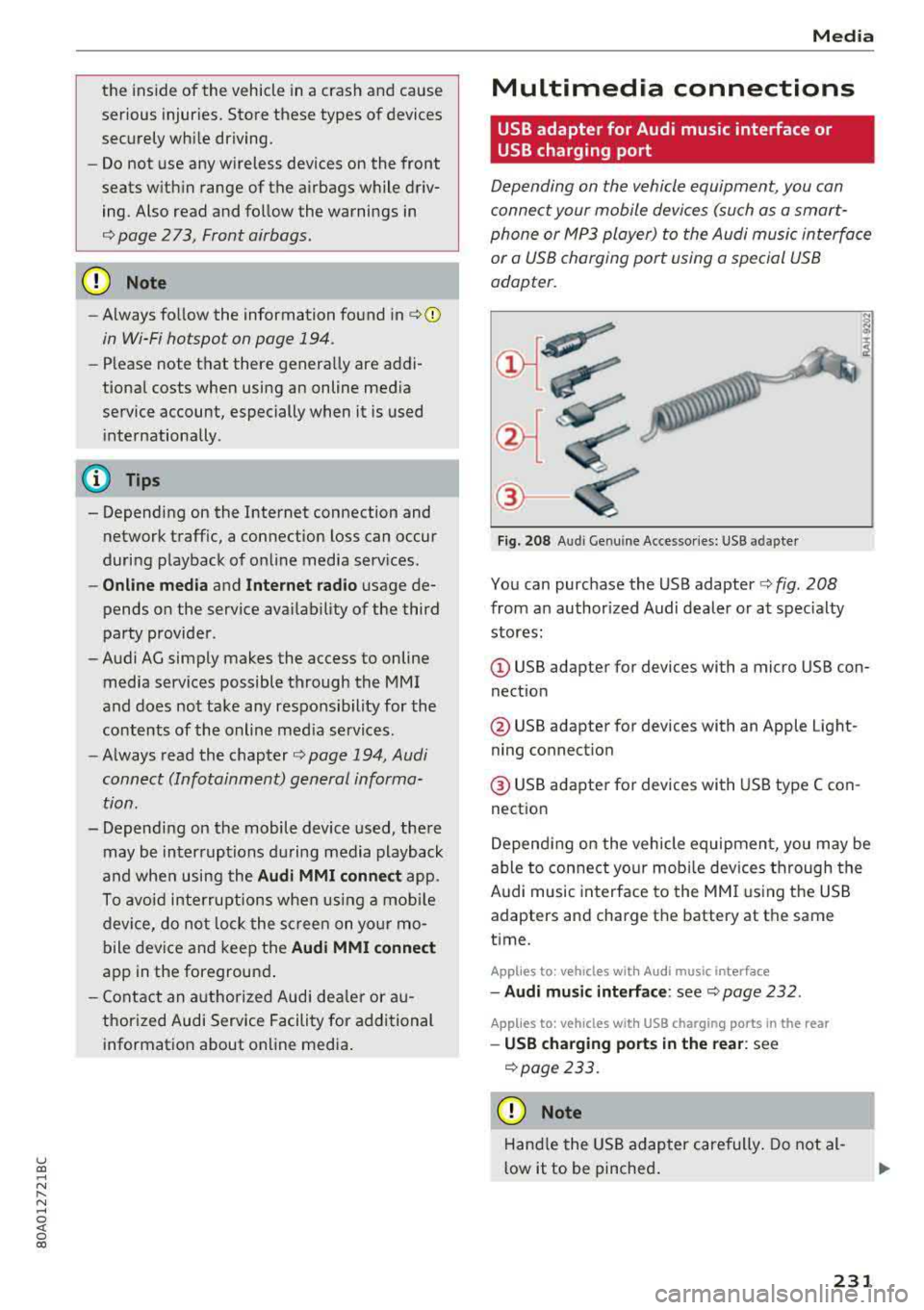
Fig. 208 A udi Genuin e Acce ssories: USB a dapter
You can purchase the USB adapter c::> fig. 208
from an authorized Audi dealer or at specialty
stores:
I
(D USB adapter for devices with a micro USB con
nection
@ USB adapter for devices with an Apple Light
ning connection
@ USB adapter for devices with USB type C con
nection
Depending on the vehicle equipment, you may be
able to connect your mobile devices through the
Audi music interface to the MMI using the USB
adapters and charge the battery at th e same
time .
Applies to : vehicles wit h Aud i music interface
-Audi music interface : see c::> page 232.
Applies to: vehicles with USB charging ports in the rear
-USB charging ports in the rear : see
c::>page233.
CD Note
Hand le the USB adapter carefully . Do not al
low it to be pinched.
231