light AUDI Q5 2018 Manual Online
[x] Cancel search | Manufacturer: AUDI, Model Year: 2018, Model line: Q5, Model: AUDI Q5 2018Pages: 392, PDF Size: 60.56 MB
Page 217 of 392
u co ..... N r-N .....
~ 0 co
Automatic: the map display adapts to the light
ing conditions (for example, changing from
Day
to Night when driving through a tunne l) .
Map display
Standard :
see ¢page 213, fig. 193 .
Satellite map1>: see ¢page 215, fig . 194 .
Map orientation
Destination :
the map indicates the destination
and is oriented to the north.
2D heading up map /2D north up map : the cur
rent vehicle position is disp layed . The map is ori
ented in the direction of travel or to the north.
3D map* : the current vehicle pos it ion is shown
on a three -dimensional map and is aligned to the
direction of trave l. At a scale of 62 mi (100 km)
and larger, the map orientation is to the north.
Overview map: the entire route from the vehicle
position to the destination or the next stopover is
disp layed on the map . The map sca le depends on
the length of the route and adapts automatically.
The map is oriented to the north.
Route information
The display of route information, such as the cur
rent street being driven on or points of interest
a long the current route
¢ page 213, fig. 192, can
be switched on/off or can be minimized on the
display of upcoming maneuvers.
Automatic zoom
On :
the map scale is adapted automat ica lly de
pending on the type of road being trave led (ex
pressway, highway, other roads) so that you al
ways have an optimal overview of the road ahead .
The scale is also automatically adapted when
there are upcoming maneuvers to provide a bet
ter deta iled view .
Intersection : when route guidance is active, the
map temporarily zooms in to a detailed scale
1> AU DI AG prov id es acce ss to se rvic e s fro m thir d par ty pro
v ide rs. Pe rman ent ava ilab ility can no t be g uaranteed , be·
c au se that depends on th e th ird party provider .
2> Pro vid er at tim e of pr intin g.
Navigation
when there are upcoming maneuvers so that you
can see the street or turn better.
Off : the map scale you have chosen is ma in
ta ined .
MMI map contents
You can switch the d isplay of additional informa
tion on the map in the Infotainment system dis
play on or off .
The weather forecast is displayed on a 3 m i (5
km) scale on the map .
Instrument cluster map contents
You can also set which map content disp lays in
the instrument cluster
¢ page 163.
Satellite map
Applies to: vehicles with a navigation system and Audi con·
nect (Infotainment)
You can display the navigation map with satel
lite images.
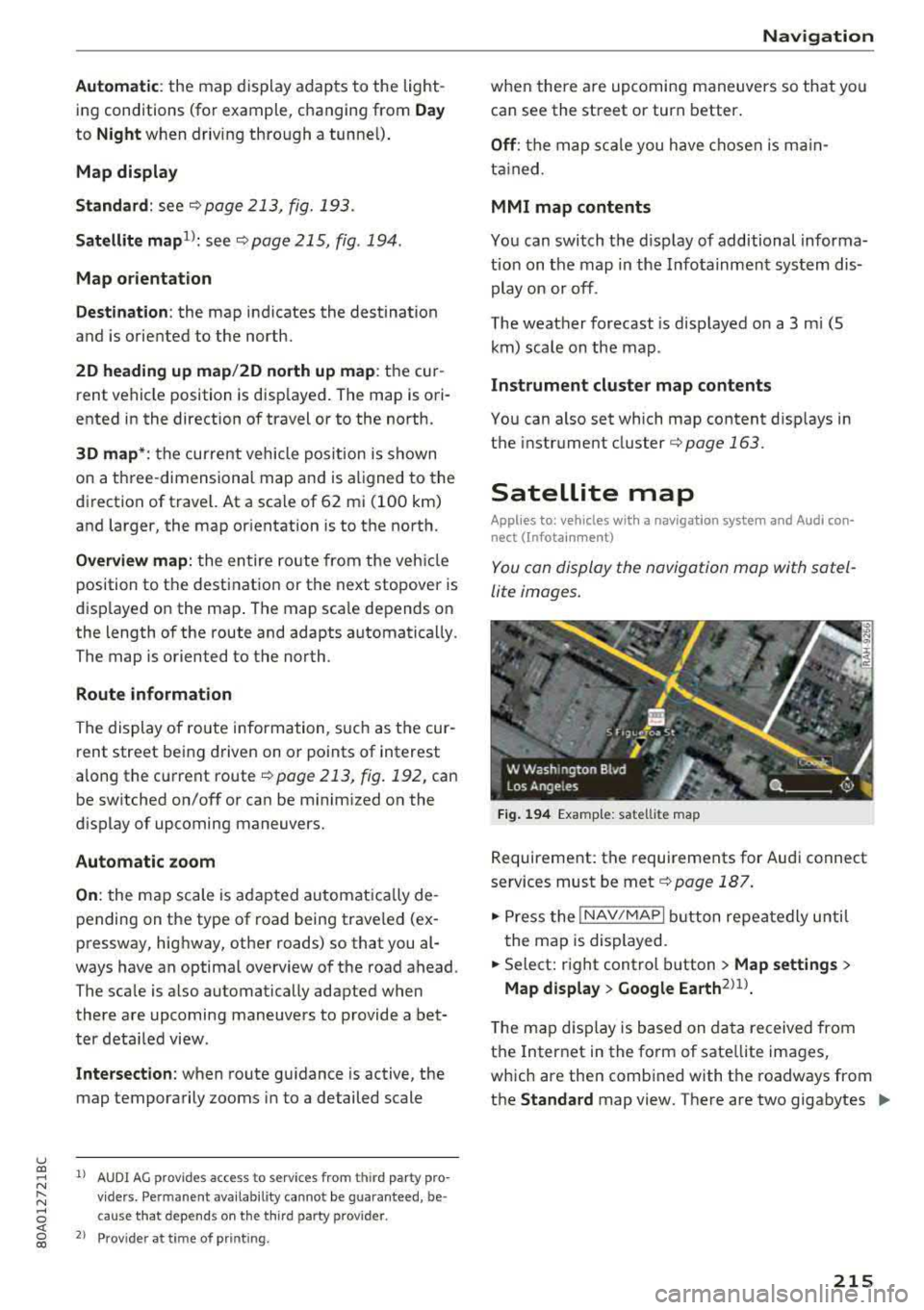
Fig. 194 Exampl e: satelli te map
Requirement: the requirements for Audi connect
services must be
met ¢ page 187.
.. Press the !NAV /MAP I butt on repeatedly until
the map is displayed.
.. Select: right control button > Map settings >
Map display > Google Earth2>1>.
T he map display is based on data received from
the Internet in the form of sate llite images,
which are then combined with the roadways from
the
Standard map view. There are two gigabytes ..,_
215
Page 227 of 392
u co ..... N r--N ..... 0 <( 0 00
Media
Introduction
There are various media drives and connections
avai lab le in the MMI. For example, you can play
audio/video* fi les from t he Jukebox* or connect
your mobi le device to the Audi mus ic interface*
and operate it through the MMI.
Notes
General
Media and format re strictions :
the MM I (includ
ing the SD card reader and the USB storage de
vice connection *) was tested wit h a variety of
products and media on the market. However,
there may be cases where ind ividual devices or
media and audio/video files* may not be recog
n ized, may play on ly w ith restrictions, or may not
play at all.
Digital Rights Management : please note that
the audio/video* files are subjec t to copyright
protection .
The med ia drives do not play f iles that are pro
tected by
ORM and that are ident ified with the
symbol
rfl.
Data secu rity : never store important data on SD
cards, the Jukebox*, CDs/DVDs or mobile devices .
Aud i AG is not responsib le for damaged or lost
f il es and media .
Loading times : th e more files/fo lders/p lay lists
that are on a storage medium, the longer it will
take to load the audio/v ideo* files . Audi recom
mends using storage med ia tha t on ly conta in au
d io/video files* . To decrease the t ime it takes to
l oad audio/v ideo f iles*, create subfolders (fo r ex
ample, fo r th e a rt ist o r album). The loading time
will also increase when importing fi les.
Additional information : when playing, audio
f iles are automatically displayed with any add i
tional informat ion that is sto red (such as the ar
tis t, trac k and albu m cover). If this informa tion is
n o t availa ble o n the sto rage med ium, t he
M MI
will check the Grace note metadata database .
Media
However, in some cases, the additional in fo rma
tion may not be displayed.
Re stri cted functionality : reset the Media set
tings
t o the fac to ry defau lt settings if func tional
ity is restr icted
¢ page 246.
If fu nctionali ty is rest ricted, reset the Jukebox *
to the fa ctory default se tt ings ¢ page 246.
For information about the propert ies of s upport
ed med ia and fi le formats ,
see¢ page 240 .
@ Note
Always fo llow the information fo und in ¢ @ in
Wi-Fi hotspot on page 194 .
CD/DVD operation
CD /DVD and format restrictions :
the funct iona li
ty of individ ua l st orage media may be limited due
to the v ariety of b lank CDs/DVDs avai lab le and
t h e various capacities. Audio C Ds or video DV Ds
with copy p rotection, CDs/DVDs that do not con
fo rm to the standard and multi session CDs may
have limit ed playback or may not play at a ll. Audi
recommends finaliz ing the recording process
whe n creat ing mult isess io n CDs . Mult isess ion is
not supported for DVDs .
Using CDs/DVDs , the CD dr ive or the DVD drive :
to ensure correct, hig h-quality playback and to
prevent damage to the dr ive or d isc read ing er
rors, always store CDs/DVDs in a protective
sleeve and do not expose t hem to direct sunlight .
Do
not u se:
- Damaged, dirty or scratched CDs/DVDs
- Sing le CDs/DVDs with 3 in (8 cm) d iameter
- CD/DVDs that a re not round
- CDs/DVDs w it h labe ls
- Protec tive rings
- Clea ning CDs
Thermal protection switch : CD/DVD playback
may be temporarily unavailab le if outs ide tem
peratures a re extremely hot or co ld . A thermal
pro tect io n sw itch is insta lled to p rotect the C D/
D VD and the laser.
La ser devi ce s: lase r devices a re divided i nto safe -
ty classes 1 to 4 in acco rdance w ith DIN I EC 76
.,.
225
Page 233 of 392
u co ..... N r-N .....
~ 0 co
the inside of the vehicle in a crash and cause
serious injuries. Store these types of devices
securely while driving.
- Do not use any wireless devices on the front
seats within range of the airbags while driv
ing. Also read and follow the warnings in
c::> page 2 73 , Front airbags .
CD Note
-Always follow the information found in c:>@
in Wi-Fi hotspot on page 194 .
-Please note that there generally are addi
tional costs when using an online media
service account, especially when it is used internationally .
(D Tips
-Depending on the Internet connection and
network traffic, a connection loss can occur
during playback of on line media services .
-Online media and Internet radio usage de
pends on the service availability of the third
party provider .
- Audi AG simply makes the access to online
media services possible through the MMI
and does not take any respons ibility for the
contents of the online media services .
- Always read the chapter
c::> page 194, Audi
connect (Infotainment) general informa tion .
- Depending on the mobile device used, there
may be interruptions during media playback
and when using the
Audi MMI connect app.
To avoid interruptions when using a mobile
device , do not lock the screen on your mo
bile device and keep the
Audi MMI connect
app in the foreground .
- Contact an authorized Audi dealer or au
thorized Audi Service Facility for additional
information about online media .
Media
Multimedia connections
USB adapter for Audi music interface o r
USB charging port
Depending on the vehicle equipment, you can
connect your mobile devices (such as a smart
phone or MP3 player) to the Audi music interface
or a USB charging port using a special USB
adapter.
@-
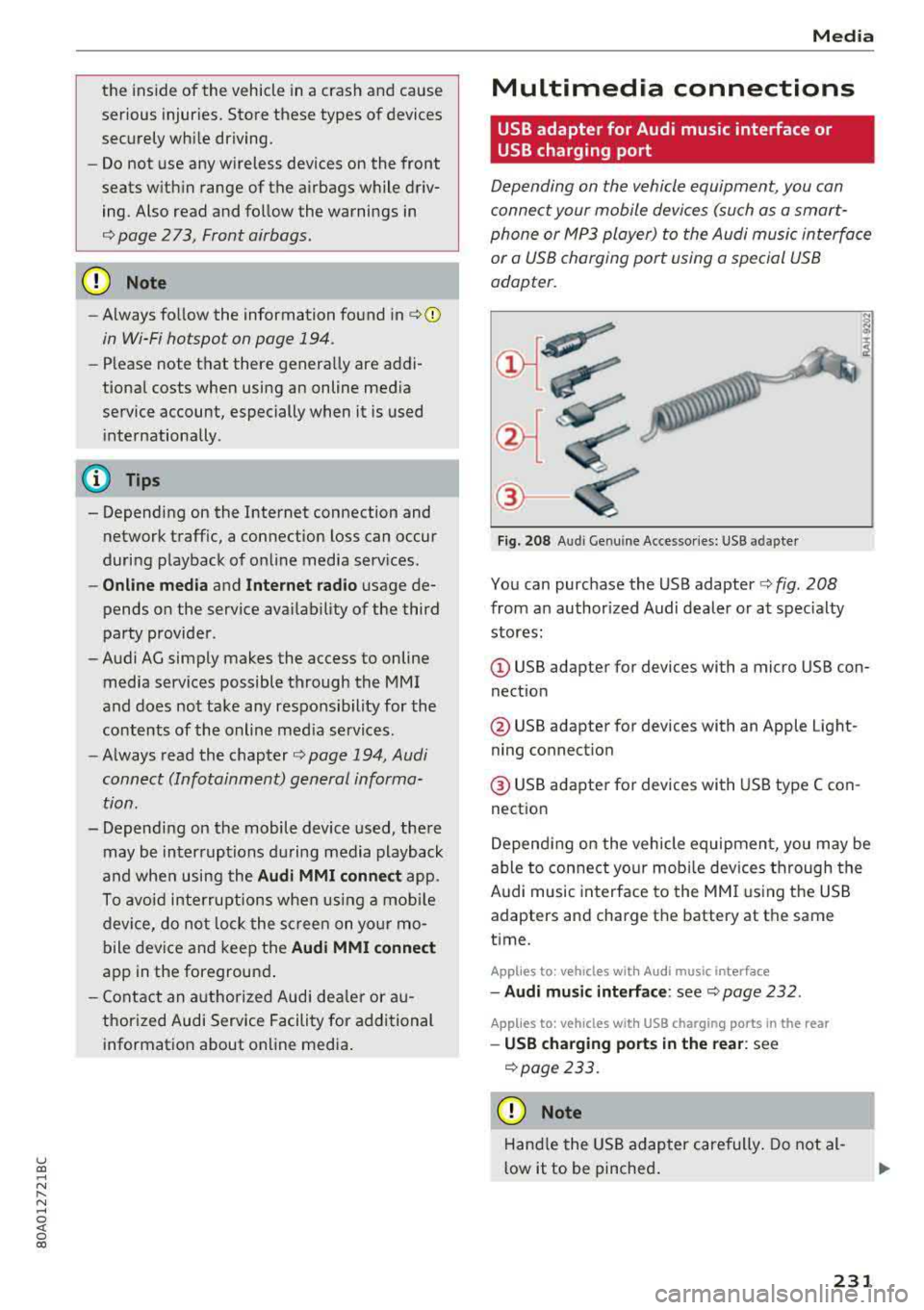
Fig. 208 A udi Genuin e Acce ssories: USB a dapter
You can purchase the USB adapter c::> fig. 208
from an authorized Audi dealer or at specialty
stores:
I
(D USB adapter for devices with a micro USB con
nection
@ USB adapter for devices with an Apple Light
ning connection
@ USB adapter for devices with USB type C con
nection
Depending on the vehicle equipment, you may be
able to connect your mobile devices through the
Audi music interface to the MMI using the USB
adapters and charge the battery at th e same
time .
Applies to : vehicles wit h Aud i music interface
-Audi music interface : see c::> page 232.
Applies to: vehicles with USB charging ports in the rear
-USB charging ports in the rear : see
c::>page233.
CD Note
Hand le the USB adapter carefully . Do not al
low it to be pinched.
231
Page 234 of 392
Media
@ Tips
-The USB adapter on the Audi music inter
fac e will support iPod touc h/iPh one from
the 5th generation or later with the light
ning connector.
- Mobile devices with an Apple Dock connec
tor can only be charged with a USB adapter
for devices with an Apple Dock connector
and cannot transmit data.
Audi music interface
Connec t your mobile devices to the Audi music
interface in order to operate them through the
MMI and charge the battery .
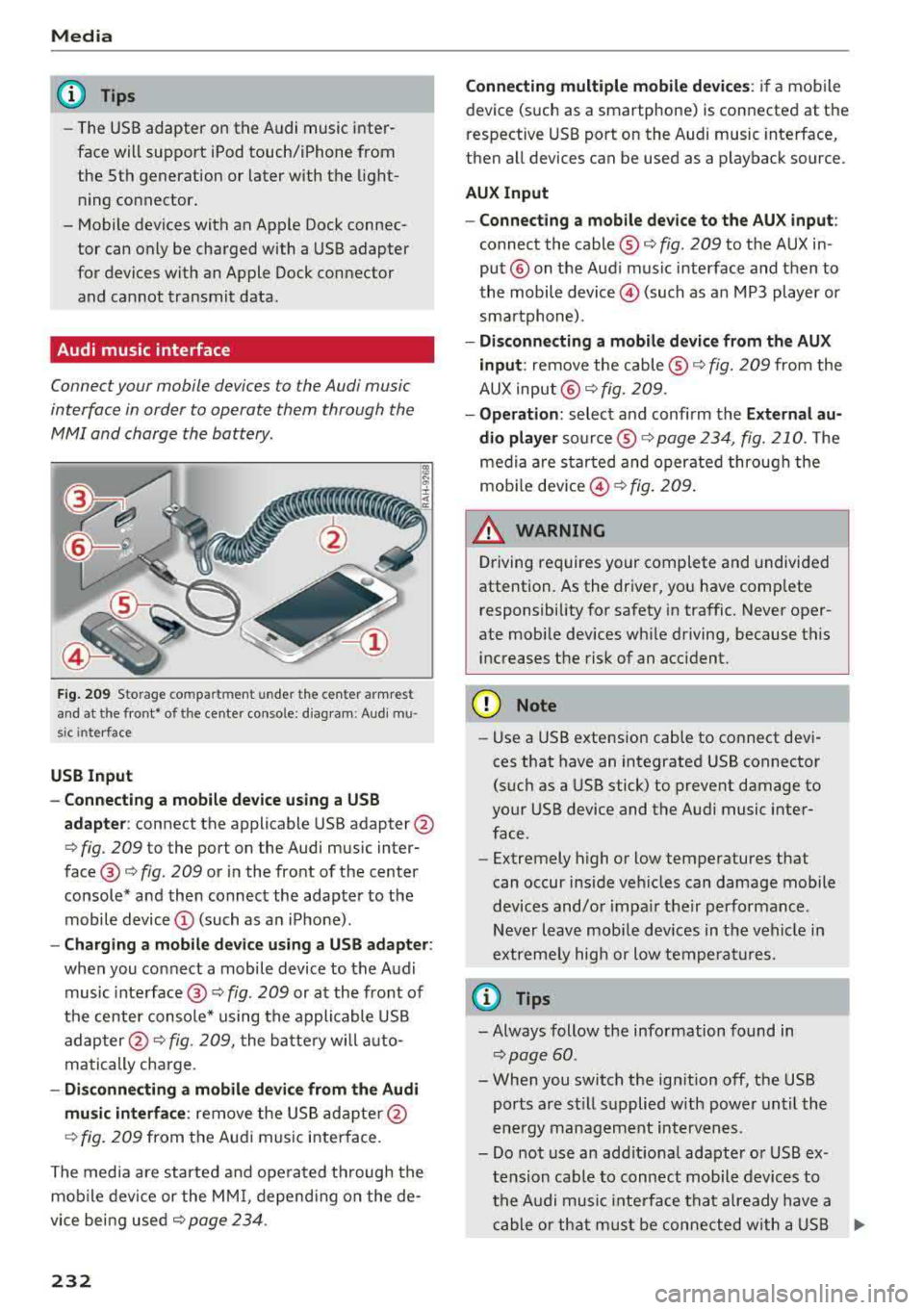
Fig. 2 09 Storage co m pa rtmen t unde r the c ente r armr est
and at the fro nt• o f the ce nter co nso le : diag ram : Audi mu
s ic inte rfa ce
USB Input
- Connecting a mobile device u sing a USS
adapte r:
connect the applicable USB adapter @
c:::> fig. 209 to the port on the Audi music inter
face @ c:::> fig. 209 or in the front of the center
console* a nd then connect the adapter to the
mobile device © (such as a n iP hone) .
-Charging a mobile device us ing a USS adapter :
when you connect a mobile device to the Audi
music inte rface @
c:::> fig. 209 or at the fro nt of
the cen ter console* using the appli cable USB
ad apter @
c:::> fig. 209, the batte ry wi ll a uto
matically charge .
-Di sconnecting a mobile devi ce from the Audi
mu sic interface :
remove the US B ad apte r@
c:::> fig . 2 09 from the Au di m usic i nterface .
T he media are started and ope rated through the
mobile device or the MM I, depend ing o n the de
vice bei ng used
c:::> page 234 .
232
Connecting multiple mobile devices : if a mobile
device (such as a smartphone) is connected at the
respective USB port on the Audi music interface,
then a ll devices can be used as a playback source.
AUX Input
- Connect ing a mobile device to the AU X input :
connect the cable ® c:::> fig. 209 to t he AUX in
put® on the Aud i music interface and then to
the mobile
device @) (such as a n MP3 playe r or
sma rtphone) .
-Di sconnecting a mobile device from the AUX
input :
remove the cable ® c:::> fig. 209 from the
AUX input @
c:::> fig. 209.
-Oper ation : select a nd confi rm the E xternal au
dio player
so urce ® c:::> page 234, fig. 210. The
medi a are sta rted and operate d through the
mob ile
dev ice @ c:::> fig. 209 .
_& WARNING
Driving requires your complete and undivided
attention. As the driver, yo u have comp lete
responsibility fo r safety in traffic. Never oper
ate mobi le dev ices wh ile driving, because this
i n creases the risk of an acc ident.
(D Note
- Use a USB extens ion cable to co nnect devi
ces that have an integrated USB connector
(such as a USB stick) to prevent damage to
your USB device and the A udi music inter
face .
- Extremely high o r low temperatures that
can occur inside ve hicles can damage mobile
devices and/o r impa ir the ir performance .
N ever l eave mobi le devices in t he vehicle i n
extremely high or low tempe ra tur es.
(D Tips
- Always follow the info rmation found in
c:::> page 60 .
- When you switch the ign ition off, the USB
ports a re st ill su pplied w ith power unt il the
e n ergy managem ent int erven es.
- Do not use a n addit iona l adapter o r USB ex
tension cab le to connect mobile devices to
th e A udi music i nte rfa ce tha t already have a
ca ble or th at must be c onnec ted w ith a U SB
Ill-
Page 235 of 392
u C0 .... N ,..._
N
adapter(¢ page 231). They may impair the
functionality.
- You can purchase the AUX connector cable
from an authorized Audi dealer or at spe
cialty stores.
- Audi recommends setting the volume of a
mobile device connected to the AUX input to
approximately 70% of the maximum vol ume .
- Functionality is not guaranteed for mobile
devices that do not conform to the USB 2.0
specification.
- USB hubs are not supported.
- Some versions of the iPod such as the iPod
shuffle cannot be connected to the USB
adapter for devices with Apple Dock connec
tor. Connect these devices using a AUX con nector cable.
- Changed content on a mobile device
l) that
is connected to the Audi music interface
may not be displayed in the media center.
In this case, reset the
Media settings back
to
Factory settings ¢ page 246.
- Video playback through the Audi music in
terface is only supported if the connected
device is recognized as a USB storage device
(for example a USB stick). Apple devices and
MTP devices (such as smartphones) are not
recognized as USB storage devices.
- iPod/iPhone malfunctions also affect the
operation of the MMI. Reset your iPod/
iPhone if this happens.
- Audi recommends updating the iPod/iPhone
software to the latest version. For impor
tant information on operating your iPod/ iPhone, refer to the user guide for the de
vice.
- The USB adapter on the Audi music inter
face will support iPod touch/iPhone from
the 5th generation or later with the light
ning connector.
- For more information about the Audi music
interface and supported devices, check the
Audi database for mobile devices at
www .audiusa .com/mp3 or contact an au -
.... o l) A ppli es o nly t o MTP devic e s. Doe s not a pply to Ap ple de vi
thorized Audi dealer or authorized Audi
Service Facility.
USB charging ports in the rear
Applies to: vehicles with USB charging ports in the rear
You con charge the battery on your mobile device
through a USB charging port.
Two USB charging ports are located at the back
of the center console .
-USB adapter: refer to ¢ page 2 31, USB adopter
for Audi music interface or USB charging port.
- Charging a mobile device using the USB
adapter:
connect your mobile device to a USB
charging port using a suitable USB adapter.
- Disconnecting a mobile device from the charg
ing port:
remove the USB adapter from the USB
charging port .
-Disconnecting mobile devices with an Apple
Dock connector :
remove the Apple Dock con
nector from the Apple device with the release
tabs pressed in.
A WARNING
= -
Driving requires your complete and undivided
attention. As the driver, you have complete
responsibility for safety in traffic. Never oper
ate your mobile devices while driving, because
this increases the risk of an accident.
@ Note
Extremely high or low temperatures that can
occur inside vehicles can damage mobile devi
ces and/or impair their performance . Never
leave mobile devices in the vehicle in ex
tremely high or low temperatures .
(D Tips
-In preparation at the time of printing.
- Always follow the information found in
<=> page 60 .
-When you switch the ignition off, the USB
ports are still supplied with power until the
energy management intervenes .
233
Page 237 of 392
-Playing audio/video files : select a source in the
Media menu > Category (such as artists > al
bum> track) .
-Moving one leve l up in the folder structure :
press the I BACKI button. Or: select and confirm
Folder up .
- Selecting the previous or ne xt track/chapter*
1>: press the On/Off knob on the M MI cont rol
panel br iefly to the left
l«1 or right l»t.
-Fast-forwarding and rewinding audio/video*
file s:
press and hold the On/Off knob on the
MMI control panel to the left
l«1 or right l»t for
a longer time.
-Pausing or resum ing playb ack : press the On/
Off knob on the MMI contro l pane l br iefly.
@ Tips
- You can scro ll th rough long lists quickly by
turning the contro l knob q uick ly. The scroll
i ng speed depends on the number of list e n
tries.
- Fo r safety reasons, the video image is only
displayed when the vehicle is stationary . On
l y the sound from t he v ideo plays while driv
i ng .
Media center
Various categories for selecting audio/video*
files are available in the media center .
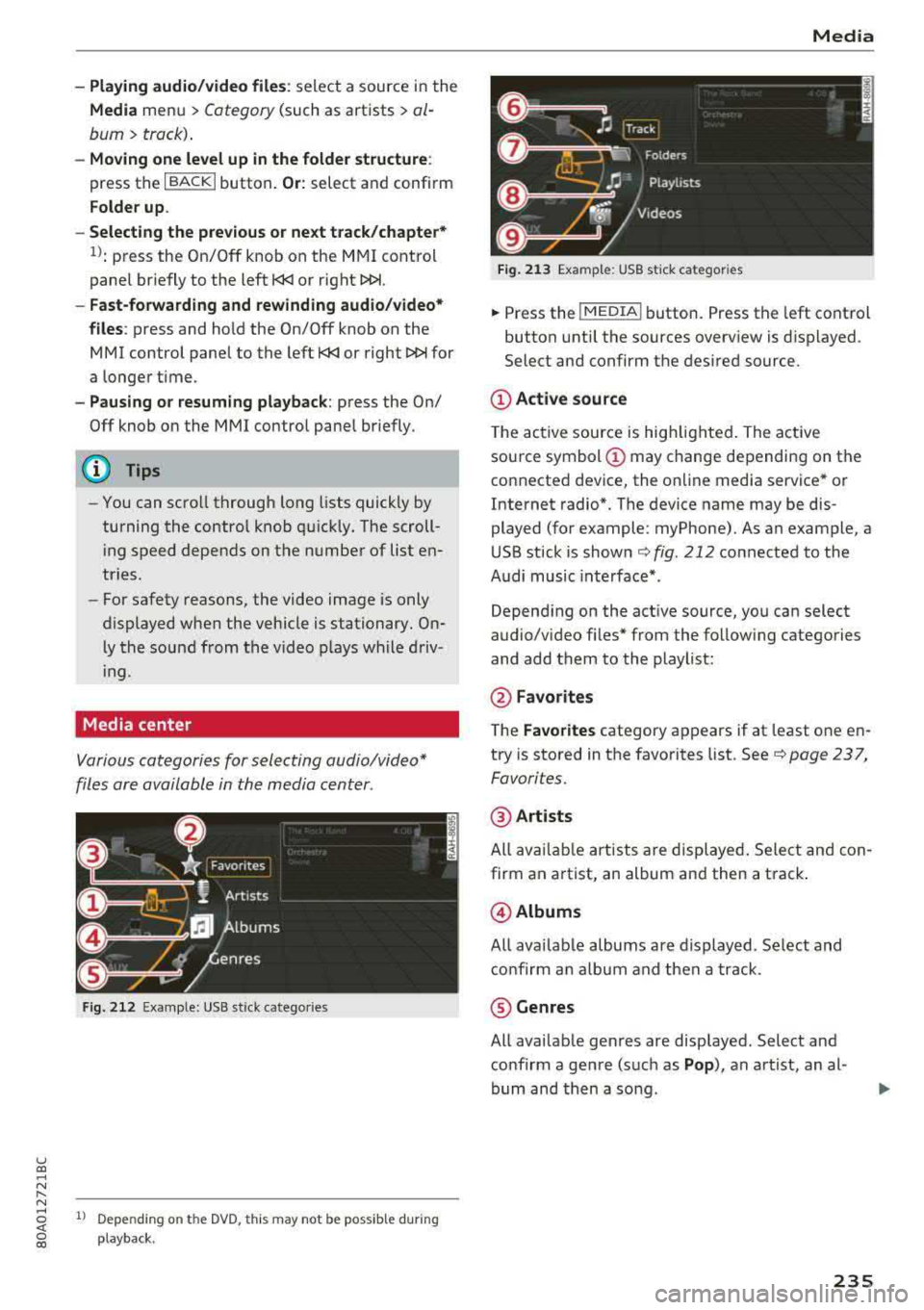
Fig. 212 Exa mple: USB stick cate gories
u co ..... N r-N ..... ~ 1l Depe ndi ng on the DVD, this m ay not be poss ib le d urin g
~ playba ck .
Media
Fi g. 21 3 Examp le: USB stick cat egories
.,. Press the I MEDIA i button. Press the left cont rol
button unti l the sources overv iew is d isplayed .
Select and confirm the desired source.
(D Active source
The active source is hig hlighted . The ac tive
sou rce symbol
(D may change depending on the
connected dev ice, the on line media service * or
Internet radio*. The device name may be dis
played (for example: myPhone). As an example, a
U SB stick is shown
c:::;, fig. 212 connected to the
Audi music inte rface *.
Depend ing on the act ive source, yo u can select
audio/v ideo fi les* from the follow ing categories
and add them to the playlist:
@ Favo rites
T he Favorites category ap pears if at least one e n
try is stored in the favo rites list . See
c:::;, page 237,
Favorites.
@ Artists
All av ailable art ists a re displayed . Sele ct and con
firm an a rtist, an album and then a t rack .
@ Albums
All ava ilab le albums are d isplayed. Se lect and
c o nfirm an alb um and then a track .
® Genres
All ava ilab le ge nres are disp layed. Select and
confirm a gen re (s uc h as
Pop ), an artist, an al
bum and then a so ng .
235
Page 245 of 392
u co ..... N r--N ..... 0 <( 0 00
Audi smartphone interface
Setup
Applies to: vehicles with Audi smartphone interface
You con connect your smortphone to the MM I us
ing the Audi smortphon e int erfac e. Certain con
t e n t on you r sm ortphone is ado pted to th e Info
tainme nt system d is p lay while driving and con
be operated through the
MMI control panel .
Requirement
The vehicle must be stat ionary and the ignition
must be switched on .
iPhone generation 5 or h igher w ith Lightning
connector and iOS 7 .1.2 operating system or h igher.
O r:
Smartphone with Android Auto app and Android
5 .0 Loll ipop operating system or higher.
.,. Connec t your sma rtphone to the Audi music in
terface ¢ page 232 using a USB adapte r
¢page 231, fig. 208 .
.. Select and confirm A ctivate Apple CarPlay or
Acti vate And roid Auto now .
.. Follow the system instruct ions.
.. Pay attention to any additiona l system prompts
on your smartphone if applicable .
If yo u chose not to use Apple CarP lay or Android
Auto when connecting your smartphone for the
first time, you can start the Audi smartphone in
terface later on using the
Connection manager.
.,. Se lect : I MENU I button > Audi smartphone in-
terfa ce
> Change to connection manager .
.. Connect your sma rtphone to the A udi music in
terface using a USB
ad apter ¢ page 231,
fig . 208.
.. Se lect and confirm Audi smartphone in t he
Connection manager ¢ page 246. You can se
l ect your smartphone in the list of devices that
are already
paired¢ page 247.
.,. Follow the system instruct ions .
@ Note
Always follow the i nformat ion found in¢ @) in
Wi-Fi hotspot on page 194 .
Audi smartph one interfac e
(D Tips
-The functions that can be used depen d on
the fo llow ing factors, among others:
- the brand of your smartphone
- the vers io n of the ope rating system in
your smartphone
- the software ve rsion of the app used
- the USB adapter cab le and correct connec-
tion
- your cell phone se rvice provide r
- the customized settings on yo ur sma rt -
phone
- One of the factors above o r a com bina tion
of any of them could cause your sma rtphone
to be incompatib le wit h the Audi smart
phone inter face. Compatibility cannot be
guaranteed for all types of smartp hones.
For more informat io n and assistance, refer
t o the user guide and the man ufactu rer of
yo ur sma rtphone .
- If the connected smartphone has voice con
tr ol, you can ope rate yo ur smartp hon e usi ng
the ex ter nal voic e recognition system
¢page 172.
- Th e menu language show n in t he MMI is
based on t he sett ings in you r smartp ho ne .
- Th e time d is p layed in the M MI is based o n
the settings in yo ur sma rtphone .
- Severa l M MI functions a re not avai lab le
when Apple Car Play o r Andro id A uto is ac
t ive.
- Yo u ca nnot co nnect any mob ile dev ices via
B lu etooth whe n an App le CarPlay connec
tion is a ctive .
Operating
Applies to: vehicles with Audi smartphone interface
Opening a menu
Apple CarPlay :
you can go back to t he Apple Car
Play main me nu regardless of the se lected me nu
i tem by p ressing and holdi ng the
I B ACKI button .
Android Auto : to go back to the Andro id Auto
me nu bar, push the control knob down .
243
Page 247 of 392
u co ..... N r--N ..... 0 <( 0 00
System settings
Setting the date and
time
You can set the clock time manually or using the
CPS* .
.. Select : IMENU I button> Settings > left co ntro l
button >
MMI settings > Date & time.
.. Or : select : IMENU I button> Vehicle > left con-
t ro l button >
Vehicle settings > Date & time .
Automatic setting
When t his function is sw itched on g, the time
and date are a utomat ically set.
Time
R eq uirement: the Automatic setting must be
sw itched
off .
Press the cont ro l kn ob. Yo u ca n se t the Time
manually by turn ing and press ing the con trol
k nob.
Date
R eq uirement: the Automati c setting must be
sw itched
off.
Press the cont rol knob . Yo u can set the Date
manually by turn ing and press ing the cont rol
knob.
Time zone
When se lecting the approp riate t ime zone, a
sampling of countr ies in this zone will be listed .
Automatic time zone*
When t his function is sw itched on g , the time
will automatically ad just to the corresponding
time zone.
Automatic daylight saving time*
When t his function is sw itche d on g, the time
w ill automatically switc h to day light saving time .
Time format
If yo u select 24h , the clock will d isp lay, for ex
a m ple,
13 :00 . If yo u se lec t AM /PM , the clock
w ill d isp lay, for examp le,
1 :00 PM .
System settings
Date format
If you select DD .MM .YYYY , the date displ ay will
show, for example ,
31.08.2018. If you select
MM /DD/YYYY , the date disp lay w ill show, for ex
amp le,
08/31/2018. If you select YYYY-MM
DD ,
the date display will show, fo r example,
2018 -08 -31 .
MMI settings
.. Select: !ME NUI button> Settings > left control
button >
MMI settings .
Language
Yo u can c hange the display language as well as
the lang uage fo r the voice guidance * and voice
r ecognition system *.
T he num ber of langu ages av ailab le depends on
t h e ma rket.
Measurement units
The following meas urement u nits can be set de
pend ing on ava ilab ility:
Speed , Distance , Tem
perature , Fuel consumption , Volume , Pressure .
Tool tips
When this f unct ion is switched on g, yo ur MMI
shows you tips fo r inpu t. The freq uency of how
often it displays dec reases w ith time .
Speech dialog system
App lies to : vehicles wit h voice recog nitio n system
Depend ing on veh icle equipment, the following
funct ions may be ava ilable:
Command display : when this function is sw itch
ed on
g , th e M MI w ill show yo u the poss ible
commands for voice input in the respective
menu.
Short dialog : when this function is sw itche d on
g, a shorter form of the prompts is used .
Command during voice output*: thi s fu nction i s
swi tched on at the factory . W hen this func tion is
switched on
g , yo u can say new commands dur-
i ng announcements. You do not need to wa it for
the signal tone (beep) dur ing an announcement.
When the funct io n is swi tched off
0, you need to Iii>
245
Page 254 of 392
Drivin g saf ety
Driving safety
Basics
Safe driving habits
Please remember -safety first!
The individua l safety features of your vehicle can
work together as a system to help protect you
and your passengers in a wide range of accidents.
These features cannot work as a system if they
are not always correctly adjusted and correctly
used .
This chapter contains important informat ion,
tips, instruct ions and warn ings that you need to
read and observe for your own safety, the safety
of you r passengers and others . We have summar
ized here w hat you need to know about safety
be lts, a irbags, child restra ints as well as child
safety. Yo ur safety is for us priority number 1. Al
ways observe the information and warnings in
this section -for your own safety as we ll as that
of your passengers.
The information in this section applies to all
model versions of your vehicle . Some of the fea
tures described in this sections may be standard
equipment on some models, or may be optional
equ ipment on others. If you are not sure, ask
your author ized Audi dealer.
A WARNING
- Always make sure that you follow the in
structions and heed the WARNINGS in th is
manual.
It is in your inte rest and in the in
te rest of your passengers .
-
-Always keep all of the Owner's L iterature
manuals in yo ur Audi when you lend o r sell
yo ur vehicle so that this import ant informa
t ion w ill alw ays be availab le to the dr iver
and passengers.
- Always keep the Owner 's Lite ra ture han dy
so that you can find it easi ly if yo u have
questions .
252
Important things to do before driving
Safety is everybody's job! Vehicle and occupant
safety always depends on the informed and care
ful driver .
For your safety and the safety of your passen
gers,
bef ore dri ving alw ays:
.. Make sure that a ll lights and signals are operat
ing correctly .
.. Make sure that the tire pressure is correct.
.. Make sure that all windows are clean and afford
good vis ibility to the outs ide .
.. Sec ure all luggage and othe r items ca refully
¢ page 257 .
.. Make sure tha t noth ing ca n interfere wi th the
peda ls .
.. Adjust front seat, head restraint and mirrors
correctly for your height.
.. Instruct passengers to adjust the head re
straints according to their he ight.
.. Make sure to use the right child restraint cor
rectly to protect
children ¢ page 291, Child
safety .
• Sit proper ly in yo ur seat a nd make sure t hat
your passenge rs do the same
¢ page 56, Front
seats .
.. Fasten your sa fety belt and wear it p roperly . Al
so instruct your passengers to fasten their safe
ty be lts
properly ¢ page 261 .
What impairs driving safety?
Safe driving is directly related to the condition of
the vehicle, the driver as well as the driver's abili
ty to concentrate on the rood without being dis
tracted.
The driver is responsib le for the safety of the ve
hicle and a ll of its occupants. If your ability to
drive is impa ired, safety risks for everybody in the
vehicle increase and you a lso become a hazard to
everyone else on the road
¢ _&. . Therefore:
.. Do not let yourse lf be distracted by passenge rs
or by using a cellular telephone .
.. NEVER drive when your driving ability is im
paired (by med ications, alcohol, drugs, etc .) .
.. Observe all traffic laws, rules of the road and
speed lim its and plain common sense .
.,.
Page 255 of 392
u co ..... N r-N .....
~ 0 co
~ ALWAYS adjust your speed to road, traffic and
weather conditions.
~ Take frequent breaks on long trips. Do not drive
for more than two hours at a stretch.
~ Do NOT drive when you are tired, under pres
sure or when you are stressed .
A WARNING
Impaired driv ing safety increases the risk of
ser ious personal inju ry and death whenever a
vehicle is being used.
Correct passenger
seating positions
Proper seating position for the driver
The proper driver seating position is important
for safe, relaxed driving .
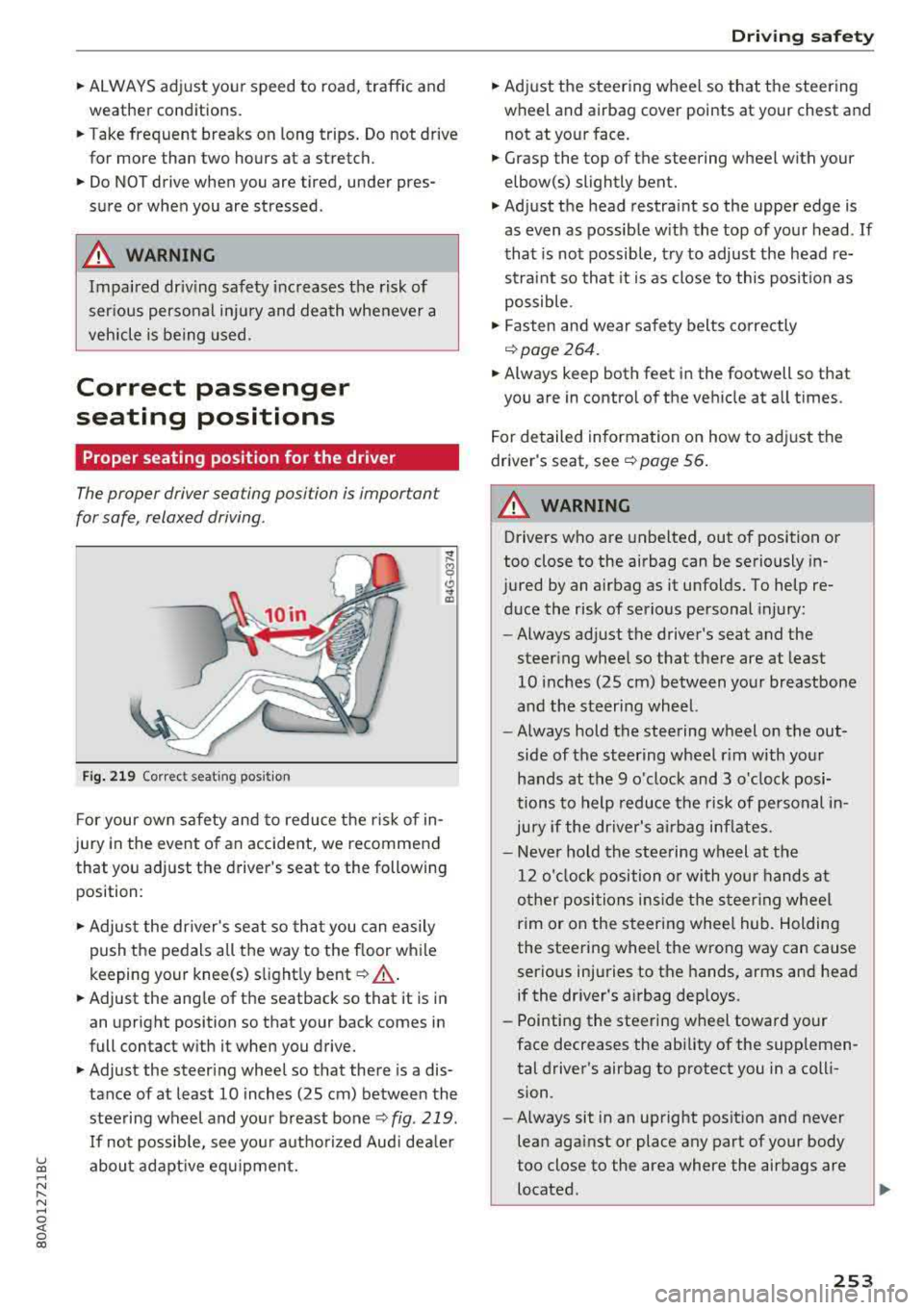
Fig. 219 Correct seating pos ition
F or your own s afety and to reduce the risk of in
jury in the event of an accident, we recommend
that you adjust the driver 's seat to the following
position:
~ Adjust the dr iver's seat so tha t you can easily
push the pedals all the way to the f loor wh ile
keeping your knee(s) s light ly bent
c::> _& .
~ Adjust the ang le of the seatback so that it is in
an upright position so that your back comes in
full contact w ith it when you drive.
~ Adjust the steering wheel so that there is a dis
tance of at least 10 inches (25 cm) between the
stee ring wheel and you r breast bone
c::> fig. 219.
If no t possib le, see you r autho riz ed Aud i dea le r
abo ut adapt ive eq uipment.
Dri ving safety
~ Adjust the steering wheel so that the steering
wheel and airbag
cover points at your chest and
not at yo ur face.
~ Grasp the top of the steering wheel with your
elbow(s) slightly bent.
~ Adjust the head restra int so the upper edge is
as
even as possible w ith the top of your head . If
that is not possib le, t ry to adjust the head re
straint so that it is as close to this posit ion as
possible .
~ Fasten and wear safety belts correctly
c::>page 264.
~ Always keep both feet in the footwell so that
you are in contro l of the ve hicle at a ll times.
F or detailed information on how to adj ust the
drive r's seat, see
c::> page 56 .
A WARNING
-
Drivers who are unbelted, out of position or
too close to the airbag can be seriously in
jured by an airbag as it unfolds. To help re d uce the risk of serious personal injury:
- Always ad just the driver's seat and the
steer ing whee l so that there are at least
10 inc hes (25 cm) between you r breastbone
and the steering wheel.
- Always hold the steering wheel on the out
side of the steering wheel r im with your
hands at the 9 o'clock and 3 o' clock posi
tions to help reduce the risk of personal in
ju ry if the driver's airbag inflates.
- Never hold the stee ring wheel at the
12 o' clock position o r with you r hands at
o ther posi tions ins ide the s teer ing whee l
rim or on the steering wheel hub. Holding
the steering wheel the wrong way can cause
serio us injuries to the hands, arms and head
if the dr iver's airbag dep loys.
- Pointing the steering wheel toward your
face decreases the ability of the supplemen tal driver's airbag to protect you in a coll i
sion.
- Always sit in an upright position and never
lean aga inst or place any part of your body
too close to the area where the airbags are located .
253