time AUDI Q5 2021 Owner´s Manual
[x] Cancel search | Manufacturer: AUDI, Model Year: 2021, Model line: Q5, Model: AUDI Q5 2021Pages: 332, PDF Size: 118.86 MB
Page 150 of 332
Driving information
— The traffic signs on the road always take pri-
ority over the display. The driver is always
responsible for adhering to the regulations
applicable in the country where the vehicle
is being operated.
— Units of measurement and language set-
tings are displayed based on how they were
set in the MMI system settings > page 236.
Applies to: vehicles with traffic light information
Switching traffic light information on and
off
» Applies to: MMI: Select on the home screen:
VEHICLE > Driver assistance > Traffic light in-
formation.
Accessing traffic light information
> Select in the instrument cluster: vehicle func-
tions tab > Traffic signs.
@® Tips
If another tab or another function is selected
in the instrument cluster, the traffic light in-
formation will appear in the status bar on the
instrument cluster.
Messages
Applies to: vehicles with traffic light information
Malfunction! See owner's manual
The system could not be configured, for example
due to a network malfunction. Switch the igni-
tion off and shut down the vehicle to restart the
system. Wait several minutes until the vehicle
has shut down completely and then switch the
ignition back on.
Function currently unavailable. See owner's
manual
There is a temporary system malfunction. Check
if one or more of the following situations applies
and correct the issue if necessary:
— Traffic light information is switched off
— Data transmission is deactivated
148
— The vehicle is not equipped with traffic sign rec-
ognition.
— There is no valid license
— Traffic light information is not available in that
area
Lap timer
Introduction
Applies to: vehicles with lap timer
You can record and evaluate lap times with the
lap timer. You can operate the lap timer using the
multifunction steering wheel > page 13.
Opening the lap timer
> Select in the instrument cluster: Vehicle func-
tions tab > [| button > Lap times.
An additional indicator appears in the head-up
display*.
ZA\ WARNING
Your focus should always be on driving your
vehicle safely. As the driver, you have com-
plete responsibility for safety in traffic. To re-
duce the risk of an accident, only use the lap
timer functions in such a way that you always
maintain complete control over your vehicle in
all traffic situations.
G) Tips
You can retrieve information from the trip
computer while the lap timer stopwatch is
running.
ey sae |
Applies to: vehicles with lap timer
Requirement: the lap timer must be open
=> page 148.
Timing laps
> To start timing manually, select Start lap 1 in
the menu.
> To start timing automatically as soon as you be-
gin to drive, select Start lap 1 by driving off or
Start by driving off in the menu.
Page 151 of 332

80B012721BA
Driving information
> To start timing a new lap after driving a lap, se-
lect New lap in the menu. This starts timing
the next lap at the same time.
After completing a lap, the difference between
the last lap and the previous best lap time will be
won an indicated with a “~” or “+”.
Pausing timing and displaying a split time
> To insert a pause @ select Pause in the menu.
> To resume timing, select Resume in the menu.
> To display a split time, select Split time in the
menu. The split time appears for approxi-
mately ten seconds in the instrument cluster.
The current lap timing will continue running.
Canceling lap timing
The timing of the current lap will stop. The lap
time will be erased and will not be included in the
statistics.
> Select Cancel lap in the menu.
Resetting the time
> Select Reset lap times in the menu.
G) Tips
— A maximum of 99 lap times can be meas-
ured.
— If timing is paused, you can continue it later
even if you switch the ignition off.
— Saved lap times cannot be individually de-
leted from the total results.
— The saved lap timer values will remain after
switching the ignition off.
yo e-) a(t)
Applies to: vehicles with lap timer
Displaying lap statistics
You can display the number of laps driven
the fastest lap “+”, the slowest lap “-”, and the
average time “®” in the instrument cluster.
> Select in the instrument cluster: Vehicle func-
tions tab > E] button > Lap statistics.
> Turn the thumbwheel down or up to display the
individual lap times.
> To return to the lap timing that was started, se-
lect the [I button > Lap times.
Resetting lap statistics
Requirement: the lap statistics menu must be
displayed.
> To reset the lap statistics, press and hold the
left thumbwheel until the message No lap
times have been recorded yet. appears.
@) Tips
The lap statistics list the lap times for the last
30 laps. The fastest and slowest lap times out
of up to 99 measured laps are also displayed.
Integrated Toll Module
Applies to: vehicles with Integrated Toll Module
Depending on the region, you can pay toll fees in
certain countries using the Integrated Toll Mod-
ule (ITM). It replaces a separate transponder for
detecting toll fees. The system electronics are in-
tegrated in the rearview mirror housing.
Gi) Tips
The system complies with United States FCC
regulations and ISED regulations > page 311.
Applies to: vehicles with Integrated Toll Module
To use the ITM in toll zones, you must register
and activate it.
Registration
> Applies to MMI: Select on the home screen: VE-
HICLE > Settings & Service > Vehicle informa-
tion Toll module.
> Note the Integrated Toll Module ID.
> To register the ITM, go to the displayed web ad-
dress and follow the instructions.
Activation
> To activate the ITM, press CD in the MMI.
Entering the number of passengers
Depending on the number of passengers and the
region, a lower toll fee may be charged. You must
either enter the number of passengers or
149
>
Page 154 of 332
Driver assistance
An additional indicator appears in the head-up
display*.
Changing the cruise control speed
Applies to: vehicles with cruise control system
Requirement: the system must be switched on.
> To increase or decrease the cruise control speed
in small increments, tap the lever up to the
first level toward @)/G) > page 151, fig. 116.
> To increase or decrease the cruise control speed
in larger increments, tap the lever up to the
second level toward @)/G).
> To increase or decrease the cruise control speed
continuously, tap and hold the lever at the first
or second level toward @)/G).
Overriding or deactivating the cruise
control speed
Applies to: vehicles with cruise control system
You can override or deactivate the cruise control
system. When you deactivate the system, your
cruise control speed will be stored and you can
resume that speed.
Requirement: the system must be switched on
and the regulated speed must be activated.
Overriding
> To temporarily override the cruise control
speed, press the accelerator pedal.
> To resume the stored regulated speed, remove
your foot from the accelerator pedal.
If you override the cruise control system for a
long period of time, the cruise control system
will be deactivated. The [Ud or [RM indicator
light will be displayed and the cruise control
speed will be saved.
Deactivating
> To deactivate the cruise control speed, press
the lever toward @) (not locked into place)
=> page 151, fig. 116, or
> Press the brake pedal.
152
ZA WARNING
Resting your foot on the accelerator pedal
could override the cruise control. This will pre-
vent braking interventions by the system.
See me Lai
Applies to: vehicles with cruise control system
When you switch the system off, the cruise con-
trol speed will be erased.
Requirement: the system must be switched on.
> To switch the system off, press the lever toward
@ (locked into place) > page 151, fig. 116, or
> Switch the ignition off.
Applies to: vehicles with cruise control system
Gir / 3) Speed control system: currently un-
available. See owner's manual
If the indicator light turns on and this message
appears, the cruise control system has been deac-
tivated. There is a temporary malfunction, for ex-
ample the brakes are overheating. Switch the
cruise control system on again later.
Efficiency assist
Applies to: vehicles with efficiency assist
Efficiency assist can assist the driver with predic-
tive information in order to reduce fuel consump-
tion. Depending on vehicle equipment, the sys-
tem may access data from the navigation system,
the camera behind the windshield, and the radar
sensors.
Adjusting the efficiency assist
You can adjust efficiency assist functions individ-
ually. The settings depend on the vehicle equip-
ment.
— Predictive messages > page 153.
— Accelerator pedal feedback > page 101.
— Interactive accelerator > page 101.
— Predictive control > page 157.
Page 158 of 332
Driver assistance
ZA\ WARNING
Observe the safety precautions and note the
limits of the assist systems, sensors, and
cameras > page 141.
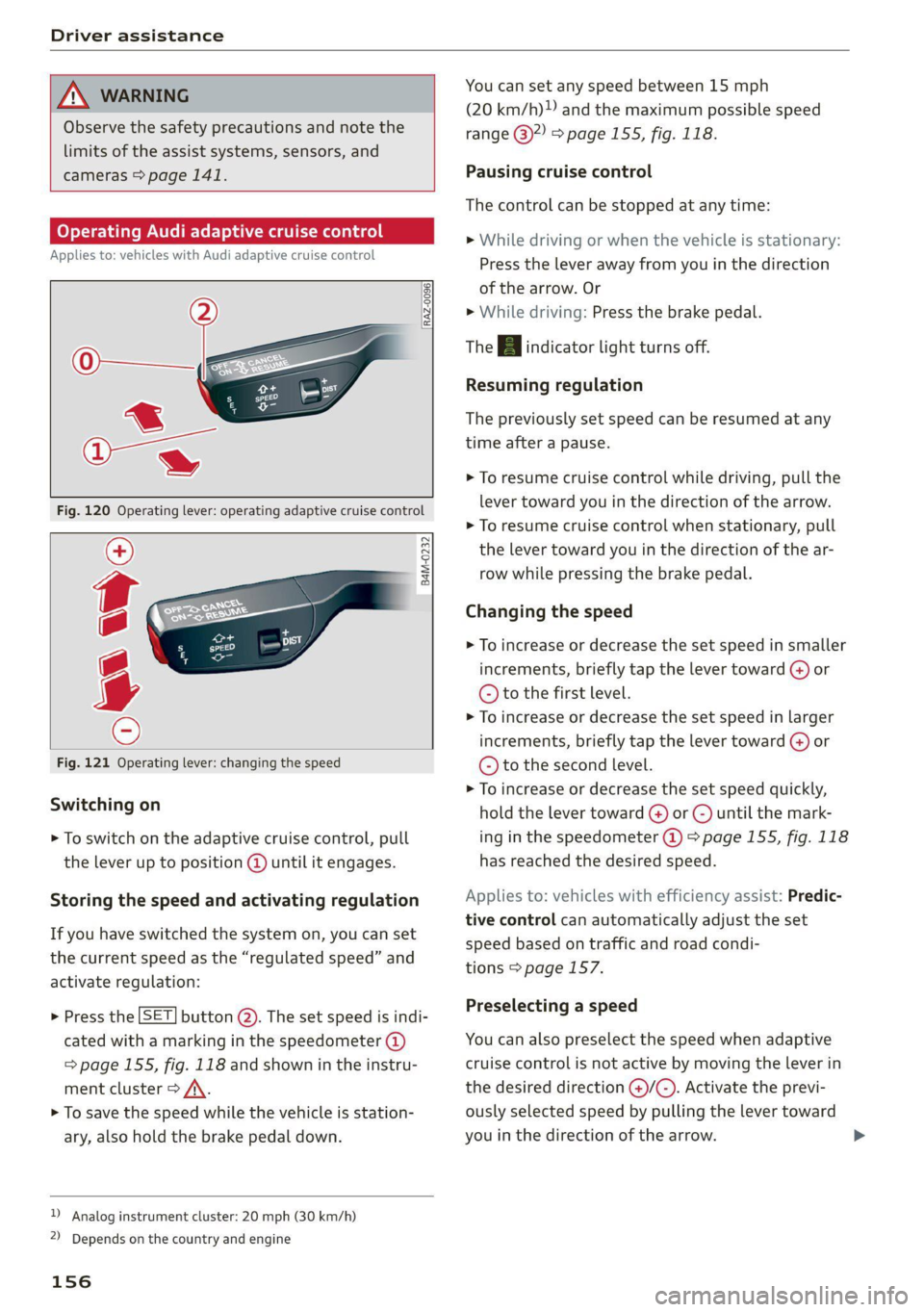
Operating Audi adaptive cruise control
Applies to: vehicles with Audi adaptive cruise control
RAZ-0096
B4M-0232
Fig. 121 Operating lever: changing the speed
Switching on
> To switch on the adaptive cruise control, pull
the lever up to position @ until it engages.
Storing the speed and activating regulation
If you have switched the system on, you can set
the current speed as the “regulated speed” and
activate regulation:
> Press the [SET] button (2). The set speed is indi-
cated with a marking in the speedometer (@)
=> page 155, fig. 118 and shown in the instru-
ment cluster > A\.
> To save the speed while the vehicle is station-
ary, also hold the brake pedal down.
D_ Analog instrument cluster: 20 mph (30 km/h)
2) Depends on the country and engine
156
You can set any speed between 15 mph
(20 km/h)» and the maximum possible speed
range @)?) > page 155, fig. 118.
Pausing cruise control
The control can be stopped at any time:
> While driving or when the vehicle is stationary:
Press the lever away from you in the direction
of the arrow. Or
» While driving: Press the brake pedal.
The Ba indicator light turns off.
Resuming regulation
The previously set speed can be resumed at any
time after a pause.
> To resume cruise control while driving, pull the
lever toward you in the direction of the arrow.
> To resume cruise control when stationary, pull
the lever toward you in the direction of the ar-
row while pressing the brake pedal.
Changing the speed
> To increase or decrease the set speed in smaller
increments, briefly tap the lever toward G) or
© to the first level.
> To increase or decrease the set speed in larger
increments, briefly tap the lever toward () or
© to the second level.
> To increase or decrease the set speed quickly,
hold the lever toward @) or () until the mark-
ing in the speedometer @) > page 155, fig. 118
has reached the desired speed.
Applies to: vehicles with efficiency assist: Predic-
tive control can automatically adjust the set
speed based on traffic and road condi-
tions > page 157.
Preselecting a speed
You can also preselect the speed when adaptive
cruise control is not active by moving the lever in
the desired direction @)/@). Activate the previ-
ously selected speed by pulling the lever toward
you in the direction of the arrow.
Page 159 of 332
80B012721BA
Driver assistance
Switching off
If you do not want to use the adaptive cruise con-
trol for a long period of time, you can switch it
off.
> Push the lever away from you into position @)
until it clicks into place.
The indicator light and the set speed will turn off.
Z\ WARNING
— Observe the safety precautions and note the
limits of the assist systems, sensors, and
cameras > page 141.
— The activated adaptive cruise control is only
an assist system, and the driver is still re-
sponsible for controlling the vehicle. The
driver is especially responsible for braking,
steering, starting to drive, and controlling
the speed and the distance from other
vehicles.
— Turn on the adaptive cruise control only if
the surrounding conditions permit it. Always
adapt your driving style to the current visu-
al, weather, road, and traffic conditions.
— Switch adaptive cruise control off temporari-
ly when driving in turning lanes, on express-
way exits or in construction zones. This pre-
vents the vehicle from accelerating to the
stored speed when in these situations.
— If you press the [SET] button @) when driv-
ing at speeds below 15 mph (20 km/h)»,
the minimum possible speed that the sys-
tem can maintain will be set. If no vehicle is
detected ahead of you, the vehicle will accel-
erate up to that speed.
(i) Tips
— Always keep your hands on the steering
wheel so you can be ready to steer at any
time. The driver is always responsible for
adhering to the regulations applicable in
the country where the vehicle is being oper-
ated.
) Analog instrument cluster: 20 mph (30 km/h)
— If you switch the ignition or the adaptive
cruise control system off, the set speed is
erased for safety reasons.
— When adaptive cruise control is switched
on, the ESC and ASR automatically switch
on.
— The system cannot be switched off or it may
be interrupted if the road exceeds the maxi-
mum possible grade for safe operation.
Predictive control
Applies to: vehicles with Audi adaptive cruise control and effi-
ciency assist
With predictive control, efficiency assist adapts
the set speed in adaptive cruise control @
=> page 155 based on detected speed limits and
the upcoming route. Once the system no longer
detects any incidents ahead, adaptive cruise con-
trol will accelerate back up to the last speed that
the driver set. After switching on the ignition, the
availability of predictive control is indicated by a
message when the adaptive cruise control is first
activated.
Incident symbols indicate the situation to which
predictive control is reacting > page 153, Situa-
tion symbols.
Requirements
— Predictive control is switched on in the MMI
=> page 161.
— Adaptive cruise control is actively regulating
=> page 156.
— The system can only react to speed limits that
are 15 mph (20 km/h)” or higher.
Overriding control
The driver can override the predictive control to
the route ahead at any time by pressing the ac-
celerator or brake pedal. If the system changes
the vehicle speed to adapt to speed limits, you
can change the speed using the lever
=> page 156, fig. 121.
157
Page 160 of 332
Driver assistance
Messages
If and a message with Predictive control is
displayed when there is a malfunction, the effi-
ciency assist functions are unavailable or limited.
A message that indicates the cause and possible
solution may appear with some displays. The
weather conditions may be too poor or a sensor
may be covered. Clean the area in front of the
sensors > page 143 and try to turn on the sys-
tems again later.
If the malfunction remains, drive to an author-
ized Audi dealer or authorized Audi Service Facili-
ty immediately to have the malfunction correct-
ed.
ZA WARNING
— Observe the safety precautions and note the
limits of the assist systems, sensors, and
cameras > page 141.
— Pay attention to traffic and the area around
your vehicle when predictive control is
switched on. The driver is always responsible
for assessing the traffic situation.
— The system does not consider “right of way”
rules and does not respond to traffic lights,
so lack of driver attention in these situations
can increase the risk of an accident.
— The speed when driving through curves may
be different from what you as a driver would
do or may not be suitable for the weather
and road conditions. If necessary, apply the
brakes and reduce the selected speed to be
maintained in the Adjustment to curves
along route setting to reduce the risk of an
accident.
@ Tips
— Predictive control can exceed or drop below
the maximum permitted speed. The driver
is responsible for adhering to the permitted
speed limit.
— The traffic signs on the road always take pri-
ority over the display. The driver is always
responsible for adhering to the regulations
D_ In certain countries
158
applicable in the country where the vehicle
is being operated.
— Ifa speed limit is detected, the marking @
= page 155 of the set speed limit will be ad-
justed even if Audi adaptive cruise control is
not actively regulating.
— Control by the system depends on which
adaptive cruise control driving program is
set or on the selected Audi drive select*
mode.
— After switching on the ignition and first
driving onto a freeway or similar road with-
out a speed limit, the system will regulate
the speed to 80 mph (130 km/h). Then
the system adjusts to the last speed set by
the driver.
— There is no adaptation to speed limits when
driving through highway interchanges and
when driving on or off the expressway.
— The system can fail to provide control or the
control may be faulty if the values from the
camera-based traffic sign recognition* are
incorrect or the navigation system map data
is outdated.
— When route guidance is switched on, the
system adapts to the route provided by the
navigation system. Driving without route
guidance or leaving a route can result in
faulty control.
Setting the distance
Applies to: vehicles with Audi adaptive cruise control
B4M-0234
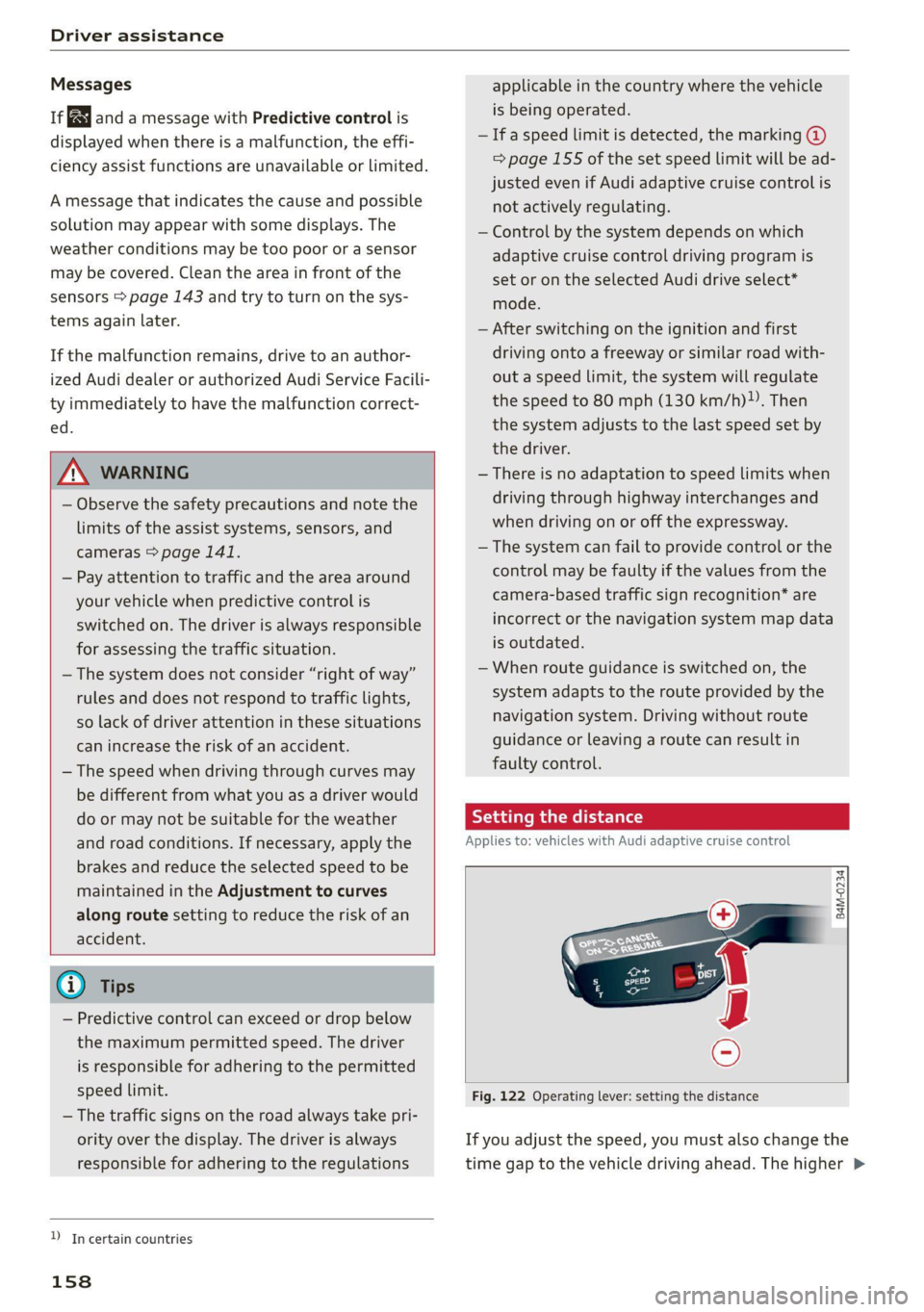
Fig. 122 Operating lever: setting the distance
If you adjust the speed, you must also change the
time gap to the vehicle driving ahead. The higher >
Page 161 of 332
80B012721BA
Driver assistance
the speed, the greater the distance that is need-
ed.
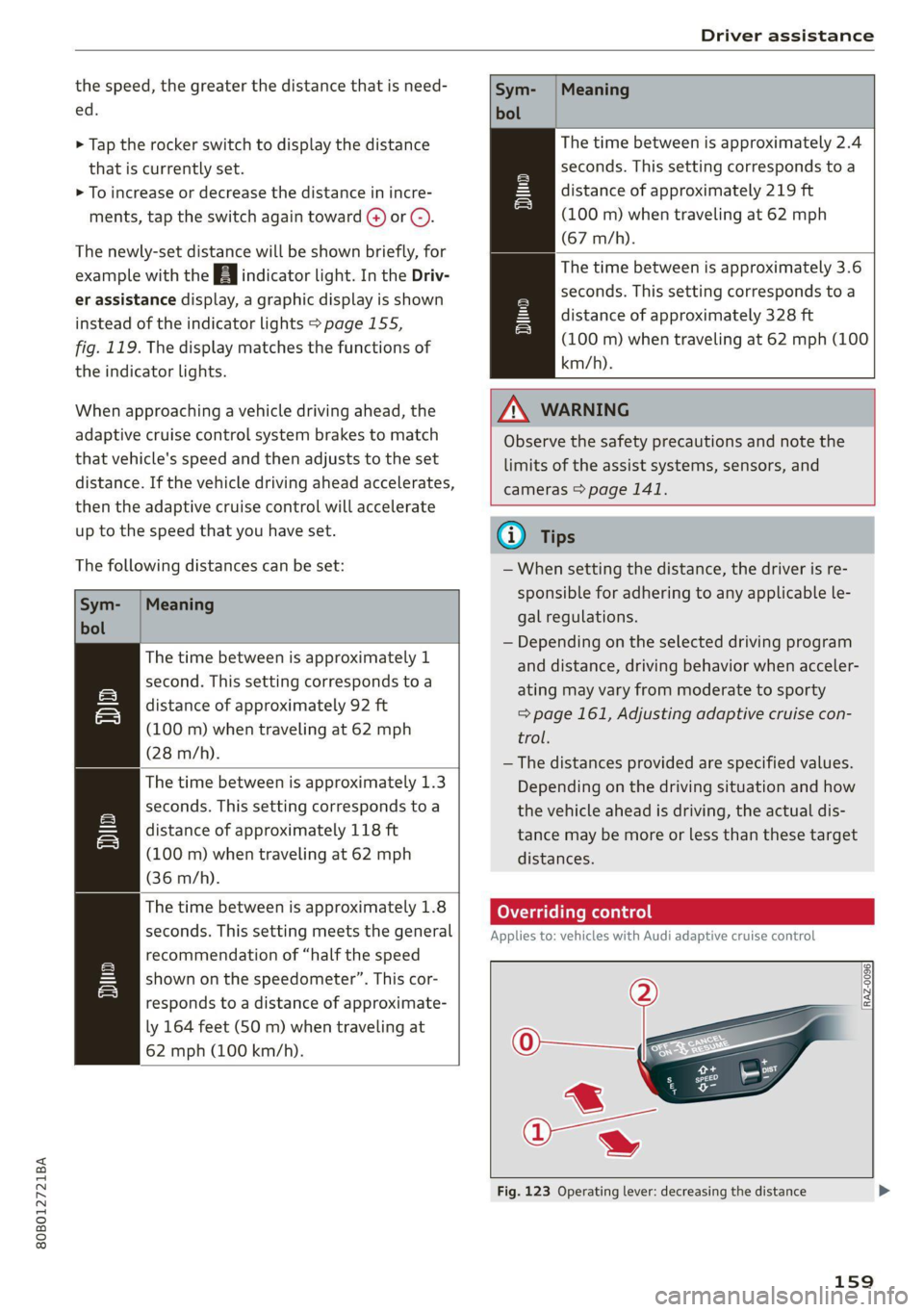
> Tap the rocker switch to display the distance
that is currently set.
> To increase or decrease the distance in incre-
ments, tap the switch again toward @) or ().
The newly-set distance will be shown briefly, for
example with the [eg indicator light. In the Driv-
er assistance display, a graphic display is shown
instead of the indicator lights > page 155,
fig. 119. The display matches the functions of
the indicator lights.
When approaching a vehicle driving ahead, the
adaptive cruise control system brakes to match
that vehicle's speed and then adjusts to the set
distance. If the vehicle driving ahead accelerates,
then the adaptive cruise control will accelerate
up to the speed that you have set.
The following distances can be set:
Sym-
bol
Meaning
The time between is approximately 2.4
seconds. This setting corresponds toa
distance of approximately 219 ft
(100 m) when traveling at 62 mph
(67 m/h).
The time between is approximately 3.6
seconds. This setting corresponds toa
distance of approximately 328 ft
(100 m) when traveling at 62 mph (100
km/h).
D
1D
Z\ WARNING
Observe the safety precautions and note the
limits of the assist systems, sensors, and
cameras > page 141.
Meaning
The time between is approximately 1
second. This setting corresponds toa
distance of approximately 92 ft
(100 m) when traveling at 62 mph
(28 m/h).
The time between is approximately 1.3
seconds. This setting corresponds toa
distance of approximately 118 ft
(100 m) when traveling at 62 mph
(36 m/h).
nD
The time between is approximately 1.8
seconds. This setting meets the general
recommendation of “half the speed
shown on the speedometer”. This cor-
responds to a distance of approximate-
ly 164 feet (SO m) when traveling at
62 mph (100 km/h).
(i) Tips
— When setting the distance, the driver is re-
sponsible for adhering to any applicable le-
gal regulations.
— Depending on the selected driving program
and distance, driving behavior when acceler-
ating may vary from moderate to sporty
=> page 161, Adjusting adaptive cruise con-
trol.
— The distances provided are specified values.
Depending on the driving situation and how
the vehicle ahead is driving, the actual dis-
tance may be more or less than these target
distances.
Overriding control
Applies to: vehicles with Audi adaptive cruise control
[RAZ-0096
Fig. 123 Operating lever: decreasing the distance
159
Page 163 of 332
80B012721BA
Driver assistance
This may also occur in some situations when
there is no apparent obstacle.
> Press the brake pedal to slow your vehicle
down.
ZA WARNING
— Observe the safety precautions and note the
limits of the assist systems, sensors, and
cameras > page 141.
— If the message B& ready to drive!) appears,
your vehicle will start driving even if there is
an obstacle between your vehicle and the ve-
hicle ahead. To reduce the risk of an acci-
dent, always make sure there are no obsta-
cles between your vehicle and the vehicle
driving ahead.
@ Tips
For safety reasons, the adaptive cruise control
will only be active if
—The driver's safety belt is fastened
— All doors and the hood are closed
— Your vehicle is not stopped for a long period
of time
Driver intervention request
Applies to: vehicles with Audi adaptive cruise control
al 3 3
S| | S| ee|
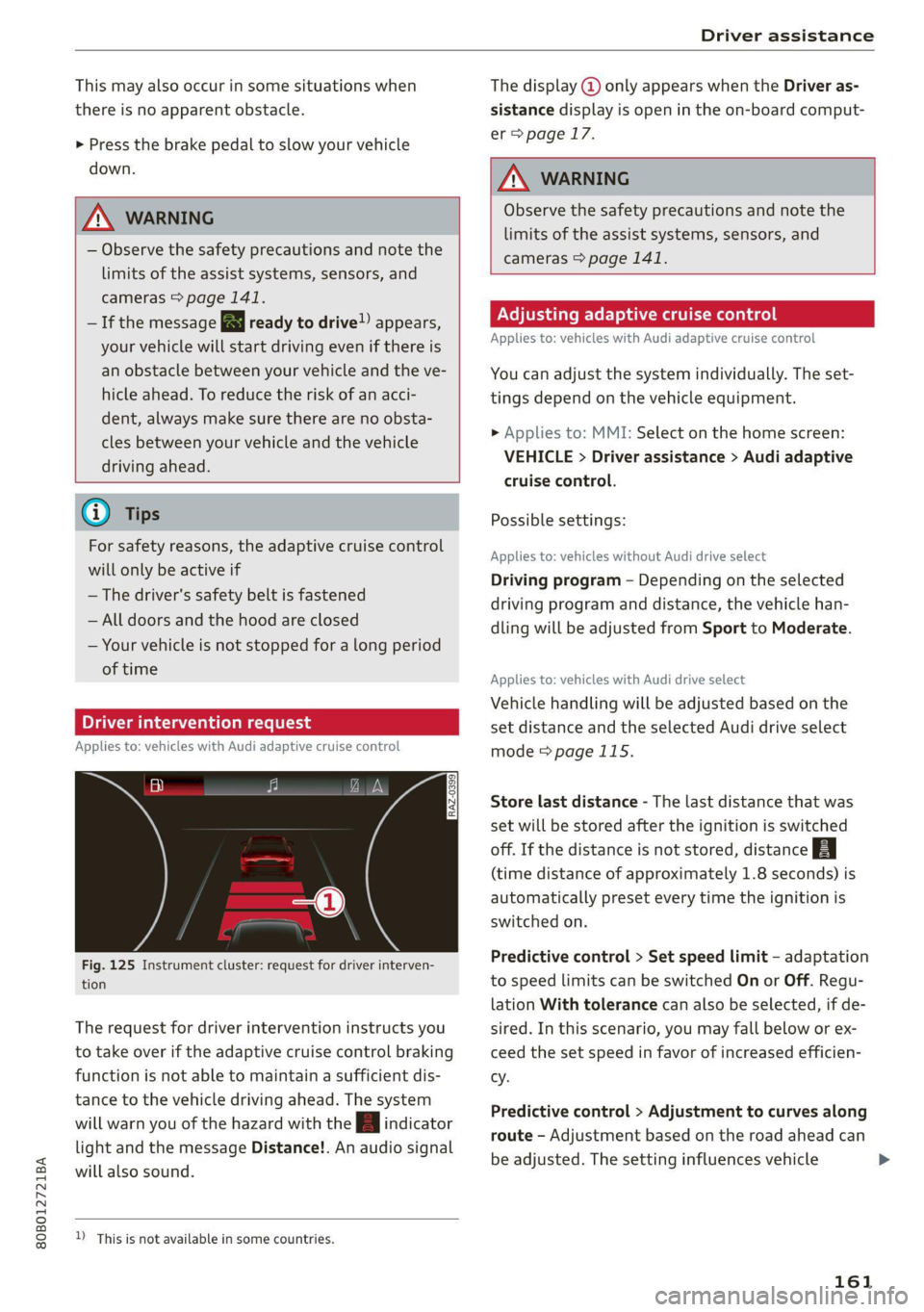
Fig. 125 Instrument cluster: request for driver interven-
tion
The request for driver intervention instructs you
to take over if the adaptive cruise control braking
function is not able to maintain a sufficient dis-
tance to the vehicle driving ahead. The system
will warn you of the hazard with the A indicator
light and the message Distance!. An audio signal
will also sound.
D_ This is not available in some countries.
The display @ only appears when the Driver as-
sistance display is open in the on-board comput-
er > page 17.
ZA WARNING
Observe the safety precautions and note the
limits of the assist systems, sensors, and
cameras > page 141.
Adjusting adaptive cruise control
Applies to: vehicles with Audi adaptive cruise control
You can adjust the system individually. The set-
tings depend on the vehicle equipment.
> Applies to: MMI: Select on the home screen:
VEHICLE > Driver assistance > Audi adaptive
cruise control.
Possible settings:
Applies to: vehicles without Audi drive select
Driving program - Depending on the selected
driving program and distance, the vehicle han-
dling will be adjusted from Sport to Moderate.
Applies to: vehicles with Audi drive select
Vehicle handling will be adjusted based on the
set distance and the selected Audi drive select
mode > page 115.
Store last distance - The last distance that was
set will be stored after the ignition is switched
off. If the distance is not stored, distance B
(time distance of approximately 1.8 seconds) is
automatically preset every time the ignition is
switched on.
Predictive control > Set speed limit - adaptation
to speed limits can be switched On or Off. Regu-
lation With tolerance can also be selected, if de-
sired. In this scenario, you may fall below or ex-
ceed the set speed in favor of increased efficien-
cy.
Predictive control > Adjustment to curves along
route - Adjustment based on the road ahead can
be adjusted. The setting influences vehicle
161
Page 164 of 332
Driver assistance
handling with predictive control, for example the
speed for driving through curves.
@) Tips
Certain settings are automatically stored and
assigned to the remote control key being
used.
Applies to: vehicles with Audi adaptive cruise control
If or is displayed when there is a mal-
function, the adaptive cruise control or traffic
jam assist functions may be unavailable or may
be limited.
A message that indicates the cause and possible
solution may appear with some displays. The
weather conditions may be too poor or a sensor
may be covered. Clean the area in front of the
sensors > page 143 and try to turn on the sys-
tems again later.
If the malfunction remains, drive to an author-
ized Audi dealer or authorized Audi Service Facili-
ty immediately to have the malfunction correct-
ed.
Please take over!
This message appears if the vehicle rolls back
when starting on a slight incline, even though the
systems are active. Press the brake pedal to pre-
vent the vehicle from rolling or starting to move.
Traffic jam assist
Applies to: vehicles with traffic jam assist
B8V-0692
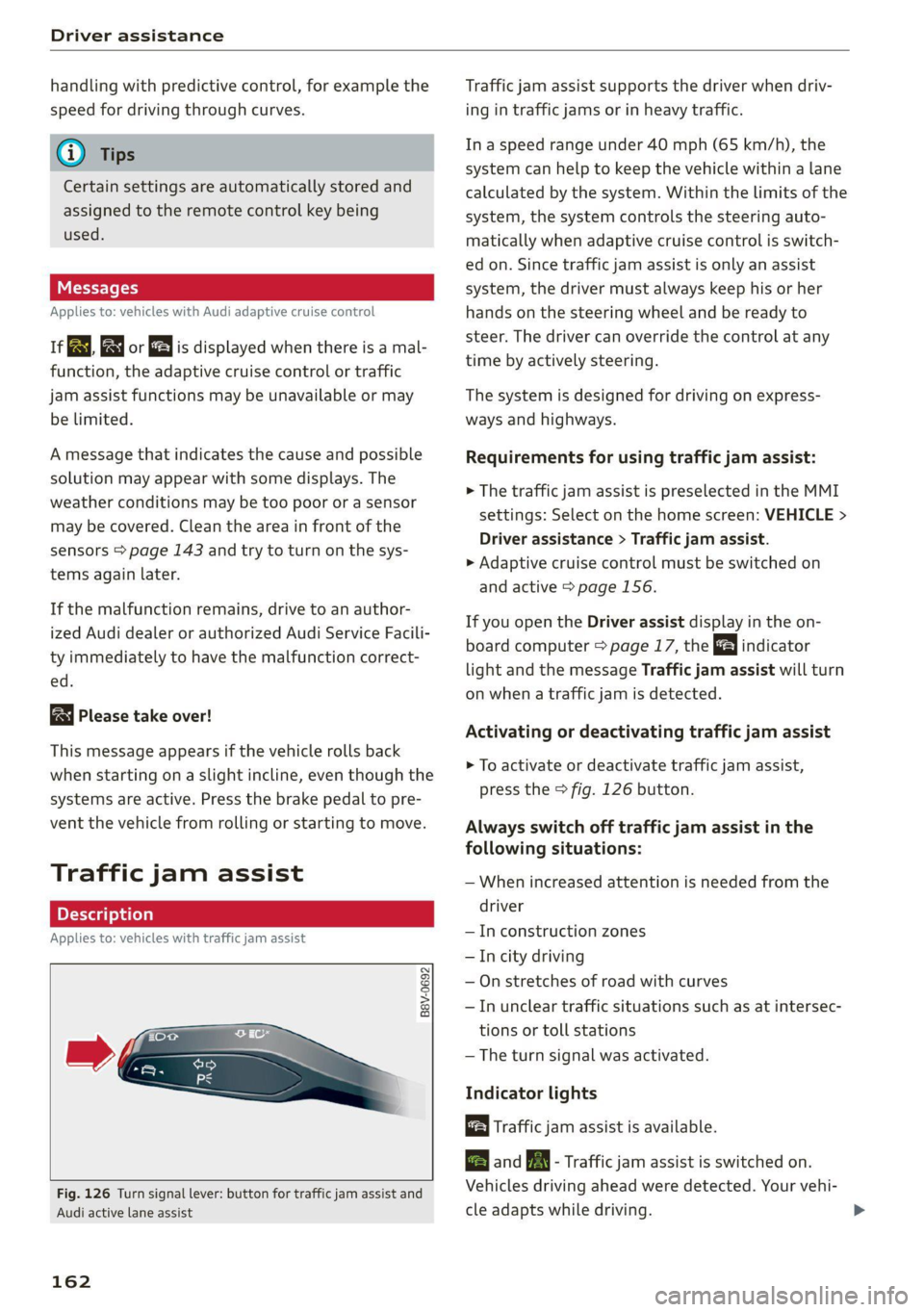
Fig. 126 Turn signal lever: button for traffic jam assist and
Audi active lane assist
162
Traffic jam assist supports the driver when driv-
ing in traffic jams or in heavy traffic.
In a speed range under 40 mph (65 km/h), the
system can help to keep the vehicle within a lane
calculated by the system. Within the limits of the
system, the system controls the steering auto-
matically when adaptive cruise control is switch-
ed on. Since traffic jam assist is only an assist
system, the driver must always keep his or her
hands on the steering wheel and be ready to
steer. The driver can override the control at any
time by actively steering.
The system is designed for driving on express-
ways and highways.
Requirements for using traffic jam assist:
> The traffic jam assist is preselected in the MMI
settings: Select on the home screen: VEHICLE >
Driver assistance > Traffic jam assist.
> Adaptive cruise control must be switched on
and active > page 156.
If you open the Driver assist display in the on-
board computer = page 17, the indicator
light and the message Traffic jam assist will turn
on when a traffic jam is detected.
Activating or deactivating traffic jam assist
> To activate or deactivate traffic jam assist,
press the > fig. 126 button.
Always switch off traffic jam assist in the
following situations:
— When increased attention is needed from the
driver
— In construction zones
— In city driving
— On stretches of road with curves
—In unclear traffic situations such as at intersec-
tions or toll stations
— The turn signal was activated.
Indicator lights
Traffic jam assist is available.
B and B - Traffic jam assist is switched on.
Vehicles driving ahead were detected. Your vehi-
cle adapts while driving.
Page 165 of 332
80B012721BA
Driver assistance
B - Traffic jam assist switches off if the driver
does not take over steering after multiple driver
intervention requests. The system brakes the ve-
hicle until it is stationary.
Steering intervention request
If no steering activity is detected or the steering
power from the system is not sufficient, the driv-
er steering intervention request will alert the
driver using audio and visual signals, such as
or E. Take over the steering and keep your
hands on the steering wheel so that you will be
ready to steer at any time.
If the driver does not take over steering, adaptive
cruise control (with traffic jam assist) will be
switched off. The system brakes the vehicle until
it is stationary.*
ZA WARNING
— Observe the safety precautions and note the
limits of the assist systems, sensors, and
cameras © page 141.
— The activated traffic jam assist is only an as-
sist system, and the driver is still responsi-
ble for controlling the vehicle. The driver is
especially responsible for braking, steering,
starting to drive, and controlling the speed
and the distance from other vehicles.
— Turn on the traffic jam assist only if the sur-
rounding conditions permit it. Always adapt
your driving style to the current visual,
weather, road, and traffic conditions.
— Switch the traffic jam assist off temporarily
when driving in turning lanes or highway ex-
its. This prevents the vehicle from accelerat-
ing to the stored speed when in these situa-
tions.
@) Tips
— Always keep your hands on the steering
wheel. The driver is always responsible for
adhering to the regulations applicable in
the country where the vehicle is being oper-
ated.
— Pay attention to applicable local regulations
relating to driving tasks, leaving space for
emergency vehicles, etc. The driver is always
responsible for following the laws that are
applicable in the location where the vehicle
is being operated.
— If traffic jam assist was deactivated through
the MMI, you can continue operating the
Audi active lane assist using the > fig. 126
button > page 165. The traffic jam assist
functions are no longer available.
— You are not necessarily guided to the center
of your lane.
Messages
Applies to: vehicles with traffic jam assist
if &. or |i is displayed when there is a mal-
function, the traffic jam assist functions may be
unavailable or may be limited.
A message that indicates the cause and possible
solution may appear with some displays. The
weather conditions may be too poor or a sensor
may be covered. Clean the area in front of the
sensors > page 143 and try to turn on the sys-
tems again later.
If the malfunction remains, drive to an author-
ized Audi dealer or authorized Audi Service Facili-
ty immediately to have the malfunction correct-
ed.
163