time AUDI Q5 2021 Owner´s Manual
[x] Cancel search | Manufacturer: AUDI, Model Year: 2021, Model line: Q5, Model: AUDI Q5 2021Pages: 332, PDF Size: 118.86 MB
Page 186 of 332

Parking and maneuvering
ZA\ WARNING
— Observe the safety precautions and note the
limits of the assist systems, sensors, and
cameras > page 141.
— The driver is always responsible when enter-
ing or exiting a parking space and during
similar maneuvers.
— Do not use this function if the vehicle cannot
move freely, for example when on a vehicle
jack.
— Sensors and cameras have spots in which
the surrounding area cannot be detected.
Objects, animals, and people may only be
detected with limitations may not be detect-
ed at all. Always monitor the traffic and the
vehicle's surroundings directly and do not
become distracted.
@) Note
— Do not use the park assist systems when
transporting cargo that extends out of the
vehicle, when snow chains are mounted, or
when the parking space is on a hill or in-
cline.
— Park assist guides the vehicle either away
from curbs or onto them if other vehicles
are parked on the curb. Make sure that your
vehicle's tires and rims are not damaged.
Resume control of the vehicle in time or
stop the parking process if needed to pre-
vent damage.
G) Tips
Follow the legal regulations in the country
where you are located when using Park assist.
dem Re eee
Applies to: vehicles with park assist
Requirement: a suitable parking space must be
found and selected > page 181. The vehicle must
initially be stationary.
In the center display, arrows and symbols on the
vehicle roof @) > page 182, fig. 145 indicate
what action is needed, such as applying the
brakes or changing the direction. Park assist au-
184
tomatically steers the vehicle into the parking
space while the driver presses the pedals.
> After stopping the vehicle briefly, make sure
the actual direction the vehicle is traveling
matches the direction indicated by the park as-
sist.
> Remove your hands from the steering wheel.
>» Pay attention to the path of the vehicle. If the
traffic situation permits, accelerate carefully
> AX. The maximum parking speed is approxi-
mately 4 mph (7 km/h).
> Follow the visual instructions in the center dis-
play and the warning tones until the parking
process
has ended.
Z\ WARNING
— Observe the safety precautions and note the
limits of the assist systems, sensors, and
cameras > page 141.
— The park assist is an assist system. The driv-
er is still responsible for monitoring the ve-
hicle's surroundings and preventing colli-
sions when using the system.
— When using park assist to drive into or out
of a parking space, the steering wheel turns
quickly on its own. Reaching into the steer-
ing wheel spokes while this is happening can
result in injury.
G) Tips
You can also cancel the driving direction set
by the system by shifting between a forward
gear and reverse gear. Based on the position
of the vehicle, the system then calculates the
additional steering and driving directions for
maneuvering.
ten Lei ek ace
Applies to: vehicles with park assist
If you parked the vehicle in a parallel parking
space, park assist can help you drive out of it.
Park assist automatically steers the vehicle out of
the parking space while the driver presses the
pedals.
» Start the engine.
> Press the Pe button in the center console.
Page 187 of 332

80B012721BA
Parking and maneuvering
> Wait until a message appears in the center dis-
play that specifies the direction of travel re-
quired to exit the parking space.
> Activate the turn signal on the desired side or
press that side next to the vehicle in the center
display.
» Make sure the actual direction the vehicle is
traveling matches the direction indicated by the
park assist. In the center display, arrows and
symbols on the vehicle roof (2) > page 182,
fig. 145 indicate what action is needed, such as
applying the brakes or changing the direction.
» Remove your hands from the steering wheel.
>» Pay attention to the path of the vehicle. If the
traffic situation permits, accelerate carefully
> AX. The maximum speed for exiting a parking
space is 3 mph (5 km/h).
> Follow the visual instructions in the display and
the warning tones until the vehicle has finished
exiting the parking space.
> The process of exiting the parking space has
ended if additional corrective movements are
no longer necessary and the specified steering
wheel angle is sufficient to drive out of the
parking space. Resume control of the steering
wheel >@).
Z\ WARNING
— Observe the safety precautions and note the
limits of the assist systems, sensors, and
cameras > page 141.
— The park assist is an assist system. The driv-
er is still responsible for monitoring the ve-
hicle's surroundings and preventing colli-
sions when using the system.
— When using park assist to drive into or out
of a parking space, the steering wheel turns
quickly on its own. Reaching into the steer-
ing wheel spokes while this is happening can
result in injury.
@) Note
Resume steering immediately after the last
corrective movement and the takeover
prompt, so that the specified steering wheel
angle is not recentered.
Interrupting the park assists
Applies to: vehicles with park assist
Park assist will be canceled automatically in the
following scenarios:
— You switch the system off.
— You start steering.
— The speed is too high.
—The time limit is exceeded.
— An obstacle is detected.
— ESC intervenes.
Resume control of the vehicle, end the parking
process manually, or:
— You can resume the parking process in some sit-
uations. Press the Pe button in the center con-
sole.
— To continue exiting the parking space, switch
the engine off and on. Press the Pe button.
Z\ WARNING
Observe the safety precautions and note the
limits of the assist systems, sensors, and
cameras > page 141.
Messages
Applies to: vehicles with park assist
If the prof i Pg Pa| indicator light turns on, the
park assist is not available or was interrupted.
A message that indicates the cause and possible
solution may appear with some displays. The
weather conditions may be too poor or a sensor
may be covered. Clean the area in front of the
sensors > page 143 and try to turn on the sys-
tems again later.
If the malfunction remains, drive to an author-
ized Audi dealer or authorized Audi Service Facili-
ty immediately to have the malfunction correct-
ed.
185
Page 189 of 332
80B012721BA
Telephone
Handsfree
Requirement: your cell phone must be connected
to the MMI via a Bluetooth Hands Free Profile
(Bluetooth HFP).
You can use the hands-free system. You can make
calls using the antenna on your mobile device.
Sending and receiving messages
See > page 194.
@ Tips
— Pay attention to any system prompts dis-
played on your mobile device or the MMI,
for example if the system should connect
automatically in the future. Depending on
the mobile device, you may need to down-
load contacts and confirm access to your
messages separately.
— You can also search for the MMI on your mo-
bile device using the Bluetooth device
search.
— You only have to pair your device one time.
Bluetooth devices that are already paired
automatically connect to the MMI when the
Bluetooth function is switched on, when
they are within range, and when the ignition
is switched on. The last connected mobile
device is given first priority.
— You can manage additional settings for con-
nected mobile devices in the Connected de-
vices menu > page 238.
— When leaving the vehicle, the Bluetooth
connection to the mobile device will auto-
matically disconnect. Depending on your
mobile device, phone calls in progress may
be automatically redirected from the MMI
to your mobile device so that you can con-
tinue the call on your phone.
Using two telephones
Applies to: vehicles with telephone, and Audi phone box
You can connect two mobile phones to the MMI
at the same time using the Bluetooth HFP, for ex-
ample a business phone and a private phone. You
can be reached in your vehicle through both mo-
bile phones.
Applies to: mobile devices with Bluetooth Mes-
sage Access Profile (MAP): You can send and re-
ceive messages with both mobile devices
=> page 194.
Connecting another mobile device
Requirement: a mobile device must be connected
to the MMI. The vehicle must be stationary and
the ignition must be switched on. The Bluetooth
settings must be open on your mobile device dur-
ing the connection setup. The mobile device to be
connected must not be actively connected to any
other Bluetooth device.
> Enable the Bluetooth function and visibility on
the MMI = page 237 and the mobile phone.
> Applies to: MMI: Select on the home screen:
PHONE > (°, or
>» Applies to: MMI: Select on the home screen:
SETTINGS > Connected devices > Telephone 1
or Telephone 2 > New connection.
> Follow the system instructions. The available
Bluetooth devices will be displayed after sever-
al seconds.
> Press on the desired mobile device in the list of
displayed Bluetooth devices.
> To update the list, press O.
A PIN for a secure Bluetooth connection will be
generated.
> Confirm the PIN on your mobile device.
> Follow the system instructions.
> Pay attention to any other system prompts on
the MMI and on your cell phone.
After connecting successfully
See > page 186, After connecting successfully.
Switching between two mobile devices
Requirement: phone 1 and phone 2 must be con-
nected to the MMI.
> Applies to: MMI: Select on the home screen:
PHONE > <1.
@) Note
Read the information about Audi connect, and
be sure to note the connectivity costs section
=> page 197.
187
Page 192 of 332
Telephone
— The charging time and temperature will vary
depending on the mobile device being used.
— At the time of printing this manual, the
CPC-2-1-05 was available at the following
web page http://www.ic.gc.ca/eic/site/
smt-gst.nsf/eng/sf08942.html
Mobile device reminder signal
Applies to: vehicles with Audi phone box/Audi phone box light
When the device reminder signal is switched on,
you will be notified that your mobile device is still
in the Audi phone box when you leave the vehicle.
Requirement: your mobile device must be located
in the Audi phone box (if Qi-capable) or connect-
ed to the Audi music interface with a USB adapt-
er, and the Audi smartphone interface must be
active or your iPhone must be connected to the
MMI via Bluetooth and charging using a USB
adapter connected to the Audi music interface.
> Applies to: MMI: Select on the home screen:
SETTINGS > General > Reminder signal and
mobile device charging.
The following settings may be available, depend-
ing on vehicle equipment:
— Signal tone
— Off
Spoken cue
this setting is switched on at the factory.
Mobile device notes: reminder, charge level
When this function is switched on, the charge
status of your mobile device is displayed. You will
also be reminded not to forget your mobile de-
vice when leaving the vehicle.
190
Using the telephone
Accessing the telephone functions
Applies to: vehicles with telephone
cd
ee ers. Calltist = far P;)
bet
Peter
Contacts eee re
Fig. 147 Center display: selection menu
Requirement: a mobile device must be connected
to the MMI.
> Applies to: MMI: Select on the home screen:
PHONE.
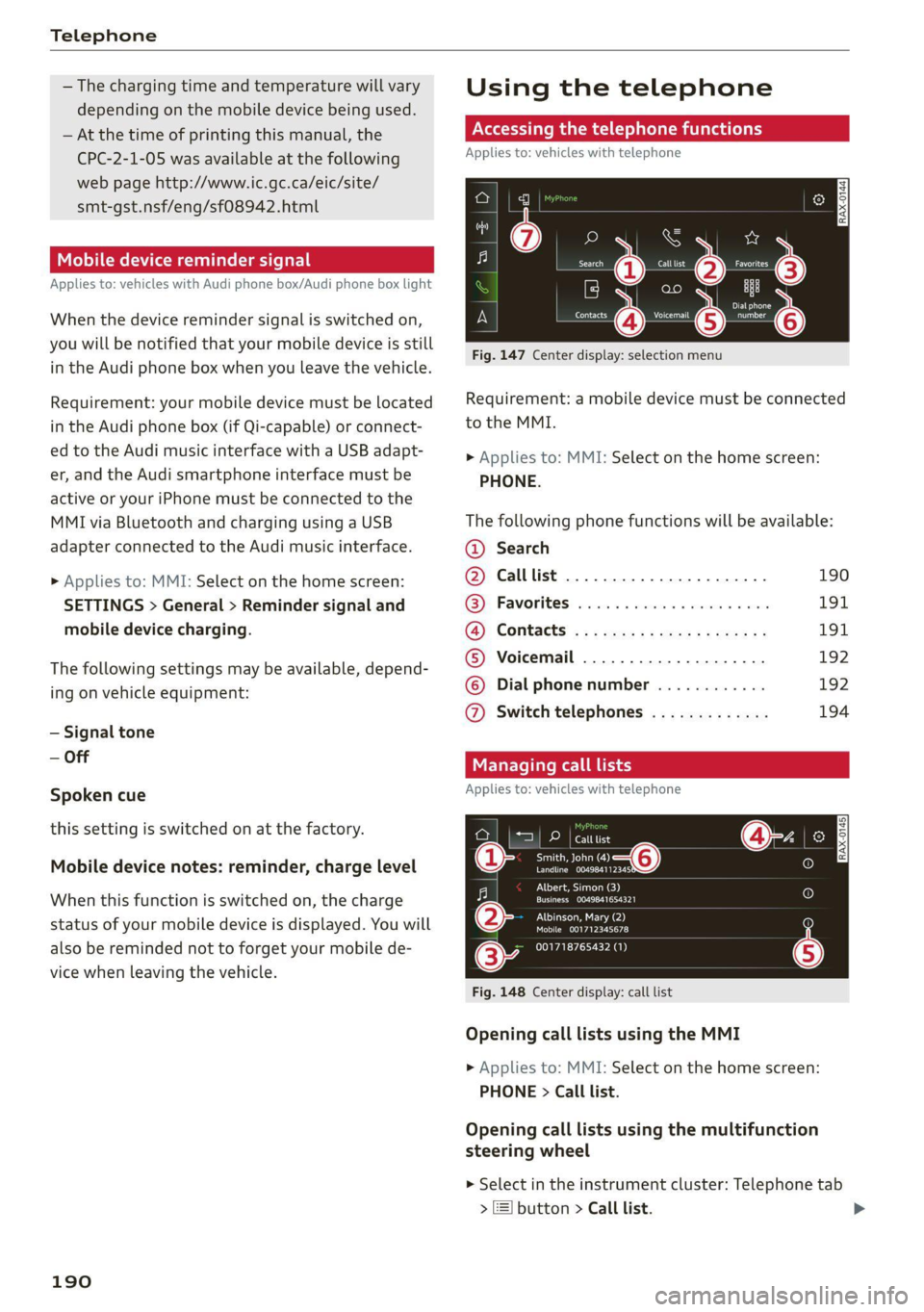
The following phone functions will be available:
@ Search
@ Calllist ......0.0.0.0.0.0.0000. 190
@® Favorites .................000. 191
a)? Contacts «5 x sews s x ww sees cs 191
©® Voicemail .................... 192
© Dial phone number ............ 192
@ Switch telephones ............. 194
Managing call lists
Applies to: vehicles with telephone
DP | catttist
Smith, John “—@
eran.
CN Tee ed)
Crem aL eoEy |
PILE laa ea
Mobile 001712345678
001718765432 (1)
Fig. 148 Center display: call list
Opening call lists using the MMI
> Applies to: MMI: Select on the home screen:
PHONE > Call list.
Opening call lists using the multifunction
steering wheel
> Select in the instrument cluster: Telephone tab
> ) button > Call list.
Page 200 of 332
.
ZA WARNING
Always follow the information found in > A\
in General in")
Audi connect
and vehicle equipment, the Internet connection
may be established using an embedded SIM card
(eSIM).
ZA WARNING
Always follow the information found in > A\
in General information on page 197.
@) Note
Always follow the information found in >@ in
General information on page 197.
Embedded SIM card
Applies to: vehicles with Audi connect Infotainment and an
embedded SIM card
The data connection for Audi connect Infotain-
ment services is made through an embedded SIM
card (eSIM card) that is installed in the vehicle.
You can use the Audi connect Infotainment serv-
ices immediately.
@) Note
Always follow the information found in >@ in
General information on page 197.
Using a Wi-Fi hotspot
Applies to: vehicles with Wi-Fi hotspot
You can connect up to eight Wi-Fi devices (such
as smartphones) with the MMI Wi-Fi hotspot. If
the MMI is connected to the Internet
= page 197, the connected Wi-Fi devices can also
use the MMI’s Internet connection.
Requirement: the ignition must be switched on. A
data plan must be available > page 201.
» Applies to: MMI: Select on the home screen:
SETTINGS > Connection settings > Wi-Fi
Switch on the Wi-Fi hotspot.
> Applies to: MMI: Select on the home screen:
SETTINGS > Connection settings > Wi-Fi > Wi-
Fi hotspot settings. The access data for the Wi-
Fi hotspot is displayed. Switch on the visibility
of the Wi-Fi hotspot if necessary.
> Switch the Wi-Fi function on in your mobile de-
vice and connect it to the MMI Wi-Fi hotspot
using the authentication data that is shown.
198
> Follow any additional system prompts on your
Wi-Fi device if necessary.
Your device is successfully connected with the
MMI's Wi-Fi hotspot.
Z\ WARNING
Always follow the information found in > AV
in General information on page 197.
C) Note
Always follow the information found in © in
General information on page 197.
@ Tips
The system complies with United States FCC
regulations and ISED regulations > page 311.
Audi connect
Infotainment services
Applies to: vehicles with Audi connect Infotainment
Some Audi connect Infotainment services must
be configured through your personal myAudi ac-
count at my.audi.com before using them for the
first time.
G) Tips
—A myAudi user must be logged in for some
Audi connect Infotainment services.
— Some Audi connect Infotainment services
must be activated at my.audi.com.
— Depending on the country, you may be able
to use the myAudi app or my.audi.com.
— For detailed information on configuration,
visit my.audi.com.
Services
Applies to: vehicles with Audi connect Infotainment
Depending on the country and the vehicle equip-
ment, the following services may be available:
Weather information
Applies to: MMI
> Press WEATHER on the home screen.
Page 201 of 332
80B012721BA
Audi connect
Editing settings: Select: WEATHER > Ga.
> To display the weather for a location, press ona
location in the list.
> To display the weather for your current loca-
tion, press on the location that is marked with
the crosshairs.
Requirement: route guidance must be active.
> To display the weather at your destination,
press on the location that is marked with the
flag FB.
Adding a location: select: WEATHER > G4 > Ina
new city > a location.
Removing a location: select: WEATHER > 44 > Z
> one or more locations or Select all > Delete.
Online news
>» Applies to: MMI: Select on the home screen:
NEWS.
Access to the calendar
Requirement: the myAudi app must be installed
and open on your mobile device. Access to your
calendar must be enabled on your mobile device.
You must be logged into the myAudi app with
your myAudi login data and you must have select-
ed your vehicle. The Wi-Fi function on your mo-
bile device and the MMI must be enabled and
your mobile device must be paired to the MMI
Wi-Fi hotspot > page 200, Wi-Fi.
You can display the your mobile device calendar
on the MMI.
> Applies to: MMI: Select on the home screen:
CALENDAR.
Z\ WARNING
Always follow the information found in > AV
in General information on page 197.
@) Note
Always follow the information found in >@ in
General information on page 197.
Functions on demand
Displaying purchased functions
Applies to: vehicles with functions on demand
Depending on the country and vehicle equip-
ment, you can purchase functions on demand
through a myAudi account in the myAudi app at
any time.
The following options are available for displaying
purchased functions in the vehicle.
> Applies to: MMI: Select on the home screen:
PURCHASES.
@ Tips
— Equipment installed at the factory may be
displayed as purchased functions.
— The availability of functions in the myAudi
app varies depending on the country. For
additional information, visit my.audi.com.
— At the time this manual was printed, func-
tions on demand was a planned function.
Functions on demand is not available in your
vehicle.
Messages
Applies to: vehicles with functions on demand
If a message about a function that requires a li-
cense is displayed, the function is no longer avail-
able. Check the MMI Purchases menu to see if
you have a license for this function or if the Li-
cense has expired. Purchase the function if neces-
sary using functions on demand.
Audi connect vehicle
control services
Applies to: vehicles with Audi connect vehicle control
Using Audi connect vehicle control services, you
can perform tasks such as viewing data about
your vehicle or control vehicle functions remote-
ly.
You can view and use services available for your
vehicle at my.audi.com or through the myAudi
app.
199
Page 202 of 332
Audi connect
Information about the services and the corre-
sponding app was accurate at the time this man-
ual was printed. The scope of services depends
on the country and equipment. There may be
changes over the service life of the vehicle.
ZA WARNING
— Always follow the information found in > AA
in General information on page 197.
— Driver messages, text messages, and illumi-
nated warning and indicator lights in the ve-
hicle always take priority over information
from the Audi connect services. The infor-
mation displayed by the Audi connect serv-
ices should not cause you to take safety
risks. This can result in the vehicle breaking
down in traffic and to serious injuries or ac-
cidents.
G) Tips
— Accessing specific data or controlling func-
tions remotely depends on the charge level
of the vehicle battery. Therefore, these
functions only have limited availability after
switching off the ignition.
— An eSIM card establishes the Internet con-
nection for Audi connect vehicle control
services. The costs for this are included in
the price of Audi connect vehicle control
services. The cell phone network, for exam-
ple, must be available to use these services.
Applies to: vehicles with Audi connect vehicle control
Create a myAudi account by registering in the
myAudi app or at my.audi.com, depending on
your country.
>» Set the key user > page 31.
> Install the myAudi app on your mobile device
and log in with your access information.
@ Tips
Some services require you to enter a 4-digit
PIN that you set up during registration.
200
Settings
Applies to: vehicles with Wi-Fi hotspot
Requirement: the ignition must be switched on.
> Applies to: MMI: Select on the home screen:
SETTINGS > Connection settings > Wi-Fi
Depending on the country and the vehicle equip-
ment, the following functions may be available:
Wi-Fi
When the function is switched on, the MMI's Wi-
Fi hotspot is active and Wi-Fi devices can be con-
nected to the hotspot.
Wi-Fi hotspot settings
The Wi-Fi connection between the MMI and your
Wi-Fi device is encrypted. You can change the fol-
lowing information if needed.
— Access point (SSID): name of the Wi-Fi hot-
spot.
— Password: an initial password was set at the
factory in the MMI. Audi recommends changing
the initial password. Only use secure passwords
that conform to the general guidelines for se-
cure passwords. For more information, refer to
reputable and current sources on password se-
curity.
Allow data connection through Wi-Fi
When the function is switched on, mobile devices
can use the Internet connection through the Wi-
Fi hotspot. A data plan is needed to do this.
ZA\ WARNING
Always follow the information found in > A\
in General information on page 197.
@) Note
Always follow the information found in >@ in
General information on page 197.
Page 203 of 332
80B012721BA
Audi connect
Data plans!)
Applies to: vehicles with Audi connect
Data plans must be purchased in order to use cer-
tain services >(@) in General information on
page 197.
You can purchase data plans at my.audi.com.
Always follow the information found in > AV
in General information on page 197.
Always follow the information found in >@ in
General information on page 197.
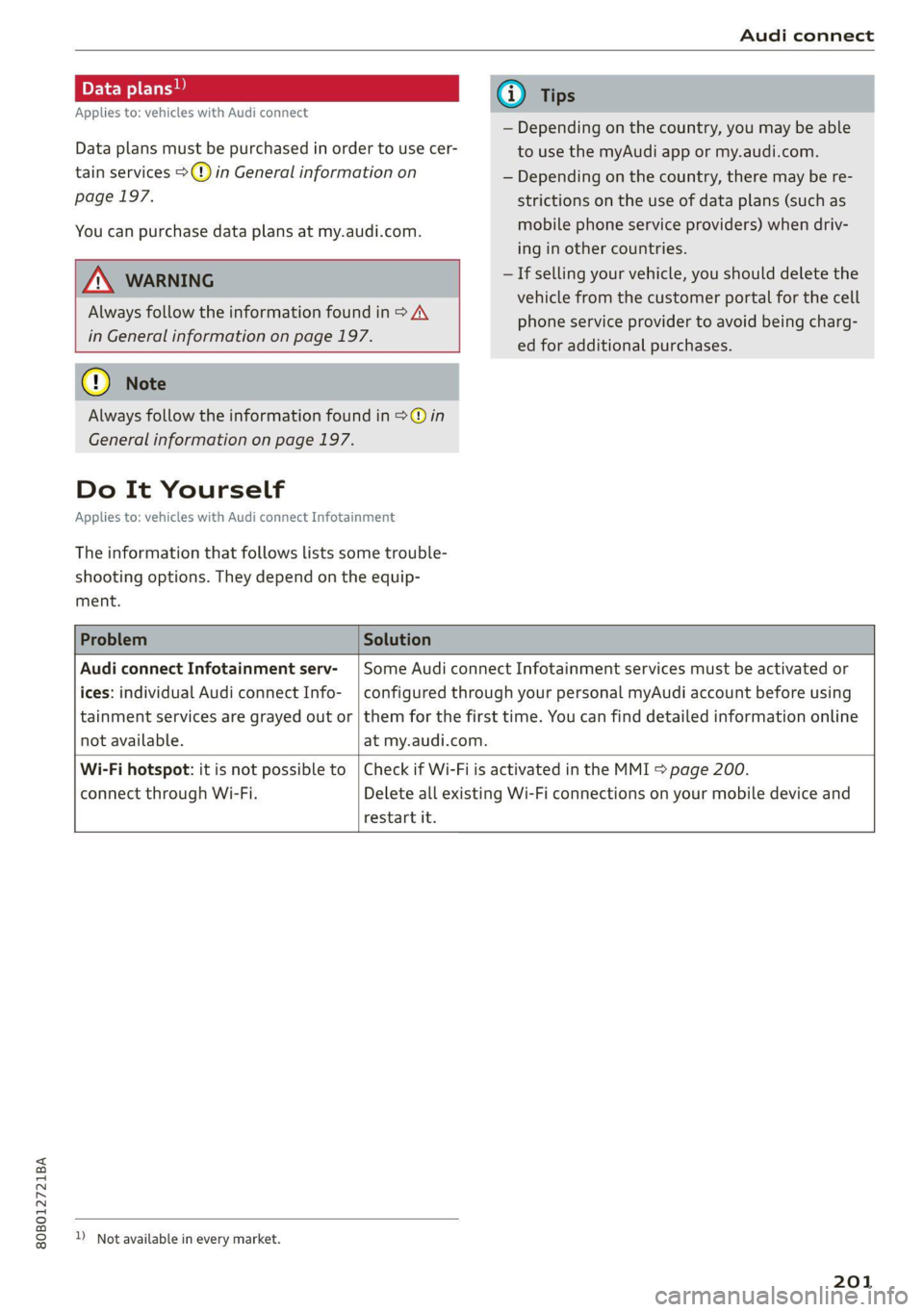
Do It Yourself
Applies to: vehicles with Audi connect Infotainment
The information that follows lists some trouble-
shooting options. They depend on the equip-
ment.
— Depending on the country, you may be able
to use the myAudi app or my.audi.com.
— Depending on the country, there may be re-
strictions on the use of data plans (such as
mobile phone service providers) when driv-
ing in other countries.
— If selling your vehicle, you should delete the
vehicle from the customer portal for the cell
phone service provider to avoid being charg-
ed for additional purchases.
Audi connect Infotainment serv-
ices: individual Audi connect Info-
not available.
Some Audi connect Infotainment services must be activated or
configured through your personal myAudi account before using
tainment services are grayed out or | them for the first time. You can find detailed information online
at my.audi.com.
Wi-Fi hotspot: it is not possible to
connect through Wi-Fi.
restart it.
Check if Wi-Fi is activated in the MMI > page 200.
Delete all existing Wi-Fi connections on your mobile device and
D_ Not available in every market.
201
Page 204 of 332
Emergency call
Emergency call
Overview
Applies to: vehicles with emergency call function
An emergency call is a combination of data trans-
mission and a phone call. The data transmission
from your vehicle forwards important informa-
tion, such as the vehicle and position data, to the
emergency call center.
Depending on the country and the vehicle equip-
ment, the following functions may be available:
With the emergency call, you can call for help in
dangerous situations as quickly as possible. Use
this function when emergency help is needed
=> page 202.
— Audi connect emergency call (TPS emergency
call). This eCall system uses emergency call
centers operated by third party providers.
With online roadside assistance, you can request
assistance if there is a breakdown or a minor acci-
dent > page 203.
A WARNING
In areas with poor GPS reception or outside
the coverage range of the respective cell
phone service provider, some functions and/or
services may not be available, it may not be
possible to send or receive data, or functional-
ity may be limited.
iG) Tips
To see which data can be transmitted, visit
your Audi country or sales region website at
www.audi.com.
Emergency call
Applies to: vehicles with emergency call function
The services are provided through a SIM card in-
stalled in the vehicle. Services are provided as-
suming that the cell phone network required for
the installed SIM card is functioning and availa-
ble for use. The services made availably by Audi
are only available within the mobile phone net-
202
work coverage area for the mobile phone service
provider selected by Audi.
@ Tips
— The emergency call function cannot be deac-
tivated in the Infotainment system settings.
— The availability of the TPS emergency call is
limited to certain times.
—The costs for call and data connections for
TPS emergency calls is included in the price
of the services.
Functions
Applies to: vehicles with emergency call function
A TPS emergency call can be made manually or
automatically > page 202.
Making an emergency call
Applies to: vehicles with emergency call function
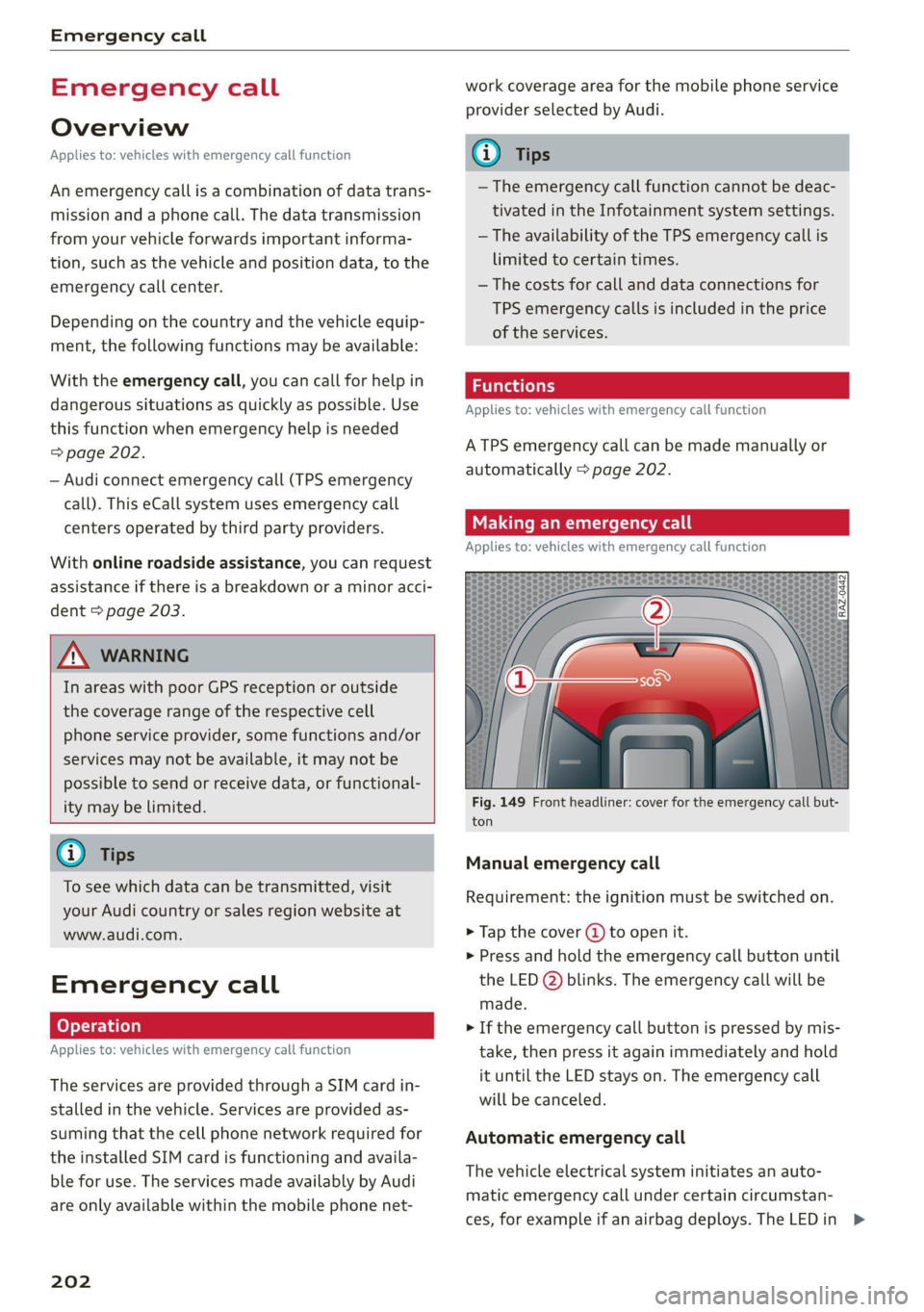
i l
Fig. 149 Front headliner: cover for the emergency call but-
ton
Manual emergency call
Requirement: the ignition must be switched on.
> Tap the cover (J) to open it.
> Press and hold the emergency call button until
the LED @) blinks. The emergency call will be
made.
> If the emergency call button is pressed by mis-
take, then press it again immediately and hold
it until the LED stays on. The emergency call
will be canceled.
Automatic emergency call
The vehicle electrical system initiates an auto-
matic emergency call under certain circumstan-
ces, for example if an airbag deploys. The LEDin >
Page 207 of 332
80B012721BA
Navigation
Navigation
Opening navigation
Applies to: vehicles with navigation system
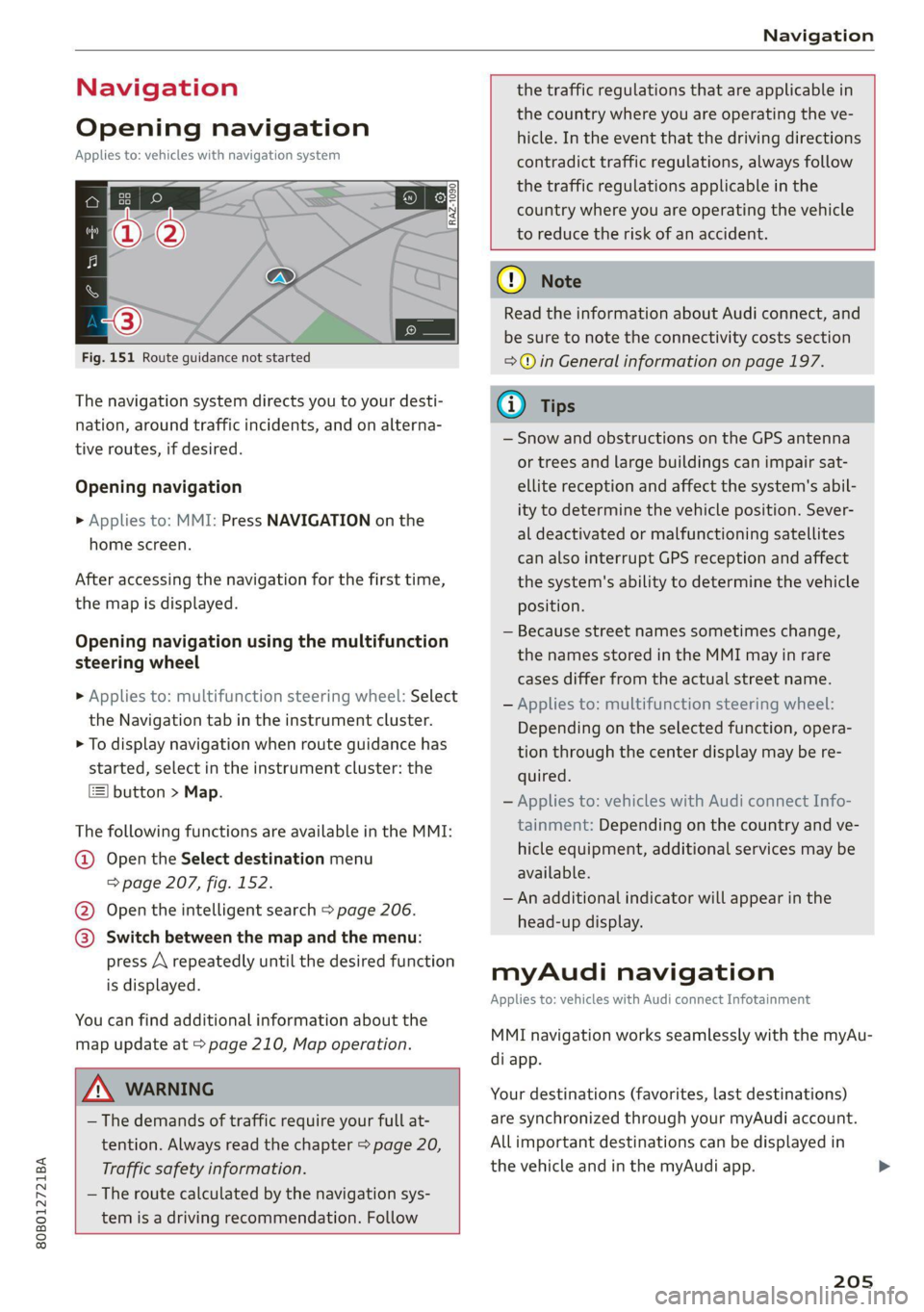
Fig. 151 Route guidance not started
The navigation system directs you to your desti-
nation, around traffic incidents, and on alterna-
tive routes, if desired.
Opening navigation
» Applies to: MMI: Press NAVIGATION on the
home screen.
After accessing the navigation for the first time,
the map is displayed.
Opening navigation using the multifunction
steering wheel
> Applies to: multifunction steering wheel: Select
the Navigation tab in the instrument cluster.
> To display navigation when route guidance has
started, select in the instrument cluster: the
button > Map.
The following functions are available in the MMI:
@ Open the Select destination menu
=> page 207, fig. 152.
@ Open the intelligent search > page 206.
@ Switch between the map and the menu:
press A repeatedly until the desired function
is displayed.
You can find additional information about the
map update at > page 210, Map operation.
the traffic regulations that are applicable in
the country where you are operating the ve-
hicle. In the event that the driving directions
contradict traffic regulations, always follow
the traffic regulations applicable in the
country where you are operating the vehicle
to reduce the risk of an accident.
ZA WARNING
— The demands of traffic require your full at-
tention. Always read the chapter > page 20,
Traffic safety information.
— The route calculated by the navigation sys-
tem is a driving recommendation. Follow
() Note
Read the information about Audi connect, and
be sure to note the connectivity costs section
=@ in General information on page 197.
(i) Tips
— Snow and obstructions on the GPS antenna
or trees and large buildings can impair sat-
ellite reception and affect the system's abil-
ity to determine the vehicle position. Sever-
al deactivated or malfunctioning satellites
can also interrupt GPS reception and affect
the system's ability to determine the vehicle
position.
— Because street names sometimes change,
the names stored in the MMI may in rare
cases differ from the actual street name.
— Applies to: multifunction steering wheel:
Depending on the selected function, opera-
tion through the center display may be re-
quired.
— Applies to: vehicles with Audi connect Info-
tainment: Depending on the country and ve-
hicle equipment, additional services may be
available.
— An additional indicator will appear in the
head-up display.
myAudi navigation
Applies to: vehicles with Audi connect Infotainment
MMI navigation works seamlessly with the myAu-
di app.
Your destinations (favorites, last destinations)
are synchronized through your myAudi account.
All important destinations can be displayed in
the vehicle and in the myAudi app.
205