phone AUDI Q7 2017 Owner´s Manual
[x] Cancel search | Manufacturer: AUDI, Model Year: 2017, Model line: Q7, Model: AUDI Q7 2017Pages: 402, PDF Size: 100.39 MB
Page 206 of 402
Emergency call
Messages
Applies to: vehicles with emergency call function
1!/1 Emergency call function: malfunction! Re
stricted functionality . Please conta ct Service
If the indicator lig ht t urns on and the message
appears, yo u can only make an emergency ca ll
wit h rest ric ted f un ct io n. For e xamp le, you ca nnot
call the emergen cy c all ce nte r, bu t da ta m ay st ill
be tra nsmi tted under certa in circ umst ances/
D rive to an a uthorized Audi dea le r or a uth orized
Aud i Service Facility immediately to have the
malfunct ion corrected.
II Emergency call function : malfunction! Fun c
tion unavailable. Please contact Service
I f t he indi cator lig ht tur ns on and the message
ap pears, yo u can not m ake an eme rge ncy call.
D rive to an a uth o rize d Aud i de aler or auth orized
Aud i Serv ice Facility immedia tely to have t he
malfunct io n corrected .
Online roadside
assistance
Description
Applies to: veh icles with online roadside ass istance
You can request help if you are in an accident or
b reakdow n situation using on line roadside ass is
tance
1> . A roads ide assistance call is a comb ina
tion of data transmission and a phone call. The
data transmission from your vehicle forwards im portant information to the A udi service cente r,
such as the veh icle and pos it io n data.
l ) Th e availab ili ty of th e services offered depe nds o n th e
country and may ch an ge over time.
204
· Calling online roadside ass istance
Applies to: vehicles with on line roadside assistance
The roadside assistance call can be made two
differ ent ways.
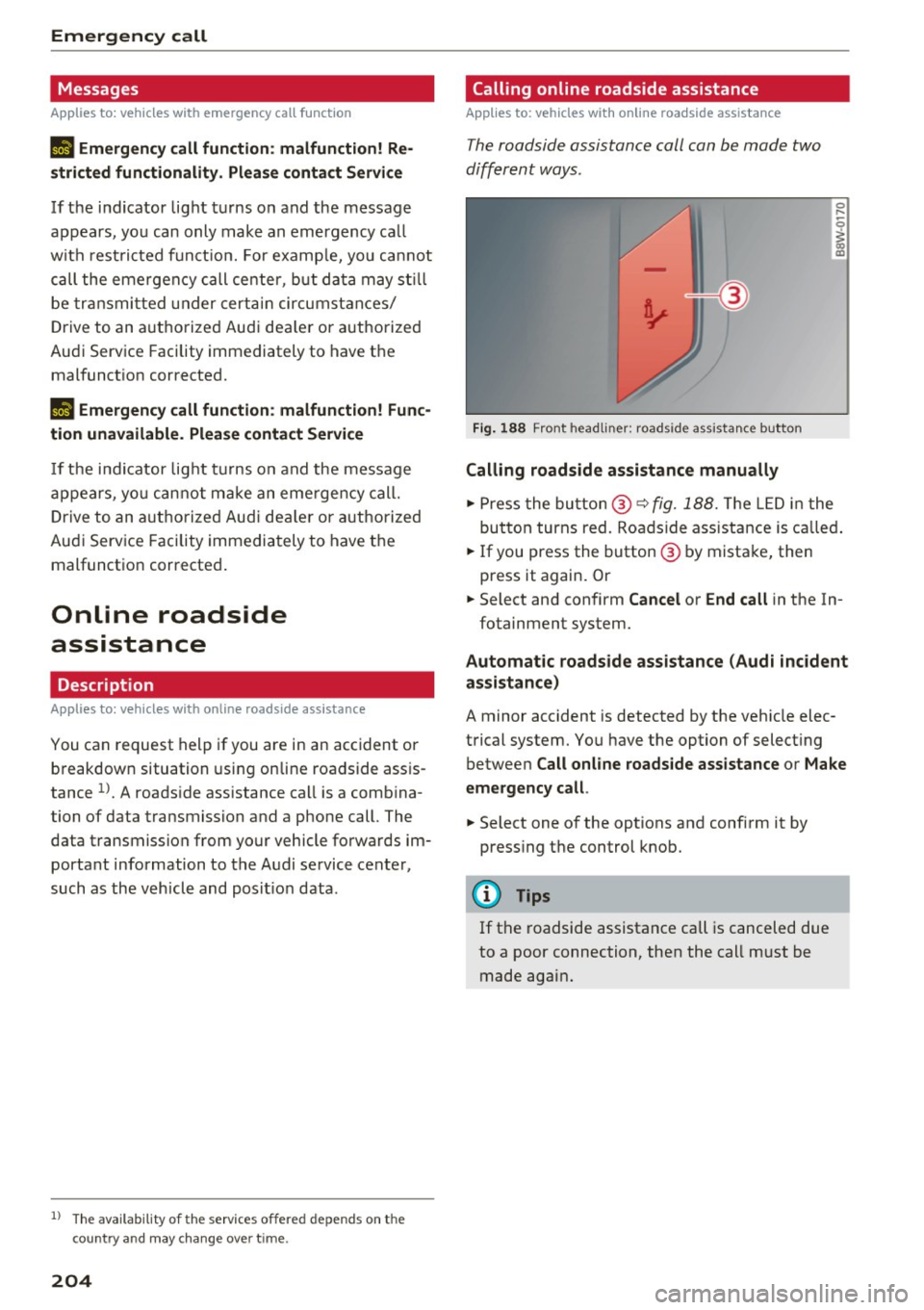
Fig. 188 Front headliner: roadside assista nce button
Calling roadside assistance manually
0 ....
-0
I
.,. Press the bu tton @~ fig. 188. The LED in t he
but ton turns red. Ro adside ass istance is c alled.
.,. If you press the button @ by mista ke, then
press it again. Or
.,. Select and confirm
Cancel or End call in the In-
fotainment system.
Automat ic roadside assistance (Audi incident
assistance)
A minor accident is detected by the veh icle elec
trical system. You have the option of select ing
betwee n
Call online roadside assistance or Make
emergency call .
.,. Select one of the options and confi rm it by
press ing the control knob.
@ Tips
If t he roadside assistance call is canceled due
to a poor connection, then the call m ust be
made again .
Page 207 of 402
Navigation
Opening navigation
Applies to: vehicles with navigation system
The navigation system directs you to your desti
nation, around traffic incidents and on alterna
tive routes, if desired.
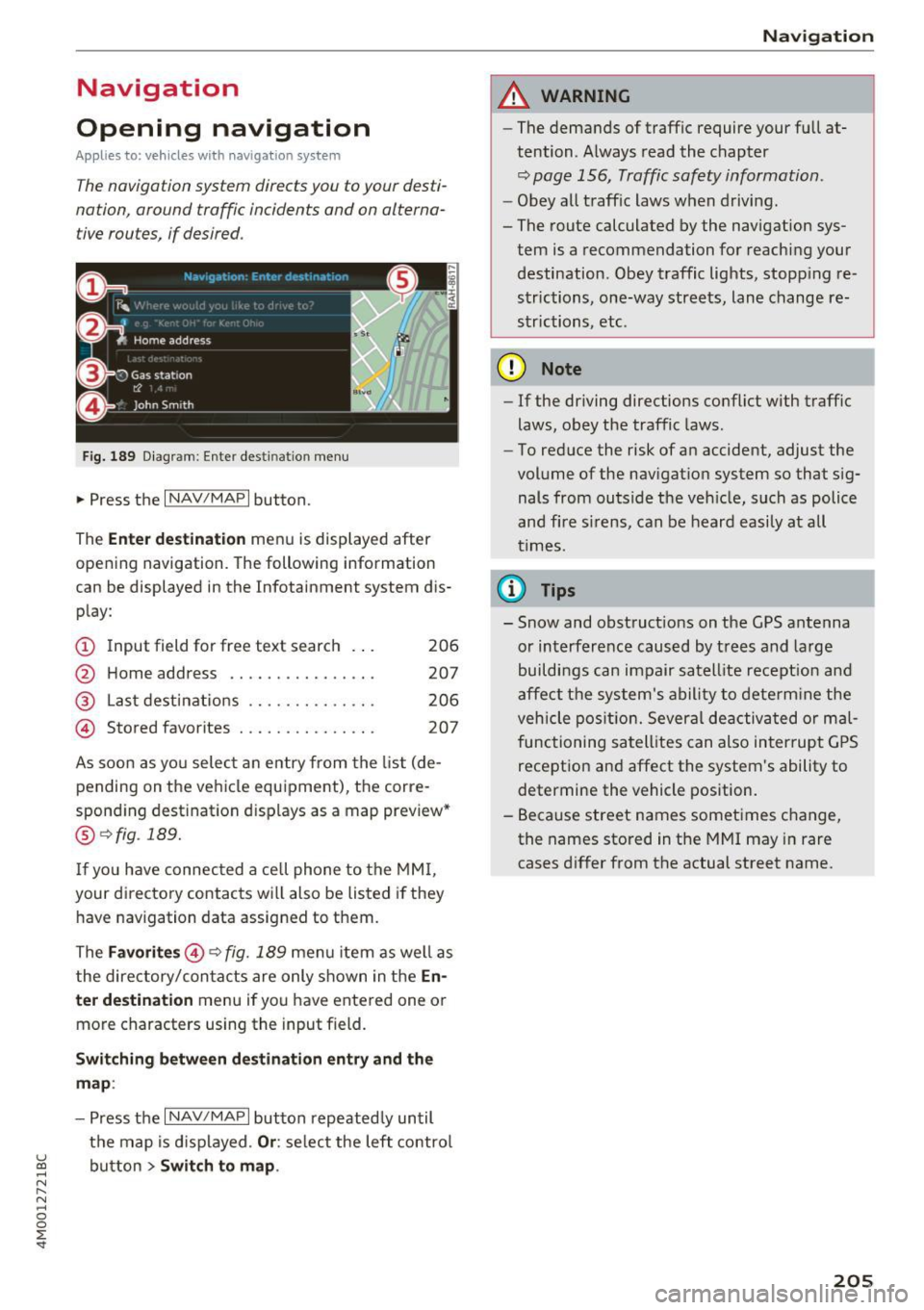
Fig. 189 Diagram : Ente r dest ination menu
.. Press the I NAV/MAPI button.
The
Enter destination menu is displayed after
opening navigation. The following information
can be displayed in the Infotainment system dis
play:
(D I nput field for free text search 206
@ Home address . . . . . . . . . . . . . . . . 207
@ Last destinations . . . . . . . . . . . . . . 206
@ Stored favorites . . . . . . . . . . . . . . . 207
As soon as you select an entry from the list (de
pending on the vehicle equipment), the corre
sponding destination d isplays as a map preview*
@ r::!> fig . 189.
If
yo u have connec ted a ce ll phone to the MMI,
your di rectory contacts will also be listed if they
have navigation data assigned to them.
The
Favorites @¢ fig. 189 menu item as well as
the directory/contacts are only shown in the
En
ter destination
menu if you have ente red one or
more characters using the input field.
Switching between destination entry and the
map :
-Press the I NAV /MAPI button repeated ly until
the map is displayed .
Or: select the left control
u ~ button > Switch to map.
N r--. N ~ 0
0
:E
A WARNING
--The demands of traffic require your full at-
tention. Always read the chapter
q page 156, Traffic safety information.
-Obey all traffic laws when driving.
- The route calculated by the navigation sys-
tem is a recommendation for reaching your
destination. Obey traffic lights, stopp ing re
strictions, one-way streets, lane change re
strictions, etc.
(D Note
- If the driving directions conflict with traffic
laws, obey the traffic laws.
- To reduce the risk of an accident, adjust the
volume of the navigation system so that sig
nals from outside the veh icle, such as police
and f ire s irens, can be heard easily at all
times .
(i) Tips
- Snow and obstruct ions on the GPS antenna
or interference caused by trees and large
buildings can impair satell ite recept ion and
affect the system's ability to determine the
veh icle position. Several deactivated or mal
functioning satellites can also interrupt GPS
reception and affect the system's ability to
determine the vehicle position.
- Because street names sometimes change,
the names stored in the MMI may in rare
cases differ from the actual street name.
205
Page 210 of 402
Navig ation
Transferring a destination from the directory
Applies to: vehicles with navigation system
You can navigate directly to destinations in the
directory.
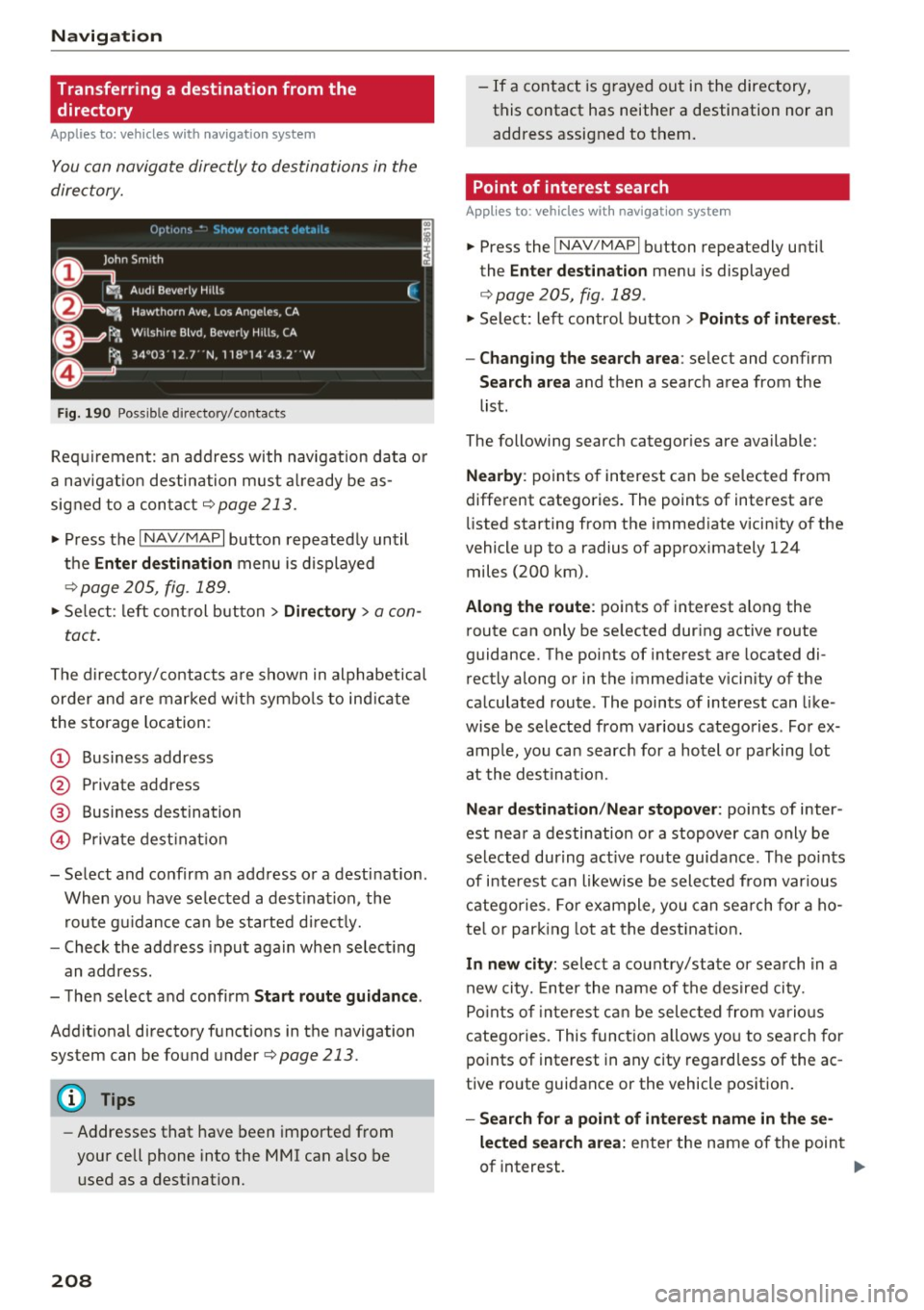
F ig . 190 Po ssible directory /contacts
Req uir ement: an address with navigation data o r
a nav igat ion destination must a lready be as
sig ned to a con tact
¢ page 213.
.,. Press t he I N AV/MAPI button repeated ly until
the
Enter de stination menu is d isplayed
"* page 205, fig . 189.
.,. Se lect : left cont rol button > Director y > a con-
tact.
The d irectory/contacts a re s hown in alphabetical
order and are marked w it h symbo ls to ind ic a te
the storage location :
(D Business address
@ Private address
@ Business destination
© Private dest inat io n
- Se lect and confirm a n address or a destinat ion.
When you have se lected a dest ination , the
r ou te g uidance can be started di rect ly.
- Check the address input again when select ing
an address.
- Then select and confirm
Start route guidan ce .
Addit ional directory f unctions in the navigation
system can be found under¢page213.
(D Tips
-Addresses that have been imported from
your cell phone into the MMI can a lso be
used as a dest ination.
208
- If a contact is g rayed out in the directory,
this contact has neither a destination nor an address assigned to them.
Point of interest search
App lies to: vehicles with navigat ion system
.,. Press the I NAV/MAP I button repeatedly until
the
Enter des tinat ion me nu is displayed
¢ page 205, fig . 189 .
.,. Select: left control button > Points of intere st.
- Changing the search area :
select and confirm
Search area and then a search area from the
list.
The following search categor ies are available:
Nearby : points of interest can be se lected from
different categories. The points of interest are
li sted starting from the immed iate vicin ity of the
vehicle up to a radius of app roximately 124
miles (200 km).
Along the route : points of interest along the
route can only be se lected dur ing active route
guidan ce. The points of interest are located di
r ectly along or in the immediate vicin ity of the
ca lculated route . The points of interest can like
wise be selected from various catego ries . Fo r ex
amp le, yo u can searc h for a hotel or pa rking lot
at the dest ina tion.
Near destination /Near stopover : points of inter
est near a destination or a stopover can only be selected dur ing act ive ro ute guidance. The po ints
of i nteres t can likewise be sele cted from var ious
c a tego ries . Fo r example , you can sea rch for a ho
te l o r par king lot at the dest inat ion .
In new city: select a cou ntry/state or sea rch in a
new city. En ter the name of the des ired ci ty.
Po ints of inte rest ca n be selec ted from vario us
catego ries. This funct ion a llows yo u to se arch for
po ints of interest in any city regard less of the ac
tive ro ute guidance or the vehicle position.
- Search for a point of intere st name in the se
lected sear ch area :
enter the n ame of the point
of interest. ..,_
Page 213 of 402
u (0 ...... N r--. N ...... 0
0
:E
l ete individual entries or all entries (for example,
favorites or last destinat ions).
Audi connect at thi s location *: Requirement: you
must have selected a destination from the re
sults list. Allows you to search for items in the v i
cinity of the selected location, such as
Travel in
formation.
Online traffic data* :
the on line traffic informa
tion ¢
page 221 can be switched on or off .
Add destination to contact : Requirement: a cell
phone must be connected to the MMI
¢page 176. See qpage 213.
Store as favorite : see q page 213.
Voice guidance : see c> page 214 .
Navigation settings: see¢ page 213.
(Di Tips
Information on online traffic data* can also
be found online at
www.audiusa.com.
Personal route
assistance
Ap plies to: ve hicles with navigation system and persona l
rou te ass istance
Your MMI can learn your frequently driven routes
and, depending on the current vehicle position,
suggest route guidance (for example, your daily commute to work and back) .
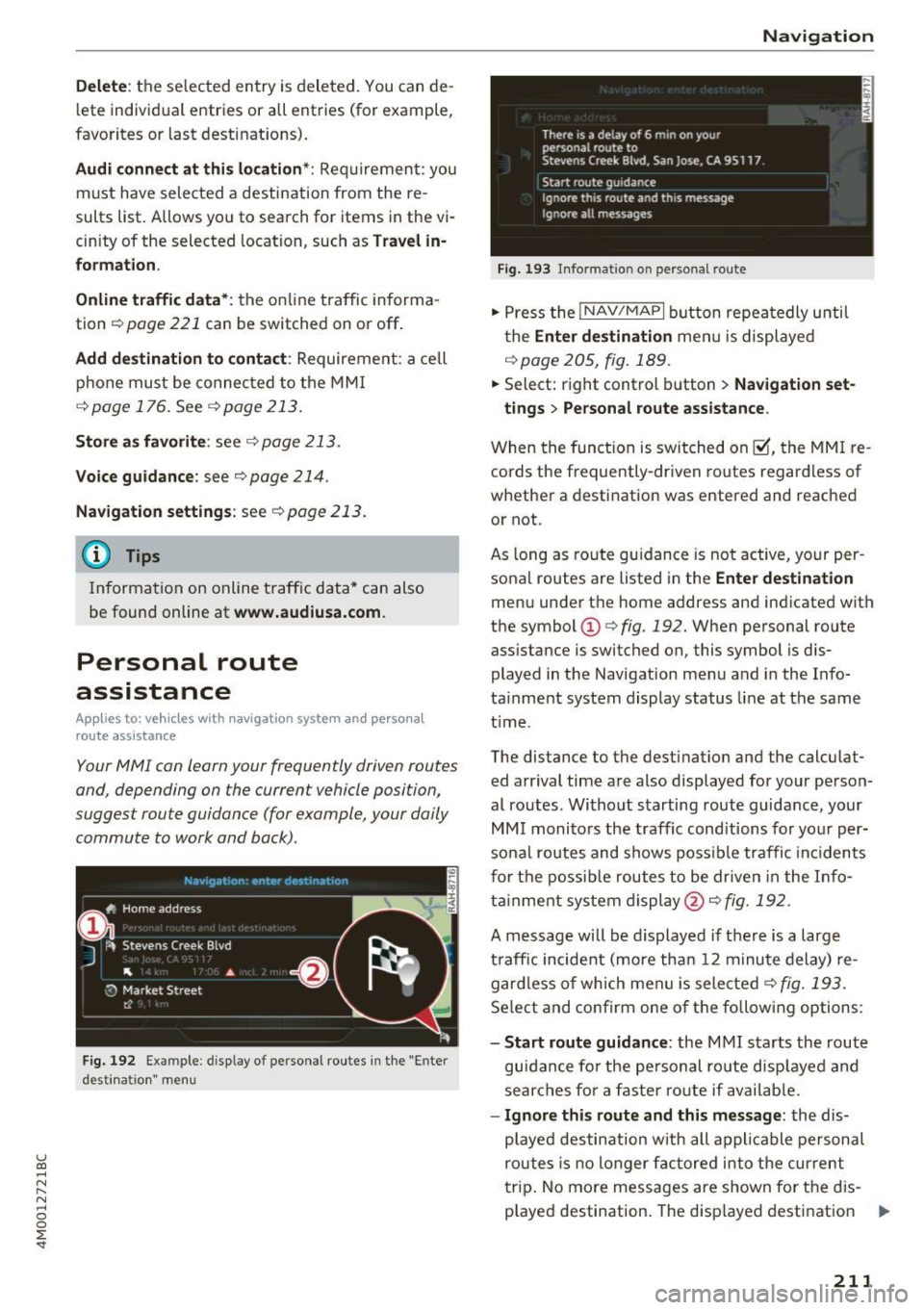
Fig. 192 Example: display o f personal routes in the "Enter
desti natio n" men u
Navigation
Fig. 193 In format ion o n perso nal route
"' Press the !NAV/MAPI button repeatedly until
the
Enter destination menu is displayed
¢page 205, fig.189 .
.,. Select: right control button > Navigation set-
tings
> Personal route assistance.
When the function is switched on~, the MMI re
cords the frequently-driven routes regardless of
whether a destination was entered and reached
or not.
As long as route guidance is not active, your per
sonal routes are listed in the
Enter destination
menu under the home address and indicated with
the symbol
CD c> fig. 192. When personal route
ass istance is switched on, this symbol is dis
played in the Navigation menu and in the Info
ta inment system display status line at the same
t ime .
The distance to the dest inat ion and the calculat
ed arrival time are also displayed for your person
al routes. Without starting route guidance, your
MMI monitors the traffic conditions for your per
sonal routes and shows possible traffic incidents
for the possible routes to be driven in the Info
tainment system display@¢
fig. 192.
A message will be displayed if there is a large
traffic incident (more than 12 minute delay) re
gardless of which men u is selected
q fig. 193.
Select and confirm one of the following options:
- Start route guidance : the MMI starts the route
guidan ce fo r the personal route displayed and
searches for a faster ro ute if available.
-Ignore this route and this message : the dis
p la yed destination with all applicable personal
routes is no longer factored into the current
trip . No more messages are shown for the d is
played destination. The disp layed destination ..,.
211
Page 215 of 402
u co ...... N r-... N ...... 0
0
:E: '
Home address
Applies to: vehicles with navigation system
• Press t he I NAV/MAP I button repeated ly un til
t h e
Enter destination me nu i s di splayed
<=:>page 205, fig. 1 89.
Storing a home address
- Se lect and confirm Home address @
c::> page 205, fig . 189. Afte r opening the home
address for the firs t time, yo u will be asked to
cr eat e a home address.
- Se lect and co nfirm
Create now .
-Enter a desti nati on or select a des tina tion from
t h e lis t.
Or:
-Se lect and co nfirm a destination > right control
bu tton
> Store as home addre ss .
Editing the home address
- Se lect t he Home address @<=:> page 205 ,
fig. 189.
- Se lect the right control button > Edit home ad
dress .
-Se lect and co nfirm a new dest inat ion as t he
home address.
The se le ct ed des tin ation is sto re d as t he new
h ome address .
Favorites
Applies to: veh icles with navigation system
• Press t he I N AV/MAPI button repeated ly until
the
Enter destination menu is displayed
c::> page 205, fig. 189.
- Storing a destination as a favorite : search for
the des ired destination using the i nput f ie ld .
Or : select a destinat ion from the list. Select:
rig ht cont rol button
> Store as favorite .
- Renaming a favorite :
select: left contro l button
> Favorites > a favorite from the list> right
contro l button
> Rename favorite .
- Move favorite :
select a favorite from the list>
rig ht cont rol button> Move favorite . Select
and co nfirm the locat ion of t he s elected favor
i te .
Navigation
- Deleting a favorite :
select a favorite from the
list>
ri gh t cont rol b utton > Delete favorite >
Delete this favorite o r Delete all favorites.
Directory contacts
Applies to : vehicles with navigat ion system
Two addresses (private/business) can be as
signed as destinations for each contact in the di
rectory.
• Press the INAV/MAPI b utton repeatedly u nti l
the
Enter destination men u is disp laye d
c::> page 205 , fig . 18 9.
Storing a destination as a contact in the
directory
R equirement: a ce ll phone must be connected to
t h e MMI
<=:>page 176.
- Select: a destin ation > righ t con tro l b utt on >
Add destination to contact.
- En ter the fir st le tters of t he desir ed c ont act in
t he free text sear ch inpu t fie ld
c::> page 205,
fig. 189
an d th en select a contact from the list .
= Sele ct an d co nfirm Add business destination or
Add private destination.
Navigation settings
Appl ies to : vehicles with navigation system
• Press the INAV/MAPI b utton repeatedly unti l
the
Enter destination men u is disp laye d
<=:>page 205, fig.189.
• Select: r ight control b utton > Navigation set -
tings .
Depen ding on the selecte d function, the follow
ing setti ngs can be selected :
Show alternative routes
Up to three s ugges ted rou tes are shown on the
map w hen t his fu nction is switche d on ~
c::> page 2 12 .
Low fuel warning
A message is displ ayed if the fue l g auge goe s be
lo w the rese rve mar king w hen th is fu nctio n is
swi tched on~- Confirmin g this mess age disp lays..,.
213
Page 216 of 402
Navig ation
a list o f gas stations in the area. When a gas sta
tion is selected, route guidance from the current
veh icle position is calc ulated.
Trail er mode *
Trailer mode is sw itched off at the factory.
When the function is switched on~' the maxi
m um permitted speed for vehicles with trailers is
incorpo ra ted into the rou te g uidance and the ca l
culated arrival time is adjusted according ly. Trail
e r mode is disp layed using symbols-"' in the side
menu on the map .
Personal route assistance *
Personal route assistance is sw itched off at the
factory.
Your trips are recorded and destinations are sug
gested by the MMI when this f unct ion is switched
on~
¢ page 211 .
The personal route ass istance is indicated by the
~ symbol in the status line of the Infotainment
system display.
Notification when n ea rby *
The notification when nearby is switched off at
the factory .
The MMI notifies you when you are approaching
selected po ints of int erest whe n this function is
sw itched on~- You can a lso have a
Notification
tone .
Presentation mode
The Presentation mode helps yo u to effect ively
p lan a trip and follow the p lanned route without
moving the ve hicle . You can
Select starting point
when, for example , you would like to ca lculate a
route star ting from a locat ion other than the ve
h icle pos it io n. Start
Presentation mod e to simu
late route gu idance .
1> High occu pan cy vehi cle
214
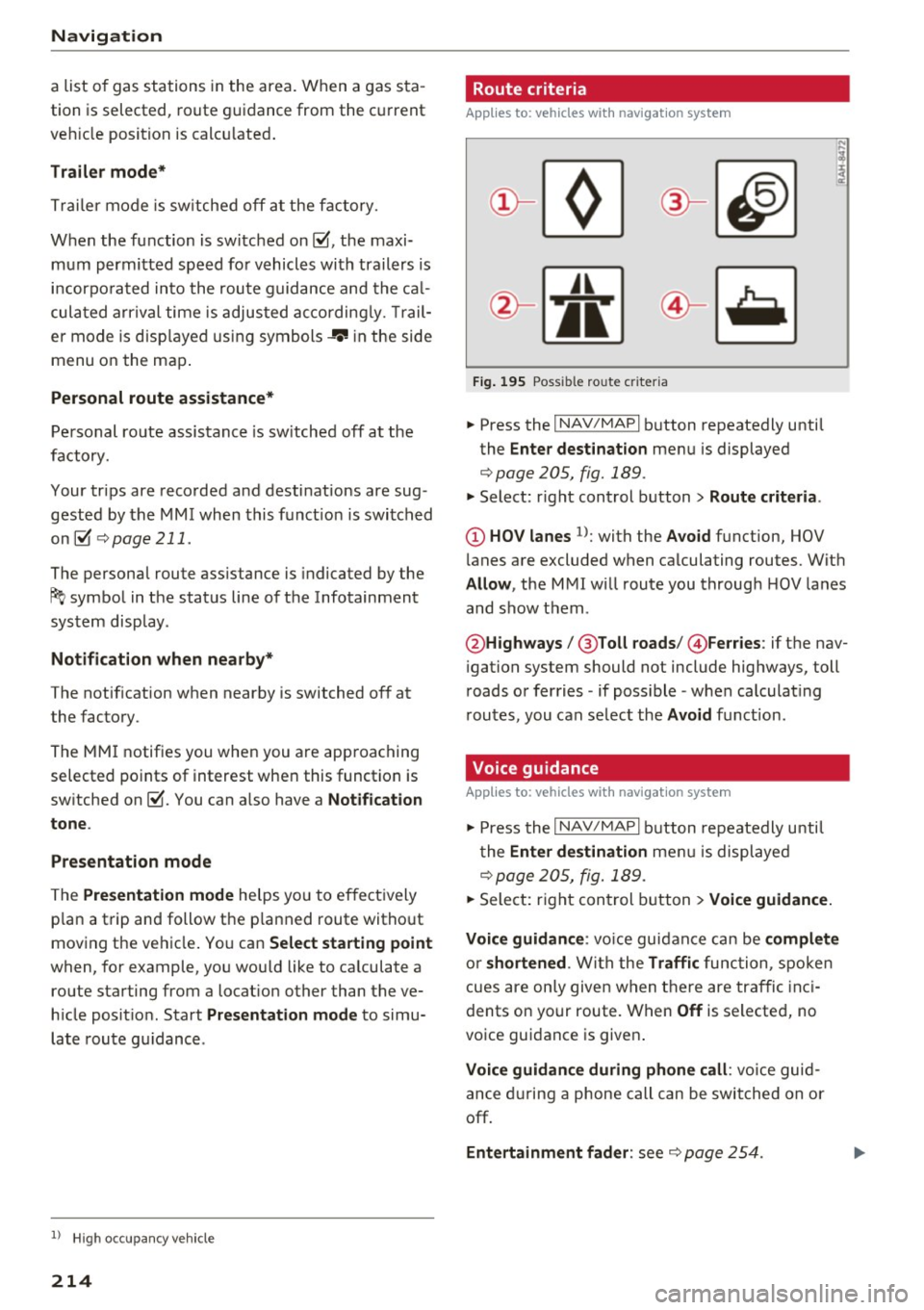
' Route criteria
Applies to: vehicles with navigation system
J(
Fig . 195 Poss ible ro ute c riter ia
.. Press the I NAV /MAP I button repeatedly until
the
Enter des tinat ion menu is displayed
¢page 205, fig. 189 .
.. Select: r ight control button> Rout e criteria .
(D HOV lanes 1>: with the Avoid function, HOV
l anes are excluded when ca lculating routes. With
Allow , the MMI will route you through HOV lanes
and show them .
@Highways /@ Toll roads /@ Ferries : if the nav
i gation system should not include highways, toll
roads or ferries -if poss ible -when calculat ing
routes, you can select the
Avoid f u nction.
Voice guidance
Applies to: vehicles with navigation system
.. Press the I NAV /MAPI button repeatedly unti l
the
En ter de stination me nu is displayed
¢page 205, fig. 189 .
.. Select: r ight con trol b utton> Voice guidance.
Voic e guidan ce :
vo ice guidance can be compl ete
o r shortened . With the Traffic func tion , spoken
cues are on ly given when there are traffic inc i
dents on your route. When
Off is se lected, no
voice guidance is given .
Voice guidan ce during phone call : voice guid
ance d uring a phone call can be swi tched on or
off.
Entertainment fader : see c::> page 254.
Page 226 of 402
Radio
Radio functions
Free text search
App lies to: ve hicles w ith free text search
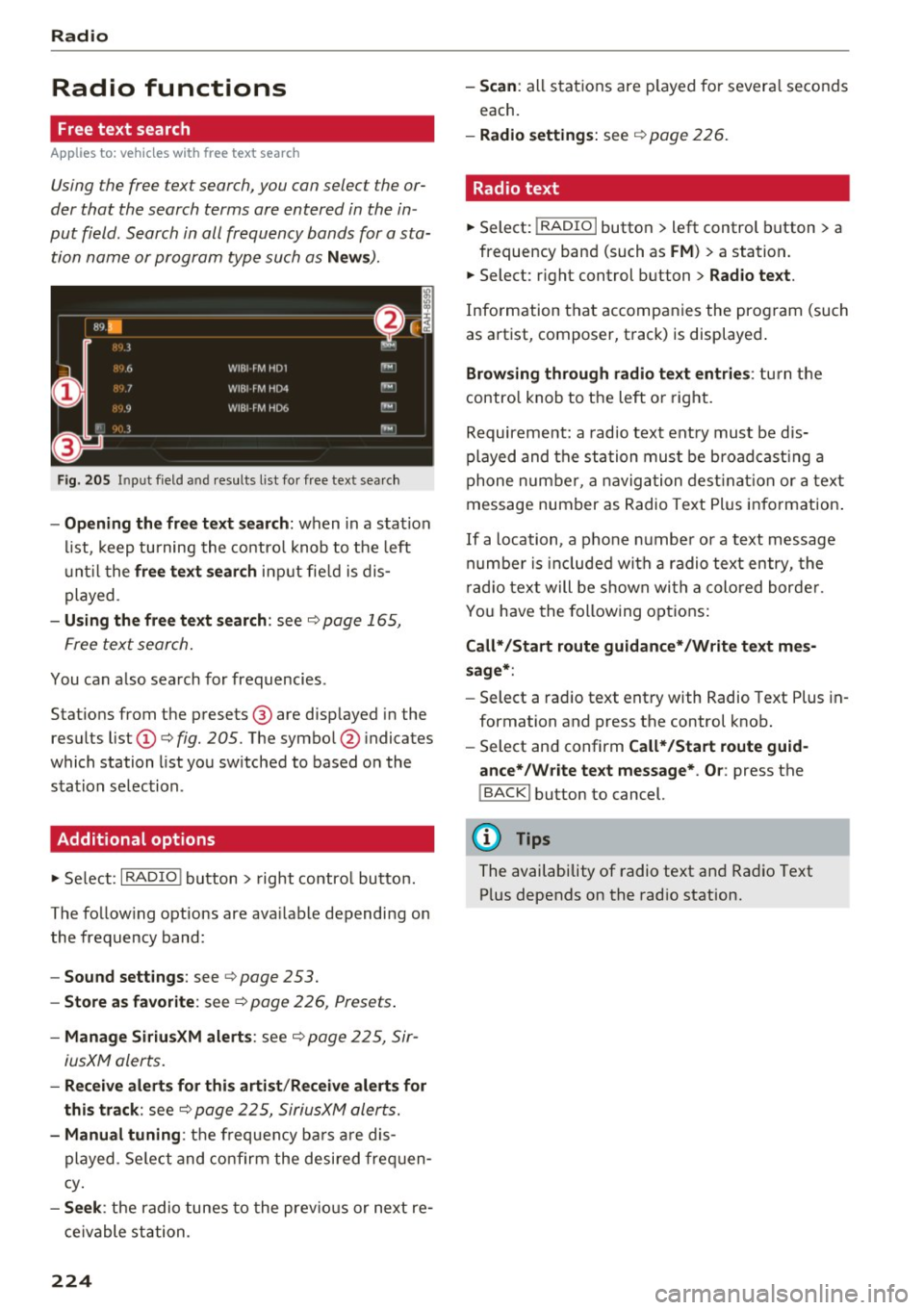
Using the free text search, you can select the or
der that the search terms are entered in the in
put field. Search in all frequency bands for a sta
tion name or program type such as
News ).
Fig . 20 5 Input field a nd results l ist fo r free tex t sea rch
- Opening the free text search : when in a s ta tion
l ist, keep turning the contro l knob to the left
u nt il the
free tex t search inp ut fie ld is dis
played .
-Using the free text sear ch : see c::> page 165,
Free text search.
You can a lso search for frequencies .
Stat ions from the presets @ are disp layed in the
results list
(D c::> fig. 205. The symbo l@ indicates
which station list you sw itched to based on the
station selection.
Additional options
.,. Se lect : I RADIO I button > right contro l button.
The follow ing options are ava ilable depending on
the frequency band:
- Sou nd settings : see c::>page 253.
-Store a s fa vorite : see c::> page 226 , Pr esets .
-Manage Siriu sXM al ert s: see c::> page 225, Sir-
iusXM alerts.
- Re ceive alert s for thi s arti st/ Re cei ve alert s fo r
thi s tr ack :
see c::> page 225, SiriusXM alerts.
-Manu al tuning : the frequency ba rs a re dis
played . Se lect and confirm the desired frequen
cy .
-See k: the radio tunes to the prev ious or next re
ce ivable station .
224
-Scan : all s tations are p layed for severa l seconds
each.
- Radio settin gs: see c::> page 226.
Radio text
.,. Select: I RADIO I button > left control button > a
frequency band (such as
FM ) > a station.
.,. Select: r ight control button>
Rad io te xt.
Information that accompanies the program (such
as artist, composer, t rack) is displayed .
Browsing through radio text entrie s: turn the
contro l knob to t he left or right.
Requirement: a rad io text entry must be dis
played and the station must be broadcast ing a
phone number, a navigation dest inat ion or a text
message number as Radio Text Plus in formation .
If a location, a phone number or a text message
numbe r is included with a radio text entry, the
r ad io text will be shown wi th a colored borde r.
You have the following opt ions:
Call* /Start route gu idance */Write t ext mes
s age *:
-Sel ect a radio text entry with Radio Text Plus in
formation and press the control knob.
- Select and confirm
Call */Start route guid
a nce* /W rite te xt me ssage* . O r:
press the
I BACK I button to cancel.
(!') Tips
The availability of radio text and Radio Text
P lus depends on the radio station.
Page 233 of 402
u co ...... N r--... N ...... 0
0
:E: '
ly sorted into the media center categories based
on the stored additional information
c:>
page 238. The copied video files are stored in
the media center under the
Videos category.
Playing the Jukebox
Requirement: the Jukebox must contain audio/
video files c:>
page 230, Adding files to the Juke
box.
The Jukebox is accessed and operated through
the MMI (Dc:>page237,
fig. 215.
Displaying Jukebox memory capacity
Select: right control button > Jukebox memory
capacity.
Information about the Jukebox memory
capacity and the number of stored tracks is dis
played.
Deleting tracks from the Jukebox1 )
Requirement: the Jukebox must contain audio/
video files.
- Deleting an entry : select an entry from the
Jukebox media center. Select: right control but
ton
> Delete from jukebox> This entry or En
tire list .
- The status of the deleting process is shown in
the MMI. Jukebox playback stops during the de
leting process and starts again automatically
once the deletion is complete.
(D Note
Do not import audio/video files when the en
gine is turned off because this will drain the
vehicle battery.
(D Tips
- Tracks from audio CDs cannot be imported
to the Jukebox for legal reasons .
- Files that have already been imported are
automatically recognized and cannot be
copied to the Jukebox again.
-It is not possible to play audio/video* files
in the CD/DVD* drive while importing them.
l) Not in the Playback view.
Media
- The Jukebox does not provide an export
function due to legal reasons.
- Files or tracks without additional stored in
formation are listed as
Unknown. Audi rec
ommends adding additional information
(such as ID3 tags) to audio files.
- Reset the
Jukebox to the factory default
settings when selling your vehicle
<=:>page 250.
Bluetooth audio player
Applies to: vehicles with Bluetooth audio player
With the Bluetooth audio player, you con ploy
music wirelessly from your Bluetooth-capoble
device (such as a cell phone) through the MMI.
Requirement: the vehicle must be stationary and
the Bluetooth function on your Bluetooth device
and the
Bluetooth audio player c:> page 251 in
the MMI must both be switched on.
-Connecting a Bluetooth device: press the
!MEDIAi button. Press the left control button
until the sources overview is displayed. Select
and confirm Bluetooth audio player ®
<=:>page 237, fig. 216 .
-If necessary, select and confirm, Not connected
> Connect Bluetooth audio player . The Blue
tooth device search starts. Follow the instruc
tions in the MMI.
- Select and confirm the desired Bluetooth de
vice from the list. The MMI generates a PIN for
the connection.
- Select and confirm
Yes.
- Enter the PIN for connecting on your Bluetooth
device.
Or: if the PIN is already displayed on
your Bluetooth device, confirm it in the Blue
tooth device and in the MMI. The time allowed
for entering the PIN is limited to approximately
30 seconds.
The media is started and operated through the
mobile device or the MMI, depending on the de-
vice being used. ..,.
231
Page 234 of 402

Media
(D Tips
-Check for any connection requests on your
Bluetooth device.
- Multiple Bluetooth audio players can be
connected to the MMI, but only one mobile
device can be active.
- Bluetooth protocols AVRCP (1.0/1.3/1.4)
and A2DP are supported.
- Note the volume setting on your Bluetooth
device. Audi recommends setting your mo
bile device to the maximum volume when
using it as a Bluetooth audio player.
- The supported media functions (such as
shuffle) depend on the Bluetooth device be
ing used.
- For more information on the supported de
vices, visit
www.audiusa.com/bluetooth or
contact an authorized Audi dealer or author
ized Audi Service Facility.
Wi-Fi audio player
Appl ies to: ve hicles w ith Wi-F i audio playe r
Using the Wi-Fi audio player media source on the
MMI, you can connect and operate your Wi-Fi-ca
pable media player (such as a smartphone) to wirelessly play music from your media player
li
brary. The media player is connected through the
vehicle's Wi-Fi hotspot. A UPnP Server opp or an
integrated UPnPIDLNA server on your media
player is required to access your media player
li
brary.
Requirement: the Wi-Fi function on your media
player must be switched on. The
Audi MMI con
nect
app or a UPnP server app must be installed
on your media player .
Or: you must be using a
media player with an integrated UPnP/DLNA
server.
- Connecting a media player: press the I MEDIA !
button. Press the left control button until the
sources overview
¢ page 237 is displayed . Se
lect and confirm
Wi-Fi audio player 0
¢ page 237, fig . 216 .
- If necessary, select and confirm Wi-Fi off>
Turn on Wi-Fi
to activate Wi-Fi in the MMI. Se
lect
Wi-Fi settings, if necessary. Select the
232
same settings on the wireless media player
that are used for the Wi-Fi hotspot.
-Starting the Wi-Fi audio player: start the Audi
MMI connect
app or a UPnP server app, or set
media permissions on your media player.
Operating the media player: the media player is
operated through the MMI.
- Press the left control button repeatedly until
the
Folders menu item appears. Select and con
firm
Folders.
- Playing music from the media player:
select
and confirm
Media center .
A WARNING
-As the driver, do not allow usage of the Wi
Fi hotspot to distract you from driving, as
this could increase the risk of an accident.
- It is only safe to use tablets, laptops, mo
bile devices and other similar devices when
the vehicle is stationary because, like all
loose objects, they could be thrown around
the inside of the vehicle in a crash and cause
serious injuries. Store these types of devices
securely while driving.
- Do not use any wireless devices on the front
seats within range of the airbags while driv
ing. Also read and follow the warnings in
¢ page 2 77, Front airbags.
(D Note
Always follow the information found in ¢(Din
Wi-Fi hotspot on page 195.
(D Tips
- Always read the chapter¢ page 196, Audi
connect (Infotainment) general informa
tion.
- Please note that a Wi-Fi connection does
not automatically make it possible to use
the Internet. For additional information,
see
¢ page 189.
-To avoid interruptions during playback, de
activate the power saving function on the
media player or connect it to a charger.
- The loading times for the audio data depend
on the media player used and the number of
files that it contains .
II>-
Page 235 of 402

u (0 ...... N r--. N ...... 0
0
:E
are displayed in the M MI.
- Songs dow nloaded for offline use using m u
sic st reaming services are stored on you r
mobile device (suc h as a smartphone) an d
may be ORM protected. The Wi-Fi audio
player w ill not play ORM protected files.
- Contact an a uthorized Audi dea le r or a u
thorized Audi Service Facility for additional i nformat ion on the Wi-Fi audio p layer.
Online media and
Internet radio
App lies to: veh icles with Audi connect
Yo u can playba ck and oper ate various onli ne me
dia servi ces and In ternet radio using the MMI.
F ig. 212 O nlin e med ia
• Press the I MEDIA i button . P ress the left contr ol
bu tton until the so urces overview ¢
fig. 212 is
displayed.
Applies to: using online media and Inte rnet rad io
Req uirement :
- The
Audi MMI connect app m ust be installed
and open on your mo bile device.
- You m ust be logged into your myA udi account
in the
Audi MMI connect app a nd you must
hav e selected your ve hicle.
- The Wi-Fi function on the mobi le device and on
t h e M MI m ust be switched on .
- If necessary, check in the connection manager
¢
page 250 i f the mobi le device you connected
is se lected under the
MMI connect app (~).
-The M MI must be con nected to the ne twor k.
- The symbo l for the
Online media source @
¢
fig . 212 is shown in the MMI.
Applies to : using online media
Additional requ irement :
Media
-A s uppor ted online me dia se rvice mus t be avail
a b le in yo ur cou ntry.
- You mus t have a n acco unt with a suppor ted on
line me dia se rvice .
- Depending on t he on line m edia se rvice, yo u
m ust ins tall and open an app on yo ur mobile
dev ice.
Starting Online media
- Press the I MEDIA i button. Press the lef t control
button unt il the sources overv iew ¢
page 237
is displayed.
- Select an d confirm an o nline media serv ice .
Starting Internet radio
-Press the I MEDIA i button. Press the left cont rol
button unti l the sources overv iew
¢ page 237
is displayed.
- Select and confirm
Internet radio. The Internet
radio b rowser or the last stat io n that was play
ing is shown.
- Selecting the station : if necessary, select and
confirm a category in the Inte rnet radio
Brows
er >
a station.
Online media and Internet radio: additional op
tions
- Press the r ight cont rol b utton.
The following options may be available, depend ing on the information shown (such as the sta
t ion/t rack that is curre ntly playing):
- Sound settings : see¢ page 253 .
-Wi-Fi settings : see¢ page 1 95, Wi- Fi hot spo t.
- Connection manager : see¢ page 250 .
-Add itio na l options may be available, depend ing
on t he active online med ia service or In ternet
radio.
_& WARNING
- It is only s afe to use table ts, lap to ps, mo
b ile dev ices and other si mila r devi ces whe n
t he vehicle i s st ati ona ry becau se, li ke all
loose objec ts, they co uld be thrown around
the inside of the ve hicl e in a c rash and ca use
serio us in juries. Store these types of devices
securely w hile d riving.
~
233