reset AUDI Q7 2018 Owner´s Manual
[x] Cancel search | Manufacturer: AUDI, Model Year: 2018, Model line: Q7, Model: AUDI Q7 2018Pages: 398, PDF Size: 185.58 MB
Page 5 of 398
Cl a:, ...... N
" N ...... 0
0
::r '
Multi Media Interface . . . . . . . . . . . . 14 9
Traffic safety information . . . . . . . . . . . . . 149
Introduction . . . . . . . . . . . . . . . . . . . . . . . . 149
MMI On/Off knob w ith joyst ick function . . 149
Infotainment system display . . . . . . . . . . 150
MMI operat ion . . . . . . . . . . . . . . . . . . . . . . 151
MMI touch . . . . . . . . . . . . . . . . . . . . . . . . . 153
Contro l knob with joystick funct ion . . . . . 155
Shortcut keys . . . . . . . . . . . . . . . . . . . . . . . 156
L ette r/number speller . . . . . . . . . . . . . . . . 157
F ree text search . . . . . . . . . . . . . . . . . . . . . 158
Menus and Symbols . . . . . . . . . . . . . . . . . . 159
Multifunction steering wheel . . . 16 1
Introduction . . . . . . . . . . . . . . . . . . . . . . . . 16 1
Radio . . . . . . . . . . . . . . . . . . . . . . . . . . . . . 16 1
Media . . . . . . . . . . . . . . . . . . . . . . . . . . . . . 161
Telephone . . . . . . . . . . . . . . . . . . . . . . . . . . 162
Navigation . . . . . . . . . . . . . . . . . . . . . . . . . 163
Voice recognition system . . . . . . . . 167
Operating . . . . . . . . . . . . . . . . . . . . . . . . . . 166
Command overv iew information . . . . . . . . 167
Commands . . . . . . . . . . . . . . . . . . . . . . . . . 168
E xternal vo ice operat ion 172
Telephone . . . . . . . . . . . . . . . . . . . . . . . . 174
I ntroduction . . . . . . . . . . . . . . . . . . . . . . . . 17 4
Setup . . . . . . . . . . . . . . . . . . . . . . . . . . . . . 174
Using the te lephone . . . . . . . . . . . . . . . . . 177
F avorites . . . . . . . . . . . . . . . . . . . . . . . . . . . 179
M essages . . . . . . . . . . . . . . . . . . . . . . . . . . 180
Listening to voicemai l . . . . . . . . . . . . . . . . 182
Directory . . . . . . . . . . . . . . . . . . . . . . . . . . . 183
Addit ional settings . . . . . . . . . . . . . . . . . . 184
Troubleshoot ing . . . . . . . . . . . . . . . . . . . . . 186
Audi connect (Infotainment) . . . . 187
Introduction . . . . . . . . . . . . . . . . . . . . . . . . 187
Setup . . . . . . . . . . . . . . . . . . . . . . . . . . . . . 187
Conf iguration through myAudi . . . . . . . . . 187
Opening Aud i connect ( Infotainment) . . . 188
Aud i connect Infotainment se rvices . . . . . 188
W i-Fi hotspot . . . . . . . . . . . . . . . . . . . . . . . 193
Conf igur ing the data connect ion . . . . . . . . 194
Table of content s
Audi connect (Infota inment) gene ral
information . . . . . . . . . . . . . . . . . . . . . . . . 194
Troub les hooting . . . . . . . . . . . . . . . . . . . . . 196
Audi connect vehicle control . . . . 19 7
Introduction ..... .. ... .. ..... ... .. .. 197
Setup . . . . . . . . . . . . . . . . . . . . . . . . . . . . . 197
Additional options . . . . . . . . . . . . . . . . . . . 198
Remote locking and un lock ing . . . . . . . . . 198
Vehicle status report . . . . . . . . . . . . . . . . . 198
Parking locat io n . . . . . . . . . . . . . . . . . . . . . 198
Geofencing Alert . . . . . . . . . . . . . . . . . . . . 1 99
Speed Ale rt . . . . . . . . . . . . . . . . . . . . . . . . . 199
Valet Alert . . . . . . . . . . . . . . . . . . . . . . . . . 199
Stolen Vehicle Lo cator . . . . . . . . . . . . . . . . 199
Online Audi service request ..... ... .. .. 199
Emergency call .. ... .. ..... ... .. .. 20 1
Introd uction . . . . . . . . . . . . . . . . . . . . . . . . 201
Emergency call . . . . . . . . . . . . . . . . . . . . . . 201
Online roads ide assistance . . . . . . . . . . . . 202
Navigation . . . . . . . . . . . . . . . . . . . . . . . . 2 03
Open ing navigation . . . . . . . . . . . . . . . . . . 203
Entering a destination . . . . . . . . . . . . . . . . 204
Persona l route ass istance . . . . . . . . . . . . . 209
Alternative routes . . . . . . . . . . . . . . . . . . . 210
Additional settings ................. . 210
Map .. .. .. .. .. .. .. ... .. ..... ... .. .. 213
Sate llite map . . . . . . . . . . . . . . . . . . . . . . . 215
Map upd ate . . . . . . . . . . . . . . . . . . . . . . . . 216
T raffic information .... .. ..... ... .. .. 21 7
T roub leshooting .... ... .. ..... ... .. .. 219
Radio .. .. .. .... .. ... .. ..... ... .. .. 220
Opening the radio . . . . . . . . . . . . . . . . . . . 2 20
Radio functions . . . . . . . . . . . . . . . . . . . . . 221
Radio menu . . . . . . . . . . . . . . . . . . . . . . . . 223
Presets . . . . . . . . . . . . . . . . . . . . . . . . . . . . 223
Additional settings . . . . . . . . . . . . . . . . . . 223
Troubleshooting . . . . . . . . . . . . . . . . . . . . . 224
Media ...... .. .. ................. .. 225
Introduction . . . . . . . . . . . . . . . . . . . . . . . . 225
Notes . . . . . . . . . . . . . . . . . . . . . . . . . . . . . 225
Med ia drives . . . . . . . . . . . . . . . . . . . . . . . . 226
B luetooth aud io p laye r . . . . . . . . . . . . . . . 228
Wi-Fi a udio p laye r . . . . . . . . . . . . . . . . . . . 229
3
Page 11 of 398
Cl a:, ...... N
" N ...... 0
0
::r '
exiting the vehicle ..... ... .. .. .
@ Door handle
@ Cen tral locking swit ch ....... .. .
@ Memory buttons ........... .. .
® Vent
@ Thumbwhee l for vent and button
for wide vent, depending on eq uip -
ment ..... ... .. ..... ... .. .. .
- High beam assistant .... .. .. .
- Active lane assist ........... .
- T raffic jam assist ........... .
@ Mul tifunct ion steer ing whee l with:
- Horn
- Driver's airbag . ..... ... .. .. .
- Driver in formation sys tem con -
trols .... ... .. ..... ... .. .. .
- Audio/v ideo, telephone, nav iga
tion and voice recognition con -
trols .... ... .. ..... ... .. .. .
- III/ steering wheel heat ing b utton
- Sh ift paddles .......... .. .. .
® Instrument cluster ......... .. .
@ Reset t rip odometer .......... .
@ W indshie ld was her system lever
@ !S TAR T ENGIN E ST OPI button .. .
@ Steer ing whee l adjustment, de-
pending on equipmen t
- Mechan ica l .............. .. .
- Power ... ... .. ..... ... .. .. .
~ Lever for:
- Cru ise cont rol sys tem ... .. .. .
- Adaptive c ruise cont rol .. .. .. .
@ Data link connector for On -Board
Diagnostic System (OBD II) . ... .
@) H ood release ............... . .
@ Ins trumen t il lum ina tion ... .. .. .
@ Button for switch ing the head-up
d isplay on/off, adjust ing the
h eight .. .. ................ . .
@ Sw itch for lugg age compar tment
lid . ..... .. ... .. ..... ... .. .. .
120
33
59
66
4 4
44
1 17
109
273 12
1 5
1 5
89
10
12
50
77
76 76
95
102
3 18
320
4 7
17
35
Coc kpit o ver view
@ Head light control switc h
@ Buttons for:
- All-weathe r lights
- Night vis ion ass ist .......... .
- Rear fog lights ............. .
@ Power exte rior m irro r adjustment
@) Power windows .............. .
@ In fota inment system display
@ Lockable glove compa rtment . .. .
@ Front passenger's airbag ...... .
@ D rives for CD, DVD, S IM cards .. .
@ Switch for cooled glove compa rt-
ment .. .. .. .. .............. .
@ Depend ing o n equ ipment, butto ns
for:
- drive select .... ... .. ..... .. .
- Start/Stop system . .. ..... .. .
- Ele ct ronic S tabiliz ation Con trol
( E SC) . .. .. .. .............. .
- E me rgency flashers ......... .
- Park ing system ............. .
- Hi ll hold ass ist ............. .
- Infotainment system display ..
@ Climate cont ro l system ........ .
@ Storage compartment and outlet
@ Cup holder and mount for vehicle
key ..... ... .. .. ............ .
@) Infotainment system on/off
button ... .... .. ... .. ..... .. .
(§ Cen ter armrest w ith storage com
partment . Depending on vehicle
equipment , it may have:
- Aud i m usic interface . ..... .. .
@ Start ing t he engine if there is a
malfunction ... .. ............ .
@ Electromechanical parki ng b rake
@ Automatic transmission se lector
lever ... .. .. .. .. ............ .
@ In fota inment system un it
(D Tips
43
43
125
43
4 7
38
150
62
273
2 26
61
128 79
143
45
132
144
150
66
62 ,60
61
149
232
79
81
85
149
Some the equipment listed here is only insta l
l ed in certa in models or is available as a n op
t ion.
9
Page 14 of 398
Cockpit overv iew
the red zone beg ins varies depending on the
engine.
@ For the sake of the environment
Upshifting early helps you to save fuel and re
duces operating noise.
© Tips
Depending on t he e ngine : the engine speed
may be lim ited when the engine is cold -the
full engine ou tput wi ll not be avai lable . When
the engine is at operating temperat ure, the
red area in the tachomete r moves to a h igher
RPM range.
Fuel level
The display (J) ¢ page 10 , fig. 3 or ¢ page 10,
fig . 4 only functions when the ign ition is switch
ed on . When the display has reached the reserve
mark, a red L ED t urns on a nd the
tD in dicator
light turns on ¢
page 27. The red L ED w ill blink
when the f uel leve l is very low.
For the tank capac ity in you r vehicle, refer to the
Technical Data
r=v page 375.
(D Note
Never d rive until the tank is completely emp
ty . The irregular supp ly of f uel that results
from that can ca use engine misfi res . Uncom
busted fuel will the n ente r the exhaust sys
t em. This can ca use overheating and damage
t o the cata lytic conver ter.
Odometer
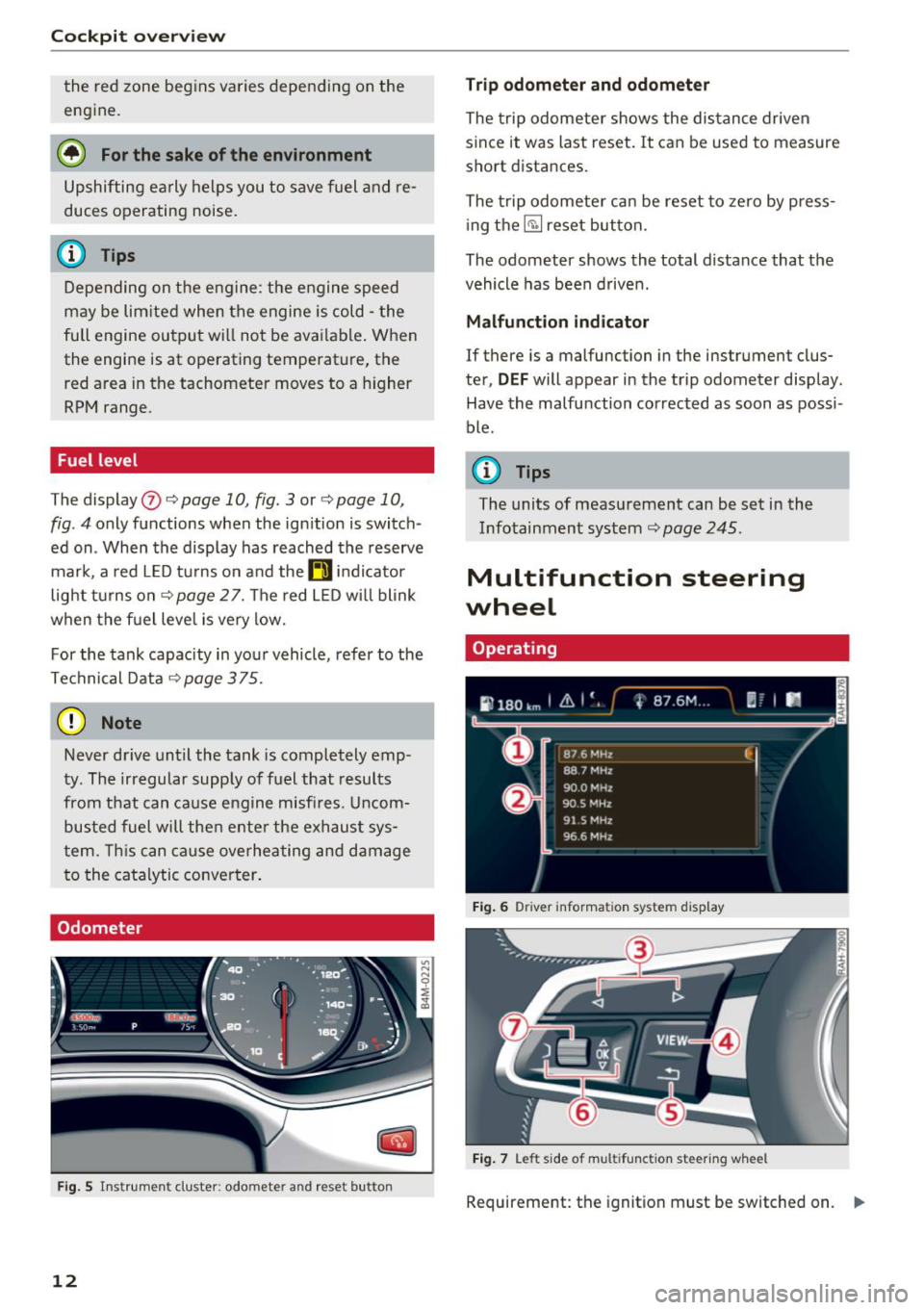
F ig . 5 In st ru m ent cluster: odometer a nd re se t bu tton
12
Tr ip odometer and odometer
The trip odometer shows the dis tan ce driven
s ince it was last reset. It can be used to measure
short d istances.
The trip odometer ca n be reset to zero by press
i ng th e ~ reset but ton.
The odometer shows the total distance that the
vehicle has been drive n.
Malfunction indicator
If there is a malfunction in the instrument clus
ter,
DEF will appear in the trip odometer display.
Have the malfu nction corrected as soon as possi
ble .
(D Tips
The units of measu rement can be set in the
Infotainment system~
page 245.
Multifunction steering
wheel
Operating
Fi g. 6 D river informa tion sys te m disp lay
Fi g. 7 L eft sid e of m ultifun ction steer ing wh eel
Requirement: th e ignition must be switched on. .,.
Page 18 of 398
Cockpit overview
On-board computer
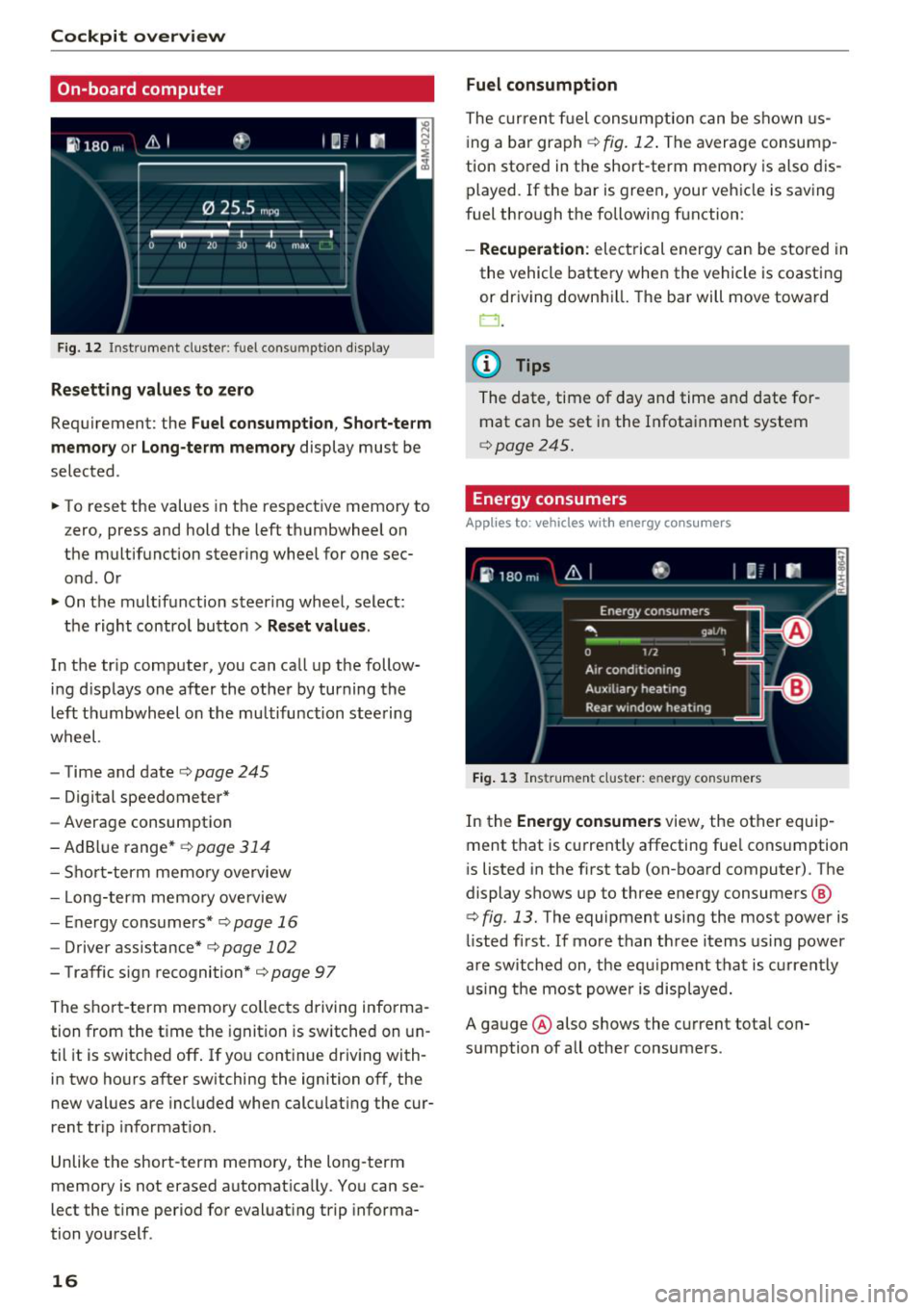
F ig. 12 Instrument cluste r: fuel cons umptio n display
Resetting values to zero
Requirement: the Fuel consumption , Short-term
memory or Long-term memory
display must be
selected .
.. To reset the values in the respect ive memory to
z ero, press and hold the left thumbwheel on
the multifunction steering wheel for one sec
ond . Or
.. On the multifunction steer ing whee l, select :
the right control button
> Reset values.
In the tr ip computer, you can call up the follow
ing d isplays one after the other by turning the
left thumbwheel on the multifunction steering
wheel.
- Time and date¢
page 245
- Digital speedometer*
-Average consumption
-AdBl ue range*
¢ page 314
-Short-term memory overview
- Long-term memo ry ove rview
- Energy consumers*
¢page 16
-Driver assistance* c::> page 102
- Traffic s ign recognition* ¢ page 97
The short -term memory collects driving informa
tion from the t ime the ignition is sw itched on un
til it is switched off . If you continue driving with
in two hours after switching the ignition off, the
new values are included when calculating the cur
rent tr ip informat io n.
Unlike the short-t erm memory, the long -term
memory is not erased automat ica lly . You can se
lect the time period for evaluating trip informa
tion you rself .
16
Fuel consumption
The current fuel consumption can be shown us
i ng a bar graph ¢
fig. 12. The average consump
tion stored in the short-term memory is also dis
played. If the bar is green, your vehicle is saving
fuel through the following function:
- Recuperation : electrical energy can be stored i n
the vehicle battery when the vehicle is coasting
or driving down hill. The bar will move toward
0.
@ Tips
The date, time of day and time and date for
mat can be set in the Infota inment system
¢page 245.
Energy consumers
App lies to : vehicles wit h energy co nsum ers
Fig. 13 Ins trumen t cluster: en ergy cons umers
In the Energy consumers view, the other equip
ment that is current ly affecting fue l consumption
i s listed in the first tab (on-board computer). The
display shows up to three energy consumers @
¢ fig. 13. The equipment using the most power is
li sted first . If mo re than three items using power
are switched on, the equipment that is currently
u sin g the most power is displayed.
A gauge @ also shows the current total con
sumption of all othe r consumers .
Page 87 of 398
Difficult terrain and off-road
When driving in unfamiliar areas and offroad,
drive slowly and keep on the watch for unexpect
ed obstacles (such as potholes, rocks, tree
stumps, etc.).
To prevent the vehicle from bottoming out and to
reduce the risk of underbody damage, you should
drive across uneven ground on only one side of
the vehicle so that only two of your wheels cross
the uneven area, instead of driving across the
center of the uneven area with all four wheels.
Drive quickly through sandy or marshy off-road
sections and do not stop , if at all possible.
Driving through water
Also read the information found in r=;, page 74.
Driving on a slope
If you are ever unable to drive up a hill, do not try
to turn around . Drive back down in
reverse in
stead . Otherwise you run the risk of t ipping over.
If the vehicle threatens to tip over when driving
across a slope, you must immediately steer
downhill in the direction of the slope.
Do not park your vehicle on steep hills .
To reduce the r isk of tipping over, drive on hills in
the direction of the downward slope (fa ll line) -
never crosswise.
Tilt angle display
Description
Applies to: vehicles wit h a tilt ang le display
110 · I l 1ft / offrnortr1 ( ~ ....
All road
!r
-
Q
l " __,.._
Comfort 4 ~
J
ll" 11• Auto O" •
Dynamic
~ ~
Individual 11• I/"
~t-;s
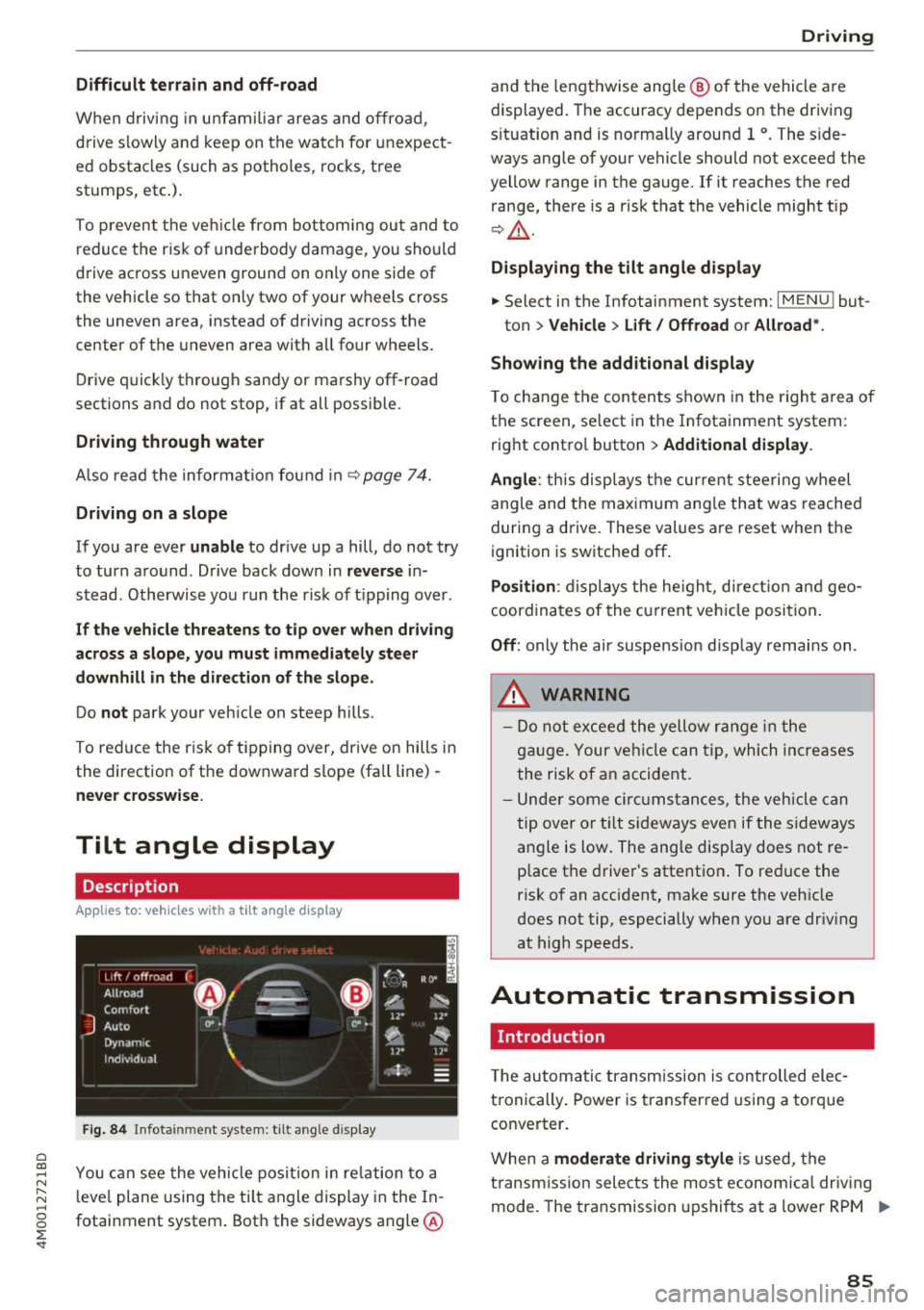
Fig. 84 Infotainment system : tilt angle d isplay
a
~ You can see the vehicle position in relation to a N
~ leve l plane using the tilt angle display in the In-~
g fotainment system . Both the sideways angle @
:E '
and the lengthwise ang le @ of the vehicle are
displayed. The accuracy depends on the driving
s ituation and is norma lly around 1
°. The side
ways angle of your vehicle should not exceed the
yellow range in the gauge. If it reaches the red
range, there is a risk that the vehicle might tip
r=;,_& .
Displaying the tilt angle display
.. Select in the Infotainment system: I MENU ! but-
ton>
Vehicle > Lift/ Offroad or Allroad*.
Showing the additional display
To change the contents shown in the right area of
the screen, se lect in the Infotainment system:
right control button>
Additional display.
Angle :
this disp lays the current steering wheel
angle and the maximum angle that was reached
during a drive . These values are reset when the
ignition is switched off .
Position: displays the height, direct ion and geo
coordinates of the current vehicle posit ion.
Off : only the air suspension display remains on .
.&_ WARNING
- Do not exceed the yellow range in the
gauge. Your vehicle can tip, which increases
the risk of an accident.
- Under some circumstances , the vehicle can
tip over or tilt sideways even if the sideways
angle is low. The angle display does not re
p lace the driver's attention . To reduce the
risk of an accident, make sure the vehicle
does not tip, especially when you are driv ing
at high speeds.
Automatic transmission
Introduction
T he automatic transmission is controlled elec
tronically . Power is transferred using a torque
converter.
When a
moderate driving style is used, the
transmission selects the most economical driving
mode. The transmission upshifts at a lower RPM .,.
85
Page 93 of 398

-The parking lock was released using the emer
gency release
¢ page 91. Or
- The parking lock can no longer be engaged.
Drive to an authorized Audi dealer or author
ized Audi Service Facility immediately to have
the malfunction corrected .
[il Move selector lever to automatic position
There is a malfunction in the tiptronic mode . End
tiptron ic mode by pushing the selector lever to
the left into the "D/S" position.
Parking lock emergency release
The parking lock must be released with the
emergency release when driving through moun tains/maneuvering.
Fig. 88 Drive r's side footwell : releas ing th e parking lock
us ing the eme rgency re lease
The emergency release is located under the floor
mat on the driver 's side .
Releasing the parking lock using the
emergency release
"'To prevent the vehicle from rolling unintent ion
ally, set the parking brake(®)¢
page Bl or
press the brake pedal.
"' There are two slits on the cover. Position the
screwdriver from the vehicle tool kit in one of
the slits on the cover and pry the cover off.
"' Insert the socket wrench (from the vehicle tool
k it) into the opening
c:> fig . 88.
"'T urn the socket wrench all the way clockw ise @
and press it downward @unti l it locks into
place.
~ "'L eave the socket wrench inserted c:> .&_ . ...... N r--.
~ Resetting the parking lock
0
0
~ "'Press the brake pedal and start the engine .
Driving
"' Keep the brake pedal pressed and engage the
following selector lever positions one after the
other: "N" , "D" and back to "N".
"' Turn the engine off again.
"' Grasp the socket wrench with both hands and
pull it up and out carefully to remove
c:>(D .
"'Install the cover .
When the parking lock emergency release is
used, the
[il indicator light and the "N " selector
lever posit ion turn on in the instrument cluster.
The message
Danger of rolling away! P not pos
sible. Please apply parking brake
also appears.
_& WARNING
-Only activate the emergency release while
on a level surface or a slight slope.
- The parking lock may only be released using
the eme rgency release if the parking brake
is set . If it is not functioning, secure the ve
hicle from rolling using the brake pedal or
other suitable means, such as blocking a
front and a rear wheel. An unsecured vehicle
may roll away, which increases the risk of an
accident.
- To reduce the r isk of an accident, you must
not drive when the emergency release is ac
tivated .
@ Note
-Read and follow the important instructions
about tow ing
<=> page 371.
-The risk of damage increases if you do not
remove the socket wrench carefully when
resetting the parking lock.
91
Page 101 of 398
Cl a:, ...... N
" N ...... 0
0
::r '
.,. On t he mult if u nct ion s teer ing whee l, tur n the
l e ft thumbw hee l
0 ~ page 12 unt il t he desired
menu item is displayed in the instrument cl us
ter .
.,. Press the left thumbwhee l to confirm the selec
t ion.
A WARNING
Your focus should always be on driving your
veh icle safely . As the dr ive r, yo u have com
plete responsib ility for safety in traffic. Only
use t he f unctions s uch as the lap time r in s uch
a way tha t you alw ays ma int ain com plete con
tr ol ove r your vehicle in all tra ffic s itu ations.
(D Tips
You ca n ret rieve information from the t rip
computer while t he lap t ime r stopwatch i s
r u nning.
Lap times and timing
Applies to: vehicles with lap timer
Requirement: the lap t imer must be o pen
~ page 98 .
Timing laps
.,. To start tim ing manually, se lect Start lap 1 in
the menu .
-
.,. To start tim ing a utomat ica lly as soon as you
begin to drive, select
Drive off to start lap 1 or
Start by driving off in the men u .
.,. To measure the lap t ime, select
New lap in the
menu. T his starts timing the next lap at the
same t ime.
After completing a lap, the difference between
the last lap and the previous best lap time w ill be
ind icated with a"-" or" +".
Pausing timing and displaying a split time
.,. To insert a pa use m , se lect Pau se in t he menu.
.,. To resume timing, se lect
Re sume in the men u .
.,. To display a split time, se lect
Split time in the
men u. The split t ime
[fw] appears for approxi
mately 10 seconds in the instrument cluste r.
The timing of the current lap continues.
A ss istance systems
Resetting timing
.,. Using the mul tifun cti on steer ing whee l, sele ct
Re set time s in the menu.
(D Tips
- A m axim um of 99 lap t imes can be meas
ure d.
- If tim ing is pa used, you can continue i t later
even if yo u swi tc h t he ign ition o ff.
- Saved lap ti mes ca nnot be indiv id ua lly de
le ted from the tot al results.
- Th e saved lap t ime r va lues w ill remain after
sw itching the ign ition off.
Lap statistics
Applies to: vehicles with lap timer
Displaying lap statistics
You can display the numbe r of laps dr iven, the
fas test lap" +", the slowes t lap" -", and the aver
age t ime "0" in the instr ument cluster .
.,. On the multifunc tion steering w heel, select the
left contro l bu tton
> Lap stati stic s o r Sta tis
tics .
.,. Turn the thumbwheel down o r up to display the
individual lap times .
.,. To return to t he lap timing that was begun,
press the left thumbwheel.
Resetting lap statistics
.,. On the mul tif unc tion stee ring w heel, selec t:
the right control button
> Reset statistics.
(D Tips
The lap st atis tic s lis t the lap t imes fo r th e l ast
3 0 l aps . The fastest and slowes t lap time o ut
of up to 99 meas ured laps are a lso d isplayed.
Predictive efficiency
assist
Introduction
T he predict ive e fficiency assist he lps the driver to
drive with anticipation and therefore helps to
save fuel. The system accesses p redictive t rip da -
ta (including speed limits, inclines and the radius
Iii"
99
Page 158 of 398
Multi Media Interface
Opening the selection/options menu with
the control knob
A pplies to: ve hicles w ith joystick function
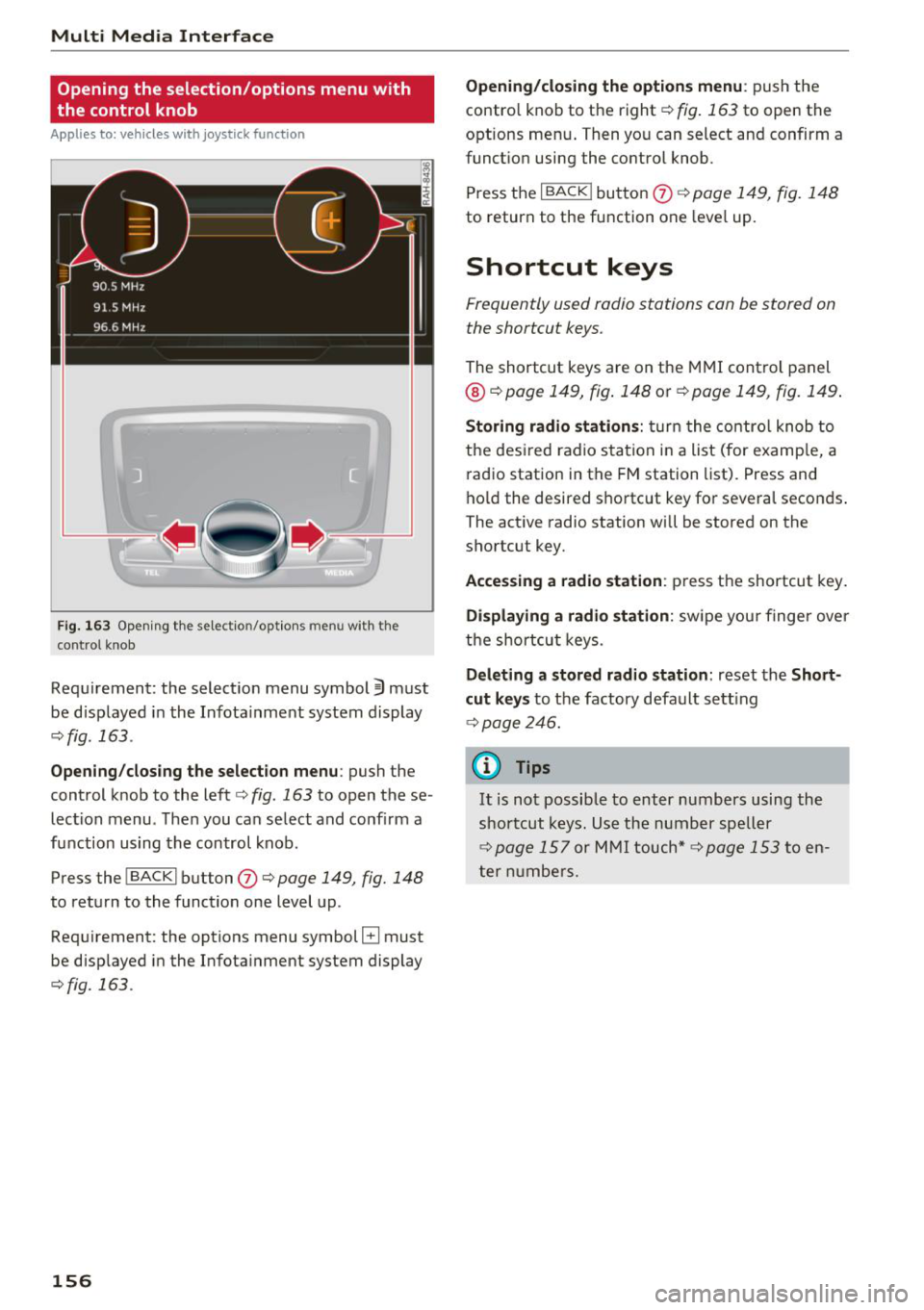
F ig . 163 Op ening the se le ctio n/op tion s m enu with the
c ontrol knob
Requirement: the selection menu symbol:§) must
be disp layed in the Infota inment system display
¢fig . 163 .
Opening /closing the selection menu : push the
control knob to the left¢
fig. 163 to open the se
lection menu . Then you can select and conf irm a
function us ing the control knob.
Press the
! BACKI button (J) ¢ page 149, fig. 148
to return to the function one level up.
Requirement: the options menu symbol
B must
be disp layed in the Infotainment system display
¢fig. 163.
156
Opening/closing the options menu : push the
contro l knob to the right¢
fig. 163 to open the
options menu . Then you can select and confirm a
funct ion using the control knob.
Press the
I BACK ! button (J) ¢ page 149, fig. 148
to return to the function one leve l up.
Shortcut keys
Frequently used radio stations can b e stor ed on
the shortcut keys .
The shortcut keys are on the MMI control panel
®¢page 149, fig . 148 or ¢ page 149, fig. 149.
Storing radio stations: turn the control knob to
the desired radio s tation i n a list (for examp le, a
radio station in the FM station list). Press and
hold the desired shortcut key for severa l seconds .
The active radio station will be stored on the
shortcut key.
Accessing a radio station : press the shortcut key.
Displaying a radio station: swipe you r finger over
the shortcut keys.
Deleting a stored radio station: reset the Short
cut keys
to the factory default sett ing
¢ page 246.
(D Tips
It is not possible to enter numbers using the
shortcut keys. Use the number speller
¢
page 157 or MMI touch*¢ page 153 to en
ter numbers.
Page 163 of 398
Cl a:, ...... N
" N ...... 0
0
::r '
wheel
Introduction
Applies to: vehicles with multifunction steering wheel
In the driver information system display, you can
control numerous Infotainment system functions
using the multifunction steering wheel*
<=:> page 12 .
You can control additional Infotainment func
tions using the MMI control panel<=:>
page 149 in
the Infota inment system display .
A WARNING
Direct your full attention to driv ing . As the
driver, you have complete responsibility for
safety in traffic. Only use the func tions in
-
such a way that yo u always main tain com
plete control over yo ur vehicle in a ll traffic sit -
uations .
Radio
Applies to: vehicles with multifunction steering wheel and ra
dio
.,. Press the l<1 1>I butto n on the mult if u nct io n
stee ring wheel repeated ly until the Rad io/Me
dia t ab is displaye d .
.,. Press t he left cont ro l button
¢ page 13.
D epending on vehicle equipment, the following
f u nctions may be avai lab le in the d rive r informa
tion system.
- Selecting th e frequency band : select and con
firm a frequency band.
- Selecting a station from th e station list : select
and co nfirm a radio station .
-Selecting a station from the pr esets li st : se lect
and co nfirm
Presets and then a rad io sta tion .
-Opening a med ia source : select and confirm
Switch to media .
Additional settings
- Se lect : right contro l button > desired entry.
See <=:>page 223.
Multifunction ste ering wheel
(D Tips
Pay attention to the Infotainment system dis
play if necessary. Depending on the se lected
funct ion, it may be necessary to use the MMI
control panel.
Media
Applies to: vehicles with multifunction steering wheel and media
Requirement: a media drive must contain audio/
video files¢
page 226 and the radio/media tab
must be disp layed .
.,. Press the left con trol button on the m ultifu nc-
tion steering w heel
¢ page 13.
Depend ing on veh icle equ ipment, t he followi ng
funct ions may be ava ilable in the dr iver informa
t ion sys tem.
- Select ing a media source : select and confirm a
so urce such as the S D card.
-Switching to the radio : select and confirm
Switch to radio.
- Play ing an aud io /v id eo file :
select and confirm
a file .
-Pausing /resuming playback : press the right
t humbwheel @<=:>
page 15, fig . 11 . To resume
p layback, press the rig ht thumbwhee l again.
- Opening additional track information : selec t:
r ight control button
> " Now Playing" s creen.
For additional information, see <=:> page 23 7.
(D Tips
- Always follow the info rmation found in
<=:>page 225.
- Please note that wi thin a media source in
the driver information system, only play lists
that were selected th rough the MMI control
pane l can be played
<=:> page 235.
- Pay attention to the Infota inment system
display if necessary. Depending on the se
lected f unction, it may be necessa ry to use
the MMI control panel.
161
Page 168 of 398
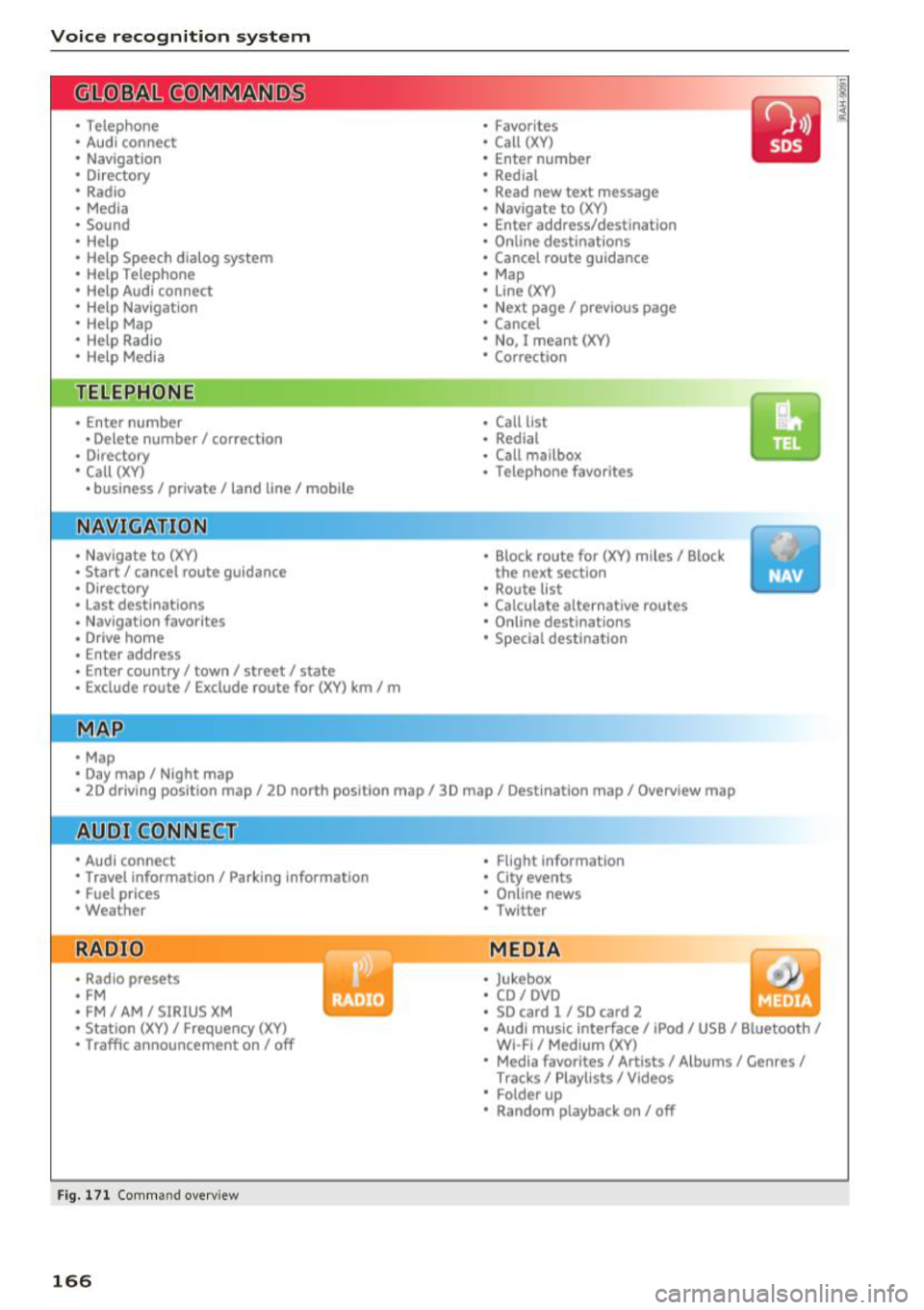
Voice recognition system
• Telephone
• Audi connect •
Favorites
• Call (XV)
• Navigation
• Directory
• Radio
• Media
• Enter number
• Redial
• Read new text message
• Nav igate to
(XY)
• Sound • Enter address/destination
• Help • Online destinations
• Help Speech dialog system
• Help Telephone •
Cancel route guidance
• Map
• Help Aud i connect •
Line
(XY)
• Help Navigation
• Help
Map
• Help Radio •
Next page/ previous page
• Cancel
• No. I meant (XV)
• Help Media • Correction
TE ~EPflON ~
• Enter number • Call list
• Delete number/ correction
• Redial
• Directory
• Call
(XV)
• Call mailbox
• Telephone favorites
• business
I private/ land tine I mobile
N~~It ~JION
• Nav igate to (XY)
• Start/ cancel route guidance
• Directory
• Last destinations • Block
route for
(XV) miles I Block
the next section
• Route list
• Calculate alternative routes
• Nav igation favorites
• Drive home
• Enter address •
Online destinations
• Special destination
• Enter country
I town I street I state
• Exclude route/ Exclude route for
(XV) km/ m
• Map
• Day map/ Night map
• 2D driving position map/ 2D north position map/ 3D map/ Destination map
I Overview map
~l!IDI CONNECT
• Audi connect
• Travel Information/ Parking Information
• Fuel prices
• Weather
RADIO
• Radio presets
• FM
• FM /AM/ SIRIUS XM
• Station (XV) / Frequency (XV)
• Traffic announcement on/ off
Fig. 171 Comm and overv iew
166
• Flight Informa tion
• City events
• Online news
• Twitter
MEDIA
• Jukebox
• CD
I DVD
• SD card
l / SD card 2
• Audi music Interface/ I Pod/ USB / Bluetooth
I
WI -Fl I Med ium (XV)
• Media favorites
I Artists/ Albums/ Genres I
Tracks I Playll sts / Videos
• Folder up
• Random playback on / off