display AUDI Q7 2018 Owner´s Manual
[x] Cancel search | Manufacturer: AUDI, Model Year: 2018, Model line: Q7, Model: AUDI Q7 2018Pages: 398, PDF Size: 185.58 MB
Page 217 of 398
a co ..... N r--. N ..... 0
0
:E '
ing conditions (for example, changing from
Day
to Night when driving through a tunne l) .
Map display
Standard :
see ¢page 213, fig. 193 .
Satellite map1>: refer to<:::;> page 215, fig. 194 .
Map orientation
Destination:
the map indicates the dest ination
and is oriented to the north.
2D heading up map /2D north up map : the cur
rent vehicle position is disp layed . The map is ori
ented in the direction of travel or to the north.
3D map* : the current vehicle pos it ion is s hown
on a th ree -dimensional map and is aligned to the
direction of trave l. At a scale of 62 mi (100 km)
and larger, the map or ientation is to the north.
O verview map: the entire route from the vehicle
position to the destination or the next stopover is
disp layed on the map . The map sca le depends on
the length of the route and adapts automatically.
The map is oriented to the north.
Route information
The display of route information, such as the cur
rent street being driven on or points of interest
a long the current route
<:::;> page 213, fig. 192, can
be switched on/off or can be minimized on the
display of upcoming maneuvers.
Automatic zoom
On :
the map scale is adapted automat ica lly de
pending on the type of road being trave led (ex
pressway, highway, other roads) so that you al
ways have an optimal overview of the road ahead .
The sca le is also automatically adapted when
there are upcoming maneuvers to provide a bet
ter deta iled view .
Intersection : when route guidance is active, the
map temporarily zooms in to a detailed scale
1> AU DI AG provi des acce ss to se rvices fro m thir d par ty pro
vi de rs. Pe rman ent ava ilab ility can no t be g uaranteed , be·
c aus e that depends on th e th ird party provid er.
2
> P ro vider at tim e of pr intin g.
Navigation
when there are upcoming maneuvers so that you
can see the street or turn better.
Off : the map scale you have chosen is ma in
tained .
MMI map contents
You can switch the d isplay of additional informa
t ion on the map in the Infotainment system dis
play on or off.
The weather forecast is displayed on a 3 m i (5
km) scale on the map.
Instrument cluster map contents
You can also set which map content disp lays in
the instrument cluster¢
page 164.
Satellite map
Applies to: vehicles wit h a navigat ion system and Audi co n·
nect (Infotainment)
You can display the navigation map with satel
lite images.
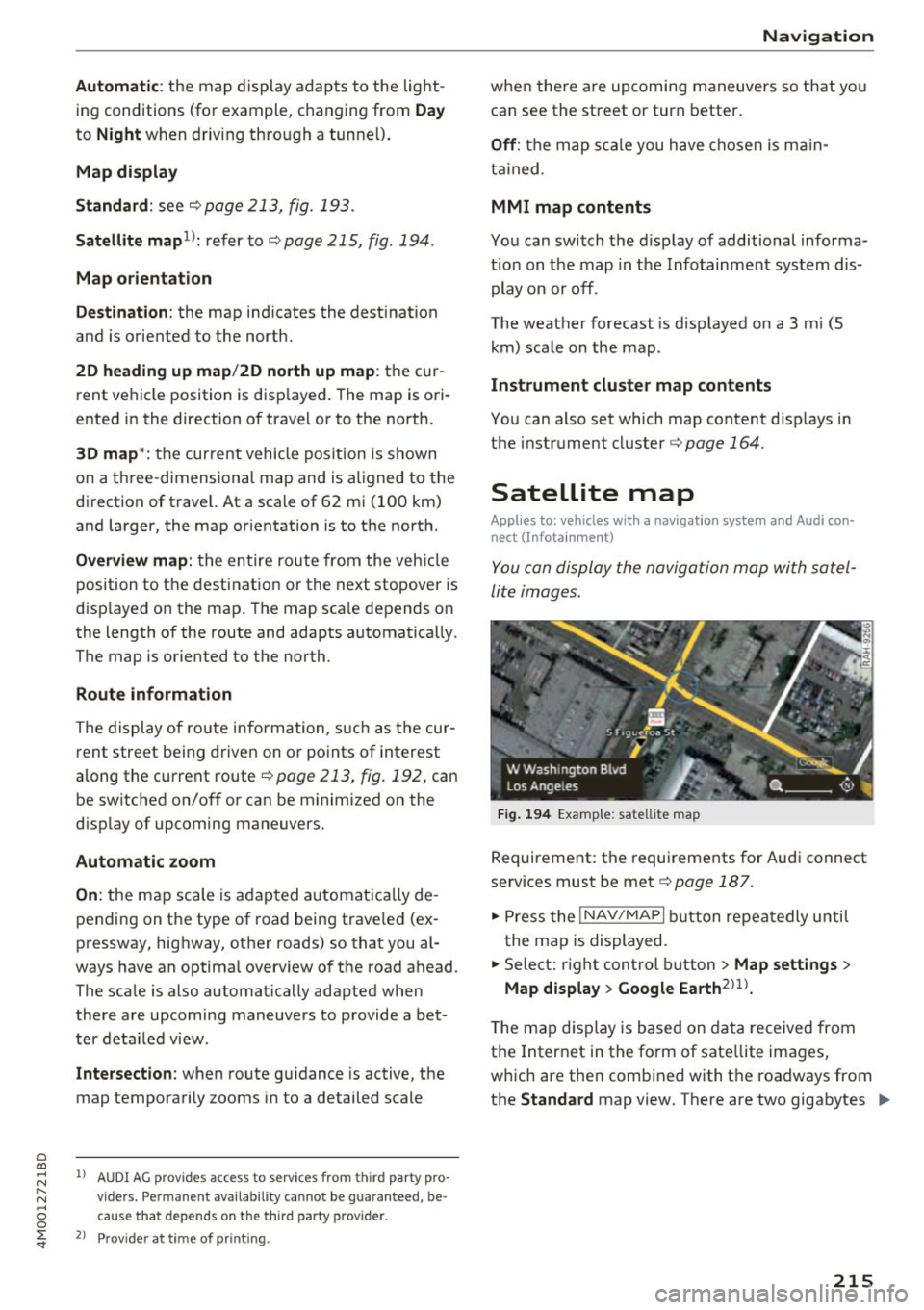
Fig. 194 Exampl e: satelli te map
Requirement: the requirements for Audi connect
services must be met <:::;>
page 187.
.. Press the !NAV /MAPI button repeatedly until
the map is displayed.
.. Select: right control button
> Map settings >
Map display > Google Earth2>1>.
T he map display is based on data received from
the Internet in the form of sate llite images,
which are then combined with the roadways from
the
Standard map view. There are two gigabytes ..,_
215
Page 218 of 398
Nav igatio n
of memory space in the MMI memory that can be
used to temporarily store the map or navigation
data that was received. Th is is roughly the
amount required for the m ap/navigation data for
a 2,48S mile (4,000 km) route . As long as the
satellite images loaded for route guidance are
stored, you can use them w ithout having an ac
tive data connection .
(D Tips
-The stored satellite map1> data can be de
leted in
Fac tor y se tting s > Navig ati on and
o nline m em ory
c::> page 246 .
- The satellite map1> is updated regularly
whenever the funct ion is opened . The proc
ess may take severa l seconds.
- When the satellite map display is switched
on
l) with the 30 pos it ion map type, the
MM I display automatically switches to the
20 map type when driving through tunnels.
- Also read the information in the chapter
c:> page 194, Audi connect (Info tainment)
general information .
-Fo r additional informat ion, visit
www.audiusa.com .
Map update
Introduction
Applies to: veh icles with navigat ion system
There are mult iple options available for upda ting
your map material:
- Map updates through the
on line map u pdate *
c:>page 216.
- Import map updates from the SD car d* to your
MMI. You can find additional information on
line at www.aud iusa.com/myaudi .
- Map update at an authori zed Audi dealer or au
thori zed Audi Serv ice Facility. This can result in
addi tional costs.
l ) AU DI AG provides access to s ervice s fro m third party pro
v ider s. Perma nent availa bility c annot be guaran teed, be
c a use that depen ds on th e th ird party prov ide r.
216
Online map update
Applies to: vehicles with a navigation system and Audi con
nect (Infotainment)
Using th e online mop update, you con update
the mop material in your navigation system di
rec tly from your vehicle.
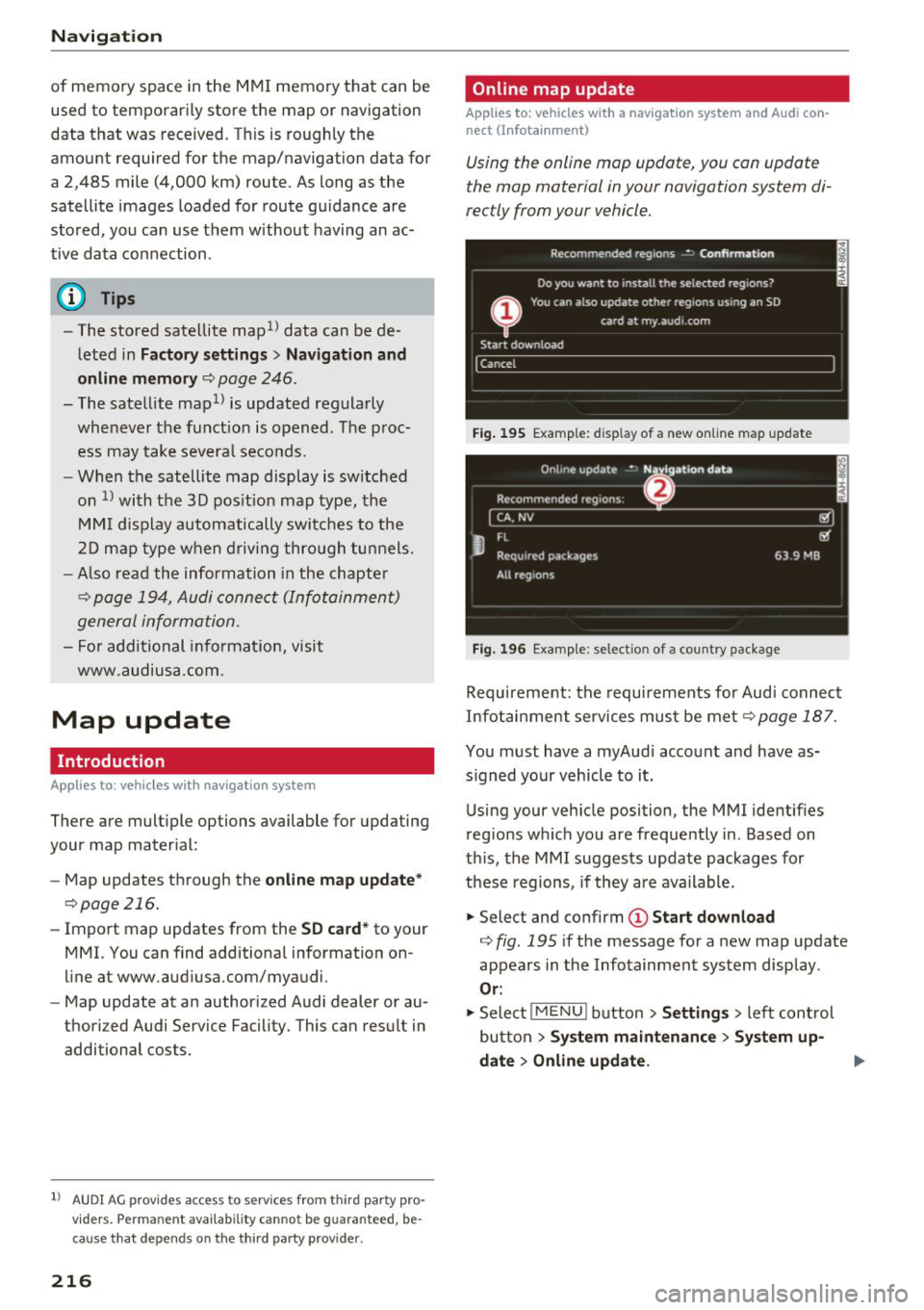
Fig . 195 Example: d is pl ay of a new on li ne map update
Fig. 196 Example: se lect ion of a coun try package
Requirement: the requi rements for Audi connect
Infotainment se rvices must be met
c::> page 187 .
You must have a myAudi acco unt and have as
s igned your vehicle to it.
Using your vehicle position, the MM I identifies
reg ions which you are frequently in . Based on
th is, the MMI suggests update packages for
these regions, if they are available .
"' Select and confirm
(D St art download
¢ fig . 195 if the message for a new map update
appears in the Infotainment system display .
Or:
"'Sele ct !M EN UI button> Settin gs > left control
but ton
> Sy stem maint enance > Sy stem up
date
> Online update.
Page 219 of 398
a co ...... N r--. N ...... 0
0
:E '
appears in the Infota inment system disp lay
¢ fig . 196.
Selecting th e onlin e map upda te
- Se lect an update package from the list(~)@
<=>fig. 196.
-Confirm you r se lection with the I BACK I button
and go back to the selection.
- The number and amount of data fo r th e select
ed update package are now disp layed in the I n
fotainment system .
Starting the download
-Se lect and confirm Start downlo ad .
- Confirm the secur ity prompt by selecting S tart
download
again .
T he update pack ages begin to down load and the
status of the download progres s is shown in the
Infotainment system display .
Install ation of onlin e map update s
The downloaded map mater ia l installs after you
stop your vehicl e. T he new update packages in
stall only after you switch off the ignition . After
restarting the MMI , the Infota inment system dis
play ind icates if the updates installed successful
ly .
- Confirm the successful update with
OK .
The new map materia l can now be used for navi
gation.
(D Tips
- Always read the chap ter ~ page 18 7 .
- The amou nt of available on line map up-
dates in the vehicle is lim ited. To update
more regions, use the map update via SD
card at www .audiusa.com/myaudi.
- Always read the chap ter ¢
page 194, Audi
connect (Infotainment) general informa
tion . Na
viga tion
Traffic information
Introduction
Applies to: veh icles w ith navigation system
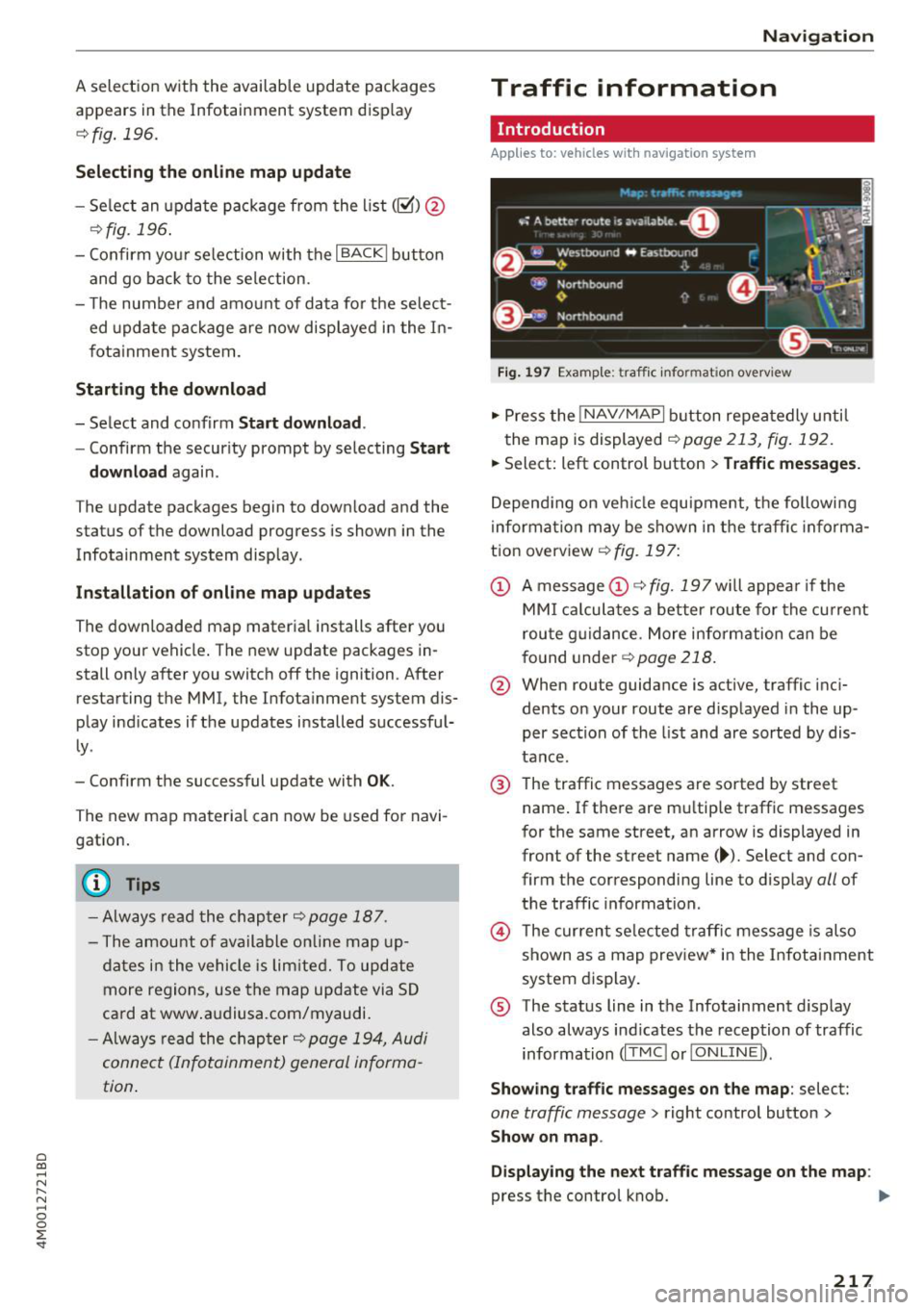
Fig . 1 97 Example: traffic info rm ation overv iew
.,. Press the INAV /MAPI button repea tedly u nti l
the map is displayed
~ page 213, fig. 192.
.,. Select: left control button > Traffic mes sage s.
Depending on veh icle equipment, the following
i nforma tion may be shown in the traffic informa
tion overview ¢
fig. 197:
CD A message CD ¢ fig. 197wi ll appea r if the
MM I ca lculates a better route for the cu rrent
rou te g uidance. More information can be
f o und under
¢ page 218.
@ When route guidance is active, traffic inci
dents on your route are displayed in the up
per section of the list and are sorted by dis
tance.
@ T he traffic messages are sorted by street
name . If there are mu ltip le traffic messages
for the same street, an arrow is displayed in
front of the st reet name (~ ). Select and con
firm the corresponding line to disp lay
all of
t h e traffic information .
@ The cur rent se lected traffi c message is also
shown as a map preview* i n the Infotainment
system display .
® The status line in t he Infotainment d isplay
also always ind icates the reception of traffic
information (IT MC !orlO NLIN EI).
Show ing tra ffic messages on the map : select:
one traffic message > right control button >
Show on map .
Di splaying the ne xt t raffi c message o n the map :
press the control knob. ..,.
217
Page 220 of 398
Navigation
Traffic information display on the map /Map
pre view*
Color -co ded mark ings a long the route indicate
the t raff ic flow:
Green : traffic is flow ing free ly .
Yellow: stop-and-go traffic.
Red : congest io n.
Shaded mar kin gs in dicate the le ngth of the area
with congestion .
Colored warning symbols: an impendi ng tr affic
i n cident d irect ly ahead on your route .
All t raff ic incide nts will display in colo r whe n
ro ute guid ance is in active .
Grayed out warning symbols: traffic inc iden ts
t ha t are not on yo ur route .
Warning symbols with~: avoided traffic inc i
dents .
The display of colored markings, warning sym
bols, etc . can be set in the
Map content menu
,=;,page 215.
(D Tips
Particu larly cr it ica l traff ic information, s uc h
as warnings about wrong-way drivers , is auto
mat ically displayed. To hide the traffic infor
mat ion , press the
I BACK I button o r the con
t rol k nob .
Traffic information (TMC)
App lies to: ve hicles w ith navigat ion system
Rece iv ing t raff ic informa tion th rough TMC is
sw itche d on a t the fac to ry .
.,. Press t he
I N AV/MAP I button repeated ly un til
t h e map is d is pl ayed .
.,. Se lect : left con trol button
> Traffic messages .
An overv iew of a ll the traffic messages is dis
p layed in the I nfota inme nt system .
-Opening a detailed view of traffic information :
select and confirm the traffic info rmat ion from
the list .
218
(D Tips
-TMC traffic reports are not available in Can
ada . For more informat io n, please contact
S ir ius Cana da.
- Cr itica l t raff ic information, s uch as wa rn
ings about wrong-way drivers, is au tomati
cally d isp layed. To h ide the t raffic info rma
t io n, p ress th e
I BACK I button o r th e control
knob.
Better route
App lies to: vehicles wit h navigat ion syste m and better ro ute
By receiving traffic information through TMC,
your MMI calculates a better route -if available -
and the possible tim e saved for the curr ent rout e
guidance . You can decide yourself which route
you would like to use.
.. Press the I NAV/M API bu tton re peatedly unti l
t he map is displayed .
Requirement: route g uidance must be active.
If your MMI has ca lculated a better ro ute than
t h e cur rent route g uidance, t he message
A better
route is available.
appears for severa l seconds
alo ng with the time that may be saved. A better
r ou te is ind icated in the map view by the symbol
tS ,=;,page 213, fig . 193 .
A message also appea rs in the traffic in fo rmat ion
ove rview (i)c;,page217,
fig.197.
Apply better route
-Press the right con trol but ton .
- S elect a nd c onfir m th e bett er ro ute.
Or : sele ct
an d con firm
Details to d is pla y det ails about the
optimized ro ute . You can zoom in or out on t he
ma p usin g the M MI touch cont rol pa d. Requ ir e
ment : there must be more than one opt imized
route calcu lated. Press the contro l knob to
sw itch to the next rou te in the detailed view .
Closing the detailed view : press the I BACK I
button .
- After you have selected a better route, t he
route w ill be recalc ulated .
Page 221 of 398
Cl a:, ...... N
" N ...... 0
0
::r '
Applies to: vehicles with a navigation system and Audi con
nect (Infotainment)
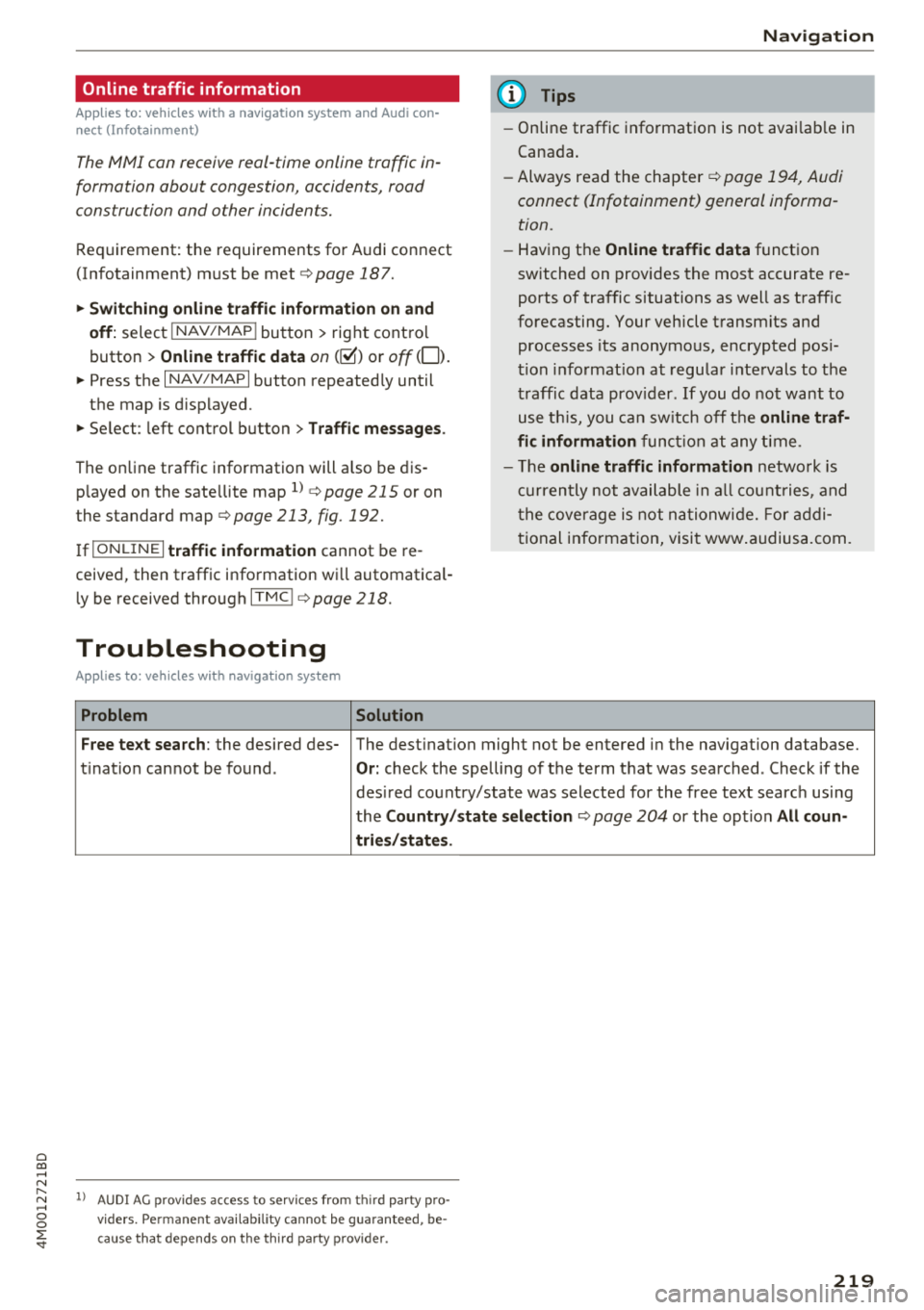
The MMI con receive real-time online traffic in
formation about congestion, accidents, road
construction and other incidents.
R equirement: the requirements for Audi connect
(Infotainment) m ust be met ¢
page 187.
~ Switching online traffic information on and
off:
select I NAV /MAP I button > rig ht control
button
> Online traffic data on(@°) or off ( 0 ).
~ Press the I NAV/MAPI button repeated ly until
the map is displayed .
~ Select: left control button > Traffic messages .
The on line traffic information will also be dis
p layed on the sate llite map
l) ¢ page 215 or on
the standard map
¢ page 213, fig. 192.
IflON LINEl traffic information cannot be re
ceived, then traffic information wi ll automatica l
ly be received through ITMCI
¢ page 218.
Troubleshooting
Applies to: vehicles with navigation system
Problem Solution Navigation
(D Tips
-
Online traffic information is not available in
Canada .
- Always read the chapter¢
page 194, Audi
connect (Infotainment) general informa
tion.
- Having the Online traffic data function
switched on provides the most accurate re
ports of traffic situations as well as traffic
forecasting. Your vehicle transmits and processes its anonymo us, encrypted posi
tion inform ation at regular intervals to the
traffic data provider. If you do not want to
use this, you can switch off the
online traf
fic information
function at any time .
- The
online traffic information network is
curr ently not available in all countries, and
the coverage is not nationwide. For addi
tional information, visit www.a ud iusa.com .
Free text search : the desired des- The dest ination might not be entered in the navigation database.
ti nation cannot be found .
Or: check the spelling of the term that was searched . Check if the
desired country/state was selected for the free text search using
the
Country/state selection ¢ page 204 or the option All coun-
tries/states .
l) A U DI AG prov ides access to se rv ices from thi rd pa rty pro
v id ers. Perm anent ava ilabil ity can not be g uaranteed , be
c ause that depends on the th ird party prov ider.
219
Page 222 of 398
Radio
Radio
Opening the radio
The radio supports the FM, AM and SiriusXM*
(satellite radio) bonds. Using the HO Radio re
ceiver also allows you to receive radio stations
on the FM and AM bonds in digital format.
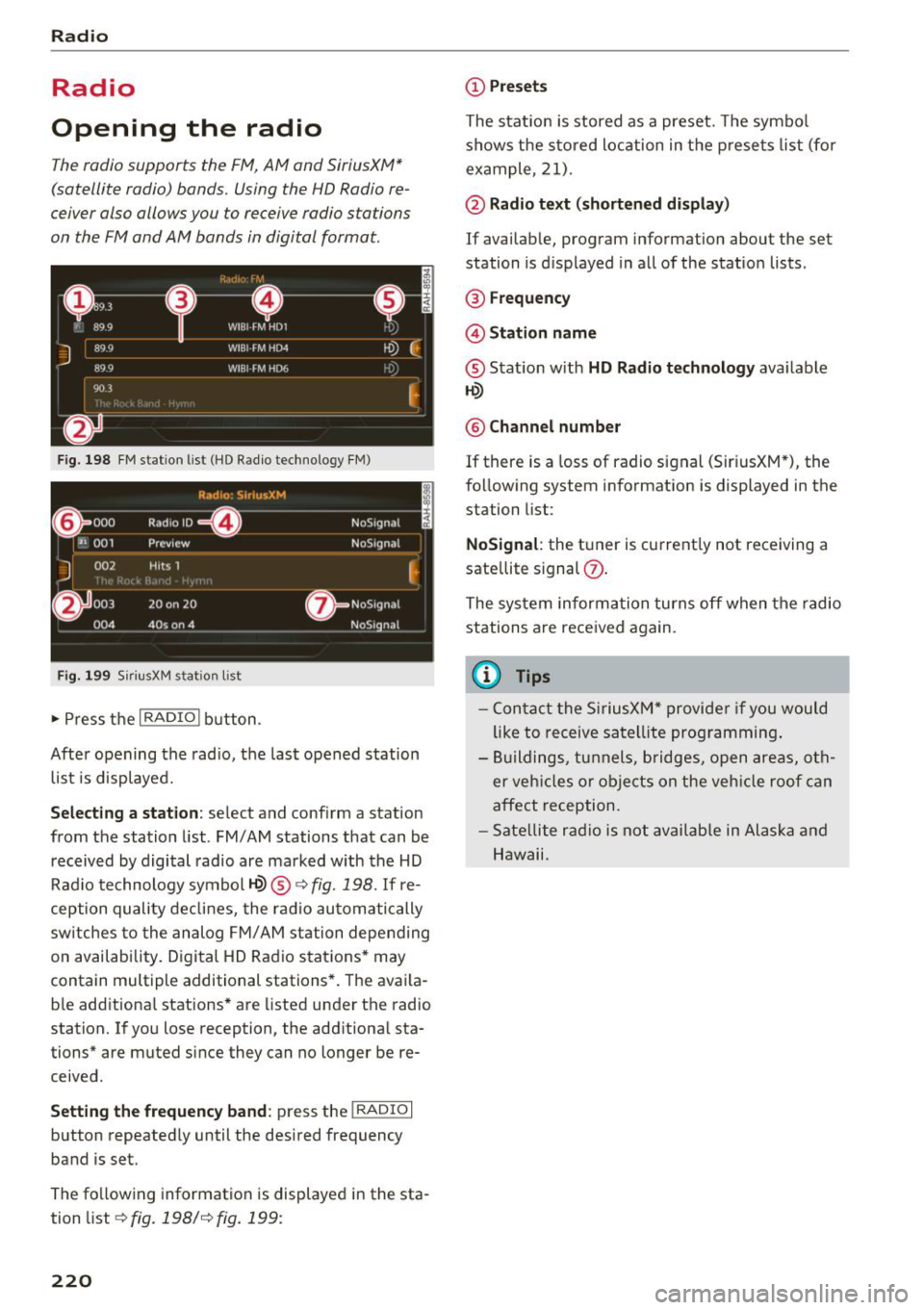
F ig. 19 8 FM stat ion list (HD Radio technology FM)
R,1d10 : 5ir ius.XM
~ 000 Rad,olD e NoS19n,1l
''JI 001 Preview NoS,gnal
J 002 H its 1
~
6 003 20 on 20 ·
NoS19nal
004 40s on 4 NoS19nal
Fig. 1 99 Sir iu sXM stat ion list
..., Press t he I RADIO I bu tton .
After opening the radio, t he last opened station
list is displayed.
.
I
Selecting a station : select and conf irm a stat ion
from the station list . FM/AM stations that can be
received by digital radio are ma rked with the HD
Rad io technology symbol~® ¢
fig. 198. If re
ception quality de clin es, the r ad io automatically
sw itches to the analog FM/ AM station depending
on availab ility. D igital HD Rad io sta tions * may
contain multiple additional stations *. The ava ila
b le add itiona l stations* are listed under the radio
station. If yo u lose reception, the add itiona l sta
tions* are muted since they can no longer be re ceived .
Setting the frequency band : press the I RADIO I
button repeated ly until the desired frequency
band is set.
The fo llow ing information is displayed in the sta
tion list
¢ fig. 198/ ¢fig . 199:
220
(D Presets
The stat ion is stored as a preset. The symbo l
shows the s to red loc ation in the p rese ts list (fo r
example, 21).
@ Radio te xt (shortened di spla y)
If availab le, program information about the set
station is d isplayed in al l of the stat io n lists .
® Frequency
@ Stati on name
® Stat ion w ith HD Radio technolog y available
1-W
@ Channel number
If there is a loss of radio signal (Sir iusXM*), the
fo llow ing system information is displayed in the
station list:
NoSignal : the tuner is cu rrent ly not receiving a
sate llite s ignal
(J) .
The system informa tion turns off when the radio
stations are received again.
(I} Tips
- Con tact the SiriusXM" provide r if you would
like to receive satel lite prog ramming .
- Bui ldings, tu nnels, bridges, open areas, oth
er veh icles o r obje cts on the veh icle roof can
affect reception.
- Sate llite r ad io is not av aila ble in Alaska and
Hawaii.
Page 224 of 398
Radio
SiriusXM alerts
Applies to: ve hicles w ith S iriusXM
You can display an overview of your favorite ar
tists or tracks that are currently being played on
a SiriusXM channel.
Y.MMMiiiA
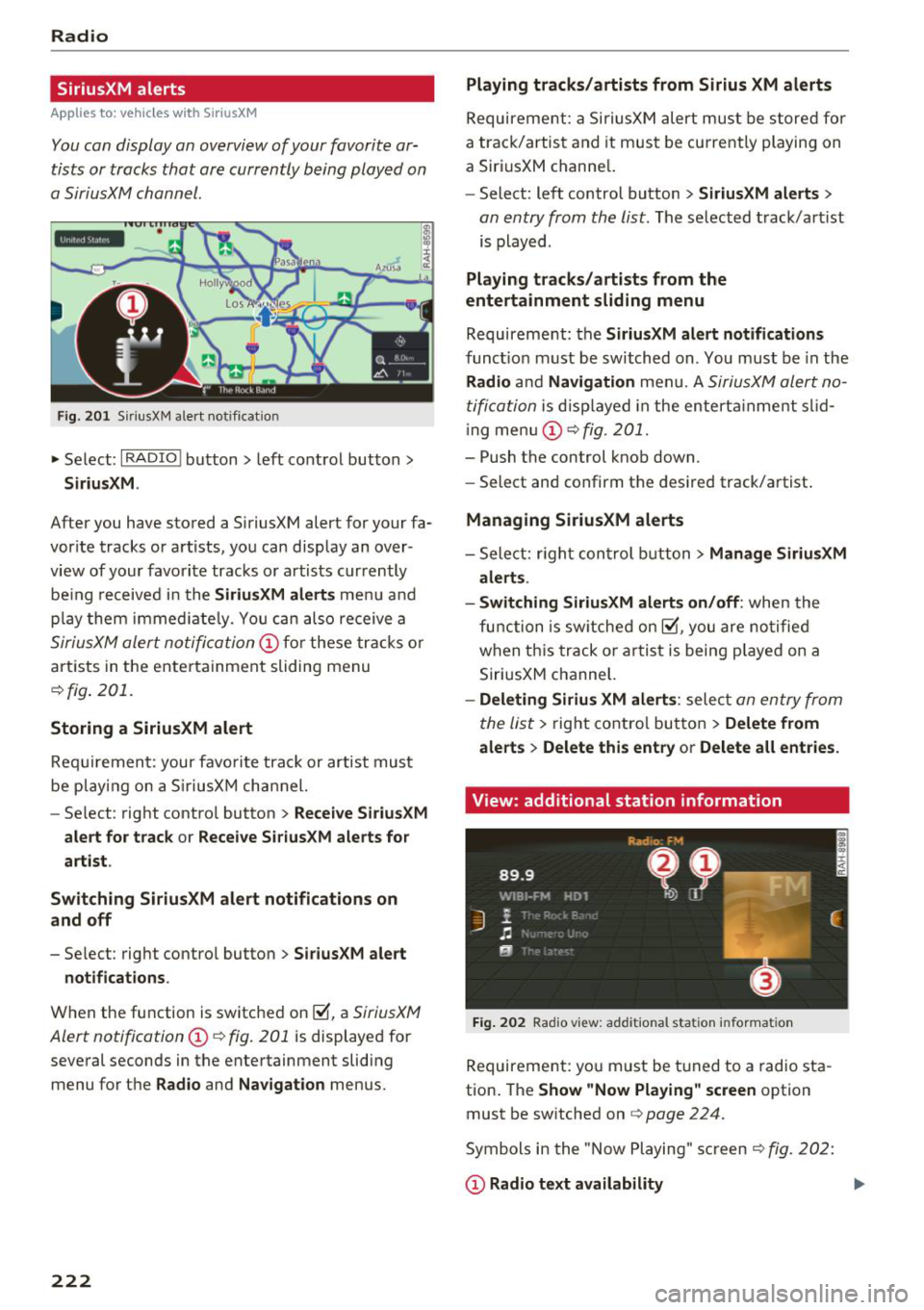
Fig . 201 SiriusXM ale rt not ificat io n
~ Se lect : I RADIO I button > left control button >
SiriusXM.
After you have stored a SiriusXM alert for your fa
vor ite tracks or artists, you can display an over
view of your favorite tracks or artists currently
be ing re ceived i n the
SiriusXM alerts menu and
p la y them immed iately. You can also receive a
SiriusXM alert notifi cation @ for these tracks or
artists in the entertainment sliding menu
¢fig . 201.
Storing a SiriusXM alert
Requirement: your favorite track or artist must
be play ing on a SiriusXM channel.
- Se lect : right contro l button >
Receive SiriusXM
alert for track
or Receive SiriusXM alerts for
artist .
Switching SiriusXM alert notifications on
and off
- Select : right contro l button > SiriusXM alert
notifications .
When the function is switched on~, a SiriusXM
Alert notification @¢ fig . 201
is displayed for
several seconds in the entertainment sliding
menu for the
Radio and Navigation menus.
222
Playing tracks/artists from Sirius XM alerts
Requireme nt: a SiriusXM alert must be stored for
a track/artis t and it must be currently playing on
a SiriusXM channe l.
- Select: left control button
> SiriusXM alerts >
an entry from the list . The selected track/artist
is played .
Playing tracks/artists from the
entertainment sliding menu
Requirement: the SiriusXM alert notifications
functio n must be switched on. You must be in the
Radio and Navigation men u. A SiriusXM alert no
tification
is displayed in the enterta inment slid
i ng menu
(D ¢fig. 201.
- Push the control knob down.
- Select and confirm the desired track/artist .
Managing SiriusXM alerts
-Select: r ight control button> Manage SiriusXM
alerts .
- Switching SiriusXM alerts on/off :
when the
function is sw itched on~, you are notified
when this track or artist is being p layed on a
SiriusXM channel.
- Deleting Sirius XM alerts : select an entry from
the list>
right control button > Delete from
alerts
> Delete this entry or Delete all entries.
View: additional station information
Fig. 202 Rad io v iew: add it io nal stati on informa tion
Requirement: you must be tuned to a radio sta
tion . The
Show "Now Playing " screen option
must be switched on
q page 224.
Symbols in the "Now Playing" screen¢ fig. 202:
(D Radio text availability
Page 225 of 398
a co ...... N r--. N ...... 0
0
:E '
See
~ page 221.
@ FM HD Radio technology
The station is received through FM HD Radio
technology .
@ Screen view
Display Cover art or Station logo. See
~ page 224, Preferred picture view*.
Display ing the station list:
Turn the control knob. Or: press the I BACK ! but
ton .
Radio menu
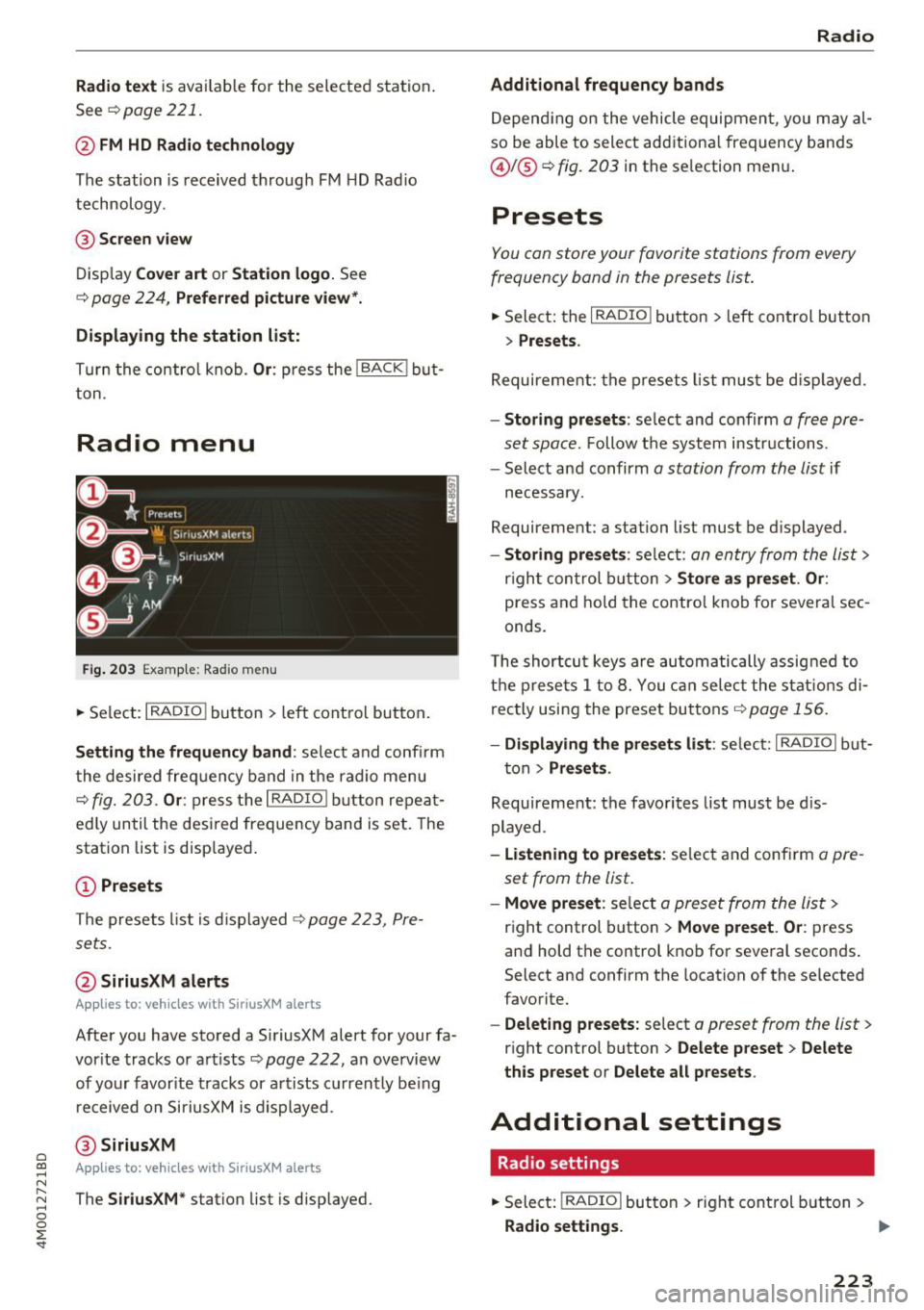
Fig. 203 Example: Rad io menu
.. Select : I RADIO I button > left control button.
Setting the frequency band : select and confirm
the desired freq uency band in the radio menu
~ fig. 203. Or: press the I RADIO I button repeat
ed ly until the desi red frequency band is set. The
station list is displayed .
@Presets
The presets list is displayed ~ page 223, Pre
sets .
@ SiriusXM alerts
App lies to: ve hicles with SiriusXM alerts
After you have stored a SiriusXM alert for your fa
vor ite tracks or artists ~
page 222, an overview
of your favor ite tracks or artists currently be ing
received on SiriusXM is displayed .
@SiriusXM
Appl ies to: ve hicles with SiriusXM alerts
The SiriusXM* station list is displayed.
Radio
Additional frequency bands
Depending on the vehicle equipment, you may al
so be able to select additional frequency bands
@!@ ~fig. 203 in the se lection men u.
Presets
You can store your favorite stations from every
frequency band in the presets list.
.. Select: the I RADIO I button > left control button
> Presets.
Requirement: the presets list must be disp layed .
-Storing pre sets : select and confirm a free pre
set space.
Follow t he system instructions.
- Select and confirm
a station from the list if
necessary.
Requirement: a station list must be d isplayed .
-Storing presets : select : an entry from the list>
right control button > Store as preset. Or :
press and hold the contro l knob for several sec
onds .
T he shortcu t keys are automatically assigned to
t h e prese ts 1 to 8. You can selec t the stat ions di
rectly using the preset buttons~
page 156 .
-Displaying the presets list : select: I RADIO I but-
ton
> Preset s.
Requirement: the favorites list must be dis
played.
- listening to presets : select and confirm a pre
set from the list.
- Move preset : select a preset from the list>
right control button > Move preset . Or : press
and hold the control knob for several seconds .
Select and confirm the location of the selected
favorite.
- Deleting presets: select a preset from the list >
right control button > Delete preset > Delete
this preset or Delete all presets .
Additional settings
Radio settings
.. Select: I RADIO I button > rig ht control button >
Radio settings. ..,.
223
Page 226 of 398
Radio
The following settings can be se lected, depend
ing on the band that is se lected :
Station names (FM )
Variabl e:
scrolling text tra nsmi tted by the FM
s tat ions is shown in the Infotainment system d is
p lay .
Fixed : scrolling text transm itted by the FM sta
tions is not s hown in the Infota inment system
d isp lay. O nly the cu rrent sect io n of the scro lling
text is d isplayed.
FM /AM HD Radio*
You can sw itch HD Rad io recept ion on o r off .
Channel sorting (Sirius XM *)
You can set the station so rting for SiriusXM sta
tion lists* by:
- Channel number: the channe ls are sorted in as
cending order according to their channel num
ber.
- Channel name : the channels are listed in alpha
betica l order.
- First categor y, then channel number : the
c h annels are sorted by their category and then
by the ir channe l numbers .
-First categor y, then channel name : the chan
nels are sorted by their category and then by
their channe l names.
Categor y filter (SiriusXM *)
The stations s hown in t he s ta tion lis t can be fi l
tered by your pe rsonal prefe rences and by pro
gram type. The program categories that yo u can
select depend on what is offered by yo ur provid
er. Select the
All categor ie s option to deactivate
all filter options and display all ava ilable stations
in the satellite station list .
Troubleshooting
Problem Solution Show "Now Playing" screen
When
the functi on is swi tched on~ and the st a
tions o r presets list is open, the disp lay w ill
switch to the
"Now Pla ying " sc reen view after
approximate ly five seconds ¢
page 222. Depend
i ng on ava ilability, information about the set sta
tion (such as stat ion name, artist and station
logo) may be disp layed in this v iew .
Prefe rred picture vie w*
You can set your preferred screen view for the
Show "Now Pla ying " screen ¢ page 222.
-Station logo : the station logo is displayed, de
pending on avai lability .
-Cov er art : the album cove r is d isplayed if availa
ble.
Gracenote online database *
Requirement: the MMI must be connected to the
Internet. The
Co ver art opt ion must be selected
¢ page 224, Pr eferred picture vi ew *.
When the funct ion is switched on~, the album
cover or genre cover for the so ng that is play ing
i s loaded from t he Gracenote online database,
depend ing on ava ilability.
Subscription status (SiriusXM )*
This opt io n is available when your subscr ipt io n is
about to expire or has already expired . The expi
r ation date for your license is displayed .
Call to SiriusXM *: the contact information for
your sate llite rad io provider is d isplayed . T o ca ll
your sate llite rad io provider using the MMI, press
Call to Siriu sXM*.
A station with poor reception is no longer Store the stat io n as a preset in advance . Access the pre-
displayed in the station l ist once you sets using the presets list ¢
page 223.
switch to a d ifferen t sta tion.
224
Page 227 of 398
Cl a:, ...... N
" N ...... 0
0
::r '
Introduction
There are various media drives and connections
avai lab le in the MMI. For example, you can play
audio/video* fi les from t he Jukebox* or connect
your mobi le device to the Audi mus ic interface*
and operate it through the MMI.
Notes
General
Media and format re strictions :
the MM I (includ
ing the SD card reader and the USB storage de
vice connection *) was tested wit h a variety of
products and media on the market. However,
there may be cases where ind ividual devices or
media and audio/video files* may not be recog
n ized, may play on ly w ith restrictions, or may not
play at all.
Digital Rights Management : please note that
the audio/video* files are subjec t to copyright
protection .
The med ia drives do not play f iles that are pro
tected by ORM and that are ident ified with the
symbol
rfl.
Data secu rity : never store important data on SD
cards, the Jukebox*, CDs/DVDs or mobile devices .
Aud i AG is not responsib le for damaged or lost
f il es and media .
Loading times : th e more files/fo lders/p lay lists
that are on a storage medium, the longer it will
take to load the audio/v ideo* files . Audi recom
mends using storage med ia tha t on ly conta in au
d io/video files* . To decrease the t ime it takes to
l oad audio/v ideo f iles*, create subfolders (fo r ex
ample, fo r th e a rt ist o r album). The loading time
will also increase when importing fi les.
Additional information : when playing, audio
f iles are automatically displayed with any add i
tional informat ion that is sto red (such as the ar
tis t, trac k and albu m cover). If this informa tion is
n o t availa ble o n the sto rage med ium, t he M MI
will check the Grace note metadata database .
Media
However, in some cases, the additional in fo rma
tion may not be displayed.
Re stri cted functionality : reset the Media set
tings
t o the fac to ry defau lt settings if func tional
ity is restr icted ¢
page 246.
If functionali ty is rest ricted, reset the Jukebox *
to the fa ctory default sett ings ¢ page 246.
For information about the propert ies of s upport
ed med ia and fi le formats , see ¢
page 240 .
@ Note
Always fo llow the information fo und in ¢ @ in
Wi-Fi hotspot on page 194 .
CD/DVD operation
CD /DVD and format restrictions :
the funct iona li
ty of individ ua l st orage media may be limited due
to the v ariety of b lank CDs/DVDs avai lab le and
t h e various capacities. Audio C Ds or video DV Ds
with copy p rotection, CDs/DVDs that do not con
fo rm to the standard and multi session CDs may
have limit ed playback or may not play at a ll. Audi
recommends finaliz ing the recording process
whe n creat ing mult isess io n CDs . Mult isess ion is
not supported for DVDs .
Using CDs/DVDs , the CD dr ive or the DVD drive :
to ensure correct, hig h-quality playback and to
prevent damage to the dr ive or d isc read ing er
rors, always store CDs/DVDs in a protective
sleeve and do not expose t hem to direct sunlight .
Do
not u se:
- Damaged, dirty or scratched CDs/DVDs
- Sing le CDs/DVDs with 3 in (8 cm) d iameter
- CD/DVDs that a re not round
- CDs/DVDs w it h labe ls
- Protec tive rings
- Clea ning CDs
Thermal protection switch : CD/DVD playback
may be temporarily unavailab le if outs ide tem
peratures a re extremely hot or co ld . A thermal
pro tect io n sw itch is insta lled to p rotect the C D/
D VD and the laser.
La ser devi ce s: lase r devices a re divided i nto safe -
ty classes 1 to 4 in acco rdance w ith DIN I EC 76 .,.
225