page 34 AUDI Q7 2018 Owner´s Manual
[x] Cancel search | Manufacturer: AUDI, Model Year: 2018, Model line: Q7, Model: AUDI Q7 2018Pages: 398, PDF Size: 185.58 MB
Page 167 of 398
Cl a:, ...... N
" N ...... 0
0
::r '
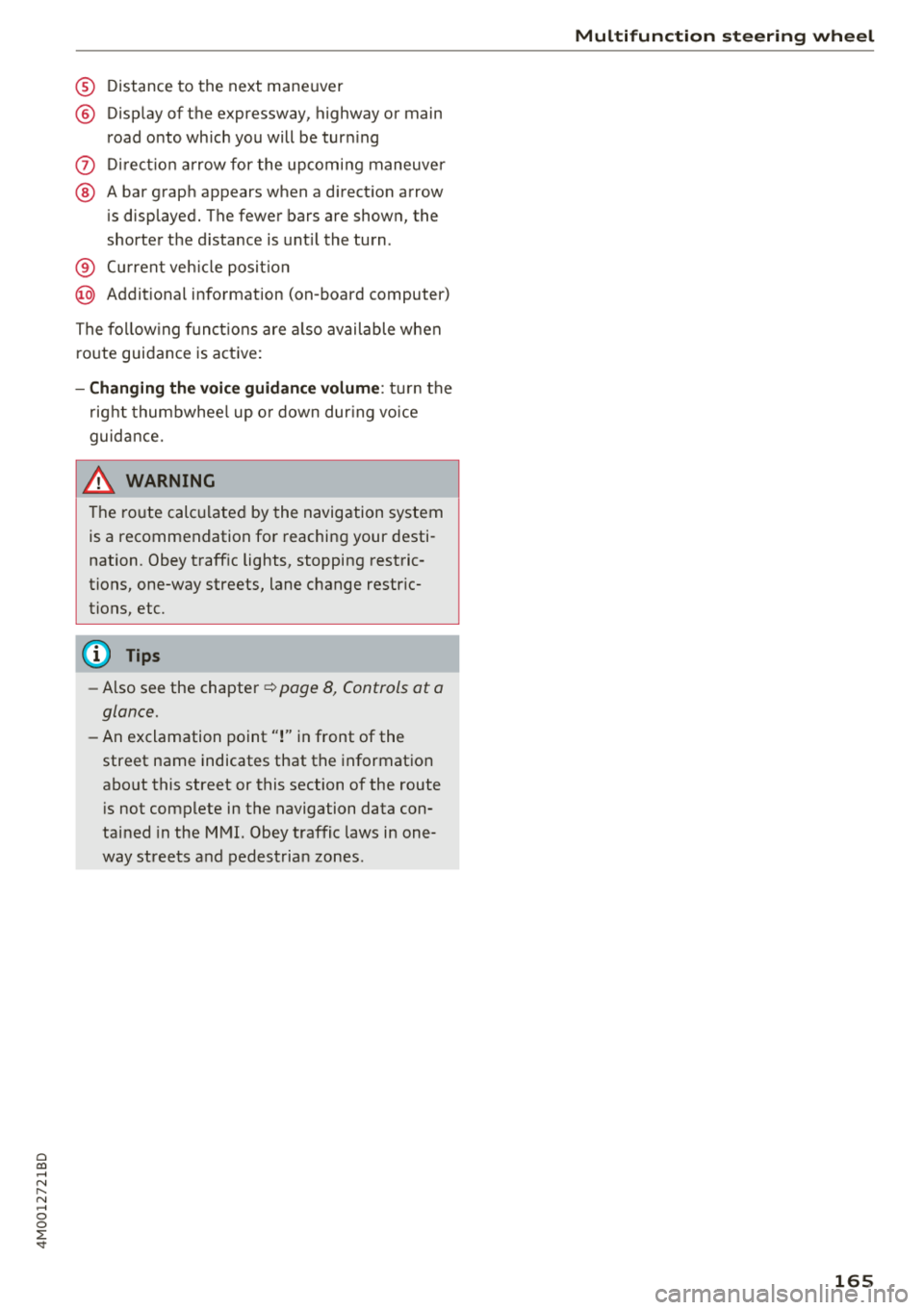
@ Display of the expressway, highway or main
road onto which you will be turn ing
(J) D irect io n arrow for the upcoming maneuver
@ A bar graph appears when a direction arrow
is displayed. The fewer bars are shown, the
shorter the d istance is unt il the turn .
® Cur rent veh icle posit io n
@ Addit ional information (on -board computer)
The fo llow ing funct ions are a lso available when
ro ute guidance is active:
- Changing th e voic e guidan ce volum e: turn the
r ig ht thumbwhee l up o r down dur ing vo ice
guidance.
A WARNING
The route calculated by the navigation system
is a recommendation for reaching your desti
nation . Obey traff ic lights, stopping restric
tions, one-way streets, lane change restr ic
tions, etc.
(D Tips
- Also see the chapter~ page 8, Controls at a
glance.
- An exclamation point''!'' in front
of the
street name indicates that the information
about this street or this section of the route i s not complete in the navigation data con
tained in the MMI. Obey traffic laws in one
way streets and pedestrian zones .
Multifunction ste ering wheel
165
Page 168 of 398
Voice recognition system
• Telephone
• Audi connect •
Favorites
• Call (XV)
• Navigation
• Directory
• Radio
• Media
• Enter number
• Redial
• Read new text message
• Nav igate to
(XY)
• Sound • Enter address/destination
• Help • Online destinations
• Help Speech dialog system
• Help Telephone •
Cancel route guidance
• Map
• Help Aud i connect •
Line
(XY)
• Help Navigation
• Help
Map
• Help Radio •
Next page/ previous page
• Cancel
• No. I meant (XV)
• Help Media • Correction
TE ~EPflON ~
• Enter number • Call list
• Delete number/ correction
• Redial
• Directory
• Call
(XV)
• Call mailbox
• Telephone favorites
• business
I private/ land tine I mobile
N~~It ~JION
• Nav igate to (XY)
• Start/ cancel route guidance
• Directory
• Last destinations • Block
route for
(XV) miles I Block
the next section
• Route list
• Calculate alternative routes
• Nav igation favorites
• Drive home
• Enter address •
Online destinations
• Special destination
• Enter country
I town I street I state
• Exclude route/ Exclude route for
(XV) km/ m
• Map
• Day map/ Night map
• 2D driving position map/ 2D north position map/ 3D map/ Destination map
I Overview map
~l!IDI CONNECT
• Audi connect
• Travel Information/ Parking Information
• Fuel prices
• Weather
RADIO
• Radio presets
• FM
• FM /AM/ SIRIUS XM
• Station (XV) / Frequency (XV)
• Traffic announcement on/ off
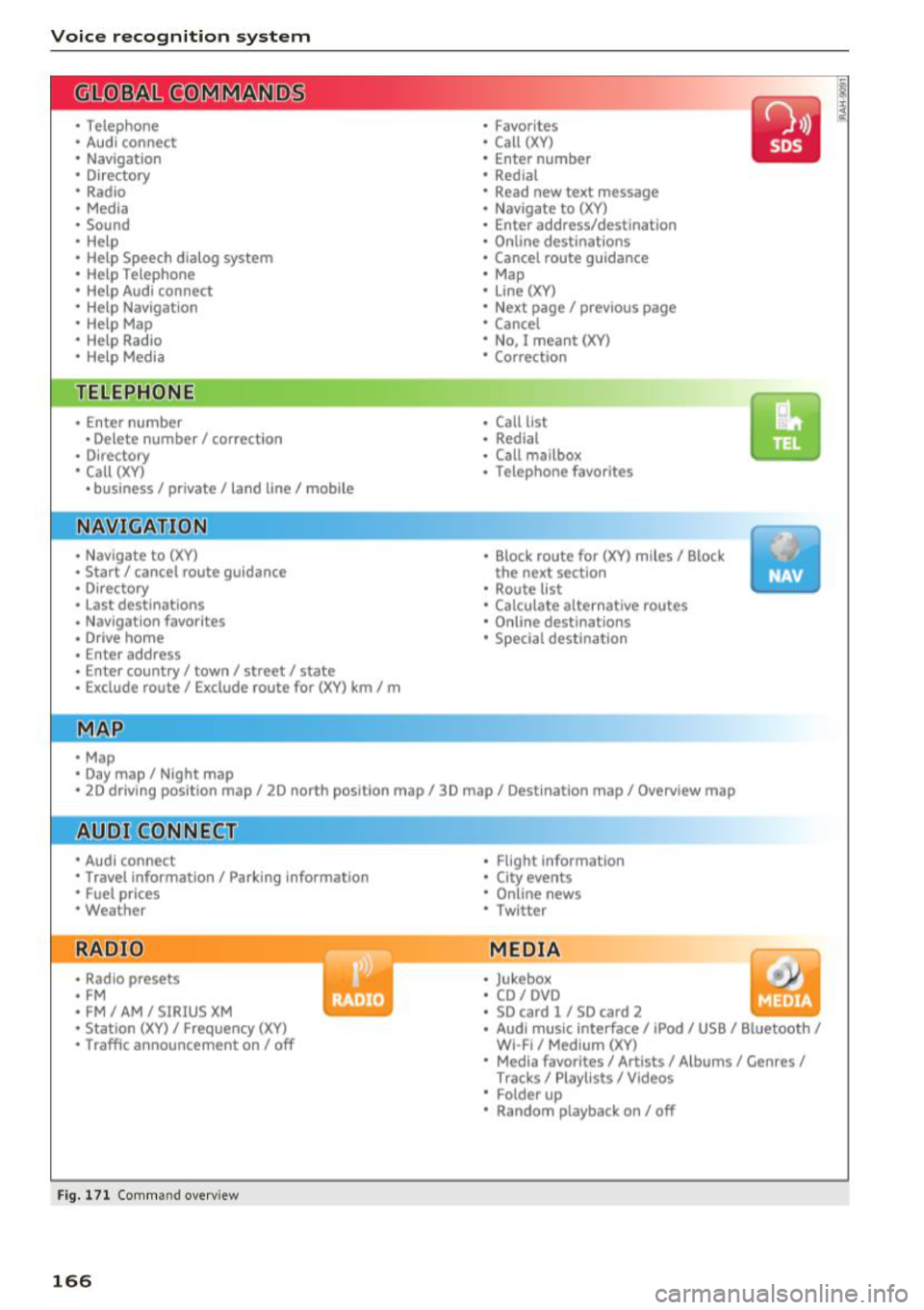
Fig. 171 Comm and overv iew
166
• Flight Informa tion
• City events
• Online news
• Twitter
MEDIA
• Jukebox
• CD
I DVD
• SD card
l / SD card 2
• Audi music Interface/ I Pod/ USB / Bluetooth
I
WI -Fl I Med ium (XV)
• Media favorites
I Artists/ Albums/ Genres I
Tracks I Playll sts / Videos
• Folder up
• Random playback on / off
Page 169 of 398
Cl a:, ...... N
" N ...... 0
0
::r '
Applies to: vehicles with voice recognitio n system
You con operate many Infotainment functions
conveniently by speaking.
Requirement: the ignition and the MM I must be
switched on ¢
page 149, there must not be any
phone call in progress and the park ing system
must not be active .
~ Switching on: briefly press th e ~ button @
¢page 15, fig. 11 on the m ultifunction steer
ing whee l and say the desired command after
the
Beep .
~ Switching off : press and hold the~ button.
Or: press the [2] butto n.
~ Pausing : say the command Pause . To resume,
press the~ button .
~ Correcting : say the com mand Correction . Or :
simp ly say a new command du ring an an
no uncement
¢ page 245.
Input assistance
The system gu ides you throug h the input with
v isua l and audio feedbac k.
- Visual input assistance : after switching on
vo ice recogn it ion, a display w ith a selection of
poss ible commands appea rs . This command
display can be sw itched on o r off . Se lect:
IMENU I button> Se ttings > left cont rol button
> MMI settings > Speech dialog system .
- Audio input a ssis tance :
to have the poss ible
comma nds read, tu rn t he voice recogn ition sys
tem o n an d say
Help.
For the system to understand you:
Speak clearly and dis tinct ly at a normal vo lume .
Speak lo uder when d riving faste r.
Emphasize the words in the commands even ly
a n d do not leave long pauses .
C lose the doors, the windows and the sunroof* to
reduce background noise . Make su re that passen
gers are not speaking when you are giving a voice
command .
Voice recognition system
Do not d irect the vents towa rd the hands -free mi
c ro p hone, which is in the roof head liner nea r the
front interior lig hts.
Only use the system from the dr ive r's seat be
ca use the hands -free microphone is di rected to
ward that seat .
Additional settings
See¢ page 245, Spee ch dialog system .
_&. WARNING
- Dir e ct y our full atte nti on to dr iv ing. As the
d river, you have com plete re sponsibility fo r
safety in traff ic . O nly use the functions in
such a way t hat you a lways maintai n com
p lete contro l over your vehicle in all traffic
situations.
- Do not use t he voice recognition system in
emergencies beca use your voice may change
in stressfu l situations. It may take longe r to
d ia l the number o r th e system may not be
ab le to d ia l it at all. Dia l the emergency
number manually.
(D Tips
-The d ialog pauses w hen the re is a n incom
ing phone call a nd will cont inue if yo u ig
nore the call. The d ia log ends if yo u answer
t he ca ll.
- Yo u can select an item in the list us ing ei
t her the vo ice recogn it io n sys tem o r the
cont ro l knob .
Command overview
information
Applies to: vehicles with voice recognition system
T he following overv iews des cribe the comm ands
t h at can be used to ope rate the MMI using the
vo ice recognit ion system.
Alte rnative comm ands ar e separate d using a"/",
f o r ex ample say:
Telephone / (or) Navigation /
(or) Radio.
Sequences of commands used to perfo rm an ac
t io n a re iden tified w it h a "> ", fo r ex am ple s ay:
Enter address > ( then) Enter country/state . ..,
167
Page 170 of 398
Voice recognition system
The major ity shown are main commands. This
system also recognizes synonyms in certain cas -es
. F or a Business address , you can also say busi
ness , work , office or at the office .
Commands
Global commands
App lies to: ve hicles w it h vo ice recogn ition system
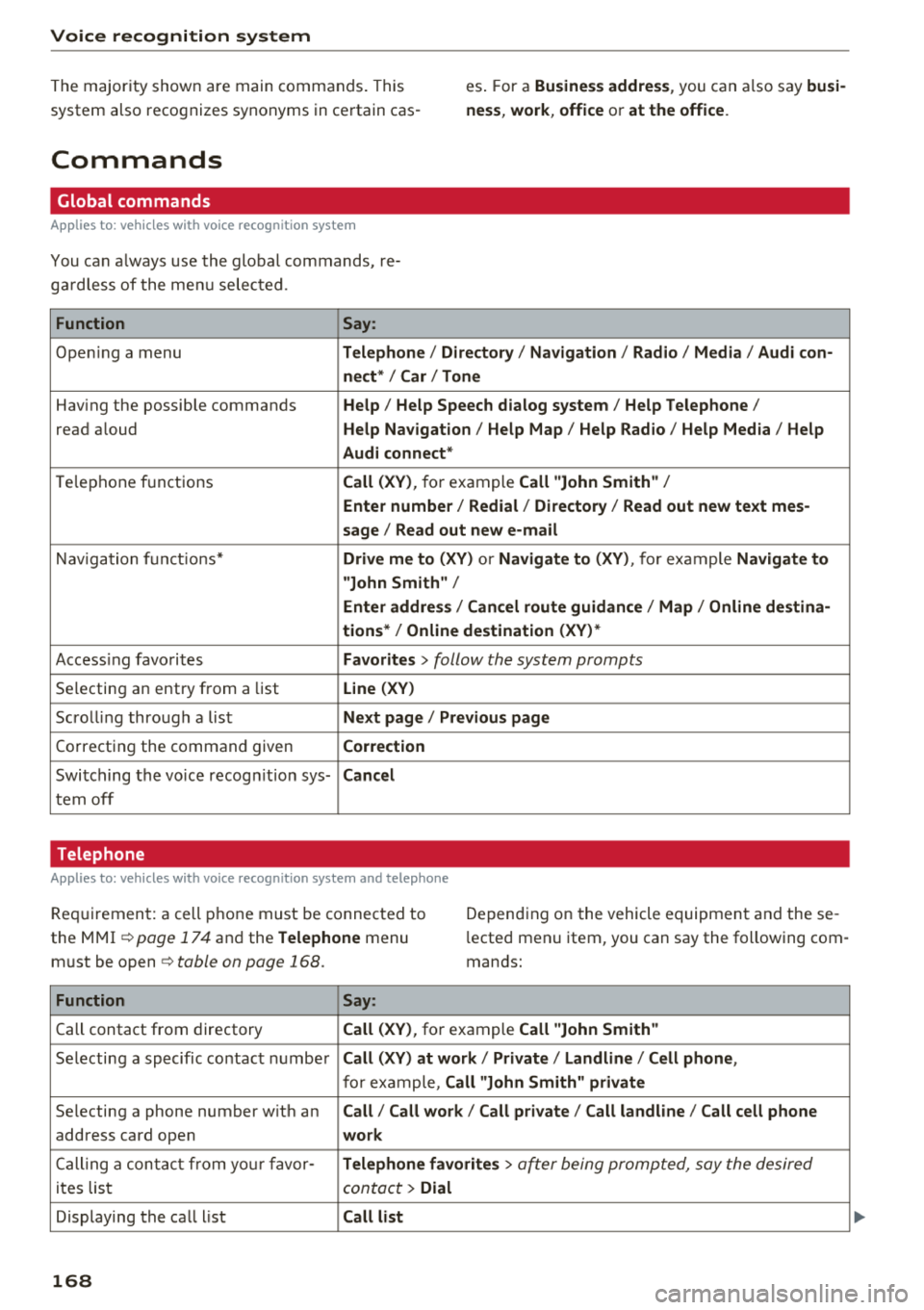
You can a lways use the global commands, re
ga rdless of the menu selected.
Function Say:
Opening a menu Telephone / Directory / Navigation / Radio / Media / Audi con-
nect * /Car / Tone
Hav ing the possible commands Help / Help Speech dialog system/ Help Telephone /
read aloud Help Navigation / Help Map / Help Radio / Help Media / Help
Audi connect *
Telephone f unctions Call (XV), for example Call "John Smith" /
Enter number / Redial / Directory / Read out new text mes-
sage
I Read out new e-mail
Navigation functio ns* Drive me to (XV) or Navigate to (XV) , for example Navigate to
"John Smith" /
Enter address / Cancel route guidance / Map / Online destina-
tions* / Online destination (XV) *
Accessing favorites Favorites > follow the system prompts
Selecting an entry from a list Line (XV)
Scrolling through a list Next page / Previous page
Correcting the command given Correction
Switching the voice recogn ition sys-Cancel
tern off
Telephone
A pp lies to: ve hicles w ith vo ice recog nition sys te m and telep hone
Req uir ement: a cell phone must be connected to
the MMI
~page 174 and the Telephone menu
must be open~
table on page 168.
Depending on the vehicle equipment and these
l ected menu item, you can say the following com
mands:
Function Say:
Call contact from directory Call (XV), for example Call "John Smith"
Selecting a specific contact number Call (XV) at work / Private / Land line / Cell phone ,
for example, Call "John Smith" private
Selecting a phone number w ith an Call/ Call work/ Call private/ Call land line / Call cell phone
address card open work
Calling a contact from your favor-Telephone favorites > a~er being prompted, say the desired
ites list contact > Dial
Displaying the call list Call list
168
Page 171 of 398
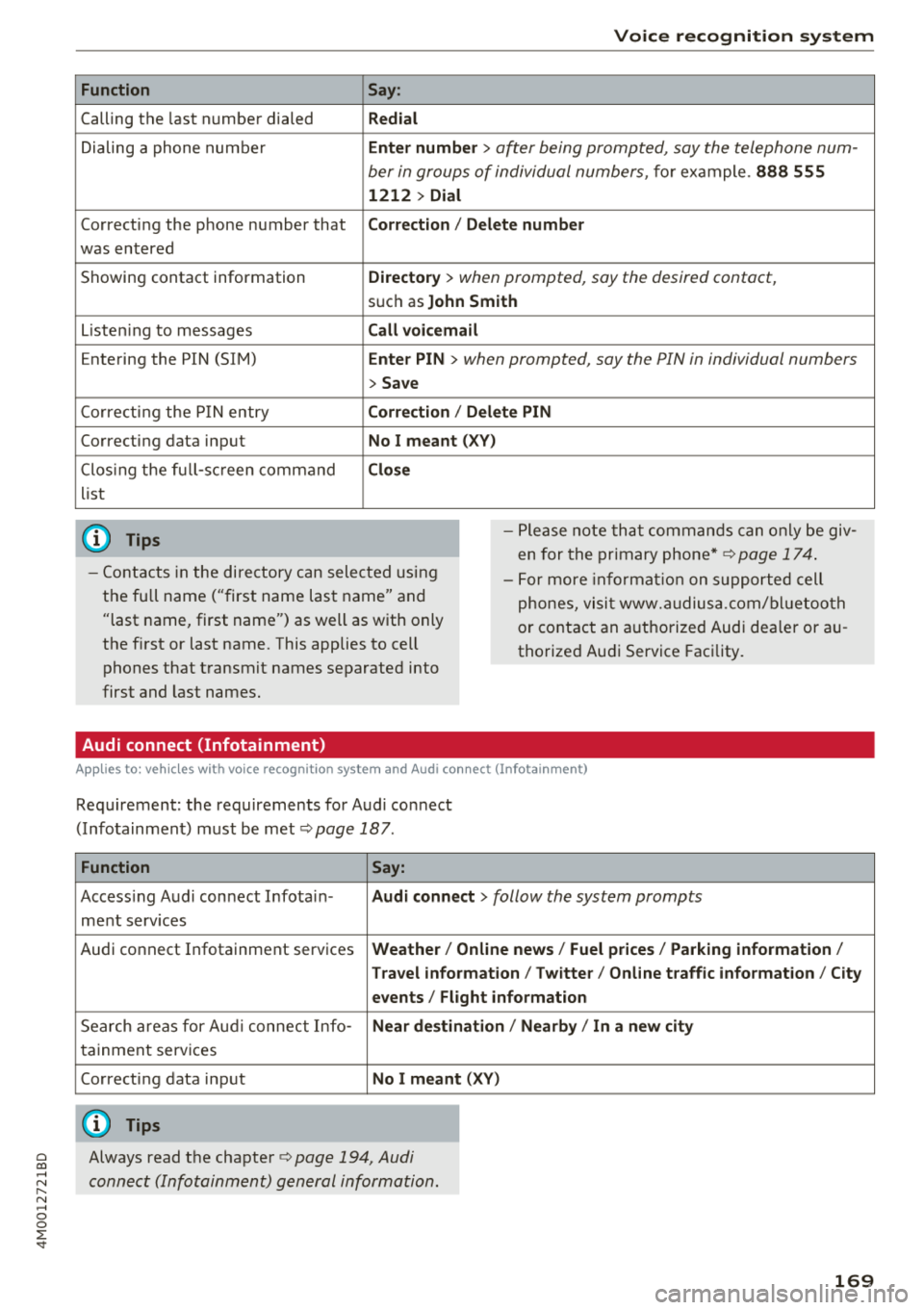
Function
Calling the last number dialed
Dialing a phone num ber
Correcti ng the p hone number that
was entered
Showing contact information
L isten ing to messages
Entering the PIN (SIM)
C orre ct in g the P IN entry
Correcting data input
C los ing the f ull -s cr een command
list
(D Tips
Voice recognition system
Say:
Redial
Enter number
> after being prompted, say the telephone num-
ber in group s of individual numbers,
fo r example. 888 555
1212 > Dial
Correction / Delete number
Directory
> when prompted, say the desired contact,
s u ch as John Smith
Call voicemail
Enter PIN
> when prompted, say the PIN in individual numbers
> Save
Correction / Delete PIN
No I meant ( XV)
Close
- P lease note th at comm an d s can o nly be giv
en for the primary phone*¢
page 1 74.
- Cont acts in the dire ctory can sele cted using
the fu ll name ("first name las t name" and
"last name, first name") as well as with only
the f irst or last nam e. This applies to cell
phones that t ransmit names separate d into
first and last names . -
For more informat io n on s uppo rted cell
phone s, vi sit www.audius a.c om/ blu etoo th
or cont act an a uthorized Audi dea ler or au
thorized Audi Service Fac ility.
Audi connect (Infotainment)
A pp lies to: ve hicles with vo ice recognition syste m and Audi co nnect (Infotainment)
Req uirement: the requirements fo r A udi co nnect
(Info tainmen t) must be met
¢ page 187.
Function Say:
Accessing A udi con nect I nfota in-Audi connect > follow the system prompts
me nt serv ices
Audi co nnect Infotainment services
Weather / Online news / Fuel prices / Parking information /
T ravel infor mation / Twitter / Online traffic information / City
events / Flight information
Search areas for Au di connec t Info -Near destination / Nearby / In a new city
ta inment serv ices
Correcting data inp ut
No I meant (XV)
(D Tips
~ Always read t he cha pte r¢ page 194, Audi
;::j connect (Infotainm ent) g en eral information .
" N ,-1 0
0
::r '
Page 172 of 398
Voice recognition s ystem
Messages (Audi connect (Infotainment))
Applies to: vehicles with voice recognition system and Audi connect (Infotainment)
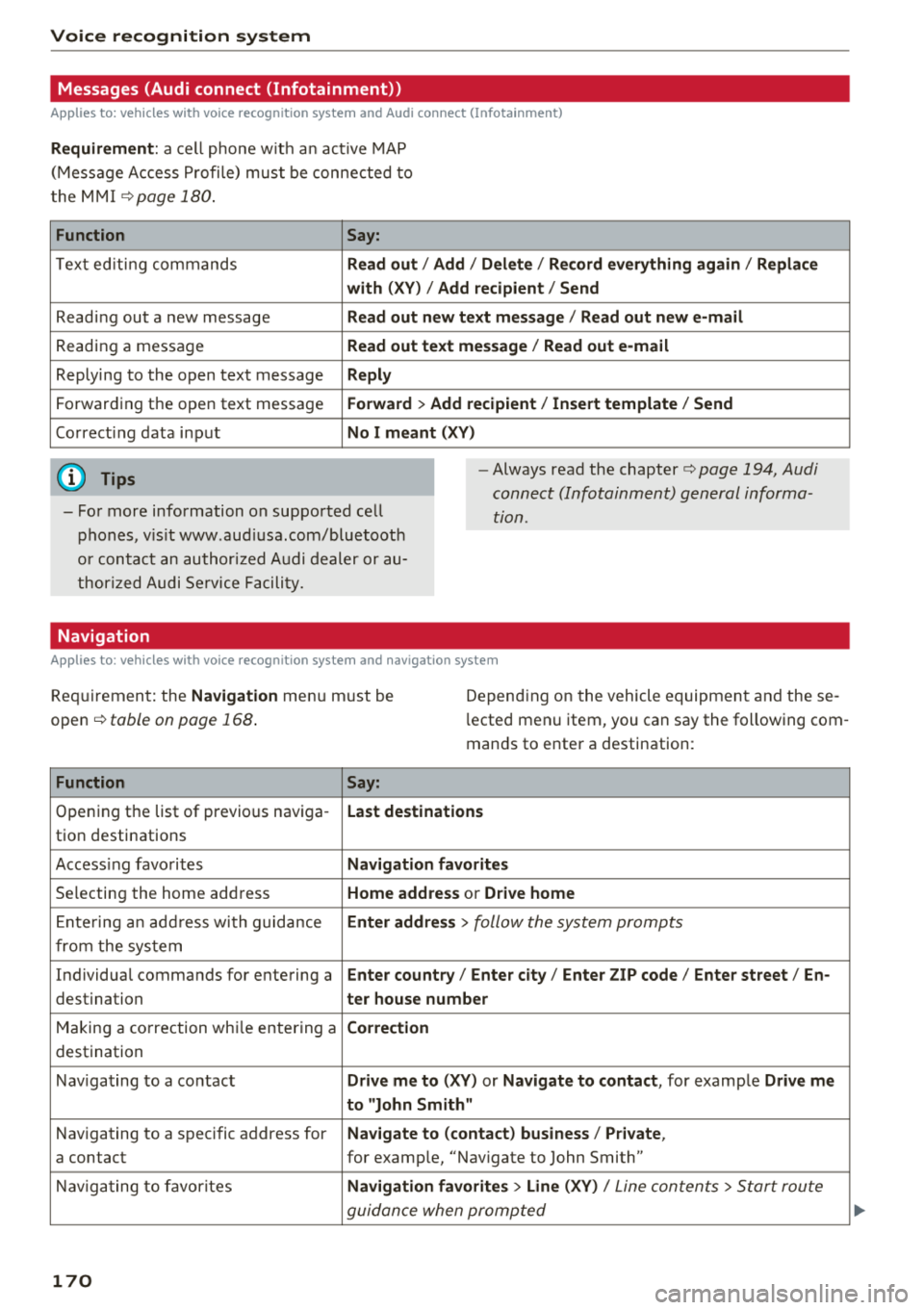
Requirement : a ce ll phone w it h an ac tive MAP
(Mess age Access P rofi le) must be connected to
t he MMI
¢page 180.
Function Say:
T ex t ed iti ng commands Read out
I Addi/ Delete / Re cord everything ag ain / Replac e
w ith (XV ) / Add recipient / Send
Reading out a new message Read out new text me ssage
I Read out ne w e-mail
Reading a message Read out text me ssage / Read out e-m ail
Replying to the open text message Reply
Forwarding the open text message Forward > Add recipient / In sert template / Send
Correcti ng data input No I meant (XV)
(D Tips
- Fo r more information on supported cell
phones, v is it www .aud iusa .com/bluetooth
or contact an author ized A udi dealer or au
thor ized Audi Se rvice Facility. -
Always read the chapter¢ page 194, Audi
connect (Infotainment) general informa
tion.
Navigation
Applies to: vehicles with voice recognition system and navigation system
Requiremen t: the Navigation menu m ust be
open ¢
table on page 168 .
Depending on the vehicle equipmen t an d these
l ected menu item, you can say the following com
mands to enter a destination:
Function Say:
Opening the list of previous naviga -Last destinati ons
tion destinations
Access ing favo rites Navigation fa vori tes
Selecting the home add ress Home address or Driv e home
E nte ring a n add ress wi th guidance Enter address
> follow the system prompts
from the system
Individual commands for entering a Enter countr y/ Ente r city/ Ente r ZIP code / Enter st reet / En-
destination ter house number
Making a correction wh ile entering a Correction
destination
Nav igating to a co ntact Drive me to (XY) or Na vigate to contac t, for example Drive me
to "John Sm ith"
Navigating to a specific address for Na
vigate to (contact ) business / Pri vate ,
a contact for example, "Nav igate to John Smith"
Nav igating to favorites Navigation favorite s> Line (XV) /
Line contents> Start route
guidance when prompted
170
Page 174 of 398
Voice recognition s ystem
- Always read the chapter ¢ page 194, Audi
connect (Infotainment) general informa tion .
Radio
Applies to: vehicles with voice recognition system
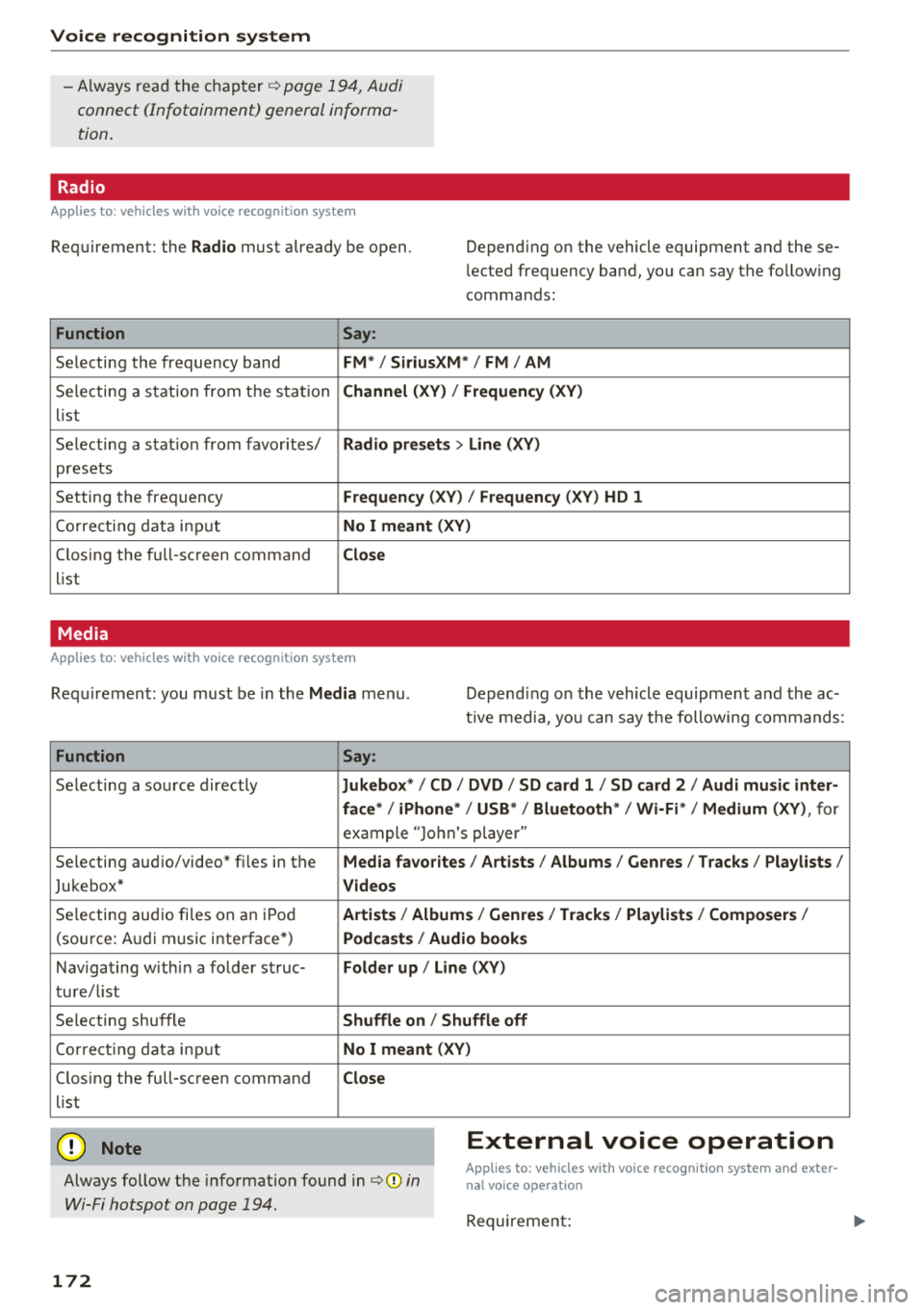
Requirement: the Radio must already be open. Depend ing on the vehicle equipment and these
lected frequency band, you ca n say the fo llow ing
commands :
Function Say:
Selecting the frequency band FM*/ Siriu sXM* / FM / AM
Selecting a station from t he s ta tion Channel (XV ) / !Frequenc y (XV)
list
Selecting a stat ion from favorites/
Radio presets > Line (XV)
presets
Setting the frequency
F requency (X V ) / Frequency ( XV) HO 1
Correct ing data inp ut No I meant (XV )
Closing the full-screen command Close
list
Media
Applies to: vehicles with voice recognition system
Requirement: you mus t be in the Media menu . Depending on the vehicle equipment and the ac
t ive media, yo u can say the following commands :
Function Say:
Selecting a sou rce directly Ju kebox* / CO / DVD / SO card 1 / SO card 2 / Audi music inter-
face */ iPhone * / USB * / Bluetooth * / Wi -Fi * / Medium (XV) ,
for
exa mple "J o hn's player "
Selecting aud io/video" fi les in the
Media fa vorites I Artists / Albums / Genres I Tracks / Playlists /
Jukebox* Videos
Selecting aud io fi les on a n iP od Artists / Albu mis/ Genres I Track s/ Playlists / Compo sers I
(so urce: A udi music i nterface*) Podca st s / Aud io books
Nav iga ting with in a folder s truc-Folder up / Line (XV )
tu re/l ist
Selecting shuffle
Shuffle on / Shuffle off
Co rre ct in g data inp ut No I meant (XV )
Closing the full-screen command Close
list
@ Note External voice operation
Always follow the info rmation found in¢@) in
Wi-Fi hotspot on page 194.
Applies to: vehicles with voice recognition system and exter·
nal voice operation
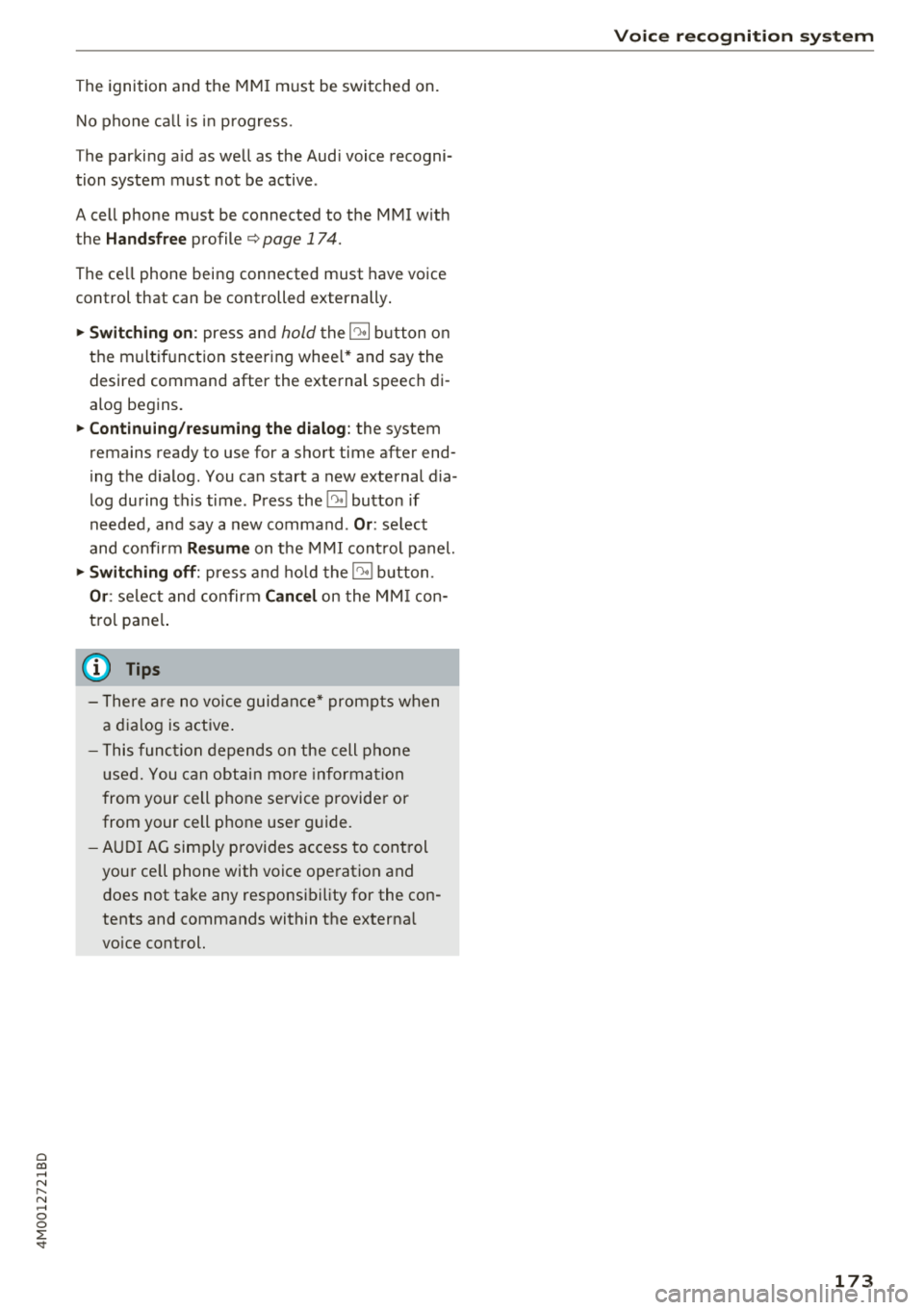
Requireme nt:
172
Page 175 of 398
Cl a:, ...... N
" N ...... 0
0
::r '
No phone call is in progress.
T he parking aid as well as the Audi voice recogni
tion system must not be active .
A cell phone must be connected to the MMI with
the
Handsfree profile ¢ page 174.
The cell phone being connected must have voice
control that can be controlled externally .
.. Switching on: press and hold the 5) button on
the multifunction steering wheel* and say the
desired command after the external speech di
alog begins .
.. Continuing/resuming the dialog: the system
remains ready to use for a short time after end
ing the dialog. You can start a new external dia
log during this time . Press the
51 button if
needed, and say a new command .
Or: select
and confirm
Resume on the MMI control panel.
.,. Switching off: press and hold the 5) button .
Or: select and confirm Cancel on the MMI con
trol panel.
(D Tips
- There are no voice guidance* prompts when
a dialog is active.
- This function depends on the cell phone
used. You can obtain more information
from your cell phone service provider or
from your cell phone user guide.
- AUDI AG simply provides access to control
your cell phone with voice operation and
does not take any responsibility for the con
tents and commands within the external
voice control.
Voice recognition system
173
Page 176 of 398

Tele phone
Telephone
Introduction
Applies to: vehicles with telephone
To make phone coils in your vehicle using the
/11/111, connect your cell phone to the /11/111 via
Bluetooth.
Hand sfree
After you have connected your ce ll phone to the
MMI via Bluetooth, you can use the handsfree
system and operate telephone functions through
your MMI. You can make calls using the antenna
on your cell phone.
A WARNING
- Medical experts warn that cell phones can
interfere w ith the funct ion of pacemakers .
Always mainta in a m inimum d istance of
about 8 inches (20 cm) between the ce ll
phone antenna and the pacemaker.
- Do not carry the cell phone in a pocket di
rectly over the pacemaker when the phone
is switched on.
- Sw itch the cell phone off immediately if
you suspect it may be interfering w ith the
pacemaker.
- Do not use the vo ice recognit ion system*
<=) page 167 in emergencies because your
vo ice may change in stressful situations. It
may take longer to dial the number or the
system may not be able to dia l it at all. Dial
the emergency n umbe r manua lly.
- Switch your cell phone off in areas where
there is a ris k of an exp losion . These loca
tions are not always clearly mar ked. This
may include gas stations, fuel and chemical
storage facilities or transport vehicles, o r lo
cations where fue l vapors (such as propane
or gaso line vapor in vehicles or bui ldings),
chemicals or large quantities of dust parti
cles (such as flour, sawdust or metal) may
be present in the air . This also applies to all
other locations where you would normally
turn your vehicle engine off .
- The demands of traffic requ ire your full at
tent io n. Always read the chapter
Q page 149, Traffic safety information.
174
-
@ Note
Always fo llow the information found in Q @ in
Wi -Fi hotspot on page 194.
(D Tips
- Th e Bluetooth connect ion range is limited
to inside the vehicle. It can also be affected by local conditions and interference with
other devices .
- To learn which Bluetooth connections and
wh ich of the funct ions in your ce ll phone are
supported, check with your cell phone serv
ice provider or the database for mob ile devi
ces at www .aud iusa .com/bluetooth.
Setup
Connecting a cell phone using Bluetooth
Applies to: vehicles with telephone
Fig . 172 D isp layin g the PIN for enter ing in t he cell phone
R equi rem ent
The vehicle must be stationary and the ignition
must be switched on.
The Bl uetooth settings m ust be open on your cell
phone during the connection setup.
The Bluetooth funct io n and v is ib il ity of the MMI
Q page 248 and cell phone must be sw itched on.
The cell phone to be connected must not be con nected to any other Bluetooth device .
The MMI must not be connected to a cell phone.
Conn ecting a c ell phon e
.. Select: IMENU I button> Telephone > Connect
mobile de vice > Find new de vic es > Next.
The
avai lab le Bluetooth devices are shown in the In-
fotainment system display.
Or select: ! MENUI 1111-
Page 177 of 398
Cl a:, ...... N
" N ...... 0
0
::r '
settings
> Connection manager¢ page 246.
~ Se lect and confirm the desired cell phone from
the list of disp layed Bluetooth devices.
~ The MMI generates a PIN for the connect ion
setup
¢fig . 172.
~ Select and confirm Yes.
~ Enter the PIN for connecting on your ce ll
phone.
Or : whe n the PIN is displayed on your
cell phone, confirm the PIN on your cell phone
and in the MMI. The time allowed for entering
the PIN is limited to approximately 30 seconds.
~ Pay attention to any additiona l system prompts
displayed on your cell phone, for example if the
system should connect automatically in the fu
ture . Depend ing on the cell phone, you may
have to confirm downloading the directory sep
arately .
After connecting successfully
After connecting successfully, information about
the connected profiles will appear. You can a lso
change the profiles later. Select:
!MENUI button>
Settings > left control button > MMI settings >
Connection manager¢ page 246 .
In addition, the cell phone contacts are automat
ically loaded in the MMI directory. T his process
can take several minutes, depend ing on the num
ber of contacts .
You can a lso make your connected cell phone the
default phone by select ing
Set as default tele
phone
in the Connection manager¢ page 248 .
@ Note
Always follow the information found in¢@) in
Wi-Fi hotspot on page 194.
(D Tips
- Making phone calls through the MMI is only
possible using the
Handsfree Bluetooth pro
file.
- You can apply additional settings to con
nected mobile devices using the
Connection
manager ¢ page 246 .
-You can also search for the MMI in your ce ll
phone using the Bluetooth device search.
Telephone
-You only have to pair your device one time.
B lu etooth devices that are already paired
automatically connect to the MMI when the
Bluetooth funct ion is switched on, they are
w ith in range and the ignition is switched on.
The last connected cell phone is given first
pr iority.
- Authorizing the MMI connection in your cell
phone w ill make automatic connection pos
sible .
- Pay attention to any system prompts dis
played on your cell phone, for example if
the system should connect automatically in
the future. Depending on the cell phone,
yo u may also need to download the directo
ry and confirm access to your text messages
separately.
- When leaving the vehicle, the Bluetooth
connection to the cell phon e will automati
cally disconnect. Depending on your cell
phone, phone calls in progress may be auto
matically redirected from the MMI to your
cell phone and you can continue the ca ll on
your phone.
- You can obtain more information from your
cell phone service provider or from your cell
phone user gu ide. For information on using
the telephone, vis it www.aud iusa .com/
bluetooth or contact an authorized Audi
dealer or authorized Audi Service Facility.
- Applies to: veh icles without secondary
phone: Several cell p ho nes can be paired to
th e MM I, but only one cell phon e can be ac
tively connected to the MMI.
- App lies to: veh icles without seconda ry
phone: If a Bluetooth device is already con
nected to the MMI , it will be disconnected
when another device connects to the MMI.
175