page 34 AUDI Q7 2018 Owner´s Manual
[x] Cancel search | Manufacturer: AUDI, Model Year: 2018, Model line: Q7, Model: AUDI Q7 2018Pages: 398, PDF Size: 185.58 MB
Page 234 of 398
Media
the 5th generation or later with the light
ning connector .
- Mobile devices with an Apple Dock connec
tor can only be charged with a USB adapter
fo r devices with an Apple Dock connector
and cannot transmit data.
Audi music interface
Applies to: vehicles with Aud i mus ic in terface
Connect your mobil e de vices to the Audi music
interface in order to op era te them through the
MM I and charge the battery.
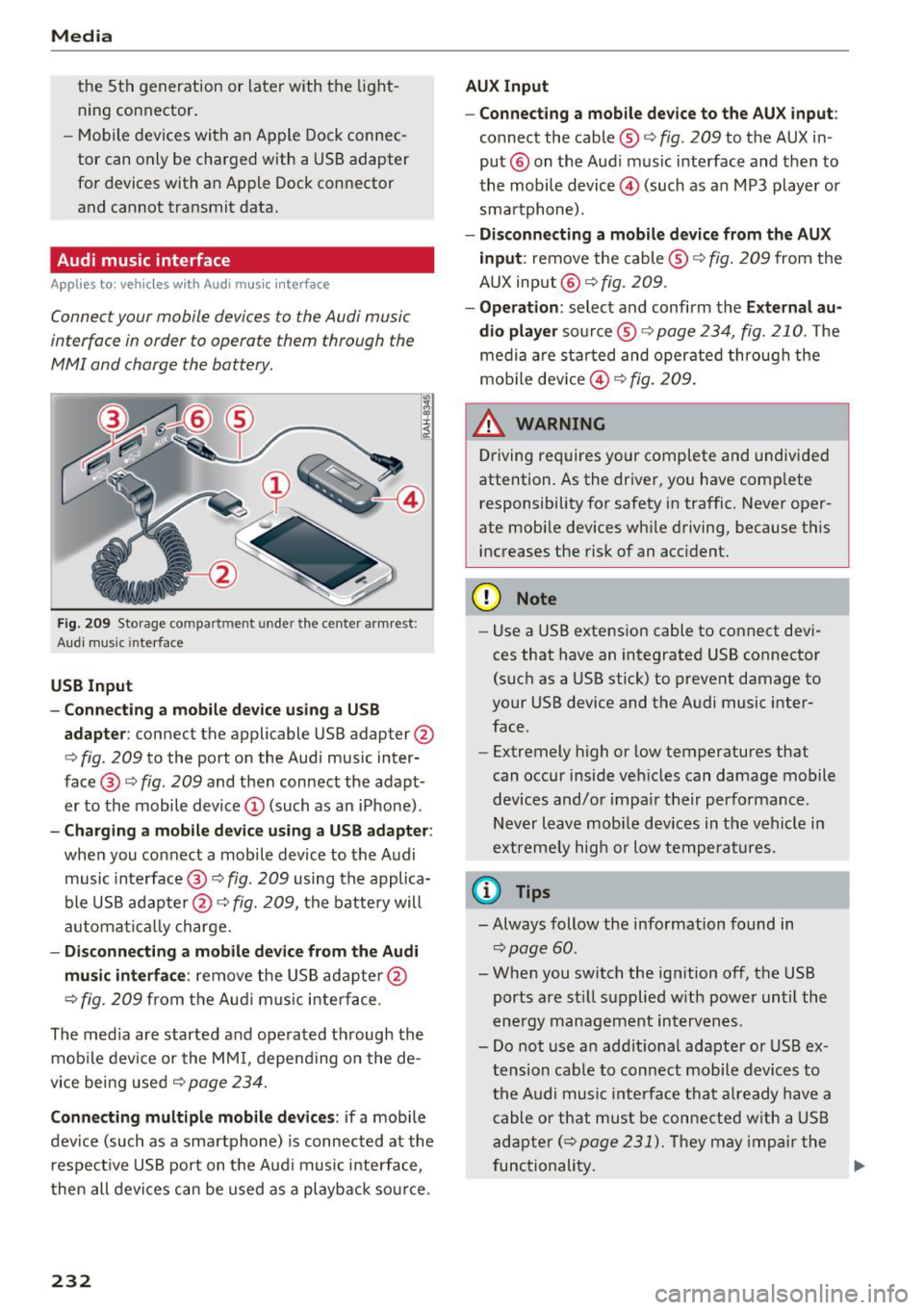
Fig . 2 09 Sto rage co mp artment u nde r the center a rm re st:
Aud i m usi c in terface
USB Input
- Connecting a mobil e device u sing a USB
adapte r:
connect the applic able USB adapter @
c>
fig . 209 to the port on the Audi music inter
face @ c>
fig. 209 and then connect the adapt
er to the mobile device © (such as an iPhone) .
-Charging a mobile device using a U SB adapter:
when you connect a mobile device to the Audi
music inte rface @ c>
fig. 209 using the applica
ble USB adap ter @ c>
fig. 209, the battery will
a utomat ically charge.
- Di sconnecting a mobile device from the Audi
mu sic int erface :
remove the US B adapte r@
¢
fig. 209 fr om the A udi music inter face .
The media a re started a nd ope rated t hrough the
mob ile devi ce or the MM I, depend ing on the de
vice bei ng used c>
page 234 .
Connecting multiple mobile devices : if a mobile
dev ice (such as a sma rtphone) is connected at the
respect ive USB port on t he A ud i music interface,
then all devi ces can be u sed as a playback so urce.
232
AUX Input
-Connect ing a mobile device to the AUX input:
connect the cable ® c> fig. 209 to t he AUX in
put ® on the Aud i music interface and then to
the mobile device@) (such as a n MP3 player or
sma rtphone) .
-Di sconnecting a mobile device from the AUX
input :
remove the cable®¢ fig. 209 from the
AUX input @¢
fig. 209 .
-Oper ation : select and confirm the External au
dio player
so urce ® ¢ page 234, fig. 210. The
medi a are sta rted and operate d through the
mob ile dev ice @ ¢
fig. 209 .
_&. WARNING
Driving requires your complete and undivided
attention. As the driver, yo u have comp lete
responsibility for safety in traffic. Never oper
ate mobi le dev ices wh ile driving, because this
i n creases the risk of an acc ident.
(D Note
- Use a USB extens ion cable to co nnect devi
ces that have an in tegrated USB connector
(such as a USB stick) to prevent damage to
your USB device and the Audi music inter
face .
- Extremely high o r low temperatures that
can occur inside ve hicles can damage mobile
devices and/o r impa ir their performance .
Never l eave mobi le devices in t he vehicle i n
extremely high or low tempe ra tur es.
(D Tips
- Always follow the info rmation found in
c> page60 .
- When you switch the ign ition off, the USB
ports a re st ill supplied w ith power unt il the
e n ergy managem ent interven es.
- Do not use a n addit iona l adapter o r USB ex
tension cab le to connect mobile devices to
the A udi music i nte rfa ce tha t already have a
cable or that must be connected w ith a USB
ad apter( ¢
page 231). Th ey may imp air the
fu nctionality . .,.
Page 235 of 398
Cl a:, ...... N
" N ...... 0
0
::r '
from an authorized Audi dealer or at spe
cialty stores.
- Audi recommends setting the volume of a
mobile device connected to the AUX input to
approximately 70% of the maximum vol
ume.
- Functionality is not guaranteed for mobile
devices that do not conform to the USB 2.0
specification.
- USB hubs are not supported.
- Some versions of the iPod such as the iPod
shuffle cannot be connected to the USB
adapter for devices with Apple Dock connec
tor. Connect these devices using a AUX con nector cable .
- Changed content on a mobile device
l) that
is connected to the Audi music interface
may not be displayed in the media center .
In this case, reset the
Media settings back
to
Factory settings ~ page 246.
-Video playback through the Audi music in
terface is only supported if the connected
device is recognized as a USB storage device
(for example a USB stick). Apple devices and
MTP devices (such as smartphones) are not
recognized as USB storage devices.
- iPod/iPhone malfunctions also affect the
operation of the MMI. Reset your iPod/
iPhone if this happens.
- Audi recommends updating the iPod/iPhone
software to the latest version. For impor
tant information on operating your iPod/
iPhone, refer to the user guide for the de
vice.
- The USB adapter on the Audi music inter
face will support iPod touch/iPhone from
the 5th generation or later with the light
ning connector.
- For more information about the Audi music
interface and supported devices, check the
Audi database for mobile devices at
www .audiusa .com/mp3 or contact an au
thorized Audi dealer or authorized Audi Service Facility.
l) A ppli es o nly t o MTP devic e s. Doe s not a ppl y to Ap ple dev i
ces and U SB mass s to ra g e devi ces.
Media
Rear Seat Entertainment preparation
App lies to : vehicles wit h Rear Seat Enterta inme nt preparat ion
T he Rear Seat Entertainment preparation in
cludes cables and a mount for Audi Entertain
ment mobile in the driver's and front passenger's
seat backrests.
The suitable Audi Entertainment mobile Rear
Seat Entertainment package is available through
Audi Genuine Accessories .
Using Audi Genuine Accessories is recommended.
Audi has established their reliability, safety and
suitability .
We cannot ev alu at e or endorse other p rodu cts in
this way, even if the p roduct is approved by acer
tified testing agency or government agency .
@ Note
Only use devices that are approved for the
Rear Seat Entertainment preparation. Unap
proved devices may cause damage to the vehi
cle electronics .
(D Tips
-Contact an authorized Audi dealer or au
thorized Audi Service Facility for additional
information about
Audi Entertainment mo
bile .
-Always read the chapter~ page 3 77.
- The
Rear Seat Entertainment preparation is
not intended to charge external electronic
devices .
233
Page 236 of 398
Media
Playing media
Accessing media
You can start and operate various media
through the MMI control panel .
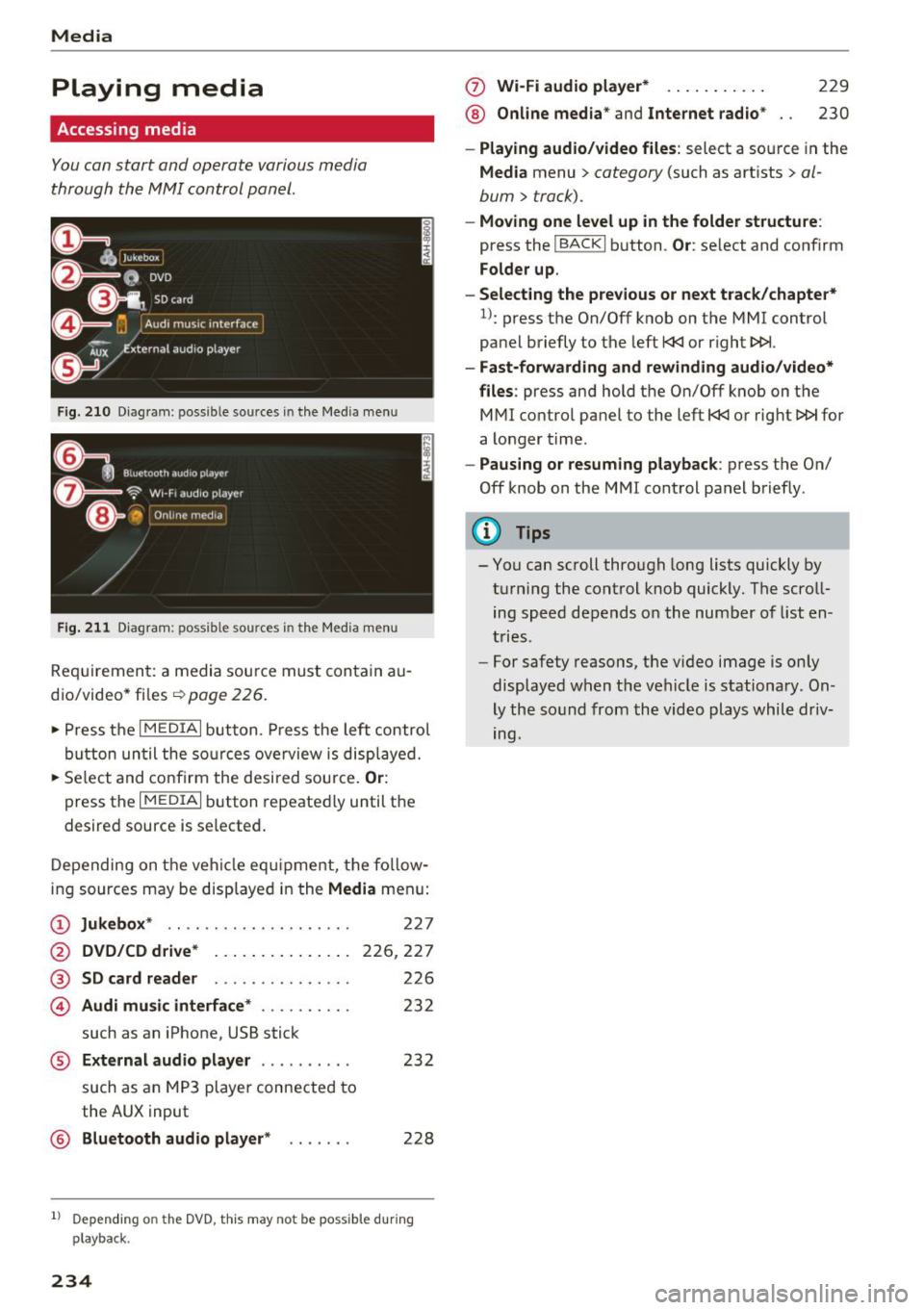
Fig . 21 0 Dia gr am : p ossib le sou rces in the Med ia m enu
F ig. 211 Diag ra m : possible sources in th e Me dia me nu
Re quir emen t: a medi a sou rce must contain au
d io/video* fi les ¢
page 226.
• Press t he
I MEDIAi bu tton. Press the left co ntrol
bu tton un til the so urces ove rview is disp laye d.
• Select and co nfirm the desi red sou rce.
Or :
press th e I M ED IAi bu tton repeate dly until t he
desire d source is se lected .
D epending on the ve hicle eq uipme nt, t he fo llow
i ng sources may be disp laye d in the
Media men u:
@ Jukebox * .. .. .. ........... .. .
@ DVD/CD drive * ... .. .... .. ... .
®
© SD card reader
Audi music interface * ....... .. .
such as an iPhone, USB stick
227
226,2 27
226
23 2
® External audio player . . . . . . . . . . 232
such as an MP3 player connected to
the AUX input
@ Bluetooth audio player * . . . . . . . 228
1) Depe ndin g on the DVD , thi s may not be poss ib le d urin g
pla yback.
234
(f) Wi-Fi audio player* ... ... .... .
® Online media* and Internet radio *
229
230
- Playing audio/video files : select a source in the
Media menu> category (such as art ists> al
bum
> track).
- Moving one level up in the folder structure :
press the !BACKI b utton . Or: select and confirm
Folder up.
- Selecting the previous or next track/chapter*
l): press th e On/Off knob on the MMI control
pa nel briefly to the left l
-Fast-forwarding and rewinding audio/video*
files :
press and hold the On/Off knob on th e
M MI control panel to the left l
a longer time .
-Pausing or resuming playback : press th e On/
Off knob on the MM I cont rol panel b riefly .
(D Tips
- Yo u can scroll through long lists quickly by
t u rning the control knob quickly. T he scro ll
ing speed depends o n the nu mber o f list en
t rie s.
- For safety reas ons, the video image is only
display ed w hen t he vehicl e is stationary . On
ly th e so und from the video plays while driv
ing.
Page 237 of 398
a
Media center
Various categories for selecting audio/video*
files are available in the media center .
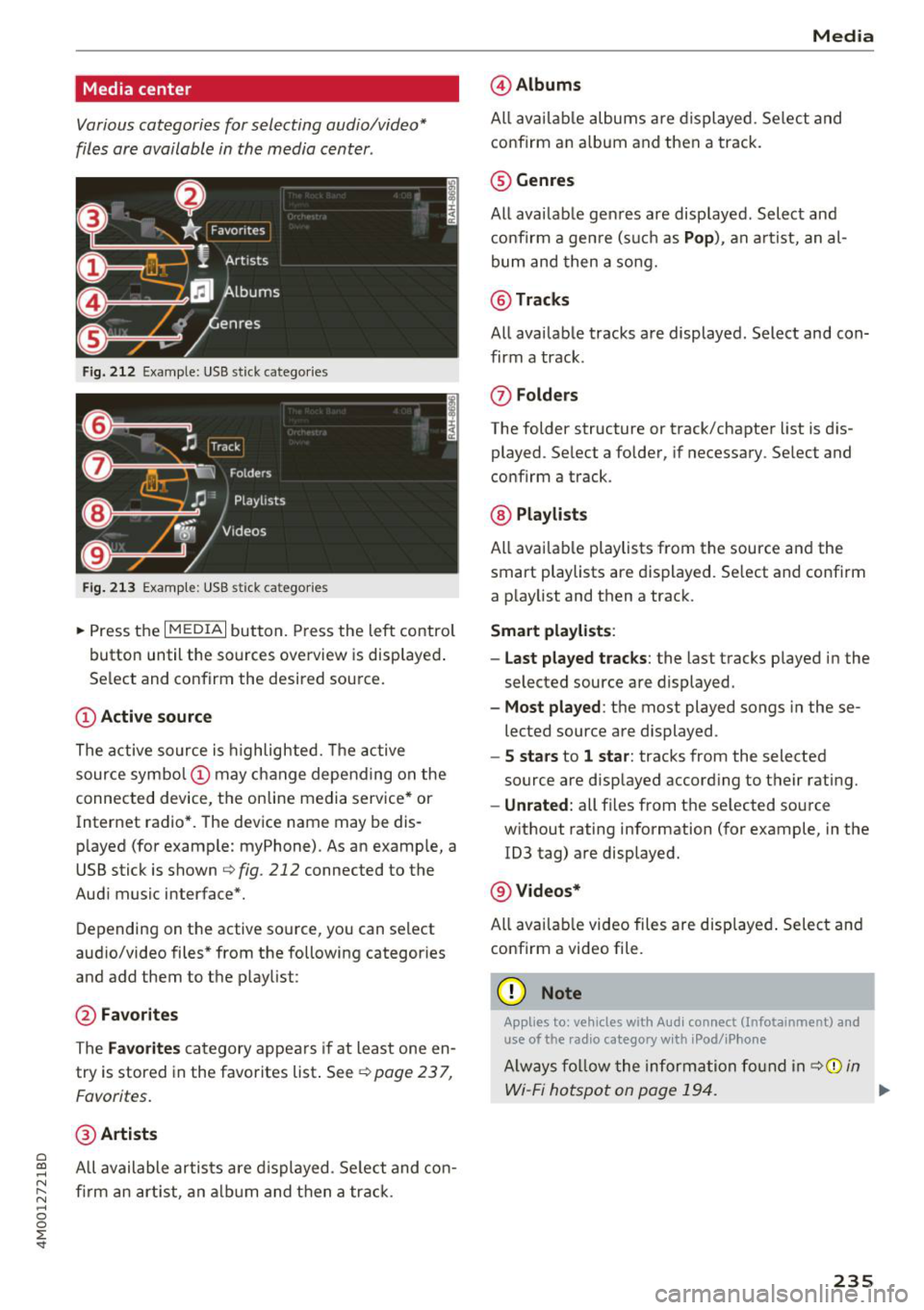
Fig. 212 Example: USB stick catego ries
Fig . 213 Examp le: USB stick categories
~ Press the I MEDIAi button. Press the left control
button until the sources overview is displayed .
Se lect and confirm the desired source.
(!) Active source
The active source is highlighted. The active
source symbol @ may change depending on the
connected device, the online media service* or
Internet radio*. The device name may be dis
p layed (for example: myPhone). As an examp le, a
USB stick is shown
c:> fig . 212 connected to the
Audi music interface*.
Depending on the active source , you can select
audio/video files* from the following categor ies
and add them to the p laylist :
@Favorites
The Favorites category appears if at least one en
try is stored in the favorites list . See
¢ page 23 7,
Favorites.
@ Artists
~ All available artists a re displayed . Se lect and con-
N ~ firm an artist, an album and then a track.
~ 0
0
:E -
@ Albums
All available albums are displayed . Select and
confirm an album and then a track .
® Genres
All available genres are displayed . Select and
confirm a genre (s uch as
Pop), an artist, an al
bum and then a song.
@ Tracks
All available tracks are displayed . Select and con
firm a track .
(J) Folders
The folder structure or track/chapter list is dis
played . Select a folder, if necessary . Select and
confirm a track .
@ Playlists
All available playlists from the source and the
smart playlists are displayed. Se lect and confirm
a playlist and then a track.
Smart playlists :
- Last played tracks :
the last tracks played in the
selec ted source are displayed .
-Most played : the most played songs in these
lected source are displayed .
-5 stars to 1 star: tracks from the selected
source are displayed accord ing to their r ating.
- Unrated: all files from t he se lected source
w ithout rating information (for example, in the
1D3 tag) are displayed.
@ Videos*
All avai lable video files are displayed. Select and
confirm a video file.
(D Note
Applies to: vehicles with Aud i connect (Infotainment) and
use of the radio category w ith iPocl/iPhone
Always follow the information found in ¢(j) in
Wi-Fi hotspot on page 194. ..,_
235
Page 238 of 398
Media
@ Tips
-Only the categories supported by the medi
um are available. For example, CD/DVD
ROM tracks cannot be selected with catego
ries such as
Ar tists, A lbum s or Ge nre s.
With an iPod/iPhone (source : Audi music in
terface
c:> page 231), the Pod ca st s, A udio
book s
and Comp osers categories are also
available.
- For safety reasons, the video image is only
displayed when the vehicle is stationary. On
l y the sound from the v ideo p lays while driv
ing .
-When synchronizing a portable device wi th
"Cloud " services, p lay lists may display in co r
rect ly in the MM I. Use the media center in
the device .
- With an iPod/iPhone (med ia source: Audi
music interface
c:> page 231), the P odca sts,
Audi o book s
and Compo ser s categories are
a lso available .
@ Tips
Applies to: iPod/iPhone on Audl music interface
- An Internet connection is required to use
the add it ional
Radio category , an online
media serv ice. Also see the chapter
c:> page 193, Wi -Fi hotspot. Also read the in
formation on the Aud i mus ic interface and
the supported devices
c:> page 231.
- Depending on the Internet connection and
network traffic, a connection loss can occur
during p layback o f on line media serv ices.
- The use of online media services depends on
the service ava ilability of the third party
provide r.
- Audi AG simply makes the access to online
media serv ices possible through the MM I
and does not take any respons ibility for the
contents of the on line med ia services .
236
Free text search
Applies to: vehicles with free text search
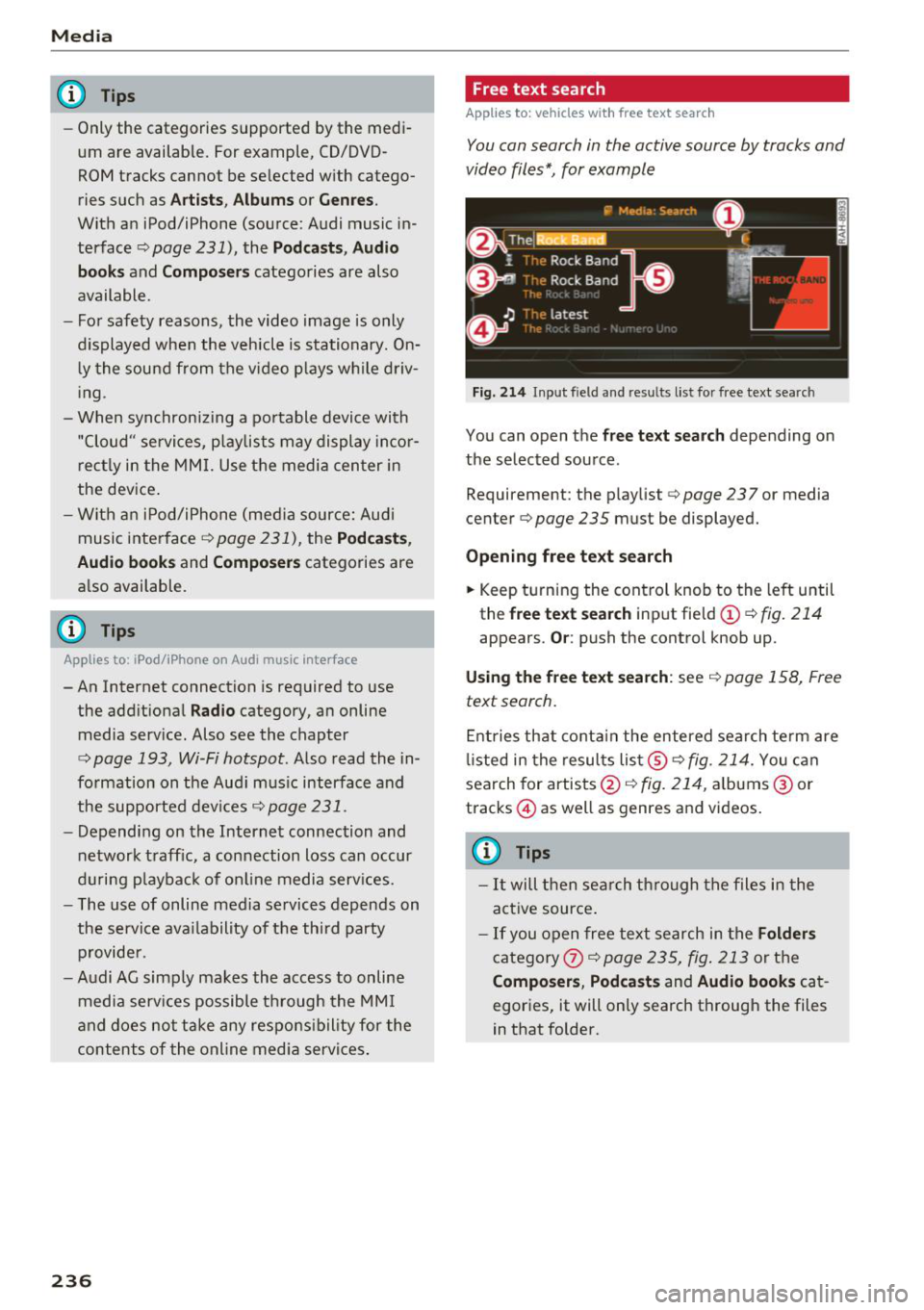
You can search in the active source by tracks and
video files*, for example
Fig. 214 Inp ut fie ld a nd res ults list fo r fr ee text se arch
You can open the free t ext sea rch depending on
the selected source .
Requirement: the playlist
c:> page 23 7 or med ia
c en ter
c:> page 235 must be d isplayed.
Opening f ree te xt se arch
.,. Keep turn ing the cont rol knob to the left until
th e
free tex t searc h inp ut field (D c:> fig. 214
appears . Or: push the control knob up .
Usin g the free text sea rch : see c:> page 158, Free
text search.
Entries that conta in the entered search te rm are
li sted in the results list@
c:> fig. 214. You can
search for artists@<=:>
fig. 214, albums @or
t racks @) as w ell as genres and vid eos.
(D Tips
- It will then search through the files in the
active source .
-If you open free text search in the Folder s
category
C omp osers , Podcast s and Audio books cat
egories, it will only search through the files
in that folder.
Page 239 of 398
Playlist
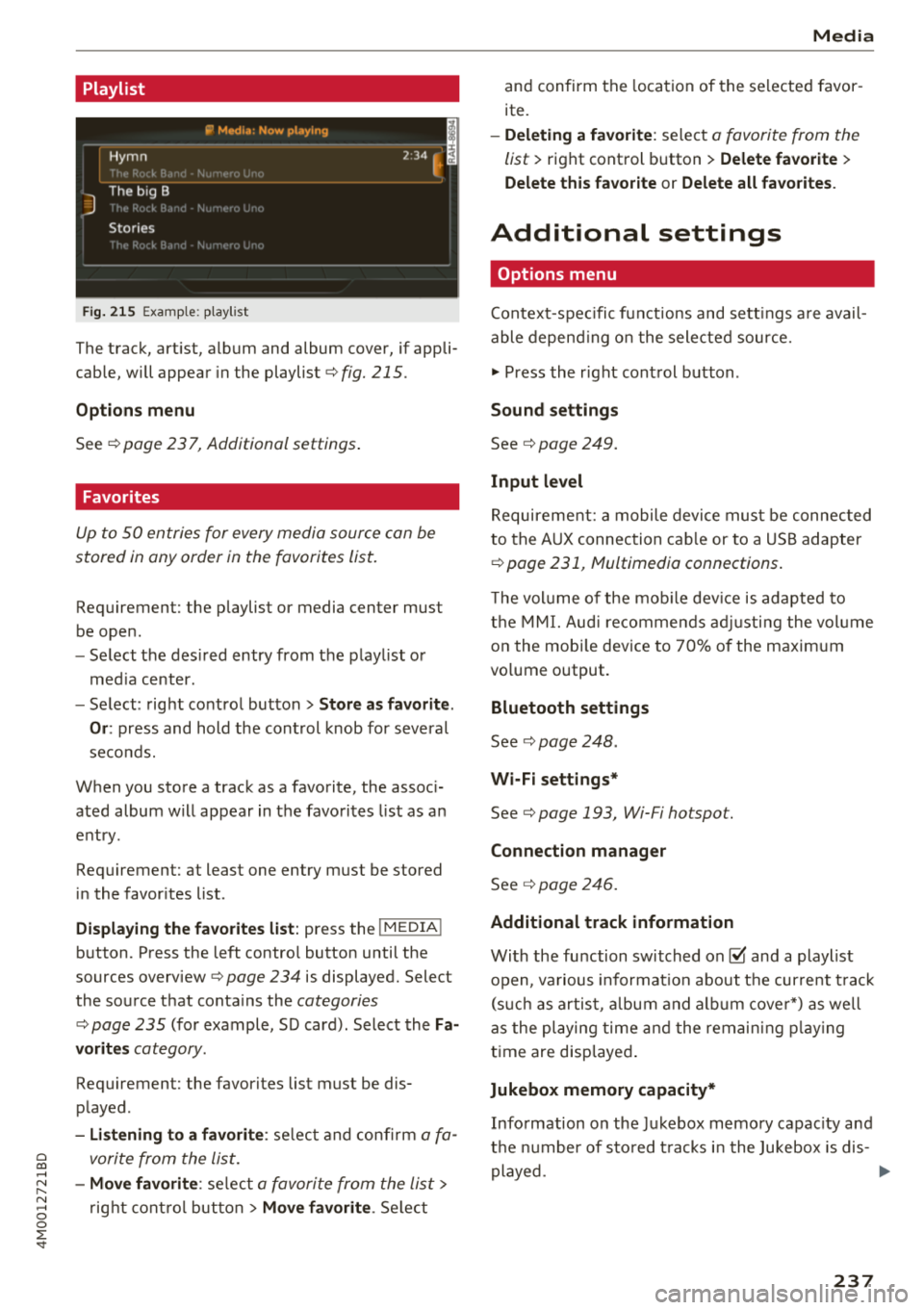
Fig. 215 Example: p lay list
The track, art ist, album and album cover, if appli
cable, will appear in the playlist ¢
fig. 215.
Options m enu
See ¢ page 23 7, Additional settings .
Favorites
Up to SO entries for every media source can be
stored in any order in the favorites list.
Requirement: the p laylist or media center must
be open .
-Select the des ired entry from the p lay list o r
med ia center.
- Select: right control button >
Store a s favorite.
Or :
press and hold the cont rol knob for several
seco nds.
When you store a track as a favorite, the assoc i
ated album w ill appear in the favorites list as an
entry .
Requirement: at least one entry must be stored
i n the favor ites list.
Displaying the favorites list : press the I MEDIA!
button. Press the left contro l button until the
sources overview ¢
page 234 is displayed. Select
the so urce that conta ins the
categories
¢ page 235 (for example, SD card) . Select the Fa
vorit es
category .
Requirement: the favorites list must be dis
played .
-Listening to a favorite : selec t and confi rm a fa -
~ vorite from the list.
......
~ -Move favorite : selec t a favori te from the lis t>
8 rig ht cont ro l but ton > Move favorite . Se lect
0 ::r -
and confirm the loca tion of the selected favor
ite.
- Deleting a f avorite : select a favorite from the
list>
right control b utton> Delete favorite >
Delete this favorite or Delete all favorites .
Additional settings
Options menu
Context-specifi c fu nct ions and sett ings a re avail
able depen ding o n the sele cte d source.
"" Press the r ight cont rol button .
Sound settings
See¢ page 249.
Input level
Requirement: a mobile device mus t be connec ted
to the A UX connec tion cab le or to a USB adapter
¢ page 231, Multimedia connections.
T he vol ume of the mob ile dev ice is adapted to
t h e M MI. Aud i recom mend s ad ju sti ng the vol ume
o n the mob ile dev ice to 70% of the maxim um
vo lume output.
Bluetooth settings
See ¢ page 248 .
Wi-Fi settings*
See¢ page 193, Wi-Fi hotspot.
Connection manager
See¢ page 246.
Additional track information
With the fu nction switched on@' and a playlist
open , va rious in format ion about t he cur re nt t rack
(s uch as artis t, a lbum and a lb um c over*) as well
as the playing time an d the remain ing p laying
t ime are disp laye d.
Jukebox memory capacity*
Info rmation on the Jukebox memo ry capac ity and
t h e nu mbe r of sto red t racks i n the Jukebox is dis-
played . ..,.
237
Page 240 of 398
Media
Rewind/Fa st f orward
Tur n the control knob to the left o r right. Or :
move your finger on t he M MI to uch con trol pad*
from the left to the right.
Shuffle1
)
W ith the funct ion sw itched on~. a ll files in the
p lay list a re played and show n in random o rde r.
Repeat track1l
When the fu nction is switched on~. the current
track repeats .
Repeat*
Req uirement: an iPod/iPhone* must be selected
as the media source in the Aud i music interface
¢ page 234, Accessing media.
- Track : th e current track will be r epeated.
- Folde r: the tracks in the current folder are
played contin uously in a loop.
- Off : the f un ct ion is swi tched o ff.
Back to 'Playback'
The opt ions me nu is closed . T he track c urrently
p lay ing appears in the playlist .
Play similar music*
The track currently p lay ing is qu ickly analy zed
(such as art ists, genres, mood, beat) and a smart
p laylist with s imilar tracks is shown .
Play more ...
A smart playlist is shown based on the track cur
rently p laying. You c an se lect between a playlist
with mo re tracks
by this artist , from this album
or of this genre .
Copy to jukeb ox*
See ¢ page 22 7, Adding files to the Jukebox.
Set as ringtone*2
)
Req uirement: a cell p hone must be connected to
t he MMI. The track current ly playing m ust be in
t he Jukebo x*
¢ page 227.
l) Th e fun ctio n auto matically sw itche s off w he n th e source
i s ch anged .
2
> T hi s fun ction is not avai la bl e fo r all cell pho nes.
238
The selected track w ill be used as the ringtone
for incoming calls .
Gracenote online database *
Requirement: the MMI m ust be co nnec ted to t he
I nterne t.
Depend ing on ava ilab il ity, var ious information
will loa d abou t the track cu rrent ly playing when
t hi s fu nction is switc hed on ~-
Favorites
See¢ page 237.
Additional option s
Requirement: the vehi cle must be stationa ry and
a video fi le* or a DVD* m ust be playing .
Parental control*
Playback of video DVDs ca n be res tricted using
parent al cont rol.
E nte r the passwo rd for parental control. Pass
word set at the factory:
1234 . You have the fol
l ow ing opt io ns:
- Prote ction level : select and co nfirm the protec
tion leve l (for example, Level S) . Ei ght different
protec tion levels can be set for pa rental con
t rol. If yo u se t th e p arent al contro l level at Lev
el 5, all DVDs from leve l 1-5 ca n be played. V id
eo DVDs w it h a hig her level will no t play . Sele ct
Unrestricted to remove a ll of the restrictions.
- Change password : edi t the c urrent p asswo rd.
Switch to full screen
The video image is displayed . T ur n the contro l
k nob to d isplay the playlist.
Or: press the I BACKI
b utton.
Replay video1>
When this function is switched on ~. th e current
v ideo will replay . ..,.
Page 242 of 398
Media
Supported media and file formats
Overview
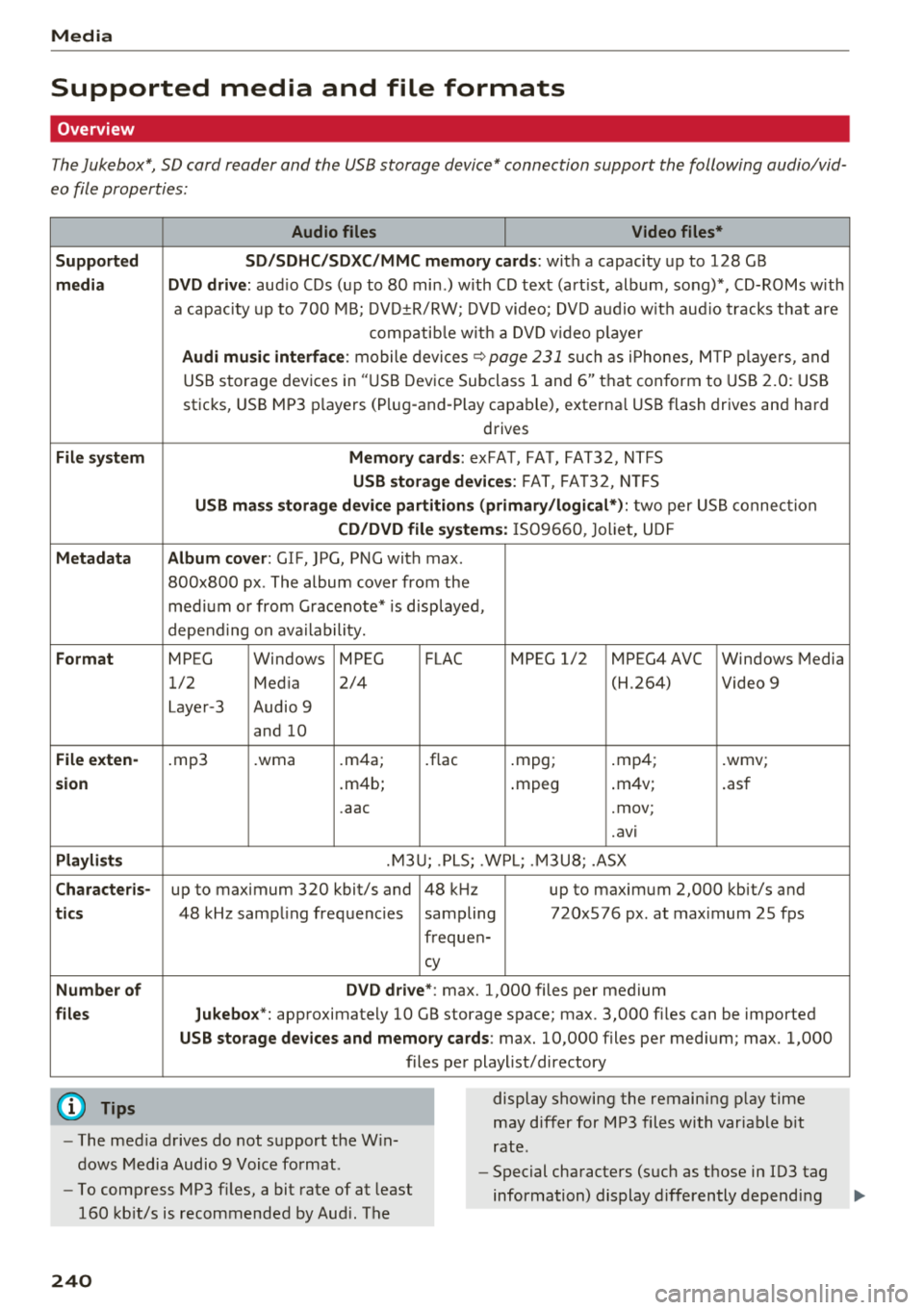
The Jukebox*, SD card reader and the USB storage device* connection support the following audio/vid
eo file properties:
Audio files Video files*
Supp orted SD/SDHC/SDXC/ MMC memo ry ca rds:
with a capacity up to 128 GB
medi a DVD d rive: aud io CDs (up to 80 min.) with CD text (art ist, album, song)*, CD-ROMs with
a capacity up to 700 MB; DVD±R/RW; DVD video; DVD audio w ith aud io tracks that are
compatib le w ith a DVD v ideo p laye r
Audi m usic interface: mobile devices~ page 231 such as i Phones, MTP p layers, and
USB storage devices in "USB Device Subclass 1 and 6" that conform to USB 2 .0: USB
sticks, USB MP3 p layers (Plug-and-P lay capable), external USB flash drives and hard
drives
Fil e syst em Mem ory c ards : exFAT, FAT, FAT32, NTFS
USB sto rage devices: FAT, FA T32, N TFS
U SB m ass sto rage device partiti ons ( prim ary/ lo gic al*): two per USB connection
CD /D V D file systems: IS09660, Joliet, UDF
M etada ta Album cover: GIF, ]PG, PNG with max.
800x800 px . The album cover from the
med ium or from Gracenote* is disp layed,
depend ing on ava ilability.
F orm at MPEG Windows MPEG FLAC MPEG 1/2 MPEG4 AVC Windows Media
1/2 Med ia 2/4 (H.264) Video 9
Layer-3 Audio 9 and 10
File e xten-.mp3 .wma .m4a; .flac .mpg; .mp4; .wmv;
s ion .m4b; .mpeg .
m4v;
.asf
.aac .mov;
.avi
Playlist s .M3U; .PLS; .WPL; .M3U8; .ASX
Cha rac teris-up to maximum 320 kbit/s and 48 kHz up to maximum 2,000 kbit/s and
tics 48 kHz sampling frequencies sampling 720x576 px. at max imum 25 fps
frequen-
cy
Numb er of DVD d riv e *: max. 1,000 files per medium
files Jukebox*: approximately 10 GB storage space; max. 3,000 fil es can be imported
USB st orage d evices a nd mem ory cards : max. 10,000 files per medium; max. 1,000
files pe r playlist/directory
@ Tips
- The med ia drives do not support the W in
dows Media Audio 9 Voice format. display showing
the remaining p lay time
may differ for MP3 files with variable b it
rate.
- Special characters (such as those in ID3 tag
information) display differently depending
-
To compress MP3 files, a bit rate of at least
160 kbit/s is recommended by Aud i. The
240
Page 243 of 398
Cl a:, ...... N
" N ...... 0
0
::r '
on the system lan guage and canno t always
b e g uaranteed . -
Some M TP p laye r fu nct ions are not s upport
ed , su ch as rating music tracks and video
playback.
- The m anufactur er of the stor age device c an
p rovide info rmation about its "USB Device
Subclass" .
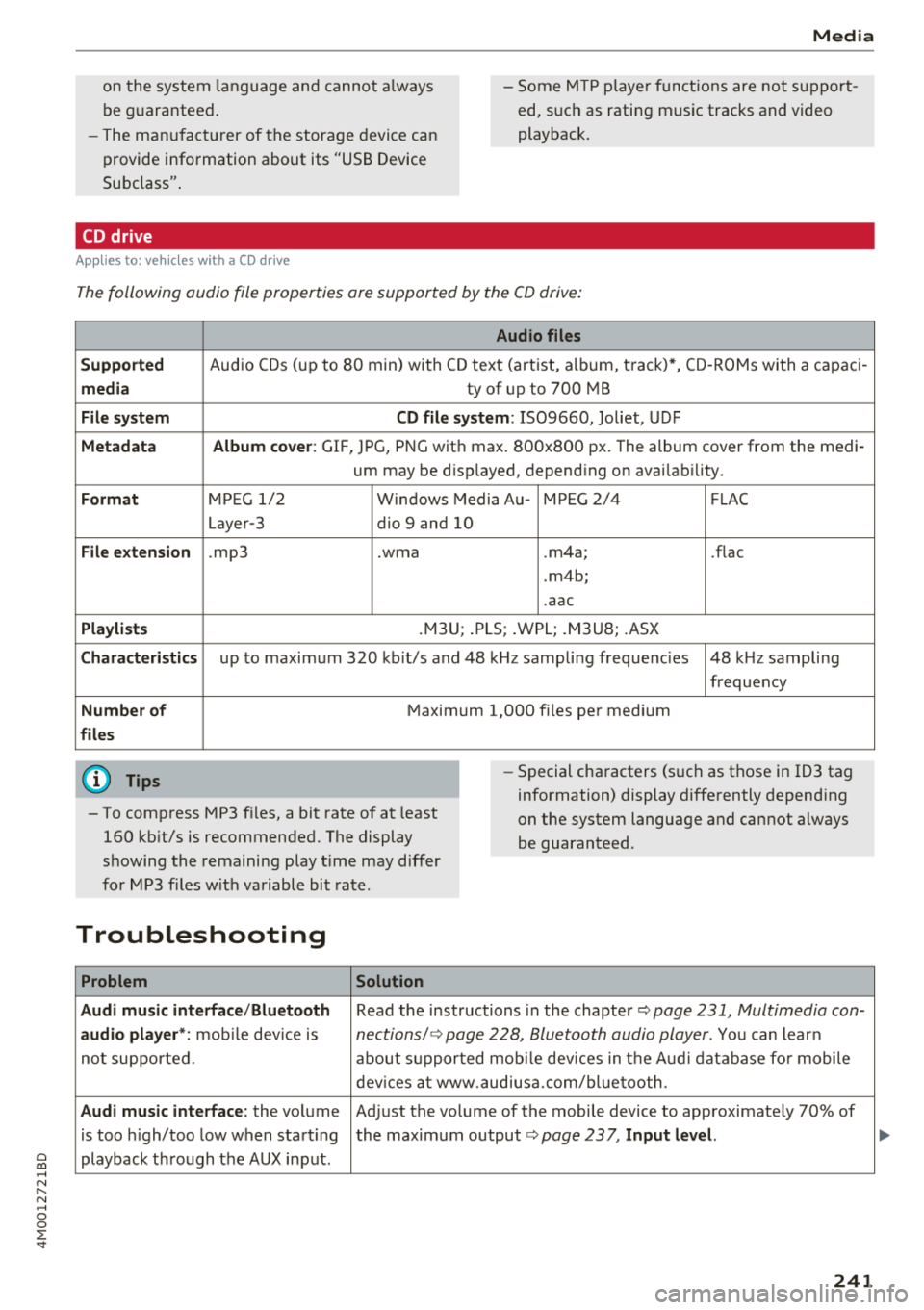
CD drive
Applies to: veh icles wit h a CD drive
The following audio file properties are supported by the CD drive:
Audio files
Supported
Audio CDs (up to 8 0 min) with CD text (artist, a lb um, t rack)*, CD -ROMs with a c apac i-
media ty of up to 700 MB
File system CD file system : IS09660, Joliet, UDF
Metadata Album cover : GIF, JPG, PNG wit h max. 800x800 px. The album cover from the medi -
um may be d isp layed, depend ing on avai lab ility.
Format M PE G 1/ 2 Windows Media A u- M PEG 2/4 FLAC
Layer -3 dio 9 and 10
File e xtension .mp3 .wma .m4a; .flac
. m4b ;
. aac
Playlists .M3U; .PLS; .WPL; . M3U8; .ASX
Characteri stics up to maximum 320 kb it/s and 48 k Hz sampli ng freque ncies 48 k Hz sampling
frequency
Number of M aximum 1,000 files pe r medi um
files
(D Tips
- To comp ress MP3 f iles, a bit rate of at least
160 kb it/s is recommended. The display
s howing the remaining p lay t ime may d iffer
fo r MP3 f iles w it h variable bit rate. -
Special cha racters (s uch as t hose in ID3 tag
information) display diffe rently depend ing
on the system language and cannot always
be guaranteed .
Troubleshooting
Problem Solution
Audi music interface /Bluetooth
Read the instructions in the chapter~ page 231, Multimedia con-
audio player *: mobile dev ice is nectionsl ~ page 228, Bluetooth audio player . You can lear n
not supported. about s upported mob ile dev ices in the A udi database fo r mobile
dev ices at www.au diusa.com/blue toot h.
Audi music interface : the volume Adjust the vo lume of the mobile device to approximate ly 70% of
is too high/too low when star ting the maximum output
¢ page 237, Input level.
playback t hrough the AUX in put.
241
...
Page 244 of 398
Media
Problem Solution
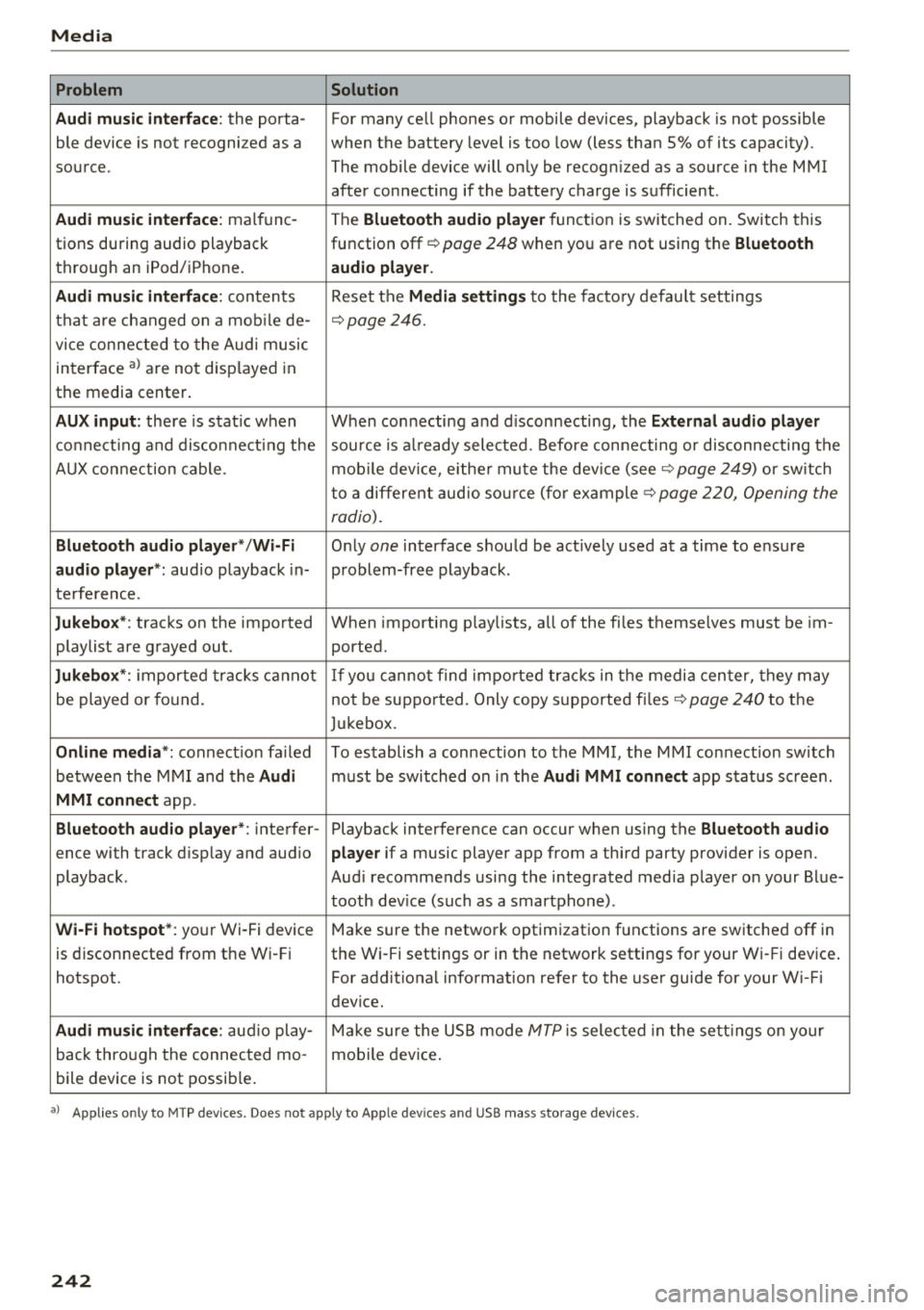
Audi music interface :
the porta-For many ce ll phones or mobile devices, playback is not possible
ble device is not recogni zed as a when the battery level is too low (less than 5% of its capacity).
source. The mobile device will only be recogn ized as a source in the MMI
after connecting if the battery charge is sufficient .
Audi music interface: malfunc-
The Bluetooth audio player function is switched on. Switch this
tions during audio playback function off¢
page 248 when you are not using the Bluetooth
through an iPod/ iPhone. audio player.
Audi music interface:
contents Reset the Media settings to the factory default settings
that are changed on a mobile de -
¢page 246.
vice connected to the Audi music
interface al are not disp layed in
the media center .
AUX input: there is stat ic when When connecting a nd disconnecting, the External audio player
connecting and disconnect ing the source is already selected. Before connecting or disconnecting the
AUX connection cable. mobile device, either mute the device (see ¢
page 249) or sw itch
to a different audio source (for example ¢
page 220, Opening the
radio).
Bluetooth audio player* /Wi-Fi
Only one interface should be act ively used at a time to ensure
audio player*: audio playback in- problem-free playback.
terference.
Jukebox* : tracks on the imported When importing playlists, a ll of the files themselves must be im-
playlist are grayed out. ported.
Jukebox*: imported tracks cannot If you cannot find imported tracks in the media center, they may
be played or found. not be supported. Only copy supported files"*
page 240 to the
Jukebox.
Online media *: connection fa iled To establish a connection to the MMI, the MMI connection switch
between the MMI and the
Audi must be switched on in the Audi MMI connect app status sc ree n.
MMI connect app.
Bluetooth audio player *: interfer- Playback interference can occur when using the Bluetooth audio
ence with track d isp lay and aud io player if a music player app from a third party provider is open.
playback . Audi recommends using the integrated media player on your Blue-
tooth device (such as a smartphone) .
Wi-Fi hotspot*: your Wi-Fi device
Make sure the network optimization functions are switched off in
is disconnected from the Wi -Fi the Wi-Fi settings or in the network settings for your Wi -Fi device .
hotspot . For additional information refer to the user guide for your Wi-Fi
dev ice.
Audi music interface: audio play-Make sure the USB mode MTP is selected in the settings on your
back through the connected mo- mobile device.
bile device is not possible.
al Applie s onl y to MTP dev ice s. Does not apply to App le dev ices and USB mass s torage dev ice s.
242