warning light AUDI Q7 2018 Owner´s Manual
[x] Cancel search | Manufacturer: AUDI, Model Year: 2018, Model line: Q7, Model: AUDI Q7 2018Pages: 398, PDF Size: 185.58 MB
Page 130 of 398
Ass is tance sy stem s
Switching on/off
Applies to: vehicles with night vision assist
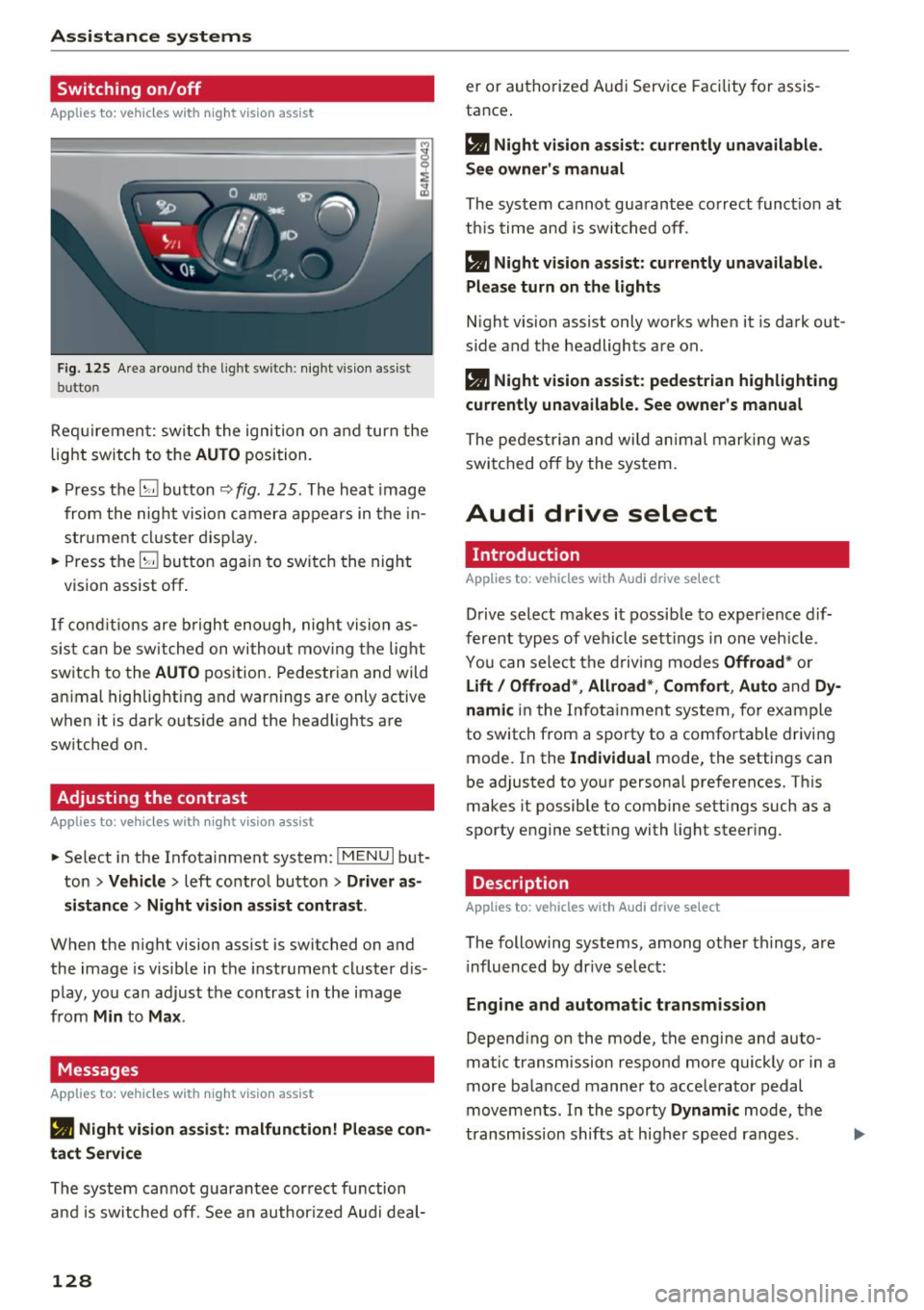
F ig. 125 Are a aro und th e light sw itc h: night vis ion assist
butto n
Requiremen t: sw itch the ignition on and turn the
light switch to the
AUTO position.
.. Press the~ button ~
fig. 125 . The heat image
from the nig ht vision camera appears in the in
str ument cluster d isplay.
.. Press the~ button again to switch the night
vision assist off .
If condit ions are b right enough, night vision as
sis t can be sw itched on withou t mov ing the light
switch to the
AUTO position. Pedestrian and wild
an imal highlighting and warnings are only active
when it is dark outside and the headlights are
sw itched on .
Adjusting the contrast
Applies to: vehicles with night vision assist
.. Select in the Infotainment system: IM ENU I but
ton
> Vehicl e > left control button > Driver a s
si stance
> Nig ht vis ion as sist contra st .
When the night vision assist is switched on and
the image is visible in the instrument cluster d is
p lay , you can adjust the contrast in the image
from
Min to Ma x.
Messages
App lies to: vehicles with night vision assist
• Night vi sion a ssist : malfunction! Plea se con
tact Ser vic e
The system cannot guarantee correct function
and is switched off. See a n author ized Audi deal-
128
er or authori zed Aud i Service Facility fo r assis
tance .
a Night vi sio n assi st: c urrently unav ail able .
See owner's manual
The system cannot guarantee correct funct ion at
th is time and is switched off .
a Night vision ass ist: currently un av ailabl e.
Plea se turn on the lights
Night vision assist only works when it is dark out
side and the headlights are on.
a Night vision ass ist: pedestr ian h ighlighting
curr ent ly unavailable. See owne r's manual
The pedestrian and wi ld animal marki ng was
switched off by the system .
Audi drive select
Introduction
App lies to: vehicles with Aud i drive se lect
Drive select makes it possible to exper ience dif
ferent types of vehicle sett ings in one veh icle .
You can select the d riving modes
Offroad * or
Lift / Offroad *, Allroad *, Comfort , Auto and Dy
namic
in the Infota inment system, for example
to switch from a sporty to a comfo rtable driving
mode. In the
I ndividual mode, the settings can
be adjusted to your personal preferences. This
makes it possible to combine sett ings such as a
sporty engine setting with light steer ing .
Description
Applies to: vehicles with Audi drive select
The following systems, among other th ings, are
i nfluenced by dr ive se lec t:
Engine and automatic tran smis sion
Depend ing on the mode, the engine and auto
matic transmission respond more quickly or in a
more balanced manner to accelerator pedal
movements . In the sporty
Dynam ic mode, the
transm iss ion shifts at higher speed ranges .
Page 134 of 398
Parking syste m s
Parking systems
General information
A pplies to: ve hicles w ith a rea r parking sys te m /parking sys
tem p lus/rearv iew camera/peripheral cameras
Depending on your vehicle 's equipment , various
parking aids will help you when parking and ma
ne uvering.
The
rea r pa rki ng sys te m is an aud ible parking a id
that warns you of obstacles
behind the vehicle
¢ page 133.
The parki ng sys te m plu s assists you when park
ing by aud ibly and visually indicating objects de
tected
in front of and behind the veh icle
¢ page 133.
The rea rv iew ca mera shows the area behind the
veh icle in the Infotainment system d isplay . The
lines in the rearv iew camera image he lp you to
pa rk or maneuve r
¢page 134.
The pe riph eral ca meras give various views to
help you when parking or maneuvering
¢ page 137 . The parking system plus functions
are also available ¢
page 133.
_& WARNING
-Always look for t raff ic and check the area
around your vehicle by looking at it direct ly
as well. The parking system cannot replace
the driver's attention . The driver is always
responsib le when entering or leaving a park
ing space and during similar maneuvers.
- Please note that some surfaces, such as
clothing, are not detected by the system.
-
-Sensors and cameras have blind spots in
which people and objects cannot be detect
ed . Be especially caut ious of small children
and animals.
- Always keep your eyes on the vehicle 's sur
round ings, using the rearview mirror as
well.
- The sensors can be displaced by impacts or
damage to the radiator gr ille, bumper,
wheel housing and the underbody . The park
ing system may be impa ired as a result .
Have a n author ized Audi dealer or author-
132
ized Audi Service Facility check their func
tion .
@ Note
-Some objects are not detected or disp layed
by the system under certain circumstances:
- objects such as barrier chains, trailer draw
bars, vertical poles or fences
- objects above the sensors such as wall ex
tensions
- objects with certain surfaces or structures
such as cha in link fences or powder snow
- If you continue driving closer to a low ob
ject, it may disappear from the sensor range . Note that you will no longer be
warned about th is obstacle .
- Keep enough distance from the curb to re
duce the risk of damage to the rims .
(D Tips
-The system may provide a warning even
though there are no obstacles in the cover
age area in some situations, such as :
- certa in road s urfaces or whe n the re is tall
grass
- externa l ult rasonic sources such as from
cleaning vehicles
- in heavy rain, snow, or th ick vehicle ex
ha ust
- We recommend that you practice par king in
a traffic -free location o r parking lot to be
come familiar with the system . When doing
this, there shou ld be good light and weath
er conditions.
- You can change the vo lume of the signa ls
and the display ¢
page 140.
-Please refer to the instructions for towing a
trai ler located in
¢ page 141.
-What appea rs in the infotainment d isplay is
somewhat time -de layed.
- T he sensors m ust be kept clean and free of
snow and ice for the parking aid to operate .
Page 145 of 398
a co ...... N r--. N ...... 0
0
:E '
accelerating on smooth, slippery surfaces
such as ice and snow. The drive wheels can
spin even when these control systems are
installed and this can affect driving stability
and increase the risk of a collision .
(D Tips
-The ABS and ASR only function correctly
when all four wheels have a similar wear
Switching on and off
Intelligent Technology
condition. Different tire sizes can lead to a
reduction in engine power.
- You may hear noises when the systems de
scribed are working .
- When installing roof rack systems on the
roof rail, the ESC uses sensors to adapt it
self to a different center of grav ity.
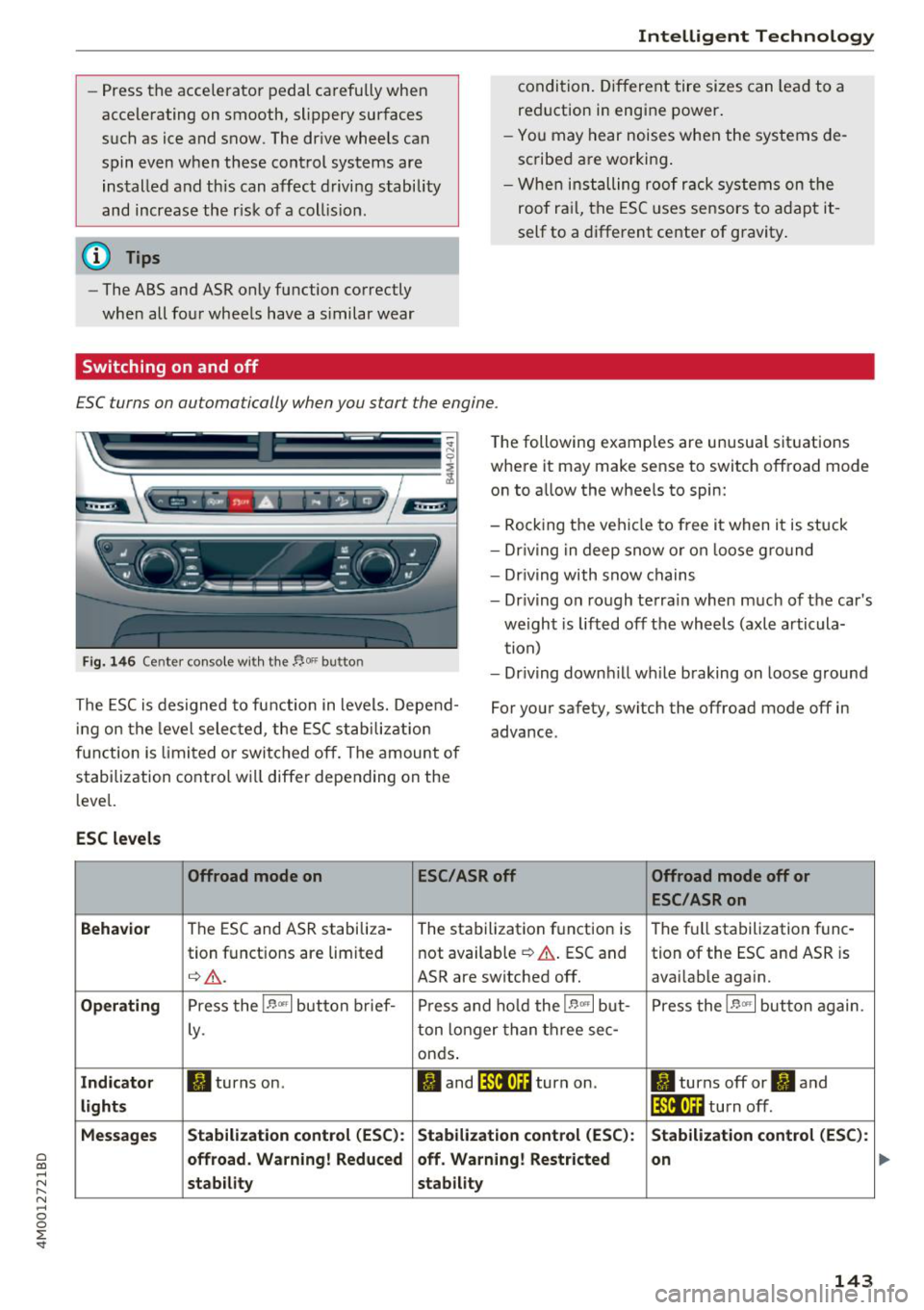
ESC turns on automa tically when you s tar t t he engine .
Fig. 146 Cen ter console w it h the "'°" butto n
The following examples are unusual situations
where it may mak e sense to switch offroad mod e
on to allow the wheels to spin:
- Rocking the vehicle to free it when it is stuck
- Dr iving in deep snow or on loose ground
- Dr iving with snow chains
- Dr iving on rough terrain when much of the car's
weight is lifted off the wheels (axle articula
tion)
- Dr iving downhill wh ile braking on loose ground
The ESC is designed to function in levels. Depend
ing on the level selected , the ESC stabilization
function is limited or switched off. The amount of
stabilization control will differ depending on the
level. For your safety, switch the offroad mode off in
advance.
ESC
levels
Offroad mode on ESC/ASRoff Offroad mode off or
ESC /ASRon
Behavior
The ESC and ASR stabiliza- The stabilization function is The full stabilization func-
tion functions are limited not available
¢ &. ESC and
tion of the ESC and ASR is
q _& . ASR a re switched off. avai lable again .
Operating Press the !-P- ,., 1 button brief-
Press and hold the !-P- "' I but- Press the IE m l button again.
Ly .
ton longer than three sec-
onds .
Indicator II turns on . II and !:f.'iit•)H turn on. II turns off or II and
lights !:f.'iit•Ui turn off.
Messages Stabilization control
(ESC): Stabilization control (ESC): Stabilization control (ESC):
offroad. Warning! Reduced off. Warning!
Restricted
on
stability stability
143
Page 146 of 398
Intelligent Technology
A WARNING
You should only switch offroad mode on or switch ESC/ ASR off if your driving abilities
and the traff ic conditions perm it. There is a
r isk of slid ing.
- The stabilization function is limited when
offroad mode is switched on. The dr iving
wheels co uld spin and the vehicle could
swerve, especially on slick or slippery road
surfaces.
- T here is no vehicle stab ilizat ion when ESC/
ASR are switched off.
Hill descent assist
Hill descent assist makes it possible to drive
down a hill at a constant speed.
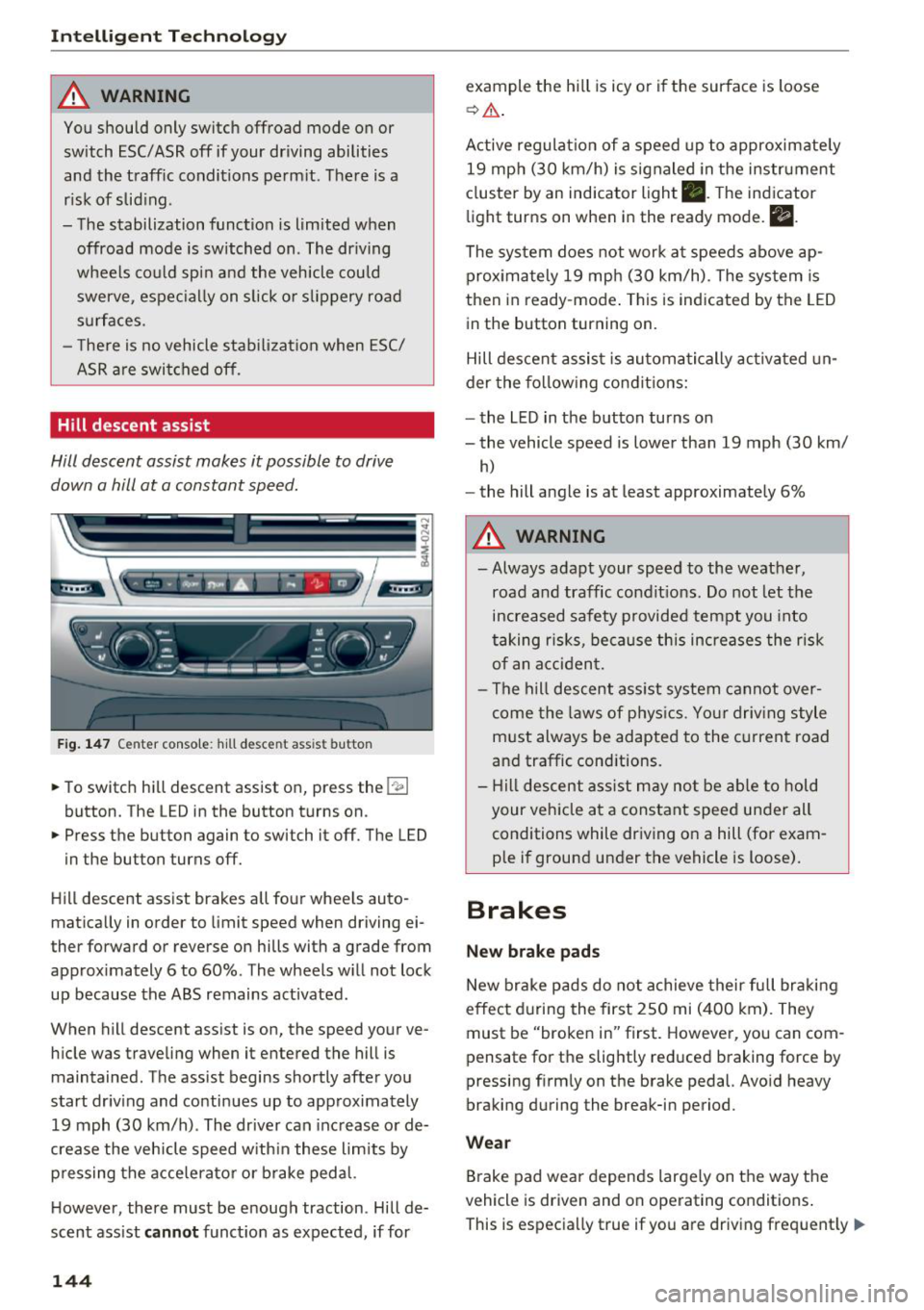
Fig. 147 Center console: hill desce nt ass ist button
.. To switch hill descent assist on, press the !~ I
button. The LED in the button turns on.
.. Press the button again to switch it off. The LED
in the button turns off.
Hill descent assist brakes all four wheels auto
matically in order to limit speed when driving ei
ther forward or reverse on hills with a grade from
approximately 6 to 60%. The wheels w ill not lock
up because the ABS remains activated.
When hill descent assist is on, the speed your ve
hicle was traveling when it entered the hill is maintained. The assist begins shortly after you
start driv ing and continues up to approximately
19 mph (30 km/h) . The driver can increase or de
crease the vehicle speed w ith in these limits by
pressing the accelerator or brake pedal.
However, there must be enough traction . Hill de
scent assist
cannot function as expected, if for
144
example the hill is icy or if the surface is loose
~ .&. .
Active regulat ion of a speed up to approximately
19 mph (30 km/h) is signaled in the instrument
cluster by an indicator light •. T he indicator
light turns on when in the ready mode.
II.
The system does not work at speeds above ap
prox imately 19 mph (30 km/h) . The system is
then in ready-mode . This is indicated by the LED
in the button turning on.
Hill descent assist is automatically activated un
der the following conditions:
- the LED in the button turns on
- the vehicle speed is lower than 19 mph (30 km/
h)
-the hill angle is at least approximately 6%
A WARNING
-
- Always adapt your speed to the weather,
road and traffic conditions. Do not let the
increased safety provided tempt you into
taking risks, because this increases the risk
of an accident.
- The hill descent assist system cannot over
come the laws of phys ics. Your driving style
must always be adapted to the current road
and traffic cond itions .
- Hill descent assist may not be able to hold
your veh icle at a constant speed under all
conditions while driving on a hill (for exam
ple if ground under the vehicle is loose).
Brakes
New brake pads
New brake pads do not achieve their full braking
effect during the first 250 mi (400 km). They
must be "broken in" first. However, you can com
pensate for the slightly reduced braking force by
pressing f irmly on the brake pedal. Avo id heavy
braking during the break-in period.
Wear
Brake pad wear depends largely on the way the
vehicle is driven and on operating conditions .
This is especially true if you are driving frequently .,.
Page 167 of 398
Cl a:, ...... N
" N ...... 0
0
::r '
@ Display of the expressway, highway or main
road onto which you will be turn ing
(J) D irect io n arrow for the upcoming maneuver
@ A bar graph appears when a direction arrow
is displayed. The fewer bars are shown, the
shorter the d istance is unt il the turn .
® Cur rent veh icle posit io n
@ Addit ional information (on -board computer)
The fo llow ing funct ions are a lso available when
ro ute guidance is active:
- Changing th e voic e guidan ce volum e: turn the
r ig ht thumbwhee l up o r down dur ing vo ice
guidance.
A WARNING
The route calculated by the navigation system
is a recommendation for reaching your desti
nation . Obey traff ic lights, stopping restric
tions, one-way streets, lane change restr ic
tions, etc.
(D Tips
- Also see the chapter~ page 8, Controls at a
glance.
- An exclamation point''!'' in front
of the
street name indicates that the information
about this street or this section of the route i s not complete in the navigation data con
tained in the MMI. Obey traffic laws in one
way streets and pedestrian zones .
Multifunction ste ering wheel
165
Page 192 of 398
Audi conn ect (Infotainment)
- when the camera-based traffic sign recogni
tion* is malfunctioning ¢
page 97
- when the re are warnings from t he camera-
based traffic sign recognition*
Switching traffic light information on and
o ff
- Se lect: I MENU I button > Audi connect > Tra ffi c
li g ht info rmati on >
On (~ ) or Off (0 ).
A WARNING
-When traffic light information is shown, a l
so always pay attention to the traffic situa
t ion, the distance to other vehicles and the
area around the ve hicle. The driver is always
respons ible for assessing the traff ic situa
t ion .
- Always adapt your speed to the current
weather, road and traff ic conditions. The
displayed information must never cause you
to ignore lega l traffic regulations and pose a
safety risk.
- Regardless of the traffic light info rmat ion,
yo u should always monitor yo ur speed using
the speedometer and make su re yo u are ad
her ing to the legal speed lim it .
- T he traffic light information does not adjust
yo ur vehicle 's speed to the speed recom
mendat ion shown in the display.
(D Tips
- Traffic light information is not yet ava ilable
i n all cit ies and is not nationw ide .
- Un its of measurement and language set
ti ngs a re d isplayed based on how they were
set in the MMI sys tem set tings
¢ page 245 .
-Always read the chap ter¢ page 194, Audi
connect (Infotainment) general informa
tion .
Weather
Applies to: vehicles with weather information
Information on current weather cond itions as
well as weathe r fo recasts for the selected sea rch
area .
190
-
.. Select and confirm Weather .
You can also disp lay the current weat her condi
t ions on the map , fo r example.
.,. Select: left control button
> on entry .
Flight information
Applies to: vehicles with flight information
Information on flights and current arrival/depar
ture times in the selected search area .
.,. Select and confirm
Flight inf orm ation .
City events
Applies to: vehicles with City events
Information on events in various categories in
the desired search area.
.,. Select
Cit y Event s > left co ntro l button > cate
gory.
Online news
Applies to: vehicles with on line news
You can check the c urrent headlines of your fa
vorite publications in the MMI.
Requirement: yo ur myAud i acco un t must be s ub
scribed to news feeds and your vehicle must be
connected to myAudi
¢ page 187 .
.,. Sele ct: Online n ew s > desired newsfeed > a
headline.
The entire news a rticle w ill be dis
played .
© Tips
If yo u ha ve not s ubs cribe d to a ny pe rsonal
n ewsfeeds in your myA udi account, pre -con
figured newsfeeds will be disp layed .
Twitter
Applies to: vehicles with Twitter
You can access the most important fun ctions in
your Twitter account through your
MMI.
Requirement:
You must have co nnected your myAudi account
with Tw itter. You can f ind additional information
fo r th is on line at www .audiusa .com/myaud i. .,.
Page 200 of 398
Audi connect vehicle control
-Pay attention to upper-and lower -case let
ters when entering the vehicle code.
- If you do not have the 10-digit vehicl e code,
contact an authorized Audi dealer or author
ized Audi Service Facility .
Additional options
Applies to vehicles with Audi co nnect vehicle control
License subscription
The validity and expirat ion date of you r subscrip
tions are displayed. When
Warning before sub
scription expires
is activated, a message wi ll be
disp layed warning you that your license is about
to expire.
Select :
!MENU ! button> Audi connect > Display
available functions >
right control button> Li
cense subscription.
Resetting the primary user
F or examp le, you ca n reset the key user when
selling your vehicle in order to deactivate these
services .
Requirement: the ignition must be switched o n.
Select :
!M ENU ! button> Audi connect > right
control button
> Audi connect user management
> Key user > Reset key user .
Warning levels
Requirement: the primary user must have set one
or more warning levels. Secondary users can only
see if a warning level is active or not .
Select:
! MENU ! button> Audi connect > right
control button
> Alerts.
Remote locking and
unlocking
Applies to veh icles with Audi connect vehicle control
You can lock and unlock your veh icle using this
service .
Requirement
-This requires the 4-dig it PIN that you specified
during the verification on www.audiusa.com/
myaud i.
- The vehicle must be stationary.
198
-The ignition must be switched off.
Vehicle status report
Applies to vehicles w ith Aud i connect ve hicle control
The Dr iver Informat ion System collects data un
der certain conditions and sends it to a server.
When data is sto red, you can access va lues such
as these using the service :
- Remaining range,
- Fue l tank level,
- Oil level,
- If the vehicle doors are open/closed or locked/
un locked,
- mi leage,
- Next oil change
- Next service,
- Warning messages,
- If the parking lights are on/off .
A WARNING
Do not ignore messages and warning or ind i
cator lights that turn on in the vehicle be
cause of the info rmation in the status report.
This could lead to break downs in on the road ,
accidents and serious injuries.
Parking location
Applies to vehicles w it h Aud i connect ve hicle co ntrol
The vehicle collects data unde r ce rta in cond it ions
and sends it to a server .
When data is stored, you can access values such
as these using the service :
- Vehicle location display,
- Display of one's own location,
- Route to your vehicle .
If your mob ile dev ice also has a navigation func
tion, you can nav igate to your last known parking
l ocation.
Deactivating and activating parking position
- Select: !MENU!> Audi connect> Car Finder
parking position .
If you do not set./, no location information will
be sent to the server.
Page 205 of 398
Navigation
Opening navigation
Applies to: vehicles with navigation system
The navigation system directs you to your desti
nation, around traffic incidents and on alterna
tive routes, if desired .
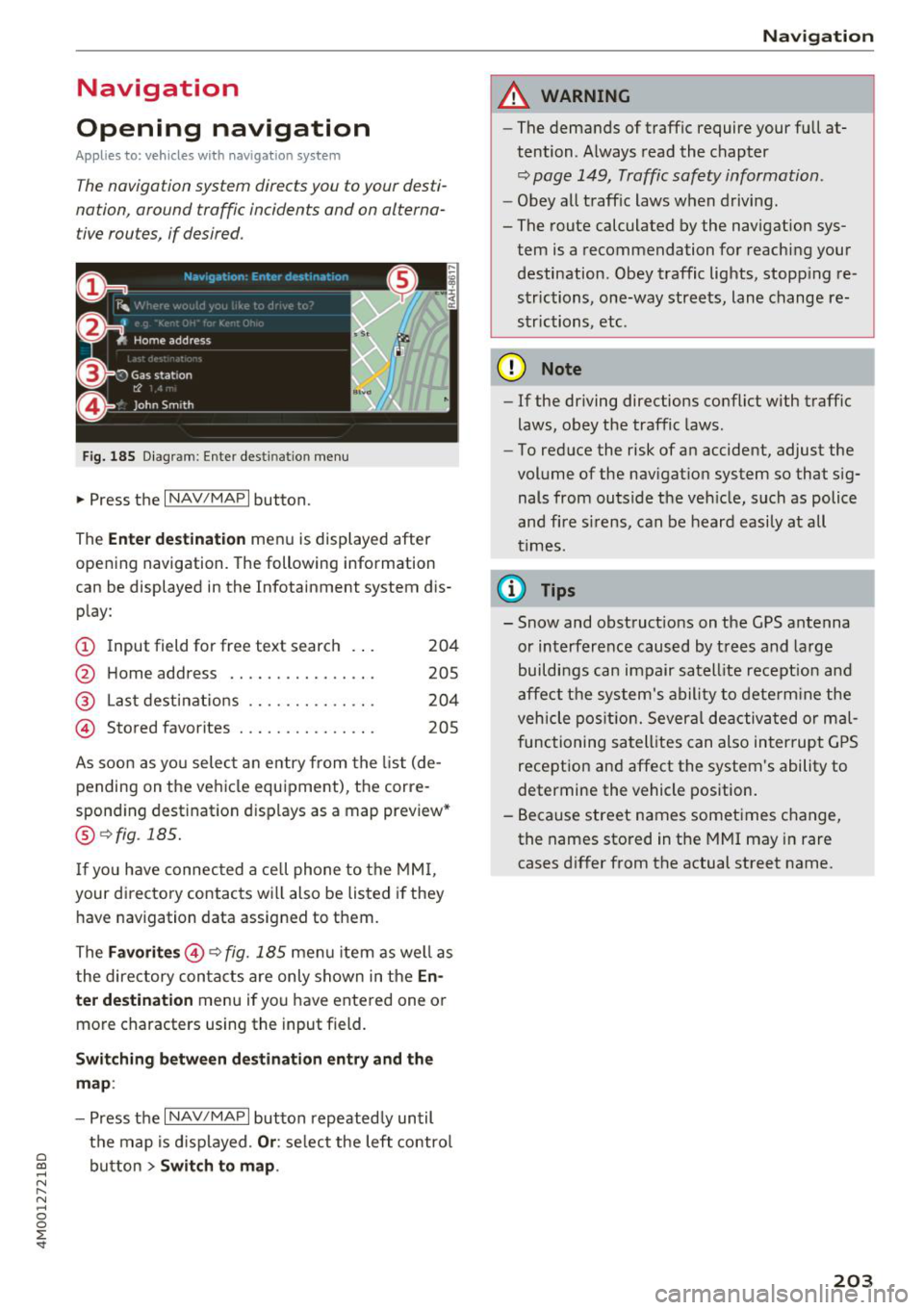
Fig. 185 Diagram: Ente r dest ination menu
.. Press the I NAV/MAPI button.
The
Ente r des tinatio n menu is displayed after
opening navigation. The following information
can be displayed in the Infotainment system dis
play:
(D I nput field for free text search 204
@ Home address . . . . . . . . . . . . . . . . 205
@ Last dest inatio ns . . . . . . . . . . . . . . 204
@ Stored favorites . . . . . . . . . . . . . . . 205
As soon as yo u select an entry from the list (de
pending on the ve hicle equipment), the corre
spond ing destination displays as a map preview*
@ r:::>fig .185.
If you have connec ted a cell phone to the MM I,
your di rectory contacts will also be listed if they
have navigation data assigned to them.
The
Fav orites @r::> fig. 185 menu item as we ll as
the directory contacts are only shown in the
E n
t e r d estination
menu if you have entered one or
more characters using the input field.
Swi tching betw een d estination entr y and th e
map :
-Press the I NAV/MAPI button repeated ly until
the map is d isplayed .
Or: select the left contro l
a ~ button > Switch to map .
N r--. N ~ 0
0
:E '
A WARNING
-The demands of traffic require your full at
tention. Always read the chapter
r:::> page 149, Traffic safety information.
-Obey all traff ic laws when driving.
- The route calculated by the navigation sys-
tem is a recommendation for reaching your
destination. Obey traffic lights, stopp ing re
strictions, one-way streets, lane change re
strictions, etc.
(D Note
- If the driving directions conflict with traffic
laws, obey the traffic laws .
- To reduce the risk of an accident, adjust the
volume of the nav igation system so that sig
nals from outs ide the veh icle, such as police
and f ire s irens, can be heard easily at all
times.
Ci) Tips
- Snow and obstruct ions on the GPS antenna
or interference caused by t rees and large
buildings can impair satell ite recept ion and
affect the system's ability to dete rm ine the
veh icle pos it ion. Several deactivated or mal
functioning satell ites can also interrupt G PS
recept ion and affect the system's ability to
determine the vehicle position.
- Because street names sometimes change, the names stored in the MMI may in rare
cases d iffer from the actual street name.
203
Page 233 of 398
a co ...... N r--. N ...... 0
0
:E '
serious injuries. Store these types of devices
securely while driving.
- Do not use any wireless devices on the front
seats within range of the airbags while driv
ing. Also read and follow the warnings in
c::> page 2 73 , Front airbags .
CD Note
-Always follow the information found inc:>@
in Wi-Fi hotspot on page 194 .
-Please note that there generally are addi
tional costs when using an online media
service account, especially when it is used internationally .
(D Tips
-Depending on the Internet connection and
network traffic, a connection loss can occur
during playback of on line media services .
-Online media and Internet radio usage de
pends on the service availability of the third
party provider .
- Audi AG simply makes the access to online
media services possible through the MMI
and does not take any respons ibility for the
contents of the online media services .
- Always read the chapter
c::> page 194, Audi
connect (Infotainment) general informa
tion .
- Depending on the mobile device used, there
may be interruptions during media playback
and when using the
Audi MMI connect app.
To avoid interruptions when using a mobile
device , do not lock the screen on your mo
bile device and keep the
Audi MMI connect
app in the foreground .
- Contact an authorized Audi dealer or au
thorized Audi Service Facility for additional
information about online media .
Media
Multimedia connections
USB adapter for Audi music interface o r
USB charging port
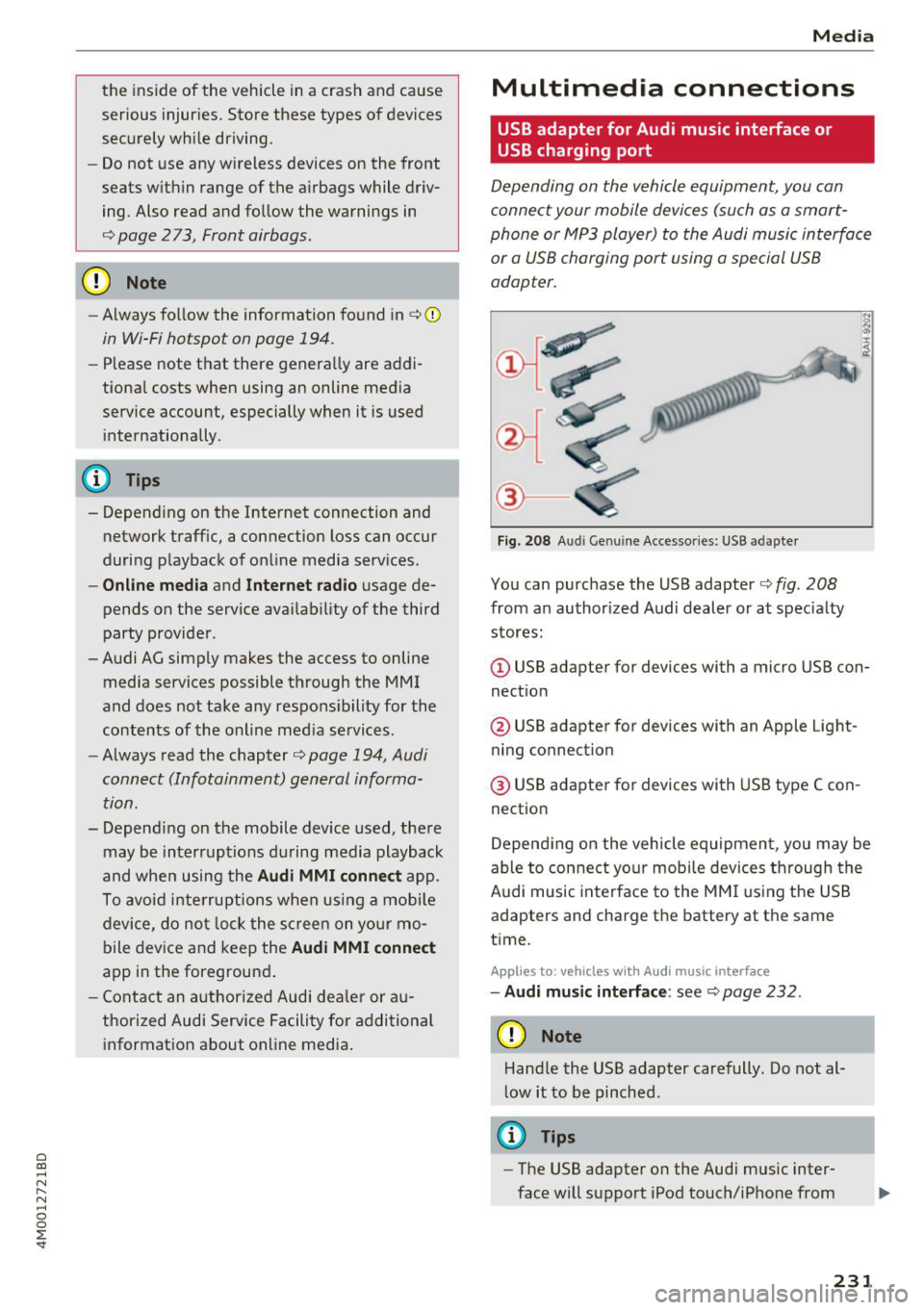
Depending on the vehicle equipment, you can
connect your mobile devices (such as a smart
phone or MP3 player) to the Audi music interface
or a
USB charging port using a special USB
adapter.
@-
Fig. 208 A udi Genuin e Acce ssories: USB a dapter
You can purchase the USB adapter c::> fig. 208
from an authorized Audi dealer or at specialty
stores:
I
(D USB adapter for devices with a micro USB con
nection
@ USB adapter for devices with an Apple Light
ning connection
@ USB adapter for devices with USB type C con
nection
Depending on the vehicle equipment, you may be
able to connect your mobile devices through the
Audi music interface to the MMI using the USB
adapters and charge the battery at th e same
time .
Applies to : vehicles wit h Aud i music interface
-Audi music interface : see c::> page 232.
CD Note
Handle the USB adapter carefully. Do not al
low it to be pinched.
@ Tips
-The USB adapter on the Audi music inter
face will support iPod touch/iPhone from
231
Page 234 of 398
Media
the 5th generation or later with the light
ning connector .
- Mobile devices with an Apple Dock connec
tor can only be charged with a USB adapter
fo r devices with an Apple Dock connector
and cannot transmit data.
Audi music interface
Applies to: vehicles with Aud i mus ic in terface
Connect your mobil e de vices to the Audi music
interface in order to op era te them through the
MM I and charge the battery.
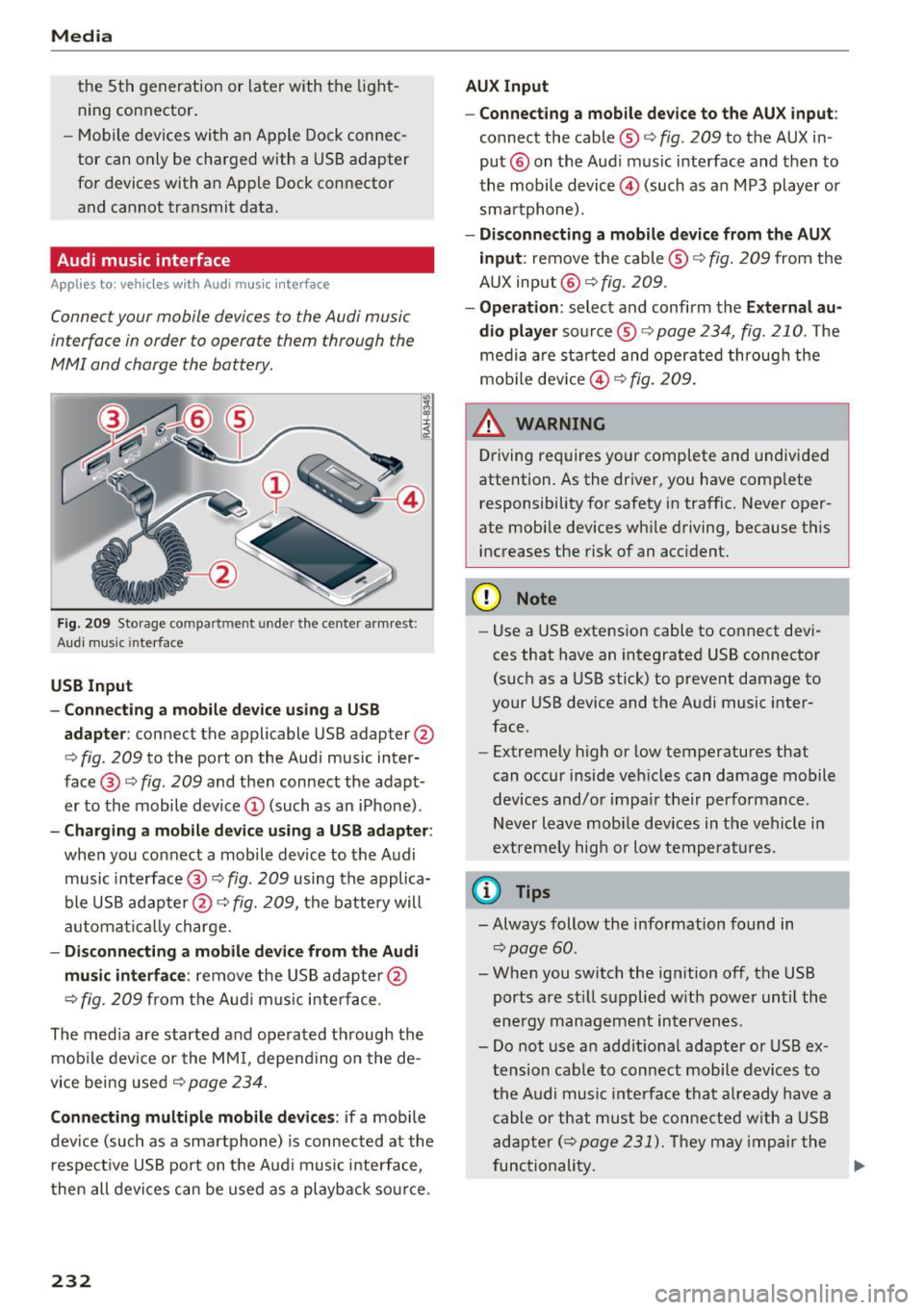
Fig . 2 09 Sto rage co mp artment u nde r the center a rm re st:
Aud i m usi c in terface
USB Input
- Connecting a mobil e device u sing a USB
adapte r:
connect the applic able USB adapter @
c>
fig . 209 to the port on the Audi music inter
face @ c>
fig. 209 and then connect the adapt
er to the mobile device © (such as an iPhone) .
-Charging a mobile device using a U SB adapter:
when you connect a mobile device to the Audi
music inte rface @ c>
fig. 209 using the applica
ble USB adap ter @ c>
fig. 209, the battery will
a utomat ically charge.
- Di sconnecting a mobile device from the Audi
mu sic int erface :
remove the US B adapte r@
¢
fig. 209 fr om the A udi music inter face .
The media a re started a nd ope rated t hrough the
mob ile devi ce or the MM I, depend ing on the de
vice bei ng used c>
page 234 .
Connecting multiple mobile devices : if a mobile
dev ice (such as a sma rtphone) is connected at the
respect ive USB port on t he A ud i music interface,
then all devi ces can be u sed as a playback so urce.
232
AUX Input
-Connect ing a mobile device to the AUX input:
connect the cable ® c> fig. 209 to t he AUX in
put ® on the Aud i music interface and then to
the mobile device@) (such as a n MP3 player or
sma rtphone) .
-Di sconnecting a mobile device from the AUX
input :
remove the cable®¢ fig. 209 from the
AUX input @¢
fig. 209 .
-Oper ation : select and confirm the External au
dio player
so urce ® ¢ page 234, fig. 210. The
medi a are sta rted and operate d through the
mob ile dev ice @ ¢
fig. 209 .
_&. WARNING
Driving requires your complete and undivided
attention. As the driver, yo u have comp lete
responsibility for safety in traffic. Never oper
ate mobi le dev ices wh ile driving, because this
i n creases the risk of an acc ident.
(D Note
- Use a USB extens ion cable to co nnect devi
ces that have an in tegrated USB connector
(such as a USB stick) to prevent damage to
your USB device and the Audi music inter
face .
- Extremely high o r low temperatures that
can occur inside ve hicles can damage mobile
devices and/o r impa ir their performance .
Never l eave mobi le devices in t he vehicle i n
extremely high or low tempe ra tur es.
(D Tips
- Always follow the info rmation found in
c> page60 .
- When you switch the ign ition off, the USB
ports a re st ill supplied w ith power unt il the
e n ergy managem ent interven es.
- Do not use a n addit iona l adapter o r USB ex
tension cab le to connect mobile devices to
the A udi music i nte rfa ce tha t already have a
cable or that must be connected w ith a USB
ad apter( ¢
page 231). Th ey may imp air the
fu nctionality . .,.