Page 194 AUDI Q7 2021 Owner´s Manual
[x] Cancel search | Manufacturer: AUDI, Model Year: 2021, Model line: Q7, Model: AUDI Q7 2021Pages: 332, PDF Size: 117.99 MB
Page 230 of 332
Media
>» Select: a compilation > a song.
Composers
All available composers are displayed.
> Select: d composer > an album > a song.
iTunes Radio
> Press ona radio station.
Audio books
You can control your audio books on the MMI.
> Press on an audio book.
Podcasts
You can control your podcasts through the MMI.
> Select: a podcast > a podcast episode.
Genres
All available genres are displayed.
>» Select: a genre > an artist > an album > a song.
Videos
All available video files are displayed.
> Press on a video.
Tracks
All available tracks are displayed.
> Press ona track.
Albums
All available albums are displayed.
> Select: an album > a track.
@) Note
Applies to: vehicles with Audi connect Infotainment
— Cloud services and the iTunes radio category
always require an Internet connection.
— Read the information about Audi connect,
and be sure to note the connectivity costs
section
>@ in General information on
page 194.
(i) Tips
— Only the categories supported by the medi-
um are available.
— For safety reasons, the video image is only
displayed when the vehicle is stationary. On-
ly the sound from the video plays while driv-
ing.
— When synchronizing a portable device with
Cloud services, playlists may display incor-
rectly in the MMI. Use the media center in
the device.
— Applies to: iPod touch/iPhone: Note the in-
formation about the Audi music interface
and the supported devices > page 224.
elmira (elit
[RAX-0037
The Rock Band
Ca
Blade)
bitsy)
Ceeoec)
Cn
be} Ora sar)
ci nc
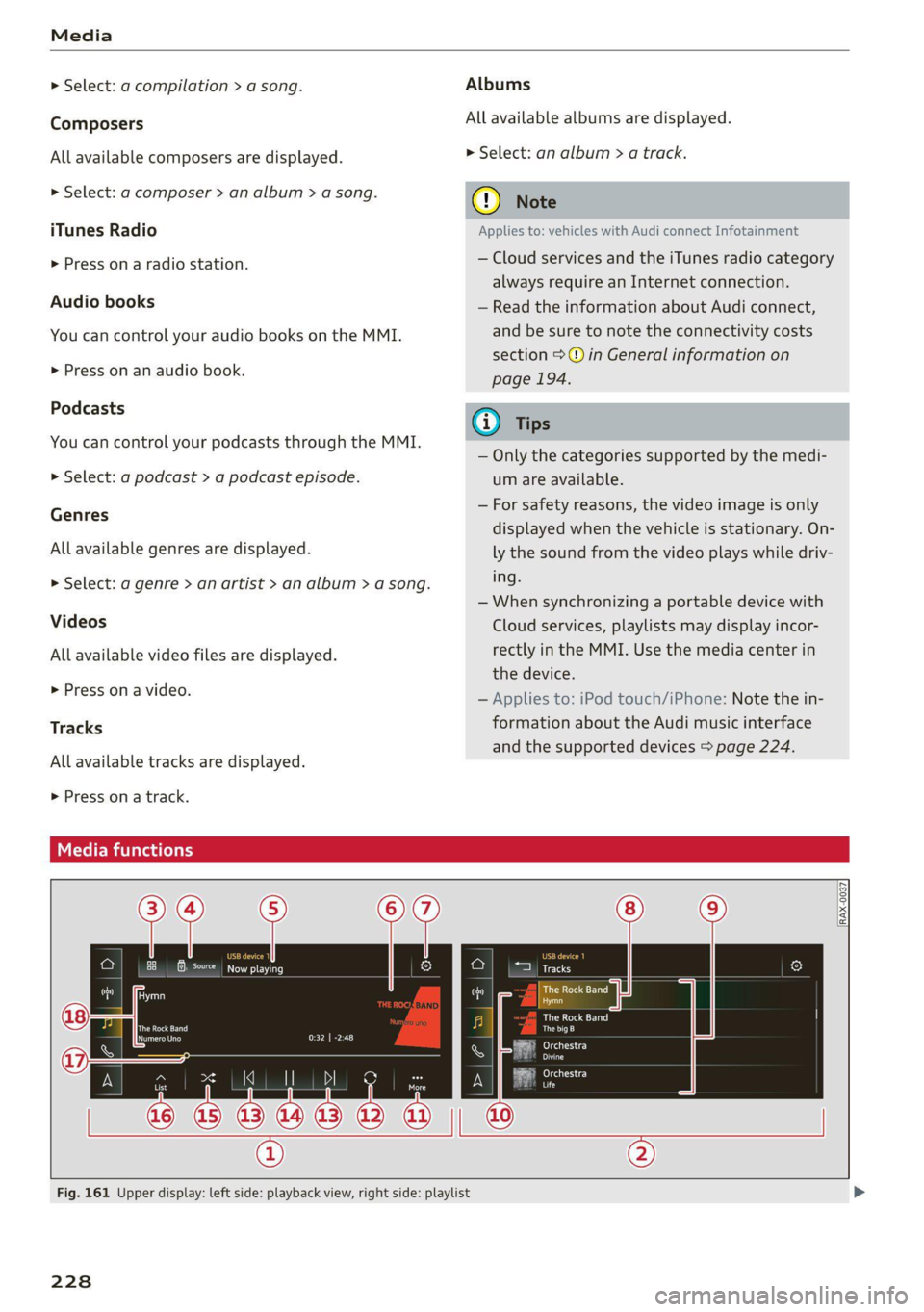
Fig. 161 Upper display: left side: playback view, right side: playlist
228
Page 236 of 332

Audi smartphone interface
Audi smartphone
interface
Setup
Applies to: vehicles with Audi smartphone interface
You can connect your smartphone to the MMI
with a cable or wirelessly* using the Audi smart-
phone interface. Certain content on your smart-
phone is adapted in the MMI while driving and
can be operated through the MMI.
Requirement: the vehicle must be stationary and
the ignition must be switched on. iPhone genera-
tion 5 or higher with Lightning connector and iOS
7.1.2 operating system or higher, or smartphone
with Android Auto app and Android 5.0 Lollipop
operating system or higher.
> Applies to: MMI: Select on the home screen:
SETTINGS > Connected devices > Audi smart-
phone interface > New connection.
> Connect your smartphone to the Audi music in-
terface > page 224 using a USB adapter
=> page 224, fig. 156, or
> To connect your iPhone wireless*, switch on the
Bluetooth function and Wi-Fi on your iPhone.
Open the Apple CarPlay settings in your iPhone.
In the MMI, press on your iPhone in the list of
displayed devices.
> To update the list, press O.
> Follow the system instructions.
> Pay attention to any additional system prompts
on your smartphone, if applicable.
> Applies to: MMI: If you declined use of Apple
CarPlay or Android Auto the first time you con-
nected your smartphone, then select on the
home screen: SETTINGS > Connected devices >
Audi smartphone interface > a smartphone.
> Follow the system instructions.
Z\ WARNING
Driving requires your complete and undivided
attention. As the driver, you have complete re-
sponsibility for safety in traffic. Never operate
mobile devices while driving, because this in-
creases the risk of an accident.
234
@) Note
Read the information about Audi connect, and
be sure to note the connectivity costs section
=> page 194.
@) Tips
— The functions that can be used depend on
the following factors, among others:
— The brand of your smartphone
— The version of the operating system in
your smartphone
— The software version of the app used
— The USB adapter cable and correct connec-
tion
— Your cell phone service provider
— The customized settings on your smart-
phone
— One of the factors above or a combination
of any of them could cause your smart-
phone to be incompatible with the Audi
smartphone interface. Compatibility cannot
be guaranteed for all types of smartphones.
For more information and assistance, refer
to the user guide and the manufacturer of
your smartphone.
— Please note that you can only connect your
smartphone via the front Audi music inter-
face in order to use the Audi smartphone in-
terface.
— Wireless Apple CarPlay* is not available in
all countries.
— Wireless Apple CarPlay* was a planned func-
tion at the time this manual was printed.
Wireless Apple CarPlay* is not available in
your vehicle.
— Wireless Apple CarPlay* is only possible in
vehicles without a navigation system or
without a detected vehicle position (GPS da-
ta) if the following requirement is met: the
embedded SIM card for the vehicle must be
logged into the mobile phone network
=> page 194.
— If the connected smartphone has voice con-
trol, you can operate your smartphone using
the external voice recognition system
=> page 28.
Page 239 of 332

4M1012721BC
Additional settings
Bluetooth
> Applies to MMI: Select on the home screen:
SETTINGS > Connection settings > Bluetooth
Bluetooth
You can select a setting for visibility of the MMI
to other Bluetooth devices. To connect a new
Bluetooth device, the Visible setting must be se-
lected. If Invisible is selected, a Bluetooth con-
nection will only be possible with paired devices.
If Off is selected, no Bluetooth device can be con-
nected.
Bluetooth audio player
When this function is switched on, the profile
will load automatically when your Bluetooth au-
dio player is within range.
Bluetooth name
The MMI’s Bluetooth name is displayed and can
be changed.
Factory default settings
Requirement: the ignition must be switched on.
> Applies to MMI: Select on the home screen:
SETTINGS > System maintenance > Restore
factory settings.
> Follow the system instructions.
The settings will be reset. The system will re-
start. This may take some time.
@ Tips
Make sure that not only the settings were de-
leted but also the stored data, if necessary.
Software update
Introduction
Applies to: vehicles with software update
You can update your vehicle’s software.
The functions depend on the country and vehicle
equipment:
— Update through the online system update
=> page 237.
— Map material update for the navigation system
=> page 210.
— Have the software update performed by an au-
thorized Audi dealer or authorized Audi Service
Facility. This can result in additional costs.
ZA\ WARNING
— Perform the installation only when the vehi-
cle is stationary. Otherwise, this increases
the risk of an accident
— If the installation fails, contact an author-
ized Audi dealer or authorized Audi Service
Facility immediately to have the malfunction
corrected.
Online system update
Applies to: vehicles with online system update
With the online system update, you can update
the software directly in the vehicle.
Requirement: the MMI must be connected to the
Internet > page 194, Audi connect.
Downloading updates
Requirement: notification for an online system
update will appear in the upper display.
> Press on the notification, or
> Open the notification in the notification center
on page 22 and press on the notification.
> Follow the system instructions.
You can also check manually if an update is avail-
able.
> Applies to: MMI: Select on the home screen:
SETTINGS > System maintenance > Software
update > Search for updates > desired update
> Continue.
> Follow the system instructions.
The
MMI will start the download. You can check
the status of the download process in the notifi-
cation center > page 22.
Installing updates
Requirement: an online system update must be
downloaded and a notification must be shown in
the upper display.
> Stop the vehicle safely.
237
Page 240 of 332

Additional settings
> Press on the notification, or
> Open the notification in the notification center
on > page 22 and press on the notification.
> Follow the system instructions.
Depending on the scope of the update, the online
system update may only be started if you follow
these instructions:
> Switch the emergency flashers off, if necessary
> Make sure that the starter battery is charged.
> To start the update, exit and lock the vehicle.
The MMI will start the installation. When the up-
date has ended, a notification will be displayed.
Z\ WARNING
Depending on the scope of the installation,
the ignition must not be switched on during
the installation to ensure the installation
completes successfully.
©) Note
Read the information about Audi connect, and
be sure to note the connectivity costs section
=) in General information on page 194.
@ Tips
The software update may take some time.
WEE Tel
Applies to: vehicles with online system update
Online system update: incomplete. Warning!
Vehicle functions limited
If an error occurs when installing an online sys-
tem update, certain functions such as the emer-
gency call function may not be available. Drive to
an authorized Audi dealer or authorized Audi
Service Facility immediately to have the malfunc-
tion corrected.
Connected devices
Displayed connected devices
Requirement: the vehicle must be stationary and
the ignition must be switched on.
> Applies to: MMI: Select on the home screen:
SETTINGS > Connected devices.
238
Possible menu items:
— Telephone 1
— Telephone 2
— Audio player
— Wi-Fi hotspot
— Headset
Audi smartphone interface
You can connect your smartphone to the MMI
=> page 234.
myAudi app
This function is available if the myAudi app is in-
stalled on your mobile device and started, and if
the mobile device is connected with the vehicle’s
Wi-Fi hotspot.
() Note
Read the information about Audi connect, and
be sure to note the connectivity costs section
=> page 194.
Managing connected devices
Requirement: the connected devices menu must
be displayed > page 238.
Connecting a device
Requirement: Bluetooth visibility must be acti-
vated in the MMI & page 237 and mobile device.
> Press on a menu item, such as Telephone 1.
> To search for and connect your mobile device,
press New connection > page 183.
Selecting a connected device
> Press on a menu item, such as Telephone 1.
> Press on the desired mobile device in the list of
displayed devices. The connection will be made.
Disconnecting a connected device
> Press on a menu item, such as Telephone 1.
> Press on the connected mobile device. The se-
lected mobile device will be disconnected from
the MMI.
Deleting a device
> Press on a menu item, such as Telephone 1. >