Page 194 AUDI Q7 2021 Owner´s Manual
[x] Cancel search | Manufacturer: AUDI, Model Year: 2021, Model line: Q7, Model: AUDI Q7 2021Pages: 332, PDF Size: 117.99 MB
Page 205 of 332
4M1012721BC
Navigation
To load destinations in the vehicle automatically,
Audi recommends logging into the vehicle with a
myAudi user > page 31.
myAudi navigation functions:
— You can send destinations and routes from the
myAudi app to the vehicle > page 205.
— Active route guidance in the myAudi app can be
continued in the MMI.
— Depending on the situation, it may be possible
to continue active route guidance from the MMI
in the myAudi app to continue navigating to the
destination after leaving the vehicle.
Entering a destination
Intelligent search for navigation
CS Ear
Applies to: vehicles with navigation system
Using the intelligent search, you can enter the
data for a navigation destination in any order all
at once (for example, 5th Avenue New York).
Likewise, you can search for points of interest,
contacts, previous destinations, or favorites in or-
der to navigate to the desired destination.
Opening a menu
> Applies to: MMI: Select on the home screen:
NAVIGATION > 2.
Intelligent search
> Enter one or more search terms into the input
field. See > page 24, Text input.
>» Press on the desired destination in the results
list. The Details menu will be displayed.
> Press Start. Route guidance will be activated
and the map will be displayed > page 206,
fig. 147.
Online Points of Interest
> Searching for points of interest: enter the
name of a POI.
>» Select: a symbol for a POI category (such as
Eb > «Pot, or
)) Audi provides access to services from third party provid-
ers. Permanent availability cannot be guaranteed, because
that depends on the third party provider.
> To display all categories and search for a POI,
select: |---| > a category (such as restaurants) >
a POI.
Change search area
Requirement: route guidance must be active.
> Applies to: MMI: Select on the home screen:
NAVIGATION > &.
> To change the search area, press (a) / 29 /Pre-
peatedly until the desired search area is select-
ed.
Online search
Applies to: vehicles with navigation system and online search
You can use the results from a search engine pro-
vider to find a navigation destination.
Requirement: the MMI must be connected to the
Internet > page 194, Audi connect.
> Applies to: MMI: Select on the home screen:
NAVIGATION > © >G.
> Enter one or more search terms into the input
field.
> The search engine provider shows suggestions
§ to narrow down the search.
> Press on suggestions until the desired destina-
tion appears in the results list. If necessary, use
one finger to swipe upward or downward until
the suggestions © or destinations 9 appear.
> Press on the desired destination 9. The Details
menu will be displayed.
> Press Start.
Route guidance will be activated and the map will
be displayed > page 206, fig. 147.
@ Tips
— The MMI input suggestions depend on the
last navigated destinations.
— The navigation system always searches for
the fastest route. You can have alternative
routes displayed if necessary > page 208.
— If the destination cannot be found, it may
not be stored in the navigation database.
203
>
Page 207 of 332
4M1012721BC
Navigation
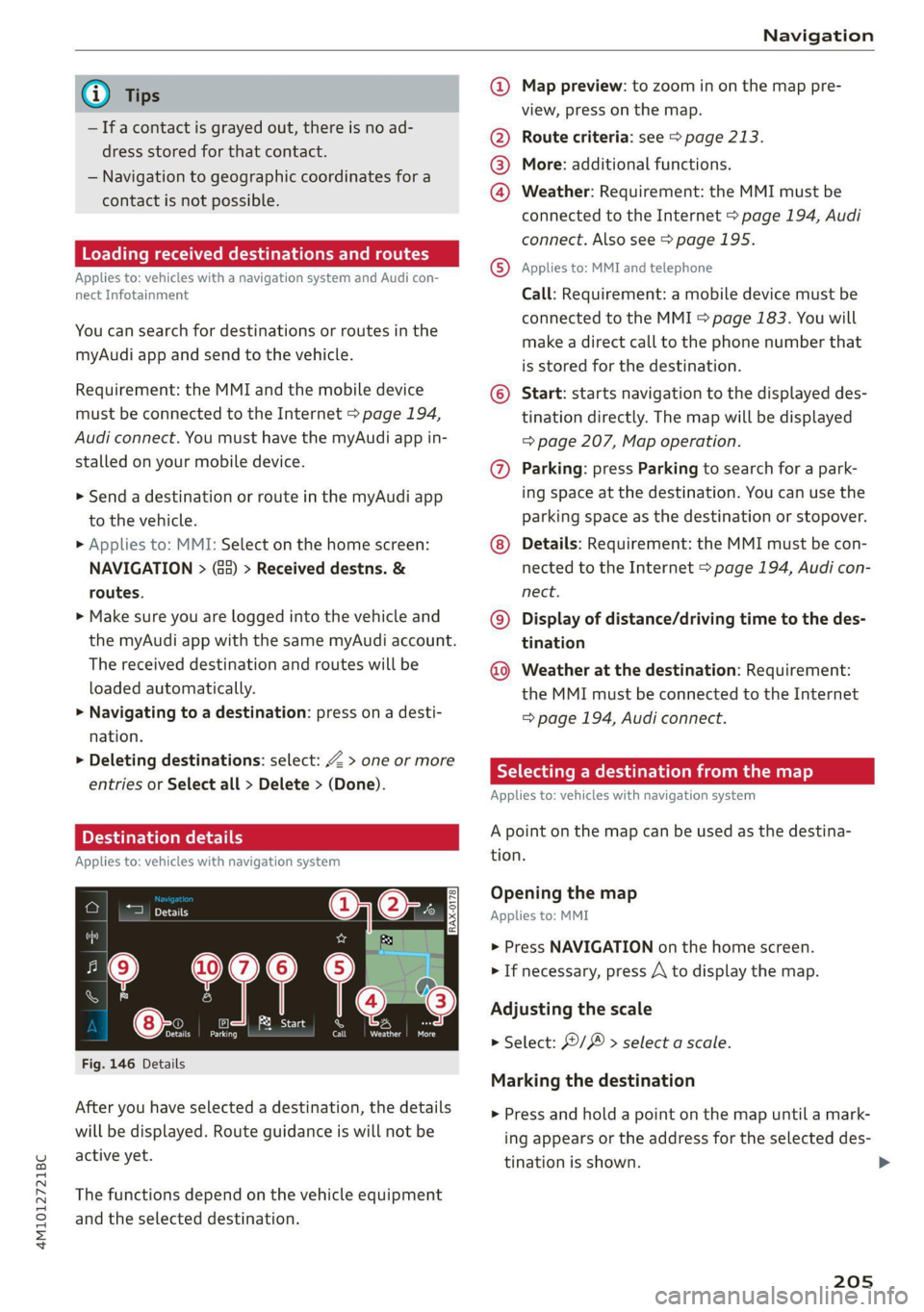
@) Tips @ Map preview: to zoom in on the map pre-
; ; view, press on the map.
— Ifa contact is grayed out, there is no ad- @ Route criteria: see © page 213.
dress stored for that contact.
— Navigation to geographic coordinates for a
contact is not possible. @
®
More: additional functions.
Weather: Requirement: the MMI must be
connected to the Internet > page 194, Audi
connect. Also see > page 195.
Loading received destinations and routes
Applies to: MMI and teleph:
Applies to: vehicles with a navigation system and Audi con- © PRES? STS EBON
nect Infotainment Call: Requirement: a mobile device must be
connected to the MMI > page 183. You will
make a direct call to the phone number that
is stored for the destination.
You can search for destinations or routes in the
myAudi app and send to the vehicle.
Requirement: the MMI and the mobile device © Start: starts navigation to the displayed des-
must be connected to the Internet > page 194, tination directly. The map will be displayed
Audi connect. You must have the myAudi app in- => page 207, Map operation.
stalled on your mobile device. @) Parking: press Parking to search for a park-
> Send a destination or route in the myAudi app ing space at the destination. You can use
the
to the vehicle. parking space as the destination or stopover.
> Applies to: MMI: Select on the home screen: Details: Requirement: the MMI must be con-
NAVIGATION > (a5) > Received destns. & nected to the Internet > page 194, Audi con-
routes. nect.
>» Make sure you are logged into the vehicle
and ©) Display of distance/driving time to the des-
the myAudi app with the same myAudi account. tination
The received destination and routes will be Weather at the destination: Requirement:
loaded automatically. the MMI must be connected to the Internet
> Navigating to a destination: press on a desti- > page 194, Audi connect.
nation.
> Deleting destinations: select: Z > one or more 7 Eh
: RY a date Meld Le MLL] 2)
entries or Select all > Delete > (Done).
Applies to: vehicles with navigation system
Applies to: vehicles with navigation system tion.
0|6:. Opening the map
om Applies to: MMI
> Press NAVIGATION on the home screen
aa 7 > If necessary, press A to display the map.
Adjusting the scale
eases
er a A
> Select: ©/ > select a scale.
Fig. 146 Details
Marking the destination
After you have selected a destination, the details
will be displayed. Route guidance is will not be
active yet.
> Press and hold a point on the map until a mark-
ing appears or the address for the selected des-
tination is shown. >
The functions depend on the vehicle equipment
and the selected destination.
205
Page 211 of 332
4M1012721BC
Navigation
Accessing favorites
> Applies to: MMI: Select on the home screen:
NAVIGATION > (8) > Favorites.
If you use myAudi navigation, your favorites will
be synchronized with your myAudi account
=> page 202.
Storing favorites
> Press y¥ in the Details menu > page 205,
fig. 146.
Storing a home address or business address
> Press Home address or Business address.
When accessed for the first time, you will be
prompted to set the address.
> Select: Create now > enter a destination > OK.
Editing a favorite
Requirement: the favorites list must be dis-
played.
> Setting a favorite as a destination: press ona
favorite.
> Deleting favorites: in the Details menu, press
¥*& © page 205, fig. 146, or select: Z > one or
more entries or Select all > Delete > (Done).
> Moving a favorite: press Z. Touch the $ sym-
bol and move the entry to the desired position.
Press Done.
G@) Tips
— After deleting the home address or business
address, only the address is deleted and the
entry will still be displayed in the favorites.
— Please note when moving favorites that
items 1 and 2 are reserved for the home ad-
dress and business address.
On-street parking
Applies
to: navigation system and on-street parking
In supported areas, you can display parking along
the route.
)) Audi provides access to services from third party provid-
ers. Permanent availability cannot be guaranteed, because
that depends on the third party provider.
Requirement: the Parking notification must be
switched on > page 22, Notification center. The
MMI must be connected to the Internet
=> page 194, Audi connect. Route guidance must
be active, you must be close to your destination,
and a notification must be displayed or an item
on the map must be marked.
> Press on the notification. Or: press on §l on the
map.
> To navigate to a parking: space, press ona col-
ored marking on the map.
> Select: P2 > Start.
Depending on availability, colored markings on
the map indicate the probability of open parking
spaces.
Color Description
Green High probability
Orange |Medium probability
Red Low probability
Satellite map
Applies to: vehicles with navigation system and satellite map
You can display the navigation map with satellite
images.
Requirement: the MMI must be connected to the
Internet > page 194, Audi connect.
> Applies to: MMI: Select on the home screen:
NAVIGATION > %} > Map settings > Satellite
map).
The map view is based on data packets received
from the Internet in the form of satellite images,
which are then combined with the roadways from
the > page 206, fig. 147 standard map view.
G) Tips
~The satellite map!) is updated regularly
whenever the function is opened. The proc-
ess may take several seconds.
209
Page 212 of 332

Navigation
— Depending on the Internet connection, the
standard map may also be displayed when
the satellite map is switched on )).
Map update
Introduction
Applies to: vehicles with navigation system
You can update the map data in the MMI witha
map update. The functions depend on the coun-
try and vehicle equipment.
— Map update through online map update
=> page 210.
— Map update through the myAudi app.
— Import a map update from the USB connection
to your MMI > page 210.
— Map update at an authorized Audi dealer or au-
thorized Audi Service Facility. This can result in
additional costs.
Online map update
Applies to: vehicles with online map update
Using map update online, you can update the
map material in your navigation system directly
from your vehicle.
The MMI determines regions based on the vehicle
position. Based on this, update data for these re-
gions are available for your MMI.
Start map update
Applies to: MMI
Requirement: the MMI must be connected to the
Internet > page 194, Audi connect.
> To always allow automatic map updates, select
on the home screen: SETTINGS > System main-
tenance > Automatic online map update. The
MMI starts the map update automatically in
the background when new map material is
available.
You can check the status of the download process
and the installation in the notification center
=> page 22.
)) Audi provides access to services from third party provid-
ers. Permanent availability cannot be guaranteed, because
that depends on the third party provider.
210
C@) Note
Read the information about Audi connect, and
be sure to note the connectivity costs section
=@ in General information on page 194.
@) Tips
Because of the high volume of data, Audi rec-
ommends performing the map update using
the USB connection = page 210.
Map update through the myAudi App
Applies to: vehicles with map update through the myAudi app
With the map update through the myAudi app,
you can update the map material in your naviga-
tion system.
Downloading updates
Requirement: you must have a registered myAudi
account. Your vehicle must be registered in your
myAudi account.
> Install the myAudi app on your mobile device
and log in with your login information. Use the
same myAudi account that you use in the vehi-
cle for your myAudi user.
> Download the map material in the myAudi app.
Installing updates
> Log in as a myAudi user in the vehicle
> page 31.
> Connect your smartphone to the vehicle’s Wi-Fi
hotspot > page 195. The MMI detects the map
material on your smartphone. The map update
will start automatically.
You can check the status of the installation in the
notification center > page 22.
Map update using the USB connection
Applies to: vehicle map updates using the USB connection
With the map update, you can update the map
material in your navigation system.
Page 214 of 332
Navigation
Online traffic information
Applies to: vehicles with navigation system and online traffic
information
The MMI can receive real-time online traffic infor-
mation about congestion, accidents, road
construction, and other incidents.
Requirement: the MMI must be connected to the
Internet > page 194, Audi connect. Traffic infor-
mation must be switched on in the MMI
=>page 212.
Traffic information will be displayed on the
standard map > page 206, fig. 147.
Online traffic information is also displayed on the
standard map > page 209.
G) Tips
— Having the online traffic information func-
tion switched on provides the most accurate
reports of traffic situations and traffic fore-
casting. Your vehicle transmits and process-
es its anonymous, encrypted position infor-
mation at regular intervals to the traffic da-
ta provider. You can switch off data transfer
at any time > page 305.
— The online traffic information network is
not available in all countries, and the cover-
age is not nationwide.
Settings
Applies to: vehicles with navigation system
You can adjust the navigation system settings in
the instrument cluster and in the MMI display
separately. The settings depend on the country
and vehicle equipment.
Accessing settings
» Applies to: MMI: Select on the home screen:
NAVIGATION > ©}.
Accessing settings using the multifunction
steering wheel
> Applies to: multifunction steering wheel: Select
in the instrument cluster: Navigation tab >
button.
212
Please note that a setting applied to the multi-
function steering wheel is only valid for the in-
strument cluster map.
Map settings
Satellite map: see > page 209.
Traffic: you can display current traffic informa-
tion on the map.
— Free flowing traffic
— Traffic obstructions
— Traffic incidents
Map colors
— Automatic: the map display adapts to the light-
ing conditions (for example, by changing from
day to night when driving through a tunnel).
— Day or Night
Map orientation
— 2D heading-up map/2D north-up map: the
current vehicle position is displayed. The map is
oriented in the direction of travel or to the
north.
— 3D heading-up map: the current vehicle posi-
tion is shown on a three-dimensional map and
is aligned to the direction of travel.
— Overview: the entire route from the vehicle po-
sition to the destination or the next stopover is
displayed on the map. The map is oriented to
the north.
Automatic zoom
— On: the map scale is adapted automatically de-
pending on the type of road being traveled (ex-
pressway, highway, other roads) so that you al-
ways have an optimal overview of the road
ahead. When route guidance is active, the scale
is adjusted automatically for a better detailed
view when there are upcoming maneuvers.
— Intersection: when route guidance is active, the
scale is adjusted automatically for a better de-
tailed view when there are upcoming maneu-
vers.
— Off
MMI map contents/Map content: you can switch
the display of additional information (such as
POIs) on the map in the upper display on or off. >
Page 218 of 332

Radio
Symbol/Description | Description
a Go back one level.
Search See > page 216.
Last stations See > page 217.
Depending on availability, the station name as well as program in-
© @
@
® Presets See > page 217.
FM Displays stations from the FM frequency band.
® Online See > page 218.
Displays stations from the SiriusXM frequency band.
@ SiriusXM Combines SiriusXM Live channels and on demand content, depend-
ing on vehicle equipment.
@ AM Displays stations from the AM frequency band.
Start over Go to the beginning of the broadcast.
Related Channels, artists, and shows related to the content that is currently
playing.
® Subscribe Log in to be able to play the content.
Switch to WEB Switch manually to Internet reception.
Switch to SAT Switch manually to satellite reception.
@® More Access options for the current station > page 219.
Selecting the previous or next track: press /I< or >I.
@ aca Going to the beginning of the recording: press and hold Ni<.
Going to the live program: press and hold >I. The i symbol will
be displayed.
@ K/>I Select the previous/next station.
DAI Start or stop playback
® Msg Unmutes or mutes playback.
@ List The station list is displayed > page 214.
@
Info section
formation, for example, may be displayed. Also see > page 220,
Online additional data.
Read the information about Audi connect, and
be sure to note the connectivity costs section
=@ in General information on page 194.
@) Tips
Not all functions are available in every source
and on every touch display.
Free text search 2
Using intelligent search, you can search for sta- vy
tion names, frequencies, program types (such as
Opening free text search
> Applies to: MMI: Select on the home screen:
RADIO > Source > Search.
Entering search terms
You can enter multiple search terms at once in
any order.
The following information may be available:
Symbol | Description
Results from the list: Last stations
Results from the list: Presets
News), podcasts*, or online radio stations*.
216
Page 220 of 332

Radio
Opening radio text
> Applies to: MMI: Select on the home screen:
RADIO > select a frequency band (such as FM)
> select a station > More > Radio text.
Depending on vehicle equipment, the following
functions
may be available:
Displaying previous radio text entries
> Swipe downward with one finger. The last radio
text entries are displayed if they are available.
Scrolling through radio text entries
> Swipe upward or downward with one finger.
Showing Radio Text Plus information
If a radio text entry is displayed with a color, a
phone number or a navigation destination for the
station is available as radio text plus information.
You have the following options:
Selecting the destination
> Select: a navigation destination marked in col-
or > Set as destination.
Call
> Select: a phone number marked in color > Call.
G) Tips
A call to a phone number stored in the radio
text will start immediately.
Online radio
General information
Applies to: vehicles with Audi connect Infotainment and on-
line radio
You can listen to various radio stations or pod-
casts on the Internet using online radio.
Requirement: the MMI must be connected to the
Internet. A data plan must be available
=> page 198.
Accessing online radio through the MMI
» Applies to: MMI: Select on the home screen:
RADIO > Source > Online.
The following functions are available:
218
Previous selection
The station/podcast list for the last station or
podcast that was playing will be displayed.
Top stations
The favorite online radio stations are displayed.
Filter list
> Select: 2 > (a category) > a station/podcast.
The following categories are available:
— Countries
— Genres
— Languages
— Editor's picks
— Themes
— Nearby
@) Note
Read the information about Audi connect, and
be sure to note the connectivity costs section
=@ in General information on page 194.
G) Tips
— Depending on the Internet connection and
network traffic, the connection may be lost
when online radio is playing.
— Online radio reception may not be possible
if Internet service is throttled.
— Online media usage depends on the service
availability of the third party provider.
—The range and screen display of online me-
dia services from third party providers in the
vehicle can vary.
— Please note that it may not be possible to
play some online radio stations in certain
countries.
— Audi only provides access to online radio
and does not assume any responsibility for
the content of these services.
Page 222 of 332
Radio
Depending on the selected source and vehicle
equipment, the following functions may be avail-
able.
— Store as favorite > page 217.
— Radio text > page 217.
— Save podcast > page 219, Podcast favorites.
— Save as a shortcut > page 23, Shortcuts.
Related content
Channels, artists, and shows related to the con-
tent that is currently playing.
Settings
» Applies to: MMI: Select on the home screen:
RADIO > ©}.
Depending on the vehicle equipment, the follow-
ing settings may be available:
HD Radio FM/HD Radio AM
You can switch HD Radio reception on or off.
SiriusXM Tune Start
If you play a Smart Favorite when this function is
switched on, the song currently playing on the
channel will play from the beginning.
SiriusXM subscription status
This option is available when your subscription is
about to expire or has already expired. The expi-
ration date for your license is displayed.
Call SiriusXM: the telephone number and radio
ID of your satellite radio provider are displayed.
To call your satellite radio provider using the
MMI, press Call SiriusXM.
Online additional data
Requirement: the MMI must be connected to the
Internet. A data plan must be available
=> page 198.
Troubleshooting
The information that follows lists some trouble-
shooting options. They depend on the equip-
ment.
220
When the function is switched on, additional in-
formation (such as album cover, artist, track) will
be loaded depending on the availability from the
different providers.
Online station tracking
Requirement: the MMI must be connected to the
Internet. A data plan must be available
=> page 198. A station provides information in
the background for its online station alternative
and is identified with the ™} symbol.
During reception loss in the FM frequency band,
the radio tuner can establish a data connection
and switch to an online station alternative, if it is
available. If available, you can receive your local
radio stations in every region of your country on-
line. This may result in additional costs >@®. The
symbol indicates a station that is currently be-
ing received online.
— Automatic/Off: activates or deactivates auto-
matic switching to online station alternatives.
— With request: switching to online station alter-
natives must be confirmed manually.
Preferred online radio data rate
Depending on the selected radio station, you may
be able to adjust the data rate for Internet radio
= page 218 and for the Online station tracking.
For optimal sound playback, press High. To re-
duce data usage, press Low.
@) Note
Read the information about Audi connect, and
be sure to note the connectivity costs section
=@ in General information on page 194.
G) Tips
Delays may occur when switching automati-
cally between normal frequency bands and
online radio.
Page 224 of 332
Media
Media
General information
There may be different media sources and con-
nections available depending on the vehicle
equipment. For example, you can play media files
using a connected USB drive or connect your mo-
bile devices to the Audi music interface and oper-
ate them through the MMI.
Media and format restrictions: the MMI (includ-
ing the USB storage device connection) was test-
ed with a variety of products and media on the
market. However, there may be cases where indi-
vidual devices or media and audio/video files may
not be recognized, may play only with restric-
tions, or may not play at all.
Restricted functionality: reset the MMI to the
factory default settings if functionality is restrict-
ed > page 237.
Digital Rights Management: please note that
the
audio/video files are subject to copyright pro-
tection.
Files that are protected by DRM and are identi-
fied with the symbol f@ will not play.
Data security: never store important data on
CDs/DVDs or mobile devices. Audi is not responsi-
ble for damaged or lost files and media.
Loading times: the more files/folders/playlists
there are on a storage medium, the longer it will
take to load. To reduce the amount of time it
takes the audio/video files to load, use a storage
medium that only contains audio/video files, and
create subfolders (for example, for each artist or
album).
Additional information: when playing, audio
files are automatically displayed with any addi-
tional information that is stored (such as the ar-
tist, track and album cover). If this information is
not available on the medium, the MMI will revert
to the local Gracenote metadata database or
search online if necessary. See > page 231, On-
line additional data. However, in some cases, the
additional information may not be displayed.
222
C@) Note
Read the information about Audi connect, and
be sure to note the connectivity costs section
=@ in General information on page 194.
DVD drive
General information
Applies to: vehicles with a DVD drive
The functionality of individual storage mediums
may be limited due to the variety of blank CDs/
DVDs available and the various capacities. Audio
CDs or video DVDs with copy protection, CDs/
DVDs that do not conform to the standard, and
multisession CDs may have limited playback or
may not play at all. Audi recommends finalizing
the recording process when creating multisession
CDs. Multisession DVDs are not supported.
(1) Note
To reduce the risk of damaging the drive and
data carriers:
— Always store data carriers in a protective
sleeve and do not expose them to direct
sunlight
— Do not use damaged, dirty, or laminated da-
ta carriers
— Do not use single CDs/-DVDs with a 3.1 inch
(8 cm) diameter, non-circular CDs/DVDs
(shaped CDs), cleaning CDs, and protective
rings
— Never force CDs/DVDs into the drive. Discs
are pulled in automatically.
@ Tips
The thermal protection switch stops playback
temporarily when outside temperatures are
too high.
Page 226 of 332
Media
» Applies to: MMI: Select on the home screen:
MEDIA > Source > Amazon Alexa.
@) Note
Read the information about Audi connect, and
be sure to note the connectivity costs section
=> page 194.
Multimedia connections
USB adapter cable
[RAH-9202
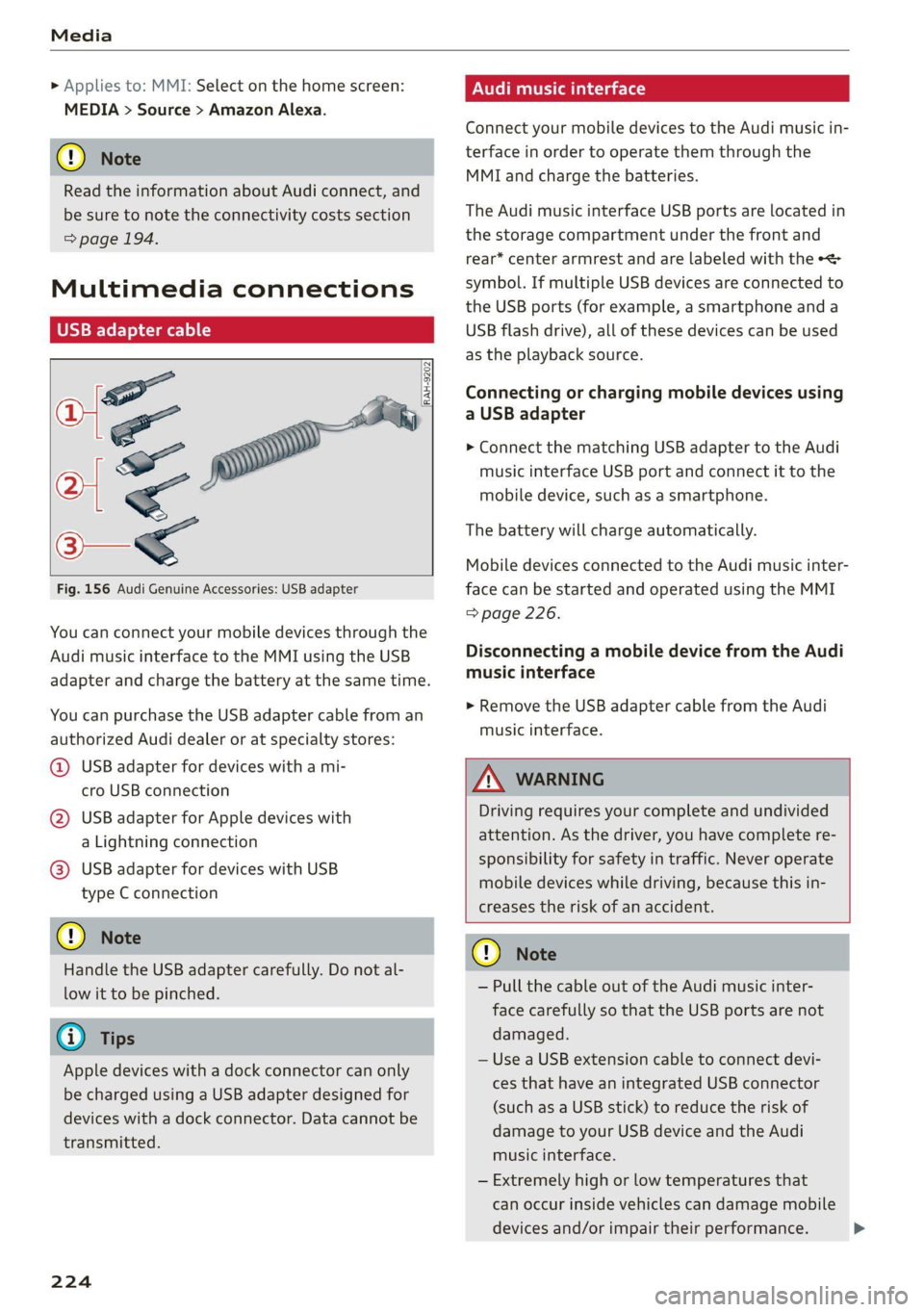
Fig. 156 Audi Genuine Accessories: USB adapter
You can connect your mobile devices through the
Audi music interface to the MMI using the USB
adapter and charge the battery at the same time.
You can purchase the USB adapter cable from an
authorized Audi dealer or at specialty stores:
@ USB adapter for devices with a mi-
cro USB connection
@ USB adapter for Apple devices with
a Lightning connection
@ USB adapter for devices with USB
type C connection
@) Note
Handle the USB adapter carefully. Do not al-
low it to be pinched.
G) Tips
Apple devices with a dock connector can only
be charged using a USB adapter designed for
devices with a dock connector. Data cannot be
transmitted.
224
ONU reat em Tale)
Connect your mobile devices to the Audi music in-
terface in order to operate them through the
MMI and charge the batteries.
The Audi music interface USB ports are located in
the storage compartment under the front and
rear* center armrest and are labeled with the +<
symbol. If multiple USB devices are connected to
the USB ports (for example, a smartphone and a
USB flash drive), all of these devices can be used
as the playback source.
Connecting or charging mobile devices using
a USB adapter
> Connect the matching USB adapter to the Audi
music interface USB port and connect it to the
mobile device, such as a smartphone.
The battery will charge automatically.
Mobile devices connected to the Audi music inter:
face can be started and operated using the MMI
=> page 226.
Disconnecting a mobile device from the Audi
music interface
> Remove the USB adapter cable from the Audi
music interface.
ZA\ WARNING
Driving requires your complete and undivided
attention. As the driver, you have complete re-
sponsibility for safety in traffic. Never operate
mobile devices while driving, because this in-
creases the risk of an accident.
@) Note
— Pull the cable out of the Audi music inter-
face carefully so that the USB ports are not
damaged.
— Use a USB extension cable to connect devi-
ces that have an integrated USB connector
(such as a USB stick) to reduce the risk of
damage to your USB device and the Audi
music interface.
— Extremely high or low temperatures that
can occur inside vehicles can damage mobile
devices and/or impair their performance.