wheel AUDI R8 COUPE 2020 Owner's Manual
[x] Cancel search | Manufacturer: AUDI, Model Year: 2020, Model line: R8 COUPE, Model: AUDI R8 COUPE 2020Pages: 308, PDF Size: 82.41 MB
Page 75 of 308
4S1012721BA
Driving
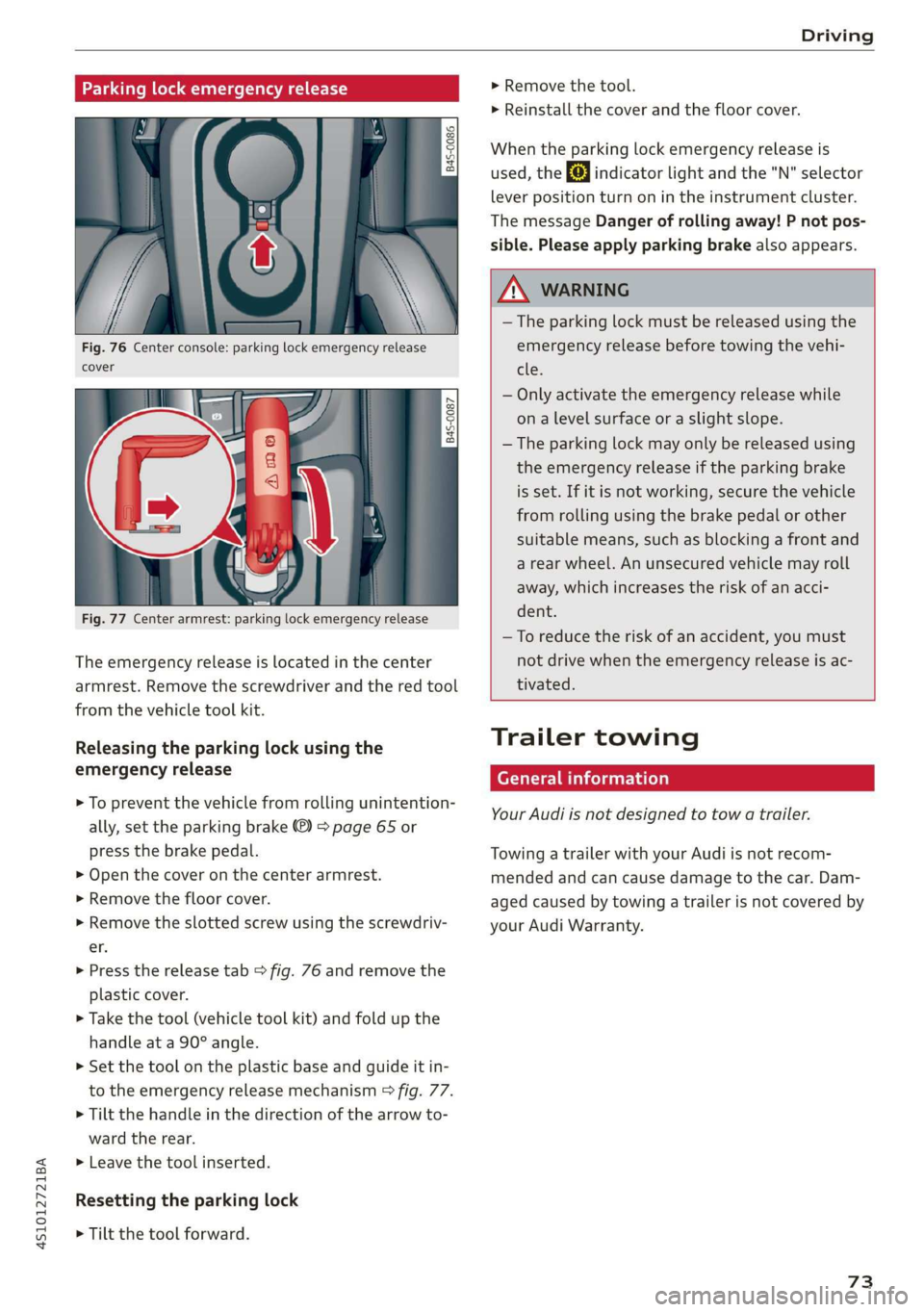
Parking lock emergency release
9 2
Ss Ss
db z a
Fig. 76 Center console: parking lock emergency release
cover
[845-0087
|
Fig. 77 Center armrest: parking lock emergency release
The emergency release is located in the center
armrest. Remove the screwdriver and the red tool
from the vehicle tool kit.
Releasing the parking lock using the
emergency release
> To prevent the vehicle from rolling unintention-
ally, set the parking brake ®) > page 65 or
press the brake pedal.
> Open the cover on the center armrest.
> Remove the floor cover.
> Remove the slotted screw using the screwdriv-
er.
> Press the release tab > fig. 76 and remove the
plastic cover.
> Take the tool (vehicle tool kit) and fold up the
handle at a 90° angle.
>» Set the tool on the plastic base and guide it in-
to the emergency release mechanism > fig. 77.
> Tilt the handle in the direction of the arrow to-
ward the rear.
>» Leave the tool inserted.
Resetting the parking lock
> Tilt the tool forward.
> Remove the tool.
> Reinstall the cover and the floor cover.
When the parking lock emergency release is
used, the fs] indicator light and the "N" selector
lever position turn on in the instrument cluster.
The message Danger of rolling away! P not pos-
sible. Please apply parking brake also appears.
ZA WARNING
— The parking lock must be released using the
emergency release before towing the vehi-
tle.
— Only activate the emergency release while
ona level surface or a slight slope.
— The parking lock may only be released using
the emergency release if the parking brake
is set. If it is not working, secure the vehicle
from rolling using the brake pedal or other
suitable means, such as blocking a front and
a rear wheel. An unsecured vehicle may roll
away, which increases the risk of an acci-
dent.
—To reduce the risk of an accident, you must
not drive when the emergency release is ac-
tivated.
Trailer towing
General information
Your Audi is not designed to tow a trailer.
Towing a trailer with your Audi is not recom-
mended and can cause damage to the car. Dam-
aged caused by towing a trailer is not covered by
your Audi Warranty.
73
Page 78 of 308
Assist systems
Applies to: vehicles with cruise control system
ICRUISE| / §) Speed control system: currently un-
available. See owner's manual
If the indicator light turns on and this message
appears, the cruise control system has been deac-
tivated. There is a temporary malfunction, for ex-
ample the brakes are overheating. Switch the
cruise control system on again later.
Lap timer
Lap timer
You can measure and analyze lap times with the
lap timer in the display. The time is measured in
minutes, seconds and 1/10 seconds. With lap
times longer than 60 minutes, the hour is also
shown and the display of 1/10 seconds is re-
moved.
The time measurement on an individual lap ends
after 99 hours 59 minutes and 59 seconds. A new
lap starts automatically after that.
The measurement ends after a maximum of 30
laps. You can then evaluate the lap times or start
a new time measurement.
You can control the lap timer using the controls
on the multifunction steering wheel > page 76.
ZA\ WARNING
Your focus should always be on driving your
vehicle safely. As the driver, you have com-
plete responsibility for safety in traffic. Only
use the functions such as the lap timer in such
a way that you always maintain complete con-
trol over your vehicle in all traffic situations.
G) Tips
You can retrieve information from the trip
computer while the lap timer stopwatch is
running.
76
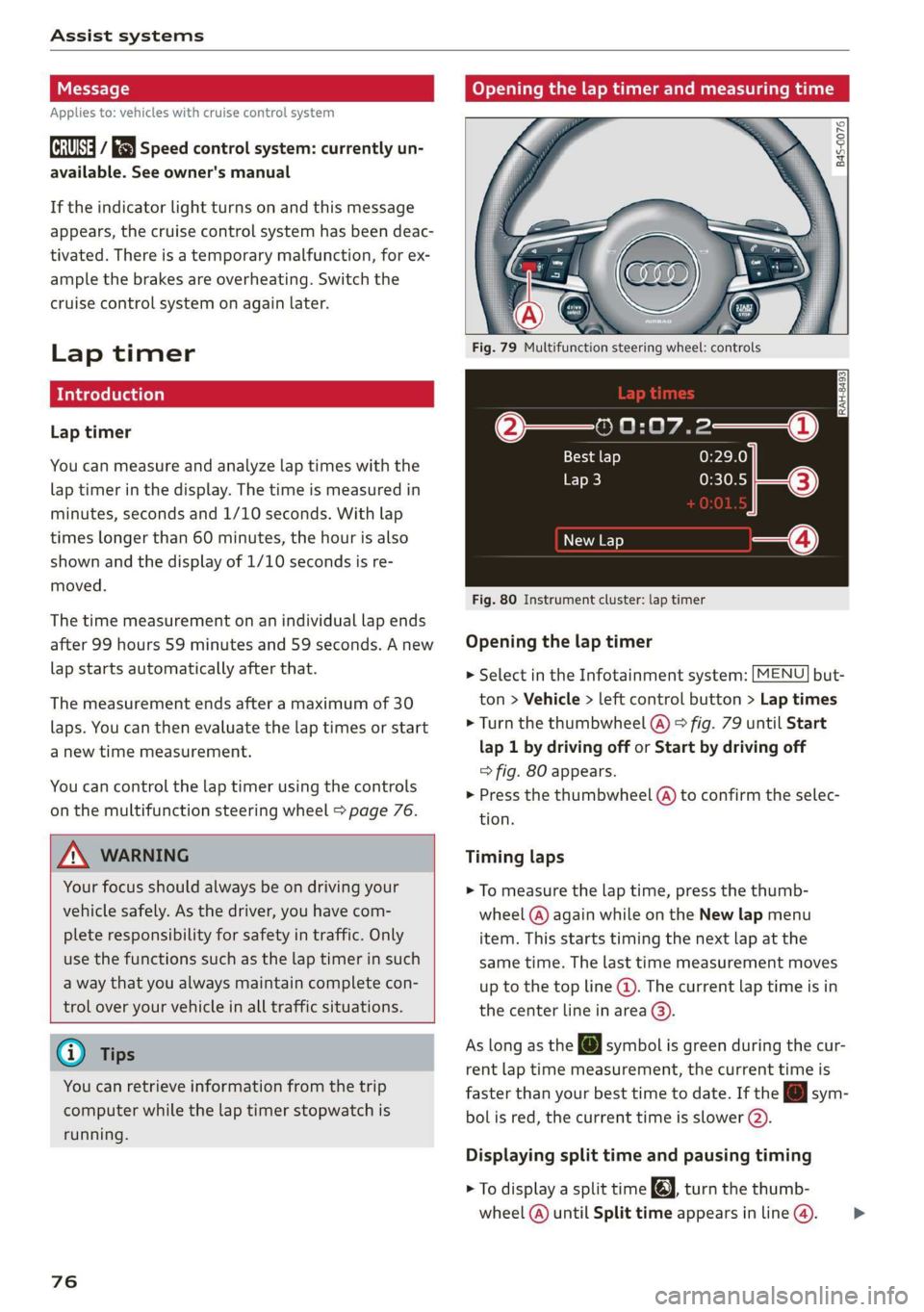
Opening the lap timer and measuring time
B4S-0076
Fig. 79 Multifunction steering wheel: controls
@—» 0:07.2——_@
Best lap 0:29.0
To} 0:30.5
New Lap
Fig. 80 Instrument cluster: lap timer
Opening the lap timer
> Select in the Infotainment system: [MENU] but-
ton > Vehicle > left control button > Lap times
> Turn the thumbwheel @) ° fig. 79 until Start
lap 1 by driving off or Start by driving off
=> fig. 80 appears.
> Press the thumbwheel (a) to confirm the selec-
tion.
Timing laps
> To measure the lap time, press the thumb-
wheel @) again while on the New lap menu
item. This starts timing the next lap at the
same time. The last time measurement moves
up to the top line @). The current lap time is in
the center line in area @).
As
long as the [J symbol is green during the cur-
rent lap time measurement, the current time is
faster than your best time to date. If the @ sym-
bolis red, the current time is slower (@).
Displaying split time and pausing timing
> To display a split time @, turn the thumb-
wheel (@) until Split time appears in line @). >
Page 79 of 308
4S1012721BA
Assist systems
Press the thumbwheel (@) to confirm the selec-
tion. The split time appears for approximately
10 seconds in area @). The timing of the cur-
rent lap continues.
If you would like to insert a pause fi immediate-
ly after the split time, first press the thumbwheel
@ to confirm the menu item Reset values with
OK.
> To insert a pause, turn the thumbwheel @) until
Pause appears in line (). Press the thumbwheel
@ to confirm the selection. The pause symbol
Hl appears in area.
> To continue timing, press the thumbwheel (@).
If timing is paused, you can continue it later even
if you switch the ignition off.
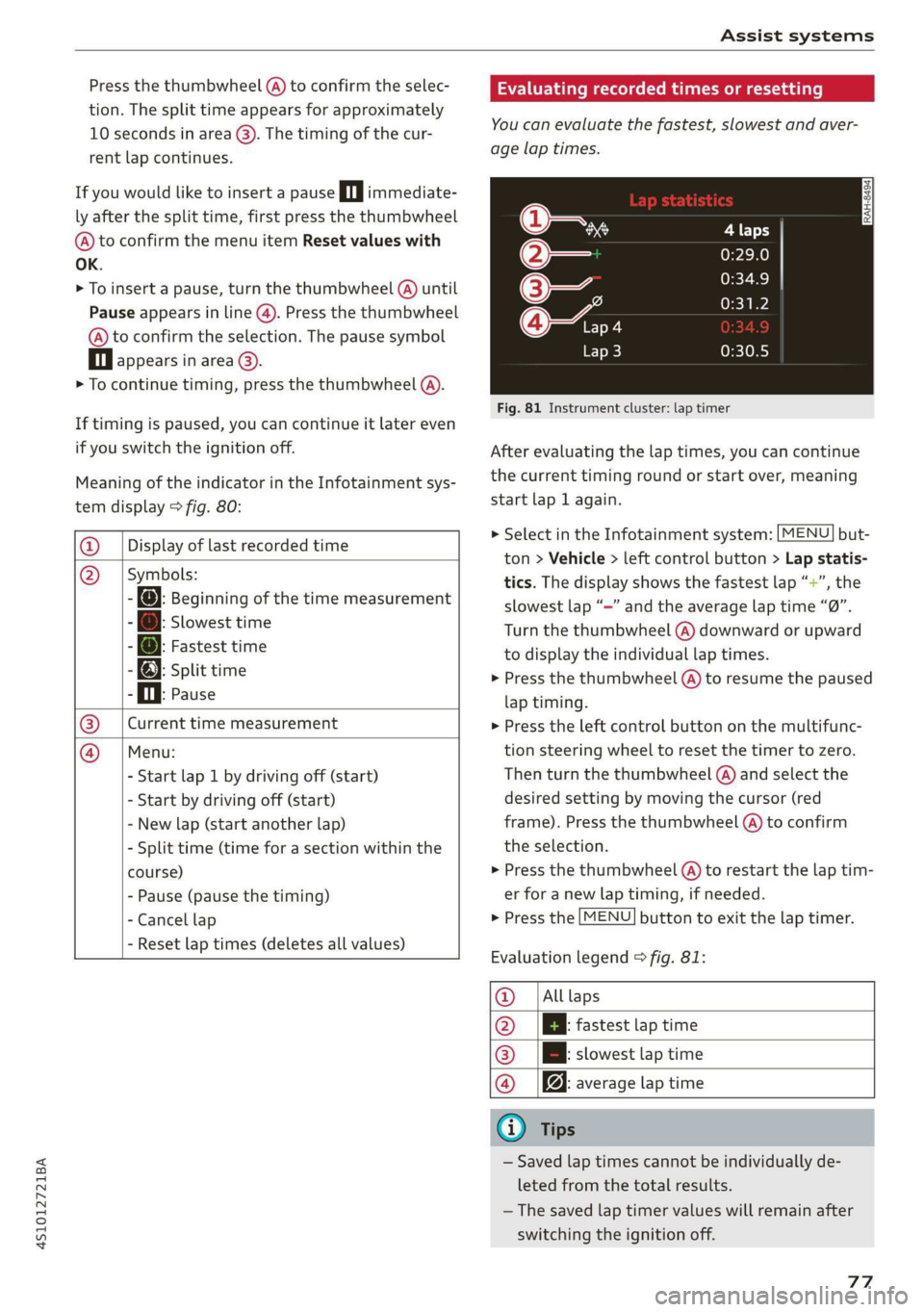
Meaning of the indicator in the Infotainment sys-
tem display > fig. 80:
@ _| Display of last recorded time
@_ |Symbols:
- fo): Beginning of the time measurement
: Slowest time
: @: Fastest time
- @; split time
P i. Pause
Current time measurement
Menu:
- Start lap 1 by driving off (start)
- Start by driving off (start)
- New lap (start another lap)
- Split time (time for a section within the
course)
- Pause (pause the timing)
- Cancel lap
|
- Reset lap times (deletes all values)
Evaluating recorded times or resetting
You can evaluate the fastest, slowest and aver-
age lap times.
Fig. 81 Instrument cluster: lap timer
After evaluating the lap times, you can continue
the current timing round or start over, meaning
start lap 1 again.
> Select in the Infotainment system: [MENU] but-
ton > Vehicle > left control button > Lap statis-
tics. The display shows the fastest lap “+”, the
slowest lap “—” and the average lap time “0”.
Turn the thumbwheel (@) downward or upward
to display the individual lap times.
> Press the thumbwheel () to resume the paused
lap timing.
» Press the left control button on the multifunc-
tion steering wheel to reset the timer to zero.
Then turn the thumbwheel @) and select the
desired setting by moving the cursor (red
frame). Press the thumbwheel @) to confirm
the selection.
> Press the thumbwheel (@) to restart the lap tim-
er for a new lap timing, if needed.
> Press the [MENU] button to exit the lap timer.
Evaluation legend © fig. 81:
@_ |Alllaps
@ |[EBl fastest tap time
@® | slowest lap time
@ |f@ average lap time
G) Tips
— Saved lap times cannot be individually de-
leted from the total results.
—The saved lap timer values will remain after
switching the ignition off.
77
Page 80 of 308
Assist systems
Audi drive select (drive
settings)
Drive select makes it possible to experience dif-
ferent types of vehicle characteristics in one vehi-
cle. The driver can select from four modes: Com-
fort, Auto, Dynamic and Individual using the
ssa button on the steering wheel or through the
Infotainment system to switch between a sporty
and a comfortable driving mode, for example. In
the Individual mode, the settings can be adjust-
ed to your personal preferences. This makes it
possible to combine settings such as a sporty en-
gine setting with light steering.
Z\ WARNING
Using Audi drive select incorrectly can lead to
collisions, other accidents and serious inju-
ries.
The vehicle setup in each mode depends on the
vehicle's features.
Engine and automatic transmission
Depending on the mode, the engine and auto-
matic transmission respond more quickly or in a
more balanced manner to accelerator pedal
movements.
Suspension control (Audi magnetic ride)*
The suspension control uses sensors to record in-
formation regarding steering movements, brak-
ing and acceleration operations by the driver, as
well as information about the road surface, driv-
ing speed, and load. With drive select, you can
adjust the suspension control to sporty (dynam-
ic), comfortable (comfort) or balanced (auto).
Steering
The power steering adapts. Indirect steering that
moves easily as in comfort mode is especially
suited to long drives on a highway. The dynamic
mode provides sporty, direct steering.
78
Torque distribution*
The all wheel drive distributes the drive power to
the rear axle based on the situation. The distribu-
tion of power varies depending on the selected
mode from moderate (Comfort) to sporty (Dy-
namic). The goal is a high level of agility and abil-
ity to accelerate on curves. The vehicle is very re-
sponsive to steering.
Engine sound
The engine sound adapts to the current mode
and can be subtle to sporty.
@ Tips
In some models, the maximum vehicle speed
can only be reached in the auto and dynamic
modes.
Selecting the driving mode
You can choose between comfort, auto, dynamic
and individual.
io
):
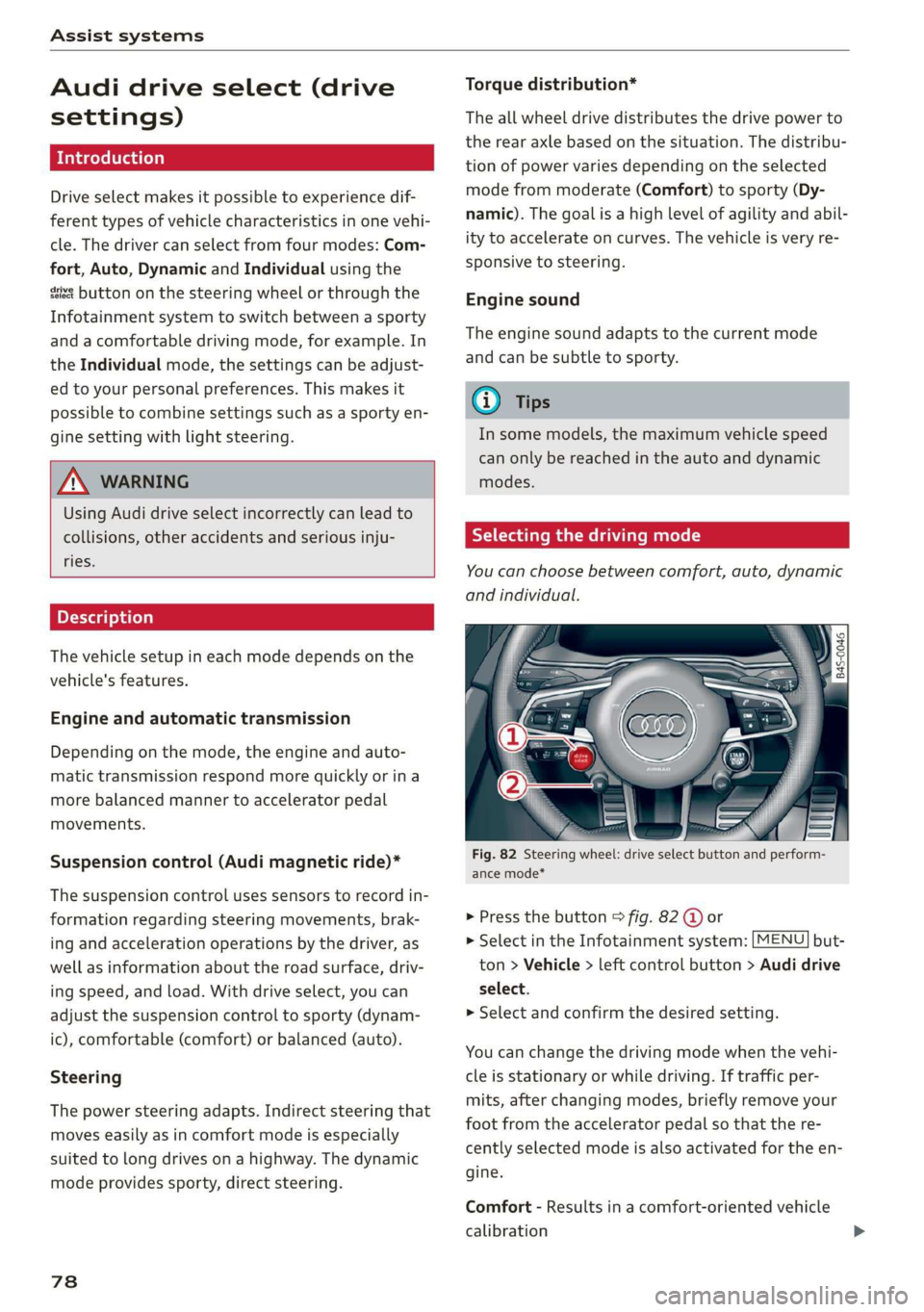
Fig. 82 Steering wheel: drive select button and perform-
ance mode*
> Press the button > fig. 82 @ or
> Select in the Infotainment system: [MENU] but-
ton > Vehicle > left control button > Audi drive
select.
> Select and confirm the desired setting.
You can change the driving mode when the vehi-
cle is stationary or while driving. If traffic per-
mits, after changing modes, briefly remove your
foot from the accelerator pedal so that the re-
cently selected mode is also activated for the en-
gine.
Comfort - Results in a comfort-oriented vehicle
calibration
Page 81 of 308
4S1012721BA
Assist systems
Auto - Provides an overall comfortable yet dy-
namic driving feel and is suited for everyday use.
Dynamic - Gives the driver a sporty driving feel
and is suited to a sporty driving style.
Individual - > page 79.
Setting the driving program
Depending on the driving mode selected, you can
select additional driving programs with the selec-
tor lever.
D/M - Driving forward
When the transmission is in the D/M position, it
can be operated either in the D normal mode or
in the M manual mode. To engage the M manual
mode, move the selector lever into the tiptronic
gate
or use the shift paddles. You can only select
the M selector lever position when D is engaged.
To engage D from the M selector lever position,
move the selector lever out of the tiptronic gate
to D/S or tap it once toward the rear > A\ in Se-
lecting a selector lever position on page 68. To
shift from N to D when traveling at speeds below
2 mph (2 km/h), press the brake pedal and shift
into the D position > A\ in Selecting a selector
lever position on page 68.
S/MS - Driving forward
When the transmission is in the S/MS position, it
can be operated either in the S sport mode or in
the MS manual mode. To engage the MS manual
mode, move the selector lever into the tiptronic
gate
or use the shift paddles. You can only select
the MS selector lever position when S is engaged.
To engage S from the MS selector lever position,
move the selector lever out of the tiptronic gate
to D/S or tap it once toward the rear > A\ in Se-
lecting a selector lever position on page 68. To
shift from N to S when traveling at speeds below
2 mph (2 km/h), press the brake pedal and shift
into the S position > A in Selecting a selector
lever position on page 68.
M Performance - Driving forward
The transmission can be operated in the MS
mode when the selector Lever is in the M posi-
tion. To engage the manual “MS” performance
mode, press the performance mode button on
the steering wheel.
Performance mode
Applies to: vehicles with performance mode
The vehicle is configured in performance mode
for sporty driving.
The suspension setting, engine and transmission
characteristics change when driving in perform-
ance mode. It is switched on or off with the per-
formance mode button on the steering wheel.
Road conditions
Using the knob > page 78, fig. 82 2), you can op-
timize the vehicle settings for the current road
conditions (such as wet roads).
ZA WARNING
Please note that the stabilization functions
provided by the ESC and the ASR are limited
when performance mode is switched on. To
reduce the risk of sliding, only switch per-
formance mode on when your driving abilities
and the traffic situation permit.
Adjusting the Individual mode
You can adjust the vehicle settings to your personal preferences.
> Press the sist button > Individual > right con-
trol button, or
> Select in the Infotainment system: [MENU] but-
ton > Vehicle > left control button>Audi drive
select
> Individual > right control button
After you have closed the settings, you will auto-
matically drive in the Individual* mode.
The equipment in your vehicle will determine
which settings you can adjust. The following ta-
ble gives an overview of the characteristics.
79
>
Page 83 of 308
4S1012721BA
Parking aid
Parking aid
Introduction
Depending on the vehicle equipment, various
parking aids will help you when parking and ma-
neuvering.
The parking system plus assists you while park-
ing by audibly and visually warning you of objects
detected in front of and behind the vehicle
=> page 81.
The rearview camera shows the area behind the
vehicle in the Infotainment system display. The
lines in the rearview camera image help you to
park or maneuver > page 83.
ZA WARNING
— Always look for traffic and check the area
around your vehicle by looking at it directly
as well. The parking system cannot replace
the driver's attention. The driver is always
responsible when entering or exiting a park-
ing space and during similar maneuvers.
— Please note that some surfaces, such as
clothing, are not detected by the system.
— Sensors and cameras have blind spots in
which people and objects cannot be detect-
ed. Be especially cautious of small children
and animals.
— The sensors can be displaced by impacts or
damage to the radiator grille, bumper,
wheel housing and the underbody. The park-
ing system may be impaired as a result.
Have an authorized Audi dealer or author-
ized Audi Service Facility check their func-
tion.
— Make sure the sensors are not obstructed by
stickers, deposits or other materials. If they
are, the sensor function could be impaired.
For additional information on cleaning, see
=> page 265.
@) Note
— Some objects are not detected or displayed
by the system under certain circumstances:
— objects such as barrier chains, trailer draw
bars, vertical poles or fences
— objects above the sensors such as wall ex-
tensions
— objects with certain surfaces or structures
such as chain link fences or powder snow
— If you continue driving closer to a low ob-
ject, it may disappear from the sensor
range. Note that you will no Longer be
warned about this obstacle.
— Maintain enough distance from the curb to
reduce the risk of damage to the rims.
@ Tips
— The system may provide a warning even
though there are no obstacles in the cover-
age area in some situations, such as:
— certain road surfaces or when there is tall
grass
— external ultrasonic sources such as from
cleaning vehicles
— in heavy rain, snow, or thick vehicle ex-
haust
— We recommend that you practice parking in
a traffic-free location or parking lot to be-
come familiar with the system. Practice
parking in good light and weather condi-
tions.
— You can change the volume of the signals.
— What appears in the display is slightly de-
layed.
— The sensors must be kept clean and free of
snow and ice for the parking aid to operate.
Parking system plus
Description
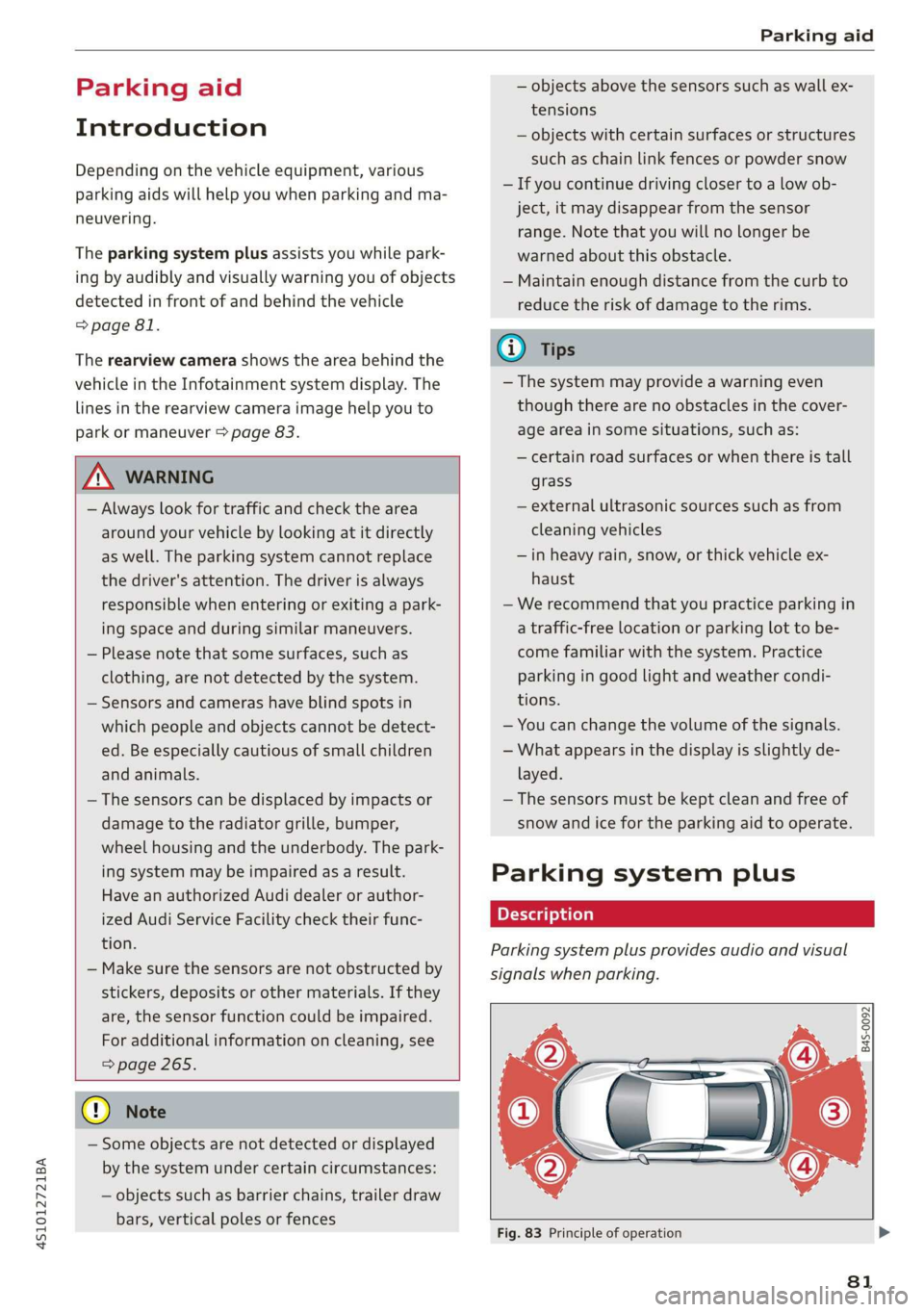
Parking system plus provides audio and visual
signals when parking.
B4S-0092
Fig. 83 Principle of operation
81
Page 85 of 308

4S1012721BA
Parking aid
Rearview camera
Introduction
Applies to: vehicles with rearview camera
B8V-0629
Fig. 86 Diagram: lines to aid in parking
The rearview camera helps you to park or maneu-
ver using the orientation lines.
General information
Applies to: vehicles with rearview camera
B4s-0090
Fig. 87 Principle of operation: Area covered (@) and area
not covered (2) by the rearview camera.
Fig. 88 Vehicle rear: rearview camera component location
The rearview camera is located above the rear li-
cense plate bracket. Make sure that the lens for
the parking system > fig. 88 is not covered by de-
posits or any other obstructions because this can
impair the function of the parking system. For in-
formation on cleaning, see > page 265.
The rearview camera coverage area includes (4)
> fig. 87. Only this area is shown in the Infotain-
ment display. Objects that are in area @), which is
not covered, are not displayed.
ZA WARNING
— Always read and follow the applicable warn-
ings > A in Introduction on page 81.
— If the position and the installation angle of
the rearview camera was changed, for exam-
ple after a collision, do not continue to use
the system for safety reasons. Have it
checked by an authorized Audi dealer or au-
thorized Audi Service Facility.
— Only use the rearview camera to assist you if
it shows a good, clear picture. For example,
the image may be affected by the sun shin-
ing into the lens, dirt on the lens, or if there
is a malfunction.
— Use the rearview camera only if the engine
compartment lid is completely closed. Make
sure any objects you may have mounted on
the luggage compartment lid do not block
the rearview camera.
— The camera lens enlarges and distorts the
field of vision. The object appears both al-
tered and inaccurate on the screen.
—Incertain situations, people or objects in
the display appear closer or farther away:
— For objects that do not touch the ground,
such as the bumper of a parked vehicle, a
trailer hitch or the rear of a truck. Do not
use the orientation lines in this case.
— If driven from a level surface onto an in-
cline, or a downward slope.
— If driven toward protruding objects.
— If the vehicle is carrying too much load in
the rear.
@) Note
— Always read and follow the applicable warn-
ings >@ in Introduction on page 81.
— The orange-colored orientation lines in the
Infotainment display show the vehicle path
based on the steering wheel angle. The
83
>
Page 86 of 308
Parking aid
front of the vehicle swings out more than
the rear of the vehicle. Maintain plenty of
distance so that an exterior mirror or a cor-
ner of the vehicle does not collide with any
obstacles.
Scare Rie meal
Applies to: vehicles with rearview camera
Switching on
> Shift into reverse, or
> Press the Pt button in the center console
=> page 82, fig. 84. A short confirmation tone
sounds and the LED in the button turns on.
Switching off
> Drive faster than 6 mph (10 km/h), or
> Press the Pa button, or
> Switch the ignition off.
G) Tips
— The visual display in the left part of the dis-
play should help you detect the critical vehi-
cle areas.
— You can change the volume of the signals
and the display > page 84.
Perpendicular parking
Applies to: vehicles with rearview camera
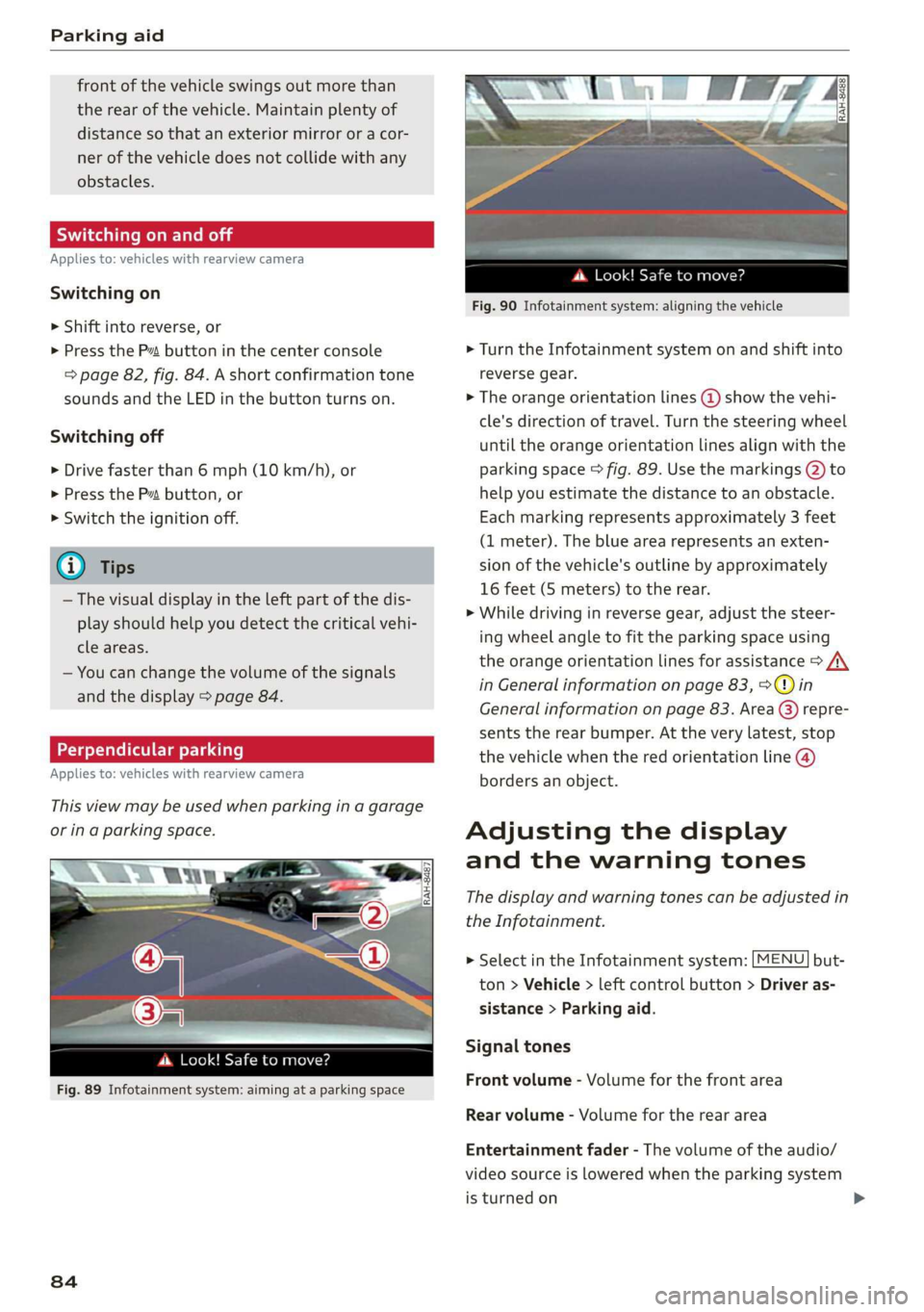
This view may be used when parking in a garage
or ina parking space.
(3)
4. Look! Safe to move?
Fig. 89 Infotainment system: aiming at a parking space
84
ds. Look! Safe to move?
Fig. 90 Infotainment system: aligning the vehicle
> Turn the Infotainment system on and shift into
reverse gear.
> The orange orientation lines @ show the vehi-
cle's direction of travel. Turn the steering wheel
until the orange orientation lines align with the
parking space > fig. 89. Use the markings @ to
help you estimate the distance to an obstacle.
Each marking represents approximately 3 feet
(1 meter). The blue area represents an exten-
sion of the vehicle's outline by approximately
16 feet (5 meters) to the rear.
> While driving in reverse gear, adjust the steer-
ing wheel angle to fit the parking space using
the orange orientation lines for assistance > A\
in General information on page 83, >@) in
General information on page 83. Area () repre-
sents the rear bumper. At the very latest, stop
the vehicle when the red orientation line @
borders an object.
Adjusting the display
and the warning tones
The display and warning tones can be adjusted in
the Infotainment.
> Select in the Infotainment system: [MENU] but-
ton > Vehicle > left control button > Driver as-
sistance > Parking aid.
Signal tones
Front volume - Volume for the front area
Rear volume - Volume for the rear area
Entertainment fader - The volume of the audio/
video source is lowered when the parking system
is turned on
Page 88 of 308
Intelligent Technology
Intelligent Technology
Electronic stabilization
control (ESC)
Electronic Stabilization Control (ESC) supports
driver safety. It reduces the risk of slipping and
improves driving stability. ESC detects critical sit-
uations such as the vehicle oversteering and un-
dersteering or the wheels are spinning. The
brakes are applied or the engine torque is re-
duced in order to stabilize the vehicle. When the
ESC engages, the B indicator light blinks in the
instrument cluster.
The following systems are integrated in the ESC:
Anti-lock braking system (ABS)
ABS prevents the wheels from locking when brak-
ing. The vehicle can still be steered even during
hard braking. Apply steady pressure to the brake
pedal. Do not pump the pedal. A pulsing in the
brake pedal indicates that the system is acting to
stabilize the vehicle.
Brake assist system
The brake assist system can decrease braking dis-
tance. It increases braking power when the driver
presses the brake pedal quickly in emergency sit-
uations. You must press and hold the brake pedal
until the dangerous situation is over.
Anti-Slip Regulation (ASR)
ASR reduces drive power when the drive wheels
begin spinning and adapts the power to the road
conditions. This makes it easier to start, acceler-
ate and drive up hills.
Electronic Differential Lock (EDL)
The EDL applies the brakes to wheels that are
slipping and transfers the drive power to the oth-
er wheels. This function is not available at higher
speeds.
In extreme cases, EDL automatically switches off
to keep the brake on the braked wheel from over-
heating. The vehicle is still functioning correctly.
86
EDL will switch on again automatically when con-
ditions have returned to normal.
Power steering
The ESC can also support vehicle stability
through steering.
Selective wheel torque control
Selective wheel torque control is used when driv-
ing on curves. Braking is targeted toward the
wheels on the inside of the curve as needed. This
allows more precise driving in curves.
Automatic post-collision braking system
The automatic post-collision braking system can
help to reduce the risk of sliding and of addition-
al collisions after an accident. If the airbag con-
trol module detects a collision above a certain ve-
hicle speed, the vehicle is braked by the ESC.
The vehicle does not brake automatically if one of
the following occurs:
— The driver presses the accelerator pedal
—The braking force generated by the pressed
brake pedal is greater than the braking force
that would be initiated by the system
— The ESC, the brake system, or the vehicle elec-
trical system is not functioning
ZA WARNING
— The ESC and its integrated systems cannot
overcome the limits imposed by natural
physical laws. This is especially important on
slippery or wet roads. If the systems begin
acting to stabilize your vehicle, you should
immediately alter your speed to match the
road and traffic conditions. Do not let the in-
creased safety provided tempt you into tak-
ing risks. This could increase your risk of a
collision.
— Please note the risk of a collision increases
when driving fast, especially through curves
and on slippery or wet roads, and when driv-
ing too close to objects ahead. There is still
a risk of accidents because the ESC and its
integrated systems cannot always prevent
collisions.
Page 89 of 308
4S1012721BA
Intelligent Technology
— Accelerate carefully when driving on condition. Different tire sizes can lead toa
smooth, slippery surfaces such as ice and reduction in engine power.
snow. The drive wheels can spin even when — You may hear noises when the systems de-
these control systems are installed and this scribed are working.
can affect driving stability and increase the
risk of a collision.
@) Tips
— The ABS and ASR only function correctly
when all four wheels have a similar wear
Sic melal
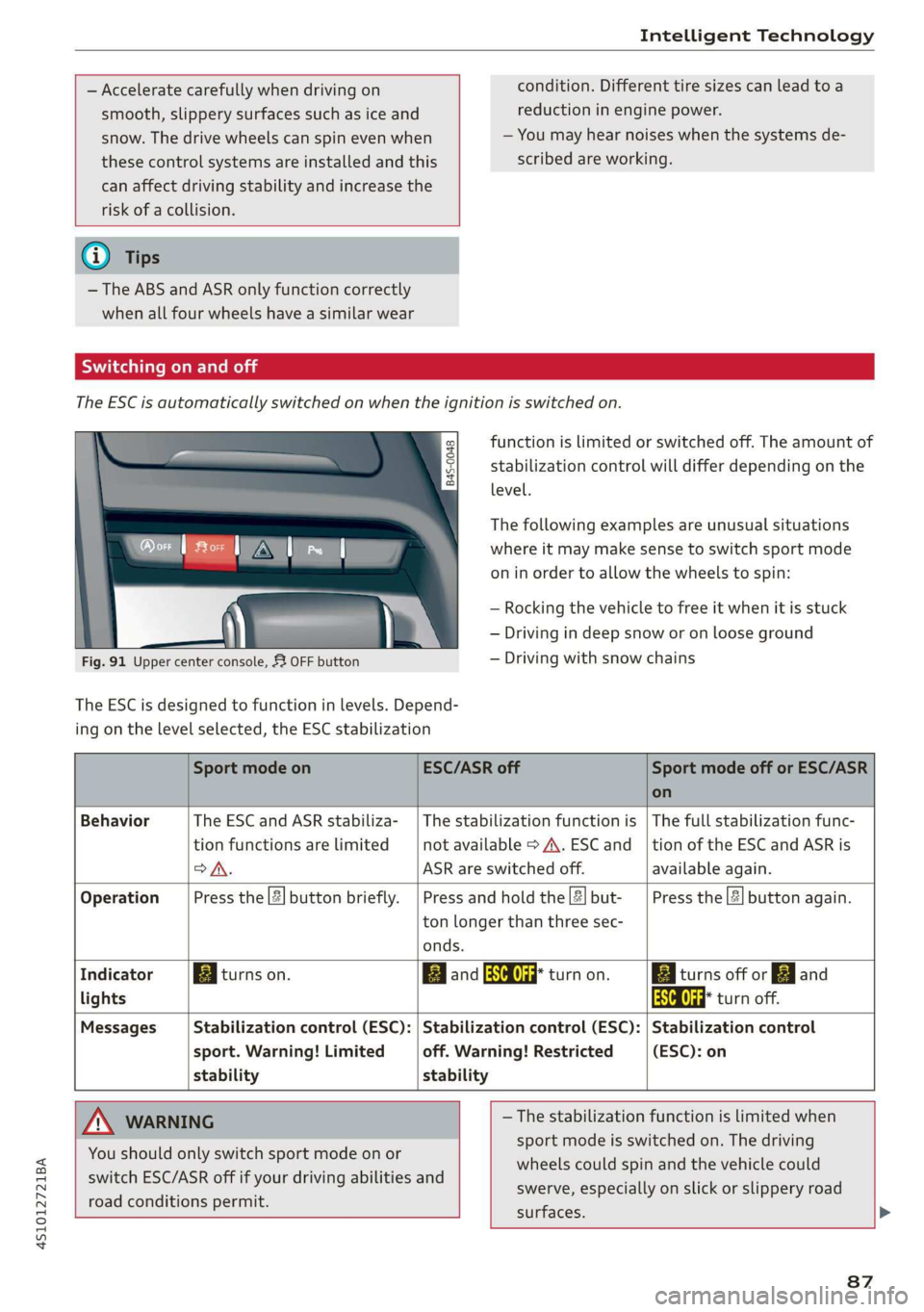
The ESC is automatically switched on when the ignition is switched on.
function is limited or switched off. The amount of
stabilization control will differ depending on the
level.
The following examples are unusual situations
where it may make sense to switch sport mode
on in order to allow the wheels to spin:
— Rocking the vehicle to free it when it is stuck
— Driving in deep snow or on loose ground
Fig. 91 Upper center console, 53 OFF button — Driving with snow chains
The ESC is designed to function in levels. Depend-
ing on the level selected, the ESC stabilization
Sport mode on ESC/ASR off Sport mode off or ESC/ASR
on
Behavior The ESC and ASR stabiliza- | The stabilization function is | The full stabilization func-
tion functions are limited not available > A\. ESC and__| tion of the ESC and ASR is
>A. ASR are switched off. available again.
Operation Press the |#| button briefly. | Press and hold the|#|but- | Press the || button again.
ton longer than three sec-
onds.
Indicator Egiturns on. Band ead turn on. Egliturns off or gj and
lights aa turn off.
Messages Stabilization control (ESC): | Stabilization control (ESC): | Stabilization control
sport. Warning! Limited off. Warning! Restricted (ESC): on
stability stability
A WARNING — The stabilization function is limited when
sport mode is switched on. The driving
wheels could spin and the vehicle could
swerve, especially on slick or slippery road
surfaces.
You should only switch sport mode on or
switch ESC/ASR off if your driving abilities and
road conditions permit.
87