display AUDI R8 COUPE 2020 Workshop Manual
[x] Cancel search | Manufacturer: AUDI, Model Year: 2020, Model line: R8 COUPE, Model: AUDI R8 COUPE 2020Pages: 308, PDF Size: 82.41 MB
Page 127 of 308
4S1012721BA
Audi connect
An Internet connection is required to use Audi
connect Infotainment. Depending on the country
and the vehicle equipment, the following options
may be available:
— SIM card reader
— Personal Wi-Fi hotspot
ZA\ WARNING
Always follow the information found in > AV
in General information on page 124.
() Note
Always follow the information found in >@ in
General information on page 124.
By eee tel
Applies to: vehicles with Audi connect Infotainment and a
SIM card reader
All data connections will be made through the
SIM card in the card reader, if a SIM card is insert-
ed >@) in General information on page 124.
Requirement: The vehicle must be stationary and
the ignition must be switched on. A data connec-
tion must be configured for Audi connect Info-
tainment services. Your personal SIM card must
be a mini SIM card >@) and have a data option.
Inserting a SIM card
The SIM card reader is located in the rear panel.
> The angled corner of the SIM card must face to-
ward the left front side when being inserted.
> Slide the SIM card into the SIM card reader slot
until you feel the SIM card click into place.
> Select and confirm Enter PIN on the MMI. En-
ter the PIN for your SIM card.
> Select and confirm OK.
> To connect to the Internet automatically in the
future, select and confirm Yes; see also
=> page 129.
After connecting successfully, the signal strength
@ and connection type @) will be displayed in
the MMI status bar > page 101, fig. 107.
Removing a SIM card
> Press on the SIM card briefly.
CG) Note
— Always follow the information found in 9®
in General information on page 124.
—To reduce the risk of damaging the SIM card
reader, only use mini SIM cards (25 mmx
15 mm). Contact your cell phone service
provider for more information on mini SIM
cards.
—If a SIM card of a different size is inserted in
the SIM card reader, do not under any cir-
cumstances remove this card yourself due
to the risk of damaging the SIM card reader.
Contact an authorized Audi dealer or au-
thorized Audi Service Facility.
— There is a risk of damaging the SIM card
reader if you use a SIM card adapter, be-
cause vibrations can cause the SIM card to
fall out of the adapter while driving.
@ Tips
— Additional Internet connection settings can
be found under > page 129.
— Do not remove the SIM card from the SIM
card reader when using the Audi connect In-
fotainment services.
Using personal Wi-Fi hotspot
Applies to: vehicles with Audi connect Infotainment and a
personal Wi-Fi hotspot
Depending on the country and the vehicle equip-
ment, the MMI can use the established Internet
connection on your mobile device through a Wi-Fi
connection.
Requirement: The vehicle must be stationary and
the ignition must be switched on. Your mobile
device and your cell phone service provider must
support the personal Wi-Fi hotspot function. The
personal Wi-Fi hotspot must be activated on your
mobile device. Access by other devices must be
permitted on the personal hotspot. Your own
SIM card in the mobile device must have a data
option. No SIM card is inserted in the SIM card
reader.
125
Page 128 of 308
![AUDI R8 COUPE 2020 Workshop Manual Audi connect
Connecting the MMI with the personal
hotspot
> Select: [MENU] button > Telephone > right con-
trol button > Wi-Fi settings > Wi-Fi > On.
> Then select and confirm Network s](/img/6/57639/w960_57639-127.png "AUDI R8 COUPE 2020 Workshop Manual Audi connect
Connecting the MMI with the personal
hotspot
> Select: [MENU] button > Telephone > right con-
trol button > Wi-Fi settings > Wi-Fi > On.
> Then select and confirm Network s")
Audi connect
Connecting the MMI with the personal
hotspot
> Select: [MENU] button > Telephone > right con-
trol button > Wi-Fi settings > Wi-Fi > On.
> Then select and confirm Network search. The
devices that are found are shown in the Info-
tainment system display.
> Select and confirm your personal Wi-Fi hotspot
from the list.
>» Enter the password that your mobile device
provides, if necessary.
> Select and confirm OK.
ZA WARNING
Always follow the information found in > AV
in General information on page 124.
() Note
Always follow the information found in >@ in
General information on page 124.
@) Tips
— Your cell phone service provider can deter-
mine which functions are supported by your
mobile device.
— Your cell phone data package determines if
other devices will be able to use the person-
al Wi-Fi hotspot.
— Audi recommends protecting your mobile
wireless network with a password to prevent
unauthorized access.
Using a Wi-Fi hotspot
Applies to: vehicles with Wi-Fi hotspot
You can connect up to eight Wi-Fi devices (such
as smartphones) with the MMI Wi-Fi hotspot. If
the MMI is connected to the Internet
=> page 124, the connected Wi-Fi devices can also
use the MMI’s Internet connection.
Requirement: The ignition must be switched on.
> Select: [MENU] button > Telephone > right con-
trol button > Wi-Fi settings > Wi-Fi. Switch on
the Wi-Fi hotspot.
> Select: [MENU] button > Telephone > right con-
trol button > Wi-Fi settings > Network key. The
access data for the Wi-Fi hotspot is displayed.
126
Switch on the visibility of the Wi-Fi hotspot if
necessary.
> Switch the Wi-Fi function on in your mobile de-
vice and connect it to the MMI Wi-Fi hotspot
using the authentication data that is shown.
> Follow any additional system prompts on your
Wi-Fi device if necessary.
Your device is successfully connected with the
MMI's Wi-Fi hotspot.
ZA WARNING
Always follow the information found in > AV
in General information on page 124.
@) Note
Always follow the information found in >@ in
General information on page 124.
Audi connect
Infotainment services
Configuration
Applies to: vehicles with Audi connect Infotainment
Requirement: your vehicle must be connected to
the Internet > page 124.
Some Audi connect Infotainment services must
be configured through your personal myAudi ac-
count before using them for the first time.
> Register at my.audi.com.
> Add your vehicle to your myAudi account.
> Select: [MENU] button > Audi connect > right
control button > Log in.
> Log in to myAudi in the vehicle using your e-
mail address and password.
(i) Tips
— For some Audi connect Infotainment serv-
ices, you may also have to enter your myAu-
di access information when accessing serv-
ices inthe MMI.
— Some Audi connect Infotainment services
must be activated at my.audi.com.
Page 129 of 308
4S1012721BA
Audi connect
—To make logging in easier in the vehicle, you
will receive an 8-digit myAudi PIN as an al-
ternative to your myAudi password after you
have created a myAudi account.
— For detailed information on configuration,
visit my.audi.com.
Accessing Audi connect Infotainment
Applies to: vehicles with Audi connect Infotainment
> Select: the [MENU] button > Audi connect.
A list of all of the available Audi connect Infotain-
ment services is shown on the Infotainment sys-
tem display.
You can also filter the Audi connect Infotainment
services by category:
>» Select: [MENU] button > Audi connect > left
control button > for example, Navigation for
the Audi connect Infotainment services in the
navigation menu.
Basic functions
Applies to: vehicles with Audi connect Infotainment
> Select: [MENU] button > Audi connect > desired
Audi connect Infotainment service > right con-
trol button.
Depending on the equipment and the Audi con-
nect
Infotainment service selected, the following
basic functions may be available:
Save as preview
You can also see a preview of the selected Audi
connect Infotainment services on the Audi con-
nect
Infotainment home page.
Show on map
You can show selected contents on the map and
use them for route guidance.
Log in
See > page 126.
) Not available in all languages.
Read out!)
You can allow the MMI to read out the selected
contents.
Call
If a phone number was assigned to an entry, you
can call the number, for example to reserve tick-
ets.
Refresh
The contents for the selected Audi connect Info-
tainment service are refreshed.
Start route guidance
If a location was saved with an entry, you can use
it as the navigation destination. Route guidance
starts immediately.
Change search area
The set search area can be changed at any time.
Additional information on search areas can be
found under > page 134.
Closing Audi connect Infotainment services
Regardless of the function selected, you can
close an Audi connect Infotainment service at
any time and return to the home screen.
Services
Applies
to: vehicles with Audi connect Infotainment
Depending on the country and the vehicle equip-
ment, the following services may be available:
Weather
Information on current weather conditions as
well as weather forecasts for the selected search
area.
> Select and confirm Weather.
News
> Select: Online news > desired newsfeed > a
headline.
127
Page 130 of 308
Audi connect
If you logged in to myAudi in your vehicle
=> page 126, personalized newsfeeds can be
displayed.
Twitter
Requirement: You must have connected your ve-
hicle with myAudi > page 126. You must have
connected your myAudi account with Twitter.
You can only connect one Twitter account with
your myAudi account. Not all settings can be ad-
justed in the MMI. Some can only be adjusted
through the Twitter website.
> Select: Twitter > left control button > desired
function (for example, Trends).
ZA WARNING
Always follow the information found in > AV
in General information on page 124.
@) Note
Always follow the information found in >@ in
General information on page 124.
Additional options
Applies to: vehicles with Audi connect Infotainment
> Select: [MENU] button > Audi connect > right
control button.
Depending on the equipment and the country,
the following options may be available in the
overview of Audi connect Infotainment services:
About Audi connect
Here you will find legal information regarding
Audi connect Infotainment usage.
Login
See > page 126.
Connection manager
See > page 168.
License subscription
The validity and expiration date of your licenses
are displayed.
128
Refresh
The content of the selected Audi connect Info-
tainment service or the entire Audi connect Info-
tainment list is updated.
Data privacy
Requirement: the ignition must be switched on.
Location, vehicle, and personal data are transmit-
ted when using Audi connect services.
Allowing sending of data
— Select and confirm Activate data connection.
The data module for the use of all Audi connect
services will be active.
Restricting sending of data
— Select and confirm Activate privacy. The data
connection is limited or deactivated depending
on the equipment. The majority of Audi connect
services will not be available.
The following interfaces are not affected by this
setting: Bluetooth, Bluetooth Low Energy (BLE),
Wi-Fi connection, Audi smartphone interface
(ASI), Near Field Communication (NFC), charging
communication (e-tron), Electronic Toll Collect
(ETC), if equipped.
C) Note
Always follow the information found in >@ in
General information on page 124.
@) Tips
If the transmission of data is limited, data
will still be transmitted to verify subscrip-
tions.
Settings
(eel arian cola 4
> Select: [MENU] button > Audi connect > right
control button > Connection manager.
> Select: right control button > Online settings >
Data connection settings.
Depending on the country, vehicle equipment,
and connection type, the following functions may
be available:
Page 131 of 308
4S1012721BA
Audi connect
Data connection settings
Using the Data connection settings menu, you
can set when the system should connect to the
Internet. The Internet connection disconnects
automatically once the requested Audi connect
Infotainment service no longer requires any data.
— Connection setup: you can select when a data
connection should be established.
— Audi connect (MMI): when this function is
switched on, a data connection is automatically
established in order to use Audi connect Info-
tainment services.
— Wi-Fi devices: when this function is switched
on, you can allow or deny Internet connections.
Connection settings
The connection is configured automatically based
on the SIM card being used. The following values
can be changed. You can obtain more information
from your cell phone service provider.
— APN: the access point depends on the cell
phone service provider and is assigned auto-
matically.
— User name: your cell phone service provider as-
signs the user name for your online profile.
— Password: your cell phone service provider as-
signs the password for your online profile.
TX WARNING
Always follow the information found in > AV
in General information on page 124.
C) Note
Always follow the information found in >@ in
General information on page 124.
@) Tips
For more information on roaming charges,
contact your cell phone service provider.
Applies to: vehicles with Wi-Fi hotspot
Requirement: the ignition must be switched on.
> Select: [MENU] button > Telephone > right con-
trol button > Wi-Fi settings.
Depending on the country and the vehicle equip-
ment, the following functions may be available:
Wi-Fi
When the function is switched on, the MMI's Wi-
Fi hotspot is active and Wi-Fi devices can be con-
nected to the hotspot.
Network key
The
Wi-Fi connection between the MMI and your
Wi-Fi device is encrypted. You can change the fol-
lowing information if needed.
— Access point (SSID): Wi-Fi hotspot name.
— Password: a random password was set in the
MMI at the factory. The password can be
changed. The encryption method requires a
password to be at least eight characters long.
Choose a secure password.
— Visible to others: you can switch the visibility
of the Wi-Fi hotspot on or off.
Network search
A list of available Wi-Fi networks in your area is
displayed.
Connection to personal hotspot
The MMI Wi-Fi hotspot is activated. An MMI In-
ternet connection to a personal Wi-Fi hotspot
(such as a smartphone) can be established. For
additional information, see > page 125.
ZA WARNING
Always follow the information found in > AV
in General information on page 124.
@) Note
Always follow the information found in >@ in
General information on page 124.
@ Tips
In vehicles without Audi connect Infotain-
ment, the use of the Wi-Fi hotspot is only
possible for the Wi-Fi audio player*. A data
connection to the Internet cannot be estab-
lished.
129
Page 133 of 308
4S1012721BA
Navigation
Navigation
Opening navigation
ild you like to drive
yh
Home address
ation
Yes : ne il, (D) A
@-: John Smith
aI
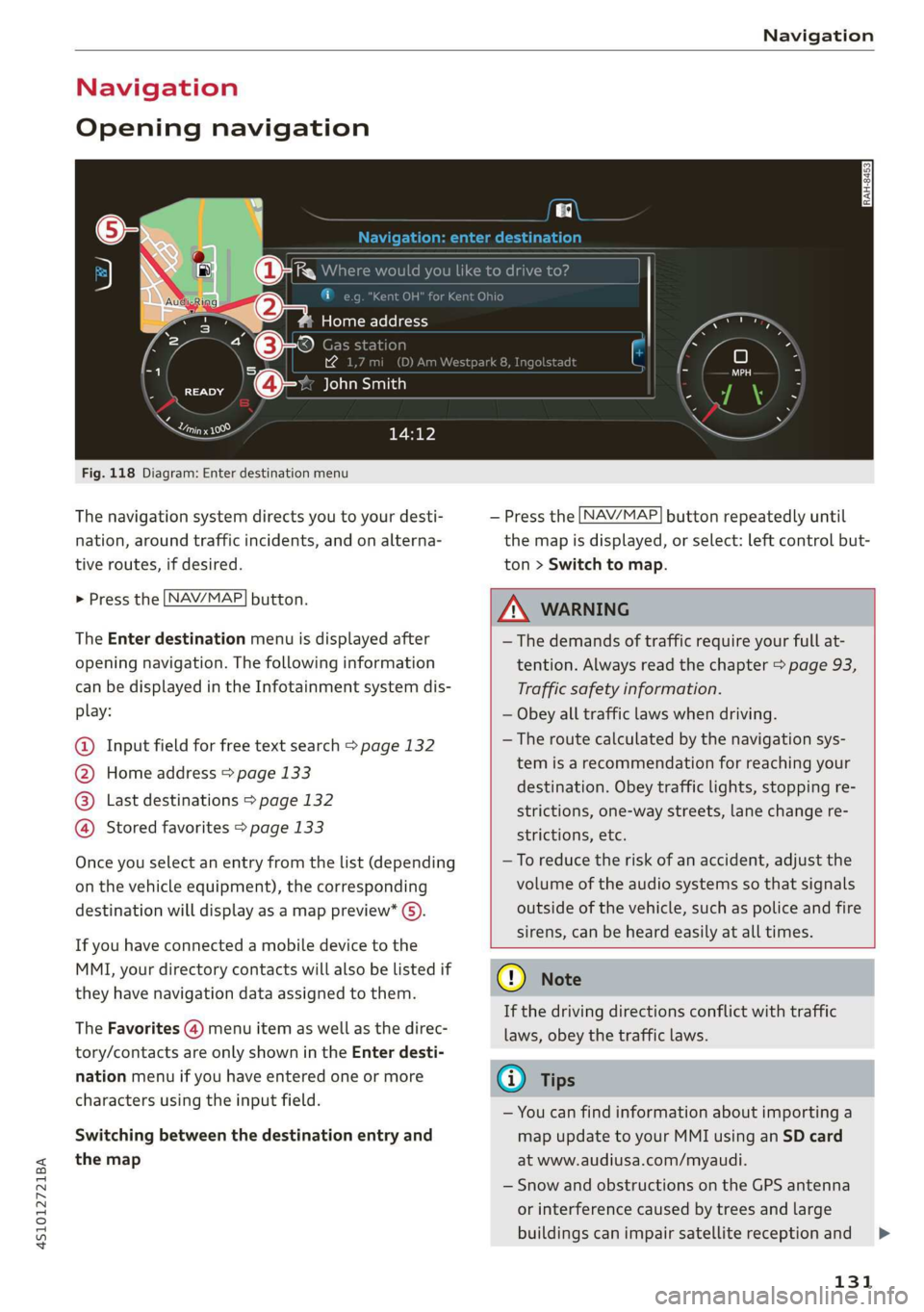
Fig. 118 Diagram: Enter destination menu
The navigation system directs you to your desti-
nation, around traffic incidents, and on alterna-
tive routes, if desired.
> Press the [NAV/MAP| button.
The Enter destination menu is displayed after
opening navigation. The following information
can be displayed in the Infotainment system dis-
play:
@ Input field for free text search > page 132
@ Home address > page 133
@® Last destinations > page 132
@ Stored favorites > page 133
Once you select an entry from the list (depending
on the vehicle equipment), the corresponding
destination will display as a map preview* ().
If you have connected a mobile device to the
MMI, your directory contacts will also be listed if
they have navigation data assigned to them.
The Favorites (4) menu item as well as the direc-
tory/contacts are only shown in the Enter desti-
nation menu if you have entered one or more
characters using the input field.
Switching between the destination entry and
the map
— Press the [NAV/MAP] button repeatedly until
the map is displayed, or select: left control but-
ton > Switch to map.
Z\ WARNING
—The demands of traffic require your full at-
tention. Always read the chapter > page 93,
Traffic safety information.
— Obey all traffic laws when driving.
—The route calculated by the navigation sys-
tem is a recommendation for reaching your
destination. Obey traffic lights, stopping re-
strictions, one-way streets, lane change re-
strictions, etc.
—To reduce the risk of an accident, adjust the
volume of the audio systems so that signals
outside of the vehicle, such as police and fire
sirens, can be heard easily at all times.
@) Note
If the driving directions conflict with traffic
laws, obey the traffic laws.
G) Tips
— You can find information about importing a
map update to your MMI using an SD card
at www.audiusa.com/myaudi.
— Snow and obstructions on the GPS antenna
or interference caused by trees and large
buildings can impair satellite reception and
131
Page 134 of 308
Navigation
affect the system's ability to determine the
vehicle position. Several deactivated or mal-
functioning satellites can also interrupt GPS
reception and affect the system's ability to
determine the vehicle position.
— Because street names sometimes change,
the names stored in the MMI may in rare
cases differ from the actual street name.
Entering a destination
aie aes mlm (tdi lard
Using the MMI touch control pad, you can enter
the data for a navigation destination all at once
in any order (for example, Los Angeles,
20 Main St.). Likewise, you can search for points
of interest, contacts, previous destinations or fa-
vorites to navigate to the desired address.
NAV/MAP > Press the button repeatedly until
the Enter destination menu is displayed
=> page 131, fig. 118.
> Keep turning the control knob to the left until
the input field appears.
— Enter one or more search terms into the input
field.
— If available, confirm the input suggestion* to
complete the entry or a word suggestion*.
=> page 99, Letter/number speller.
— Turn the control knob to the right to change the
results list.
— Select and confirm a destination from the re-
sults list.
The route is displayed as an overview in the map
and the route guidance is already active.
Narrowing the search area
All countries/states are selected at the factory
for the free text search.
— Select: the right control button > Country/state
selection in the input field @ > page 131,
fig. 118.
— Select the country or state (@) that should be
searched using the free text search in order to
narrow the number of results and increase the
search speed. The selected entry in the coun-
132
try/state selection is stored. You can also select
All countries/states.
G) Tips
— The MMI input suggestions depend on the
last navigated destinations.
— Up to 50 entries can be stored in the last
destinations list.
—
Additional information on free text searches
can be found under = page 100.
Loading previous destinations
Your last destinations are automatically stored
and can be loaded directly as a destination.
Requirement: a destination was already navigat-
ed to.
> Press the [NAV/MAP] button repeatedly until
the Enter destination menu is displayed
=> page 131, fig. 118.
Your last destinations will be listed directly in the
Enter destination menu and are marked with the
symbol 3) > page 131, fig. 118.
— Select and confirm one of the last destinations
from the list.
Deleting previous destinations
— Select one of the last destinations from the list.
— Select: right control button > Delete destina-
tion > Delete this last destination or Delete all
last destinations.
The selected destination or all last destinations
is/are deleted and no longer displayed in the En-
ter destination menu.
Entering an address
As an alternative to free text search, you can also
enter an address in stages.
NAV/MAP > Press the button repeatedly until
the Enter destination menu is displayed
=> page 131, fig. 118.
> Select: left control button > Enter address.
>
Page 135 of 308
4S1012721BA
Navigation
— Select and confirm a line (such as Street, House
number or Country/state) and enter the de-
sired information.
— Select and confirm Start route guidance.
Setting a destination from the map
A point on the map can be used as the destina-
tion.
> Press the [NAV/MAP| button repeatedly until
the map is displayed.
— Adjusting the scale: turn the control knob to
the left or right.
— Activating crosshairs: press the control knob.
The
crosshairs are shown on the map.
— Moving the crosshairs: move the crosshairs to
the destination using the MMI touch control
pad.
— Hiding the crosshairs: press the [BACK] button.
— Setting as destination: press the control knob
when the crosshairs are shown. Select and con-
firm
Start route guidance.
Additional information about the location of
the crosshairs: if you select map content with
crosshairs, the available information is displayed
(such as the name of the city or points of inter-
est) © & page 1339, fig. 123.
Setting a home address/favorite as the
CC diesel)
You can quickly and easily start route guidance to
your home address using the home address func-
tion. Favorites allow easier access to frequently
used destinations.
> Press the LNAV/MAP] button repeatedly until
the Enter destination menu is displayed
=> page 131, fig. 118.
Setting a home address as the destination
Requirement: a home address must be stored
=> page 136.
Your Home address is shown directly in the Enter
destination menu @) > page 131, fig. 118.
— Select: Home address.
Setting a favorite as the destination
Requirement: a destination must be stored as a
favorite > page 136.
— Enter one or more letters into the free text
search input field. The favorites that are found
are shown in the Infotainment system display
and marked with the symbol @) > page 131,
fig. 118.
— Select and confirm the desired favorite.
@) Tips
— Additional settings for the home address
can be found under > page 136.
— Additional settings for the favorites can be
found under > page 136.
MCh dere im
iittala
Options — Show contact details
Bela yaaa)
®&% Audi Beverly Hills
4 Hawthorn Ave, Los Angeles, CA
© Wilshire Blvd, Beverly Hills, CA
Q 34°03°12.7°’N, 118°14°43.2°°W
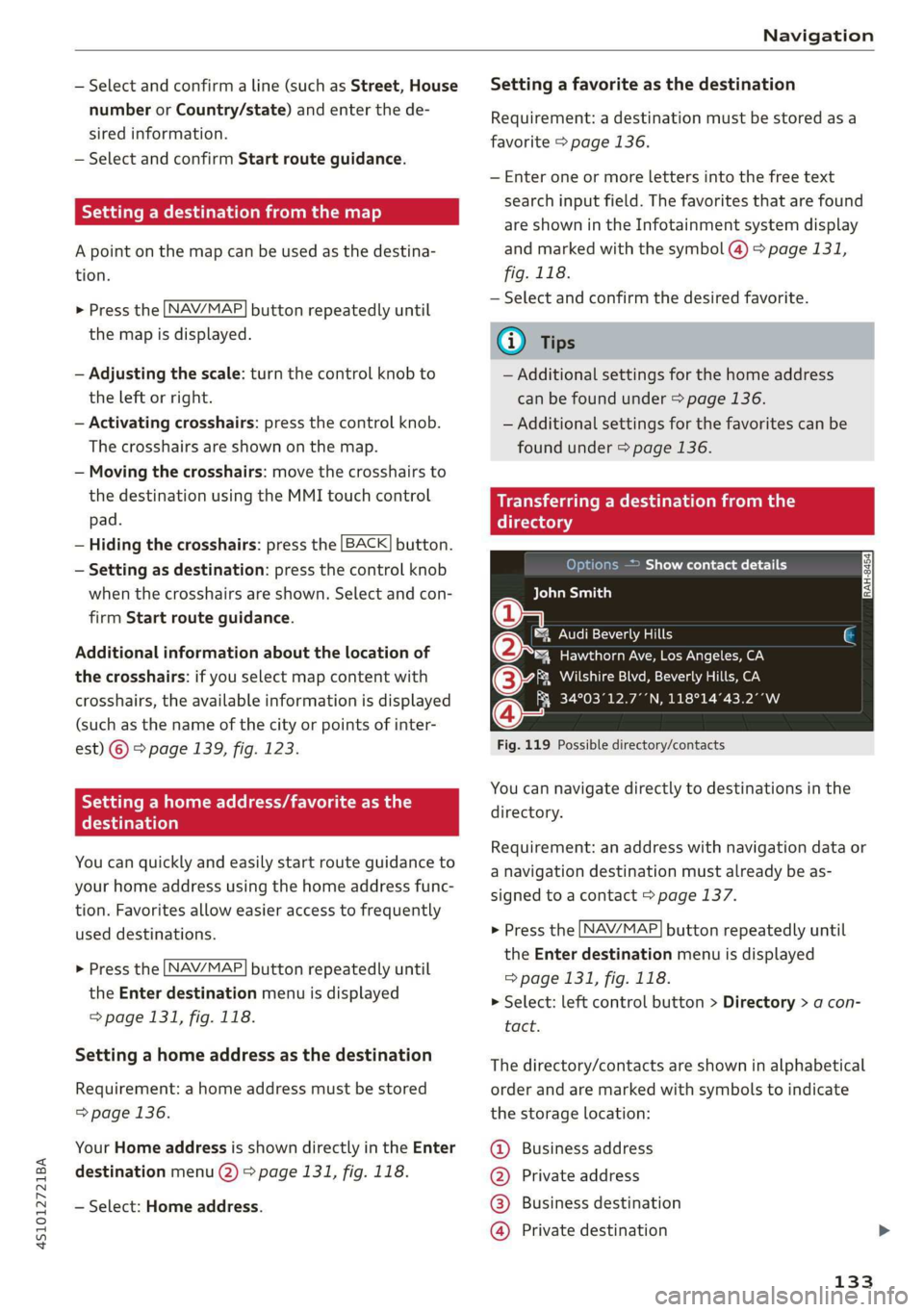
Fig. 119 Possible directory/contacts
You can navigate directly to destinations in the
directory.
Requirement: an address with navigation data or
a navigation destination must already be as-
signed to a contact > page 137.
> Press the [NAV/MAP] button repeatedly until
the Enter destination menu is displayed
=> page 131, fig. 118.
> Select: left control button > Directory > a con-
tact.
The directory/contacts are shown in alphabetical
order and are marked with symbols to indicate
the storage location:
@ Business address
@ Private address
@® Business destination
@) Private destination
133
Page 136 of 308
Navigation
— Select and confirm an address or a destination.
When you have selected a destination, the
route guidance can be started directly.
— Check the address input again when selecting
an address.
—Then select and confirm Start route guidance.
Additional directory functions in the navigation
system can be found under > page 137.
G) Tips
— Addresses that have been imported from
your mobile device into the MMI can also be
used as a destination.
— If a contact is grayed out in the directory,
this contact does not have a destination or
an address assigned to it.
Point of interest search
> Press the LNAV/MAP] button repeatedly until
the Enter destination menu is displayed
=> page 131, fig. 118.
> Select: left control button > Points of interest.
— Changing the search area: select and confirm
Search area > a search area from the list.
— Searching for the name of a point of interest
in the selected search area: Select: Find entry
> Enter point of interest. Enter the name of the
point of interest.
— Searching for a point of interest in a specific
category: select: Select category > desired cat-
egory, such as Restaurants.
The following search categories are available:
Nearby: points of interest can be selected from
different categories. The points of interest are
listed
starting from the vehicle position up toa
radius of approximately 124 miles (200 km).
Along the route: points of interest along the
route can only be selected during active route
guidance. The points of interest are located di-
rectly along or in the immediate vicinity of the
calculated route.
Near destination/Near stopover: the points of
interest can likewise be selected from different
categories in the vicinity of the destination or
134
stopover. For example, you can search for a hotel
or parking lot at the destination.
In new city: enter the name of the desired city.
Points of interest can be selected from various
categories. This function allows you to search for
points of interest in any city regardless of the ac-
tive route guidance or the vehicle position.
(i) Tips
— Distances to points of interest are shown as
a straight-line distance from the vehicle po-
sition. The actual distance from your current
location to the point of interest is updated
automatically. The list of points of interest
that were found is not resorted when this
happens.
— There may be entries in the list that cannot
be displayed completely due to their length.
If you select these list entries using the con-
trol knob, detailed information about the
selected list entry will be shown automati-
cally after several seconds.
OTe Loli elms e etre Cola)
search)
Applies to: vehicles with Audi connect
You can search for points of interest on the Inter-
net.
Requirement: The requirements for Audi connect
services must be met > page 124.
> Press the [NAV/MAP] button repeatedly until
the Enter destination menu is displayed
=> page 131, fig. 118.
> Select: left control button > Online search. The
search area last set is shown in the input field.
— Changing the search area: select and confirm
Search area > a search area from the list.
— Searching for online destinations in the se-
lected search area: enter a new city if necessa-
ry. Enter a search term such as restaurant. Se-
lect and confirm an online destination. Select
and confirm Start route guidance.
— Searching for an online destination in a specif-
ic category: select: Select category > desired
category, such as Hotels.
Page 137 of 308
4S1012721BA
Navigation
Find which search areas are available under
=> page 134.
You can search for online destinations using the
voice recognition system > table on page 106.
@) Tips
Always read the chapter > page 124.
NCC M mA el
Else
Applies to: vehicles with Audi connect
Import destinations from your myAudi account
into the MMI.
Requirement: You must have a registered myAudi
account at my.audi.com. You must have a vehicle
stored in your myAudi account and you must have
a destination stored.
> Press the [NAV/MAP] button repeatedly until
the Enter destination menu is displayed
=> page 131, fig. 118.
> Select: left control button > myAudi contacts.
> If necessary, enter your myAudi user data or
your myAudi PIN. The contacts stored in myAu-
di are displayed.
— Select and confirm a contact > desired destina-
tion.
— Select and confirm Start route guidance.
G) Tips
— You only need to enter the myAudi user data
one time.
— You can receive your myAudi PIN if you have
set up a myAudi account.
— For additional information, visit my.audi.
com.
Entering a destination using geo
coordinates
> Press the [NAV/MAP] button repeatedly until
the Enter destination menu is displayed
> page 131, fig. 118.
> Select: left control button > Geographical coor-
dinates.
— Select and confirm either Latitude or Longi-
tude.
— Turn the control knob to change the latitude/
longitude.
— Press the control knob to confirm your input.
— Select and confirm Start route guidance.
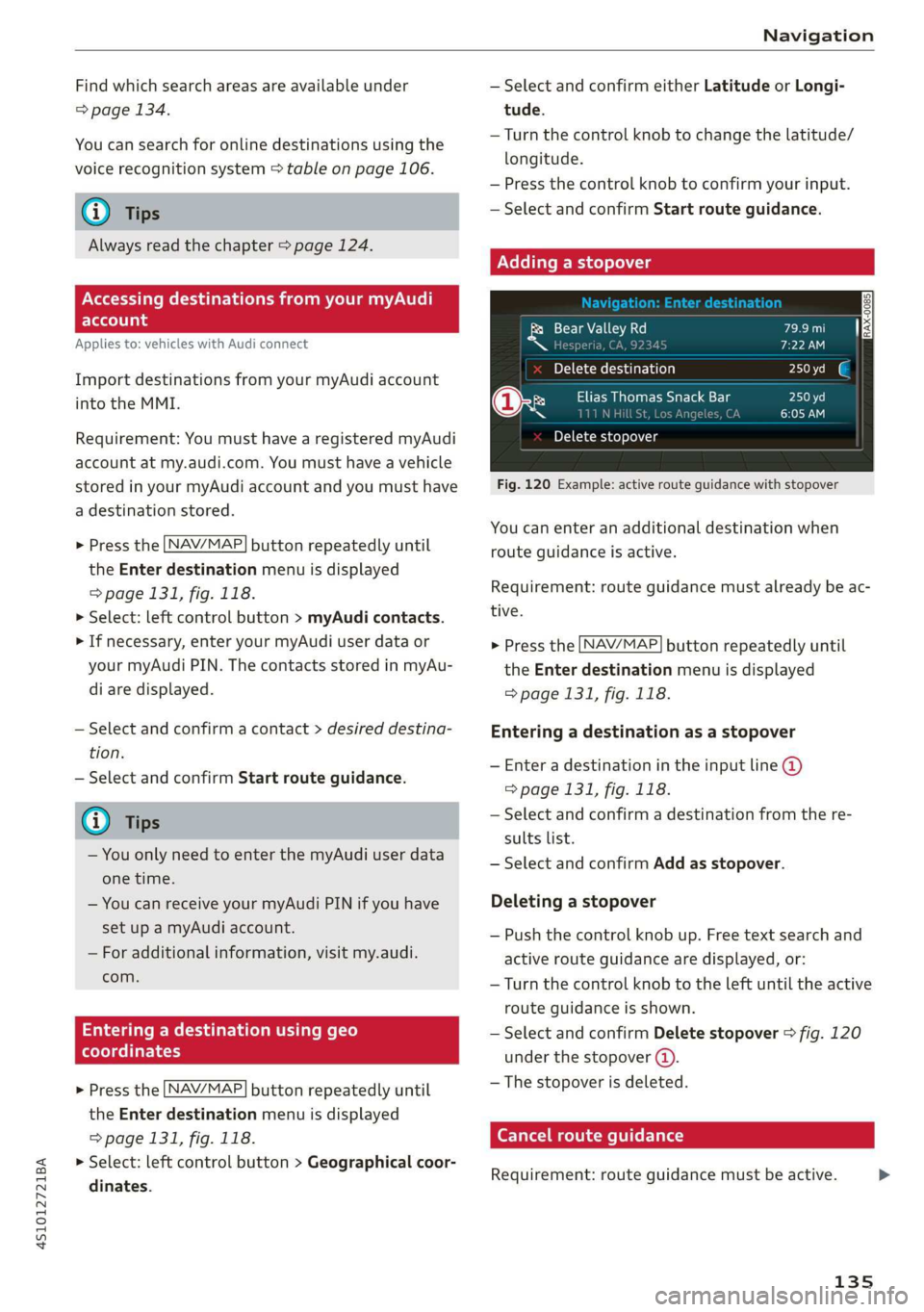
Adding a stopover
ols Valley Rd
N [ J
Yoh Me (hair b aol)
@x Ry Elias Thomas Snack Bar
~~ ney i
Delete stopover
Fig. 120 Example: active route guidance with stopover
You can enter an additional destination when
route guidance is active.
Requirement: route guidance must already be ac-
tive.
> Press the [NAV/MAP] button repeatedly until
the Enter destination menu is displayed
=> page 131, fig. 118.
Entering a destination as a stopover
— Enter a destination in the input line @
=> page 131, fig. 118.
— Select and confirm a destination from the re-
sults list.
— Select and confirm Add as stopover.
Deleting a stopover
— Push the control knob up. Free text search and
active route guidance are displayed, or:
—
Turn the control knob to the left until the active
route guidance is shown.
— Select and confirm Delete stopover > fig. 120
under the stopover (4).
— The stopover is deleted.
Cancel route guidance
Requirement: route guidance must be active.
135