wheel AUDI S8 2016 Owner's Manual
[x] Cancel search | Manufacturer: AUDI, Model Year: 2016, Model line: S8, Model: AUDI S8 2016Pages: 302, PDF Size: 75.68 MB
Page 105 of 302
General information
Applies to: vehicles with side assist
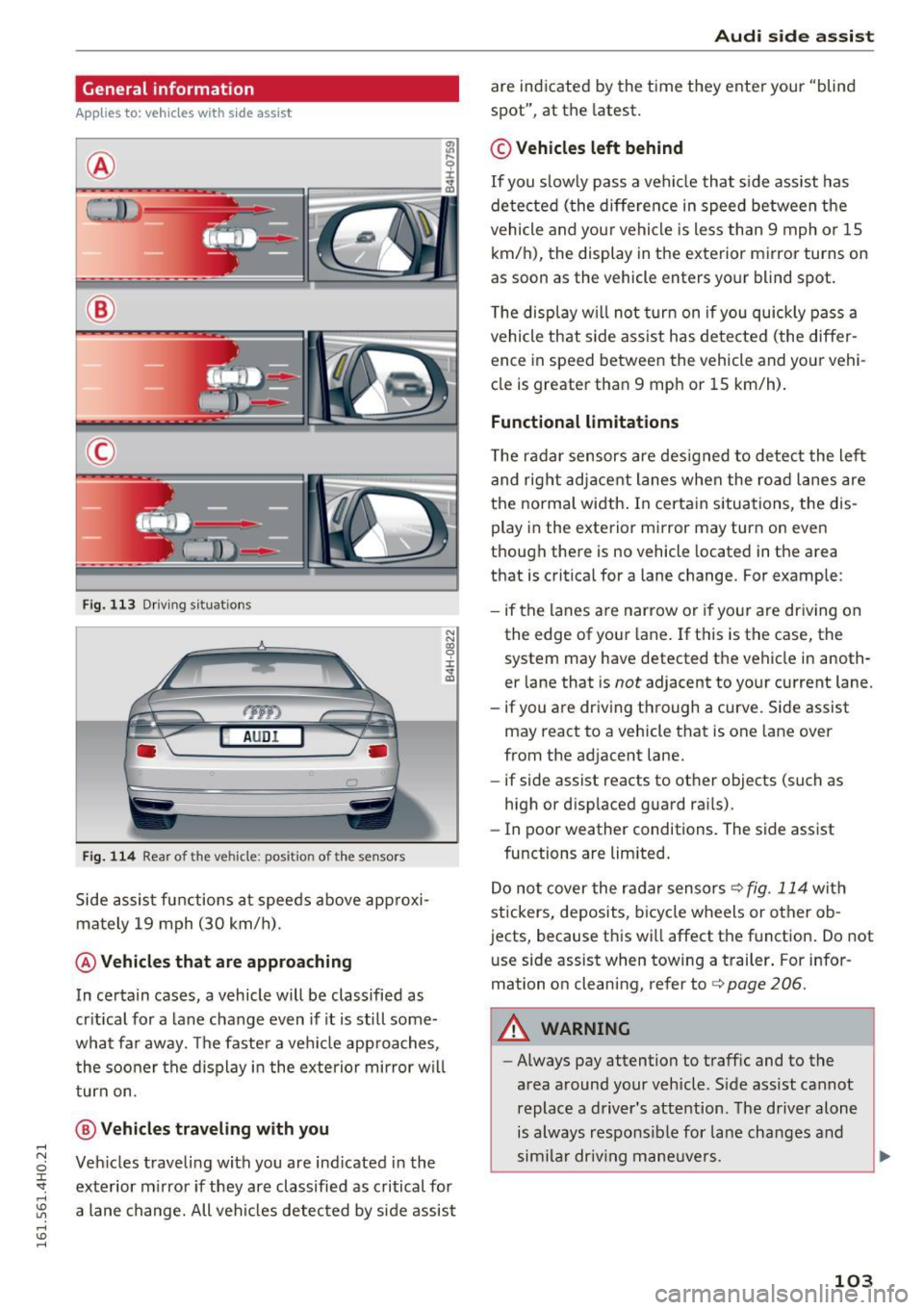
®
®
©
Fig. 113 D riving sit u atio ns
AUD I
Fig. 114 Rear of the vehicle: position of the senso rs
S ide a ssist fu nctions a t speeds above app roxi
ma tely 19 mph (30 km/h).
@ Vehicles that are approaching
N N
~
:i: .,. a,
In ce rtain cases, a vehicle will be classified as
cr itica l for a lane change even if it is still some
what far away. The faste r a ve hicle app roaches,
t he soo ner the d isplay in the exterio r mirror w ill
t urn on.
@ Vehicles traveling with you
Ve hicles traveli ng w ith you are ind icated i n the
exte rior m irro r if they are classified as critical for
a lane change. All vehi cles detec ted by side assist
Aud i side assist
are indicate d by the time they ente r your "blind
spot", at the latest.
© Vehicles left behind
If you s low ly pas s a vehi cle that s ide ass ist has
de te cted ( the differe nce in speed between t he
vehicle and you r vehicle is less than 9 mph or 15
km/h), the display in the exterior mirror turns on
as soon as the vehicle enters your blind spot.
T he disp lay w ill not turn on if you quickly pass a
vehicle th at side ass ist h as de te cte d (t he differ
ence in speed between the vehicle and your vehi
cle is greater tha n 9 mp h or 15 km/h).
Functional limitations
The radar se nsors are des igned to detect the le ft
and right adj ace nt lane s when the ro ad l anes are
the normal width . In certa in situations, the dis
play in the exterior mirror may turn on eve n
though there is no vehicle located in the area
that is critical for a lane change. For example:
- if the lanes a re narrow or i f yo ur are dr iv ing on
the edge of you r lane. If t his is the case, the
system may have detected th e vehicle in anoth
er lane that is
not adjacent to your cu rrent lane.
- if you are dr iv ing through a curve. Si de assist
may react to a vehicle that is one lane over
from the adjacent lane.
- if side assist reacts to ot her objects (such as
high or disp laced guard ra ils).
- In poor weather conditions. The side assist
fu nctions a re limited .
D o no t cover the r adar senso rs
c> fig. 114 wit h
stickers, deposits, b icycle wheels or other o b
jects, because th is wi ll affect the f unction . Do not
u se side assist when towing a t railer . For infor
mation on cleaning, refer to
c> page 206.
A WARNING
- Always pay attention to traffic and to the
area around your veh icle. S ide assist cannot
replace a driver' s attention. The driver alone
is always respo nsib le for la ne cha nges and
s im ila r dr iv in g ma neuve rs.
103
Page 106 of 302
Audi side assist
-Improper reliance on the side assist system
can cause collisions and serious personal in
jury:
- Never rely only on side assist when chang
ing lanes.
- Always check rear view mirrors to make
sure that it is safe to change lanes.
- Side assist cannot detect all vehicles under
all conditions- danger of accident!
- Please note that side assist indicates there
are approaching vehicles, or vehicles in your blind spot, only after your vehicle has
reached a driving speed of at least 19 mph
(30 km/h).
- In certain situations, the system may not
function or its function may be limited. For
example:
- if vehicles are approaching or being left
behind very quickly . The display may not
turn on in time .
- in poor weather conditions such as heavy
rain, snow or heavy mist .
- on very wide lanes, in tight curves or if
there is a rise in the road surface . Vehicles
in the adjacent lane may not be detected
because they are outside of the sensor
range.
(D Note
The sensors can be displaced by impacts or damage to the bumper, wheel housing and
underbody . This can affect the system . Have
your authorized Audi dealer or authorized
Audi Service Facility check their function.
(D Tips
-If the window glass in the driver's door or
front passenger's door has been tinted, the
display in the exterior mirror may be misin
terpreted.
- For Declaration of Compliance to United
States FCC and Industry Canada regulations
c::> page 284.
104 Activating and deactivating
App
lies to : vehicles with side assist
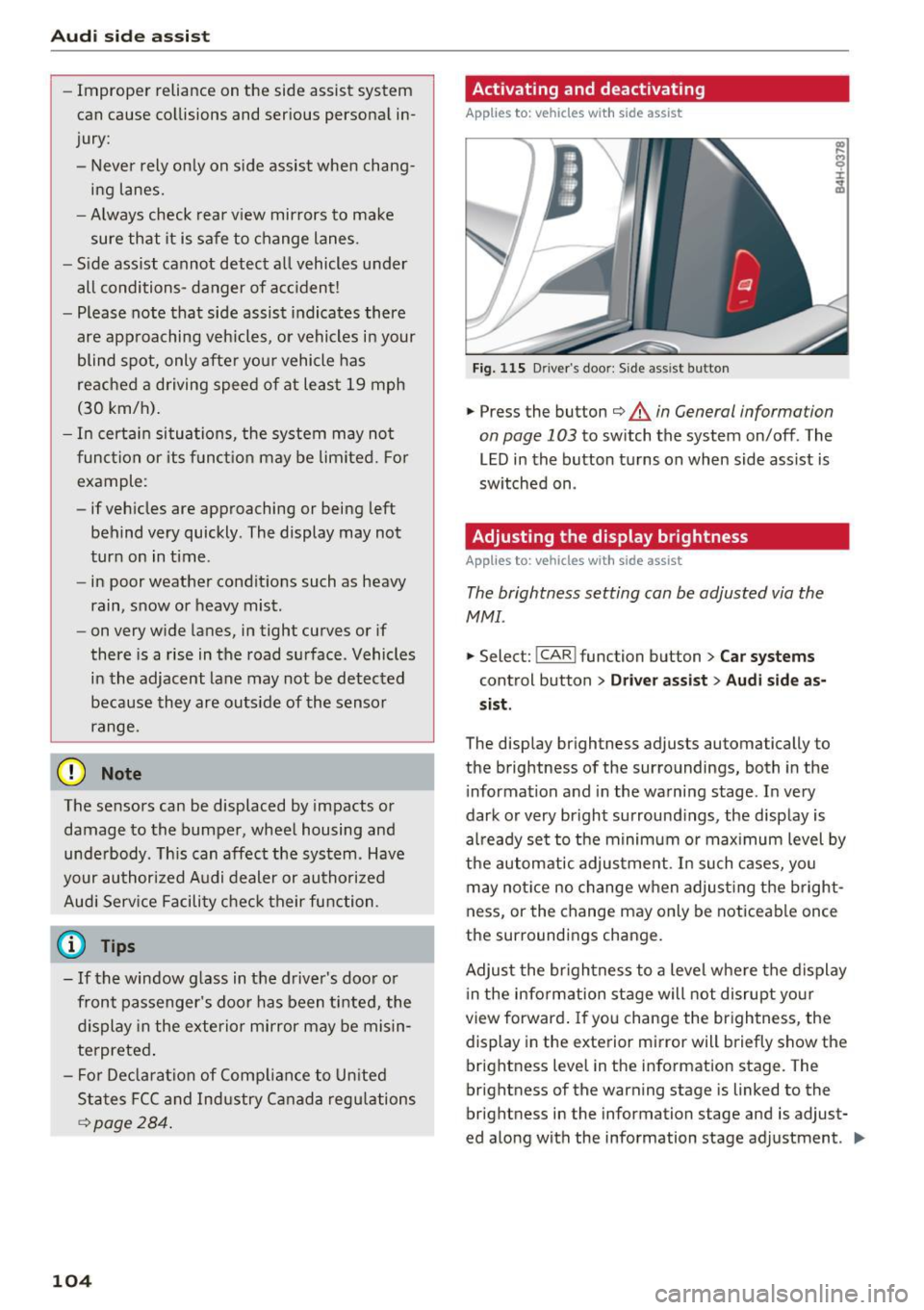
Fig. 115 D riv er's doo r: Side ass ist butto n
.,.. Press the button c::> &. in General information
on page 103
to switch the system on/off . The
LED in the button turns on when side assist is
switched on .
Adjusting the display brightness
Applies to: vehicles wit h side assist
The brightness setting can be adjusted via the
MMI.
.,.. Select: I CAR I function button > Car systems
control button > Driver assist> Audi side as
sist .
The display brightness adjusts automatically to
the brightness of the surroundings, both in the
information and in the warning stage . In very
dark or very bright surroundings, the display is
already set to the minimum or maximum level by
the automatic adjustment. In such cases, you may notice no change when adjusting the bright
ness, or the change may only be noticeable once
the surroundings change.
Adjust the brightness to a level where the display
in the information stage will not disrupt your
view forward. If you change the brightness, the
display in the exterior mirror will briefly show the
brightness level in the information stage. The
brightness of the warning stage is linked to the
brightness in the information stage and is adjust
ed along with the information stage adjustment . .,,.
Page 107 of 302
@ Tips
-Side assist is not active whi le you are ma k
i ng the ad justment .
- Your settings are automatically stored and
ass igned to the remote control key being
u sed.
Driver messages
A ppl ies to: ve hicl es w ith si de assis t
If side ass ist switches off by itself, the LED in the
button turns off and a message will appear in the
i nstr ument cluster d isp lay :
Audi side assist: Cur rently una vailable . No sen
sor vision
The rada r senso rs' vision is affected . Do not cover
the area in front of the senso rs with b ike wheels,
stickers, dirt o r other ob jects . Clean the area in
front of the sensors, if necessary
c:> page 103,
fig . 114.
Audi side assist: Currently unavailable
Side assist c an not be swi tched o n tempo rarily be
cause there is a mal function (for exam ple, the
battery charge level may be too low) .
Audi side assist: System fault!
The system cannot guarantee that it w ill detec t
ve hicles co rrectly and it is swi tched off . The sen
s ors have bee n disp laced or are fa ulty. Have the
sy stem checked by an authorized Audi de aler or
au thor ized Au di Service Facility soon.
Audi side assist: Unavailable when towing .
Side assist sw itches off automatically when a fac
tory-installed trailer hitch is connected to the
e lectr ical connector on the trailer . Th ere is no
g ua rantee the syste m will sw itch off when usi ng
a retrofitted tra ile r hitc h. D o not use s ide assist
when towing a t railer.
Aud i side assist
105
Page 111 of 302

Night vision assistant
Night vision assistant
with pedestrian and wild animal marking
Description
Applies to: vehicles with night visio n ass istant
Night vision assistant with pedestrian and wild
animal detection assists you in darkness by using
an infrared camera to monitor the area in front of
your veh icle , w ith in the limits of the system .
It
can display objects up to app roximately
1000 feet (300 meters) away. The hea t image
detected by the camera is shown in the instr u
ment cluster display. Warm areas appea r lighter
and cold areas appear darker.
Pedestrian and wild animal detection
Applies to: vehicles with night vision assistant
Fi g. 117 D is play: ye ll ow pede strian mark ing
Fi g. 118 D is p lay : symbo l w hen infrared ima ge is not vi sible
W ith in the limits of the system, n igh t vis io n as
sistant can detect pedestrians and wild animals
that are w ithin the detection range between ap
proximate ly 32 feet (10 meters) and 295 feet
(90 meters) in front of the vehicle. When it is
dark outside and the headlights are sw it ched on,
Night visi on assis tant
detected pedestrians and w ild animals a re
marked in ye llow ¢
fig. 117 with in the limits of
the system
¢ page 110 . Wild anima l detect ion is
not act ive in bu ilt-up areas. The system only de
tects large wi ld animals such as deer .
(!_) Tips
-If another display such as navigation rep la
ces the image from the night vision assis
tant, the~,, symbol appears in the tab
¢
fig . 118. You can call up n ight v is ion as
sistant using the buttons on the m ultifunc
tion steering wheel¢
page 24 .
Pedestr ian and wild animal warning
Applies to: vehicles with nigh t vision assistant
Fi g. 119 In strument cl uste r: @ pedes trian w arnin g, @
w ild a nima l warn ing
F ig . 1 20 In strum en t cluste r: @ ped estr ian wa rnin g/ @
w ild an ima l warn ing w hen the n ig ht v is ion ass istant image
i s not se lected in the instr um ent cl uste r d isp lay
Instrument cluster display /Head-up Display*
If pedestrians o r wild animals are detected in an
area in front of your vehicle th at is considered
critical, the system will attempt to draw your at-
tention to this by :
Ill-
109
Page 116 of 302
Automatic transmissio n
-Power is sti ll transmitted to the w heels
w hen the eng ine is r unning at idle. To pre
vent the veh icle from "creeping", you must
keep your foot on the brake in all selector
lever positions except P and N when the en
gine is runn ing . Do not inadvertently press
t h e accelerator pedal when the vehicle is
s tationa ry. Otherwise the vehicle will start
to move immediately. This cou ld happen
even if the parking brake is activated.
- Before opening the hood, se lect the P sele c
tor leve r pos ition and se t the park ing bra ke .
This reduces the risk of a crash . Always read
and follow the applicab le warnings
<=> page 220.
- Never get out of the driver's seat when the
engine is running.
- If you must get out of the vehicle, move the
selector lever securely into the P position
and apply the parking brake.
(D Tips
- If you un intent ionally shift in to the N selec
tor lever position whi le driving, ta ke your
foot off the accelerator pedal and wait for
the engine to slow down unt il it is idling be
fore yo u shift into D or S.
Driving tips
Th e gears shi~ automatically .
Starting from a stop
.. Press and hold the brake pedal.
.. Start the engine<=>
page 81 .
.. Press the button on the selector lever and se
l ect the D, 5 or R selector lever position
<=> page 112.
.. Wait a moment unti l the transmission shifts.
You w ill not ice a slight moveme nt when the
gear engages .
"' Release the b rake pedal and press the acce lera
tor pedal <=>,&. .
Stopping temporarily
.. Press the b rake pedal to stop the vehicle, for
example at a traff ic light. Do not press the ac
celerator pedal when do ing th is.
114
.. To preven t the vehicle from ro lling when yo u
start driving, set t he parking brake when stop
ping on large inclines¢,&. .
.. The parking brake will release a utomat ica lly
and the vehicle will start moving once you press
the acce lerato r pedal.
Parking
If the se lector lever is not in the P position whe n
yo u open the drive r's door, the vehicle cou ld roll.
The message
Transmission: Car may roll! Shift
to park!
appears.
.. Press an d hold the b rake peda l
c::> ,&..
.. Set the park ing brake.
.. To engage the P selector lever position, press
the button on the selector lever and shift into
the P position
c::> page 112 .
Under certain conditions such as driving in the
mountains or when towing a trailer, it may be
helpful to switch to manua l mode temporar ily to
shift
manually to adapt to the driving conditions
c::> page 115.
On slopes, act ivate the park ing brake first and
then move the selector lever to the P position .
This prevents too muc h stress from be ing placed
on the locking mechanism .
A WARNING
Read and fo llow all WAR NING S c::> .&. in Se
le ct ing a selec tor lever posi tion on p age 113.
- The vehicle can also ro ll when the eng ine is
s t o pped .
- Do no t press the acce le ra t o r pedal when
chang ing t he selec to r lever posit io n while
t he vehicle is s tat ionary and the engine i s
r u nning. This co uld result in a crash.
- Never e ngage R or P while driving.
It co uld
cause a crash.
- P owe r is still transmitted to the wheels
when t he e ngine is runni ng at idle . To pre
vent the vehicle from "creeping", yo u m ust
keep your foot on the brake in a ll selector
lever positions except P and N when the en
gi ne is running. Do not inadvertent ly press
the acce le rator peda l when the veh icle is
stat ionary. Otherwise t he vehicle will start
-
Page 118 of 302
![AUDI S8 2016 Owners Manual Automatic transmission
A WARNING
Please note that the wheels could spin on
slick or slippery roads when kick-down is ac
tive .
Transmission malfunction
[O] Transmission: please pre](/img/6/57611/w960_57611-117.png "AUDI S8 2016 Owners Manual Automatic transmission
A WARNING
Please note that the wheels could spin on
slick or slippery roads when kick-down is ac
tive .
Transmission malfunction
[O] Transmission: please pre")
Automatic transmission
A WARNING
Please note that the wheels could spin on
slick or slippery roads when kick-down is ac
tive .
Transmission malfunction
[O] Transmission: please press the brake pedal
and select the position again
Press the brake pedal and select the desired se
lector lever position aga in. You can then continue
driving .
[O] Transmission hot: please modify driving
style
The transmission temperature has increased sig nificant ly due to the sporty driving manner. Drive
in a less sporty manner until the temperature re
turns to the normal range and the indicator light
sw itches of .
Dt) Gearbox malfunction : you can continue driv
ing
There is a system malfunction in the transm is
sion. You may continue driving. Drive to your au
thorized Audi dealer or qualified repair facility
soon to have the malfunction corrected.
[0]/(i) Gearbox malfunction: you can continue
driving in D only until engine is off
There is a system malfunctio n in the transmis
sion. The transmission is switching to emergency
mode . If you turn the engine off, you will not be
ab le to select any other selector lever positions
after starting the engine again. Drive to your au
thor ized Audi dealer or qualified repair facility
immed iately to have the malfunction corrected .
[O] Gearbox malfunction: you can continue driv
ing (limited functionality)
There is a system malfunction in the transmis
sion. The transmission is switching to emergency
mode . This mode only shifts into certain gears or
will not longer shift at all. The engine may stal l.
Drive to your authorized Aud i dea ler or qualified
repair fac ility immediately to have the malfunc
tion corrected .
116
~Ii) Gearbox malfunction: no reverse gear
(you can continue driving)
There is a system malfunction in the transm is
sion. The transmission is switching to emergency
mode. This mode only shi fts into certain gears or
will not longer shift at all. You cannot engage the
reverse gear. Drive to your authorized Audi dealer
i mmediately to have the malfunction corrected.
Dt) Vehicle may roll! Cannot shift to P. Please
apply parking brake
- Th e parking lock was re leased using the emer
gency release~
page 117. Or
- Th e parking brake cannot engage automatical
ly. Drive to your authorized Audi dealer or quali
fied repair facility immediately to have the mal
function corrected.
Dt) Gearbox malfunction: Stop and shift to P
Do not continue dr iving . Se lect the P selector lev
er posit ion and see your authorized Audi dealer
or qualified repair facility fo r ass istance.
Page 120 of 302
Parking systems
Parking systems
General information
Applies to: vehicles with park ing system plus/rear view cam
era/peripheral cameras
Depending on your vehicle 's equipment , various
parking aids will help you when parking and ma
neuvering.
The
parking system plus with rear view camera
assists you when parking by audibly and visually
indicating objects detected
in front of and behind
the vehicle . The rear view camera shows the area
behind the vehicle in the Infotainment display.
This display assists you when you are cross or parallel parking
r:!) page 119.
The peripheral cameras assist you with parking
and maneuvering. You are aided by various cam
eras depending on the vehicle equipment lev
el r:!)
page 122. In addition, you are assisted by
the functions from the sensors
c> page 119, Sen
sors,
¢ page 121, Visual display.
A WARNING
-
- Always look for traffic and check the area
around your vehicle by looking at it directly
as well. The parking system cannot replace
the driver's attention. The driver is always
responsible for safety during parking and
for all other maneuvers.
- Please note that some surfaces, such as
clothing, are not detected by the system.
- Sensors and cameras have b lind spots in
wh ich peop le and objects cannot be detect
ed . Be especially cautious of children and
animals.
- The sensors can be displaced by impacts or
damage to the radiator gr ille, bumper,
wheel housing and the underbody. The park
ing systems may become impaired as a re
sult. Have your authorized Audi dealer or
qualified workshop check their function .
- Make sure the sensors are not covered by
stickers, deposits or any other obstructions as it may impair the sensor function. For in
formation on cleaning, refer to
I:!) page 206.
118
(D Note
- Some objects are not detected by the sys
tem under certain circumstances:
-Objects such as barrier chains, trailer draw
bars, vertical poles or fences
- Objects above the sensors such as wall ex
tensions
- Objects with specific surfaces or struc
tures such as chain link fences or powder
snow.
- If you continue driving closer to a low-lying
object, it may disappear from the sensor
range. Note that you will no longer be
warned about this obstacle.
(D Tips
-The system may provide a warning even
though there are no obstacles in the cover
age area in some situations, such as:
- certain road surfaces or for long grass.
- externa l ultrasonic sources e.g. from
cleaning vehicles .
- heavy rain, snow or thick vehicle exhaust .
- We recommend that you practice parking in
a traffic-free location or parking lot to be
come familiar with the system . When doing
this, there should be good light and weath
er conditions.
- You can change the volume and pitch of the
signals as well as the display¢
page 128.
- Please refer to the instructions for towing a
trailer
¢page 128.
-What appears in the infotainment display is
somewhat time-delayed.
Page 123 of 302
.. Pr ess the Rear view control button to see the
rear vi ew camera image .
Switching off
.. Drive forward faste r than 6 mph (10 km/h), o r
.. Press the P,,1~ button, or
.. Switch the ign ition off .
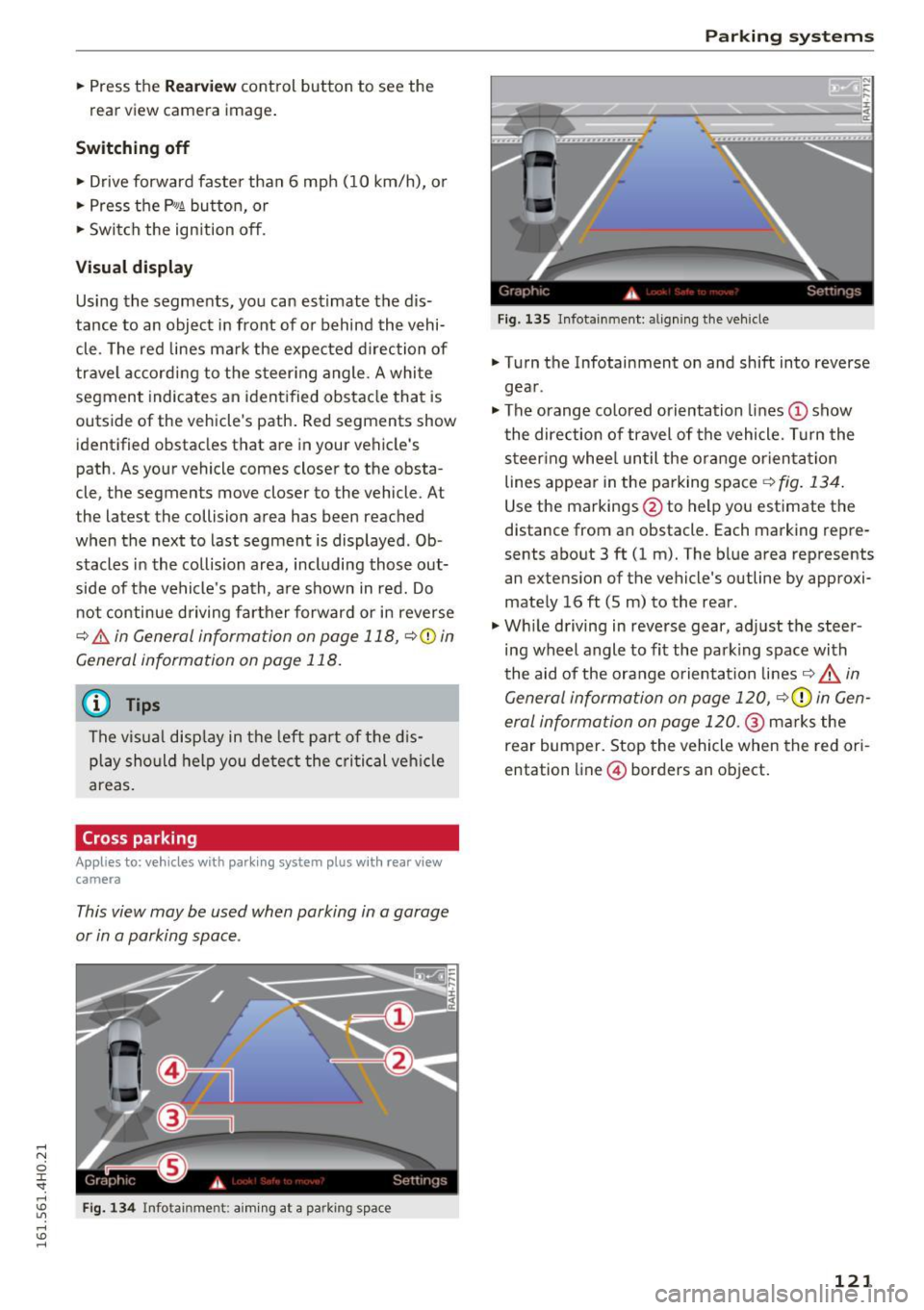
Visual display
Using the segments, you can estimate the dis
tance to an object in front of or behind the vehi cle . The red lines mark the expected direction of
travel according to the s teer ing angle . A white
segment indicates an ident ified obstacle that is
outside of the vehicle's path . Red segments show
identified obstacles that are in your vehicle's
path. As your vehicle comes closer to the obsta
cle , the segments move closer to the veh icle. A t
t he la tes t the collision area has been reached
when the next to last segment is displayed . Ob
stacles in the collision area, including those out
side of the vehicle's path, a re shown in red. Do
no t continue driving fa rther forward or in reverse
¢ .&. in General information on page 118, ¢@ in
General information on page
118.
@ Tips
The v isua l disp lay in the left part of the dis
p la y sho uld help you de tect the c rit ical veh icle
areas.
Cross parking
Applies to: vehicles with parking system plus w ith rear view
camera
This view may be used when parking in a garage
or in a parking space .
Fig. 134 Infota inmen t: a im ing at a pa rk in g space
Parking systems
Fig. 135 Infota inment : align ing the veh icle
.. Turn the Infotainment on and shift into reverse
gea r.
"' The orange co lored orientation lines(!) show
the direction of travel of the vehicle. Turn the steer ing whee l un til the orange orien tation
lines appear in the parking space
¢ fig. 134.
Use the markings @to help you estimate the
distance from an obstacle . Each marking repre
sents about 3 ft (1 m). The blue area represents
an extens ion of the vehicle's outline by approxi
mately 16 ft (Sm) to the rear .
"' Wh ile driving in reverse gear , adjust the steer
ing wheel angle to fit the park ing space with
the aid of the orange orientation lines¢&_
in
General information on page
120, ¢ 0) in Gen
eral information on page
120. @ marks the
rear bumper. Stop the vehicle when the red ori
entation line@ borders an object.
121
Page 124 of 302
Parking systems
Parallel parking
Applies to: vehicles with parking system p lus with rear view
camera
This view may be used when parallel parking
along the side of a street.
Fig. 136 Infotainment: blue surface aligned in the pa rking
space
F ig . 1 37 Infotainment: contact of the blue curved line with
the curb
Parking on the right is described here. It is identi
cal when parking on the left.
If there is an obstacle next to the parking space
(such as a wall), refer to information for "Parking
next to obstacles"¢
page 122.
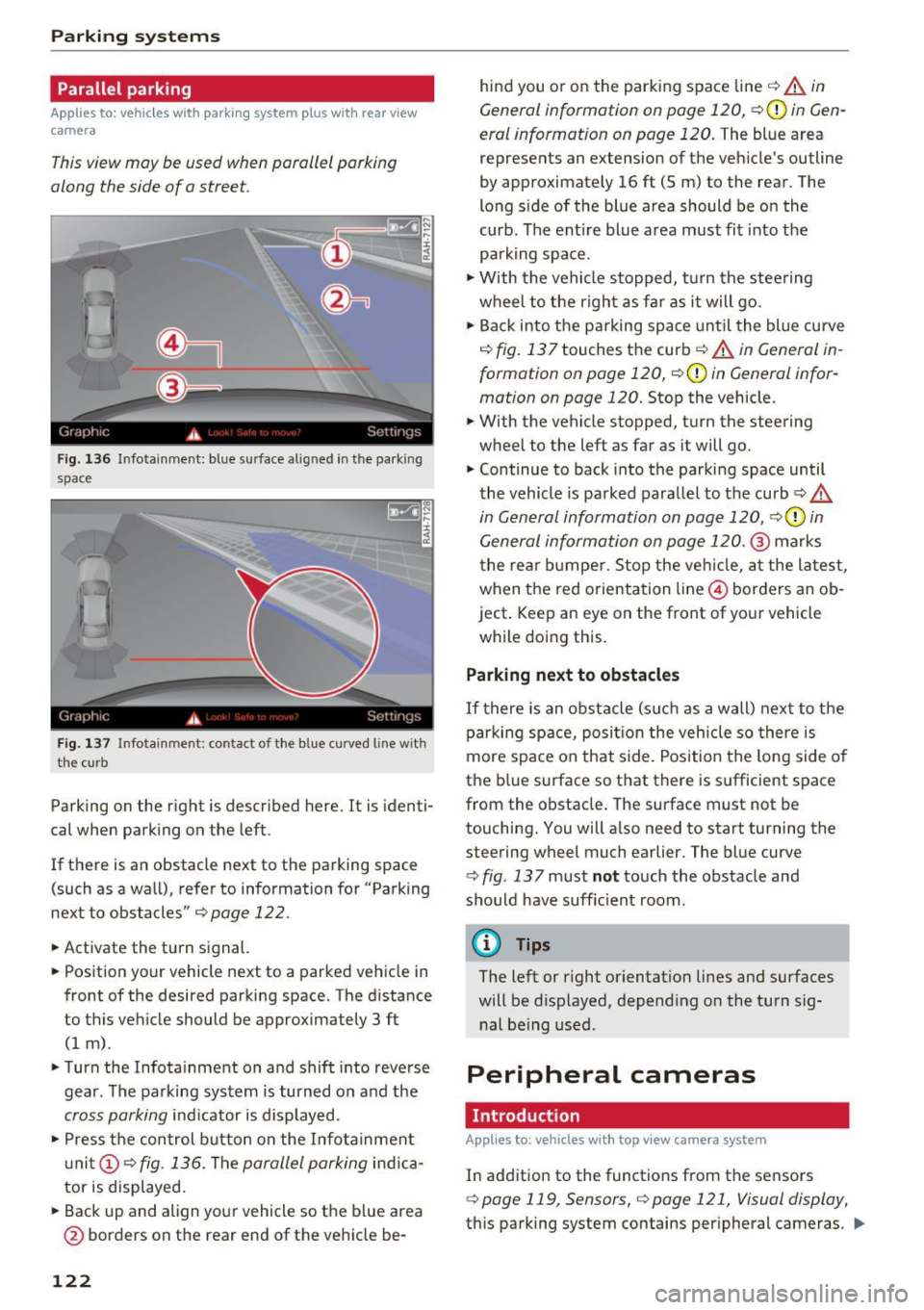
.,. Activate the turn signal.
.,. Position your vehicle next to a parked vehicle in
front of the desired parking space. The d istance
to this vehicle should be approximately 3 ft
(1 m) .
.,. Turn the Infota inment on and shift into reverse
gear. The parking system is turned on and the
cross parking indicator is displayed .
.,. Press the con trol button on the Infotainment
un it (!)
c::> fig. 136. The parallel parking indica
tor is displayed.
.,. Back up and align your vehicle so the blue area
@ borders on the rear end of the vehicle be-
122
hind you or on the parking space line c::> .&. in
General information on page 120,
c:,(D in Gen
eral information on page 120.
The blue area
represents an extension of the veh icle's outline
by approximate ly 16 ft (5 m) to the rear. The
long side of the blue area should be on the
curb . The ent ire blue area must fit into the
parking space .
.,. With the vehicle stopped, turn the stee ring
wheel to the right as far as it will go .
.,. Back into the parking space unt il the blue curve
c::> fig. 137 touches the curb c:> .&. in General in
formation on page 120,
c:, (D in General infor
mation on page 120.
Stop the vehicle .
.,. With the vehicle stopped, turn the steering
wheel to the left as far as it will go.
.,. Continue to back into the parking space until
the vehicle is parked parallel to the curb
c:> .&.
in General information on page 120, c::>(D in
General information on page 120.@
marks
t he rear bumper . Stop the vehicle, at the latest,
when the red orientation line@ borders an ob
ject . Keep an eye on the front of your vehicle
while doing this.
Parking next to obstacles
If there is an obstacle (such as a wall) next to the
parking space, posit ion the vehicle so there is
more space on that side. Position the long side of
the blue surface so that there is sufficient space
from the obstacle. The surface must not be
touching. You will a lso need to start turning the
steering wheel much earlier. The blue curve
c::> fig. 13 7 must not touch the obstacle and
sho uld have suff ic ient room .
@ Tips
The left or right orientation lines and surfaces
will be disp layed, depending on the turn s ig
nal being used .
Peripheral cameras
Introduction
Applies to : vehicles with top v iew camera system
In addition to the functions from the sensors
c:, page 119, Sensors, c:, page 121, Visual display,
this parking system contains peripheral cameras . ..,_
Page 125 of 302
Depending on the vehicle equipment, you are as
sisted by various views such as peripheral view,
corner views at the front and rear of the veh icle,
and v iews directly in front of or behind the vehi
cle.
General information
App lies to: veh icles with top view camera system
e
Fig. 138 Location of periphera l came ras
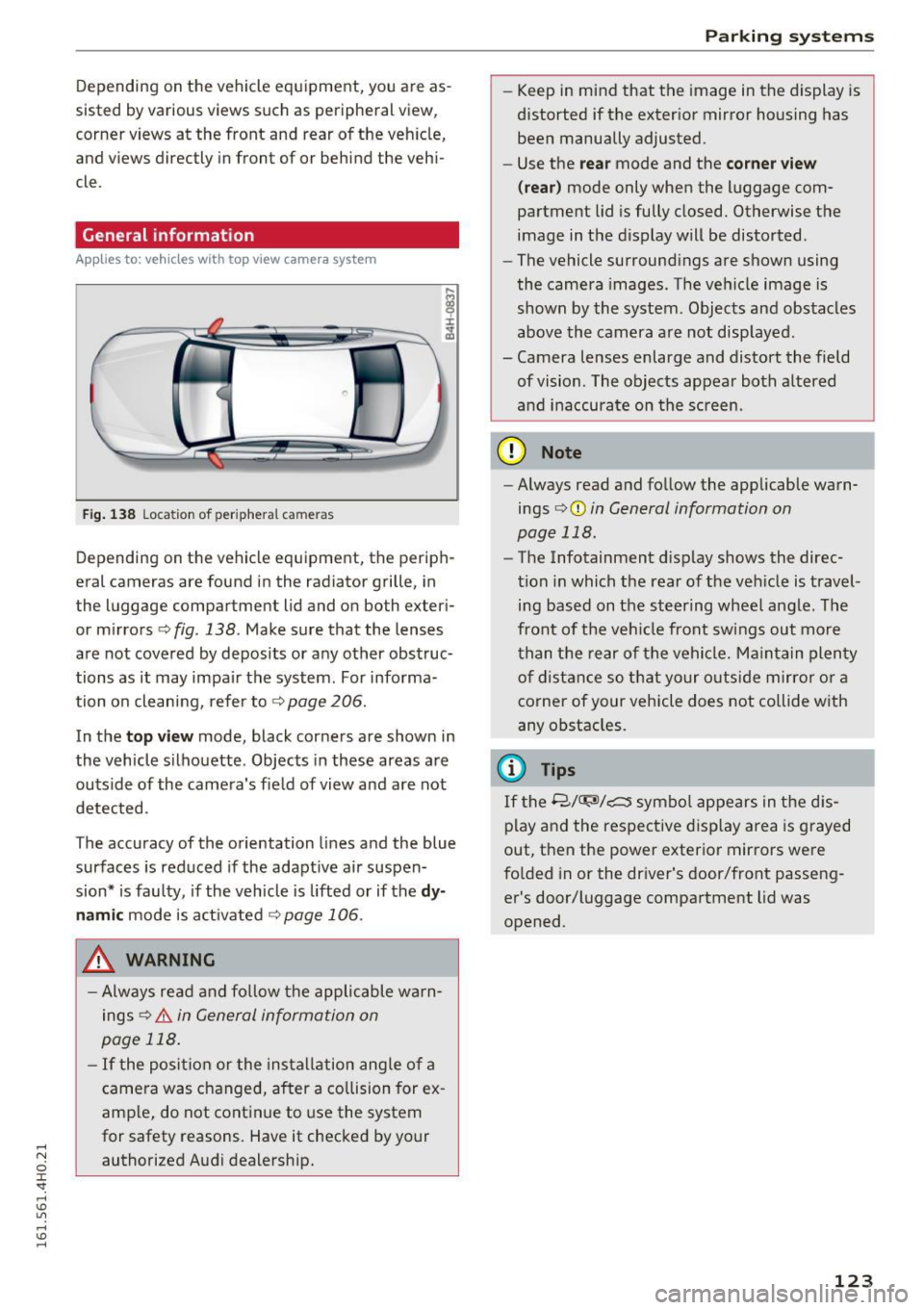
Depending on the vehicle equipment, the periph
eral cameras are found in the radiator grille, in
the luggage compartment lid and on both exter i
or mirrors ¢
fig. 138. Make sure that the lenses
are not covered by deposits or any other obstruc
tions as it may impair the system . For informa
tion on cleaning, refer to¢
page 206.
In the top vi ew mode, black corners are shown in
the vehicle silhouette . Objects in these areas are
outside of the camera's fie ld of view and are not
detected.
The accuracy of the orientation lines and the blue
surfaces is reduced if the adaptive air suspen
sion* is faulty, if the vehicle is lifted or if the
d y
namic mode is act ivated ¢ page 106.
.&, WARNING
-Always read and fo llow the applicable wa rn
ings
¢ & in General information on
page 118 .
-If the posit ion or the insta llation angle of a
camera was changed, after a co llision for ex
amp le, do not cont inue to use the system
for safety reasons. Have it checked by your
authorized Audi dealership.
Parking systems
-Keep in mind that the image in the display is
distorted if the exter ior mirror housing has
been manually adjusted.
- Use the
rear mode and the co rner view
( rear )
mode only when the luggage com
partment lid is fully closed. Otherwise the
image in the d isplay will be distorted.
- The vehicle surround ings are shown using
the camera images. The vehicle image is
shown by the system . Objects and obstacles
above the camera a re not disp layed .
- Camera lenses enlarge and distort the field of vision . The objects appear both a ltered
an d inaccurate on the screen.
(D Note
-Always read and fo llow the applicable warn
ings
o (D in General information on
page 118.
- The Infotainment display shows the direc
tion in which the rear of the veh icle is travel
ing based on the steering wheel ang le. The
front of t he veh icle front sw ings out more
t han t he re ar of the vehicle . M ai nta in plenty
o f distance so that your o uts ide mirro r or a
corner of your vehicle does not collide with
any obstacles.
(D Tips
If t he 8/<:r;si/c:::::::5 symbo l appears in the d is
play and the respective d isp lay area is grayed
out, then the power exterior mirrors we re
fo lded in or the dr iver's door/front passeng
er's door/luggage compa rtment lid was
opened .
123