change time AUDI TT COUPE 2014 User Guide
[x] Cancel search | Manufacturer: AUDI, Model Year: 2014, Model line: TT COUPE, Model: AUDI TT COUPE 2014Pages: 284, PDF Size: 34.42 MB
Page 110 of 284
Downloaded from www.Manualslib.com manuals search engine Intelligent
technology
event of faults or anomalies in the vehicle data,
only these data are saved. As a rule, faults are
shown by the warning lamps in the instrument
cluster.
Data saved in the control units can only be read
and analysed with special equipment.
A qualified workshop is only able to recognise
and deal with faults by using the relevant saved
data. Among other things, the saved data may
contain the following information:
- Data relating to the engine and the gearbox
-Speed
- Dire ction of travel
- Braking force
- Seat belt warning system data
The control
units
installed will not under any cir
cumstances record conversations in the vehicle.
On vehicles with an automatic SOS dial system
via a mobile phone or another connected device,
the current location of the vehicle can be trans
mitted. In accidents where the control units reg
ister that airbags have been triggered, a signal
can automatically be sent by the system. This de
pends on the service provider. The signal can only
be sent in areas with sufficient mobile phone cov
erage.
Event data recorder
Your vehicle is not equipped with an event data
recorder.
In an event data recorder, information about the
vehicle is temporarily saved. In the event of an
accident, you can therefore obtain detailed infor
mation about the course of events. On vehicles
with an airbag system, accident-related data such
as impact speed, seat belt status, seat positions
and trigger times can be saved. The exact infor
mation saved depends on the manufacturer.
The installation of an event data recorder is sub
ject to the agreement of the vehicle's owner. This
process is governed by legislation in some coun
tries.
108 Reprogram
ming control units
All data for controlling components are saved in
the control units. Some convenience features,
such as one-touch signalling, single door unlock
ing and display messages can be reprogrammed
using special workshop equipment. If any con
venience features are reprogrammed, the infor
mation in this Owner's Manual will no longer be
accurate for the features that have been
changed. We recommend having the reprogram
ming confirmed by an Audi workshop in the
"Workshop remarks" section of your Service
Schedule.
Your Audi dealer will be able to provide you with
information about possible reprogramming op
tions.
Event memory
There is a diagnostic connection for reading out
the event memory located in the footwell on the
driver's side of the vehicle. Information regarding
the operation and status of the vehicle's elec
tronic control units is stored in the event memo
ry. The event memory should only be read out
and erased by a qualified workshop.
A WARNING
The diagnostic connection must not be used
for other purposes. Incorrect use can cause
malfunctions -risk of accident!
Page 118 of 284
Downloaded from www.Manualslib.com manuals search engine Speech
dialogue system
Speech dialogue system
How to use the system
Applies to vehicles: with speech dialogue system
You can operate many infotainment functions
conveniently by voice.
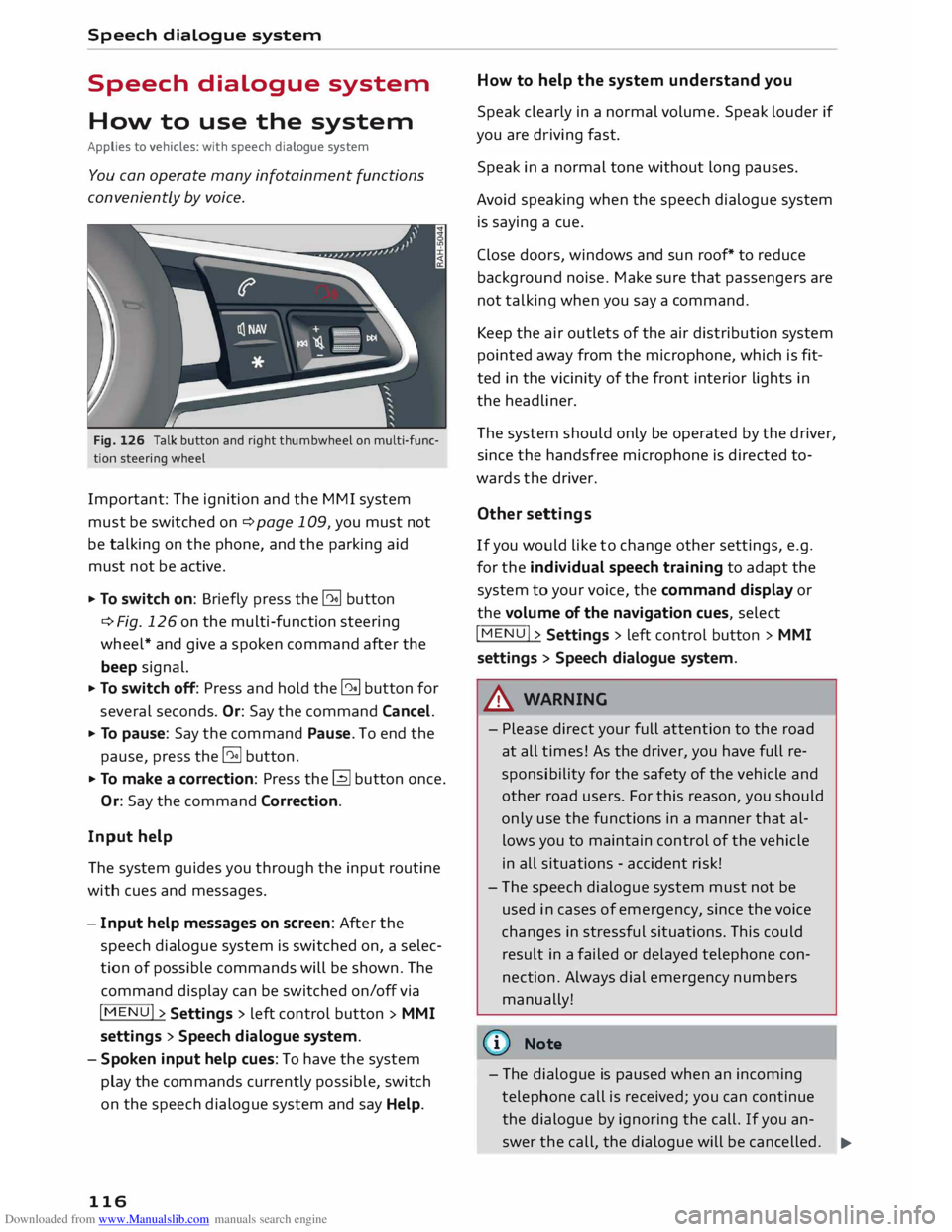
Fig. 126 Talk button and right thumbwheel on multi-func
tion steering wheel
Important: The ignition and the MMI system
must be switched on ¢page 109, you must not
be talking on the phone, and the parking aid
must not be active.
... To switch on: Briefly press the [2!] button
c:::> Fig. 126 on the multi-function steering
wheel* and give a spoken command after the
beep signal.
... To switch off: Press and hold the [2!] button for
several seconds. Or: Say the command Cancel.
... To pause: Say the command Pause. To end the
pause, press the l2!l button.
... To make a correction: Press the� button once.
Or: Say the command Correction.
Input help
The system guides you through the input routine
with cues and messages.
- Input help messages on screen: After the
speech dialogue system is switched on, a selec
tion of possible commands will be shown. The
command display can be switched on/off via
I MENU I>
Settings > left control button >
MMI
settings > Speech dialogue system.
- Spoken input help cues: To have the system
play the commands currently possible, switch
on the speech dialogue system and say Help.
116 How
to help the system understand you
Speak clearly in a normal volume. Speak louder if
you are driving fast.
Speak in a normal tone without long pauses.
Avoid speaking when the speech dialogue system
is saying a cue.
Close doors, windows and sun roof* to reduce
background noise. Make sure that passengers are
not talking when you say a command.
Keep the air outlets of the air distribution system
pointed away from the microphone, which is fit
ted in the vicinity of the front interior lights in
the headliner.
The system should only be operated by the driver,
since the handsfree microphone is directed to
wards the driver.
Other settings
If you would like to change other settings, e.g.
for the individual speech training to adapt the
system to your voice, the command display or
the volume of the navigation cues, select
I MENU I>
Settings > left control button >
MMI
settings > Speech dialogue system.
A WARNING
- Please direct your full attention to the road
at all times! As the driver, you have full re
sponsibility for the safety of the vehicle and
other road users. For this reason, you should
only use the functions in a manner that al
lows you to maintain control of the vehicle
in all situations -accident risk!
- The speech dialogue system must not be
used in cases of emergency, since the voice
changes in stressful situations. This could
result in a failed or delayed telephone con
nection. Always dial emergency numbers
manually!
{tI)) Note
- The dialogue is paused when an incoming
telephone call is received; you can continue
the dialogue by ignoring the call. If you an-
swer the call, the dialogue will be cancelled.
..,.
Page 122 of 284
Downloaded from www.Manualslib.com manuals search engine Speech
dialogue system
Function Say:
Starting route guidance after enter-
Start route guidance
ing a destination
Cancelling the active route guidance
Stop route guidance
Calculating alternative routes
Calculate alternative routes
Entering a special destination with
Special destination > Change search area > enter desired cote-
search area with assistance from
gory or subcategory when requested, e.g. "Restaurant"
the system
Categories for entering special des-
Audi Service / Railway station/ Airport/ Hotel/ Hospital /
ti nations
Parking space/ Service area/ Restaurant/ Filling station etc.
Search areas for entering special
In immediate vicinity/ In vicinity of route / In vicinity of desti-
destinations nation/ In vicinity of stopover / In new town/ In new country
Entering an online destination* Online destination (XV), e.g. "Online destination Palace Hotel"
Correcting an entry
No, I meant (XV)
Closing the full list of commands
Close
You can say the following commands to make ad
ditional navigation settings:
Function
General map options
Map type
Displaying the route list
Displaying remaining distance/time
while route guidance is active
Highest speed query
Setting the navigation cues during
active route guidance
Dynamic traffic avoidance
Excluding the next section of the
route
Excluding a certain section of the
route
(©) Note Say:
Map / Day map/ Night map/ Change map colours automati-
cally
20 driving position map/ 20 north position map/ 30 map/
Destination map/ Overview map/ Standard map/ Traffic
map / Google Earth map
Route list
Destination info
How fast can I go here?
Voice guidance on/ Voice guidance off/ Voice guidance com-
pact / Voice guidance complete/ Voice guidance traffic
Manual traffic avoidance / Automatic traffic avoidance /
Switch off traffic avoidance
Exclude route
Exclude route for (XV) metres/kilometres/yards/miles / Ex-
elude next street/ Exclude next section of route
spell destinations to enter them for route
guidance.
- Depending on the selected menu language
and the country you are in, you may have to -
Please observe the notes in the chapter
Notes on Audi connect ¢ page 145.
120
Page 142 of 284
Downloaded from www.Manualslib.com manuals search engine Audi
connect
Detailed information on configuration can be
found on the Internet at www.audi.com/myaudi.
Logging into myAudi in the vehicle
Applies to vehicles: with Audi connect
Before you use some Audi connect services (e.g.
Facebook), you will need to connect your vehicle
to your myAudi account. ""
Sele ct: !ME
NU! button
> Audi connect > right
control button > Login.
"" Enter your myAudi user data. Or: Enter your
eight-character myAudi PIN.
"" Confirm the entry with OK.
You can then use all the Audi connect services.
(©) Note
You will receive your myAudi PIN after setting
up a myAudi account. For more information,
please see www.audi.com/myaudi.
An overview of Audi
connect services
Basic functions
Applies to vehicles: with Audi connect
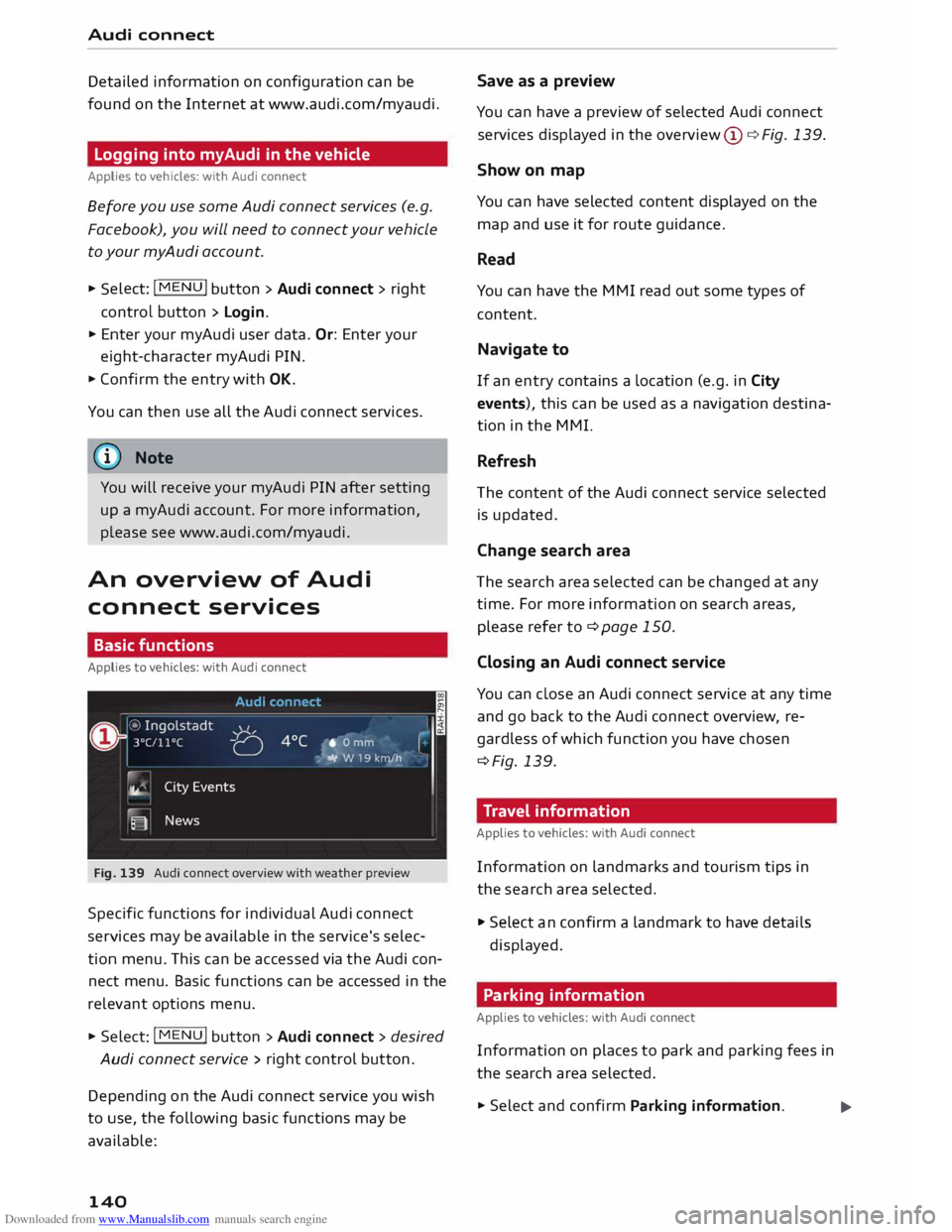
Fig. 139 Audi connect overview with weather preview
Specific functions for individual Audi connect
services may be available in the service's selec
tion menu. This can be accessed via the Audi con
nect menu. Basic functions can be accessed in the
relevant options menu.
"" Select: I MENU
I button > Audi connect > desired
Audi connect service> right control button.
Depe nding on the Audi connect service you wish
to use, the following basic functions may be
available:
140 Save
as a preview
You can have a preview of selected Audi connect
services displayed in the overview @¢ Fig. 139.
Show on map
You can have selected content displayed on the
map and use it for route guidance.
Read
You can have the MMI read out some types of
content.
Navigate to
If an entry contains a Location (e.g. in City
events), this can be used as a navigation destina
tion in the MMI.
Refresh
The content of the Audi connect service selected
is updated.
Change search area
The search area selected can be changed at any
time. For more information on search areas,
please refer to ¢page 150.
Closing an Audi connect service
You can close an Audi connect service at any time
and go back to the Audi connect overview, re
gardless of which function you have chosen
¢Fig. 139.
Travel information
Applies to vehicles: with Audi connect
Information on landmarks and tourism tips in
the search area selected.
"" Select an confirm a landmark to have details
displayed.
Parking information
Applies to vehicles: with Audi connect
Information on places to park and parking fees in
the search area selected.
""Select and confirm Parking information.
...
Page 149 of 284
Downloaded from www.Manualslib.com manuals search engine 0
N
co
.-I
\D Lfl
N
Lfl
.-I Navigation
Navigation
Calling up the navigation menu
Applies to vehicles: with navigation system
The navigation system guides you directly to your destination, avoiding traffic obstructions and using
alternative routes if desired.
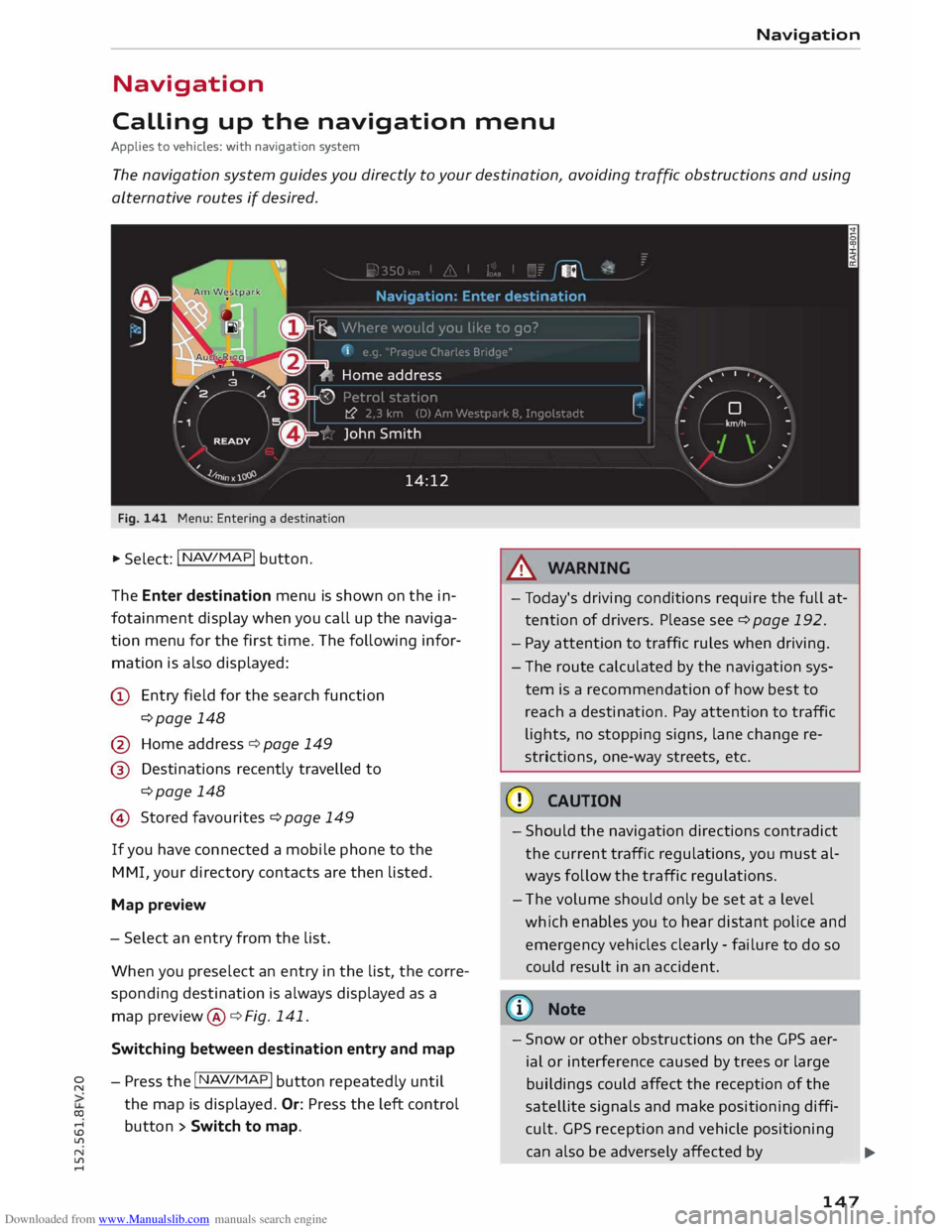
Fig. 141 Menu: Entering a destination
.. Select: I N AV/MAP
!
button.
The Enter destination menu is shown on the in
fotainment display when you call up the naviga
tion menu for the first time. The following infor
mation is also displayed:
@ Entry field for the search function
¢page 148
@ Home address ¢ page 149
@ Destinations recently travelled to
¢page 148
© Stored favourites ¢page 149
If you have connected a mobile phone to the
MMI, your directory contacts are then listed.
Map preview
- Select an entry from the list.
When you preselect an entry in the list, the corre
sponding destination is always displayed as a
map preview @¢ Fig. 141.
Switching between destination entry and map
- Press the I N
AV/MAP !
button repeatedly until
the map is displayed. Or: Press the left control
button > Switch to map. A
WARNING
- Today's driving conditions require the full at
tention of drivers. Please see¢ page 192.
- Pay attention to traffic rules when driving.
- The route calculated by the navigation sys-
tem is a recommendation of how best to
reach a destination. Pay attention to traffic
lights, no stopping signs, lane change re
strictions, one-way streets, etc.
CD CAUTION
- Should the navigation directions contradict
the current traffic regulations, you must al
ways follow the traffic regulations.
- The volume should only be set at a level
which enables you to hear distant police and
emergency vehicles clearly -failure to do so
could result in an accident.
@ Note
- Snow or other obstructions on the GPS aer
ial or interference caused by trees or large
buildings could affect the reception of the
satellite signals and make positioning diffi
cult. GPS reception and vehicle positioning
can also be adversely affected by
--- �
IJII.
147
Page 153 of 284
Downloaded from www.Manualslib.com manuals search engine 0
N
co
....
\D L/'l
N
L/'l
.... list
of special destinations is not sorted
again.
- Sometimes there are destination entries in
the list that cannot be displayed completely
because they are too long. If you select one
of these entries with the rotary pushbutton,
detailed information on the selected entry
will be displayed automatically after a few
seconds.
Online search
Applies to vehicles: with navigation system and Audi connect
You can Look for special destinations online.
Important: The requirements for Audi connect
must be met ¢page 137.
... Press the
I NAV
/MAP!
button repeatedly until
the Enter destination menu is displayed
¢ page 147, Fig. 141.
... Select: left control button > Online search. The
search area that was last set will be displayed
in the entry field.
- To change the search area: Select and confirm
Search area and then a search area from the
list.
- To find an online destination in the selected
search area: Enter a new town/country if neces
sary. Enter a search term (e.g. restaurant). Se
lect and confirm an online destination. Select
and confirm Start route guidance.
- To search for an online destination in a specif
ic category: Choose Select category. Select and
confirm a category, for example Restaurants or
Parking space.
Please see ¢ page 150, Entering a special desti
nation for information on which search areas are
available.
- Please observe the notes in the chapter
Notes on Audi connect ¢ page 145.
- Further information can be found on the In
ternet at www.audi.com/c onnect. Navigation
Calling up destinations from a myAudi
account
Applies to vehicles: with navigation system
You can import navigation destinations from
your myAudi account to the MMI.
Important: You must have created an account at
www.audi.com/myaudi, added a vehicle to the ac
count and stored one or more destinations.
... Press
the I N
A V/
MAP!
button repeatedly until
the Enter destination menu is displayed
¢ page 147, Fig. 141 .
... Select: left control button > myAudi contacts.
... If
necessary, enter your myAudi login details or
your myAudi PIN. The contacts stored in myAu
di will
be displayed .
- Select and confirm a contact.
- Select and confirm a private/ business naviga-
tion destination .
- Select and confirm Start route guidance.
- You only have to enter your myAudi login
details once.
- You will receive your myAudi PIN after set
ting up a myAudi account. For more infor
mation, please see www.audi.com/ myaudi.
- Further information can be found on the In
ternet at www.audi.com/connect.
Entering a destination via the coordinates
Applies to vehicles: with navigation system
... Press the I N
A V/MAP!
button repeatedly until
the Enter destination menu is displayed
¢ page 147, Fig. 141.
... Select: left control button > Geographic coordi
nates.
- Select and confirm either Latitude or Longi
tude.
- Tu rn the rotary pushbutton clockwise or anti
clockwise to adjust the longitude/latitude.
- Press the rotary pushbutton to confirm your en
try.
- Select and confirm Start route guidance.
151
Page 168 of 284
Downloaded from www.Manualslib.com manuals search engine Listening
to the radio
Other settings
Radio settings
.,. Select: I RADIO! button> right control button>
Radio settings.
Depending on the waveband setting (FM, AM or
DAB*), you can select the following functions:
Alternative frequency (FM, DAB*)
on: The tuner attempts to switch to an alterna
tive frequency of the current station when the re
ception quality becomes weaker. When the re
ception is lost in the FM or DAB* waveband, the
system will automatically (in the background)
switch to an alternative station, if there is one
available.
off: Switching to an alternative frequency is
switched off. The current frequency will be main
tained, and in some cases may no longer be re
ceived. The alternative frequency function is au
tomatically switched on again when the station is
changed.
Switch regional stations (FM)
Impor tant: The Alternative frequency function
must be switched on.
Some FM stations split up their transmission and
provide different regions with regional pro
grammes with differing content. When the func
tion is on �. the system switches to alternative
reg ion-specific frequencies.
L band (DAB*)
There are two wavebands for the digital radio:
Band III and L band. Ensembles in the band III
usually have a larger range extending into several
regions. They can be received at all times. In
some regions DAB is broadcast in the L band.
When this option is on, stations from the L band
will also be received.
Station sorting (FM)
A-Z: The stations are displayed in the station list
in alph abetical order. Radio stations with variable
station names are displayed after the stations
which have been sorted alphabetically. Radio sta-
166 tions
with a frequency as their station name are
displayed at the end of the list.
ID: The stations in the station list are sorted ac
cording to the station's ID (e.g. all BBC radio sta
tions are sorted together). Radio stations with a
frequency as their station name are displayed at
the end of the list.
Station sorting (DAB*)
A-Z: The stations are displayed in the station list
in alphabetical order.
Ensemble: Ensembles comprise various radio sta
tions of a specific area (e.g. a town or region);
they are listed together as an ensemble in the
station list. To open/close the list of radio sta
tions in an ensemble, select and confirm the en
semble. Available sub-programmes* (additional
services provided by DAB* radio stations) are lis
ted beneath the radio station (indented).
Detailed station info
When this function is switched on� and the sta
tion or favourites list is open, the system
switches to the Deta iled station information
view ¢ page 164 after approximately five sec
onds. If it is available, information on the selec
ted station (e.g. station name, artist, slide show,
station logo) may be shown.
Preferred image (DAB*)
You can specify your preferred image for the De
ta iled station information option ¢ page 164.
- station logo: The station logo is displayed if
available.
- slide show: Depending on availability, addition
al information as a supplement to the normal
programme may be shown (e.g. images from
the studio, current photographs of artists or al
bum covers).
({D Note
- If the Traffic announcements or DAB an
nouncements* function is switched on,
playback is interrupted for announcements.
You can cancel an announcement while it is
being played by briefly pressing the ON/OFF
button @
¢ page 109, Fig. 113. ____ ..,.
Page 185 of 284
Downloaded from www.Manualslib.com manuals search engine 0
N
co
....
\D Lfl
N
Lfl
.... until
the source overview ¢ page 179 is dis
played. Select a source which supports Catego
ries ¢ page 180 (e.g. an SD card). Select the Fa
vourites category.
Important: The favourites list must be displayed.
- To listen to a favourite: Select and confirm an
item in the favourites list.
- To move a favourite: Select the desired item
from the favourites list. Select: right control
button > Move favourite. Select and confirm
the desired memory position.
- To delete a favourite: Select the desired item
from the favourites list. Select: right control
button > Move favourite > Delete this favour
ite or Delete all favourites.
Other settings
Media settings
� Select: I MEDIA! button > right control button >
Media settings.
Depending on the active source and the storage
device used, you can select the following set
tings:
Sound settings
Refer to¢ page 190.
Input level
Important: A mobile device must be connected
via an AUX adapter cable* or a USB adapter*.
The volume of the mobile device will be adapted
to the MMI system. We recommend setting the
volume of the mobile device to about 70 percent
of the maximum volume.
Bluetooth settings
Refer to¢ page 188.
Wi-Fi settings
Refer to ¢ page 143, Wi-Fi hotspot.
Connection manager
Refer to¢ page 187. Media
Child lock*
Important: A video DVD must be playing.
You can use the child lock to restrict video DVD
playback.
Enter the child lock password. The password set
at the factory is 1234. The following options are
available:
- Safety level: Select and confirm a safety level
(e.g. level 5). Eight safety levels are available
for the child lock function. If you select child
lock level 5, all DVDs with safety levels 1-5 can
be played. Playback of DVDs with a higher safe
ty level will be blocked. Select No restriction to
remove all restrictions.
- Change password: You can change the current
password.
Detailed track info
When this function is switched on [;1 and the
playlist is open, information on the selected track
(e.g. the artist, album, album cover*) as well as
the total and remaining playing time will be dis
played.
Jukebox memory capacity
Information on the jukebox memory capacity and
the number tracks stored on the jukebox will be
displayed.
{!) Note
- Not all video DVDs have a child lock feature.
- The child lock safety levels comply with the
US standards of the Motion Picture Associa
tion of America (MPAA). Please note that
age ratings for DVDs may vary between dif
ferent European countries.
- If you enter the wrong child lock password
three times in a row, you will not be able to
enter a password for approximately one mi
nute. The password can only be reset by an
Audi worksho p.
183
Page 186 of 284
Downloaded from www.Manualslib.com manuals search engine Media
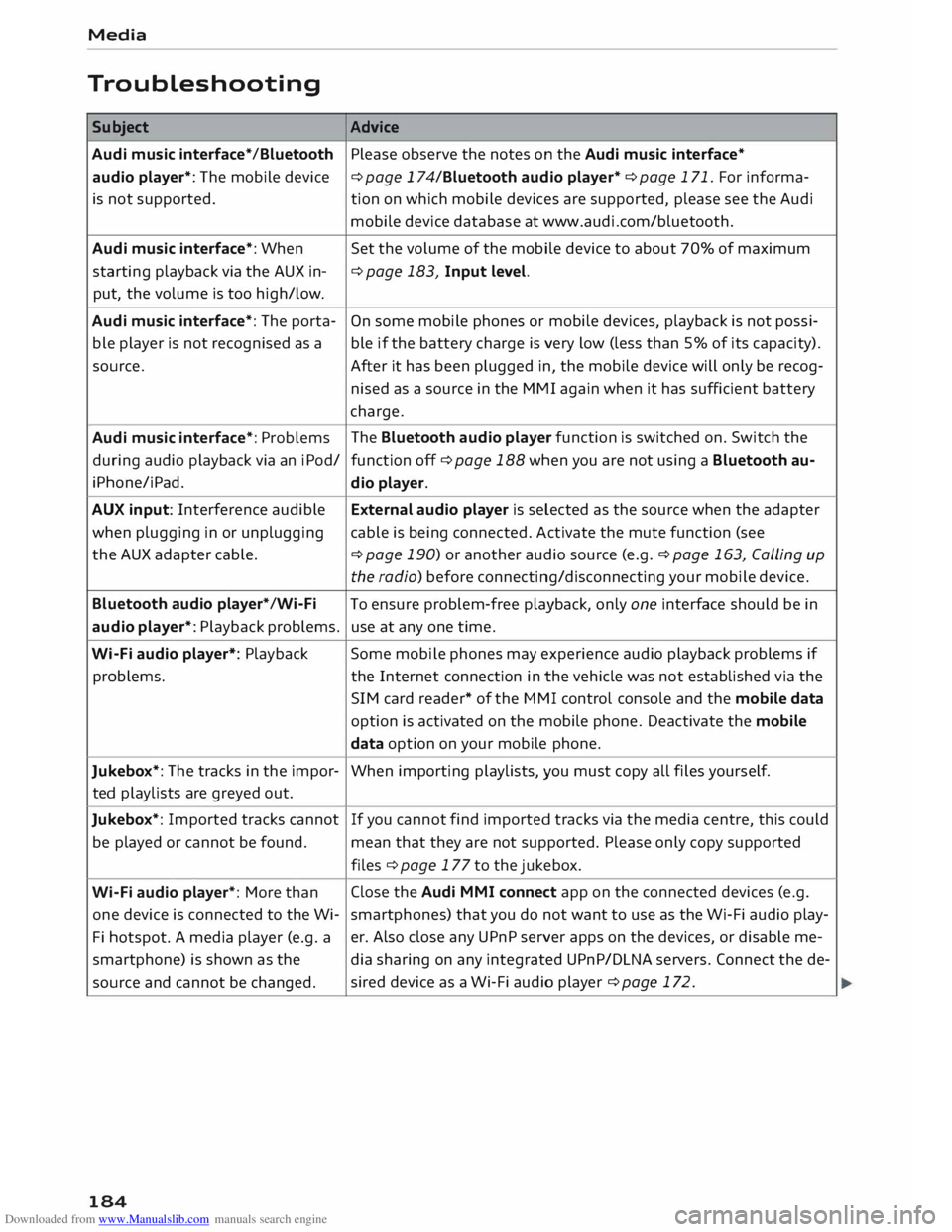
Troubleshooting Subject Advice
Audi music interface* /Bluetooth Please observe the notes on the Audi music interface*
audio player*: The mobile device
¢ page 174/Bluetooth audio player* ¢ page 171. For informa-
is not supported. tion on which mobile devices are supported, please see the Audi
mobile device database at www.audi.com/bluetooth.
Audi music interface*: When
Set the volume of the mobile device to about 70% of maximum
starting playback via the AUX in- ¢
page 183, Input level.
put, the volume is too high/low.
Audi music interface*: The porta- On
some mobile phones or mobile devices, playback is not possi-
ble player is not recognised as a ble if the battery charge is very low (less than 5% of its capacity).
source. After it has been plugged in, the mobile device will only be recog-
nised as a source in the MMI again when it has sufficient battery
charge.
Audi music interface*: Problems The
Bluetooth audio player function is switched on. Switch the
during audio playback via an iPod/
function off¢ page 188 when you are not using a Bluetooth au-
i Phone/i Pad.
dio player.
AUX input: Interference audible External audio player is selected as the source when the adapter
when plugging in or unplugging cable is being connected. Activate the mute function (see
the AUX adapter cable.
¢ page 190) or another audio source (e.g.¢ page 163, Calling up
the radio) before connecting/disconnecting your mobile device.
Bluetooth audio player*/Wi-Fi
To ensure problem-free playback, only one interface should be in
audio player*: Playback problems. use at any one time.
Wi-Fi audio player*: Playback Some
mobile phones may experience audio playback problems if
problems. the Internet connection in the vehicle was not established via the
SIM card reader* of the MMI control console and the mobile data
option is activated on the mobile phone. Deactivate the mobile
data option on your mobile phone.
Jukebox*: The tracks in the impor-
When importing playlists, you must copy all files yours elf.
ted playlists are greyed out.
Jukebox*: Imported tracks cannot If
you cannot find imported tracks via the media centre, this could
be played or cannot be found.
mean that they are not supported. Please only copy supported
files ¢ page 177 to the jukebox.
Wi-Fi audio player*: More than Close
the Audi MMI connect app on the connected devices (e.g.
one device is connected to the Wi- smartphones) that you do not want to use as the Wi-Fi audio play-
Fi hotspot. A media player (e.g. a er.
Also close any UPnP server apps on the devices, or disable me-
smartphone) is shown as the
dia sharing on any integrated UPnP/DLNA servers. Connect the de-
source and cannot be changed. sired
device as a Wi-Fi audio player ¢ page 172.
184
Page 188 of 284
Downloaded from www.Manualslib.com manuals search engine System
settings
System settings
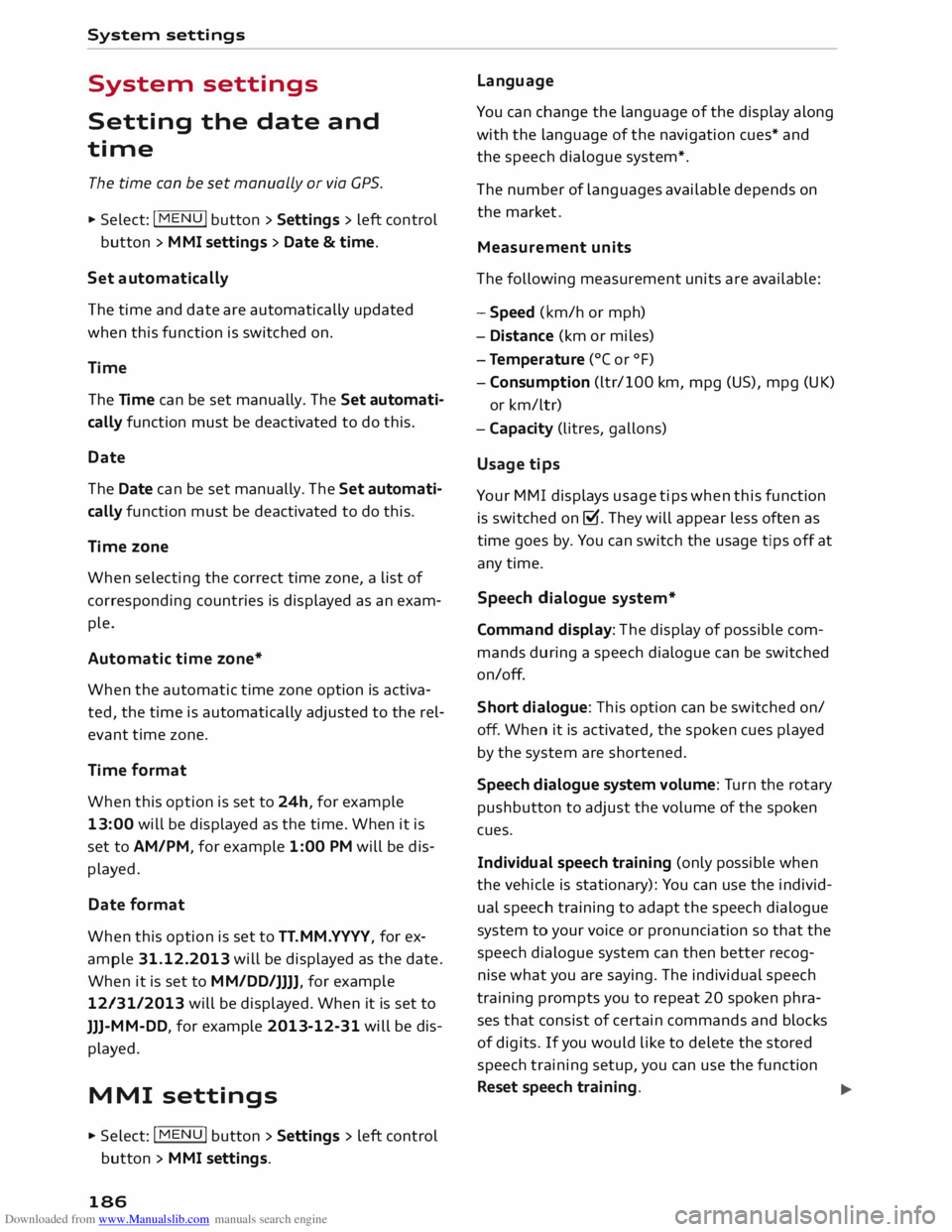
Setting the date and
time
The time can be set manually or via CPS.
.,. Select: I MENU I button >Settings > left control
button > MMI settings > Date & time.
Set automatically
The time and date are automatically updated
when this function is switched on.
Time The Time can be set manually. The Set automati
cally function must be deactivated to do this.
Date
The Date can be set manually. The Set automati
cally function must be deactivated to do this.
Time zone
When selecting the correct time zone, a list of
corresponding countries is displayed as an exam
ple.
Automatic time zone*
When the automatic time zone option is activa
ted, the time is automatically adjusted to the rel
evant time zone.
Time format
When this option is set to 24h, for example
13:00 will be displayed as the time. When it is
set to AM/PM, for example 1:00 PM will be dis
played.
Date format
When this option is set to TT. MM.YYYY, for ex
ample 31.12.2013 will be displayed as the date.
When it is set to MM/DD /JJJJ, for example
12/31/ 2013 will be displayed. When it is set to
JJJ- MM-DD , for example 2013-12-31 will be dis
played.
MMI settings
.,. Select: I MENU I button >Settings > left control
button > MMI settings.
186 Language
You can change the language of the display along
with the language of the navigation cues* and
the speech dialogue system*.
The number of languages available depends on
the market .
Meas urem ent units
The following measurement units are available:
- Speed (km/h or mph)
- Dist ance (km or miles)
- Temperature (0
( or °F)
- Consumption (ltr/100 km, mpg (US), mpg (UK)
or km/ltr)
- Cap acity (litres, gallons)
Usage tips
Your MMI displays usage tips when this function
is switched on�. They will appear less often as
time goes by. You can switch the usage tips off at
any time.
Speech dialogue system*
Command display: The display of possible com
mands during a speech dialogue can be switched
on/off.
Short dialogue: This option can be switched on/
off. When it is activated, the spoken cues played
by the system are shortened.
Speech dialogue system volume: Turn the rotary
pushbutton to adjust the volume of the spoken
cues.
Individual speech training (only possible when
the vehicle is stationary): You can use the individ
ual speech training to adapt the speech dialogue
system to your voice or pronunciation so that the
speech dialogue system can then better recog
nise what you are saying. The individual speech
training prompts you to repeat 20 spoken phra
ses that consist of certain commands and blocks
of digits. If you would like to delete the stored
speech training setup, you can use the function
Reset speech training.
...,