phone AUDI TT COUPE 2014 Owner's Manual
[x] Cancel search | Manufacturer: AUDI, Model Year: 2014, Model line: TT COUPE, Model: AUDI TT COUPE 2014Pages: 284, PDF Size: 34.42 MB
Page 133 of 284
Downloaded from www.Manualslib.com manuals search engine 0
N
co
....
\D Lfl
N
Lfl
.... Delete
this text message*
You can delete a text message you have selected.
Text message settings*
The number of the text message centre of your
mobile network service provider is displayed. If
no number has been stored, you can enter the
number of the text message centre. For more in
formation, contact your service provider.
Connection manager
Refer to¢ page 187, Connection manager.
Wi-Fi settings
Refer to r:::> page 143, Wi-Fi hotspot.
Telephone settings
Refer tor:::> page 134, Telephone settings.
i Note
Messages deleted using the MMI are also au
tomatically deleted on the mobile phone.
Listening to voicemail
messages
Applies to vehicles: with telephone � Sele
ct: !TEL! button > Left control button. Select
and confirm Call list/Directory/Favourites >
Mailbox.
-To enter the mailbox number: Enter the num
ber desired. Select and confirm OK.
- To dial the mailbox number: Select and con
firm Mailbox.
CD} Note
- This service must be set up and activated on
your mobile network before you can use it.
For more information, contact your service
provider.
- The mailbox number depends on your serv
ice provider. Telephone
Emergency call functions
Applies to vehicles: with telephone
� Sele
ct: !TEL! button > Left control button > En
ter number > enter emergency number (e.g.
112) > OK.
A WARNING
- Since your telephone operates via radio
waves, a connection cannot be guaranteed
under all circu mstances. Do not rely solely
on your telephone when a vital communica
tion (e.g. medical emergency) is involved.
- Alw ays follow the directions of the emer
gency operators when making an emergency
call and do not end the call before you are
requested to do so.
((1) Note
Emergency numbers are not the same for all
countries. Please make sure that you know
the emergency number for the country you
are in.
Directory Calling up the directory
Applies to vehicles: with telephone
After a mobile phone has been connected suc
cessfully, the contacts from the mobile phone
are automatically imported into the directory of
the MMI system.
� Selec t: !TEL! button > Left control button > Di
rectory.
- To select a contact: Select and confirm a con
tact in the directory . The telephone numbers
for the contact you have selected will appear.
Select and confirm a phone number to start the
call.
- To search for a contact: Push the rotary push
button upwards. Enter the initials of the con
tact you are Looking for individually, separating
them with a space. If necessary, enter further
letters to narrow the search.
..,.
131
Page 134 of 284
Downloaded from www.Manualslib.com manuals search engine Telephone
The contacts are displayed in alphabetical order;
they can be sorted by first name/surname
¢page 135.
You can connect up to four different mobile
phones to the MMI system, or use four different
SIM cards with the SIM card reader*, allowing
you to manage up to four private directories.
You can open the directory via the Telephone*
menu and via the Navigation* menu.
ijJ) Note
- For more information on the search func
tion, please refer to ¢ page 114.
- Please pay attention to any synchronisation
queries on your mobile phone. You must
confirm any synchronisation queries from
the directory before the contacts can be loa
ded from your mobile phone into the MMI
directory.
- Which contacts are displayed on the MMI
depends on the mobile phone you are using.
For more information on which mobile
phones are supported, please go to
www .audi.com/ bluetooth or contact an Audi
dealer.
- In certain cases, contacts from a mobile
phone may not be transmitted in alphabeti
cal order. If there are too many entries, con
tacts with certain initial letters may not be
displayed on the MMI system.
- If the SIM card is inserted in the SIM card
reader* ¢ page 126, the SIM card entries
and the contacts in the local MMI memory
(public) are displayed.
- The contacts in the local MMI memory (pub
lic) are visible anytime and are therefore not
protected against access by other users.
Using contacts from another mobile phone
Applies to vehicles: with SIM card reader
If a SIM card is inserted in the SIM card reader
and is used for telephone calls, you can access
the phone book on another mobile phone.
Important: A SIM card must be inserted in the
SIM card reader.
132 �
Refer to ¢ page 188, Directory.
((J} Note
- When the MMI system has downloaded the
phone book from the mobile phone, the
contacts from the SIM card will no longer be
shown in the MMI directory.
- When you switch the ignition on again after
switching it off and leaving the car, the MMI
system will load the phone book of the mo
bile phone if the phone is within range and
Bluetooth is activated both on the phone
and on the MMI system. If this is not the
case, the MMI system will show the con
tacts from the SIM card in the SIM card
reader.
Searching for a contact
Applies to vehicles: with telephone
�
Selec t:
!TEL! button > left control button> Di
rectory.
� Enter the initials of the contact you are looking
for individually, separating them with a space.
If necessary , enter further letters to narrow the
search.
� Select and confirm a contact in the directory .
The telephone numbers for the contact you
have selected will appear.
� Select
and confirm a phone number to start the
call.
� Note
- You can scroll rapidly through long lists by
turning the rotary pushbutton quickly.
- For more information on the search func
tion, please refer to ¢ page 114.
Page 135 of 284
Downloaded from www.Manualslib.com manuals search engine 0
N
co
....
\D Lfl
N
Lfl
.... Using
a contact
Applies to vehicles: with telephone
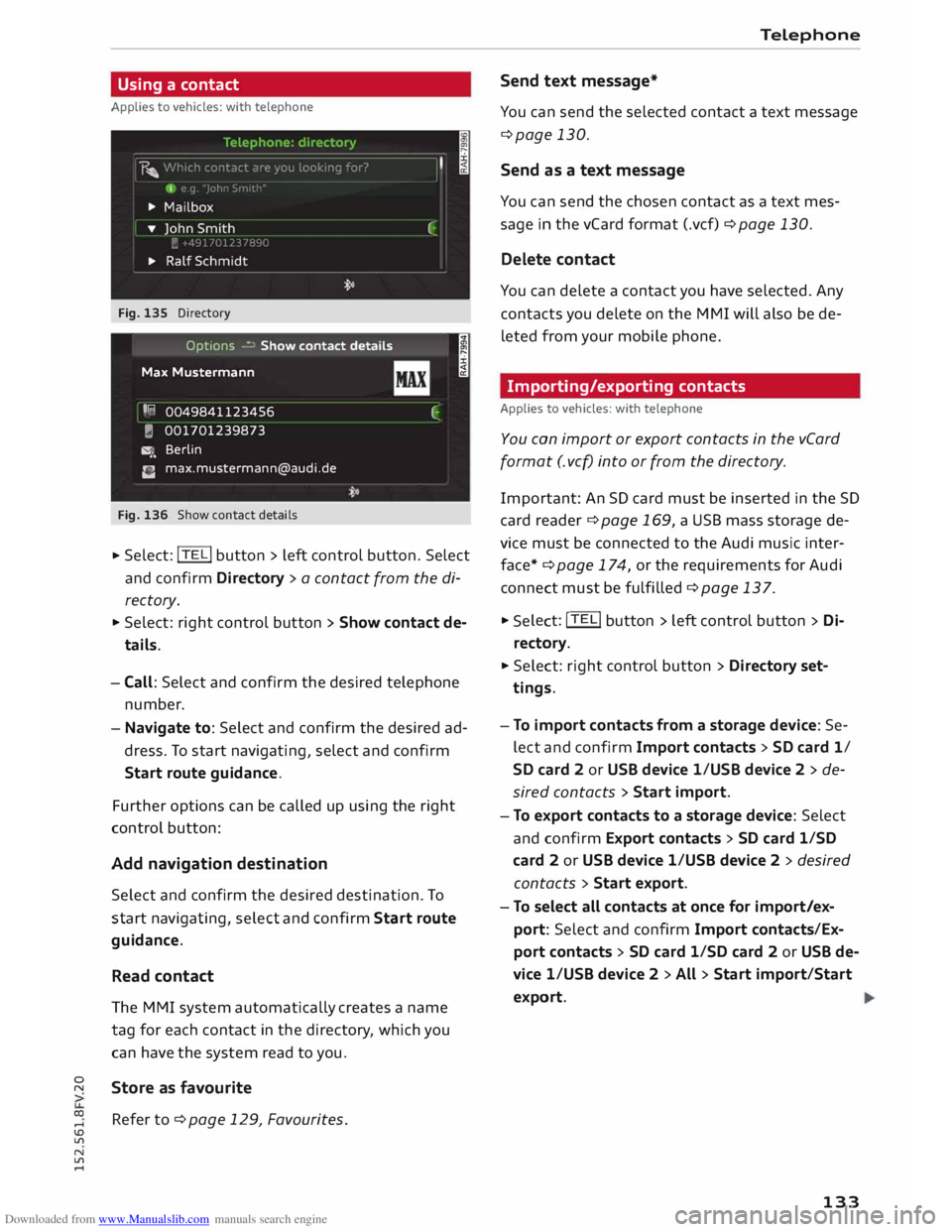
Fig. 135 Directory
Options � Show contact details
Max Mustermann
I R
0049841123456
� 001701239873
�. Berlin
C [email protected]
Fig. 136 Show contact details I
C
.,. Select:
!TE
Li button
> left control button. Select
and confirm Directory > a contact from the di
rectory.
.,. Select: right control button > Show contact de
tails.
- Call: Select and confirm the desired telephone
number.
- Navigate to: Select and confirm the desired ad
dress. To start navigating, select and confirm
Start route guidance.
Further options can be called up using the right
control button:
Add navigation destination
Select and confirm the desired destination. To
start navigating, select and confirm Start route
guidance.
Read contact
The MMI system automatically creates a name
tag for each contact in the directory, which you
can have the system read to you.
Store as favourite
Refer to ¢ page 129, Favourites . Telephone
Send text message*
You can send the selected contact a text message
¢page 130.
Send as a text message
You can send the chosen contact as a text mes
sage in the vCard format (.vcf) ¢ page 130.
Delete contact
You can delete a contact you have selected. Any
contacts you delete on the MMI will also be de
leted from your mobile phone.
Importing/exporting contacts
Applies to vehicles: with telephone
You can import or export contacts in the vCard
format (. vcf) into or from the directory.
Importa nt: An SD card must be inserted in the SD
ca rd reader ¢ page 169, a USB mass storage de
vice must be connected to the Audi music inter
face*¢ page 174, or the requirements for Audi
connect must be fulfilled ¢page 137. .,.
Sele ct: !TE Li button
> left control button > Di
re cto ry .
.,. Select: right control button > Directory set
tings.
- To import contacts from a storage device: Se
lect and confirm Import contacts > SD card 1/
SD card 2 or USB device 1/USB device 2 > de
sired contacts > Start import.
- To export contacts to a storage device: Select
and confirm Export contacts > SD card 1/SD
card 2 or USB device 1/USB device 2 > desired
contacts > Start export.
- To select all contacts at once for import/ex
port: Select and confirm Import contacts/Ex
port contacts > SD card 1/SD card 2 or USB de
vice 1/USB device 2 > All > Start import/Start
export.
133
Page 136 of 284
Downloaded from www.Manualslib.com manuals search engine Telephone
- To import contacts from your myAudi ac
count l
): Select and confirm Import contacts >
myAudi account. Enter your myAudi user data.
You must have a myAudi account before you can
import contacts from the myAudi account. You
only have to enter your myAudi user data/myAudi
PIN once. When you store a vehicle in your myAu
di account, you will receive the myAudi PIN in the
account.
(D} Note
- Please also observe the notes on Audi con
nect ¢page 145.
- For more information on the myAudi ac
count, please see www.audi.com/myaudi.
- The imported contacts are stored in the lo
cal memory of the directory you are using.
- You can import up to 1000 contacts. You
can call up the memory capacity of the di
rectory any time ¢ page 135.
- Never store important data on SD cards or
USB mass storage devices. Audi shall not ac
cept any liability whatsoever for the loss of
data or media.
- It is not possible to export contacts which
have been downloaded from a mobile
phone.
Other settings
Telephone settings
Applies to vehicles: with telephone
.,. Select: !TEL! button > right control button Tele-
phone settings.
Call options*
Call forward: Forwarding incoming calls to your
mailbox or to another phone number can be acti
vated/deactivated. You can use Check status to
check whether this function is activated or deacti
vated.
l l
The conditions for using Audi connect services must be
met and you must have created an account at
www.audi.co m/myaudi, added a vehicle to the account
and stored contacts.
134 Call
waiting: The warning (beep) that there is an
incoming call during a telephone conversation
can be activated/deactivated. You can use Check
status to check whether this function is activated
or deactivated.
Transmit caller ID: Sending your telephone num
ber in outgoing calls can be activated/deactiva
ted. With the Network-dependent option, the
setting agreed in your mobile network service
contract will be used. The settings apply only to
the Telephone menu in the MMI system. When
the Bluetooth connection has been terminated,
the settings of your mobile phone apply. You can
use Check status to check whether this function
is activated or deactivated.
Bluetooth settings
See ¢ page 188, Bluetooth settings onwards.
Data connection settings*
Refer to¢ page 144, Configuring the data con
nection.
Teleph one mode*
On vehicles with a car telephone kit, you can
choose between three different telephone modes
to optimise the network response. In Automatic
mode, the car telephone automatically switches
between the UMTS network (3G) and the GSM
network (2G) depending on network availability
and reception and on the position of the vehicle.
There may be restrictions when using Google
Earth or Wi-Fi. With Telephony optimised, the
car telephone kit registers with the GSM network
(2G). In this mode, the reception is prioritised for
making and receiving calls. There may be restric
tions when using Google Earth orWi-Fi. When
you select the telephone mode Automatic or Tel
ephony optimised, there may be network restric
tions when you try to use Audi connect services
and make voice calls at the same time. With Data
service optimised, the car telephone registers ..,.
Page 137 of 284
Downloaded from www.Manualslib.com manuals search engine 0
N
co
....
\D Lfl
N
Lfl
.... with
the UMTS (3G) or GSM (2G) network de
pending on network availability and reception
and on the position of the vehicle. In this mode,
the reception is prioritised for the use of data
services. There may be restrictions when making
and receiving calls. We recommend that you
mainly use this setting in areas with good UMTS
(3G) network coverage.
Ring tone and volume settings 1
>
You can switch the MMI ring tone on or off using
the Mute telephone function. Ring tones are
played when you select the function Ring tone.
Press the rotary pushbutton to store the selected
ring tone. You can adjust the Microphone input
level during an active phone call using the rotary
pushbutton. For the settings Ring tone volume/
Message volume, see¢ page 190.
Network settings*
See ¢ page 188, Network settings* onwards
Serial number (IMEi)*
The serial number of the telephone module in
stalled in the MMI system is displayed.
Switch on teleph one/Switch off telephone
The car telephone will be turned "on" automati
cally when the ignition is switched on, as long as
it was not switched off separately the last time it
was used.
{D) Note
- You can bond several mobile phones to the
MMI system; however only one connection
is active at a time.
- All bonded Bluetooth devices can be deleted
by resetting the Bluetooth function to the
factory settings ¢page 187.
Directory settings
Applies to vehicles: with telephone .,. Sele
ct:
I TELi button > left control button > Di
rectory.
l l
Depends on the connected mobile phone Telephone
.,. Select: right control button > Directory set-
tings.
Memory capacity
The Memory capacity of the directory will be dis
played.
You can manage up to 17,000 contacts with the
directory. Up to 4,000 contacts can be loaded
from your mobile phone into each directory, and
up to 1,000 contacts can be imported from a
storage device.
Sort order
You can sort the contacts in your directory alpha
betically according to their surname or first
name.
Import contacts
Refer to ¢ page 133, Importing/exporting con
tacts.
Export contacts
Refer to ¢ page 133, Importing/exporting con
tacts.
Download phone book
To update the contacts in the MMI, you can
download the contacts from your mobile phone
manually. Depending on the mobile phone you
are using, the Bluetooth connection may have to
be disconnected and re-established before you
can update the contacts.
Greying out contacts without a number
If no number has been stored for a contact, the
contact is displayed greyed out in the directory.
You can activate this option if you wish to hide
these contacts.
135
Page 138 of 284
Downloaded from www.Manualslib.com manuals search engine Telephone
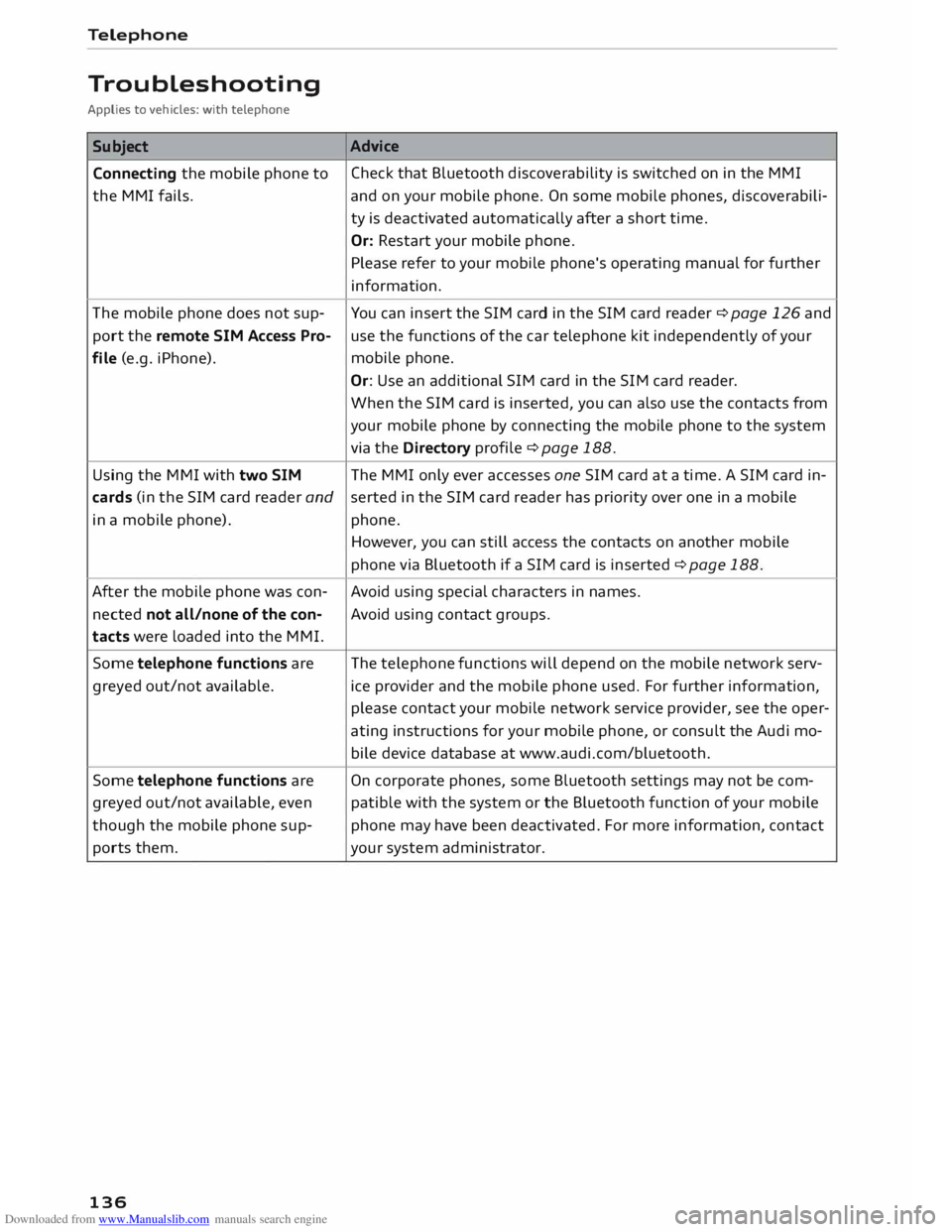
Troubleshooting
Applies to vehicles: with telephone
Subject Connecting the mobile phone to
the MMI fails.
The mobile phone does not sup
port the remote SIM Access Pro
file (e.g. iPhone).
Using the MMI with two SIM Advice
Check that Bluetooth discoverability is switched on in the MMI
and on your mobile phone. On some mobile phones, discoverabili
ty is deactivated automatically after a short time.
Or: Restart your mobile phone.
Please refer to your mobile phone's operating manual for further
information.
You can insert the SIM card in the SIM card reader ¢ page 126 and
use the functions of the car telephone kit independently of your
mobile phone.
Or: Use an additional SIM card in the SIM card reader.
When the SIM card is inserted, you can also use the contacts from
your mobile phone by connecting the mobile phone to the system
via the Directory profile¢ page 188.
The MMI only ever accesses one SIM card at a time. A SIM card in-
cards (in the SIM card reader andserted
in the SIM card reader has priority over one in a mobile
in a mobile phone). phone.
After the mobile phone was con
nected not all/none of the con
tacts were loaded into the MMI.
Some telephone functions are
greyed out/not available.
Some telephone functions are
greyed out/not available, even
though the mobile phone sup
ports them.
136 However,
you can still access the contacts on another mobile
phone via Bluetooth if a SIM card is inserted ¢ page 188.
Avoid using special characters in names.
Avoid using contact groups.
The telephone functions will depend on the mobile network serv
ice provider and the mobile phone used. For further information,
please contact your mobile network service provider, see the oper
ating instructions for your mobile phone, or consult the Audi mo
bile device database at www.audi.com/bluetooth.
On corporate phones, some Bluetooth settings may not be com
patible with the system or the Bluetooth function of your mobile
phone may have been deactivated. For more information, contact
your system administrator.
Page 139 of 284
Downloaded from www.Manualslib.com manuals search engine 0
N
co
.... Audi
connect
Introduction
Applies to vehicles: with Audi connect
Audi connect services allow on line information to
be directly transmitted and integrated into the
vehicle.
Thanks to a Wi-Fi hotspot, it is possible to use a
mobile device to access the Internet in the rear of
the vehicle during journeys or anywhere in the ve
hicle when it is stationary .
.&_ WARNING
- Only use Audi connect services when the
traffic conditions allow you to do so safely -
risk of accident! Please always observe
¢ page 192, Notes on traffic safety.
- The Audi connect services should only be
used via a Wi-Fi hotspot when the vehicle is
stationary or from the rear seats if the vehi
cle is in motion -risk of accident!
Cl) Note
Please observe the Notes on Audi co nnect
¢ page 145 before using the system.
Setting up
Before you start
An Internet connection is required in order to use
Audi connect services. You can establish a con
nection by using one of the following options:
Option 11
>
Connecting an rSAP 2
) enabled mobile phone via
Bluetooth ¢page 137
Option 2 Using a separate SIM card in the SIM card reader
¢page 138
� l
l
Not available for all countries and models
N
� 2
l
Bluetooth remote SIM Access Profile Audi
connect
Option 3l)
Using a mobile device (e.g. a smartphone) as a
personal Wi-Fi hotspot for the MMI ¢ page 139
Connecting an rSAP enabled mobile phone
via Bluetooth
Applies to vehicles: with Audi connect
<(
a:
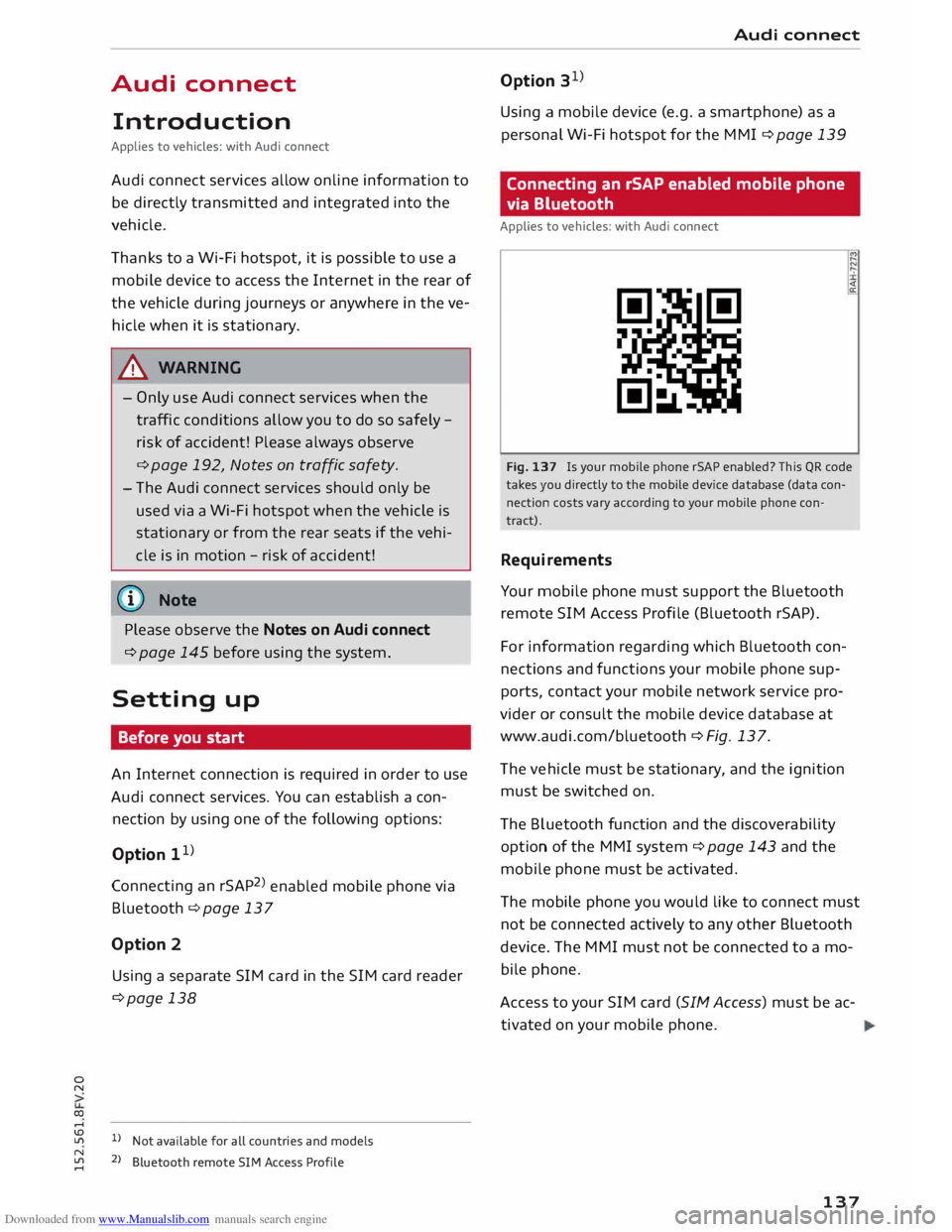
Fig. 137 Is your mobile phone rSAP enabled? This QR code
takes you directly to the mobile device database (data con
nection costs vary according to your mobile phone con
tract).
Requirements
Your mobile phone must support the Bluetooth
remote SIM Access Profile (Bluetooth rSAP).
For information regarding which Bluetooth con
nections and functions your mobile phone sup
ports, contact your mobile network service pro
vider or consult the mobile device database at
www.audi.com/bluetooth ¢ Fig. 13 7.
The vehicle must be stationary, and the ignition
must be switched on.
The Bluetooth function and the discoverability
option of the MMI system¢ page 143 and the
mobile phone must be activated.
The mobile phone you would like to connect must
not be connected actively to any other Bluetooth
device. The MMI must not be connected to a mo
bile phone.
Access to your SIM card (SIM Access) must be ac
tivated on your mobile phone.
137
Page 140 of 284
Downloaded from www.Manualslib.com manuals search engine Audi
connect
Connecting a mobile phone
"' Select: !TELi
button > Connect mobile phone>
Continue. The display will show the Bluetooth
devices available. Or: Search for the MMI sys
tem via the Bluetooth device search function on
your mobile phone.
"' Select and confirm the desired mobile phone
from the List of Bluetooth devices shown.
"' Enter the PIN to establish a connection on your
mobile phone. Or: If the PIN is already being
displayed on your mobile phone, confirm it on
the phone and in the MMI. You have about 30
seconds to enter the PIN code.
"' Then enter the PIN code for your SIM card in
the MMI.
Please note any additional system queries on
your mobile phone, e.g. whether the phone
should connect automatically in the future. On
some mobile phones, you may also need to
download the directory separately.
After connecting successfully
The signal strength bars and the Bluetooth sym
bol will appear in the status Line of the infotain
ment display after the device has been connected
success fully.
You can now use Audi connect .
.. Select: !MENU! button> Audi connect.
"' Confirm the system query of whether an Inter
net connection should be established with Al
ways accept.
«:I)) Note
- Bluetooth devices only have to be bonded
once. Depending on the mobile phone you
are using, any devices that have already
been bonded to the MMI system are connec
ted automatically when they are within
range and the ignition is on. You can bond
several mobile phones to the MMI system;
however only one connection is active at a
time.
l l
The number of possible attempts
depends
on the SIM
card.
138 -
You receive the SIM PIN code from your mo
bile network service provider together with
the SIM card. If you enter the SIM PIN code
incorrectly three times1
>
in a row, the SIM
card will be be blocked. A PUK (personal un
blocking key) must be entered in order to re
activate the SIM card.
- The Bluetooth connection between the sys
tem and the mobile phone is automatically
terminated when you Leave the car.
- For further information regarding your mo
bile phone, contact your mobile network
service provider or refer to the operating in
structions for your mobile phone. For infor
mation on using a phone in your car, please
go online (e.g. www.audi.com/bluetooth) or
ask an Audi dealer.
Using a separate SIM card
Applies to vehicles: with SIM card reader
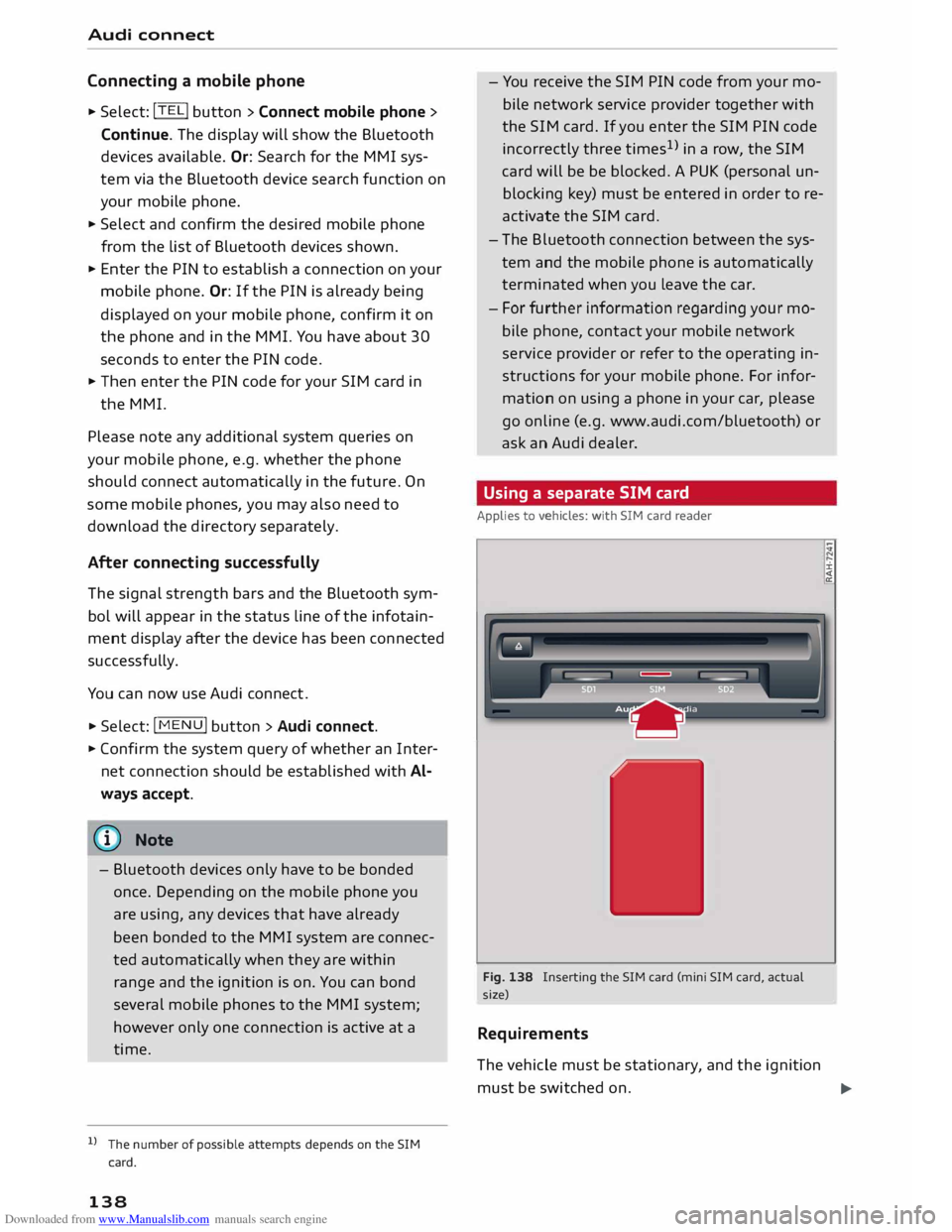
Fig. 138 Inserting the SIM card (mini SIM card, actual
size)
Requirements
The vehicle must be stationary, and the ignition ±
must be switched on.
...,
Page 145 of 284
Downloaded from www.Manualslib.com manuals search engine 0
N
co
....
\D L/'l
N
L/'l
.... installed
in your vehicle. You can then check
whether a new version is available at
www.audi.com/myaudi. You can also have
the new navigation data installed by an Audi
dealer (carries additional charges).
- For more information on the myAudi spe
cial destinations and the navigation map
update service, please see the Operating
Manual for Audi connect at www.audi.com/
myaudi.
Audi connect services for the telephone
Applies to vehicles: with Audi connect
The following Audi connect services are currently
available:
- Creating contacts on your PC via your myAudi
account and loading the contacts into the direc
tory of your MMI system ¢page 133.
Audi connect services in the media menu
Applies to vehicles: with Wi-Fi audio player and Audi connect
- Wi-Fi audio player: To access the media centre
of your player (e.g. smartphone) connected via
Wi-Fi ¢page 172. Additionally, you can use
the Audi MMI connect app to access Internet
radio programmes*.
- Online media: With assistance from the Audi
MMI connect app, this function allows you to
access and operate various online media serv
ices using the MMI.
@ Note
Please contact an Audi dealer for more infor
mation on Wi-Fi audio players and for a list of
supported devices.
Further options
Applies to vehicles: with Audi connect
.,. Select: I MENU I button > Audi connect > right
control button.
The following options are available to you in the
overview of the Audi connect services:
- Login: ¢ page 140
- Connection manager: ¢page 187 Audi
connect
- Licence periods: The validity and the time re
maining on your licences is displayed. If the Li
cence expiry warning function is switched on, a
message will be displayed before the licence ex
pires.
Wi-Fi hotspot
Applies to vehicles: with Wi-Fi hotspot
You can use your MMI system as a Wi-Fi hotspot
for connecting to the Internet on up to eight Wi
Fi devices. Small, light Wi-Fi devices that are not
permanently attached to the vehicle must only
be operated from the rear seats while the vehicle
is moving.
Impor tant: The ignition must be switched on.
.,. Select: !TEL!
button > right control button Con-
nection manager.
.,. Select:
right control button > Wi-Fi settings.
You can access the following settings in the Wi-Fi
settings menu:
Wi-Fi mode
The Wi-Fi hotspot is deactivated when the vehicle
leaves the factory. Set the Wi-Fi hotspot to hot
spot before establishing a connection between
your vehicle and your Wi-Fi device.
- hotspot: The MMI's Wi-Fi hotspot is active and
visible to other devices. It is possible to connect
to new Wi-Fi devices.
- hotspot and client: The MMI's Wi-Fi hotspot is
active. An Internet connection to a personal
Wi-Fi hotspot (e.g. smartphone) can be estab
lished. You can search for your personal hot
spot and connect to the MMI using Network
search ¢page 144 ¢page 139.
- off: The MMI system's Wi-Fi hotspot is deacti
vated. It will not be possible to establish an In
ternet connection .
Hotspot settings
The Wi-Fi connection between your vehicle and
the Wi-Fi device (laptop or mobile phone) is en
crypted. Before a connection can be established,
you must enter the following values/settings
when setting up your Wi-Fi device (these values
can be edited as required):
..,.
143
Page 146 of 284
Downloaded from www.Manualslib.com manuals search engine Audi
connect
-Access point (SSID): Name of the Wi-Fi net
work.
- Password: A random MMI password is set at
the factory. This password can be changed. The
encr yption type WPA2 requires the password to
be at Least 8 characters long. Please select a se
cure password.
- Discoverability: To switch the discoverability of
your Wi-Fi network on or off.
Network search
A list of the Wi-Fi networks available near you is
d isplayed .
.&_ WARNING
- Do not allow the features of the Wi-Fi hot
spot to distract you from watching the traf
fic -this can cause an accident.
- Laptop computers and similar devices can
only be operated safely when the vehicle is
stationar y because of their weight; any
loose objects can be catapulted through the
vehicle in an accident and cause serious inju
ries. Always make sure that such devices are
securely stowed while you are driving.
- No Wi-Fi devices may be used from the front
seats in the areas around the airbags while
the vehicle is being driven. Please also ob
serve the safety warnings in the "Airbag sys
tem" chapter under "Important safety notes
on the front airbag system" � page 210,
Front airbags.
CD CAUTION
Please note that it is your responsibility to
take precautions regarding data protection,
anti-virus protection and protection against
Loss of data on mobile devices used to con
nect to the Internet via the Wi-Fi hotspot.
Note
- You might require a separate mobile phone
contract with extra costs before you can use
the Wi-Fi hotspot. For more information,
contact your service provider.
- Depending on your mobile phone tariff, you
may be charged for receiving data packets
on line via the Wi-Fi hotspot, especially if
144 you
are using the system abroad: We
strongly recommend that you use a data flat
rate. For more information, contact your
service provider.
- For more information on Audi connect serv
ices, visit www.audi.com/connect.
Configuring the data
connection
Applies to vehicles: with Audi connect
You must configure a data connection before you
can use Audi connect services.
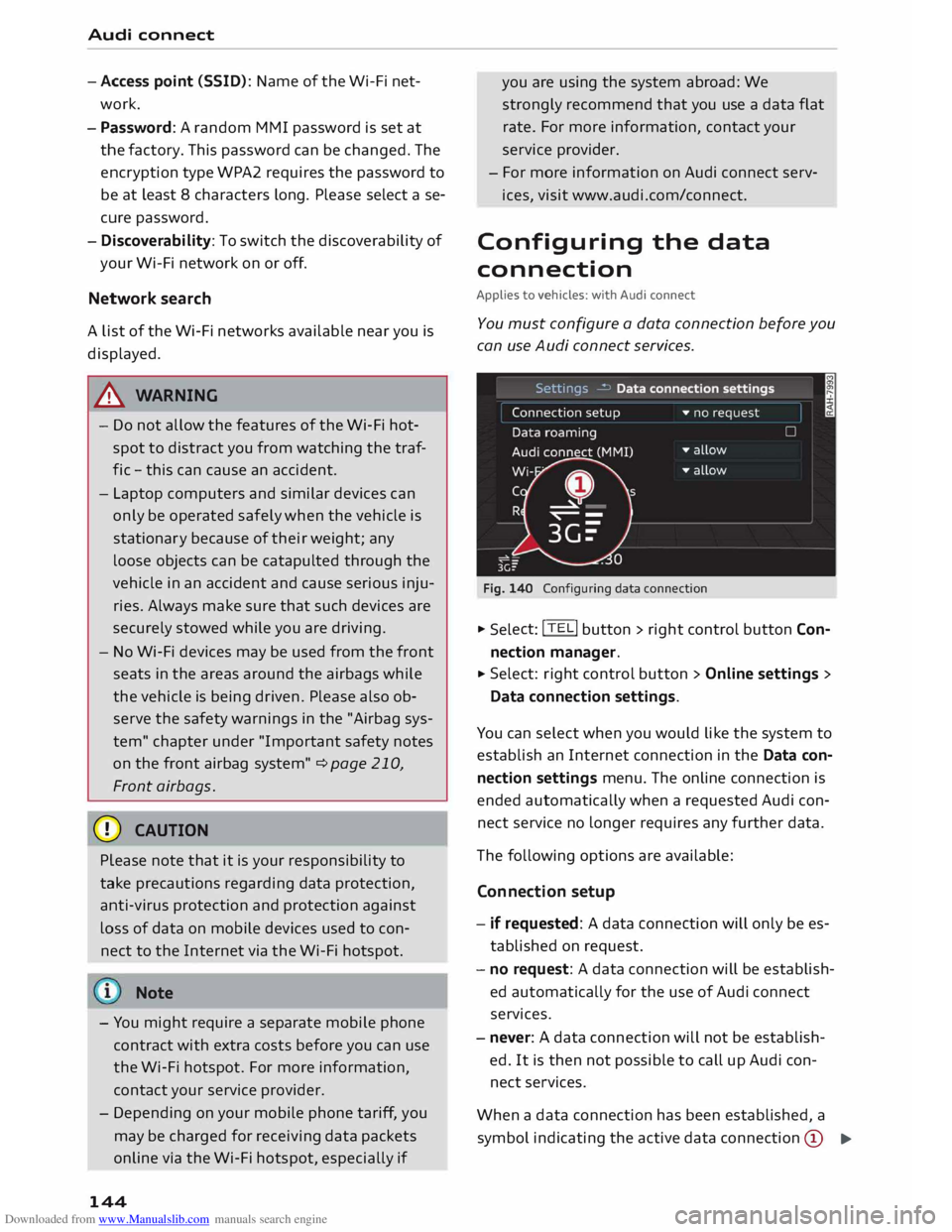
Fig. 140 Configuring data connection .,.
Selec t: !TEL! button > right control button Con
nection manager .
.,. Select:
right control button > Online settings >
Data connection settings.
You can select when you would like the system to
establish an Internet connection in the Data con
nection settings menu. The online connection is
ended automatically when a requested Audi con
nect service no Longer requires any further data.
The following options are available:
Connection setup
- if requested: A data connection will only be es
tablished on request.
- no request: A data connection will be establish
ed automatically for the use of Audi connect
services.
- never: A data connection will not be establish
ed. It is then not possible to call up Audi con
nect services.
When a data connection has been established, a
symbol indicating the active data connection @
..,.