infotainment AUDI TT COUPE 2016 Owner's Manual
[x] Cancel search | Manufacturer: AUDI, Model Year: 2016, Model line: TT COUPE, Model: AUDI TT COUPE 2016Pages: 322, PDF Size: 52.86 MB
Page 74 of 322
Downloaded from www.Manualslib.com manuals search engine Assis t
Assist
Electronic speed limiter
Your vehicle may be factory equipped with tires
that are rated for a maximum speed of 130 mph
(210 km/h). This is less than the maximum speed
of your vehicle. To reduce the risk of sudden tire
failure and loss of control if the vehicle is operat
ed at excessive speeds, your vehicle also has an
electronic speed limiter. The electronic speed
limiter prevents your vehicle from going faster
than the tire speed rating. For more information
9page257.
If the engine control unit receives faulty vehicle
road
speed s ignals, the Malfunction In d icator
Lamp (MIL) m will illuminate. If this occurs,
contact the nearest authorized Audi dealer for
assistance.
. _&WARNING
Always observe the posted speed limits and
adjust your speed to suit prevailing road, traf
fic and weather conditions. Never drive your
vehicle faster than the maximum speed rating
of the tires installed.
Speed warning system
Introduction
Applies to: vehicles with speed warning system
The speed warning system helps you to stay un
der a specified maximum speed.
The speed warning system warns you if yo u are
exceeding
the max imum speed that you have set.
You will hear a warning tone when your speed ex
ceeds the stored value by approximately 3 mph
(3 km/h). The (e] indicator light turns on at the
same time in the Infotainment display. The[•)
indicator light turns off when the speed decreas
es below the stored maximum speed.
Setting a threshold is recommended if you would
like to be reminded when you reach a certain
maximum speed. Situations where you may want
to do so include driving in a country with a gener
al speed limit or if there is a specified maximum
speed for winter tires.
72
('D Tips
Regard less of the speed warning system, you
should always monitor your speed using the
speedometer and make sure you are following
the legal speed limit.
Setting the threshold
Applies to: vehicles with speed warning system
You can set, change and delete the warning
threshold
in the Infotainment system.
... Select in the Infotainment system: I MENU! but
ton> Vehicl e> left control button >Dr ive r as
sistance > Speed warnin g .
You can set any threshold between 20 mph
(30 km/h) and lSO mph (240 km/h). Settings
can each be adjusted in increments of 5 mph
(10 km/h) .
Cruise control system
Switching on
Applies to: vehicles with cruise control system
The cruise control system makes it possible to
drive
at a constant speed starting ot 15 mph
(20 km/h).
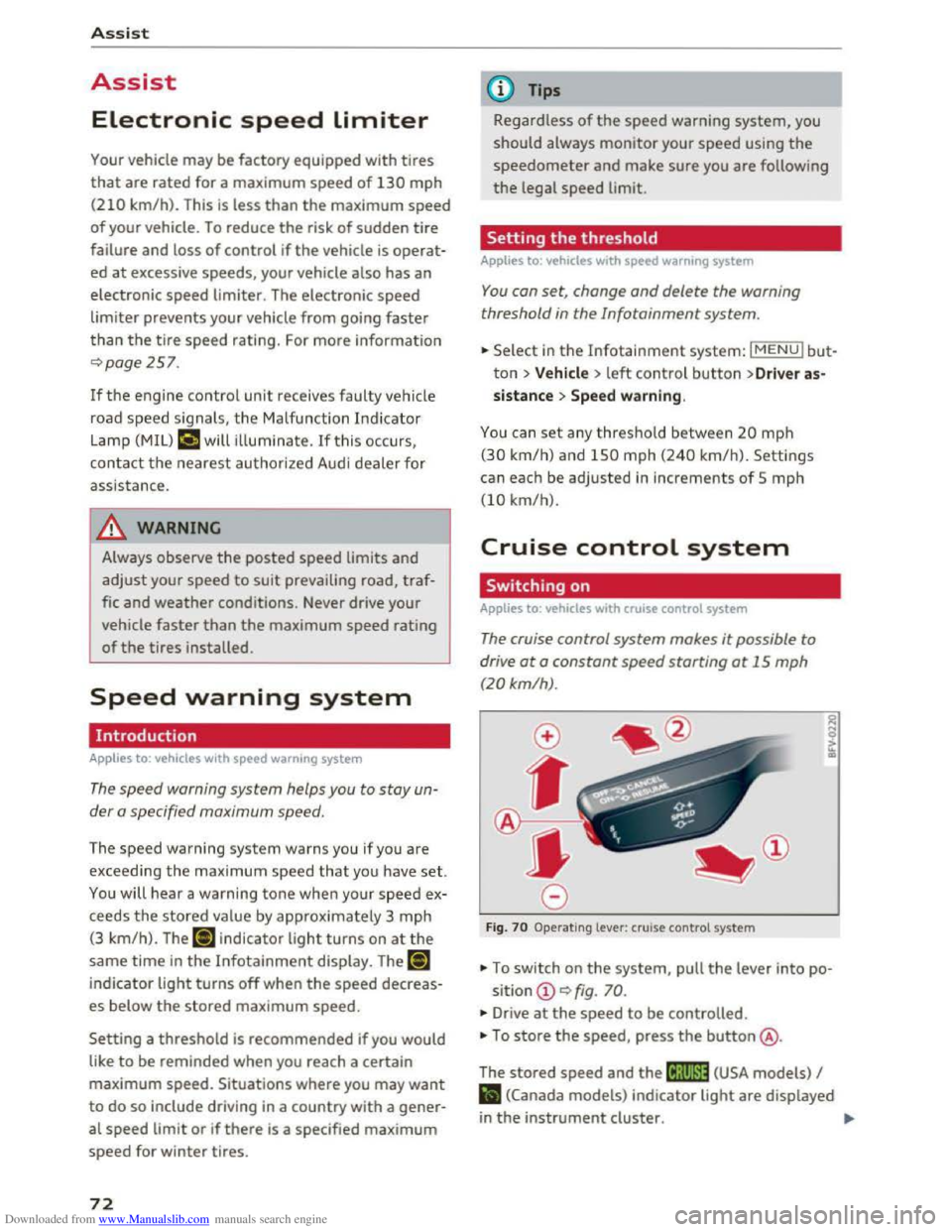
Fig . 70 Operating lever: cruise control system
... To switch on the system, pull the lever into po-
sition CD 9 fig. 70.
... Drive at the speed to be controlled.
• To store the speed, press the button@.
The
stored speed and the (lj;llJ~1# (USA models) I
Iii (Canada models) indicator light are displayed
in the instrument cluster. !)I>
Page 76 of 322
Downloaded from www.Manualslib.com manuals search engine Assist
The speed you saved will be retained ifthe cruise
control has been switched off temporarily. To re
sume the stored speed, release the brake or
clutch pedal and pull the lever to position(!).
Switching the ignition off will erase the stored
speed.
A WARNING
-You should only resume the saved speed if it
is not too high for existing traffic conditions.
Otherwise you risk an accident.
Audi active lane assist
Description
App lies to: ve h icles with Audi active lane assis t
Active lane assist detects lane marker lines with
in the limits of the system using a camera in the
windshield. If you are approaching a detected
lane marker line and it appears likely that you
will leave
the lane, the system will warn you with
corrective
steering. You can override this steering
at any time. If you pass over a line, the steering
wheel will vibrate lightly. In order for this warn
ing vibration to occur, it must first be switched
on in the Infotainment system. Active lane assist
is operable when the lane marker line is detected
on at least one side of the vehicle.
The
system is designed for driving on express
ways and highways and
therefore only activates
at speeds above approximately 40 mph (65 km/
h) (depending on the market).
Appl i
es to vehicles with side assist*: if you acti
vate a turn s ignal when active lane assist is ready
and it classifies a lane change as critical because
of vehicles traveling alongside you or approach
ing you, there will be noticeable corrective steer
ing
shortly before you leave the lane. This will at
tempt to keep your vehicle in the lane.
Applies
to vehicles without side assist*: the sys
tem does not warn when it is ready if you activate
the turn signal before crossing the lane marker
ll The co rrective steering function is not a va ilable in all mar
kets.
7 4
line. In this case, it assumes that you are chang
ing lanes intentionally.
A WARNING
!-="' -
-The system warns the driver that the vehicle
is leaving the lane using corrective steering.
The driver is always responsible for keeping
the vehicle within the lane.
- The
system can help you keep the vehicle in
the lane, but it does not drive by itself. Al
ways keep your hands on the steering
wheel.
- Corrective
steering may not occur in certain
situations, such as during heavy braking.
- There
may be cases where the camera does
not recognize all lane marker lines. Correc
tive steering can only take place on the side
of the vehicle where lane marker lines are
detected.
-Other road structures or objects could possi
bly be identified unintentionally as lane
marker lines. As a result, corrective steering
may be
unexpected or may not occur.
- The
camera view can be restricted, for ex
ample by vehicles driving ahead or by rain,
snow, heavy spray light shining into the
camera or by dirt on the window. This can
result in active lane assist not detecting the
lane marker lines or detecting them incor
rectly.
- In
certain situations where visibility is low,
the vehicle may switch internally from "ear
ly" to "late" steering correction ll.
-Under certain cond itions such as ruts in the
road, an inclined roadway or crosswinds, the
corrective steering alone may not be enough
to keep the vehicle in the middle of the lane.
- For
safety reasons, active lane assist must
not be used when there are poor road and/
or weather conditions such as slippery
roads, fog, gravel, heavy rain,
snow and the
potential for hydroplaning . Using active lane
assist under these conditions may increase
the risk of a crash.
Page 77 of 322
Downloaded from www.Manualslib.com manuals search engine Switching on and off
Applies to: vehicles with Audi active lane assist
F ig.
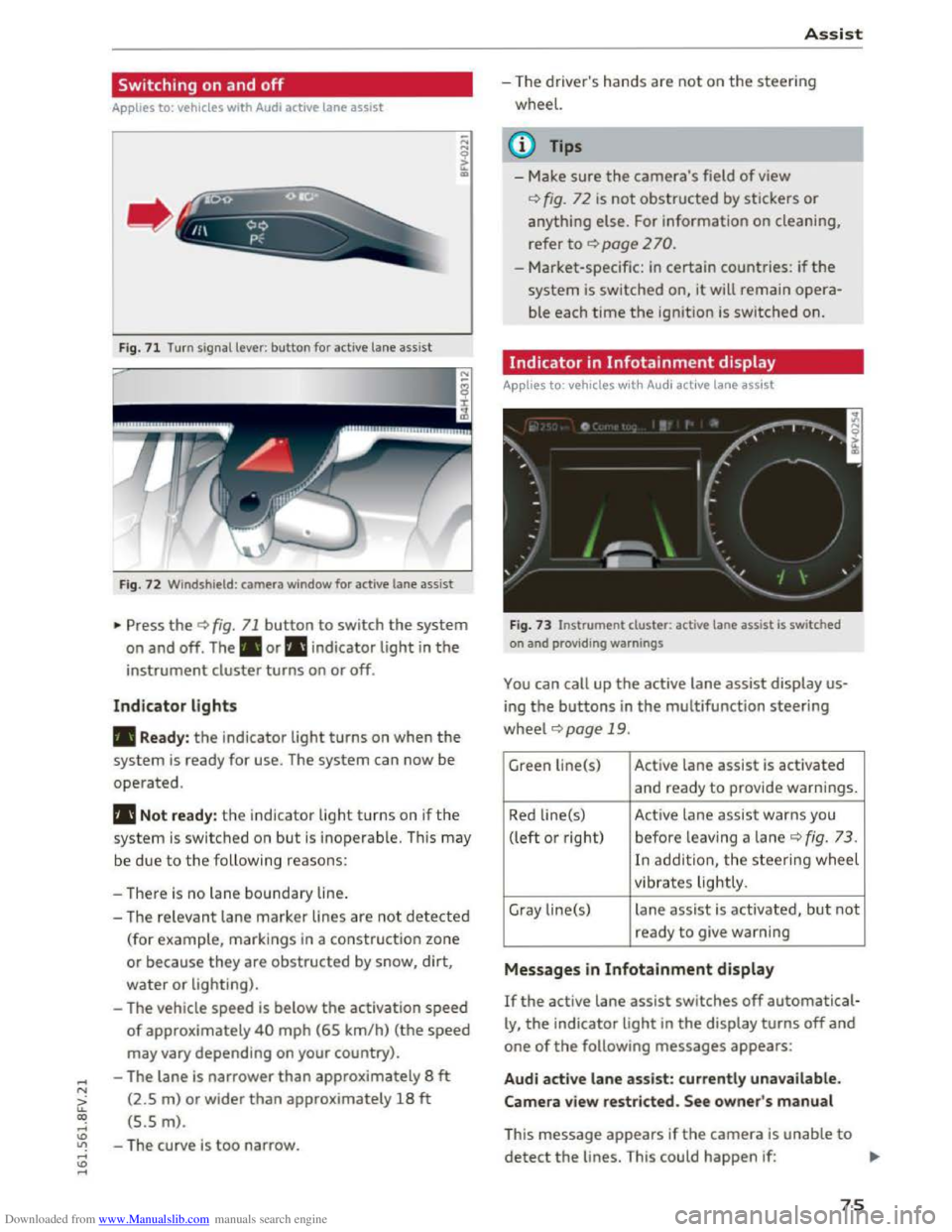
71 Turn signal lever: button for active lane assist
Fig. 72 Windshield : camera window for active lane assist
... Press the¢ fig. 71 button to switch the system
on and off. The . or rl1 indicator light in the
instrument cluster turns on or off.
Indicator lights
• Ready: the indicator light turns on when the
system is ready for use. The system can now be
operated.
rl1 Not ready: the indicator light turns on if the
system is switched on but is inoperable. This may
be
due to the following reasons:
- There
is no lane boundary line.
-
The relevant lane marker lines are not detected
(for example, markings in a construction zone
or because they
are obstructed by snow, dirt,
water or lighting).
- The vehicle
speed is below the activation speed
of approximately 40 mph (65 km/h) (the speed
may vary depending on your country).
- The lane
is narrower than approximately 8 ft
(2.5 m) or wider than approximately 18 ft
(5.5 m).
- The curve
is too narrow.
Assist
-The driver's hands are not on the steering
wheel.
{!) Tips
- Make sure the camera's field of view
¢fig. 72 is not obstructed by stickers or
anything else. For information on cleaning,
refer
to ¢ page 2 70.
- Market-specific: in certain countries: if the
system is switched on, it will remain opera
ble each time the ignition is switched on.
Indicator in Infotainment display
Applies to: vehicles with Audi active lane assist
Fig.
73 Instrument clu ster: active lane assist is switched
on and providing warnings
You can call up the active lane assist display us
ing the buttons in the multifunction steering
wheel ¢page 19 .
Green Li ne(s) Active lane assist is activated
and ready to provide warnings.
Red line(s) Active lane assist warns you
(left or right) before leav ing a lane
¢ fig. 73 .
In addit ion, the steering wheel
vibrates lightly.
Gray line(s)
lane assist is activated, but not
ready to give warning
Messages in Infotainment display
If the active lane assist switches off automatical
ly, the indicator light in the display turns off and
one of the following messages appears:
Audi active lane assist: currently unavailable.
Camera view restricted. See owner's manual
This message appears if the camera is unable to
detect the lines. This could happen if: ..,.
75
Page 78 of 322
Downloaded from www.Manualslib.com manuals search engine Assis t
-The camera field of view~ page 75, fig. 72 is
dirty
or covered in ice. Clean thi s area on the
windshield.
-The camera field of view is fogged over. Wait
until the fog has cleared before switching the
active lane assist on again.
-The system has been unable to detect the lanes
for an extended period of time due to road con
ditions. Switch the active lane assist back on
when the lines are more visible.
A ud i a
ctive lane assis t: currently u navailable .
See owner's m anual
There is a temporary active lane assist malf u nc
tion . Try switching the active lane assist on again
later.
Audi active lane assis t: malfunction! See own·
er's manual
Drive to an authorized Aud i dealer or authorized
Audi Serv ice Facility immediately to have the
malfunctio n corrected.
Audi active lane assist: Pl ea se take over steer
ing!
This
message appears if you are not steering by
yourself. If this is the case, active lane assist does
not switch off, but it is "not ready " to provide a
warn ing . The
system can he lp you keep the vehi
cle in the lane. However, you are responsible for
driving
the vehicle and must steer it yourself.
Adjusting the steering time and vibration
warning
Applies to: vehicles with Audi active lane assist
You can adjust individual active Lane assist set
tings in the Infotainment system.
Select in the Infotainment system: I MENU! but
ton> Vehicle > left control button >Driver assis·
tance >Audi active lane a s si st
1l The co rr ect ive steerin g functio n is not avail abl e in all mar
ket s.
76
Steering timel)
Earl
y: in this setting, t he correc tive steering hap
pens continuously to help keep the vehicle in the
center of the lane.
Late : in this setting, the system provides co rrec
tive steering just before a vehicle wheel touches a
detected lane marker line .
Vibration warning
You can switch the addit ional vibrating warning
i n
the steering wheel on or off.
(0 Tips
Market -specific: your settings are automati
cally stored and assigned to the remote con
trol key being used.
Audi side assist
Description
Applies to: vehicles with Audi side assist
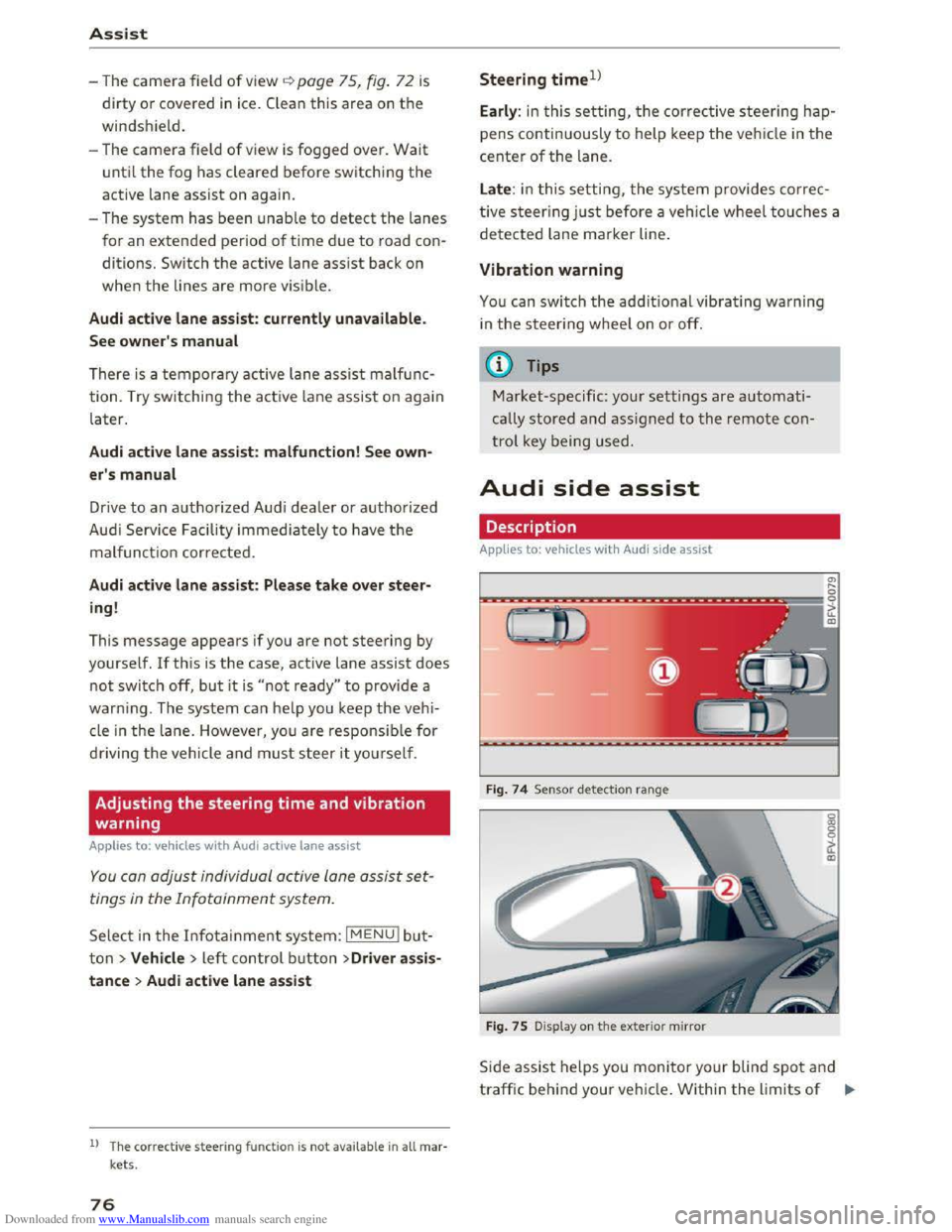
Fig . 74
Senso r detect io n ra nge
Fig .
75 Display on the exterior mirror
Side assist helps you monitor your blind spot and
traffic behind your vehicle . Within the limits of .,.
Page 81 of 322
Downloaded from www.Manualslib.com manuals search engine Switching on and off
App lies to: vehicles with Audi side assist
The system can be switched on/off in the Info
tainment system.
"'Select in the Infotainment system: IM ENUI but
ton >Vehicle > left control button >Driver as
sistance >Audi side assist
An activated system will signal every time the ig
nition is switched on by turning the displays in
the exterior mirrors on briefly.
Adjusting the display brightness
Applies to: vehicles with Audi side assist
The display brightness can be adjusted in the In
fotainment system.
"'Select in the Infotainment system: IM ENUI but
ton >Vehicle > left control button >Driver as
sistance >Audi side assist
The display brightness adjusts automatically to
the brightness of the surroundings, both in the
information and in the warning stage. In very
dark or very bright surroundings, the display is
already set to the minimum or maximum level by
the automatic adjustment. In such cases, you
may notice no
change when adjusting the bright
ness, or the change may only be noticeable once
the surroundings change.
Adjust
the brightness to a level where the display
in the information stage will not disrupt your
view forward. If you change the brightness, the
display in the exterior mirror will briefly show the
brightness level in the information stage. The
brightness of the warning stage is linked to the
brightness in the information stage and is adjust
ed along with the information stage adjustment.
-Side assist is not active while you are mak
ing the adjustment.
- Your settings are automatically stored and
assigned to the remote control key being
used.
Assist
Driver messages
Applies to: vehicles with Audi side assist
If the side assist switches off automatically, a
message appears in the Infotainment system dis
play.
@i Audi side assist: currently unavailable.
Sensor vision restricted due to surroundings.
See owner's
manual
The radar sensors' vision is affected. Do not cover
the area in front of the sensors with bike wheels,
stickers, dirt or other objects. Clean the area in
front of the sensors, if necessary q page 77,
fig. 77.
@i Audi side assist: currently unavailable.
See owner's
manual
Side assist cannot be switched on temporarily be
cause there is a malfunction (for example, the
battery charge level may be too low).
@i Audi side assist: malfunction! Please
contact
Service
The system cannot guarantee that it will detect
vehicles correctly and it is switched off. The sen
sors have been displaced or are faulty. Have the
system checked by an authorized Audi dealer or
authorized Audi Service Facility soon.
Audi drive select (drive
settings)
Introduction
Applies to: vehicles with Audi drive select
Drive select makes it possible to experience dif
ferent types of vehicle settings in one vehicle.
The driver can
select from three modes, Comfort,
Auto and Dynamic, using the~.~;\,~ button in the
center console or by using the Infotainment sys
tem. This allows you to switch between a sporty
and a comfortable driving mode, for example. In
the Individual mode, the settings can be adjust
ed to your personal preferences. This makes it
possible to combine settings such as a sporty en-
gine
tuning with light steering. .,.
79
Page 82 of 322
Downloaded from www.Manualslib.com manuals search engine Assist
& WARNING
Using Audi drive select incorrectly can lead to
collisions, other accidents and serious inju
ries.
Description
Applies to: vehicles with Audi drive select
The vehicle setup in each mode depends on the
vehicle's features. However, the engine and
steering are always affected.
Engine and automatic transmission
Depending on the mode, the engine and auto
matic transmission respond more quickly or i n a
more balanced
manner to accelerator pedal
movements.
Adaptive dampers (Audi magnetic ride)*
The adaptive dampers use sensors to record in
formation regarding steering movements, brak
ing and acceleration operations by the driver,
road
surface, driving speed, and load. With dri ve
select, you can adjust the adaptive dampers to
sporty (dynamic), comfortable (comfort) or ba l
anced (auto).
Steering
The power steering adapts. Indirect steering that
moves easily as in comfort mode is especially
suited to long drives on a highway. The dynamic
mode provides sporty, direct steering.
Cruise control system*
The acceleration performance is especially fuel
efficient in efficiency* mode.
Engine sound*
The engine sound is adapted to the applied mode
and can be subtle to sporty.
@ Tips
In some models, the maximum vehicle speed
can only be reached in the auto and dynamic
modes.
80
Selecting the driving mode
Applies to: vehicles with A ud i drive select
You can select between efficiency*, comfort, au
to, dynamic and individual.
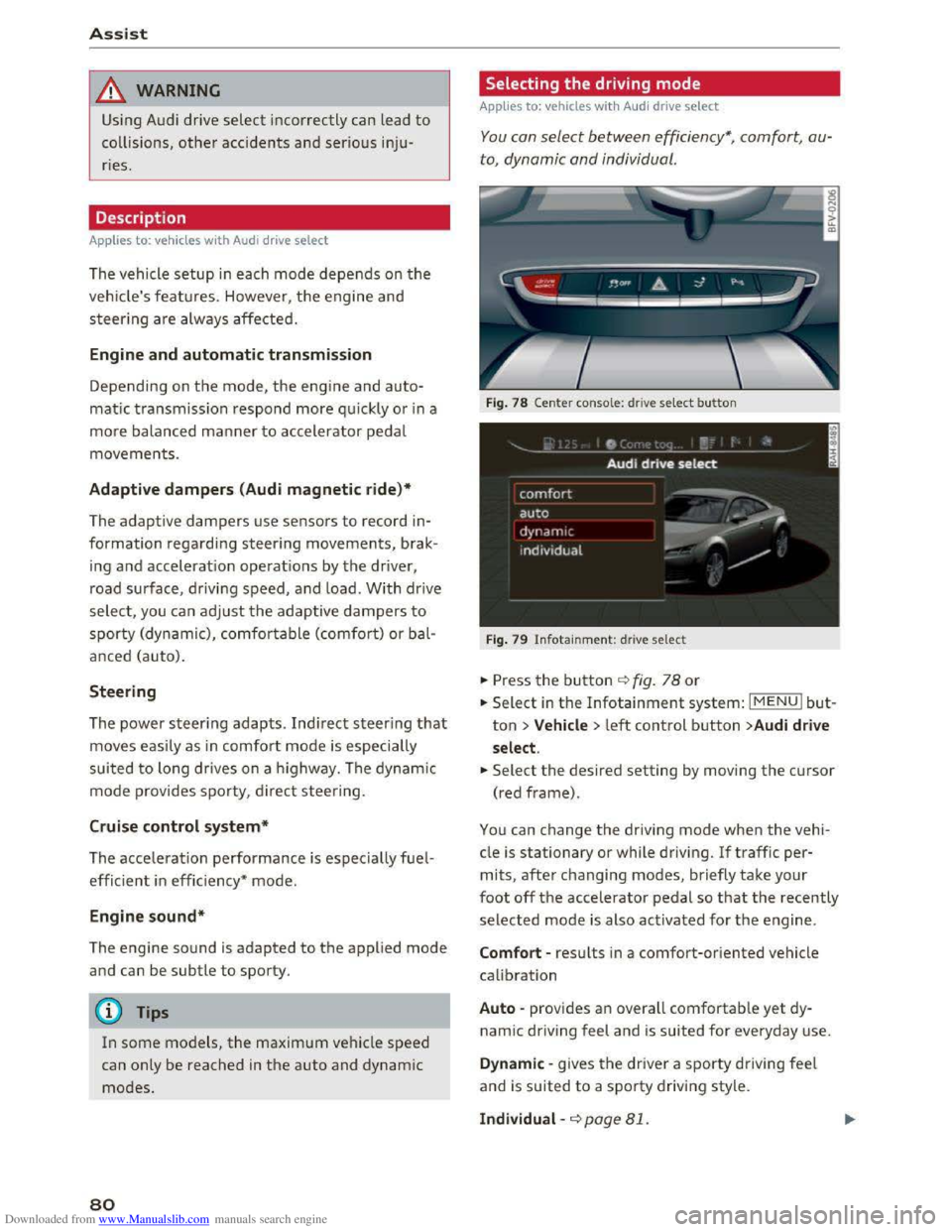
Fig. 78 Center conso le: drive select button
Fig. 79 Infotainment: drive select
.. Press the button ¢fig. 78 or
.. Select in the Infotainment system: IMENUI but
ton >Vehicle > left control button >Audi drive
select .
.. Select the desired setting by moving the cursor
(red frame).
You can change the driving mode when the vehi
cle is stationary or while driving. If traffic per
mits, after changing modes, briefly take your
foot off the accelerator pedal so that the recently
selected mode is also activated for the engine.
Comfort -results in a comfort-oriented vehicle
calibration
Auto -provides an overall comfortable yet dy
namic driving feel and is suited for everyday use.
Dynamic -gives the driver a sporty driving feel
and is suited to a sporty driving style.
Individual -¢page 81.
Page 83 of 322
Downloaded from www.Manualslib.com manuals search engine A WARNING
Pay attention to traffic when operating the
drive select to prevent potential risk of an ac
cident.
Adjusting the Individual mode
Applies to: vehicles with Audi drive select
Assist
-I
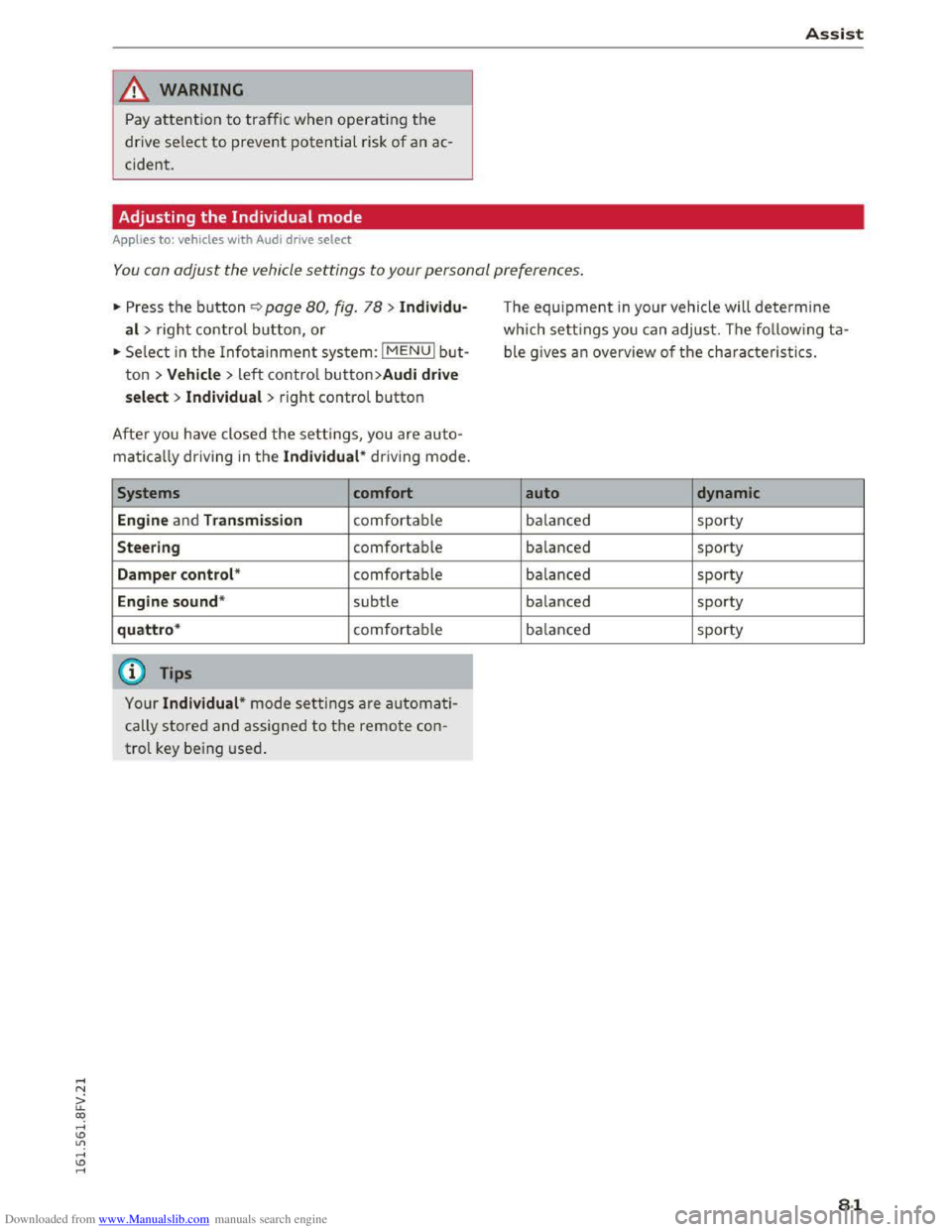
You can adjust the vehicle settings to your personal preferences.
"' Press the button¢ page 80, fig. 78 > Individu·
al> right control button, or
"'Select in the Infotainment system: IMENUI but
ton > Vehicle> left control button>Audi drive
select > Individual
> right control button
After you have closed the settings, you are auto
matically driving in the Individual* driving mode.
Systems comfort
Engine
and Transmission comfortable
Steering comfortable
Damper control* comfortable
Engine sound* subtle
quattro* comfortable
@ Tips
Your Individual* mode settings are automati
cally stored and assigned to the remote con
trol key being used.
The equipment in your vehicle will determine
which settings you can adjust. The following ta
ble gives an overview of the characteristics.
auto dynamic
balanced sporty
balanced sporty
balanced sporty
balanced sporty
balanced sporty
81
Page 84 of 322
Downloaded from www.Manualslib.com manuals search engine Parking systems
Parking systems
General information
Applies to: vehicles with rear parking system/parking system
plus
Depending on your vehicle's equipment, various
parking aids will
help you when parking and ma
neuvering.
The r
ear pa rk ing syst em is an audible parking aid
that warns you of obstacles behind the vehicle
9page82.
The parking syste m plus assists you when park
ing by audibly and visually indicating
objects de
tected in front of and behind the vehicle
9page 83.
The rearv iew cam era shows the area behind the
vehicle in the Infotainment d isplay. The lines in
the rearview camera image help you to park or
maneuver~ page 84. The parking system plus
functions are also available~ page 83.
A WARNING
r-= ---'
-Always look for traffic and check the area
around your vehicle by looking at it directly
as well. The parking system cannot replace
the driver's attention. The driver is always
responsible when entering or leaving a park
ing
space and during similar maneuvers.
-
Please note that some surfaces, such as
clothing,
are not detected by the system.
-Sensors and cameras have blind spots in
which people and objects cannot be detect
ed. Be especia lly cautious of small children
and animals.
- The
sensors can be displaced by impacts or
damage to the radiator grille, bumper,
wheel housing and the underbody. The park
ing
system may become impaired as a re
sult. Have an authorized Audi dealer or au
thorized Audi Service Facility check their
function.
- Make
sure the sensors are not obstructed by
stickers,
deposits or other materials. If they
are, the sensor function could be impaired.
For
additional information on cleaning, re
fer to ~page 2 70.
82
-Some objects are not detected or displayed
by
the system under certain circumstances:
- Objects
such as barrier chains, trailer draw
bars, vertical poles or fences
- Objects above
the sensors such as wall ex
tensions
-Objects with specific surfaces or struc
tures such as chain link fences or powder
snow
-If you continue driving closer to a low-lying
object, it may
disappear from the sensor
range. Note that you will no longer be
warned about this obstacle.
- Keep enough distance from the curb to
avoid damage to the rims.
(D Tips
-The system may provide a warning even
though there are no obstacles in the cover
age area in some situations, such as:
-
certain road surfaces or for long grass.
-external ultrasonic sources e.g. from
cleaning vehicles.
- heavy rain, snow,
or thick vehicle exhaust.
-We recommend that you practice parking in
a traffic-free location or parking lot to be
come familiar with the system. When doing
this,
there should be good light and weath
er conditions.
-
You can change the volume of the signals.
-
What appears in the display is slightly de-
layed.
- The
sensors must be kept clean and free of
snow and ice for the park assist to operate.
Rear parking system
Description
Applies to: vehicles with rear parking assist
The rear parking system is an audible parking
aid.
Description
There is a sensor in the rear bumper cover. If
these detect an obstacle, audible signals warn
you.
Page 87 of 322
Downloaded from www.Manualslib.com manuals search engine ..... N
G: CX)
.....
"' U"I
.....
"' .....
use the system for safety reasons. Have it
checked by an authorized Audi dealer or au
thorized Audi Serv ice Facility.
-
Only use the rearview camera to assist you if
it shows a good, clear picture. For example,
the image may be affected by the sun shin
ing into
the lens, dirt on the lens or ifthere
is a defect.
-Use the rearview camera only ifthe luggage
compartment lid is completely closed. Make
sure any objects you may have mounted on
the luggage compartment lid do not block
the rearview camer a.
- T
he camera lens enlarges and distorts the
field of vi sion. The object appears both al
tered and inaccurate on the screen.
-In certain situations, people or objects in
the display appear close r or further away :
- For objects
that do not touch the ground,
such as the bumper of a parked vehicle, a
trailer hitch or the rear of a truck. Do not
use the help lines in this case.
-
If driven from a level surface onto an in
cline, or a downward slope.
-
If driven toward protrudi ng objects.
-If the vehicle is carrying too much load in
the rear.
CD Note
- Always re ad and follow the applicable warn
ings¢(!) in General information on
page82.
-The orange colo red orientation lines in the
Infotainment display show the vehicle path
depending on the steering wheel angle. The
front of the vehicle front swings out more
than the rear of the vehicle. Maintain plenty
of distance so that your outside mirror or a
corner of your vehicle does not collide with
any
obstacles.
Switching on/off
App lies to: vehi cles with rearv iew camera
Switching on
•Shift into reverse , or
Parking systems
•Press the P'#! button in the cen ter conso le
~page 83, fig . 81 . A short confirmation tone
sounds and the LE D in the button turns on.
Switching off
•Drive faster than 6 mph (10 km/h), o r
• Press the P'#! button, or
• switch the ign it ion off.
(!} Tips
- The visua l display in the left part of the dis
play
shoul d he lp you detect the critical vehi
cle areas.
-You can change the volume and display for
the signals ¢ page 86.
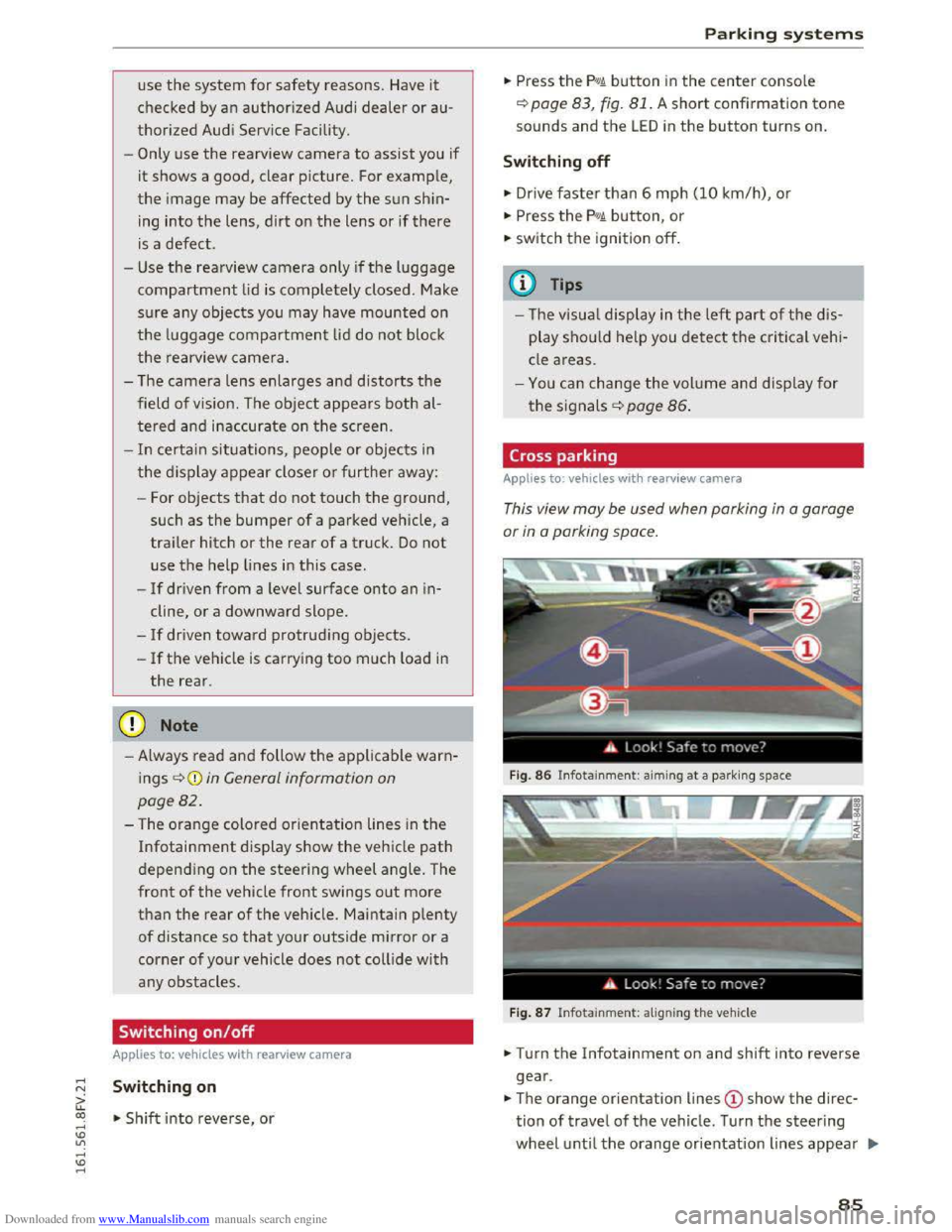
Cross parking
Applies to: veh icles wit h rearv iew camera
This view may be used when parking in a garage
or
in a parking space.
Fig. 86 Infotainme nt: aiming at a par king space
Fig. 87 Infotainme nt: al igning the vehicle
• Turn the Infotainment on and shift into reverse
gear .
•The orange orientation lines @show the direc
tion of travel of the vehicle. Turn the steering
wheel until the orange or ientation lines appear .,..
85
Page 88 of 322
Downloaded from www.Manualslib.com manuals search engine Parking systems
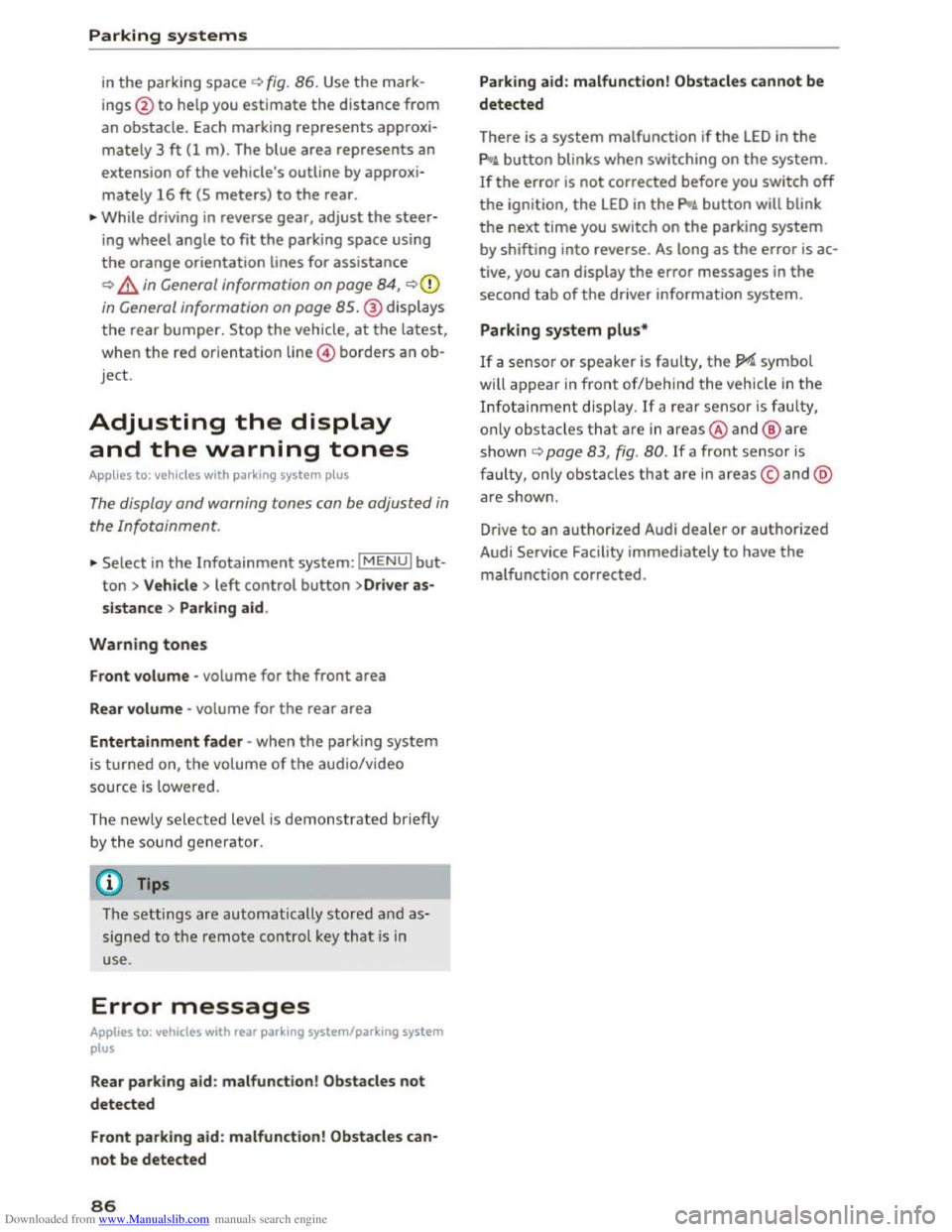
in the parking space c) fig. 86. Use the mark
ings @
to help you estimate th e distance from
an obstacle. Each marking represents approxi
mately 3 ft (1 m) . The blue area represents an
extension of the vehicle's outline by approxi
mately 16 ft (5 meters) to the rear.
.,.. While driving in reverse gear, adjust the steer
ing wheel angle to fit the parking space using
the orange orientation lines for assistance
c) .&. in General information on page 84, c)(i)
in General information on page 85.@ displays
the rear bumper. Stop the vehicle, at the latest,
when
the red orientation line @ borders an ob
j ect.
Adjusting the display
and the warning tones
A pp lies to: vehicles with park ing system plus
The display and warning tones can be adjusted in
the Infotainment.
.,.. Select in the Infotainment system: IMENUI but
ton > Vehicle > left control button >Dr iver as
sistance > Parking aid.
Warning tones
Front volume -volume for the front area
Rear volume -volume for the rear area
Entertainment fader -when the parking system
is turned on, the volume of the aud io/video
source
is l owered.
The newly selected level is demonstrated briefly
b y the sou nd
generator.
(}) Tips
The settings are automatically stored a nd as
signed to the remote control key that is in
use.
Error messages
Applies to: vehicles with rear parking system/parking system
plus
Rear parking aid : malfunction! Obstacles not
detected
Front parking aid : malfunction! Obstacles can
not be detected
86
Parking aid: malfunction! Obstacles cannot be
detected
There is a system malfunction if the LED in the
pg~ button blinks when switching on the system.
If the error is not corrected before you switch off
the ignition, the LED in the pg~ button will blink
the next time you switch on the parking system
by shifting into reverse . As long as the error is ac
tive, you can display
the error messages in the
second tab of the driver information system.
Parking system plus*
If a sensor or speaker is faulty, the JM symbol
will
appear in front of/behind the vehicle in the
Infotainment display. If a rear sensor is faulty,
o nl y o
bstacles that a re in areas@and@ are
s h own c) page 83, fig. 80. If a front sensor is
faulty, only obstacles that are in areas© and @
ar e show n.
Drive
to an authorized Audi dealer or authorized
Audi Service Facility immediately
to have the
malfunction corrected.