phone AUDI TT COUPE 2016 Owner's Guide
[x] Cancel search | Manufacturer: AUDI, Model Year: 2016, Model line: TT COUPE, Model: AUDI TT COUPE 2016Pages: 322, PDF Size: 52.86 MB
Page 133 of 322
Downloaded from www.Manualslib.com manuals search engine ..... N
Navigation
Opening navigation
Applies to: veh icles with navigation system
Nav igation
The navigation system directs you to your destination, around traffic incidents and on alternative
routes, if desired.
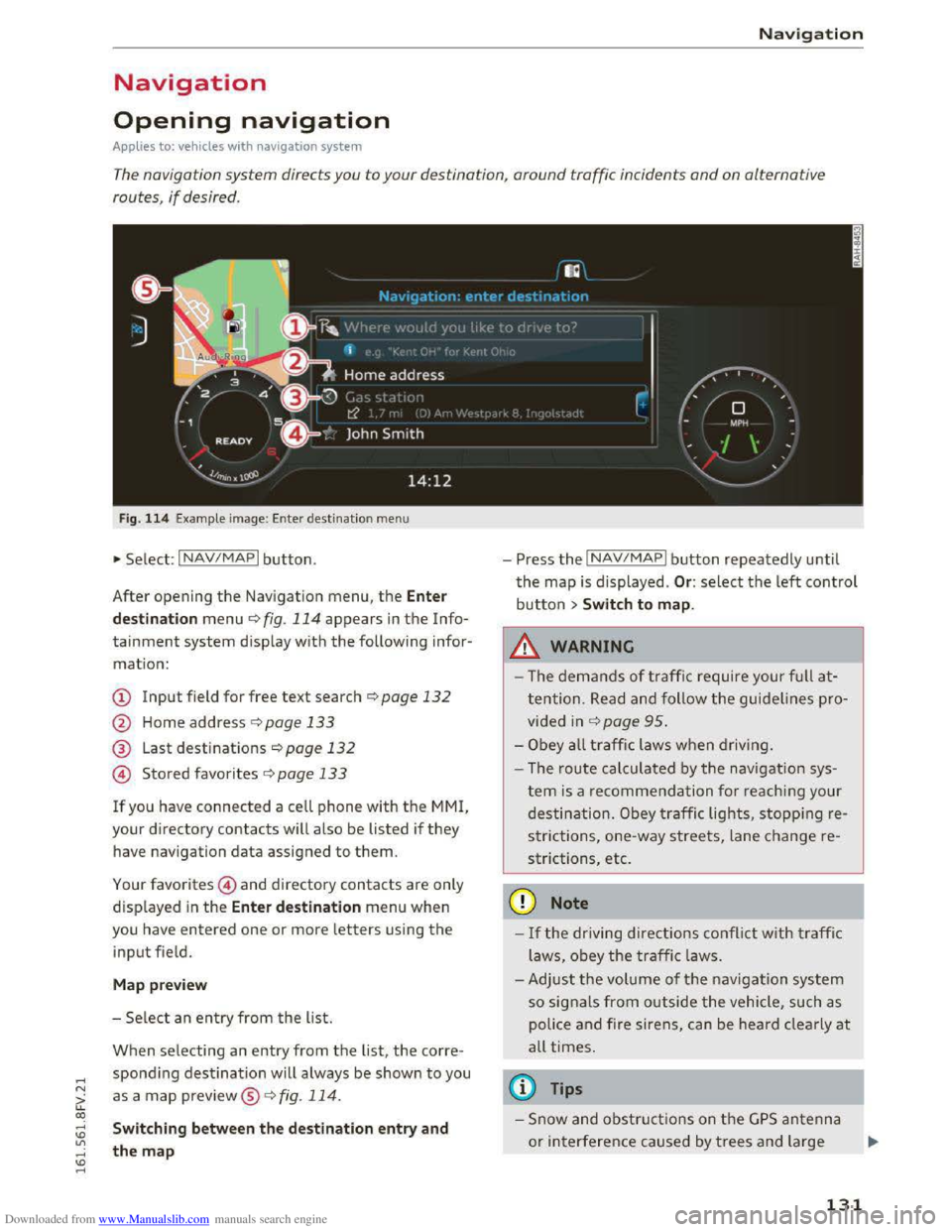
Fig. 114 Example image: Enter destination menu
•Select: INAV/MAPI button.
After opening
the Navigation menu, the Enter
d
est ina tion menu ¢ fig. 114 appears in the Info
tainment system display with the following infor
mation:
CD Input field for free text search¢ page 132
@ Home address r:!;> page 133
® Last destinations¢ page 132
@ Stored favorites C>page 133
If you have connected a cell phone with the MMI,
your directory contacts w ill also be listed if they
have navigation data assigned to them.
Your favorites@) and directory contacts are only
displayed
in the Ente r de stination menu when
you have entered one or more letters using the
input field.
M ap pre view
- Se lect an entry from the list.
When selecting an entry from the list, the corre
spondi ng destination will always be shown to you
as a map preview®~ fig. 114.
Switching between the destination entry and
the map
- Press the INAV/MAPI button repeatedly until
the map is displayed . Or: select the left control
button > Swit ch to map .
_&.WARNING
-The demands of traffic require your ful l at
tention. Read and follow the guidelines pro
vided in r:!;>page 95.
-Obey a ll traffic laws when driving.
- The r
oute calculated by the navigation sys-
tem is a recommendation fo r reaching your
destination. Obey traffic lights, stopping re
s trictions, one-way streets, lane change re
strictions, etc.
CD Note
-If the driving directions conflict with traffi c
laws, obey
the traffic laws.
- Adjust th e
volume of th e navigation system
so signals from outside the vehicle, such as
police
and fire siren s, can be heard cle arly at
all times.
@ Tips
-Snow and obstru ct ions on the G PS antenna
or interference caused by trees and large
- 1
131
Page 136 of 322
Downloaded from www.Manualslib.com manuals search engine Navigation
-Select and confirm an address or a destination.
When you have selected a destination, the
route guidance can be started directly.
-
Check the address input again when selecting
an address.
- T
hen select and confirm Start route guidan ce .
Addit ional directory functions in the n avigation
sys t
em can be found under ¢page 137.
@ Tips
-Addresses that have been imported from
your cell phone into the MM! can also be
used as a destination.
-
If a contact is grayed out in the directory,
this contact has neither a destination nor an
address assigned to them.
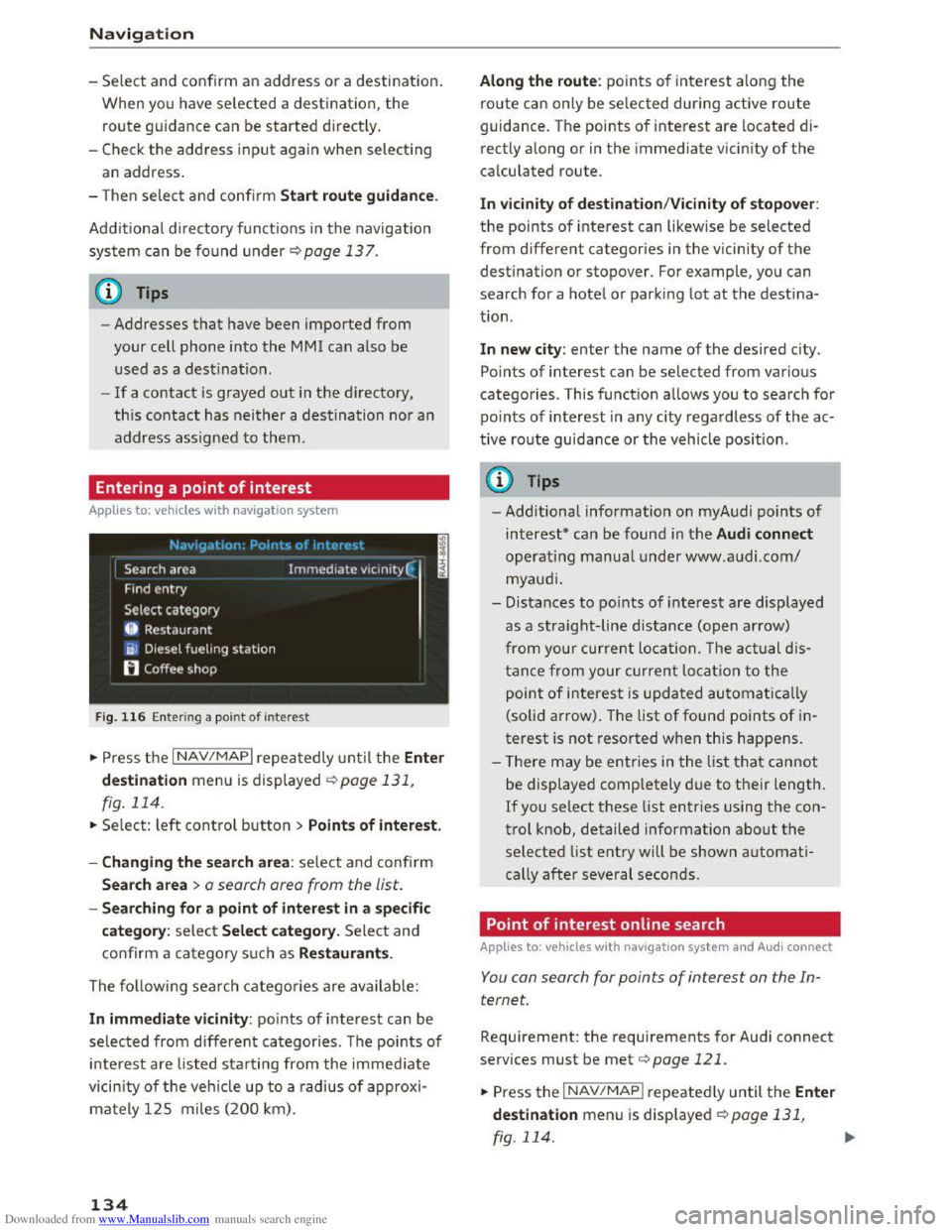
Entering a point of interest
Applies to: vehicles with navigation system
F i
g. 116 Ente rin g a point of interest
.. Press the I NAV/MAPI repeatedly until the Ent er
de stination
menu is displayed ¢page 131,
fig. 114.
.. Select: left control button > Point s of interest.
-
Cha nging the sea rc h are a : select and confirm
Search a rea > a search area from the list.
-Searching fo r a p oin t of inter est in a specifi c
categor
y: select Sele ct category. Select and
confirm a category such as Restaurants.
The following search categories are avai lable:
In immediate vi cinity: points of interest can be
selected from different categories. The points of
interest are l isted starting from the immediate
vicin ity of the veh icle up to a rad ius of approxi
mately 125 miles (200 km).
134
Along th e r oute : points of interest along the
route can only be selected during active route
guidance. The points of interest are located di
rectly
along or in the immediate vicin ity of the
calculated route.
I n v icinity of dest ination/Vicinity of stopo ver:
the points of interest can likewise be selected
from different categories in the vic inity of the
destination or stopover. For example, you can
search for a hotel or park ing lot at the destina
tion.
In new city: enter the name of the desired city.
Points of interest can be selected from various
categories. This function allows you to search for
po i
nts of interest in any city regardless of the ac
tive
route guidance or the vehicle posi tion .
(D Tips
-Additional information on myAudi points of
interest* can be found in the Audi connect
operating manual under www.audi.com/
myaudi.
- Distances
to po ints of interest are displayed
as a straight-line distance (open arrow)
from your current location . The actual d is
tanc e from your current location to the
point of interest is updated automatically
(solid arrow) . The list of found points of in
terest is not resorted when this happens .
- T
here may be entries in the list that cannot
be displayed completely due to their length.
If you select these list entries using the con
t r
ol knob, detailed information about the
selected list entry will be shown automati
cally
after several seconds.
Point of interest on line search
Applies to: vehicles with navigat ion system and Audi connect
You can search for points of interes t on the In
ternet.
Requi rement: the requirements for Audi connect
services must be met ¢page 121 .
.. Press the I NAV /MAP I repeatedly until the Ente r
destination
menu is displayed ¢page 131,
fig. 114.
Page 138 of 322
Downloaded from www.Manualslib.com manuals search engine Navigation
Entering a destination as a stopover
-Enter a destination in the input line
¢page 132.
-Select and confirm a destination from the re
sults list.
-
Se lect and conf irm Add as stopover.
Deleting a stopover
- Turn the control knob up until the active route
guidance
is shown.
-
Select and confirm Cancel route guidance un
der the stopover @¢ fig. 117. Select and con
firm
the system prompt if necessary. The stop
over is deleted.
Additional options when entering a
destination
Applies to: vehicles with navigation system
.,. Press the right control button.
Depending on the selected function, the follow
ing additional options may be available when en
tering a destination:
Cancel route guidance:¢ page 136.
Map settings: <=>page 141.
Show location on map: Requirement : you must
have selected a destination from the results list.
The destination
entered is displayed on the map.
Parking
at this location : Requirement: you must
have selected a destination from the results list.
All parking options near the selected location are
displayed
in the Infotainment system.
POi s at this location : Requirement: you must
have selected a destination from the results list.
All parking options near the selected location are
displayed
in the Infotainmen t system.
Delete: the selected entry is deleted. You can de
lete individual entries or all entries (for example,
favorites
or last destinations).
Audi c
onnect for this location : Requirement : you
must have selected a destination from the re
sults list. Allows you to search for items in the vi
cinity of the selected location, such as City
events or T ra vel information.
136
Online tra ffic data*: receiving on line traffic infor
mation ¢page 143 can be switched on or off.
Country /State selection: select all countries/
states from the list ([;1) that should be included
in the free text search <=>page 132.
Store as favorite : ¢page 13 7.
Information on
on line traffic data can also be
found on
the Internet at www.audiusa.com/
help/audi-connect.
Canceling route guidance
Applies to: vehicles with navigation system
Requirement: route guidance must be active.
.,. Push the control knob up. The active route
guidance
is displayed ¢ page 135, fig. 117 .
.,. Select and confirm the destination that you
would like
to delete. The destination is deleted.
Or: select the right control button > Can cel
route guidance.
Creating a home address
Applies to: vehicles with navigation system
.,. Press the INAV/MAPI repeatedly until the Enter
destination menu is displayed¢ page 131,
fig. 114.
Storing a home address
- Select and confirm Home address@
¢page 131, fig. 114.
-Select and confirm Create now. Or: select and
confirm a destinatio n > rig ht control button >
Store as home address.
A home
address will be stored in the MMI regard
less
of the connected cell phone. This home ad
dress is always available even if a cell phone is
not connected to the MMI.
Editing the home address
-Select Home address@¢page 131, fig. 114.
-Select: right control button > Edit home ad-
dress.
-
Select and confirm a new destination as the
home address.
Page 139 of 322
Downloaded from www.Manualslib.com manuals search engine ...... N
> u. CX> ...... u:>
"' ...... u:> ......
The selected destination is stored as the new
home
address.
Favorites
Applies to: vehicles with navigation system
... Press the INAV/MAPI repeatedly until the Enter
destination menu is displayed<:> page 131,
fig. 114.
-Storing an existing destination as a favorite:
search for
the desired destination using the in
put field. Or : select and confirm a destination
from the list. Select: right control button>
Store as favorite .
-
Renaming stored favorites: select: left control
button > Favorites > a favorite from the list>
right control button> Rename favorite.
- Moving
stored favorites: selec t: left contro l
button > Favorites > a favorite from the list >
right control button> Move favorite . Select
and confirm
the desired position.
- Deleting
stored favorites: select and confirm a
favorite> right control button> Delete this fa
vorite I Delete all favor ites.
Creating directory
contacts
Applies to: vehicles with navigation system
Two addresses (private/business) can be as
signed as destinations for each contact in the di
rectory.
... Press t h e I NAV/MAPI repeatedly until the Enter
destination menu is displayed r:!) page 131,
fig. 114.
Storing a destination as a contact in the
directory
Requirement: a cell phone must be connec ted to
the MMI.
- Select a destination> right control button>
Add destination to contact.
-
Select and confirm Add business destination or
Add private destination .
- Enter a
name. Or: select and confirm a directo
ry contact from the list .
-
Select and confirm Save business card.
Navigation
Additional settings
Navigation settings
Applies to: vehicles with navigation system
... Press the I NAV/MAPI repeatedly until the Enter
destination menu is displayed <:>page 131,
fig. 114.
... Select: right control button > Navigation set-
tings.
Depending on
the selected function, the follow
ing settings can be selected:
Show alternative routes
Up to three route suggestions and their proper
ties are displayed on the overview map when this
functi on is switched on. See also r:!) page 138
Gas station message
When this function is switched on, a message is
displayed if the fuel gauge goes below the re
serve marking. Confirming this message displays
a list
of gas stations in the area. When a gas sta
tion is selected, route guidance from the current
vehicle position is calculated .
Presentation mode
The presentation mode helps you to plan and fol
low a route without moving the vehicle. You can
Select starting point when you would like to cal
culate a route starting from a location other than
the veh icle position. Start presentation mode to
simulate route guidance .
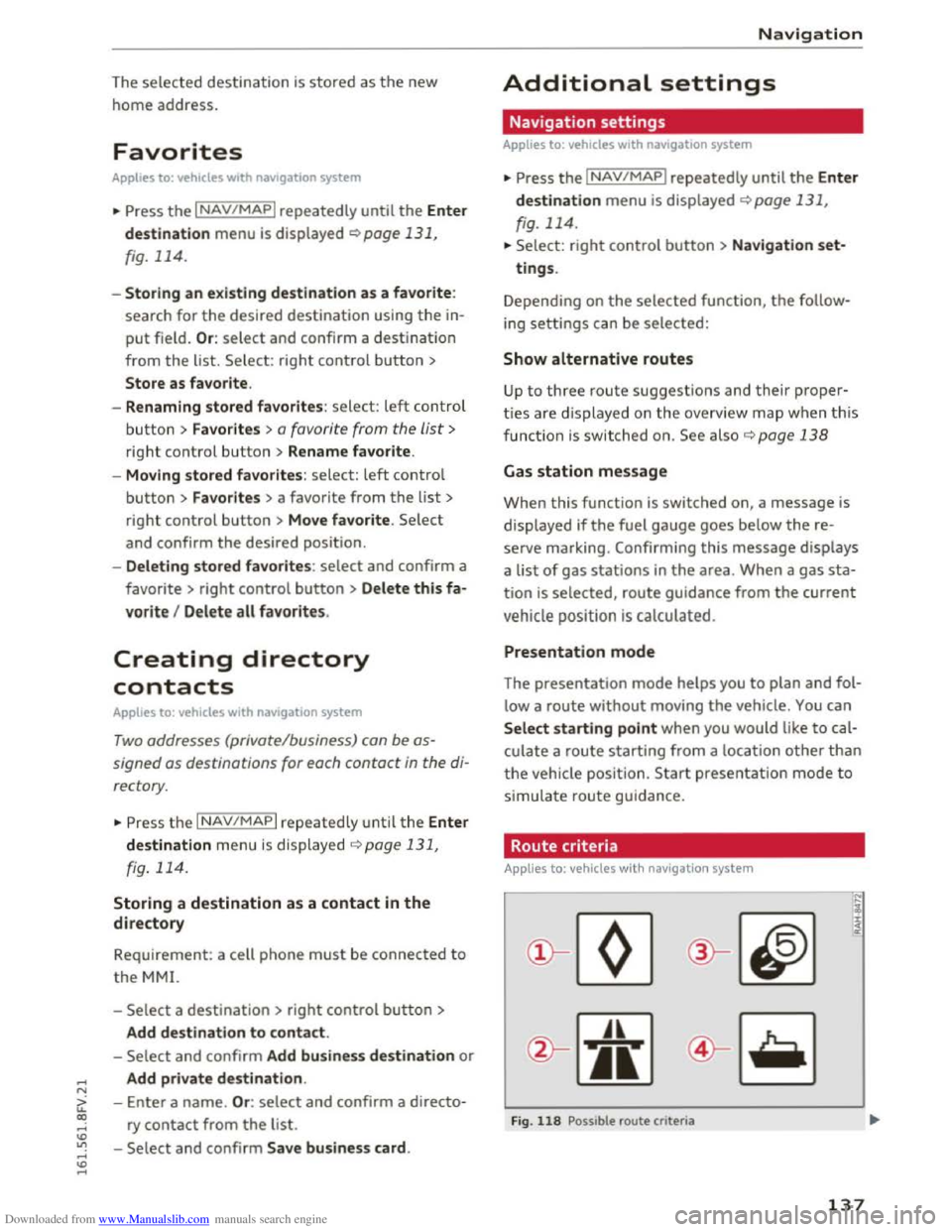
Route criteria
Applies to: vehicles with nav igat ion syste m
)(
Fig. 118 Possible route criteria
N
i :c <( cc
137
Page 140 of 322
Downloaded from www.Manualslib.com manuals search engine Navigation
... Press the I NAV/MAPI repeatedly until the Enter
destination
menu is displayed c::> page 131,
fig. 114.
... Select: right control button > Route criteria.
(!)HOV lanesn: with the Avoid function, HOV
lanes are excluded when calculating routes.
When Allow is selected, the MMI will route you
through HOV lanes and show them on the map.
@Highways / @ Toll roads /@ Ferries : if the navi
gation system should not include highways, toll
roads or ferries -if possible -when calculating
routes, you can select the Avoid function.
Voice guidance
Applies to: vehicles with navigation system
... Press the I NAV/MAPI repeatedly until the Enter
destination
menu is displayed c::> page 131,
fig. 114.
... Select: right control button > Voice guidance .
Voice guidance:
voice guidance can be complete
or shortened. With the Traffic function, voice
gu
idance prompts are only given when there are
traffic incidents on your route. When Off is se
lec ted, no voice guidance is given .
Voice guidance during phone call: voice guid
ance during a phone call can be switched on or
off.
Entertainment fader: c::> page 170.
Voice guidance volume: c::> page 170.
Blocking a route
App lies to: vehicles with navigation system
Requirement: a destination must be entered and
the route guidance must be started.
... Press the I NAV/MAPI repeatedly until the Enter
destination
menu is displayed c::> page 131,
fig. 114.
... Select: right control button > Block route .
When route guidance is active, the calculated
route will avoid the area you have specified (max-
l) Hig h oc cupancy vehicle
138
imum: 20 km), if possible. The navigation system
calculates an alternative route.
The
route to be avoided that you have entered
applies only to the c urrent route and must be re
set, if necessary.
The
areas you have selected to avoid will appear
with red and white shading on the map.
Displaying alternative routes
Applies to: vehicles with navigation system
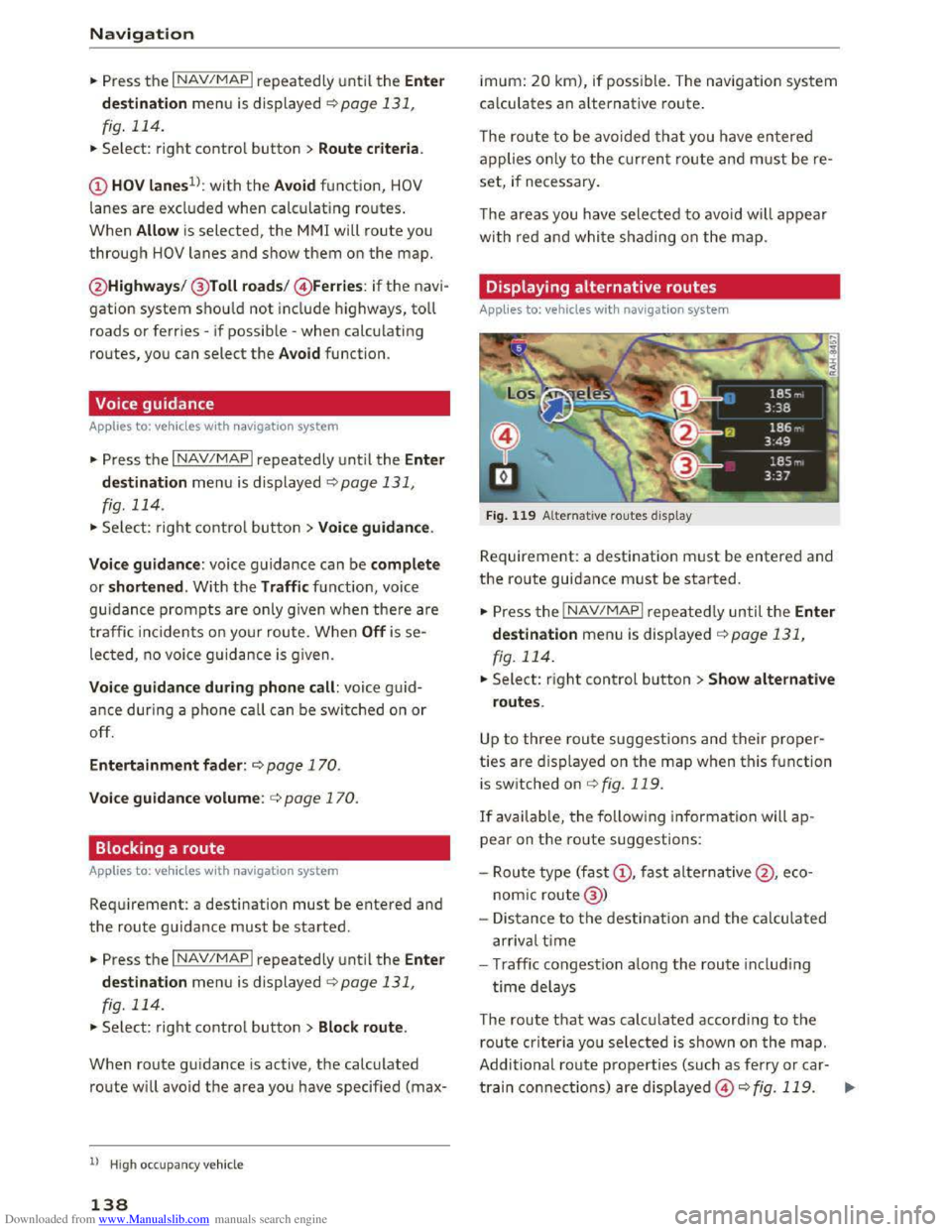
Fig. 119 Alternative routes display
Requirement: a destination must be entered and
the route guidance must be started.
... Press the I NAV /MAP I repeated Ly until the Enter
destination
menu is displayed r::!>page 131,
fig. 114 .
... Select: right control button >Show alternative
routes.
Up to three route suggestions and their proper
ties are displayed on the map when this function
is
switched on c::>fig. 119.
If available, the following information will ap
pear on the ro ute suggestions:
-
Route type (fast(!), fast alternative@ , eco
nomic route@ )
- Distance
to the destination and the calculated
arrival time
- Traffic congestion a long the route includ ing
time delays
The route that was calculated according to the
route criteria you selected is shown on the map.
Additional
route properties (such as ferry or car-
train connections) are d isplayed@r::!> fig. 119. .,..
Page 154 of 322
Downloaded from www.Manualslib.com manuals search engine Media
Requirement: the playlist must be open. See
¢page 161.
-Selecting a track: select the track that is cur
rently playing. Select: right control button>
Copy to Jukebox> This track or Entire album
or This artist.
Requirement: a video file must be playing .
- Select:
right control button > Copy to Jukebox.
The copying
process begins. The status of the
copying process is shown in the MM!.
-Hiding the importing process: select and con
firm
Continue copying in background. The im
porting process is hidden .
-
Canceling the importing process: select and
confirm Cancel copying: Or : remove the source
that is being imported. Files already copied re
main.
When importing, the audio files are automatical
ly sorted into the media center categories based
on the stored additional information
¢ page 160. The copie d video files are stored in
the media center under the Videos category.
CD Note
Do not import audio/video files when the en
gine is turned off because this will drain the
vehicle battery.
Tips
-Tracks from audio CDs cannot be impo rted
to the Jukebox for legal reasons.
- Files that have already been imported are
automatically recognized and cannot be
copied to the Jukebox again.
-
It is not possible to play audio/video* files
in
the CD/DVD* drive while importing them.
-The Jukebox does not provide an export
function due to legal reasons.
-Files or tracks without stored additional in
formation are listed as Unknown. Audi rec
ommends adding additional information
(such as ID3 tags) to audio files.
-
Reset the Jukebox to the factory default set
tings when selling your vehicle ¢ page 166.
152
Bluetooth audio player
Applies to: vehicles with Bluetooth
With the Bluetooth audio player, you can play
music wirelessly from your Bluetooth-capab/e
device (such as a cell phone) through the MM!.
Requirement: th e vehicle must be stationary and
the Bluetooth function on your Bluetooth device
and the Bluetooth audio player¢ page 168 in
the MM! must both be switched on.
-Connecting a Bluetooth device : press the
I MEDIAi button. Press the left control button
until the sources overview is displayed. Select
and confirm Bluetooth audio player@
<=;>page 159, fig. 135.
-If necessary, select and confirm, Not connected
>Connect Bluetooth audio player. The Blu e
tooth device search starts. Follow the instruc
tions in the MM!.
-Select and confirm the desired Bluetooth de
vice from the list. The MMI generates a PIN for
the connection.
-Select and confirm Yes .
-Enter the PI N for connecting on yo ur Bluetooth
devi ce. Or: if the PIN is already di splayed on
your Bluetooth device, confirm it in the Blue
tooth device and in the MMI. The time a llowed
for entering the PIN is limited to approximately
30 seconds.
The media is started and operated through the
mobile device or the MMI, depending on the de
vice being
used.
(!) Tips
-Check for any connection requests on your
Bluetooth device.
-
You only have to pair your device one time.
Bluetooth devices that are already paired
automatically connect to the MMI when
they are within range.
-Multiple Bluetooth audio players can be
connected to the MMI, but only one mobile
device can be acti ve.
-
Bluetooth protocols AVRCP (1.0/1.3/1.4)
and A20P are supported.
Page 155 of 322
Downloaded from www.Manualslib.com manuals search engine ..... N
a:
-Note the volume setting on your Bluetooth
device. Audi recommends setting your mo
bile device to the maximum volume when
using it as a Bluetooth audio player.
- The
supported media functions (such as
shuffle) depend on the Bluetooth device be
ing used.
- For
more information on the supported de
vices, visit www.audiusa.com/bluetooth or
contact your authorized Audi dealer.
Wi-Fi audio player
Applies to: vehicles with Wi·F i
Using the Wi-Fi audio player media source on the
MMI, you can connect and operate your Wi·Fi ca·
pable media player (such as a smartphone) to
wirelessly play music from your media player Ii·
brary. The media player is connected to the MMI
through the Wi-Fi hotspot. An UPnP Server opp
or an integrated UPnPIDLNA server on your me
dia
player is required to access your media player
library. The Audi MMI connect opp also offers ac
cess to Internet radio*.
Requirement: the Wi·Fi function on your media
player must be switched on. The Audi MMI con
nect app or an UPnP server app is installed on
your media player or your media player has an in·
tegrated UPnP/DLNA server.
-
Connecting a media player: press the I MEDIAi
button. Press the left control button until the
sources overview c::;, page 159 is displayed. Se·
lect and confirm Wi-Fi audio player@
c::;,page 159, fig. 135.
-If necessary, select and confirm Wi-Fi turned
off> Turn on Wi-Fi to activate Wi-Fi in the
MMI. Select Wi-Fi settings, if necessary. Select
the same settings on the wireless medi a p layer
that are used for the Wi-Fi hotspot.
-
Starting the Wi-Fi audio player: start the Audi
MMI
connect app or a UPnP serve r app, or set
media permissions on you r media pla ye r. The
first song in the media cente r on your media
player will begin playing.
co .....
:=: 1) Only ava ilable with the Audi MMI connect app.
Media
-Operating the media player: the media player
is operated through the MMI.
-
Starting Online radio1> : press the left control
button repeatedly until the Folders menu item
appears. Select and confirm Folders > Online
radio. Select and confirm a station from one of
the folders shown.
A WARNING
t-==
-As the driver, do not allow usage of the Wi-
Fi hotspot to distract you from driving, as
this could increase the r isk of an accident.
-It is only safe to use laptops and similar mo
bile dev ices when the veh icle is stationary
because, like all loose objects, they could be
thrown around the inside of the vehicle in a
crash and cause serious injuries. Store these
types of devices securely while driving.
-
Do not use any wireless devices on the front
seats within range of the airbags while driv
ing . A l
so read and follow the warnings on
c::;, page 192, Front airbags.
@Note
You are responsible for all precautions taken
fo r data protection, anti-v irus protection and
protection against loss of data on mobile de
vices that are used to access the Internet
through the Wi-Fi hotspot.
(!) Tips
- T he Wi-Fi audio player only needs to be
paired one time to the MMI using the Wi-Fi
hotspot. Depending on the media player be·
ing used, a device that was already paired
w ill
connect automatically with the MMI Wi
Fi hotspot when it is within range.
-The Wi-Fi connection is reconfigured when
inserting or removing the SIM card in the
SIM card reader* . There may be a temporary
interruption in audio playback, depending
on the media player.
- Also
note the instructions in the chapter
c::;, page 128, About Audi connect .
153
Page 157 of 322
Downloaded from www.Manualslib.com manuals search engine ..... N
G: CX)
.....
"' U"I
.....
"' .....
and does not take any responsi bility for the
contents of the online media services .
- Also
note the ins truc tion s in the chapter
c:> page 128, About Audi connect .
-Depending on the mobile device bei ng used ,
i
nter ruptio ns in the media p lay back can oc
cur.
To avoid interruptions when usin g a
mobile device, do not lock the screen on
your mobile device and keep the Audi MMI
connect app in the foreground.
-Contact your a uth o rized Audi dealer or au
thorized Audi Service Facility for additional
information about online media.
Multimedia connections
USB adapter for Audi music interface or
USB charging port
Depending on the vehicle equipment, you con
connect
your mobile devices (such as a smort
phone or MP3 player) to the Audi music interface
or a USB charging port using a special USB
adapter.
Fig. 1 3 2 Audi USB ada pters
(!) USB adapter for devices with a micro USB con
nection
@ US B adapter for devi ces with an Ap ple Light
ning con nection
@ USB adapter for devi ces wit h an Apple Dock
connector
You can p urchase the USB adapter from an a u
thorized A udi dealer or at specialty stores.
Use th e USB adapter for the Audi music interface
c:> page 155-
Media
Q) Note
Hand le the USB adapter carefully . Do not al
low it to be pinched.
Audi music interface
Applies to: vehicles with Aud i music interface
Connect your mobile devices to the Audi music
interface
to be able to operate it through the
MM! and charge the battery.
Fig. 133 Connecti ng mobile dev ices
The Aud i m us ic interface is loc ated in the front
storage compartment in the c enter c o nsole@
c:>page 6, fig. 2.
-Connecting a mobile device using a USB
adapter: connect the applicable USB adapter*
@c:> fig. 133 t o the port on the Audi music in
t
erface@ and then c o nne ct the ada p ter to the
mobile dev ice(!) (s uc h a s an iPod).
-Charging a mobile device using a USB adapter:
w h
en yo u co nnect a mobile device to the Audi
m us ic
interfac e @ using the applicable USB
adapter*@c:> fig. 133, the battery will auto
matically ch
arge.
-
Disconnecting a mobile device from the Audi
music interface: remove the USB adapter@
c:> fig. 133 from the Audi music interface.
-Disconnecting mobile devices with an Apple
Dock connector*: remove the App le Dock con
nector from the App le device with the release
tabs® pressed inc:> page 155, fig. 132.
The media are started and operated through the
mobile device or th e MMI, depending on t he de
vice being used c:>page 159.
Connecting two mobile devices: if two m obile
devices (for
example iPo d and smartphone) are ..,..
155
Page 158 of 322
Downloaded from www.Manualslib.com manuals search engine Media
connected at the same time, then both devices
can be used as playback sources.
You can connect mobile devices using the analog
AUX port.
-Connect ing a mobile device to the AUX input:
connect the cable® Q fig . 133 to the AUX in
put@ on the Audi music interface and then to
the mobile device @ (such as an MP3 player or
smartphone).
-Disconnecting a mobile device from the AUX
input: remove the cable® Q fig. 133 from the
Audi music interface.
-Operation : select and confirm the External au
dio player source @ Q page 159, fig. 135. The
med ia are started and operated through the
mobile
device @Q fig. 133.
A WARNING r--·
Driving requires your complete and undivided
attention.
As the driver, you have complete
responsibility
for safety in traffic. Never oper
ate mobile devices while driving, because
this
increases the risk of an accident.
(D Note
-Remove the connector from the Audi music
interface carefully so
it is not damaged.
-
Use a USB extension cable to connec t devi
ces that have an integrated USB connector
(such
as a USB stick) to prevent damage to
your USB device and the Audi music inter
face.
- E
xtremely high or low temperatures that
can occur inside vehicles can damage mobile
devices
and/or impair their performance.
Never leave mobile devices in
the vehicle in
extremely high or
low temperatures.
Tips
-Do not use an additional adapter or USB ex
tension cable to connect mobile devices to
156
the Audi music interface that already have a
cable or
that must be connected with a USB
adapter (Q page 155). They may impair the
functionality.
-
You can purchase the AUX connector cable
from an authorized Audi dealer or at spe
cialty stores .
- Functionality
is not guaranteed for mobile
devices
that do not meet the USB 2.0 speci
fication.
-
USB hubs are not supported.
- Some
iPod versions, such as the iPod shuf-
fle, cannot be connected
to the USB adapte r
for devices with Apple Dock connector *.
Connect these devices using a AUX connec
tor cable.
- Video playback through the Audi music in
terface
is only supported if the connected
device
is r ecognized as a USB storage device
(for example a USB stick). Apple devices and
MTP devices (such as smartphones) are not
recognized as USB storage devices.
-
iPod/iPhone/iPad malfunctions also affect
the operation of the MM!. Reset your iPod/
i P hone/iPad
if this happens .
- For i
mportant information on operating
your
iPod/iPhone/iPad, refer to the user
guide
for that device. Audi recommends up
dating
the iPod/iPhone/iPad software to the
latest version .
- For more
information about the Audi music
in terface and supported devices, check
the
Audi database for mobile devices at
www. aud
iusa.com/bluetooth or contact an
authorized Audi dealer or
authorized Audi
Service Facility.
Page 166 of 322
Downloaded from www.Manualslib.com manuals search engine Media
-The security levels for the Parental control
are based on the US standards from the Mo
tion Picture Association of America (MPAA).
Note that the age levels for video DVDs in
European countries may differ. -
Password entry
for Parental control will be
locked for approximately one minute if you
enter the incorrect password three times in
a row. The password can only be reset by an
authorized
Audi dealer.
Troubleshooting
Problem Solution
Audi music interface* /Bluetooth
Refer to the information on the Audi music interface*
audio player*:
mobile device is c::.> page 155/Blue·tooth audio player* c::.> page 152. You can learn
not supported. about supported mobile devices in the Audi database for mobile
devices
at www.audisua.com/bluetooth.
Audi music interface* : the vol-Adjust the volume of the mobile device to approximately 70% of
ume is too high/too low when the maximum output c> page 162, Input level.
starting playback through the
AUX input.
Audi music interface* : the porta-For many cell phones or mobile devices, playback is not possible
ble device
is not recognized as a when the battery level is too low (less than So/o of its capacity).
source. The mobile device will only be recognized as a source
in the MM!
after connecting if the battery charge is sufficient.
Audi music interface* : malfunc- The Bluetooth audio player function is switched on. Switch this
tions during audio playback
function off
c> page 168 when you are not using the Bluetooth
through an iPod/iPhone/iPad. audio player.
AUX input: there is static when When connecting and disconnecting, the External audio player
connecting and disconnecting the source is already selected. Before connecting or disconnecting the
AUX connection cable. mobile device, either mute the device (see q page 169) or switch
to a different audio source (for example
c> page 145, Accessing
the radio).
Bluetooth audio player*/Wi-Fi Only one interface should be actively used at a time to ensure
audio player*: audio playback in-problem-free playback.
terference .
Wi-Fi audio player*: audio play- Audio playback interference can occur on some cell phones if the
back interference . Internet connectilon in the vehicle was not established through
the SIM card reader* on the MMI control panel and the mobile da-
ta option on the cell phone is switched on. Deactivate the mobile
data
option on your cell phone.
Jukebox*: tracks on the imported When
importing playlists , all of the files themselves must be im-
playlist are grayed out. ported.
Jukebox*: imported tracks cannot If you cannot find imported tracks in the media center, they may
be played or found . not be supported .
Only copy supported files q page 15 7 to the
Jukebox .
164