service AUDI TT COUPE 2016 Workshop Manual
[x] Cancel search | Manufacturer: AUDI, Model Year: 2016, Model line: TT COUPE, Model: AUDI TT COUPE 2016Pages: 322, PDF Size: 52.86 MB
Page 131 of 322
Downloaded from www.Manualslib.com manuals search engine -The Audi connect services are a Wi-Fi/Inter
net-based system. If the system does not
function correctly even though all of the re
quirements are
met, please try again later
or contact Audi connect customer support
at 877-505-AUDI (2834).
- For detailed
information on Audi connect
and
the Terms of Use, refer to
www.audiusa.com/audiconnect.
Data protection
Applies to vehicles with Aud i connect
(j) Tips
-You can find additional information in your
MMI in the options menu¢ page 97 for the
selected Audi connect service and also on
the Internet at www.audiusa.com/help/
au di-connect.
- Your privacy
is important to us.
-
AUDI AG collects, processes, shares and
transmits your personal information in ac
cordance
with legal regulations in order to
ensure proper function and availability of
the individual Audi connect services. You
can view the complete, current and valid
Audi connect data protection policy in
your
MMI. The myAudi website is available for to
you to activate additional Audi connect serv
ices and
to transfer data with your vehicle,
among
other services. A one-time registra
tion is required to establish a connection to
your vehicle. For this purpose, AUDI AG col
lects, processes,
transmits and uses your re
quired personal
information as required for
you to use the services provided by AUDI
AG. Your information is not distributed to
Audi connect
third parties. Using your cell phone with the
help of your myAudi platform, you can
transfer information for Audi connect serv
ices functions
to your vehicle and allow spe
cific
information to be transmitted from
your vehicle .
-
By activating special information services
that are part of your Audi connect portfolio,
you can use these functions directly in your
vehicle by entering data to confirm your
identity (to use social networks, for exam
ple).
To do this, the identification informa
tion you provided is forwarded with the re
quest
to the respective service provider.
Then you
can access your personal content
using a secure connection. This content is
displayed in the vehicle for your use. Your
personal
content is not stored within Audi
AG. The necessary connection information is
processed and used
for providing services
and
the proper function of the services in
accordance
with applicable legal guidelines.
-
By providing Audi connect services, Audi of
America is authorized to collect, process,
transmit and transfer information about
you and your vehicle. Additional information
can also be found in your MMI in the options
menu¢ page 97 for the selected Audi con
nect service.
-
Information on our data protection meas
ures in conjunction
with the mobile Audi
connect application
can be found in the ap
plication's privacy policy. For
additional in
formation about the my.audiusa.com web
site
or other applications, websites or online
services connected
to Audi, visit
www.audiusa.com/privacy .
129
Page 132 of 322
Downloaded from www.Manualslib.com manuals search engine Audi connect
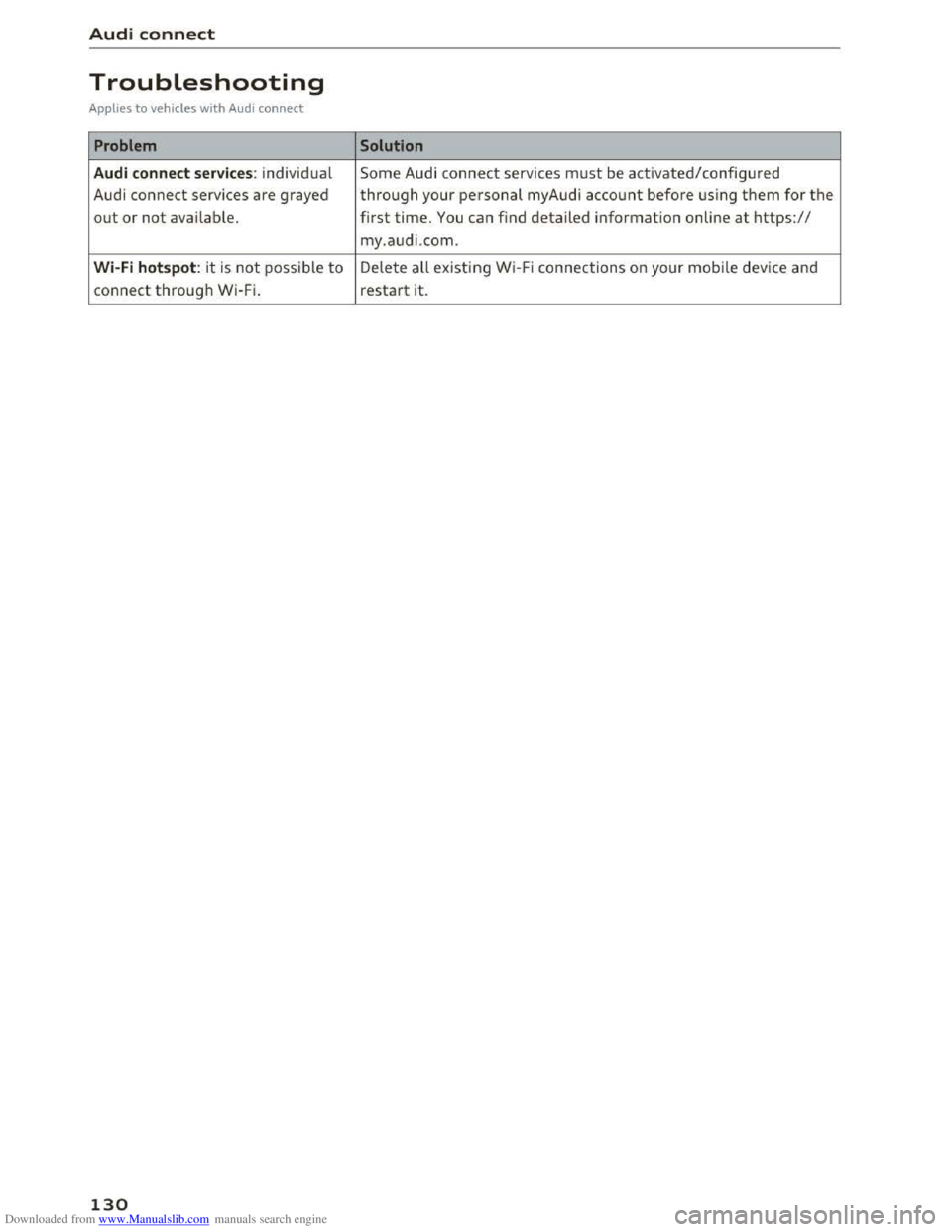
Troubleshooting
Applies to vehicles with Audi connect
Problem Solution
Audi connect serv
ices: individ ua l Some Audi connect services must be act ivated/config ured
Audi connect servi
ces are grayed through your pe1rsonal myAudi account before using them for the
out or not availab le. first time. You can find detailed informatio n online at https://
my.audi .com .
Wi-Fi hotspot: it is not possible to Delete all existing Wi-Fi connections on your mobile device and
connect throug h W i-Fi. restart
it.
130
Page 136 of 322
Downloaded from www.Manualslib.com manuals search engine Navigation
-Select and confirm an address or a destination.
When you have selected a destination, the
route guidance can be started directly.
-
Check the address input again when selecting
an address.
- T
hen select and confirm Start route guidan ce .
Addit ional directory functions in the n avigation
sys t
em can be found under ¢page 137.
@ Tips
-Addresses that have been imported from
your cell phone into the MM! can also be
used as a destination.
-
If a contact is grayed out in the directory,
this contact has neither a destination nor an
address assigned to them.
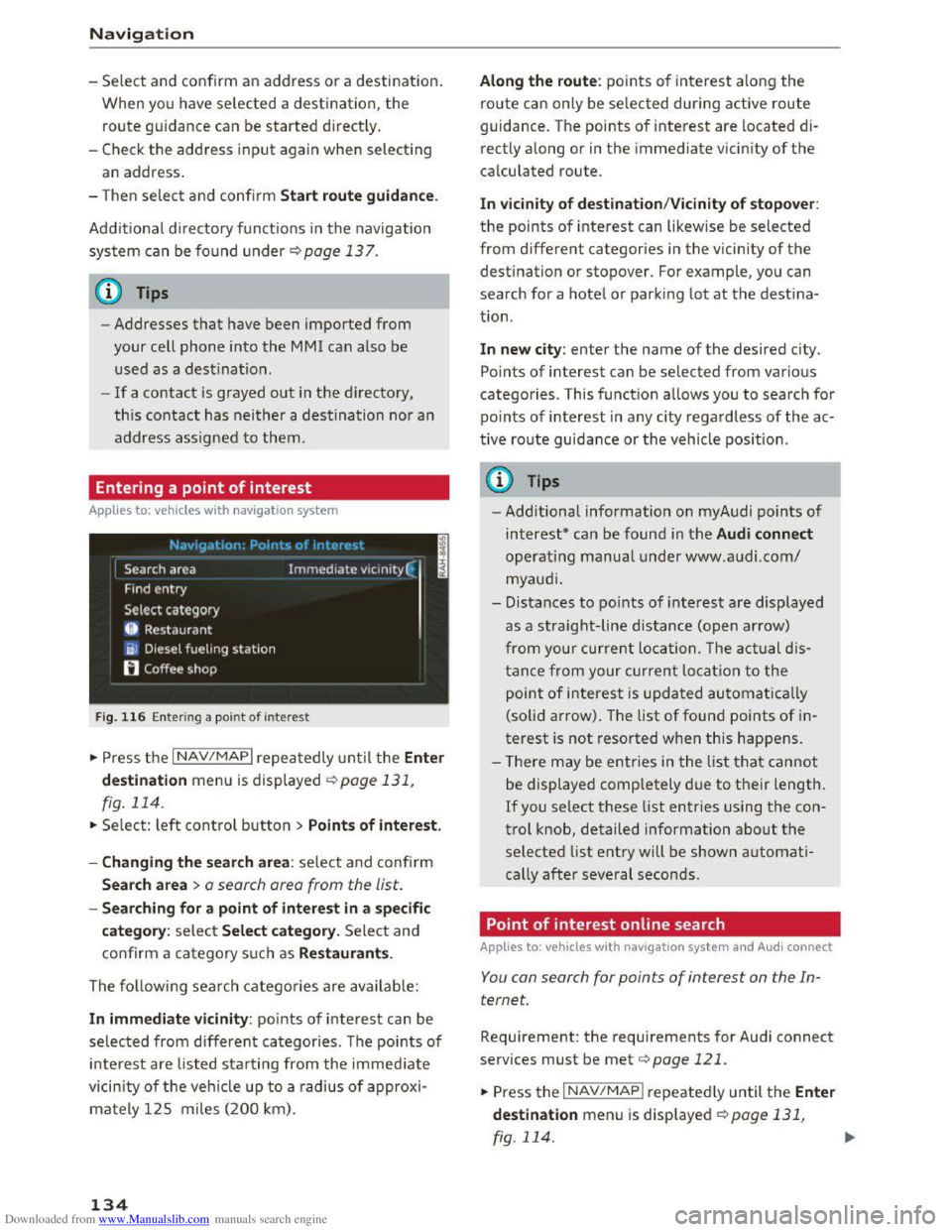
Entering a point of interest
Applies to: vehicles with navigation system
F i
g. 116 Ente rin g a point of interest
.. Press the I NAV/MAPI repeatedly until the Ent er
de stination
menu is displayed ¢page 131,
fig. 114.
.. Select: left control button > Point s of interest.
-
Cha nging the sea rc h are a : select and confirm
Search a rea > a search area from the list.
-Searching fo r a p oin t of inter est in a specifi c
categor
y: select Sele ct category. Select and
confirm a category such as Restaurants.
The following search categories are avai lable:
In immediate vi cinity: points of interest can be
selected from different categories. The points of
interest are l isted starting from the immediate
vicin ity of the veh icle up to a rad ius of approxi
mately 125 miles (200 km).
134
Along th e r oute : points of interest along the
route can only be selected during active route
guidance. The points of interest are located di
rectly
along or in the immediate vicin ity of the
calculated route.
I n v icinity of dest ination/Vicinity of stopo ver:
the points of interest can likewise be selected
from different categories in the vic inity of the
destination or stopover. For example, you can
search for a hotel or park ing lot at the destina
tion.
In new city: enter the name of the desired city.
Points of interest can be selected from various
categories. This function allows you to search for
po i
nts of interest in any city regardless of the ac
tive
route guidance or the vehicle posi tion .
(D Tips
-Additional information on myAudi points of
interest* can be found in the Audi connect
operating manual under www.audi.com/
myaudi.
- Distances
to po ints of interest are displayed
as a straight-line distance (open arrow)
from your current location . The actual d is
tanc e from your current location to the
point of interest is updated automatically
(solid arrow) . The list of found points of in
terest is not resorted when this happens .
- T
here may be entries in the list that cannot
be displayed completely due to their length.
If you select these list entries using the con
t r
ol knob, detailed information about the
selected list entry will be shown automati
cally
after several seconds.
Point of interest on line search
Applies to: vehicles with navigat ion system and Audi connect
You can search for points of interes t on the In
ternet.
Requi rement: the requirements for Audi connect
services must be met ¢page 121 .
.. Press the I NAV /MAP I repeatedly until the Ente r
destination
menu is displayed ¢page 131,
fig. 114.
Page 156 of 322
Downloaded from www.Manualslib.com manuals search engine Media
-Please note that a Wi-Fi connection does
not automatically make it possible to use
the Internet. For additiona l information, re
fer to Qpage 121.
-To avoid interruptions during playback, de
activate the power saving function on the
media player or connect
it to a charger.
- The loading times
for the audio data depend
on
the media player used and the number of
files that it contains.
- A maximum
of 2,000 entries per directory
are displayed in
the MMI.
-
Contact your authorized Audi dealer or au
thorized Audi Service Facility for additional
information on the Wi-Fi audio player.
Online media
App lies to vehicles with Audi connect
You can playback and operate different online
media services using the MMI.
... Press: the I MEDIAi button. Press the left con
trol button until the sources overview
Qpage 159, fig. 135 is displayed.
Requirement:
- The Audi
MMI connect app must be installed
and open on your mobile device.
-
You must be logged into your myAudi account
in
the Audi MMI connect app and you must
have selected your vehicle.
- The Wi-Fi function on
the mobile device and on
the MMI must be switched on.
- A network connection in th e MM I
must be es
tablished Q page 127.
- The Online media* source ®
Qpage 159,
fig.
135 must be displayed in the MMI.
- A supported on line media service
must be avail
able in your country.
-
You must have an account with a supported on
line media service.
- Depending on
the online media service, you
must install and open an app on your mobile
device.
Starting online media :
154
Press: the I MEDIAi button. Press the left control
button until the sources overview Q page 159 is
displayed.
Select and confirm an online media service.
Connect new device :
Switch on
the Wi-Fi function on your mobile de
vice. Select in the connection manager
Q page 167 MMI connect App > the desired mo
bile device. If the desired device is not displayed,
select and
confirm Connect new device in the
connection manager.
_&. WARNING
-It is on ly safe to use tablets, laptops, mo
bile devices and other similar devices when
the vehicle is stationary because, like all
loose objects, they could be thrown around
the inside of the vehicle in a crash and cause
serious injuries. Store these types of devices
securely while driving .
-
-Do not use any wireless devices on the front
seats within range of the airbags while driv
ing. Also re ad and follow the warnings on
Qpage 192, Front airbags.
CD Note
Please note that there generally are addition
al costs when using an online media service
account, especially when
it is used interna
tionally.
@ Tips
-Mobile devices only need to be paired one
time to the MMI using the Wi-Fi hotspot.
Depending on
the mobile device being used,
a device
that was already paired will connect
automa tically
with the MMI Wi-Fi hotspot
when it is within range.
- Depending on
the Internet connection, a
connection loss can occur during playback
of
online media services.
- Online media usage depends on
the service
availability
of the third party provider.
- Audi
AG simply makes the access to online
media services possible through the
MMI
Page 157 of 322
Downloaded from www.Manualslib.com manuals search engine ..... N
G: CX)
.....
"' U"I
.....
"' .....
and does not take any responsi bility for the
contents of the online media services .
- Also
note the ins truc tion s in the chapter
c:> page 128, About Audi connect .
-Depending on the mobile device bei ng used ,
i
nter ruptio ns in the media p lay back can oc
cur.
To avoid interruptions when usin g a
mobile device, do not lock the screen on
your mobile device and keep the Audi MMI
connect app in the foreground.
-Contact your a uth o rized Audi dealer or au
thorized Audi Service Facility for additional
information about online media.
Multimedia connections
USB adapter for Audi music interface or
USB charging port
Depending on the vehicle equipment, you con
connect
your mobile devices (such as a smort
phone or MP3 player) to the Audi music interface
or a USB charging port using a special USB
adapter.
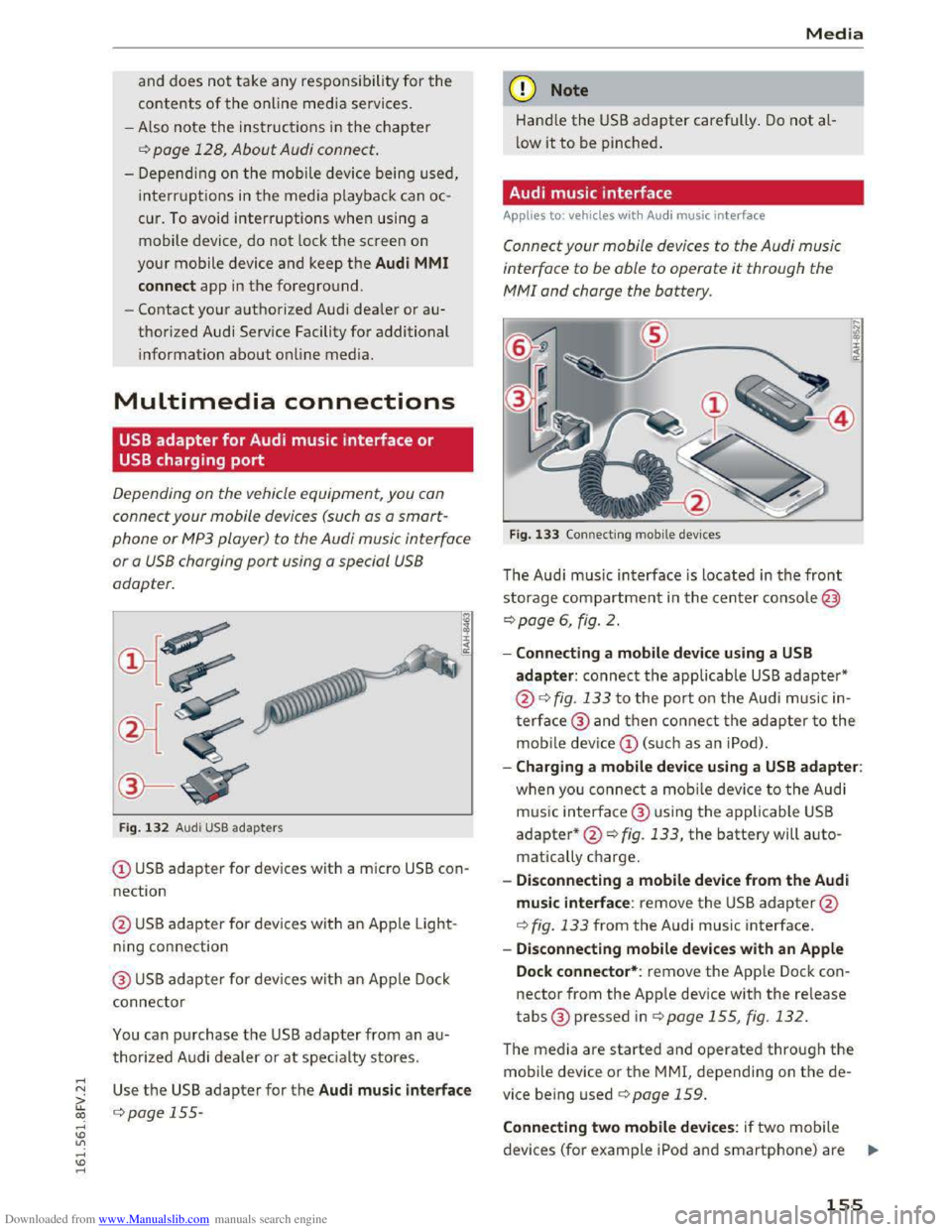
Fig. 1 3 2 Audi USB ada pters
(!) USB adapter for devices with a micro USB con
nection
@ US B adapter for devi ces with an Ap ple Light
ning con nection
@ USB adapter for devi ces wit h an Apple Dock
connector
You can p urchase the USB adapter from an a u
thorized A udi dealer or at specialty stores.
Use th e USB adapter for the Audi music interface
c:> page 155-
Media
Q) Note
Hand le the USB adapter carefully . Do not al
low it to be pinched.
Audi music interface
Applies to: vehicles with Aud i music interface
Connect your mobile devices to the Audi music
interface
to be able to operate it through the
MM! and charge the battery.
Fig. 133 Connecti ng mobile dev ices
The Aud i m us ic interface is loc ated in the front
storage compartment in the c enter c o nsole@
c:>page 6, fig. 2.
-Connecting a mobile device using a USB
adapter: connect the applicable USB adapter*
@c:> fig. 133 t o the port on the Audi music in
t
erface@ and then c o nne ct the ada p ter to the
mobile dev ice(!) (s uc h a s an iPod).
-Charging a mobile device using a USB adapter:
w h
en yo u co nnect a mobile device to the Audi
m us ic
interfac e @ using the applicable USB
adapter*@c:> fig. 133, the battery will auto
matically ch
arge.
-
Disconnecting a mobile device from the Audi
music interface: remove the USB adapter@
c:> fig. 133 from the Audi music interface.
-Disconnecting mobile devices with an Apple
Dock connector*: remove the App le Dock con
nector from the App le device with the release
tabs® pressed inc:> page 155, fig. 132.
The media are started and operated through the
mobile device or th e MMI, depending on t he de
vice being used c:>page 159.
Connecting two mobile devices: if two m obile
devices (for
example iPo d and smartphone) are ..,..
155
Page 158 of 322
Downloaded from www.Manualslib.com manuals search engine Media
connected at the same time, then both devices
can be used as playback sources.
You can connect mobile devices using the analog
AUX port.
-Connect ing a mobile device to the AUX input:
connect the cable® Q fig . 133 to the AUX in
put@ on the Audi music interface and then to
the mobile device @ (such as an MP3 player or
smartphone).
-Disconnecting a mobile device from the AUX
input: remove the cable® Q fig. 133 from the
Audi music interface.
-Operation : select and confirm the External au
dio player source @ Q page 159, fig. 135. The
med ia are started and operated through the
mobile
device @Q fig. 133.
A WARNING r--·
Driving requires your complete and undivided
attention.
As the driver, you have complete
responsibility
for safety in traffic. Never oper
ate mobile devices while driving, because
this
increases the risk of an accident.
(D Note
-Remove the connector from the Audi music
interface carefully so
it is not damaged.
-
Use a USB extension cable to connec t devi
ces that have an integrated USB connector
(such
as a USB stick) to prevent damage to
your USB device and the Audi music inter
face.
- E
xtremely high or low temperatures that
can occur inside vehicles can damage mobile
devices
and/or impair their performance.
Never leave mobile devices in
the vehicle in
extremely high or
low temperatures.
Tips
-Do not use an additional adapter or USB ex
tension cable to connect mobile devices to
156
the Audi music interface that already have a
cable or
that must be connected with a USB
adapter (Q page 155). They may impair the
functionality.
-
You can purchase the AUX connector cable
from an authorized Audi dealer or at spe
cialty stores .
- Functionality
is not guaranteed for mobile
devices
that do not meet the USB 2.0 speci
fication.
-
USB hubs are not supported.
- Some
iPod versions, such as the iPod shuf-
fle, cannot be connected
to the USB adapte r
for devices with Apple Dock connector *.
Connect these devices using a AUX connec
tor cable.
- Video playback through the Audi music in
terface
is only supported if the connected
device
is r ecognized as a USB storage device
(for example a USB stick). Apple devices and
MTP devices (such as smartphones) are not
recognized as USB storage devices.
-
iPod/iPhone/iPad malfunctions also affect
the operation of the MM!. Reset your iPod/
i P hone/iPad
if this happens .
- For i
mportant information on operating
your
iPod/iPhone/iPad, refer to the user
guide
for that device. Audi recommends up
dating
the iPod/iPhone/iPad software to the
latest version .
- For more
information about the Audi music
in terface and supported devices, check
the
Audi database for mobile devices at
www. aud
iusa.com/bluetooth or contact an
authorized Audi dealer or
authorized Audi
Service Facility.
Page 162 of 322
Downloaded from www.Manualslib.com manuals search engine Media
Media center
Various categories for selecting audio/video*
files are available
in the media center.
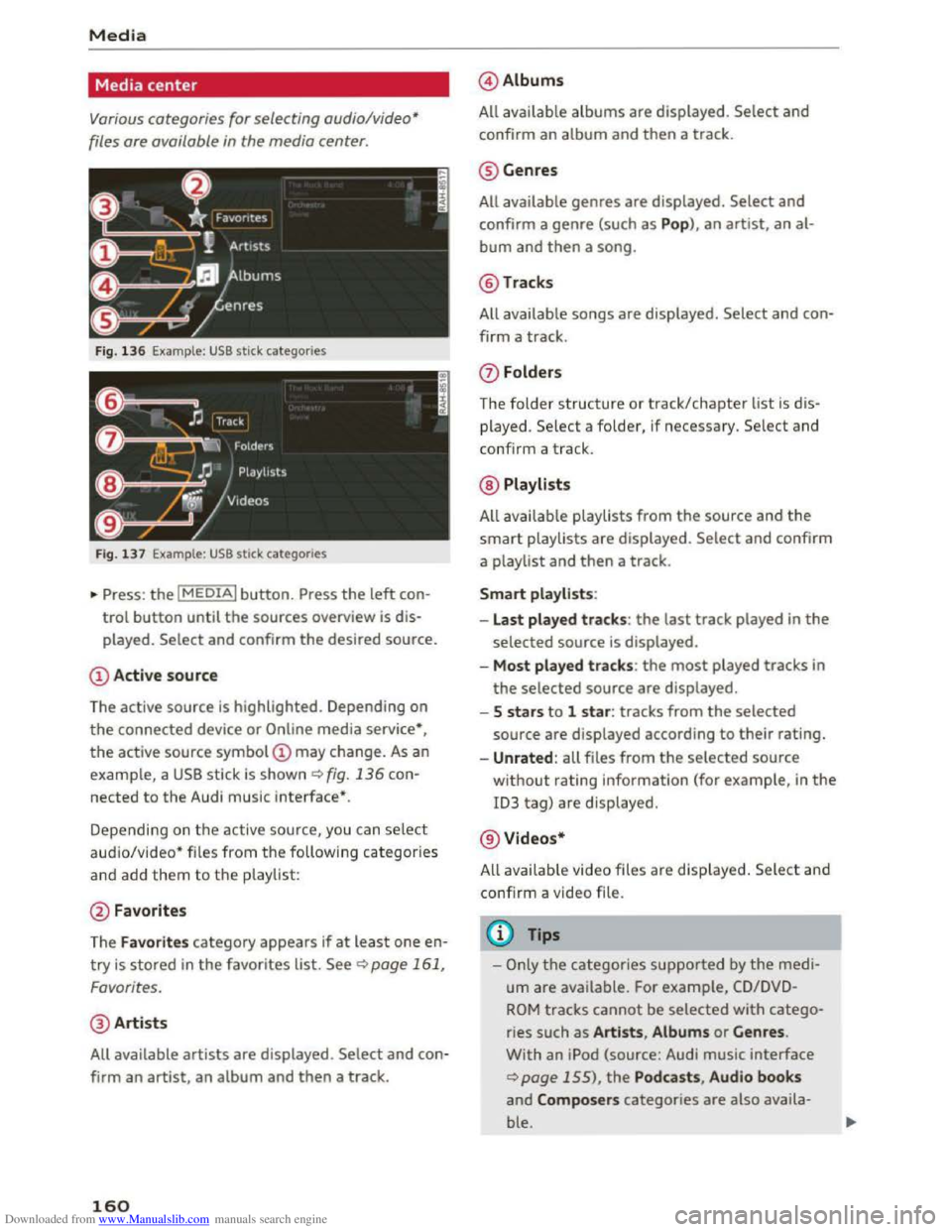
Fig. 136 Example : USB stick categories
Fig. 137 Example: USB stick categorie s
•Press : the I MEDIAi button. Press the left con
trol button until the sources overview is dis
played.
Select and confirm the desired source.
(!) Active source
The active source
is highlighted. Depending on
the connected device or Online media service*,
the active source symbol @ may change. As an
example, a USB stick is shown¢ fig. 136 con
nected to the Audi music interface*.
Depending on
the active source, you can select
aud io/video* files from the following categories
and add them to the p laylist:
@ Favorites
The
Favorites category appears if at leas t one en
try is stored in the favorites list. See¢ page 161,
Favorites.
@ Artists
All available artists are displayed . Select and con
firm
an artist, an album and then a track.
160
@ Albums
All available
albums are displayed . Select and
confirm
an album and then a track.
@ Genres
All available genres are displayed. Select and
confirm a genre (such as Pop), an artist, an al
bum and then a song.
@Tracks
All available songs are displayed. Select and con
firm a
track.
0 Folders
The
folder structure or track/chapter list is d is
played. Select a folder, if necessary. Select and
confirm a track.
@ Playlists
All avai l
able playlists from the source and the
smart playlists are displayed. Select and confirm
a playlist and
then a track.
Smart playlists :
- Last played
tracks: the last track played in the
selected source is displayed.
-Most p lay ed track s: the most played tracks in
the selected source are displayed.
- 5 stars to 1 star : tracks from the selected
source are displayed according to their rating.
-Unrated : all files from the selected source
without rating information (for example, in the
ID3 tag) are displayed.
@ Videos*
A ll availab le video files
are displayed. Select and
confirm a video file.
@Tips
-Only the categories supported by the medi
um are available. For example, CD/DVD
ROM tracks cannot be selected with catego
ries such as Artists , Album s or Genres .
With an iPod (source: Audi music interface
¢page 155), the Podcasts , Audio books
and Composers categories are also availa
ble.
Page 163 of 322
Downloaded from www.Manualslib.com manuals search engine ..... N
G: CX)
..... I.Cl U"I
..... I.Cl .....
-The video image is only displayed when the
vehicle is stationary for safety reasons. Only
the sound from the video plays while driv
ing.
- When synchronizing a
portable device with
"Cloud" services, playlists may display incor
rectly
in the MM!. Use the media center in
the device.
Free text search
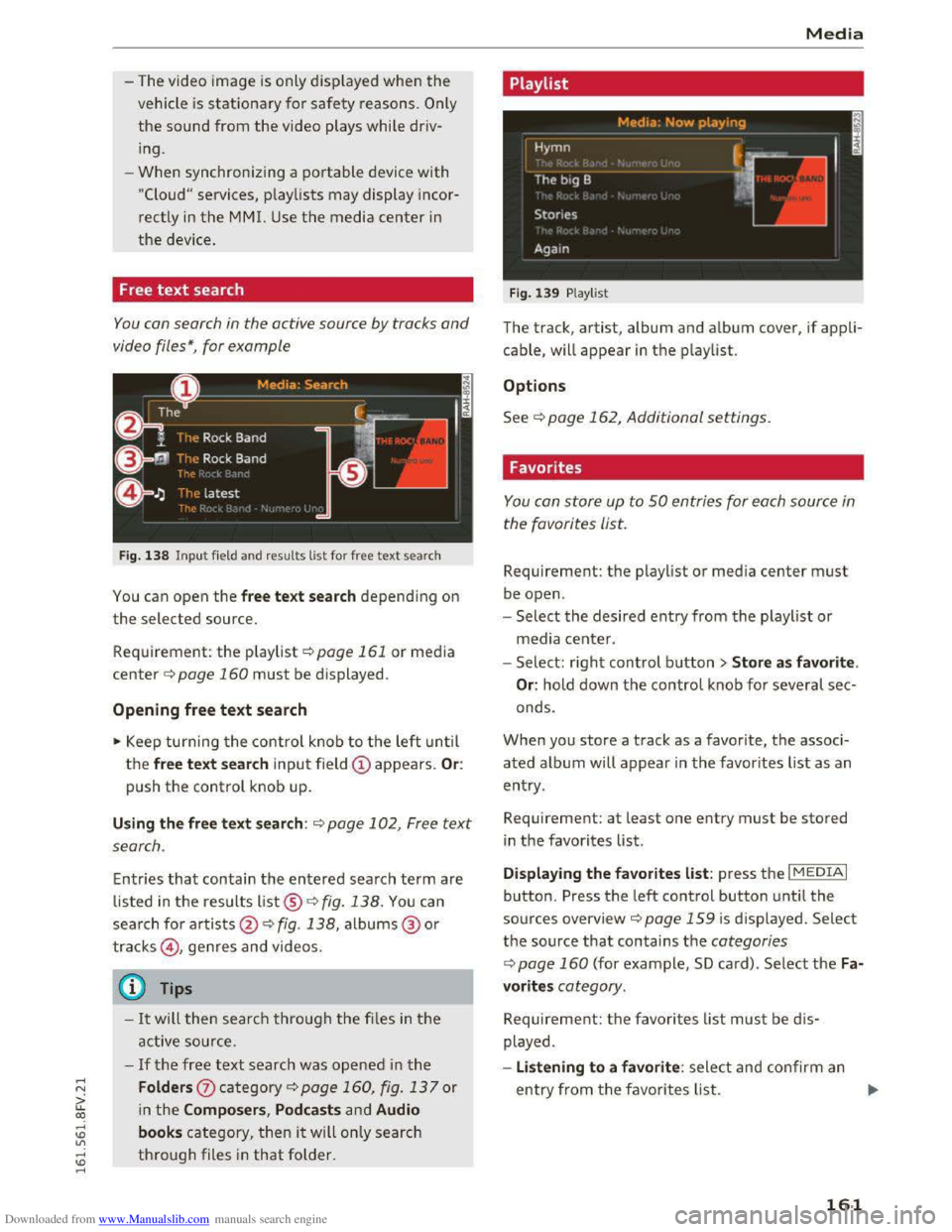
You con search in the active source by tracks and
video files*, for example
Fig. 138 Input field an d results list for free text search
You can open the free text search depending on
the selected source.
Requirement:
the playlist ¢page 161 or media
center¢ page 160 must be displayed .
Opening free text search
.,. Keep turning the control knob to the left until
the free text search input field @ appears. Or:
push the control knob up.
Using the free text search: ¢page 102, Free text
search .
Entries that contain the entered search term are
listed in the results list®~ fig. 138. You can
search for artists@ ¢ fig. 138, albums@ or
tracks@, genres and videos.
Q Tips
-It will then search through the files in the
active source.
-If the free text search was opened in the
Folders 0 category¢ page 160, fig. 13 7 or
in the Composers, Podcasts and Audio
books category, then it will only search
through files in that folder .
Media
Playlist
Fig. 139 Playl ist
The track, artist, album and album cover, if appli
cable, will
appear in the playlist .
Options
See ¢page 162, Additional settings.
Favorites
You con store up to 50 entries for each source in
the favorites list.
Requirement: the playlist or media center must
be open.
-
Select the desired entry from the playlist or
media
center.
- Select: ri
ght control button > Store as favorite.
Or: hold down the control knob for several sec
onds.
When you
store a track as a favorite, the associ
a t
ed a lbum will appear in the favor ites list as an
entry .
Requirement:
at least one entry must be stored
in the favorites list.
Displaying
the favorites list: press the I MEDIAi
button. Press the left control button until the
sources overview¢ page 159 is d isplayed. Select
the source that contains the categories
¢ page 160 (for example, SD card) . Select the Fa
vorites category.
Requirement: the favorites list must be dis
played .
- Listening
to a favorite : select and confirm an
entry from the favorites list. ..,.
161
Page 170 of 322
Downloaded from www.Manualslib.com manuals search engine System settings
-
Lis t of devices already co nn ected : select your
cell phone from the list of all the cell phones
that are already connected.
Additional options
Depending on the selected function, you can use
the right control button to access the available
additional options in the connection manager.
Bluetooth settings
-Bluetooth : when the function is switched on
~, the Bluetooth symbol appears in the Info
tainment system display. The MMI visibility for
Bluetooth devices can be turned on or off using
the Visible /Invi sible settings. Howeve r, it is
still possible to establish a Bluetooth connec
tion w ith pa ired devices when the visibility is
switched off. Bluetooth shoul d be switched t o
Invisible when the pairing process is complete
so that the MMI is not visible to others. Blue
tooth can be switched off. Then a Bluetooth
connection is not possible.
-Delete Bluetooth device: the selected cell
phone/mobile device is disconnected from the
MMI.
-Show Bluetooth profi les: you can individually
Connect or Dis connect the H andsfree , Car
phone and Directory/contacts profiles.
- Bluetooth audio player : switch this function on
~to select the Bluetooth audio player as a
source in the Media menu.
-Bluetooth name: the MMI Bluetooth name (for
example ,,AUDI MMI 2613") is displayed and
can be changed.
Online settings*
-Data connection settings: see~ page 127,
Configuring
the data connection
- Data usage coun ter : the amount of data pack
ets that are sent and received through the MMI
is displayed. You can reset the data usage infor
mation to zero using the Reset data cou nter
option.
-Netwo rk status: the mobile network provider
for data service as well as the network status
are displayed.
168
Wi-Fi settings*
See ~page 126, Wi-Fi Hotspot.
SIM PIN settings*
-Automatic PIN en try : when this function is
switched on~, the SIM PIN is automatically
saved in the MMI after it is entered for the first
time. The SIM PIN for four different SIM cards
can be saved in the MMI. With the function
switched off, the currently stored SIM PIN is
deleted from the MMI. When the automatic
PIN entry is switched on, there are no SIM PIN
prompts.
- Disable PIN query : when switched on, there are
no SIM PIN queries. The automatic PIN entry is
not used in this case.
-Change PIN: you can change the PIN on your
SIM card. First enter the current SIM PIN. The
SIM PIN can only contain digits 0-9. The new
SIM PIN must be entered twice for security and
then it will be saved to the SIM card.
Network settings*
- Logi
n: you can chose an autom atic login to
your cell phone service provider's network, or
you can choose a manual login from the list of
available networks.
-Netwo rk selection : available networks in the
present location can be selected under network
selection. This function is only available for the
manual login setting.
(D Tips
Some SIM cards do not allow the SIM PIN
queries to be switched off.
System update
"'Select: IMENUI button> Settings> left control
button > Sy ste m ma intenance .
-
System update : slide the storage device with
the update data into the appropriate drive
¢page 150. Select and confirm the drive>
Start update . The duration of the process de
pends on the size of the update.
Page 188 of 322
Downloaded from www.Manualslib.com manuals search engine Safety belts
Unfastening safety belts
Unbuckle the safety belt with the red release
button only after the vehicle has stopped.
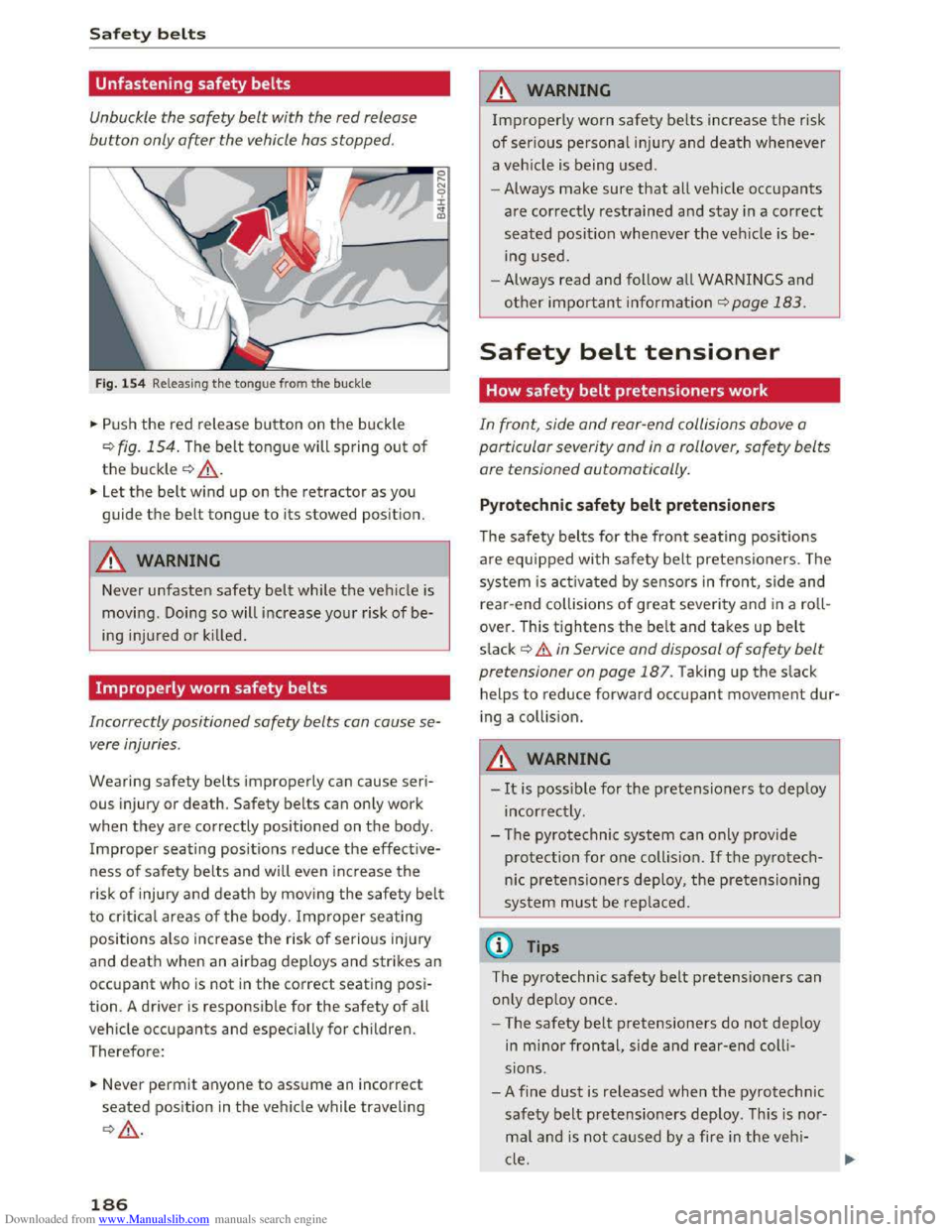
Fig. 154 Releasing the tongue from the buckle
.. Push the red release button on the buckle
Q fig. 154. The belt tongue will spring out of
the buckle Q ,&..
.. Let the belt wind up on the retractor as you
guide
the belt tongue to its stowed position.
A WARNING
Never unfasten safety belt while the vehicle is
moving . Doing so will increase your risk of be
ing injured
or kil led.
Improperly worn safety belts
a
~ 0 ± .. QJ
Incorrectly positioned safety belts can cause se
vere injuries .
Wearing safety belts improperly can cause seri
ous injury or death. Safety belts can only work
when they are correctly positioned on the body.
Improper seating positions reduce the effective
ness of safety belts and wil l even increase the
risk of injury and death by mov ing the safety belt
to crit ica l areas of the body. Improper seating
positions also increase the risk of serious injury
and death when an airbag deploys and strikes an
occupant who is not in the correct seating posi
tion. A driver
is responsible for the safety of all
vehicle
occupants and especially for children.
Therefore:
.. Never permit anyone to assume an incorrect
seated position in the vehicle while traveling
QA .
186
A WARNING
Improperly worn safety belts increase the risk
of serious personal injury and death whenever
a veh icle is being used.
- Always
make sure that all veh icle occupants
are corr ectly restrained and stay in a correct
seated position whenever the vehicle is be
ing
used.
- Always read and follow all WARNINGS and
other important information Q page 183.
Safety belt tensioner
How safety belt pretensioners work
In front, side and rear-end collisions above a
particular severity
and in a rollover, safety belts
are tensioned automatically .
Pyrotechnic safety belt pretensioners
The safety belts for the front seati ng pos it io ns
are equipped with safety belt pretensioners. The
system is acti va ted by sensors in front, side and
r
ear-end collisions of great seve rity and in a roll
over. This
tightens the belt and takes up belt
s lack ~ .& in Service and disposal of safety belt
pretensioner on page 187. Taking up the slack
helps
to reduce forward occupant movement dur
i ng a collis ion.
A WARNING
-It is possi ble for the pretensioners to deploy
incorrect ly .
- The pyrotechnic
system can only provide
protection for one collision. If th e py rotech
nic pretensioners deploy, the pretensioning
sys tem must be replaced.
(!) Tips
The pyrotechnic safety belt pretensioners can
o nl y
deploy once .
- The
safety belt pretensioners do not deploy
in minor frontal, side and rear-end colli
sions .
- A
fine dust is re leased when the pyrotechnic
safety belt pretensioners deploy . This is no r
mal and is not caused by a fire in the veh i
cle.