light AUDI TT COUPE 2016 Repair Manual
[x] Cancel search | Manufacturer: AUDI, Model Year: 2016, Model line: TT COUPE, Model: AUDI TT COUPE 2016Pages: 322, PDF Size: 52.86 MB
Page 128 of 322
Downloaded from www.Manualslib.com manuals search engine Audi connect
Wi-Fi Hotspot
Applies to: vehicles with Wi-Fi hotspot
You con use the MMI as a Wi-Fi hotspot to con
nect up to eight Wi-Fi devices to the Internet.
While driving, restricted use
of non-secured,
light, small wireless devices is only possible from
the rear of the vehicle.
Requirement: the ignition must be switched on.
.,. Select: I MENU I button >Telephone > right con
trol button > Wi-Fi settings.
The
following settings can be modified in the Wi·
Fi settings menu:
Wi-Fi mode
The MMI Wi-Fi hotspot is deactivated at the fac
tory. Switch the Wi-Fi hotspot to Hotspot before
establishing a connection between your vehicle
and your Wi
-Fi device.
-
Hotspot: the MMI Wi-Fi hotspot is active and
visible
to other devices. A connection can be es
tablished with new wireless devices.
-
Hotspot and client: the MMI Wi-Fi hotspot is
active. An internet connection to a personal Wi
Fi hotspot (such as a smartphone) can be estab
lished. Using Network searc h c:? page 126, you
can search for your personal hotspot and con
nect to the MMI.
-
Off: the MMI Wi-Fi hotspot is deactivated. An
Internet connection is not possible.
Hotspot settings
The Wi-Fi connection between your vehicle and
your Wi-
Fi device (laptop, cell phone) is e ncr ypt
ed. To establish a connection, you must enter the
following values when setting up your wireless
device.
You can change them if necessary.
- Access
point (SSID): name of the Wi-Fi net
work.
-
Passwo rd: a random password was set at the
factory for the MMI. The password can be
changed. The WPA2 encryption method
re
quires a password to be at least 8 characters
long. Select a secure password.
- Visible
to others : your Wi-Fi network visibility
can be switched on or off.
126
Network search*
A list of available Wi-Fi networks in your area is
displayed.
A WARNING
~ --As the driver, do not allow usage of the Wi-
Fi hotspot to distract you from driving, as
this could increase the risk of an accident.
-
It is only safe to use laptops and similar mo
bile devices when the vehicle is stationary
because, like
all loose objects, they could be
thrown around the inside of the vehicle in a
crash and cause serious injuries. Store these
t ypes
of devices securely while driving.
-
Do not use any wireless devices on the front
seats within range of the airbags while driv
ing. Also note the warnings in the "Airbag
System" chapter under "Important Informa
tion on the Front Airbag System"
c:? page 192, Front airbags.
@Note
You are responsible for all precautions taken
for data protection, anti-virus protection and
protection against loss
of data on mobile de
vices that are used to access the Internet
through the Wi-Fi hotspot.
(D Tips
-A separate, paid mobile subscription may be
needed
to use the Wi-Fi hotspot. You can
obtain more information from your cell
phone servi
ce provider.
- Being able
to receive the data packet from
th e internet via the Wi-Fi hotspot, may re
sult in add itiona l costs, especially when op
erating in foreign countries, depending on
your cellular phone plan: the use
of a flat
rate data plan is highly recommended! You
can obtain more information from your cell
phone service provider.
-Additional information can be found under
www.audiusa.com/audiconnect
Page 133 of 322
Downloaded from www.Manualslib.com manuals search engine ..... N
Navigation
Opening navigation
Applies to: veh icles with navigation system
Nav igation
The navigation system directs you to your destination, around traffic incidents and on alternative
routes, if desired.
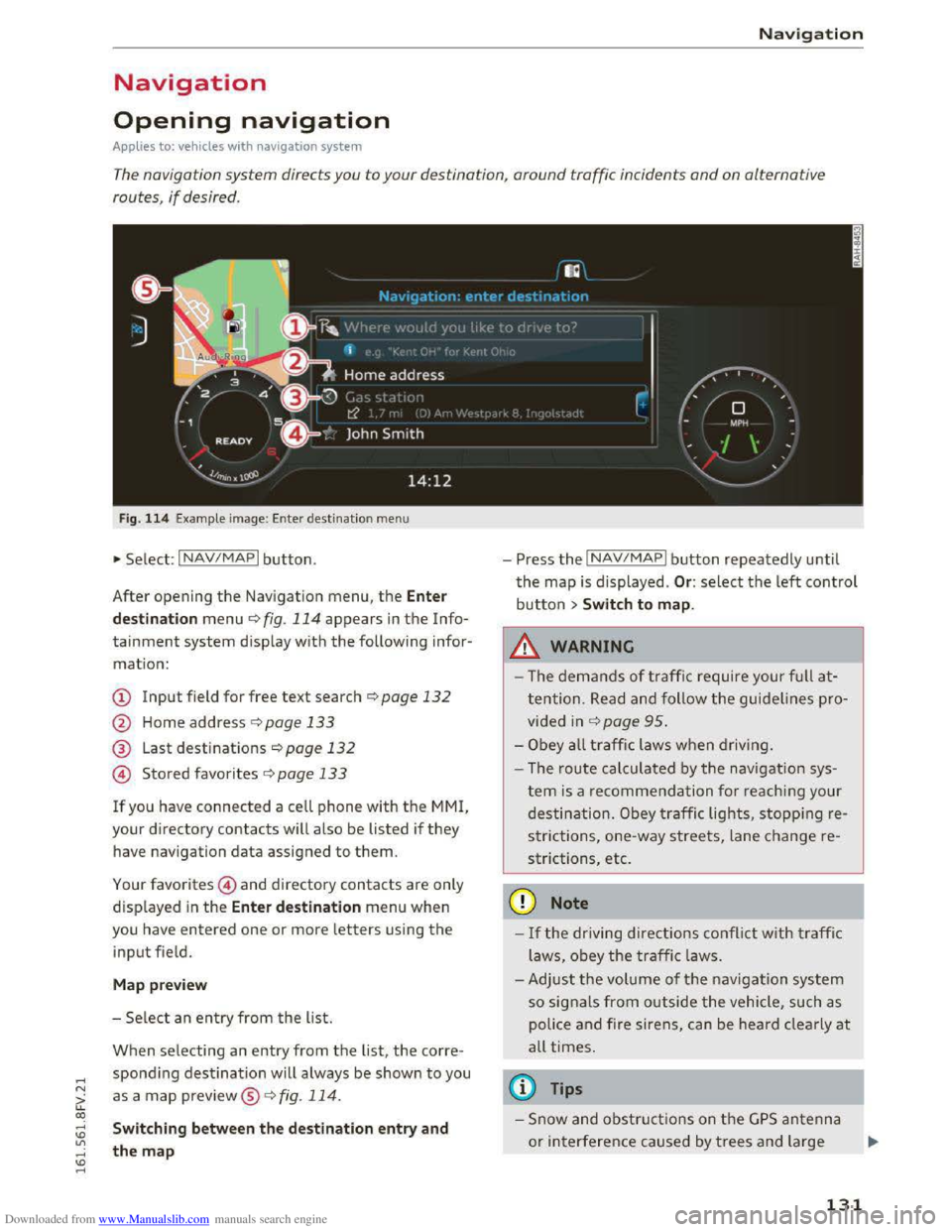
Fig. 114 Example image: Enter destination menu
•Select: INAV/MAPI button.
After opening
the Navigation menu, the Enter
d
est ina tion menu ¢ fig. 114 appears in the Info
tainment system display with the following infor
mation:
CD Input field for free text search¢ page 132
@ Home address r:!;> page 133
® Last destinations¢ page 132
@ Stored favorites C>page 133
If you have connected a cell phone with the MMI,
your directory contacts w ill also be listed if they
have navigation data assigned to them.
Your favorites@) and directory contacts are only
displayed
in the Ente r de stination menu when
you have entered one or more letters using the
input field.
M ap pre view
- Se lect an entry from the list.
When selecting an entry from the list, the corre
spondi ng destination will always be shown to you
as a map preview®~ fig. 114.
Switching between the destination entry and
the map
- Press the INAV/MAPI button repeatedly until
the map is displayed . Or: select the left control
button > Swit ch to map .
_&.WARNING
-The demands of traffic require your ful l at
tention. Read and follow the guidelines pro
vided in r:!;>page 95.
-Obey a ll traffic laws when driving.
- The r
oute calculated by the navigation sys-
tem is a recommendation fo r reaching your
destination. Obey traffic lights, stopping re
s trictions, one-way streets, lane change re
strictions, etc.
CD Note
-If the driving directions conflict with traffi c
laws, obey
the traffic laws.
- Adjust th e
volume of th e navigation system
so signals from outside the vehicle, such as
police
and fire siren s, can be heard cle arly at
all times.
@ Tips
-Snow and obstru ct ions on the G PS antenna
or interference caused by trees and large
- 1
131
Page 143 of 322
Downloaded from www.Manualslib.com manuals search engine ...... N
> u. CX> ...... u:>
"' ...... u:> ......
Depending on the function selec ted, the follow
i ng
options can also be selected under th e Map
menu:
Cancel route guidance: ¢ page 136.
Map settings: ¢page 141 .
Route criteria :¢ page 137.
Voice guidance:¢ page 138.
Navigation settings: ¢page 137.
Online traffic data*: ¢page 142.
Block route:¢ page 138.
Show alternative routes:¢ page 1 3 8 .
Parking along the route: parki ng option s near
the veh icle are disp layed.
POis along the route: points of interest nea r the
vehicle are displayed .
Save current position: you can save your current
vehicle position as a favor ite q page 13 7 or save
it
as a contact in the directory ¢ page 13 7.
Audi
connect for this location* : allows you to
search for City events or Weather at the entered
location.
Country information: you can display the appli
cable urban
and rural speed limits for any coun
try/state. This information will be automatically
shown
to you in the route information @
q page 139, fig. 120 when the speed limit is e x
ceed ed, if this function is activated ¢page 141.
Map settings
A pp lies to: vehi cles with navigation system
... Press the I NAV/MAPI button repeatedly un til
the map is displayed .
... Select: right control button> Map settings.
Depending on
the selected function, the follow
ing
settings can be selected :
Day/night map
Day/Night : the map is displayed with a light/
dark background .
Automatic: when the lights switch on, the map
colors switch from day to night.
Map view
Standard ¢page 139, fig . 120.
Google Earth ¢ page 142, fig. 122
Traffic ¢ page 142
Map orientation
Navigation
Destination: the map ind icates the destina tion
and is or iented to the north.
2D -heading up/2D north position map: the
curre nt vehicle position is displayed. The map is
oriented in the direction of travel or to the north.
3D
position map: when this functio n is sw itch ed
on, the cur rent vehicle position is show n on a
three-dim ensiona l map and oriente d in the d ir e c
tion of travel. At a sca le of 62 m iles (100 km ) and
larger, t he map is or iented to the north.
Overview : the entire route from the vehicle posi
ti on to the destination or the nex t stopover is dis
played on
the map. The map scale depends on
the length of the route and adapts automatically.
The
map i s oriented to the north.
Route information
The display of route information such as the cur
rent road being driven on, upcoming maneuvers,
traffic information
or points of interest along the
r
oute can be switched on/off.
Auto zoom
On: the map scale is adapted automatically de
p endi ng o n th e type of road being traveled (ex
pr essway,
highway, other roads) so th a t you al
way s have an opti
mal o ve rview of the roa d ah ead.
The scale is also automatically adapted w he n
t h
ere are upcom ing maneu vers to provi de a bet
ter detailed view.
Off: the map scale you have chosen is kept.
Map content
Map content, such as traffic information, favor
i t es
or restaurants, can be displayed or hidden
(g).
141
Page 151 of 322
Downloaded from www.Manualslib.com manuals search engine ...... N
> u. CX> ...... u:>
"' ...... u:> ......
Media
Introduction
There are various media drives and connections
available in the MM!. You can play, for example,
audio/video files from the Jukebox* or connect
your mobile device to the Audi music interface*
and operate it through the MM!.
Notes
General information
Media and format restrictions: the MMI (includ
ing the SD card reader and th e USB storage de
vice
connecti on*) was tested w it h a variety of
products and media on the market. However,
there may be cases where individual devices or
media and audio/video* files may not be recog
n ized,
may play only with restrictions or may not
play at all.
Digital Rights Management: please note that
the audio/video* files are subject to copyright
protection.
The
media drives do not play files that are pro
tected by ORM and that are identified with the
symbol~.
Data security: never store important data on SD
cards, the Jukebox*, CDs/DVDs or mobile devices.
Audi
AG is not responsible for damaged or lost
files and media.
Loading times: the more files/folders/playlists
that are on a storage medium, the longer it will
take to load the audio/video files*. Audi recom
mends using storage media that only contain au
d io/video files*. To decrease the time it takes to
load audio/video files*, create subfolders (for ex
ample, for the artist or album). The loading time
will also increase when importing files.
Additional information: when playing, audio
files are automatically displayed with any addi
tional information that is stored (such as the ar
tist, track and album cover). If this information is
not available on the storage medium, the MMI
will check
the Gracenote metadata database .
Media
However, in some cases, the additional informa
tion may not be displayed.
Restricted functionality: reset the Media set
tings to the factory default settings if functional
ity is restricted r:!> page 166.
Reset the Jukebox* to the factory default set
tings if functionality is restricted~ page 166.
For information about the properties of support
ed media and file formats, refer tor:!> page 157.
CD/DVD mode
CD/DVD and format restrictions: the functionali
ty of in dividual storage media may be limited due
to the variety of blank CDs/DVDs avai lable and
t h e various
capacities. Audio CDs or video DVDs
with copy protection, CDs/DVDs that do not con
form to the standard and multisession CDs may
have limited playback or may not play at all. Audi
recommends finalizing the recording process
when creating multisession CDs. Multisession is
not supported for DVDs.
Using CDs /DVDs, the CD dri ve o r the DVD drive:
to ensure correct, high-quality playback and to
prevent damage to the drive or disc reading er
rors, always store CDs/DVDs in a protective
sleeve and do not expose them to direct sunlight.
Do not use:
-Damaged, dirty or scratched CDs/DVDs
-Single CDs/DVDs (3 inch/8 cm diameter)
-CD/DVDs that are not round
-CDs/DVDs with labels
- Protective rings
-
Cleaning CDs
Thermal protection switc h : CD/DVD playback
may be temporarily unavailable if outside tem
peratures are extremely hot or cold. A thermal
protection switch is installed to protect the CD/
DVD and the laser.
Laser
devices: laser devices are divided into safe
ty classes 1 to 4 in accordance with DIN IEC 76
(CO) 6/VDE 0837. The optical readers that are in
stalled conform to safety class 1. Lasers in this
class are very weak and well shielded, so there is
no
danger if used correctly.
149
Page 157 of 322
Downloaded from www.Manualslib.com manuals search engine ..... N
G: CX)
.....
"' U"I
.....
"' .....
and does not take any responsi bility for the
contents of the online media services .
- Also
note the ins truc tion s in the chapter
c:> page 128, About Audi connect .
-Depending on the mobile device bei ng used ,
i
nter ruptio ns in the media p lay back can oc
cur.
To avoid interruptions when usin g a
mobile device, do not lock the screen on
your mobile device and keep the Audi MMI
connect app in the foreground.
-Contact your a uth o rized Audi dealer or au
thorized Audi Service Facility for additional
information about online media.
Multimedia connections
USB adapter for Audi music interface or
USB charging port
Depending on the vehicle equipment, you con
connect
your mobile devices (such as a smort
phone or MP3 player) to the Audi music interface
or a USB charging port using a special USB
adapter.
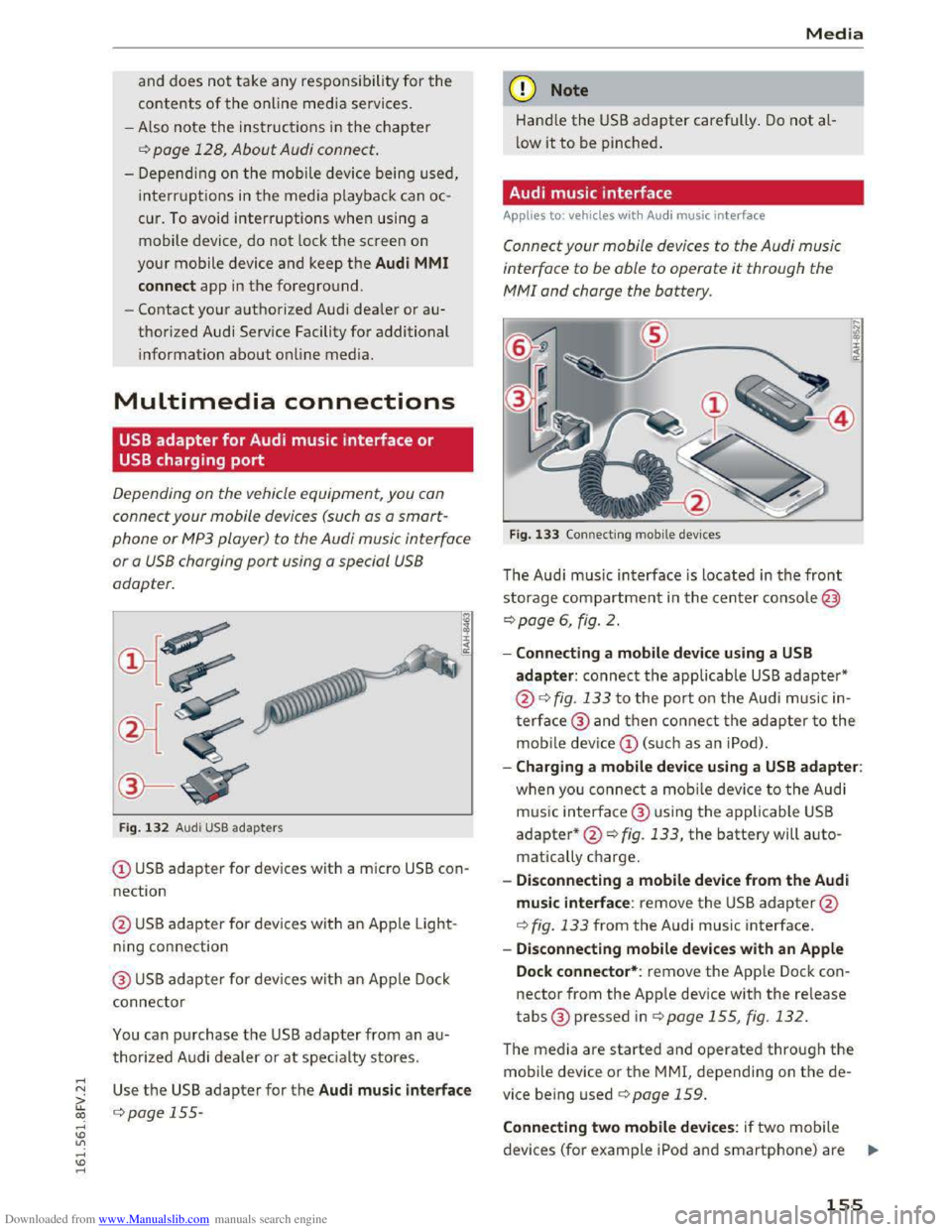
Fig. 1 3 2 Audi USB ada pters
(!) USB adapter for devices with a micro USB con
nection
@ US B adapter for devi ces with an Ap ple Light
ning con nection
@ USB adapter for devi ces wit h an Apple Dock
connector
You can p urchase the USB adapter from an a u
thorized A udi dealer or at specialty stores.
Use th e USB adapter for the Audi music interface
c:> page 155-
Media
Q) Note
Hand le the USB adapter carefully . Do not al
low it to be pinched.
Audi music interface
Applies to: vehicles with Aud i music interface
Connect your mobile devices to the Audi music
interface
to be able to operate it through the
MM! and charge the battery.
Fig. 133 Connecti ng mobile dev ices
The Aud i m us ic interface is loc ated in the front
storage compartment in the c enter c o nsole@
c:>page 6, fig. 2.
-Connecting a mobile device using a USB
adapter: connect the applicable USB adapter*
@c:> fig. 133 t o the port on the Audi music in
t
erface@ and then c o nne ct the ada p ter to the
mobile dev ice(!) (s uc h a s an iPod).
-Charging a mobile device using a USB adapter:
w h
en yo u co nnect a mobile device to the Audi
m us ic
interfac e @ using the applicable USB
adapter*@c:> fig. 133, the battery will auto
matically ch
arge.
-
Disconnecting a mobile device from the Audi
music interface: remove the USB adapter@
c:> fig. 133 from the Audi music interface.
-Disconnecting mobile devices with an Apple
Dock connector*: remove the App le Dock con
nector from the App le device with the release
tabs® pressed inc:> page 155, fig. 132.
The media are started and operated through the
mobile device or th e MMI, depending on t he de
vice being used c:>page 159.
Connecting two mobile devices: if two m obile
devices (for
example iPo d and smartphone) are ..,..
155
Page 162 of 322
Downloaded from www.Manualslib.com manuals search engine Media
Media center
Various categories for selecting audio/video*
files are available
in the media center.
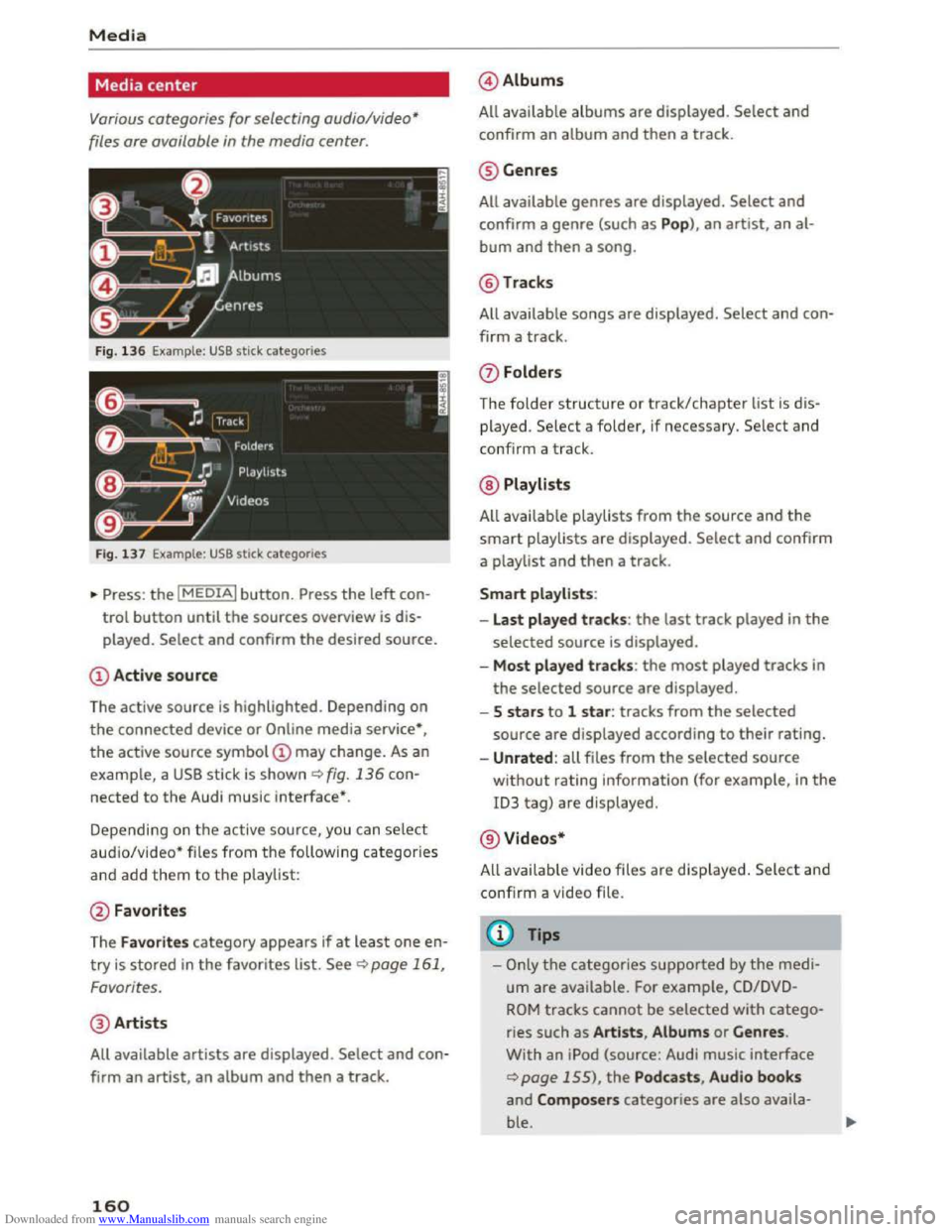
Fig. 136 Example : USB stick categories
Fig. 137 Example: USB stick categorie s
•Press : the I MEDIAi button. Press the left con
trol button until the sources overview is dis
played.
Select and confirm the desired source.
(!) Active source
The active source
is highlighted. Depending on
the connected device or Online media service*,
the active source symbol @ may change. As an
example, a USB stick is shown¢ fig. 136 con
nected to the Audi music interface*.
Depending on
the active source, you can select
aud io/video* files from the following categories
and add them to the p laylist:
@ Favorites
The
Favorites category appears if at leas t one en
try is stored in the favorites list. See¢ page 161,
Favorites.
@ Artists
All available artists are displayed . Select and con
firm
an artist, an album and then a track.
160
@ Albums
All available
albums are displayed . Select and
confirm
an album and then a track.
@ Genres
All available genres are displayed. Select and
confirm a genre (such as Pop), an artist, an al
bum and then a song.
@Tracks
All available songs are displayed. Select and con
firm a
track.
0 Folders
The
folder structure or track/chapter list is d is
played. Select a folder, if necessary. Select and
confirm a track.
@ Playlists
All avai l
able playlists from the source and the
smart playlists are displayed. Select and confirm
a playlist and
then a track.
Smart playlists :
- Last played
tracks: the last track played in the
selected source is displayed.
-Most p lay ed track s: the most played tracks in
the selected source are displayed.
- 5 stars to 1 star : tracks from the selected
source are displayed according to their rating.
-Unrated : all files from the selected source
without rating information (for example, in the
ID3 tag) are displayed.
@ Videos*
A ll availab le video files
are displayed. Select and
confirm a video file.
@Tips
-Only the categories supported by the medi
um are available. For example, CD/DVD
ROM tracks cannot be selected with catego
ries such as Artists , Album s or Genres .
With an iPod (source: Audi music interface
¢page 155), the Podcasts , Audio books
and Composers categories are also availa
ble.
Page 173 of 322
Downloaded from www.Manualslib.com manuals search engine ...... N
> u. CX> ...... u:>
"' ...... u:> ......
Safe driving
Basics
Safe driving habits
Please remember -safety first!
This chapter contains important information,
tips, instructions and warnings that you need to
read and observe for your own safety, the safety
of your passengers and others. We have summar
ized here what you need to know about safety
belts, airbags, child restraints as well as child
safety. Your safety is for us priority number 1. Al
ways observe the information and warnings in
this section -for your own safety as well as that
of your passengers.
The information in this section applies to all
model versions of your vehicle. Some of the fea
tures described in this sections may be standard
equipment on some models, or may be optional
equipment on others. If you are not sure, ask
your authorized Audi dealer.
A WARNING
---Always make sure that you follow the in-
structions and heed the WARNINGS in this
Manual. It is in your interest and in the in
terest of your passengers.
-Always keep the complete Owner's Litera
ture in your Audi when you lend or sell your
vehicle so that this important information
will always be available to the driver and
passengers.
-Always keep the Owner's literature handy so
that you can find it easily if you have ques
tions.
Safety equipment
The safety features are part of the occupant re
straint
system and work together to help reduce
the risk
of injury in a wide variety of accident sit
uations.
Your safety and the safety of your passengers
should not be left to chance. Advances in tech
nology have made a variety of features available
to help reduce the risk of injury in an accident .
Safe driving
The following is a list of just a few of the safety
features in your Audi:
-
sophisticated safety belts for driver and all pas-
senger seating positions,
-
safety belt pretensioners,
-safety belt force limiters for the front seats,
-front airbags,
- knee airbags for the front seats*
-side airbags in the front seats,
-side curtain airbags with ejection mitigation
features,
-special LATCH anchorages for child restraints,
-adjustable steering column.
These indiv idual safety features, can work to
gether as a system to he lp protect you and your
passengers in a wide range of accidents. These
features cannot work as a system if they are not
always correctly adjusted and correctly used.
Safety is everybody's responsibility!
Important things to do before driving
Safety is everybody's job! Vehicle and occupant
safety always depends on the informed and care
ful driver.
For your safety and the safety of your passen
gers, before driving always:
... Make sure that all lights and signals are operat
ing correctly .
... Make sure that the tire pressure is correct.
... Make sure that all windows are clean and afford
good vis ibility to the outside.
... Secure all luggage and other items carefu lly
c::> page 176, c::> page 48.
... Make sure that nothing can interfere with the
pedals .
... Adjust front seat and mirrors correctly for your
height.
... Make sure to use the right child restraint cor
rectly
to protect chi Id ren Q page 212, Child
safety.
... Sit properly in your seat and make sure that
your passengers do the same Q page 44, Seats
and storage. ..,.
171
Page 174 of 322
Downloaded from www.Manualslib.com manuals search engine Safe driving
... Fasten your safety belt and wear it properly . Al
so instruct your passengers to fasten their
safety belts properly ¢ page 180.
What impairs driving safety?
Safe driving is directly related to the condition of
the vehicle, the driver as well as the driver 's abili
ty to concentrate on the road without being dis
tracted .
The driver is responsible for the safety of the ve
h icle
and all of its occupants. If your ability to
drive is impaired, safety risks for everybody in the
veh icle increase and you also become a hazard to
everyone else on the road ¢.&,.Therefore :
... Do not let yourself be distracted by passengers
or by using a cellular telephone .
... NEVER drive when your driving ability is im
paired (by medications, alcohol,
drugs, etc.).
... Observe all traffic laws, rules of the road and
speed limits and plain common sense.
... ALWAYS ad just you r speed to road, traffic and
weather cond itions.
... Take frequent breaks on long trips. Do not drive
for
more than two ho urs at a stretch.
... Do NOT drive when you are tired, under pres
sure or when you are stressed.
A WARNING
Impaired dr iv ing safety increases the risk of
serious personal injury and death whenever a
vehicle is
being used.
172
Correct passenger
seating positions
Proper seating position for the driver
The proper driver seating position is important
for safe, relaxed driving.
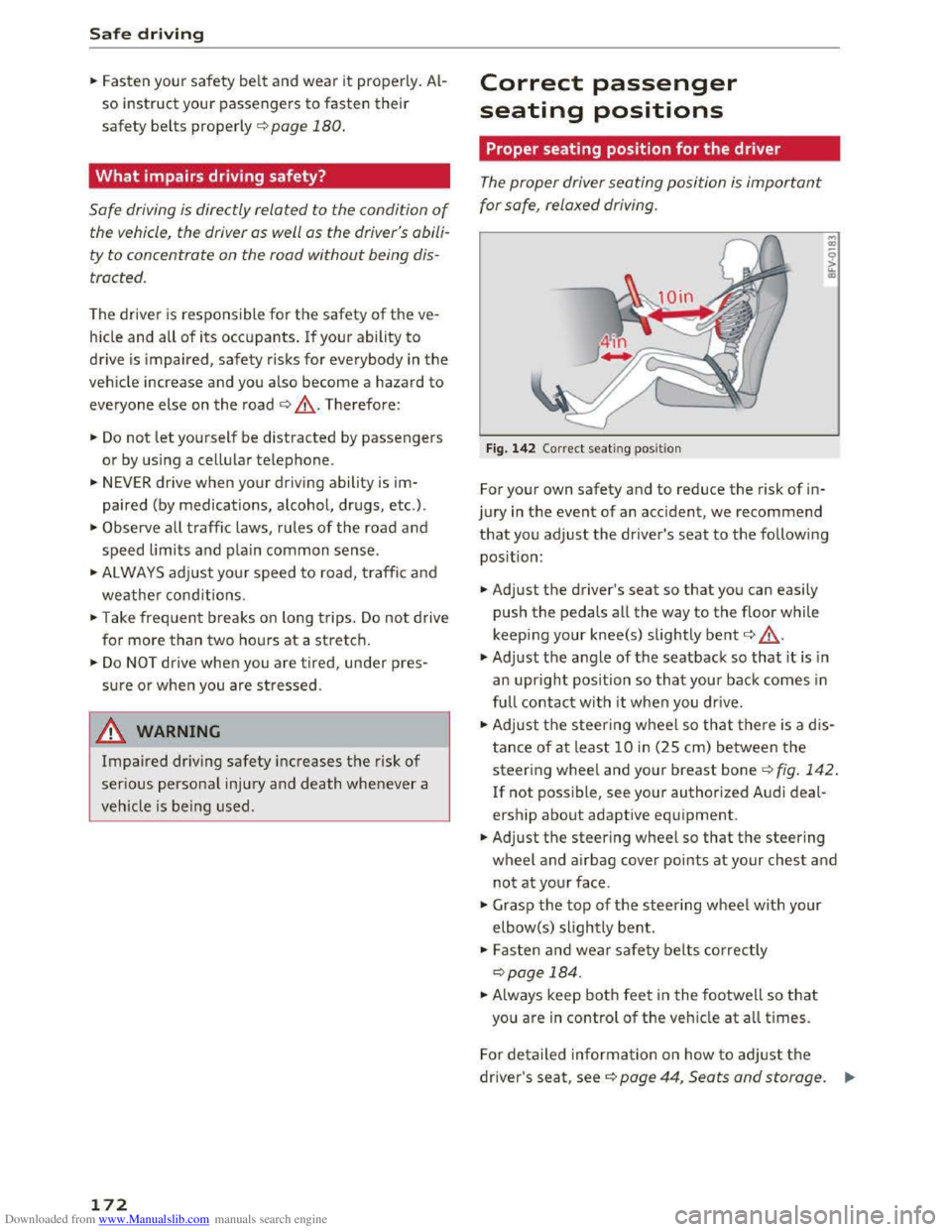
Fig. 142 Correct seating pos it ion
For your own safety and to reduce the risk of in
jury
in the event of an acc ident, we recommend
that you adjust the driver's seat to the following
position:
... Adjust the driver's seat so that you can easily
push the pedals all the way to the floor while
keeping
your knee(s) slightly bent¢.&,.
... Adjust the angle of the seatback so that it is in
an
upright position so that your back comes in
full contact with it when you drive.
... Adjust the steering wheel so that there is a d is
tance of at least 10 in (25 cm) between the
steering wheel and your breast bone ¢fig. 142.
If not possible, see your authorized Audi deal
ership about adaptive equipment .
... Adjust the steering wheel so that the steering
wheel and airbag cover points at your chest and
not at your face .
... Grasp the top of the steering wheel with your
elbow(s) slightly bent .
... Fasten and wear safety belts correctly
¢ page 184 .
... Always keep both feet in the footwell so that
you are in control of the vehicle at all times.
For detailed information on how to adj ust the
driver's seat, see¢ page 44, Seats and storage. ....
Page 182 of 322
Downloaded from www.Manualslib.com manuals search engine Safety belts
Safety belts
General notes
Always wear safety belts!
Wearing safety belts correctly saves lives!
This chapter explains why safety belts are neces
sary, how
they work and how to adjust and wear
them correctly.
... Read all the information that follows and heed
all of the instructions and WARNINGS.
A WARNING
Not wearing safety belts or wearing them im
properly
increases the risk of serious personal
injury and death.
-Safety belts are the s ingle most effective
means available to reduce the risk of serious
injury and death in automobile acc idents.
For your protection and that of your passen
gers, always co rre ctly wea r safety belts
when the vehicle is moving.
-
Pregnant women , inju red, or physically im
paired
persons must also use safety belts.
L
ike all vehicle occupants, they are more
likely to
be serio us ly injured if they do not
wea r safety belts. The best way to protect a
fetus is to protect the mother -throughout
the entire pregnancy.
Number of seats
Your Audi TI Coupe has two seating positions in
the front and two height-limited seating posi
tions in the rear . Each seating position has a safe
ty
belt. T he rear seat area in your Audi TT Coupe
does not have enough room fo r passengers of all
sizes. For
reasons of safety, no person taller than
4 ft 9 in (S 7 i n/1.45 m) should ever ride in the
rear seat area.
A WARNING
t--=
Not wear ing safety belts or wearing them im-
properly
increases the risk of serio us personal
injury and death.
180
- Never strap more than one person, includ
ing
small children, into any belt. It is espe
cially dangerous to place a safety be lt over a
child
sitting on your lap.
- Never
let more people ride in the vehicle
than there are safety belts available.
-
Be sure everyone riding in the vehicle is
properl y restrained with a separate safety
belt o r child restraint.
-
Persons taller than 4 ft 9 in (57 in/1.45 m)
as well as children in booster seats who are
too close to the rear window and roof ca n
suffer severe head and nec k injuries when
the rea r lid is closed or in a crash.
- The
minimum clearance between the pas
senger's heads and the rear window must
never -un de r any circumstances -be less
that lin (2.5 cm) when th e passengers sit
fu lly upright.
-Always make sure that rear seat passengers
cannot be stru c k when the rear lid is closed.
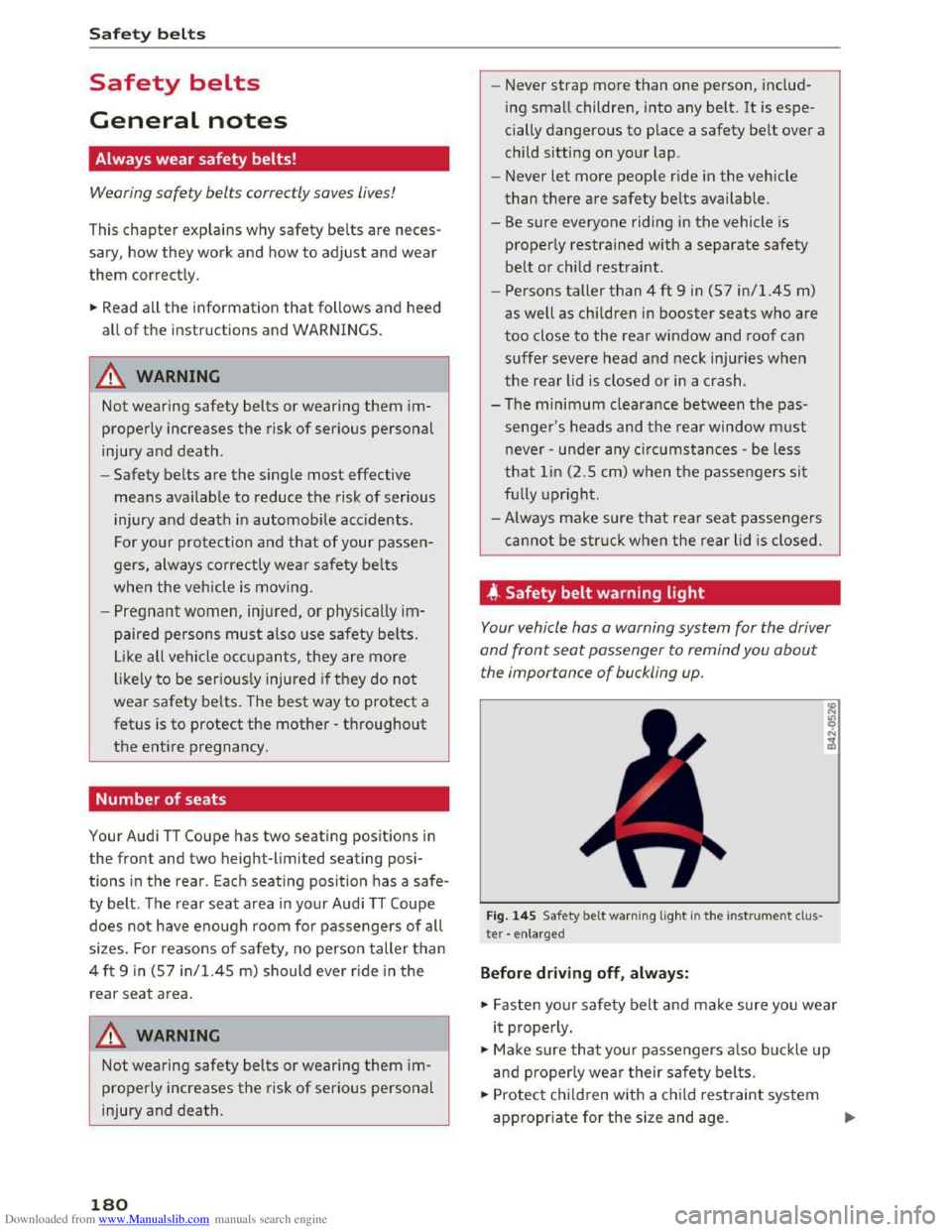
4 Safety belt warning light
Your vehicle has a warning system for the driver
and front seat passenger to remind you about
the importance of buckling up.
Fig. 145 Safety belt warning lig ht in the instrument cl us
ter - e nla rged
Before driving off, always:
... Fasten your safety belt and make sure you wear
it properly.
... Mak e sure that you r passengers also bu ck le up
and properly wear th e ir safety belts.
... Protect chi ld ren with a ch ild restraint system
appropriate for the size and age.
Page 183 of 322
Downloaded from www.Manualslib.com manuals search engine .... N
The warning light. in the instrument cluster
lights up when the ignition is switched on as a re
minder to fasten the safety belts. In addition,
you will
hear a warning tone for a certain period
of time.
Fasten you r safet y belt and make su re that you r
pas sengers also prop erly put on
their safety
b elts .
A WARNING
-Safety belts are the single most effective
means available to reduce the risk of serious
injury and death in automobile accidents .
For your
protection and that of your passen
gers, always correct ly wear safety be lts
when the veh icle is moving .
- Failure
to pay attention to th e warning ligh t
t
hat comes on could lead to persona l injury.
Why safety belts?
Frontal collisions and the law of physics
Frontal crashes create very
strong forces for peo
ple riding in vehicles.
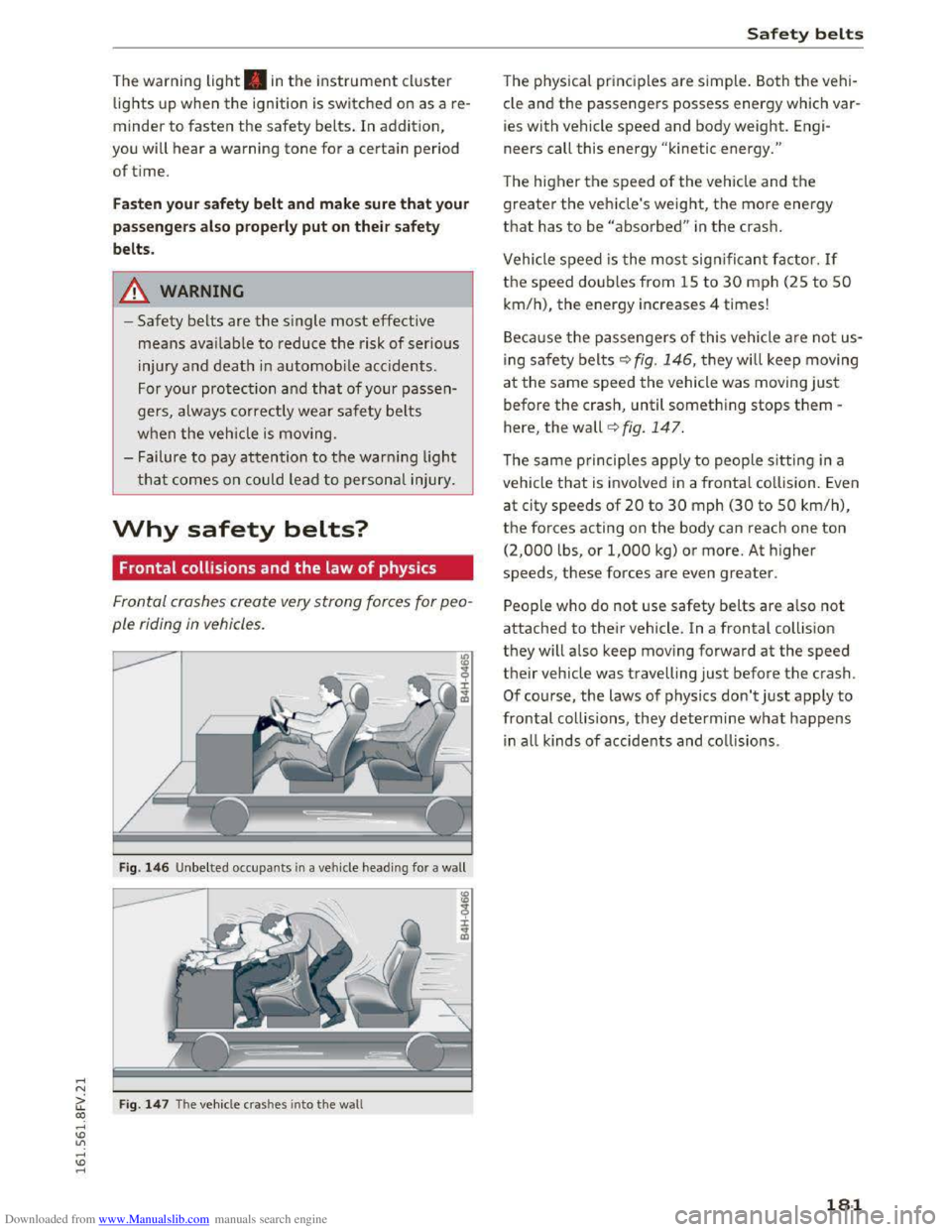
Fig. 146 U nbelted occupants in a veh icle headin g for a wall
Ci: Fig. 14 7 The vehicle crashes into the wall CX)
....
"' U"I
....
"' ....
Safety belt s
The physical principles are simple. Both the vehi
cle and
the passengers possess energy which var
ies with vehicle
speed and body weight. Engi
neers call this energy "kinetic energy."
The higher the speed of the vehicle and the
greater the vehicle's weight, the more energy
that has to be "absorbed" in the crash.
Vehicle speed is the most significan t factor. If
the speed doubles from 15 to 30 mph (25 to 50
km/h), the energy increases 4 times!
B ecau
se the passengers of t his vehicle are not us
ing
saf e ty belts~ fig. 146, they will keep moving
at the same speed the vehicle was moving just
before the crash, until something stops them -
here, the wall~ fig. 147.
The same principles apply to people sitting in a
vehicle
that is invo lved in a frontal co llision. Even
at city speeds of 20 to 30 mph (30 to 50 km/h),
the forces acting on the body can reach one ton
(2,000 lbs, or 1,000 kg) or more. At higher
speeds, these forces are even greater.
People who do not use safety belts are also not
attached to thei r vehicle. In a frontal coll is ion
they will also keep moving forward at the speed
their vehicle was travelling just before the crash .
Of course, the laws of physics don't just apply to
frontal collisions , they determine what happens
in all kinds of accide nts and collisions .
181