CD player AUDI TT ROADSTER 2016 User Guide
[x] Cancel search | Manufacturer: AUDI, Model Year: 2016, Model line: TT ROADSTER, Model: AUDI TT ROADSTER 2016Pages: 306, PDF Size: 31.82 MB
Page 200 of 306
Downloaded from www.Manualslib.com manuals search engine Media
Audi music interface
Applies to: vehicles with Audi music interface
You can connect your mobile devices via the Audi
music interface in order to charge the battery
and operate the devices via the MMI.
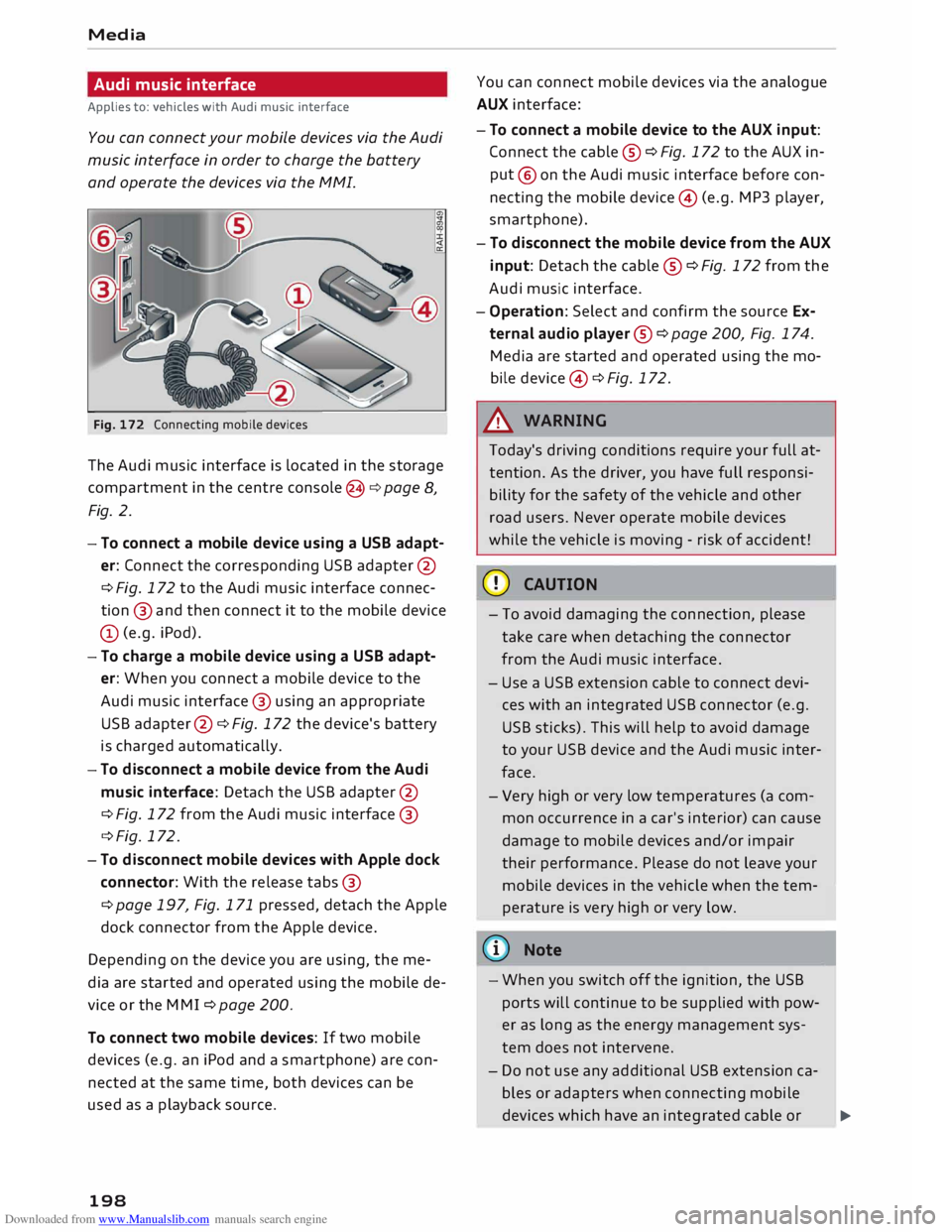
Fig. 172 Connecting mobile devices
The Audi music interface is Located in the storage
compartment in the centre console @c:> page 8,
Fig. 2.
- To connect a mobile device using a USB adapt
er: Connect the corresponding USB adapter @
c> Fig. 172 to the Audi music interface connec
tion @ and then connect it to the mobile device
(D (e.g. iPod).
- To charge a mobile device using a USB adapt
er: When you connect a mobile device to the
Audi music interface @ using an appropriate
USB adapter @ c:> Fig. 172 the device's battery
is charged automatically.
- To disconnect a mobile device from the Audi
music interface: Detach the USB adapter @
c> Fig. 172 from the Audi music interface @
c> Fig. 172.
- To disconnect mobile devices with Apple dock
connector: With the release tabs@
c> page 197, Fig. 171 pressed, detach the Apple
dock connector from the Apple device.
Depending on the device you are using, the me
dia are started and operated using the mobile de
vice or the MM I c:> page 200.
To connect two mobile devices: If two mobile
devices (e.g. an iPod and a smartphone) are con
nected at the same time, both devices can be
used as a playback source.
198 You
can connect mobile devices via the analogue
AUX interface:
- To connect a mobile device to the AUX input:
Connect the cable ® c:> Fig. 172 to the AUX in
put @ on the Audi music interface before con
necting the mobile device@ (e.g. MP3 player,
smartphone).
- To disconnect the mobile device from the AUX
input: Detach the cable ® c:> Fig. 172 from the
Audi music interface.
- Operation: Select and confirm the source Ex
ternal audio player @ c:> page 200, Fig. 174.
Media are started and operated using the mo
bile device @ c:> Fig. 172.
A WARNING
Today's driving conditions require your full at
tention. As the driver, you have full responsi
bility for the safety of the vehicle and other
road users. Never operate mobile devices
while the vehicle is moving -risk of accident!
CD CAUTION
- To avoid damaging the connection, please
take care when detaching the connector
from the Audi music interface.
- Use a USB extension cable to connect devi
ces with an integrated USB connector (e.g.
USB sticks). This will help to avoid damage
to your USB device and the Audi music inter
face.
- Very high or very Low temperatures (a com
mon occurrence in a car's interior) can cause
damage to mobile devices and/or impair
their performance. Please do not Leave your
mobile devices in the vehicle when the tem
perature is very high or very Low.
@ Note
-When you switch off the ignition, the USB
ports will continue to be supplied with pow-
er as long as the energy management sys-
tem does not intervene.
- Do not use any additional USB extension ca
bles or adapters when connecting mobile
devices which have an integrated cable or
�
Page 201 of 306
Downloaded from www.Manualslib.com manuals search engine 0
N
,.....
N
....
0
,.....
Vl
CX) which
must be connected via a USB adapter
(¢ page 197) to the Audi music interface;
this could cause performance issues.
- The AUX adapter cable is available from
Audi dealers or specialist retailers.
- It cannot be guaranteed that mobile devices
which do not meet the specification USB 2.0
will function properly.
- USB hubs are not supported.
- Some iPod versions (e.g. iPod shuffle) can-
not be connected with the USB adapter for
devices with Apple dock connector. You can
connect these devices using the AUX adapt
er cable.
- Video playback via the Audi music interface
is only supported if the system detects that
the device connected is a USB storage device
(e.g. a USB stick). Apple or MTP devices (e.g.
smartphones) are not recognised as USB
storage devices.
- iPod/iPhone malfunctions also affect opera
tion of the device via the MMI. In this case,
please reset your iPod/iPhone.
- Please refer to the iPod/iPhone operating
instructions for important information on
how to use your iPod/iPhone. We recom
mend that you use the most up-to-date
iPod/iPhone software possible.
- For more information on the Audi music in
terface and on which devices are supported,
please see the Audi mobile device database
at www.audi.com/mp3 or contact an Audi
dealer. Media
AUX input/USB charging socket
Applies to: vehicles with AUX input/USB charging socket
You can charge the batteries of your mobile devi
ces using the USB charging socket. You can con
nect mobile devices using the analogue AUX in
terface.
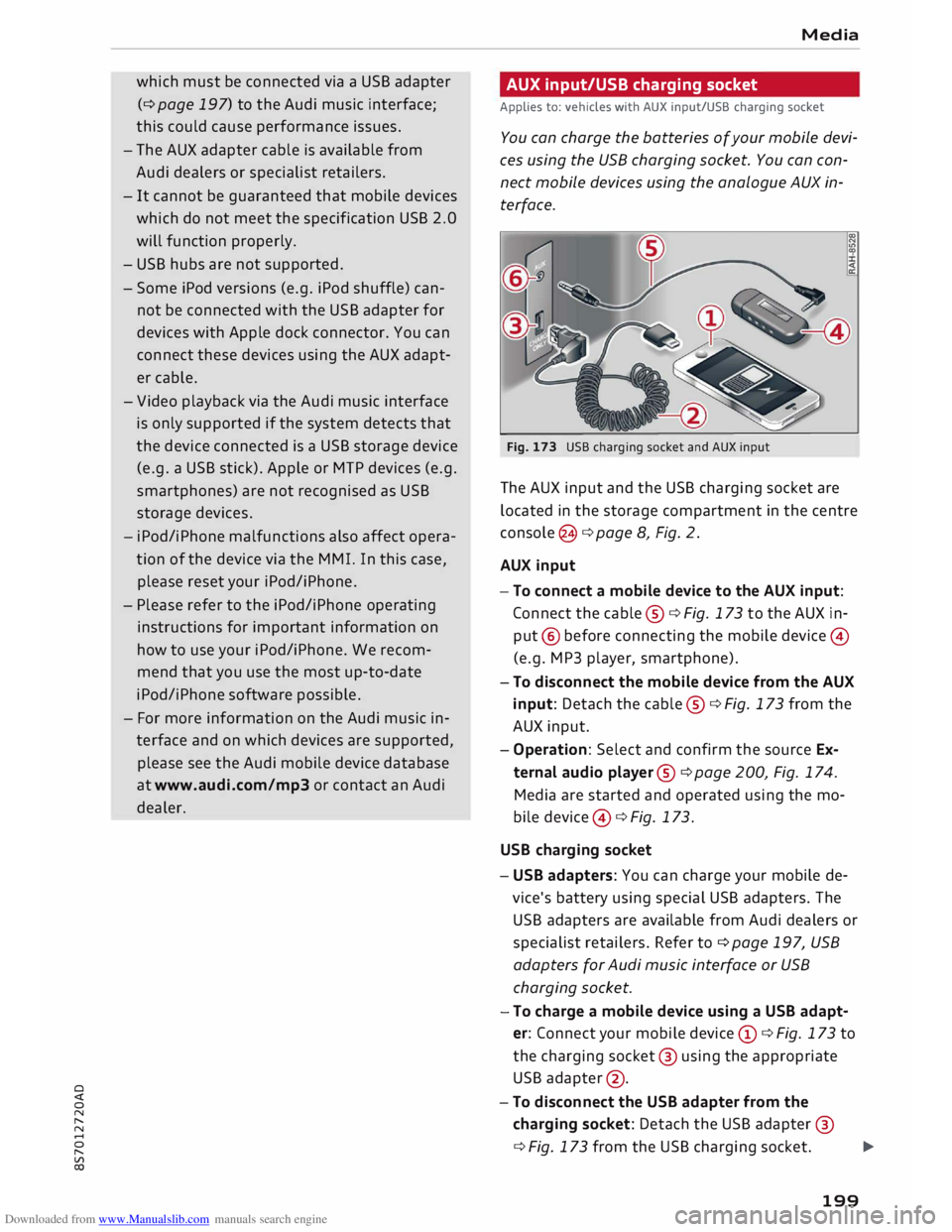
Fig. 173 USB charging socket and AUX input
The AUX input and the USB charging socket are
located in the storage compartment in the centre
console @¢ page 8, Fig. 2.
AUX input
-To connect a mobile device to the AUX input:
Connect the cable ®¢ Fig. 173 to the AUX in
put @ before connecting the mobile device©
(e.g. MP3 player, smartphone).
- To disconnect the mobile device from the AUX
input: Detach the cable ®¢ Fig. 173 from the
AUX input.
- Operation: Select and confirm the source Ex
ternal audio player@¢ page 200, Fig. 174.
Media are started and operated using the mo
bile device @¢ Fig. 173.
USB charging socket
- USB adapters: You can charge your mobile de
vice's battery using special USB adapters. The
USB adapters are available from Audi dealers or
specialist retailers. Refer to¢ page 197, USB
adapters for Audi music interface or USB
charging socket.
-To charge a mobile device using a USB adapt
er: Connect your mobile device (D ¢ Fig. 173 to
the charging socket@ using the appropriate
USB adapter @.
- To disconnect the USB adapter from the
charging socket: Detach the USB adapter @
¢ Fig. 173 from the USB charging socket.
...,.
199
Page 203 of 306
Downloaded from www.Manualslib.com manuals search engine 0
N
,.....
N e.g.
iPod, USB stick
® External audio player
e.g. an MP3 player connected to
the AUX input
® Bluetooth audio player*
0
® Wi-Fi
audio player* .......... .
Online media* and Internet radio* 199
194
195
196
-To play audio/video files: Select a source in the
Media menu> category (e.g. artist > album >
track/title).
- To access the next level up in the structure of
folders: Press the I
B A
CK !
button. Or: Select and
confirm Go up.
- To select the previous/next track/title/chap
ter 1
)
: Briefly press the ON/OFF button on the
MMI control console to the Left/right (l
-To rewind/fast forward audio/video files:
Move and hold the ON/OFF button to the Left/
rig ht (l
- To pause/resume playback: Briefly press the
ON/OFF button on the MMI control console.
@ Note
- You can scroll rapidly through Long Lists by
turning the rotary pushbutton quickly. The
scrolling speed depends on the number of
entries in the List.
- If the Traffic announcements ¢ page 186
or DAB announcements* function is switch
ed on, playback is interrupted for announce
ments. You can cancel an announcement
while it is being played by briefly pressing
the ON/OFF button on the MMI control con
sole.
- For safety reasons, the video picture is not
available while the vehicle is moving. While
you are driving, only the sound is played.
8 l}May not be possible during playback (depends on the
,.....
� DVD). Media
Media centre
Several categories for selecting audio/video*
files are available in the media centre.
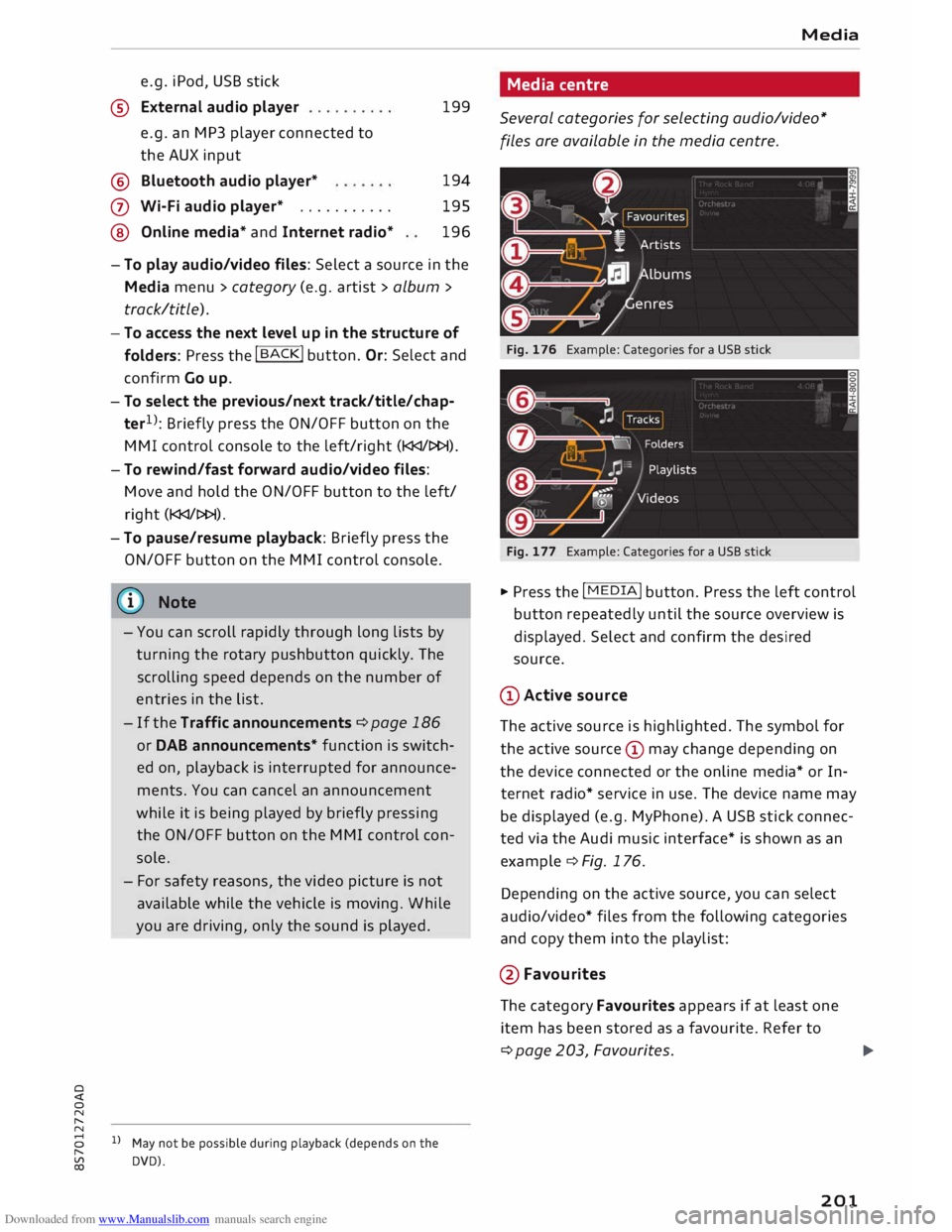
Fig. 176 Example: Categories for a USB stick
Fig. 177 Example: Categories for a USB stick
"" Press the I MEDI
A! button. Press the Left control
button repeatedly until the source overview is
displayed. Select and confirm the desired
source.
CD Active source
The active source is highlighted. The symbol for
the active source (!) may change depending on
the device connected or the online media* or In
ternet radio* service in use. The device name may
be displayed (e.g. MyPhone). A USB stick connec
ted via the Audi music interface* is shown as an
example¢ Fig. 176.
Depending on the active source, you can select
audio/video* files from the following categories
and copy them into the playlist:
@Favourites The category Favourites appears if at Least one
item has been stored as a favourite. Refer to
¢page 203, Favourites.
l)IJ,,
201
Page 204 of 306
Downloaded from www.Manualslib.com manuals search engine Media
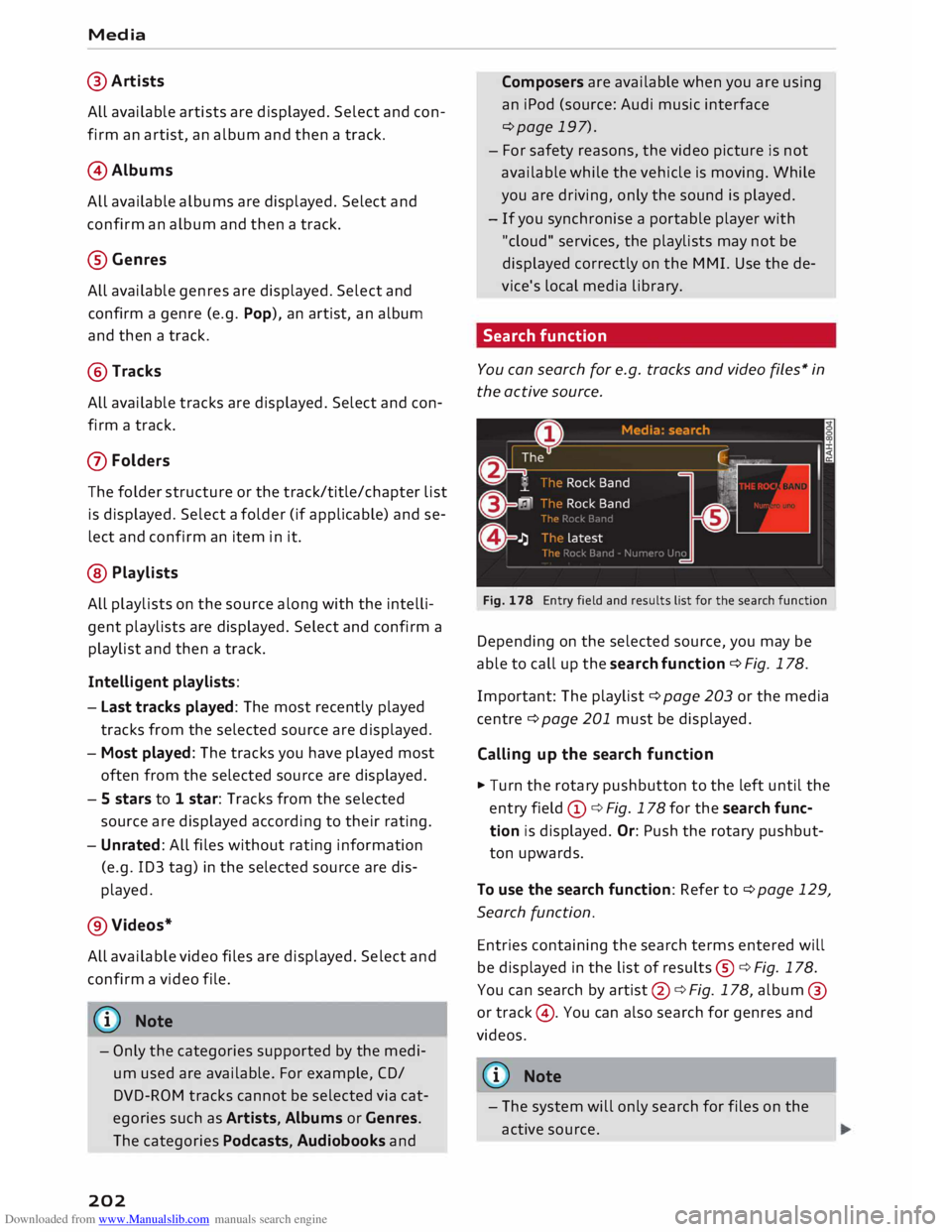
@ Artists
ALL available artists are displayed. Select and con
firm an artist, an album and then a track.
@ Albums
ALL available albums are displayed. Select and
confirm an album and then a track.
® Genres
ALL available genres are displayed. Select and
confirm a genre (e.g. Pop), an artist, an album
and then a track.
@ Tracks
ALL available tracks are displayed. Select and con
firm a track.
0 Folders
The folder structure or the track/title/chapter List
is displayed. Select a folder (if applicable) and se
lect and confirm an item in it.
@ Playlists
ALL playlists on the source along with the intelli
gent playlists are displayed. Select and confirm a
playlist and then a track.
Intelligent playlists:
- Last tracks played: The most recently played
tracks from the selected source are displayed.
- Most played: The tracks you have played most
often from the selected source are displayed.
- 5 stars to 1 star: Tracks from the selected
source are displayed according to their rating.
- Unrated: ALL files without rating information
(e.g. ID3 tag) in the selected source are dis
played.
@ Videos*
ALL available video files are displayed. Select and
confirm a video file.
(© Note
- Only the categories supported by the medi
um used are available. For example, CD/
DVD-ROM tracks cannot be selected via cat
egories such as Artists, Albums or Genres.
The categories Podcasts, Audiobooks and
202 Composers
are available when you are using
an iPod (source: Audi music interface
¢page 197).
- For safety reasons, the video picture is not
available while the vehicle is moving. While
you are driving, only the sound is played.
- If you synchronise a portable player with
"cloud" services, the playlists may not be
displayed correctly on the MMI. Use the de
vice's Local media Library.
Search function
You can search for e.g. tracks and video files* in
the active source.
Fig. 178 Entry field and results list for the search function
Depending on the selected source, you may be
able to call up the search function ¢ Fig. 178.
Important: The playlist ¢ page 203 or the media
centre ¢ page 201 must be displayed.
Calling up the search function
.. Turn the rotary pushbutton to the left until the
entry field (D ¢ Fig. 178 for the search func
tion is displayed. Or: Push the rotary pushbut
ton upwards.
To use the search function: Refer to ¢page 129,
Search function.
Entries containing the search terms entered will
be displayed in the List of results ®¢ Fig. 178.
You can search by artist @¢ Fig. 178, album @
or track @. You can also search for genres and
videos.
{!)) Note
- The system will only search for files on the
active source.
Page 208 of 306
Downloaded from www.Manualslib.com manuals search engine Media
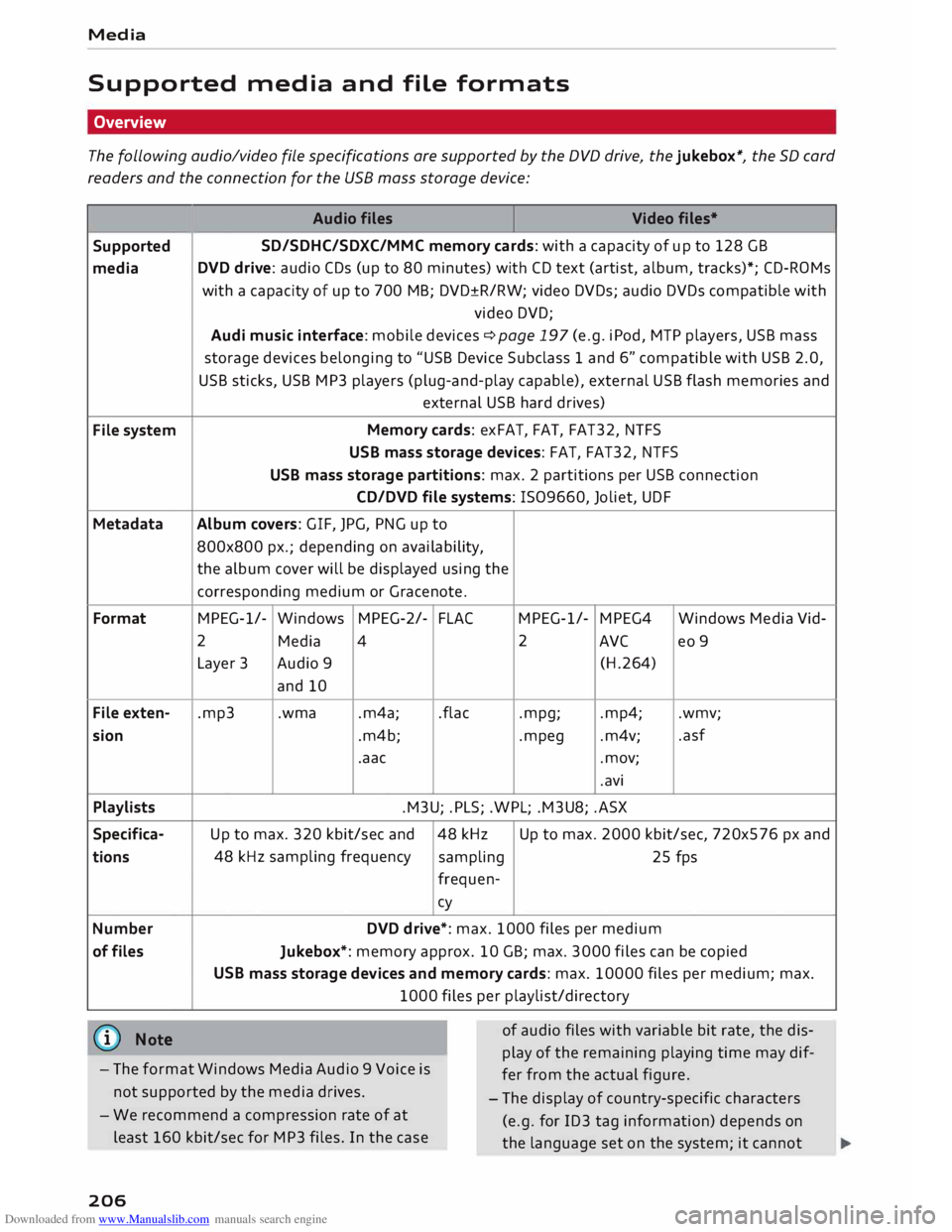
Supported media and file formats
Overview
The following audio/video file specifications are supported by the DVD drive, the jukebox*, the SD card
readers and the connection for the USB mass storage device:
Audio files
Video files•
Supported SD/SDHC/SDXC/MMC
memory cards: with a capacity of up to 128 GB
media DVD
drive: audio CDs (up to 80 minutes) with CD text (artist, album, tracks)*; CD-ROMs
with a capacity of up to 700 MB; DVD±R/RW; video DVDs; audio DVDs compatible with
video DVD;
Audi music interface: mobile devices �page 197 (e.g. iPod, MTP players, USB mass
storage devices belonging to "USB Device Subclass 1 and 6" compatible with USB 2.0,
USB sticks, USB MP3 players (plug-and-play capable), external USB flash memories and
external USB hard drives)
File system Memory
cards: exFAT, FAT, FAT32, NTFS
USB mass storage devices: FAT, FAT32, NTFS
USB mass storage partitions: max. 2 partitions per USB connection
CD/DVD file systems: !509660, Joliet, UDF
Metadata Album covers:
GIF, JPG, PNG up to
800x800 px.; depending on availability,
the album cover will be displayed using the
corresponding medium or Gracenote.
Format MPEG-1/-
Windows MPEG-2/-
FLA( MPEG-1/-
MPEG4
Windows Media Vid-
2 Media 4 2
AVC
eo 9
Layer 3 Audio 9
(H.264)
and 10
File exten- .mp3 .wma
.m4a; .flac
.mpg; .mp4;
.wmv;
sion .m4b; .mpeg .m4v; .asf
.aac .mov;
.avi
Playlists .M3U; .PLS; .WPL; .M3U8; .ASX
Specifica- Up to max. 320 kbit/sec and 48 kHz Up
to max. 2000 kbit/sec, 720x576 px and
tions 48
kHz sampling frequency
sampling 25 fps
frequen-cy
Number DVD drive*: max. 1000 files per medium
of files
Jukebox*: memory approx. 10 GB; max. 3000 files can be copied
USB mass storage devices and memory cards: max. 10000 files per medium; max.
1000 files per playlist/directory
(@ Note
- The format Windows Media Audio 9 Voice is
not supported by the media drives. of
audio files with variable bit rate, the dis
play of the remaining playing time may dif
fer from the actual figure.
- The display of country-specific characters
(e.g. for ID3 tag information) depends on
the language set on the system; it cannot
-
We recommend a compression rate of at
least 160 kbit/sec for MP3 files. In the case
206
Page 209 of 306
Downloaded from www.Manualslib.com manuals search engine 0
N
,.....
N
......
0
,.....
Vl
CX) Media
be ensured that these characters are always
dis played correctly. -
Some functions of MTP players such as vid
eo playback and the rating of tracks are not
supported.
- The manufacturer will provide you with in
formation on the "USB Device Subclass" of a
USB memory device.
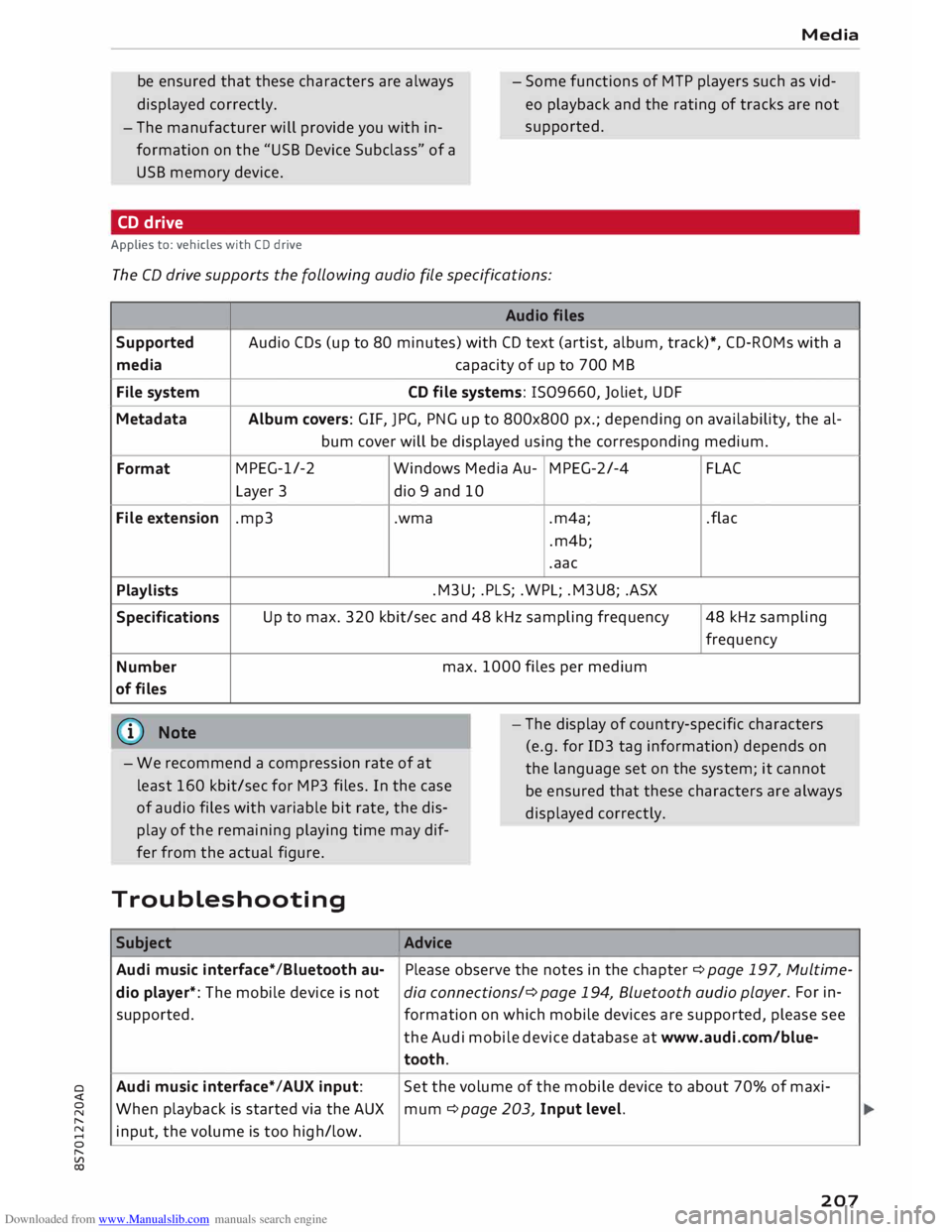
CD drive
Applies to: vehicles with CD drive
The CD drive supports the following audio fi
le specifications:
Audio files
Supported Audio
CDs (up to 80 minutes) with CD text (artist, album, track)*, CD-ROMs with a
media capacity
of up to 700 MB
File system CD
file systems: 1509660, Joliet, UDF
Metadata Album
covers: GIF, JPG, PNG up to 800x800 px.; depending on availability, the al-
bum cover will be displayed using the corresponding medium.
Format MPEG-1/-2
Windows Media Au-MPEG-2/-4
FLAC
Layer 3
dio 9 and 10
File extension .mp3
.wma
.m4a;
.flac
.m4b;
.aac
Playlists .M3U;
.PLS; .WPL; .M3U8; .ASX
Specifications Up
to max. 320 kbit/sec and 48 kHz sampling frequency 48 kHz sampling
frequency
Number max.
1000 files per medium
of files
@ Note
- We recommend a compression rate of at
least 160 kbit/sec for MP3 files. In the case
of audio files with variable bit rate, the dis
play of the remaining playing time may dif
fer from the actual figure. -
The display of country-specific characters
(e.g. for ID3 tag information) depends on
the language set on the system; it cannot
be ensured that these characters are always
dis played correctly.
Troubleshooting Subject Advice
Audi music interface* /Bluetooth au-Please
observe the notes in the chapter ¢ page 197, Multime-
dio player*: The mobile device is not dia connections/¢ page 194, Bluetooth audio play
er. For in-
supported. formation on which mobile devices are supported, please see
the Audi mobile device database at www.audi.com/blue-
tooth.
Audi music interface*/AUX input: Set
the volume of the mobile device to about 70% of maxi-
When playback is started via the AUX
mum ¢ page 203, Input level.
input, the volume is too high/low.
207
Page 210 of 306
Downloaded from www.Manualslib.com manuals search engine Media
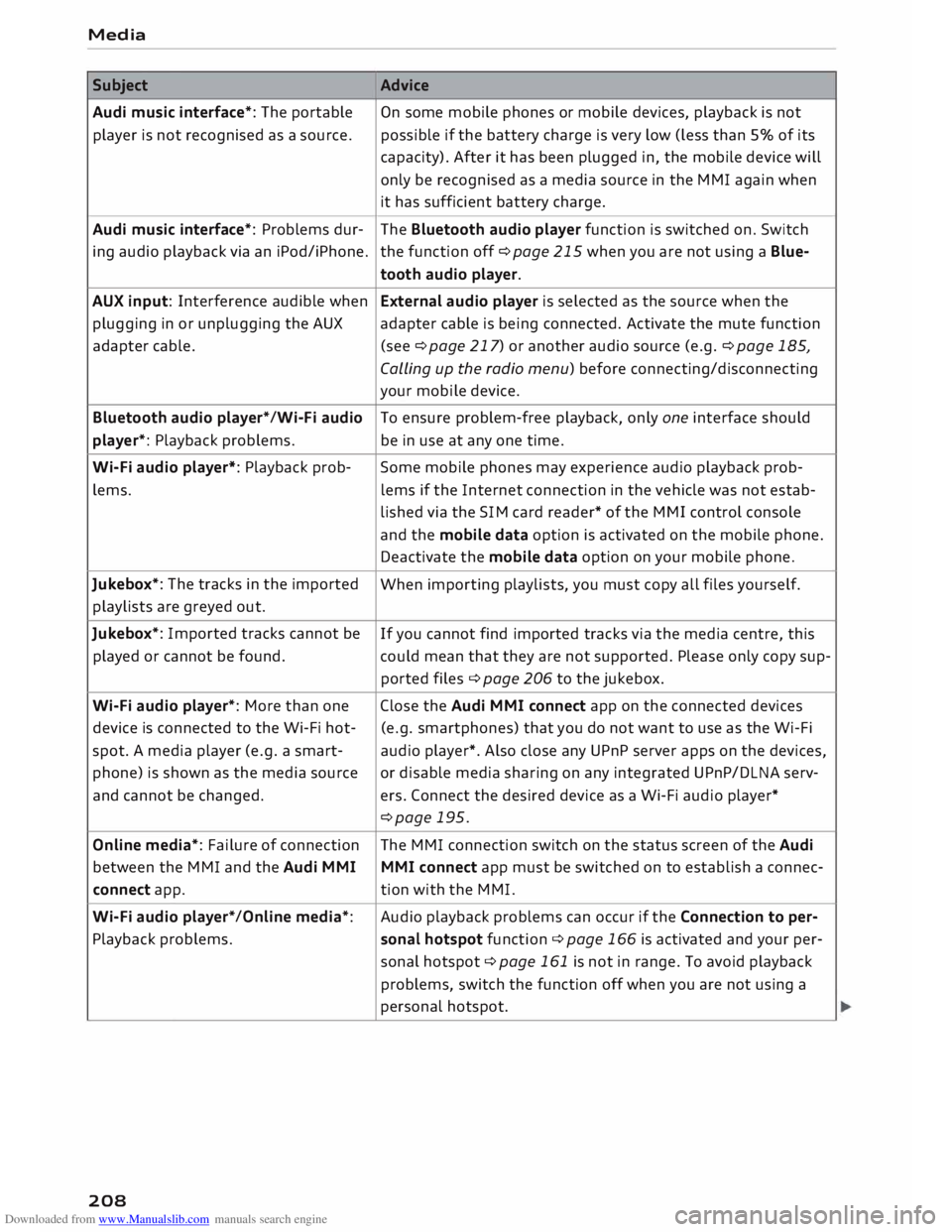
Subject Advice
Audi music interface*: The portable
On some mobile phones or mobile devices, playback is not
player is not recognised as a source. possible
if the battery charge is very low (less than 5% of its
capacity). After it has been plugged in, the mobile device will
only be recognised as a media source in the MMI again when
it has sufficient battery charge.
Audi music interface*: Problems dur-
The Bluetooth audio player function is switched on. Switch
ing audio playback via an iPod/iPhone. the function off ¢page 215 when you are not using a Blue-
tooth audio player.
AUX input: Interference audible when External audio player is selected as the source when the
plugging in or unplugging the AUX adapter cable is being connected. Activate the mute function
adapter cable. (see ¢page 217) or another audio source (e.g. ¢page 185,
Calling up the radio menu) before connecting/disconnecting
your mobile device.
Bluetooth audio player*/Wi-Fi audio
To ensure problem-free playback, only one interface should
player*: Playback problems. be in use at any one time.
Wi-Fi audio player*: Playback prob-
Some mobile phones may experience audio playback prob-
lems. lems
if the Internet connection in the vehicle was not estab-
lished via the SIM card reader* of the MMI control console
and the mobile data option is activated on the mobile phone.
Deactivate the mobile data option on your mobile phone.
Jukebox*: The tracks in the imported
When importing playlists, you must copy all files yourself.
playlists are greyed out.
Jukebox*: Imported tracks cannot be
If you cannot find imported tracks via the media centre, this
played or cannot be found. could mean that they are not supported. Please only copy sup-
ported files¢ page 206 to the jukebox.
Wi-Fi audio player*: More than one Close the Audi MMI connect app on the connected devices
device is connected to the Wi-Fi hot- (e.g.
smartphones) that you do not want to use as the Wi-Fi
spot. A media player (e.g. a smart-
audio player*. Also close any UPnP server apps on the devices,
phone) is shown as the media source
or disable media sharing on any integrated UPnP/DLNA serv-
and cannot be changed. ers. Connect the desired device as a Wi-Fi audio player*
¢page 195.
Online media*: Failure of connection The MMI connection switch on the status screen of the Audi
between the MMI and the Audi MMI
MMI connect app must be switched on to establish a connec-
connect app. tion
with the MMI.
Wi-Fi audio player* /Online media*: Audio
playback problems can occur if the Connection to per-
Playback problems. sonal
hotspot function¢ page 166 is activated and your per-
sonal hotspot ¢ page 161 is not in range. To avoid playback
problems, switch the function off when you are not using a
personal hotspot.
208
Page 211 of 306
Downloaded from www.Manualslib.com manuals search engine 0
N
,.....
N
....
0
,.....
Vl
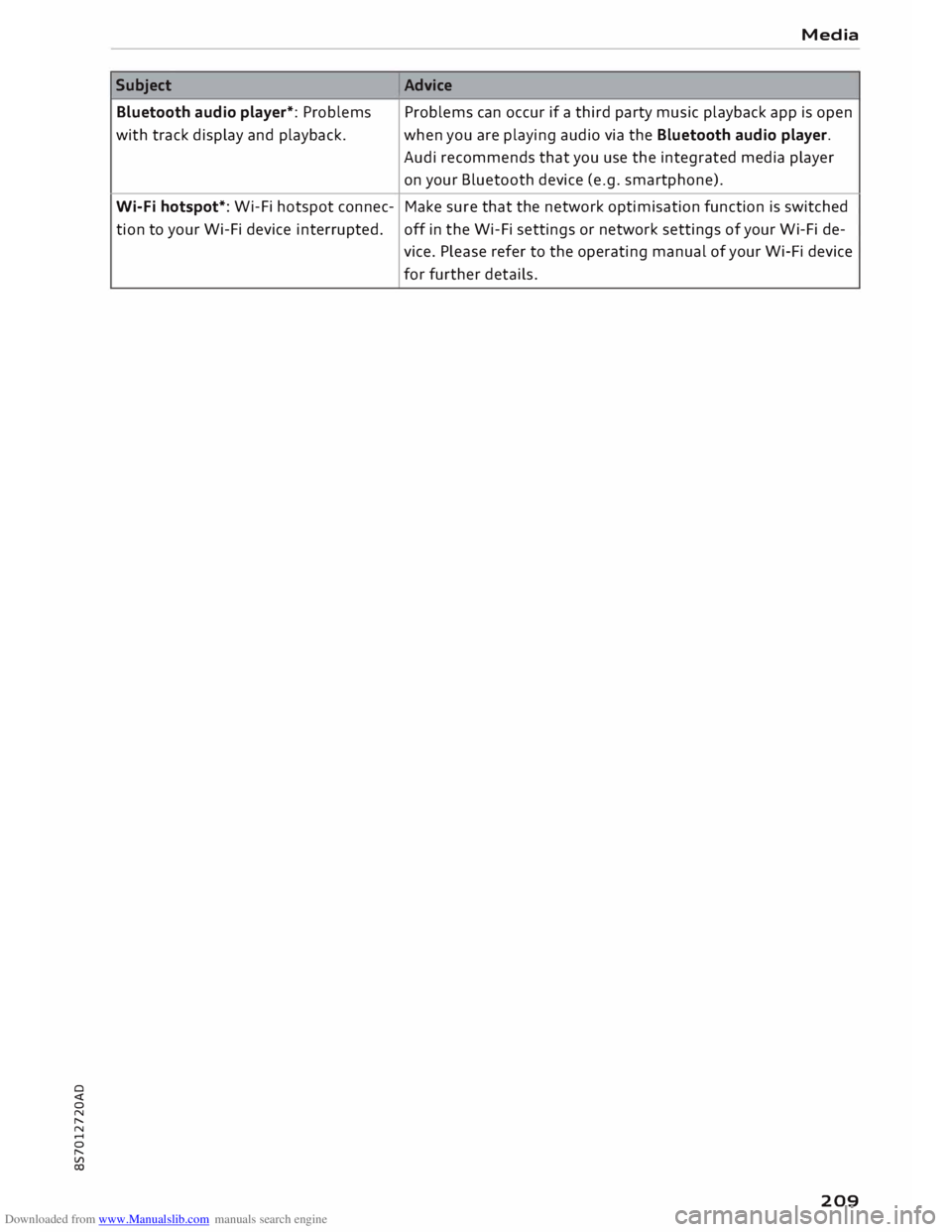
CX) Subject
Bluetooth audio player*: Problems
with track display and playback.
Wi-Fi hotspot*: Wi-Fi hotspot connec-
tion to your Wi-Fi device interrupted. Media
Advice Problems can occur if a third party music playback app is open
when you are playing audio via the Bluetooth audio player.
Audi recommends that you use the integrated media player
on your Bluetooth device (e.g. smartphone).
Make sure that the network optimisation function is switched
off in the Wi-Fi settings or network settings of your Wi-Fi de-
vice. Please refer to the operating manual of your Wi-Fi device
for further details.
209
Page 216 of 306
Downloaded from www.Manualslib.com manuals search engine System
settings
You can connect (�) or disconnect (0) a connec
ted device individually.
Telephone
Applies to: vehicles with telephone
- Connect new device: You can search for and
connect a mobile phone.
- List of devices already bonded: Select your mo
bile phone from the list of all devices which
have already been bonded. Or: Insert a mini
SIM card in the SIM card reader* ¢page 144.
Second phone
Applies to: vehicles with Audi phone box
- Connect new device: You can search for and
connect a mobile phone.
- List of devices already bonded: Select your mo
bile phone from the list of all devices which
have already been bonded.
Data connection
Applies to: vehicles with Audi connect
- Connect new device: You can search for and
connect a mobile device (e.g. a smartphone).
- List of devices already bonded: Select your mo
bile phone from the list of all devices which
have already been bonded. Or: Insert a mini
SIM card in the SIM card reader* ¢page 159.
CD CAUTION
Please always observe the information ¢0 in
Wi-Fi hotspot on page 166.
MMI connect app
Applies to: vehicles with Audi connect
Important: The Audi MMI connect app must be
installed on your mobile device and have been
started.
- Connect new device: You can search for and
connect a mobile device (e.g. a smartphone).
- List of devices already bonded: Select your mo
bile device from the list of all devices which
have already been bonded.
214 Music
Applies to: vehicles with Bluetooth audio player or Wi-Fi au
dio player
Audio players
Important: The Bluetooth function and the dis
coverability option of both the M MI system
¢ page 215 and the mobile phone must be acti
vated.
- To connect a new device: Press the rotary push
button. Select Bluetooth audio player. Search
for and connect a mobile device.
- List of devices already bonded: Select a Blue
tooth device from the list of all devices which
have already been bonded.
Wi-Fi audio players
Important: The Wi-Fi hotspot on the MMI system
¢page 165 and your mobile phone's Wi-Fi func
tion must be activated.
- To connect a new device: Press the rotary push
button. Search for and connect a Wi-Fi enabled
device.
- To disconnect a Wi-Fi audio player: Deactivate
Wi-Fi on your Wi-Fi enabled device. The device
will be removed from the list automatically.
CD CAUTION
Please always observe the information ¢0 in
Wi-Fi hotspot on page 166.
Dire ctory
Applies to: vehicles with telephone
You can display the contacts from (other) mobile
phones.
Important: No mobile phones are connected to
the MMI via the Bluetooth remote SIM Access
Profile or the Handsfree profile.
- Connect new device: You can search for and
connect a new mobile phone. Or: Insert a mini
SIM card in the SIM card reader* ¢page 159.
- List of devices already bonded: Select your mo
bile phone from the list of all mobile phones
which have already been bonded.
Page 217 of 306
Downloaded from www.Manualslib.com manuals search engine 0
N
,.....
N
......
0
,.....
Vl
CX) Audi
smartphone
Applies to: vehicles with Audi smartphone interface
- Connect your mobile phone to the Audi music
interface ¢page 198via a USB adapter
¢page 197, Fig. 171.
- Select your mobile phone from the list of mo
bile phones already connected.
Further options
Further options may be available in the connec
tion manager via the right control button de
pending on the function selected.
Bluetooth settings
- Bluetooth: Select and confirm a discoverability
setting for the Bluetooth connection. Select
visible to make the MMI visible to other devi
ces. Select invisible to make the MMI invisible
to other devices. Devices which have already
been bonded can connect via Bluetooth even
when discoverability is deactivated. Select off
to switch discoverability off. It is then not pos
sible to establish a Bluetooth connection.
- Bluetooth audio player: When this function is
switched on�, the Bluetooth audio player is
available as a source in the Media menu.
- Delete Bluetooth device: The selected mobile
phone/device is disconnected from the MMI.
- Display Bluetooth profiles: You can Connect or
Disconnect the Handsfree, Car phone and Di
rectory/contacts profiles individually.
- Bluetooth audio player: Switch this function on
� to be able to use the Bluetooth audio player
as a source in the media menu.
- Bluetooth name: The Bluetooth name of the
MMI system (e.g. "AUDI MMI 2017") is dis
played and can be changed.
When this function is on �. the symbol @
¢page 130, Fig. 137 will appear on the infotain
ment display.
Online settings*
- Data connection settings: Refer to ¢ page 166,
Configuring the data connection
- Data usage meter: The number of the data
packets sent/received via the MMI system is System
settings
displayed. Select Reset data meter to reset the
usage statistics to zero.
- Connection status: The mobile network provid
er for data services and the network status are
displayed.
Wi-Fi settings*
Refer to ¢ page 165, Wi-Fi hotspot.
SIM PIN settings*
-Automatic PIN entry: When this function is
switched on�, the SIM PIN is stored in the
MMI after it has been entered for the first time.
You can save the PIN codes of four different
SIM cards on the MMI. If this function is
switched off, the PIN currently stored in the
MMI will be deleted. If the automatic PIN entry
function is activated, the system does not ask
you to enter your SIM PIN explicitly.
- Deactivate PIN query: The system does not ask
for the SIM PIN when you switch it on. The au
tomatic PIN entry function is ignored in this
case.
- Change PIN: You can change the PIN code for
your SIM card. First enter the existing PIN code
for your SIM card. The SIM PIN code can only
consist of numbers from Oto 9. The new SIM
PIN code has to be entered twice, as a precau
tionary measure, and is stored on the SIM card.
Network settings*
- Registration: To dial into your service provid
er's mobile network automatically or to select a
network manually from the list of available
networks.
- Network selection: You can use this function to
select the available networks for the current
position of the vehicle. This function is only
available when the manual setting is activated
for registration.
Apple CarPlay sound settings/Android Auto
sound settings
Applies to: vehicles with Audi smartphone interface
Refer to ¢ page 217.
215