navigation AUDI TT ROADSTER 2017 Owner's Manual
[x] Cancel search | Manufacturer: AUDI, Model Year: 2017, Model line: TT ROADSTER, Model: AUDI TT ROADSTER 2017Pages: 314, PDF Size: 76.54 MB
Page 144 of 314
Navigation
Home address
Applies to: vehicles with nav igation system
.. Press t he I N AV/MAPI but ton repeated ly un til
the
Enter destination menu is dis played
¢ page 136, fig. 123 .
Storing a home address
- Sele ct and co nfir m Home address
@ ¢page 136, fig. 123. After ope ning t he
home address fo r the fi rst time, yo u will be
asked to create a home a ddress .
- S elec t and confirm
Create now.
- En ter a desti nat ion or sele ct a des tina tion from
the lis t.
Or:
-Se lec t and co nfirm a destin ation > r ig ht contro l
bu tton >
Store as home address .
A home address will be s to re d in the M MI rega rd
less of the co nnected cell p hone. This home ad
dr es s is alw ay s ava ilable eve n if a c ell phone is
no t con necte d to the MMI.
Editing the home address
- Se lect Home address @ ¢page 136, fig . 123.
- Se lect: rig ht contro l button > Ed it home ad -
dress .
-Se lect and confirm a new destinat ion as the
home address.
The se lected destination is store d as t he new
home address.
Favorites
Applies to: vehicles with navigation system
.. Press the I N AV/MAPI button repeated ly until
the
Enter destination menu is displayed
¢ page 136, fig. 123 .
-Storing an existing destination as a favorite :
search for the desired destinat ion using the in
put f ie ld.
Or : select and confirm a dest ination
from the list. Select: right cont rol button>
Store as favorite .
- Renaming favorites :
select: left control button
>
Favorites > a favorite from the list> right
contro l butto n >
Rename favorite.
- Moving favorites:
select the left control button
>
Favorites > a favorite from the list> right
142 cont
rol but ton >
Move favorite. S e lect and con
firm t he desire d position.
-Deleting favorites : select and confirm a favo r
ite > r ight control button >
Delete this favor
ite / Delete all favorites.
Directory contacts
Applies to: vehicles with navigation system
Two addresses (private/business) can be as
signed as destinations for each contact in the di
rectory.
.. Press the I NAV/MAPI bu tton repeatedly unti l
the
Enter destination me nu is displaye d
¢page 136, fig. 123.
Storing a destination as a contact in the
directory
Requirement: a cell phone must be connected to
the MMI.
- Select:
a destination > right contro l button >
Add destination to contact.
- Sele ct an d confirm Add business destination or
Add private destination.
- En ter a name . Or: sele ct a nd con fir m a direc to
ry contact from the list .
- Sele ct and c onfirm
Save business card .
Additional settings
' Navigation settings
Applies to: vehicles with navigation system
.. Press the I NAV/M API button repeatedly unti l
t he
Enter destination me nu i s displaye d
¢page 136, fig. 123.
.. Sele ct: r igh t con trol button> Navigation set-
tings .
Depend ing o n the selec te d fu nction, t he follow
i ng settings can b e selecte d:
Show alternative routes
Up to three route suggestions and their proper
ties are d isplayed o n the overv iew map w hen the
funct io n is switched on~-See¢
page 143, Dis
playing alternative routes.
Page 145 of 314
CD
CD
.... N
" N ...... 0 r--. V, co
Low fuel warning
A message is disp laye d if the fue l g auge goes be
l ow the reserve m arki ng when this fun ct ion is
switche d on ~-Co nfirming this message displays
a list of gas stations in the area. When a gas sta
tion is selected, route gu idance from the c urrent
ve hicle position is calcu lated.
Notification when nearby*
The notifi cation when near by is switche d off a t
the facto ry.
The M MI not ifi es you whe n you are appro ac hing
se lec te d p oin ts of in terest when this func tio n is
switche d on ~-You can a lso h ave a
Notification
tone .
Presentation mode
The pre se nt ation mode he lp s yo u to plan a nd fo l
l ow a ro ute wi tho ut mo ving the veh icle. Yo u ca n
Select starting point when yo u wo uld like to cal
cula te a ro ute star ting from a loca tion o ther than
the vehicle pos it io n. Sta rt p resentation mode to
sim ulate route guida nce .
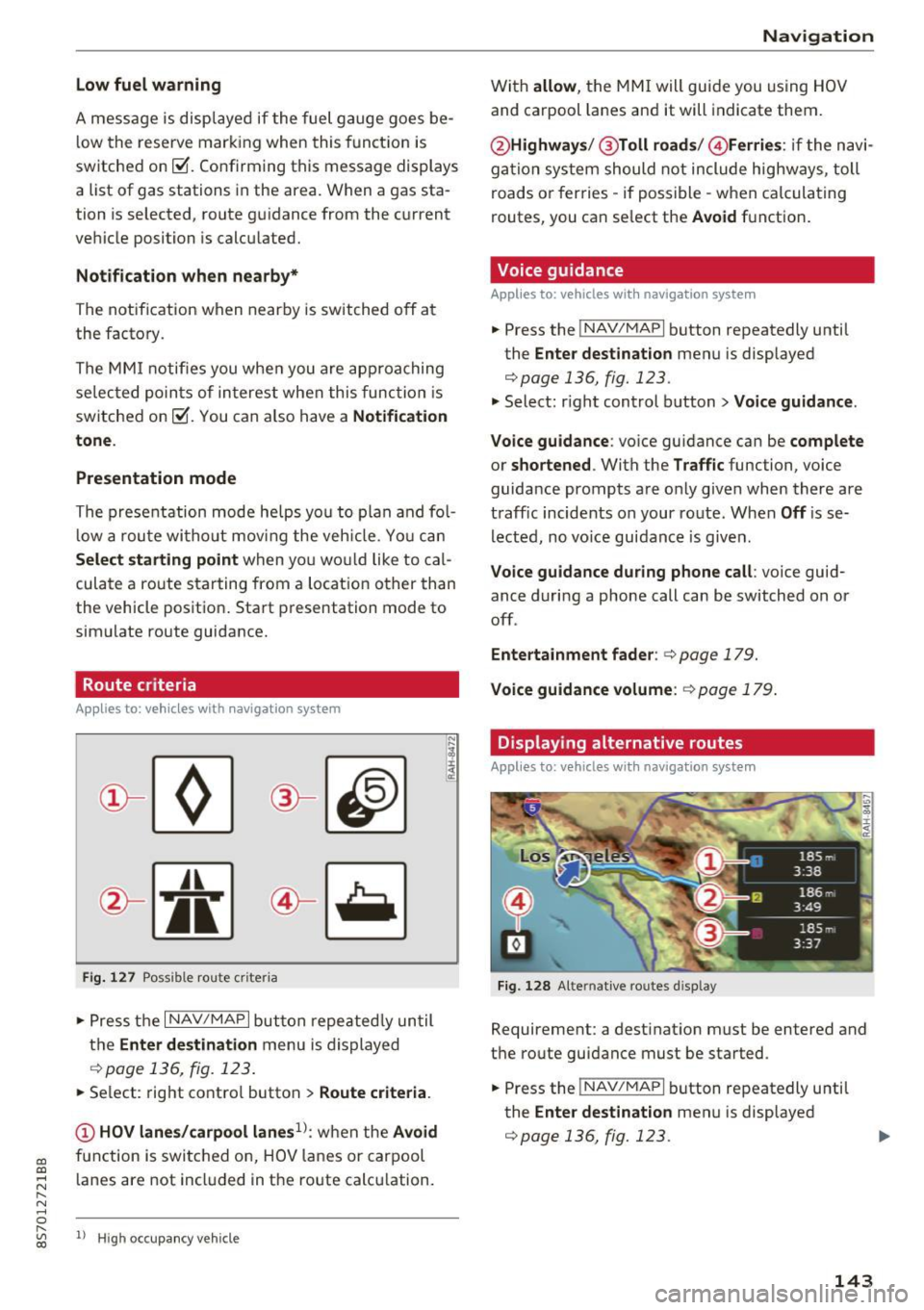
Route criteria
App lies to: veh icles with navigation system
J(
Fi g. 127 Possib le route criteria
• Pres s th e I NAV/ MAP I button r epeated ly un til
t h e
Enter destination menu is displayed
.::!) page 136, fig. 12 3.
• Se lect: rig ht contro l butto n > Route criteria .
(D HOV lanes/carpool lanes1
l: w hen t he Avoid
fu nction is swi tc h ed o n, HOV lanes or car pool
l anes are not incl uded in t he ro ute ca lcu lation .
1> Hig h oc cu pa ncy ve hicle
Navigation
W it h allow , the MMI will gui de you using HOV
and carpool la nes an d it will indicate them.
@ Highways /@ Toll roads /@ Ferries : if the n avi
ga tio n sy stem should not include highways, toll
roads or fer ries -if poss ible -w hen c alcula ting
routes, you can se lect the
Avoid f u nction .
Voice guidance
Applies to: vehicles with navigation system
• Press the !NAV/MAPI b utton repeatedly unti l
the
Enter destination men u is displayed
r::;,page 136, fig. 123.
• Select: r igh t cont rol button > Voice guidance .
Voice guidance :
voice gui dance ca n be complete
or shortened . With the Traffic function, voice
guida nce prompts a re o nly given when there ar e
t raff ic incidents on your ro ute. When
Off is se
l e cte d, no vo ic e gui dan ce is giv en.
Voice guidance during phone call : voice guid
ance d uri ng a phone call can be switched on or
off .
Entertainment fader : c:> page 179.
Voice guidance volume : r::!) page 179 .
Displaying alternative routes
Applies to: vehicles with navigation system
Fig. 128 Alte rnati ve routes d isp lay
Requireme nt: a dest inat ion m ust be entered and
t h e ro ute guidance must be started .
• Press the
!NAV/MAPI b utton repeatedly u nti l
the
Enter destination men u is displayed
r::;,page 136, fig. 123.
143
Page 146 of 314
Navigation
~ Select: right contro l button > Show alternative
routes.
Up to three route suggestions and their proper
ties are displayed on the map when this function
is switched on¢
fig. 128.
If available, the following information w ill ap
pear on the route suggestions:
- Route type (fast
(D, fast a lternative @, eco
nomic route@)
- Distance to the destination and the calculated arrival time
- Heavy traffic along the route including time de
lays
Map
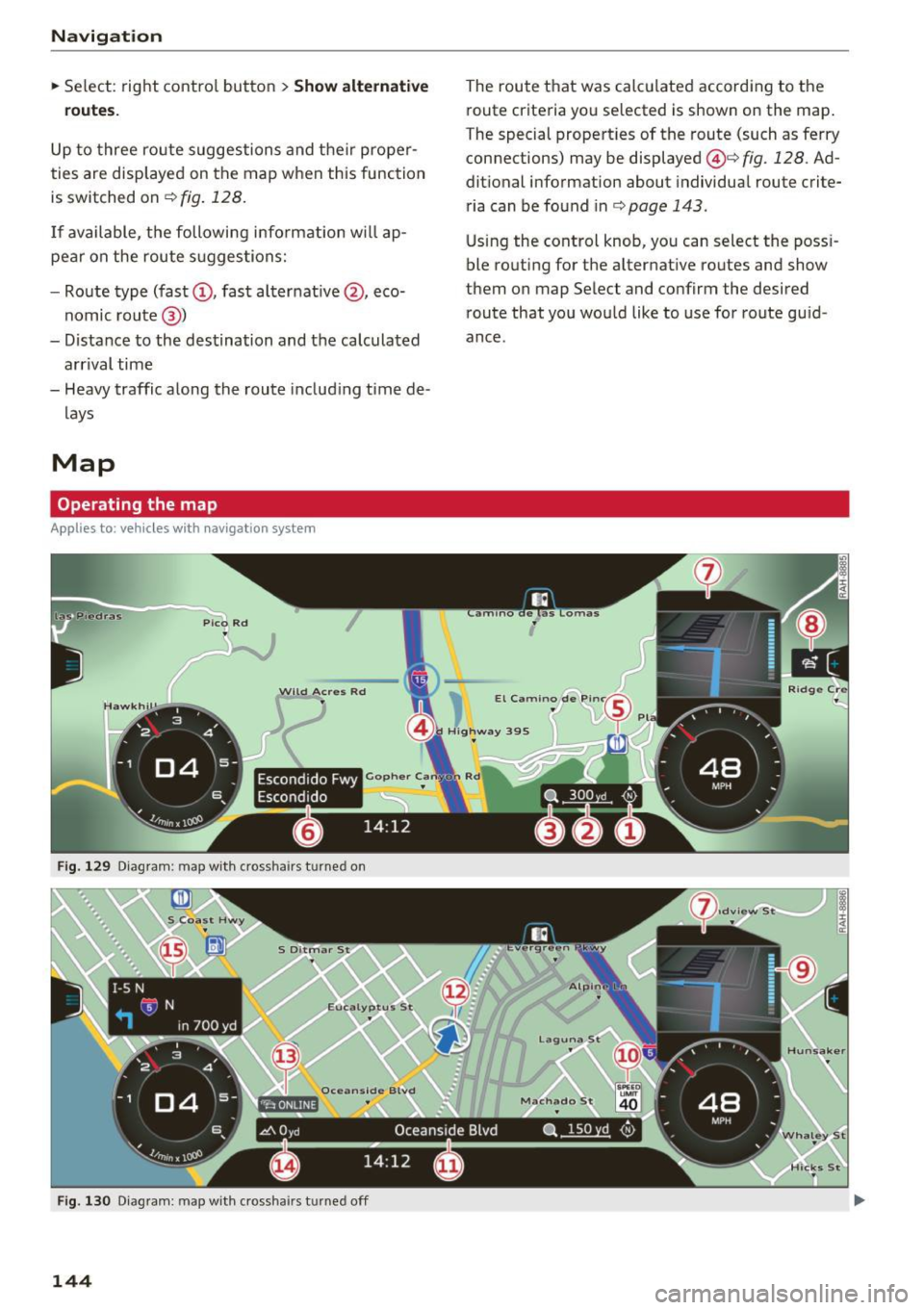
Operating the map
Applies to: veh icles with navigation system
Escondido Fwy
Escondido
Fig. 129 Diag ram : map with crossha irs t urned on
Fig. 130 Diagram : map with crossha irs tu rned off
144
The route that was calculated according to the
route criteria you selected is shown on the map.
The special properties of the route (such as ferry
connections) may be displayed @¢
fig. 128 . Ad
ditional information about individual route crite
ria can be found inc:;,
page 143 .
Using the control knob, you can select the poss i
ble routing for the alternative routes and show
them on map Select and confirm the desired route that you would like to use for route guid
ance.
Page 148 of 314
Navig ation
on highways , possib le parking lots and rest areas
are shown, which you can select as a stopover .
POis along the route
Requirement: route gu idance must be active.
Searching fo r points of interest along your cur
rent route See
<=> page 139 .
Additional options on the map
Applies to: vehicles with navigation system
~ Press the I NAV/MAPI button repeated ly until
the map is d isp layed
¢ page 144, fig. 130.
~ Press t he right contro l bu tton.
Depending on the funct ion selected , the follow
i n g options ca n also be se lected under the
Map
menu :
Cancel rout e guidance : see¢ page 141 .
Map settings : see <=> page 146.
Route c rite ria : see ¢ page 143 .
Voice guidance : see <=> page 143.
Nav igat ion sett ing s: see ¢ page 142 .
Online traffic data *: se e <=> page 148 .
Show altern ative route s: see<=> page 143.
Parking along the route : parking options near
the vehicle are disp layed.
Save current position : you can save your current
ve hicle position as a favorite <=>
page 142 or save
it as a contact in the di rectory <=>
page 142.
Aud i connect at this locat ion *: allows you to
search for
City events or Weather at the entered
locat ion .
Country inform ation : you can d isp lay the appli
cable urban and rural speed lim its for any coun
try/state. T his information w ill be automatically
shown to you in the route information @
<=> page 144, fig. 130 when the speed lim it is ex
ceeded , if this function is act ivated
¢ page 147.
Avoid route *: when route guidance is act ive, the
calc ulated route w ill avoid the area you have
specified (max imum: 12 mi (20 km)), if possible .
The navigation system ca lcula tes an a lter nat ive
146
route . The route to be avo ided that you have en
tered applies only to the current route and must be set again, if needed. The areas you have se
l ected to avoid w ill appear with red and white
shading on the map .
' Map settings
Applies to: vehicles with navigation system
~ Press the I NAV /MAPI button repeatedly until
the map is displayed
<=> page 144, fig . 130 .
~ Select: r ight cont rol b utton> Map settings .
Depending on the selected function, the follow
i ng settings can be selected :
Map colors
Day /Night :
the map is displayed w ith a light/
dark background.
Automatic : when the lights switch on, the map
colors switch from day to n ight .
Map display
Standard
<=> page 14 4, fig . 129.
Google E arth * <=>page 147 , fig. 131.
Traffic <=> page 148.
Map orientation
Destinati on:
the map indic ates the des tin ation
and is or ien ted to t he nor th .
2 D heading up map /2D north up map : the cur
r ent vehicle pos ition is d isplayed. The map is ori
ented in the d irect ion of t rave l o r to t he no rth.
3D map : when this function is sw itched on, the
cu rrent veh icle pos it io n is shown on a three-di
mensiona l map and oriented in t he d irect ion of
travel. At a sc ale of 62 mi ( 100 k m) and l arger ,
the map o rientation is to the north.
Overview : the entire route from the v ehicle pos i
t ion to the des tina tion o r the next stopove r is d is
played on the m ap. The m ap scale depends o n
the length of the ro ute and adapts automatically .
The map is oriented to the north . ..,.
Page 149 of 314
CD
CD
.... N
" N ...... 0
" V, co
Route information
The display of route information such a s the cur
rent road being dr iven on, upcom ing maneuvers,
traffic informat ion or points of interest along the
route can be switched on/off .
Automatic zoom
On: the ma p scale is ad apted automat ically de
pending on the type o f road being trave le d (ex
p ressway, hig hway, other roads) so that you al
ways have an optima l overview of the road ahead.
The sca le is also automat ica lly adapted when
there are upcoming maneuvers to provide a bet
ter detai led view.
Off : the map sca le yo u have chosen is kept .
Map content
Map content, such a s traffic informa tion, favo r
ites o r res taur ants, can be dis played o r hidde n
(~).
Online map display
Applies to: vehicles with navigation system and Audi connect
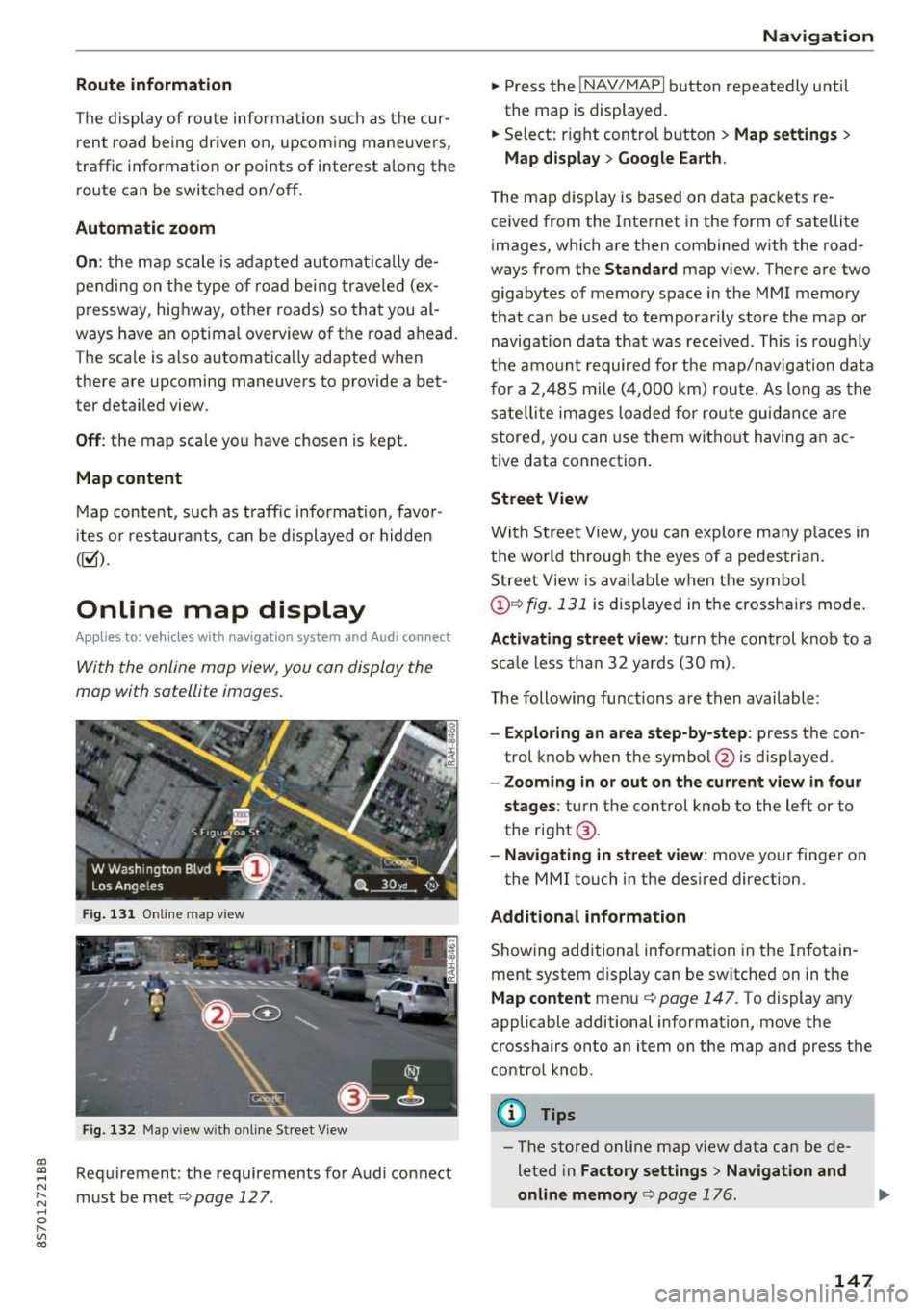
With the online map view, you can display the
map with satellite images .
Fig. 1 31 Onlin e m ap v iew
Fi g. 13 2 Map v iew w ith on li ne Stree t View
Re quirement: the requirements fo r Audi connect
must be met ¢
page 12 7.
Navigation
.. Press the !NAV/MAPI b utton repeatedly until
the map is displayed.
.. Select : right control b utton
> Map settings >
Map display > Google Earth .
The map d is p lay is based on data packets re
ce ived from the Inte rnet in the form of satellite
images, which are t hen combined w ith the road
ways from the
S tandard map v iew . There are two
gigabytes of memory space in the MMI memory
that can be used to temporarily store the map or
navigation data that was rece ived . This is roughly
the amo unt required fo r th e map/navigation da ta
f or a 2,485 m ile ( 4,00 0 km) rou te. As long as the
sate llite image s loade d for route guid ance are
stored, you can use them witho ut havi ng an a c
tive data connect io n.
Street View
W it h St reet View, you can explo re many places in
t h e world t hrough the eyes of a pedestria n.
S tree t View is ava ilab le w hen t he sym bol
@ ¢fig . 131 is displayed in t he crossha irs mode.
Activating street view : tur n the co ntrol knob to a
s c al e less tha n 32 yar ds ( 30 m).
T he following fu nctions are then available :
-Exploring an area step-by-step : press the con
trol knob w hen the symbol @is d isplayed.
- Zooming in or out on the current view in four
stages :
turn the control knob to the left or to
the rig ht @ .
-Na vigating in street v iew : move yo ur finger on
the MMI touch in the des ired direction.
Additional information
Showing add itiona l information in the In fotain
ment system display can be sw itched on in t he
Map content me nu¢ page 147. To display any
applicable additional information, move the
crosshairs onto an item on the map and press the
contro l knob.
@ Tips
- The store d online map view data can be de
leted in
Factory settings > Navigation and
online memory
c> pag e 176.
147
Page 152 of 314
Navigation
(D Tips
Critical traffic information, such as warnings
about wrong-way drivers, is automatically d is
played. To hide the traffic information, press
the
I BACK I button or the control knob.
- TMC traffic reports are not availab le in Can
ada. For more information, please contact
Sirius Canada.
Better route
A pp lies to: ve hicles w ith navigation system
By receiving traffic information through TMC,
your /11/111 calculates a better route -if available -
and the possible time saved for the current route
guidance . You can decide yourself which route
you would like to use .
.,. Press the I NAV/MAPI button repeatedly until
the map is d isplayed .
Troubleshooting
App lies to: ve hicles w ith navigation system
Problem Solution
Requirement:
Route guidance must be active.
If your MMI has ca lculated a better route than
the cur rent route guidance, the message
A better
route is available .
appears on the map along
with the time that may be saved . A better route
i s ind icated in the map view by the symbol
f'e@
~ page 144, fig. 129.
Apply better route
Requirement: the ta symbol must be shown on
the map.
- Press the right control button.
- Select and confirm the better route.
- The better route is used for the remaining
route guidance and the route is recalculated .
Free text search: the desired des- The dest inat ion might not be entered in the navigation database .
ti nation cannot be found .
Or: check the spelling of the search term and whether the right
co untry/state was selected using the
Country/state selec-
tion~
page 137 for the free text search.
150
Page 154 of 314
Radio
Radio functions
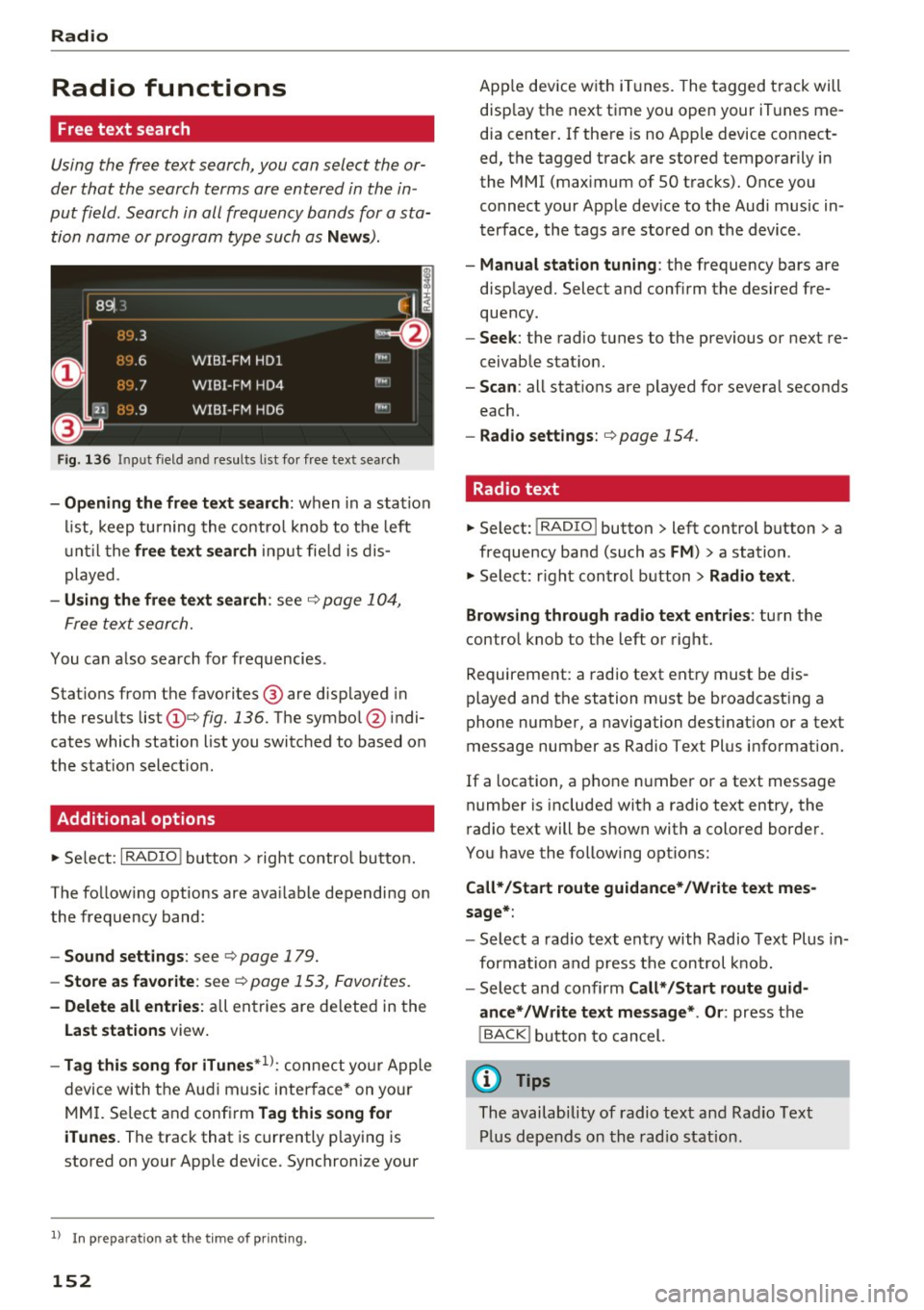
Free text search
Using the free text search, you can select the or
der that the search terms are entered in the in
put field. Search in all frequency bands for a sta tion name or program type such as
News ).
891 l,
~ flLJ.3 .
D
H'J.6
WIBI-FM HDl
H'-J.7 WIBI-FM HD4
IIM
r,M
~
fl'l.9 WIBI-FM HD6 ,,,,.
Fig. 136 Input field a nd result s list fo r free text sea rc h
- Opening the free text search : when in a station
list, keep turning the control knob to the left
until the
free text search input fie ld is dis
played .
-Using the free text search : see ¢ page 104,
Free text search.
You can a lso search for frequencies .
Stat ions from the favorites ® are disp layed in
the results list
(D e> fig. 136. The symbol @ indi
cates which station list you switched to based on
the station select ion .
Additional options
~ Select : I RADIO I button> right control button.
The follow ing options are ava ilable depending on
the frequency band:
- Sound settings : see c> page 179.
-Store as favorite: see c> page 153 , Favorites.
- Delete all entries: all entries are de leted in the
Last stations view.
-Tag this song for iTunes*1>: connect you r Apple
device with the Audi music interface* on you r
MM I. Select and confirm
Tag this song for
iTunes.
The track that is currently p laying is
stored on your App le device. Synchronize your
1> I n pr ep aratio n at t he time of pr inting.
152
App le device with iTunes. The tagged track will
disp lay the next time you open your iTunes me
dia center. If there is no Apple device connect
ed, the tagged track are stored temporarily in
the MMI (max imum of SO tracks). Once you
connect your Apple dev ice to the Audi music in
terface, the tags are stored on the device .
-Manual station tuning: the frequency bars are
displayed. Select and confirm the desired fre
quency .
-Seek: the radio tunes to the previous or next re
ceivable stat ion.
- Scan: all stat ions are p layed for several seconds
each.
- Radio settings: c> page 154 .
Radio text
~ Select: I RADIO I button > left control button > a
frequency band (such as
FM ) > a station .
~ Select: right control button> Radio text .
Browsing through radio text entries :
turn the
control knob to the left or right.
Requirement: a radio text entry must be dis
played and the station must be broadcasting a
phone number, a navigation dest ination or a text
message number as Radio Text Plus information.
If a location, a phone number or a text message
number is included with a radio text entry, the
radio text will be shown with a colored border .
You have the following options:
Call*/Start route guidance*/Write text mes
sage*:
- Select a radio text entry with Radio Text Plus in
formation and press the control knob.
- Select and confirm
Call* /Start route guid
ance* /Write text message* . Or :
press the
I BACK I button to cancel.
(D Tips
The availability of radio text and Radio Text
Plus depends on the radio station.
Page 178 of 314
System settings
Individual speech training (on ly when the vehi
cle is stationary): yo u can adapt the voice recog
n ition system to yo ur voice or pro nunciat ion in
order to improve the system's ability to recogni ze
your speech. Individua l train ing is comprised of
20 speech e ntries that cons ist of commands and
sequences o f num bers . You can dele te the p ro
g ramm ed vo ice tra ining w ith the
Reset individu·
al spee ch training
func tion.
Factory settings
The fo llow ing funct ions can be reset to the facto
ry default set tings :
-Sound settings
- Rad io
- Media settings
-Jukebox *
- Directory *
- Telephone*
- Bluetooth and Wi-Fi *
- Navigation sett ings *
- Navigation and online memory*
- Voice recognition system*
- Message settings*
-Apps *
- Tool tips
- Audi connect *
You can select the desi red functions individually
or all at once with the
Select all entries option.
Select and confirm
Restore factory settings .
@ Tips
-Make su re that not only t he settings we re
d eleted but also the stored data, if ap plica
bl e.
- If you reset the
Navigation and online
memory* or Audi connect*
to t he factory
default settings, the system automatically
r estarts afte r approximate ly 20 seconds.
The I nfota inme nt system display will be
b lack for several m inu tes when r estart ing.
- Please note t hat the vo ice recog nit io n sys
t e m* is not availabl e in Cabr io le ts t hat do
not hav e a factory- insta lled safety bel t mi
crophone.
176
Connection manager
' Introduction
The connection manager gives you an overview
of your connected devices and their network sta
tus.
"' Select: !ME NUI button> Settings > left control
button
> MMI settings > Conne ction manager .
"'Select and confirm a menu i tem .
If a mobile device was already connected and you
se lect and co nfirm the corresponding menu item,
the dev ice name and co nnect ion mode a re dis
played under the men u item.
You can individ ually
connect (~) or disconnect
(0) a pa ired device.
' Using the telephone
App lies to : vehicles wit h te lepho ne
- Connect new device: search for and con nect a
cell p ho ne.
- List of devices already paired : select your ce ll
phone from t he list of all th e dev ices tha t are
already paired .
Second telephone
Applies to : vehicles wi th telepho ne
- Connect new device : search for and co nnect a
c ell p hone.
- List of device s already paired : sele ct yo ur cell
ph one fr om t he list of all the dev ices tha t ar e
a lready paired .
Data connection
Applies to : vehicles wi th Audi connec t
-Connect new device: search for and con nect a
mob ile dev ice (such as a smart pho ne).
- List of devices already paired : select yo ur ce ll
phone from t he list of all the dev ices that a re
already paired.
Or: insert a m ini SIM ca rd into
the SIM card
reader *¢page 127.
Page 180 of 314
System settings
Online settings*
- Data connection setting s:
see~ page 132,
Configuring the data connection
- Data u sage counter : the amount of d ata p ack
e ts tha t ar e sent and received throug h the MM I
is d isp layed. You can reset the data usage infor
mation to zero using the
Reset data counter
option.
- Network statu s: the mobile netwo rk p rovider
for data se rvice as well as t he network status
are displayed.
Wi -Fi settings*
See Q page 131, Wi- Fi ho tspo t.
SIM PIN settings*
- Automatic PIN entry:
when t his fu nction is
swi tched on@', th e S IM PI N is automatically
saved in the M MI after it is e nte red for the f irst
t im e. The S IM PIN for four dif feren t SIM cards
c a n be save d in t he MM I. W ith the func tion
swi tc h ed o ff, the cur ren tly store d SI M P IN i s
deleted from the MMI. When the a utomatic
PI N entry is switched on, there are no SI M PIN
prompts.
- Disable PIN query : when switched on, the re are
no SI M PIN queries. The a utomat ic PIN entry is
not used in t his case .
-Change PIN : you can change the PI N on your
SIM card. First enter the c urrent SIM PI N. The
SIM PIN may only contain d ig its 0-9. The new
SIM PIN must be ente red tw ice for secur ity and
then it w ill be saved to t he SIM ca rd .
Apple CarPlay sound settings/ Android Auto
sound settings
A ppl ies to: ve hicles w ith Audi smartpho ne inte rface
See Qpoge 179.
About Apple CarPlay/About Android Auto
Appl ies to: ve hicles w ith Audi smartpho ne inte rface
Here you will f ind lega l in fo rmation regar ding
the use of App le Ca rPlay or Android Auto and in
formation abo ut dev ice-specif ic data excha nge.
178
Delete CarPlay device/Delete Android Auto
device
App lies to: vehicles wi th Audi s m art ph one interface
Requirement: yo ur cell phone m ust not be con
nected to the Aud i m usic interface with a USB
adapter.
To remove your cell phone from t he list of all ce ll
p hones t hat are a lready paired, se lect and con
firm
Delete CarPlay device or Delete Android Au·
to device .
(D Tips
Some SIM cards do not a llow the SI M PIN
qu eries to be sw itche d off.
System update
.,. Select: !ME NUI bu tton> Settings > left control
button >
System maintenance .
- System update :
slide the storage device with
the update data into t he a pprop riate drive
r=> poge 157. Se lect and confi rm the dr ive>
Start update . The length of the process de
pends on the size of the update .
-Reset driver installation: the selecte d media
driver package is reset to the settings at the
time of delivery.
- Version informat ion : info rmation on the MMI
software ve rsion and the navigation database*
so ftware ve rsion is d isp layed . The
Software in
formation
fu nction also prov ides infor mat ion
on t he softwa re contai ned in the M MI and the
li censing ag ree men t.
Page 181 of 314
CD
CD
.... N
" N ...... 0
" V, co
Sound settings
The sound distribution and volume of the MMI
can be adjusted individually. The settings depend
on vehicle equipment.
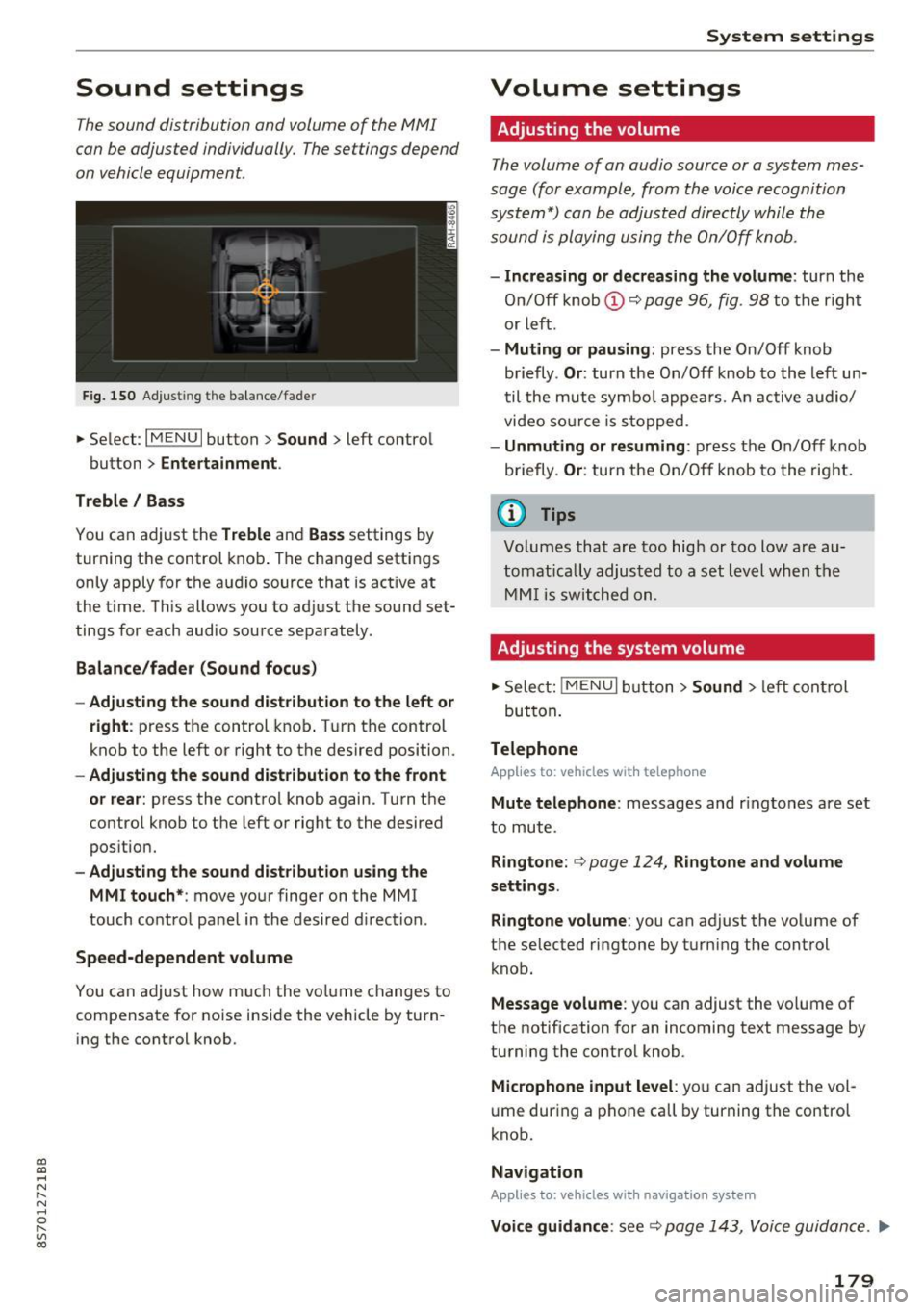
Fig. 150 Adjusting the balance/fader
~ Select: IM ENU I button > Sound > left contro l
button
> Entertainment .
Treble/ Bass
You can adjust the Treble and Bass settings by
turning the control knob. The changed settings
only apply for the audio source that is active at
the time. This allows you to adjust the sound set
tings for each audio source separately .
Balance/fader (Sound focus)
- Adjusting the sound distribution to the left or
right :
press the control knob. Turn the control
knob to the left or right to the desired position.
-Adjusting the sound distribution to the front
or rear:
press the control knob again. Turn the
control knob to the left or right to the desired
position.
- Adjusting the sound distribution using the
MMI touch* :
move your finger on the MMI
touch control panel in the desired direction .
Speed-dependent volume
You can adjust how much the volume changes to
compensate for noise inside the vehicle by turn
ing the control knob.
System settings
Volume settings
Adjusting the volume
The volume of an audio source or a system mes
sage (for example, from the voice recognition
system*) can be adjusted directly while the
sound is playing using the On/Off knob.
- Increasing or decreasing the volume : turn the
On/Off knob@Q
page 96, fig . 98 to the right
or left.
- Muting or pausing : press the On/Off knob
briefly .
Or: turn the On/Off knob to the left un
til the mute symbo l appears. An active audio/
video source is stopped.
-Unmuting or resuming : press the On/Off knob
briefly .
Or: turn the On/Off knob to the right.
(D Tips
Volumes that are too high or too low are au
tomatically adjusted to a set level when the
MMI is switched on.
Adjusting the system volume
~ Select: jMENUI button> Sound > left control
but ton .
Telephone
Applies to: vehicles with telephone
Mute telephone : messages and ringtones are set
to mute.
Ringtone: Q page 124, Ringtone and volume
settings.
Ringtone volume:
you can adjust the volume of
t he selected ringtone by turning the control
knob.
Message volume : you can adjust the volume of
the notification for an incoming text message by
turning the contro l knob.
Microphone input level : you can adjust the vol
ume during a phone call by turning the control
knob.
Navigation
Applies to: vehicles with navigation system
Voice guidance : see Q page 143, Voice guidance . ..,.
179