display AUDI TT ROADSTER 2017 Repair Manual
[x] Cancel search | Manufacturer: AUDI, Model Year: 2017, Model line: TT ROADSTER, Model: AUDI TT ROADSTER 2017Pages: 314, PDF Size: 76.54 MB
Page 149 of 314
CD
CD
.... N
" N ...... 0
" V, co
Route information
The display of route information such a s the cur
rent road being dr iven on, upcom ing maneuvers,
traffic informat ion or points of interest along the
route can be switched on/off .
Automatic zoom
On: the ma p scale is ad apted automat ically de
pending on the type o f road being trave le d (ex
p ressway, hig hway, other roads) so that you al
ways have an optima l overview of the road ahead.
The sca le is also automat ica lly adapted when
there are upcoming maneuvers to provide a bet
ter detai led view.
Off : the map sca le yo u have chosen is kept .
Map content
Map content, such a s traffic informa tion, favo r
ites o r res taur ants, can be dis played o r hidde n
(~).
Online map display
Applies to: vehicles with navigation system and Audi connect
With the online map view, you can display the
map with satellite images .
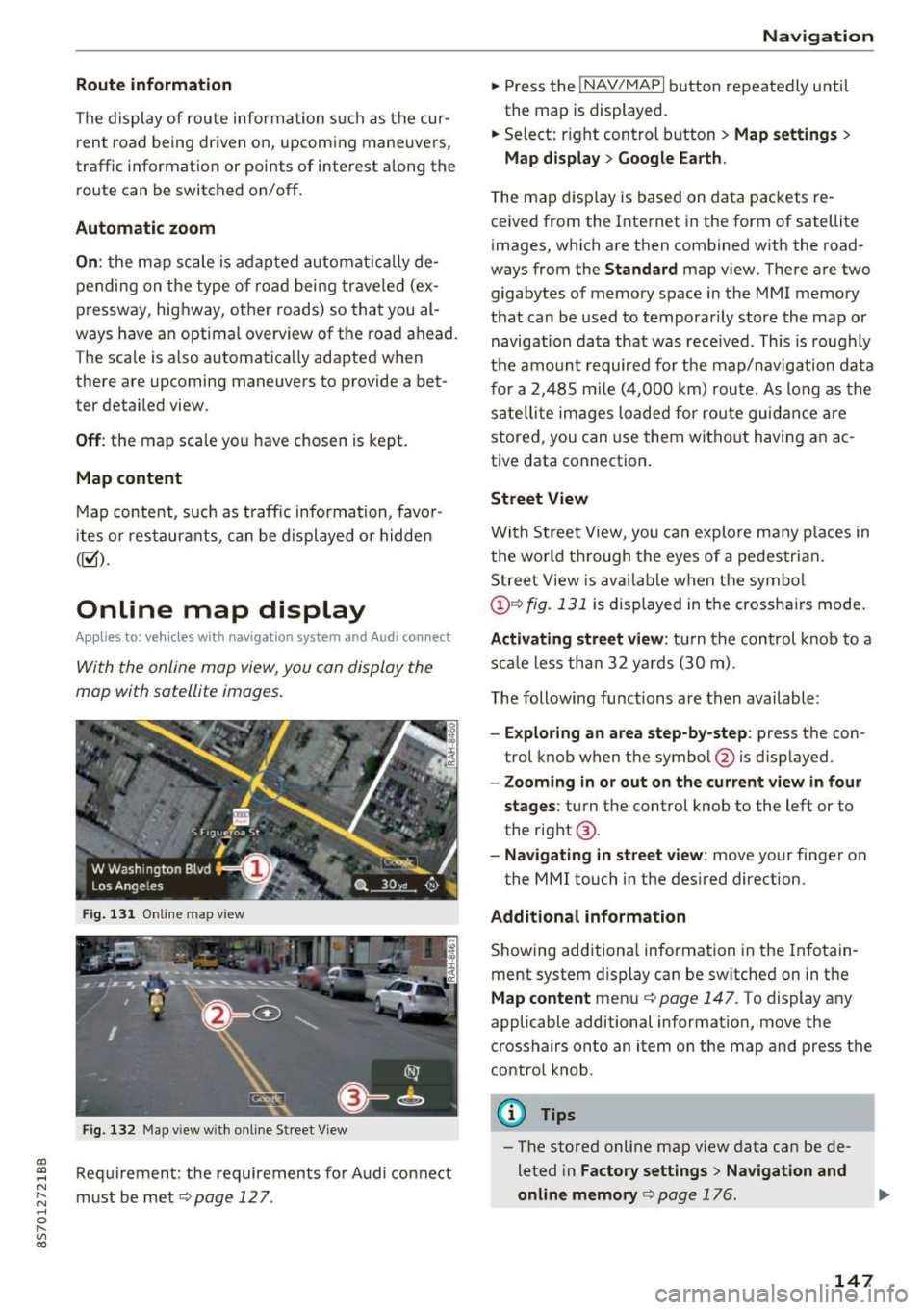
Fig. 1 31 Onlin e m ap v iew
Fi g. 13 2 Map v iew w ith on li ne Stree t View
Re quirement: the requirements fo r Audi connect
must be met ¢
page 12 7.
Navigation
.. Press the !NAV/MAPI b utton repeatedly until
the map is displayed.
.. Select : right control b utton
> Map settings >
Map display > Google Earth .
The map d is p lay is based on data packets re
ce ived from the Inte rnet in the form of satellite
images, which are t hen combined w ith the road
ways from the
S tandard map v iew . There are two
gigabytes of memory space in the MMI memory
that can be used to temporarily store the map or
navigation data that was rece ived . This is roughly
the amo unt required fo r th e map/navigation da ta
f or a 2,485 m ile ( 4,00 0 km) rou te. As long as the
sate llite image s loade d for route guid ance are
stored, you can use them witho ut havi ng an a c
tive data connect io n.
Street View
W it h St reet View, you can explo re many places in
t h e world t hrough the eyes of a pedestria n.
S tree t View is ava ilab le w hen t he sym bol
@ ¢fig . 131 is displayed in t he crossha irs mode.
Activating street view : tur n the co ntrol knob to a
s c al e less tha n 32 yar ds ( 30 m).
T he following fu nctions are then available :
-Exploring an area step-by-step : press the con
trol knob w hen the symbol @is d isplayed.
- Zooming in or out on the current view in four
stages :
turn the control knob to the left or to
the rig ht @ .
-Na vigating in street v iew : move yo ur finger on
the MMI touch in the des ired direction.
Additional information
Showing add itiona l information in the In fotain
ment system display can be sw itched on in t he
Map content me nu¢ page 147. To display any
applicable additional information, move the
crosshairs onto an item on the map and press the
contro l knob.
@ Tips
- The store d online map view data can be de
leted in
Factory settings > Navigation and
online memory
c> pag e 176.
147
Page 151 of 314
co
co
.... N
" N .... 0
" "' c:o
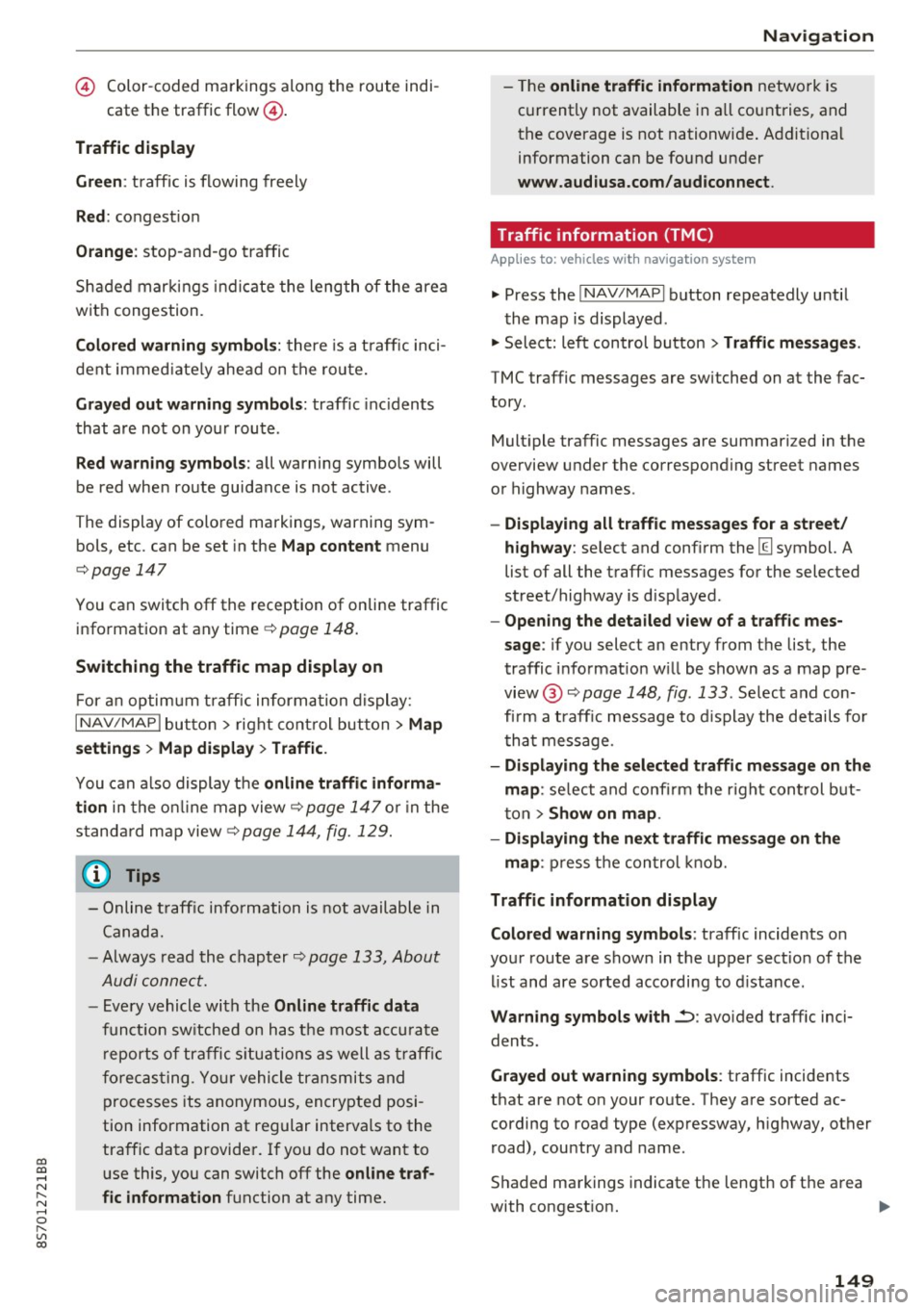
© Color-coded markings along the route indi-
cate the traffic flow@.
Traffic d isplay
Gr een:
traffic is flowing freely
Red : congest ion
Orang e: stop-and-go traffic
Shaded markings i nd icate the length of the area
with congest ion.
Co lor ed warning symbol s: there is a t raff ic inci
dent immed iate ly ahe ad on the ro ute.
Gra yed out wa rning symbo ls: traffic inc idents
that are not on your route .
Red warn ing s ymbo ls: all warning symbols will
be red when route guidance is not active .
T he display of colored markings , warning sym
bols, etc . can be set in the
Map content menu
c:::;, page 147
You can switch off the reception of on line traffic
information at any time
c:::;, page 148.
Sw itching the traff ic map display on
F or a n optimum traffic informa tion display:
I NAV /MAP I butto n > right control but ton> Map
setting s > Map di sp la y> Traff ic .
You can a lso display the o nlin e traffic inf orma
tion
in the o n line map view c:::;, page 147 or i n the
standa rd map view
c:::;, page 144, fig. 129.
(D Tips
- Online t raff ic information is not available in
Canada.
- Always read the chap ter
c:::;, page 133, About
Audi connect.
- Every vehicle with the Online traffic d ata
funct ion sw itched on has the most accu rate
r eports of traffic s ituations as well as t raff ic
forecasting. Yo ur vehicle transmits and
processes its anonymous, encrypted posi
tion information at regular intervals to the
traffic data provide r. If yo u do not want to
use this, you can switch off the
online traf
fic information
function at any time.
Na vigation
- The online traffic information network is
currently not available in all countries, and
the coverage is not nationwide . Addit ional
information can be found under
www .audiusa .com /audiconnect .
Traffic information (TMC)
Applies to : vehicles wi th navigat io n syste m
.,. Press the INAV /MAPI button repeatedly until
the map is displayed .
"' Select: left control button >
Traffic m essages .
TMC traffic messages are switched on at the fac
tory.
Mult iple traffic messages are summari zed in the
overview under the corresponding street names
or highway names .
-Displ aying all traffi c me ssage s for a street /
highwa y:
select and conf irm the [ill symbol. A
list of all the traff ic messages for the selected
street/highway is disp layed .
-Ope ning the detailed view of a t raff ic mes
sage :
if you select an entry from the lis t, the
traffic i nformat io n w ill be shown as a map pre
view @¢
page 148, fig. 133 . Select and con
fi rm a traff ic message to d isplay the details fo r
tha t message .
-Di splaying the select ed traffic message on the
map :
select and confi rm the r ight con trol b ut
ton>
Show on map .
- Displ aying the ne xt traffic me ssage on the
map :
press the control knob.
Traffic information display
Colored warning s ymbols :
traffic incidents o n
your route are shown in the upper sect ion of the
l ist and are sorted acco rding to d istance.
Warning symbols with~: avo ided traff ic inci
dents.
Grayed out wa rning symbol s: traffic incidents
that are not on your route. They are sorted ac
cording to road type (expressway, h ighway, other
road), country and name .
S haded markings indicate the length of the area
with congest ion. ..,.
149
Page 153 of 314
Radio
Opening the radio
The radio supports the FM , A M and SiriusXM *
(satellite radio) bands. Using the HO Radio re
ceiver also allows you to receive radio stations
on the FM and AM bands in digital format.
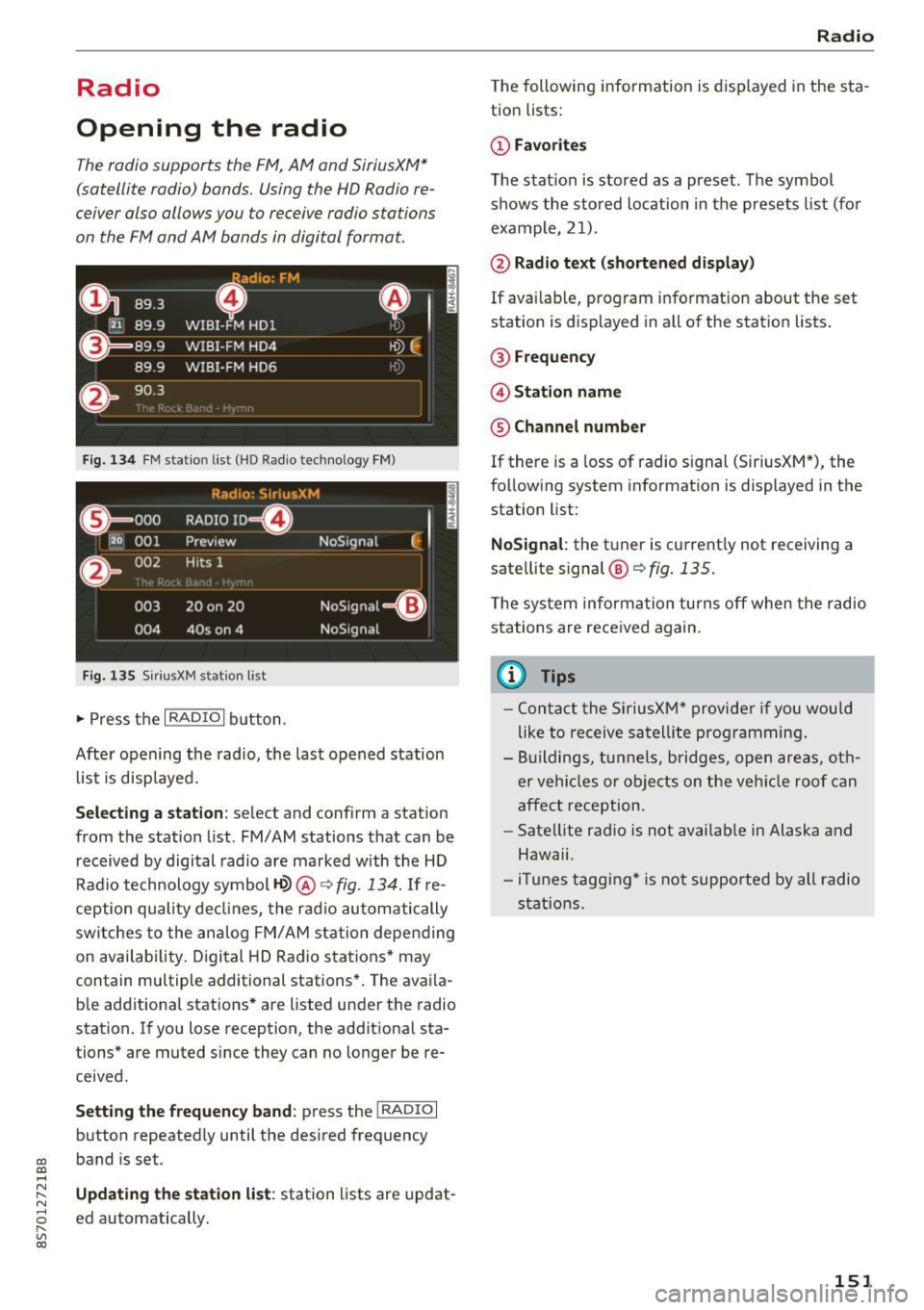
Fig . 134 FM stat ion list ( HO Ra dio tec hn ology FM)
Radio: SiriusXM
ti
~ .. . 000 RADIO 10 D
120 001
Preview NoSignal
&
002 H
its 1
003 20 on 20
NoSignal=8
004 40s on 4 NoSignal
Fig. 135 S iri usXM station list
.. Press the I RAD IO I bu tton.
Afte r opening the rad io, t he last opened station
lis t is disp laye d.
.
I
Selecting a station : select and confirm a stat io n
from the station list . FM/ AM stations t hat can be
received by digital rad io are ma rked w ith the HD
R adio technology symbol
tQ> @ ~ fig. 13 4. If re
ception quality decl ines, the r adio automatically
switches to the analog FM/AM station depe nding
on availability . D igi tal HD Radio s ta tions * may
contain multiple additional stations* . The ava ila
b le add itiona l stations* are listed under the radio
station. I f you lose reception, the add it iona l sta
tions* are muted since they can no longer be re
ceived.
Setting the frequency band : press the I RADIO I
button repeated ly until the desired frequency
CD band is set. CD ....
~ Updat ing the station li st : station lists are updat -.....,
8 ed automatically. r--. V, co
Radio
The following information is displayed in the s ta
tion lists:
(D Favorites
The s tat io n is stored as a preset . The symbo l
shows the s to red location in the p resets list (fo r
example, 21).
@ Rad io text (shortened display )
If availab le, program info rmat ion about the set
station is d isplayed in a ll of the stat ion lists.
@ Frequenc y
@ Station name
® Channel number
If there is a loss of radio signal (Sir iusXM*), the
f o llow ing system in format ion is displayed in the
station list:
NoSignal : the tu ner is cu rrent ly not receiving a
sate llite signal @~
fig. 135.
The system inform ation turns off when the radio
st ations are rece ived again.
(D Tips
- Con tact the SiriusXM" provider if you would
like to receive sa tel lit e programming .
- B uilding s, tu nnels, b ridges, ope n area s, oth
er veh icles or objects o n the veh icle roof can
affect reception.
- Sate llite ra dio is not availab le in Alaska and
Hawaii.
- iT unes tagg ing* is not supporte d by all radio
sta tio ns.
151
Page 154 of 314
Radio
Radio functions
Free text search
Using the free text search, you can select the or
der that the search terms are entered in the in
put field. Search in all frequency bands for a sta tion name or program type such as
News ).
891 l,
~ flLJ.3 .
D
H'J.6
WIBI-FM HDl
H'-J.7 WIBI-FM HD4
IIM
r,M
~
fl'l.9 WIBI-FM HD6 ,,,,.
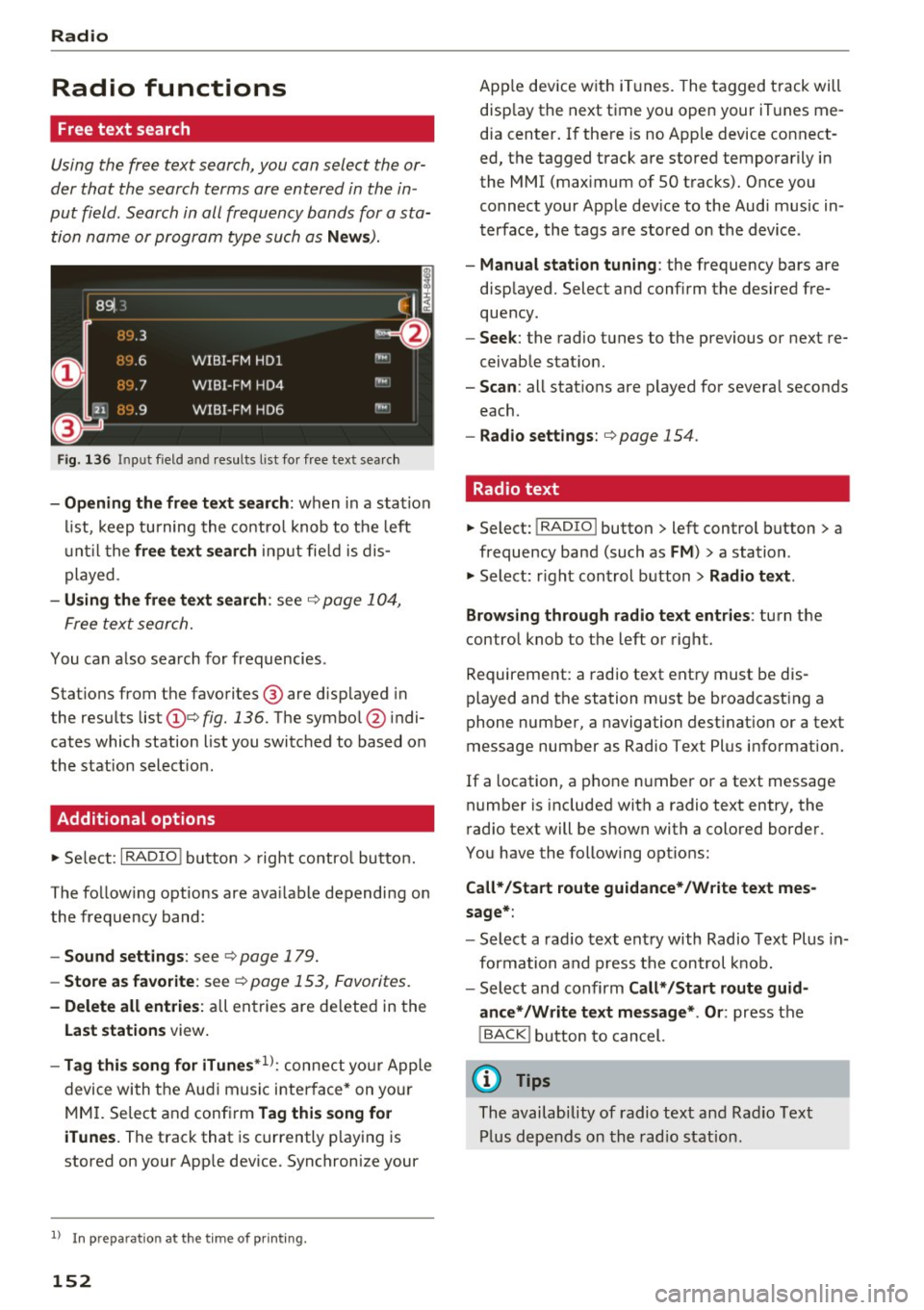
Fig. 136 Input field a nd result s list fo r free text sea rc h
- Opening the free text search : when in a station
list, keep turning the control knob to the left
until the
free text search input fie ld is dis
played .
-Using the free text search : see ¢ page 104,
Free text search.
You can a lso search for frequencies .
Stat ions from the favorites ® are disp layed in
the results list
(D e> fig. 136. The symbol @ indi
cates which station list you switched to based on
the station select ion .
Additional options
~ Select : I RADIO I button> right control button.
The follow ing options are ava ilable depending on
the frequency band:
- Sound settings : see c> page 179.
-Store as favorite: see c> page 153 , Favorites.
- Delete all entries: all entries are de leted in the
Last stations view.
-Tag this song for iTunes*1>: connect you r Apple
device with the Audi music interface* on you r
MM I. Select and confirm
Tag this song for
iTunes.
The track that is currently p laying is
stored on your App le device. Synchronize your
1> I n pr ep aratio n at t he time of pr inting.
152
App le device with iTunes. The tagged track will
disp lay the next time you open your iTunes me
dia center. If there is no Apple device connect
ed, the tagged track are stored temporarily in
the MMI (max imum of SO tracks). Once you
connect your Apple dev ice to the Audi music in
terface, the tags are stored on the device .
-Manual station tuning: the frequency bars are
displayed. Select and confirm the desired fre
quency .
-Seek: the radio tunes to the previous or next re
ceivable stat ion.
- Scan: all stat ions are p layed for several seconds
each.
- Radio settings: c> page 154 .
Radio text
~ Select: I RADIO I button > left control button > a
frequency band (such as
FM ) > a station .
~ Select: right control button> Radio text .
Browsing through radio text entries :
turn the
control knob to the left or right.
Requirement: a radio text entry must be dis
played and the station must be broadcasting a
phone number, a navigation dest ination or a text
message number as Radio Text Plus information.
If a location, a phone number or a text message
number is included with a radio text entry, the
radio text will be shown with a colored border .
You have the following options:
Call*/Start route guidance*/Write text mes
sage*:
- Select a radio text entry with Radio Text Plus in
formation and press the control knob.
- Select and confirm
Call* /Start route guid
ance* /Write text message* . Or :
press the
I BACK I button to cancel.
(D Tips
The availability of radio text and Radio Text
Plus depends on the radio station.
Page 155 of 314
CD
CD
.... N
" N ...... 0 r--. V, co
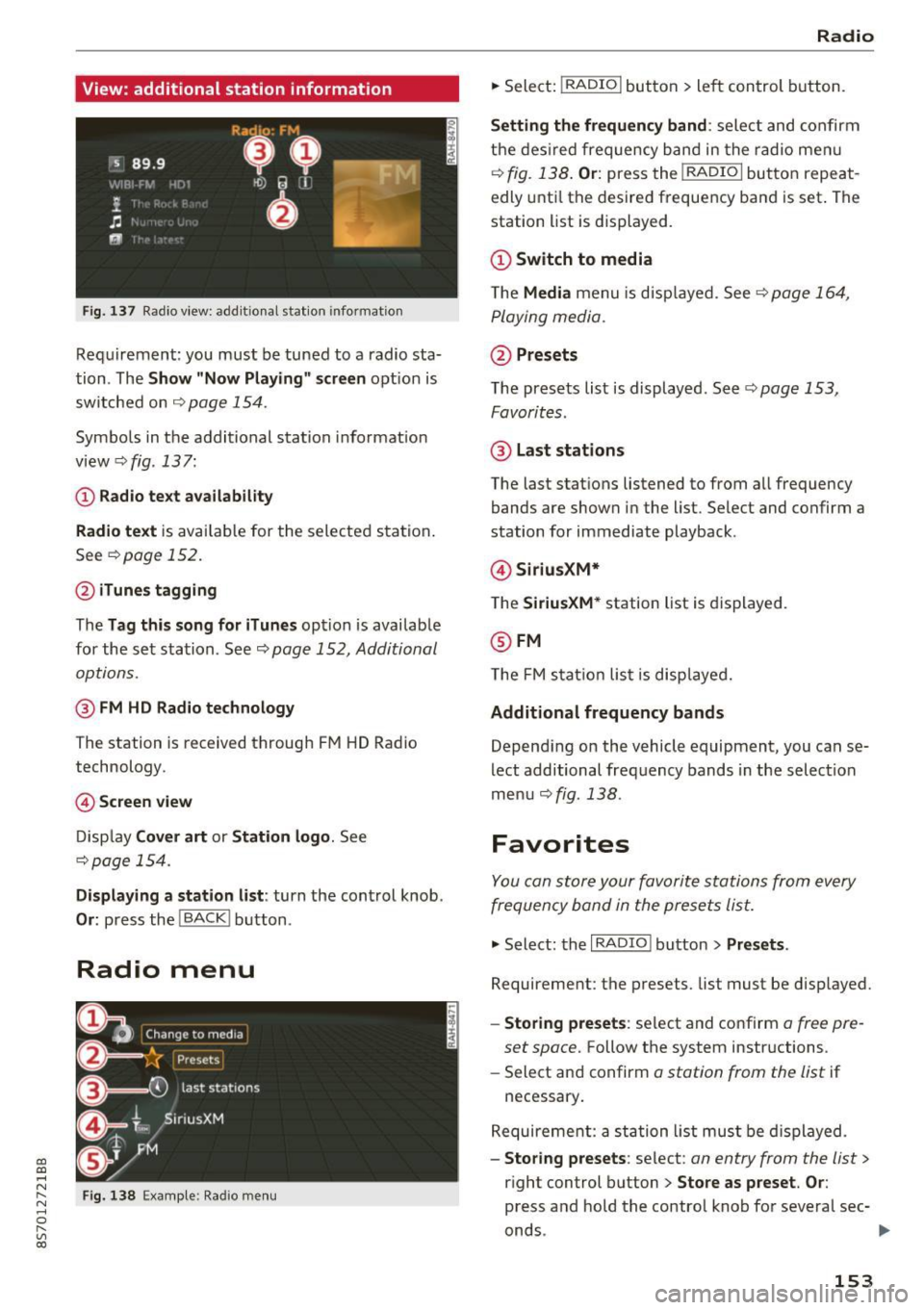
View: additional station information
Fig. 137 Radio view: add it ional stat ion information
Requirement: you must be tuned to a radio sta
tion . The
Show "Now Playing" screen opt ion is
switched on
Q page 154.
Symbols in the additional station informat ion
view ¢fig .137:
(D Radio text availability
Radio text
is available for the selected station .
See
Q page 152.
@iTunes tagging
The Tag this song for iTunes option is available
for the set station . See ¢
page 152, Additional
options.
@ FM HD Radio technology
The station is received through FM HD Radio
technology.
@ Screen view
Display Cover art or Station logo. See
¢page 154.
Displaying a station list: turn the control knob .
Or: press the I BACK ! button .
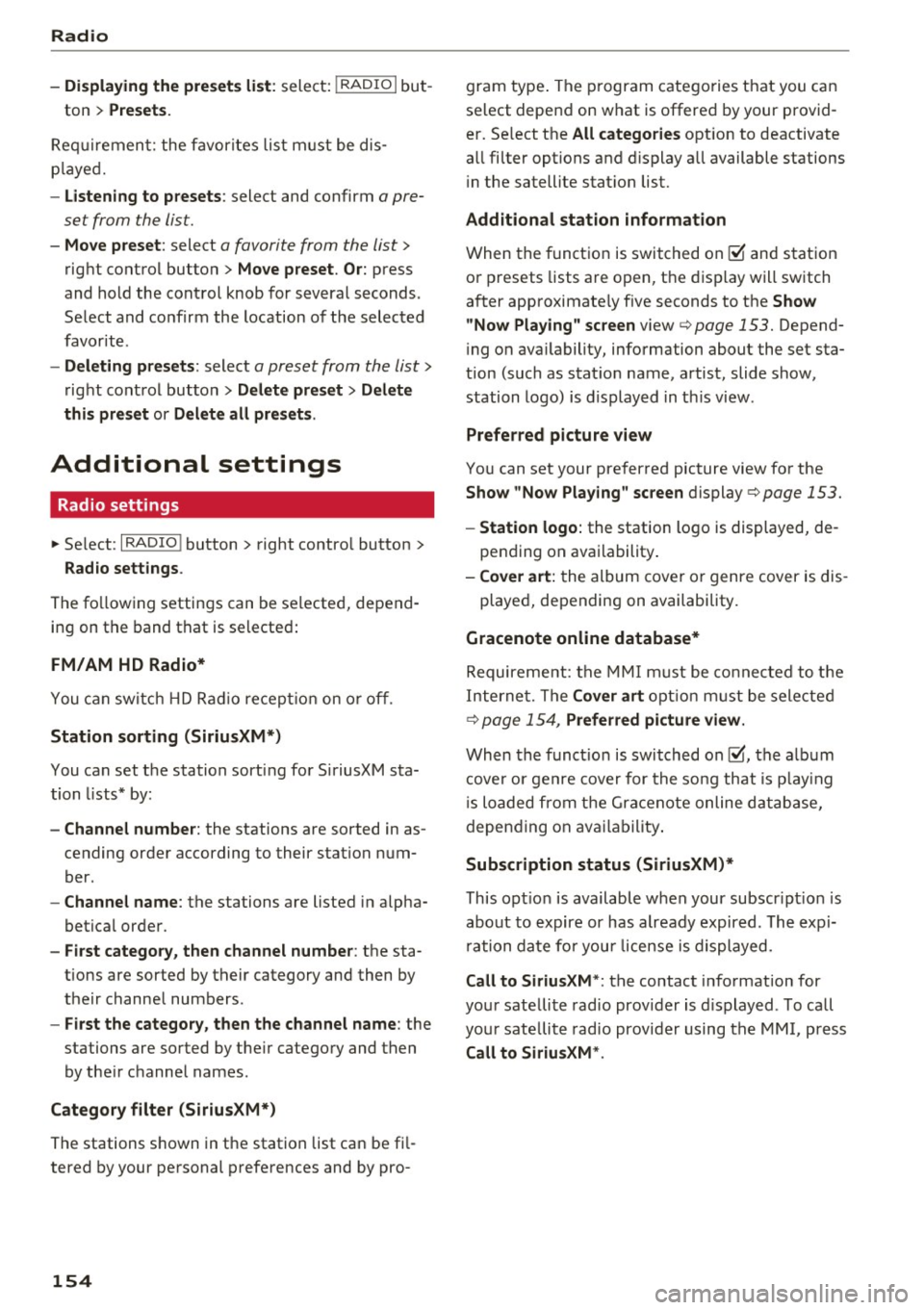
Radio menu
Fig. 138 Example: Radio menu
Radio
.,. Select: I RADIO I button > left control button.
Setting the frequency band : select and confirm
the desired frequency band in the radio menu
¢
fig. 138 . Or: press the I RADIO I button repeat
edly until the desired frequency band is set . The
station list is displayed.
(D Switch to media
The Media menu is disp layed. See Q page 164,
Playing media.
@Presets
The presets list is displayed. See ¢ page 153,
Favorites .
@ Last stations
The last stations listened to from all frequency
bands are shown in the list. Select and confirm a
station for immediate playback .
@SiriusXM*
The SiriusXM* station list is displayed.
@FM
The FM sta tion list is displayed.
Additional frequency bands
Depend ing on the vehicle equipment, you can se
lect additional frequency bands in the selection
menu ¢
fig. 138 .
Favorites
You can store your favorite stations from every
frequency band in the presets list.
.,. Select: the I RADIO I button > Presets .
Requirement: the presets. list must be disp layed.
- Storing presets : select and confirm a free pre-
set space.
Follow the system instructions .
- Select and confirm
a station from the list if
necessary .
Requirement: a station list must be displayed.
-Storing presets : select : an entry from the list>
right control button > Store as preset. Or :
press and hold the contro l knob for several sec-
onds .
~
153
Page 156 of 314
Radio
-Displaying the presets list: select: I RADIO I but-
ton
> Presets.
Req uirement: the favorites list m ust be dis
p la yed.
- Listening to presets : select and confirm a pre
set from the list.
- Move preset : select a favorite from the list >
right control button > Move preset. Or: press
and hold the control knob for several seconds.
Select and confirm the location of the selected
favorite.
- Deleting presets : select a preset from the list>
right control button > Delete preset > Delete
this preset or Delete all presets.
Additional settings
Radio settings
~ Select : I RADIO I button > right control button >
Rad io settings .
The following settings can be selected, depend
ing on the band that is se lected:
FM/AM HD Radio*
You can switch HD Radio recept ion on or off.
Station sorting (SiriusXM*}
You can set the station sorting for SiriusXM sta
tion lists* by:
-Channel number: the stations are sorted in as
cending order according to their station num
ber.
- Channel name: the stations are listed in alpha
betical order.
- First category, then channel number : the sta
tions are sorted by their category and then by
their channe l numbers .
-First the category, then the channel name : the
stations are sorted by their category and then
by the ir channel names .
Category filter (SiriusXM*}
The stations shown in the station list can be fi l
tered by your personal preferences and by pro -
154 gram
type. The program categories that you can
se lect depend on what is offered by your provid
er. Se lect the
All categories option to deactivate
all filter options and display all available stations
i n the satellite stat ion list.
Additional station information
When the function is switched on~ and station
or presets lists are open, the display will switch
after approximate ly five seconds to the
Show
" Now Playing" screen
view c::> page 153. Depend
i ng on ava ilability, information about the set sta
tion (such as stat io n name, artist, slide show,
station logo) is displayed in this view .
Preferred picture view
You can set your preferred picture view for the
Show "Now Playing" screen display c:> page 153.
-Station logo: the station logo is displayed, de-
pending on availability .
-Cover art: the album cover or genre cover is dis-
played, depending on availability.
Gracenote online database*
Requirement: the MMI must be connected to the
Internet. The
Cover art option must be selected
c:> page 154, Preferred picture view.
When the funct io n is switched on~, the albu m
cover or genre cover for the song that is pla yin g
is loaded from the Gracenote online database,
depending on availability.
Subscription status (SiriusXM}*
This opt ion is available when your subscr ipt ion is
about to expire or has already expired. The expi
rat ion date for you r license is displayed.
Call to SiriusXM *: the contact information for
your sate llite radio provider is displayed. To call
your sate llite radio provider using the MMI, press
Call to SiriusXM *.
Page 157 of 314
co
co
.... N
" N .... 0
" "' c:o
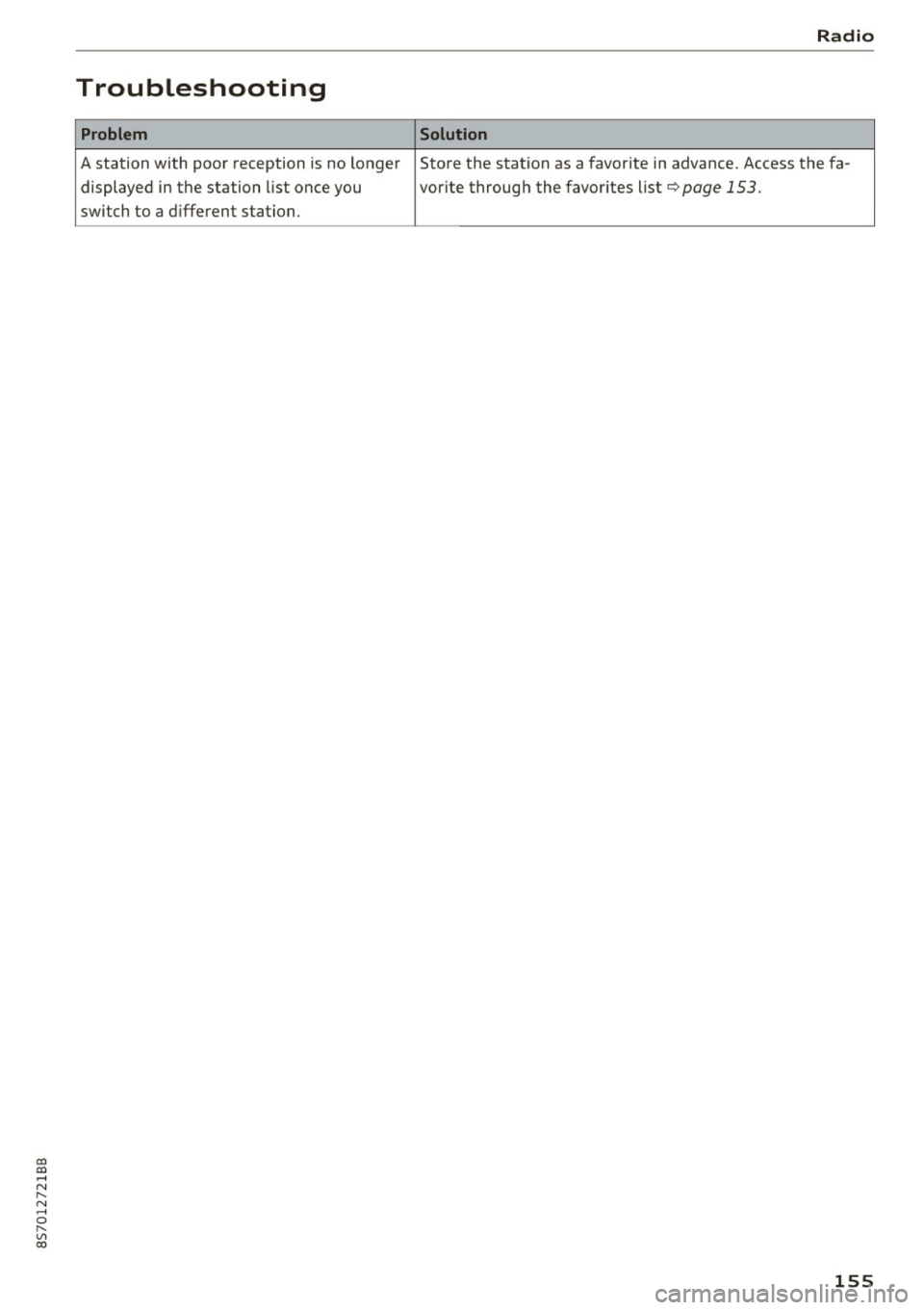
Troubleshooting
Problem
A station with poor reception is no longer displayed in the station list once you
switch to a d ifferent station. Radio
Solution
Store the station as a favorite in advance. Access the fa-
vor ite through the favor ites list
c>page 153.
155
Page 158 of 314
Media
Media
Introduction
There are various media drives and connections
available in the MMI. You can play , for example,
audio/video files from the Jukebox* or connect
your mobile device to the Audi music interface*
and operate it through the MMI.
Notes
General information
Media and format restrictions:
the MMI (includ
ing the SD card reader and the USB storage de
vice connection*) was tested with a variety of products and media on the market. However,
there may be cases where individual devices or media and audio/video* files may not be recog
nized, may play only with restrictions or may not
play at all.
Digital Rights Management: please note that
t he audio/video files are subject to copyright pro
tection .
The media drives do not play files that are pro
tected by ORM and that are identified with the
symbol
!'.TI.
Data security: never store important data on SD
cards, the Jukebox*, CDs/DVDs or mobile devices.
Audi AG is not responsible for damaged or lost
files and media .
Loading times: the more files/folders/playlists
that are on a storage medium, the longer it will
take to load the audio/video files* . Audi recom
mends using storage media tha t only contain au
dio/video files* . To decrease the time it takes to
load audio/video files*, create subfolders (for ex
ample , for the artist or album). The loading time
will also increase when importing files.
Additional information: when playing, audio
files are automatically displayed with any addi
tional information that is stored (such as the ar
tist, track and album cover).
If this information is
not available on the storage medium, the MMI
will check the Grace note metadata database.
156
However, in some cases, the additional informa
tion may not be displayed.
Restricted functionality: reset the Media set
tings
to the factory default settings if functional
ity is restricted
¢ page 176.
Reset the Jukebox* to the factory default set
tings if functionality is restricted
¢page 176.
For information about the properties of support
ed media and file formats, see
¢ page 169 .
((D} Note
You are responsible for all precautions taken
for data protection, anti-virus protection and
protection against loss of data on mobile de
vices that are used to access the Internet
through the Wi-Fi hotspot.
CD/DVD operation
CD/DVD and format restrictions:
the functionali
ty of individual storage media may be limited due
to the variety of blank CDs/DVDs available and
the various capacities . Aud io CDs or video DVDs
with copy protection, CDs/DVDs that do not con
form to the standard and multisession CDs may
have limited playback or may not play at all. Audi
recommends finalizing the recording process
when creating multisession CDs . Multisession is
not supported for DVDs .
Using CDs/DVDs, the CD drive or the DVD drive:
to ensure correct, high-quality playback and to
prevent damage to the drive or disc reading er
rors, always store CDs/DVDs in a protective
sleeve and do not expose them to direct sunlight.
Do
not use:
- Damaged, dirty or scratched CDs/DVDs
- Single CDs/DVDs (3 inch/8 cm diameter)
- CD/DVDs that are not round
- CDs/DVDs with labels
- Protective rings
- Cleaning CDs
Thermal protection switch : CD/DVD playback
may be temporarily unavailable if outside tem
peratures are extremely hot or cold. A thermal
Page 160 of 314
Media
CD drive
Applies to: vehicles with a CD drive
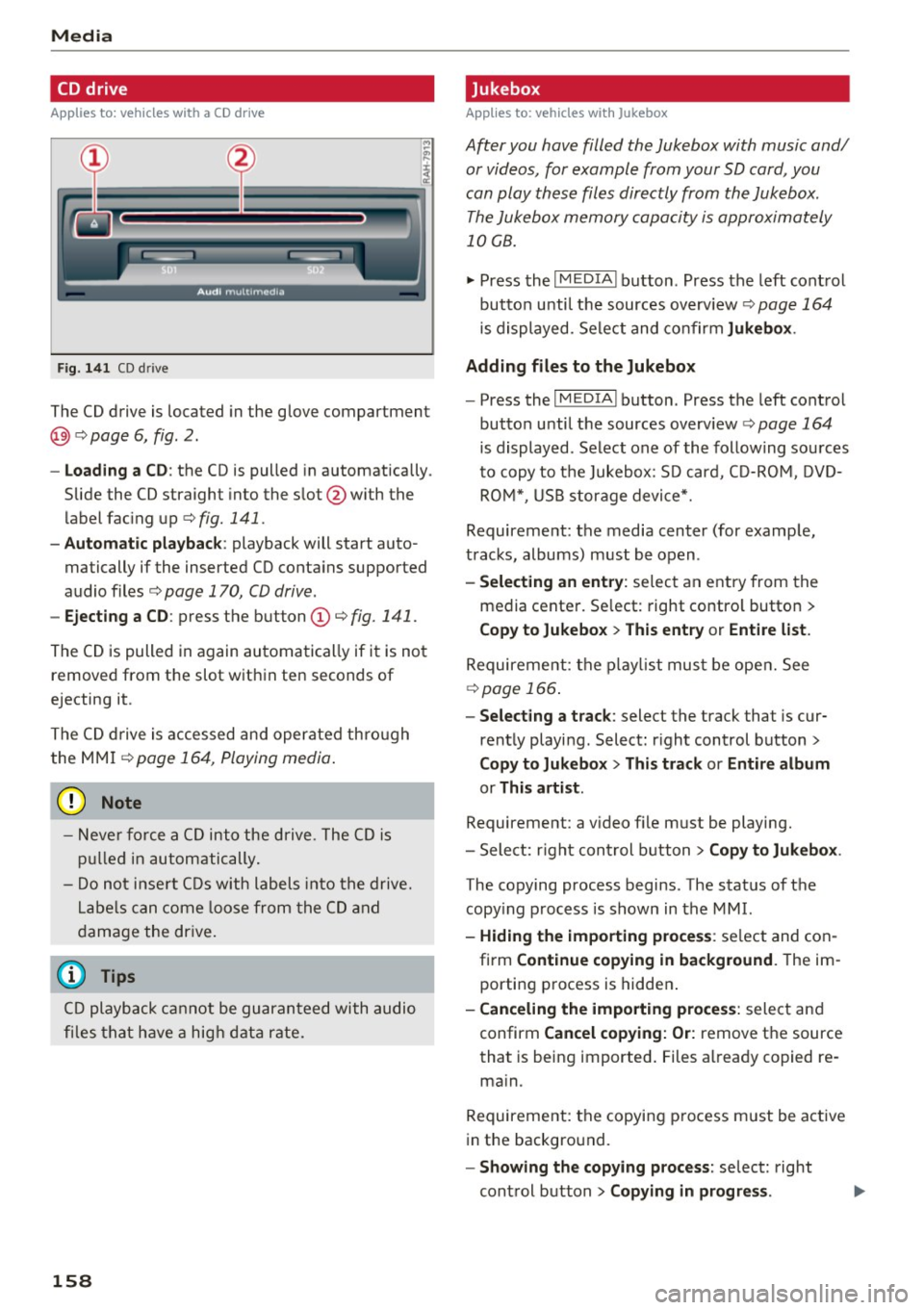
Fig. 141 CD drive
The CD drive is located in the glove compartment
@ r=>page 6, fig. 2.
- Loading a CD : the CD is pulled in automatically .
Slide the CD straight into the s lot @ with the
label fac ing up
r=> fig. 141 .
-Automatic playbac k: playback will start auto
matically if the inserted CD conta ins supported
audio files
r=> page 170, CD drive .
-Ejecting a CD : press the button (Dr=> fig. 141 .
The CD is pulled in again automatically if it is not
removed from the slot w ith in ten seconds of
ejecting it.
The CD d rive is accessed and operated thro ugh
the MMI
r=> page 164 , Playing media .
(D Note
- Never force a CD into the drive . The CD is
p ull ed in automatically .
- Do not i nse rt CDs with labels into the drive.
L abe ls can come loose from the CD and
damage the dr ive.
@ Tips
CD playback ca nnot be guaranteed with audio
files that h ave a hig h data r ate.
158
· Jukebox
Applies to: vehicles with Jukebox
After you have filled the Jukebox with music and/
or videos, for example from your SD card , you
can play these files directly from the Jukebox .
The Jukebox memory capacity is approximately
10 GB .
.,. Press the I M EDIA ! button . Press the left cont rol
button unti l the sources overv iew
r=> page 164
is displayed. Select and co nfirm Jukebo x.
Adding files to the Jukebox
- Press the IM EDIA ! button . Press the left control
button until the sources overv iew
r=> page 164
is displayed . Select one of the following sou rces
to copy to the Jukebox: SD card, C D-RO M, D VD
RO M*, USB storage device*.
Requirement: the media center (for example,
tracks, albums) must be open .
-Selecting an entr y: select an entry from the
media cente r. Se lect : right contro l button >
Copy to Jukebox > Th is entry or Entire list .
Requirement: the p layli st mus t be ope n. See
r=> page 166 .
-Selec ting a track : select the track that is cur
rent ly playing . Select : right control button>
Copy to Jukebo x> This trac k or Entire album
or This artist.
Requirement: a v ideo f ile must be playing.
- Sele ct: r ight cont rol b utton>
Copy to Jukebo x.
The copying process begins. The status of the
copy ing p rocess is shown in the MMI.
- Hiding the importing pro ces s: se lect and con
firm
Continue cop ying in background . The im
porting p rocess is hidden .
-Canceling the impo rt ing process : select and
confirm
Can cel cop ying : O r: remove the source
that is being imported . Files already copied re
ma in.
Requirement: the copying p rocess m ust be active
in the background.
- Showing the copying proces s: select: right
cont rol button >
Copying in progre ss.
Page 161 of 314
co
co
.... N
" N .... 0
" "' c:o
When importing, the audio files a re automatical
l y sorted into the media center categor ies based
on the stored addit ional info rmation
c:> page 165. The copied video files are stored in
the media ce nter under the
Videos category.
Playing the Ju kebo x
Req uirement: the J ukebox must contain audio/
vi deo fi les
c:> page 158, Adding files to the Juke
box.
The Jukebox is a ccesse d and ope rated thr ou gh
the MMI
(D c:> page 164, fig . 144.
Displaying Jukebox memory capacity
Select: r igh t control button > Jukebox memory
capacity .
Inform ation abou t the J ukebox memory
c a pacity an d the numbe r of store d tra cks is dis
p layed .
Deleting tracks from the Jukebox1
)
Req uirement: the Ju kebox must contain audio/
video fi les.
- Deleting an entry : select an entry from the
Jukebox media center. Select: rig ht cont ro l but
ton
> Delete from Jukebox > This entry or En
tire list .
- The s tatus of the de leti ng p rocess is shown in
the MMI. Jukebox playback stops d uring the de
l eting process a nd starts again au tomatically
on ce the dele tio n i s comp lete.
(D Note
D o not import au dio/video files when the en
g in e is t urned off because this will d rain the
ve hicl e battery.
(D Tips
-Tracks fro m aud io C Ds cannot be impo rted
t o the Jukebox for leg al re as ons.
- Files that have al rea dy been import ed are
a utomat ica lly r ecogn ized and ca n not be
cop ied to the Juk eb ox again.
- It is no t possib le to play audio/v ideo* files
i n the C D/D V D* drive while import ing the m.
l) Not in th e Playba ck view .
Media
-The Jukebox does not provi de a n export
function d ue to legal reasons .
- F iles o r trac ks w ithout store d ad di tional in
formatio n are listed as
Unknown . Audi rec
ommends adding a dditio nal info rmation
(such as ID3 tags) to a udio f iles.
- Reset the J ukebox to t he factory default set
tings when selling your vehicle
c:> page 176 .
Bluetooth audio player
Applies to: vehicles with Bluetooth
With the Bluetooth audio player, you con ploy
music wirelessly from your Bluetooth-capable
device (such as a cell phone) through the MMI.
Requirement: the vehicle must be stationa ry and
the Bluetooth function on your Bl uetooth device
and the
Bluetooth audio player c:> page 177 in
t h e MMI m ust both be switched on .
-Connecting a Bluetooth de vice : press the
! MEDI Ai button. Press the left control button
until t he source overv iew is d isp layed. Select
and confirm
Bluetooth audio player @
Gpoge 164, fig. 145.
-If necessa ry, select and co nfirm, Not connected
> Connect Bluetooth audio player . The Blue
t ooth dev ice searc h starts . Fo llow the inst ruc
tions in the M MI.
- Select and confirm the des ired Bluetooth de
vice from the list. The M MI generates a PIN fo r
t he co nne ction.
- Select and confirm
Yes .
-Enter the PIN for connect ing on your Bl uetooth
dev ice.
Or : if the PIN is already displayed on
your Bl uetoo th device, confi rm it in the Blue
t ooth device and in the MMI. The t ime a llowed
for e ntering the P IN is lim ite d t o ap prox ima tely
3 0 seconds.
T he media is s tarted and operated thro ugh the
mobile device o r the MMI, de pending on t he de
vice be ing used.
@ Tips
- Check fo r any connection reques ts on you r
B lu etoo th devi ce .
159