display AUDI TT ROADSTER 2017 Manual PDF
[x] Cancel search | Manufacturer: AUDI, Model Year: 2017, Model line: TT ROADSTER, Model: AUDI TT ROADSTER 2017Pages: 314, PDF Size: 76.54 MB
Page 163 of 314
co
co
.... N
" N .... 0
" "' c:o
-The loading times for the audio data depend
on the media player used and the number of
files that it contains.
- A maximum of 2,000 entries per directory
are displayed in the MMI.
- Songs downloaded for offline use using mu
sic streaming services are stored on your mobile device (such as a smartphone) and
may be DRM protected. The Wi-Fi audio
player will not play DRM protected files.
- Contact your authorized Audi dealer or au
thorized Audi Service Facility for additional
information on the Wi-Fi audio player.
Online media and
Internet radio
Applies to: vehicles with Audi connect
You can playback and operate various online me
dia services and Internet radio using the MMI.
• Press the I MEDIAi button. Press the left control
button until the sources overview<>
page 164,
fig. 145
is displayed .
Applies to: using online media and Internet radio
Requirement:
- The
Audi MMI connect app must be installed
and open on your mobile device.
- You must be logged into your my Audi account
in the
Audi MMI connect app and you must
have selected your vehicle.
- The Wi-Fi function on the mobile device and on
the MMI must be switched on.
- If necessary, check in the connection manager
<=> page 176 if the mobile device you connected
is selected under the
MMI connect app (~).
-The MMI must be connected to the network.
- The symbol for the
Online media* source @
<=> page 164, fig . 145 is shown in the MMI.
Applies to: using online media
Additional requirement:
- A supported online media service must be avail
able in your country.
- You must have an account with a supported on
line media service.
- Depending on the online media service, you
must install and open an app on your mobile
device .
Media
Starting Online media
- Press the I MEDIA i button. Press the left control
button until the sources overview
c:> page 164
is displayed.
- Select and confirm an online media service.
Starting Internet radio
- Press the I MEDIA ! button. Press the left control
button until the sources overview
c:> page 164
is displayed.
- Select and confirm
Internet radio . The Internet
radio browser or the last station that was play
ing is shown.
- Selecting the station : if necessary, select and
confirm a category in the Internet radio
Brows
er
> a station.
Online media and Internet radio: additional op
tions
- Press the right control button.
The following options may be available, depend
ing on the information shown (such as the sta
tion/track that is currently playing):
-Sound settings: see<> page 179.
-Wi-Fi settings: see <> page 131, Wi-Fi hotspot.
-Connection manager : see<> page 176.
-Additional options may be available, depending
on the active online media service or Internet
radio.
A WARNING
- It is only safe to use tablets, laptops, mo
bile devices and other similar devices when
the vehicle is stationary because, like all loose objects, they could be thrown around
the inside of the vehicle in a crash and cause
serious injuries . Store these types of devices
securely while driving.
- Do not use any Wi-Fi devices within range of
the airbags while driving . Also read the
warnings in the chapter <>
page 196.
Q) Note
Please note that there generally are addition
al costs when using an online media service
account, especially when it is used interna
tionally.
-
161
Page 166 of 314
Media
Playing media
Accessing media
You can start and operate various media
through the MMI control panel.
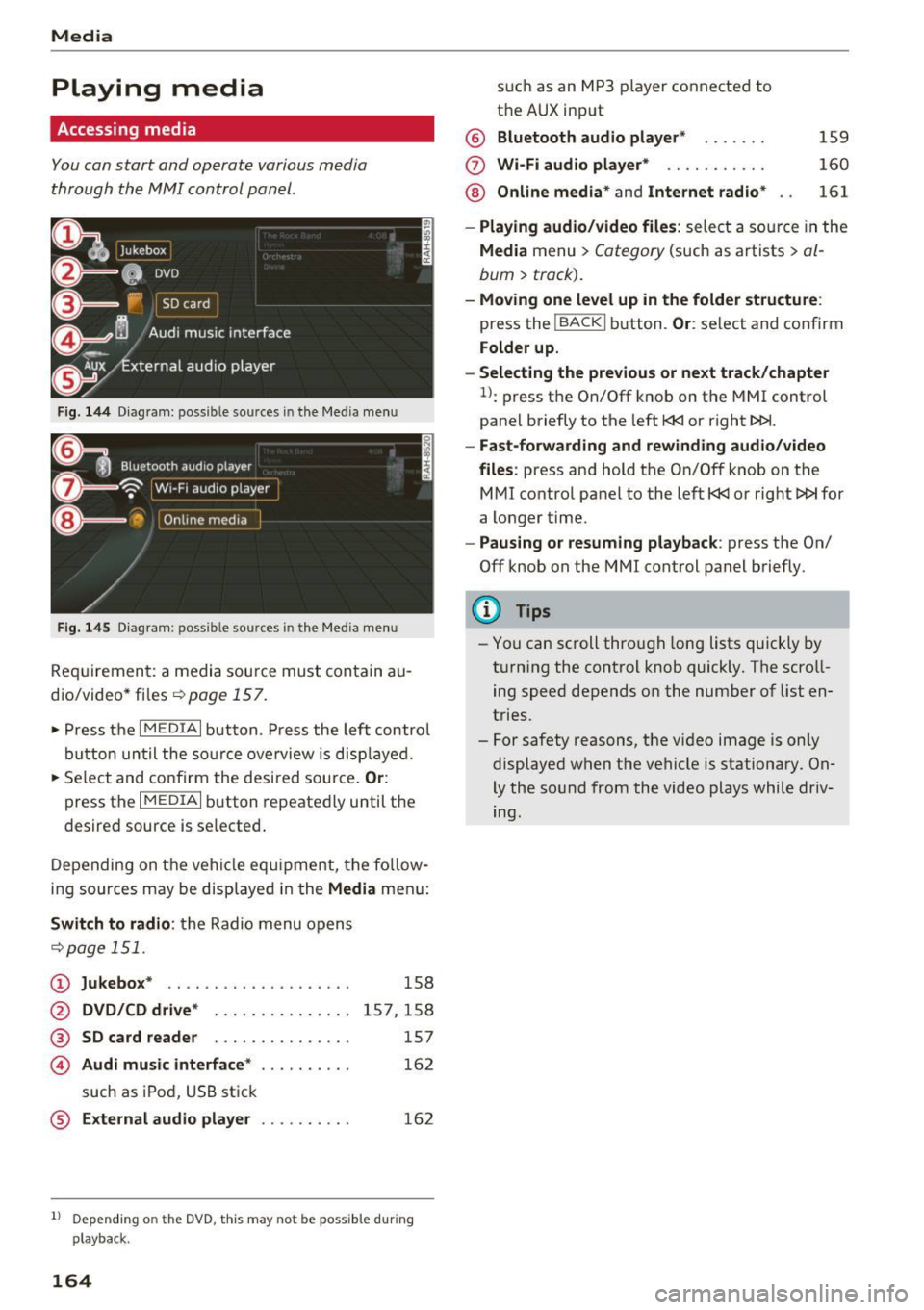
Fig . 14 4 Dia gr am : possible sources in the Media m enu
F ig. 145 D iag ra m : possible sources in t he Me dia me nu
Re qu ir emen t: a media sou rce must contain a u
dio/video* files-=>
page 157.
• Press t he I M EDIAi bu tton. Press the left co ntro l
button until the so urce ove rview is disp laye d.
• Se lect and confirm the desi red sou rce.
Or :
press the I MEDIAi button repeated ly until the
desired source is selected .
D epending on the ve hicle eq uipme nt, t he fo llow
i ng sources may be disp laye d in the
Media men u:
Switch to radio : the R adio menu o pens
-=> page 1 51.
CD Jukebox * .. ... ... ..... ..... ..
@ DVD/CD drive* ..... ....... .. .
® SD card reader . . . . . . . . . . . . . . .
© Audi music interface* ....... ...
such as iPod, U SB st ick
® External audio player . .. ...... .
158
15 7,1 58
157
16 2
162
1l Depend ing o n the DVD, this may not be possible du rin g
playback.
164
s u ch a s an MP3 player conne cte d to
t h e AUX input
@ Bluetooth audio player * .. .... .
(f) Wi -Fi audio player* .......... .
@ Online media* and Internet radio *
159
160
161
- Playing audio/video files : select a so urce in the
Media menu > Category (such as a rtists > al
bum> track).
-Moving one level up in the folder structu re :
press the IBACKI b utton. Or : select and confirm
Folder up.
- Selecting the previous or next track /chapter
1>: press t he On/Off k nob on the MMI control
panel briefly to the left
l
- Fast-forwarding and rew inding audio/video
files :
press and hold t he On/Off knob on the
M Ml control panel to the left
l
a longer time.
-Pausing or resuming playback : press the On/
Off knob on the MMI control panel b riefly.
(D Tips
- Yo u can scroll through long lists quickly by
t ur nin g the control knob quickly. The scroll
ing speed depends o n the number of list en
tries.
- For safety reasons, the vi deo image is on ly
displaye d when the vehicle is stationary. On
ly the so und from the video plays while driv
ing.
Page 167 of 314
CD
CD
.... N
" N .... 0 r--. V, co
Media center
Various categories for selecting audio/video*
files are available in the media center .
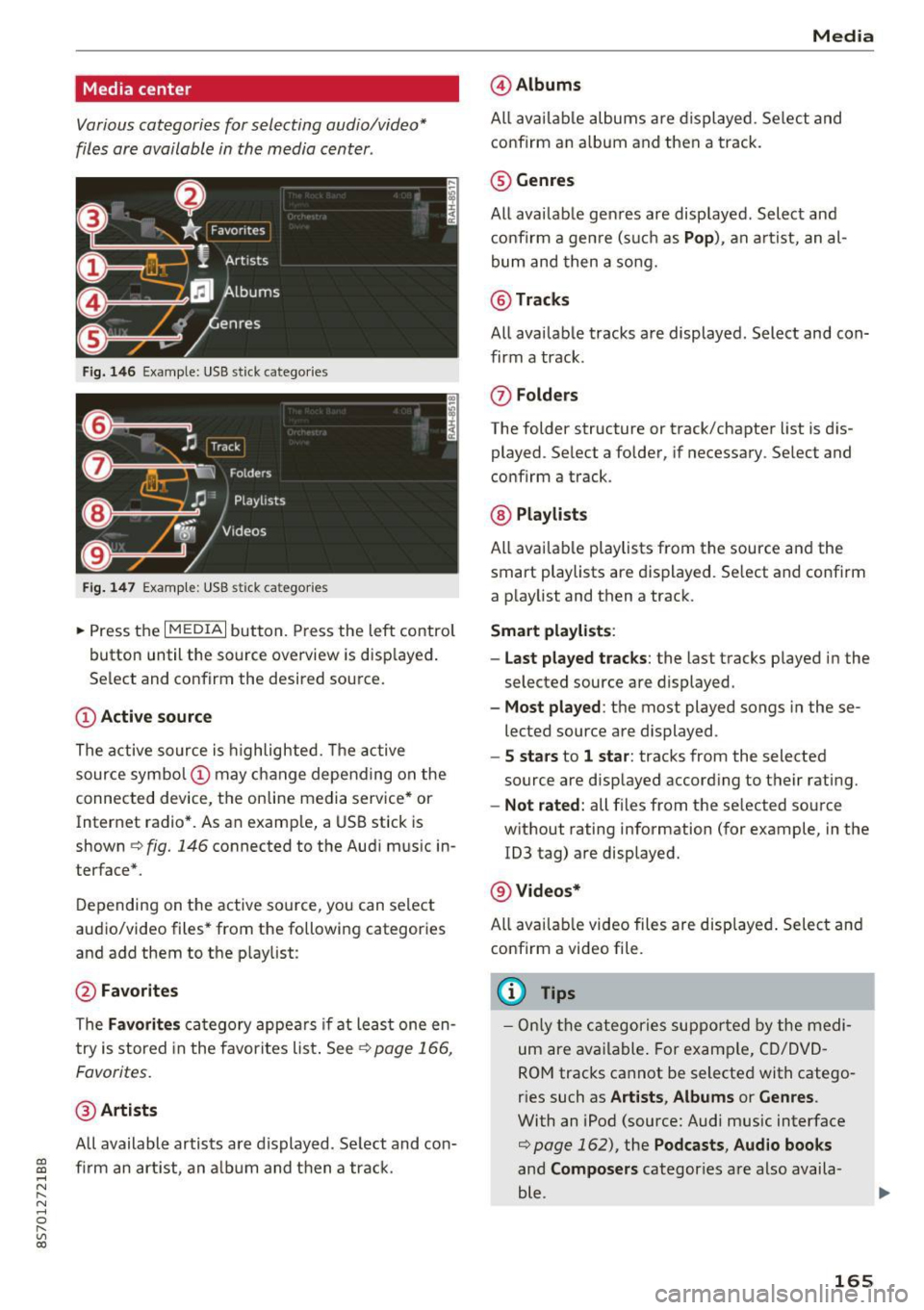
Fig. 146 Example: USB stick catego ries
Fig . 147 Examp le: USB stick categories
~ Press the I MEDIAi button. Press the left control
button until the source overview is disp layed.
Se lect and confirm the desired source.
(!) Active source
The active source is highlighted. The active
source symbol @ may change depending on the
connected device, t he online media service* or
Internet radio*. As an example, a USB stick is
shown ¢
fig. 146 connected to the Audi music in
terface*.
Depending on the active source, you can select
audio/video files* from the fo llowing categories
and add them to the playlist:
@ Favorites
The Favorites category appears if at least one en
try is stored in the favorites list . See
¢ page 166,
Favorites.
@ Artists
All available artists are displayed. Se lect and con
f ir m an artist, an album and then a track.
Media
@ Albums
All available albums are displayed . Select and
confirm an album and then a track .
® Genres
All availab le genres are displayed. Select and
confirm a genre (s uch as
Pop ), an artist, an al
bum and then a song.
@ Tracks
All available tracks are displayed . Select and con
firm a track.
0 Folders
The folder structure or track/chapter list is dis
played . Select a folder, if necessary . Select and
confirm a track.
® Playlists
All availab le playlists from the source and the
smart playlists are displayed. Se lect and confirm
a playlist and then a track.
Smart playlists :
- Last played tracks :
the last tracks played in the
selected source are displayed.
- Most played : the most played songs in these
lected source are displayed.
- 5 stars to 1 star: tracks from the selected
source are displayed according to their rating.
- Not rated: all files from the selected source
without rating information (for example, in the
!D3 tag) are displayed.
@ Videos*
All ava ilab le video files are displayed . Select and
confirm a video file.
@ Tips
-Only the categories supported by the medi
um are available . For example, CD/DVD
ROM tracks cannot be selected with catego
r ies such as
Artists , Albums or Genres .
With an iPod (source: Audi music interface
¢ page 162), the Pod casts, Audio books
and Composers categor ies are also availa
ble .
165
Page 168 of 314
Media
- For safety reasons, the video image is only
displayed when the vehicle is stationary. On
ly the sound from the v ideo p lays while driv
i ng.
- When synchronizing a portable device with
"Cloud" services, p laylists may display incor
rectly in the MMI. Use the media center in
the dev ice.
Free text search
You con search in the active source by tracks and
video files*, for example
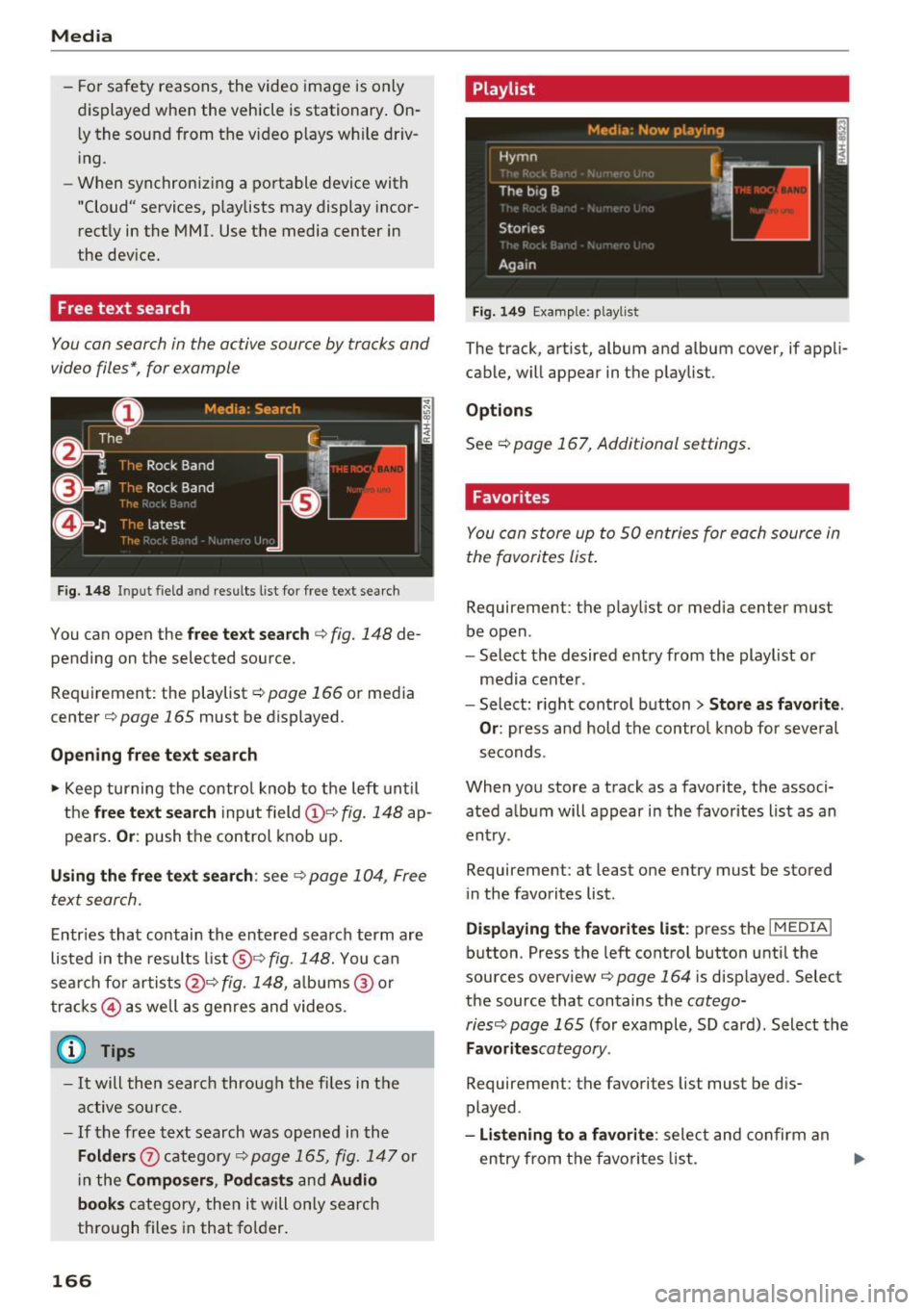
F ig. 148 Input field and result s list for free text searc h
You can open the free te xt search <=> fig. 148 de
pending on the selected source.
Req uirement: the playlist
r:!) page 166 or media
center
c!) page 165 must be displayed.
Opening free text search
• Keep turning the control knob to the left until
the
free text search input field(!}=:> fig. 148 ap
pears.
Or : push the control knob up.
Using the free text search: see c::> page 104, Free
text search.
Entries that contain the entered search term are
listed in the res ults list @<=>fig.
148. You can
sear ch for a rtists @<=>
fig. 148, albums ® or
tracks @ as well as genres and videos.
(D Tips
-It will then searc h through the files in the
active source.
- If the free text search was opened in the
Folders 0 category<=> page 165, fig. 147 or
in the
Composers , Podcasts and Audio
books
category, then it will only search
through files in that folder.
166
Playlist
Fig. 149 Examp le: playlist
The track, artist, album and album cover, if appli
cable, will appear in the playlist.
Options
See c!) page 167, Additional settings.
Favorites
You con store up to 50 entries for each source in
the favorites list.
Requirement: the playlist or media center must
be open.
- Select the desired entry from the playlist or
media center .
- Select: r ight control button>
Store as favorite .
Or:
press and hold the control knob for several
seconds.
When you store a track as a favorite, the associ ated album will appear in the favorites list as an
entry .
Requirement: at least one entry must be stored
in the favorites list.
Displaying the favorites list : press the I MEDIAi
button. Press the left control button until the
sources overview<=>
page 164 i s disp layed. Select
the source that contains the
cotego-
riesc:;, page 165
(for example, SD card). Select the
Favoritescotegory.
Requirement: the favorites list must be dis
played.
-Listening to a favorite : select and confirm an
entry from th e favorites list. .,.
Page 169 of 314
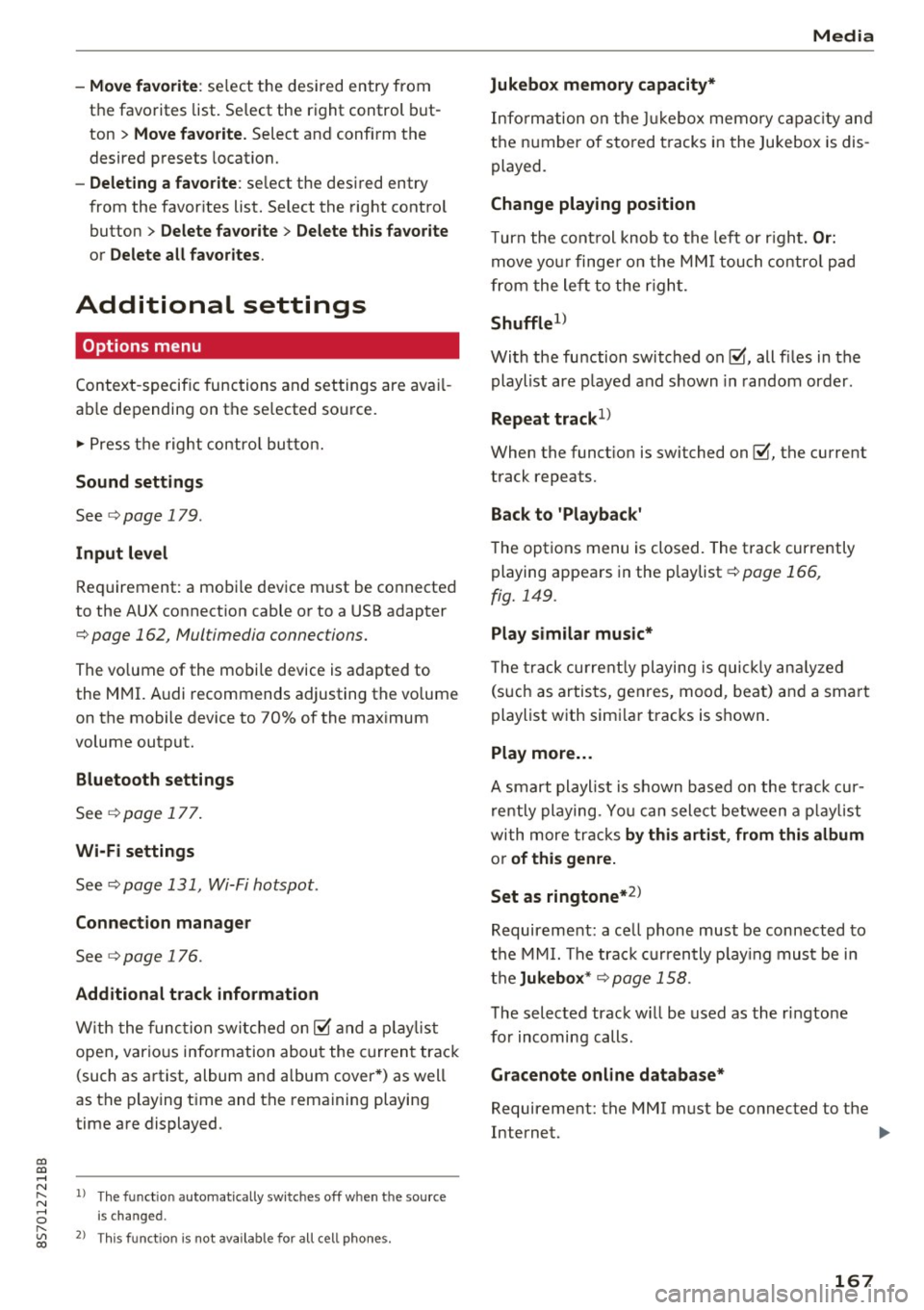
"' "' ....
-Move fa vorite : select the desired entry from
the favorites list. Select the right control but
ton
> Mo ve fa vo rite. Select and confirm the
desired presets location.
- Deleting a fa vorite : select the desired entry
from the favor ites list. Select the right control
button
> Delete fa vorite > Delete thi s fa vorite
or D ele te all fa vori tes .
Additional settings
Options menu
Context-specific functions and settings are avai l
ab le depending on the se lected source.
.,. Press the right contro l button.
Sound setting s
See r::>page 179.
Input lev el
Requirement: a mobile device must be connected
to the AUX connect ion cable or to a USB adapter
r::> page 162, Multimedia connections.
The vo lume of the mobile device is adapted to
the MMI. Audi recommends adjusting the vo lume
on the mobile device to 70% of the max imum
volume output.
Blu etooth settings
See c> page 177.
Wi-Fi settings
See c> page 131, Wi-Fi hotspot.
Connection man ager
See c> page 176.
Additional tr ack inform ation
W ith the function switched on~ and a p lay list
open, vario us info rmation about the current track
(such as artist, album and album cover *) as well
as the playing t ime and the remaining playing
time are displayed.
N ~ l) The func tion automat ically sw itches off when the sou rce
8 is changed. r---~ 2> Th is func tion is not available for all cell phones.
Media
Jukebo x m emory capacity *
Information on the Jukebox memo ry c apac ity and
the n umber of sto red tracks in the Jukebox is dis
played.
Change playing position
T urn the cont rol knob to the left or r ight. Or :
move yo ur finge r on the MM I touch contro l pad
from the left to the r igh t.
Shuffle1>
With the function switched on~, all files in the
playlist are p layed and shown in random order.
Repeat track1>
When the funct ion is switched on~, the current
track repeats.
Back to 'Playback '
The options menu is closed. The track currently
playing appears in the playlist
c> page 166,
fig. 149.
Play s imilar mus ic *
T he tra ck cu rre ntly playing is quick ly an alyzed
(such as artists, genres, mood, beat) and a sma rt
playlist with sim ilar tracks is shown.
Play more ...
A smart playlist is shown based on the track cur
rently playing. Yo u can select between a p laylist
with more tracks
by thi s art ist, from thi s album
or of thi s genre.
Set as ringtone*
2>
Requirement: a ce ll phone must be connected to
the MMI. The trac k currently p lay ing must be in
t h e
Juk ebox * c> page 158 .
The selected track w ill be used as the ringtone
for incoming calls.
Gr acenote online databa se*
Requirement: the MMI must be connected to the
Internet. .,.
167
Page 170 of 314
Media
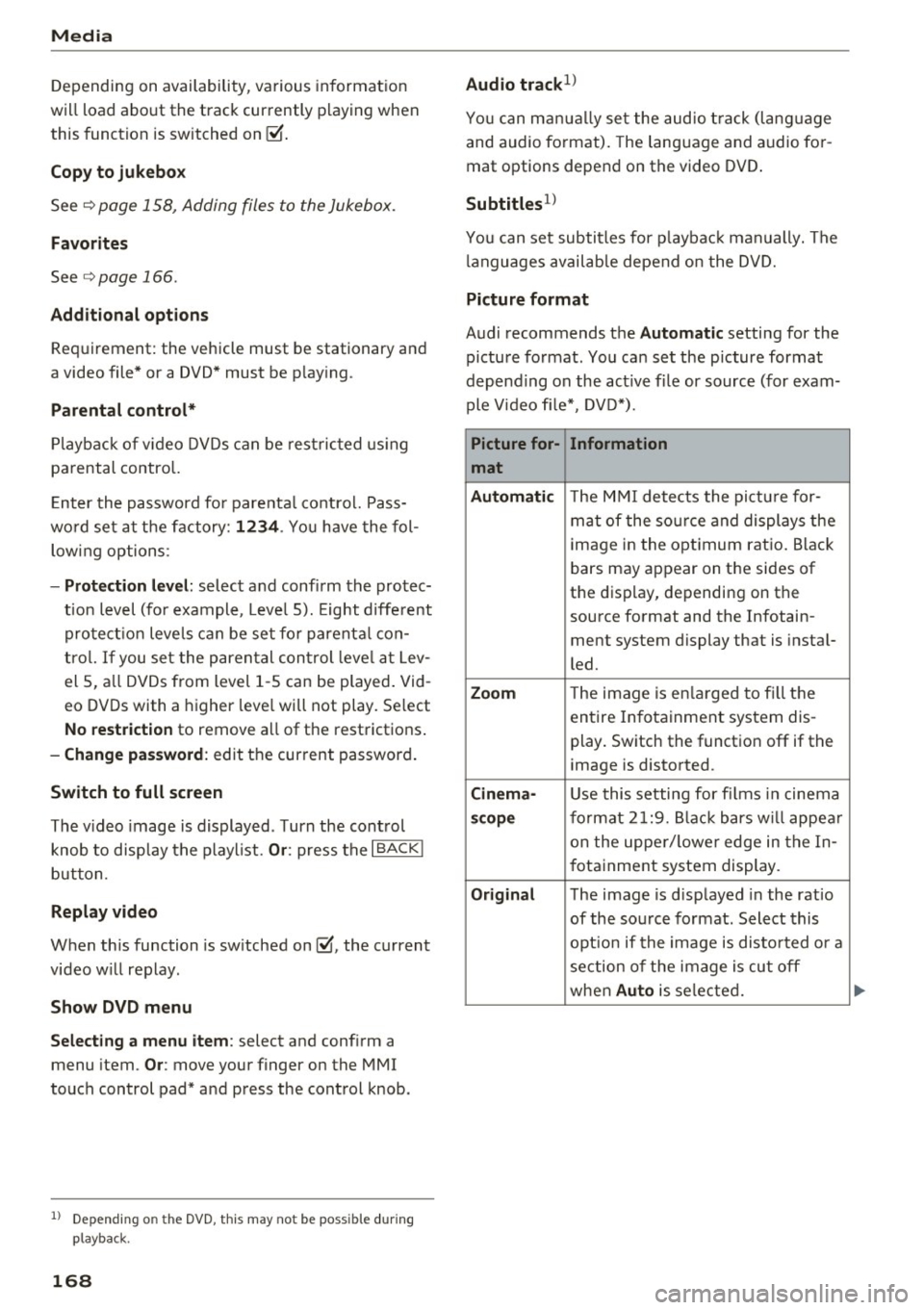
Depending on availability, various information
will load about the track currently playing when
this function is switched on~-
Copy to jukebo x
See¢ page 158, Adding files to the Jukebox.
Favorite s
See ¢page 166.
Additional opt ions
Requirement: the vehicle must be stationary and
a video file* or a DVD * must be playing.
Parental control *
Playback of v ideo DVDs can be rest ricted using
parental control.
E nter the password fo r parenta l control. Pass
wo rd set at the factory:
12 34 . You have the fol
low ing options :
-Protection l evel: select and confi rm the protec
tion level (for example, Leve l 5). Eight diffe rent
protect ion leve ls can be set fo r parenta l con
trol.
If you set the parental control leve l at Lev
el 5, a ll DVDs from level 1 -5 can be played . Vid
eo DVDs with a higher leve l will not play. Se lect
No restriction to remove a ll of the restrictions .
-Change pa ssword : edit the current password .
Switch to full screen
The video image is displayed . T urn the control
knob to disp lay the playl ist.
Or : press the I BACKI
button.
Replay video
When this function is sw itched on~. the current
video will replay .
Show DVD menu
Select ing a menu item :
select and confirm a
menu item.
Or : move your finger on the MMI
touch control pad* and press the control knob.
l) Depe nding o n the DVD, thi s may not be possib le dur ing
p layback.
1 6 8
Audio trac k1
)
You can man ua lly se t the audio t rack (lang uage
and audio format). The language and audio fo r
mat options depend on the video DVD .
Subtitles1>
You can set subtitles for p laybac k manually. The
l anguages availab le depend on the DVD.
Picture fo rmat
Audi recommends the Automatic setting for the
picture format . You can set the picture format
depending on the act ive file or source (for exam
ple Video fi le* , DVD*).
Picture for-
Information
mat
Aut omati c
The M MI detects the picture for-
mat of the so urce and displays the
image in the opt imum ratio. Black
bars may appear on the sides of
the display, depending on the
source format and the Infotain-
ment system display that is instal-
led.
Zoom T he image is en la rged to f ill the
entire Infotainment system dis-
play. Switch the function off if the
image is distorted .
Cinema-Use this setting for fi lms in cinema
sco pe format 2 1:9. B lack bars w ill appea r
on the uppe r/ lower edge in the In-
fotainment system display.
Original The image is displayed in the ratio
of the source fo rmat. Select this
opt io n if the image is disto rted o r a
section of the image is cut off
when
Au to is selected.
Page 171 of 314
co
co
.... N
" N .... 0
" "' c:o
Picture for-
mat
4:3
16: 9
(D Tips Information
The image is fixed in the 4:3 pie-
ture format.
Black bars are shown
on the s ides of the Infotainment
system display.
The image is fixed in the 16 :9 pie-
ture format . B lack bars are shown
in the upper and lower edges of the
Infotainment system display.
Media
- The security levels for the Parental cont rol
are based on the US standards from the Mo
tion P icture Associat ion of America (MPAA).
Note that the age levels for v ideo DVDs in
European countries may differ.
- Password entry for
P ar ental contro l will be
locked for approx imately one m inute if you
enter the incorrect password three t imes in
a row. The password can only be reset by an
authorized Audi dealer.
- Not a ll video DVDs have parental control.
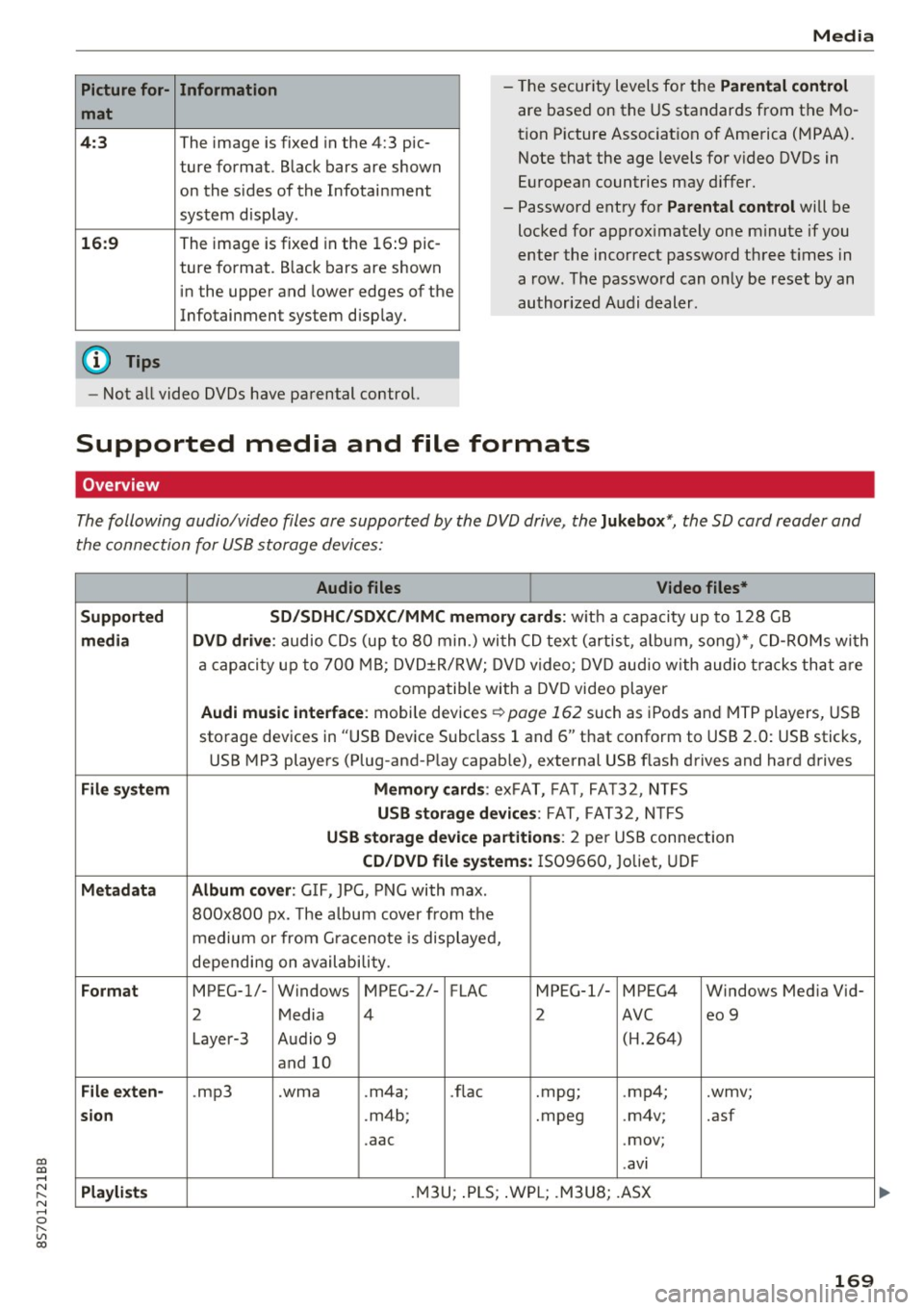
Supported media and file formats
Overview
The following audio/video files are supported by the DVD drive, the Juk eb ox*, the SD card reader and
the connection for USB storage devices:
Audio fil es Vid eo fil es*
Support ed SD/SDH C/SDX C/MM C me mory ca rds:
w ith a capacity up to 128 GB
m edi a DV D driv e: audio CDs (up to 80 min .) with CD text (artist, a lbum, song)*, CD-ROMs with
a capacity up to 700 MB; DVD±R/RW; DVD video; DVD audio with audio t racks that are
compatible with a DVD video player
Aud i mu sic int erfac e: mobile devices r=>page 162 such as iPods and MTP players, USB
storage devices in "USB Device Subclass 1 and 6" that conform to USB 2.0: USB sticks,
USB MP3 players (Plug-and-Play capable), external USB flash drives and hard drives
File syste m Memory c ard s: exFAT, FA T, FA T32, NTFS
USB sto rag e devices: FAT, FAT32, N TFS
USB stora ge device pa rtition s: 2 per USB connection
CD/DV D file sy ste ms: IS09660, Joliet, UDF
Metadat a Album co ver: GIF, JPG, PNG with max.
800x800 px. The a lbum cover from the
medium or from Gra cenote is displayed,
depending on availability.
Form at MPEG-1/- Windows MPEG-2/- FLAC MPEG-1/- MPEG4 Windows Media Vid-
2 Media 4 2 AVC
eo 9
Layer-3 Audio 9 (H.264)
and 10
Fil e ex ten -.mp3 .wma .m4a;
.flac .mpg;
.mp4; .wmv;
si on .m4b; .mpeg .m4v; .asf
.aac .mov;
.avi
Playlist s .M3U; .PLS; .WPL; .M3U8; .ASX
169
Page 172 of 314
Media
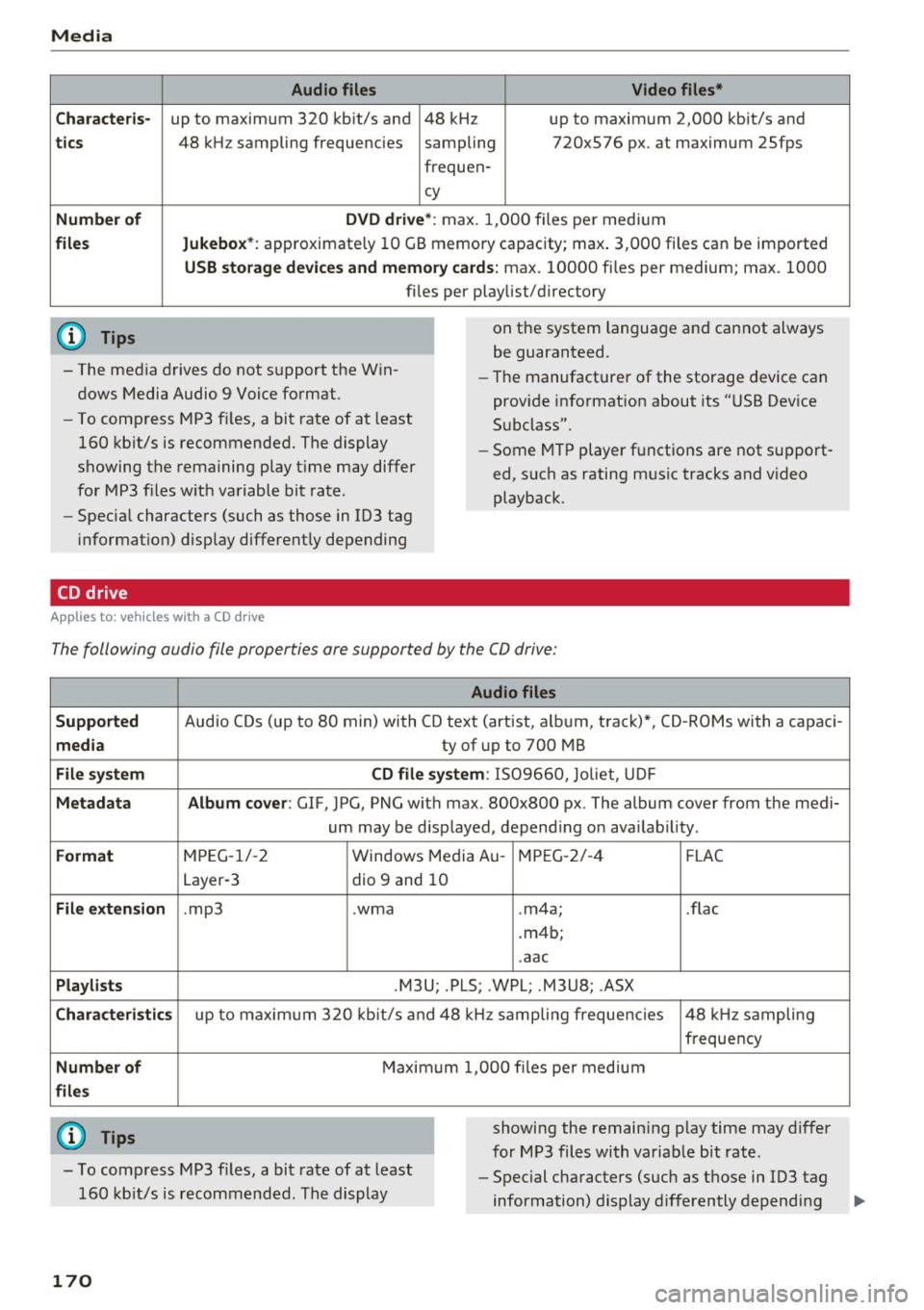
Audio files Video files*
Characteris-
up to maximum 320 kbit/s and 48 kHz up to maximum 2,000 kbit/s and
tics
Number of
files
(D Tips
48 kHz sampling frequencies sampling 720x576 px. at maximum 2Sfps
frequen-
cy
DVD drive*: max. 1,000 files per medium
Jukebox* : approximate ly 10 GB memory capacity; max . 3,000 files can be imported
USB storage devices and memory cards: max. 10000 files per medium; max. 1000
fi les pe r playlist/directory
on the system language and cannot always
be guaranteed.
- The media drives do not support the Win
dows Media Audio 9 Voice format. -
Th e manufacturer of the storage device can
provide informat ion about its "USB Dev ice
Subclass".
-
To compress MP3 fil es, a bit rate of at least
160 kbit/s is recommended. The display
showing the remaining play time may differ
for MP3 f iles w ith variable bit rate.
- Specia l characters (such as those in 103 tag
in format ion) display different ly depending
CD drive
A ppl ies to: ve hicles w ith a CD drive
- Some MTP player functions are not support
ed, such as rating mus ic tracks and video
playback.
The following audio file properties are supported by the CO drive:
Supported
media
File system
Metadata
Format
File extension
Playlists
Characteristics
Number of
files
(0 Tips
Audio files
Audio CDs (up to 80 min) with CD text (artist, a lbum, track)*, CD-ROMs with a capaci-
ty of up to 700 MB
CD file system: 1509660, Jo liet, UDF
Album cover: GlF, JPG, PNG w ith max. 800x800 px. The album cover from the medi-
um may be d isplayed, depend ing on availab ility.
MPEG-1/-2 Windows Med ia Au -MPEG-2/-4 FLAC
Layer-3 dio 9 and 10
. mp3 .wma .m4a; .flac
. m4b;
.aac
.M3U; .PLS; .WPL; .M3U8; .ASX
up to maximum 320 kbit/s and 48 kHz sampling frequencies 48 kHz sampling
frequency
Maximum 1,000 files per medium
showing the remain ing play time may differ
for MP3 files with variable bit rate .
- To comp ress MP3 files, a bit rate of at least
160 kb it/s is recommended. The display -
Special characters (such as those in 103 tag
information) display differently depending
170
Page 174 of 314
Media
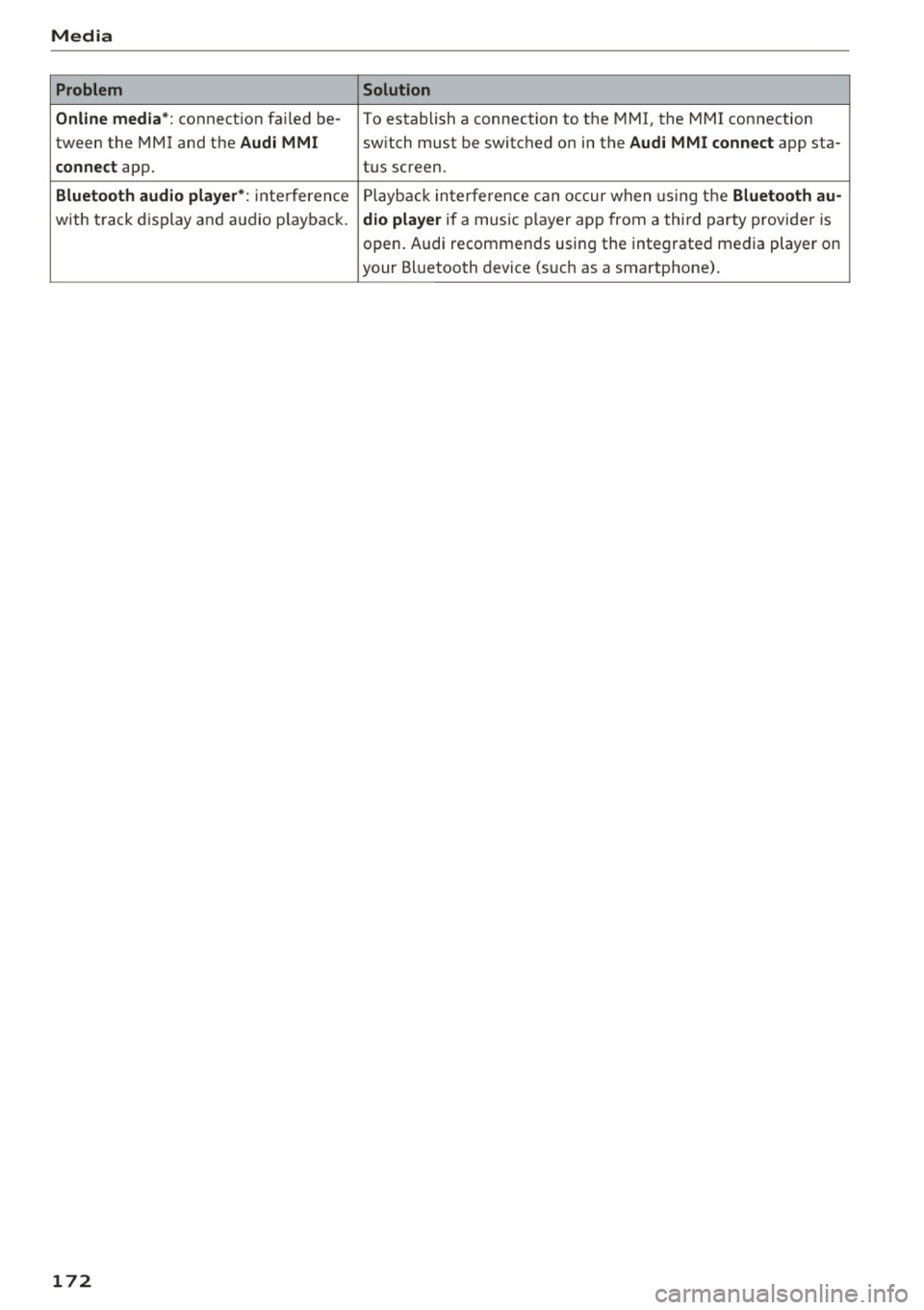
Problem Solution
Online media*:
connection failed be-To establish a connection to the MMI, the MMI connection
tween the MMI and the
Audi MMI switch must lbe switched on in the Audi MMI connect app sta-
connect app. tus screen.
Bluetooth
audio player *: interference Playback interference can occur when using the Bluetooth au-
with track display and audio playback. dio player if a music player app from a third party provider is
open. Audi recommends using the integrated media player on
your Bluetooth device (such as a smartphone) .
172
Page 175 of 314
co
co
.... N
" N .... 0
" "' c:o
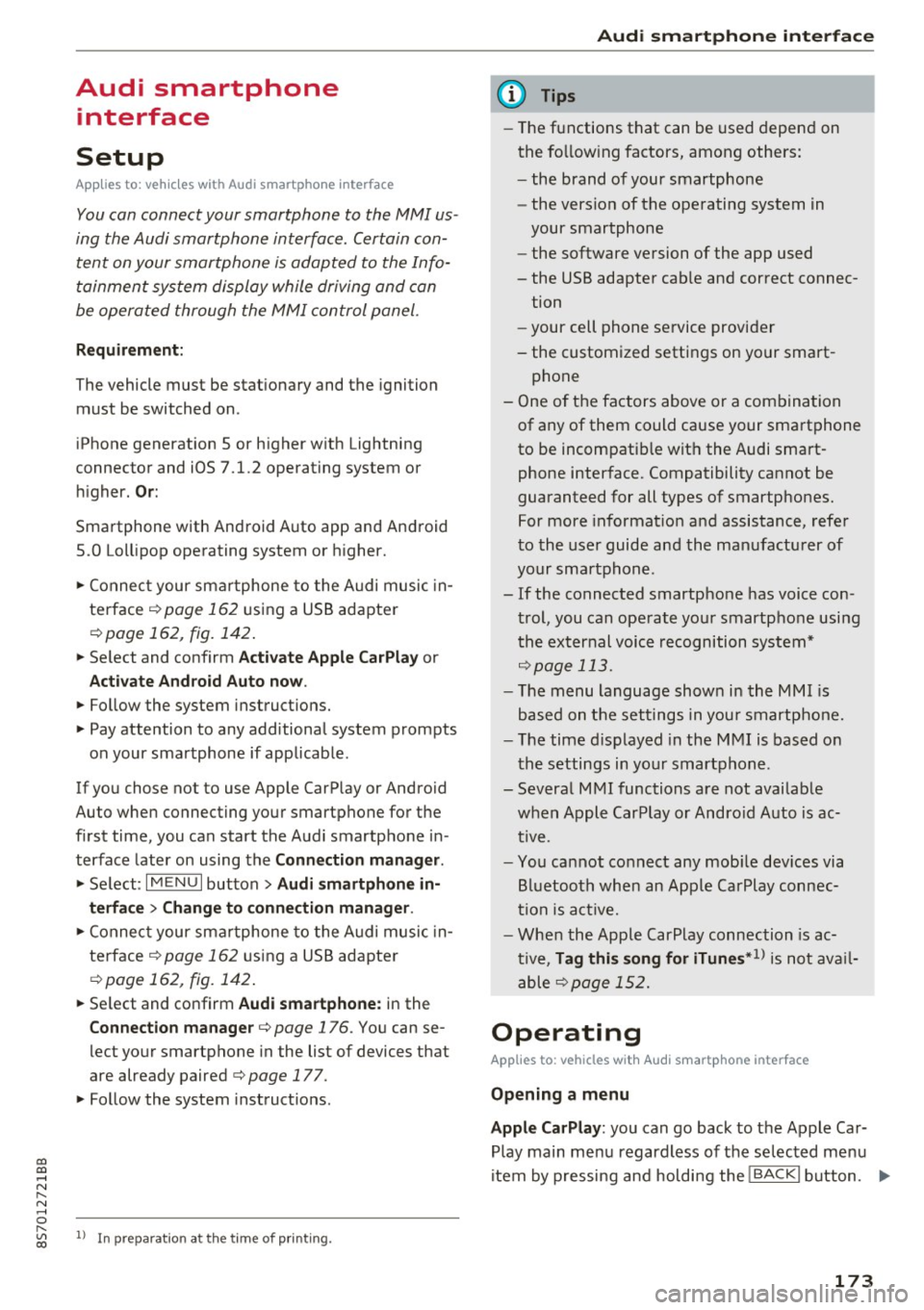
Audi smartphone interface
Setup
App lies to: ve hicles with Audi smartpho ne interface
You can connect your smartphone to the MMI us
ing the Audi smartphone interface . Certain con
tent on your smartphone is adapted to the Info
tainment system display while driving and can
be operated through the MMI control panel.
Requirement:
The vehicle must be stationary and the ignition
must be switched on.
iPhone generation 5 or higher with Lightning
connector and iOS 7.1.2 operating system or
h igher.
O r:
Smartphone with Android Auto app and Android
5 .0 Loll ipop operating system or higher.
.,. Connect your smar tphone to the Audi music in
te rface
c:> page 162 using a USB adapter
¢page 162, fig. 142 .
.. Se lect and confirm A cti va te Apple CarPl ay or
Acti vate And roid Auto now.
.. Follow the system instruct ions.
.,. Pay attention to any add itional system prompts
on your smartphone if applicable.
If you chose not to use Apple CarPlay or Android
Auto when connecting your smartphone for the
first time, you can start the Audi smartphone in
terface later on using the
Connection m an ager .
.. Se lect: I MENU I button > Audi smartphone in·
terfa ce
> Change to connecti on manager .
.. Connect your smar tphone to the Audi music in
terface
c:>page 162 using a USB adapter
¢page 162, fig. 142 .
.. Se lect and confirm Audi smartphone : in the
Connection manager c:> page 176. You can se
lect your smartphone in the list of devices that
are already paired
c:> page 177.
.,. Follow the system instruct ions.
l ) In preparat io n at the t ime of pr inting.
Aud i smartphon e int erfac e
{!) Tips
-The functions that can be used depend on
the fo llow ing factors, among others:
- the brand of your smartphone
- the vers ion of the operating system in
your smartphone
- the software ve rsion of the app used
- the USB adapter cab le and correct connec-
tion
- your cell phone service provider
- the customized settings on your smart -
phone
- One of the factors
above or a combina tion
of any of them could cause your smartphone
to be incompatib le wit h the Audi smart
phone interface. Compatibility cannot be
guaranteed for all types of smartphones.
For more informat ion and assistance, refe r
to the use r guide and the manufactu rer of
your smartphone .
- If the connected smartphone has voice con
tr ol, you can operate your smartpho ne usi ng
the external voice recognition system*
c:>page 113.
-The menu language show n in the MMI is
based on the settings in you r smartphone .
- The time d isplayed in the MMI is based o n
t he settings in your smartphone.
- Several MMI functions are not avai lab le
when Apple Car Play or Andro id Auto is ac
tive.
- You cannot co nnect any mob ile dev ices via
Bl uetooth when an App le CarPlay connec
tion is act ive .
- Whe n the Apple CarPlay connection is ac
tive,
Tag this song for iTunes*1 ) is not ava il
able
¢page 152 .
Operating
Appl ies to: vehicles wit h Audi smartp hone interface
Opening a menu
App le CarPlay : you can go back to the Apple Ca r
Play main me nu regardless of the selected menu
item by p ressing and holding the
I BACKI button. Ill>-
173