USB AUDI TT ROADSTER 2018 User Guide
[x] Cancel search | Manufacturer: AUDI, Model Year: 2018, Model line: TT ROADSTER, Model: AUDI TT ROADSTER 2018Pages: 310, PDF Size: 46.95 MB
Page 167 of 310
Cl 00 .-< N r-N .-< 0 r-Vl 00
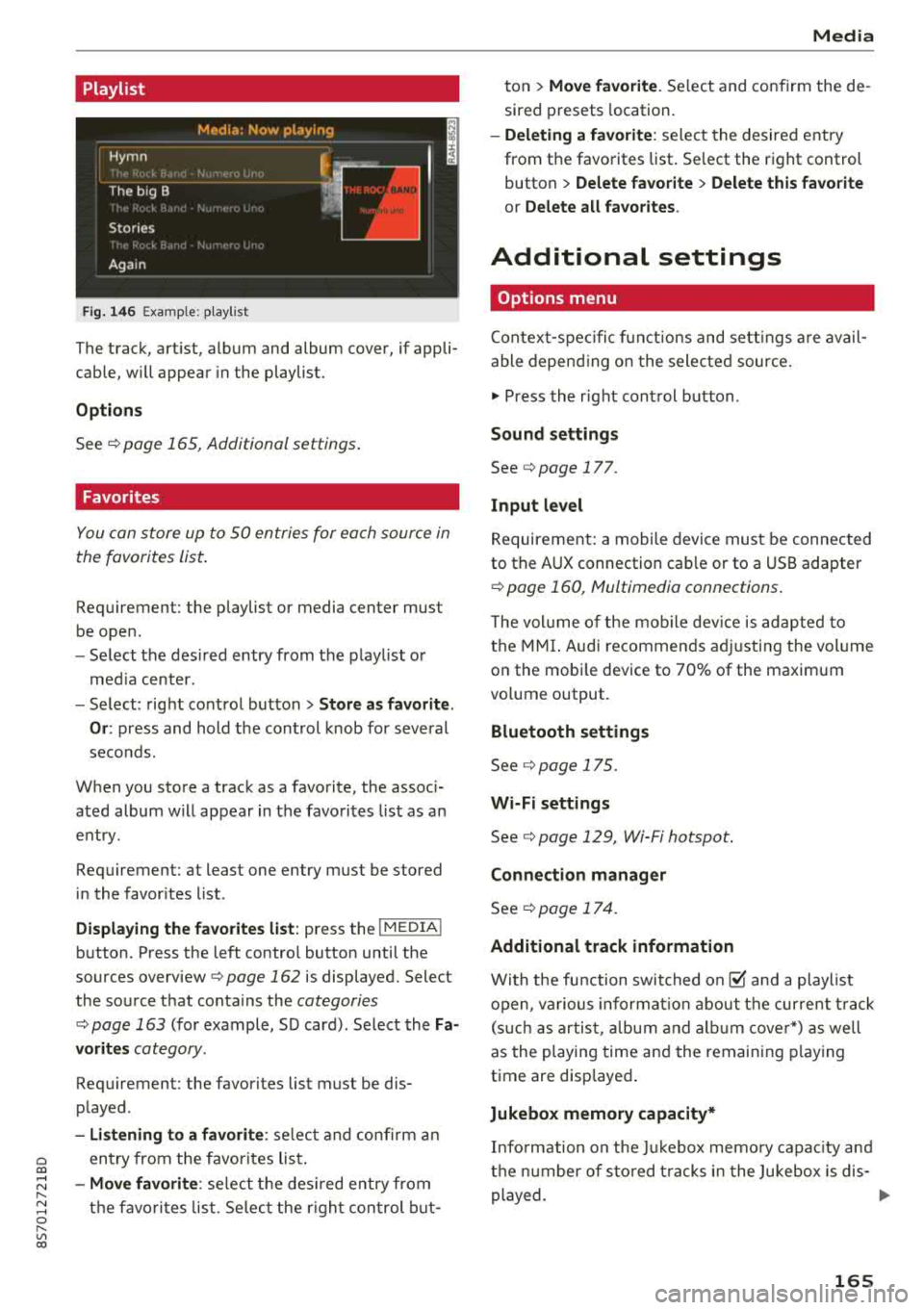
Playlist
Fig. 14 6 Example: p lay list
The track, art ist, album and album cover, if appli
cable, will appear in the playlist.
Options
See r:!> page 165, Additional settings .
Favorites
You can store up to 50 entries for each source in
the favorites list.
Requirement: the playlist or media center must
be open .
-Select the des ired entry from the playl ist o r
med ia center.
- Select: right control button
> Store a s favorite.
Or :
press and hold the cont rol knob for several
seco nds.
When you store a track as a favorite, the assoc i
ated album w ill appear in the favorites l ist as an
entry.
Requirement: at least one entry must be stored
in the favor ites list.
Displa ying the fa vorite s list : press the I MEDIA !
button. Press the left contro l button until the
sources
overview ¢ page 162 is displayed. Select
the source that conta ins the
categories
r:!> page 163 (for example, SD card) . Select the Fa
vorit es
category.
Requirement: the favorites list must be dis
p layed.
- Listening to a favorite : select and confirm a n
entry from the favorites lis t.
-Move favorite : select t he des ired entry from
the favo rit es list. Se lec t the r ight con trol b ut-
Media
ton > Mo ve fa vo ri te . Se lect and confirm the de
sired presets location.
- Deleting a f avorit e: select the desired entry
from the favorites list. Se lect the right control
button
> Delete fa vorite > Delete this f avorite
or Delete all fa vorite s.
Additional settings
Options menu
Contex t-spec ific f unct ions and sett ings are avail
able depend ing o n the selected source.
.,. Press the r ight cont rol button .
Sound settings
See¢ page 177.
Input l evel
Requirement: a mobile device must be connected
to the AUX connection cab le or to a USB adapter
r:!> page 160, Multimedia connections.
T he vol ume of the mob ile dev ice is adapted to
the MMI. Audi recommen ds ad justing the vol ume
on the mobi le device to 70% of the maximum
vo lume output.
Bluetooth settings
See r:!> page 175.
Wi-Fi settings
See¢ page 129, Wi-Fi hotspot.
Connection manager
See ¢ page 17 4.
Additional track information
With the fu nction swit ched on@' and a playlist
open, va rious informat io n about the cur rent t rack
(s uch as artist, a lbum and a lb um cover*) as we ll
as the playing time and the remaining p laying
time are displayed .
Jukebox memory capacity*
Info rmation on the Ju kebox memo ry capac ity and
t h e n umber of sto red t racks in the Jukebox is dis-
played.
..,
165
Page 170 of 310
Media
Supported media and file formats
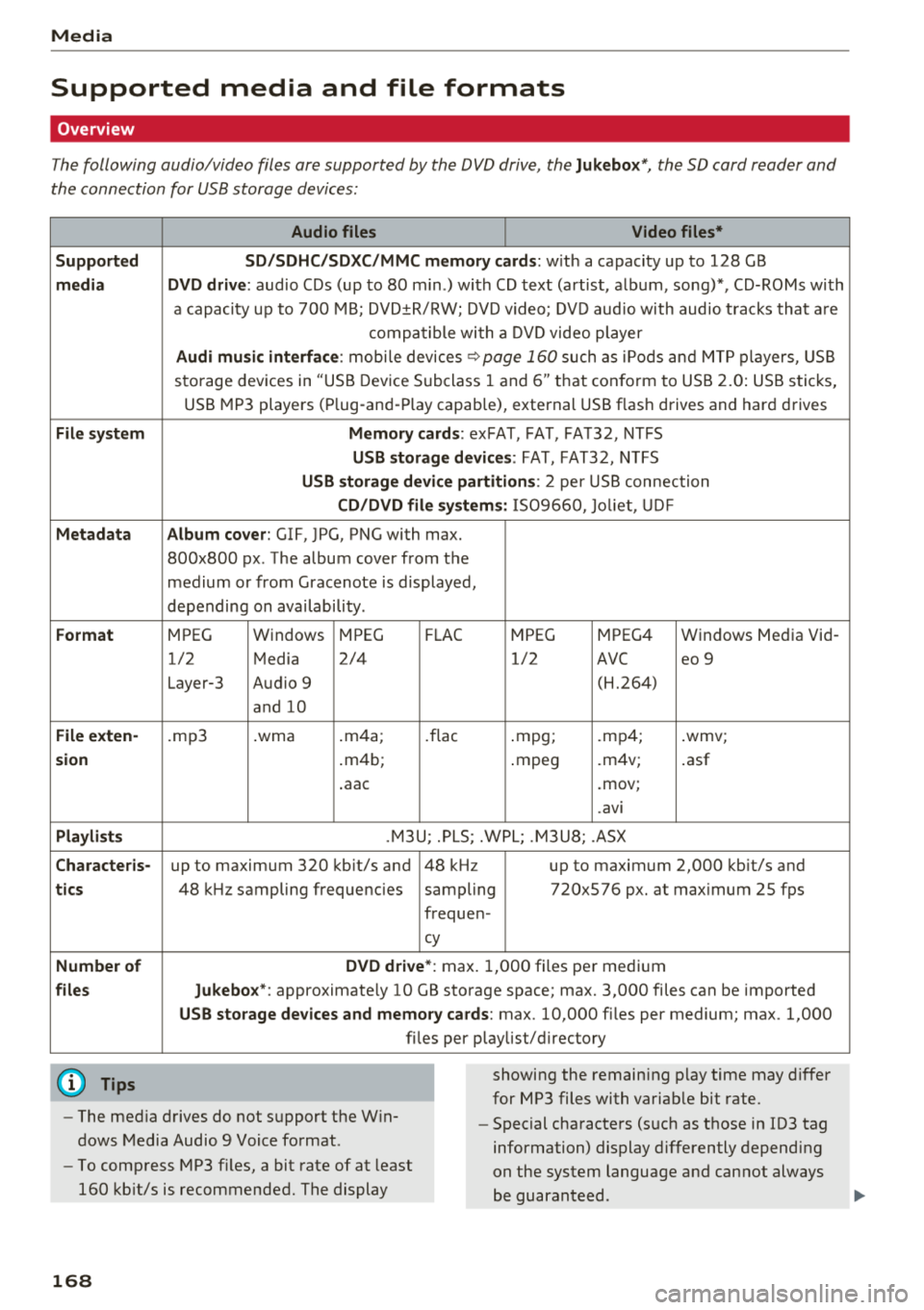
Overview
The following audio/video files are supported by the DVD drive, the Jukebox*, the SO card reader and
the connection for USB storage devices:
Supported
medi a
File system
Metadat a
Format
File e xten-
s ion
Pla ylist s
C haracter is -
ti cs
Numbe r of
file s
(D Tips Audio files
Video files*
S D /S DH C/S DXC/MM C mem 1or y ca rds:
with a capacity up to 128 GB
DVD dri ve : audio CDs (up to 80 m in .) with CD text (artist, album, song)*, CD-ROMs with
a capacity up to 700 MB; DVD±R/RW; DVD v ideo; DVD aud io with audio tracks that a re
compatible with a DV D video player
Audi mu sic interface : mobi le devices ~page 160 such as iPods and MTP players, USB
storage devices in "USB Device Subclass 1 and
6" th at con form to USB 2.0: USB stic ks,
USB MP3 players (P lug-and -P lay cap.ab le), external USB flash drives and hard drives
Memory card s: exFAT, FAT, FAT32, NTFS
USB storage d evices: FAT, FAT32, NTFS
USB storage de vice partiti ons: 2 per USB connection
CD /DVD fil e sy stem s: 1S09660, Jo liet, UD F
Album co ver : GIF, JPG, PNG with max.
800x800 px . The album cover from the
medium or from Gracenote is displayed,
depending on availability .
MPEG Windows MPEG F
LAC
MPEG MPEG4 Windows Media Vid
-
1/2 Media 2/4 1/2
AVC eo 9
Layer-3 Audio 9 (H.264)
and 10
.mp3 .wma .
m4a;
.flac .mpg; .mp4; .wmv;
. m4b;
.mpeg .m4v; .asf
. aac .mov;
. avi
.M3U; .PLS; .WPL; .M3U8; .ASX
up to maximum 320 kb it/s and 48 kHz up to maximum 2,000 kb it/s and
48 k Hz sampling frequencies sampling 720x576 px. at max imum 25 fps
frequen-
cy
DVD drive *: max. 1,000 files per medium
Jukebo x*: approximate ly 10 GB storage space; max. 3,000 files can be imported
USB storage de vices and memo ry card s: max. 10,000 files per medium; max. 1,000
fi les pe r playlist/ directory
showing the remain ing p lay time may differ
for MP3 files with variab le bit rate.
- The med ia drives do not support the W in
dows Media Audio 9 Voice format . -
Special characters (s uch as those in ID3 tag
information) display differently depending
on the system language and cannot always
be guaran teed .
-
To comp ress MP3 f iles, a bit rate of at least
160 kb it/s is recommended. The display
16 8
Page 171 of 310
Cl 00 ... N r-N ... 0 r-Vl 00
Media
-The manufactu rer of the stora ge device can
provide information about its "USB Device
Subclass" . -Some MTP p laye r fu nct ions are not s upport
ed, s uch as rating music tracks and video
playback.
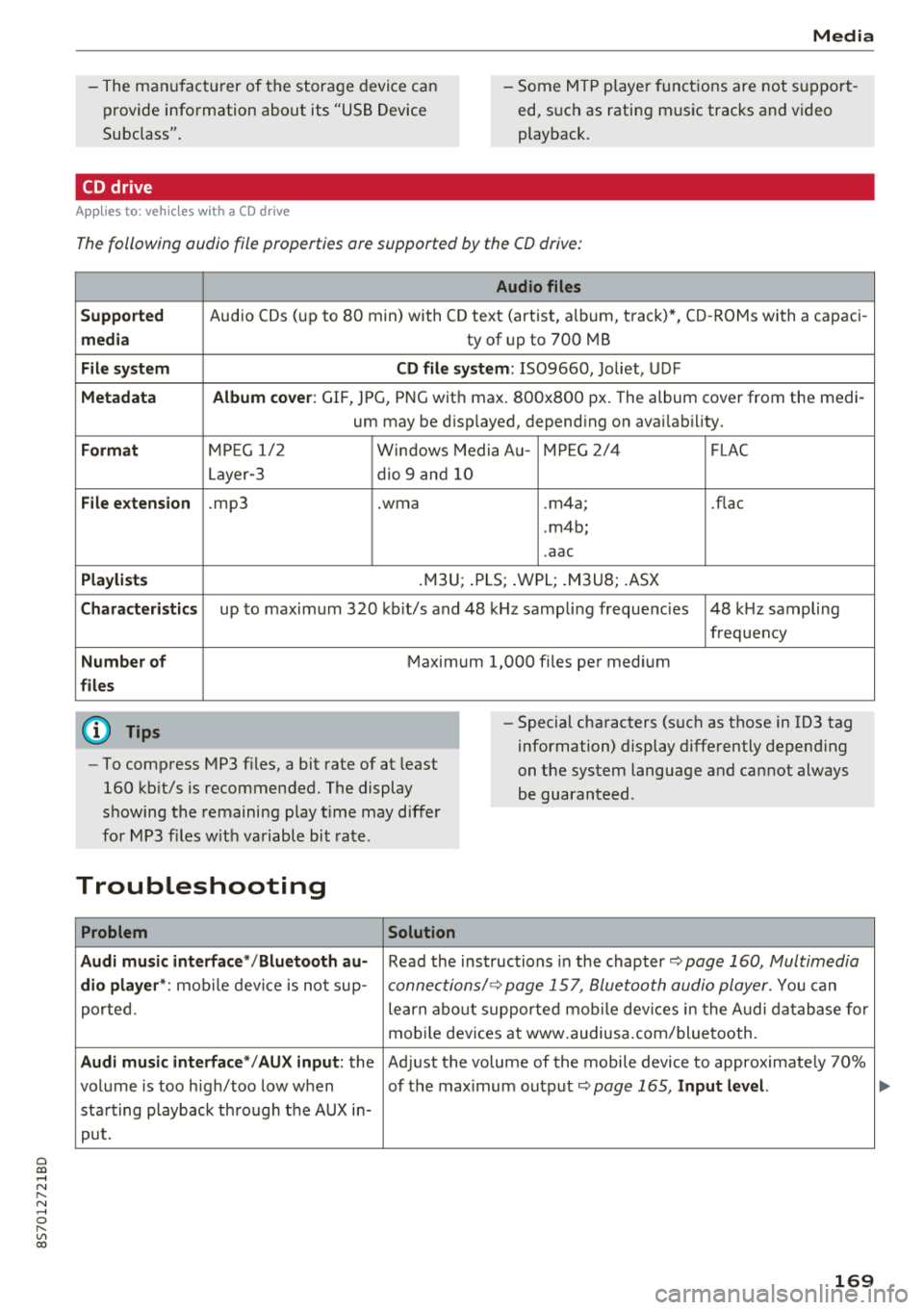
CD drive
App lies to: ve hicles with a CD d rive
The following audio file properties are supported by the CD drive:
Audio files
Supported
Audio CDs (up to 80 min) with CD tex t (artist, a lbum, t rack) *, CD -ROMs with a capac i-
media ty of up to 700 MB
File system CD file system: IS09660, Joliet, UDF
Metadata Album cover : GIF, JPG, PNG wit h max. 800x800 px. The album cover from the medi -
um may be d isp layed, depend ing on avai lab ility.
Format M PE G 1/ 2 Windows Media A u- M PEG 2/4 FLAC
Layer -3 dio 9 and 10
File extension .mp3 .wma .m4a; .flac
. m4b;
. aac
Playlists .M3U; .PLS ; .WPL; .M3U8; .ASX
Characteristics up to maximum 3 20 kb it/s and 48 k Hz sampli ng freque ncies 48 k Hz sampling
frequency
Number of M aximum 1,000 files pe r med ium
files
(D Tips
-To comp ress MP3 files, a bit rate of at least
160 kb it/s is recommended. The display
showing the remaining p lay t ime may d iffer
fo r MP3 f iles w it h va riable bi t rate.
-Special cha racters (s uch as those in 1D3 tag
information) display differently depend ing
on the system language a nd cannot always
be guaranteed .
Troubleshooting
Problem Solution
Audi music interface */Bluetooth au-
Read the ins truc tions in the chapter q page 160, Multimedia
dio player *: mobile dev ice is not sup-c onne ctions/ 9 page 157, Bluetooth audio player. You can
porte d. learn abo ut supporte d mo bile dev ices in the A udi da tabase fo r
mo bile dev ices a t www.audius a.com/blue tooth.
Audi music interface */AU X input: the Ad just the volume of the mobile device to approximate ly 70%
vol ume is too h igh/too low w hen of the max imum ou tp ut
9page 165, Input level.
sta rting playback th rough the AUX in-
pu t.
169
Page 173 of 310
Cl 00 ... N r--N ... 0 r--Vl 00
Audi smartphone interface
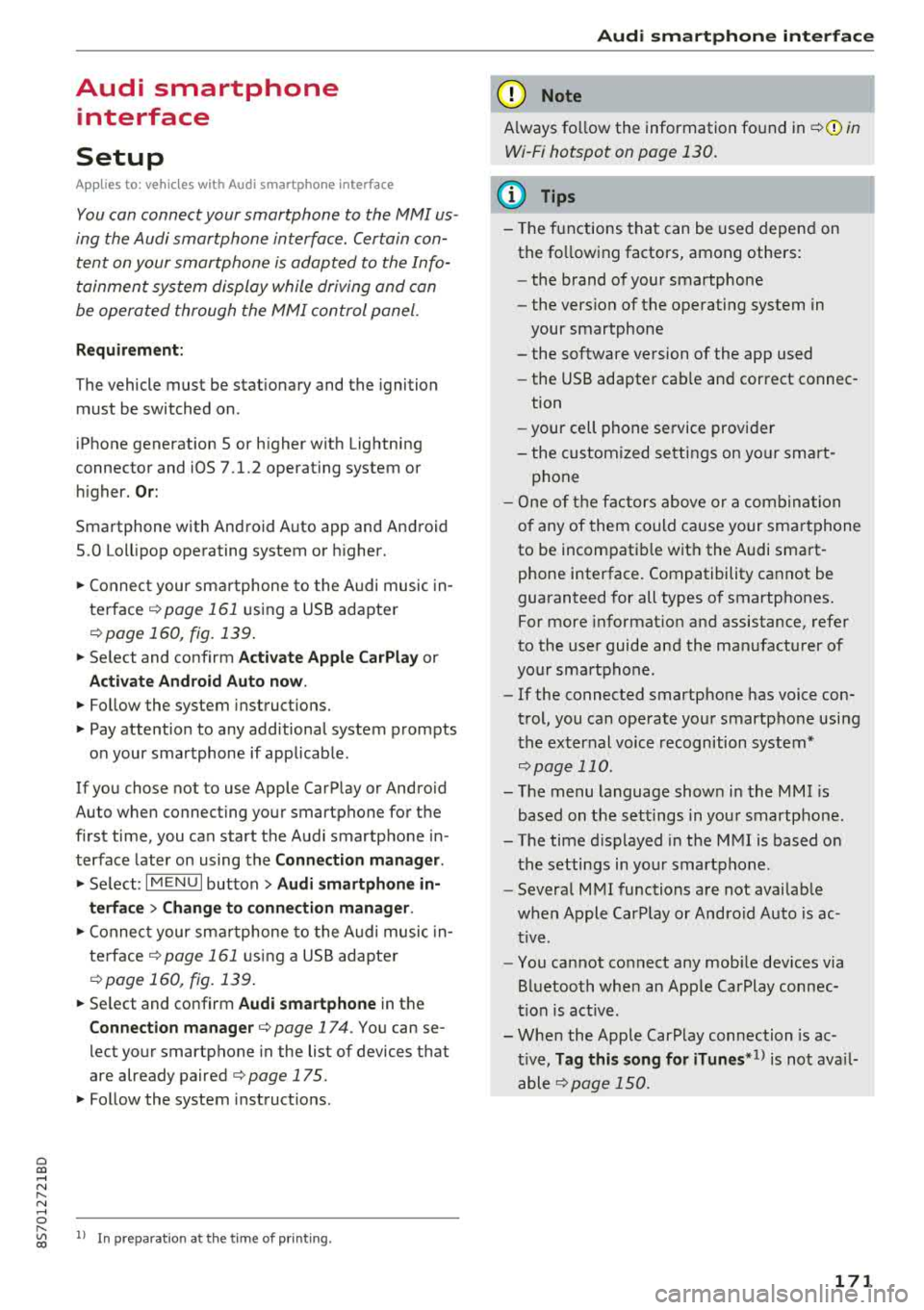
Setup
A ppl ies to : ve hicles w ith Audi smartpho ne inte rfa ce
You con connect your smortphone to the MMI us
ing the Audi smortphone interface . Certain con
tent on your smortphone is adopted to the Info
tainment system display while driving and con
be operated through the
MMI control panel .
Requirement:
The vehicle must be stat ionary and the ignition
must be switched on .
iPhone generation 5 or h igher w ith Lightning
connector and iOS 7 .1.2 operating system or h igher.
O r:
Smartphone with Android Auto app and Android
5 .0 Loll ipop operating system or higher.
.,. Connec t your sma rtphone to the Audi music in
terface
¢ page 161 using a USB adapte r
¢page 160, fig. 139 .
.. Select and confirm A ctivate Apple CarPlay or
Acti vate And roid Auto now .
.. Follow the system instruct ions.
.. Pay attention to any additiona l system prompts
on your smartphone if applicable .
If you chose not to use Apple CarP lay or Android
Auto when connecting your smartphone for the
first time, you can start the Audi smartphone in
terface later on using the
Connection manager.
.,. Se lect : I MENU I button > Audi smartphone in-
terfa ce
> Change to connection manager .
.. Connect your sma rtphone to the A udi music in
terface
¢ page 161 using a USB adapter
¢ page 160, fig. 139 .
.. Select and confirm Audi smartphone in t he
Connection manager ¢ page 174. You can se
l ect your smartphone in the list of devices that
are already paired
¢page 175.
.,. Follow the system instruct ions .
ll In prep arat io n at t he t im e of pr in tin g .
Aud i smartph one interfac e
@ Note
Always fo llow the information fo und in ¢ @ in
Wi-Fi hotspot on page 130.
(D Tips
-T he f unctions that can be used depend on
the fo llow ing factors, among others:
-the brand of your smartphone
-the vers io n of the ope rating system in
your smartphone
-the software ve rsion of the app used
-the USB adapter cab le an d correct connec -
tion
-your cell phone service provide r
-the customized se tt in g s on yo ur sm art-
phone
-O ne of t he factors above o r a com binat ion
o f any of them could cause you r sma rtphone
to be incompatib le wit h the Audi smart
phone interface. Compatibility cannot be
guaranteed for all types of smartphones.
For more informat ion and assistance, refe r
to the user guide and the man ufacturer of
your smartphone .
-If the connected smartphone has voice con
trol, you can operate you r smartp hon e usi ng
t he ex ter nal voice recognition system*
¢page 110.
-T he menu language show n in t he MMI is
based on t he sett ings in you r smartp ho ne.
-The time d isplayed in the MMI is based o n
t he settings in yo ur smartphone .
-Several M MI functions a re not avai lab le
w hen Apple Car Play or Andro id A uto is ac
t ive .
-You cannot co nnect any mob ile dev ices via
Bluetooth whe n an Apple CarPlay connec
tion is act ive.
-Whe n the App le CarPlay connection is ac
t ive,
Tag this song for iTunes*1
) is not ava il
able
¢page 150 .
171
Page 174 of 310
Audi smartphone interface
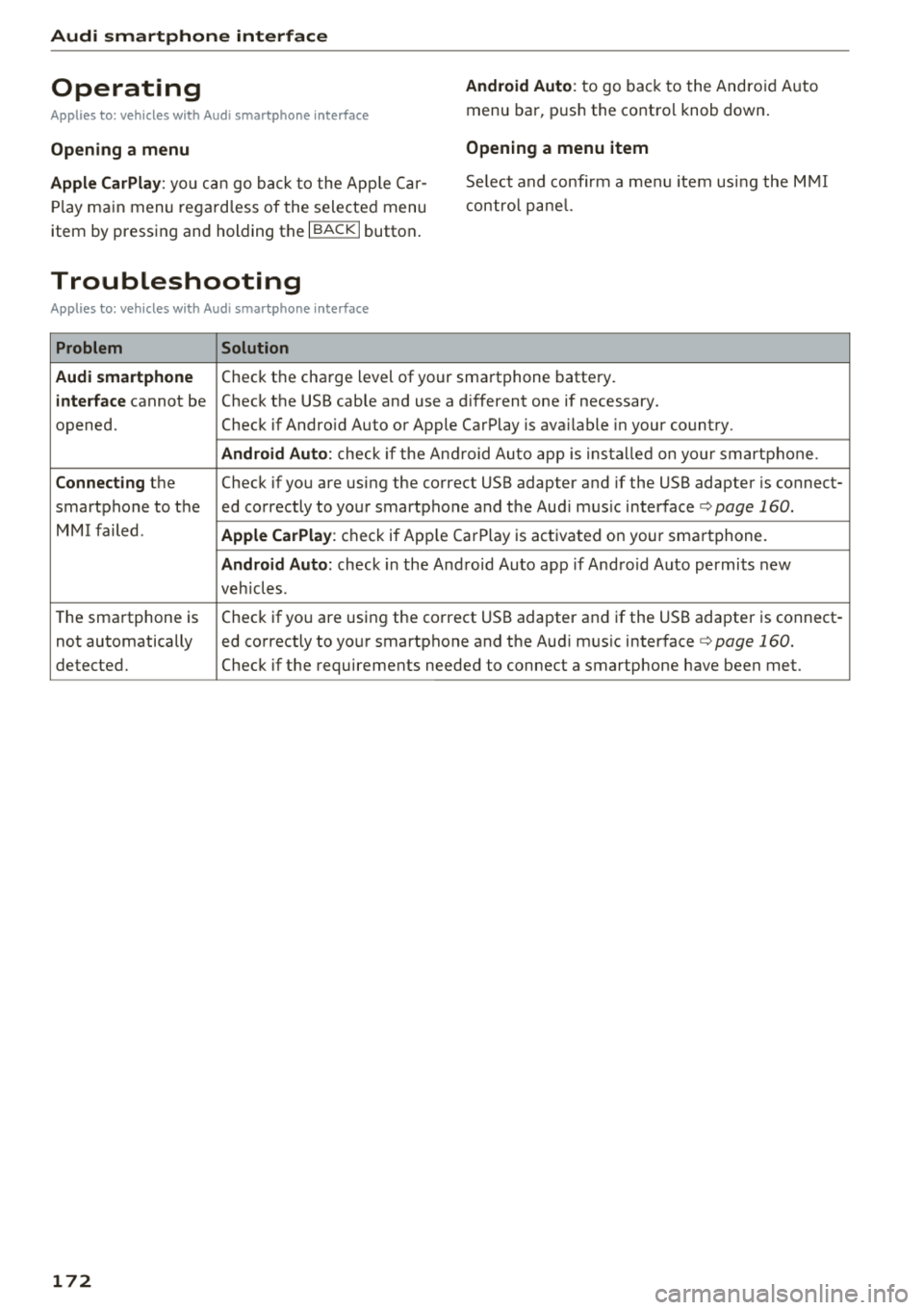
Operating
Applies to: vehicles with Audi smartphone interface
Android Auto : to go back to the Android Auto
menu bar, push the control knob down.
Opening a menu Opening a menu item
Apple CarPlay: yo
u can go back to the Apple Car
Play main menu regardless of the selected menu
item by pressing and holding the
I BACKI button. Se
lect and confirm a menu item us ing the MMI
control panel.
Troubleshooting
Applies to: vehicles with Audi smartphone interface
Problem Solution
Audi smartphone
Check the charge level of your smartphone battery.
interface cannot be Check the USB cab le and use a different one if necessary.
opened. Check if Android Auto or Apple CarPlay is available in your country.
Android Auto: check if the Android Auto app is installed on your smartphone.
Connecting the Check if you are using the correct USB adapter and if the USB adapter is connect-
smartphone to the ed correctly to your smartphone and the Audi music
interface ¢ page 160.
MMI failed. Apple CarPlay : check if Apple CarPlay is activated on your smartphone.
Android Auto: check in the Android Auto app if Android Auto permits new
veh icles .
T he smartphone is Check if you are using the correct USB adapter and
if the USB adapter is connect -
not automatically ed correctly to your smartphone and the Audi music
interface ¢ page 160.
detected. Check if the requirements needed to connect a smartphone have been met.
172
Page 177 of 310
Cl 00 .-< N r--N .-< 0 r--Vl 00
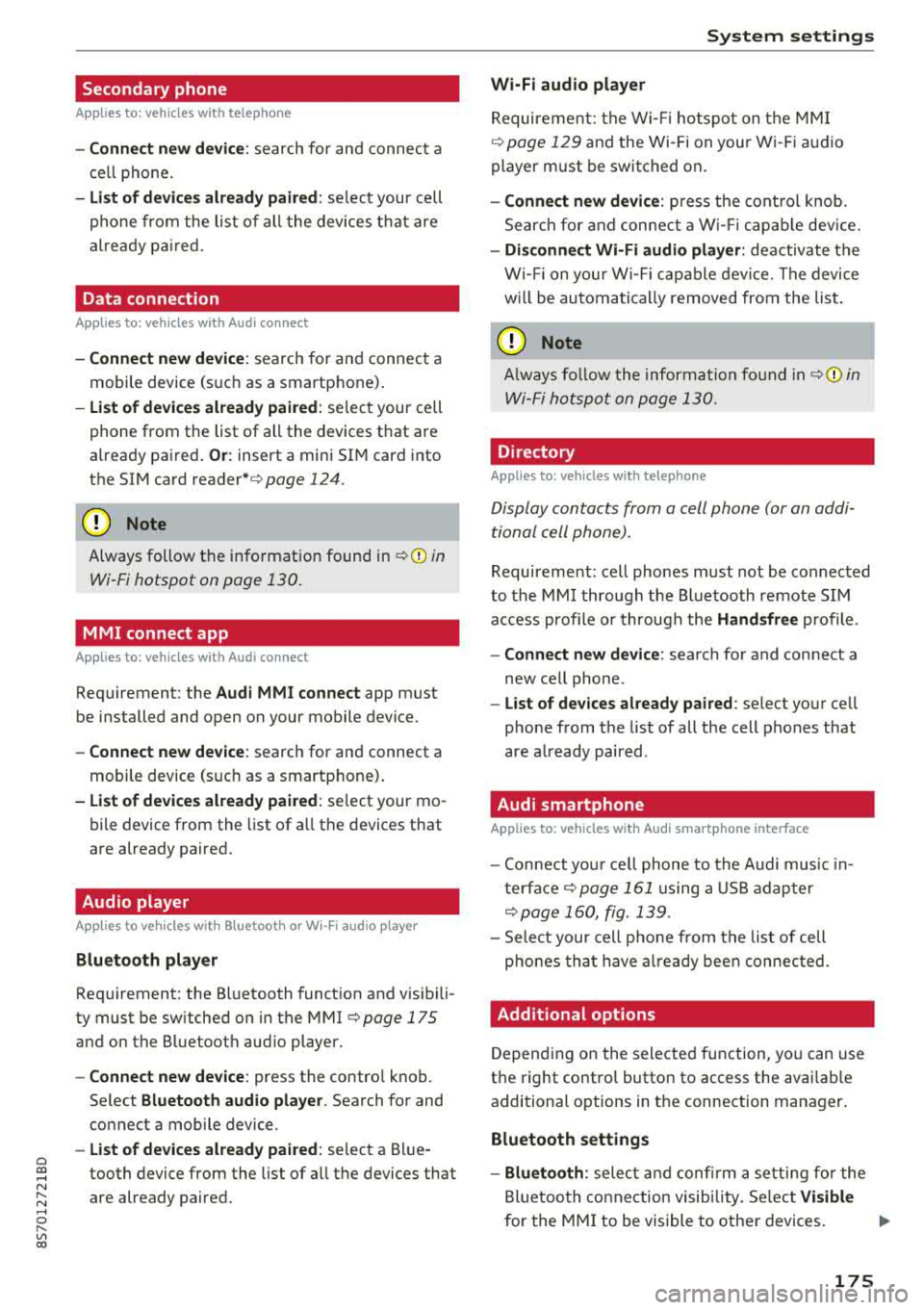
Secondary phone
Applies to: vehicles with telephone
-Connect new device : search for and connec t a
c e ll phone.
- List of devices already paired : selec t your cell
p hone fro m the lis t of all the devices t hat are
al re ad y p aired.
Data connection
Applies to: vehicles with Audi connect
-Connect new device : search for and connec t a
mobile device (s uch as a smartp hone) .
-List of devices already paired : selec t your cell
p hone from the list of all the devices t hat are
al ready pa ired .
Or : insert a mini SI M card into
the S IM ca rd
reader* c> page 124.
({;D) Note
Always follow t he i nfo rmat ion foun d in c> (0) in
W i-F i hotspot on page 130 .
MMI connect app
Applies to: vehicles with Audi connect
Requirement: the Audi MMI connect app m ust
be i nstalled and open on your mobile device.
- Connect new device : search for and connect a
mobile device (s uch as a smartp hone) .
-List of devices already paired : select your mo
b ile device from the list of a ll the devices that
are already paired.
Audio player
Applies to vehicles with Bluetooth or Wi-Fi audio player
Bluetooth player
Requirement: the Bl uetooth funct ion and v is ibi li
ty must be sw itched on in the MMI
c> page 175
and on the B luetoot h aud io player.
- Connect new device : press the control knob.
Se lect
Bluetooth audio player . Search fo r and
connect a mobile device .
-List of devices already paired : select a Bl ue
tooth device from the list of a ll the devices that
are already paired.
System settings
Wi-Fi audio player
Re quiremen t: th e W i-Fi h otspo t on the M MI
c> page 1 29 an d the Wi -Fi on you r W i-Fi audio
player m ust be switched on .
-Connect new device : pres s t he co ntrol knob.
Se arch for and conne ct a Wi-Fi ca pabl e dev ice.
- Disconnect Wi-Fi audio player: deactivate t he
Wi-Fi on you r W i-Fi capa ble dev ice. The devi ce
w ill be au tom atic a lly removed from the lis t.
@ Note
Alway s follow the infor mation foun d in c> @ in
W i-F i ho tspo t on p age 130.
Directory
Applies to: vehicles with telephone
Display contacts from a cell phone (or an addi
tiona l cell phone).
Requirement: cell phones must not be connected
to the M MI t hro ugh the Blue too th remote SI M
ac cess profi le or throug h th e
Handsfree p ro file.
- Connect new device: search for and connect a
new ce ll phone .
-List of devices already paired : select yo ur cell
p ho ne from the list of all the cell phones that
are a lready paired .
Audi smartphone
Applies to: vehicles with Audi smartphone interface
-Con nect yo ur cell phone to the A udi music in
t erfa ce
c> p age 161 using a USB a dap ter
c> page 160, fig. 139 .
-Sele ct your cell p ho ne fro m th e list of cell
p hon es th at h ave alread y bee n connec ted.
Additional options
D epen ding o n the sele cte d fu nction, yo u can use
t h e right contro l button to access the avai la bl e
additional opt ions in t he connection mana ger.
Bluetooth settings
- Bluetooth:
selec t and co nfi rm a s etti ng for the
Bl uetoo th conne ct ion visib ility. Se lec t
Visible
for the MM I to be visib le to othe r devices . ..,.
175
Page 178 of 310
System settings
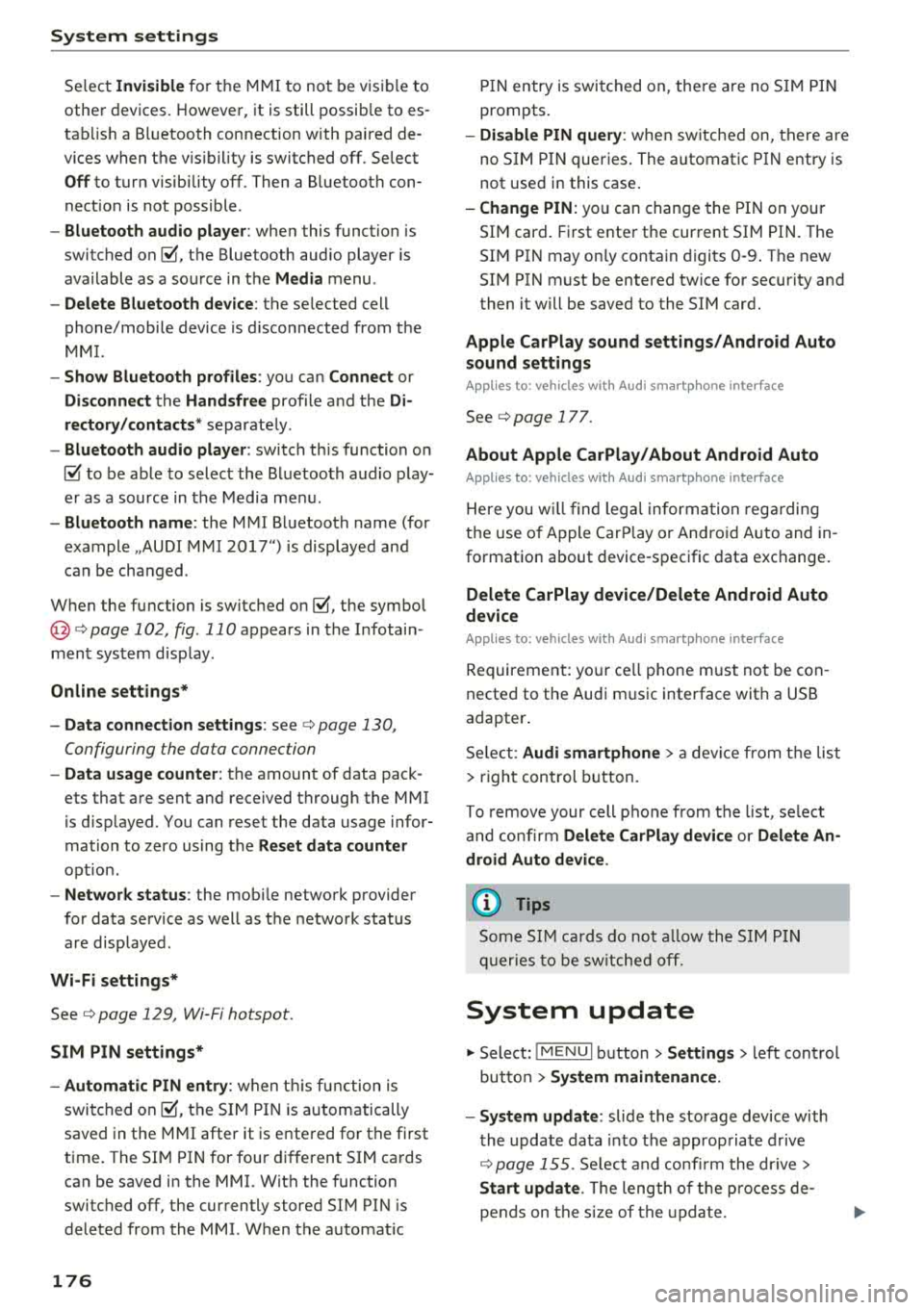
Select Invisible for t he MMI to not be v is ibl e to
othe r devices. Howeve r, it is still possib le to es
ta bli sh a B luetooth con nection with paired de
vices when the v is ibility is switched off . Se lect
Off to turn visibi lity off . Then a B luetooth con
nect io n is not possible .
-Bluetooth audio player : when this function is
switched on
g, t h e Blue tooth aud io player is
available as a so urce in t he
Media menu .
-Delete Bluetooth device : th e se lected cell
phone/mobile device is d isconnected from t he
MMI.
- Show Bluetooth profiles : you ca n Connect or
Disconnect the Handsfree profi le a nd the Di
rectory /contacts *
separately.
- Bluetooth audio player : switch th is function on
g to be a ble to selec t the B luetoo th a udio p lay
er as a source in t he M edia me nu.
-Bluetooth name : the MMI B luetoo th name (for
example ,,AUDI M MI 2017") is displayed and
can be changed .
W hen the function is switched on
g , the symbo l
@<=>page 102, fig . 110 appears in the Infotain
ment sys tem disp lay.
Online settings*
- Data connection settings :
see<=> page 130,
Configuring the data connection
- Data usage counter : th e amount of data pack
ets that a re sent and received throug h the MMI
is d isp layed. You can reset the data usage infor
mation to zero using the
Reset data counter
opt ion.
- Network status : the mobile netwo rk p rovider
for data se rvice as well as the network status
are disp layed .
Wi-Fi settings*
See <=> page 129, Wi -Fi hotspot.
SIM PIN settings*
- Automatic PIN entry:
when this funct ion is
swi tched on
g , th e S IM PIN is automatically
saved in the MMI after it is entered for t he first
time. The SI M PIN for four d ifferent SIM ca rds
can be saved i n the MMI. With the function
switched off, the cur rently stored SI M PIN i s
dele ted from the MMI. When the a utomat ic
176
P IN entry is swi tched on, the re a re no S IM P IN
prompts .
-Disable PIN query : when sw itche d on, there are
no SIM PIN queries . The a utomatic PIN entry is
not use d in this case .
-Change PIN : you can change the P IN on you r
SI M card . First ente r th e cur rent SI M PIN. T he
SI M PIN may on ly conta in digits 0 -9 . T he new
SI M PIN must be entered twice for security a nd
then it w ill be saved to the SI M card .
Apple CarPlay sound settings/ Android Auto
sound settings
App lies to : vehicles wit h Audi s m artph one interface
See<=> page 177.
About Apple CarPlay/ About Android Auto
App lies to : vehicles wi th Audi sma rtphone interface
Here you w ill find leg al inform ation reg arding
t h e use o f A pple Car Play o r And ro id Auto and in
fo rmat ion about devi ce -s p ecific data exc han ge.
Delete CarPlay device/Delete Android Auto
device
App lies to : vehicles wi th Audi s m artph one interface
Requirement: yo ur cell phone m ust not be con
necte d to the Au di music interface with a USB
adapter.
S e le ct :
Audi smartphone > a d evice from th e list
> righ t con trol button .
To re m ove your cell p ho ne from the list, se lect
a nd con firm
Delete CarPlay device or Delete An
droid Auto device .
© Tips
Some SIM cards do not allo w the SIM PIN
qu eri es to be sw itch ed off .
System update
.,. Selec t: !ME NUI butt on> Settings > left cont rol
bu tton >
System maintenance.
- System update :
slide the storage device with
t he upda te da ta into the a pprop ria te d rive
r=;, page 155. Selec t an d co nfirm t he drive>
Start update . The leng th of the p rocess de
pe nd s on the s ize of the up dat e.
Page 297 of 310
Cl 00 .-< N r-N .-< 0 r-Vl 00
AUTO Automatic climate control system . . . . . . . 52
Automatic headlights . . . . . . . . . . . . . . . . . 38
Auto Lock (central locking) . . . . . . . . . . . . . . 22
Automatic belt retractor . . . . . . . . . . . . . . .
190
Automatic climate control system
refer to Climate control system (automatic) .52
Automatic key . . . . . . . . . . . . . . . . . . . . . . . . . 22
Automatic transmission . . . . . . . . . . . . . . . . . 63
Driving tips . . . . . . . . . . . . . . . . . . . . . . . . . . 65
Emergency mode . . . . . . . . . . . . . . . . . . . . . 68
Hill descent control . . . . . . . . . . . . . . . . . . . 67
Kick-down . . . . . . . . . . . . . . . . . . . . . . . . . . . 68
La unch Control Program . . . . . . . . . . . . . . . 68
malfunction . . . . . . . . . . . . . . . . . . . . . . . . . 64
Selector lever emergency release . . . . . . . .
69
Selector lever lock . . . . . . . . . . . . . . . . . . . . 64
Selector lever positions . . . . . . . . . . . . . . . . 63
Shifting manually . . . . . . . . . . . . . . . . . . . . 67
Steering wheel with shift paddles . . . . . . . . 67
tiptronic . . . . . . . . . . . . . . . . . . . . . . . . . . . . 67
Automatic wipe/wash system . . . . . . . . . . . . 42
Automatic zoom (navigation) . . . . . . . . . . . 144
Index
Brakes . . . . . . . . . . . . . . . . . . . . . . . . . . . . . . . 87
Brake assist . . . . . . . . . . . . . . . . . . . . . . . . . 86
Brake assist system . . . . . . . . . . . . . . . . . . . 86
Brake booster . . . . . . . . . . . . . . . . . . . . . . . . 87
Brake fluid . . . . . . . . . . . . . . . . . . . . . . . . . 241
Electromechanical parking brake . . . . . . . . 61
Emergency braking function . . . . . . . . . . . . 61
Indicator light . . . . . . . . . . . . . . . . . . . . . . .
10
New brake pads . . . . . . . . . . . . . . . . . . . . . . 87
Worn brake pads . . . . . . . . . . . . . . . . . . . . . 14
Break-in security feature . . . . . . . . . . . . . 22, 2 7
Breaking in New brake pads . . . . . . . . . . . . . . . . . . . . . . 87
New engine . . . . . . . . . . . . . . . . . . . . . . . . . 56
New tires 251
Browser
refer to Media center . . . . . . . . . . . . . . . . . 163
Bulb failure (indicator light) . . . . . . . . . . . . . 16
Bulb replacement . . . . . . . . . . . . . . . . . . . . . 282
Buttons Control panel (MMI) . . . . . . . . . . . . . . . . . .
93
Multifunction steering wheel . . . . . . . . 18, 20
Auto Safety Hotline . . . . . . . . . . . . . . . . . . . 18S C
AUX input
Average fuel consumption ........... .. . . 161
21
Average speed . . . . . . . . . . . . . . . . . . . . . . . . 21
B
BACK button . . . . . . . . . . . . . . . . . . . . . . . . . . 93
Balance (sound) . . . . . . . . . . . . . . . . . . . . . . 177
Bass (sound) . . . . . . . . . . . . . . . . . . . . . . . . . 177
Battery Jump starting . . . . . . . . . . . . . . . . . . . . . . . 283
Before driving .. ................ ... .. .
Better route (navigation) ........ .. .. .. .
Blended gasoline
179
147
229
Blower (climate control system) . . . . . . . . . . 52
Bluetooth Audio player . . . . . . . . . . . . . . . . . . . . . . . . 157
Connecting a cell phone . . . . . . . . . . . . . . 111
Settings . . . . . . . . . . . . . . . . . . . . . . . . . . . 175
Booster seats
Brake fluid 223
Checking the brake flu id leve l . . . . . . . . . .
241
Cable (USB adapter/AUX connector cable) 160
California Proposition 65 Warning . . . . . . . 234
Battery specific . . . . . . . . . . . . . . . . . . . . . 242
Call list . . . . . . . . . . . . . . . . . . . . . . . . . . . . . 114
Call options . . . . . . . . . . . . . . . . . . . . . . . . . . 121
Capacities Fuel tank . . . . . . . . . . . . . . . . . . . . . . . . . . . 288
Washer fluid reservoir . . . . . . . . . . . . . . . . 288
Cargo area
refer to Luggage compartment. . . . . . . . . 183
Catalytic converter ... ................ . 233
CD drive (media drives) ............... . 156
Cell phone Pl
. · aying music . . . . . . . . . . . . . . . . . . . . . . . 157
also refer to Telephone . . . . . . . . . . . . . . . 111
Center armrest . . . . . . . . . . . . . . . . . . . . . . . .
47
Central locking . . . . . . . . . . . . . . . . . . . . . . . . 22
Luggage compartment lid . . . . . . . . . . . . . . 27
Mechanically locking . . . . . . . . . . . . . . . . . . 27
Power windows . . . . . . . . . . . . . . . . . . . . . . 29
Remote control key . . . . . . . . . . . . . . . . . . . 24
Setting . . . . . . . . . . . . . . . . . . . . . . . . . . . . . 26
295