bluetooth AUDI TT ROADSTER 2018 User Guide
[x] Cancel search | Manufacturer: AUDI, Model Year: 2018, Model line: TT ROADSTER, Model: AUDI TT ROADSTER 2018Pages: 310, PDF Size: 46.95 MB
Page 123 of 310
Cl 00 ... N r--N ... 0 r--Vl 00
-Selecting all contacts at once to import /e x
port :
select and confirm Import contacts /E x
port conta cts > SD card 1 /50 card 2 or USB de
v ice 1 /USB device 2
> All > Start import /Start
e x port .
(D Tips
-Always rea d the chapter ¢ page 131, About
Audi connect.
- Fo r additional informat io n on t he myAudi
account, v is it www.au diusa.com/mya udi .
- The impo rted contacts a re store d in the lo
ca l memo ry
o f the di rectory .
- A maxim um of 1, 000 contacts can be im
p orted . You can c hec k the directory memory
capac ity at any
time ¢ page 121.
-Neve r save important data o n memory cards
or USB storage devices . Audi is not respons i
b le for damaged or lost fi les and med ia.
- Contacts that we re down loade d from a ce ll
p ho ne cannot be e xported .
- The re s hou ld be no othe r files or folde rs on
the sto rage medium co ntainin g th e contacts
to be imported .
Settings
Telephone settings
Applies to: vehicles with telephone
.,. S e lect : I MENU I button> Telephone > rig ht co n-
t ro l but ton >
Telephone settings .
Call options* Multi-party calling :
can be switched on /off.
Ringtone and volume settings
1>
Using the Mute telephone f unct ion, you can
sw itch the ringtone on yo ur MMI on or off . You
can play the ringtones using the
Ringtone func
tion . Se lect and confirm a n entry from the list .
For the
Ringtone volume /Message volume set
t ings,
see ¢ page 177. The Microphone input
level
can be adjus ted dur ing a pho ne call us ing
t he cont ro l knob .
ll Depends on th e co nnect ed cell p ho ne.
Telephone
(D Tips
- Severa l cell p hones can be paired to t he
MM I, but only two * ce ll phones can be ac
t ively connected.
- To delete a ll paired B luetoot h dev ices, the
Bluetooth function can be reset to the fac
to ry default
settings¢ page 174.
Additional options
Applies to: vehicles with te lephone
.,. Select: ! M EN UI button> Telephone > right con-
t rol button .
Connection manager
See ¢page 174.
Bluetooth settings
See ¢ page 17 5.
Online settings *
See¢ page 1 76 .
Wi-Fi settings
See ¢ page 129, Wi -Fi hotspot .
Directory settings
Applies to: vehicles with telephone
.,. Select: !ME NUI button> Telephone > left con
trol button >
Directory > right control button >
Directory settings .
Memory capacity
S hows the Memory capacity fo r th e d irecto ry.
Yo u can m anage up t o 17 ,0 00 cont acts wi th t he
MM I direc to ry. Yo u ca n lo ad up to 4,0 00 conta cts
from your cell phone into each directo ry . Yo u ca n
also im port up to 1,000 contacts from a storage
device .
Sort order
You can so rt the cont acts in you r directo ry alph a
be tica lly ac co rdin g to
Last name or First name. ..,.
121
Page 124 of 310
Telephone
Imp ort cont acts
See ¢ page 120, Importing and exporting con
tacts.
Export contacts
See ¢ page 120 , Importing and exporting con
tacts.
Downlo ad dire ctory
To update the contacts in the MMI, you can man
ually download your cell phone contacts . De
pending on the cell phone, the Bluetooth connec
tion may need to be disconnected and reconnect ed to update the contacts.
Hide conta ct s wi thout phone numbe r
When this function is switched on, grayed-out
contacts that have no phone numbers stored for
them will be hidden in the directory .
Safety belt microphone
Applies to: vehicles with safety belt microphone
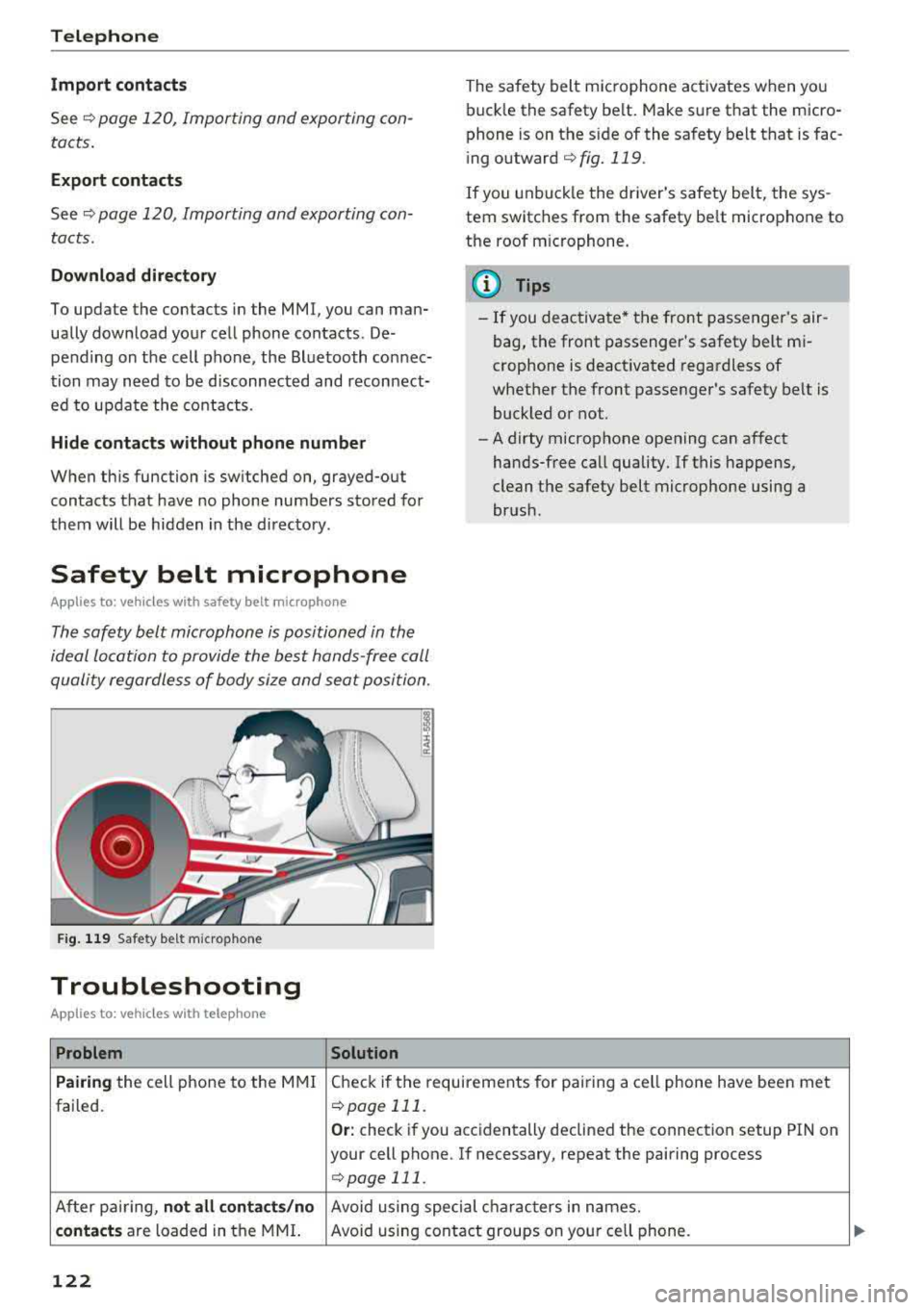
The safety belt microphone is positioned in the
ideal location to provide the best hands-free call
quality regardless of body size and seat position.
F ig . 119 Safety belt microphone
Troubleshooting
App lies to: vehicles with telephone
Problem Solution
The safety belt microphone activates when you
buck le the safety belt. Make sure that the micro
phone is on the s ide of the safety belt that is fac
ing outward
¢ fig. 119 .
If you unbuckle the driver's safety belt, the sys
tem switches from the safety be lt microphone to
the roof m icrophone.
(D Tips
- If you deactivate* the front passenger 's air
bag, the front passenger's safety belt mi
crophone is deactivated regardless of
whether the front passenger's safety belt is
buckled or not .
- A dirty microphone opening can affect hands-free call quality. If this happens,
clean the safety belt microphone using a
brush .
Pairing the cell phone to the MMI Check if the requirements for pai ring a ce ll phone have been met
failed.
¢ page 111.
Or: check if you accidentally declined the connection setup PIN on
your cell phone. If necessary, repeat the pairing process
¢page 111.
Af ter pai ring, not all c ont acts/ no Avoid using special characters in names.
con tact s are loaded in the MMI. Avoid using contact groups on your cell phone.
122
Page 125 of 310
Cl 00 .-< N r-N .-< 0 r-Vl 00
Problem
Certain telephone functions are
grayed out or not available.
Some
telephone functions are
switched off or not availab le, even
though the cell phone is support-
ed.
Telephone
Solution
The te lephone functions depend on the cell phone service provider
and the cell phone you are using. You can obtain more informa-
tion from your cell phone service provider, in your cell phone user
gu ide or in the database for mobile devices at www.audiusa.com/
bluetooth .
On corporate
phones, some Bluetooth settings may not be com-
patib le or the cell phone Bluetooth funct ion may be deactivated.
You can obtain more information from your system admin istrator.
123
Page 127 of 310
Cl 00 .-< N r-N .-< 0 r-Vl 00
~ Select and confirm Enter PIN .
~ Enter the PIN for your SIM card.
~ Select and confirm OK.
~ To connect to the Internet automatically in the
future, select and then confirm
Yes.
~ Confirm the system prompt asking to connect
to the Internet with e ither
Yes, connect once or
Yes, always if required .
After connecting successfully
After connecting successfully, the s ignal strength
and connection type are displayed in the Info
tainment system status
line @/© Q page 102,
fig . 110 .
You can now use Aud i connect.
The list of avai lable Audi connect services is dis
p layed in the Infotainment system display.
Removing the Audi connect SIM card
~ Press on the Aud i connect SIM card briefly.
0 Note
- Audi con nect is designed for use only with
the pro vided Audi connect SIM card. Aud i
AG is not liable for the consequences of us
ing other SIM cards.
- If a SIM card of a different siz e is inserted in
the SIM card reader instead of an Audi con
nect mini SIM card, do not under any cir
cumstances remove this card yourself due
to the risk of damaging the SIM card reader .
Contact an authorized Audi dealer or au
thorized Audi Service Facility.
(D Tips
-You can connect a ce ll phone with Bluetooth
(handsfree) to make phone calls
Qpoge 111.
- Audi does not provide support for other SIM
cards. Audi recommends using only the pro
v ided SIM card.
- You can specify when the MMI connects to
the Internet
Q page 130. The Internet con
nection disconnects automatically once the
requested Audi connect service no longer re
quires any data packets.
Audi connect
Configuration through
myAudi
Activating/configuring specific Audi
connect services
App lies to: vehicles wit h Audi connect
Some Audi connect services must be activated/
configured through your personal myAudi ac
count before using them for the first time .
- If you do not have a personal myAudi account
yet, you can register on line at
www.audiusa.com/myaudi.
- Add your vehicle to your my Audi account.
- Activate/configure the Audi connect services
you would like for your vehicle in your myAudi
account.
- For some services, you may also have to enter
your myAudi user data or your myAudi PIN
when accessing services in the MMI to connect
your veh icle to myAudi.
For detailed information on configuration, visit
www.audiusa.com/myaudi.
Logging into myAudi in the vehicle
App lies to : vehicles wi th Audi connect
To use some Audi connect services (such as Twit
ter*), you must first connect your vehicle with
myAudi to transfer your personal settings from
your myAudi account.
~ Select: ! MENUI button> Audi connect> right
control button >
Log in.
~ Enter your myAudi user data. Or: enter your
eight-digit myAudi PIN.
~ Conf irm your entry w ith OK.
Then you can open your personal settings from
your myAud i account in your vehicle.
(D Tips
You can receive your myAudi PIN if you have
set up a myAudi account. For additional infor mation, see www.audiusa.com/myaudi.
125
Page 159 of 310
Cl 00 .-< N r--N .-< 0 r--Vl 00
When importing, the audio files are automatical
l y sorted into the media center categories based
on the stored addit ional information
¢ page 163. The copied video files are stored in
the media center under the
Videos category.
Playing the Ju kebo x
Requirement: the Jukebox must contain audio/
video fi les
¢ page 156, Adding files to the Juke
box.
The Jukebox is accessed and operated t hrough
the M MI
(D ¢ page 162, fig . 141.
Di splaying Jukebox memory capacity
Select : right control button > Juk ebox m emor y
ca pa city .
Info rmation about the Ju kebox memory
capacity and the numbe r of sto red t racks is dis
p layed .
Deleting tracks from the Jukebox1
)
Requirement: the Jukebox must contain audio/
v ideo fi les.
- Dele ting an en tr y: selec t an entry from the
Jukebox media center . Select: right control but
ton
> D elete from ju kebo x> This entr y or En
tire list .
-The status of the deleting process is shown in
the MMI. Jukebox playback stops during the de let ing p rocess a nd starts again automatically
once the deletion is comp lete .
0 Note
Do not import aud io/video files when the en
g in e is t urned off because this will d rain the
ve hicl e battery.
0) Tips
-Tracks from aud io CDs cannot be impo rted
to the Jukebox for legal reasons.
- Files that have al ready been imported are
automat ica lly recogn ized and cannot be
cop ied to the J ukebox again.
- It is not possib le to play audio/v ideo* files
i n the CD/DVD* dr ive while import ing them.
ll Not in the Playback view .
Media
- T he Jukebox does not provide an expo rt
function due to legal reasons .
- Files or tracks w ithout additional stored in
formation are listed as
Unknown . Audi rec
ommends adding additional information
(such as 103 tags) to audio f iles.
- Reset the Jukebox to the factory default set
tings when selling your
vehicle ¢ page 174 .
Bluetooth audio player
Applies to: vehicles with Bluetooth audio player
With the Bluetooth audio player, you can play
music wirelessly from your Bluetooth-capable
device (such as a cell phone) through the
MMI.
Requirement: the vehicle must be stationary and
the ignit ion must be switched on. The B luetooth
settings w ill open on your mobile device during
the connection setup . The Bluetooth function
and visibility of the MMI
¢ page 175 and mob ile
device must be sw itched on . Th e
Bluetooth audio
playe r¢ page 175 must be sw itched on in the
MM I.
-Conn ect ing a Bluetooth de vice : press the
!M EDIAi button. Press the left control button
until t he sources overv iew is d isp layed. Select
and confirm
Blu etooth audio pla yer®
¢ page 162, fig . 142 .
- If ne cessa ry, select and co nfirm , Not c onn ected
> Conn ect Blu etooth audio pla yer. Th e Blue
tooth device search starts. Fo llow the inst ruc
tions in the MMI.
- Select and confirm the desired Bluetooth de
vice from the list . The MMI generates a PIN for
the connection .
- Select and confirm
Yes.
- Enter the PIN for connect ing on your Bl uetooth
device .
Or: if the PIN is already displayed on
your Bluetooth device, confirm it in the Blue
tooth device and in the MMI. The time a llowed
for entering the PIN is limited to approximately 30 seconds .
The media is started and operated through the mobile device or t he MMI, depending on the de -
vice being used .
.,.
157
Page 160 of 310
Media
(D Tips
-Check for any connection requests on your
Bluetooth device.
- Multiple Bluetooth audio players can be
connected to the MMI, but only one mobile
device can be active.
- Bluetooth protocols AVRCP (1.0/1.3/1.4)
and A2DP are supported.
- Note the volume setting on your Bluetooth
device. Audi recommends setting your mo
bile device to the maximum volume when
using it as a Bluetooth audio player.
- The supported media functions (such as
shuffle) depend on the Bluetooth device be ing used.
- For more information on the supported de
vices, visit www.audiusa.com/bluetooth or
contact an authorized Audi dealer or author
ized Audi Service Facility.
Wi-Fi audio player
App lies to: ve hicles w ith Wi-F i audio playe r
Using the Wi-Fi audio player media source on the
MMI, you can connect and operate your Wi-Fi-ca
pable media player (such as a smartphone) to wirelessly play music from your media player
li
brary. The media player is connected through the
vehicle's Wi-Fi hotspot. A UPnP Server opp or an
integrated UPnPIDLNA server on your media
player is required to access your media player
li
brary.
Requirement: the Wi-Fi function on your media
player must be switched on. The
Audi MMI con
nect
app or a UPnP server app must be installed
on your media player .
Or: you must be using a
media player with an integrated UPnP/DLNA
server .
-Connecting a media player: press the I MEDIA !
button. Press the left control button until the
sources overview
¢ page 162 is displayed . Se
lect and confirm
Wi-Fi audio player 0
¢ page 162, fig . 142.
- If necessary, select and confirm Wi-Fi turned
off> Turn on Wi-Fi
to activate Wi-Fi in the
MMI. Select
Wi-Fi settings, if necessary . Select
158
the same settings on the wireless media player
that are used for the Wi-Fi hotspot.
- Starting the Wi-Fi audio player: start the Audi
MMI connect
app or a UPnP server app. Or: al
low media sharing on your media player.
Operating the media player: the media player is
operated through the MMI.
- Press the left control button repeatedly until
the
Folders menu item appears. Select and con
firm
Folders .
- Playing music from the media player:
select
and confirm
Media center .
Web radio:
see ¢ page 159.
A WARNING
- As the driver, do not allow usage of the Wi
Fi hotspot to distract you from driving, as
this could increase the risk of an accident.
- It is only safe to use tablets, laptops, mo
bile devices and other similar devices when
the vehicle is stationary because, like all
loose objects, they could be thrown around
the inside of the vehicle in a crash and cause
serious injuries. Store these types of devices
securely while driving.
- Do not use any Wi-Fi devices within range of
the airbags while driving . Also read the
warnings in the
chapter¢ page 194.
((D} Note
Always follow the information found in ¢(l} in
Wi-Fi hotspot on page 130.
(D Tips
- The Wi-Fi connection is reconfigured when
inserting or removing the mini SIM card in
the SIM card reader*. There may be a tem
porary interruption in audio playback, de
pending on the media player.
- Always read the chapter¢
page 131, About
Audi connect.
- Please note that a Wi-Fi connection does
not automatically make it possible to use
the Internet. For additional information,
see ¢
page 124.
Page 165 of 310
Cl co .... N ,....
N .... 0 ,....
Vl co
®
0
®
such as an MP3 player connected to
the AUX input
Bluetooth audio player*
Wi-Fi audio player* .......... .
Online media*
and Internet radio*
157
158
159
-Playing audio/video files: select a source in the
Media menu > category (such as artists > al
bum
> track) .
-Moving one level up in the folder structure:
press the I BACK I button. Or: select and confirm
Folder up.
- Selecting the previous or next track/chapter
1): press the On/Off knob on the MMI control
panel briefly to the left
l
-Fast-forwarding and rewinding audio/video
files :
press and hold the On/Off knob on the
MMI control panel to the left l
a longer time.
-Pausing or resuming playback: press the On/
Off knob on the MMI control panel briefly.
@ Tips
-You can scroll through long lists quickly by
turning the control knob quickly. The scroll
i ng speed depends on the number of list en
tries.
-For safety reasons, the video image is only
displayed when the vehicle is stationary. On ly the sound from the v ideo plays while driv
i ng .
Media center
Various categories for selecting audio/video*
files are available in the media center .
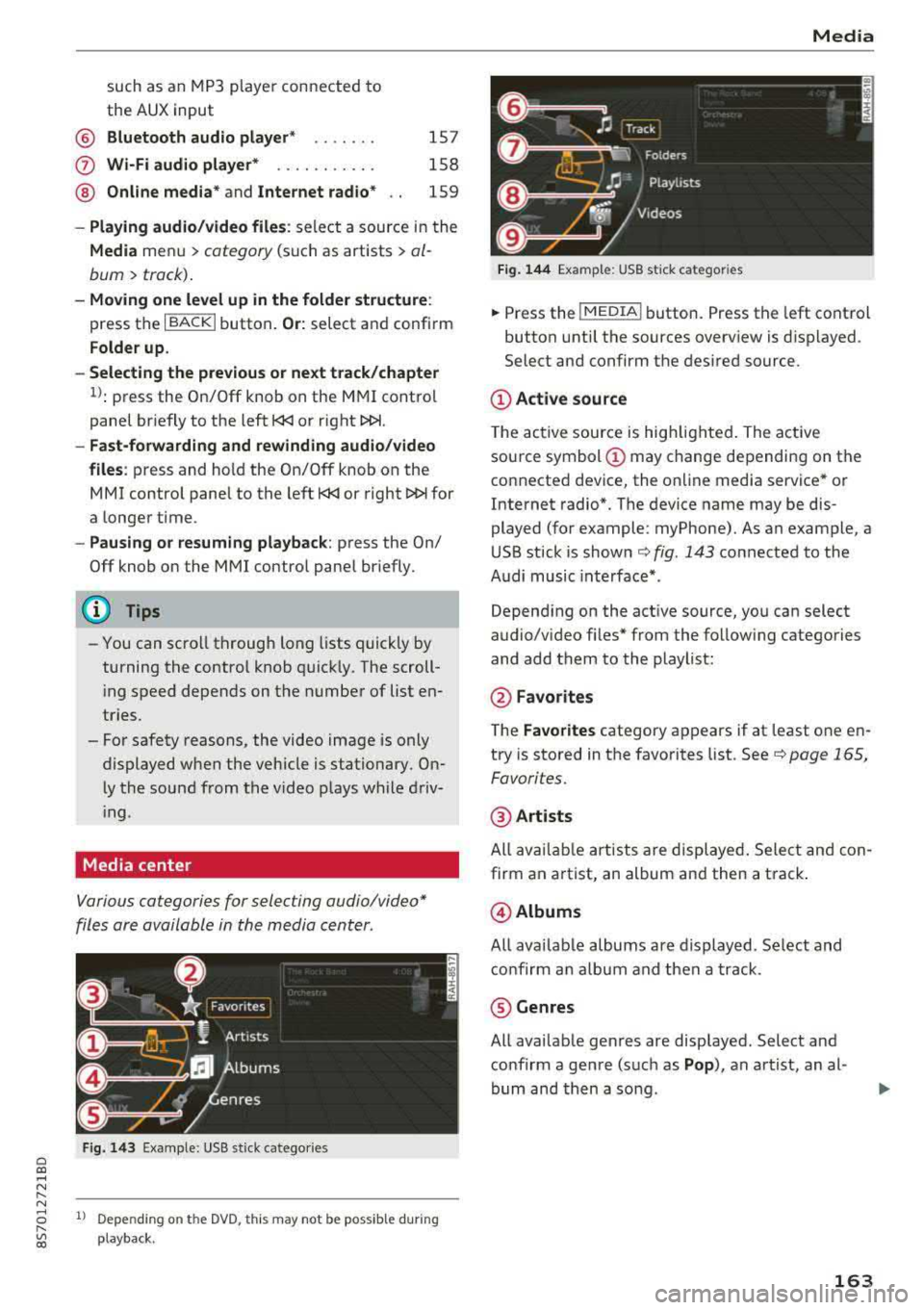
Fig. 143 Example: USB stick catego ries
1l Depe ndi ng o n th e DVD, t his may not be possible during
playba ck .
Media
Fi g. 144 Example: USB stick categories
... Press the I MEDIA! button. Press the left control
button until the sources overview is displayed.
Select and confirm the desired source.
(D Active source
The active source is highlighted . The active
source symbol
(D may change depending on the
connected device, the online media service* or
Internet radio*. The device name may be dis
played (for example: myPhone). As an example, a
USB stick is shown
c:> fig. 143 connected to the
Audi music interface* .
Depending on the active source, you can select
audio/video fi les* from the follow ing categories
and add them to the playlist:
@ Favo rites
The Favorites category appears if at least one en
try is stored in the favorites list. See
c:> page 165,
Favorites.
@ Artists
All available artists are displayed. Select and con
firm an a rtist, an album and then a track .
@Albums
All availab le albums are displayed. Select and
confirm an album and then a track .
® Genres
All available genres are displayed. Select and
confirm a genre (such as
Pop ), an artist, an al
bum and then a song .
163
Page 167 of 310
Cl 00 .-< N r-N .-< 0 r-Vl 00
Playlist
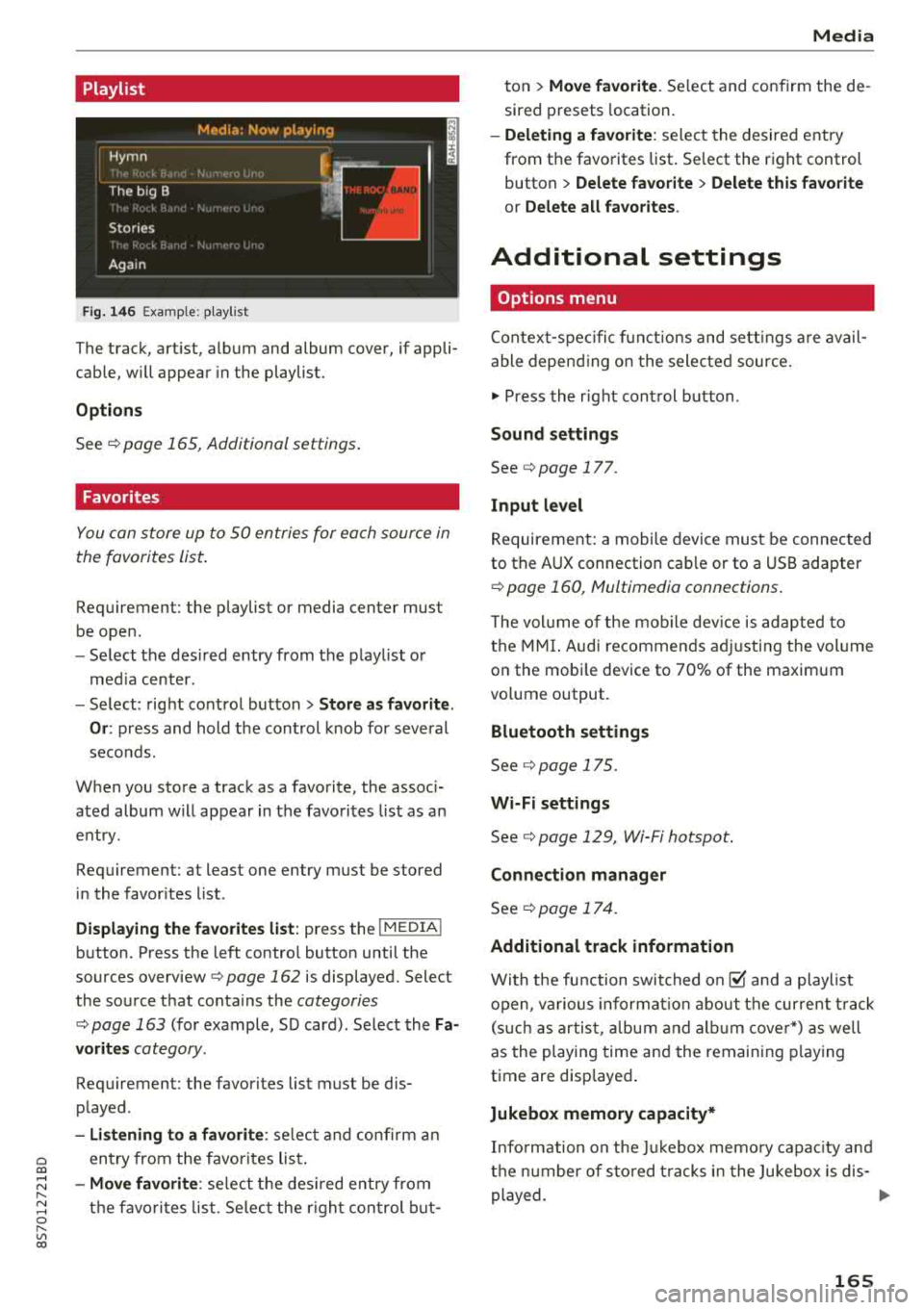
Fig. 14 6 Example: p lay list
The track, art ist, album and album cover, if appli
cable, will appear in the playlist.
Options
See r:!> page 165, Additional settings .
Favorites
You can store up to 50 entries for each source in
the favorites list.
Requirement: the playlist or media center must
be open .
-Select the des ired entry from the playl ist o r
med ia center.
- Select: right control button
> Store a s favorite.
Or :
press and hold the cont rol knob for several
seco nds.
When you store a track as a favorite, the assoc i
ated album w ill appear in the favorites l ist as an
entry.
Requirement: at least one entry must be stored
in the favor ites list.
Displa ying the fa vorite s list : press the I MEDIA !
button. Press the left contro l button until the
sources
overview ¢ page 162 is displayed. Select
the source that conta ins the
categories
r:!> page 163 (for example, SD card) . Select the Fa
vorit es
category.
Requirement: the favorites list must be dis
p layed.
- Listening to a favorite : select and confirm a n
entry from the favorites lis t.
-Move favorite : select t he des ired entry from
the favo rit es list. Se lec t the r ight con trol b ut-
Media
ton > Mo ve fa vo ri te . Se lect and confirm the de
sired presets location.
- Deleting a f avorit e: select the desired entry
from the favorites list. Se lect the right control
button
> Delete fa vorite > Delete this f avorite
or Delete all fa vorite s.
Additional settings
Options menu
Contex t-spec ific f unct ions and sett ings are avail
able depend ing o n the selected source.
.,. Press the r ight cont rol button .
Sound settings
See¢ page 177.
Input l evel
Requirement: a mobile device must be connected
to the AUX connection cab le or to a USB adapter
r:!> page 160, Multimedia connections.
T he vol ume of the mob ile dev ice is adapted to
the MMI. Audi recommen ds ad justing the vol ume
on the mobi le device to 70% of the maximum
vo lume output.
Bluetooth settings
See r:!> page 175.
Wi-Fi settings
See¢ page 129, Wi-Fi hotspot.
Connection manager
See ¢ page 17 4.
Additional track information
With the fu nction swit ched on@' and a playlist
open, va rious informat io n about the cur rent t rack
(s uch as artist, a lbum and a lb um cover*) as we ll
as the playing time and the remaining p laying
time are displayed .
Jukebox memory capacity*
Info rmation on the Ju kebox memo ry capac ity and
t h e n umber of sto red t racks in the Jukebox is dis-
played.
..,
165
Page 171 of 310
Cl 00 ... N r-N ... 0 r-Vl 00
Media
-The manufactu rer of the stora ge device can
provide information about its "USB Device
Subclass" . -Some MTP p laye r fu nct ions are not s upport
ed, s uch as rating music tracks and video
playback.
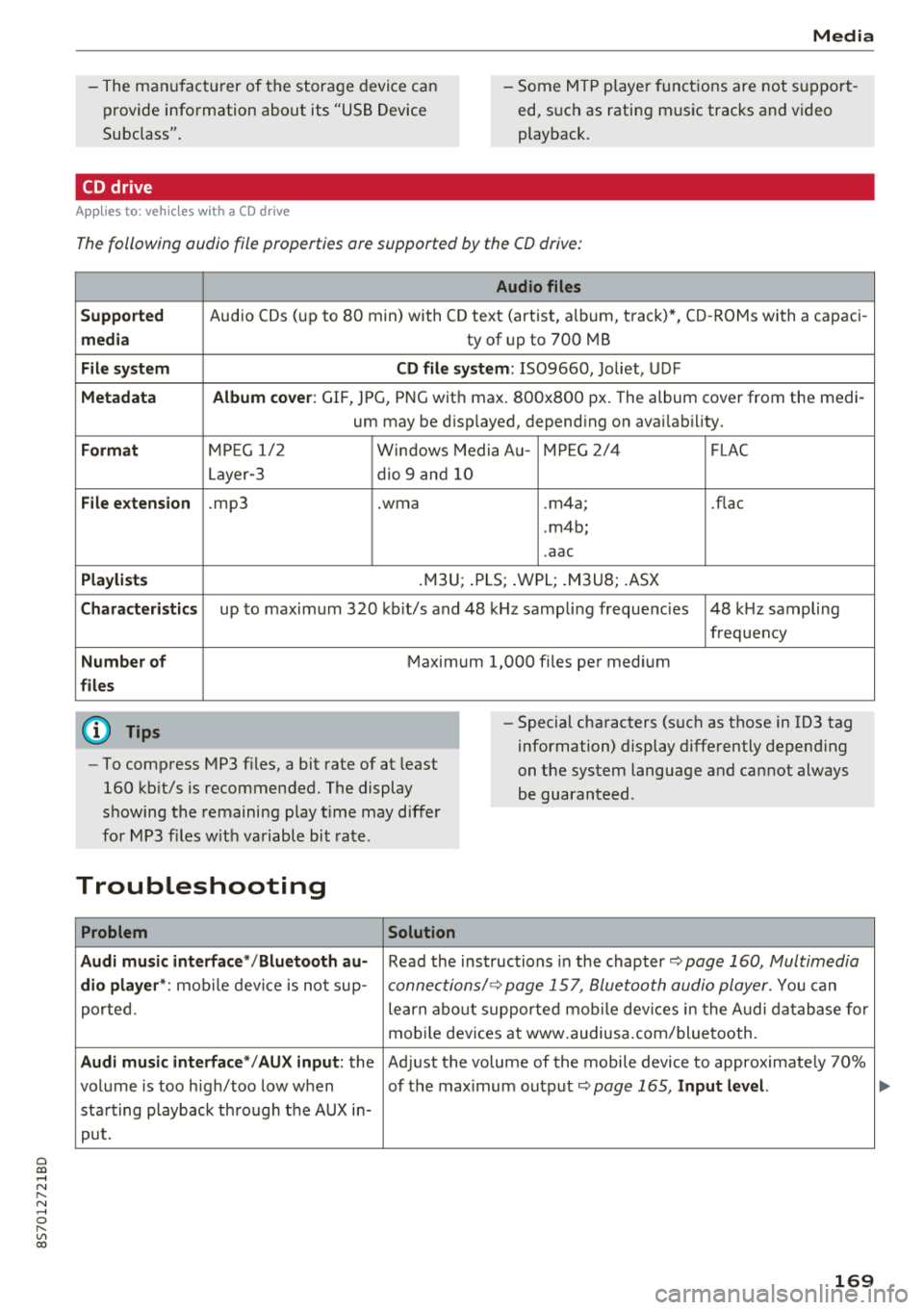
CD drive
App lies to: ve hicles with a CD d rive
The following audio file properties are supported by the CD drive:
Audio files
Supported
Audio CDs (up to 80 min) with CD tex t (artist, a lbum, t rack) *, CD -ROMs with a capac i-
media ty of up to 700 MB
File system CD file system: IS09660, Joliet, UDF
Metadata Album cover : GIF, JPG, PNG wit h max. 800x800 px. The album cover from the medi -
um may be d isp layed, depend ing on avai lab ility.
Format M PE G 1/ 2 Windows Media A u- M PEG 2/4 FLAC
Layer -3 dio 9 and 10
File extension .mp3 .wma .m4a; .flac
. m4b;
. aac
Playlists .M3U; .PLS ; .WPL; .M3U8; .ASX
Characteristics up to maximum 3 20 kb it/s and 48 k Hz sampli ng freque ncies 48 k Hz sampling
frequency
Number of M aximum 1,000 files pe r med ium
files
(D Tips
-To comp ress MP3 files, a bit rate of at least
160 kb it/s is recommended. The display
showing the remaining p lay t ime may d iffer
fo r MP3 f iles w it h va riable bi t rate.
-Special cha racters (s uch as those in 1D3 tag
information) display differently depend ing
on the system language a nd cannot always
be guaranteed .
Troubleshooting
Problem Solution
Audi music interface */Bluetooth au-
Read the ins truc tions in the chapter q page 160, Multimedia
dio player *: mobile dev ice is not sup-c onne ctions/ 9 page 157, Bluetooth audio player. You can
porte d. learn abo ut supporte d mo bile dev ices in the A udi da tabase fo r
mo bile dev ices a t www.audius a.com/blue tooth.
Audi music interface */AU X input: the Ad just the volume of the mobile device to approximate ly 70%
vol ume is too h igh/too low w hen of the max imum ou tp ut
9page 165, Input level.
sta rting playback th rough the AUX in-
pu t.
169
Page 172 of 310
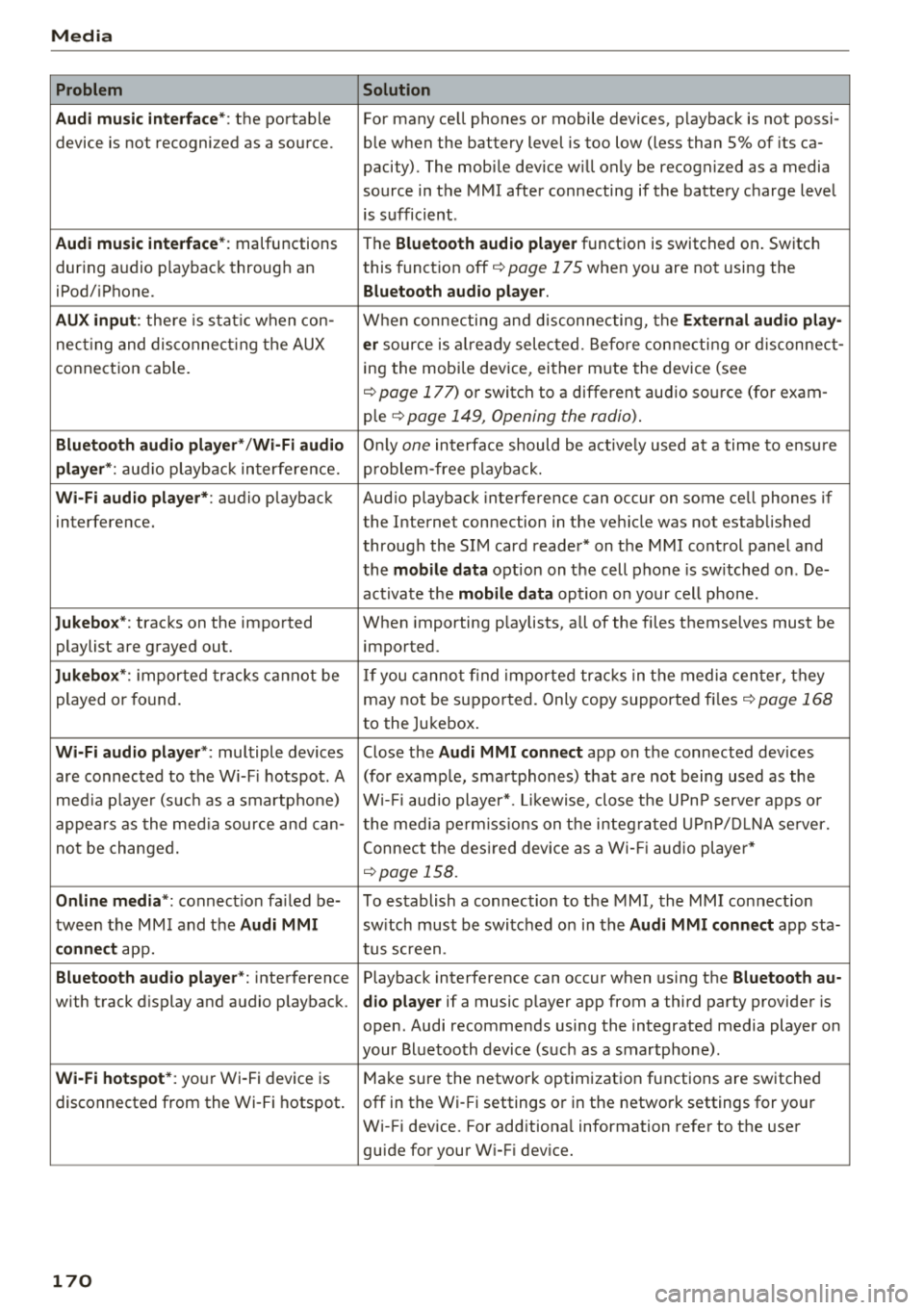
Media Problem Solution
Audi music interface* :
the portable For many cell phones or mobile devices, playback is not possi-
device is not recognized as a source. ble when the battery level is too low (less than 5% of its ca-
pacity) . The mobile device w ill only be recognized as a media
source in the MMI after connecting if the battery charge level
is sufficient .
Audi music interface* : malfunctions
The Bluetooth audio player function is switched on . Switch
dur ing audio p layback throug h an this
funct ion off
i::> page 175 when you are not using the
iPod/ iPhone.
Bluetooth audio player.
AUX input :
there is stat ic when con- When connecting and disconnecting, the External audio play-
necting and disconnect ing the AUX er source is al ready selected . Before connecting or disconnect-
connection cable. ing
the mobi le device, either m ute the device (see
<=:>page 177) or switch to a different audio source (for exam -
ple
i::> page 149, Opening the radio) .
Bluetooth audio player* /Wi-Fi audio Only one interface should be act ive ly used at a time to ensu re
player *: audio playback interfe re nc e. problem -free playback.
Wi-Fi audio player* : audio playback Aud io playback interference can occur on some cell phones if
interference. the Internet connection in the ve hicle was no t established
through the SIM card reader* on the MMI control panel and
the
mobile data option on the cell phone is sw itched on . De-
activate the
mobile data option on your cell phone.
Jukebox* : tracks on the imported When importing playlists, all of the files themselves must be
playlist are grayed out. imported
.
Jukebox*: imported tracks cannot be If you cannot find imported tracks in the media center, they
played or found. may not be supported. Only copy supported files
i::> page 168
to the Jukebox .
Wi-Fi audio player *: multiple devices Close the Audi MMI connect app on the connected devices
are connected to the Wi-Fi hotspot. A (for example, smartphones) that are not being used as the
media pla ye r (suc h as a smartphone) Wi-Fi audio player*. Likewise , close the UPn P serve r apps or
appears as the media source and can- t he media permissions on the integ rated UPnP/DLNA server.
not be changed. Connect the desired device as a Wi-Fi audio player*
<=:> page 158.
Online media *: connection fa iled be- To establish a connection to the MMI, the MMI connection
tween the MMI and the
Audi MMI switch must be switched on in the Audi MMI connect app sta-
connect app. tus screen .
Bluetooth audio player *: interference Playback interference can occur when using the Bluetooth au-
with track d isplay and audio p layback. dio player if a music player app from a third party provider is
open . Audi recommends using the integrated media player on
your Bluetoo th device (such as a smartphone) .
Wi-Fi hotspot*: your Wi-Fi device is
Make sure the network optimization functions are switched
disconnected from the Wi-Fi hotspot. off in the Wi- Fi settings or in the network settings for your
Wi-Fi device. For additiona l information refer to the user
guide for your W i-F i dev ice.
170