service AUDI TT ROADSTER 2018 Owner's Guide
[x] Cancel search | Manufacturer: AUDI, Model Year: 2018, Model line: TT ROADSTER, Model: AUDI TT ROADSTER 2018Pages: 310, PDF Size: 46.95 MB
Page 114 of 310
Tele phone
~ Se lect and confirm the desired ce ll phone from
the list of disp layed Bluetooth devices.
~ The MMI generates a PIN for the connect ion
setup
¢ fig. 112 .
~ Select and confirm Y es.
~ Enter the PIN for connecting on your cell
phone .
Or: when the PIN is d isplayed on your
ce ll phone, co nfirm the P IN on your ce ll phone
and in t he M MI. The time a llowed for ente ring
the P IN is lim ited to app rox ima tely 30 seconds.
~ Pay attention to any additiona l system prompts
displayed on your cell phone, for example i f the
system s hou ld connect automatically in the fu
ture . Depending on the ce ll phone, you may
have to confirm downloading the directory sep
arately .
After conn ect ing succ essfully
After connecting successfully, a short message
with information about the connected profi les
will appear. You can also change profiles later.
Select:
! MENU ! button> Setting s> left control
button
> MMI se ttings > Conn ection manag er
¢page 175.
In addition, the cell phone contacts are automat ically loaded in the MMI directory. Th is process
can take several minutes, depend ing o n the num
ber of contacts .
@ Note
Always follow the information found in c:::;,il]) in
Wi-Fi hotspot on page 130.
(D Tips
- Making phone calls throug h the MMI is only
possib le using the
Handsfree Bluetooth pro
file.
- You can apply additional settings to con
nected mobile devices using the co nnect ion
manager
¢ page 174.
- You can also search for the MMI in your cell
phone us ing the Bluetooth device search.
- You only have to pair your device one t ime.
B luetooth dev ices that are already pa ired
automat ically connect to the MMI when the
Bluetooth function is sw itched on, they are
within range and t he ign it io n is switched on.
112
Th e last connected cell p hone is given first
priority .
- Au thoriz ing the M MI connec tion in your cell
phone wi ll make automatic connection pos
sible.
- Pay attention to any system prompts dis
played on your ce ll phone, for example if
the system should connect automatically in
the future. Depend ing on the ce ll phone,
you may also need to download the directo ry and confirm access to your text messages
separately .
- Whe n leaving the vehicle, the Bluetooth
connect io n to the cell phone will automati
cally d isconnect. Dependi ng on you r cell
phone, phone calls in prog ress may be auto
matically red irected from the MM I to you r
cell p ho ne a nd you can con tinue the c all on
your phone.
- Yo u can ob tain more i nfo rmat ion fro m you r
cell p ho ne serv ice p rovider or from yo ur cell
phone user guide . For in formation on using
the te lephone, visit www.audi usa .com/
bluetooth or contact an authorized Audi
dea ler or author ized Audi Service Facility.
- Applies to : vehicles without secondary
phone: Several cell phones can be paired to
the MMI, but only one cell phone can be ac
t ively connected to the M Ml.
- Applies to: vehicles without secondary
phone: If a Bluetooth device is a lready con
nected to the MMI, it will be d isconnected
w hen another device connects to the MMI.
Operating two telephones through the
MMI
You can connect two cell phones to the MMI, for
example your business cell phone as the primary
phone and your private cell phone as the secon dary phone. You can be reached in your vehicle
through both cell phones .
The first connected ce ll phone is d isplayed as the
pr imary phone in the MM I. The secon d cell phone
is connected as the secondary phone .
The directory from the connected pr ima ry phone
will a lways be d isplayed . If yo u wo uld like to use
t h e d irec to ry from the secondary phone, you
..,.
Page 118 of 310
Tele phone
(D Tips
- To be notified of an incoming call during a
phone ca ll, the call waiting function in your
cell phone must be switched on when us ing
the hands-free profile
( Ha ndsfr ee).
- You can obtain more information from your
cell phone service prov ider or from your cell
phone user guide.
- When leaving the vehicle, the Bluetooth connection to the cell phone will automat i
cally disconnect. Depending on your cell
phone, phone calls in progress may be auto
matically redirected from the MMI to your
ce ll phone and yo u can cont in u e t he call on
you r phone.
- The display of an incom ing phone ca ll in the
Infotainment system d isp lay may still be
v is ible fo r a few seconds depending on the
ce ll phone in use . Using the
Replace or De
cline
functions may then end the active
phone ca ll.
Favorites
Applies to: vehicles with telephone
Up to 50 contacts, in addition to the voicemail
number, can be stored in any order in the favor
ites list.
~ Se lect: IMENUI button> Telephone > left con
trol button.
- Storing an e xist ing ph one number a s a fav or
ite :
select and confirm Recent calls/Directo ry.
Select and confirm a contact or phone number
from the list. Select: right control button>
S tor e as fav orit e . Enter a name for the favorite
or select a suggestion. Select and confirm
Save .
- Ren aming a stored f avorite :
select and confirm
Favorit es > a favorite from the list . Select the
right control button>
Rename fa vorite .
- Mo ving a sto red fa vo rite :
select and confirm
Favorit es > a favorite from the list . Select the
right control button>
Mo ve fa vor ite . Select
and confirm the location of the selected favor
i te.
- Delet ing a stor ed fav orit e: select and conf irm
Favorit es > a favorite from the list. Select the
116
right control button > Delete fa vo rite > Delete
thi s fav orite or Delete all fa vorite s.
Messages
Text messages
Applies to: cell phones with Bluetooth Message Access Profile
(MAP)
Depending on the cell phone being used and the
cell phone network contract, you can receive and
send text messages using the MMI.
Requirement
A cell phone must be connected to the MM I via
B luetoot h MAP ( Message Access Profi le)
¢ page 111 .
~ Select: !MENUI button> T ele phon e> left con
trol button >
t ex t me ssag e ( myPh one )/te xt
me ssage (second ary ph one )*.
Inbox
All rece ived text messages are displayed.
Sent te xt me ss a ges
A ll sent text messages are displayed .
Outbox
All t ext messages to be sent a re displayed.
© Tips
- Please note that you may have to activate
the receivi ng a nd se nding of text messages
in yo ur cel l phone depending on t he S IM
card be ing used (fo r example, when using a
Multi -S IM). Yo u can obtain more informa
tion from your ce ll phone service provider or
from your cell phone user guide .
- For more information on s upported cell
phones, visit www .a udiusa.com/b luetooth
or contact an a uthorized Audi dea ler or au
thorized Aud i Service Facility.
- You need a cell phone with Message Access
Prof ile that a lso supports the send ing func
t ion to be able to send text messages
through the MMI.
Page 120 of 310
Tele phone
Outbo x
All e -mails that wi ll be sent are d isplayed .
Drafts
All saved e -mails that have not been sent yet are
d isplayed .
@ Note
Always follow the information found in ¢@) in
Wi -Fi hotspot on page 130 .
(D Tips
-For more information on supported cell
phones, v is it www .aud iusa.com/bluetooth
or contact an author ized Audi dealer or au
thorized Audi Se rvice Facility .
- To ensure that your sent e -mails are re
ce ived , connect you r cell phone to the Wi-Fi
hotspot* in the vehicle so that the applica
ble e-ma il app on yo ur cell phone cont inues
to have Inte rne t access . If yo u are st ill not
r eceiving e-mails even though yo u have a
successful connection, then contact your e
mail serv ice provider or your ce ll phone
service provider .
Message options
Applies to: cell phones with Bluetooth Message Access Profile
(MAP)
~ Se lect : IMENUI button> Telephone > left con
tro l button >
e-mail (m yPhone )/e-m ail ( secon
dar y phone )* > lnbo x/Sent/Outbo x
> right
c ont ro l but ton.
The fo llowing options may be avai lab le depend
ing on th e se lected menu .
Store as template
Ten e-mail templates a re stored in the M MI. Yo u
can save up to te n addit io n al templates.
- Create an e-ma il.
- Se lect and confirm
Stor e as t emplat e.
Re sum e last edited e-mail
The last e-mai l in progr ess can be resum ed.
1> N ot a va ilable in a ll lang uages.
118
Reply *
A reply c an be sent fo r t he se lec ted e-ma il in the
Inbo x.
Reply to all *
A reply can be sent for the selected e-ma il in the
In box and it will be sent to all of the entered re
c ipients.
Forward
T he selected e-mail can be forwarded to a differ
ent rec ipient .
Delete this me ss a ge*
T he selected e -mail can be deleted.
Read out1>
Yo u can have the MMI r ead an open e -mail.
E-mail settings *
To display when a new e -ma il is received, activate
the
E-mail notific ation s. New e-ma ils are i ndicat
ed with an envelope
121 in the Infotainment sys
tem d isplay status lin e.
Connection m anager
See ¢ page 174 .
Te le phon e sett ings
See ¢ page 121.
(D Tips
Messages t hat are de lete d in t he MM I are also
a utomat ica lly dele ted in the connected ce ll
phone.
Listening to voicemail
Applies to: vehicles with telephone
~ Select: IME NUI button> Telephone > left con
trol button . Se lect and confirm
Call li st /Direc
tory /Favor ites > Voicem ail.
- Ente ring the voicemail number:
enter the de-
sired number. Se lect and confirm
OK. ..,.
Page 121 of 310
Cl co .... N ,....
N ...... 0 ,....
Vl co
-Dialing the voicemail number : select and con
firm
Voicemail.
(D Tips
- This service must be set up and act ivated in
advance by the cell phone service provider.
You can obtain more information from your
ce ll phone service prov ider.
-The voicemai l number depends on the cell
phone service provider.
Emergency call functions
Appl ies to: vehicles with te le phone
~ Select : I MENU I button >Telephone > left con
trol button >
Enter number > Enter emergency
coll number (for example, 911)
> OK .
A WARNING
-Because your phone works with radio sig
nals, a connection cannot be guaranteed un
der all circumstances . Do not rely on only
your phone when it comes to essent ial com
munication (such as a medica l emergency).
-Always follow the instructions given by the
emergency personnel during an emergency call and only end the call when they instruct
you to do so.
@ Tips
Emergency numbers are not the same every
where. Find out which emergency number is used in your current locat ion.
Telephone
Directory
Opening the directory
Applies to: vehicles with telephone
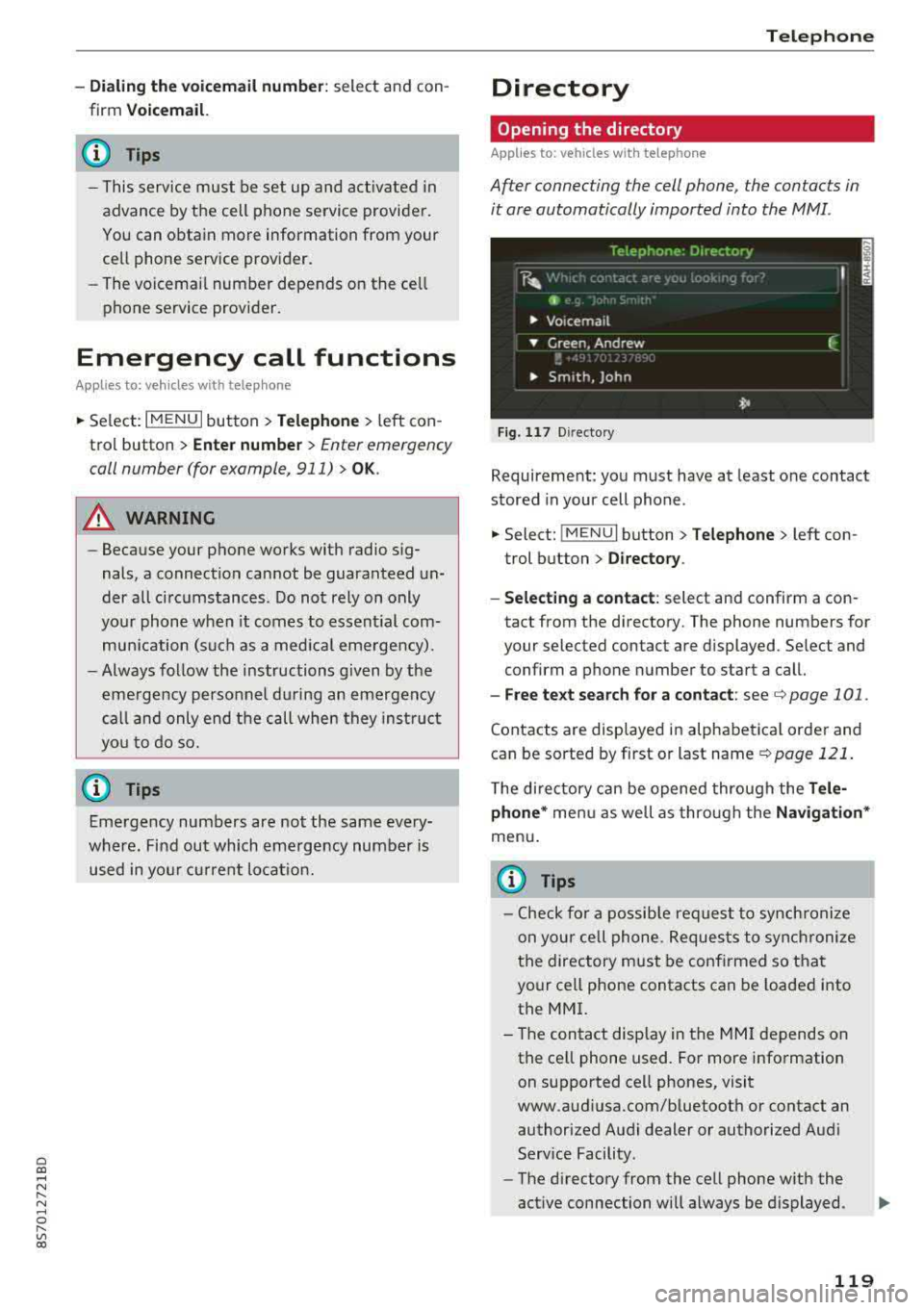
After connecting the cell phone, the contacts in
it ore automatically imported into the MMI.
Fig . 11 7 Direct ory
Requirement: you must have at least one contact
stored in your cell phone .
~ Select: !MENUI button> Telephone> left con
trol button >
Directory.
- Selecting a contact:
select and confirm a con
tact from the directory. The phone numbers for
your selected contact are displayed . Se lect and
confirm a phone number to start a call.
- Free te xt search for a contact: see c:> page 101 .
Contacts are displayed in alphabetical order and
can be sorted by first or last name
c:> page 121.
The directory can be opened through the Tele
phone *
menu as well as through the Navigation*
menu.
{i) Tips
-Check for a possible request to synchronize
on your cell phone. Requests to synchronize
the directory must be confirmed so that
your cell phone contacts can be loaded into
the MMI.
- The contact display in the
MMI depends on
the cell phone used. For more information on supported cell phones, visit
www.audiusa.com/bluetooth or contact an authorized Audi dealer or authorized Audi
Service Facility .
- The directory from the cell phone with the
active connection will always be displayed .
119
Page 125 of 310
Cl 00 .-< N r-N .-< 0 r-Vl 00
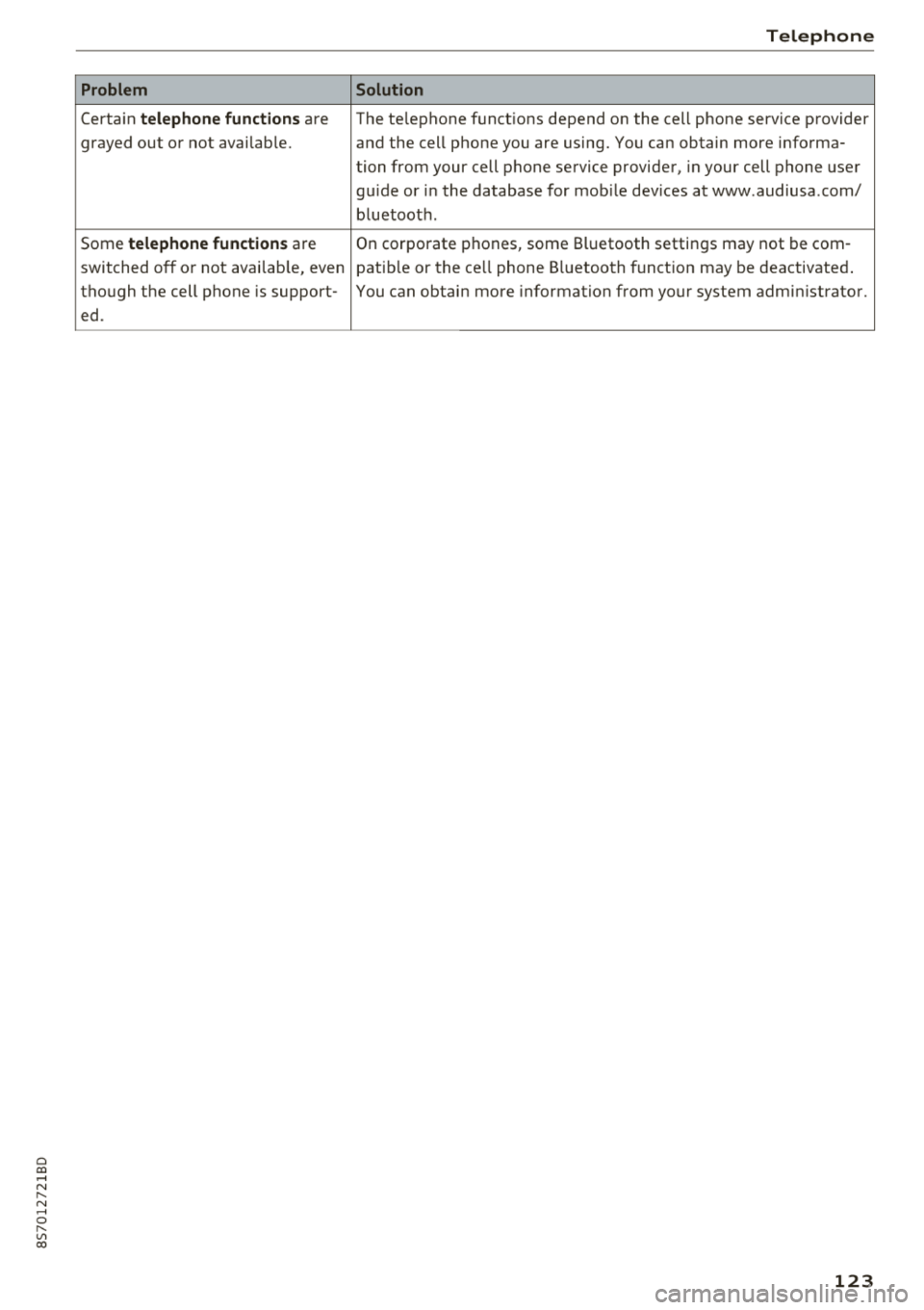
Problem
Certain telephone functions are
grayed out or not available.
Some
telephone functions are
switched off or not availab le, even
though the cell phone is support-
ed.
Telephone
Solution
The te lephone functions depend on the cell phone service provider
and the cell phone you are using. You can obtain more informa-
tion from your cell phone service provider, in your cell phone user
gu ide or in the database for mobile devices at www.audiusa.com/
bluetooth .
On corporate
phones, some Bluetooth settings may not be com-
patib le or the cell phone Bluetooth funct ion may be deactivated.
You can obtain more information from your system admin istrator.
123
Page 126 of 310
Audi conn ect
Audi connect
Introduction
Applies to: vehicles with Audi connect
With Audi connect services, online information is
transmitted and integrated direct ly in the vehi
cle.
Using the Wi-Fi hotspot, you can access the In
ternet through a mobile device when the vehicle is stationary.
A WARNING
- To reduce the risk of an accident, on ly use
Audi connect serv ices when road and traff ic
condit ions permit. Always read the instruc
t ions in the chapter <=>
page 93, Traffic safe
ty information .
-It is only safe to use tab lets, laptops, mo
bile devices and other similar devices when
the vehicle is stationary because, like all loose objects, they could be th row n around
the ins ide of the vehicle in a crash and cause
serious injur ies. Sto re t hese types of devi ces
sec urely whi le driving.
- T o reduce the risk of an ac cident, on ly use
Audi conne ct serv ices using a Wi-Fi hotspo t
when the vehicle is stationary .
{(D) Note
Aud i connect is desig ned fo r use only with the
prov ided Audi conne ct SI M card. A udi AG is
no t liab le for the consequences of usi ng o ther
SI M cards .
(D Tips
Rea d this chap ter before ope rating
<=>
page 131, About Audi connect .
Setup
Requirements for Audi connect
Applies to: vehicles with Audi connect
An Internet connect ion is requ ired to use Audi
connect . The follow ing requ irements must be
met to establish a connection:
124
-
- The Audi connect S IM card must be inserted in
to the SIM card reader for the MMI.
- There must be a config ured data connection .
(D Tips
The data con nection for Aud i connec t serv ices
i s pre co nfigured at the fa cto ry. You can
change t he data connec tion at any t ime i f yo u
need to adjust the configu ration
c:> page 130.
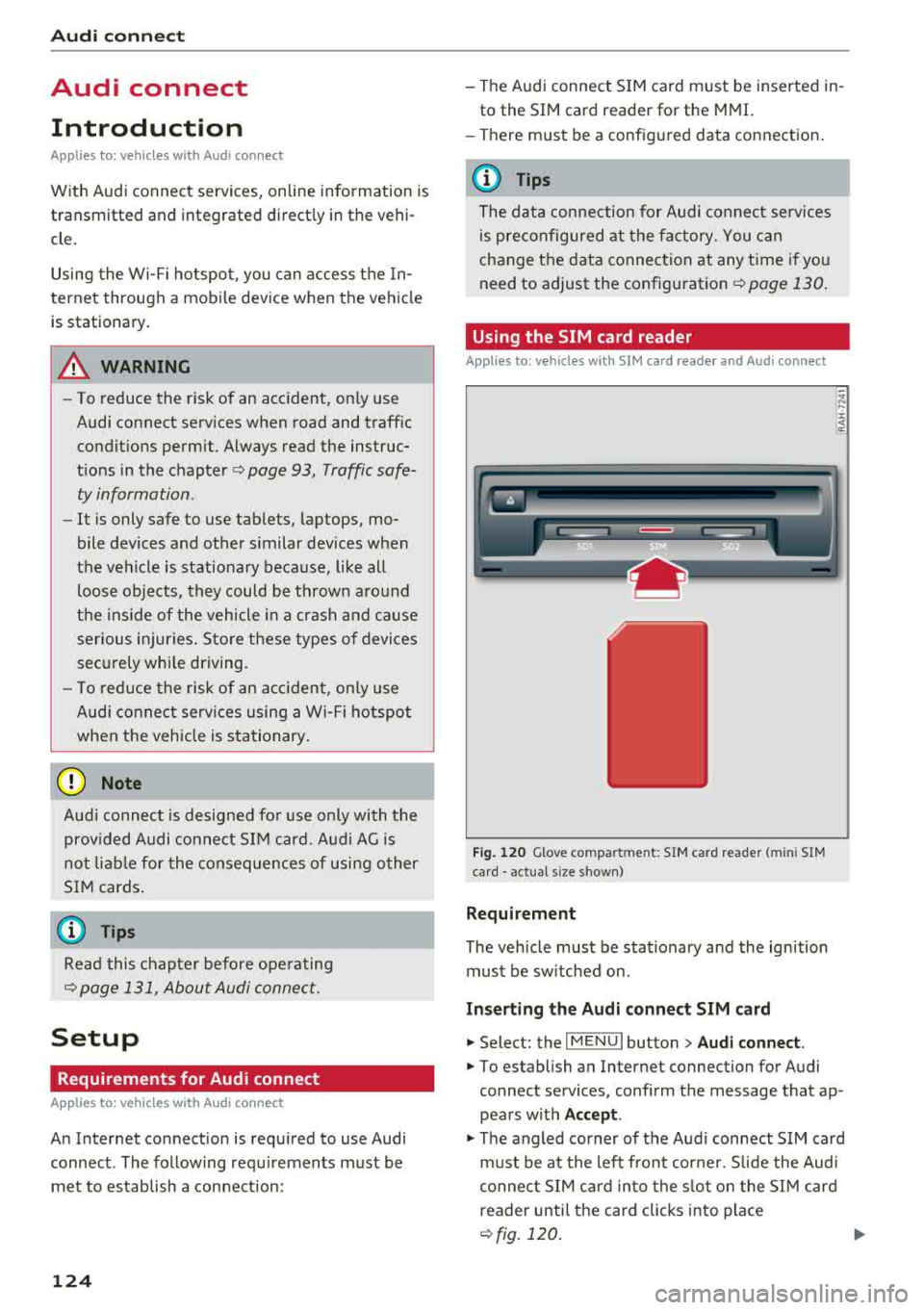
Using the SIM card reader
Applies to: vehicles with SIM card reader and Audi connect
F ig . 1 20 Glove compar tmen t: SIM ca rd reade r (mini SIM
ca rd • actual s ize s hown)
Requirem ent
The veh icle must be stationary and the ign ition
must be sw itched on .
Inserting the Audi connect SIM card
.,. Select: the I MENU I button > Audi connect .
.,. To establish an Internet connection for Audi
connect services , confirm the message that ap
pears with Accept .
.,. The angled corner of the Aud i connect S IM card
m ust be at the left front cor ner. S lide the Audi
connec t SIM ca rd in to the s lot on the SIM card
reader until t he card clicks into place
<=> fig. 120.
Page 127 of 310
Cl 00 .-< N r-N .-< 0 r-Vl 00
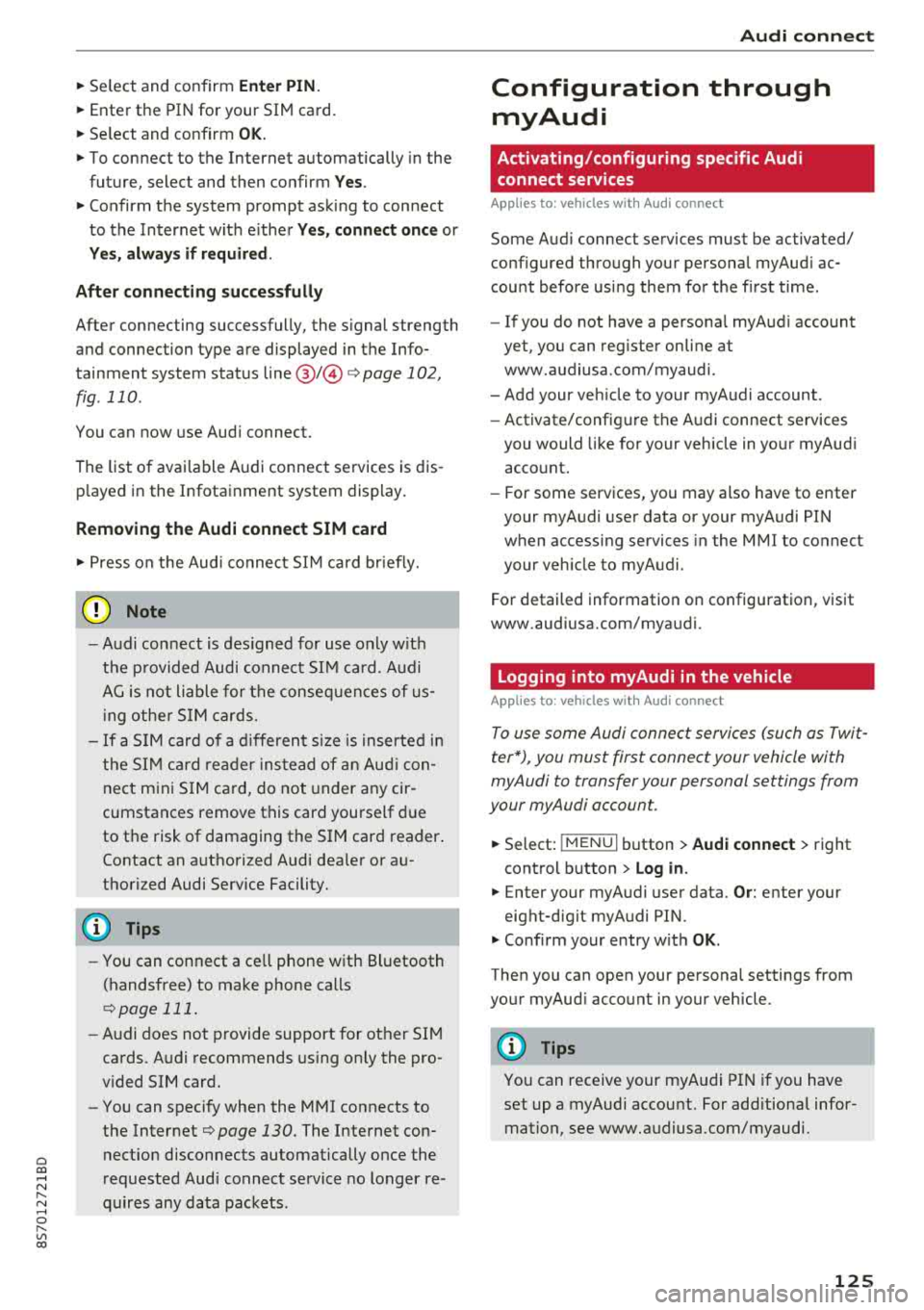
~ Select and confirm Enter PIN .
~ Enter the PIN for your SIM card.
~ Select and confirm OK.
~ To connect to the Internet automatically in the
future, select and then confirm
Yes.
~ Confirm the system prompt asking to connect
to the Internet with e ither
Yes, connect once or
Yes, always if required .
After connecting successfully
After connecting successfully, the s ignal strength
and connection type are displayed in the Info
tainment system status
line @/© Q page 102,
fig . 110 .
You can now use Aud i connect.
The list of avai lable Audi connect services is dis
p layed in the Infotainment system display.
Removing the Audi connect SIM card
~ Press on the Aud i connect SIM card briefly.
0 Note
- Audi con nect is designed for use only with
the pro vided Audi connect SIM card. Aud i
AG is not liable for the consequences of us
ing other SIM cards.
- If a SIM card of a different siz e is inserted in
the SIM card reader instead of an Audi con
nect mini SIM card, do not under any cir
cumstances remove this card yourself due
to the risk of damaging the SIM card reader .
Contact an authorized Audi dealer or au
thorized Audi Service Facility.
(D Tips
-You can connect a ce ll phone with Bluetooth
(handsfree) to make phone calls
Qpoge 111.
- Audi does not provide support for other SIM
cards. Audi recommends using only the pro
v ided SIM card.
- You can specify when the MMI connects to
the Internet
Q page 130. The Internet con
nection disconnects automatically once the
requested Audi connect service no longer re
quires any data packets.
Audi connect
Configuration through
myAudi
Activating/configuring specific Audi
connect services
App lies to: vehicles wit h Audi connect
Some Audi connect services must be activated/
configured through your personal myAudi ac
count before using them for the first time .
- If you do not have a personal myAudi account
yet, you can register on line at
www.audiusa.com/myaudi.
- Add your vehicle to your my Audi account.
- Activate/configure the Audi connect services
you would like for your vehicle in your myAudi
account.
- For some services, you may also have to enter
your myAudi user data or your myAudi PIN
when accessing services in the MMI to connect
your veh icle to myAudi.
For detailed information on configuration, visit
www.audiusa.com/myaudi.
Logging into myAudi in the vehicle
App lies to : vehicles wi th Audi connect
To use some Audi connect services (such as Twit
ter*), you must first connect your vehicle with
myAudi to transfer your personal settings from
your myAudi account.
~ Select: ! MENUI button> Audi connect> right
control button >
Log in.
~ Enter your myAudi user data. Or: enter your
eight-digit myAudi PIN.
~ Conf irm your entry w ith OK.
Then you can open your personal settings from
your myAud i account in your vehicle.
(D Tips
You can receive your myAudi PIN if you have
set up a myAudi account. For additional infor mation, see www.audiusa.com/myaudi.
125
Page 128 of 310
Audi connect
Audi connect services
Basic functions
Applies to: vehicles with Audi connect
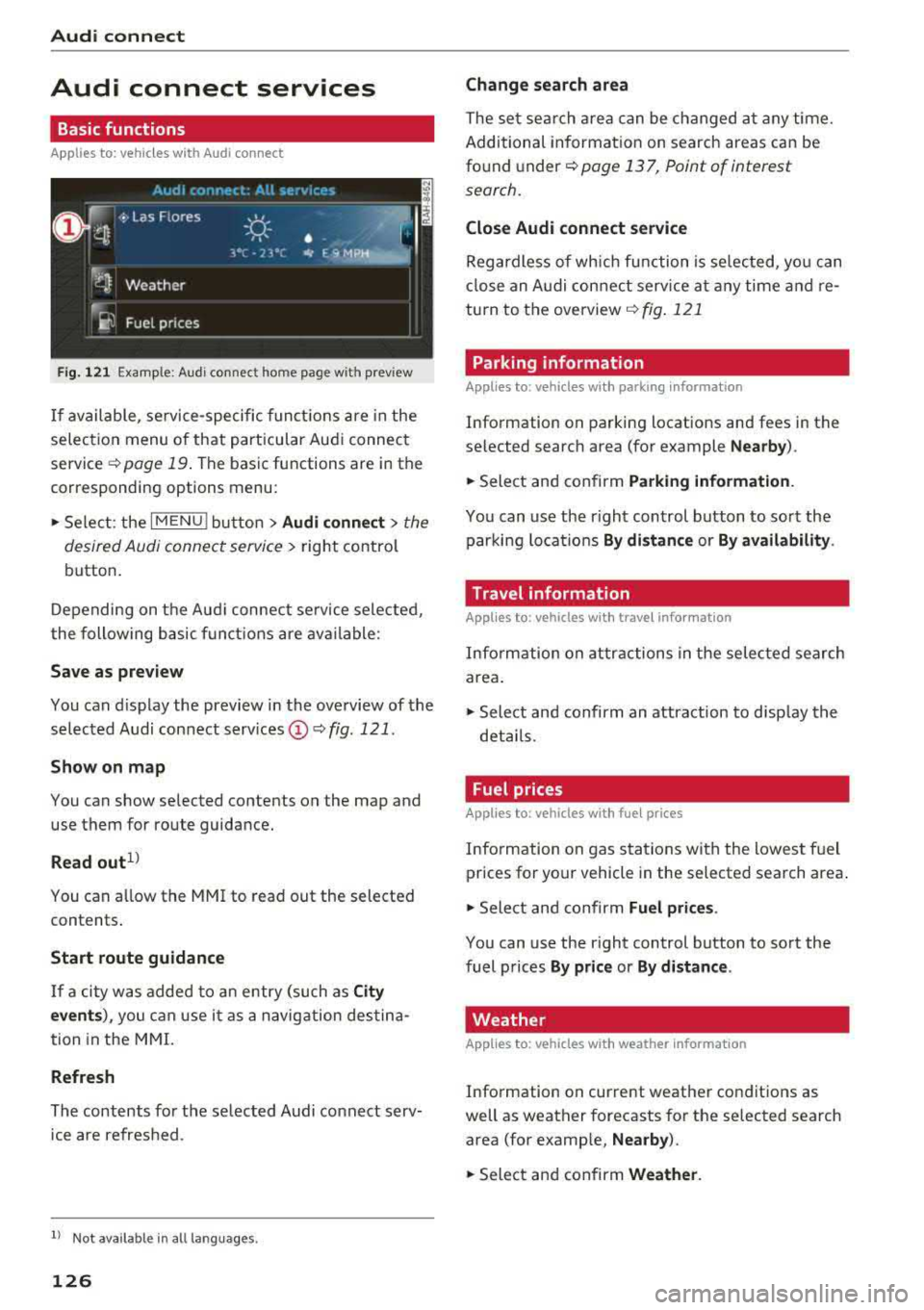
Fig. 121 Example: Aud i connect home page with preview
If available, service-specific functions are in the
selection menu of that particular Audi connect
service
q page 19 . The basic functions are in the
corresponding options menu:
,,. Select: the IMENU ! button> Audi connect> the
desired Audi connect service
> right control
button.
Depending on the Audi connect service selected,
the following basic functions are available:
Save as preview
You can d isplay the preview in the overview of the
selected Audi connect services
(D q fig . 121.
Show on map
You can show selected contents on the map and
use them for route guidance.
Read out1 )
You can a llow the MM I to read out the selected
contents .
Start route guidance
If a city was added to an entry (such as City
events),
you can use it as a navigation destina
tion in the MMI.
Refresh
The contents for the selected Audi connect serv
ice are refreshed .
ll Not availab le in a ll languages .
126
Change search area
The set sea rch area can be changed at any time.
Additional information on search areas can be
found under
<:!;> page 13 7, Point of interest
search.
Close Audi connect service
Regardless of wh ich function is selected, you can
close an Audi connect service at any time and re
turn to the overview
<:!> fig . 121
Parking information
Applies to: vehicles with parking information
Information on parking locations and fees in the
selected search area (for example
Nearby ).
,,. Select and confirm Parking information .
You can use the right control button to sort the
parking locations
By distance or By availability.
Travel information
Applies to: vehicles with travel information
Information on attractions in the selected search
area.
,,. Select and confirm an attract ion to disp lay the
details .
Fuel prices
Applies to: vehicles with fuel prices
Information on gas stations with the lowest fuel
prices for your vehicle in the selected search area .
,,. Select and confirm Fuel prices .
You can use the right control button to sort the
fuel prices
By price or By distance .
Weather
Applies to: vehicles with weather information
Information on current weather conditions as
well as weather forecasts for the selected search
area (for example,
Nearby ).
,,. Select and confirm Weather .
Page 130 of 310
Audi conn ect
The Audi MMI con nect app must be installed and
open on your mobile device.
You must be logged into yo ur myAud i acco unt in
t he
Audi MMI connect app and you must have se
lected you r vehicle .
The Wi-Fi funct ion on you r mobile device and on
the MMI must be sw itched on.
The MMI must be connected to the network .
~ Select : I MENU I button > Aud i conn ect> left
cont ro l button
> In formation category> Tra v
el.
After opening th e travel guide , travel tips in your
area will be d isplayed including current rat ings as
well as the corresponding ca tegory.
~ Press the left control button to change the cat
egory (such as bars nearby) .
A WARNING
-It is only safe to use tab lets, laptops, mo
bile devices and othe r similar devices w hen
the vehicle is st ationa ry be cause, like all
loose objects, they could be thrown aro und
the inside of the vehicle in a crash and cause serious injuries . Store t hese types of devices
securely whi le driving.
- Do not use any wireless devices on the front
seats w ith in range of the a irbags while driv
ing. Also read the warnings in the chapter
Q page 198, Front airbags.
@ Note
Always follow the information found in Q i© in
Wi-Fi hotspot on page 130.
@ Tips
Units of meas urement, language settings and
time are shown in the Infotainment system
disp lay based on how they were set in the
MMI system settings
<=) page 173 .
-
ll AUDI AG pr ovide s access to services fro m third party pro
v ider s. Pe rma ne nt ava ilabil ity c anno t be guara nteed , be
c a use that depen ds on th e th ird party provid er.
128 Audi connect services in navigation
App
lies to : vehicles wit h naviga tion sys te m and A udi connect
The following Aud i connect services a re current ly
available :
- Navigation with
satellite map1> Q page 145 .
-Point of Interest (POI ) on line sear ch wi th
v oi ce recognit ion
(such as restaurants) : plan
route guidance using the MMI control panel
and the vo ice recognit ion system
<=) page 105 .
- Set up destinations in your MMI using your
m yA udi account or the sat ellite map view l )
r=;, page 145 .
-Online traffic information : receive up-to-the
m inute traffic informat ion about acc idents,
road const ruct ion and other inc idents
r=;, page 146 .
-Map updates *: import navigat ion map updates
in yo ur MMI using an S D card.
(D Tips
-For the map update Audi connect serv ice
using an SD card, check t he current soft
w ar e version in yo ur vehicle and compare it
w ith www.aud iusa.com/myaudi to see if a
new ve rsion is avai lab le . You can a lso have
the new navigation data installed by an Audi dea ler, which can be done for an addit iona l
charge.
- You can find additional information about
the
map update at www.a udiusa.com/
myaudi.
Audi connect services in the Media menu
App lies to: vehicles wit h Audi conne ct
- Online media and Internet radio : offers access
to d ifferent online med ia services as well as In
ternet radio and ope ration through the
MMI us
ing the
A udi MMI connect app Q page 159.
App lies to: vehicles wi th Wi-Fi au dio player
- Wi-Fi audio playe r: you can access the media
center through W i-F i connected med ia p layers
(such as smartphones)
Q page 158. Ill-
Page 131 of 310
Cl 00 .-< N r-N .-< 0 r-Vl 00
@ Note
Always follow the information found in c::>((j) in
Wi-Fi hotspot on page 130.
(D Tips
For more information on the Wi-Fi audio play
er and supported devices, contact an author
ized Audi dealer or authorized Audi Service
Facility.
Additional options
App lies to: vehicles with Audi co nnect
"'Select : IMENUI button> Audi connect> right
control button.
The following options are available in the Audi
connect services overview:
About Audi connect
Here you will find legal information for Audi con
nect usage.
Login*
See c::> page 125, Logging into myAudi in the vehi
cle.
Connection manager
See c::>page 174 .
License subscription
The validity and expiration date of your licenses
are displayed. When the function is switched on
~. the message Warning before subscription
expires
will display to warn you that your license
is about to expire .
Refresh
The content of the selected Audi connect service
or the entire Audi connect list is updated.
Data privacy
Requirement: the ignition must be switched on.
Location and personal data are transmitted when
using Audi connect services. If you do not want
Audi connect
this information to be transmitted, activate data
privacy.
-Activate privacy : the data connection is switch
ed off . The Audi connect services will not be
available.
-Deactivate data privacy: if the data connection
is switched off, you can switch on the data con
nection for the use of all Audi connect services.
Select and confirm
Activate data connection.
Wi-Fi hotspot
Applies to: vehicles with Wi -Fi hotspot
You can use the MMI as a Wi-Fi hotspot to con
nect up to eight Wi-Fi devices to the Internet.
Requirement: the ignition must be switched on.
"'Select: !MENUI button> Telephone> right con-
trol button >
Wi-Fi settings .
The following settings can be selected:
Wi-Fi
The MMI Wi-Fi hotspot is deactivated at the fac
tory. Switch the Wi-Fi hotspot to
On before es
tablishing an Internet connection between your
vehicle and your Wi-Fi device.
-On: the MMI Wi-Fi hotspot is active and visible
to other devices. You can connect your Wi-Fi
device to the MMI and use the Internet connec
tion if necessary .
-Off: the MMI Wi-Fi hotspot is deactivated. An
Internet connection for Wi-Fi devices is not
possible .
A WARNING
--
-As the driver, do not allow usage of the Wi
Fi hotspot to distract you from driving, as
this could increase the risk of an accident.
-It is only safe to use tablets, laptops, mo
bile devices and other similar devices when
the vehicle is stationary because, like all
loose objects, they could be thrown around
the inside of the vehicle in a crash and cause
serious injuries. Store these types of devices
securely while driving.
...,
129