steering AUDI TT ROADSTER 2019 Owner's Manual
[x] Cancel search | Manufacturer: AUDI, Model Year: 2019, Model line: TT ROADSTER, Model: AUDI TT ROADSTER 2019Pages: 304, PDF Size: 80.77 MB
Page 81 of 304
8S58012721BA
Assist systems
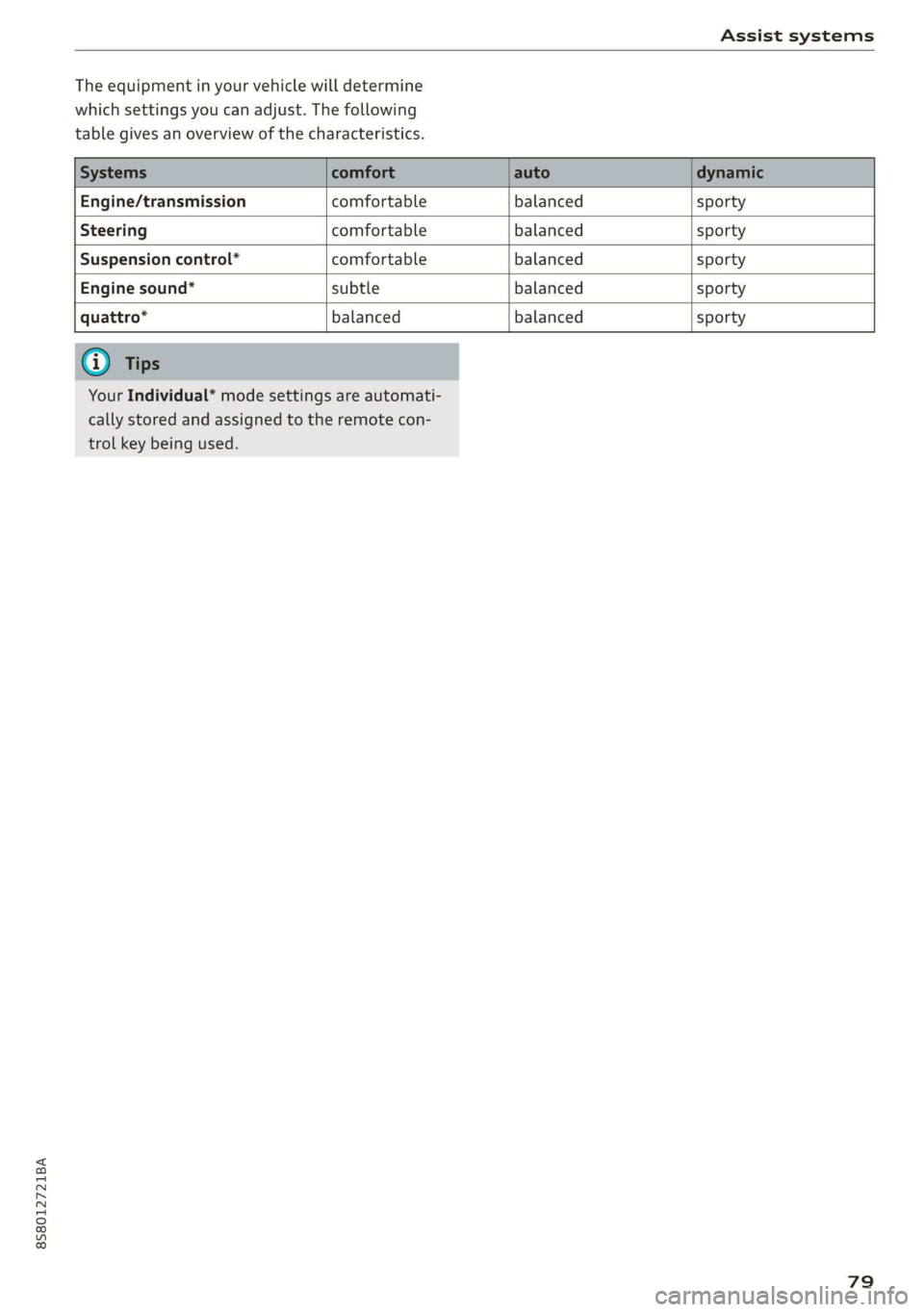
The equipment in your vehicle will determine
which settings you can adjust. The following
table gives an overview of the characteristics.
Engine/transmission comfortable balanced sporty
Steering comfortable balanced sporty
Suspension control” comfortable balanced sporty
Engine sound* subtle balanced sporty
quattro* balanced balanced sporty
Your Individual* mode settings are automati-
cally stored and assigned to the remote con-
trol key being used.
79
Page 84 of 304
Parking aid
Switching on and off
Applies to: vehicles with parking system plus
a 3 q a >
z oO
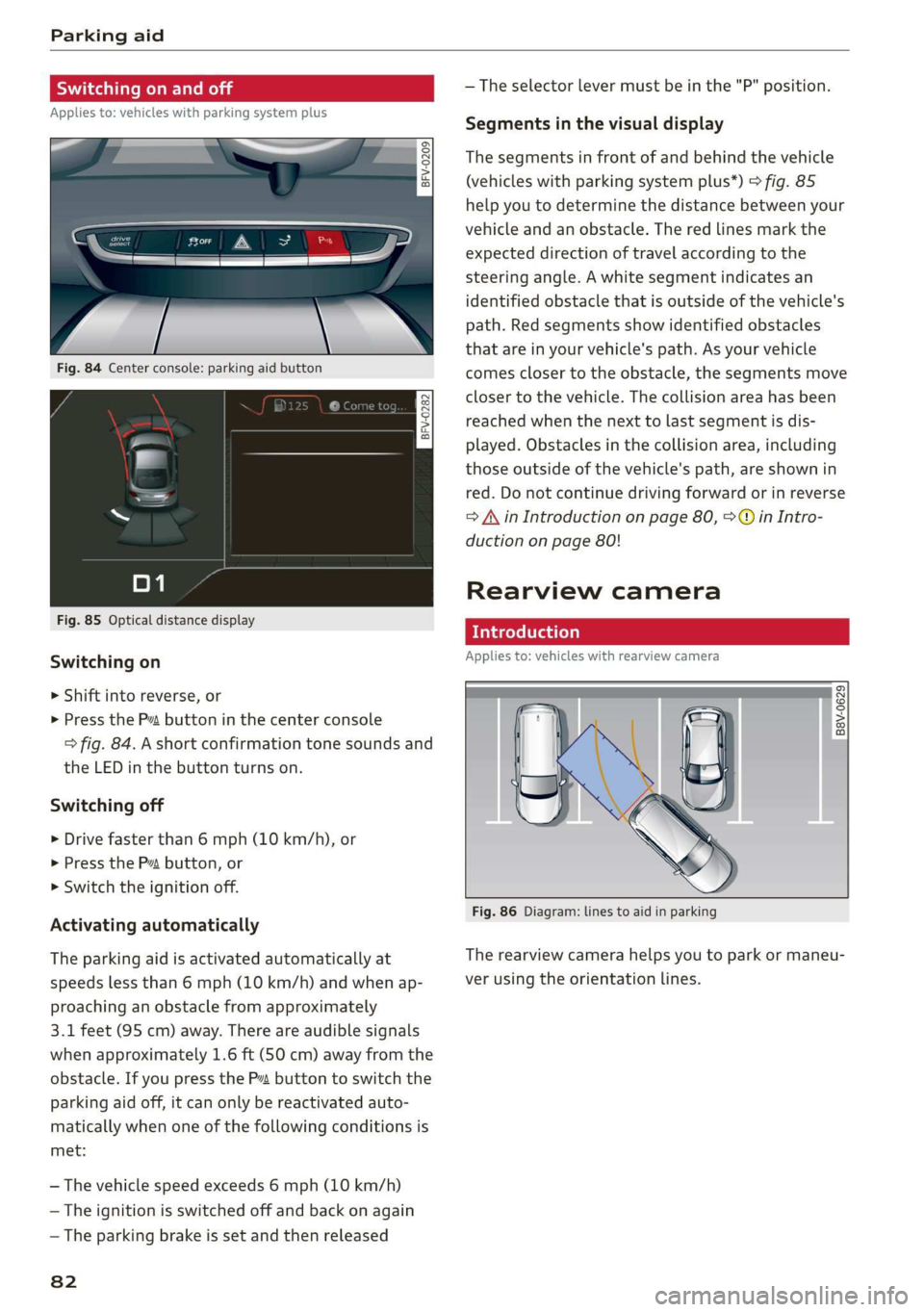
Fig. 84 Center console: parking aid button
Fig. 85 Optical distance display
Switching on
> Shift into reverse, or
> Press the Pv button in the center console
> fig. 84. A short confirmation tone sounds and
the LED in the button turns on.
Switching off
> Drive faster than 6 mph (10 km/h), or
> Press the P button, or
> Switch the ignition off.
Activating automatically
The parking aid is activated automatically at
speeds less than 6 mph (10 km/h) and when ap-
proaching an obstacle from approximately
3.1 feet (95 cm) away. There are audible signals
when approximately 1.6 ft (50 cm) away from the
obstacle. If you press the P” button to switch the
parking aid off, it can only be reactivated auto-
matically when one of the following conditions is
met:
— The vehicle speed exceeds 6 mph (10 km/h)
— The ignition is switched off and back on again
— The parking brake is set and then released
82
— The selector lever must be in the "P" position.
Segments in the visual display
The segments in front of and behind the vehicle
(vehicles with parking system plus”) > fig. 85
help you to determine the distance between your
vehicle and an obstacle. The red lines mark the
expected direction of travel according to the
steering angle. A white segment indicates an
identified obstacle that is outside of the vehicle's
path. Red segments show identified obstacles
that are in your vehicle's path. As your vehicle
comes closer to the obstacle, the segments move
closer to the vehicle. The collision area has been
reached when the next to last segment is dis-
played. Obstacles in the collision area, including
those outside of the vehicle's path, are shown in
red. Do not continue driving forward or in reverse
= A in Introduction on page 80, >@ in Intro-
duction on page 80!
Rearview camera
Introduction
Applies to: vehicles with rearview camera
B8V-0629
Fig. 86 Diagram: lines to aid in parking
The rearview camera helps you to park or maneu-
ver using the orientation lines.
Page 85 of 304
8S8012721BA
Parking aid
General information
Applies to: vehicles with rearview camera
oO m q
2 > z
oO
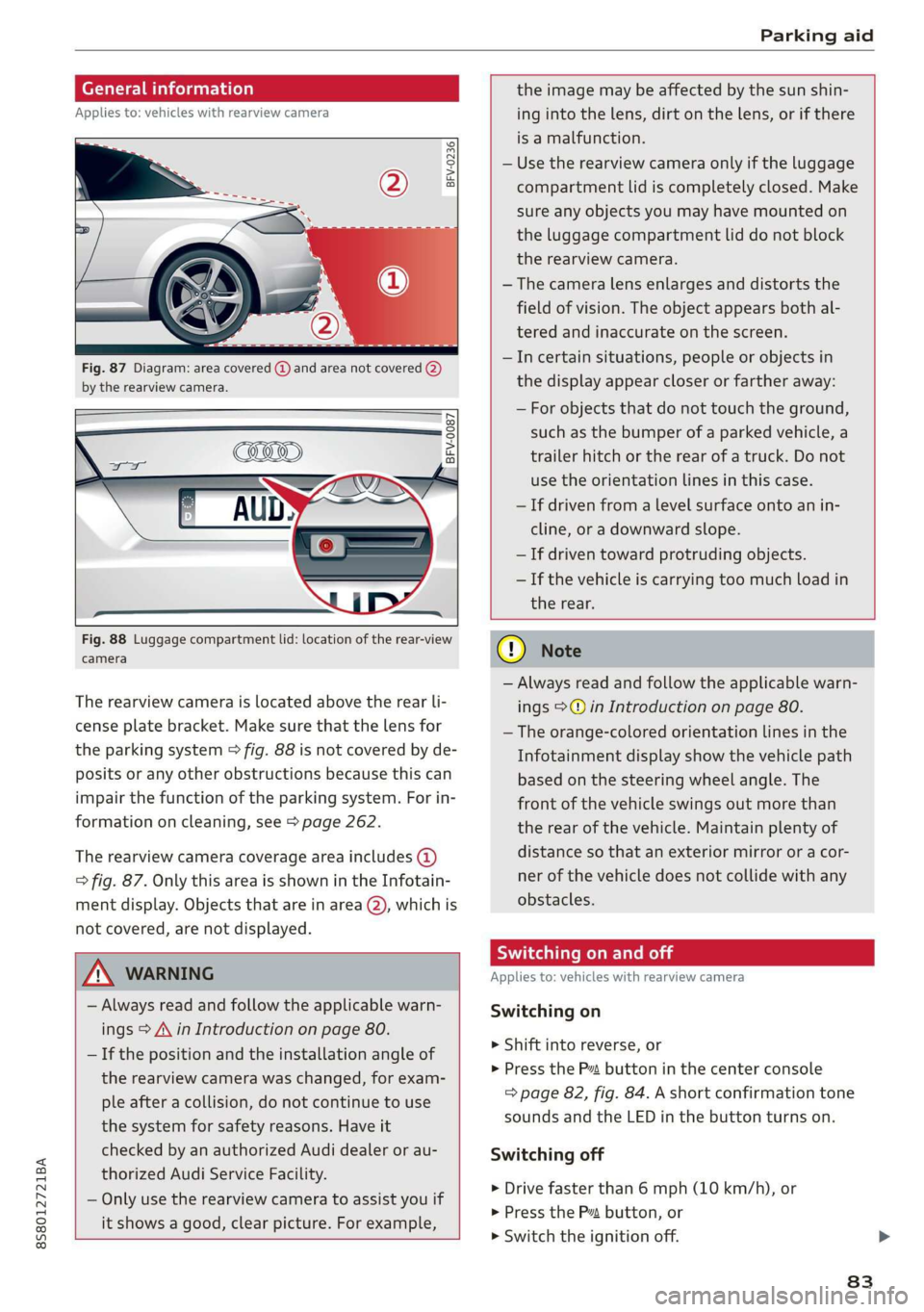
Fig. 87 Diagram: area covered @) and area not covered (2)
by the rearview camera.
BFV-0087
the image may be affected by the sun shin-
ing into the lens, dirt on the lens, or if there
is a malfunction.
— Use the rearview camera only if the luggage
compartment lid is completely closed. Make
sure any objects you may have mounted on
the luggage compartment lid do not block
the rearview camera.
— The camera lens enlarges and distorts the
field of vision. The object appears both al-
tered and inaccurate on the screen.
—Incertain situations, people or objects in
the display appear closer or farther away:
— For objects that do not touch the ground,
such as the bumper of a parked vehicle, a
trailer hitch or the rear of a truck. Do not
use the
orientation lines in this case.
—If driven from a level surface onto an in-
cline, or a downward slope.
— If driven toward protruding objects.
— If the vehicle is carrying too much load in
Fig. 88 Luggage compartment lid: location of the rear-view
camera
The rearview camera is located above the rear li-
cense plate bracket. Make sure that the lens for
the parking system > fig. 88 is not covered by de-
posits or any other obstructions because this can
impair the function of the parking system. For in-
formation on cleaning, see > page 262.
The rearview camera coverage area includes (4)
=> fig. 87. Only this area is shown in the Infotain-
ment display. Objects that are in area (2), which is
not covered, are not displayed.
ZA\ WARNING
— Always read and follow the applicable warn-
ings > A\ in Introduction on page 80.
— If the position and the installation angle of
the rearview camera was changed, for exam-
ple after a collision, do not continue to use
the system for safety reasons. Have it
checked by an authorized Audi dealer or au-
thorized Audi Service Facility.
— Only use the rearview camera to assist you if
it shows a good, clear picture. For example,
the rear.
CG) Note
— Always read and follow the applicable warn-
ings >@ in Introduction on page 80.
— The orange-colored orientation lines in the
Infotainment display show the vehicle path
based on the steering wheel angle. The
front
of the vehicle swings out more than
the rear of the vehicle. Maintain plenty of
distance so that an exterior mirror or a cor-
ner of the vehicle does not collide with any
obstacles.
Scale Le molal
Applies to: vehicles with rearview camera
Switching on
> Shift into reverse, or
> Press the P™ button in the center console
=> page 82, fig. 84. A short confirmation tone
sounds and the LED in the button turns on.
Switching off
>» Drive faster than 6 mph (10 km/h), or
> Press the Pv button, or
>» Switch the ignition off.
83
Page 86 of 304
Parking aid
® Tips
— The visual display in the left part of the dis-
play should help you detect the critical vehi-
cle areas.
— You can change the volume of the signals
and the display > page 84.
Perpendicular parking
Applies to: vehicles with rearview camera
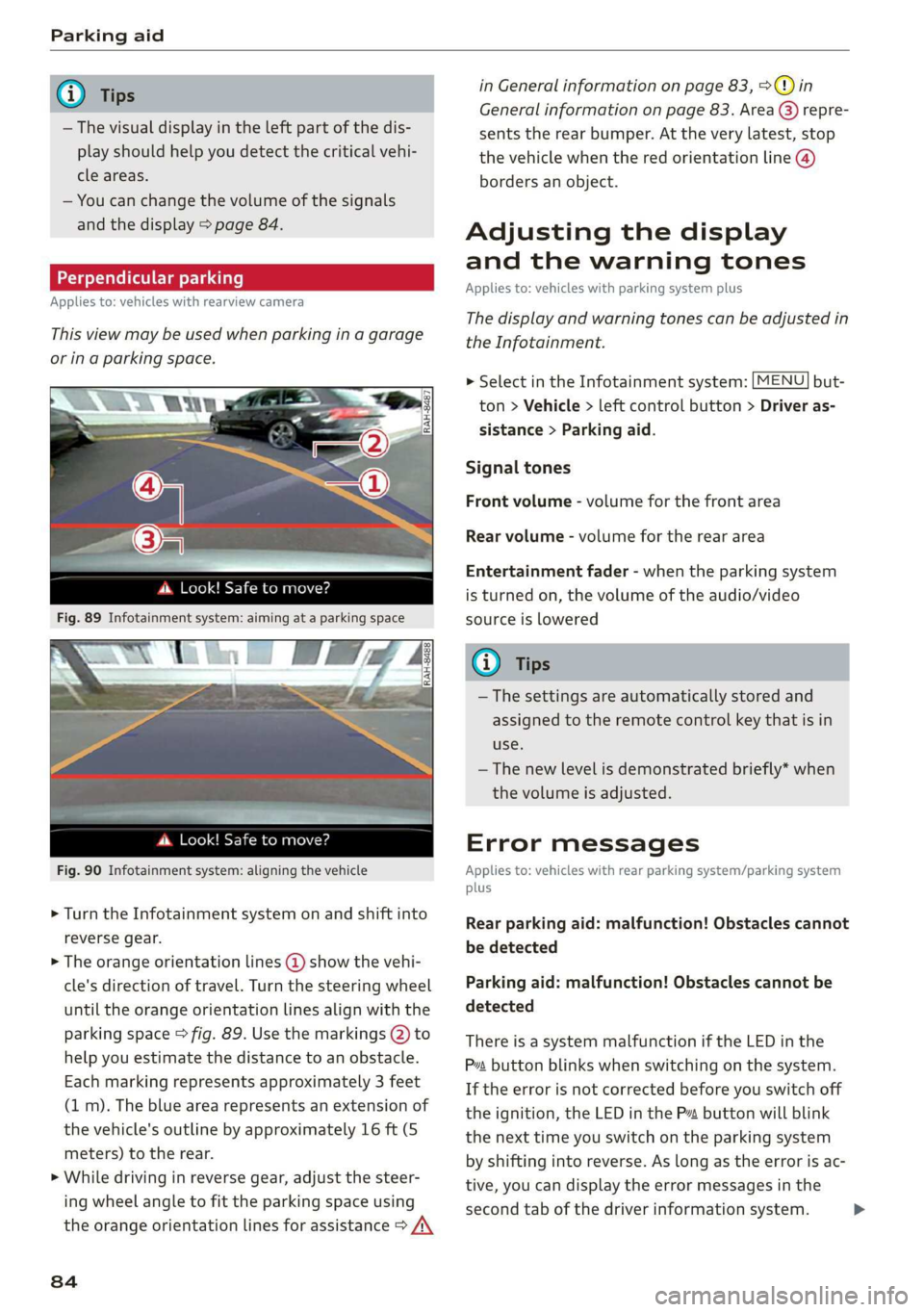
This view may be used when parking in a garage
or ina parking space.
4d. Look! Safe to move?
Fig. 90 Infotainment system: aligning the vehicle
> Turn the Infotainment system on and shift into
reverse gear.
> The orange orientation lines @ show the vehi-
cle's direction of travel. Turn the steering wheel
until the orange orientation lines align with the
parking space > fig. 89. Use the markings @) to
help you estimate the distance to an obstacle.
Each marking represents approximately 3 feet
(1 m). The blue area represents an extension of
the vehicle's outline by approximately 16 ft (5
meters) to the rear.
> While driving in reverse gear, adjust the steer-
ing wheel angle to fit the parking space using
the orange orientation lines for assistance > /\
84
in General information on page 83, >@) in
General information on page 83. Area @) repre-
sents the rear bumper. At the very latest, stop
the vehicle when the red orientation line @)
borders an object.
Adjusting the display
and the warning tones
Applies to: vehicles with parking system plus
The display and warning tones can be adjusted in
the Infotainment.
MENU > Select in the Infotainment system: but-
ton > Vehicle > left control button > Driver as-
sistance > Parking aid.
Signal tones
Front volume - volume for the front area
Rear volume - volume for the rear area
Entertainment fader - when the parking system
is turned on, the volume of the audio/video
source is lowered
G) Tips
— The settings are automatically stored and
assigned to the remote control key that is in
use.
— The new level is demonstrated briefly* when
the volume is adjusted.
Error messages
Applies to: vehicles with rear parking system/parking system
plus
Rear parking aid: malfunction! Obstacles cannot
be detected
Parking aid: malfunction! Obstacles cannot be
detected
There is a system malfunction if the LED in the
Pva button blinks when switching on the system.
If the error is not corrected before you switch off
the ignition, the LED in the P button will blink
the next time you switch on the parking system
by shifting into reverse. As long as the error is ac-
tive, you can display the error messages in the
second tab of the driver information system. >
Page 88 of 304
Intelligent Technology
Intelligent Technology
Electronic stabilization
control (ESC)
Electronic Stabilization Control (ESC) supports
driver safety. It reduces the risk of slipping and
improves driving stability. ESC detects critical sit-
uations such as the vehicle oversteering and un-
dersteering or the wheels are spinning. The
brakes are applied or the engine torque is re-
duced in order to stabilize the vehicle. When the
ESC engages, the B indicator light blinks in the
instrument cluster.
The following systems are integrated in the ESC:
Anti-lock braking system (ABS)
ABS prevents the wheels from locking when brak-
ing. The vehicle can still be steered even during
hard braking. Apply steady pressure to the brake
pedal. Do not pump the pedal. A pulsing in the
brake pedal indicates that the system is acting to
stabilize the vehicle.
Brake assist system
The brake assist system can decrease braking dis-
tance. It increases braking power when the driver
presses the brake pedal quickly in emergency sit-
uations. You must press and hold the brake pedal
until the dangerous situation is over.
Anti-Slip Regulation (ASR)
ASR reduces drive power when the drive wheels
begin spinning and adapts the power to the road
conditions. This makes it easier to start, acceler-
ate and drive up hills.
Electronic Differential Lock (EDL)
The EDL applies the brakes to wheels that are
slipping and transfers the drive power to the oth-
er wheels. This function is not available at higher
speeds.
In extreme cases, EDL automatically switches off
to keep the brake on the braked wheel from over-
heating. The vehicle is still functioning correctly.
86
EDL will switch on again automatically when con-
ditions have returned to normal.
Power steering
The ESC can also support vehicle stability
through steering.
Selective wheel torque control
Selective wheel torque control is used when driv-
ing on curves. Braking is targeted toward the
wheels on the inside of the curve as needed. This
allows more precise driving in curves.
Automatic post-collision braking system
The automatic post-collision braking system can
help to reduce the risk of sliding and of addition-
al collisions after an accident. If the airbag con-
trol module detects a collision above a certain ve-
hicle speed, the vehicle is braked by the ESC.
The vehicle does not brake automatically if one of
the following occurs:
— The driver presses the accelerator pedal
—The braking force generated by the pressed
brake pedal is greater than the braking force
that would be initiated by the system
— The ESC, the brake system, or the vehicle elec-
trical system is not functioning
ZA WARNING
— The ESC and its integrated systems cannot
overcome the limits imposed by natural
physical laws. This is especially important on
slippery or wet roads. If the systems begin
acting to stabilize your vehicle, you should
immediately alter your speed to match the
road and traffic conditions. Do not let the in-
creased safety provided tempt you into tak-
ing risks. This could increase your risk of a
collision.
— Please note the risk of a collision increases
when driving fast, especially through curves
and on slippery or wet roads, and when driv-
ing too close to objects ahead. The ESC and
its integrated systems cannot always pre-
vent collisions - there is still a risk of acci-
dents!
Page 91 of 304
8S8012721BA
Intelligent Technology
@) Note
— Never let the brakes “rub” by pressing the
pedal lightly when braking is not actually
necessary. This can cause the brakes to over-
heat and increases braking distance and
causes wear.
— Before driving on long stretches with steep
hills, reduce the vehicle speed and shift to a
lower gear to use the engine braking effect.
This reduces the load on the brakes. If you
need to brake additionally, brake in intervals
and not continuously.
@) Tips
— If you retrofit your vehicle with a front spoil-
er, wheel covers or similar items, make sure
that the air flow to the brakes is not ob-
structed. Otherwise the brake system can
overheat.
— Also refer to the information about brake
fluid > page 235.
Steering
Electromechanical steering supports the driver's
steering movements by electronically adapting
the power steering depending on the vehicle
speed. The settings depend on the selected Audi
drive select* mode.
a Steering: malfunction! Please stop vehicle
The power steering may have failed. Adapt your
driving style immediately to compensate for the
fact that it may be more difficult to turn the
steering wheel, and stop your vehicle in a safe lo-
cation as soon as possible. Do not continue driv-
ing. See an authorized Audi dealer or authorized
Audi Service Facility for assistance.
a Steering: malfunction! You can continue
driving
There is a malfunction. Steering may be more dif-
ficult or more sensitive. Adapt your driving style.
Have the steering system checked immediately
by an authorized Audi dealer or authorized Audi
Service Facility. Please note that the red indicator
light may turn on after restarting the engine. Do
not continue driving if it does.
G@) Tips
If the 12 or al indicator light only stays on
for a short time, you may continue driving.
ALL wheel drive (quattro)
Applies to: vehicles with all wheel drive
In all wheel drive, all four wheels are powered.
General information
In all wheel drive, the driving power is divided be-
tween all four wheels. This happens automatical-
ly depending on your driving behavior as well as
the current road conditions. Also see > page 86,
Electronic stabilization control (ESC).
The all wheel drive concept is designed for high
engine power. Your vehicle is exceptionally pow-
erful and has excellent driving characteristics
both under normal driving conditions and on
snow and ice. Always read and follow safety pre-
cautions > A\.
Winter tires
By using all wheel drive, your vehicle has good
forward motion with standard tires in winter con-
ditions. However, in winter we recommend using
winter or all season tires on all four wheels, be-
cause this will improve the braking effect.
Snow chains
If there are snow chain laws, snow chains must
also be used on vehicles with all wheel drive
=> page 255, Snow chains.
Replacing tires
For vehicles with all wheel drive, only wheels with
the same rolling circumference should be used.
Avoid using tires with different tread depths
=> page 247, New tires or wheels.
89
Page 94 of 304
Multi Media Interface
Multi Media Interface
Traffic safety
information
Audi recommends performing certain Infotain-
ment system functions, such as entering a desti-
nation, only when the vehicle is stationary. Al-
ways be prepared to stop operating the Infotain-
ment system in the interest of your safety and
the safety of other road users.
Z\ WARNING
Only use the Infotainment system when road,
traffic, weather, and visibility conditions per-
mit and always in a way that allows you to
maintain complete control over your vehicle.
@ Tips
Certain functions are not available while driv-
ing.
Introduction
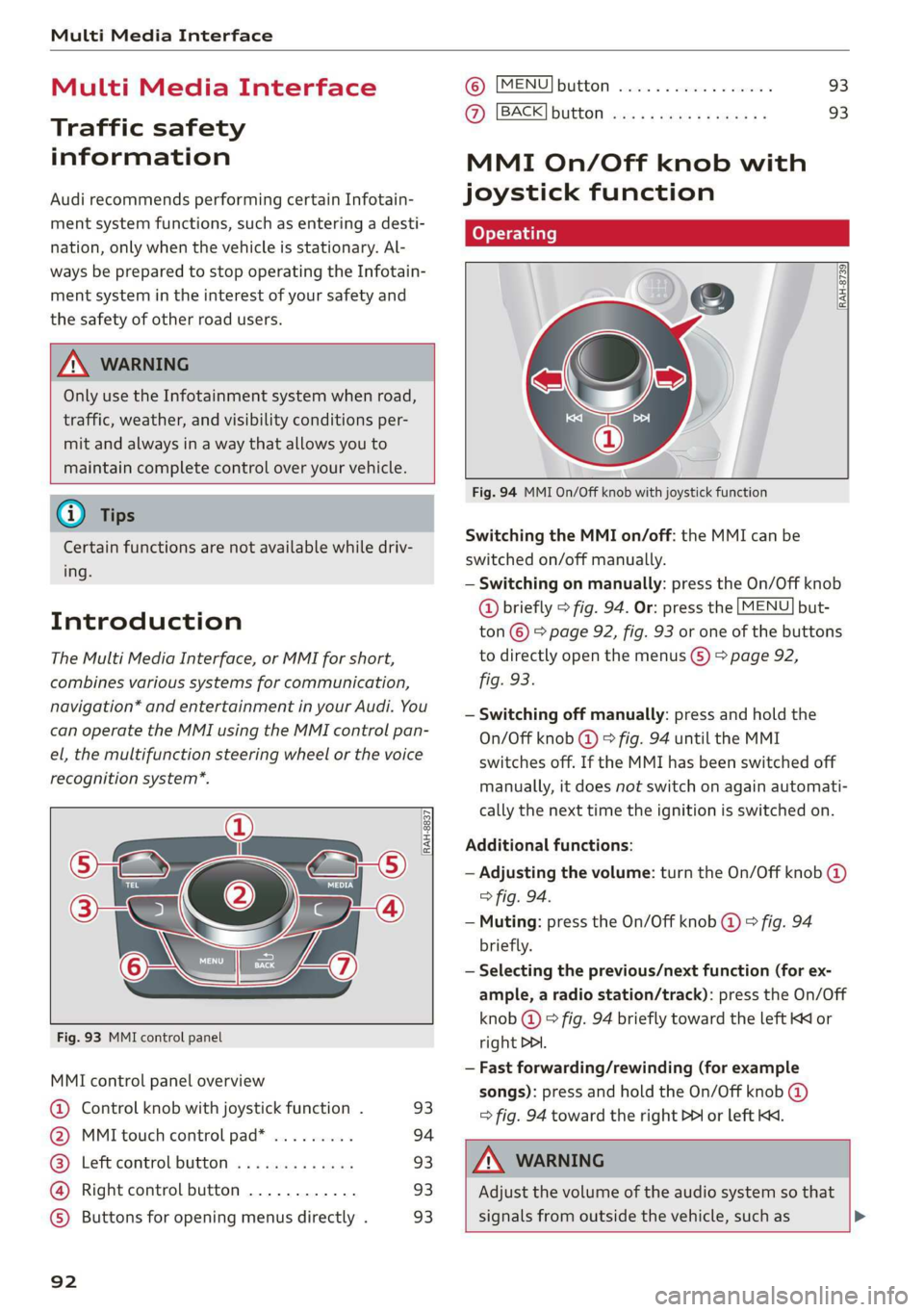
The Multi Media Interface, or MMI for short,
combines various systems for communication,
navigation* and entertainment in your Audi. You
can operate the MMI using the MMI control pan-
el, the multifunction steering wheel or the voice
recognition system*.
@
‘eo
OTe I @
Se2
Fig. 93 MMI control panel
[RAH-8837|
:
MMI control panel overview
@ Control knob with joystick function . 93
@ MMI touch control pad* ......... 94
@® Left control button ............. 93
@ Right control button ............ 93
©) Buttons for opening menus directly . 93
92
(GB) [MENU] button sess ss cosencs vs soteane » 93
@ [BACK] button ............0.08. 93
MMI On/Off knob with
joystick function
Operating
[RAH-8739
Fig. 94 MMI On/Off knob with joystick function
Switching the MMI on/off: the MMI can be
switched on/off manually.
— Switching on manually: press the On/Off knob
@ briefly > fig. 94. Or: press the [MENU] but-
ton © & page 92, fig. 93 or one of the buttons
to directly open the menus () > page 92,
fig. 93.
— Switching off manually: press and hold the
On/Off knob @ © fig. 94 until the MMI
switches off. If the MMI has been switched off
manually, it does not switch on again automati-
cally the next time the ignition is switched on.
Additional functions:
— Adjusting the volume: turn the On/Off knob @)
> fig. 94.
— Muting: press the On/Off knob @ © fig. 94
briefly.
— Selecting the previous/next function (for ex-
ample, a radio station/track): press the On/Off
knob @ ° fig. 94 briefly toward the left KK or
right DDI.
— Fast forwarding/rewinding (for example
songs): press and hold the On/Off knob @)
=> fig. 94 toward the right PPI or left Kd.
Z\ WARNING
Adjust the volume of the audio system so that
signals from outside the vehicle, such as >
Page 106 of 304
Voice recognition system
Voice recognition system
Operating
Applies to: vehicles with voice recognition system
You can operate many Infotainment functions
conveniently by speaking.
Requirement: the ignition and the MMI must be
switched on. A system language supported by
the voice recognition system must be set. There
must be no phone calls in progress and the park-
ing aid must not be active.
> Switching on: briefly press the [2] button @)
=> page 14, fig. 10 on the multifunction steer-
ing wheel and say the desired command after
the Beep.
> Switching off: press and hold the |™] button.
Or: say the command Cancel.
> Pausing: say the command Pause. To resume,
press the |] button.
> Correcting: press the [>] button one time ©
=> page 12, fig. 6. Or: say the command Correc-
tion.
Input assistance
The system guides you through the input with
visual and audio feedback.
— Visual input assistance: after switching on
voice recognition, a display with a selection of
possible commands appears. The command
display can be switched on/off under [MENU] >
Settings > left control button > MMI settings >
Speech dialog system.
— Audio input assistance: to have the possible
commands read, press the [2] button on the
multifunction steering wheel briefly and say
Help.
For the system to understand you:
Speak clearly and distinctly at a normal volume.
Speak louder when driving faster.
Emphasize the words in the commands evenly
and do not leave long pauses.
Do not speak a command when the voice recogni-
tion system is making an announcement.
104
Close the doors, the windows, and the sunroof*
to reduce background noise. Make sure that pas-
sengers are not speaking when you are giving a
voice command.
Do not direct the vents toward the handsfree mi-
crophone, which is near the front interior lights
on the roof headliner or on the driver's safety
belt*. For additional information on the safety
belt microphone, see > page 123.
Only
use the system from the driver's seat be-
cause the hands-free microphone is directed to-
ward that seat.
Additional settings
See > page 176, Voice recognition system.
ZA\ WARNING
— Direct your full attention to driving. As the
driver, you have complete responsibility for
safety in traffic. Only use the functions in
such a way that you always maintain com-
plete control over your vehicle in all traffic
situations.
— Do not use the voice recognition system in
emergencies because your voice may change
in stressful situations. The system may take
longer to dial the number or may not be
able to dial it at all. Dial the emergency
number manually.
G) Tips
—The dialog pauses when there is an incom-
ing phone call and will continue if you ig-
nore the call. The dialog ends if you answer
the call.
— There are no voice guidance* prompts when
a dialog is active.
— You can select an item in the list using ei-
ther the voice recognition system or the
control knob.
Page 111 of 304
8S8012721BA
Voice recognition system
Function Say:
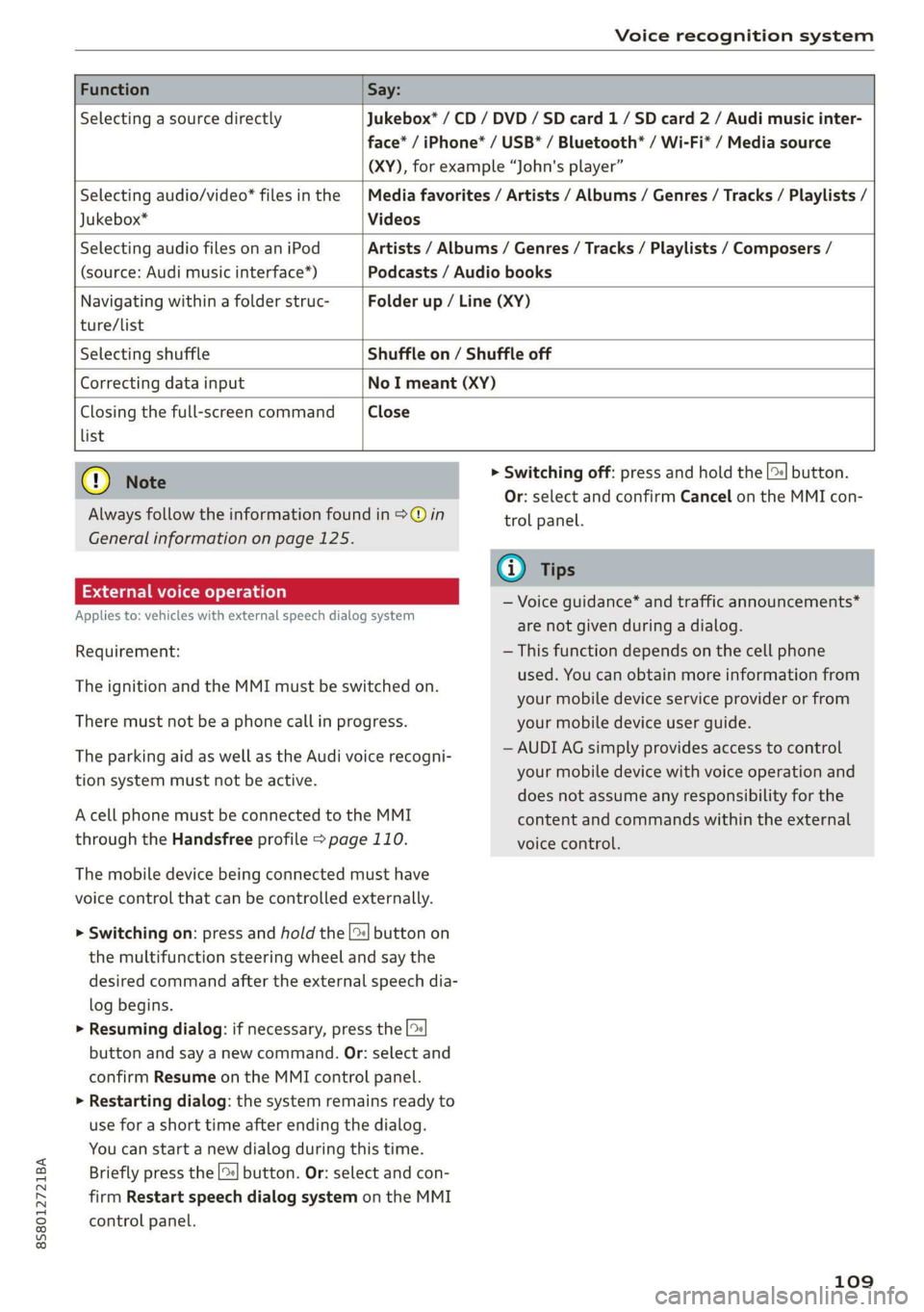
Selecting a source directly Jukebox* / CD / DVD / SD card 1/ SD card 2 / Audi music inter-
face* / iPhone* / USB* / Bluetooth* / Wi-Fi* / Media source
(XY), for example “John's player”
Selecting audio/video* files in the
Jukebox*
Media favorites / Artists / Albums / Genres / Tracks / Playlists /
Videos
Selecting audio files on an iPod
(source: Audi music interface*)
Artists / Albums / Genres / Tracks / Playlists / Composers /
Podcasts / Audio books
Navigating within a folder struc- Folder up / Line (XY)
ture/list
Selecting shuffle Shuffle on / Shuffle off
Correcting data input No I meant (XY)
Closing the full-screen command Close
list
@) Note
Always follow the information found in >@ in
General information on page 125.
External voice operation
Applies to: vehicles with external speech dialog system
Requirement:
The ignition and the MMI must be switched on.
There must not be a phone call in progress.
The parking aid as well as the Audi voice recogni-
tion system must not be active.
A cell phone must be connected to the MMI
through the Handsfree profile > page 110.
The mobile device being connected must have
voice control that can be controlled externally.
> Switching on: press and hold the [>| button on
the multifunction steering wheel and say the
desired command after the external speech dia-
log begins.
> Resuming dialog: if necessary, press the |%
button and say a new command. Or: select and
confirm Resume on the MMI control panel.
> Restarting dialog: the system remains ready to
use for a short time after ending the dialog.
You can start a new dialog during this time.
Briefly press the [2] button. Or: select and con-
firm
Restart speech dialog system on the MMI
control panel.
> Switching off: press and hold the |%] button.
Or: select and confirm Cancel on the MMI con-
trol panel.
G) Tips
— Voice guidance* and traffic announcements*
are not given during a dialog.
— This function depends on the cell phone
used. You can obtain more information from
your mobile device service provider or from
your mobile device user guide.
— AUDI AG simply provides access to control
your mobile device with voice operation and
does not assume any responsibility for the
content and commands within the external
voice control.
109
Page 142 of 304
Navigation
If available, the following information will ap- The route that was calculated according to the
pear on the route suggestions: route criteria you selected is shown on the map.
— Route type (fast (, fast alternative (2), eco-
nomic route @))
— Distance to the destination and the calculated
arrival time
The special properties of the route (such as ferry
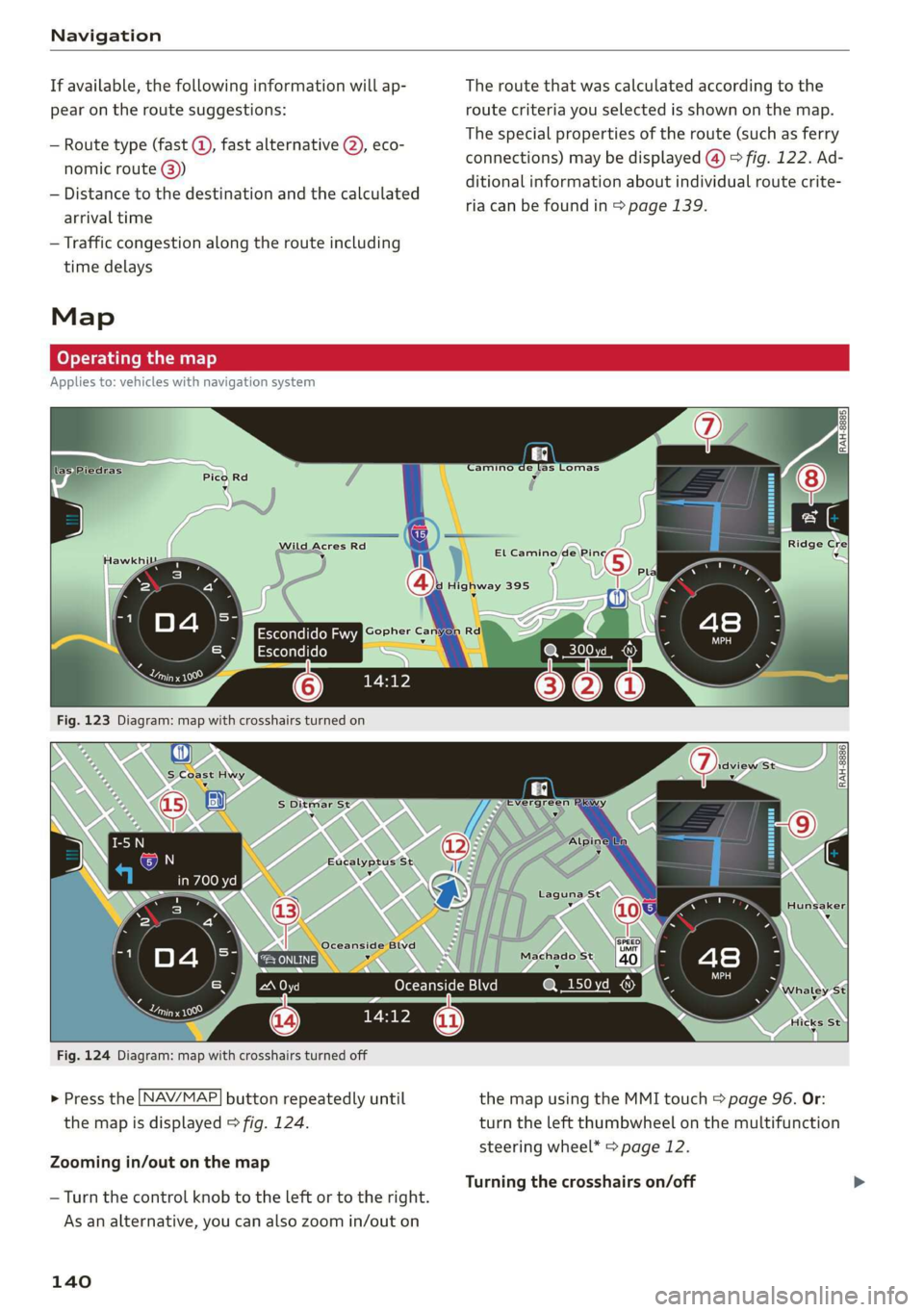
connections) may be displayed (4) > fig. 122. Ad-
ditional information about individual route crite-
ria can be found in > page 139.
— Traffic congestion along the route including
time
delays
Map
Operating the map
Applies to: vehicles with navigation system
Fig. 124 Diagram: map with crosshairs turned off
> Press the
NAV/MAP button repeatedly until the map using the MMI touch > page 96. Or:
the map is displayed > fig. 124. turn the left thumbwheel on the multifunction
steering wheel* > page 12.
Zooming in/out on the map
Turning the crosshairs on/off
— Turn the control knob to the left or to the right.
As an alternative, you can also zoom in/out on
140