glove box AUDI TT ROADSTER 2019 Owners Manual
[x] Cancel search | Manufacturer: AUDI, Model Year: 2019, Model line: TT ROADSTER, Model: AUDI TT ROADSTER 2019Pages: 304, PDF Size: 80.77 MB
Page 9 of 304
8S8012721BA
Quick access
OOOO
©
OOOOGOOOO
©
O
®OOO®
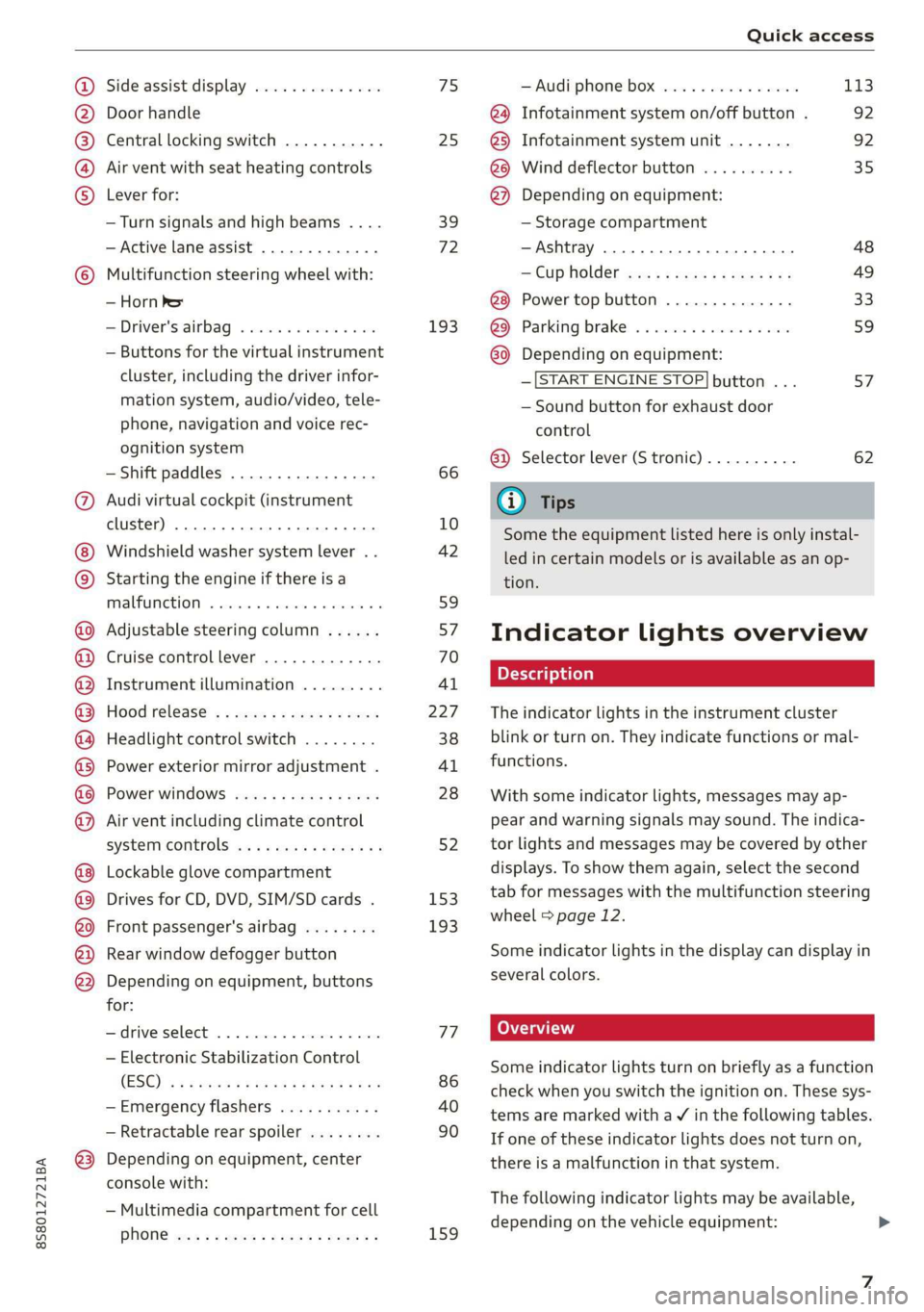
Side assist display ..............
Door handle
Central locking switch ...........
Air vent with seat heating controls
Lever for:
—Turn signals and high beams ....
— Active lane assist .............
Multifunction steering wheel with:
— Horn Pe
— Driver's airbag ...............
— Buttons for the virtual instrument
cluster, including the driver infor-
mation system, audio/video, tele-
phone, navigation and voice rec-
ognition system
—Shift paddles ................
Audi virtual cockpit (instrument
cluster) 22... 0... eee eee eee
Windshield washer system lever . .
Starting the engine if there is a
malfunction ..............00 00
Adjustable steering column ......
Cruise control lever .............
Instrument illumination .........
Hood release! » « wae ¢ s eae vs setee
Headlight control switch ........
Power exterior mirror adjustment .
Power windows ............005-
Air vent including climate control
system controls ................
Lockable glove compartment
Drives for CD, DVD, SIM/SD cards .
Front passenger's airbag ........
Rear window defogger button
Depending on equipment, buttons
for:
sdriverselect oc. seins 6 + cgies oo neve
— Electronic Stabilization Control
(ESC) «5 « cows ss owen 4 ¢ ee a8 i vee
—Emergency flashers ...........
— Retractable rear spoiler ........
Depending on equipment, center
console with:
— Multimedia compartment for cell
PNONG aces cs ees s Ree se BER es
75 25
39
72
193
66
10
42
59 57 70
Al
227
38
Al
28
52
153,
193
TT
86
40
90
159
= Audi phone box sessie ss owe oo cee 113
@) Infotainment system on/off button . 92
@5) Infotainment system unit ....... 92
@8 Wind deflector button .......... 35
@) Depending on equipment:
— Storage compartment
—Ashtray 0.2... 00. eee eee eee 48
—CUPHGIDES wis 5 2 wens s x eee 5 2: 49
Power top button .............. 33
@ Parking’ brake: « + cs ss wows so sors 59
G0 Depending on equipment:
—[START ENGINE STOP] button ... 57
— Sound button for exhaust door
control
@) Selector lever (S tronic).......... 62
@) Tips
Some the equipment listed here is only instal-
led in certain models or is available as an op-
tion.
Indicator lights overview
The indicator lights in the instrument cluster
blink or turn on. They indicate functions or mal-
functions.
With some indicator lights, messages may ap-
pear and warning signals may sound. The indica-
tor lights and messages may be covered by other
displays. To show them again, select the second
tab for messages with the multifunction steering
wheel © page 12.
Some indicator lights in the display can display in
several colors.
Some indicator lights turn on briefly as a function
check when you switch the ignition on. These sys-
tems are marked with a V in the following tables.
If one of these indicator lights does not turn on,
there is a malfunction in that system.
The following indicator lights may be available,
depending on the vehicle equipment:
Page 156 of 304
Media
Applies to: vehicles with a CD drive
re
RAH-8826|
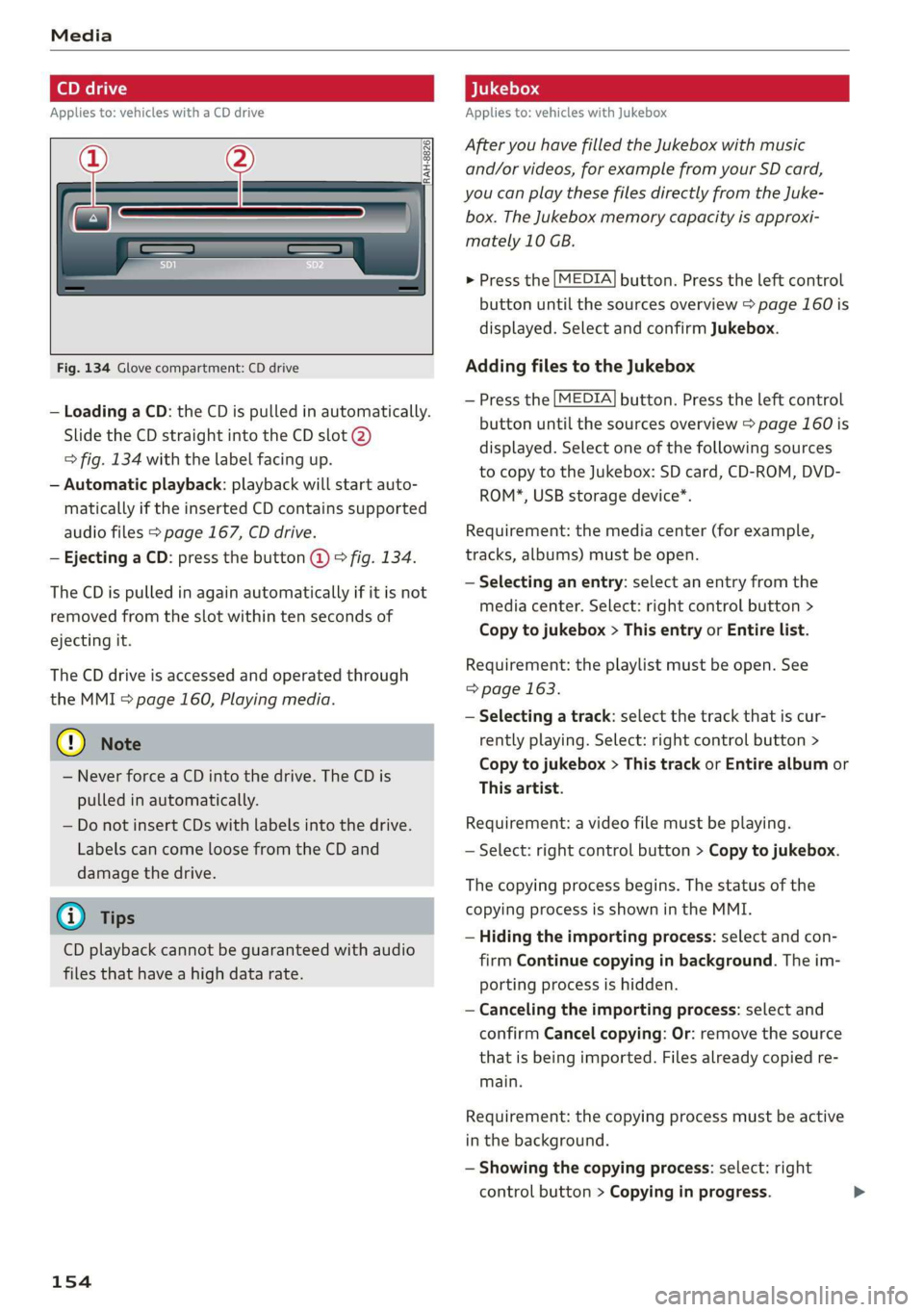
Fig. 134 Glove compartment: CD drive
— Loading a CD: the CD is pulled in automatically.
Slide the CD straight into the CD slot @)
=> fig. 134 with the label facing up.
— Automatic playback: playback will start auto-
matically if the inserted CD contains supported
audio files > page 167, CD drive.
— Ejecting a CD: press the button @ © fig. 134.
The CD is pulled in again automatically if it is not
removed from the slot within ten seconds of
ejecting it.
The CD drive is accessed and operated through
the MMI > page 160, Playing media.
@) Note
— Never force a CD into the drive. The CD is
pulled in automatically.
— Do not insert CDs with labels into the drive.
Labels can come loose from the CD and
damage the drive.
@) Tips
CD playback cannot be guaranteed with audio
files that have a high data rate.
154
Applies to: vehicles with Jukebox
After you have filled the Jukebox with music
and/or videos, for example from your SD card,
you can play these files directly from the Juke-
box. The Jukebox memory capacity is approxi-
mately 10 GB.
> Press the [MEDIA] button. Press the left control
button until the sources overview > page 160 is
displayed. Select and confirm Jukebox.
Adding files to the Jukebox
— Press the [MEDIA] button. Press the left control
button until the sources overview > page 160 is
displayed. Select one of the following sources
to copy to the Jukebox: SD card, CD-ROM, DVD-
ROM*, USB storage device*.
Requirement: the media center (for example,
tracks, albums) must be open.
— Selecting an entry: select an entry from the
media center. Select: right control button >
Copy to jukebox > This entry or Entire list.
Requirement: the playlist must be open. See
=> page 163.
— Selecting a track: select the track that is cur-
rently playing. Select: right control button >
Copy to jukebox > This track or Entire album or
This artist.
Requirement: a video file must be playing.
— Select: right control button > Copy to jukebox.
The copying process begins. The status of the
copying process is shown in the MMI.
— Hiding the importing process: select and con-
firm
Continue copying in background. The im-
porting process is hidden.
— Canceling the importing process: select and
confirm Cancel copying: Or: remove the source
that is being imported. Files already copied re-
main.
Requirement: the copying process must be active
in the background.
— Showing the copying process: select: right
control button > Copying in progress.